


Smule
Cancel subscription
How to Cancel Your Smule Subscription on Any Device
Learn how to cancel Smule through the right billing provider. Follow official steps, understand access timing, refunds, and the confirmation to keep.
- 3 cancellation paths matched to the billing owner
- Renewal timing and access outcome explained
- Refund requests routed to the company that billed you
- Confirmation steps included for every path
Choose the Smule cancellation path that matches who bills you
Apple App Store (iPhone/iPad) · verify the billing owner
Apple App Store (iPhone/iPad)
 1
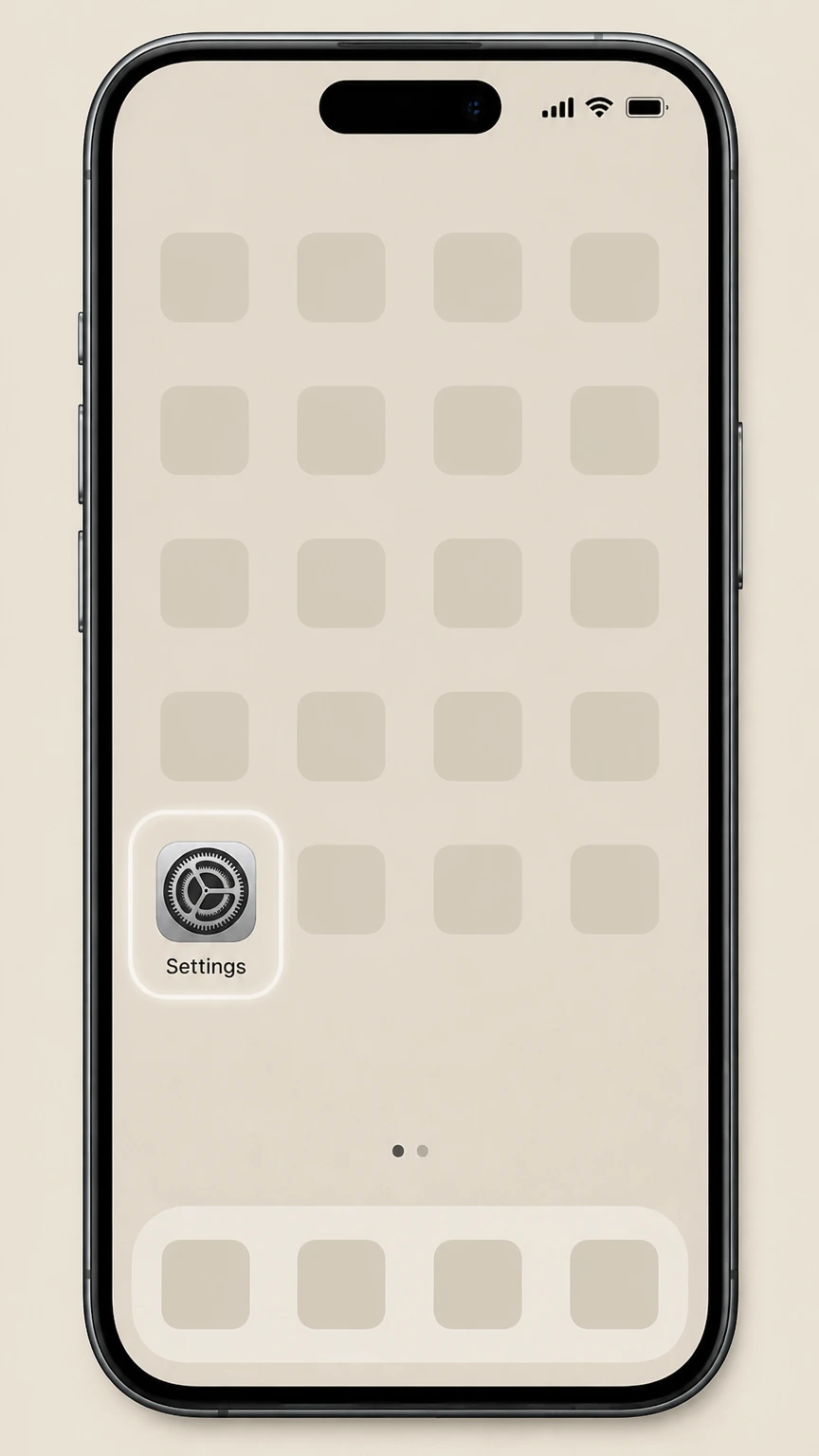
1Open Settings
On your iPhone or iPad, open the Settings app from your home screen.
 2
2Tap your name
At the top of Settings, tap your name to open your Apple ID account page.
- Let Pine handle it
Pine can help
Too many steps?
Pine can find the right Apple App Store (iPhone/iPad) path and handle the cancellation for you.
 3
3Open Subscriptions
On the Apple ID page, tap Subscriptions to view all subscriptions billed through Apple.
 4
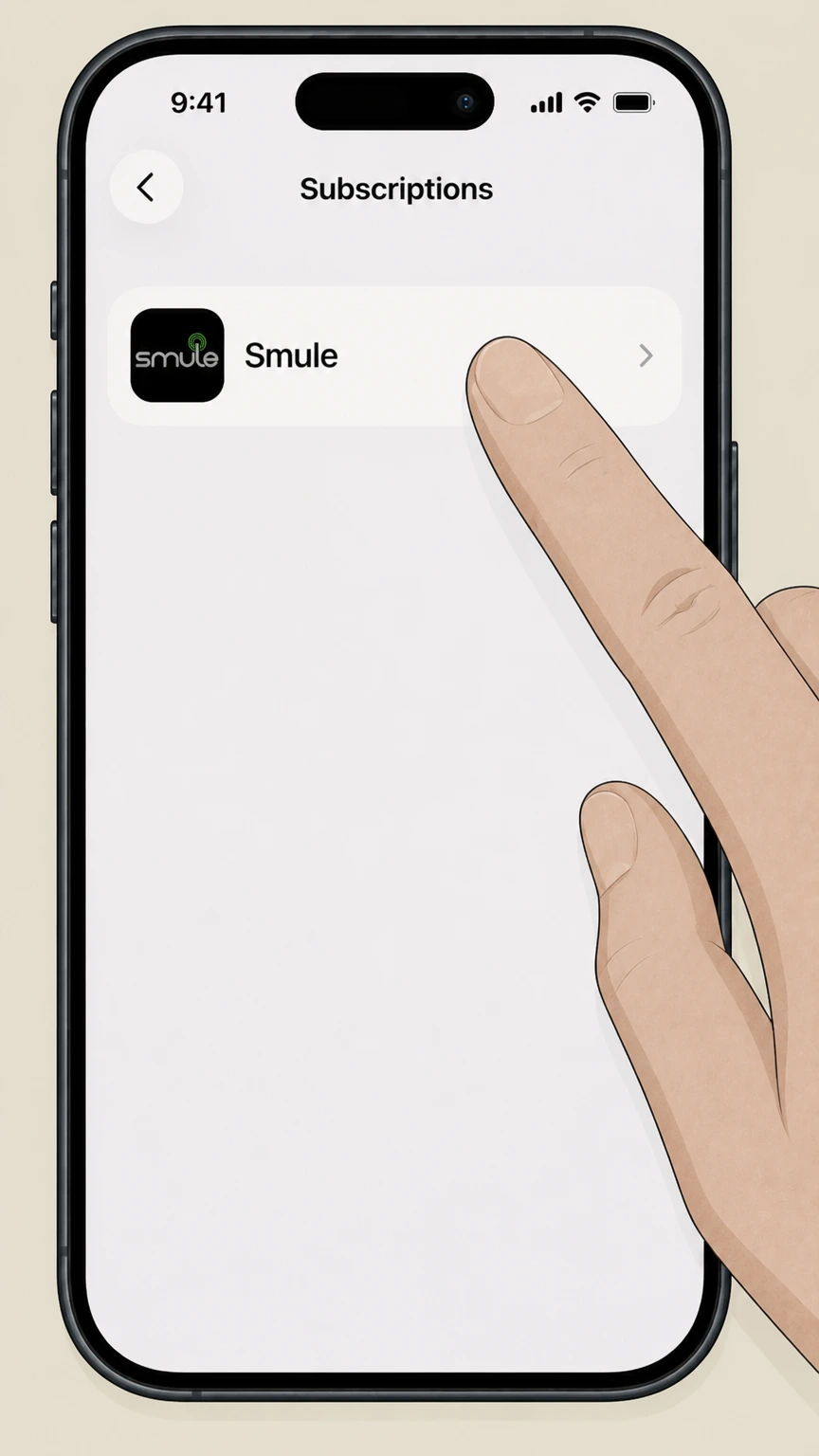
4Select Smule
In the list of active subscriptions, tap Smule to open its subscription details.
 5
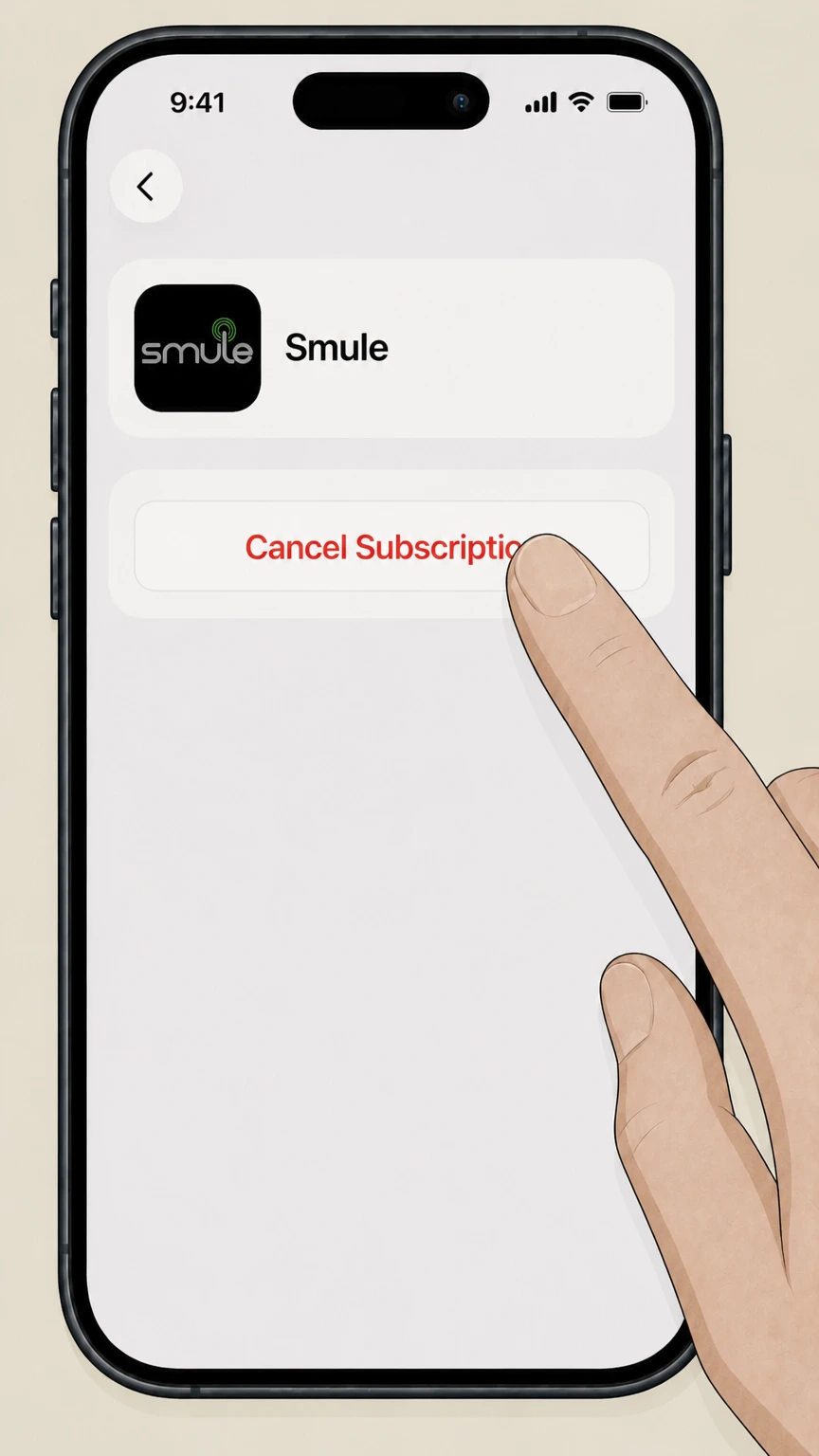
5Cancel the subscription
On the Smule subscription screen, tap Cancel Subscription and follow any prompts to confirm; if you only see an expiration message and no Cancel button, the subscription is already cancelled.

Google Play (Android) · verify the billing owner
Google Play (Android)
 1
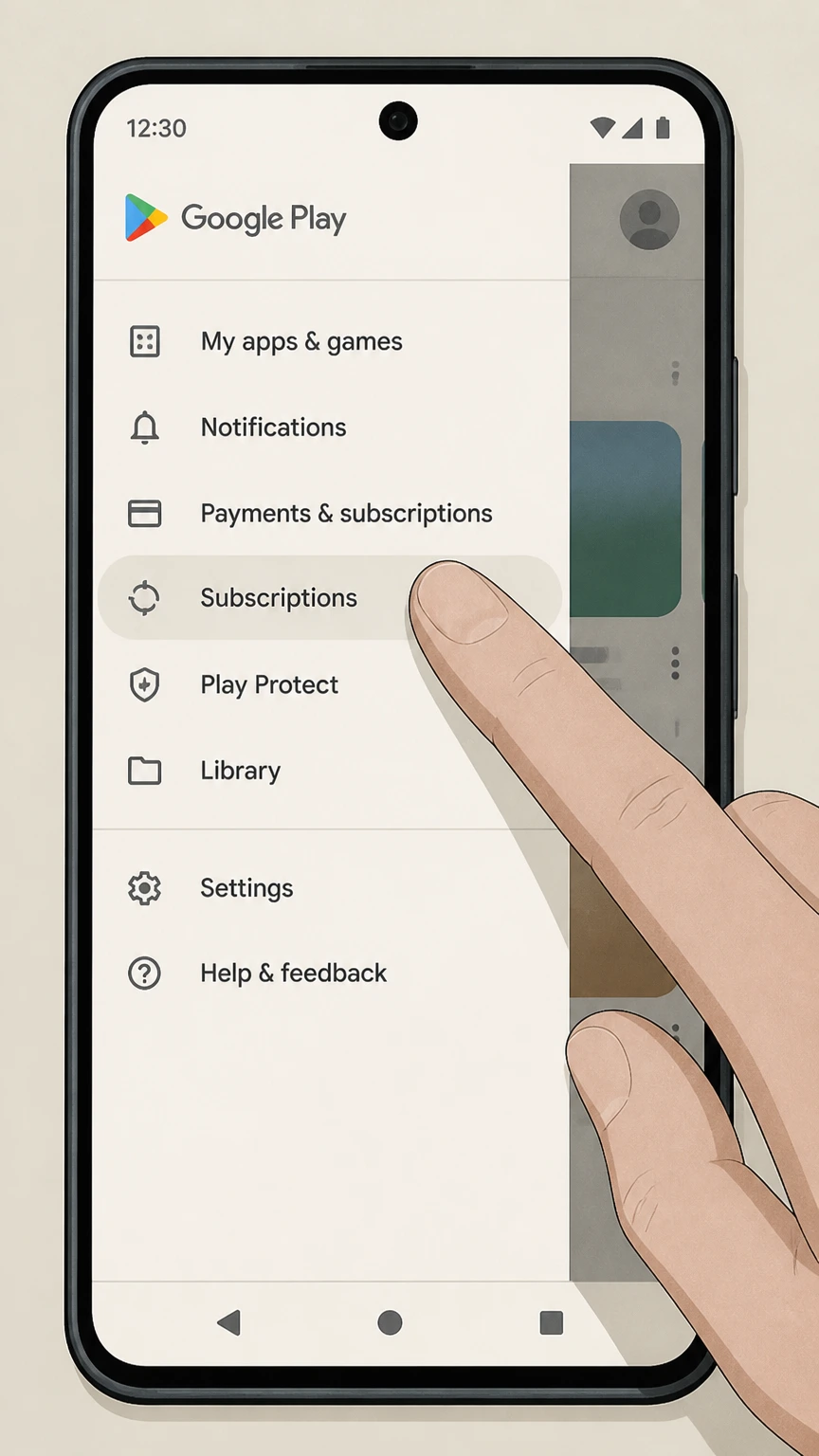
1Open Google Play subscriptions
On your Android device, open the Google Play Store app and go to the Subscriptions section from the menu or profile icon.
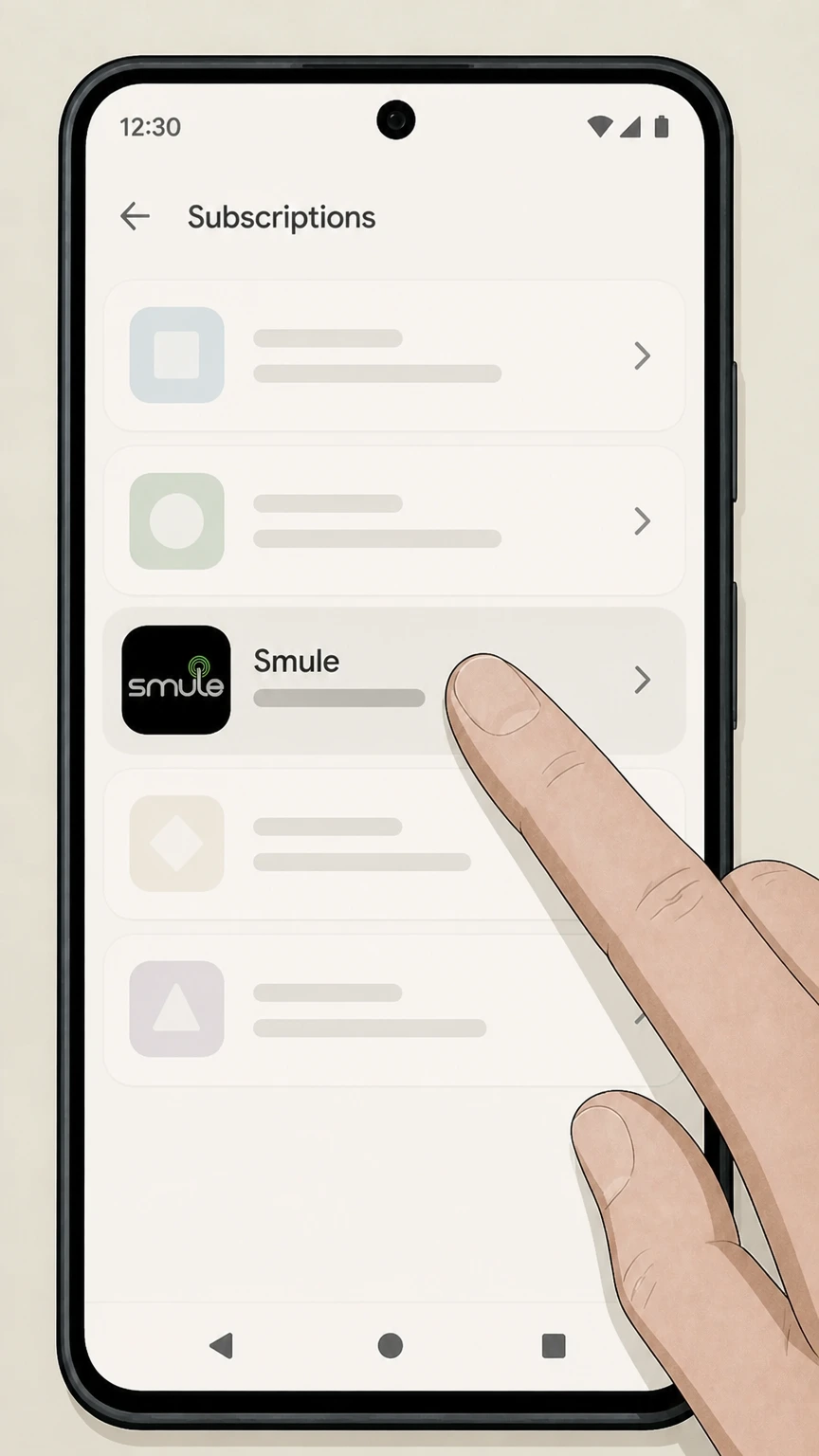 2
2Select Smule
In your list of subscriptions, tap Smule to open its subscription details.
- Let Pine handle it
Pine can help
Too many steps?
Pine can find the right Google Play (Android) path and handle the cancellation for you.
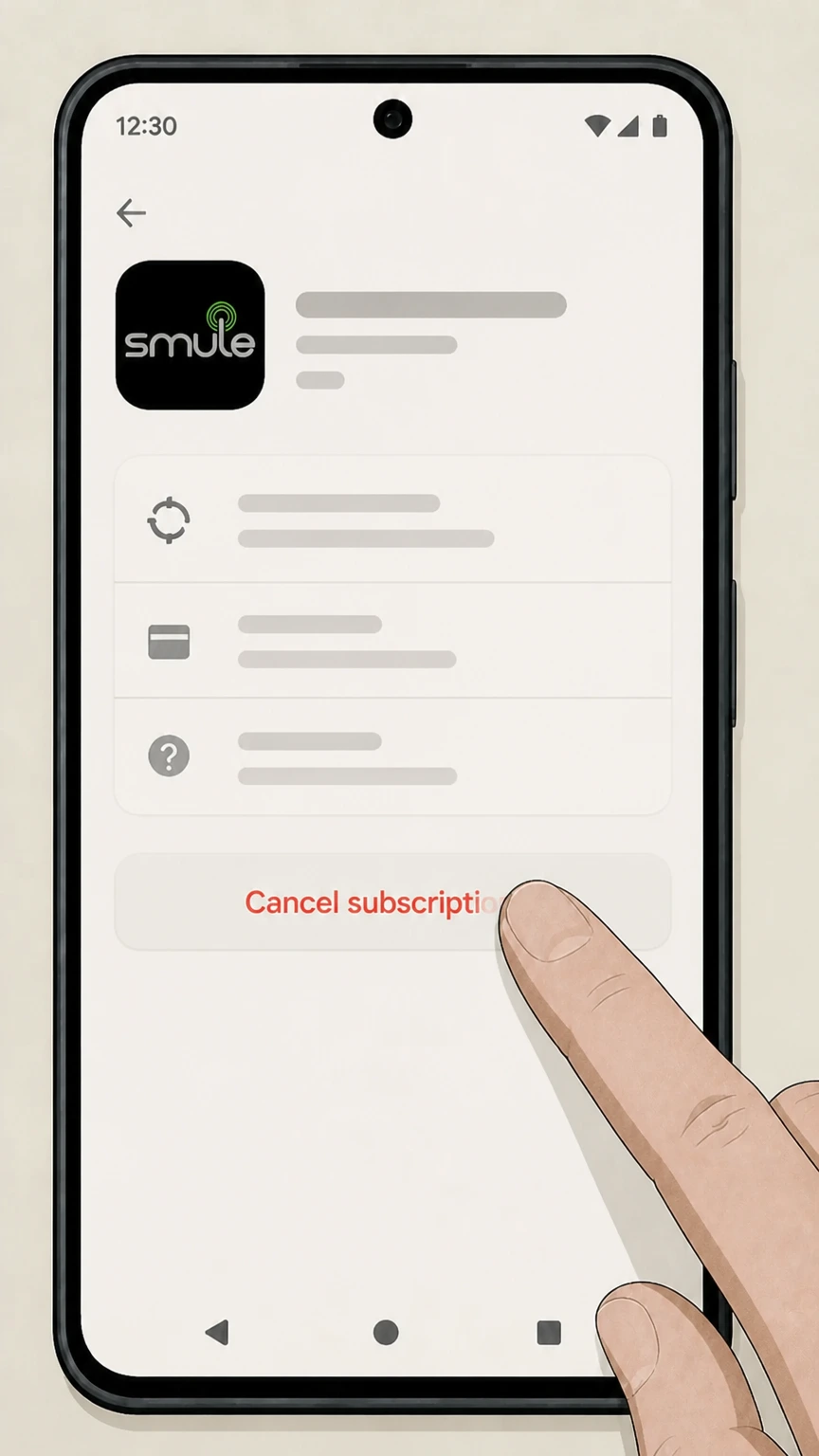 3
3Tap Cancel subscription
On the Smule subscription page, tap Cancel subscription.
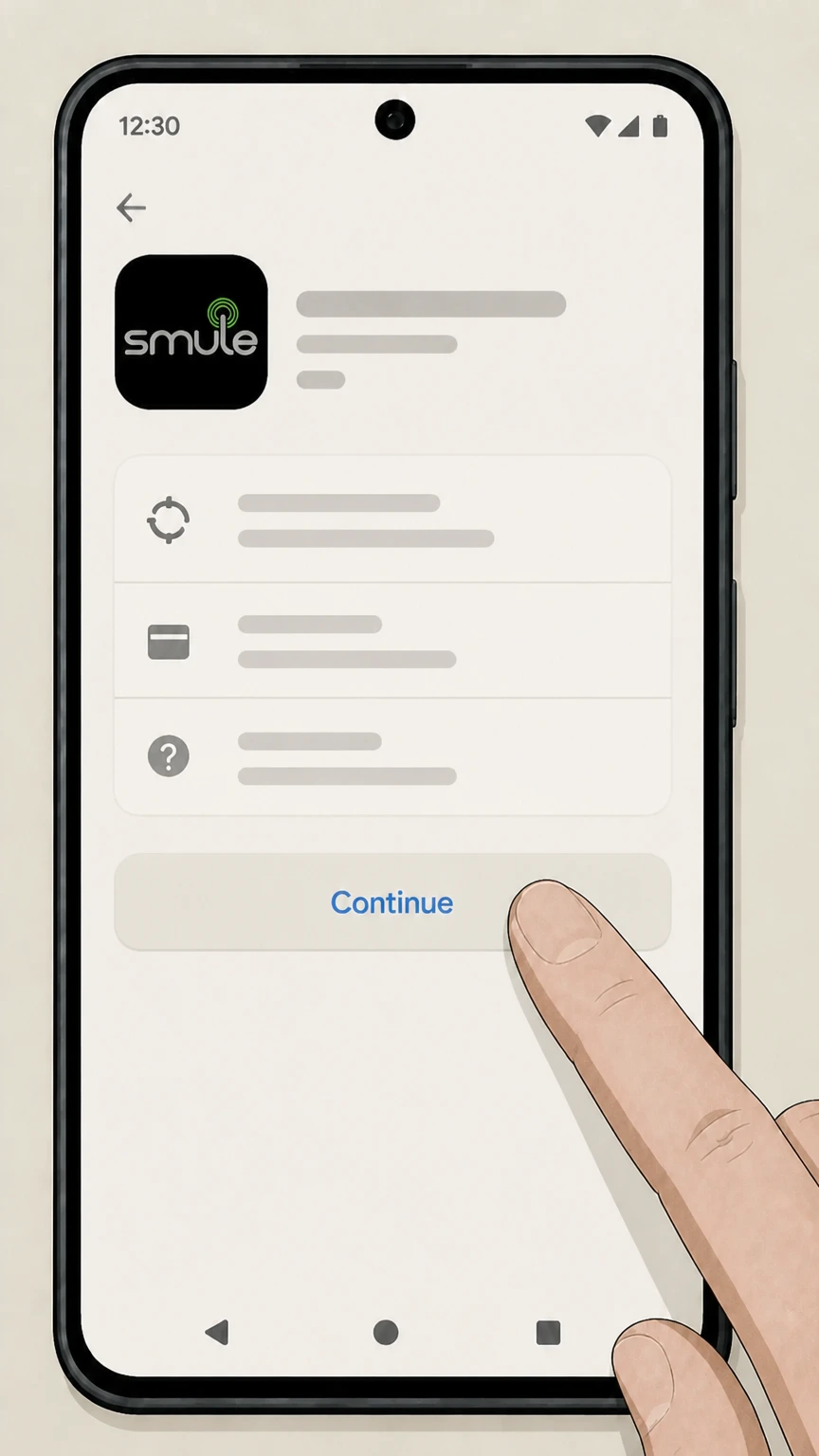 4
4Confirm cancellation
Follow the on‑screen instructions, including choosing a reason if asked, then confirm to finish cancelling the Smule subscription.
Smule.com account (direct billing) · verify the billing owner
Smule.com account (direct billing)
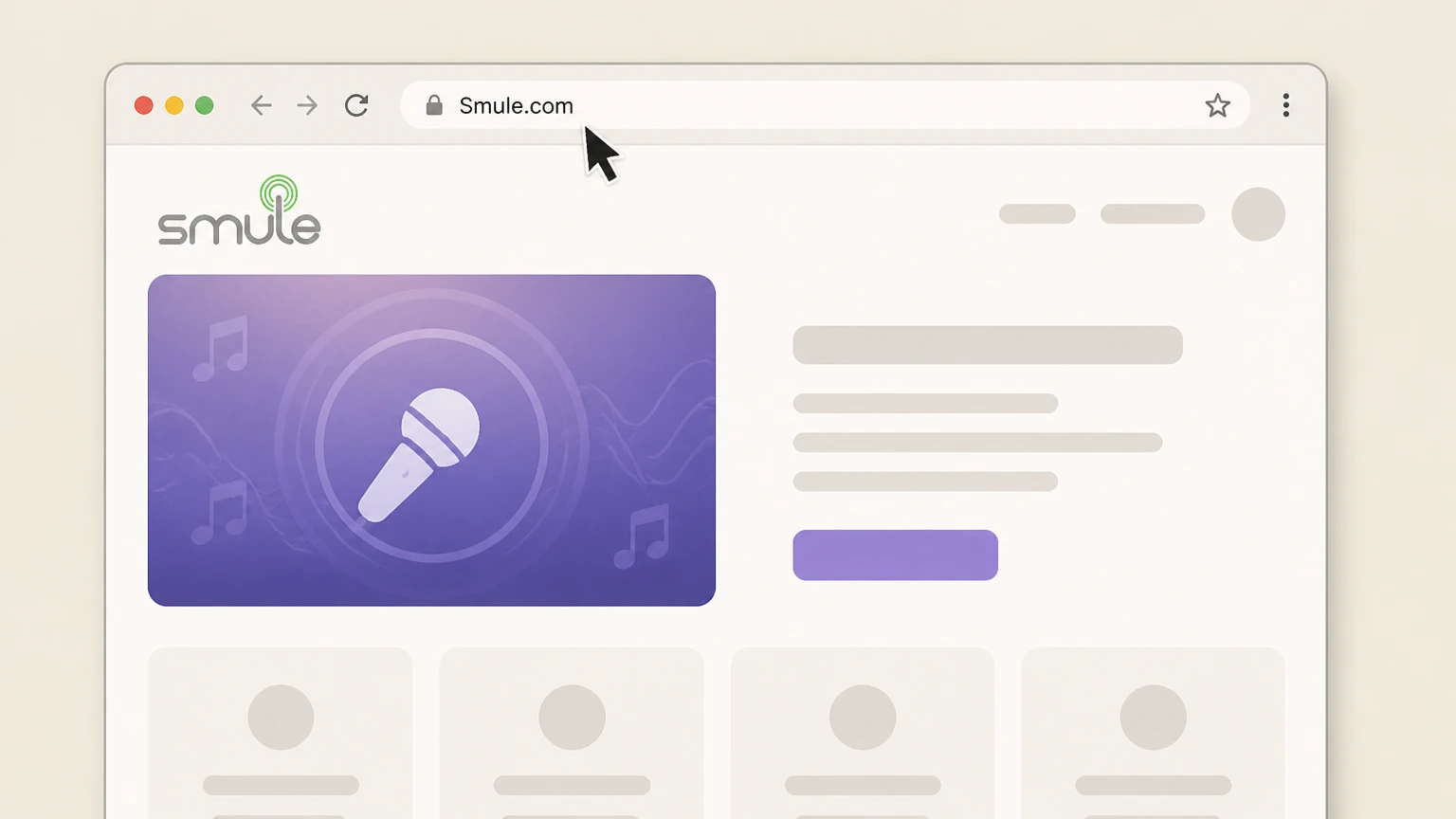 1
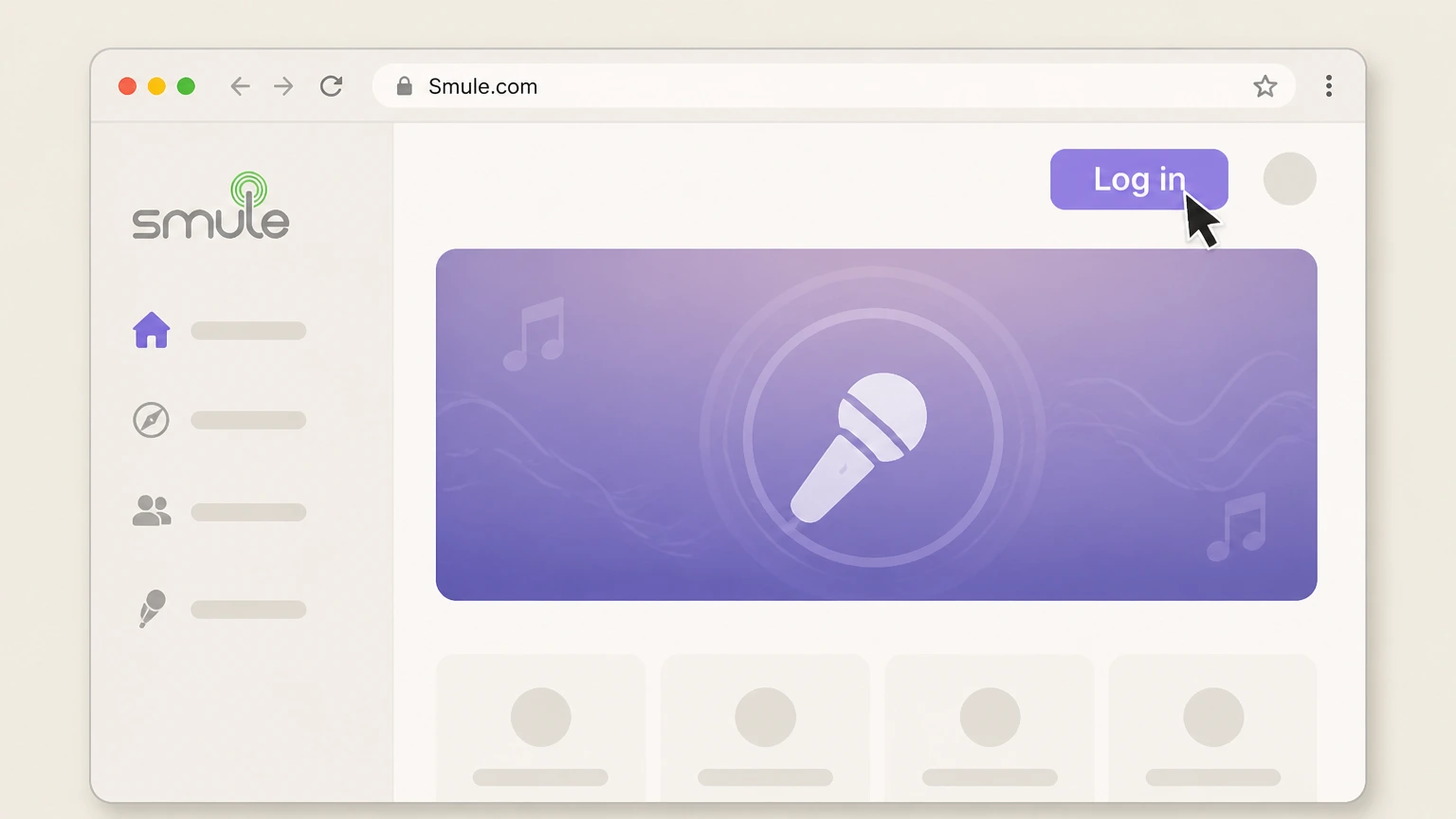
1Open Smule.com
Open Smule.com in a browser and confirm this is the account used for the directly billed subscription.
 2
2Log in to your account
Log in to the Smule account associated with the Smule.com purchase and wait for the signed‑in page to load.
- Let Pine handle it
Pine can help
Too many steps?
Pine can find the right Smule.com account (direct billing) path and handle the cancellation for you.
 3
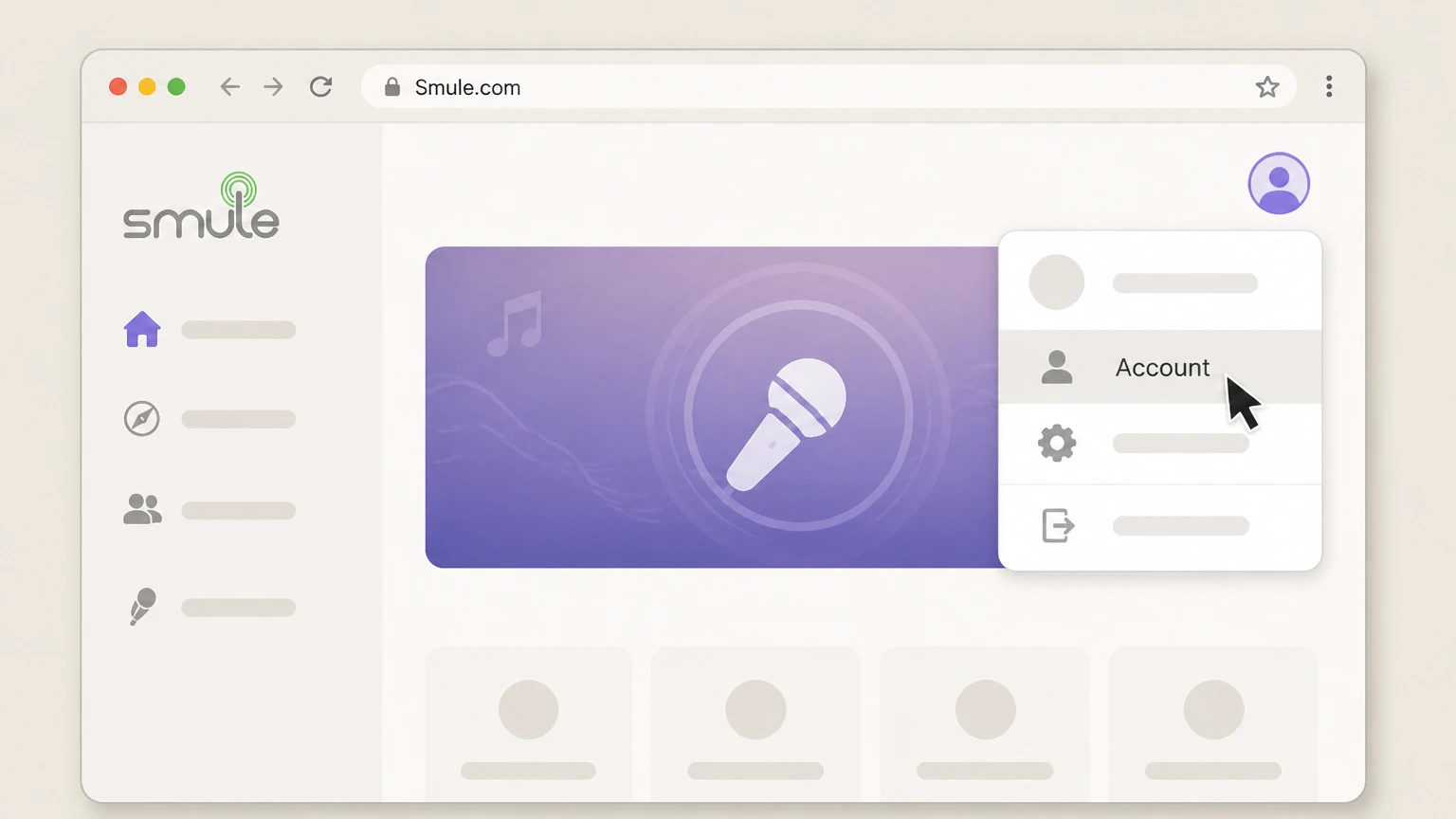
3Open Account
Click the username at the top right, then choose Account to open the account settings page.
 4
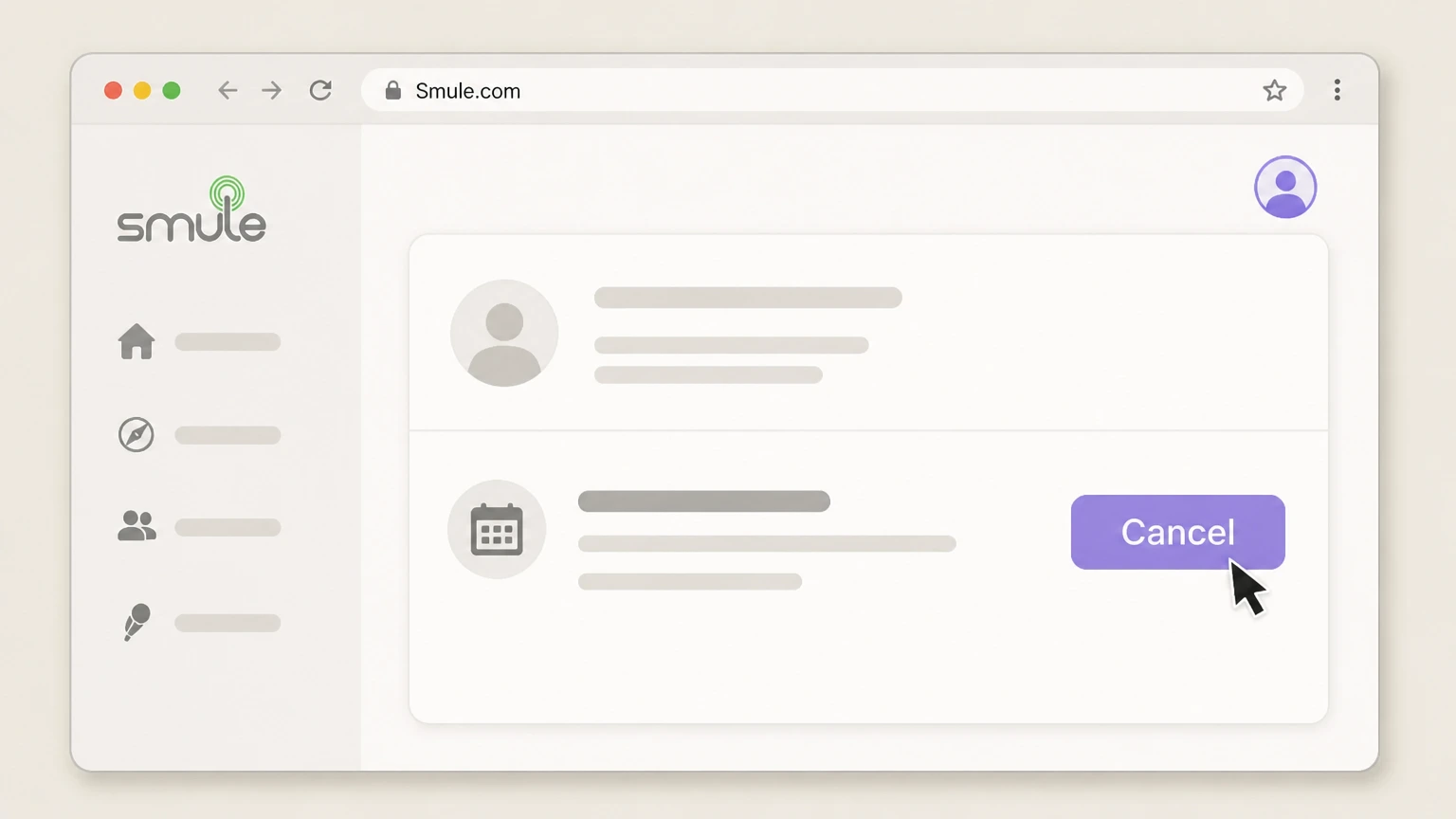
4Choose Cancel
In the Subscription section of Account settings, click Cancel to open the confirmation box.
 5
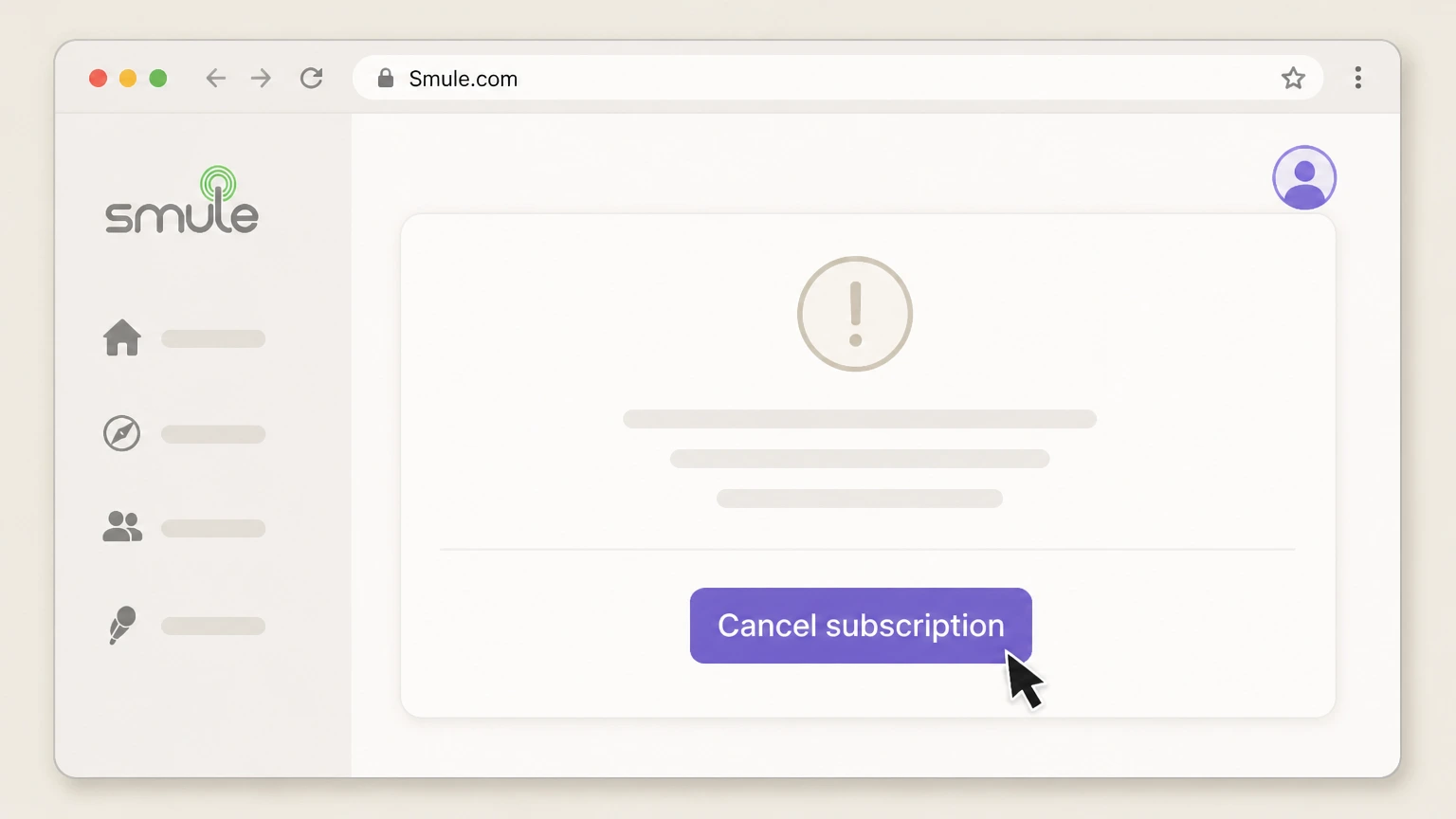
5Confirm Cancel subscription
In the confirmation box, click Cancel subscription to complete the Smule.com cancellation.
Refund policy
Refund expectations after canceling Smule
Smule states that subscription charges and partially used periods are generally nonrefundable, with limited exceptions controlled by the billing owner and transaction timing.
Check my refund options- Smule.com and Google Play exception
- Smule says it may make an exception for a Google Play or Smule.com subscription requested within 14 days of the transaction when VIP service has not been used in the app.
- Apple controls Apple refunds
- Smule says it cannot refund an iTunes purchase and directs Apple-billed subscribers to Apple Support for any refund request.
- No partial-period refunds by default
- Smule states that charges are nonrefundable and no refund is provided for a partially used subscription period outside a stated exception or legal requirement.
Use the refund channel of the billing owner shown on the receipt and preserve the transaction date and cancellation confirmation. Review Smule refund guidance
Smule.com billing
Use the five-step Smule.com route for direct billing
Smule publishes the exact direct-account path.
Open the account page
Log in to Smule.com, click the username, and choose Account.
Open the cancellation
In the Subscription section, click Cancel.
Confirm it
Click Cancel subscription in the confirmation box.
Store billing
Smule separates Apple and Google purchases
Store subscriptions do not appear in the Smule profile.
Apple purchase
Smule states that an Apple purchase does not appear in the Smule profile; manage that subscription with the Apple Account that issued the receipt.
Google purchase
Smule states that a Google Play purchase does not appear in the Smule profile; manage it with the purchasing Google Account.
Smule.com purchase
Use the provider account route only when Smule.com owns the purchase.
Refund rules
Smule publishes a limited 14-day exception
The exception depends on billing owner, timing, and VIP use.
Smule.com or Google Play
Smule says it may make an exception within 14 days of the transaction when VIP service has not been used.
Apple purchase
Smule says it cannot refund an iTunes purchase and directs the request to Apple.
Default rule
Smule states that charges and partially used periods are otherwise nonrefundable.
Smule cancellation FAQ
Answers about Smule billing ownership, cancellation timing, refunds, and access after cancellation.
How do I cancel Smule on Android?
How do I cancel Smule on iPhone?
What happens to my Smule VIP access after I cancel?
How do I know if my Smule subscription is cancelled?
Does deleting the Smule app cancel my subscription?
Can I get a refund for a Smule subscription charge?
Can I cancel my Smule subscription online from a browser?
Untangle this Smule issue.
Let Pine handle the provider follow-up and keep the confirmation in one place.
