


Walmart+
Cancel subscription
How to Cancel Your Walmart+ Membership Online
Cancel Walmart+ billed directly by Walmart with clear account and phone steps, plus what happens to benefits, Walmart Cash and refunds when you end membership.
- Official Walmart+ and billing-owner sources
- 3 provider-specific cancellation paths
- Refund and post-cancellation effects separated from renewal
- Verified August 16, 2026
Choose the Walmart+ cancellation path that matches who bills you
Walmart.com account (web browser) · verify the billing owner
 1
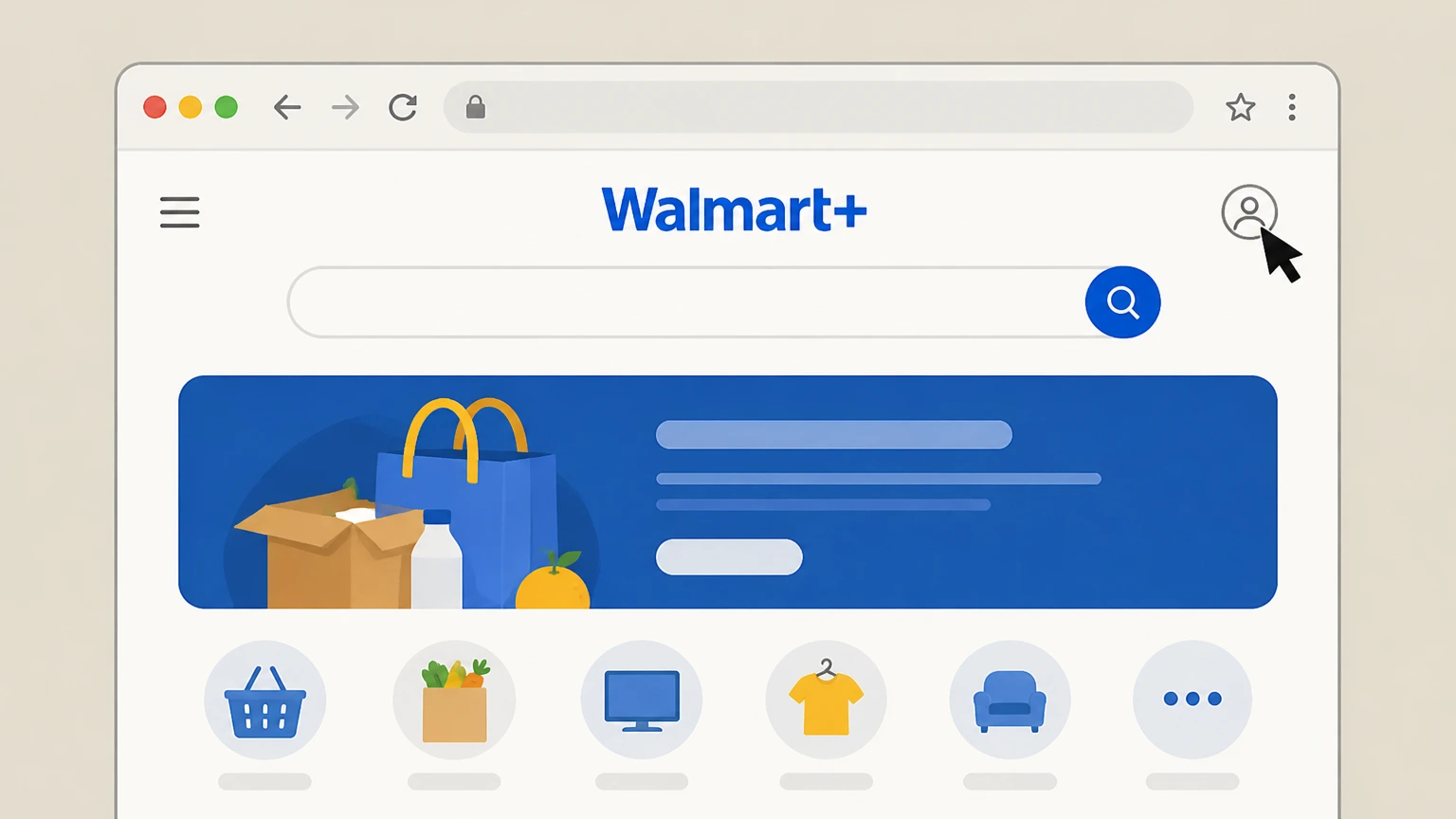
1Sign in to your Walmart account
Go to walmart.com in a browser and sign in with the Walmart account that has the Walmart+ membership. Use the Walmart+ account named on your receipt, and continue only after the next status in this cancellation path is visible.
 2
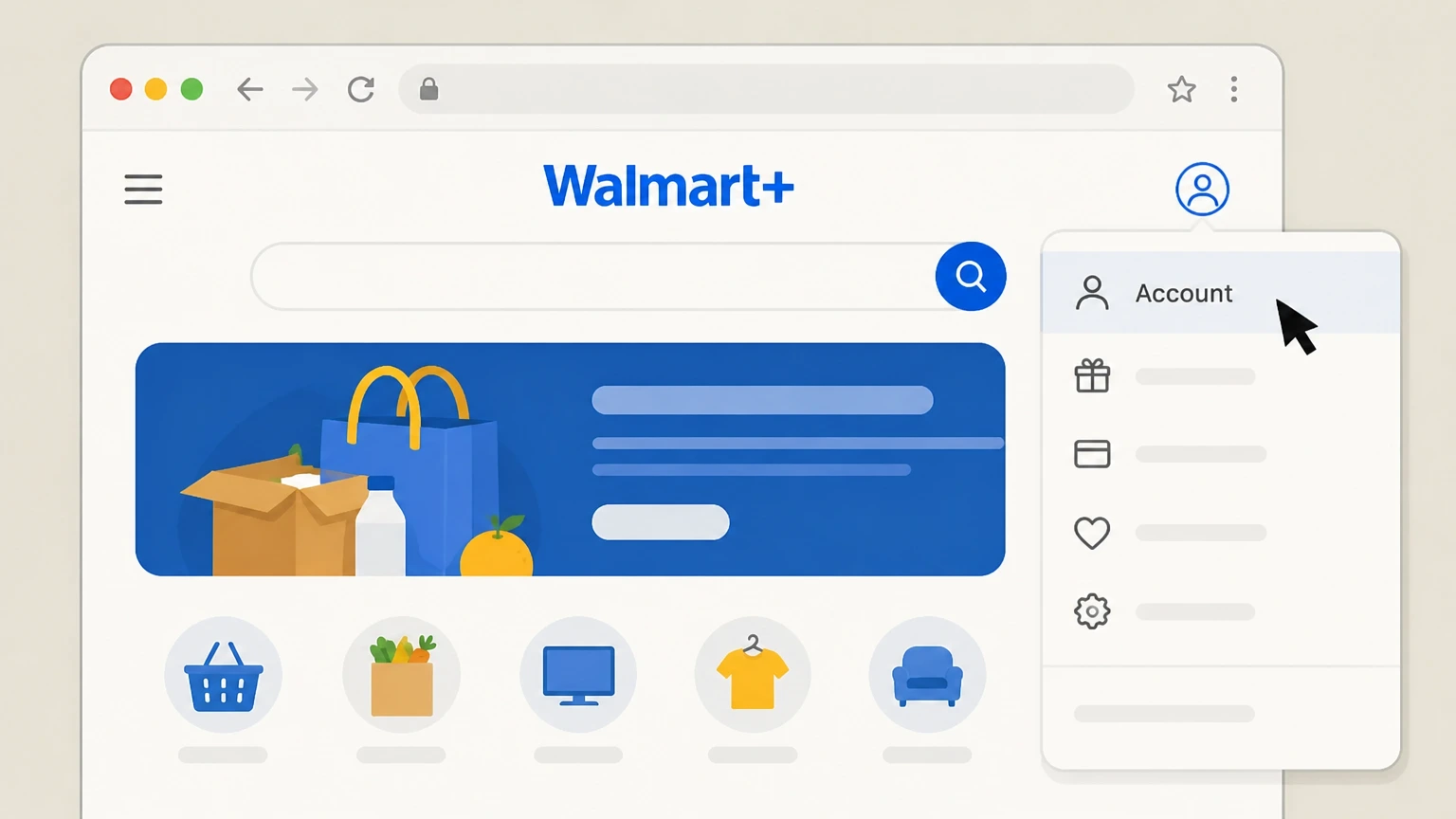
2Open the Walmart+ membership page
Select Account in the top menu and then choose Walmart+ from the account options. Use the Walmart+ account named on your receipt, and continue only after the next status in this cancellation path is visible.
- Let Pine handle it
Pine can help
Too many steps?
Pine can find the right Walmart.com account (web browser) path and handle the cancellation for you.
 3
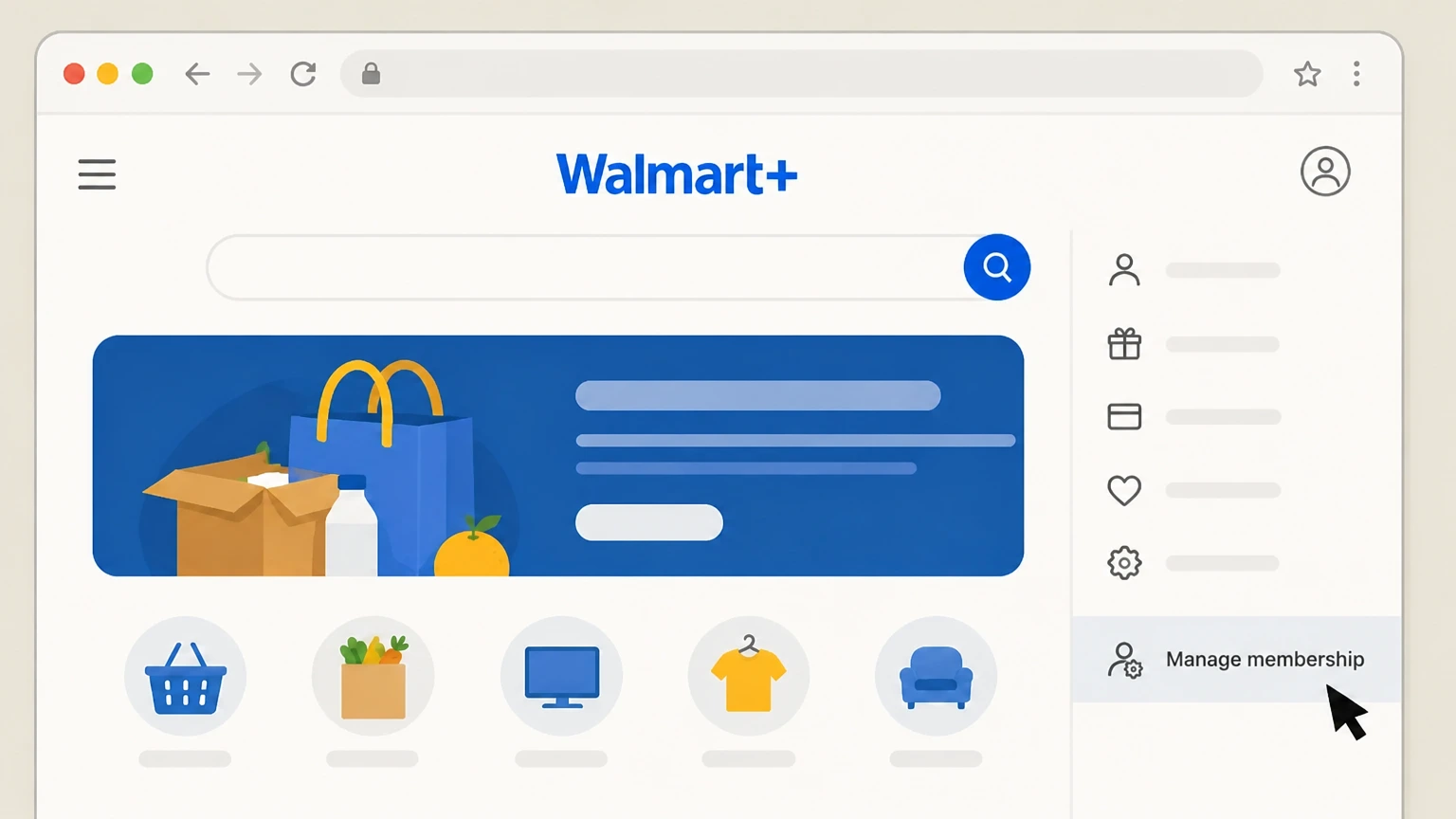
3Open Manage membership
On the Walmart+ page, select the Manage membership option to view your plan details. Use the Walmart+ account named on your receipt, and continue only after the next status in this cancellation path is visible.
 4
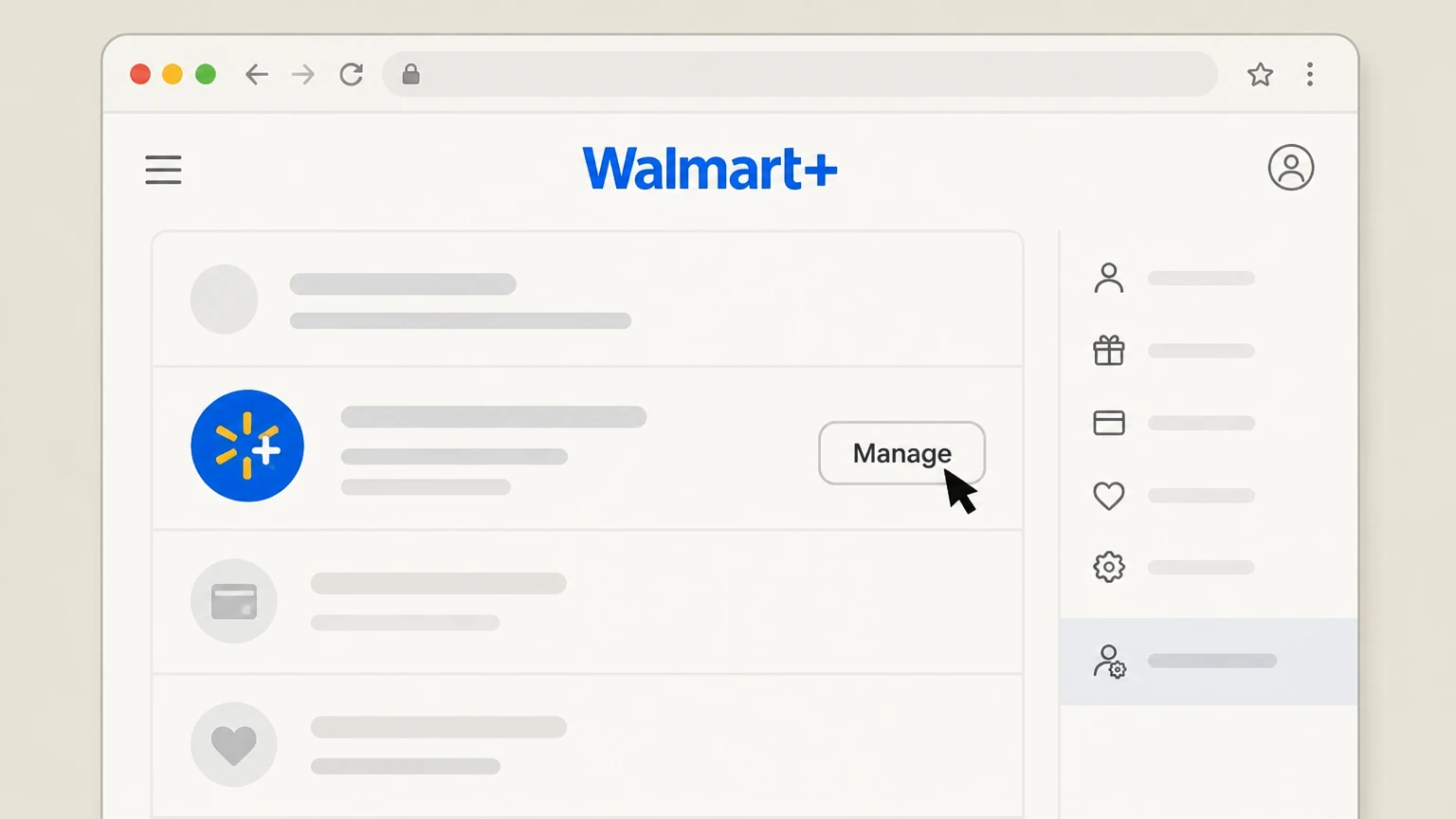
4Open management for the Walmart+ plan
In the Walmart+ plan section, select the Manage control next to your Walmart+ plan. Use the Walmart+ account named on your receipt, and continue only after the next status in this cancellation path is visible.
 5
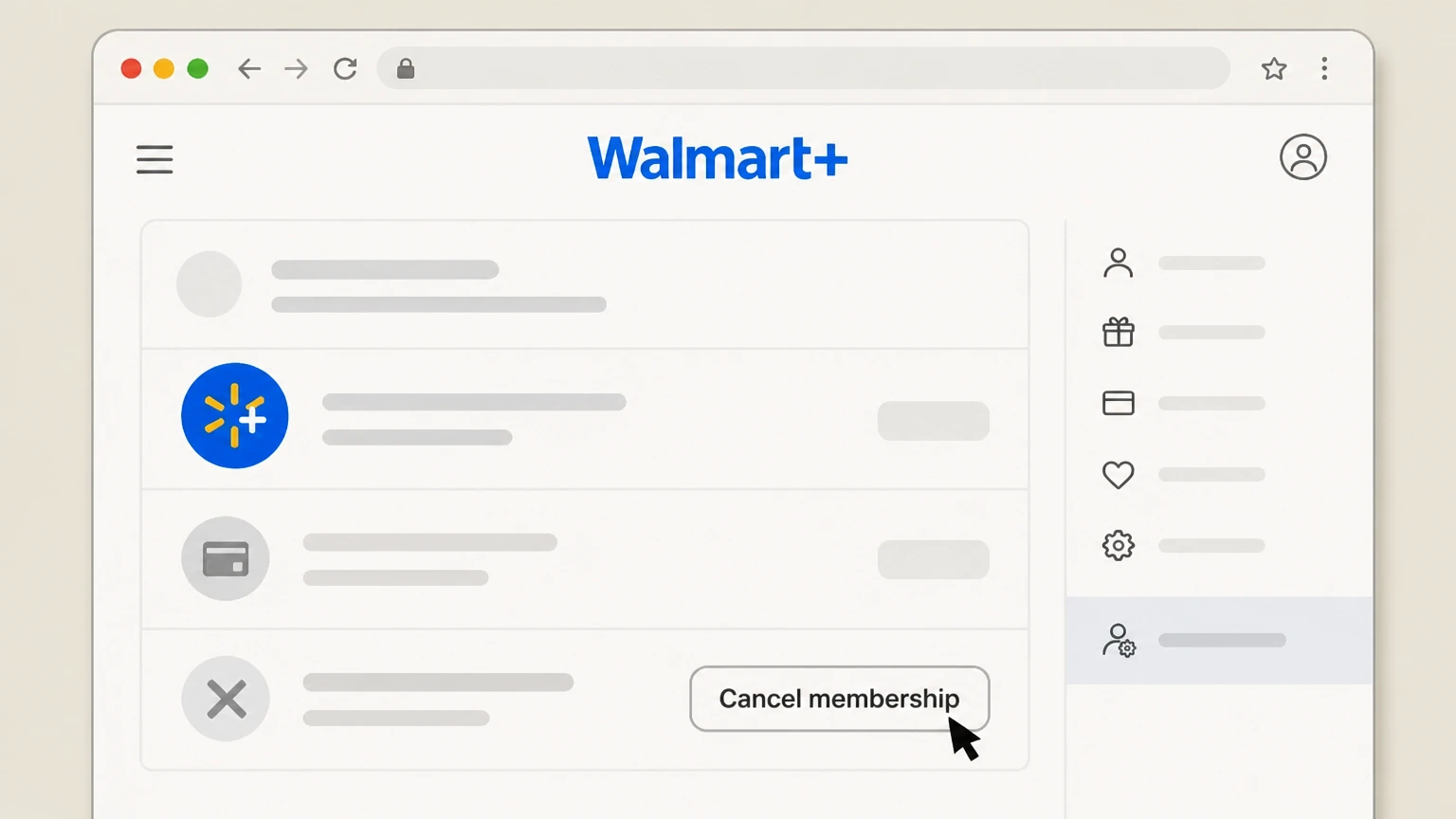
5Choose Cancel membership
Select the Cancel membership option under your Walmart+ plan to start cancellation. Use the Walmart+ account named on your receipt, and continue only after the next status in this cancellation path is visible.
 6
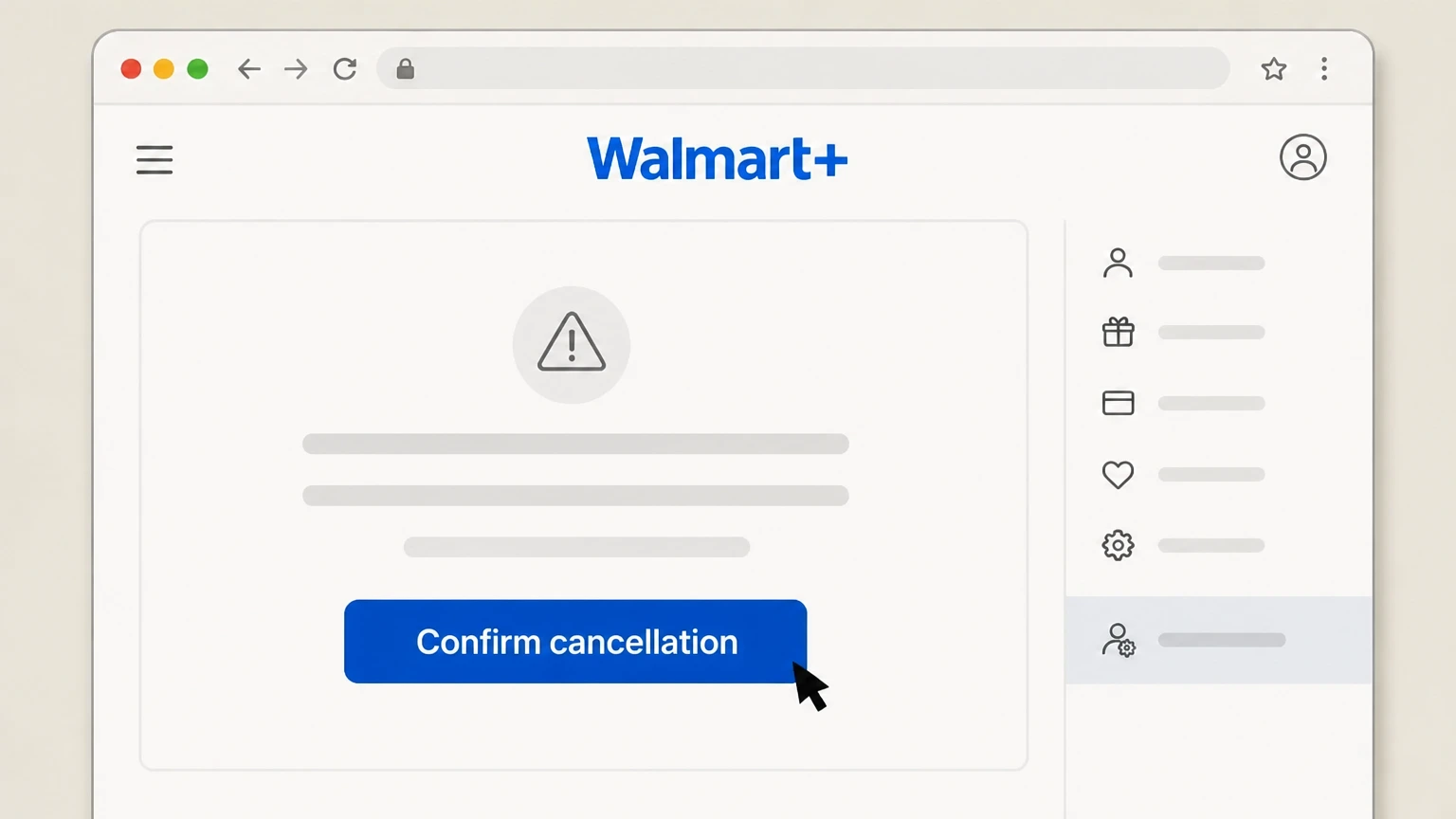
6Confirm cancellation
On the confirmation screen, choose the option that confirms you want to cancel your Walmart+ membership and complete any prompts until you see that auto‑renew is turned off or an end date is shown.

Walmart mobile app · verify the billing owner
 1
1Open the Walmart app and sign in
Launch the Walmart app on your phone and make sure you are signed in to the Walmart account with the Walmart+ membership.
 2
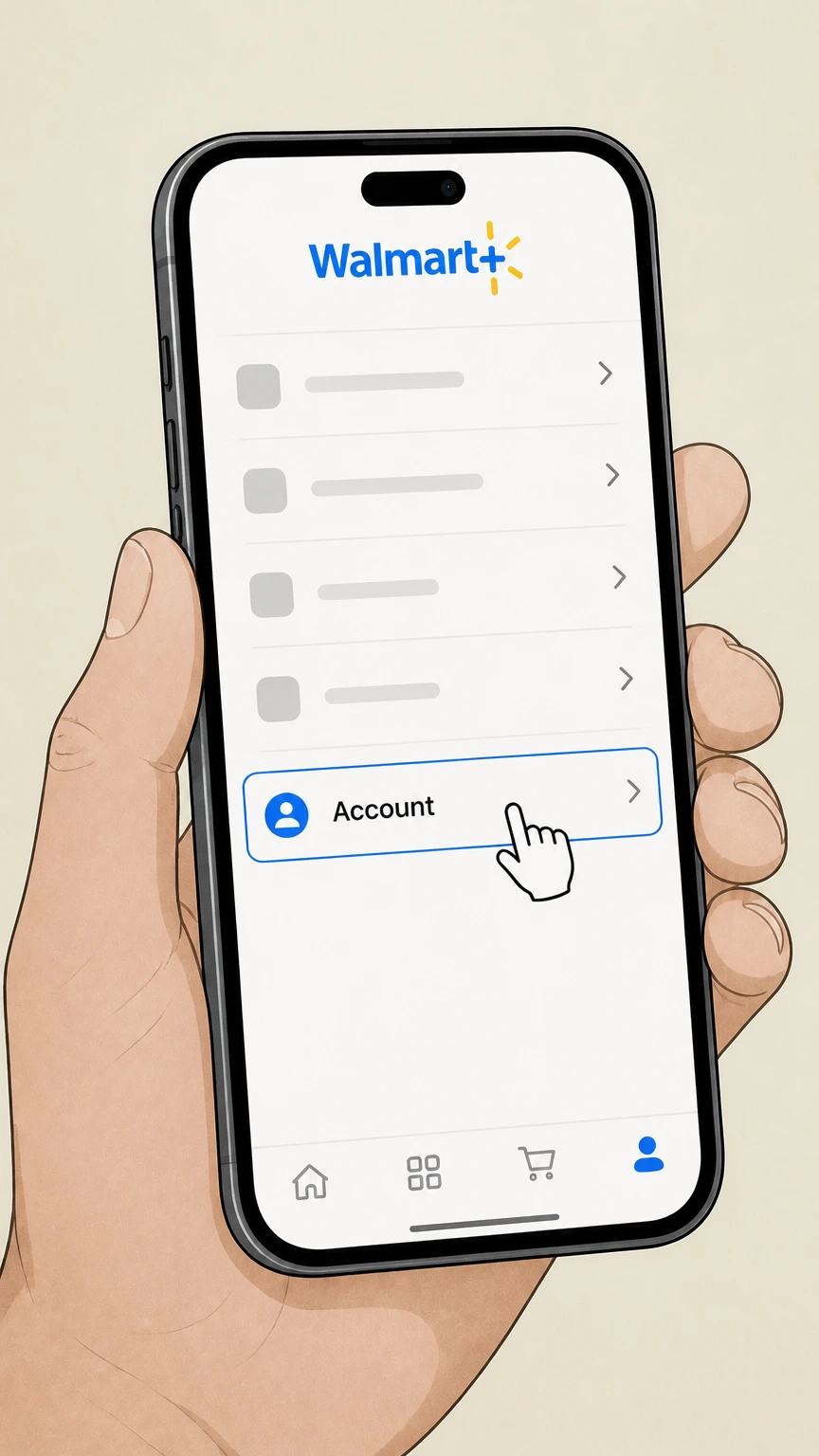
2Go to your account area
From the app’s main navigation, open the Account section for your profile and memberships. Use the Walmart+ account named on your receipt, and continue only after the next status in this cancellation path is visible.
- Let Pine handle it
Pine can help
Too many steps?
Pine can find the right Walmart mobile app path and handle the cancellation for you.
 3
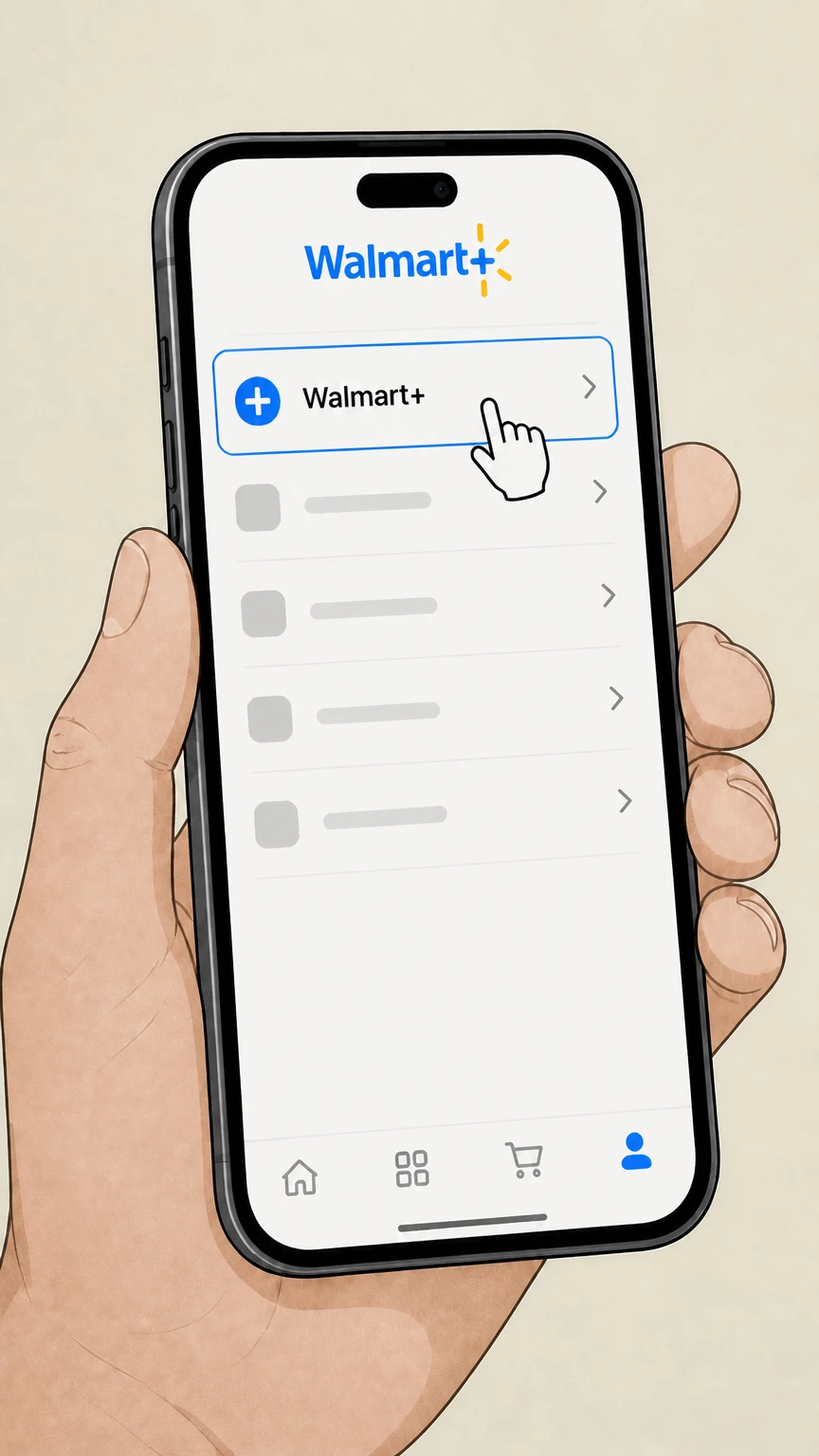
3Open the Walmart+ membership hub
In the account area, select Walmart+ to open your Walmart+ membership hub. Use the Walmart+ account named on your receipt, and continue only after the next status in this cancellation path is visible.
 4
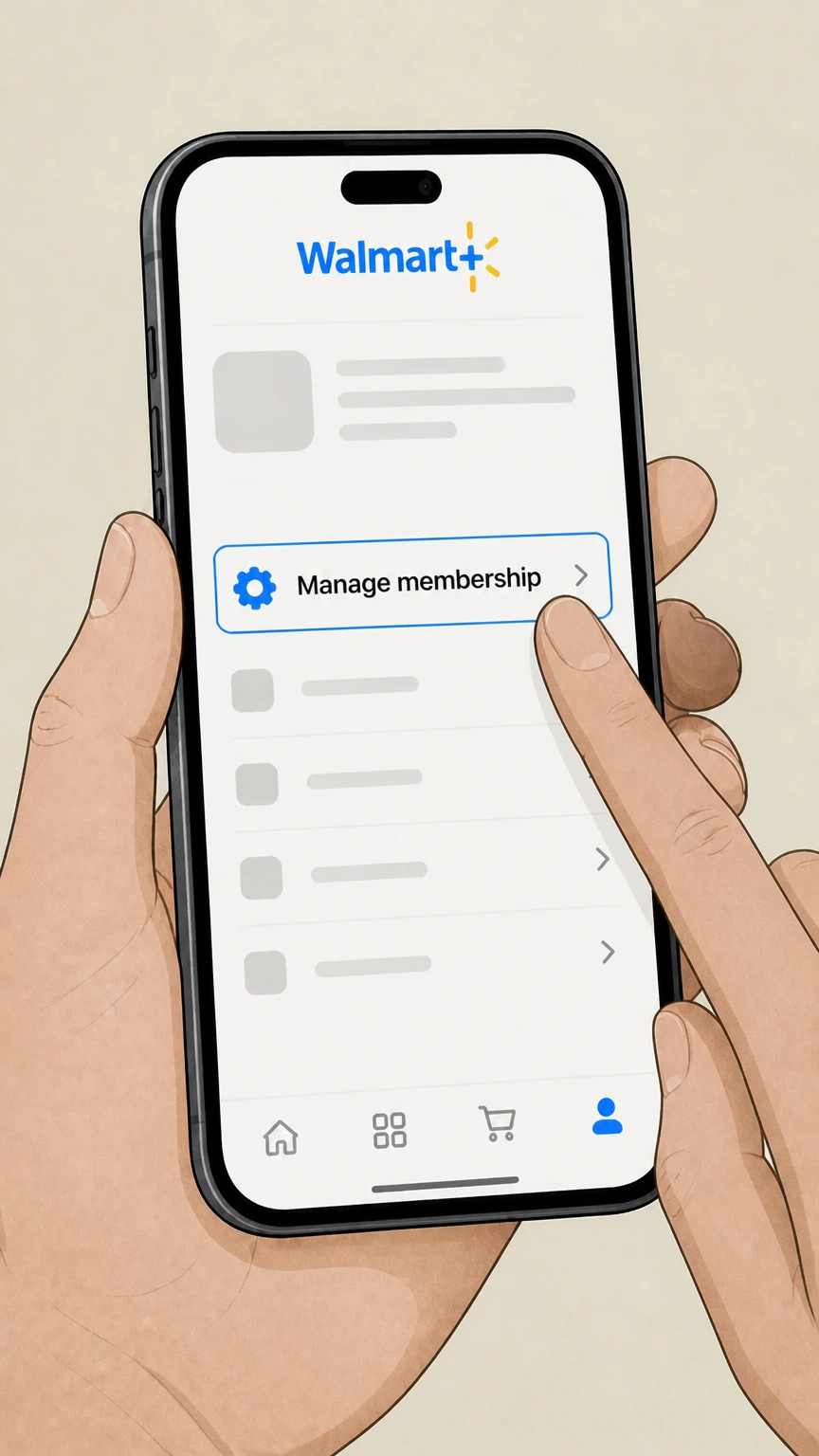
4Open Manage membership
From the Walmart+ hub, choose Manage membership to see plan, billing and pause or cancel options. Use the Walmart+ account named on your receipt, and continue only after the next status in this cancellation path is visible.
 5
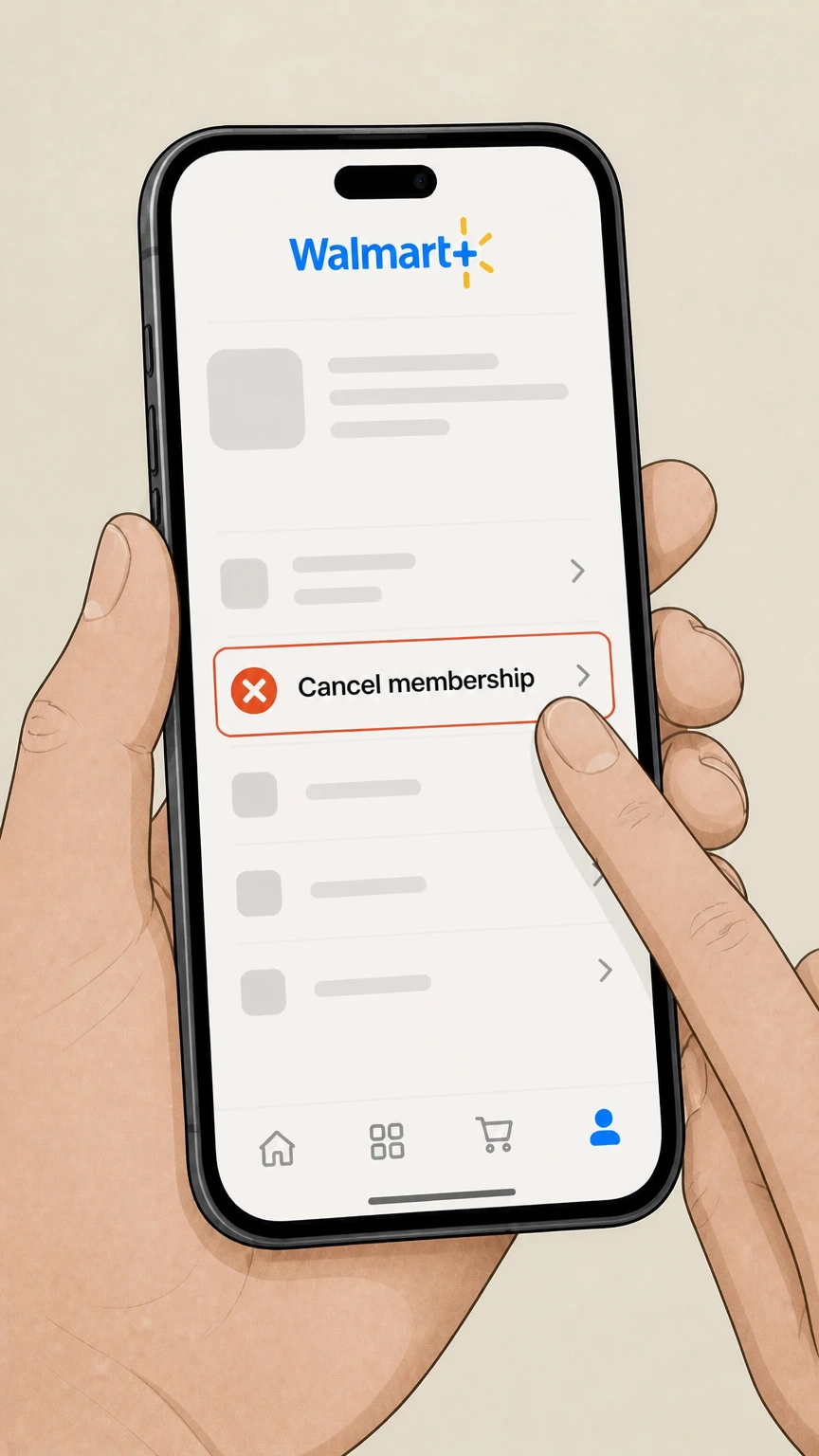
5Select Cancel membership
Within the Walmart+ plan controls, tap the Cancel membership option to begin cancelling your plan. Use the Walmart+ account named on your receipt, and continue only after the next status in this cancellation path is visible.
 6
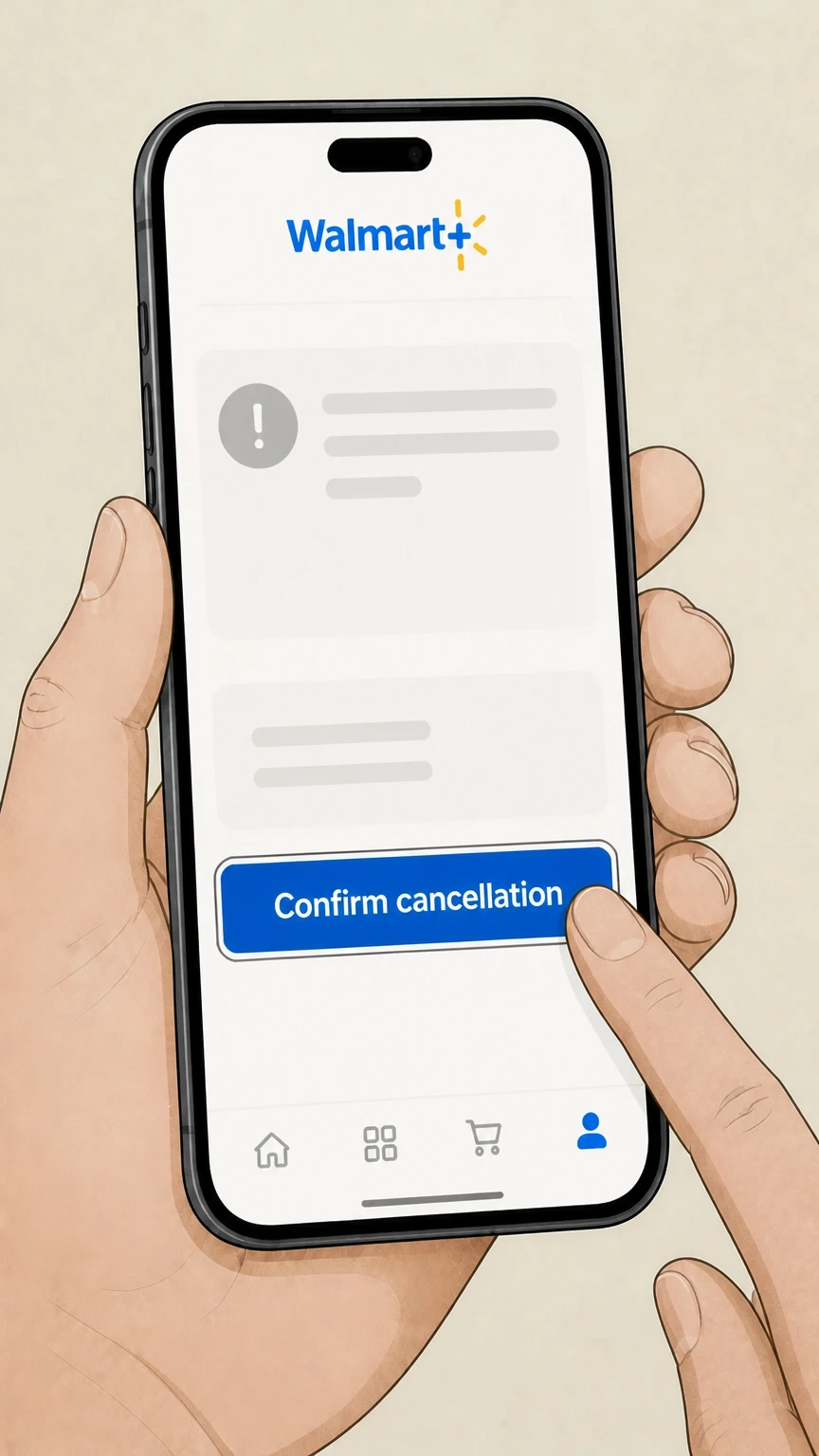
6Confirm cancellation and review end date
Follow the prompts to confirm cancellation and review the message showing your membership will end on a specific date or will not renew.
Phone with Walmart Customer Care · verify the billing owner
 1
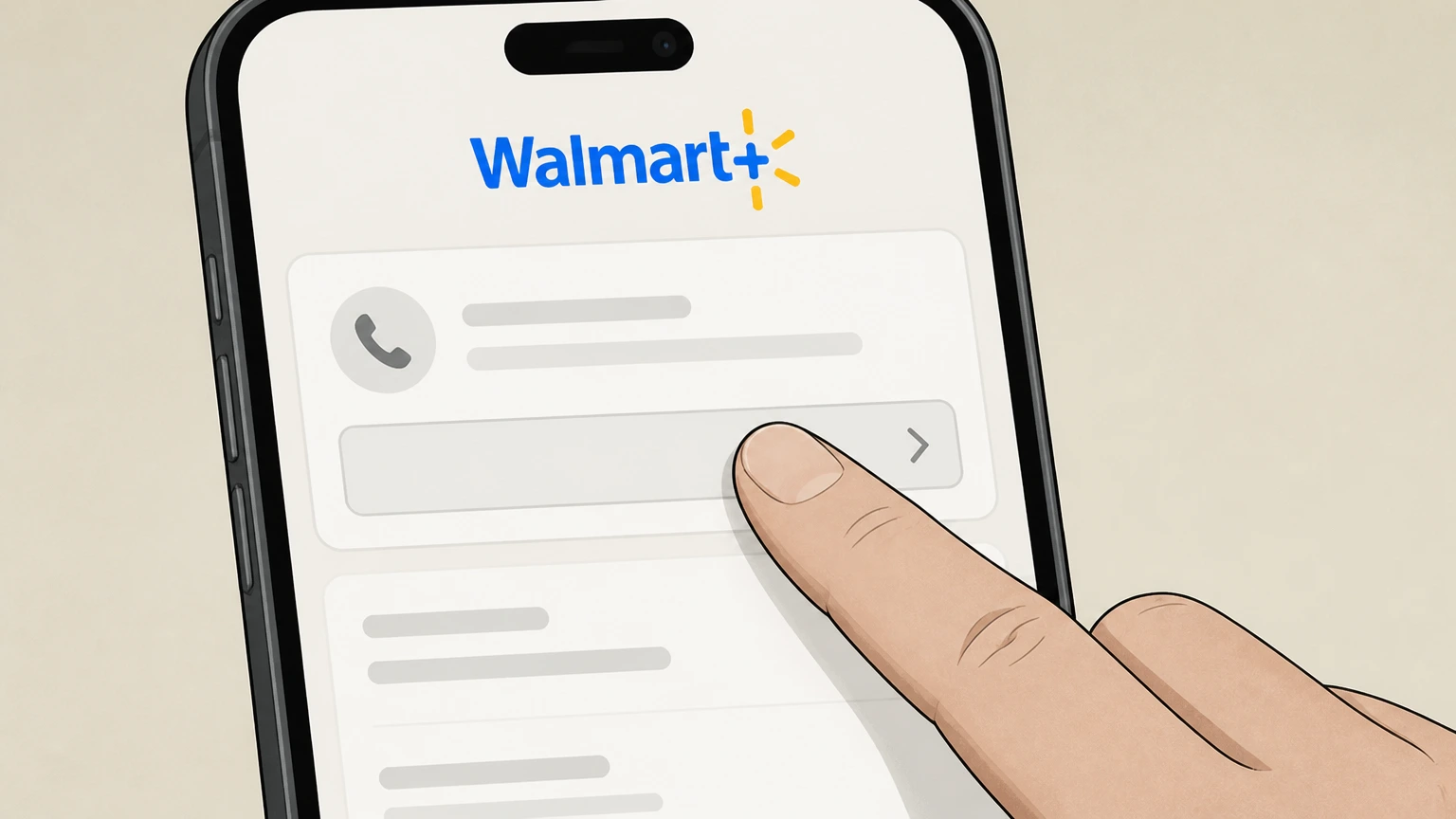
1Find the current Walmart Customer Care number
Open the Walmart+ Terms of Use or Walmart Help Center and locate the published phone number for Walmart Customer Care.
 2
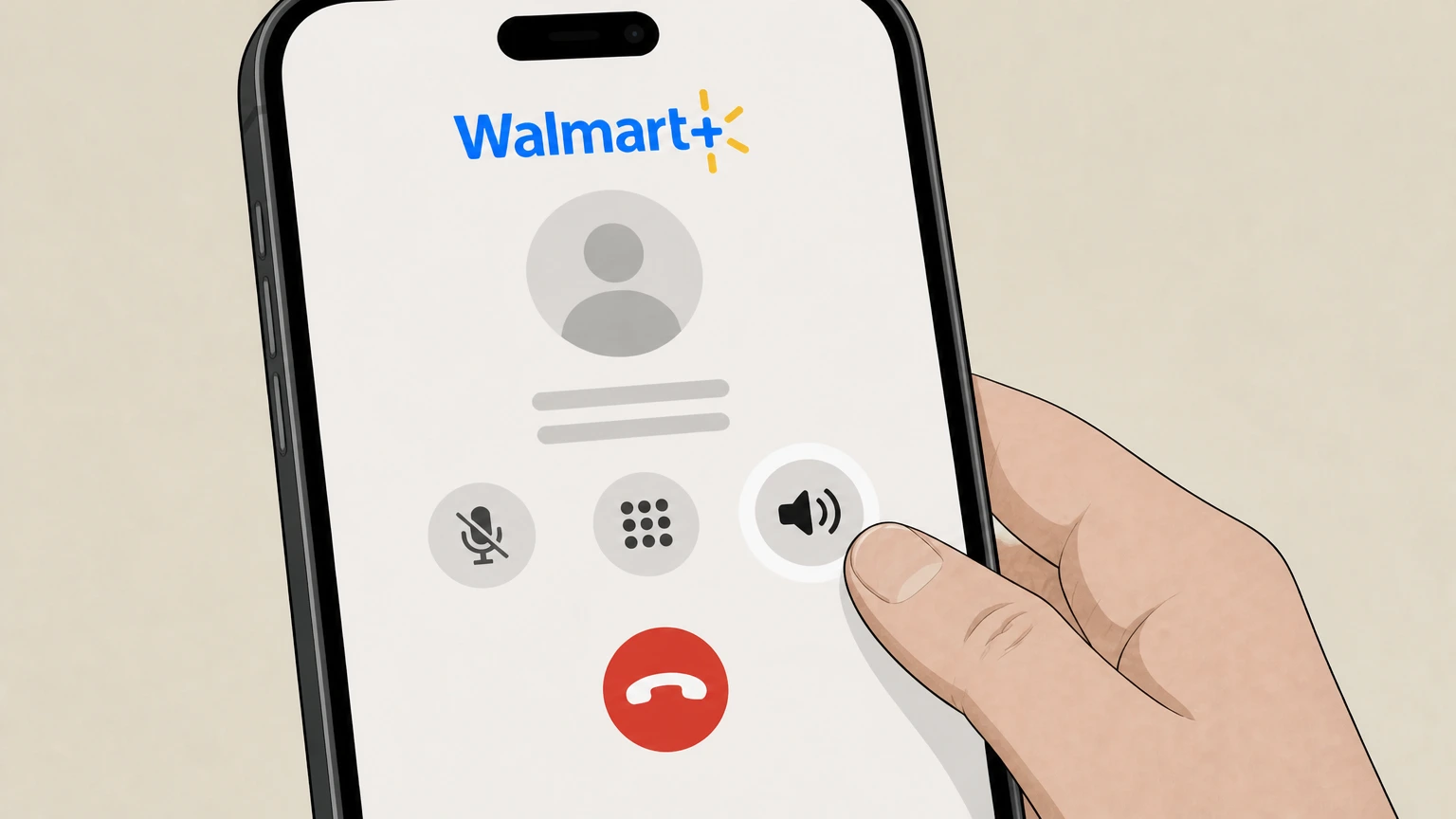
2Call Walmart Customer Care
Place a call to the Walmart Customer Care number shown for Walmart+ or general customer support. Use the Walmart+ account named on your receipt, and continue only after the next status in this cancellation path is visible.
- Let Pine handle it
Pine can help
Too many steps?
Pine can find the right Phone with Walmart Customer Care path and handle the cancellation for you.
 3
3Navigate to Walmart+ support
When prompted by the automated system or agent, indicate that you need help with your Walmart+ membership. Use the Walmart+ account named on your receipt, and continue only after the next status in this cancellation path is visible.
 4
4Request Walmart+ cancellation
Tell the representative you want to cancel your Walmart+ membership and, if applicable, any Plus Up benefits billed through Walmart.
 5
5Verify your identity and account
Provide any requested verification details, such as your name and account information, so the agent can access the correct Walmart+ membership.
 6
6Confirm cancellation details
Ask the agent to confirm that Walmart+ auto‑renew is turned off, note the date your benefits end, and confirm that you will receive any available confirmation notice in your account or by email.
Refund policy
Refunds when you cancel Walmart+
Walmart’s Terms of Use treat Walmart+ and Plus Up fees as generally non‑refundable, with limited exceptions. Understanding this helps set expectations before you cancel.
Check my refund options- Membership and Plus Up fees are typically non‑refundable
- The Walmart+ Terms of Use state that fees for a Walmart+ subscription and any Plus Up benefit are non‑refundable except where the Terms explicitly provide otherwise or where a refund is required by applicable law.
- Access instead of prorated refunds
- When you cancel a paid Walmart+ term, you normally keep your Walmart+ and Plus Up benefits through the end of the current term rather than receiving a prorated refund for unused days.
- Trial cancellations have no refund
- If you cancel during a promotional or trial period, Walmart may end your Walmart+ or Plus Up trial immediately, and the Terms clarify that no refunds are issued for the trial period.
- Refunds when Walmart terminates your membership
- If Walmart chooses to terminate a membership for its own reasons, it may elect to refund the portion of any term that has not yet expired, but it will not refund fees when termination is due to fraud, abuse or other misuse it identifies.
- Partner‑billed services follow partner rules
- Certain services connected to Walmart+, such as Pawp Emergency Protection that is billed directly through Pawp, have their own billing and refund policies; cancelling Walmart+ does not control refunds for those partner‑billed services.
If you believe a billing error occurred or you may qualify for an exception to the standard non‑refund policy, review the Walmart+ Terms of Use and then contact Walmart Customer Care through the Help Center or your account’s support options. Open Walmart+ Help Center
Service basics
What Walmart+ is and who can use it
Key facts about Walmart+ that matter when you cancel or change your membership.
Membership type
Walmart+ is a paid membership layered on a standard Walmart.com account, providing a bundle of benefits such as delivery, shipping, fuel discounts and partner offers for personal, non‑commercial use.
Eligible customers
Walmart+ is available only to customers with a U.S. billing address, and Walmart+ membership benefits are limited or modified in Alaska, Hawaii and Puerto Rico.
Plan terms
You can choose a one‑month or one‑year term for Walmart+, and any Plus Up benefits or Paramount+ Premium plan use a matching term length. For your Walmart+ account, compare this point with the billing owner and effective date shown in the signed-in account or latest receipt.
Where you manage Walmart+
Management of Walmart+ happens inside your Walmart account under Account > Walmart+, whether you access it on walmart.com or through the Walmart app. For your Walmart+ account, compare this point with the billing owner and effective date shown in the signed-in account or latest receipt.
Cancellation methods
Ways you can cancel Walmart+ safely
Officially supported methods to stop Walmart+ auto‑renew and what each path does.
Online self‑service via Account > Walmart+
Walmart’s primary cancellation method is self‑service: sign in, go to Account > Walmart+, open Manage membership, choose Cancel membership and confirm to turn off renewal.
Customer Care cancellation by phone
The Walmart+ Terms of Use also let you cancel by calling Walmart Customer Care and asking the agent to cancel your Walmart+ membership and any Plus Up benefit.
App stores cannot cancel Walmart+
Because Walmart+ requires a stored card or PayPal within your Walmart account, cancelling subscriptions in Apple’s App Store or Google Play does not stop Walmart+ charges.
Pause instead of cancelling
Eligible paid members can use Pause membership from Manage membership to pause Walmart+ for a month, up to the limits Walmart sets, temporarily stopping billing and benefits without fully cancelling.
Billing
How Walmart+ billing and auto‑renew work
Understanding billing rules helps you time your cancellation and avoid unwanted charges.
Required payment methods
To sign up and stay enrolled in Walmart+, you must keep at least one valid payment method on file, and Walmart currently requires a credit or debit card or PayPal for Walmart+ billing.
Automatic renewal each term
After any trial ends, Walmart charges you immediately for the chosen monthly or annual term, then automatically renews each term by charging your stored payment method until you cancel before the term ends.
Failed payments and automatic cancellation
If all payment methods on file are declined even after resubmission attempts, Walmart cancels your Walmart+ membership and ends benefits; you can re‑enroll later with a valid payment method.
Changing your billing date
From Manage membership you can change your Walmart+ billing date—subject to limits such as not during a trial, not within a short window before the next bill, and only a limited number of times per year.
Trials & offers
Cancelling Walmart+ trials and promotional offers
Trial and promotional memberships have special rules that affect when benefits stop and whether fees are refunded.
Trial auto‑conversion to paid
Free or discounted Walmart+ trials automatically convert into a full‑price monthly or annual membership after the trial unless you cancel before the trial period ends.
Cancelling during a trial
You may cancel Walmart+ during a trial, but Walmart may end your trial benefits immediately when you cancel, and the Terms of Use specify that no refunds are issued for the trial period.
One trial per eligible customer
Walmart limits Walmart+ promotional trials to one per eligible customer and may block additional attempts or close memberships and accounts that abuse trial offers. For your Walmart+ account, compare this point with the billing owner and effective date shown in the signed-in account or latest receipt.
Remind Me Later option at cancellation
When you start cancellation from Manage membership, Walmart may offer to email you a reminder a few days before renewal so you can wait to cancel closer to your next billing date if you prefer.
After you cancel
What changes after your Walmart+ is cancelled
How your benefits, add‑ons and access behave after you cancel Walmart+.
Access through the end of the term
If you cancel a paid Walmart+ term, you can continue using Walmart+ and any Walmart‑billed Plus Up benefits until the current term ends, as long as Walmart does not terminate your membership for misuse.
Trial access can end immediately
For trial memberships, cancelling can cause Walmart to terminate the trial right away, which means trial benefits stop as soon as cancellation is processed. For your Walmart+ account, compare this point with the billing owner and effective date shown in the signed-in account or latest receipt.
Core benefits stop after term end
After your paid term ends, Walmart+ core benefits—such as member shipping and delivery offers and fuel discounts—no longer apply, and orders revert to standard Walmart pricing and policies.
Streaming access tied to membership
Streaming services provided through Walmart+, including any ad‑free upgrades billed by Walmart, require an active Walmart+ membership; access ends when Walmart+ or the streaming Plus Up is no longer active.
InHome Plus Up follows your membership
If you subscribe to the InHome Plus Up add‑on, pausing or cancelling Walmart+ pauses or ends InHome as well, because it is a Plus Up benefit billed and managed together with your Walmart+ term.
Walmart Cash & travel
What happens to Walmart Cash when you cancel
Cancelling Walmart+ changes how you earn Walmart Cash but not your existing balance.
You keep your Walmart Cash balance
Walmart Cash is a promotional currency tied to your Walmart account, and Walmart’s FAQs state that you do not lose your Walmart Cash balance if you cancel your Walmart+ membership or Walmart account.
Travel booked before cancellation still earns Cash
If you book travel through Walmart+ Travel while you are an active Walmart+ member and later cancel membership, you still receive the Walmart Cash for that booking after the trip is completed.
Membership required for new travel rewards
To earn Walmart Cash from new Walmart+ Travel bookings, you must be an active Walmart+ member at the time of booking; you cannot earn Walmart+ Travel rewards retroactively once you have cancelled.
Using Walmart Cash after cancellation
Walmart Cash from any program can be redeemed on eligible future Walmart purchases or, in some cases, for in‑store cash‑out; it cannot be applied as payment for new travel bookings themselves.
Add‑ons & partners
How add‑on services behave when Walmart+ ends
Some services connected to Walmart+ follow Walmart billing rules, while others are billed separately by partners.
Plus Up benefits billed by Walmart
InHome Plus Up and upgraded ad‑free streaming plans are Plus Up benefits billed by Walmart on the same schedule as your Walmart+ membership and follow the same auto‑renew and cancellation rules.
Managing streaming upgrades
You can downgrade or cancel an upgraded streaming plan, such as Paramount+ Premium or Peacock Premium Plus, from your Walmart account by going to Account > Walmart+ and choosing Manage Plan for the streaming service.
Pawp Emergency Protection billed separately
Pawp’s optional Emergency Protection add‑on is billed directly by Pawp rather than Walmart, so cancelling Walmart+ does not automatically cancel that Pawp subscription; Pawp’s own terms control its billing and refunds.
Product subscriptions are separate
Recurring product subscriptions, like automatic deliveries of household items via Walmart Subscriptions, are managed in the Subscriptions section of your account and are not automatically cancelled when you end Walmart+.
Account & membership
Walmart account vs. Walmart+ membership
Cancelling Walmart+ does not close your Walmart account, and account tools are managed separately.
Cancelling Walmart+ does not delete your account
Ending your Walmart+ membership simply stops the membership; your underlying Walmart.com account, order history and access to standard Walmart services remain unless you separately request account deletion.
Separate Delete Account option
Walmart surfaces a dedicated Delete Account option in the account area, accessed after sign‑in, which is distinct from the Walmart+ Manage membership controls and is used only if you want to close your Walmart account entirely.
Removing all payment methods requires cancellation
The Walmart+ Terms of Use state that to remove all payment methods from your Walmart account, you must first cancel your Walmart+ membership, because at least one valid payment method is required while you are enrolled.
What official sources do not confirm
Limits of the public Walmart+ cancellation guidance
These points are intentionally qualified because the official sources reviewed on August 16, 2026 do not publish a complete answer.
Documented limitation 1
Dynamic content on the Walmart+ Frequently Asked Questions page is partially hidden from the static HTML captured by search, so some FAQ details (for example, the full text under “How do I cancel my Walmart+ plan?”) could not be read directly and were inferred from the Terms of Use and dedicated help articles.
Documented limitation 2
Because research is limited to walmart.com and certain U.S.‑focused domains, this guide does not address Walmart+ or other memberships offered on walmart.ca or non‑U.S. sites, and users in those regions should consult their local Walmart websites.
Documented limitation 3
Exact in‑app wording and placement of controls in the Walmart mobile app can vary by version and device; the app steps in this guide are based on Walmart’s documented ability to manage Walmart+ in the app and may differ slightly from what individual users see.
Documented limitation 4
Some partner services tied to Walmart+ (such as Pawp Emergency Protection or third‑party streaming apps) have their own separate terms and cancellation rules that are summarized at a high level here; users should review the partner’s current terms for complete details.
Walmart+ cancellation FAQ
Questions people search about canceling Walmart+, answered with official provider or billing-platform sources checked on August 16, 2026.
How do I quit my Walmart membership?
How do I cancel my Walmart+ subscription online?
Can I cancel Walmart+ through the Walmart app?
Can I cancel Walmart+ through Apple or Google Play billing?
What happens to my Walmart+ benefits after I cancel?
Does cancelling Walmart+ delete my Walmart account?
What happens to Walmart Cash if I cancel Walmart+?
Can I get a refund of my Walmart+ membership fee when I cancel?
How do I contact Walmart+ customer service about my membership?
Where do I manage my Walmart+ membership online?
Untangle this Walmart+ issue.
Let Pine handle the provider follow-up and keep the confirmation in one place.
