You want to cancel Hulu on Amazon and confirm the charge is gone forever? Good, because I'm not here to give you the history of streaming services; I'm here to help you stop billing immediately. The disconnect between Hulu's interface and Amazon's payment backend is one of the most common reasons for "zombie subscriptions"—charges that keep coming back from the dead.
I'm Millie, and at Pine AI, my job is to streamline digital tasks to save you time. I've verified these steps personally to ensure they work right now (because Amazon menus change constantly). Here is the clean, no-drama guide to cutting the cord properly and keeping your money in your pocket.
Confirm Amazon is your billing source
Before you cancel anything, you want to be 100% sure you're canceling from the place that's actually charging you.
If you signed up for Hulu via Amazon (usually through Prime Video Channels), Amazon is the merchant of record. Meaning: Amazon is the one billing your card. Hulu is basically the service you're watching, but not necessarily the company collecting your money.
This is the bit most people miss.
Amazon account → Memberships & Subscriptions
Here's how I confirm whether Amazon is the billing source:
- Sign in to the Amazon account you think you used.
- Go to Account & Lists.
- Look for Memberships & Subscriptions.
- Scan for anything that looks like:
- Hulu
- Prime Video Channels
- A channel bundle or add-on that includes Hulu
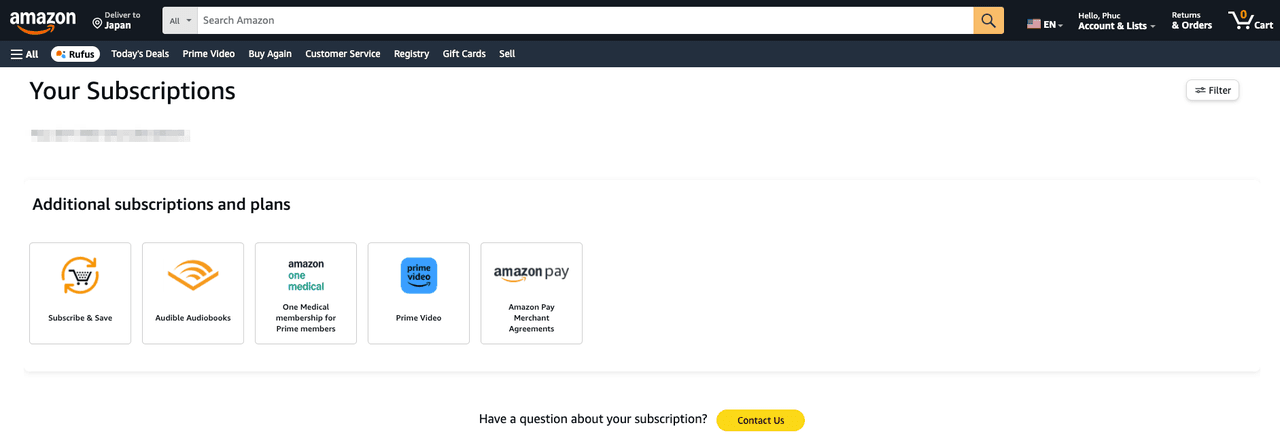
If you see Hulu listed there, congratulations (in a grim way): you're in the right place to stop the charges.
A quick sanity check I like to do: I also open my latest Amazon digital receipt (or my card statement) and look at who the charge is from. If it says Amazon (often "AMZN" or "Amazon Digital Services"), that's a strong clue you need to cancel through Amazon, not Hulu.
Why canceling inside Hulu doesn't stop Amazon charges
I'll be honest, I went in expecting very little from the "cancel" button inside Hulu. And, yep: if Amazon is billing you, Hulu can't always shut off an Amazon-managed subscription.
Here's why it works that way:
- Your payment agreement is with Amazon, not Hulu. Amazon is the subscription manager.
- Hulu's account settings may only control Hulu-billed plans. So you might cancel "notifications" or remove a payment method in Hulu, but Amazon keeps the billing active.
- You can end up with a false sense of done. Which is the worst kind of done, because you only discover it when another charge lands.
If your goal is to stop the Amazon charges, you need to cancel where the subscription lives: inside your Amazon memberships/subscriptions area.
(And yes, this is exactly the kind of setup that turns customer service into a second job.)
Cancel Hulu through Amazon — exact steps
When I did this, I went straight to the part that mattered most, the part where it actually stops billing.
You don't need to call anyone. You don't need a chat. You just need to hit the correct subscription screen and complete the cancellation all the way to the confirmation.
amazon.com → Account → Memberships path
These are the steps I use on a desktop browser (mobile is similar, but the menus move around enough to waste your time):
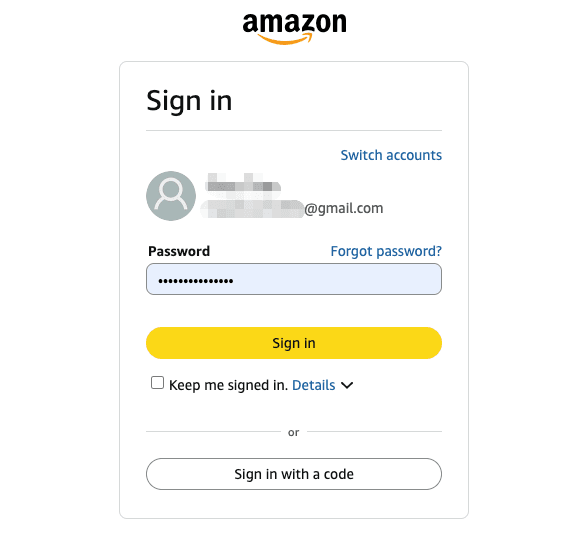
- Go to amazon.com and make sure you're logged into the right account.
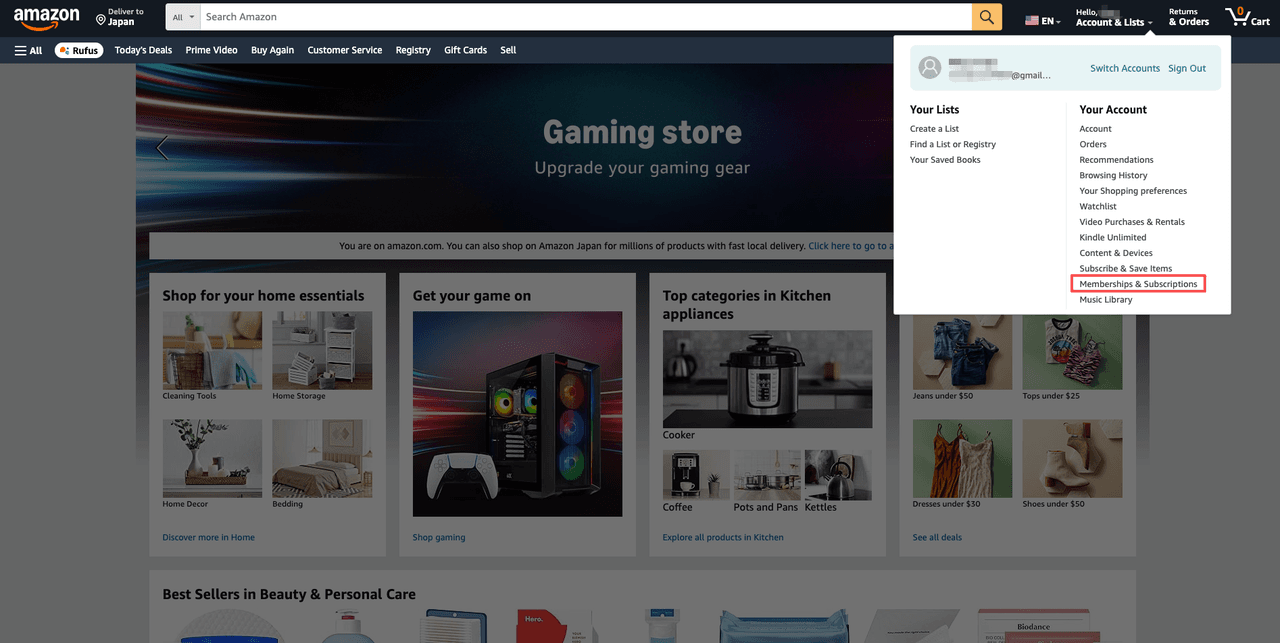
- Click Account & Lists.
- Select Memberships & Subscriptions.
- Find Hulu (or the channel entry that represents Hulu).
- Click into it, then choose Cancel Channel or Cancel Subscription (wording varies).
- Follow the prompts until Amazon confirms the cancellation.
A few practical notes from doing this more than once (because yes, I test tools, subscribe to things, and then forget about them when I travel for a couple days):
- Amazon may offer options like "Keep subscription", "Pause", or "Remind me later." If you want the charges to stop, you're looking for the option that clearly ends billing.
- Some subscriptions run until the end of the billing period. That's normal. The key thing is whether it's set to not renew.
What the cancel confirmation looks like
I don't trust cancellations until I see proof. I don't guess. I verify.
After you complete cancellation, Amazon typically shows a confirmation state that includes some version of:
- A message like "Your subscription has been canceled" or "You will not be charged again"
- An end date (when access stops)
- A status that indicates it's set to expire or not renew
Then, and this matters, Amazon usually sends a cancellation email. If you don't get an email within a few minutes, I treat that as "not fully done yet" and I go back to Memberships & Subscriptions to confirm the status.
If you're the kind of person who tracks life through to-dos (same), it's worth adding a tiny reminder for the end date just to make sure the next statement doesn't surprise you. Not because Amazon is out to get you, but because subscriptions are slippery and time is finite.
Can't find Hulu in Amazon subscriptions?
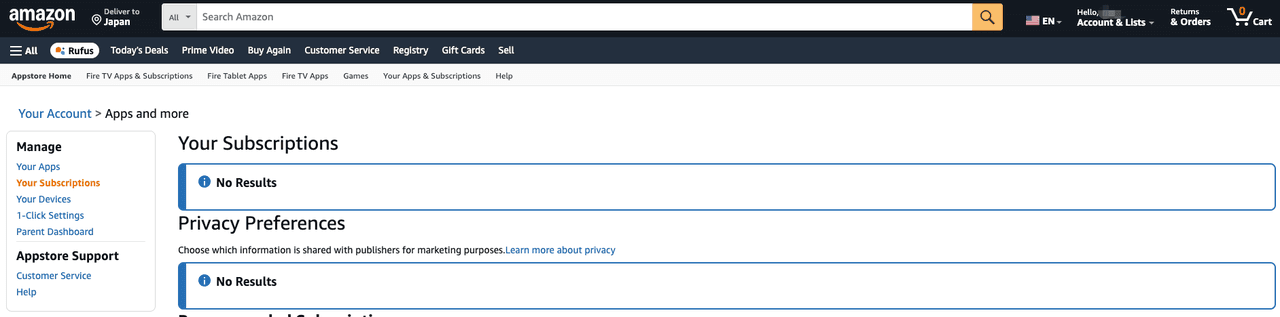
This is where people get stuck: you go to Amazon → Memberships & Subscriptions, you feel very responsible, and Hulu is… not there.
Annoying, but usually solvable.
Most of the time, one of these is true:
- You're logged into the wrong Amazon account (work vs personal, old email vs new email).
- The subscription wasn't set up as a "channel" the way you expect.
- You subscribed directly with Hulu (so Amazon can't cancel it).

- You subscribed through a different app store entirely.
Here's how I track it down fast.
Search by email receipt to locate purchase
If Hulu isn't showing up in Amazon's subscription list, I go hunting for the original receipt, because the receipt tells the truth.
What I do:
- Open the email inbox that usually gets Amazon receipts.
- Search for keywords like:
- "Hulu"
- "Prime Video Channels"
- "Amazon Digital Services"
- "Your Amazon.com order"
- Click into the most recent charge email and look for:
- The account it was sent to (which email address)
- The merchant (Amazon vs Hulu)
- Any mention of Channel subscriptions
If you find an Amazon receipt for Hulu, that's your confirmation the subscription is attached to that Amazon account, even if it's not the one you're currently logged into.
And if you only see receipts from Hulu directly (not Amazon), then the correct cancellation path is likely inside Hulu's billing settings, not Amazon's.
One more thing I check when the email hunt comes up empty: I search Amazon's Orders for "Hulu," and I also check Digital Orders (because channels and digital subscriptions don't always appear like normal physical purchases).
Proof checklist, Amazon cancellation email
Once you think you've canceled, here's the proof checklist I use so I can mentally close the tab and move on with my day:
- Amazon Memberships & Subscriptions shows Hulu as canceled (or set to expire / not renew)
- A cancellation confirmation screen appeared after you finished the prompts
- A cancellation email from Amazon arrived (subject lines vary, but it should clearly mention the subscription/channel and cancellation)
- Optional but comforting: your calendar/to-do list has a note for the final access date
If you don't have the email, I'd go back and re-check the subscription status. It's very easy to back out of Amazon's cancellation flow halfway through (especially if you're doing this between meetings) and accidentally leave it active.
For more details on why charges may continue even after canceling, Hulu's official help center explains common billing scenarios that catch people off guard.
You’ve handled this Amazon charge, but how many other zombie subscriptions are costing you money right now? Try Pine AI to audit your spending, lower your monthly bills, and stop unwanted charges for good.
If you're reading this because you just want the annoying stuff handled: this is exactly the kind of task I'd normally throw to Pine AI, especially when the alternative is digging through account menus while my next call starts in eight minutes. But for Hulu-on-Amazon specifically, the manual path above is still the fastest route if you already know where to click.
I've laid out everything you need. The rest is up to you.
Frequently Asked Questions About How to Cancel Hulu on Amazon
How do I cancel Hulu on Amazon without going through Hulu settings?
To cancel Hulu on Amazon, sign in to the correct Amazon account, go to Account & Lists → Memberships & Subscriptions, find Hulu (often under Prime Video Channels), and select Cancel Channel/Cancel Subscription. Follow every prompt until Amazon shows a cancellation confirmation and "won't renew" status.
Why doesn't canceling Hulu in the Hulu app stop Amazon charges?
If you subscribed through Amazon (Prime Video Channels), Amazon is the merchant of record and manages billing. Hulu's settings may only affect Hulu-billed plans, so "canceling" inside Hulu can leave the Amazon-managed subscription active. To stop charges, you must cancel Hulu on Amazon.
Where can I confirm Amazon is billing my Hulu subscription?
Check Amazon Account & Lists → Memberships & Subscriptions for Hulu, Prime Video Channels, or a bundle that includes Hulu. Also review your card statement or Amazon digital receipt: charges labeled "AMZN" or "Amazon Digital Services" strongly indicate you need to cancel Hulu through Amazon, not Hulu.
What should the cancellation confirmation look like after I cancel Hulu on Amazon?
After you cancel Hulu on Amazon, Amazon typically shows a message such as "Your subscription has been canceled" or "You will not be charged again," plus an end date and a status indicating it's set to expire/not renew. You'll usually get a cancellation email—if not, recheck the subscription status.
Why can't I find Hulu in Amazon Memberships & Subscriptions?
Common reasons include being signed into the wrong Amazon account, the plan not being set up as you expect, or the subscription being billed directly by Hulu or another platform. Search your email for receipts like "Prime Video Channels" or "Amazon Digital Services," and also check Amazon Digital Orders. You may have also subscribed through Amazon's app store subscriptions instead.
Recommended Reads:
How to Cancel Fubo Subscription (Stop Renewal)