


Yoga-Go
Cancel subscription
How to Cancel Your Yoga-Go Subscription Safely
Cancel Yoga-Go through Apple or Google Play based on the receipt. Follow verified store steps, understand access and refunds, and confirm the billing owner.
- 2 cancellation paths matched to the billing owner
- Renewal timing and access outcome explained
- Refund requests routed to the company that billed you
- Confirmation steps included for every path
Choose the Yoga-Go cancellation path that matches who bills you
Apple App Store on iPhone/iPad · verify the billing owner
Apple App Store on iPhone/iPad
 1
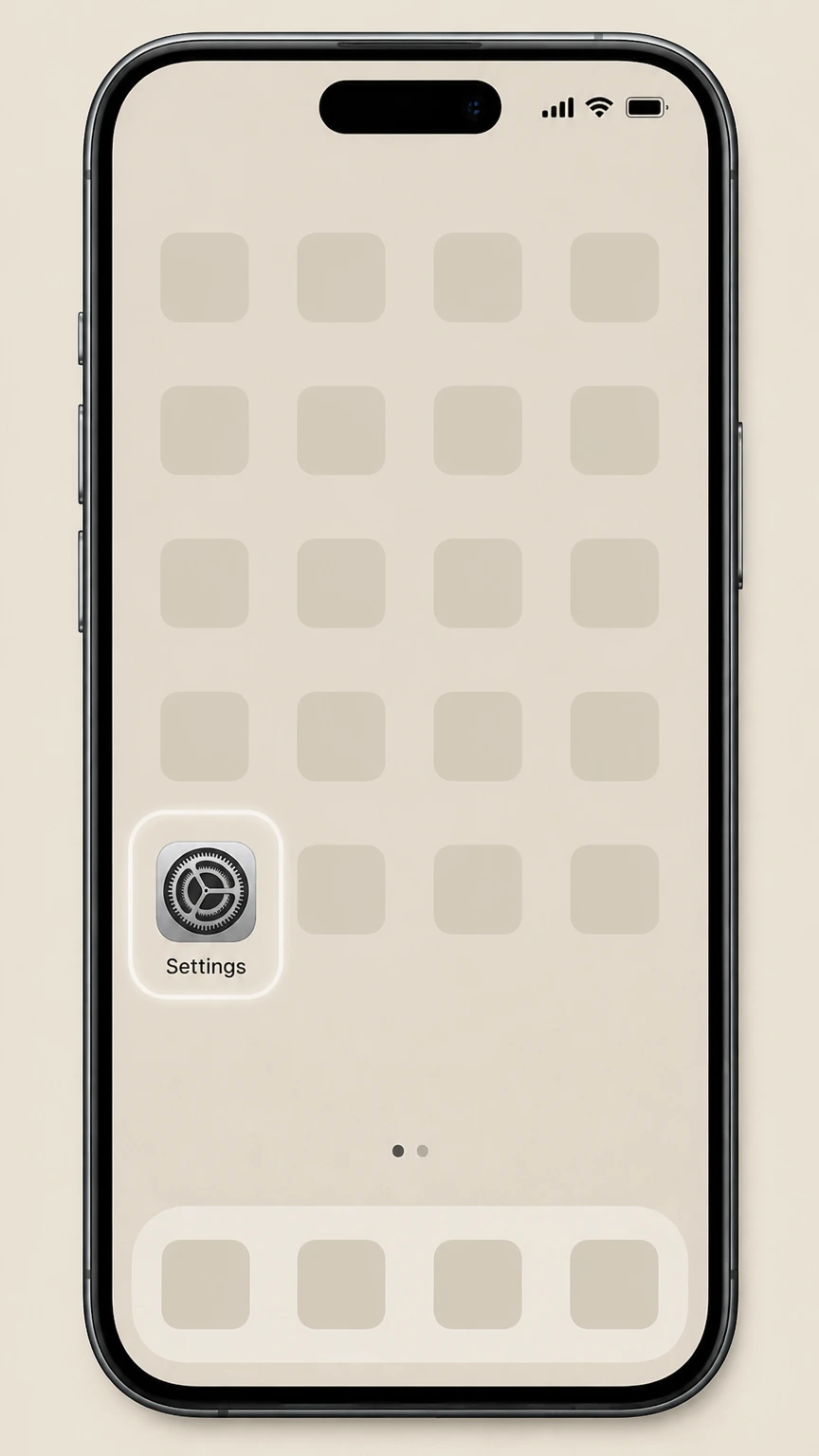
1Open Settings
Open the Settings app on your iPhone or iPad; do not open the Yoga‑Go app for Apple‑billed cancellations.
 2
2Tap your name
At the top of Settings, tap your Apple ID name to open your account settings.
- Let Pine handle it
Pine can help
Too many steps?
Pine can find the right Apple App Store on iPhone/iPad path and handle the cancellation for you.
 3
3Open Subscriptions
In your Apple ID screen, tap Subscriptions to see all subscriptions billed through Apple.
 4
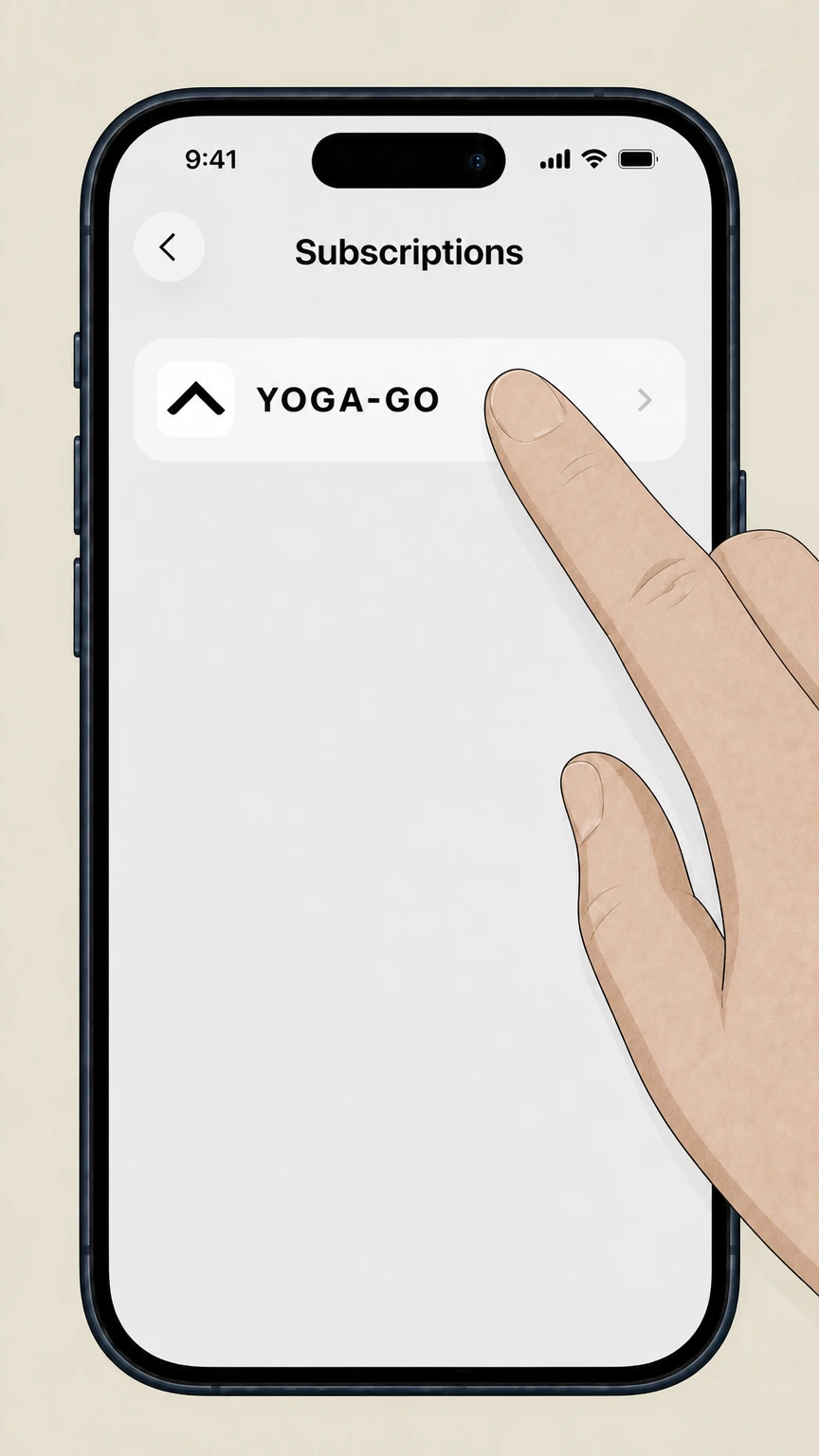
4Select Yoga-Go
In the list of subscriptions, tap Yoga‑Go (or the Yoga‑Go plan name) to open its details.
 5
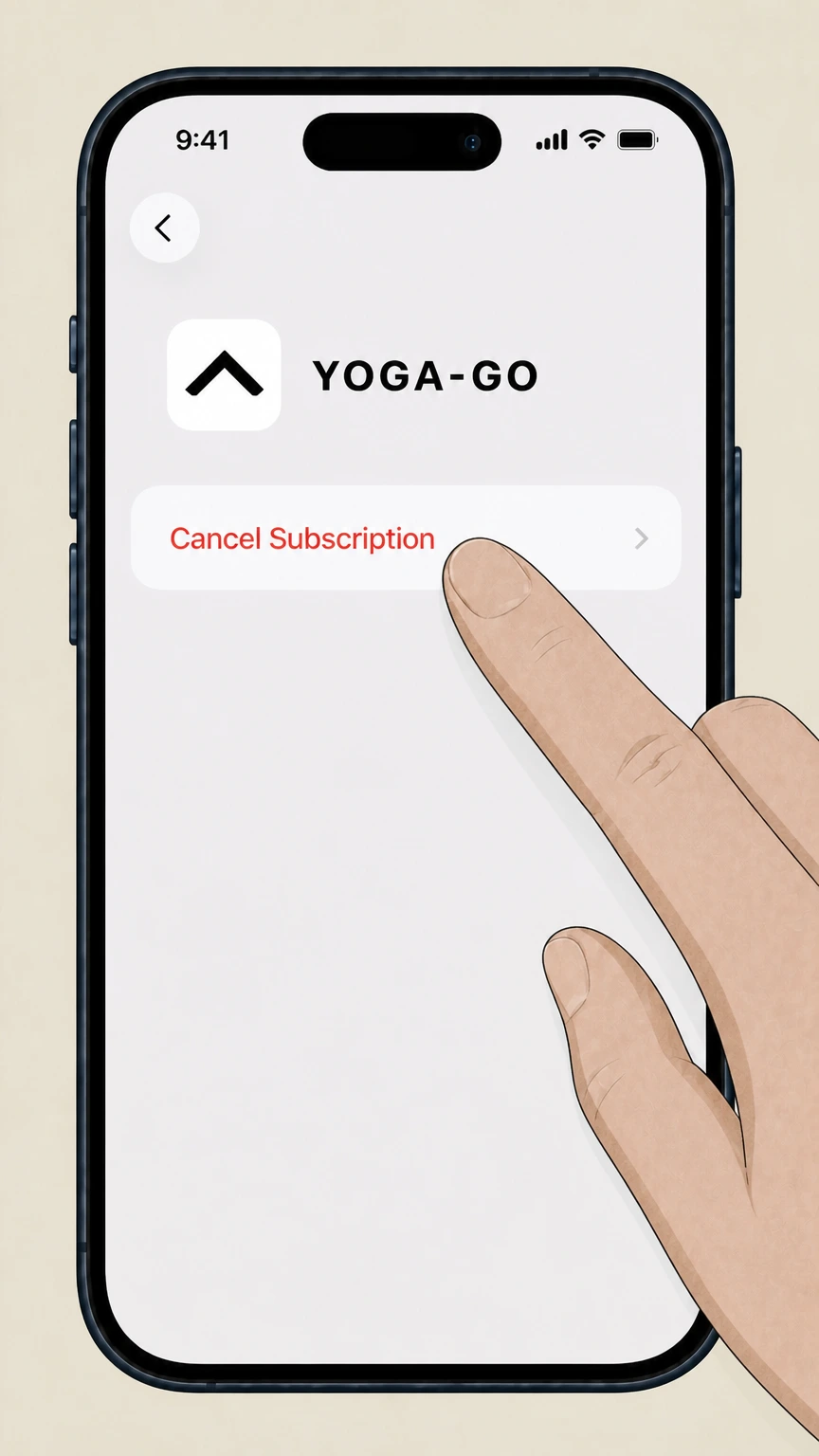
5Cancel the subscription
Tap Cancel Subscription and follow the on‑screen confirmation; if there is no Cancel button and you see an expiration message in red, the subscription is already canceled.

Google Play Store on Android · verify the billing owner
Google Play Store on Android
 1
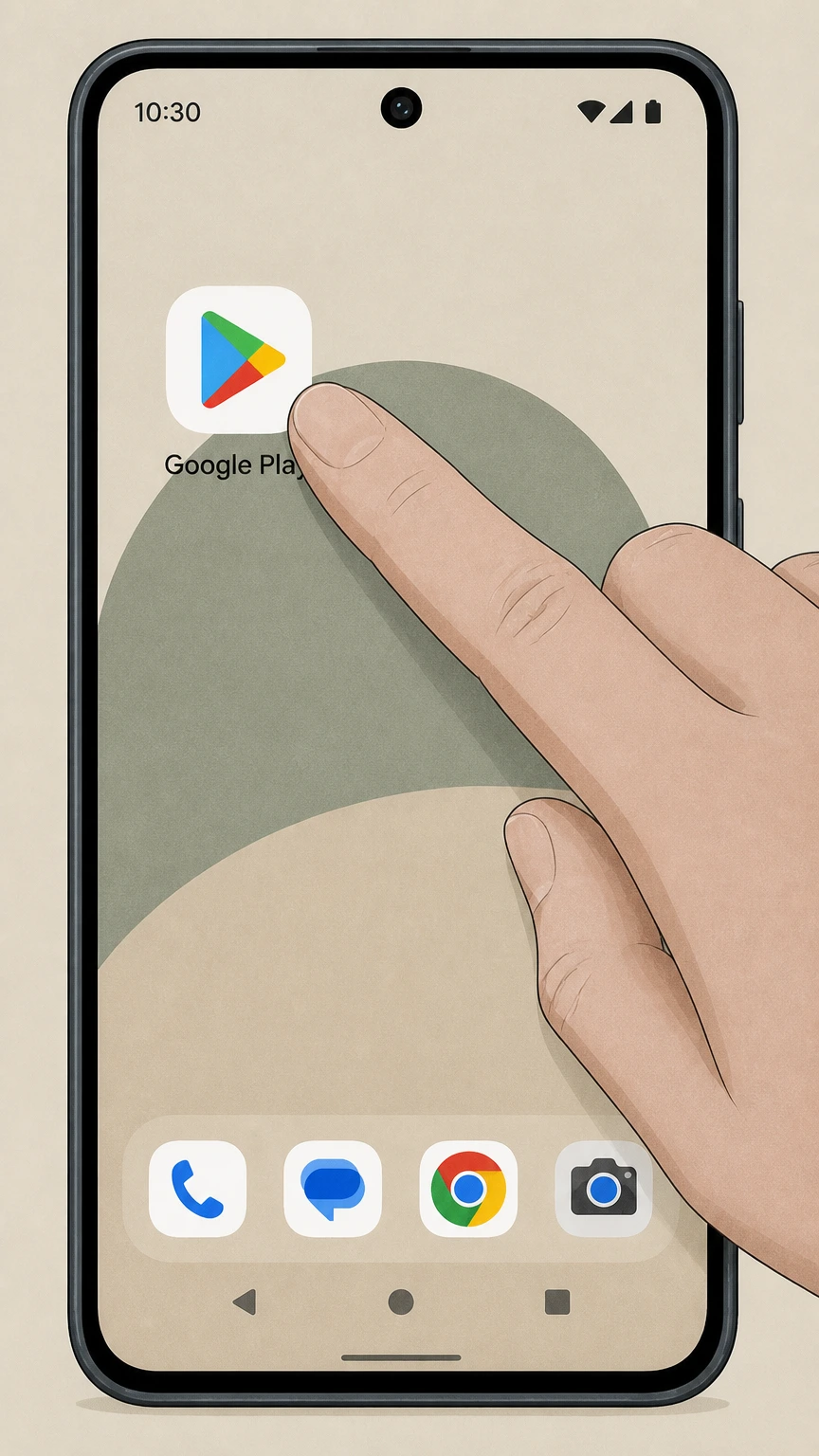
1Open Google Play Store
On your Android device, open the Google Play Store app while signed in to the Google Account that was charged for Yoga‑Go.
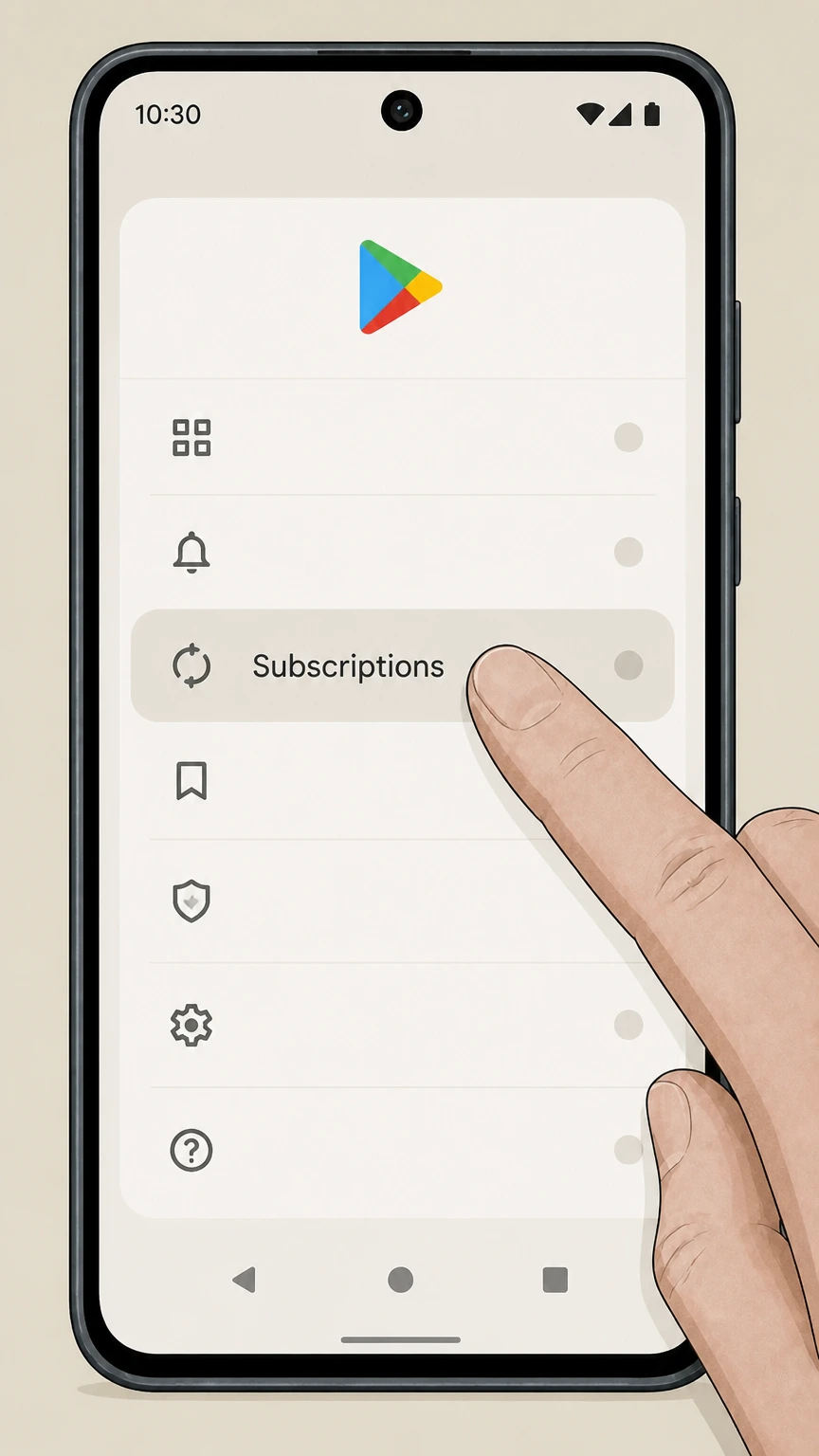 2
2Go to Subscriptions
In Google Play, go to the Subscriptions section to view all active and inactive subscriptions on this Google Account.
- Let Pine handle it
Pine can help
Too many steps?
Pine can find the right Google Play Store on Android path and handle the cancellation for you.
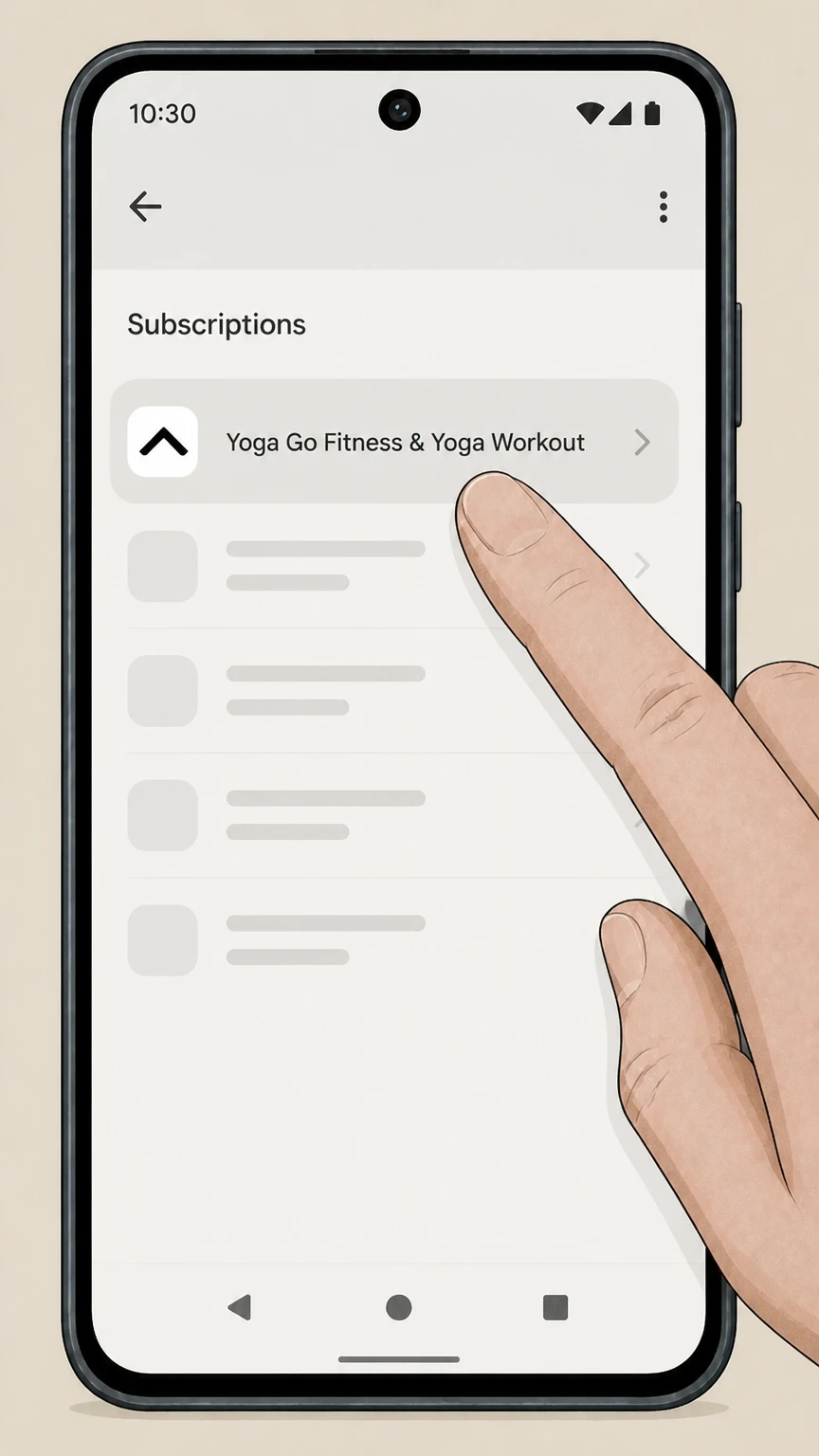 3
3Select the Yoga-Go subscription
In the Subscriptions list, tap the Yoga‑Go entry (Yoga Go Fitness & Yoga Workout) to open its subscription details.
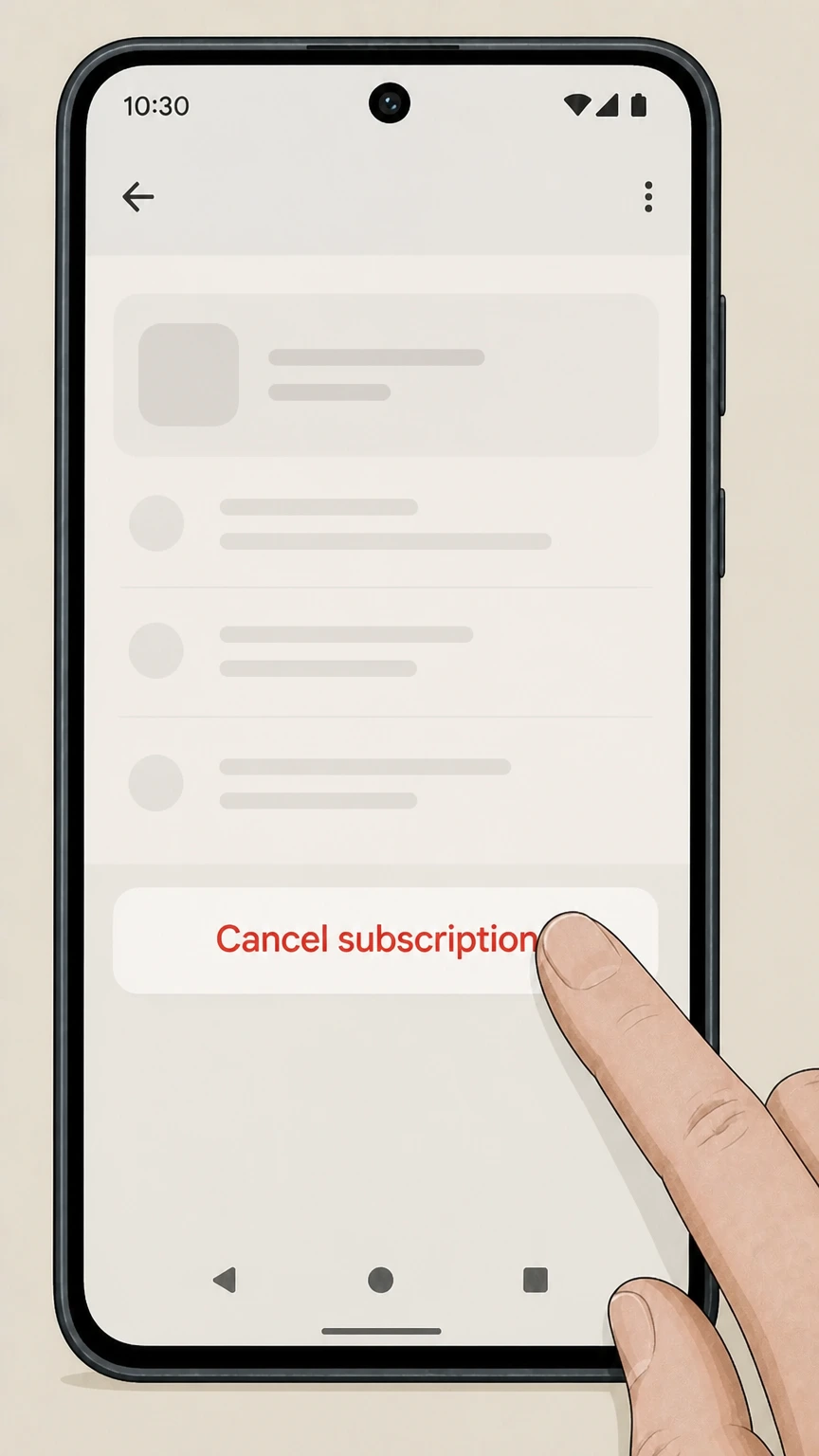 4
4Tap Cancel subscription
On the Yoga‑Go subscription screen, tap Cancel subscription to start the cancellation flow.
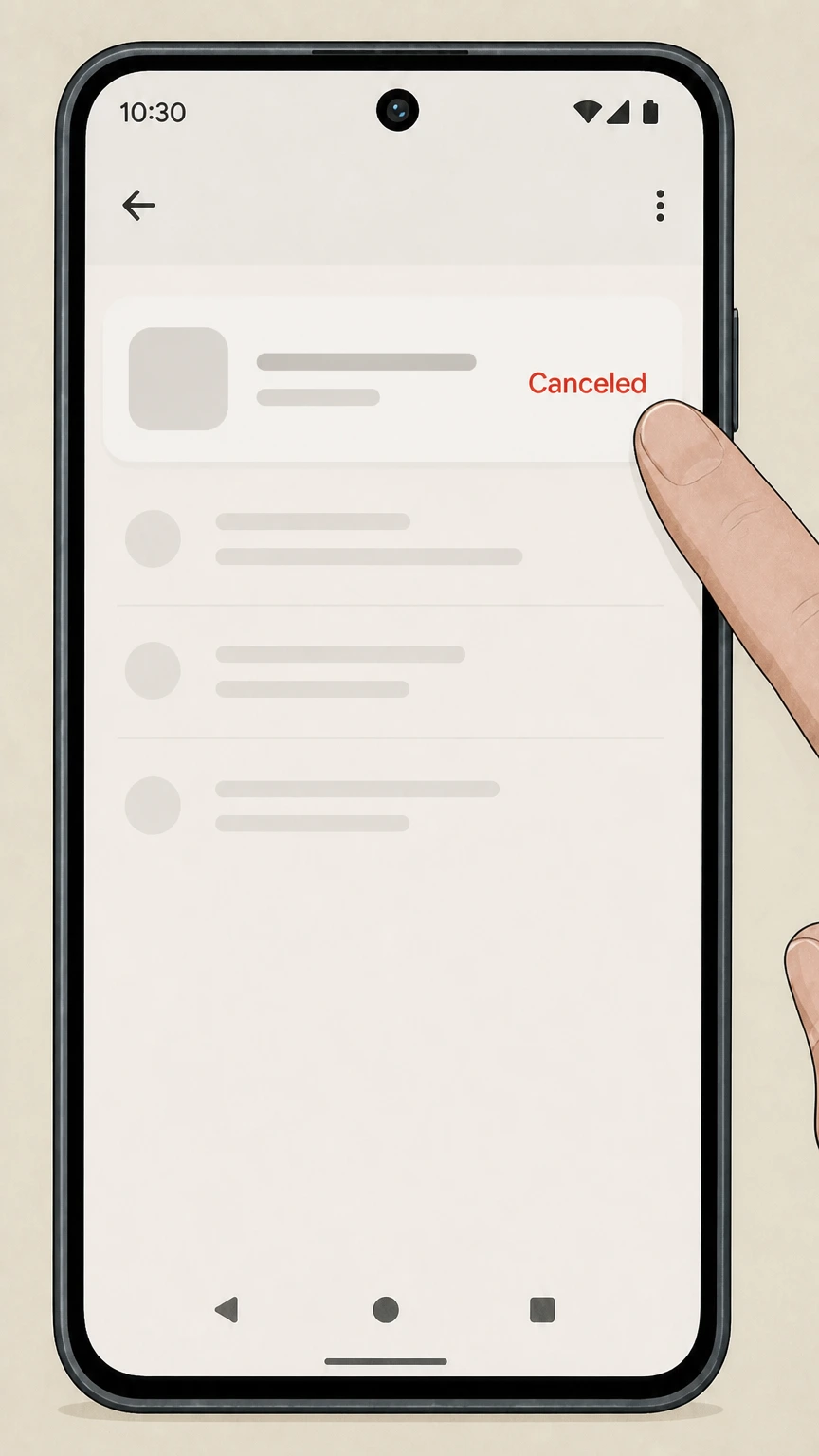 5
5Verify Yoga-Go is canceled
After completing Google Play’s prompts, verify that the Yoga‑Go subscription entry shows a canceled status and the final access date.
Refund policy
Refunds after canceling Yoga-Go
Canceling Yoga-Go stops future renewals but does not itself create a refund; refund requests are handled by Apple, Google Play, or Yoga-Go, depending on who billed you.
Check my refund options- Apple-billed Yoga-Go refunds
- For Yoga-Go subscriptions billed by Apple, some App Store purchases may be eligible for a refund, but you must request it separately by signing in to reportaproblem.apple.com and choosing Request a refund; Yoga-Go’s listing also specifies that unused time in the current period is not automatically refunded when you cancel.
- Google Play–billed Yoga-Go refunds
- For Google Play–billed subscriptions, Google may grant refunds under its app and in‑app purchase refund policies. Within 48 hours, you may be able to request a refund directly through Google Play’s refund form; after that, Google often directs users to contact the app developer.
- Unknown or non-store charge
- If neither Apple nor Google Play owns the Yoga-Go charge, use the current support channel in the official store listing to identify the merchant and request the applicable refund policy. Do not assume an in-app refund workflow.
For store-billed purchases, start by reviewing the platform’s refund help page, then submit a refund request through Apple’s Report a Problem site or Google Play’s refund workflow if you believe you were charged in error. View store refund help
Billing owner
Match Yoga-Go to Apple or Google Play
Use the store account that owns the Yoga-Go receipt.
Apple purchase
Cancel Yoga-Go in Apple Subscriptions when Apple issued the receipt.
Google Play purchase
Cancel Yoga-Go in Google Play Subscriptions when Google issued the receipt.
Neither store lists it
Check the merchant on the receipt and use the current support channel in the official store listing to identify the cancellation owner.
Subscription status
The app download and paid access are separate
The official store listings describe subscription access after download.
Apple listing
The App Store listing identifies Yoga-Go as an app with in-app purchases; the Apple subscription entry controls an Apple-billed renewal.
Google listing
The Google Play listing identifies Yoga-Go and its support channel; the Google Play subscription entry controls a Google-billed renewal.
Canceling does not uninstall
Canceling a store subscription stops its renewal but does not remove the Yoga-Go app from the device.
Refund and confirmation
Use the billing store for status and refund requests
Cancellation and a refund request are separate actions.
Apple refund request
Apple evaluates a refund request for an Apple-billed Yoga-Go subscription.
Google refund request
Google evaluates a refund request for a Google Play-billed Yoga-Go subscription.
Keep the final status
Retain the canceled status and access-end date shown in the billing store.
Yoga-Go cancellation FAQ
Answers about Yoga-Go billing ownership, cancellation timing, refunds, and access after cancellation.
How do I completely cancel my Yoga-Go subscription?
Why can't I cancel my Yoga-Go subscription on my iPhone?
Can I cancel my Yoga-Go subscription online without the app?
Can I get a refund after canceling Yoga-Go?
What happens to my Yoga-Go access after I cancel?
Does canceling Yoga-Go delete my account or data?
How do I confirm that my Yoga-Go subscription is canceled?
Untangle this Yoga-Go issue.
Let Pine handle the provider follow-up and keep the confirmation in one place.
