


X Premium
Cancel subscription
How to Cancel X Premium: Official Billing Steps
Learn how to cancel X Premium through the right billing provider. Follow official steps, understand access timing, refunds, and the confirmation to keep.
- 3 cancellation paths matched to the billing owner
- Renewal timing and access outcome explained
- Refund requests routed to the company that billed you
- Confirmation steps included for every path
Choose the X Premium cancellation path that matches who bills you
Apple iOS (billed through Apple) · verify the billing owner
Apple iOS (billed through Apple)
 1
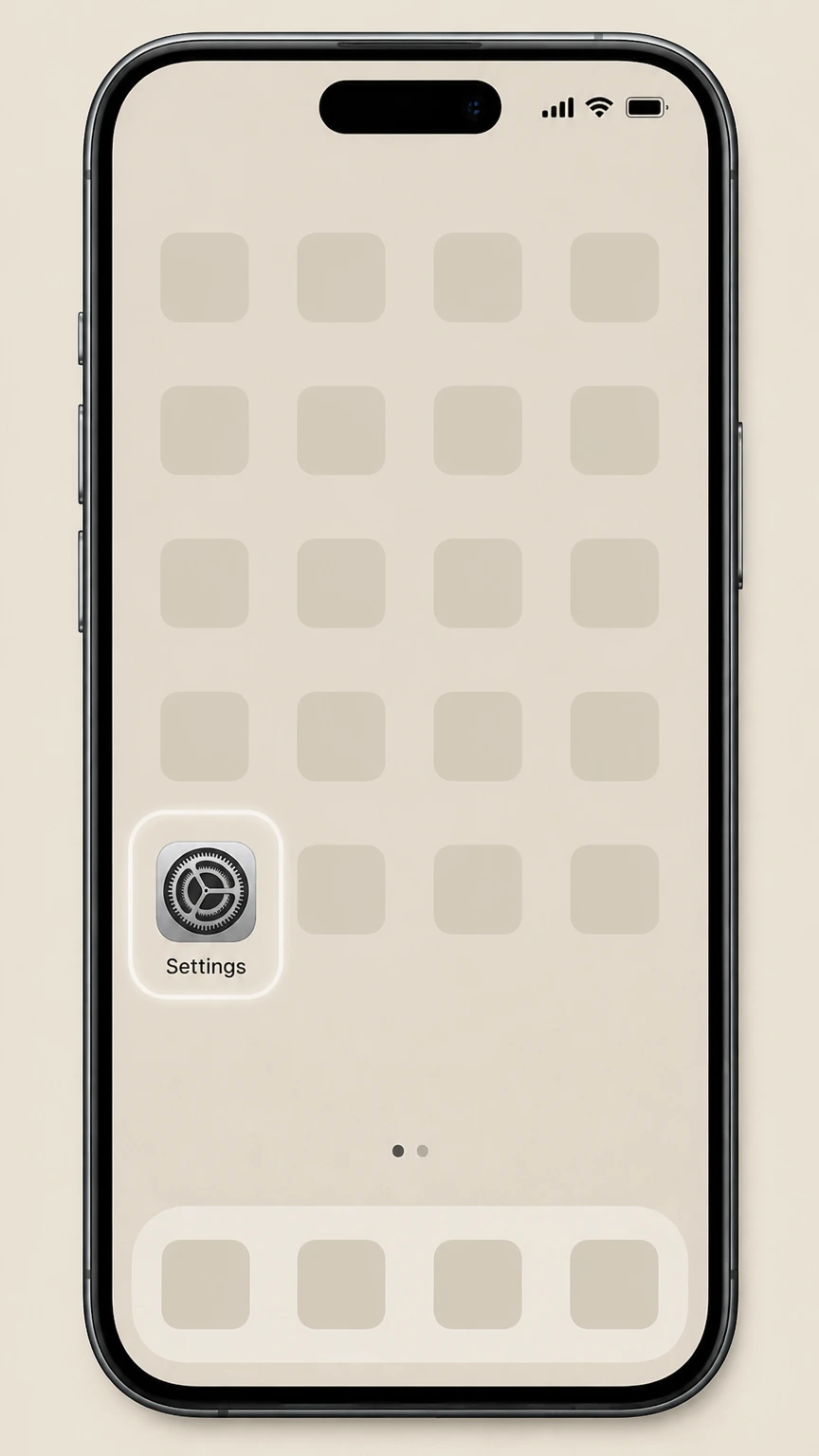
1Open Settings
Open the Settings app on your iPhone or iPad.
 2
2Tap your name
At the top of Settings, tap your Apple ID name to open account settings.
- Let Pine handle it
Pine can help
Too many steps?
Pine can find the right Apple iOS (billed through Apple) path and handle the cancellation for you.
 3
3Open Subscriptions
Tap Subscriptions to see your active and expired subscriptions.
 4
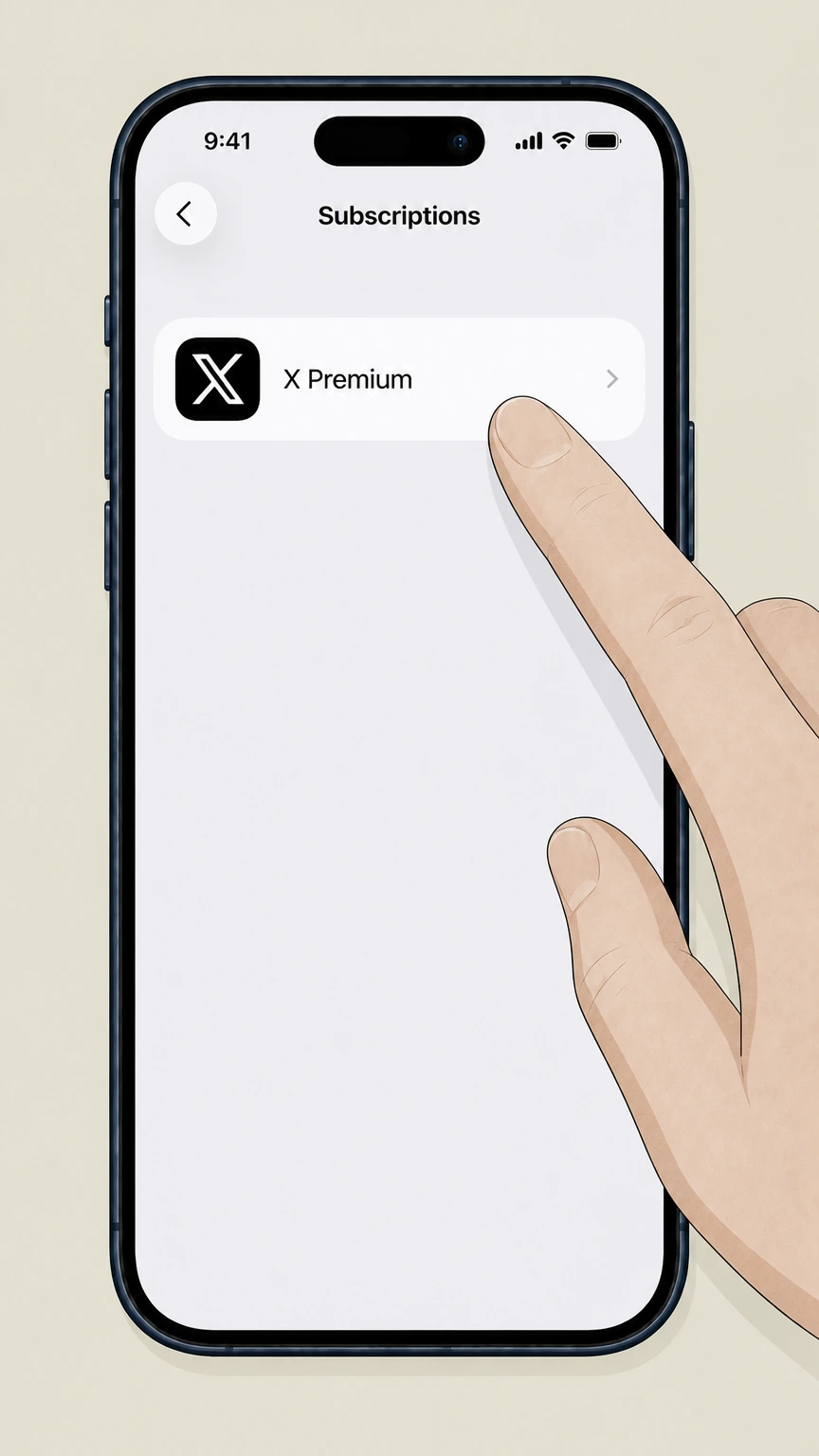
4Select X Premium
In the list of subscriptions, tap X Premium to open its details.
 5
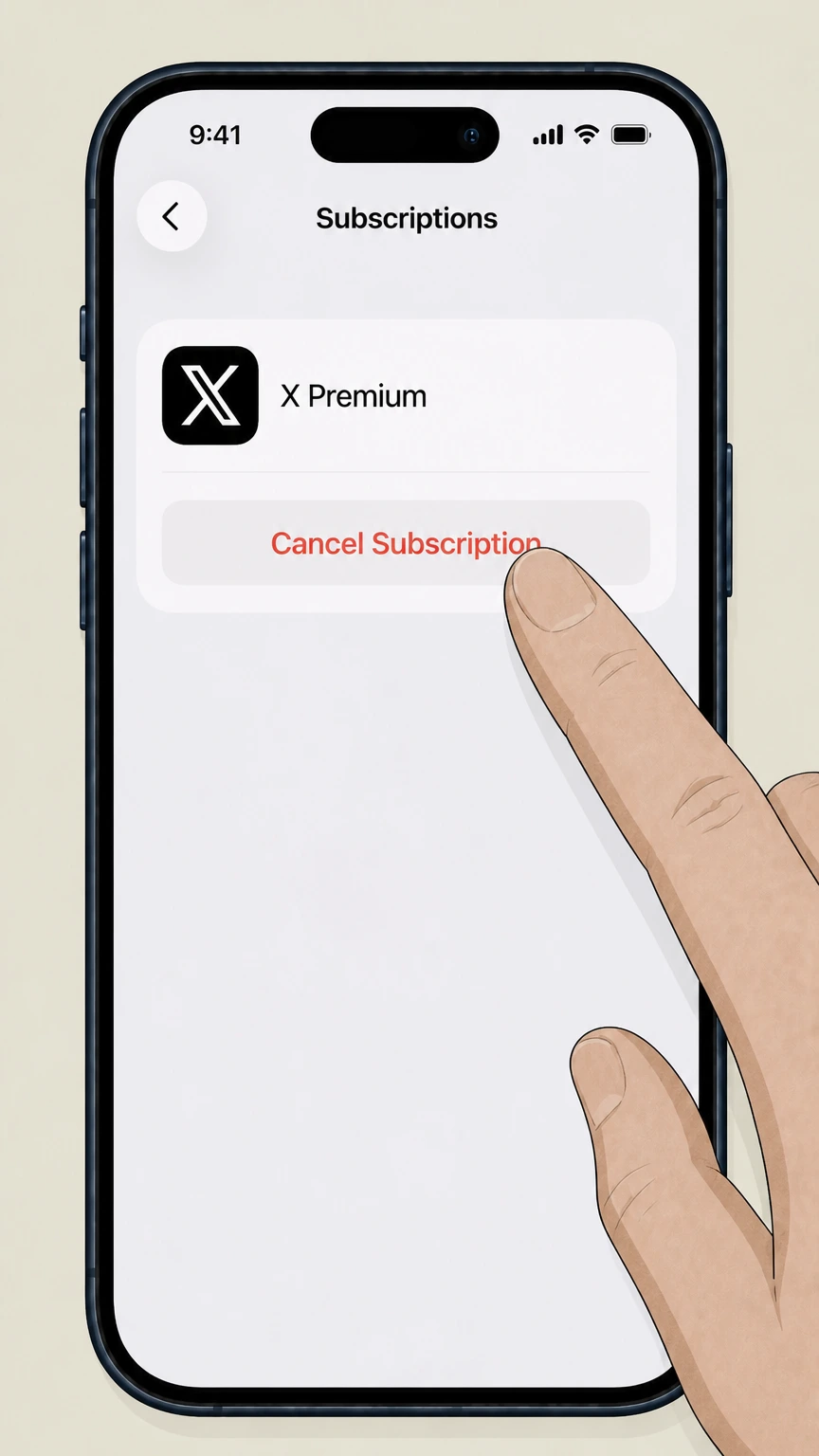
5Cancel the subscription
Tap Cancel Subscription and confirm to stop X Premium from renewing.

Google Play (Android billing) · verify the billing owner
Google Play (Android billing)
 1
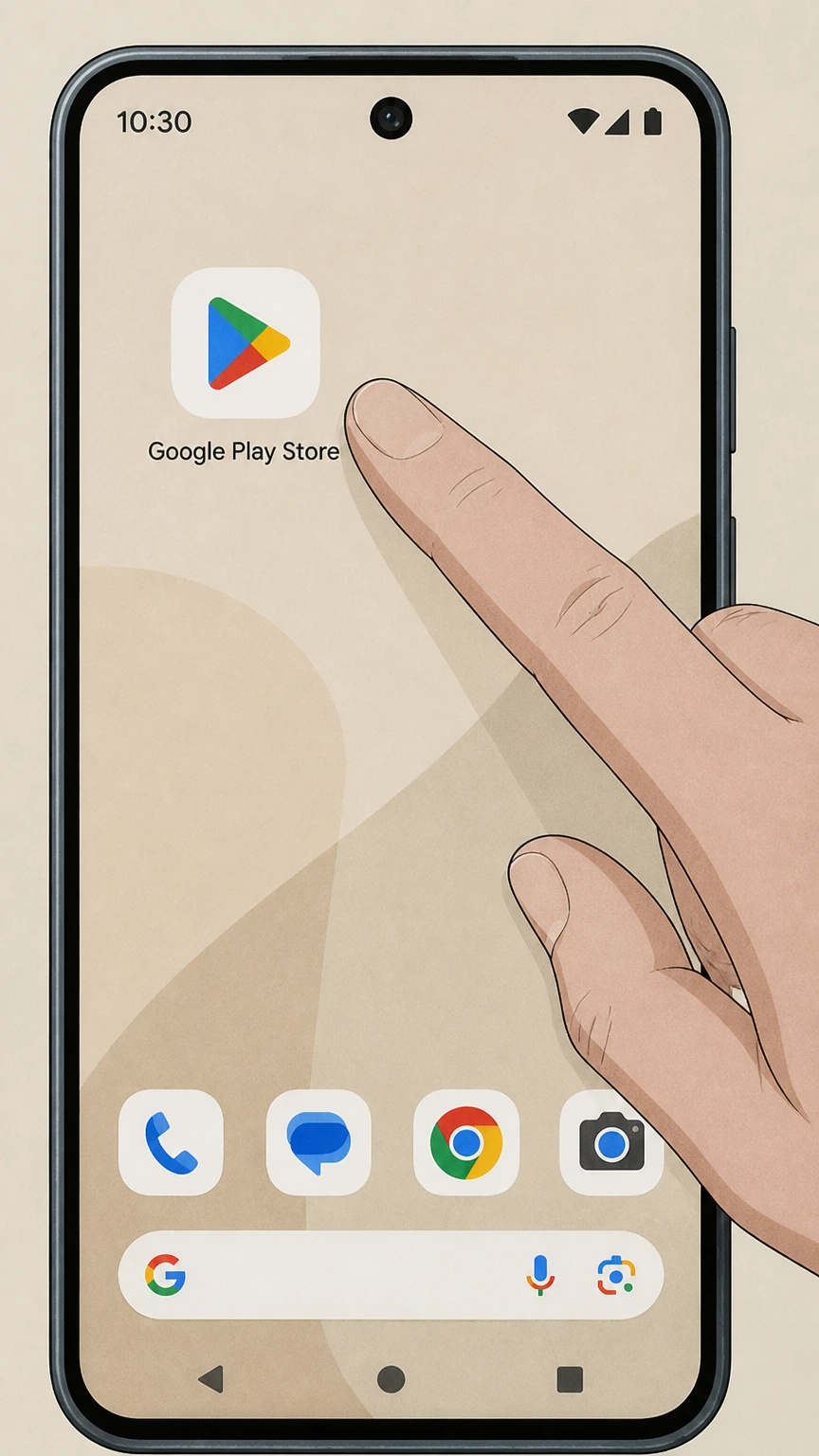
1Open Google Play Store
On your Android device, open the Google Play Store app.
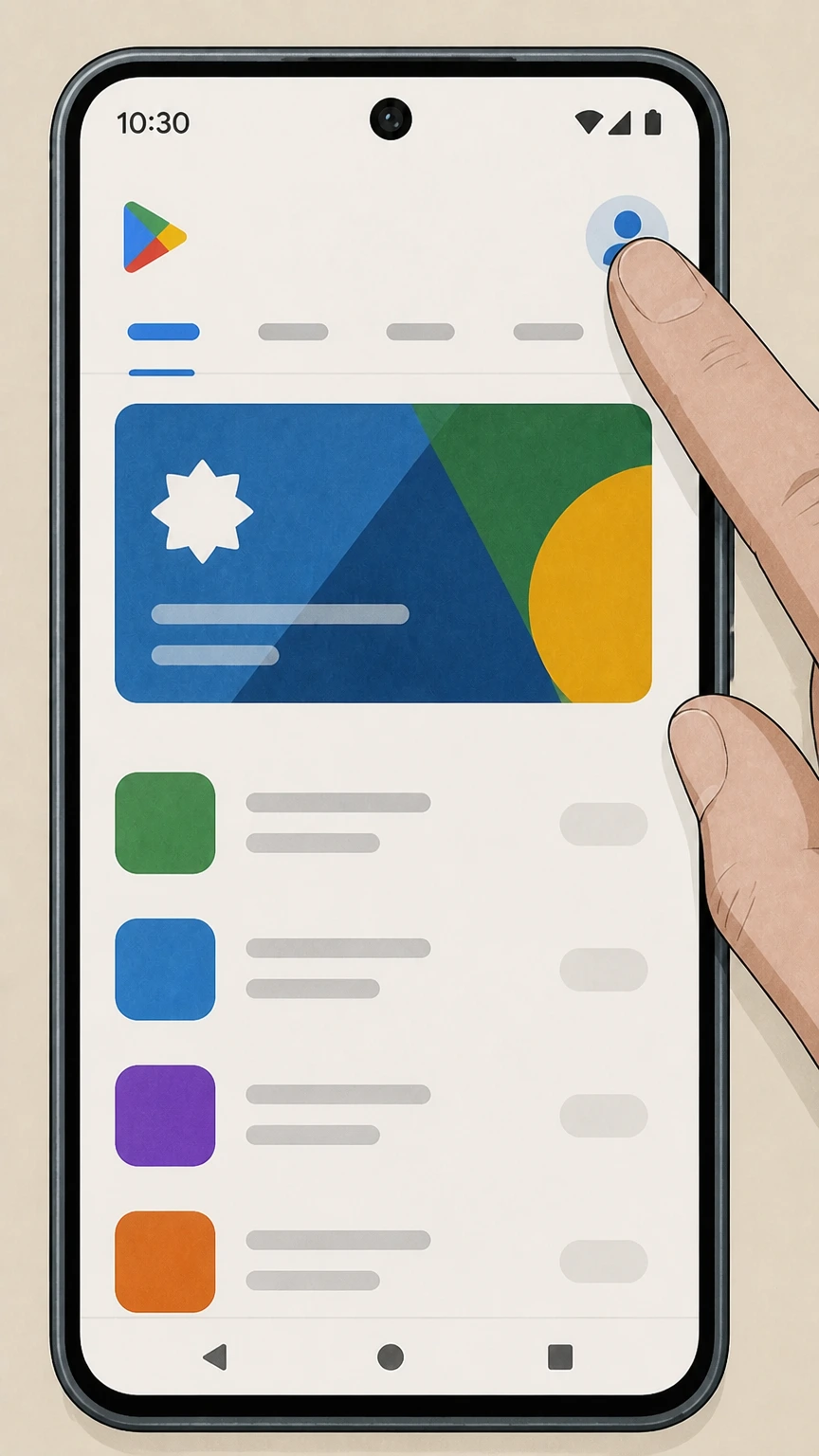 2
2Tap your profile icon
In the top‑right corner of Google Play, tap your profile picture.
- Let Pine handle it
Pine can help
Too many steps?
Pine can find the right Google Play (Android billing) path and handle the cancellation for you.
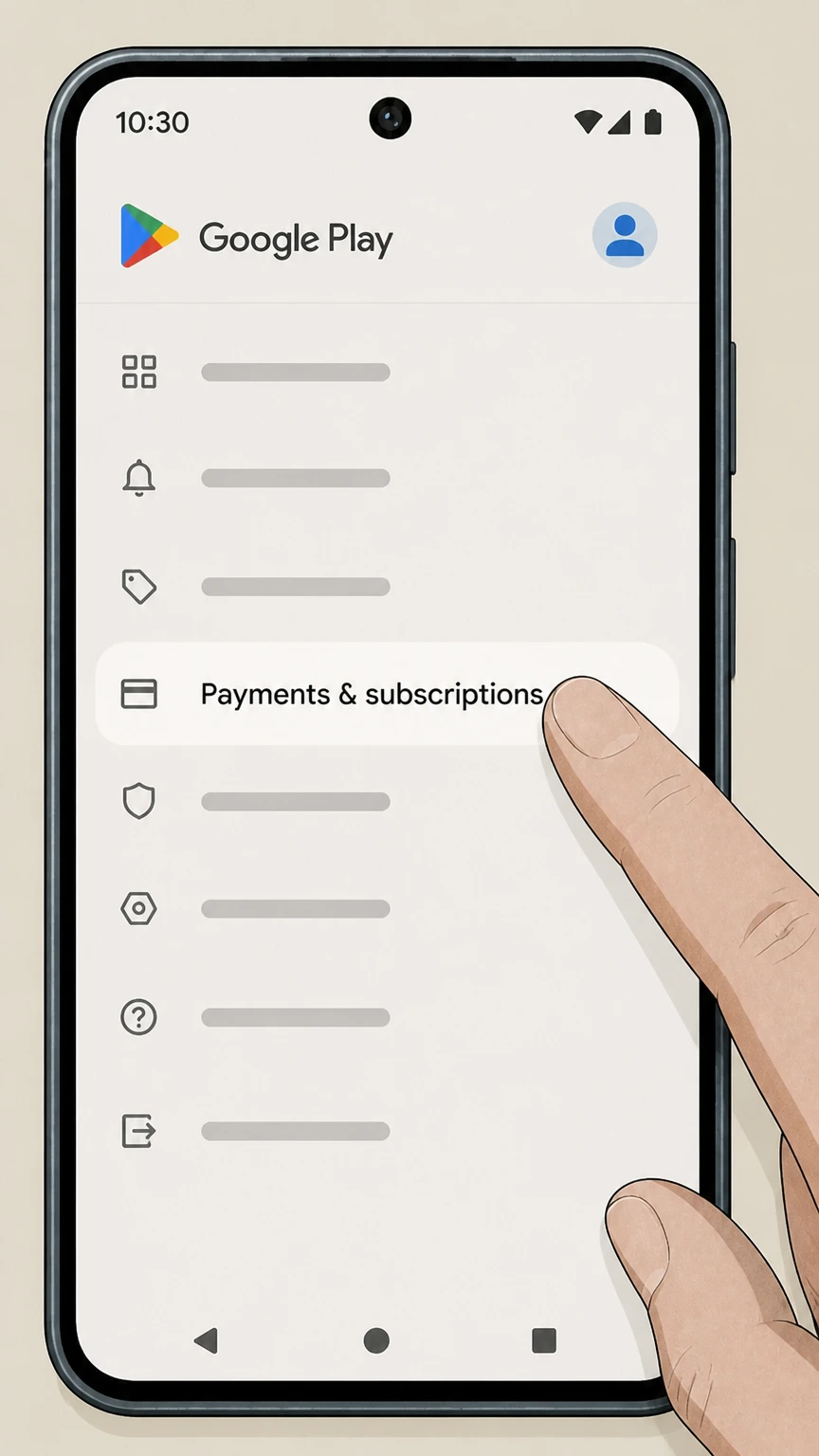 3
3Open Payments & subscriptions
From the menu, tap Payments & subscriptions on the billing account used for this subscription.
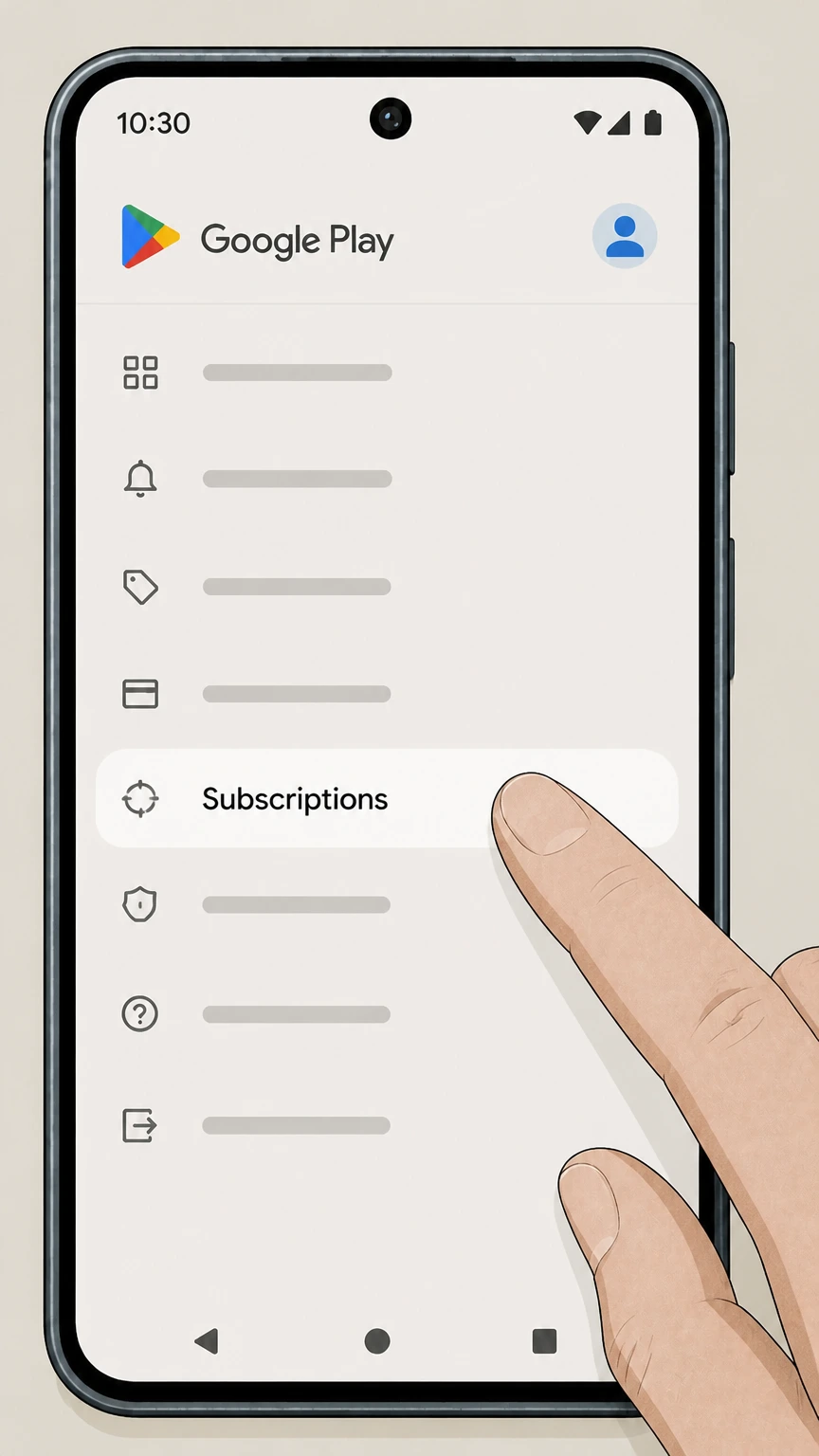 4
4Tap Subscriptions
Tap Subscriptions to view your active and expired subscriptions.
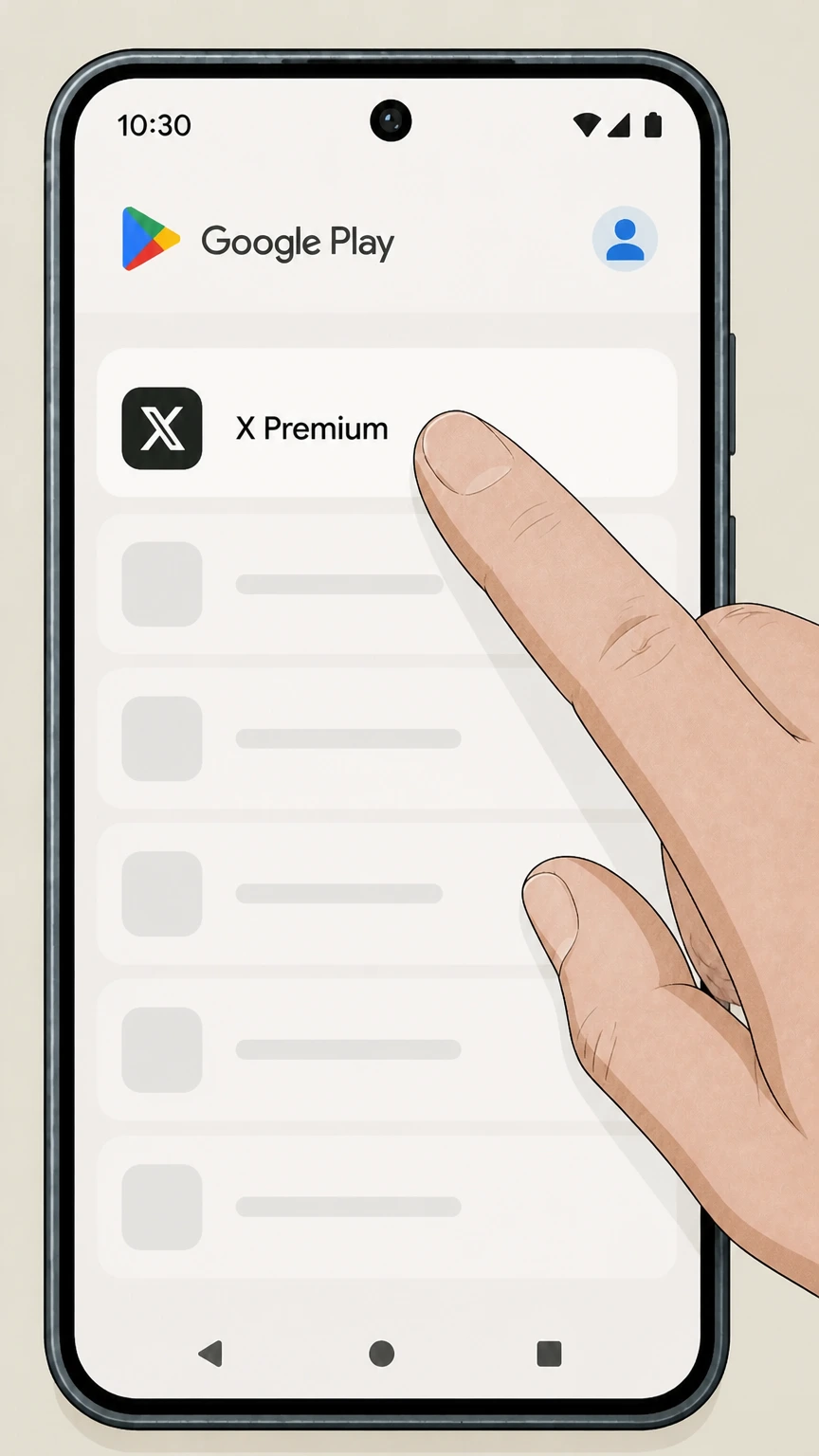 5
5Select X Premium
In the list of subscriptions, tap X Premium.
 6
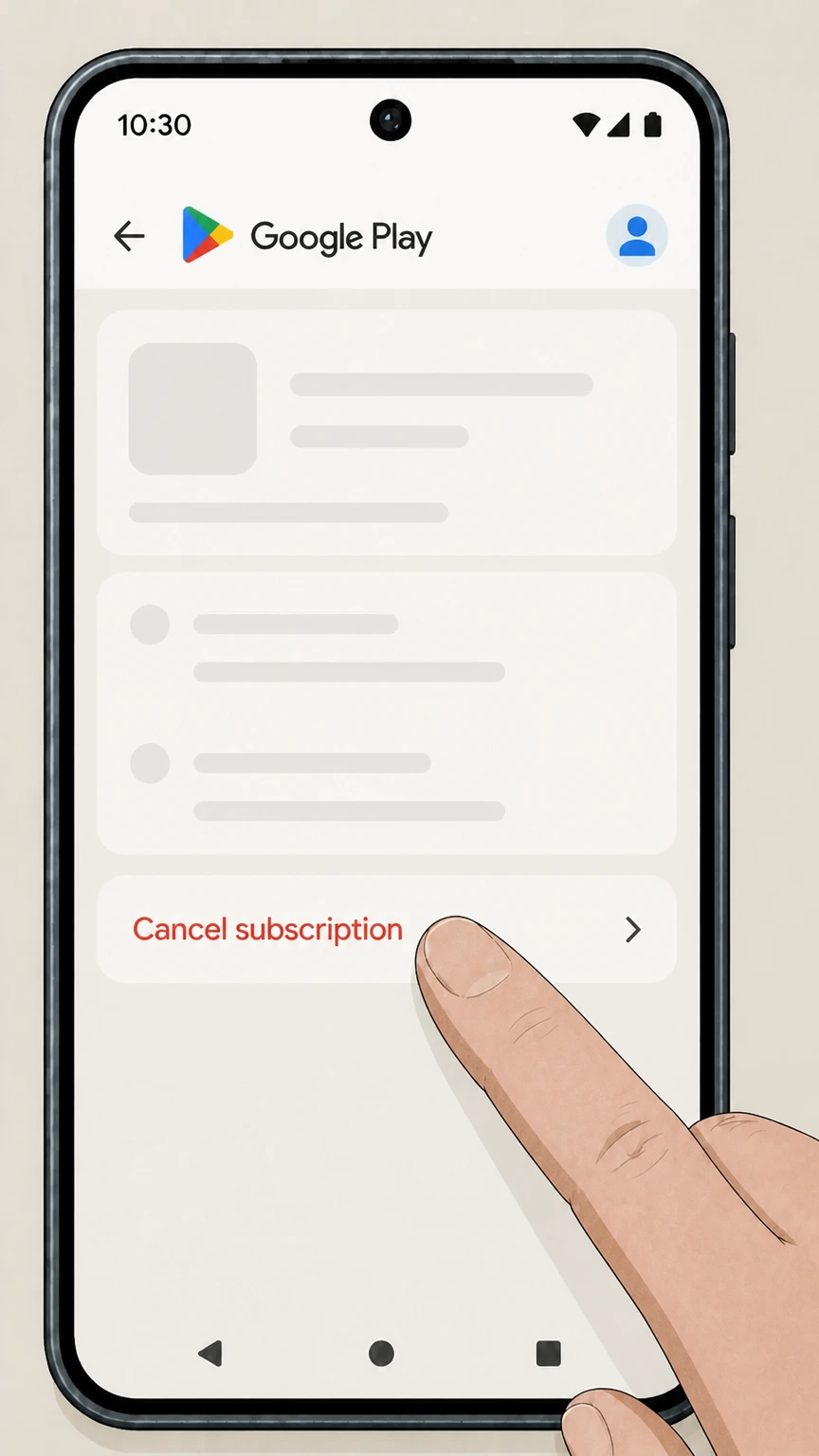
6Cancel subscription
Tap Cancel subscription and follow the prompts to confirm cancellation.
X.com Premium settings (web billing) · verify the billing owner
X.com Premium settings (web billing)
 1
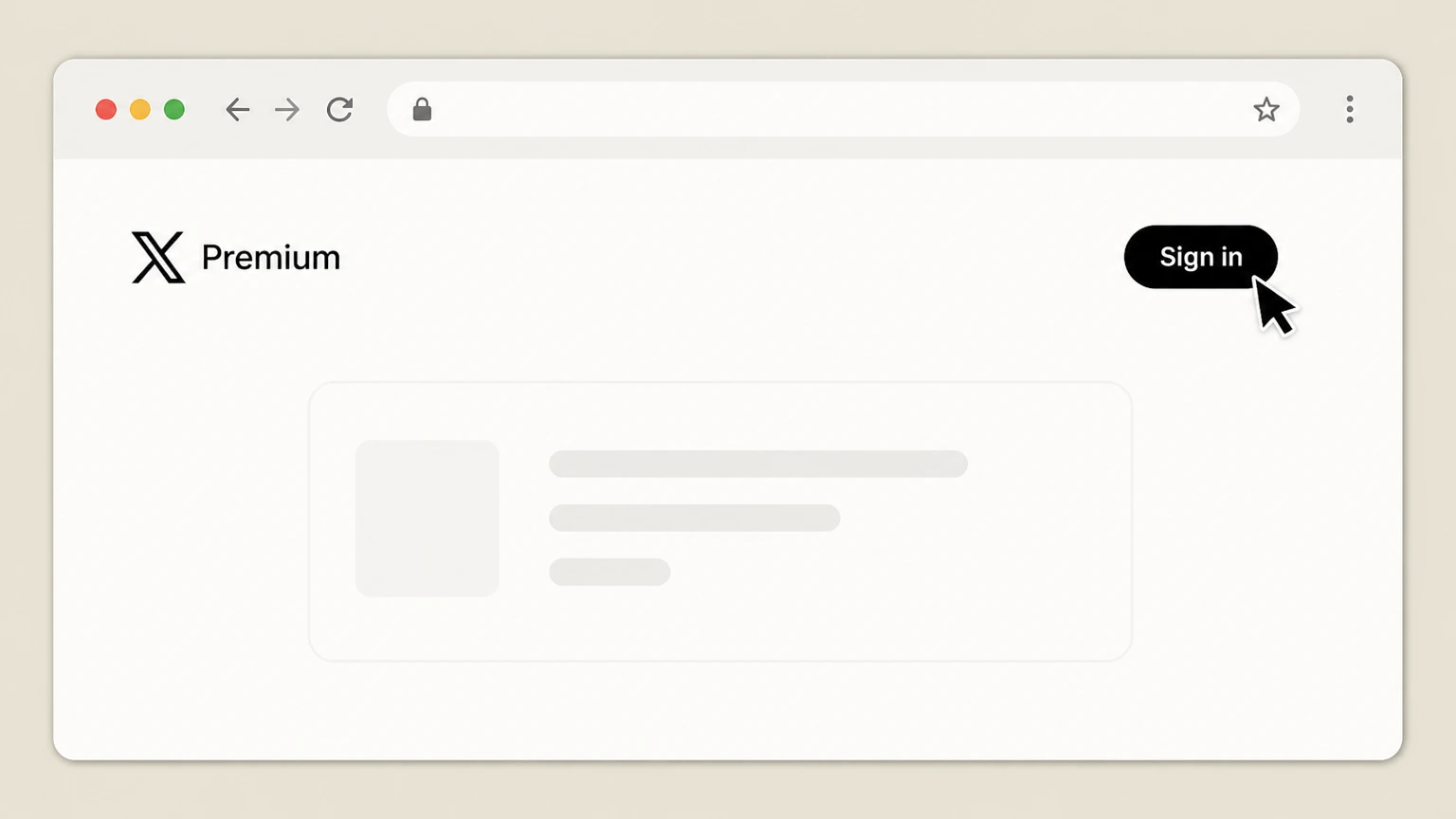
1Sign in to X.com
Open x.com in a browser and sign in to the X account that holds the directly billed Premium subscription.
 2
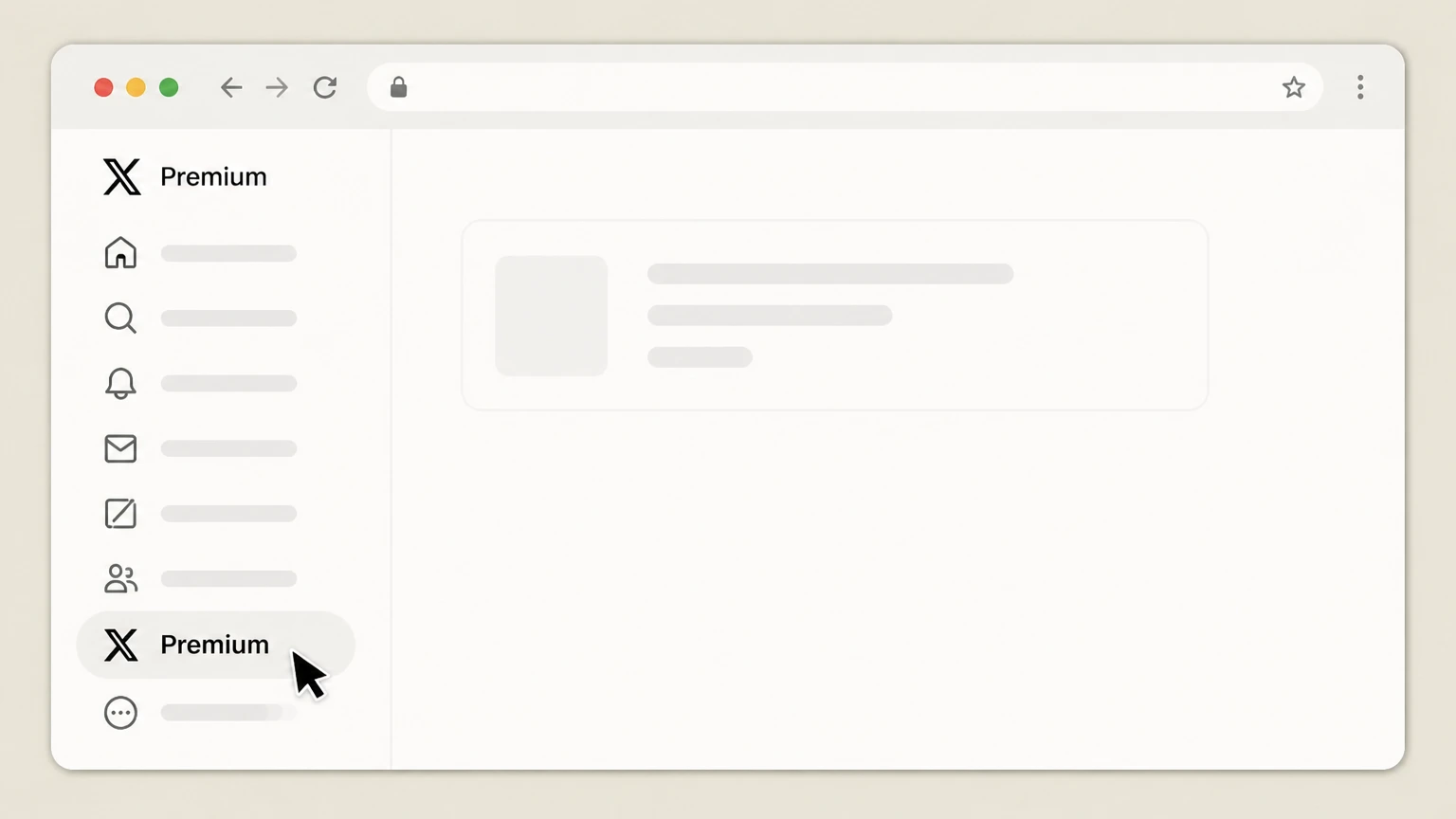
2Open Premium
Open Premium from the signed‑in X navigation to reach the subscription management area for this account.
- Let Pine handle it
Pine can help
Too many steps?
Pine can find the right X.com Premium settings (web billing) path and handle the cancellation for you.
 3
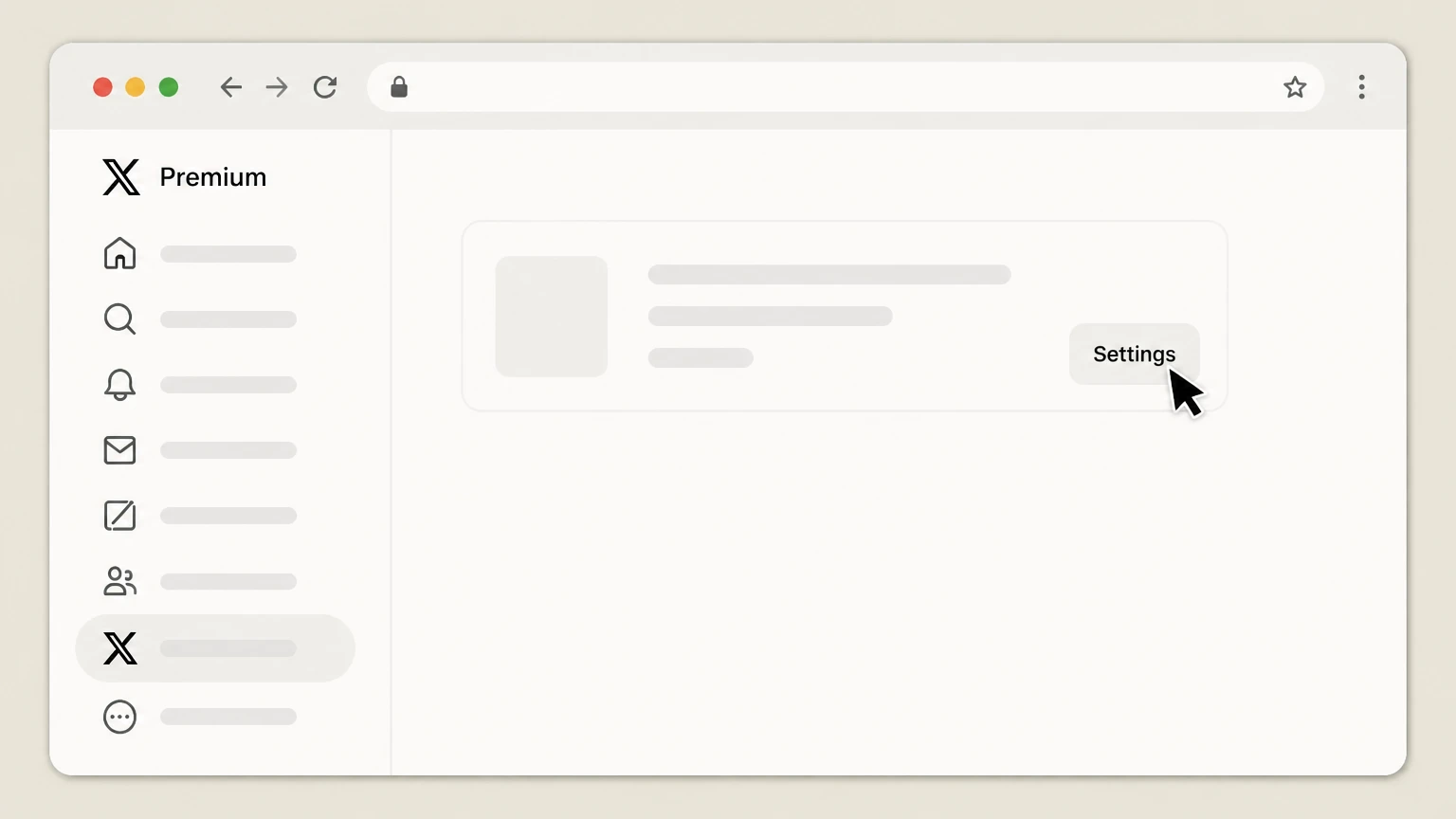
3Open Settings and cancel
From the web Premium area, open the current Settings path for the web‑billed subscription, cancel there, and keep the billing‑cycle end date. The public FAQ does not publish a more specific button label.
Refund policy
Refund expectations after canceling X Premium
X publishes a no-refund baseline for Premium cancellation, while the billing owner controls any store request or legally required exception.
Check my refund options- X direct baseline
- X states that Premium subscriptions are non-refundable unless required by law and that cancellation does not refund amounts already paid.
- Apple-billed request
- Apple evaluates any separate refund request for an Apple-billed X Premium subscription.
- Google-billed request
- Google evaluates any separate refund request for a Google Play-billed X Premium subscription.
Use the refund channel of the billing owner shown on the receipt and keep the cancellation status and charge record. Review X Premium refund guidance
Billing owner
Cancel X Premium on its purchase platform
X’s FAQ separates web, iOS, and Android billing.
X.com purchase
For web billing, sign in to X.com, open Premium, and use the Settings destination published by X.
iOS purchase
For Apple billing, cancel X Premium in Apple Subscriptions.
Android purchase
For Google billing, cancel X Premium in Google Play Subscriptions.
Verified web path
X publishes Settings but no later button label
The illustrated web path stops at the provider-verified destination.
Open Premium
Open Premium from the signed-in X navigation for the account that holds the web-billed subscription.
Open Settings
Use the current Settings path for that X.com purchase and follow the cancellation option shown there.
Do not infer later controls
The public FAQ does not publish a more specific cancel-button label for this page to reproduce.
Timing and outcome
X publishes a 24-hour renewal boundary
These consequences come from X’s Premium FAQ.
Cancel before renewal
X says to cancel at least 24 hours before auto-renewal to avoid another charge.
Features end at cycle close
X states that Premium features expire at the end of the billing cycle.
No cancellation refund baseline
X states that cancellation does not refund amounts already paid unless required by law.
Account access issue
Use the billing account if X is inaccessible
The store routes remain tied to the billing account, not the installed X app.
Apple billing
An Apple-billed X Premium subscription can be managed from the Apple Account even if the X app cannot be used.
Google billing
A Google-billed X Premium subscription can be managed from the Google Account even if the X app cannot be used.
X.com billing
A suspended or inaccessible X.com account may block the verified web Settings route and requires X account support rather than an invented bypass.
X Premium cancellation FAQ
Answers about X Premium billing ownership, cancellation timing, refunds, and access after cancellation.
Will I get a refund if I cancel my X Premium subscription?
How do I cancel X Premium?
How do I cancel an X subscription on a suspended account?
How do I cancel X Premium on Android?
How do I cancel X Premium on iPhone?
What happens to my blue check and other perks after I cancel X Premium?
Untangle this X Premium issue.
Let Pine handle the provider follow-up and keep the confirmation in one place.
