


DStv
Cancel subscription
How to Cancel DStv Subscription: Official 2026 Guide
Cancel DStv through the correct billing route. Follow official steps, understand renewal timing and refunds, and keep proof of the final result for your records
- 3 verified cancellation routes
- Billing ownership and renewal timing explained
- Provider-specific refund boundaries included
- A confirmation check follows every route
Choose the correct DStv cancellation route
DStv Self Service · verify the billing owner
Schedule a DStv package disconnection
 1
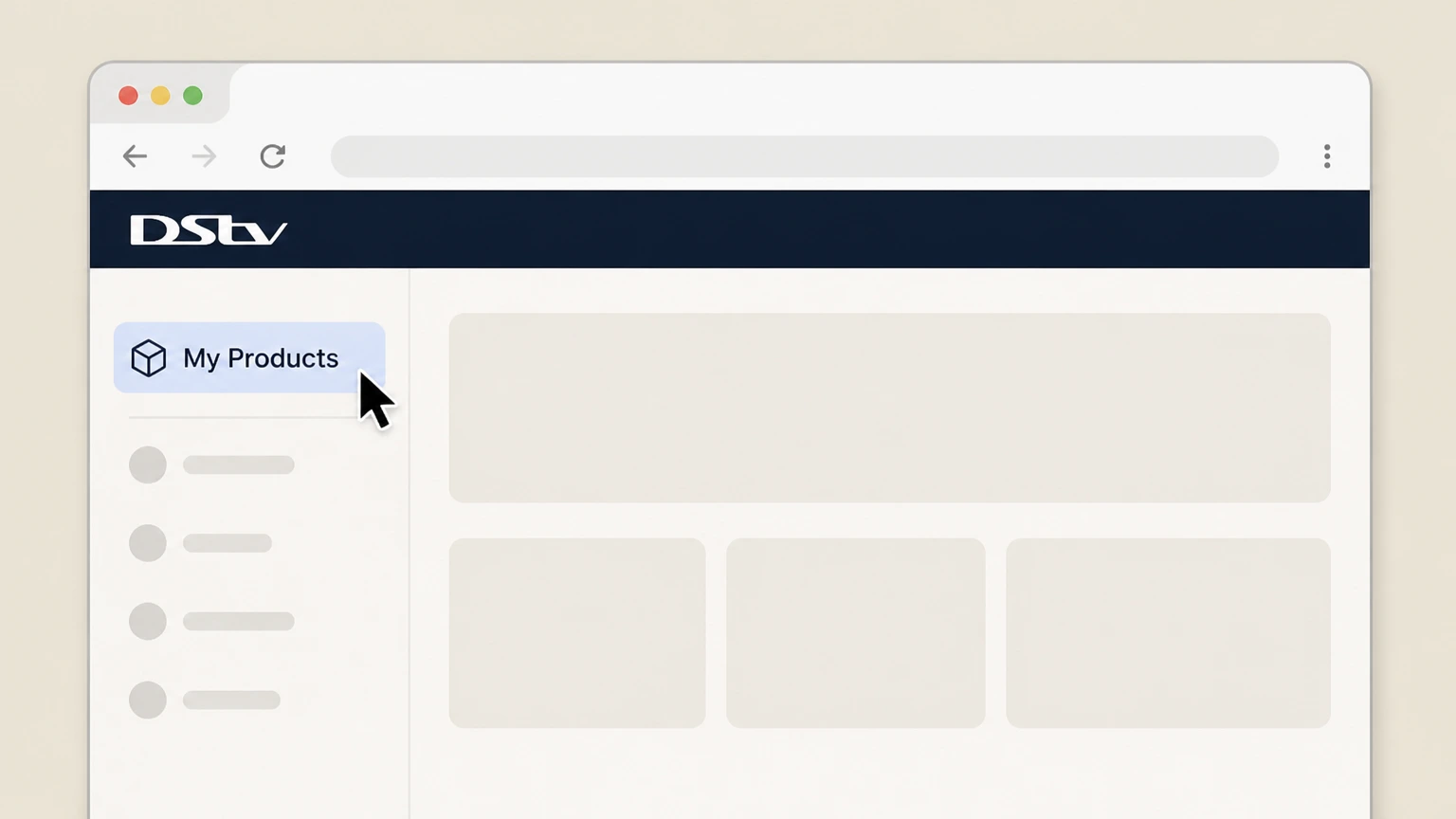
1Open My Products
Sign in on the DStv website and open My Products.
 2
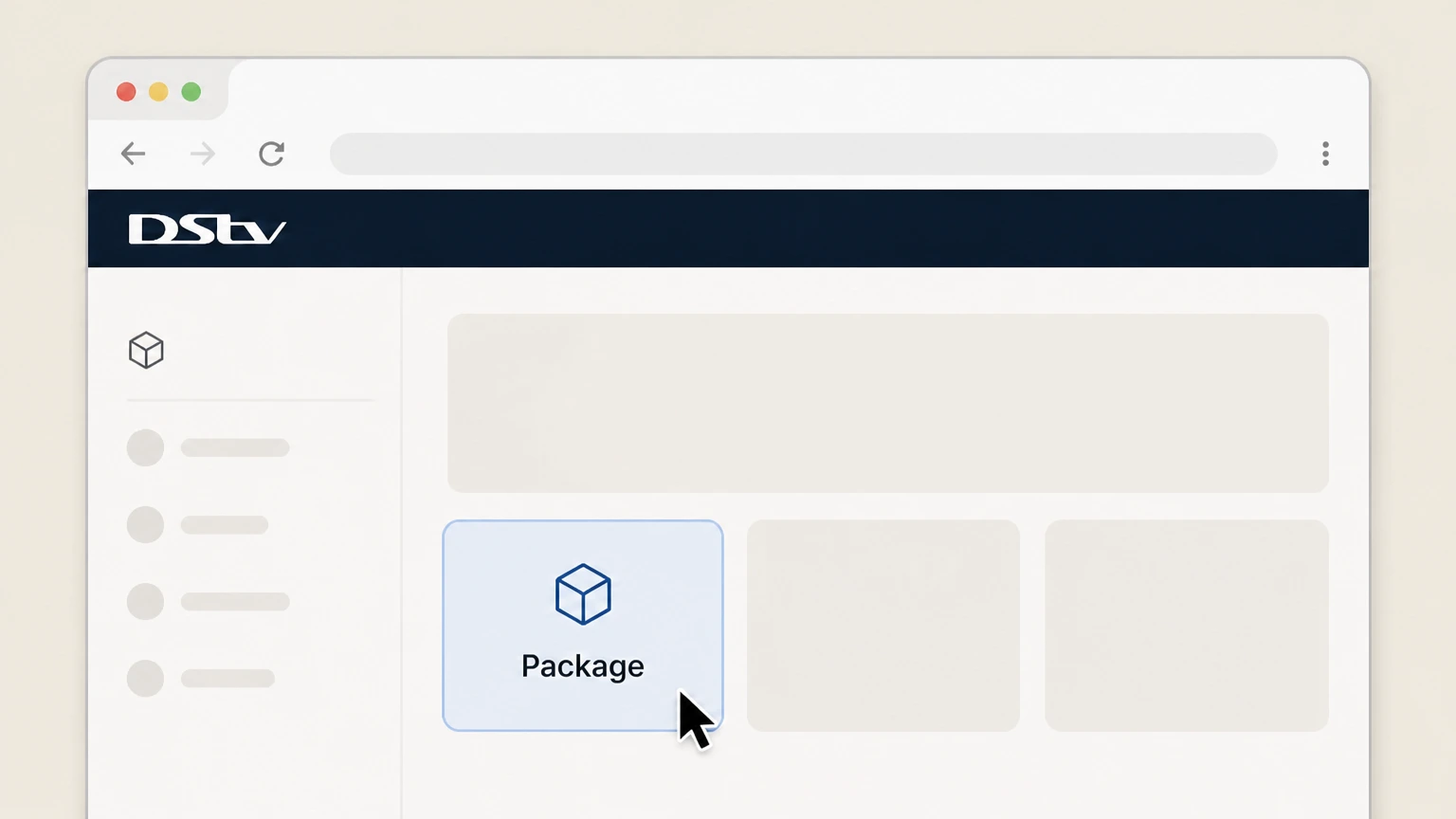
2Select the package
Choose the DStv package or service that should stop.
- Let Pine handle it
Pine can help
Too many steps?
Pine can find the right DStv Self Service path and handle the cancellation for you.
 3
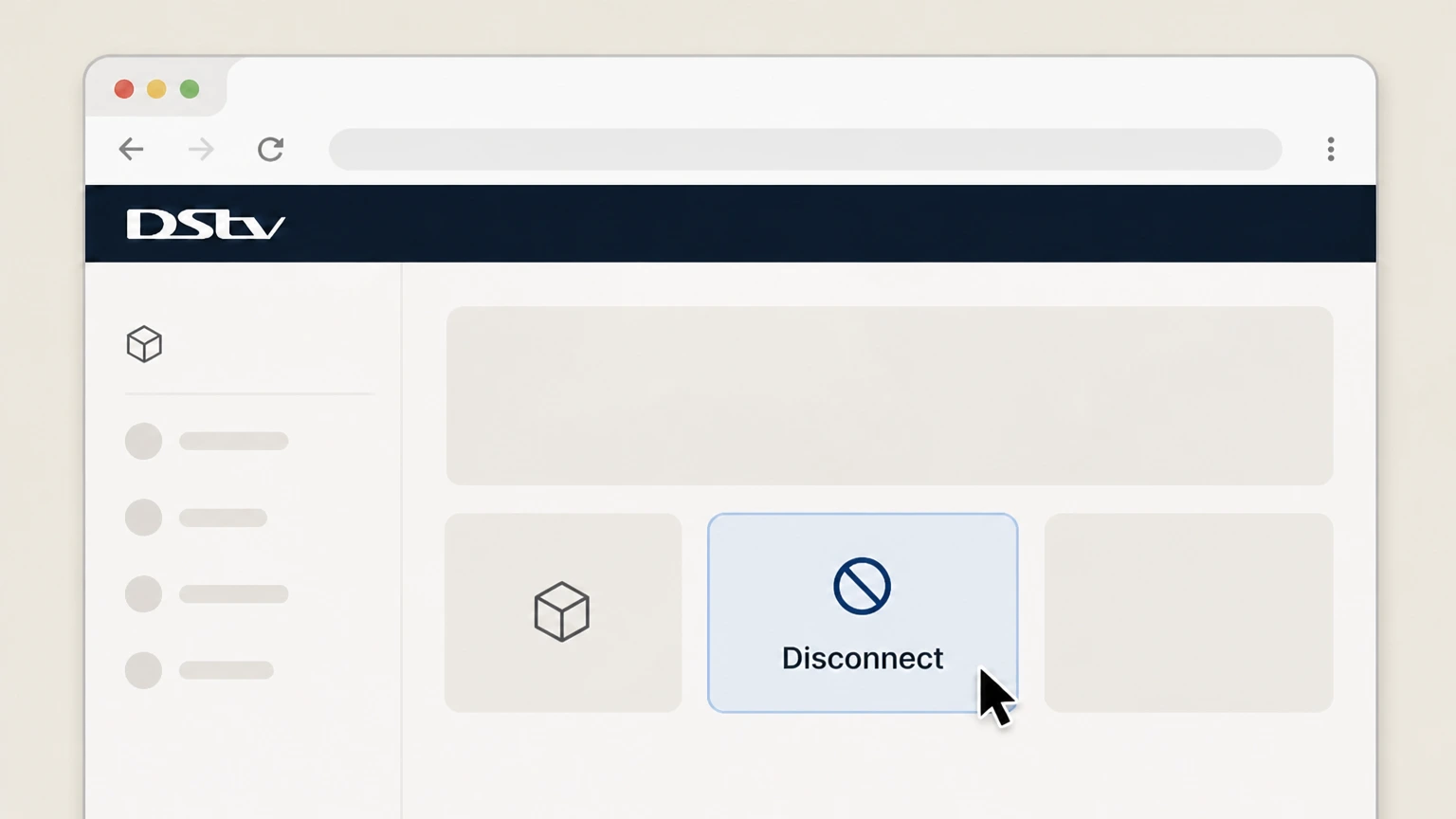
3Choose Disconnect
Select the Disconnect icon for that package.
 4
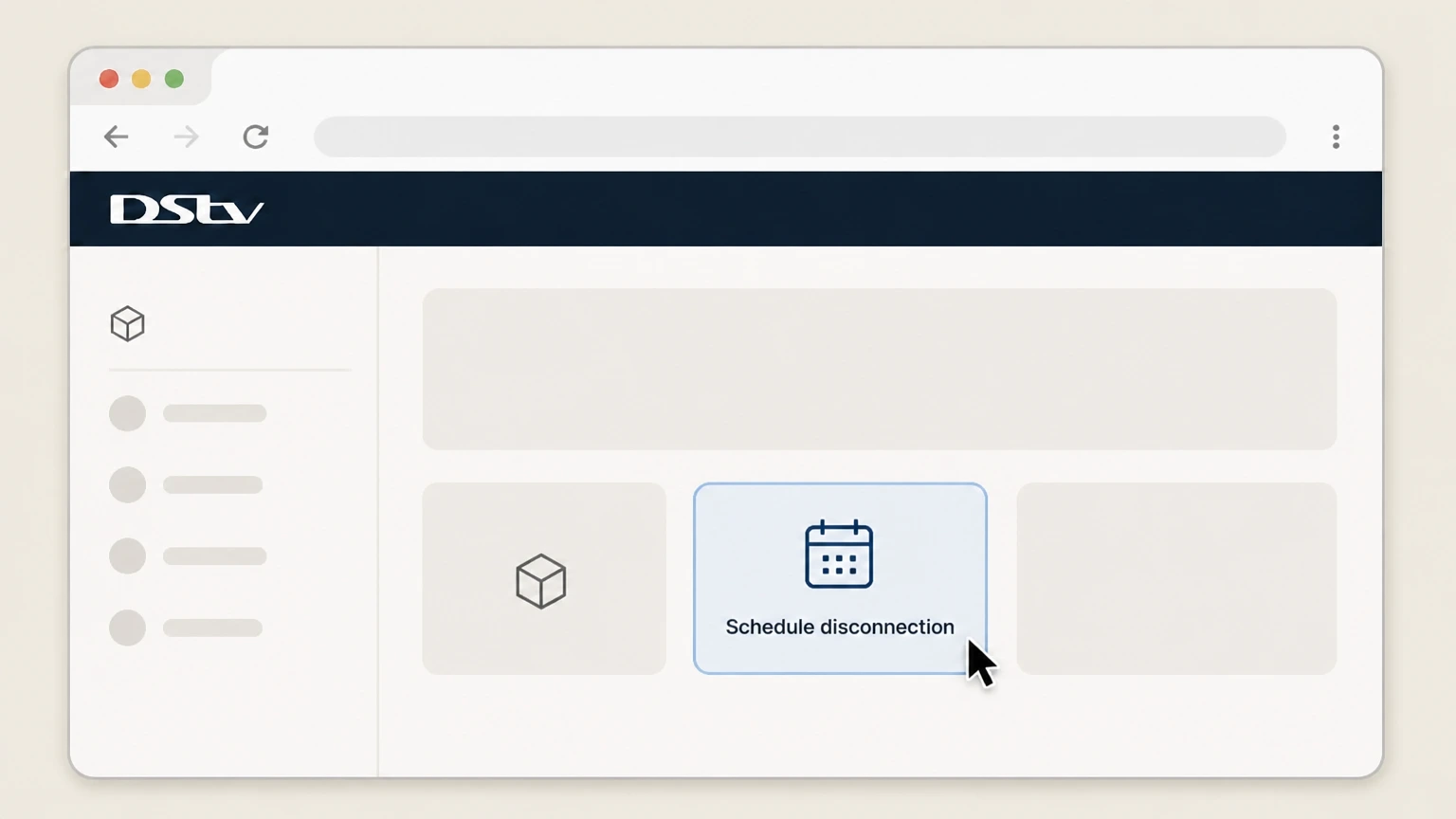
4Schedule the disconnection
Choose the disconnection date offered by DStv and submit it.

Apple-billed subscription · verify the billing owner
Cancel DStv through Apple
 1
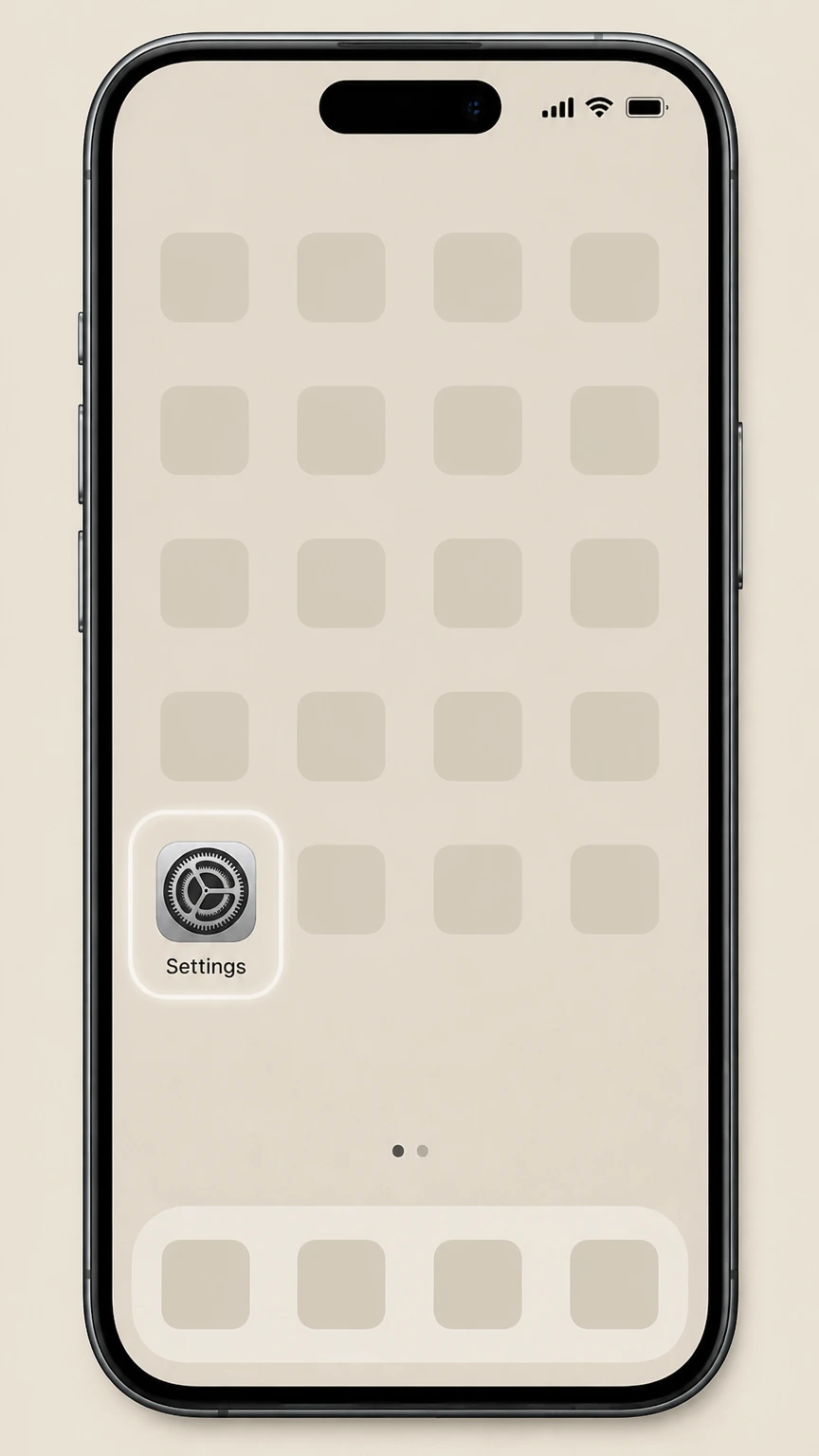
1Open Settings
Open the Settings app on the iPhone or iPad.
 2
2Tap your name
Tap the Apple Account banner at the top of Settings.
- Let Pine handle it
Pine can help
Too many steps?
Pine can find the right Apple-billed subscription path and handle the cancellation for you.
 3
3Open Subscriptions
Tap Subscriptions to see Apple-billed plans.
 4
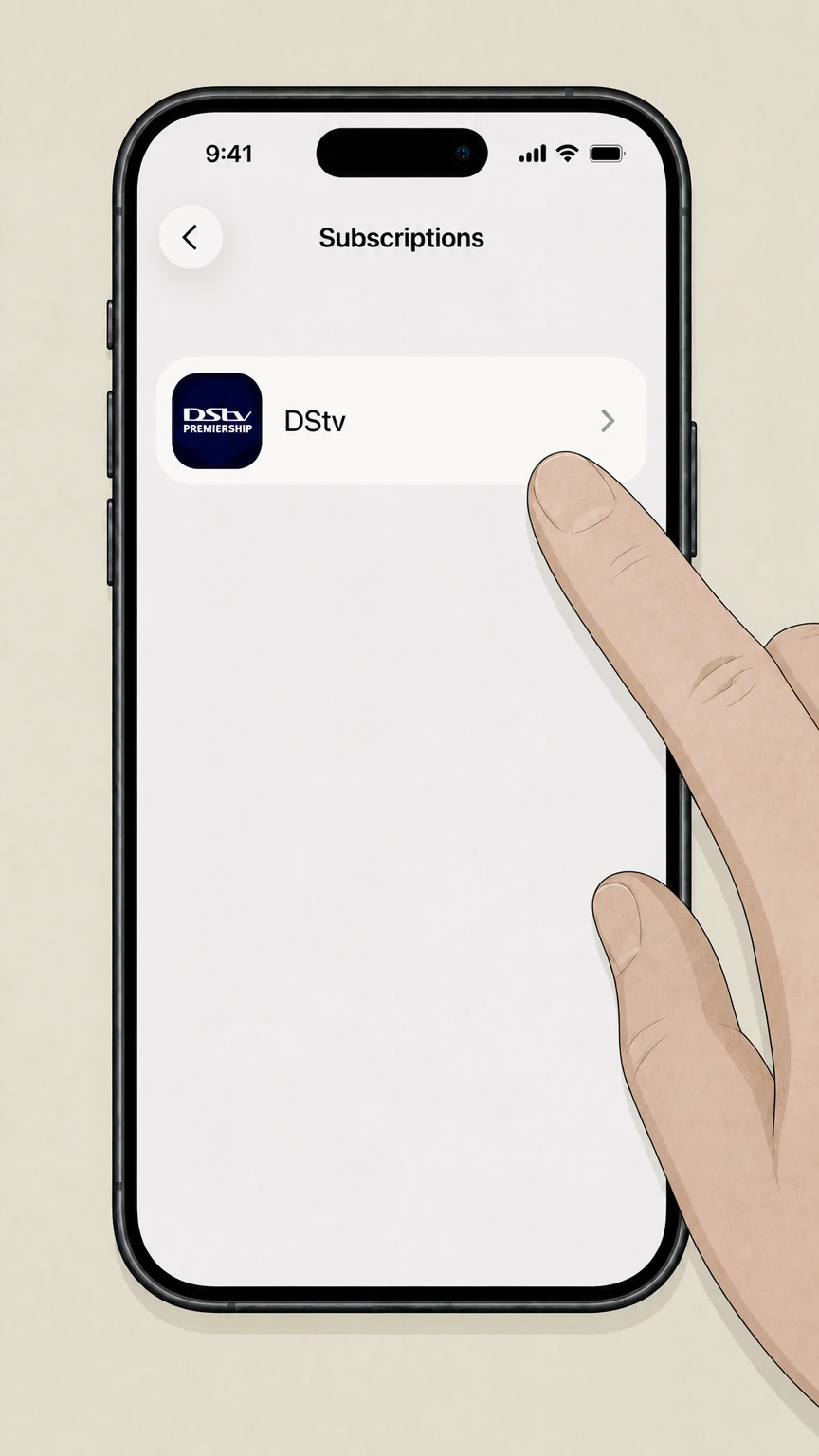
4Select DStv
Tap DStv in the active subscriptions list.
 5
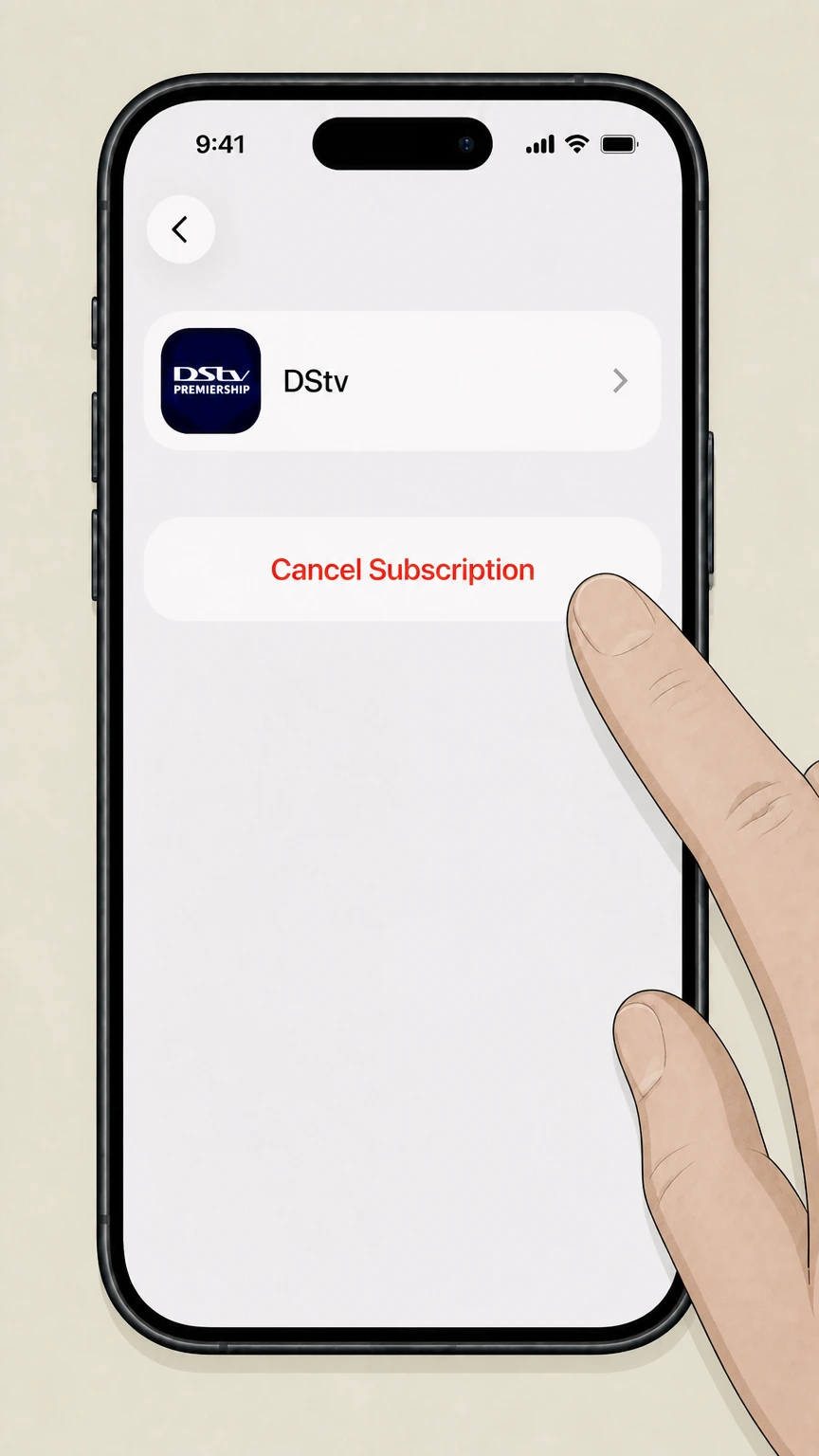
5Cancel the subscription
Tap Cancel Subscription and complete Apple’s confirmation flow for DStv.
Google Play-billed subscription · verify the billing owner
Cancel DStv through Google Play
 1
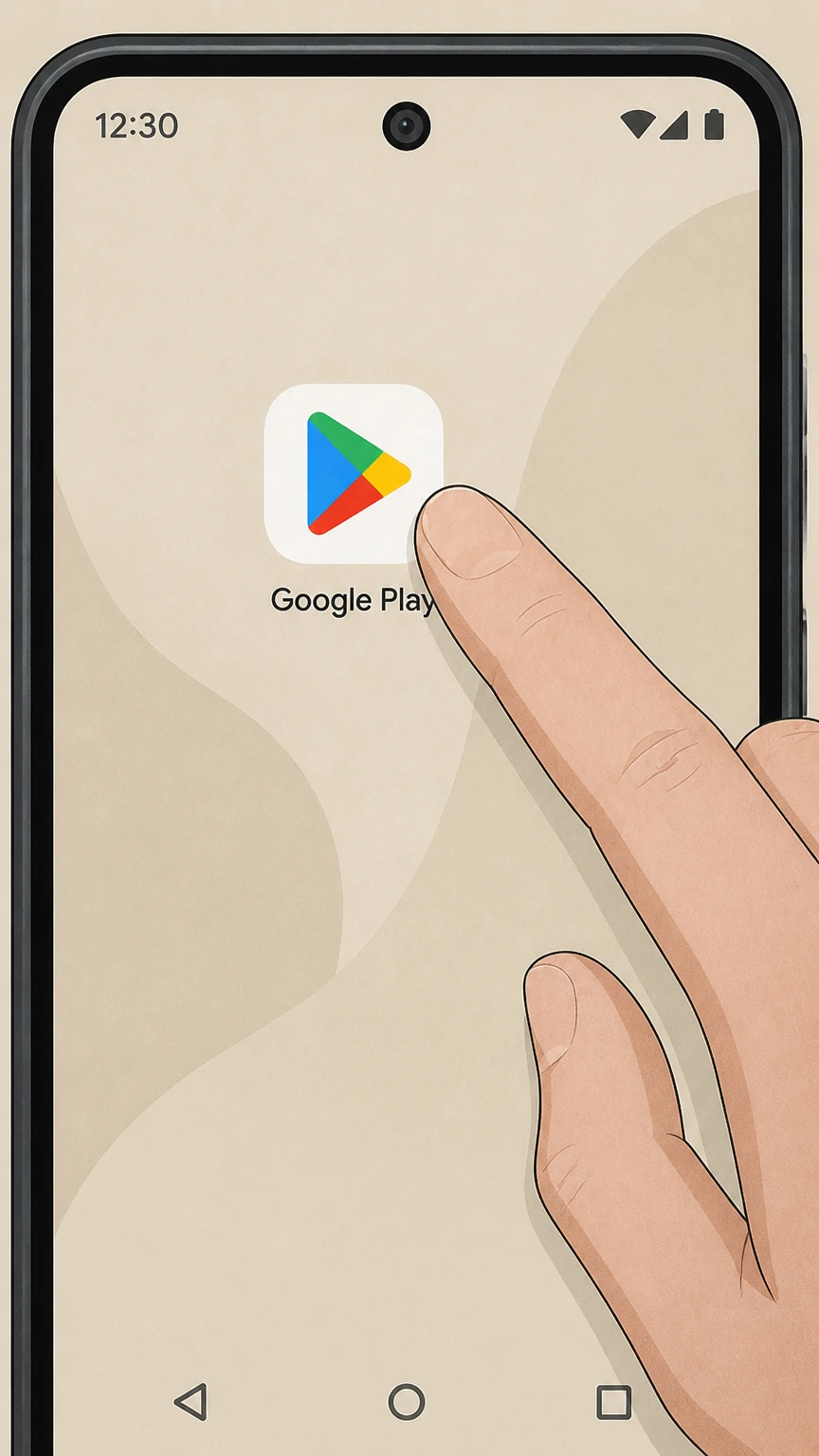
1Open Google Play
Open the Google Play Store on the Android device.
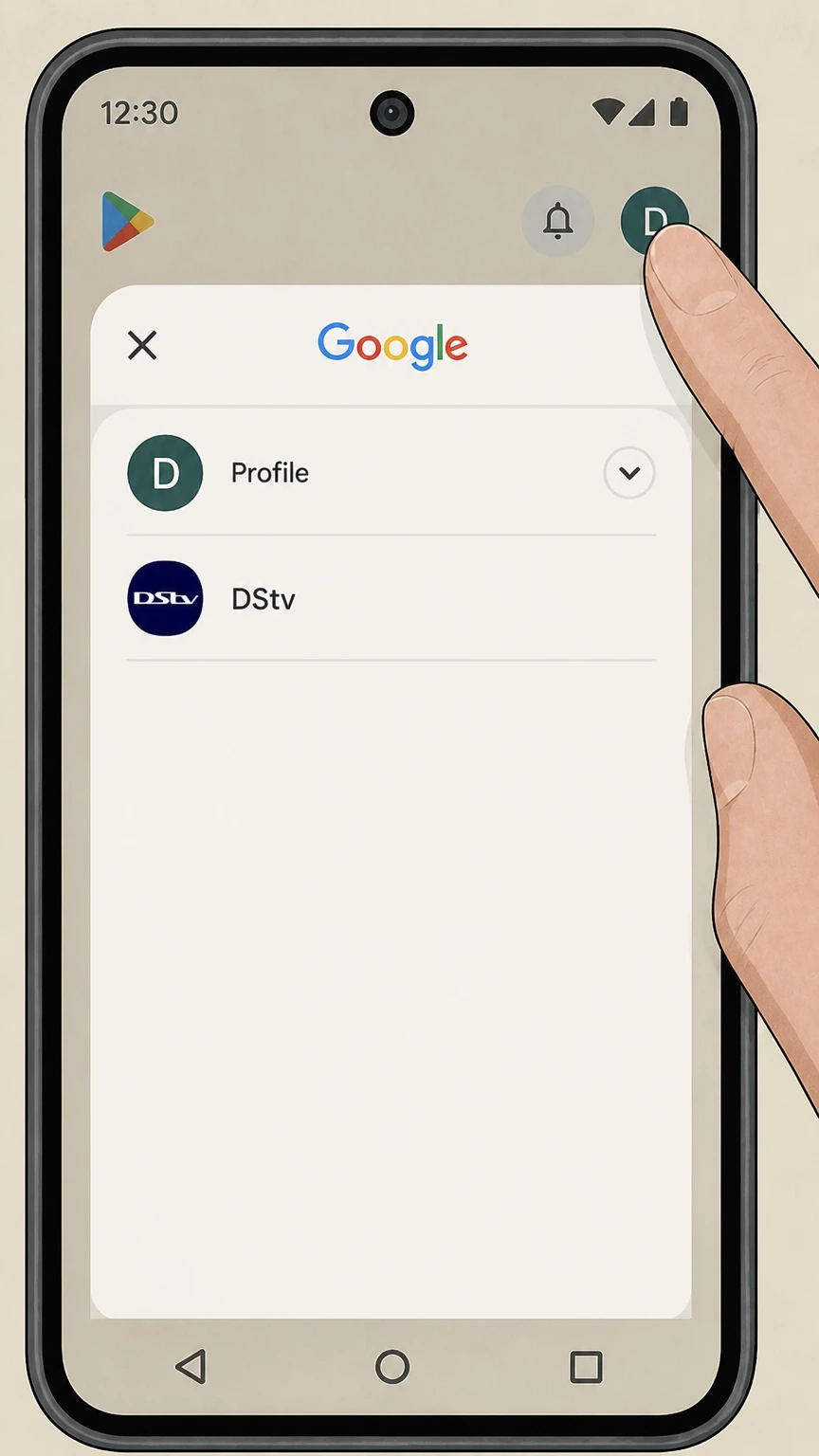 2
2Open the account menu
Tap the profile icon for the Google account used to subscribe.
- Let Pine handle it
Pine can help
Too many steps?
Pine can find the right Google Play-billed subscription path and handle the cancellation for you.
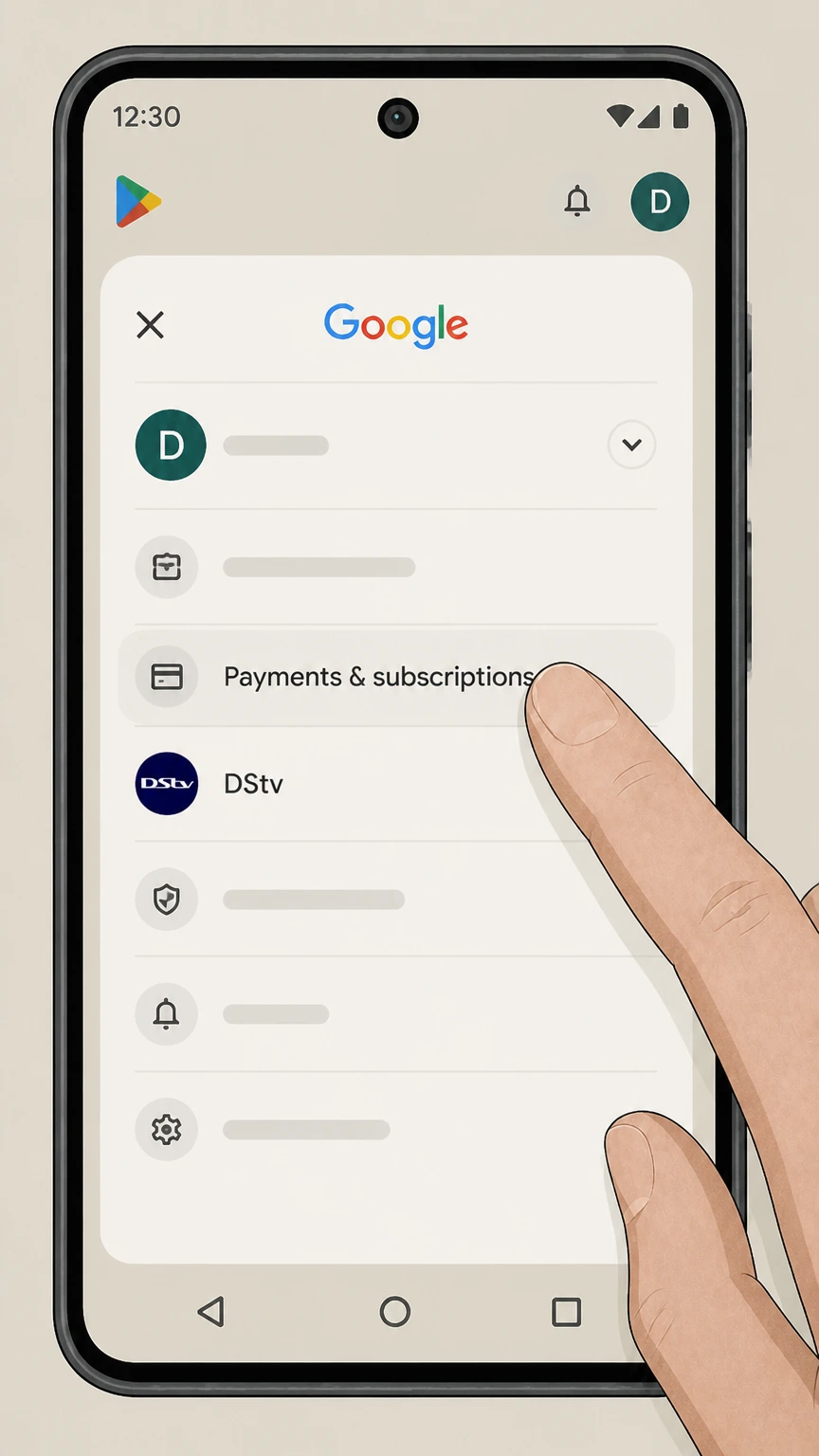 3
3Open Payments & subscriptions
Tap Payments & subscriptions in the account menu.
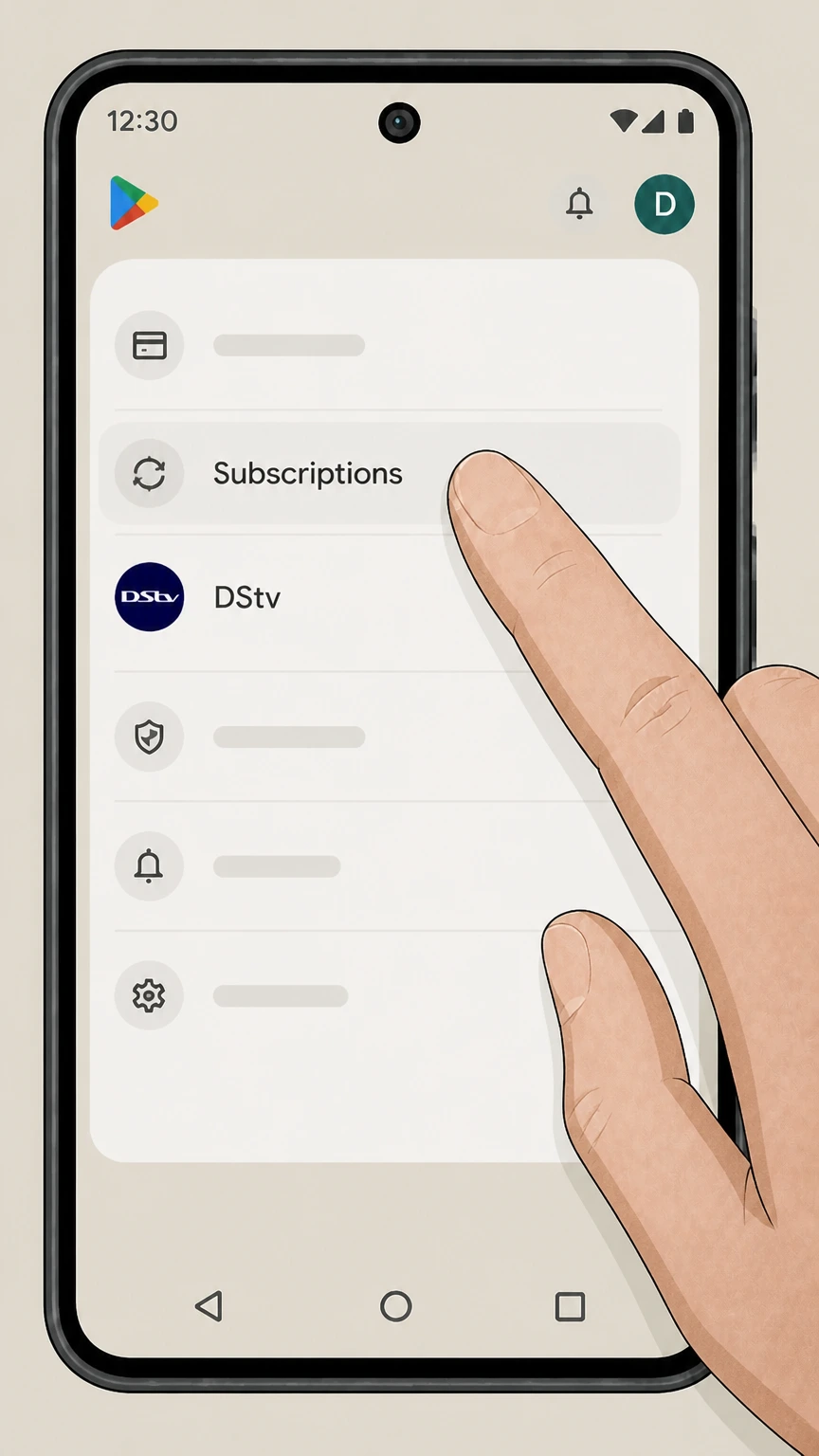 4
4Open Subscriptions
Tap Subscriptions to view recurring Google Play purchases.
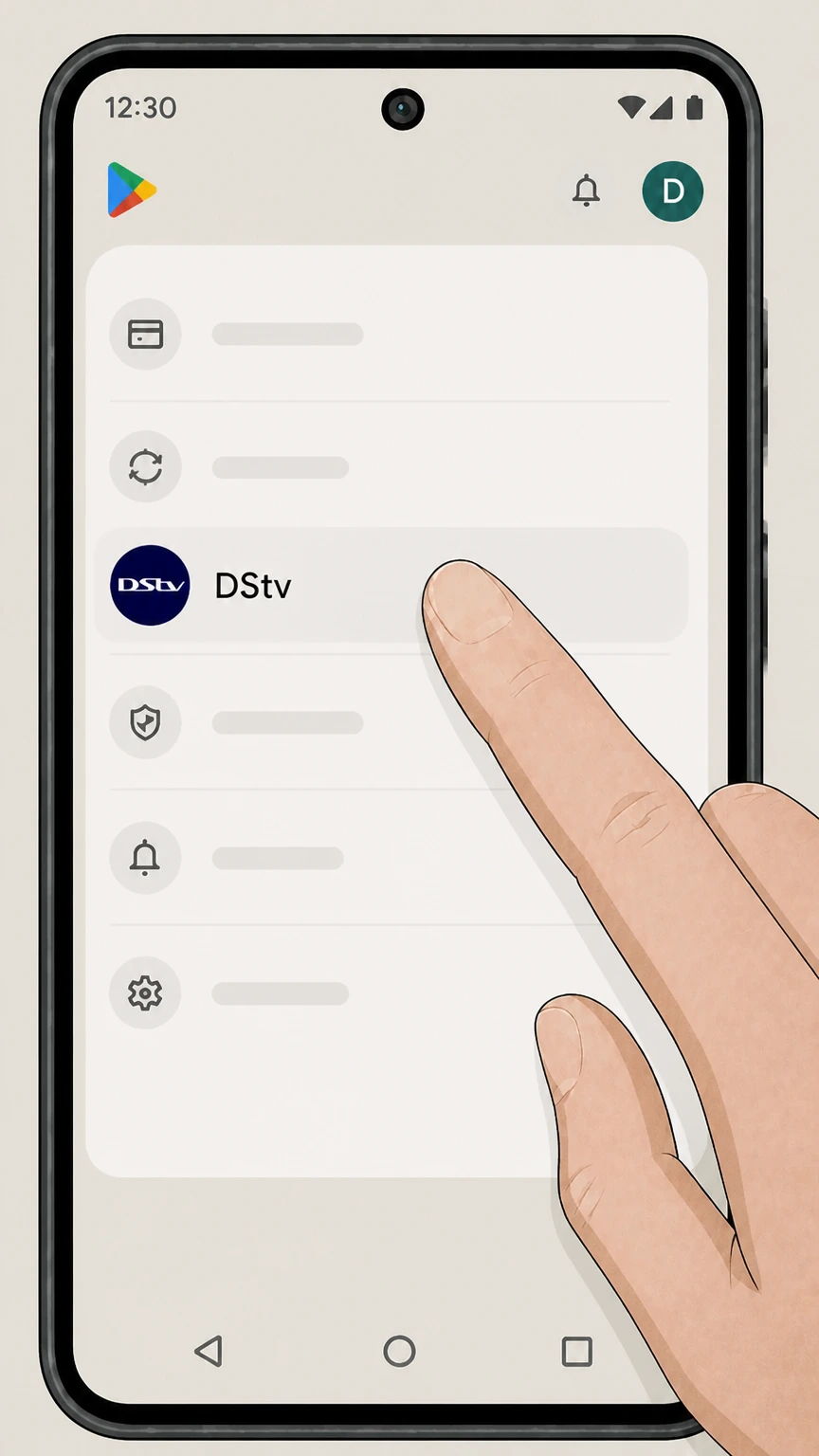 5
5Select DStv
Tap DStv in the subscriptions list.
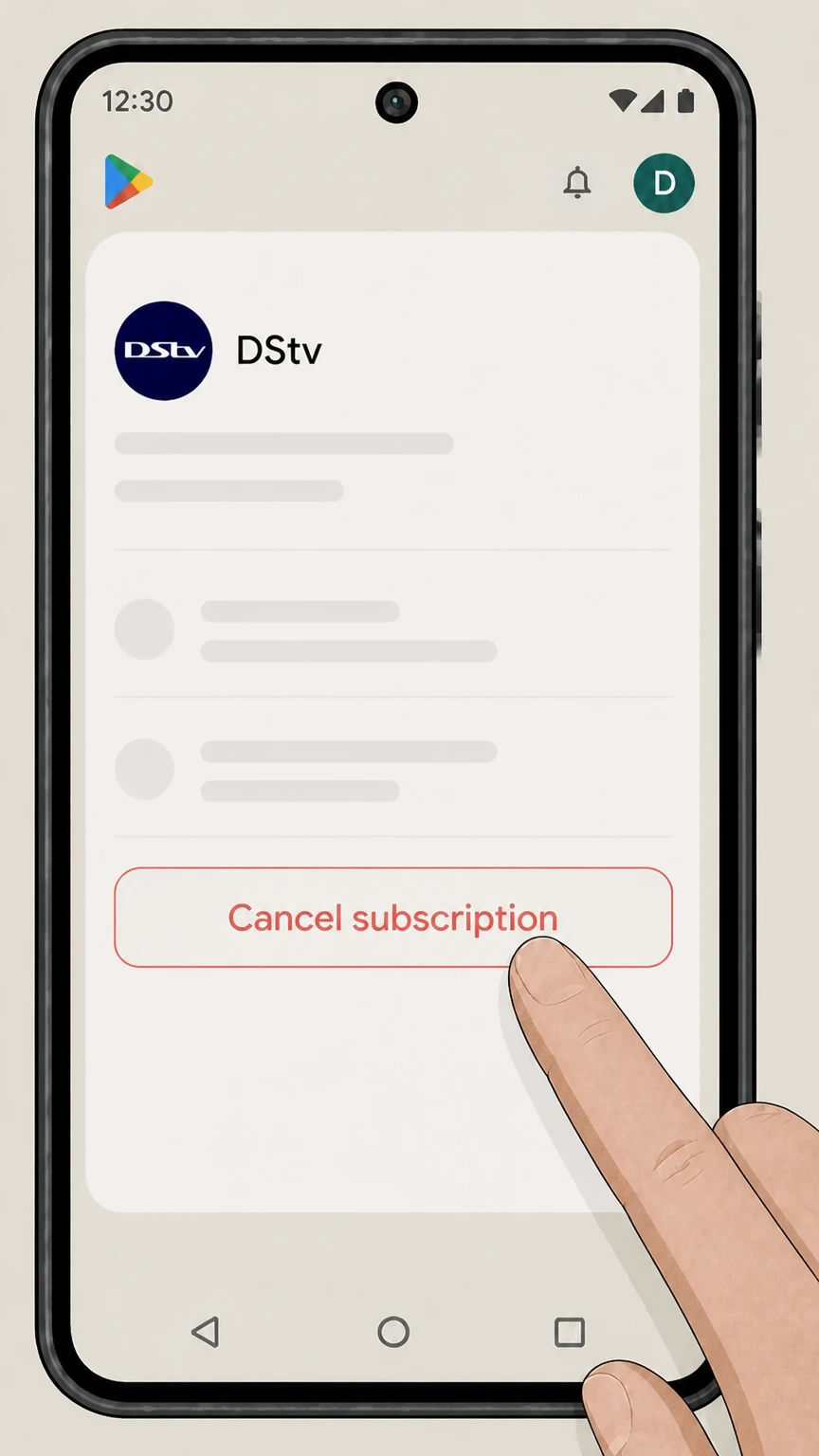 6
6Cancel the subscription
Tap Cancel subscription and complete Google Play’s confirmation flow for DStv.
Refund policy
DStv cancellation and refunds
The cited DStv FAQ confirms the effective date but does not promise a refund for the current package period.
Check my refund options- Next payment date
- The DStv-billed package is scheduled to disconnect on the next payment date.
- Store purchase
- Apple or Google Play controls any refund for a store-billed subscription.
Use DStv support for an account-specific direct-billing question. Open DStv cancellation FAQ
Billing owner
DStv and app-store plans use different controls
Check whether DStv, Apple, or Google Play collects the recurring payment.
DStv-billed package
Use My Products and Disconnect.
Store-billed plan
Use the matching app-store subscription manager.
Effective date
DStv schedules disconnection
The official FAQ says the package disconnects on the next payment date.
Check the scheduled date
Keep the date shown after submitting the disconnection.
Proof
Reopen My Products
Verify that the package shows a scheduled disconnection.
Store routes
For Apple or Google Play, keep the expiration or paid-through date.
DStv cancellation FAQ
Provider-specific answers about billing, timing, refunds, and confirmation.
How do I cancel a DStv package online?
When does a DStv disconnection take effect?
Can I cancel DStv in the MyDStv app?
Untangle this DStv issue.
Let Pine handle the provider follow-up and keep the confirmation in one place.
