


Retro Fitness
Cancel subscription
How to Cancel Retro Fitness: Official Steps & Timing
Cancel Retro Fitness through the correct billing account. Follow current official steps, check when access or service ends, and understand refund limits.
- 1 cancellation path matched to the billing owner
- Renewal timing and access outcome explained
- Refund requests routed to the company that billed you
- Confirmation steps included for every path
Choose the Retro Fitness cancellation path that matches who bills you
Retro Fitness Manage Membership portal · verify the billing owner
Retro Fitness Manage Membership portal cancellation steps
 1
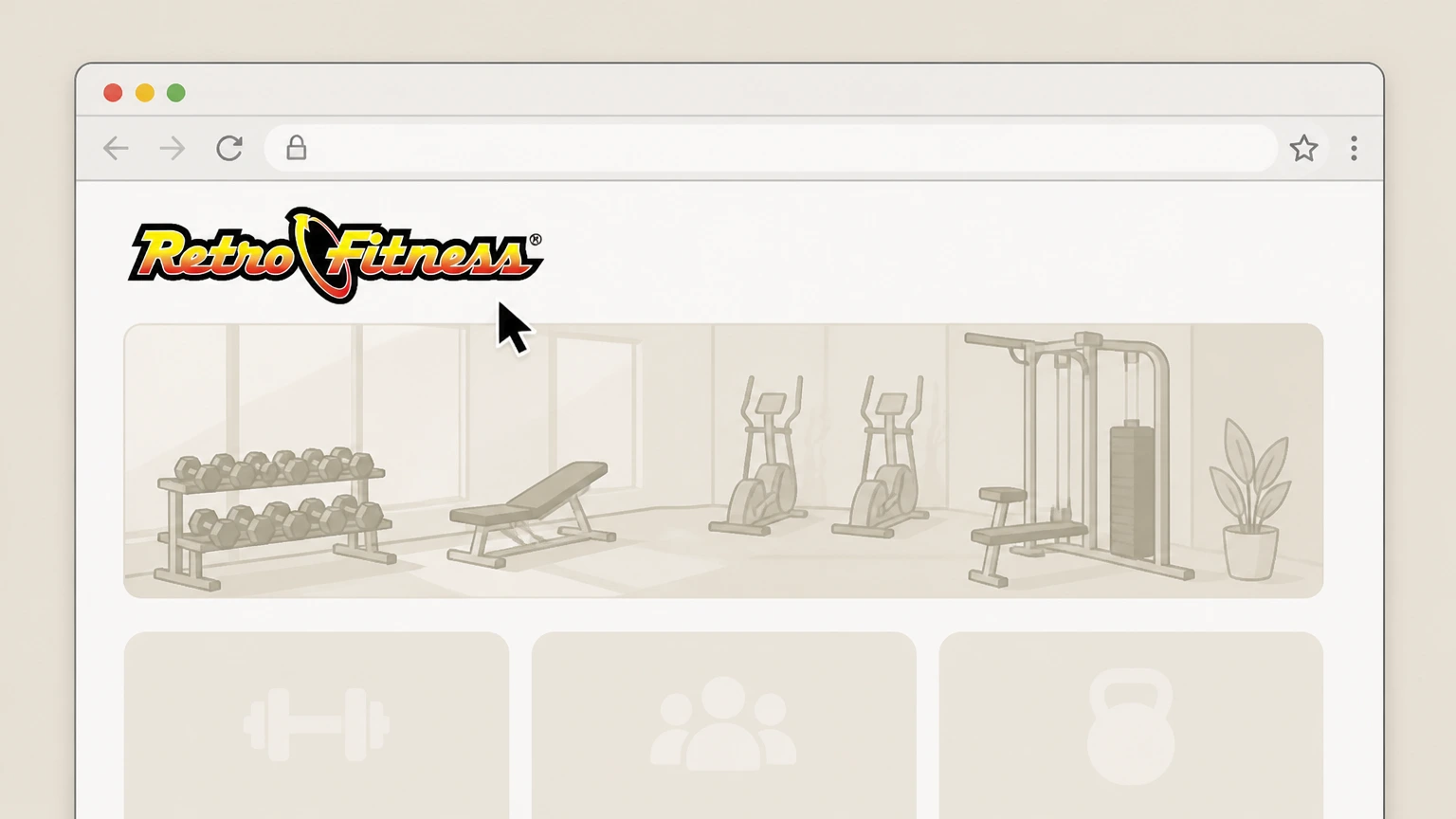
1Open Retro Fitness
Open the official Retro Fitness website in a browser to reach its member tools.
 2
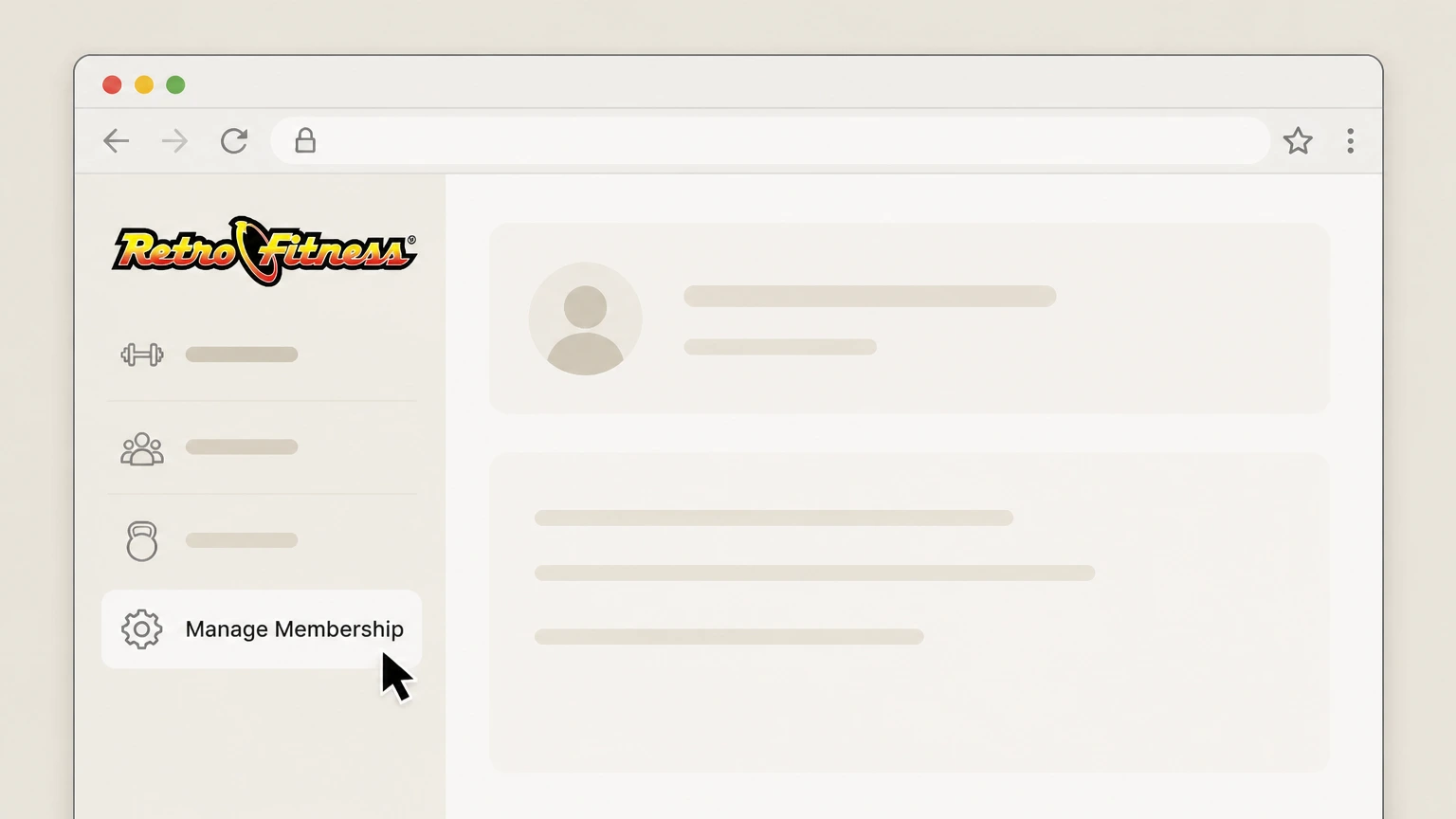
2Choose Manage Membership
Select Manage Membership to open the member account portal.
- Let Pine handle it
Pine can help
Too many steps?
Pine can find the right Retro Fitness Manage Membership portal path and handle the cancellation for you.
 3
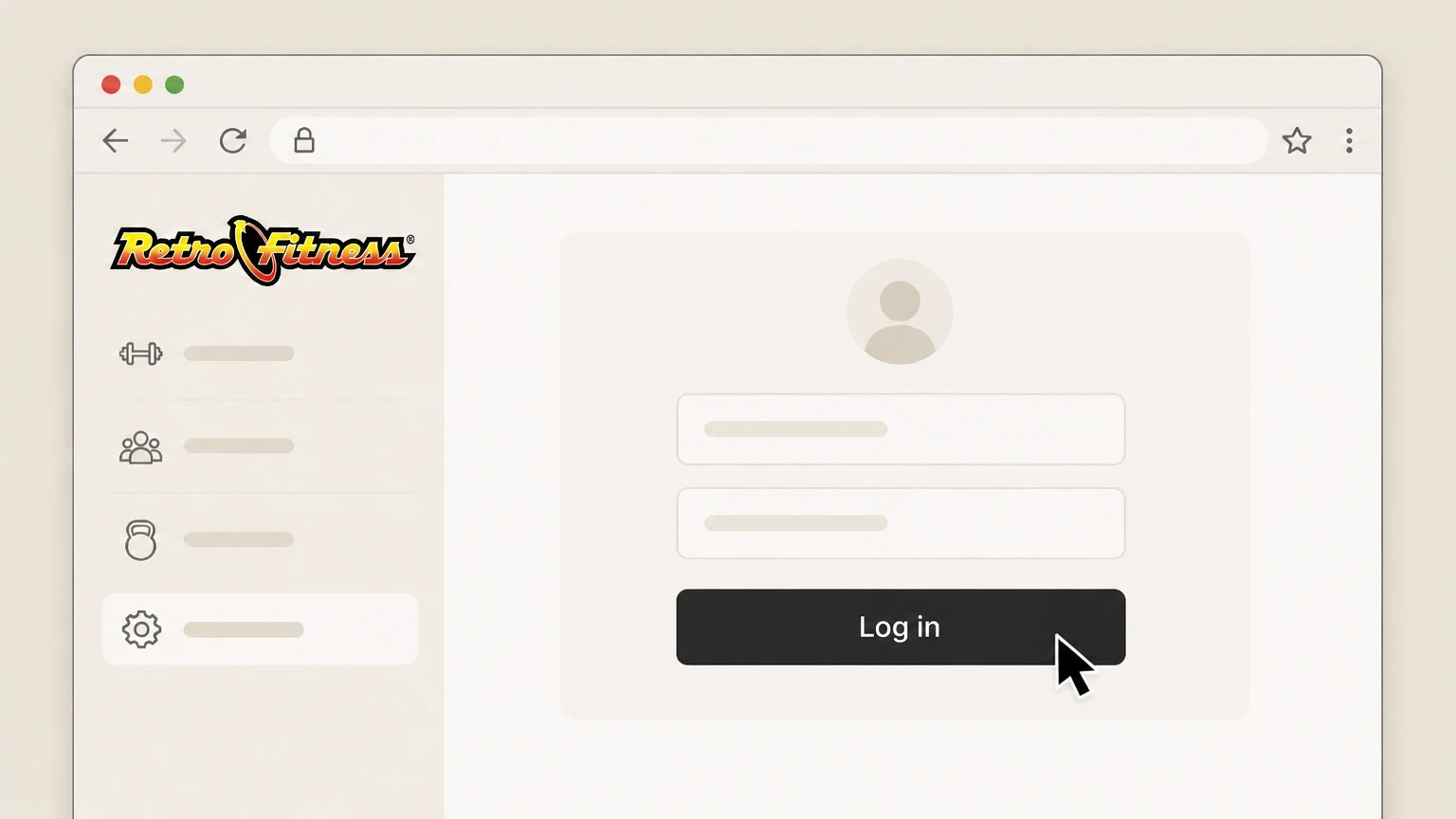
3Sign in to the member account
Use the credentials associated with the active Retro Fitness membership.
 4
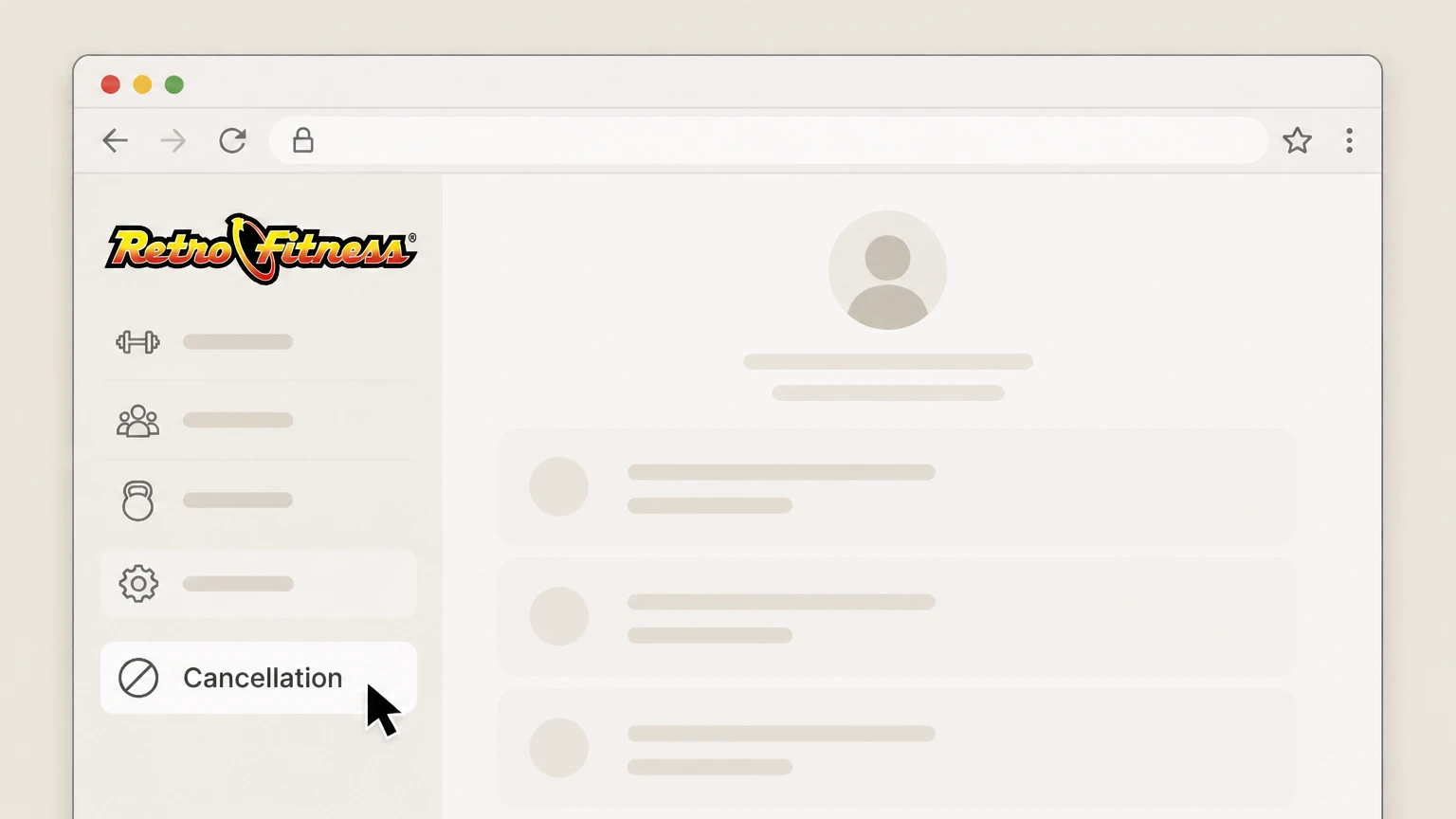
4Submit the cancellation request
Open the portal’s cancellation section and follow its current instructions to submit the request.

Refund policy
Retro Fitness notice and refund rules
Retro’s FAQ ties the outcome to membership type and timing rather than promising a general cancellation refund.
Check my refund options- Cooling-off period
- The FAQ describes a three-business-day period after signup in which cancellation is available without penalties.
- Paid in Full is non-refundable
- Retro states that Paid in Full memberships cover the full term and do not receive refunds.
Use the current Retro Fitness source below if your account shows a different plan, merchant, or effective date. Review Retro Fitness cancellation terms
Choose the right account
Retro Fitness billing ownership and cancellation route
The home Retro Fitness club owns the membership relationship. Use the member portal or the home club shown in the agreement rather than another franchise location.
Home club controls the account
Retro directs membership and service questions to the local club tied to the agreement.
Multiple methods are published
The policy recognizes online, in-club, phone, mail, and email cancellation routes.
Before the next charge
Timing that matters for Retro Fitness
Retro Fitness allows cancellation through Manage Membership online or through the home club using the methods in its policy. This guide uses the online route; term and payment obligations still depend on the signed membership type.
Notice affects the last payment
Retro’s FAQ says cancellations generally take effect after seven days and a payment due in that window is still processed; New York timing is shorter.
Term plans differ from month-to-month
Installment and Paid in Full agreements have different remaining-payment and refund rules from month-to-month memberships.
After you submit
Check the final Retro Fitness status
The request enters the home club’s cancellation process. The effective date and any remaining payment depend on the policy and the signed membership type. Reopen the account used for this route and compare its displayed status with that result.
Check Cancellation
Return to the Retro Fitness Manage Membership portal and confirm that Cancellation produced the provider-specific outcome described above.
Compare the next billing event
Retro’s FAQ ties the outcome to membership type and timing rather than promising a general cancellation refund. Use that rule when reviewing the next charge, access date, shipment, or contract event shown for this account.
Retro Fitness cancellation FAQ
Answers about Retro Fitness billing ownership, cancellation timing, refunds, and access after cancellation.
How can I cancel Retro Fitness online?
How much notice does Retro Fitness require?
Does Retro Fitness refund a Paid in Full membership?
Can I cancel Retro Fitness at any location?
Untangle this Retro Fitness issue.
Let Pine handle the provider follow-up and keep the confirmation in one place.
