


HGTV Magazine
Cancel subscription
Canceling Your HGTV Magazine Subscription Guide
Learn how to cancel HGTV Magazine if you subscribed in the iOS or Android apps or via Apple News+. Includes who bills you, access changes, and refund basics.
- 1 cancellation path matched to the billing owner
- Renewal timing and access outcome explained
- Refund requests routed to the company that billed you
- Confirmation steps included for every path
Choose the HGTV Magazine cancellation path that matches who bills you
HGTV Magazine in Apple Subscriptions · verify the billing owner
How to cancel HGTV Magazine through HGTV Magazine in Apple Subscriptions
 1
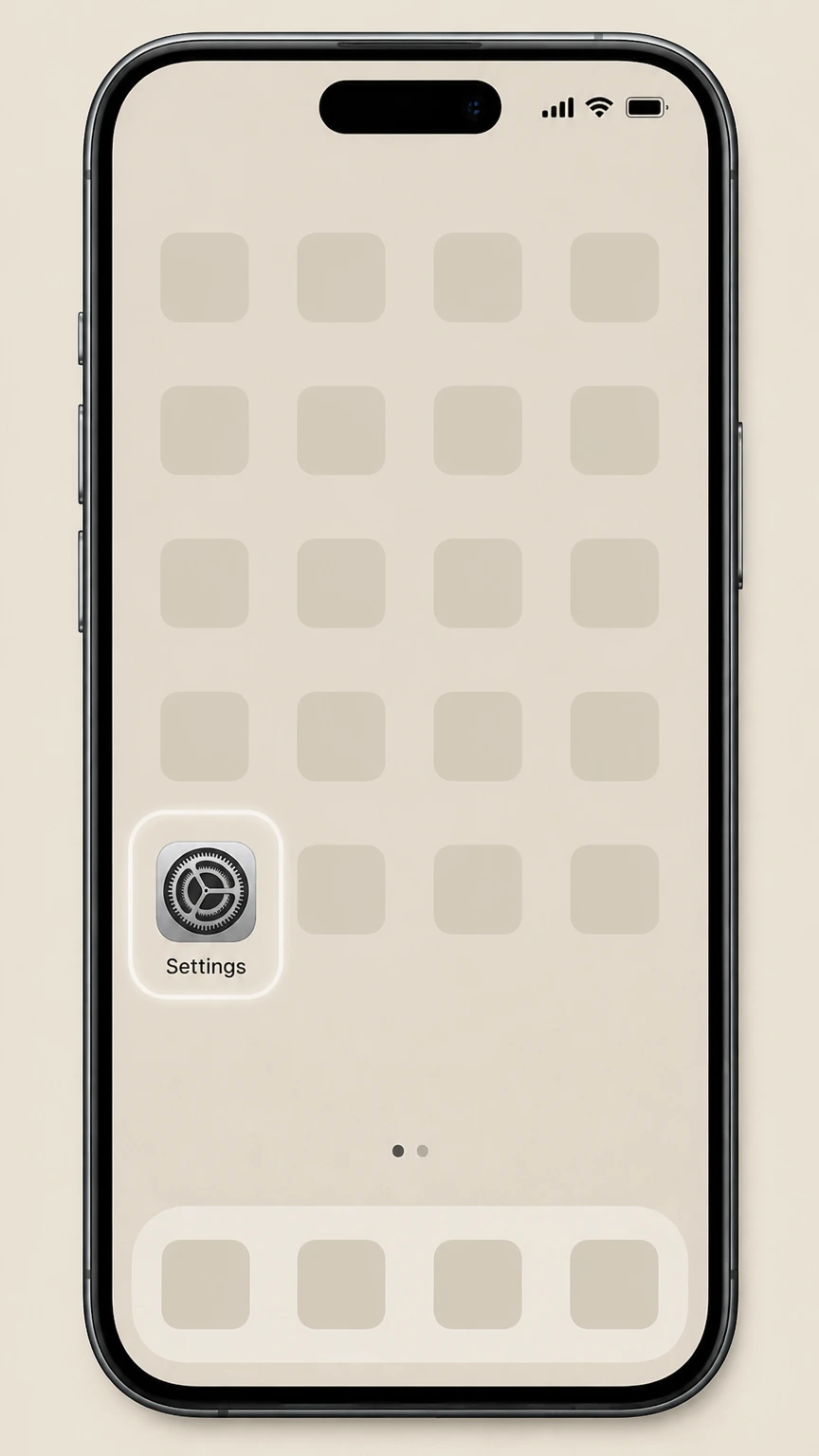
1Open Settings
Open Settings on the iPhone or iPad signed in to the Apple Account that owns the subscription.
 2
2Tap your name
Tap your name at the top of Settings to open the Apple Account controls.
- Let Pine handle it
Pine can help
Too many steps?
Pine can find the right HGTV Magazine in Apple Subscriptions path and handle the cancellation for you.
 3
3Open Subscriptions
Choose Subscriptions to display the recurring services billed to this Apple Account.
 4
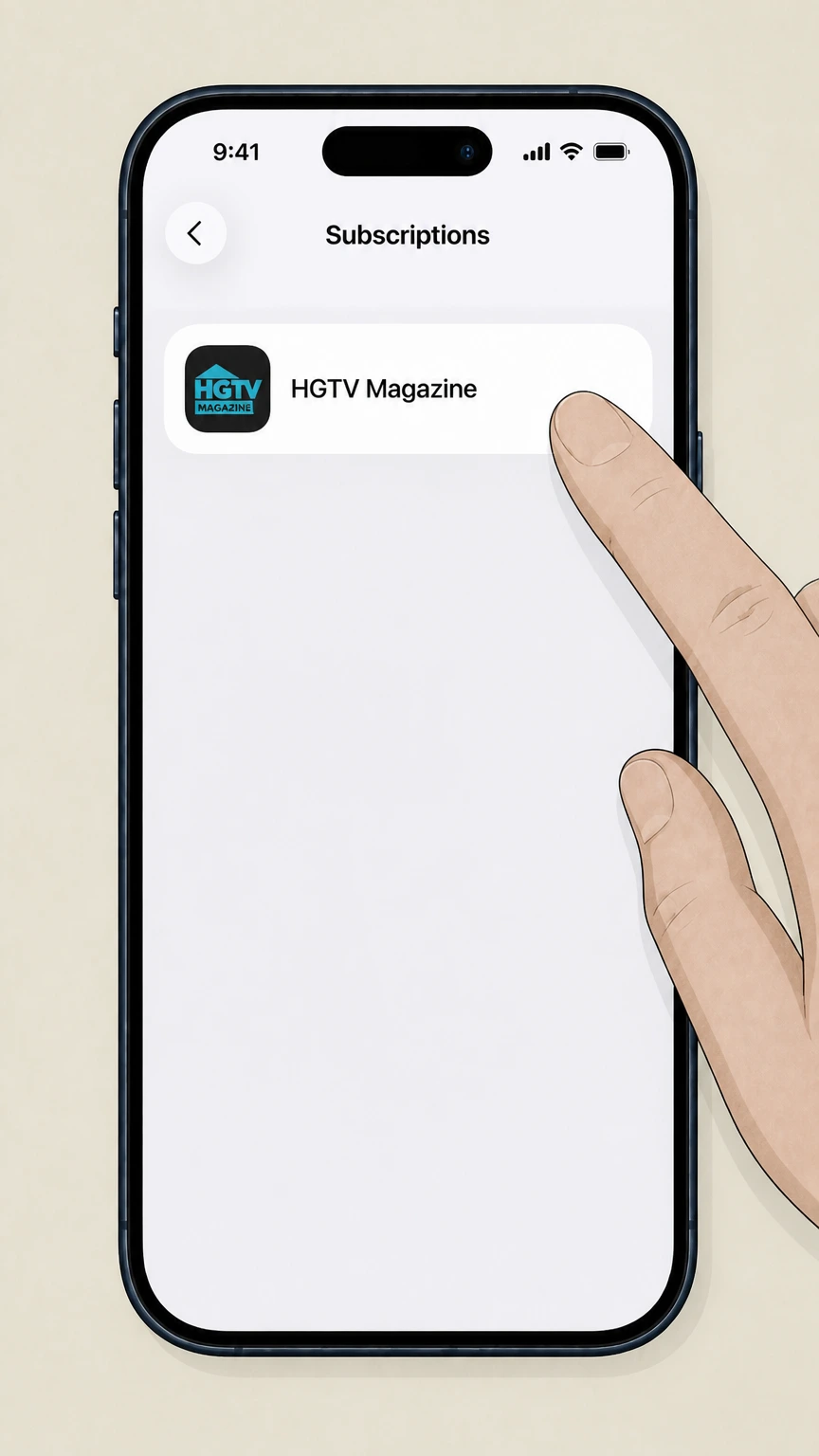
4Select HGTV Magazine
Choose HGTV Magazine from the subscription list to open its renewal details.
 5
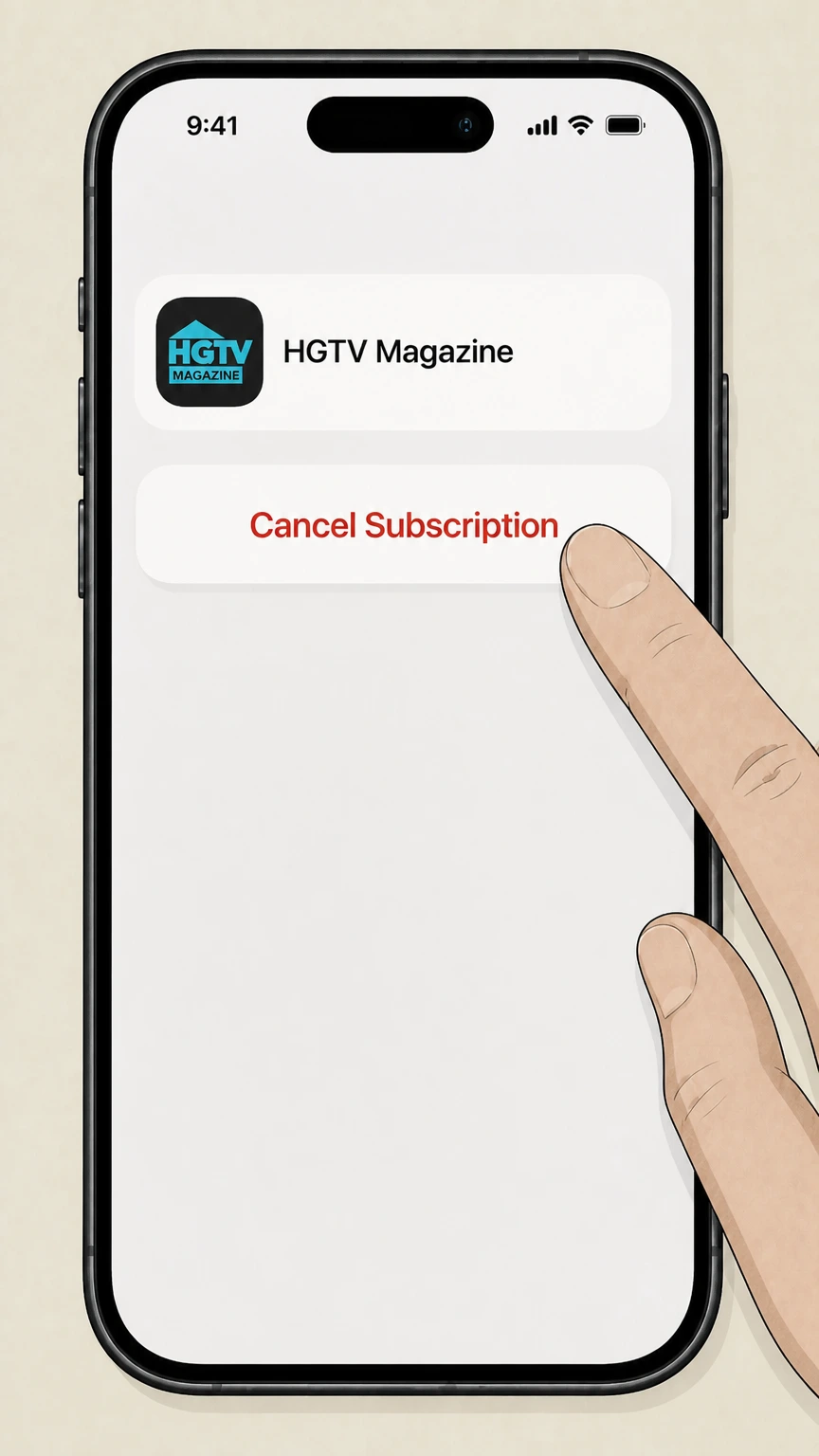
5Cancel the subscription
Tap Cancel Subscription and complete Apple’s prompts for HGTV Magazine.

Refund policy
Refunds for HGTV Magazine digital subscriptions
Cancellation and refunds are separate processes. This guide explains how to stop future renewals for HGTV Magazine on Apple and Google Play; whether you get money back for recent charges depends on each platform’s refund rules and, for non‑platform billing, on the publisher or seller.
Check my refund options- Cancellation usually stops future charges only
- Apple’s and Google Play’s subscription guides and refund policies indicate that canceling a subscription generally stops future automatic renewals; charges already billed for the current period are not automatically refunded when you cancel HGTV Magazine.
- Platform trials must be canceled before renewal
- Apple’s subscription article and Google Play’s subscription help both explain that if you signed up on a trial or introductory offer, you typically must cancel at least about 24 hours before the trial or current period ends to avoid being charged for the next term.
- Apple refunds requested via Report a Problem
- Apple’s refund article explains that some App Store and subscription purchases, including in-app magazine subscriptions, may be refundable by signing in to reportaproblem.apple.com, choosing Request a refund, selecting the subscription, and submitting a request for Apple’s review.
- Google Play refunds are limited and time-bound
- Google Play’s refund policies state that Google doesn’t give refunds for most purchases but may allow them within a short window (for example, around 48 hours), after which you generally must contact the app’s developer for any relief that’s allowed under their policies and applicable law.
- Publisher-billed and third-party refunds vary
- Apple’s cancellation guidance notes that if your receipts don’t come from Apple, you must work directly with the company that bills you; for HGTV Magazine subscriptions billed by the publisher or another reseller, any pro-rated refunds or credits depend solely on that company’s stated policy.
For specific refund eligibility and processes, review Apple’s and Google Play’s current refund help pages before submitting a request or disputing any HGTV Magazine charge. Check platform refund guidance
HGTV Magazine today
How HGTV Magazine is offered on major platforms
HGTV Magazine continues as a home and lifestyle brand delivered digitally through platform subscriptions rather than only through traditional mail-in offers.
Digital iOS app with in-app subscriptions
The HGTV Magazine US app on Apple’s App Store lets you download issues and subscribe via in-app purchases that are billed to your Apple Account, confirming an active digital edition managed entirely within Apple’s ecosystem.
Android app with Google Play billing
The HGTV Magazine US Android app on Google Play offers in-app purchases and a subscription option, which are billed through Google Play and managed from your Google Play account rather than directly by the publisher.
Availability inside Apple News+
HGTV Magazine appears in Apple’s official Apple News+ publications list under Home & Garden, meaning it’s included as part of an Apple News+ subscription instead of a stand‑alone App Store subscription in that context.
Hearst as the app developer
Both the Apple and Google Play store listings identify Hearst Communications, Inc. as the developer of the HGTV Magazine apps, while the actual billing for in-app subscriptions is handled by Apple or Google depending on where you purchased.
Billing owner
How to confirm who bills your HGTV Magazine
Before canceling, you need to identify whether Apple, Google Play, or another seller is charging you for HGTV Magazine, because you can only cancel through the billing owner.
Search for Apple email receipts
If you see "receipt from Apple" or "invoice from Apple" in your email for HGTV Magazine or Apple News+, Apple’s support guidance confirms Apple is billing you and you must cancel through Apple’s subscription tools.
Check Subscriptions in iOS Settings
On iPhone or iPad, Apple’s subscription help article directs you to Settings › your name › Subscriptions, where any Apple-billed HGTV Magazine or Apple News+ subscription will appear if Apple is the billing owner.
Check Subscriptions in Google Play
If you use the HGTV Magazine US Android app, Google Play Help explains that active subscriptions appear in the Play Store under Payments & subscriptions › Subscriptions; if HGTV Magazine is listed there, Google Play is billing you.
If you can’t find an Apple receipt
Apple’s cancellation article states that if you can’t find a matching receipt from Apple, the subscription may have been purchased from another company, and you must cancel directly with the company that appears on your bank or card statement.
After you cancel
What changes after you cancel HGTV Magazine
Canceling stops auto-renew but does not usually end access immediately; what you can read and for how long depends on your billing platform.
Access usually continues to period end
Apple and Google Play both describe subscriptions as ongoing until you unsubscribe, and cancellation normally stops future renewals while keeping your HGTV Magazine access active until the end of the already paid billing cycle.
Apple News+ access ends with that subscription
Apple’s Apple News+ help explains that canceling Apple News+ through the News app or subscription settings ends News+ access, which includes HGTV Magazine issues delivered through Apple News+.
App or account not deleted by cancellation
Platform documentation indicates that canceling a subscription does not delete your Apple or Google account or uninstall the HGTV Magazine app, so you can typically reinstall the app or resubscribe later using the same account if you choose.
Future automatic charges are stopped
Once you complete the cancellation flow on Apple or Google Play, the platforms’ subscription guides indicate that auto-renewal is turned off for that subscription so you are not charged again after the current term ends.
Proof of cancellation
How to confirm HGTV Magazine is really canceled
Use your platform’s subscription list and billing emails to verify that HGTV Magazine will no longer renew.
Look for an expiration note in iOS
Apple’s subscription article notes that, after cancellation in Settings, a subscription may show an expiration message in red or disappear entirely from the Active list—either state indicates HGTV Magazine is no longer set to renew.
Verify no new Apple receipts arrive
Apple’s guidance about finding receipts explains that subscription charges generate email receipts; after canceling, you shouldn’t see new receipts from Apple listing HGTV Magazine or Apple News+ beyond the final billing period.
Check Google Play’s Subscriptions list
Google Play Help describes active subscriptions appearing in the Subscriptions section; after you cancel HGTV Magazine, it should no longer appear in the active list, and may appear as expired or canceled depending on Google Play’s interface.
Review recent bank or card statements
If the subscription is not billed by Apple or Google Play, Apple’s help advises checking your payment statement to see which company name appears next to the charge, then working with that company to ensure recurring charges have stopped.
Apple News+
HGTV Magazine within Apple News+ subscriptions
Some readers only see HGTV Magazine through Apple News+, which is billed as a single Apple subscription that covers many publications.
HGTV Magazine listed in Apple News+ catalog
Apple’s own Apple News+ publications page shows HGTV Magazine under Home & Garden titles, confirming that News+ subscribers can read it as part of that Apple News+ bundle rather than needing a separate in-app subscription.
Cancel Apple News+ from the News app
Apple’s iPhone user guide for Apple News+ explains that you can go to the News app, open Following, tap Subscriptions, and then cancel Apple News+ there if you only want to stop reading HGTV Magazine and other News+ titles.
Apple News+ is separate from app-only subs
Apple documentation treats Apple News+ and in-app magazine subscriptions as distinct products; based on this, if you pay for both HGTV Magazine in the app and Apple News+, you may need to cancel each subscription separately to stop all charges.
Family Sharing and shared access
Apple’s News+ guidance notes that Apple News+ can be shared with a Family Sharing group; if you cancel the primary Apple News+ subscription, shared access to HGTV Magazine through News+ ends for all family members.
Android billing
HGTV Magazine subscriptions through Google Play
If you read HGTV Magazine in the Android app, your subscription is managed entirely through Google Play’s subscription system.
HGTV Magazine US app uses in-app purchases
The Google Play listing for HGTV Magazine US notes in-app purchases, indicating that when you subscribe inside the app, Google Play—not the magazine—processes and manages the recurring charges for your account.
Subscriptions renew until you unsubscribe
Google Play’s subscription help explains that subscriptions continue for an indefinite term and you’re charged at the start of each billing cycle until you use the Cancel subscription option in the Subscriptions section.
Uninstalling does not cancel the charges
Google Play documentation emphasizes that uninstalling an app alone does not cancel an associated subscription, so you must complete the cancellation steps in Google Play to stop HGTV Magazine renewals.
Refunds handled under Google Play policies
Google Play’s refund policy notes that refunds for apps, in-app purchases, and subscriptions are limited; for charges older than roughly 48 hours, Google directs you to request help or possible refunds from the app’s developer under their policies.
Scope limits
What this HGTV Magazine guide does and doesn’t cover
Because only certain official domains are allowed as evidence, this guide focuses on digital subscriptions billed through Apple and Google Play and notes limitations elsewhere.
Print-only and third-party subscriptions not detailed
Direct mail or print-only HGTV Magazine subscriptions, and offers sold through agents that don’t bill via Apple or Google, are not documented on the allowed official sites; for those, you must follow the cancellation instructions printed on your bill or the seller’s own website.
Contact details not reproduced here
Although store listings may show publisher contact email or address, this guide does not reproduce HGTV Magazine phone numbers, email addresses, or mailing addresses because they are hosted on domains outside the allowed set and can change over time.
Policies beyond Apple and Google not analyzed
Refund windows, renewal rules, and complaint processes for publisher-billed or third‑party HGTV Magazine subscriptions could not be safely summarized from Apple, Google, Amazon, PayPal, Roku, FTC, or CFPB sources and are therefore outside this guide’s scope.
Use regulatory guidance for general protection
For general protection around negative-option and auto-renewing subscriptions like magazines, the FTC’s consumer advice on free trials and auto-renewals explains how to monitor charges and your rights if a seller makes cancellation unreasonably difficult.
HGTV Magazine cancellation FAQ
Answers about HGTV Magazine billing ownership, cancellation timing, refunds, and access after cancellation.
How do I cancel my magazine subscription online?
Does HGTV magazine still exist?
How do I cancel HGTV Magazine if I subscribed in the iOS app?
How do I cancel HGTV Magazine on Android through Google Play?
How can I tell whether Apple or Google Play bills my HGTV Magazine subscription?
What happens to my HGTV Magazine access after I cancel?
Can I get a refund after canceling my HGTV Magazine digital subscription?
How do I cancel Apple News+ if I only read HGTV Magazine there?
If I don’t see HGTV Magazine in Apple or Google subscriptions, what should I do?
Untangle this HGTV Magazine issue.
Let Pine handle the provider follow-up and keep the confirmation in one place.
