


Sports Illustrated
Cancel subscription
How to Cancel a Sports Illustrated Subscription
Learn how to cancel a Sports Illustrated subscription with clear steps for Apple and Google Play billing, what changes after cancellation, and how to confirm.
- 2 cancellation paths matched to the billing owner
- Renewal timing and access outcome explained
- Refund requests routed to the company that billed you
- Confirmation steps included for every path
Choose the Sports Illustrated cancellation path that matches who bills you
Apple iOS (billed through Apple) · verify the billing owner
Apple iOS (billed through Apple)
 1
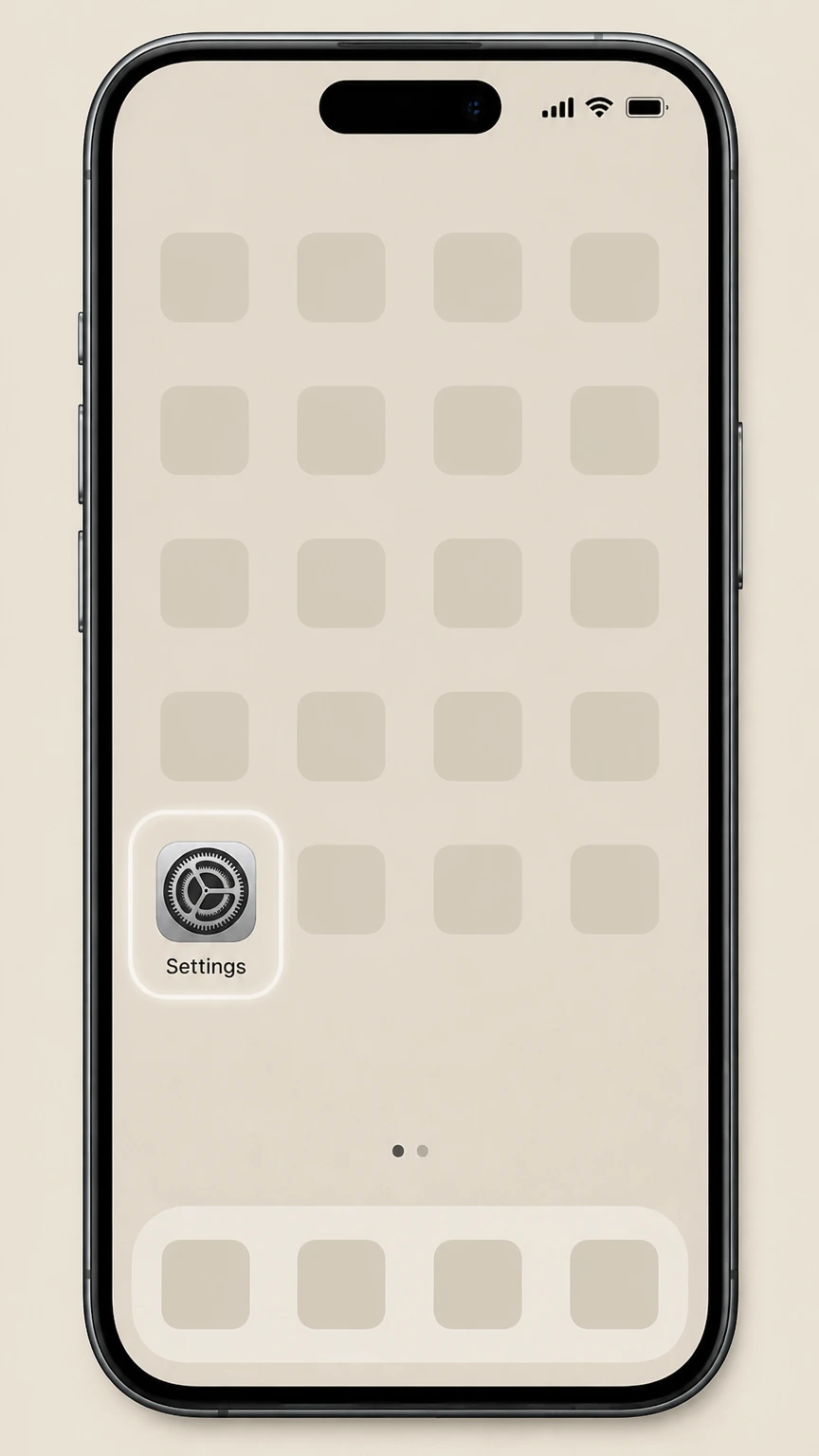
1Open Settings
On the iPhone or iPad billed by Apple, open the Settings app before opening the Apple Account subscription list.
 2
2Tap your name
At the top of Settings, tap your name to open your Apple ID account settings.
- Let Pine handle it
Pine can help
Too many steps?
Pine can find the right Apple iOS (billed through Apple) path and handle the cancellation for you.
 3
3Open Subscriptions
In Apple ID settings, tap Subscriptions to see the list of subscriptions billed through Apple.
 4
4Select Sports Illustrated
In the Active section, tap Sports Illustrated if it appears in your list of subscriptions.
 5
5Cancel the subscription
On the Sports Illustrated subscription page, tap Cancel Subscription and confirm when prompted to stop future billing.

Google Play (Android billing, including Pocketmags) · verify the billing owner
Google Play (Android billing, including Pocketmags)
 1
1Open Google Play Store
On your Android device, open the Google Play Store app that you use to install apps.
 2
2Open your account menu
In the top right of Google Play, tap your profile picture to open the account menu.
- Let Pine handle it
Pine can help
Too many steps?
Pine can find the right Google Play (Android billing, including Pocketmags) path and handle the cancellation for you.
 3
3Tap Payments & subscriptions
From the menu, tap Payments & subscriptions to view your payment options and subscriptions.
 4
4Tap Subscriptions
On the Payments & subscriptions screen, tap Subscriptions to see everything billed through Google Play.
 5
5Select Sports Illustrated
In your list of active subscriptions, tap the entry that provides Sports Illustrated access (for example, a Pocketmags subscription that includes Sports Illustrated).
 6
6Cancel the subscription
On that subscription’s details page, tap Cancel subscription and follow the on‑screen prompts to confirm.
Refund policy
Refunds after cancelling a Sports Illustrated subscription
Cancelling a Sports Illustrated subscription stops future renewals with the billing provider, but it does not automatically refund charges you already paid. Refund eligibility and processes depend on whether Apple, Google Play, or another company billed you, and on each provider’s own refund policies and time limits.
Check my refund options- Cancellation vs. refund are separate steps
- Across Apple, Google Play, and regulatory guidance, cancellation is about stopping future renewals, while refunds concern getting money back for past charges; you usually must request a refund separately and there is no guarantee it will be approved.
- Apple may refund some subscription charges
- Apple’s refund help explains that some App Store and in‑app purchases may be eligible for a refund via the Report a Problem website or Apple Support, but decisions are case‑specific and depend on Apple’s policies and the details of each purchase.
- Google Play has specific refund windows and rules
- Google Play refund policies state that refunds for apps and in‑app purchases (including subscriptions) depend on factors like how long it has been since you bought them; Google doesn’t refund most purchases but offers online tools and policies for requesting exceptions.
- Subscribe with Google and publisher refunds
- For Subscribe with Google purchases, Google’s refund policies say that Google generally does not provide refunds except in limited cases, and that publishers may manage refunds according to their own terms and applicable law, so you may also need to contact the publisher.
- Direct Sports Illustrated and other partner refunds
- If Sports Illustrated or another partner billed you directly instead of an app store, any refund rights and processes will depend on that company’s own subscription and refund terms; you must review their official policy or contact them to ask about refunds.
If you cannot resolve an unwanted or continuing Sports Illustrated subscription charge with the billing provider, you can follow CFPB guidance on stopping automatic payments and, if necessary, file a complaint or work with your bank or card issuer. See CFPB guidance on stopping automatic payments
Billing owner
Work out who is billing you for Sports Illustrated
Before you try to cancel, confirm which company is actually charging you for Sports Illustrated, because you must cancel through that billing owner.
Check recent email receipts
Search your email for receipts from Apple, Google Play, Amazon, PayPal, or Sports Illustrated; Apple specifically advises checking for “receipt from Apple” messages to identify the Apple ID and service that is billing you.
Review card or bank statements
Look at your credit card or bank statement for the merchant name next to Sports Illustrated‑related charges; if the entry lists Apple, Google, Amazon, or another platform, you need to cancel through that platform rather than directly with Sports Illustrated.
Use Apple’s purchase history
On iPhone, you can view your purchases and subscriptions in the App Store account settings to see if Sports Illustrated‑related charges are tied to your Apple ID and are being billed by Apple.
Use Google’s subscriptions view
In your Google Account, you can view linked subscriptions and Google Play subscriptions to confirm whether Sports Illustrated access is tied to a Google Play billing relationship.
If you don’t find any platform receipts
If no platform receipt appears and your statement lists Sports Illustrated or a related entity directly, you likely have a direct or third‑party subscription that must be cancelled using that provider’s own process, not via Apple or Google.
Apple‑billed
What changes after cancelling Sports Illustrated via Apple
If Apple bills you for Sports Illustrated access, cancelling through your Apple ID affects billing and access in specific ways but does not manage your Sports Illustrated account for you.
Renewals and charges stop with Apple
Apple’s subscription guidance explains that once you tap Cancel Subscription for a service, Apple will no longer renew it; you should not see new Sports Illustrated charges from Apple after the current paid period ends.
Access usually continues until period end
Apple notes that active subscriptions remain available until their expiration date; after you cancel Sports Illustrated, you normally keep access through the end of that billing period, then lose any paid content tied to that Apple subscription.
Subscription status moves to expired or canceled
In the iOS Subscriptions list, Sports Illustrated should move from Active to an expired or canceled state, or show an expiration message in red text, indicating Apple has stopped renewing it.
Apple ID and other services are unaffected
Cancelling a Sports Illustrated subscription billed by Apple does not close your Apple ID, remove other subscriptions, or delete Sports Illustrated login credentials you may use separately; it only affects billing for that specific subscription line.
Refunds require a separate request
Apple’s refund documentation explains that some App Store and in‑app purchases may qualify for a refund through the Report a Problem site or Apple Support, but cancellation alone does not guarantee you will receive any money back.
Google Play‑billed
What changes after cancelling Sports Illustrated via Google Play
If Google Play is billing you for Sports Illustrated access—for example through a newsstand app like Pocketmags—cancelling in Google Play changes how and when you are charged and what you can access.
Future renewals stop in Google Play
Google Play’s subscription help states that when you cancel a subscription, it will no longer renew; after you cancel the subscription that includes Sports Illustrated, new recurring charges for that item should stop from Google Play.
Access typically continues until renewal date
Google explains that subscriptions normally remain active through the end of the current billing period after you unsubscribe, so Sports Illustrated content delivered through that Google Play subscription should remain available until the period ends.
Uninstalling the app is not enough
Google Play warns that uninstalling an app does not cancel the underlying subscription; you must complete cancellation in the Google Play Subscriptions screen so that Sports Illustrated‑related renewals actually stop.
Status visible in Subscriptions list
After cancellation, the subscription entry in Google Play should show a cancellation or end date instead of a recurring charge; you can revisit Payments & subscriptions → Subscriptions to confirm the updated status for the Sports Illustrated‑related sub.
Linked subscriptions vs billing cancellation
Google’s subscriptions management guidance notes that unlinking a subscription from your Google Account does not cancel it with the publisher, so always cancel the billed subscription in Google Play rather than only removing a linked news subscription entry.
Other channels
Sports Illustrated bought through other partners
Some Sports Illustrated access is bundled through third‑party services such as digital newsstands or bundles; these must be cancelled with the partner that is actually billing you.
Digital newsstands like Pocketmags
The Pocketmags digital newsstand on Google Play lists Sports Illustrated among magazines available by subscription, so if your statement references Pocketmags, cancel the relevant Pocketmags subscription in Google Play rather than looking for a separate Sports Illustrated line.
Bundles through Subscribe with Google
Some publishers sell subscriptions using Subscribe with Google; Google’s refund policies clarify that for such purchases, refunds and cancellation options may be governed by both Google’s and the publisher’s terms, so you should follow the cancellation path shown in your Subscribe with Google account.
Carrier or wireless‑billed bundles
Apple points out that if a subscription is provided through a wireless carrier or other provider, you need to contact that provider to cancel; if Sports Illustrated comes as part of such a bundle, follow the instructions from your carrier rather than Apple or Google.
Direct Sports Illustrated website subscriptions
If your receipt or card statement lists Sports Illustrated (or a related company) directly and no platform is involved, you likely have a direct subscription that must be cancelled using Sports Illustrated’s own website, support channels, or written instructions, which are not covered here.
Use bank and CFPB guidance if unsure
If you cannot identify the billing owner or encounter barriers to cancellation, CFPB guidance on stopping automatic payments recommends contacting the company first and, if needed, working with your bank or card issuer to prevent further recurring charges.
Confirmation
Confirm that your Sports Illustrated subscription is really cancelled
After you follow the platform steps, verify that Sports Illustrated renewals have truly stopped so you are not surprised by future charges.
Check Apple’s Subscriptions list again
Return to Settings → your name → Subscriptions and open the Sports Illustrated entry; Apple notes that a missing Cancel button or an expiration message in red text indicates the subscription is already cancelled and will not renew.
Look for confirmation emails or notifications
Apple and Google commonly send automated emails or notifications when you cancel a subscription or change billing, so watch your inbox associated with your Apple ID or Google Account for confirmation about the Sports Illustrated‑related subscription.
Verify the status in Google Play
Open Google Play → profile icon → Payments & subscriptions → Subscriptions and confirm that the subscription including Sports Illustrated now shows a non‑renewing status or end date instead of an upcoming renewal date and active price.
Monitor card and bank statements
Even after platform confirmations, CFPB guidance recommends monitoring your card and bank statements to ensure that no new Sports Illustrated or related recurring charges appear after the cancellation effective date.
Check any linked news or magazine accounts
If Sports Illustrated access is linked to a separate account (for example in a newsstand app), log into that account to confirm that you no longer see an upcoming renewal or active subscription line for the canceled Sports Illustrated product.
Access & data
What happens to Sports Illustrated access and data after you cancel
Cancelling billing through Apple, Google Play, or other partners mainly affects payments and access to paid content; it does not usually erase accounts or data held by Sports Illustrated or its partners.
Paid content usually ends after the paid period
For both Apple and Google Play, subscription guidance indicates that you keep access through the current billing period; once that ends, Sports Illustrated content tied to that subscription—such as paywalled articles or magazine issues—typically becomes unavailable unless you resubscribe.
App deletion and account deletion are different
Apple and Google documentation make clear that uninstalling an app only removes it from your device; it does not cancel the subscription or delete any Sports Illustrated or newsstand account that might be associated with your email address.
Billing cancellation doesn’t guarantee data deletion
CFPB and FTC materials on negative‑option subscriptions focus on billing and cancellation mechanics, not data erasure, so if you want Sports Illustrated or a partner service to remove stored profile data, you must follow the provider’s own privacy and data‑deletion procedures.
Linked subscriptions may still appear as content sources
Google’s guidance on linked subscriptions explains that even when a linked news subscription is unlinked from your Google Account, the underlying publisher subscription remains; the reverse is also true—canceling billing may not instantly remove historical Sports Illustrated articles already saved in your reading apps.
Re‑subscribing may restore access but not history
If you resubscribe through Apple, Google Play, or directly with Sports Illustrated later, you may regain access to current issues and content, but past personalization or access history depends on how Sports Illustrated and any partner apps manage accounts, not on the app store alone.
Billing problems
If Sports Illustrated keeps charging after you cancel
If you still see Sports Illustrated‑related charges after following platform cancellation steps, you may need to escalate with the billing platform, Sports Illustrated, or your bank.
Confirm you cancelled in the right account
Apple and Google both advise verifying that you are signed into the same Apple ID or Google Account that originally purchased the subscription; if you used a different account, the cancellation you performed may not affect the billing account that is still being charged.
Use Apple’s or Google’s support flows
If your subscription still appears active or you continue to be billed after cancellation, use Apple Support or Google Play Help contact options to get assistance with subscription status and potential corrections or refunds, following their published workflows.
Contact the company that is billing you
CFPB guidance on automatic payments stresses that you should first contact the merchant that is debiting your account; if your statement lists Sports Illustrated or a partner directly, work with that company to stop the recurring charge, using their published cancellation methods.
Work with your bank or card issuer if needed
If the billing company does not honor your cancellation request or you see unauthorized Sports Illustrated charges, CFPB resources explain that you can tell your bank or card issuer to stop future automatic debits and may dispute unauthorized transactions under federal law.
File a complaint with regulators in serious cases
When you encounter deceptive negative‑option practices—such as being unable to locate any reasonable Sports Illustrated cancellation mechanism—CFPB guidance and policy statements encourage consumers to submit complaints so regulators can investigate problematic subscription practices.
Sports Illustrated cancellation FAQ
Answers about Sports Illustrated billing ownership, cancellation timing, refunds, and access after cancellation.
How can I cancel my Time Sports Illustrated subscription?
How can I check my Sports Illustrated subscription status?
How do I cancel a Sports Illustrated subscription billed through Apple?
How do I cancel a Sports Illustrated subscription billed through Google Play?
Will I get a refund when I cancel Sports Illustrated?
Does cancelling my Sports Illustrated subscription delete my account?
How can I stop Sports Illustrated charges if I can’t find a subscription to cancel?
Can I pause my Sports Illustrated subscription instead of cancelling?
Untangle this Sports Illustrated issue.
Let Pine handle the provider follow-up and keep the confirmation in one place.
