


SonyLIV
Cancel subscription
How to Cancel Your SonyLIV Subscription Step-by-Step
Learn how to cancel a SonyLIV subscription on iPhone and Android, who actually bills you, what happens to access after cancel, and how refunds are handled.
- 1 cancellation path matched to the billing owner
- Renewal timing and access outcome explained
- Refund requests routed to the company that billed you
- Confirmation steps included for every path
Choose the SonyLIV cancellation path that matches who bills you
SonyLIV in Apple Subscriptions · verify the billing owner
How to cancel SonyLIV through SonyLIV in Apple Subscriptions
 1
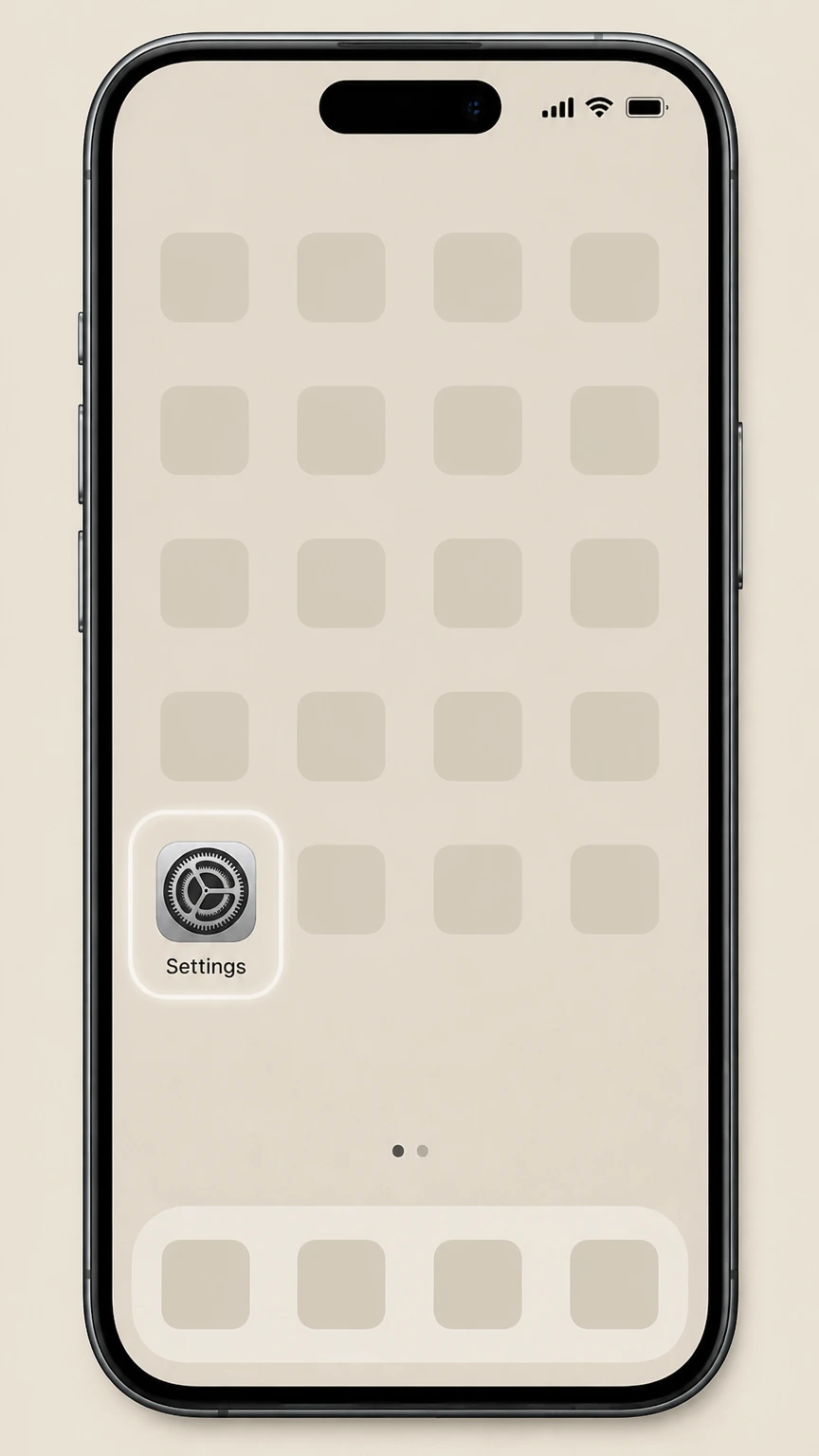
1Open Settings
Open Settings on the iPhone or iPad signed in to the Apple Account that owns the subscription.
 2
2Tap your name
Tap your name at the top of Settings to open the Apple Account controls.
- Let Pine handle it
Pine can help
Too many steps?
Pine can find the right SonyLIV in Apple Subscriptions path and handle the cancellation for you.
 3
3Open Subscriptions
Choose Subscriptions to display the recurring services billed to this Apple Account.
 4
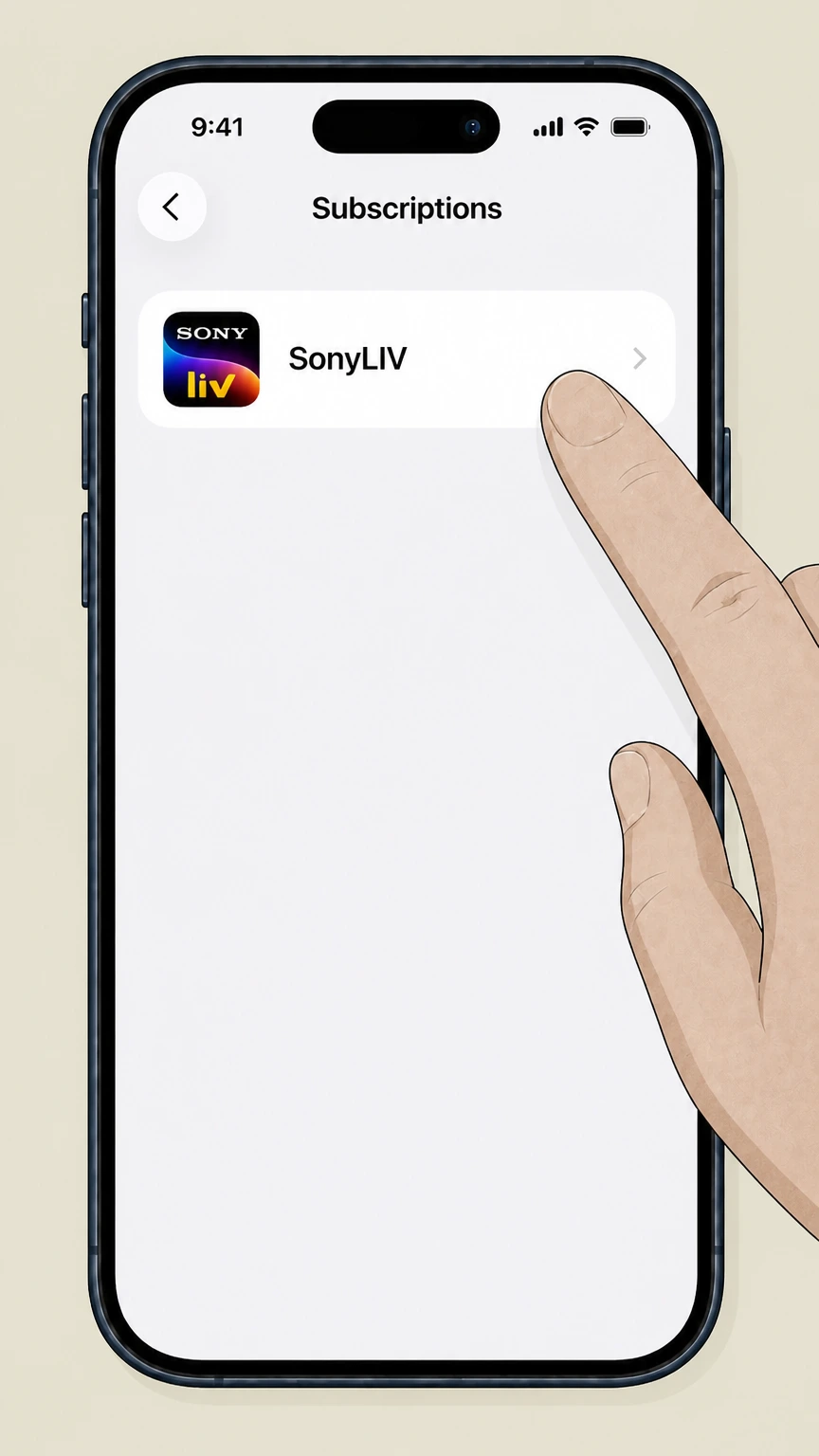
4Select SonyLIV
Choose SonyLIV from the subscription list to open its renewal details.
 5
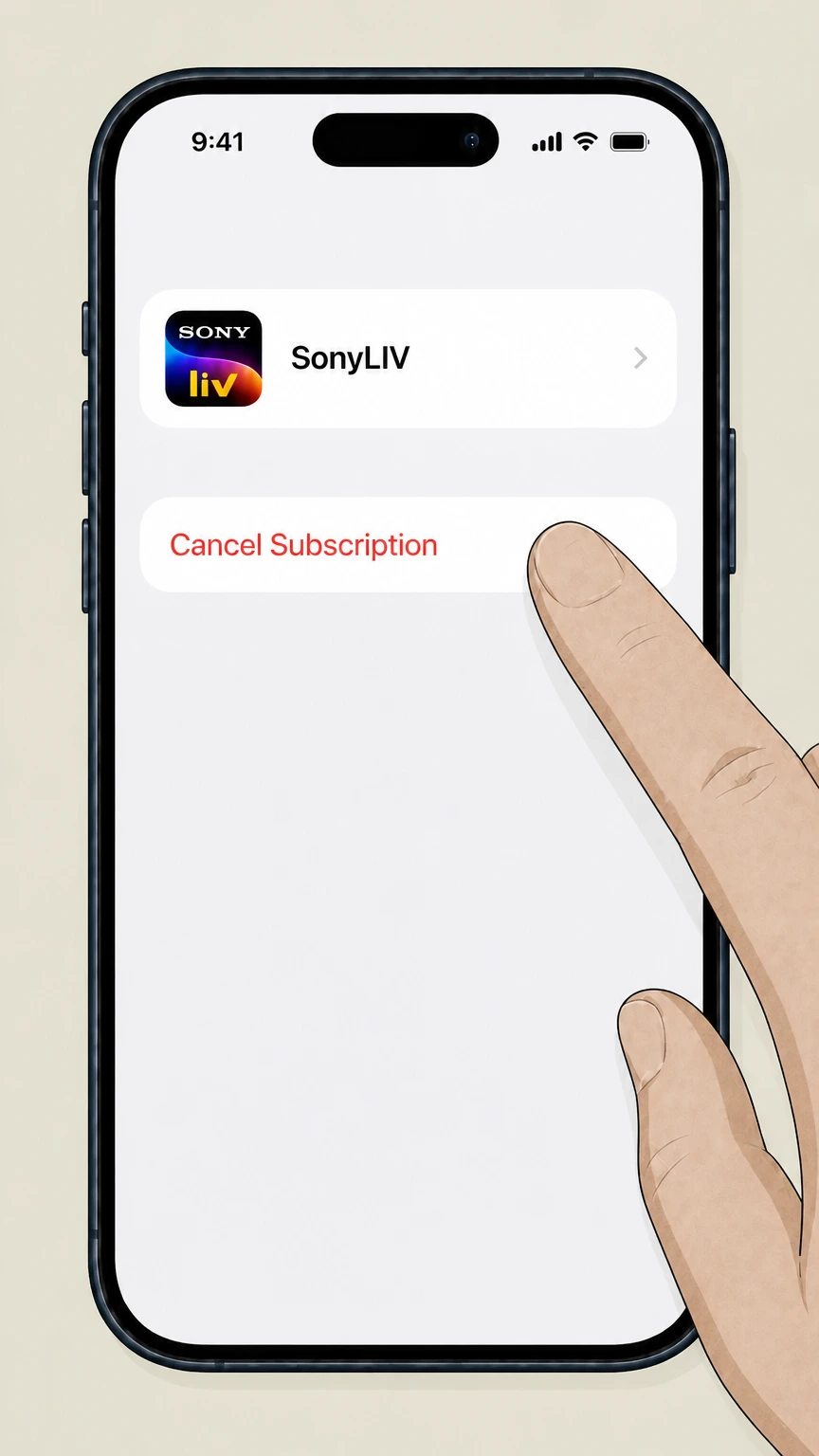
5Cancel the subscription
Tap Cancel Subscription and complete Apple’s prompts for SonyLIV.

Refund policy
Refunds after cancelling a SonyLIV subscription
Cancelling SonyLIV normally only stops future renewals. Any refund depends on who billed you—Apple, Google Play, or a third‑party bundle—and must follow that platform’s own refund rules and tools rather than an in‑app SonyLIV setting.
Check my refund options- Apple handles refunds for Apple‑billed SonyLIV
- If SonyLIV was billed through Apple, you must request any refund from Apple, not SonyLIV. Apple’s support article says some App Store and Apple services purchases may qualify for a refund, and you must sign in to reportaproblem.apple.com, select Request a refund, choose a reason, and pick the relevant subscription or item.
- Google Play rarely refunds used subscription time
- Google’s subscription help states that when you cancel, you keep access for the time you have already paid, and that past subscriptions generally can’t be refunded except as described in Google Play’s refund policies. You can ask Google Play for a refund, but approval is discretionary and not specific to SonyLIV.
- Direct SonyLIV or bundle refunds depend on that provider
- Apple notes that if you can’t find a subscription in their systems, it may have been bought elsewhere and must be cancelled and refunded by that provider. Google similarly directs users with content issues to the app’s developer. SonyLIV‑billed or bundle‑billed refunds therefore depend on each provider’s own rules.
- Cancellation and refund are separate actions
- Apple and Google both treat cancelling a subscription and requesting a refund as distinct processes. Stopping auto‑renew for SonyLIV will prevent new charges but will not by itself return money you already paid; any refund claim must be submitted separately through the billing platform’s official refund flow.
Because official SonyLIV web help pages and terms are not accessible on the allowed domains, refund rights for SonyLIV subscriptions billed directly by SonyLIV or through certain regional bundles cannot be verified here and should be checked on SonyLIV’s own site or with the bundle provider before relying on this guide. Check SonyLIV or bundle‑provider refund terms directly
Billing source
Who actually bills your SonyLIV subscription
Accurately identifying who charges you for SonyLIV is essential, because you must cancel with that billing owner—Apple, Google Play, or a third‑party bundle—rather than inside the SonyLIV app alone.
Apple App Store as billing owner
If your email receipt for SonyLIV is from Apple or SonyLIV appears under Settings > [your name] > Subscriptions on iPhone or iPad, Apple is the billing owner and you must cancel in Apple’s subscription settings or on your Apple account, not via SonyLIV support.
Google Play as billing owner
If SonyLIV appears under Payments & subscriptions > Subscriptions in Google Play or on a Google Play receipt, Google Play is the billing owner and you must use the Google Play subscriptions screen to cancel and manage renewals.
Bundled OTT and operator packs
Apps such as JioTV, YuppTV, or OTTplay advertise SonyLIV as part of a multi‑service OTT bundle; if you signed up inside one of these apps and only see bundle charges from that provider, that bundle owner—not SonyLIV, Apple, or Google—controls billing and cancellation.
Non‑Apple, non‑Google card charges
If you can’t find SonyLIV in Apple or Google Play but you see SonyLIV or a partner name on your bank or card statement, both Apple and Google advise contacting the company that issued the charge; that provider’s own cancellation and refund rules then apply.
Service access
What happens to SonyLIV access after you cancel
Cancelling affects future renewals, not usually the time you already paid for. The exact behaviour depends on whether your SonyLIV subscription is billed by Google Play, Apple, or another provider.
Google Play: access until the paid period ends
Google explains that when you cancel a subscription through Google Play you can continue to use it for the time you’ve already paid; for example, cancelling an annual plan mid‑year still lets you watch until the end of that billing year before access ends.
Google Play prepaid passes auto‑expire
If SonyLIV were sold as a prepaid Google Play plan, Google notes that prepaid plans automatically expire at the end of the period and normally don’t need cancellation; unused prepaid plans may be refundable under Google Play’s refund rules.
Apple: subscription shows an expiration date
Apple’s support article indicates that after you tap Cancel Subscription, the SonyLIV entry in Subscriptions changes so there is no Cancel button and an expiration message appears; this indicates Apple will stop renewing the subscription after that date.
Other providers and bundles
For subscriptions bought through a carrier, TV operator, or OTT bundle, access rules (for example whether you keep SonyLIV until month‑end) are governed by that provider’s terms; neither Apple nor Google can guarantee how long SonyLIV access continues after you cancel with a third party.
Refund rules
Refunds when cancelling SonyLIV via Apple or Google Play
Cancelling SonyLIV usually only stops future renewals; whether any money is returned depends on Apple’s or Google Play’s own refund processes, not SonyLIV’s marketing or app description.
Apple: request refunds separately
Apple says some purchases from the App Store and other Apple services may be eligible for a refund; you must sign in to reportaproblem.apple.com, choose Request a refund, select a reason, and then choose the subscription or item such as a SonyLIV charge to submit a request.
Google Play: past periods rarely refunded
Google’s subscription help states that past subscription periods can’t be refunded except in limited cases described in Google Play’s refund policies; cancelling stops the next renewal but normally doesn’t refund what you already used.
Who decides the refund for Apple or Google Play billing
When SonyLIV is billed through Apple or Google Play, those platforms decide if you get a refund according to their own policies; Google suggests requesting a refund through Google Play and Apple requires using its Report a Problem site or Apple Support for refund eligibility decisions.
Direct SonyLIV or bundle refunds
Apple and Google note that if a subscription isn’t billed by them, you must contact the company that bills you; therefore, refunds for SonyLIV bought directly on its website or via bundles like JioTV or OTTplay will depend entirely on those providers’ own refund terms, which should be checked directly.
Auto‑renew
Stopping SonyLIV auto‑renew safely
To truly stop SonyLIV auto‑renewal, you must change the subscription status with the billing platform—Apple, Google Play, or a bundle—not just inside the SonyLIV app or by deleting it.
Uninstalling SonyLIV doesn’t cancel charges
Google Play repeatedly warns that uninstalling an app does not cancel its subscription; charges continue until you cancel through the subscriptions section. The same principle applies for SonyLIV—removing the app from your phone or TV does not stop billing.
Apple: cancel to stop renewal
On iPhone or iPad, Apple requires you to open Settings, tap your name, then Subscriptions, select SonyLIV, and tap Cancel Subscription; Apple’s article explains that when the Cancel button is gone and an expiration message appears, the subscription is no longer set to renew.
Google Play: cancel subscription, keep paid access
On Android, Google instructs you to go to subscriptions on Google Play, select the subscription, tap Cancel subscription, and follow prompts; after cancellation, Google states you keep access for the time you’ve already paid, but future auto‑renewals stop.
Bundle owners manage their own auto‑renew
Where SonyLIV is part of an OTT bundle such as JioTV, YuppTV, or OTTplay, those apps describe SonyLIV as a partner within a combined subscription; you must disable auto‑renew or cancel from the bundle provider’s account or billing section, because Apple and Google can’t manage those third‑party renewals.
Bundles & devices
SonyLIV in bundles, smart TVs, and OTT hubs
SonyLIV appears inside other OTT platforms and on connected devices; cancelling still must occur where the billing relationship lives, even if you primarily watch on a TV or through a bundle app.
SonyLIV in JioTV and other OTT bundles
JioTV, OTTplay, and YuppTV promote access to SonyLIV within their own subscription offerings, meaning a single JioTV or OTTplay payment may include SonyLIV; if you subscribed this way, cancelling only SonyLIV inside the app is unlikely to exist—you must change or cancel the overall bundle.
Fire TV and smart TV availability
Amazon’s Fire TV Edition smart‑TV specifications list SonyLIV among the streaming apps available alongside Prime Video and Netflix, confirming that SonyLIV is an app on these devices; however, Fire TV’s presence only affects where you watch, not who bills you for SonyLIV.
Sony smart TVs and Android TV
Many Sony TVs run Android TV or Google TV and can install the SonyLIV app from Google Play; in these cases, any in‑app SonyLIV subscription set up through Google Play will still be managed and cancelled through the Google Play subscriptions interface, not the TV’s system menus.
OTT bundles and cancellation responsibilities
Because Apple and Google both advise that subscriptions not billed through them must be cancelled with the original provider, packages that include SonyLIV via telecoms or OTT bundles require using that provider’s own portal, app, or customer support to stop billing.
Confirmation
How to confirm your SonyLIV subscription is cancelled
After you cancel, you should confirm that SonyLIV no longer appears as an active renewing subscription and that no further charges are scheduled or posted to your account.
Check Apple’s Subscriptions screen
On iPhone or iPad, re‑open Settings > [your name] > Subscriptions and tap SonyLIV; Apple’s article explains that if there is no Cancel button and you see an expiration message in red text or a past date, the subscription is already cancelled and will not renew.
Check Google Play’s Subscriptions list
On Android, go to Payments & subscriptions > Subscriptions in Google Play; if SonyLIV is no longer shown as an active subscription or is labelled as cancelled or expired with an end date, Google Play will not charge you again unless you resubscribe.
Review your email receipts and bank statements
Apple and Google both recommend checking your receipts and payment statements; after cancellation, you should no longer receive new renewal receipts from that platform or see new SonyLIV‑related charges beyond the final billed period.
Test access after the expiry date
Once the displayed expiration date has passed, try playing SonyLIV content; if your access has ended or you are prompted to re‑subscribe through Apple, Google, or a bundle, that indicates the previous subscription cycle has finished and cancellation has taken effect.
Troubleshooting
If you can’t find or cancel your SonyLIV subscription
Sometimes SonyLIV doesn’t appear where you expect it, especially if it was bought through a different Apple ID, Google account, or a non‑Apple/Google provider. These checks help you work out what to do next.
SonyLIV missing from Apple Subscriptions
Apple advises searching your email for “receipt from Apple” to confirm which Apple Account was charged and then signing into that Apple ID; if you still can’t find the subscription, Apple suggests the subscription may come from another company and must be cancelled with that provider instead.
SonyLIV missing from Google Play Subscriptions
Google’s subscription help and community experts note that not all apps use Google’s subscription system; if a subscription doesn’t appear under subscriptions in Google Play but you are charged, you likely subscribed another way and must follow the app developer’s or provider’s own cancellation process.
Check for multiple accounts
Both Apple and Google warn that subscriptions can be tied to a different Apple ID or Google Account than the one you use daily; try signing into other accounts you own in the App Store, on account.apple.com, or in Google Play to see if the SonyLIV subscription is attached there.
Contact the app developer or billing provider
Google Play Help explains that payments are processed by Google if you subscribe through Google Play, but the app developer is responsible for content and issues; if your subscription isn’t visible in Apple or Google, use the app store listing’s contact options or your provider’s support channel to request help cancelling.
SonyLIV cancellation FAQ
Answers about SonyLIV billing ownership, cancellation timing, refunds, and access after cancellation.
How can I deactivate my subscription?
How to stop AutoPay in SonyLIV app?
How can I cancel my SonyLIV subscription online?
How do I cancel subscriptions on Sony TV?
How do I know if Apple or Google Play bills my SonyLIV subscription?
Will I still be able to watch SonyLIV after I cancel my subscription?
Can I get a refund after cancelling SonyLIV?
What if SonyLIV doesn’t appear in my Apple or Google Play subscriptions list?
Does deleting the SonyLIV app cancel my subscription?
Untangle this SonyLIV issue.
Let Pine handle the provider follow-up and keep the confirmation in one place.
