


TIME
Cancel subscription
How to Cancel Your TIME Subscription Safely Online
Learn how to cancel TIME through the right billing provider. Follow official steps, understand access timing, refunds, and the confirmation to keep.
- 4 cancellation paths matched to the billing owner
- Renewal timing and access outcome explained
- Refund requests routed to the company that billed you
- Confirmation steps included for every path
Choose the TIME cancellation path that matches who bills you
Cancel TIME via Apple on iPhone or iPad · verify the billing owner
Cancel TIME via Apple on iPhone or iPad
 1
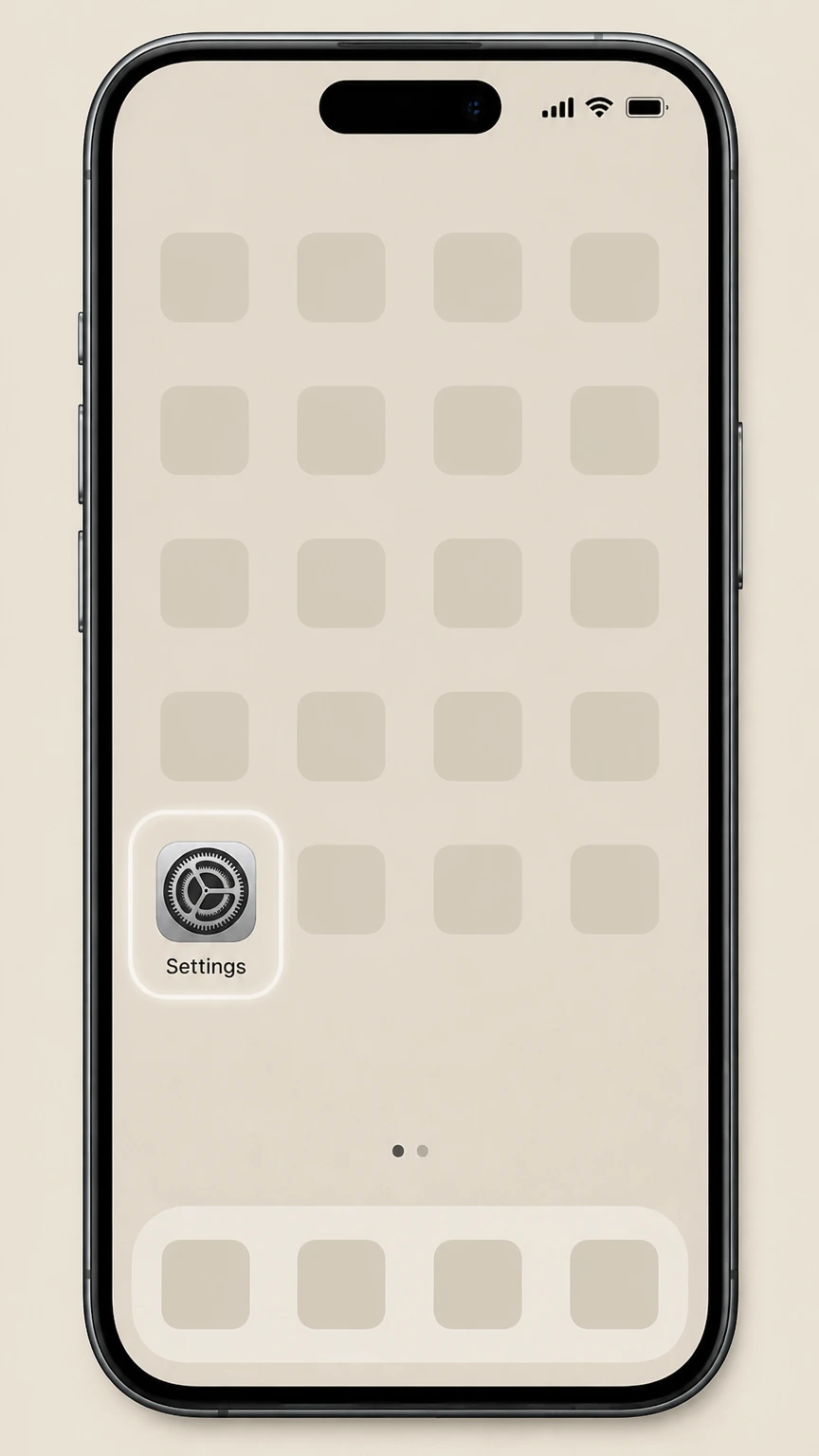
1Open Settings
On your iPhone or iPad, open the Settings app on your home screen.
 2
2Tap your name
At the top of Settings, tap your name to open your Apple ID settings.
- Let Pine handle it
Pine can help
Too many steps?
Pine can find the right Cancel TIME via Apple on iPhone or iPad path and handle the cancellation for you.
 3
3Open Subscriptions
In your Apple ID settings, tap Subscriptions to view your active and expired subscriptions.
 4
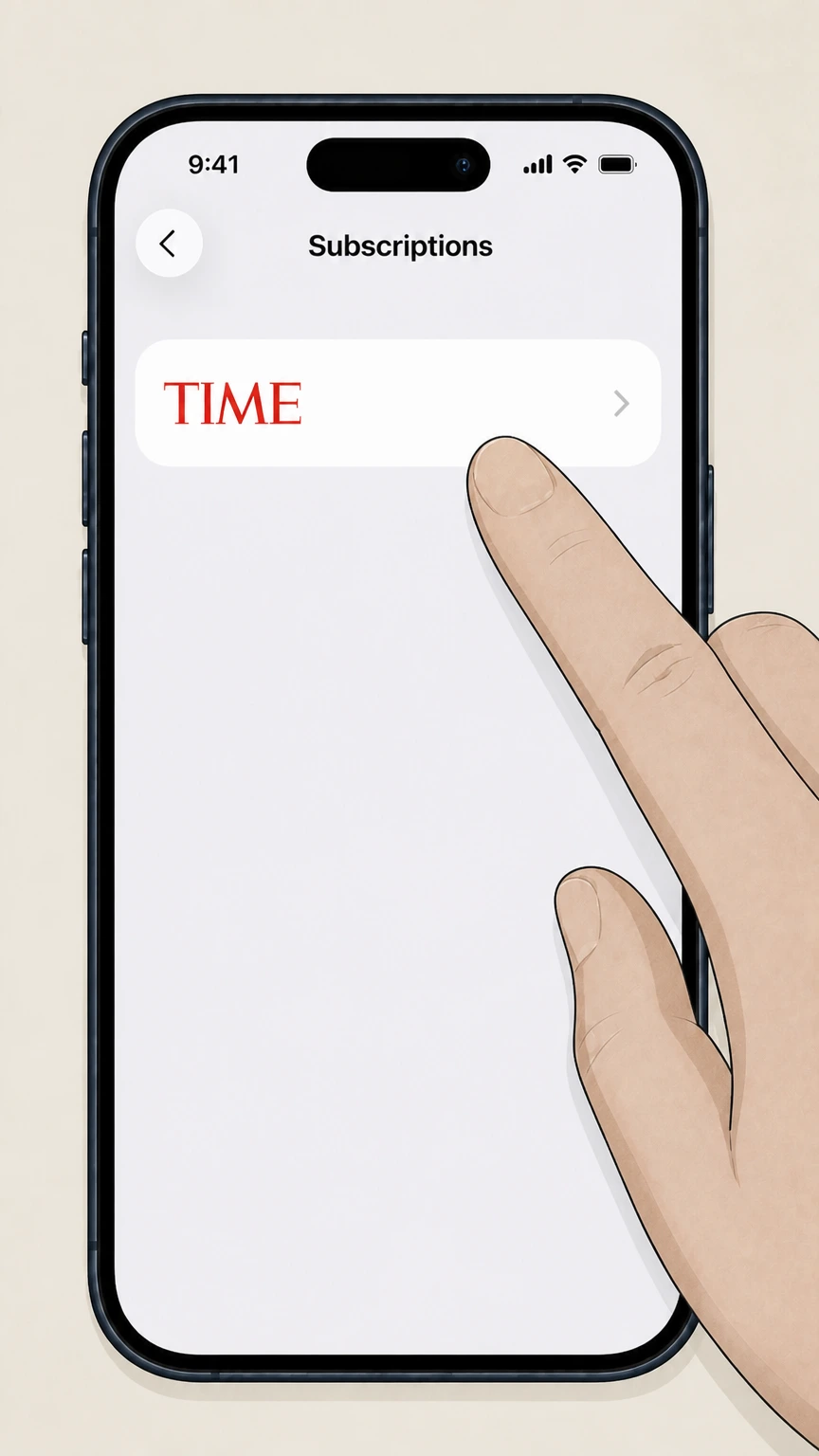
4Select TIME
Under Active, tap the TIME subscription entry to open its details.
 5
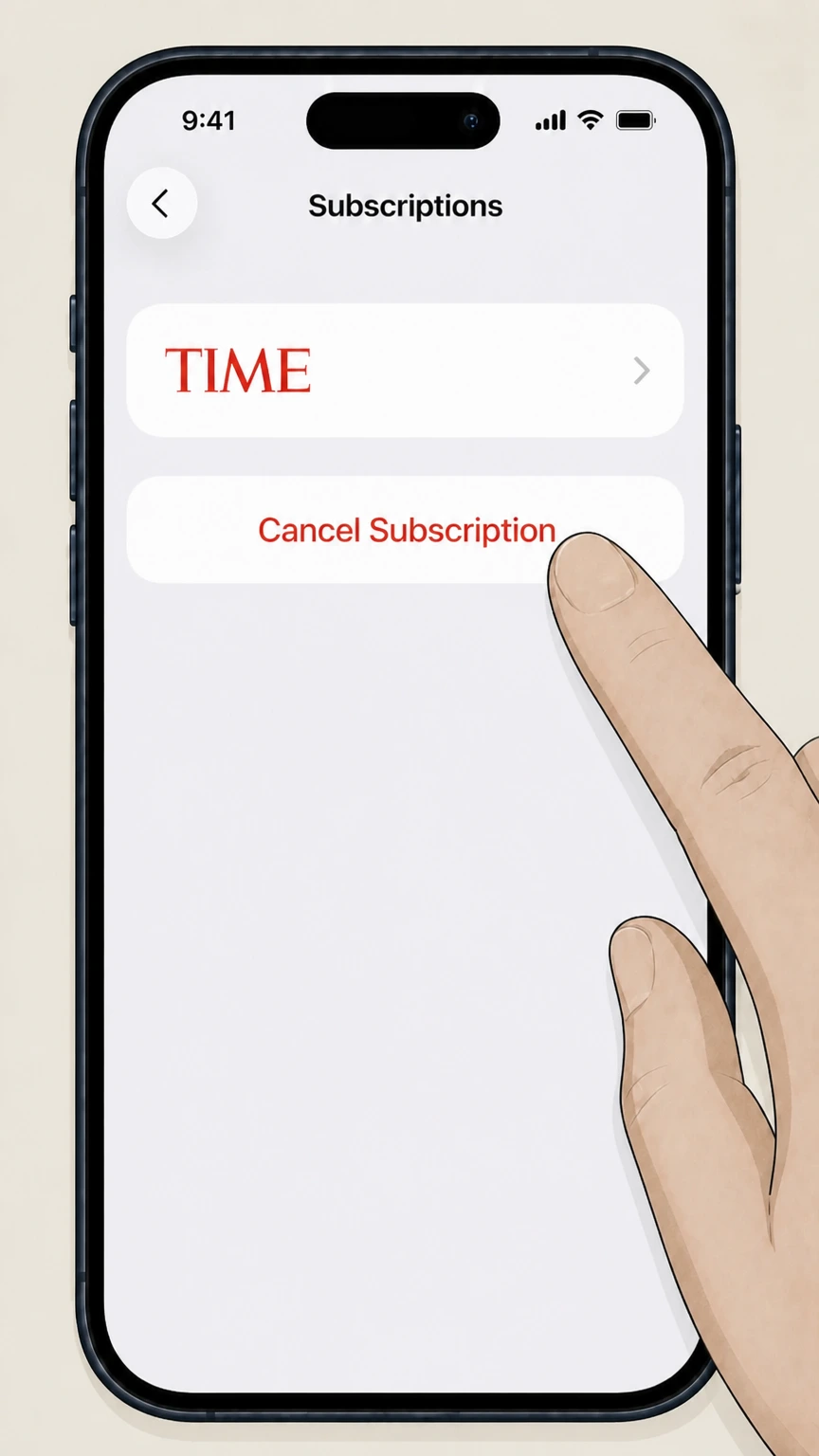
5Cancel the subscription
Tap Cancel Subscription and confirm to stop future renewals for TIME.

Cancel TIME via Google Play on Android · verify the billing owner
Cancel TIME via Google Play on Android
 1
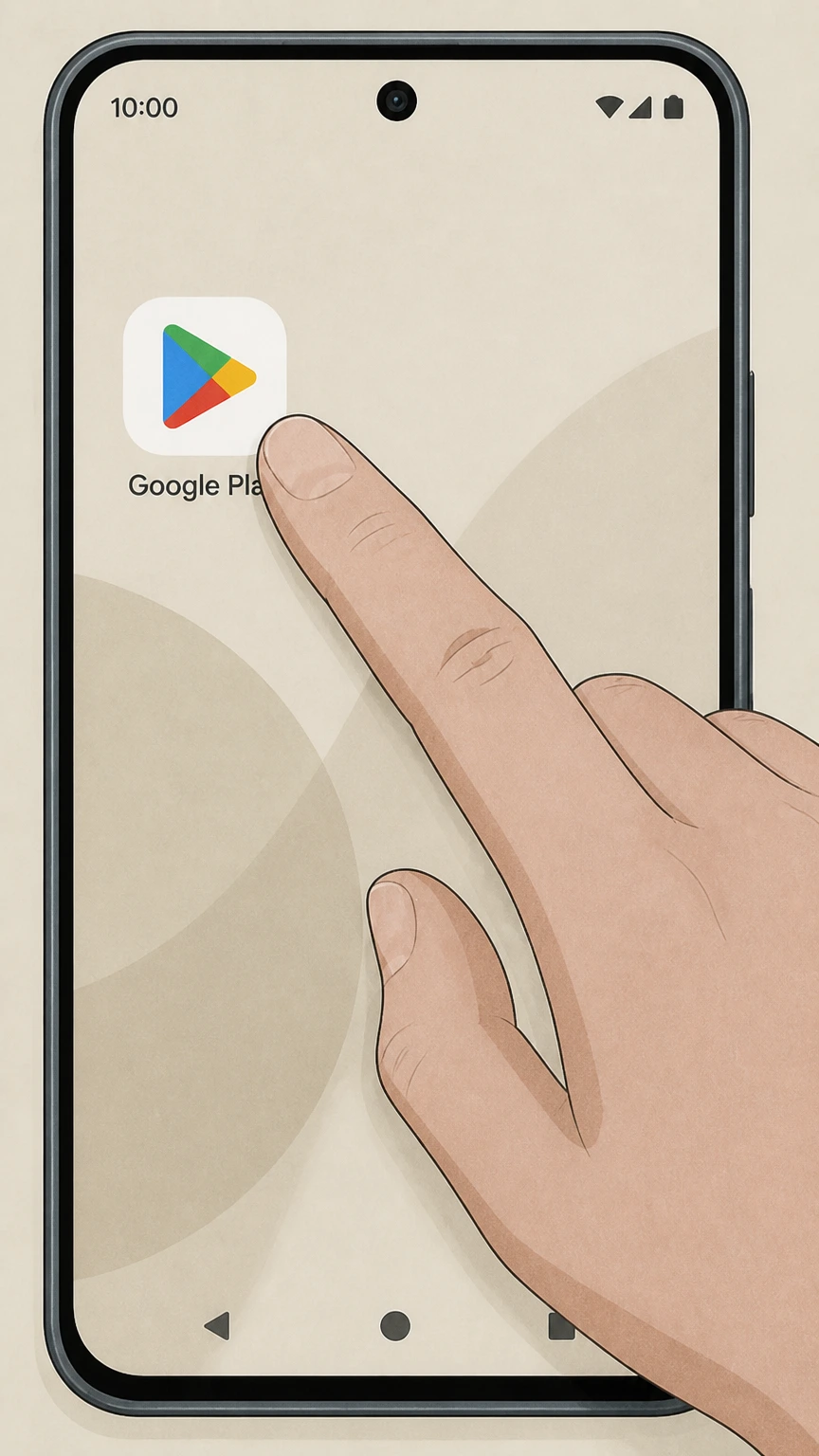
1Open Google Play Store
On your Android phone or tablet, open the Google Play Store app.
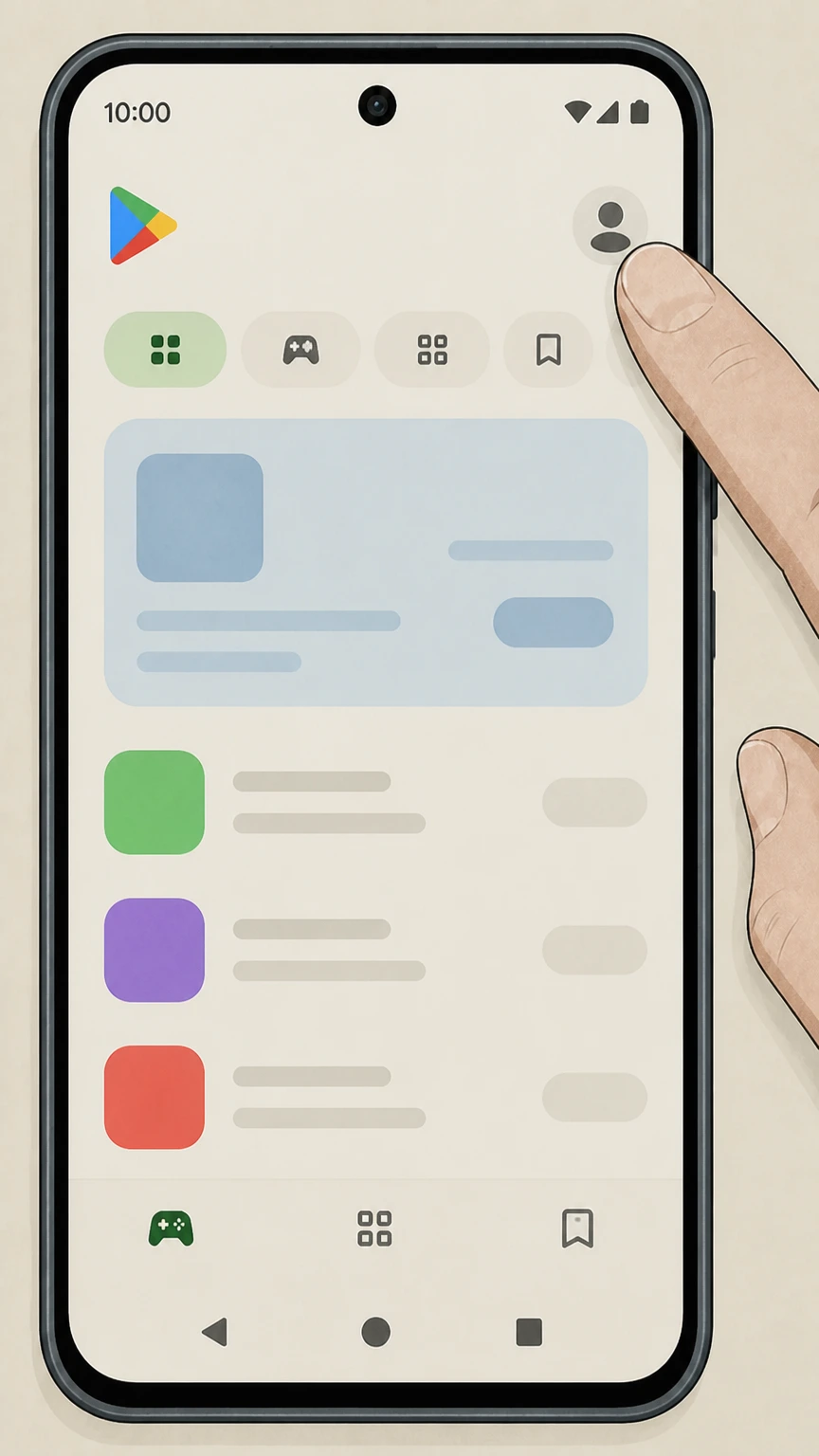 2
2Open your profile
In Google Play, tap your profile icon at the top right.
- Let Pine handle it
Pine can help
Too many steps?
Pine can find the right Cancel TIME via Google Play on Android path and handle the cancellation for you.
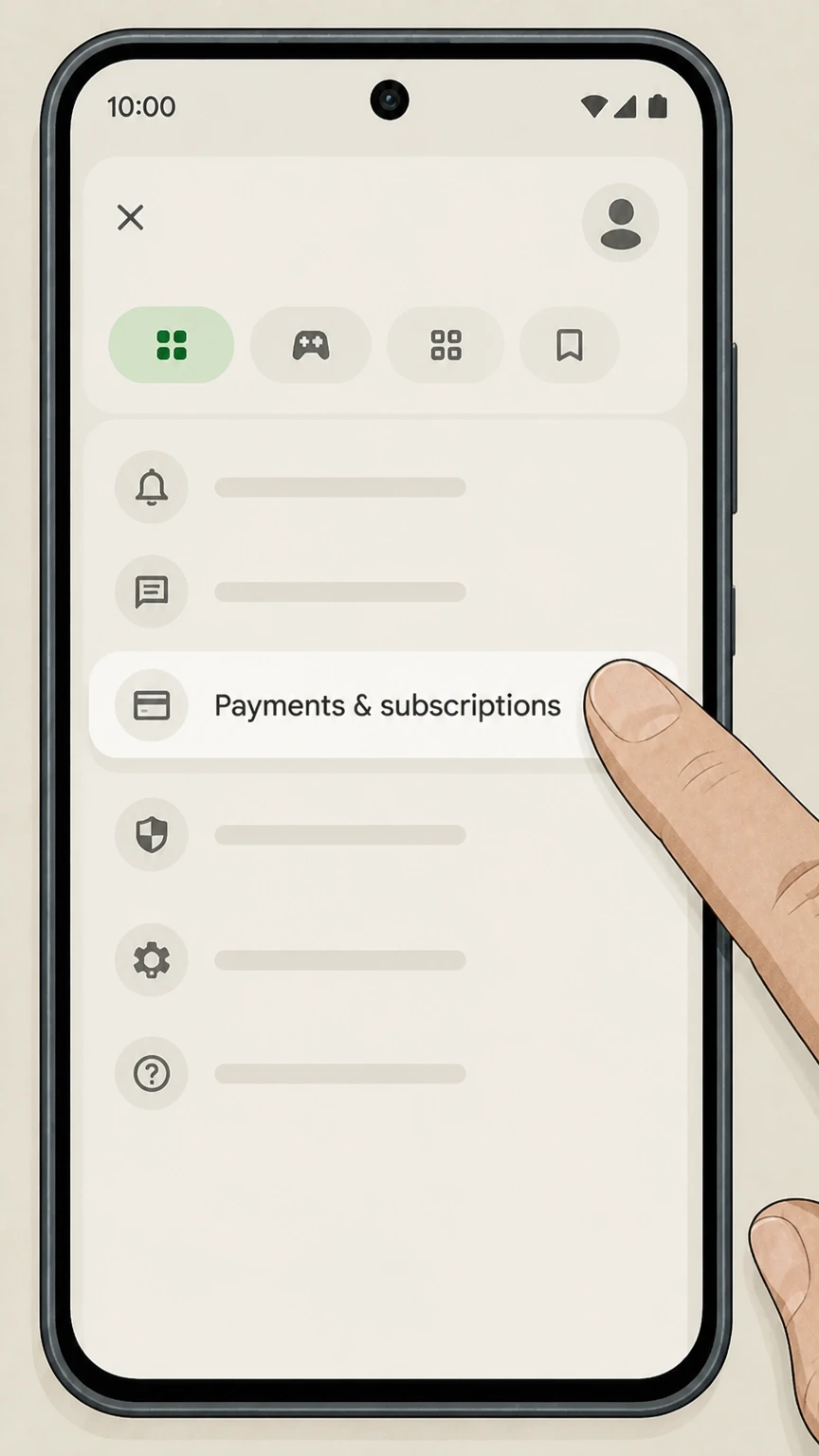 3
3Open Payments & subscriptions
In the Google Play profile menu, tap Payments & subscriptions to open the billing controls for this Google Account.
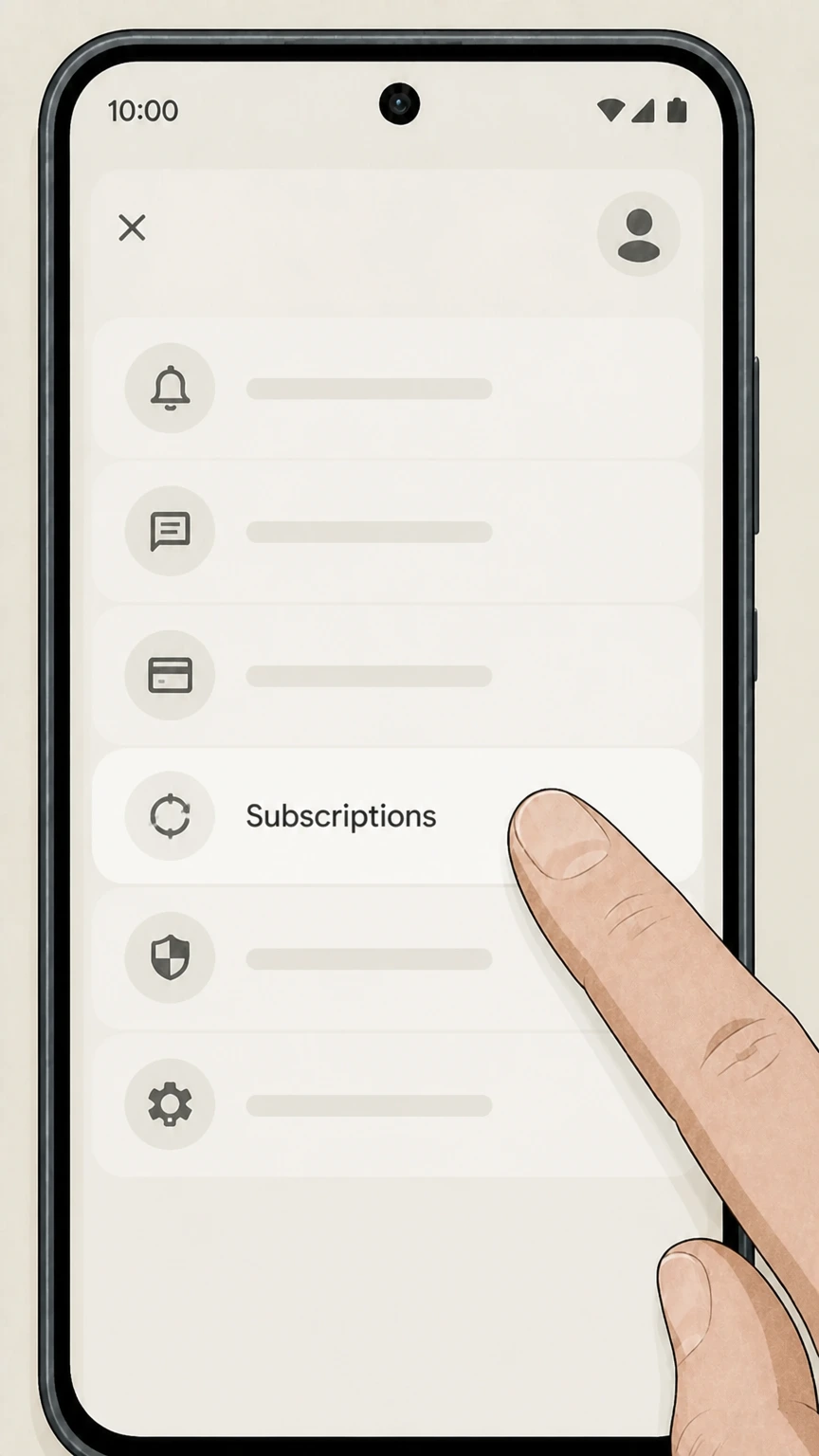 4
4Open Subscriptions
On the Payments & subscriptions screen, tap Subscriptions to view the active subscriptions on this Google Account.
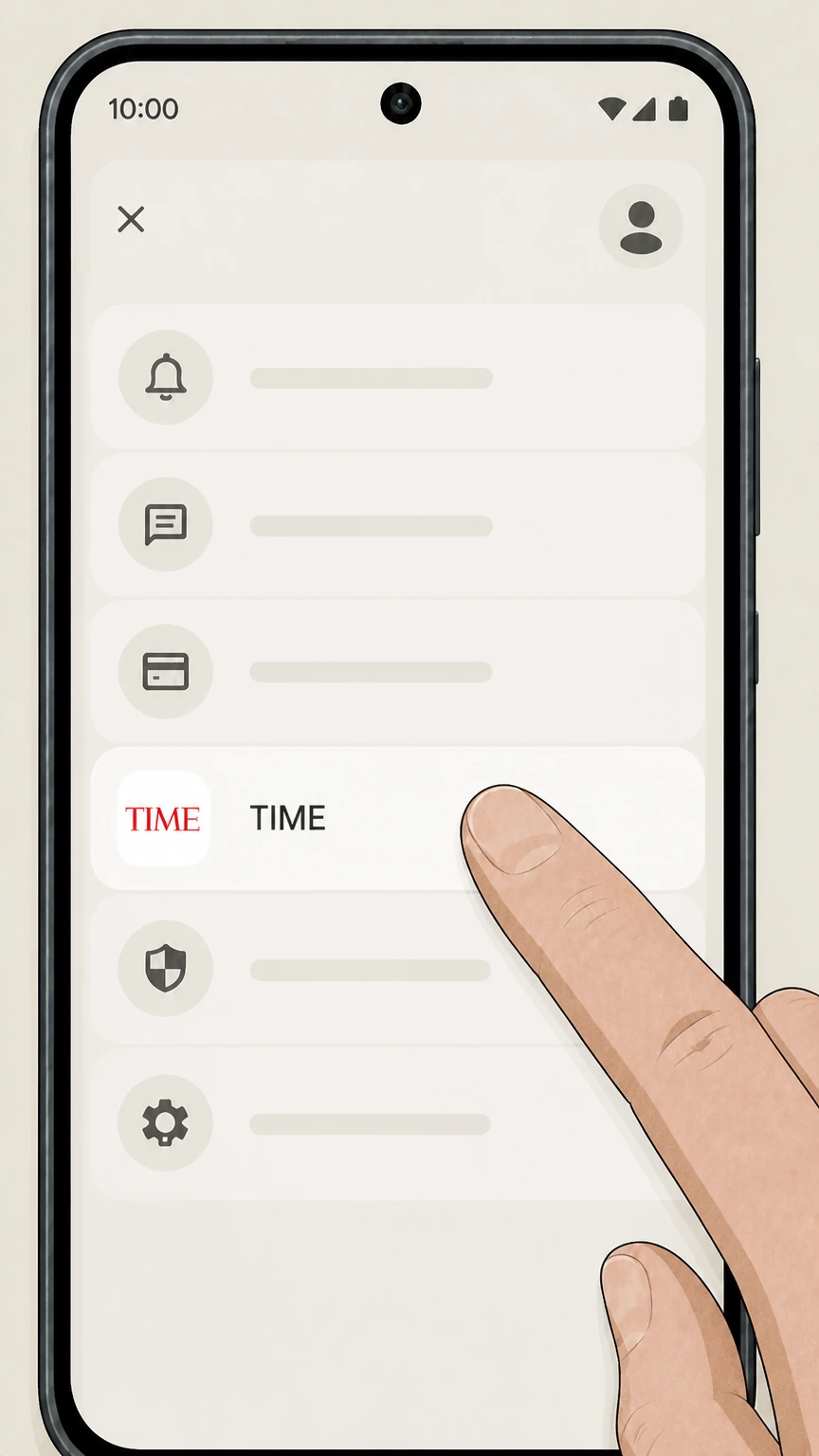 5
5Select TIME
In the Subscriptions list, tap the TIME subscription you want to cancel.
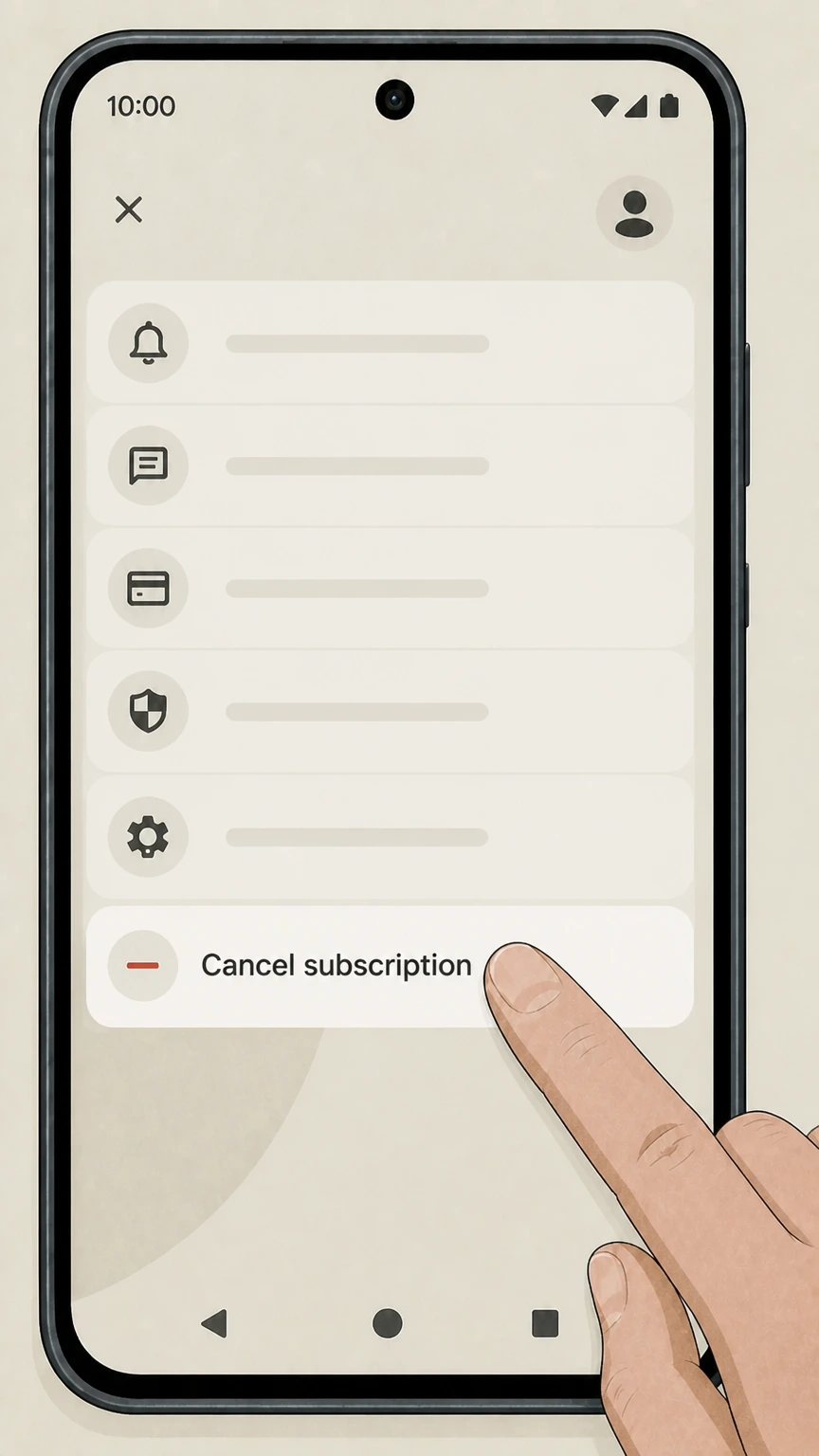 6
6Cancel the subscription
Tap Cancel subscription and follow the on‑screen prompts to confirm cancellation of TIME.
TIME Customer Service by phone · verify the billing owner
TIME Customer Service by phone
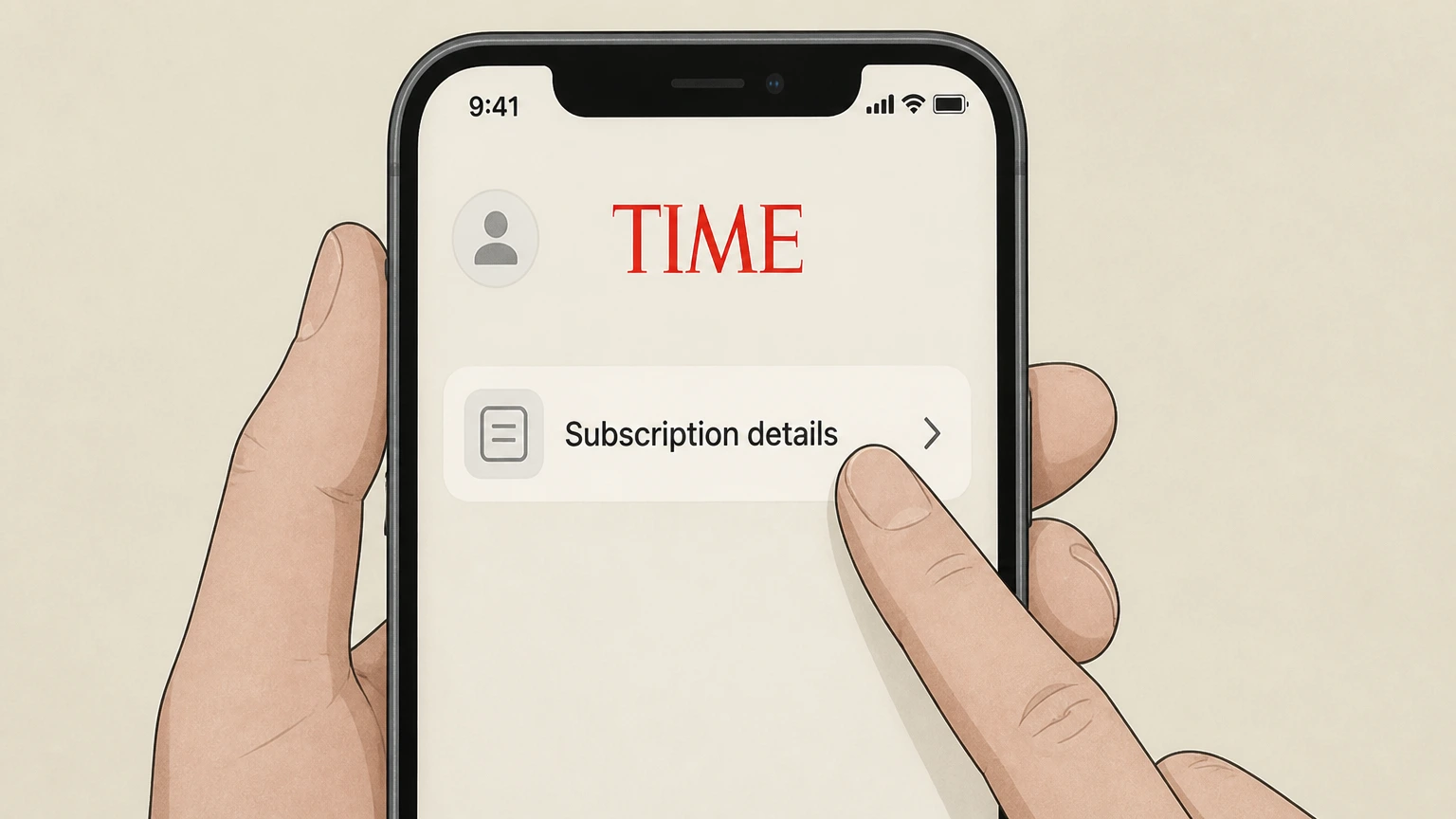 1
1Prepare the subscription details
Have the TIME account or subscription details needed to identify the directly billed subscription before calling.
 2
2Call TIME Customer Service
Call the TIME Customer Service number published in the current TIME USA Terms and ask the representative to cancel the subscription or auto‑renewal.
- Let Pine handle it
Pine can help
Too many steps?
Pine can find the right TIME Customer Service by phone path and handle the cancellation for you.
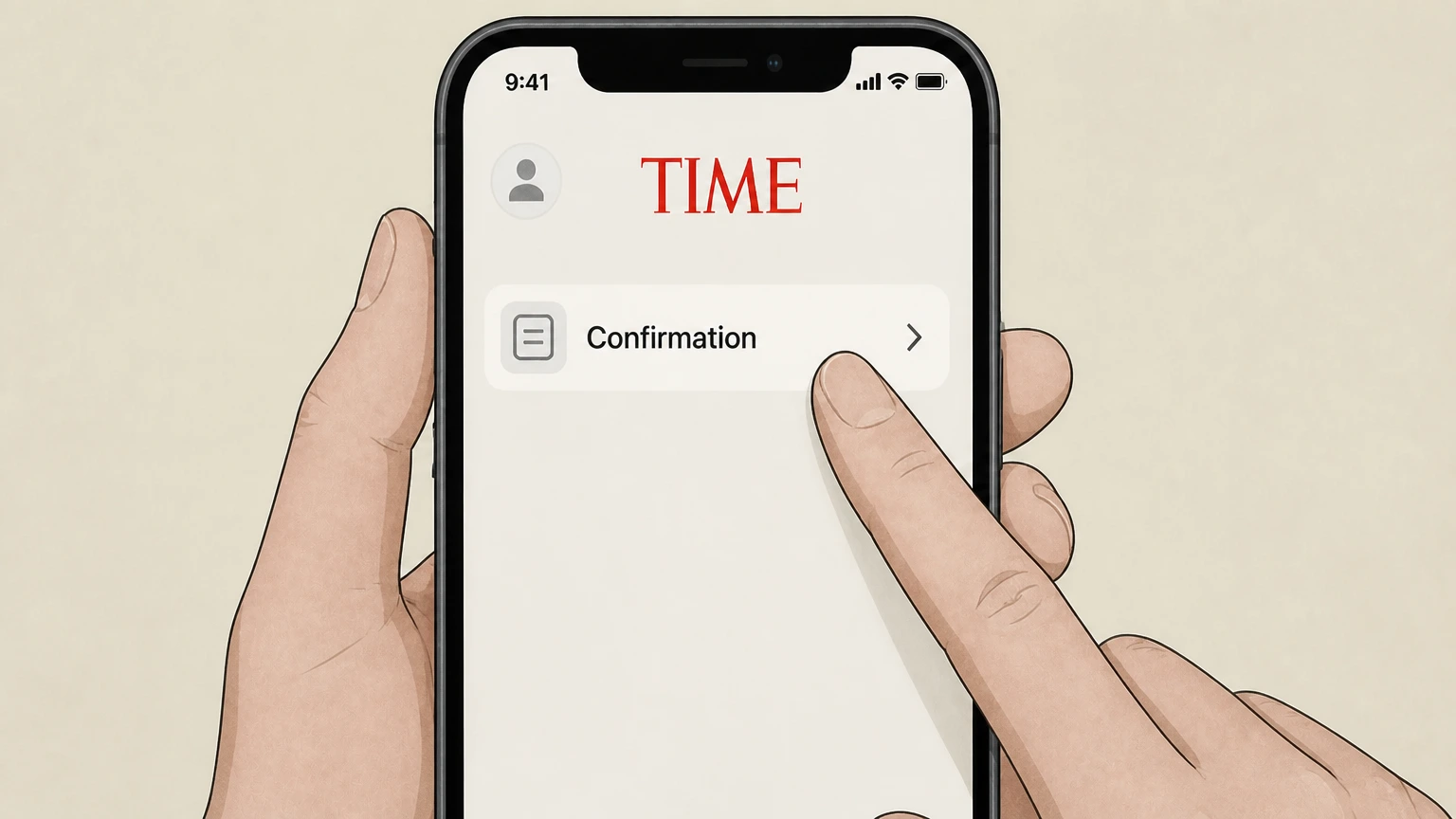 3
3Save the confirmation
Ask for and keep the cancellation confirmation, effective date, and any offer‑specific refund explanation.
TIME Customer Service by email · verify the billing owner
TIME Customer Service by email
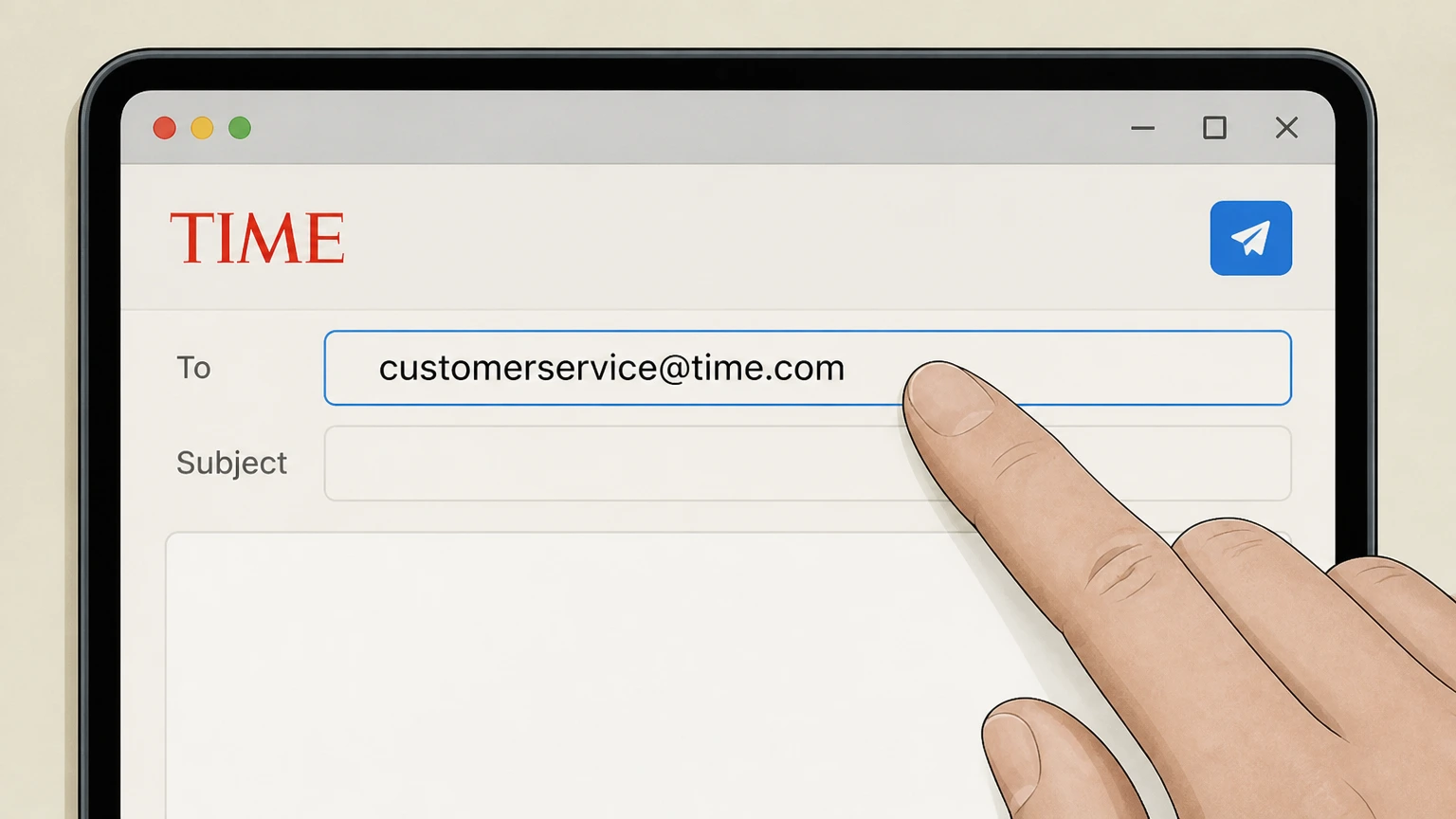 1
1Start a cancellation email
Create an email to the TIME customer‑service address published in the current TIME USA Terms.
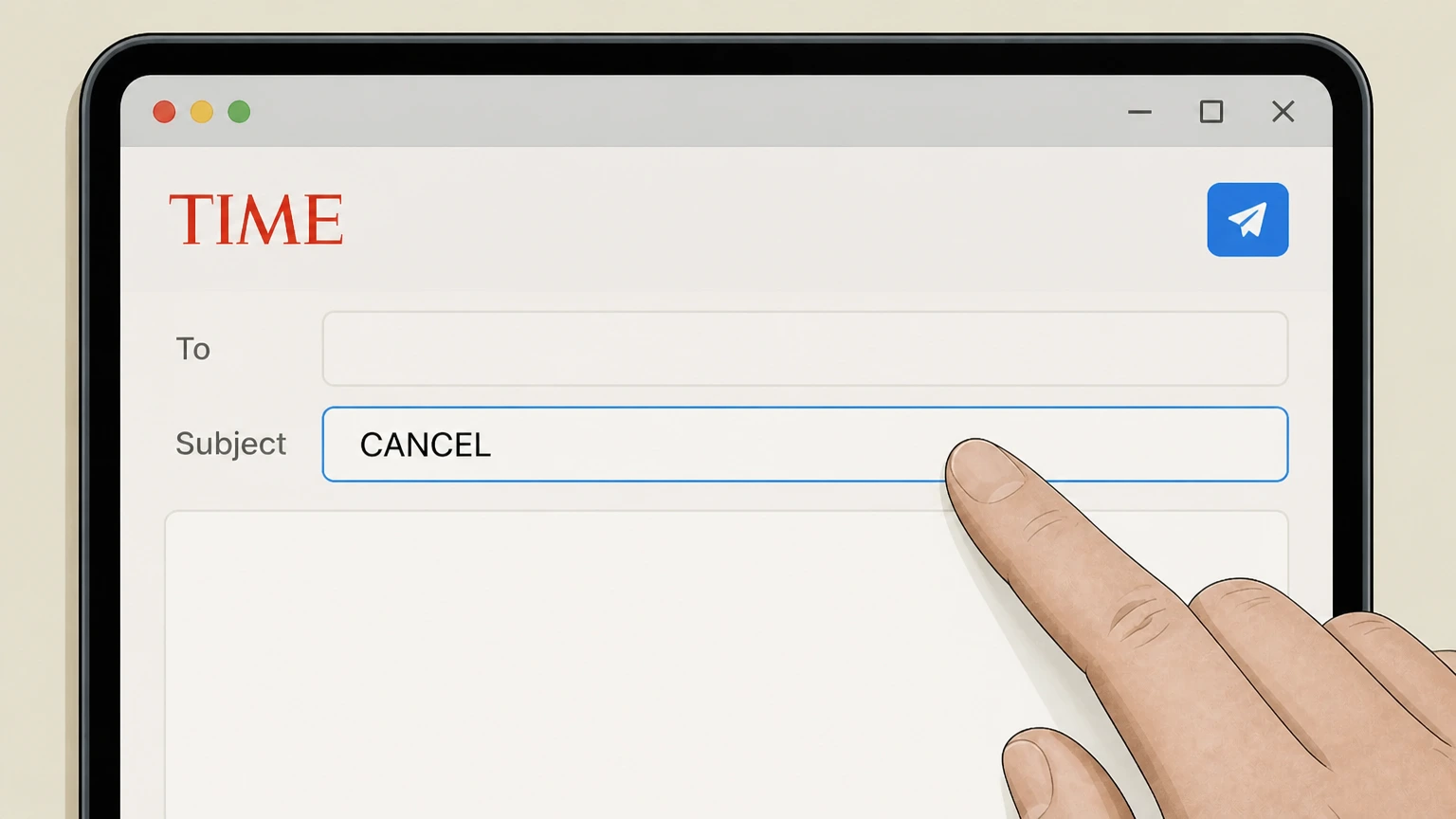 2
2Use CANCEL in the subject
Put CANCEL in the subject line and include the account number and the subscription you want TIME to cancel.
- Let Pine handle it
Pine can help
Too many steps?
Pine can find the right TIME Customer Service by email path and handle the cancellation for you.
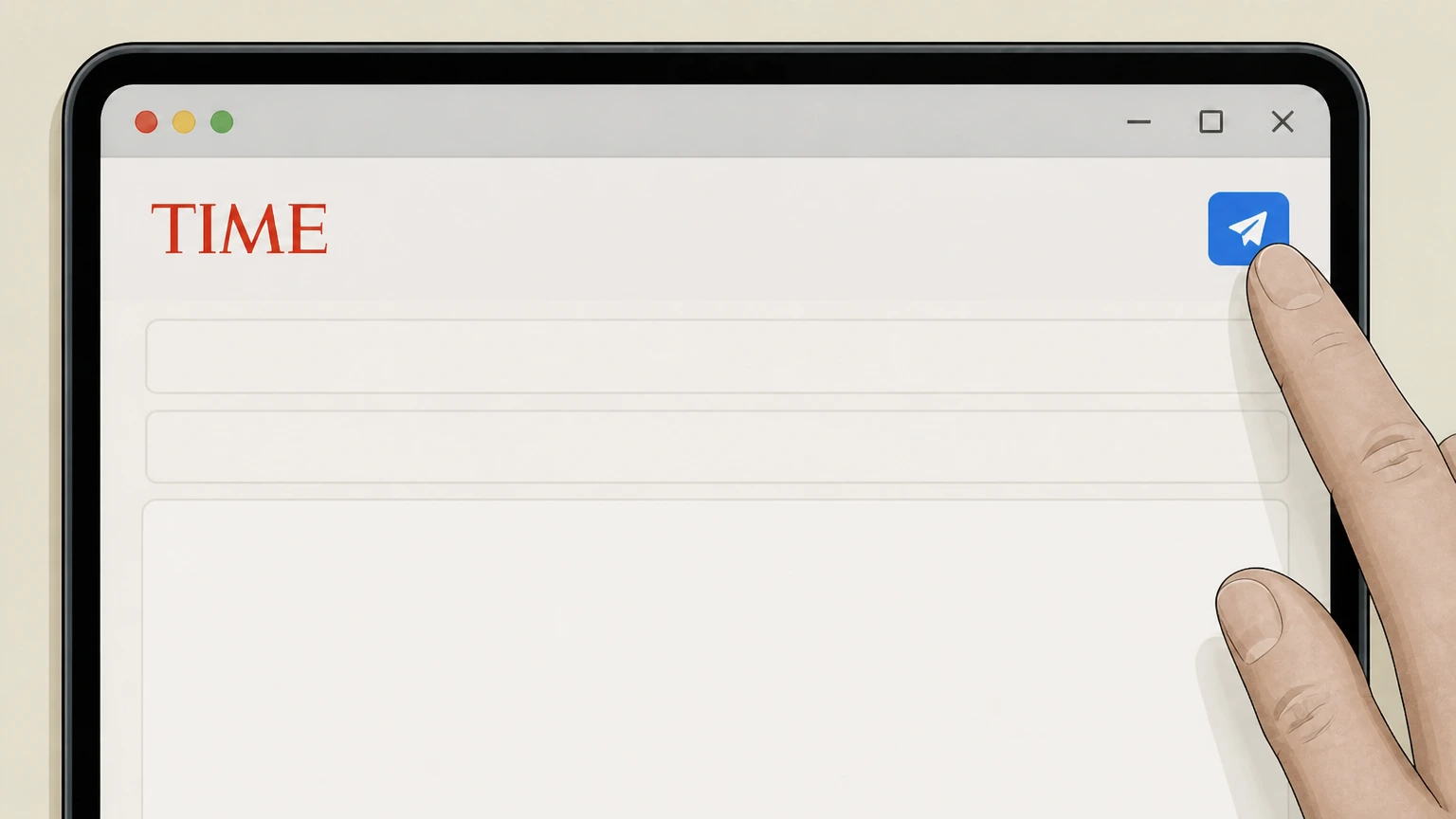 3
3Send the request and keep the reply
Send the cancellation request, then retain TIME’s response, cancellation effective date, and any offer‑specific refund decision.
Refund policy
TIME subscription cancellation and refund basics
For TIME subscriptions billed through Apple or Google Play, cancellation stops future renewals but does not by itself guarantee a refund; any money back is governed by each platform’s own refund policies and review processes rather than by TIME alone.
Check my refund options- Cancel first, then evaluate refunds
- Apple and Google both treat cancellation as an instruction to stop future TIME renewals while keeping access through the current billing period; refund eligibility is a separate question evaluated under each platform’s policies.
- Apple refunds use reportaproblem.apple.com
- For TIME subscriptions billed by Apple, you must request any refund through reportaproblem.apple.com, selecting the relevant subscription and reason; Apple reviews and may approve or deny the request.
- Google Play offers limited subscription refunds
- Google Play’s refund pages explain that most purchases, including subscriptions, are not automatically refundable, though you may be able to obtain a refund depending on timing and circumstances.
- Current billing period is usually non‑refundable
- Google’s subscription policy states that when a user cancels, they generally will not receive a refund for the current billing period but will continue receiving subscription content until that period ends.
- Unauthorized or mistaken TIME charges
- If you see a TIME charge you don’t recognize on an Apple or Google receipt, use the platform’s refund or dispute tools promptly; platform guidance treats these as account or payment issues handled directly with Apple or Google.
For the most accurate and legally controlling information about refunds on TIME subscriptions billed through app stores, always consult the current Apple and Google Play refund policy pages directly. View platform refund policies
TIME direct billing
TIME publishes online, phone, and email routes
Use these routes only when TIME owns the charge.
Online account
TIME states that a direct subscription can be canceled after logging into the account, but its public pages do not publish stable post-login button labels.
Phone route
TIME’s current Terms publish a Customer Service phone route for direct cancellation.
Email route
TIME’s current Terms publish email cancellation with CANCEL in the subject and the account number and subscription details in the request.
Store billing
Use Apple or Google only for store-billed TIME
The store receipt determines the cancellation owner.
Apple receipt
Cancel TIME in Apple Subscriptions when Apple owns the receipt; Apple evaluates any separate refund request.
Google receipt
Cancel TIME in Google Play Subscriptions when Google owns the receipt; Google evaluates any separate refund request.
TIME absent from the store
If TIME is absent, return to the direct TIME or other merchant route shown by the receipt.
Direct annual digital offer
TIME’s current checkout describes a pro rata refund
The rule is tied to the accepted TIME offer and payment-method policy.
Paid-term cancellation
The current annual digital checkout states that cancellation during a paid term receives a pro rata refund for the remaining term.
Offer controls
TIME’s Terms state that refund treatment depends on the offer and subscription type.
Keep the response
Retain TIME’s cancellation response and any offer-specific refund decision.
TIME cancellation FAQ
Answers about TIME billing ownership, cancellation timing, refunds, and access after cancellation.
How do I cancel my TIME subscription?
How do I cancel TIME on iPhone?
How do I cancel my TIME subscription on Android?
Can I cancel my TIME subscription immediately?
Does deleting the TIME app cancel my subscription?
What happens to my TIME access after I cancel?
Can I get a refund when I cancel my TIME subscription?
How do I check who is billing me for TIME?
How do I cancel a TIME subscription bought through another company?
Untangle this TIME issue.
Let Pine handle the provider follow-up and keep the confirmation in one place.
