


Globoplay
Cancel subscription
How to Cancel Globoplay: Official Steps & Timing
Cancel Globoplay through the correct billing route. Follow official steps, understand renewal timing and refunds, and keep proof of the final result.
- 3 verified cancellation routes
- Billing ownership and renewal timing explained
- Provider-specific refund boundaries included
- A confirmation check follows every route
Choose the correct Globoplay cancellation route
Apple subscriptions on iPhone, iPad, Apple TV · verify the billing owner
Cancel Globoplay through Apple subscriptions on iPhone, iPad, Apple TV
 1
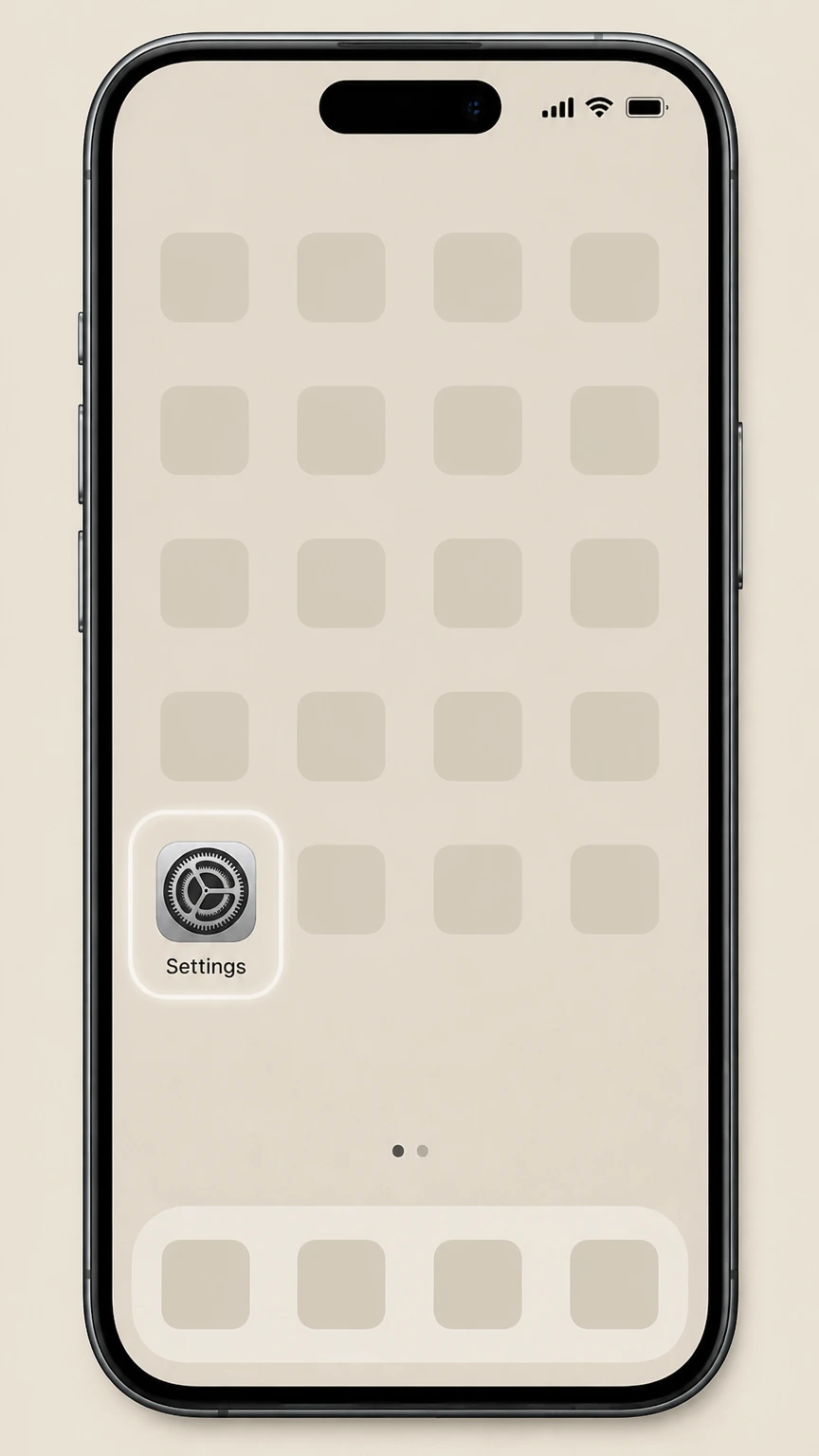
1Open Settings
On your iPhone or iPad, open the Settings app.
 2
2Tap your name
At the top of Settings, tap your Apple ID banner with your name.
- Let Pine handle it
Pine can help
Too many steps?
Pine can find the right Apple subscriptions on iPhone, iPad, Apple TV path and handle the cancellation for you.
 3
3Open Subscriptions
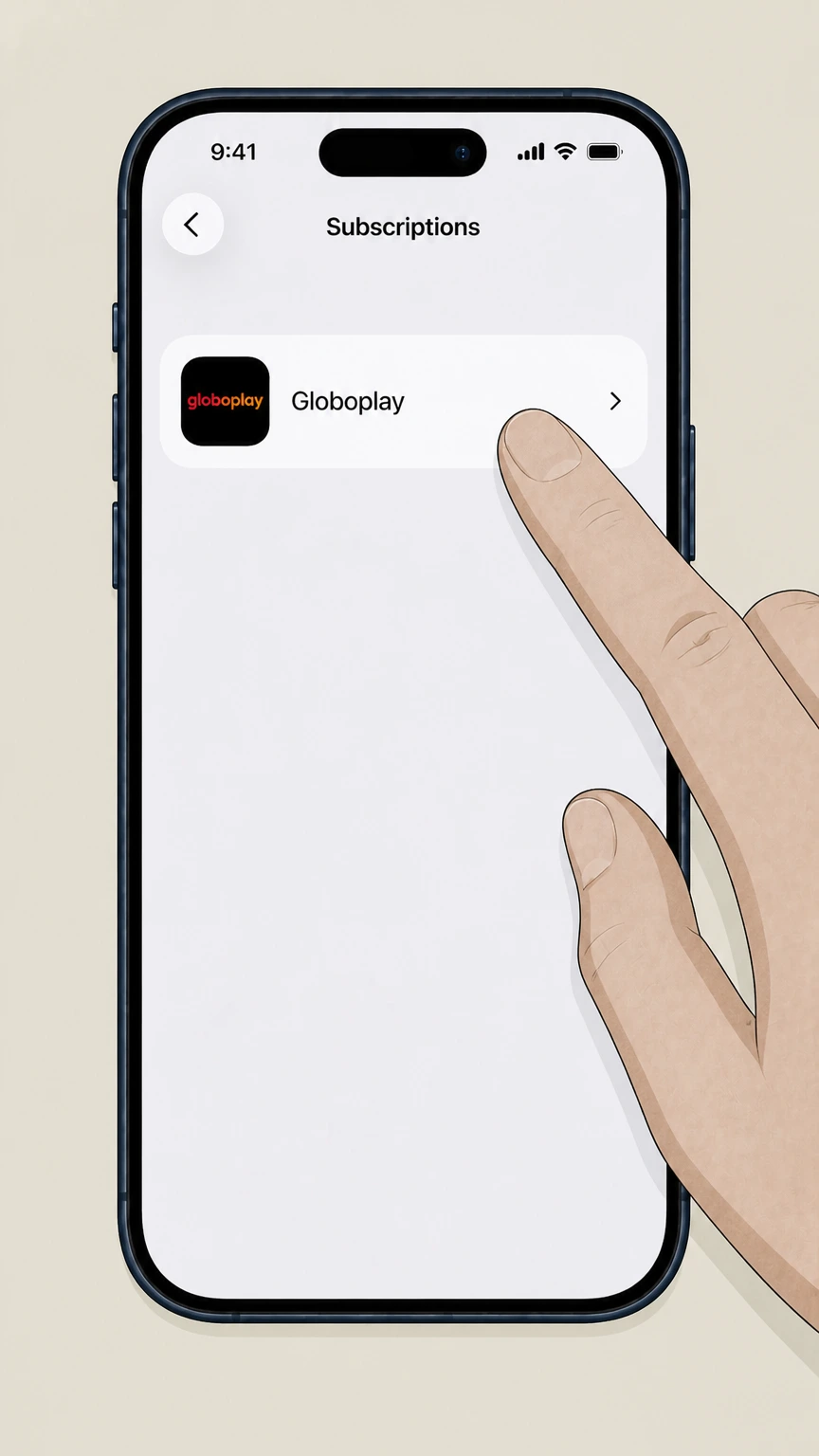
Tap Subscriptions to see the list of subscriptions billed by Apple.
 4
4Select Globoplay
In the Subscriptions list, tap the Globoplay subscription.
 5
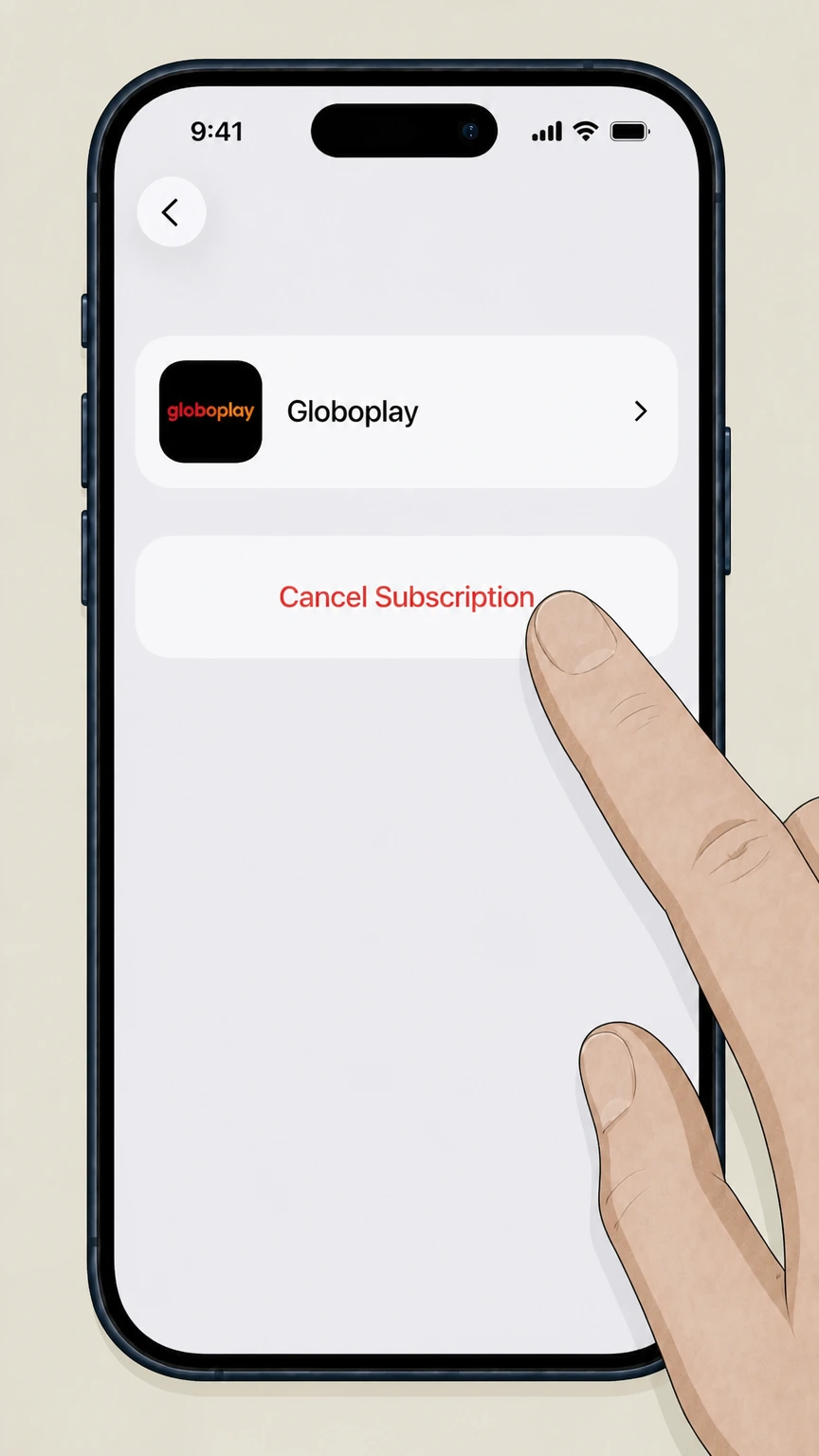
5Cancel the subscription
On the Globoplay subscription screen, tap Cancel Subscription; Apple will show that Globoplay will expire instead of renewing.

Google Play subscriptions on Android · verify the billing owner
Cancel Globoplay through Google Play subscriptions on Android
 1
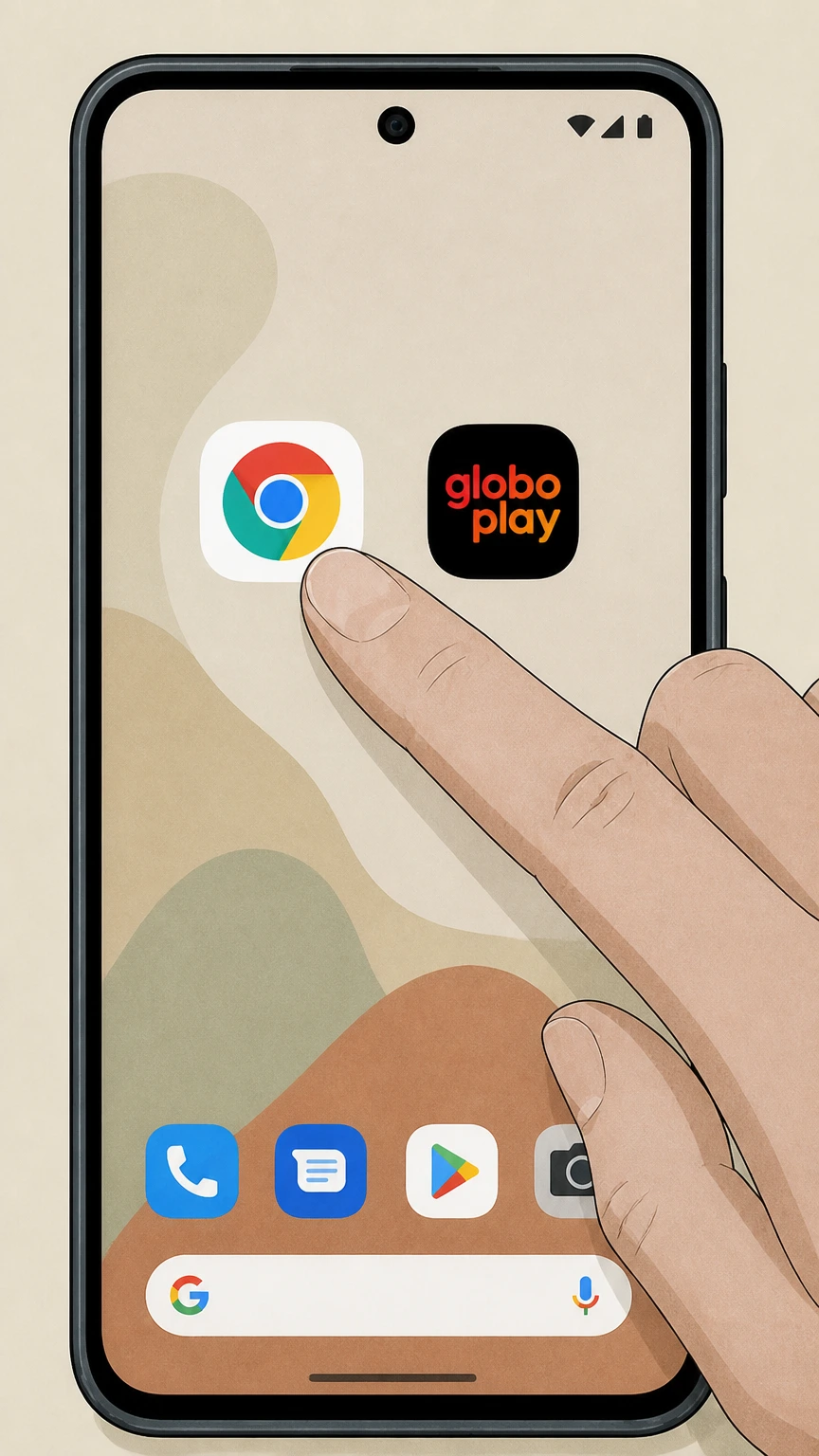
1Open a browser on your Android device
On your Android phone or tablet, open a web browser such as Chrome.
 2
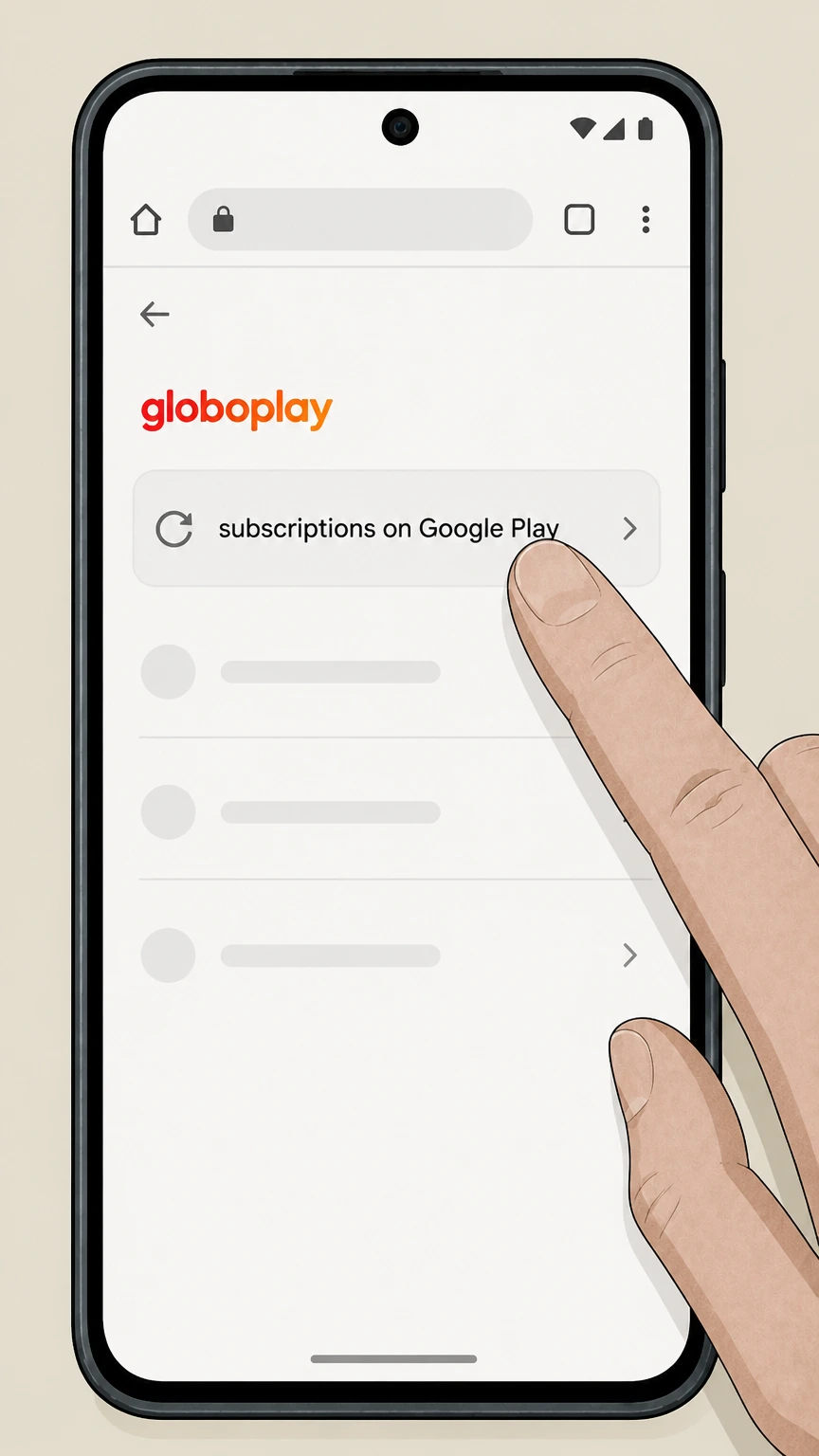
2Go to Subscriptions on Google Play
In the browser, open the Subscriptions on Google Play page for your Google Account.
- Let Pine handle it
Pine can help
Too many steps?
Pine can find the right Google Play subscriptions on Android path and handle the cancellation for you.
 3
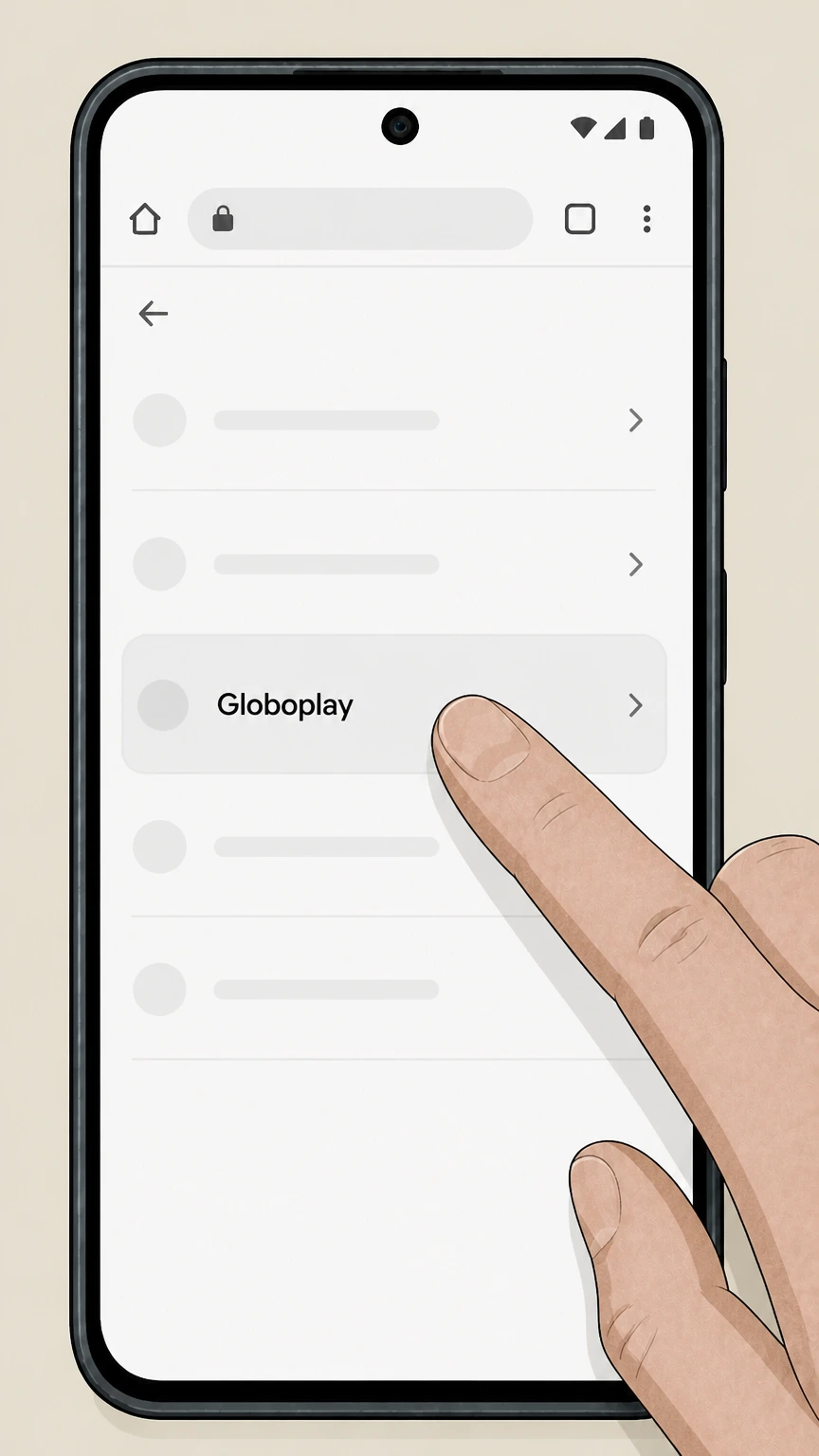
3Select the Globoplay subscription
In your list of subscriptions, tap the Globoplay subscription entry.
 4
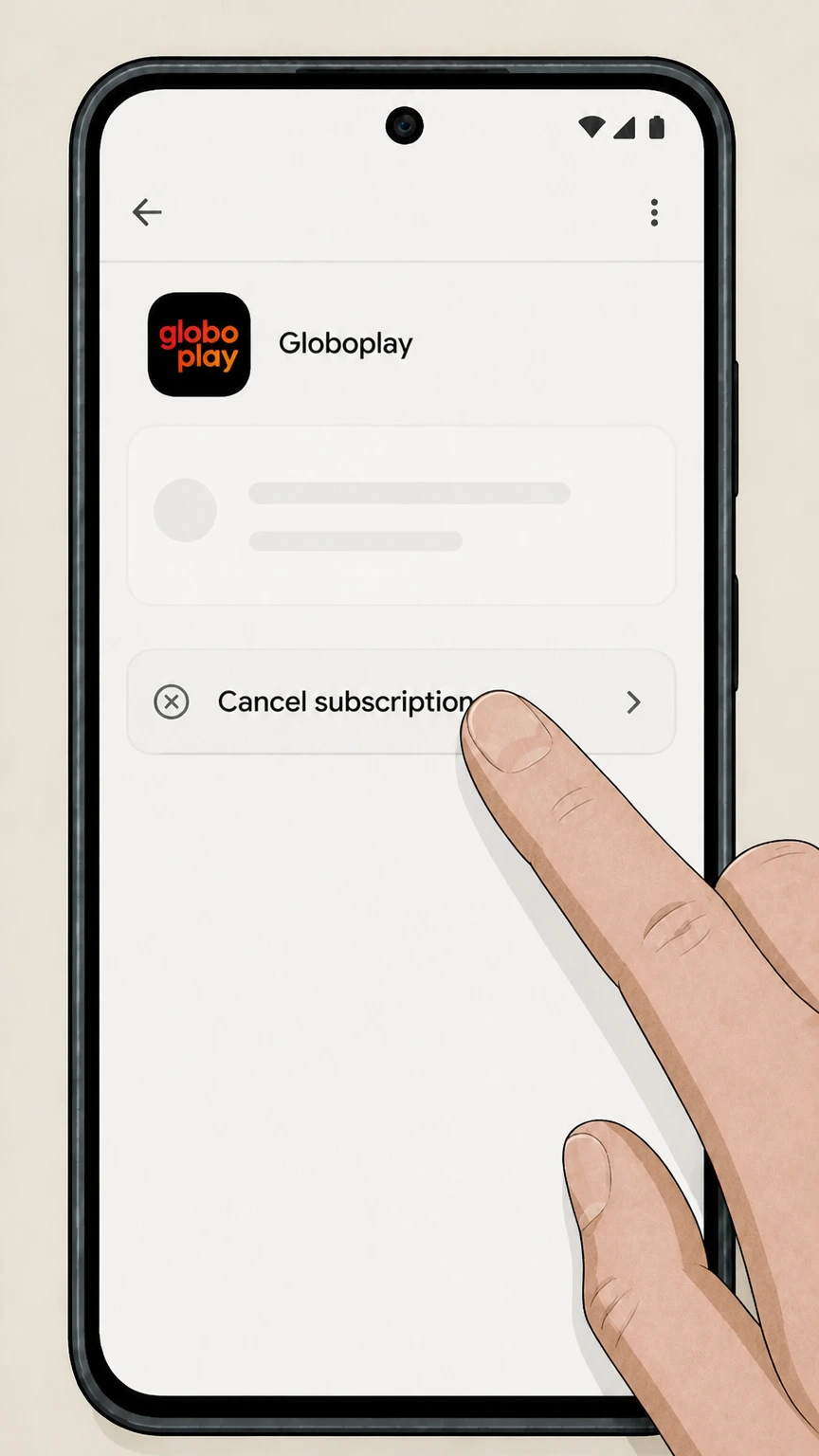
4Tap Cancel subscription
On the Globoplay subscription details page, tap Cancel subscription.
Roku account (Roku Pay billing) · verify the billing owner
Cancel Globoplay through Roku account (Roku Pay billing)
 1
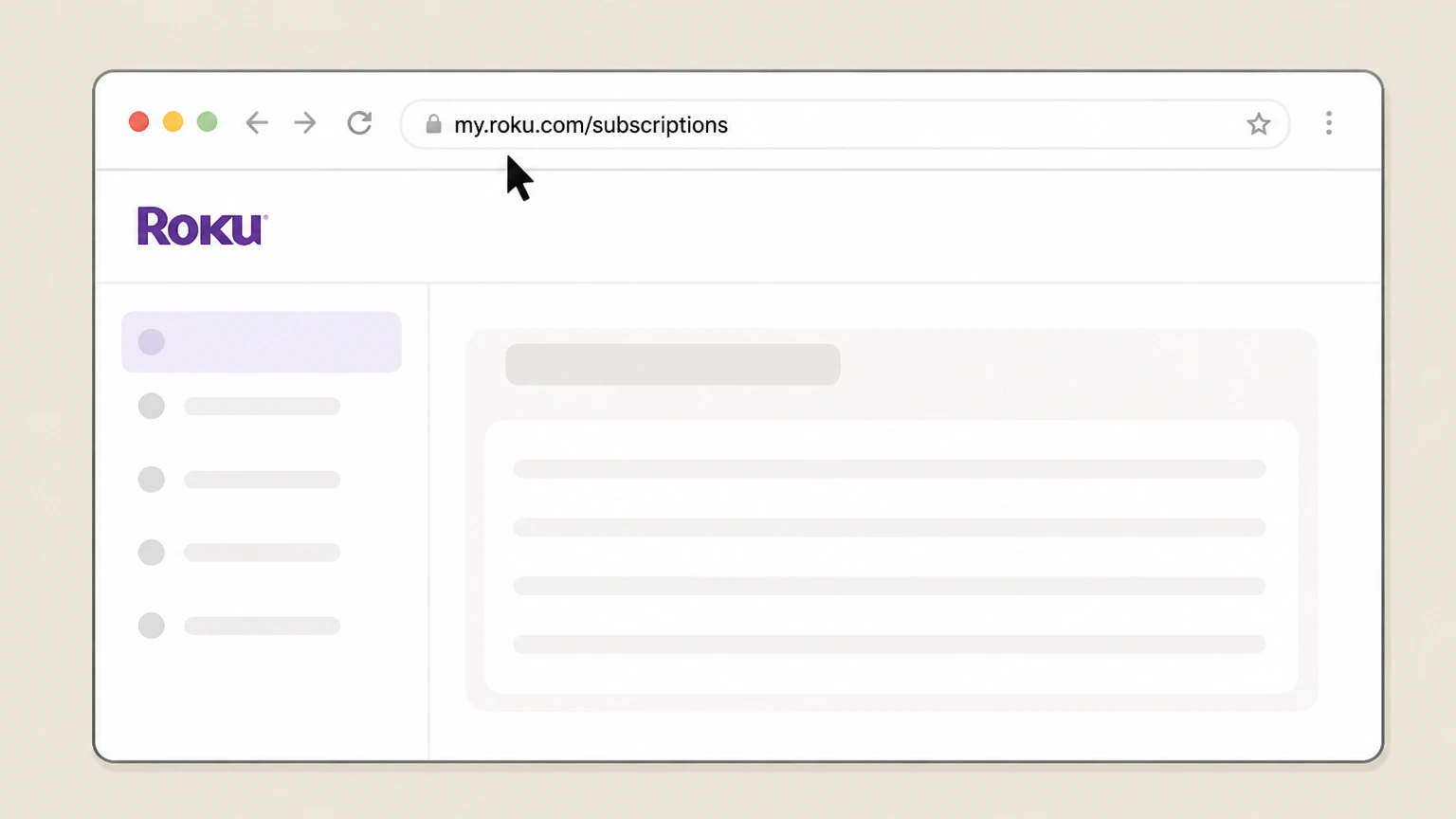
1Open the Roku subscriptions page
In a web browser, open the Roku subscriptions page for your Roku account.
 2
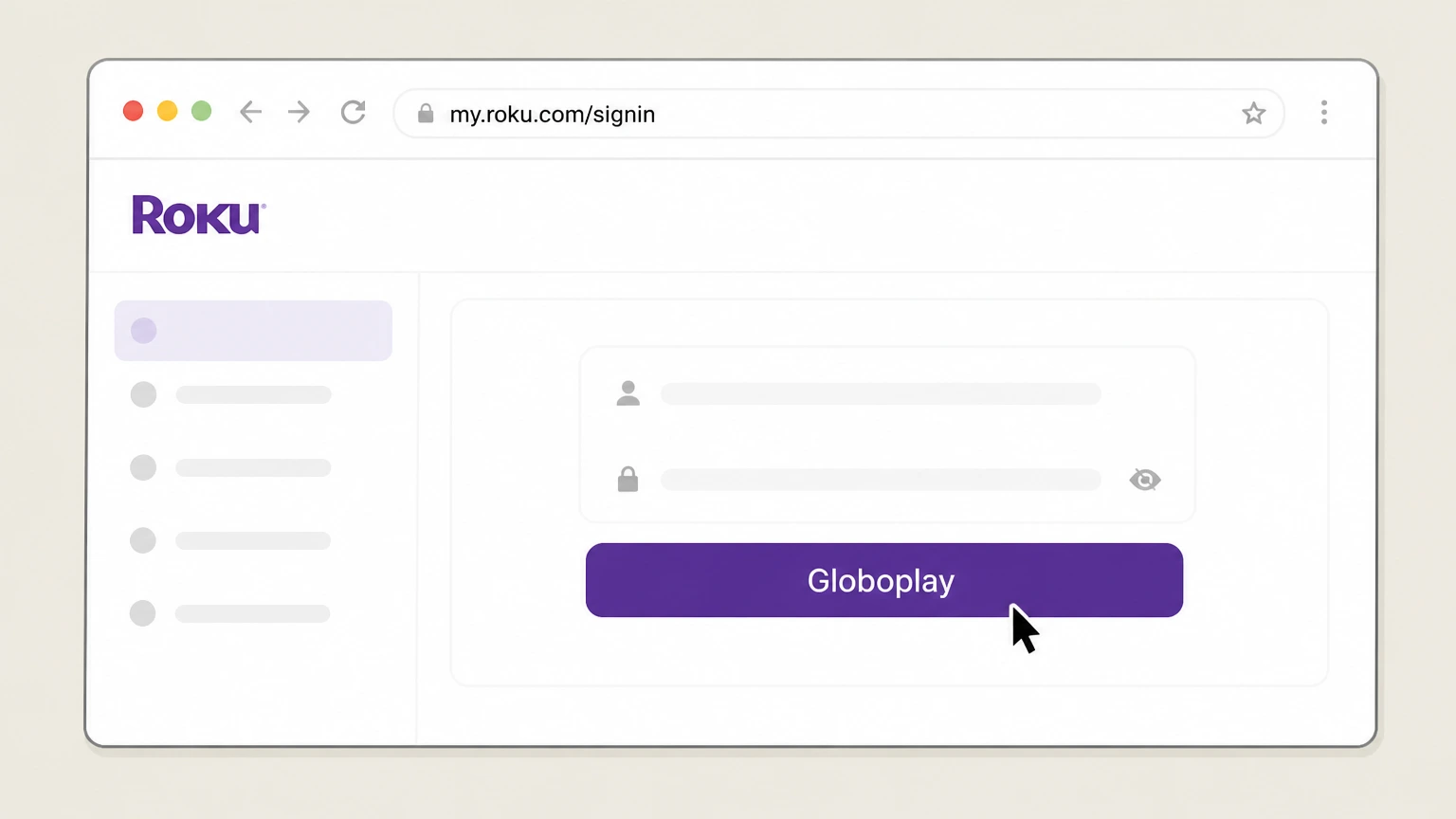
2Sign in to your Roku account
If prompted, sign in with the Roku account you use on the device where you watch Globoplay.
- Let Pine handle it
Pine can help
Too many steps?
Pine can find the right Roku account (Roku Pay billing) path and handle the cancellation for you.
 3
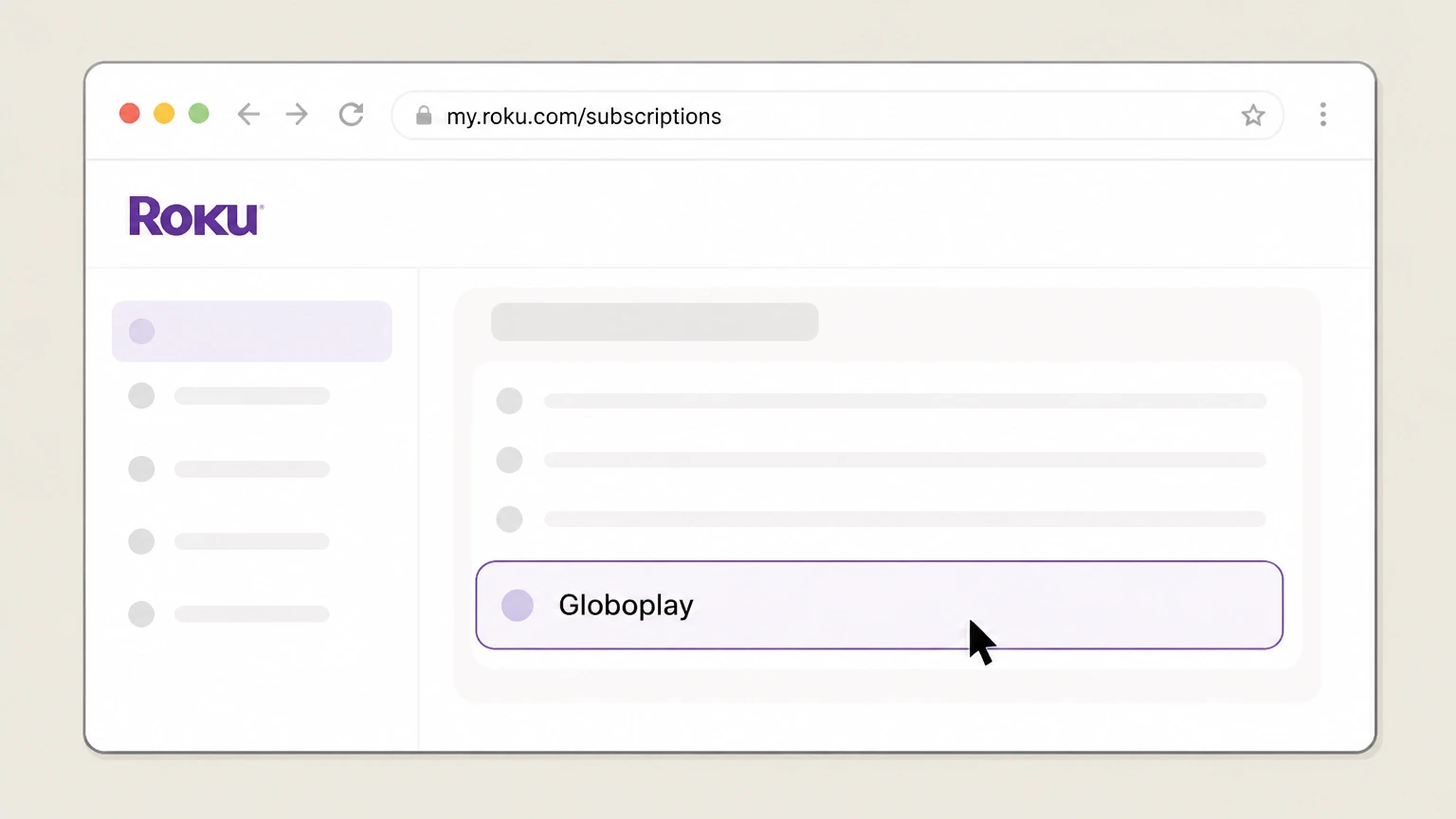
3Locate the Globoplay subscription
Under Active subscriptions, find and select the Globoplay subscription entry.
 4
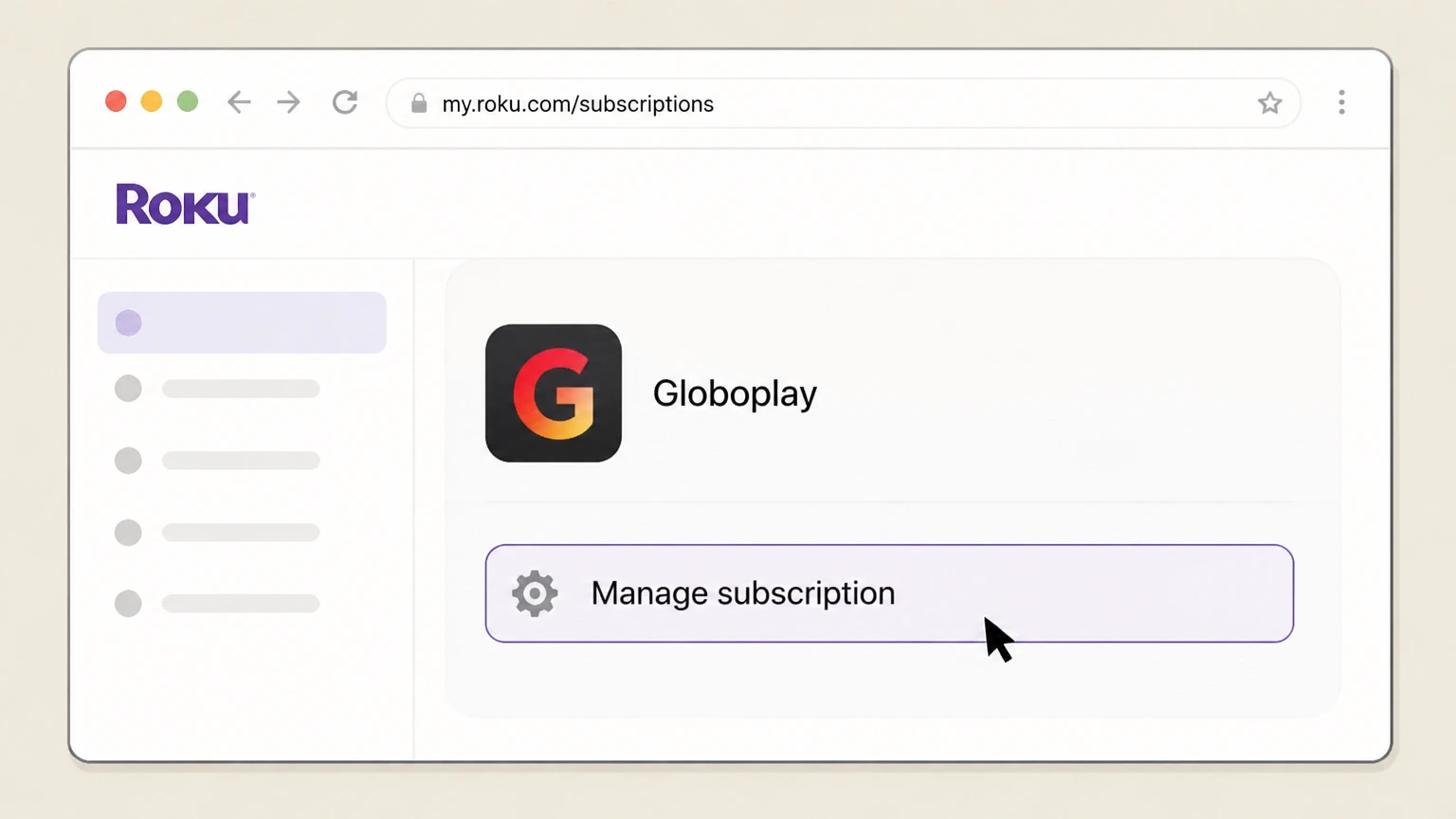
4Open Manage subscription
On the Globoplay subscription, select Manage subscription to see renewal options.
 5
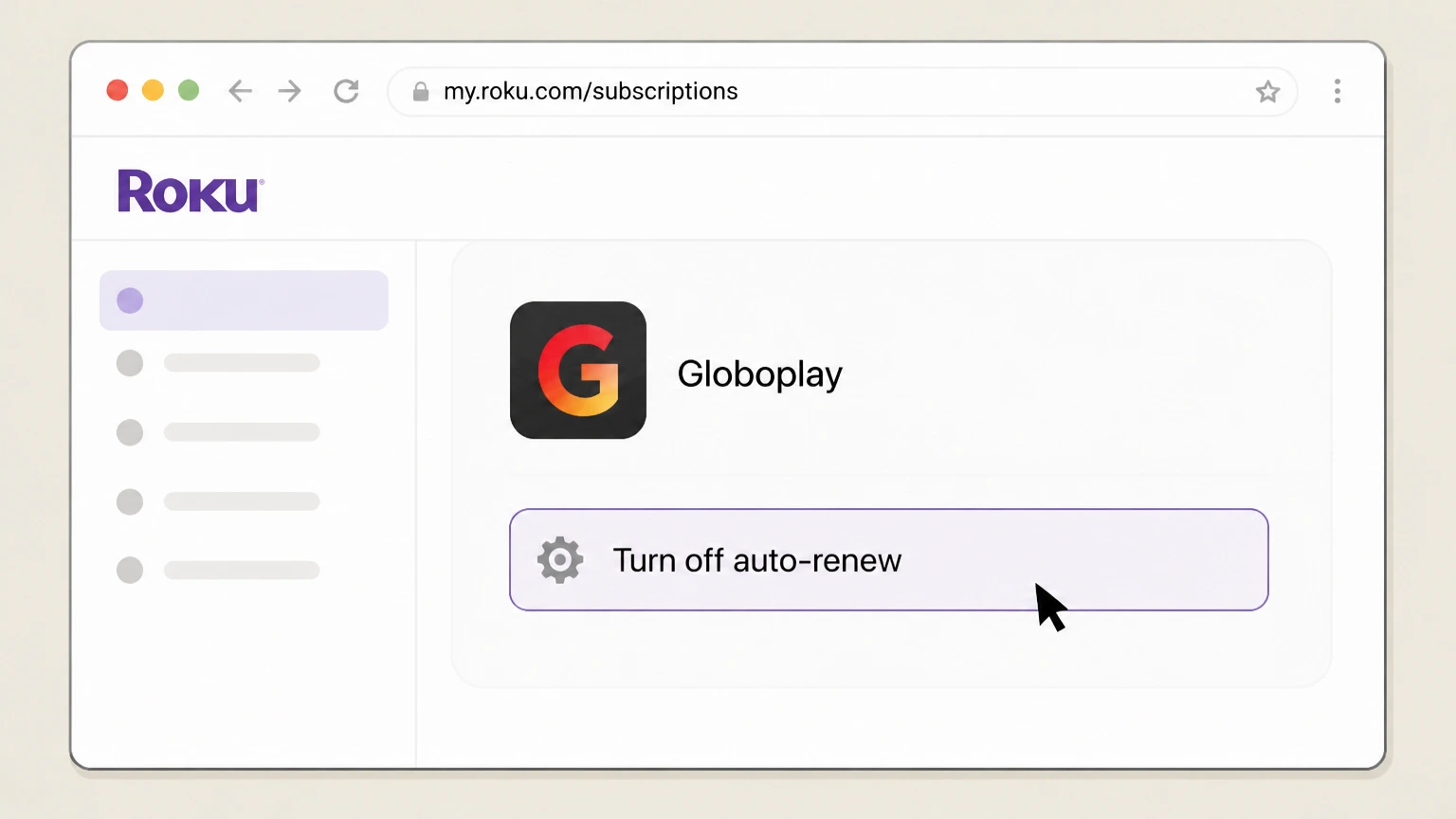
5Turn off auto-renew
Choose Turn off auto-renew to cancel future renewals of the Globoplay subscription.
Refund policy
Refunds after cancelling a paid Globoplay subscription
Cancelling Globoplay stops future renewals, but refunds for past charges depend entirely on the billing platform’s rules—Apple, Google Play, Roku Pay, or Globoplay itself—not on this guide.
Check my refund options- Apple-billed Globoplay refunds
- Apple explains that some App Store purchases, including subscriptions, may be eligible for a refund through reportaproblem.apple.com, but approval is discretionary and subject to Apple Media Services terms and local law. Cancelling Globoplay via Apple stops future renewals but does not guarantee a refund of previous charges.
- Google Play–billed Globoplay refunds
- Google Play’s policies state that app and subscription refunds follow Google Play’s refund rules; normally, cancellation prevents future charges while past periods remain non‑refundable except under specific circumstances, such as certain technical issues or unauthorized purchases within defined timeframes.
For potential refunds, start by reviewing the refund policies and self‑service tools of the platform that billed your Globoplay subscription, then submit a request if your situation qualifies. Open Apple’s purchase refund instructions
Globoplay service today
How Globoplay is distributed and what it offers
Context on where Globoplay is available and the types of plans and content it advertises on major app platforms relevant to cancellation.
Active app on Apple App Store
The Globoplay: Novelas, séries e + app is listed as Free with In‑App Purchases in the US Apple App Store, supporting iPhone, iPad and Apple TV, with frequent recent updates—evidence that the paid service remains active.
Active app on Google Play
Globoplay: Novelas, séries e + appears on Google Play as an Android app with in‑app purchases, meaning subscriptions and other paid access can be billed via Google Play Billing for compatible regions.
Free and Premium plan structure
Apple’s app description states that Globoplay offers a Plano Gratuito (free plan) with login‑based access to TV Globo and some channels and clips, and a Plano Premium with 4K streaming, multiple family members, downloads and broader channel access.
Brazilian and live sports focus
Store descriptions emphasize Brazilian series, classic and current novelas, Globo channels and live football such as Brasileirão and Copa do Brasil, which helps explain why many subscribers use recurring paid plans.
Roku channel presence
Roku documentation and What to Watch listings refer to Globoplay and Globoplay Internacional as streaming options on Roku devices, confirming that Globoplay content is distributed as a Roku channel, sometimes subject to regional restrictions.
Who bills you
How to identify who bills your Globoplay subscription
Before cancelling, you must confirm whether Apple, Google Play, Roku Pay, or Globoplay itself is charging you, because each has its own cancellation path and refund policy.
Use email receipts and bank statements
Apple advises searching your email for “receipt from Apple” and checking which Apple ID and item were billed; Google and Roku likewise recommend checking receipts and statements to see whether they, not Globoplay directly, are the merchant of record.
Check Apple Subscriptions list
If you joined Globoplay through an in‑app purchase on Apple devices, the subscription appears under Settings > your name > Subscriptions; if Globoplay is absent there, Apple is not billing that subscription and you must check other billing paths.
Check Google Play subscriptions
If you subscribed via Google Play Billing, Globoplay will appear under subscriptions on Google Play for the Google Account used; if it is missing, Google Play is not billing that particular subscription.
Check Roku My subscriptions
Roku’s support pages explain that subscriptions billed and managed by Roku appear at my.roku.com/subscriptions; if Globoplay is listed, you can manage or cancel it there using Roku Pay tools.
When none of these list Globoplay
If Apple Subscriptions, Google Play Subscriptions and Roku My subscriptions do not show Globoplay, but your payment method shows a charge from Globoplay or Globo, your plan is most likely billed directly by Globoplay and must be cancelled with Globoplay rather than the platforms above.
Access after cancel
What changes after you cancel Globoplay on each platform
Cancelling Globoplay generally stops future billing while preserving access through the end of the current paid term; this section outlines what does and does not change by platform.
Apple: access until expiration date
Apple’s subscription guidance explains that when you cancel a subscription from Apple, the subscription continues until its listed expiration date, after which renewal stops. Cancelling does not usually end access immediately unless explicitly stated in Apple’s terms.
Google Play: access through paid period
Google Play Help notes that after you cancel a subscription, you can continue to use it for the time you have already paid; Google Play then stops charging you on the next renewal date and your access ends at that point.
Roku: prepaid and non-refundable terms
Roku’s refund policy states that content and subscriptions billed and managed directly by Roku are pre‑paid, final and non‑refundable, and that turning off auto‑renew stops future charges while access continues until the billing period ends.
Free trials still need cancellation
Apple, Google Play and Roku all highlight that free or discounted trial subscriptions will convert into paid renewals unless you cancel before the trial ends; cancellation prevents the next charge but does not typically affect access already granted during the trial period.
App removal does not cancel billing
Google Play’s subscription article stresses that uninstalling an app does not cancel the subscription; similarly, Roku warns that you must manage or cancel subscriptions separately. The same principle applies to Globoplay: deleting the app or channel alone will not stop charges.
Globoplay cancellation FAQ
Provider-specific answers about billing, timing, refunds, and confirmation.
How do I cancel my Globoplay subscription on iPhone?
How do I cancel Globoplay on Android through Google Play?
How do I cancel a Globoplay subscription billed through Roku?
Will I lose access to Globoplay immediately after cancelling?
How can I confirm my Globoplay subscription is cancelled?
Untangle this Globoplay issue.
Let Pine handle the provider follow-up and keep the confirmation in one place.
