

Gainful
Cancel subscription
How to Cancel Your Gainful Subscription Online
Step-by-step guide to cancel a Gainful subscription, including how to use the Manage Subscriptions page, what happens to existing orders, and refund limits.
- Official Gainful and billing-owner sources
- 2 provider-specific cancellation paths
- Refund and post-cancellation effects separated from renewal
- Verified August 16, 2026
Choose the Gainful cancellation path that matches who bills you
Gainful website account · verify the billing owner
 1
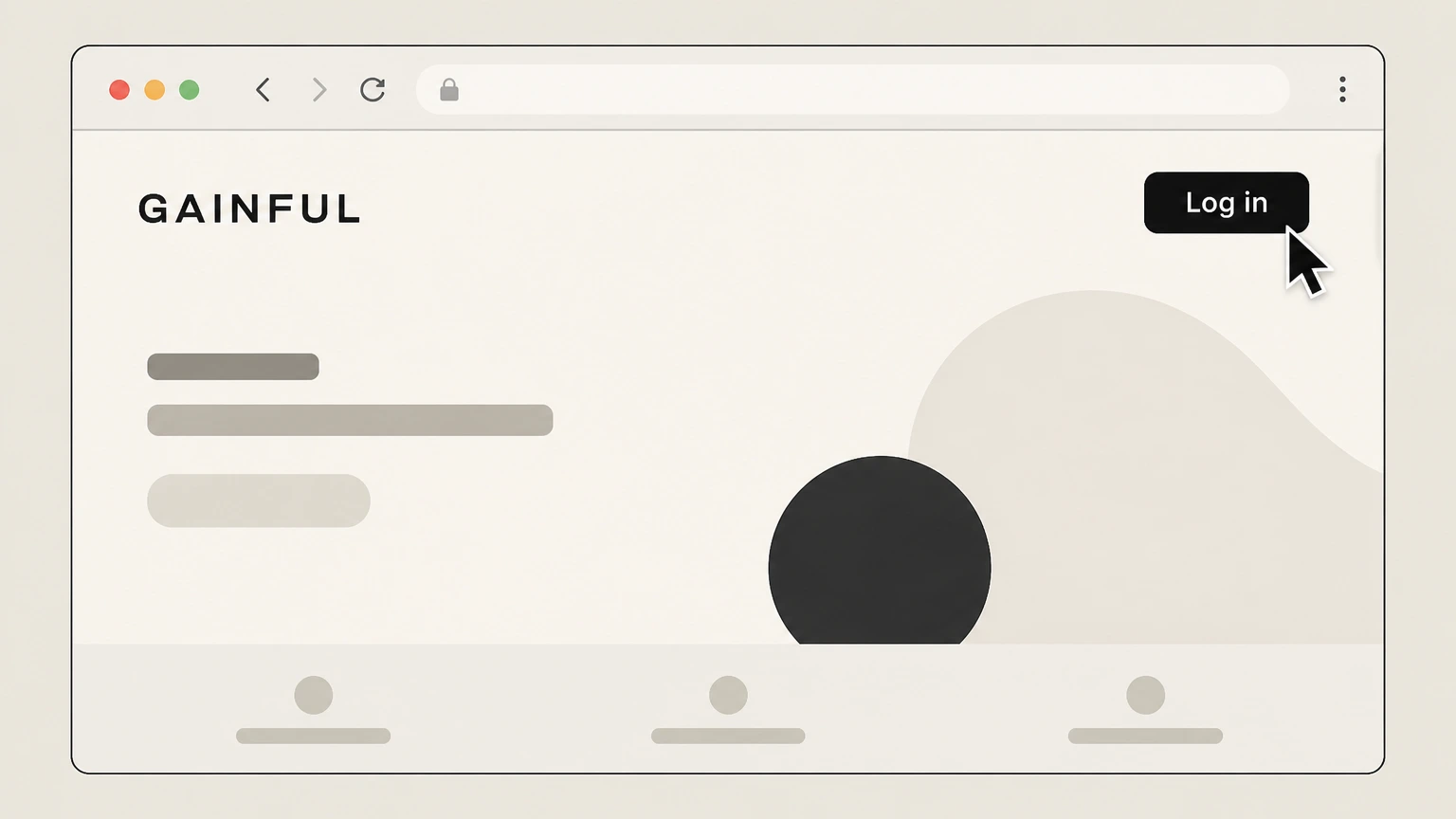
1Open the Gainful website
Go to gainful.com in a web browser and select the “Log in” button. Use the Gainful account named on your receipt, and continue only after the next status in this cancellation path is visible.
 2
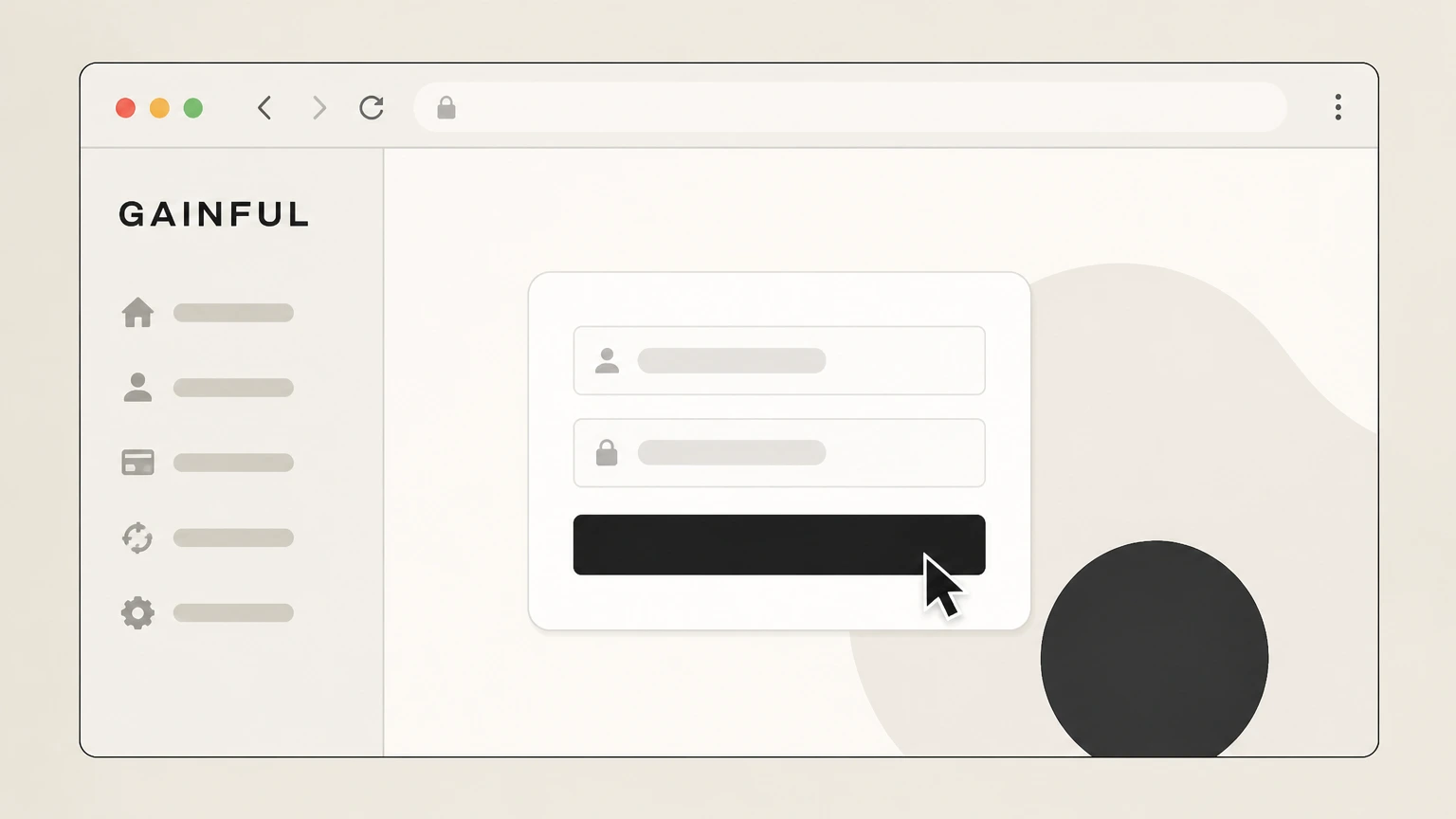
2Sign in to your Gainful account
Sign in to your Gainful account with the email address and password you use for subscriptions. Use the Gainful account named on your receipt, and continue only after the next status in this cancellation path is visible.
- Let Pine handle it
Pine can help
Too many steps?
Pine can find the right Gainful website account path and handle the cancellation for you.
 3
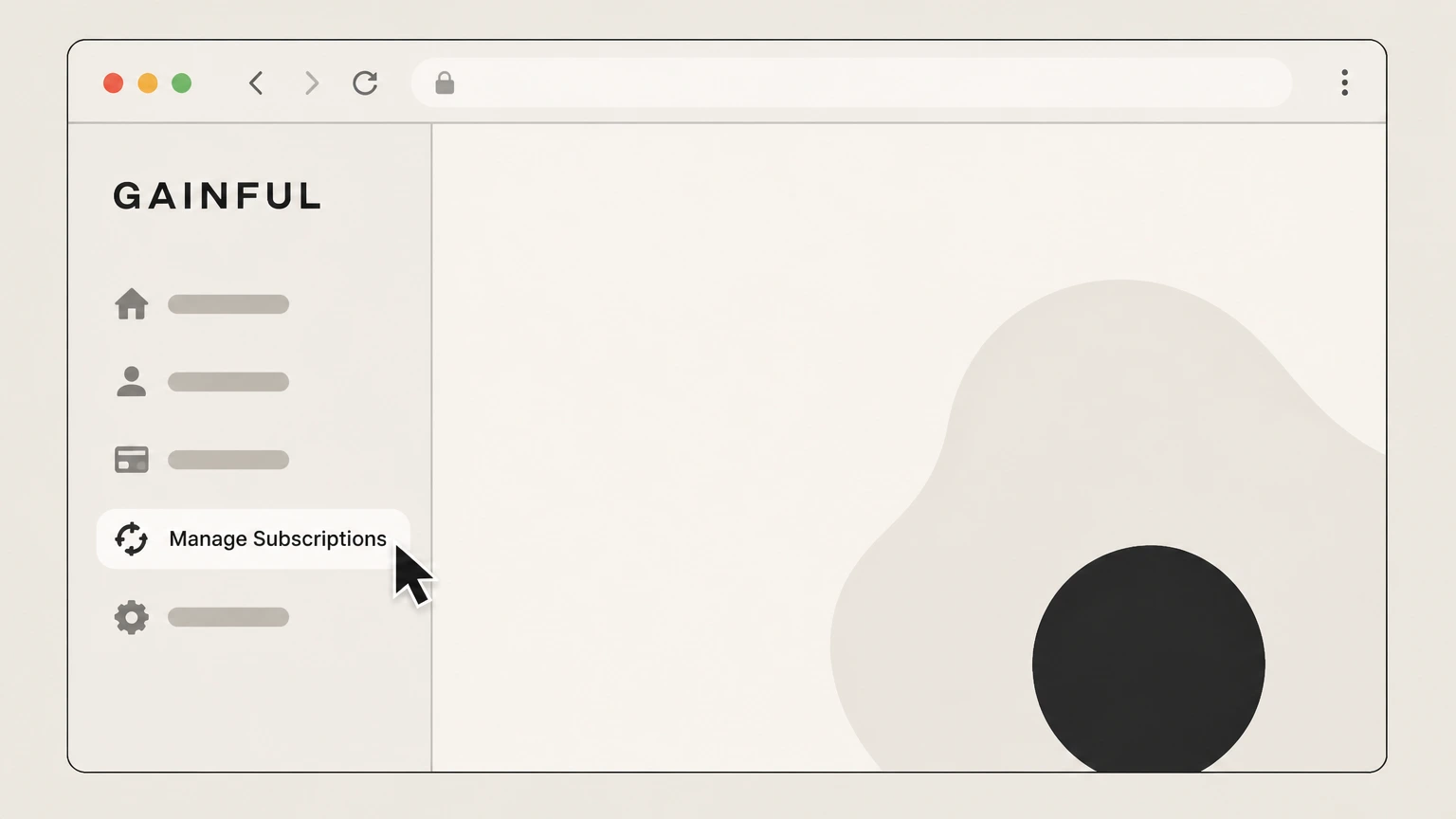
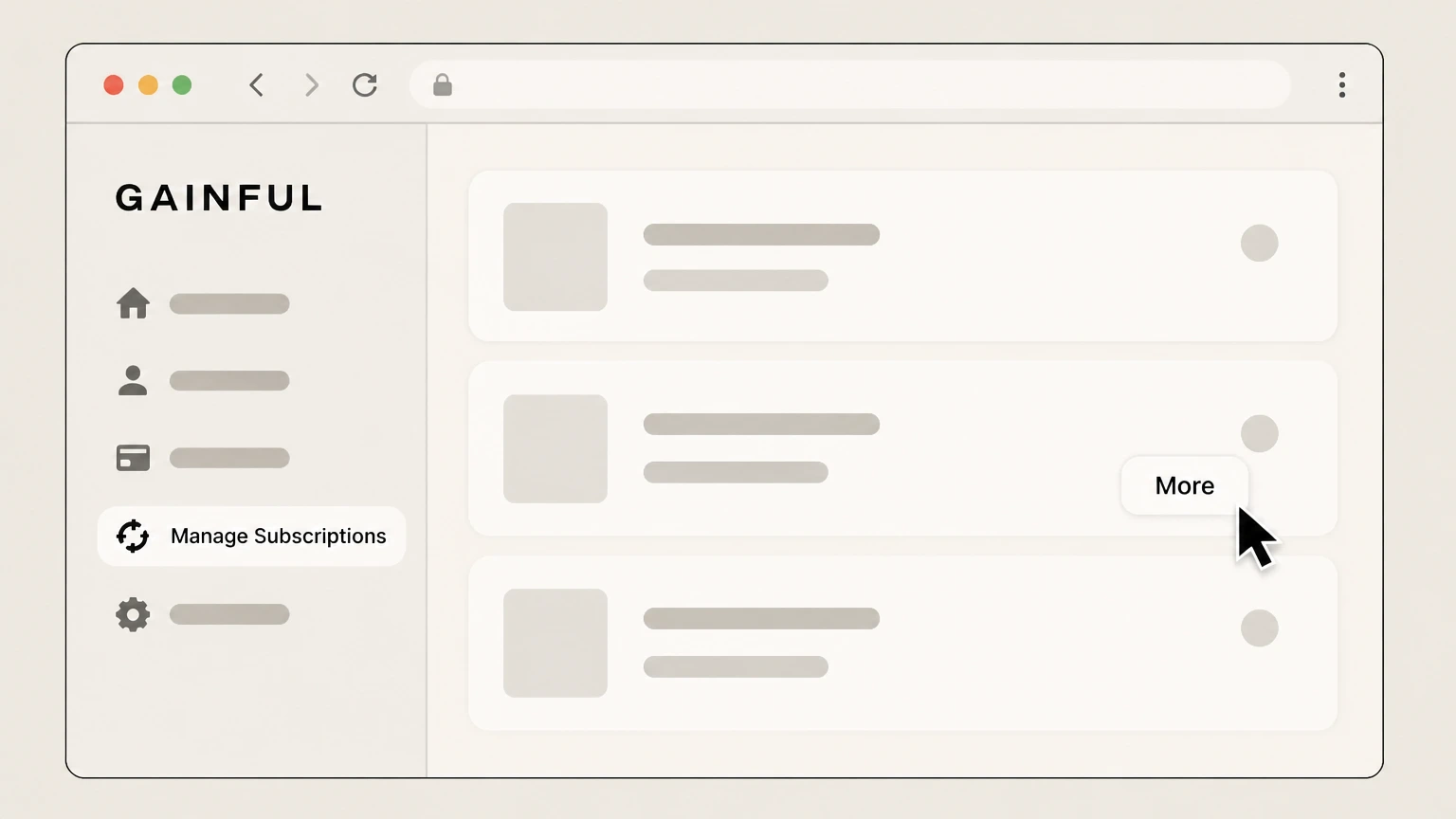
3Open Manage Subscriptions
In the left‑hand menu of your account dashboard, select “Manage Subscriptions.” Use the Gainful account named on your receipt, and continue only after the next status in this cancellation path is visible.
 4
4Select the subscription to cancel
Under the subscription you want to stop, select the “More” option in that subscription’s panel. Use the Gainful account named on your receipt, and continue only after the next status in this cancellation path is visible.
 5
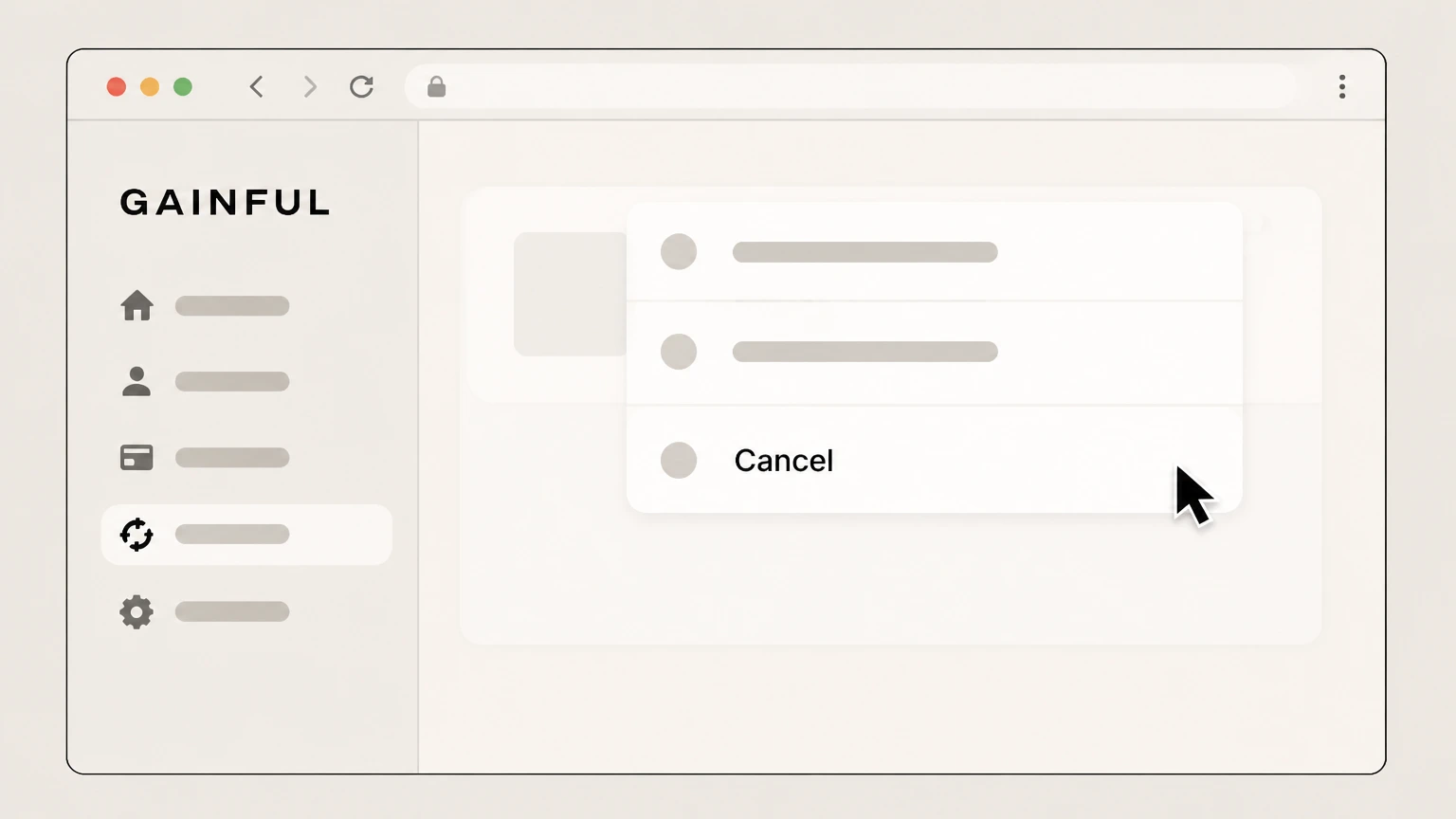
5Choose Cancel for that subscription
From the options that appear, select “Cancel” for the chosen subscription. Use the Gainful account named on your receipt, and continue only after the next status in this cancellation path is visible.
 6
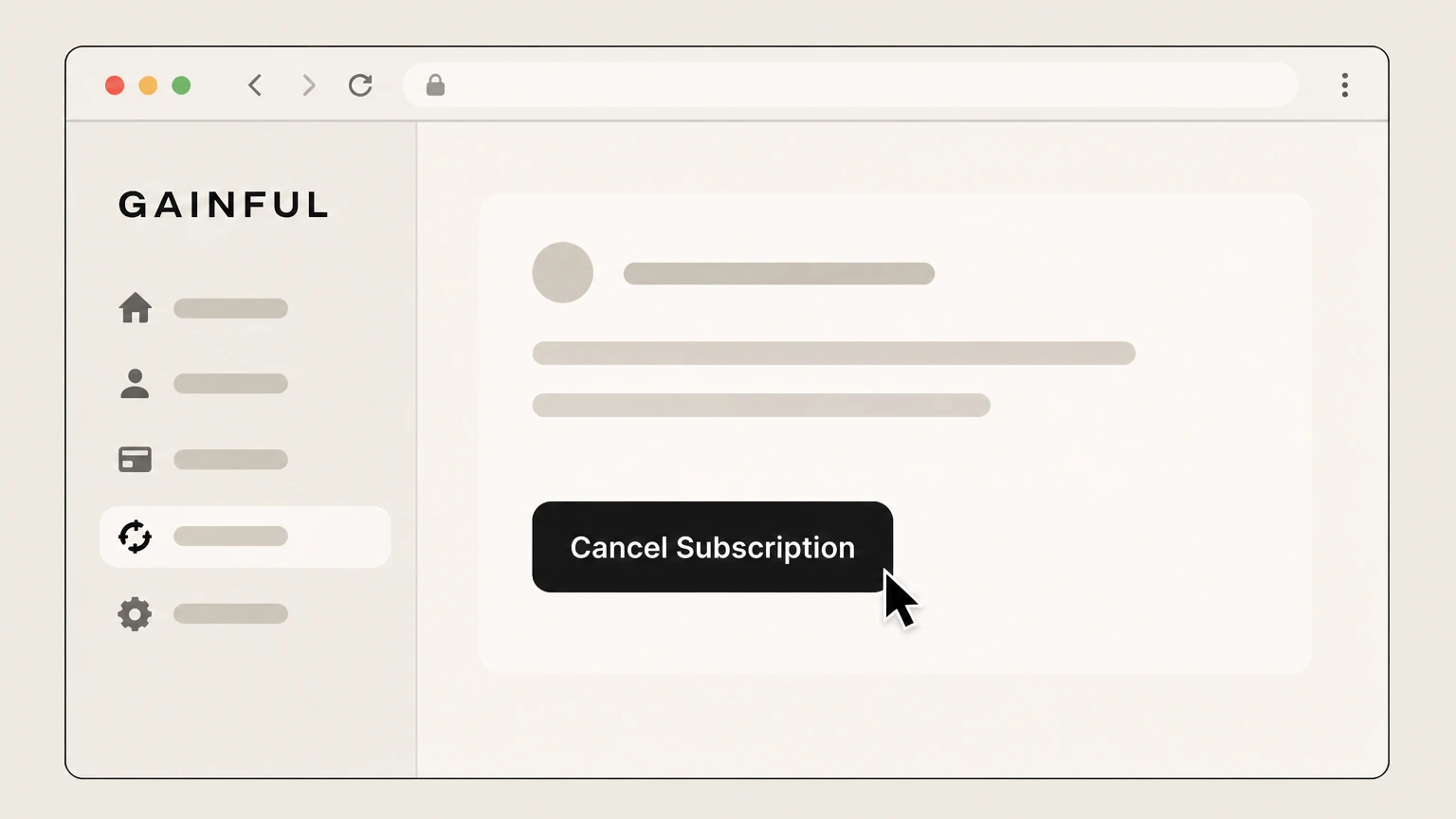
6Confirm Cancel Subscription
On the confirmation screen, select “Cancel Subscription” to finalize cancellation; you may be asked to choose a reason first. Use the Gainful account named on your receipt, and continue only after the next status in this cancellation path is visible.

Email Gainful support · verify the billing owner
 1
1Open your email service
Open the email app or webmail service you normally use to send messages. Use the Gainful account named on your receipt, and continue only after the next status in this cancellation path is visible.
 2
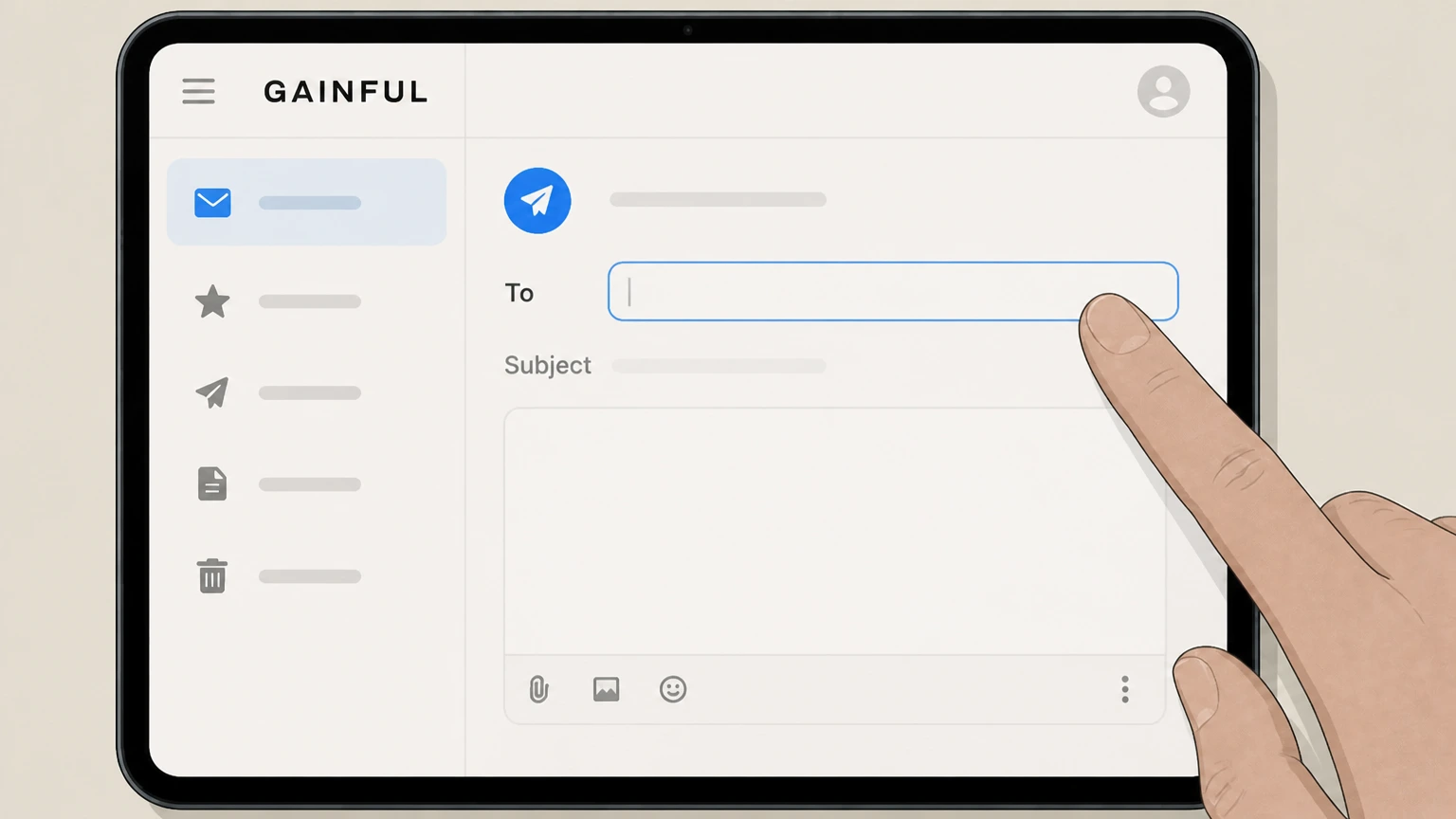
2Compose a new message to Gainful support
Start a new email addressed to Gainful’s customer support email listed in the official Gainful Help Center or Terms page.
- Let Pine handle it
Pine can help
Too many steps?
Pine can find the right Email Gainful support path and handle the cancellation for you.
 3
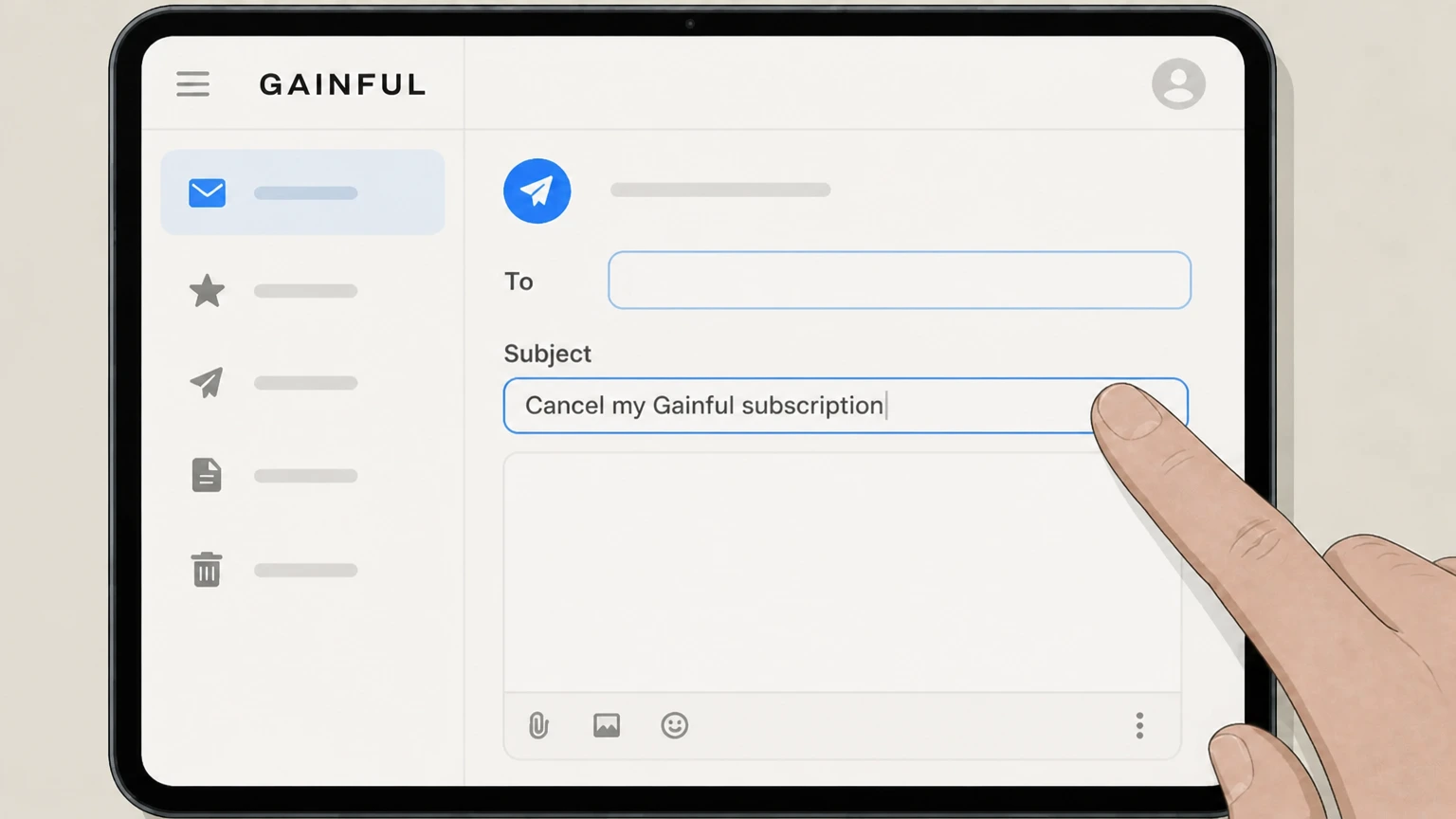
3State that you want to cancel
Set the email subject line to clearly say that you want to cancel your Gainful subscription. Use the Gainful account named on your receipt, and continue only after the next status in this cancellation path is visible.
 4
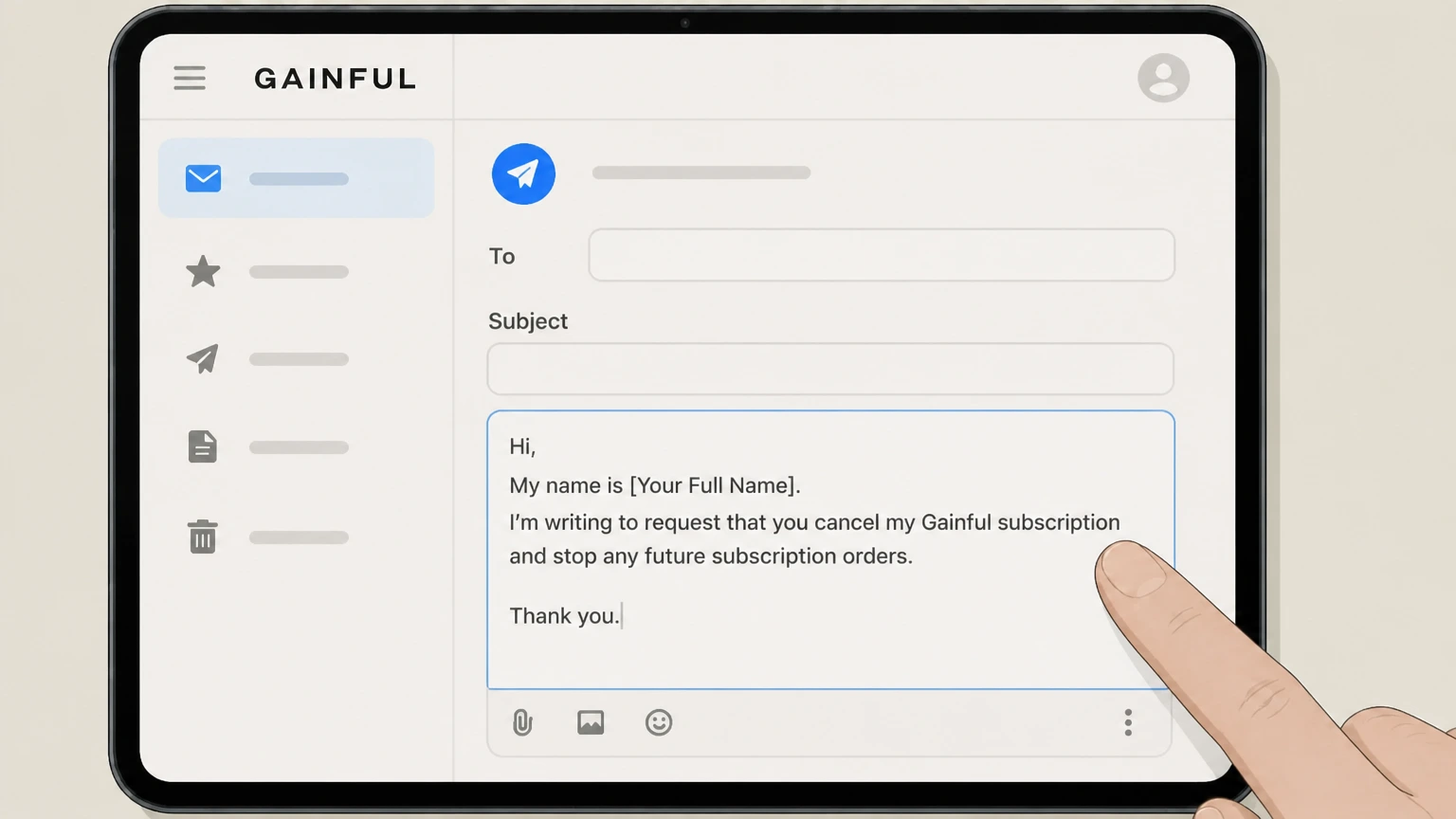
4Provide account details and your request
In the body of the email, include your full name, Gainful account email, and a clear request to cancel future subscription orders.
 5
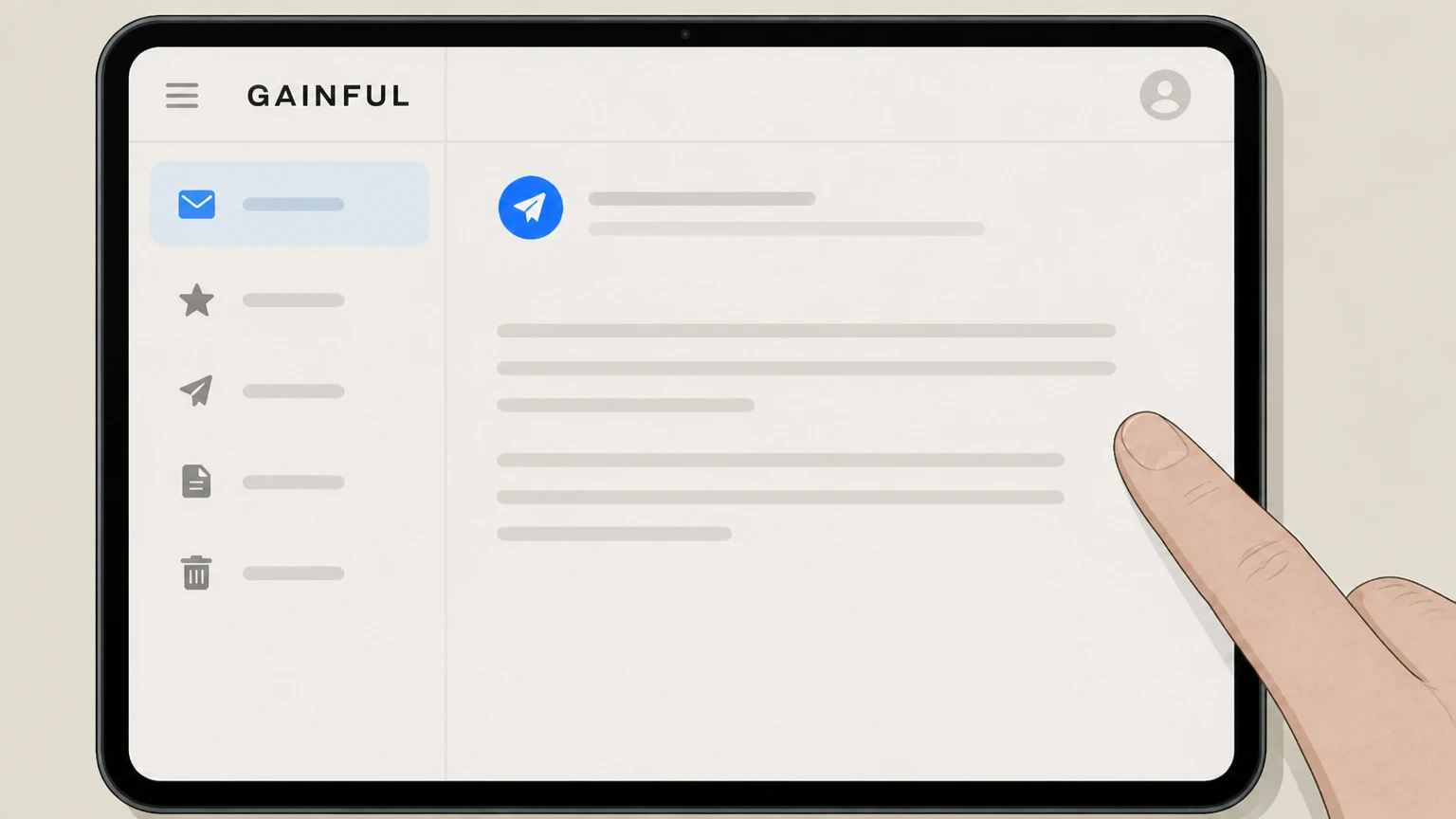
5Send the email and follow instructions
Send the email and follow any cancellation instructions or confirmation messages that Gainful support sends back. Use the Gainful account named on your receipt, and continue only after the next status in this cancellation path is visible.
Refund policy
Refunds and money-back terms when canceling Gainful
Cancellation mainly stops future renewals; refunds are limited and governed by Gainful’s Happiness Guarantee and order‑timing rules.
Check my refund options- Canceling doesn’t automatically create a refund
- Ending your Gainful subscription through Manage Subscriptions or by email stops future renewals, but it does not itself refund any prior or currently confirmed orders.help.gainful.com
- 30‑day Happiness Guarantee for first orders
- Gainful will replace or refund a first order purchased on gainful.com if you contact them within 30 days of that first order and you are not satisfied, under the 30‑day First Order Happiness Guarantee.help.gainful.com
- No refunds for unwanted renewals caused by late cancellation
- Gainful states it is not responsible for unwanted orders resulting from a customer’s failure to cancel or delay before the order date, and such orders are excluded from the Happiness Guarantee.help.gainful.com
- No product returns or exchanges
- Due to the personalized and edible nature of its products, Gainful does not accept returns for a refund and does not offer exchanges; issues are handled through its first‑order guarantee where applicable.help.gainful.com
- Retailer purchases follow retailer policies
- Orders bought through other retailers (for example, Amazon or Target) are not covered by Gainful’s own guarantee and instead follow the refund and return policies of the retailer.help.gainful.com
For the most current details on refunds or replacements tied to cancellation, review Gainful’s 30‑Day First Order Happiness Guarantee section and related refund articles in the Help Center. View Gainful’s Happiness Guarantee and refund FAQ
Subscription basics
How Gainful subscriptions renew and bill
Key facts about how Gainful subscriptions are set up, billed, and renewed before you cancel.
Automatic recurring billing
Gainful’s Terms describe its subscription service as an automatic recurring subscription: your chosen plan continues and is billed regularly until you cancel it or Gainful stops providing the service.gainful.com
Manage details in your profile
You can see and manage your plan details by logging into your profile on gainful.com and using the subscription controls, including Manage Subscriptions.gainful.com For your Gainful account, compare this point with the billing owner and effective date shown in the signed-in account or latest receipt.
Cancel anytime before next order date
Help Center guidance states you can cancel your subscription(s) at any time before your next order date by following the Manage Subscriptions steps in your account.help.gainful.com
Multiple subscriptions handled separately
If you subscribe to several Gainful products with different order dates, the Help Center instructs you to repeat the cancellation steps for each product you want to stop.help.gainful.com
Flexible subscription controls
Support and blog content emphasize that Gainful subscriptions are flexible: you can pause, swap, skip, or cancel, giving you several ways to adjust orders without staying locked in.help.gainful.com
Online steps
What to expect when canceling on gainful.com
Details on the in‑account cancellation experience so you know what each screen means.
Accessing Manage Subscriptions
After signing in on gainful.com, you’ll see a navigation menu on the left of your profile; the Help Center instructs you to select “Manage Subscriptions” there to reach your active subscriptions.help.gainful.com
Locating the right subscription
On the Manage Subscriptions page, each upcoming order appears in a panel; Gainful tells you to scroll to the panel below your next order for the product you want to cancel.help.gainful.com
Using the More menu
The cancellation instructions require selecting “More” within that subscription panel to reveal further options, including Cancel.help.gainful.com For your Gainful account, compare this point with the billing owner and effective date shown in the signed-in account or latest receipt.
Starting cancellation from the menu
From the expanded menu, you choose “Cancel” to begin the cancellation flow for that subscription.help.gainful.com For your Gainful account, compare this point with the billing owner and effective date shown in the signed-in account or latest receipt.
Final Cancel Subscription confirmation
Gainful’s guide notes that after any intermediate questions (such as reasons), you must click “Cancel Subscription” on the final screen to complete cancellation.help.gainful.com For your Gainful account, compare this point with the billing owner and effective date shown in the signed-in account or latest receipt.
Order timing
How cancellation affects existing and future orders
Understand which shipments stop, which continue, and when you must act.
Placed orders cannot be canceled
A dedicated Help Center article explains that once an order is placed, it cannot be canceled, and canceling your subscription afterward does not change that already‑placed order.help.gainful.com
Cancel before your subscription order date
Gainful advises customers to log into their account any time before their next subscription order date to delay, cancel, or edit the subscription so changes apply to the upcoming order.help.gainful.com
Reminder emails three days prior
Gainful sends a subscription reminder email three days before an order is placed to give you time to delay, edit, or cancel before the order processes.help.gainful.com
Postponing vs. canceling
You can postpone the next order date in Manage Subscriptions using the “Next Order Date” option, but Gainful clarifies that postponements must also be made before the order date.help.gainful.com
Responsibility for unwanted orders
Gainful states it is not responsible for unwanted orders created because a customer did not cancel or delay the subscription before the order was placed.help.gainful.com
Alternative options
Pausing, delaying, or editing instead of canceling
Options Gainful offers if you want to keep using the service but change how often or what you receive.
Postponing the next order date
Gainful lets you postpone an order by logging in, selecting “Manage Subscriptions,” choosing “Next Order Date” for a subscription, picking a later date, and confirming.help.gainful.com
No indefinite pause feature
The Help Center notes that Gainful does not offer an indefinite pause; instead, you can reschedule orders forward as needed using the date selector.help.gainful.com For your Gainful account, compare this point with the billing owner and effective date shown in the signed-in account or latest receipt.
Editing products in your subscription
Other My Orders articles show you can edit products in a subscription—such as adding or removing certain items—through Manage Subscriptions without canceling entirely.help.gainful.com For your Gainful account, compare this point with the billing owner and effective date shown in the signed-in account or latest receipt.
Delay, cancel, or edit before the order date
Gainful emphasizes that delaying, canceling, or editing works only if done prior to the subscription order date; changes made on that date affect the next order instead.help.gainful.com
After cancellation
Access, reactivation, and communications after canceling
What changes—and what does not—once your Gainful subscription is canceled.
Canceling stops future deliveries for that plan
Canceling through Manage Subscriptions is described as canceling the subscription(s), which stops future orders tied to those subscriptions after any already‑placed orders.help.gainful.com For your Gainful account, compare this point with the billing owner and effective date shown in the signed-in account or latest receipt.
Ability to reactivate later
Gainful states that if you cancel to avoid ongoing shipments, you can reactivate your subscription anytime in the future by logging into your account.help.gainful.com For your Gainful account, compare this point with the billing owner and effective date shown in the signed-in account or latest receipt.
Promotional emails may continue
The Terms explain that if you cancel your subscription, Gainful may still send promotional communications unless you separately opt out using the unsubscribe instructions in those messages.gainful.com
Account remains for future orders
Because you can log in later to reactivate your subscription or place one‑time purchases, cancellation of a subscription does not by itself delete your Gainful account.help.gainful.com
Refund context
First Order Happiness Guarantee and refunds
How refunds intersect with cancellation, especially for first‑time Gainful customers.
30‑day Happiness Guarantee on first orders
Gainful offers a 30‑day Happiness Guarantee on first orders purchased on gainful.com: if you contact them within 30 days and are not satisfied, they may send a replacement blend or issue a refund.help.gainful.com
Guarantee applies only to first gainful.com orders
The guarantee explicitly applies only to first orders and to orders purchased on gainful.com, not to later subscription renewals or purchases from other retailers.help.gainful.com For your Gainful account, compare this point with the billing owner and effective date shown in the signed-in account or latest receipt.
Unwanted subscription orders not covered
Gainful specifies that the Happiness Guarantee does not apply to unwanted orders that resulted from not canceling or delaying a subscription before it processed.help.gainful.com For your Gainful account, compare this point with the billing owner and effective date shown in the signed-in account or latest receipt.
No returns for refund or exchanges
Because Gainful products are personalized and edible, the company does not accept returns for a refund or offer exchanges; instead, it resolves issues through the Happiness Guarantee for eligible first orders.help.gainful.com
Other retailers
If you bought Gainful at Target or another retailer
How cancellation and refunds differ when you buy Gainful somewhere other than gainful.com.
Target purchases use Target’s policies
Gainful’s Help Center explains that purchases made at Target are subject to Target’s return policy and are not covered by gainful.com’s 30‑day Happiness Guarantee. For your Gainful account, compare this point with the billing owner and effective date shown in the signed-in account or latest receipt.
Amazon and other retailers excluded from guarantee
Refund guidance notes that orders purchased through another retailer, such as Amazon or Target, are not eligible for Gainful’s Happiness Guarantee on first orders.help.gainful.com For your Gainful account, compare this point with the billing owner and effective date shown in the signed-in account or latest receipt.
Subscriptions managed only on gainful.com
The subscription and cancellation instructions are written for subscriptions created on gainful.com; orders from other retailers must be managed under those retailers’ policies and are not controlled by the Manage Subscriptions page.help.gainful.com
What official sources do not confirm
Limits of the public Gainful cancellation guidance
These points are intentionally qualified because the official sources reviewed on August 16, 2026 do not publish a complete answer.
Documented limitation 1
Exact support email addresses and messaging short codes are partially redacted in the public Terms and Help Center, so this guide refers users to official pages for the current contact details instead of restating them.
Documented limitation 2
Gainful does not publish detailed processing times for email‑initiated cancellations, so timing of support‑handled cancellations versus upcoming order dates may vary case by case. For Gainful, verify this account-specific point with the current billing owner because the reviewed public sources do not publish a more precise universal rule.
Documented limitation 3
The available documentation does not describe data‑retention periods or the precise technical behavior of account deletion, so this guide only infers that canceling a subscription does not automatically delete the customer account.
Documented limitation 4
Official materials focus on subscriptions created on gainful.com; they do not fully describe how any subscription‑like arrangements, if offered through other marketplaces, would be canceled, so third‑party purchases are out of scope beyond the stated refund exclusions.
Gainful cancellation FAQ
Questions people search about canceling Gainful, answered with official provider or billing-platform sources checked on August 16, 2026.
How do I completely cancel my subscription?
How can I cancel the automatic renewal of my Gainful subscription?
What happens if I cancel my Gainful subscription after an order is placed?
Can I get Gainful without a subscription or after canceling?
Will my Gainful account be deleted when I cancel my subscription?
How do I contact Gainful customer service about canceling?
Can I pause or delay my Gainful subscription instead of canceling?
Can I get a refund if I forget to cancel my Gainful subscription?
Where do I log in to cancel my Gainful subscription?
Where can I find Gainful’s official policies on cancellations and refunds?
Untangle this Gainful issue.
Let Pine handle the provider follow-up and keep the confirmation in one place.
