


beIN SPORTS CONNECT
Cancel subscription
Cancel your beIN SPORTS CONNECT subscription online
Learn how to cancel your beIN SPORTS CONNECT subscription safely. Follow step-by-step instructions for web billing, Apple iOS, and Google Play purchases.
- Official beIN SPORTS CONNECT and billing-owner sources
- 3 provider-specific cancellation paths
- Refund and post-cancellation effects separated from renewal
- Verified August 16, 2026
Choose the beIN SPORTS CONNECT cancellation path that matches who bills you
beIN SPORTS CONNECT website · verify the billing owner
 1
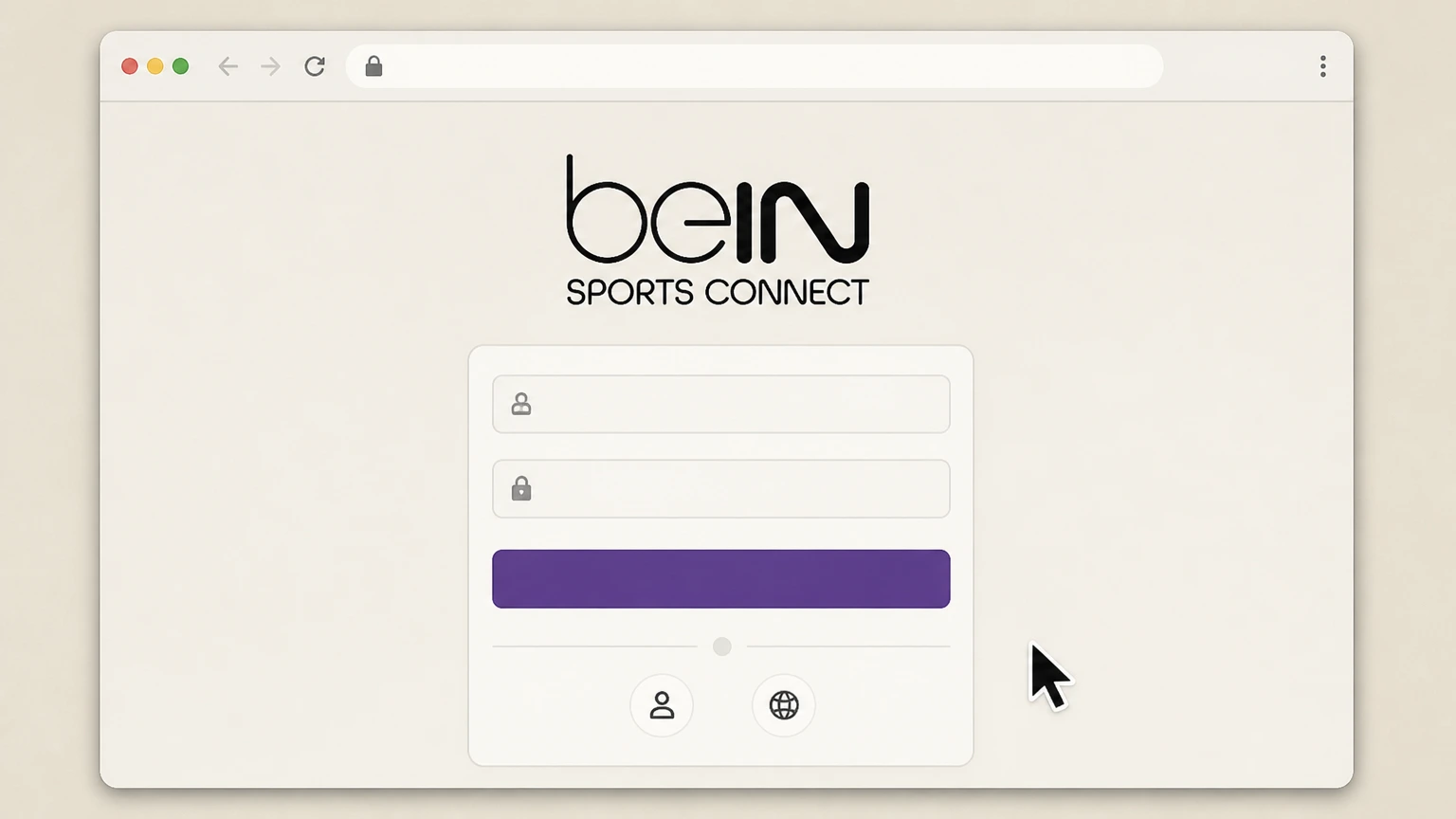
1Sign in on the regional beIN SPORTS CONNECT website
Open the beIN SPORTS CONNECT site for your country (for example, the .com, -my, -sg, or other regional URL) and sign in with the account used for your subscription.
 2
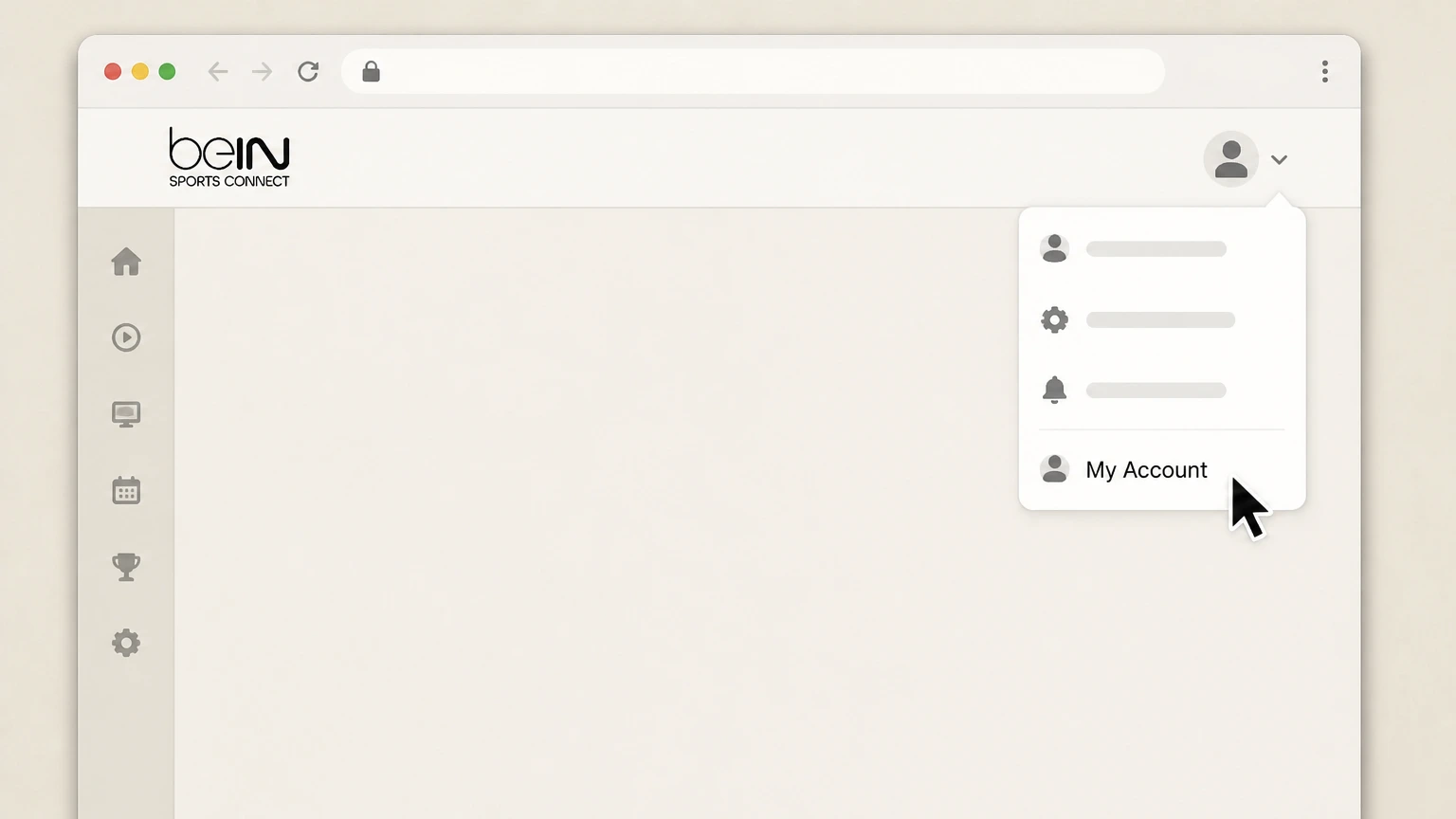
2Open My Account
Select “My Account” from the top-right menu or profile menu to open your account settings. Use the beIN SPORTS CONNECT account named on your receipt, and continue only after the next status in this cancellation path is visible.
- Let Pine handle it
Pine can help
Too many steps?
Pine can find the right beIN SPORTS CONNECT website path and handle the cancellation for you.
 3
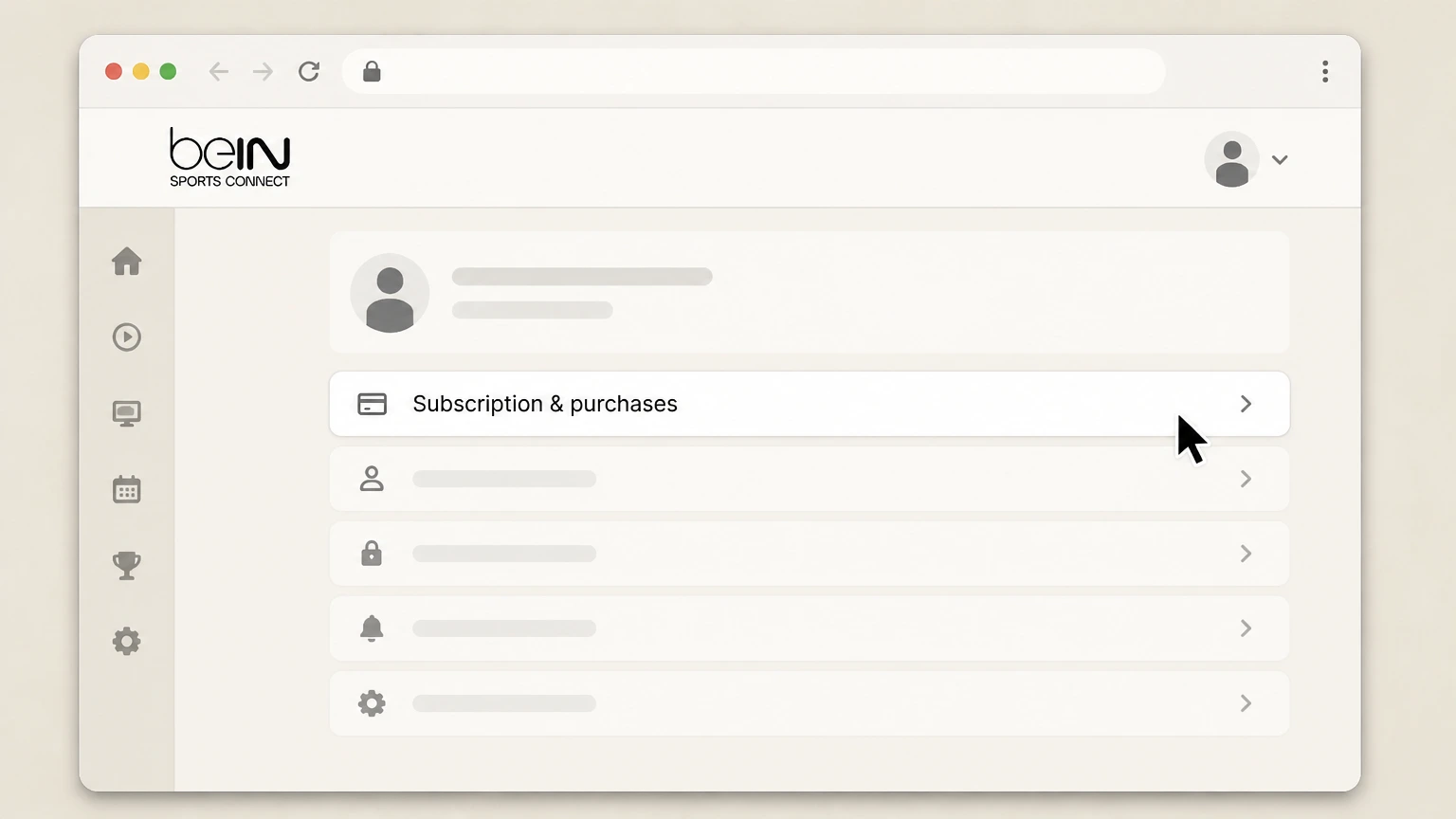
3Go to Subscription & purchases
In My Account, choose “Subscription & purchases” to see your active beIN SPORTS CONNECT plan details. Use the beIN SPORTS CONNECT account named on your receipt, and continue only after the next status in this cancellation path is visible.
 4
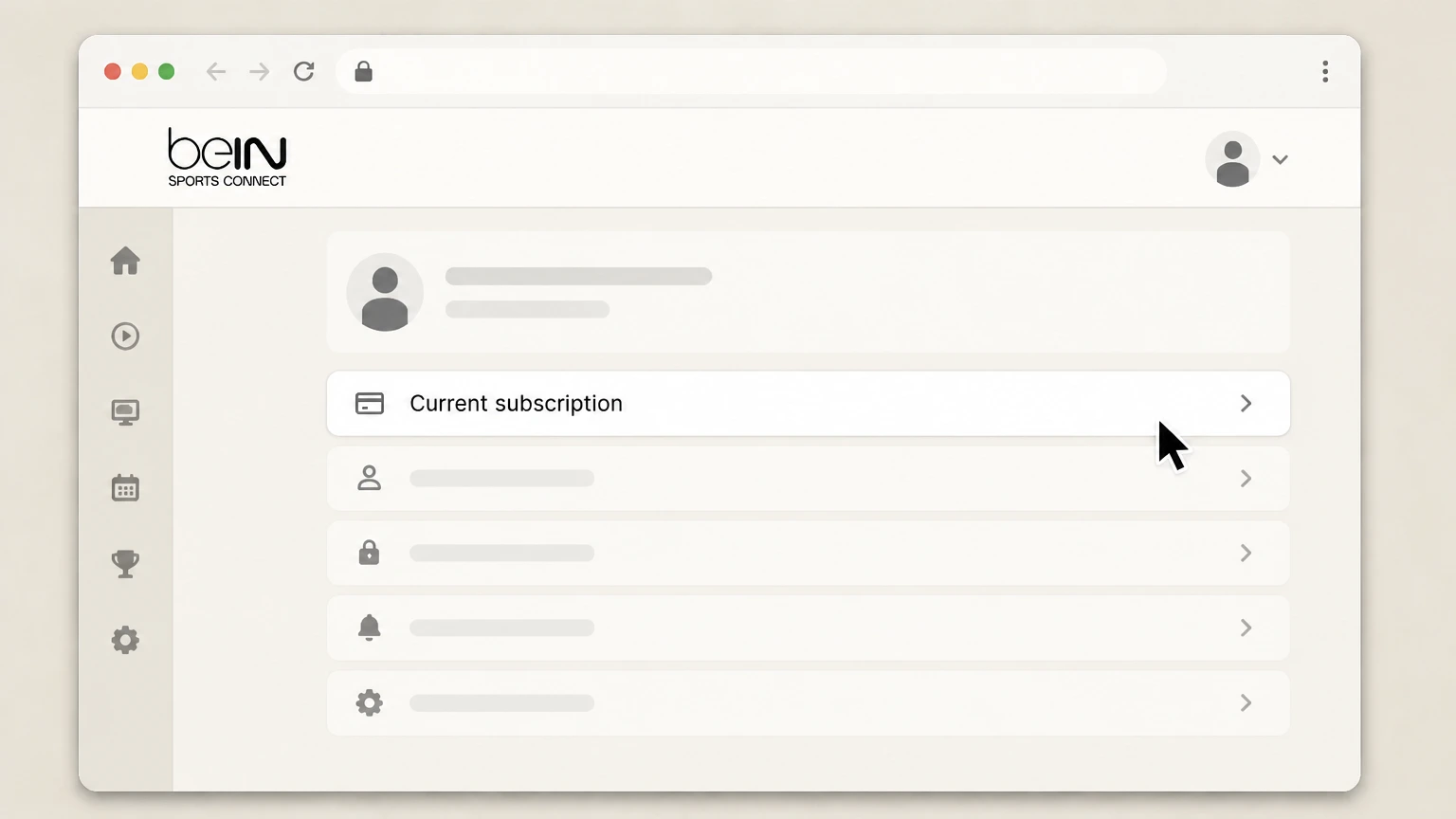
4Select your current subscription
On the Subscription & purchases page, select your active beIN SPORTS CONNECT subscription to open its details. Use the beIN SPORTS CONNECT account named on your receipt, and continue only after the next status in this cancellation path is visible.
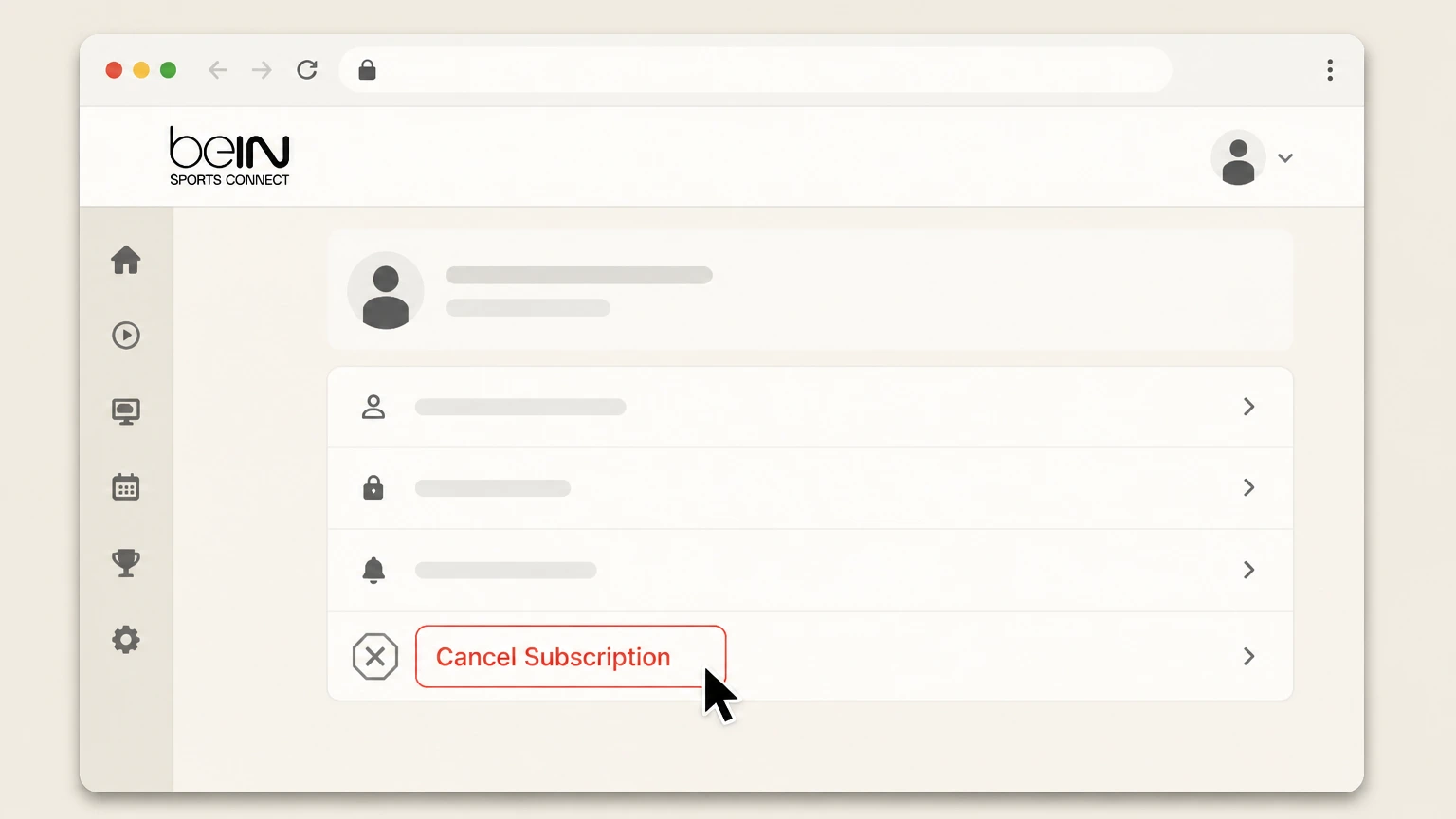 5
5Cancel Subscription and confirm
Click “Cancel Subscription,” choose a reason if asked, and confirm to turn off auto-renew for your beIN SPORTS CONNECT plan.

Apple iPhone / iPad / Apple TV · verify the billing owner
 1
1Open Settings
On your iPhone or iPad, open the Settings app; on Apple TV, open Settings from the home screen. Use the beIN SPORTS CONNECT account named on your receipt, and continue only after the next status in this cancellation path is visible.
 2
2Tap your name
In Settings, tap your name (Apple ID banner) at the top of the screen to open Apple Account settings. Use the beIN SPORTS CONNECT account named on your receipt, and continue only after the next status in this cancellation path is visible.
- Let Pine handle it
Pine can help
Too many steps?
Pine can find the right Apple iPhone / iPad / Apple TV path and handle the cancellation for you.
 3
3Open Subscriptions
In your Apple ID settings, tap “Subscriptions” to see all active and expired Apple-billed subscriptions. Use the beIN SPORTS CONNECT account named on your receipt, and continue only after the next status in this cancellation path is visible.
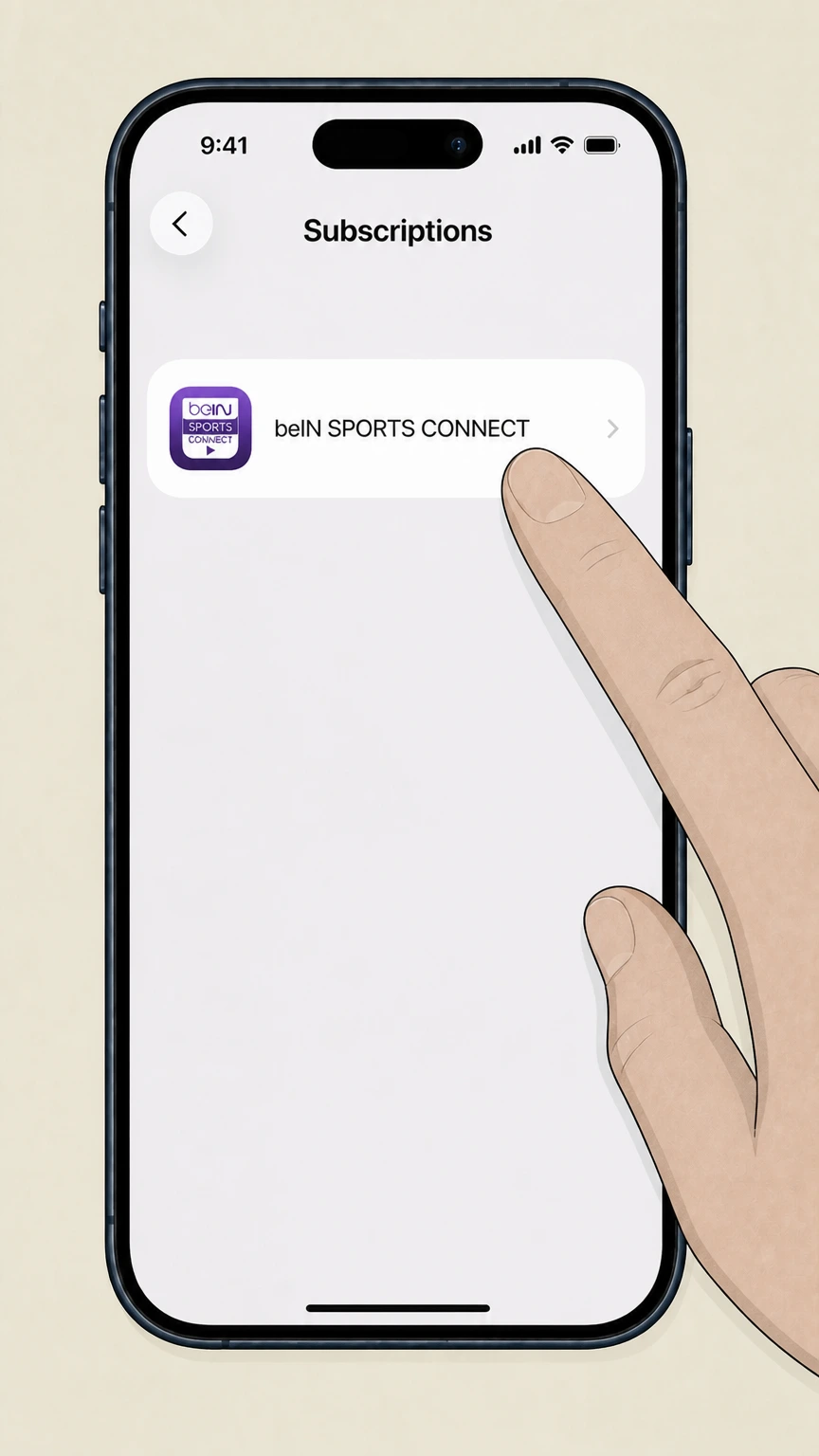 4
4Select beIN SPORTS CONNECT
From the subscriptions list, select the beIN SPORTS CONNECT subscription you want to cancel. Use the beIN SPORTS CONNECT account named on your receipt, and continue only after the next status in this cancellation path is visible.
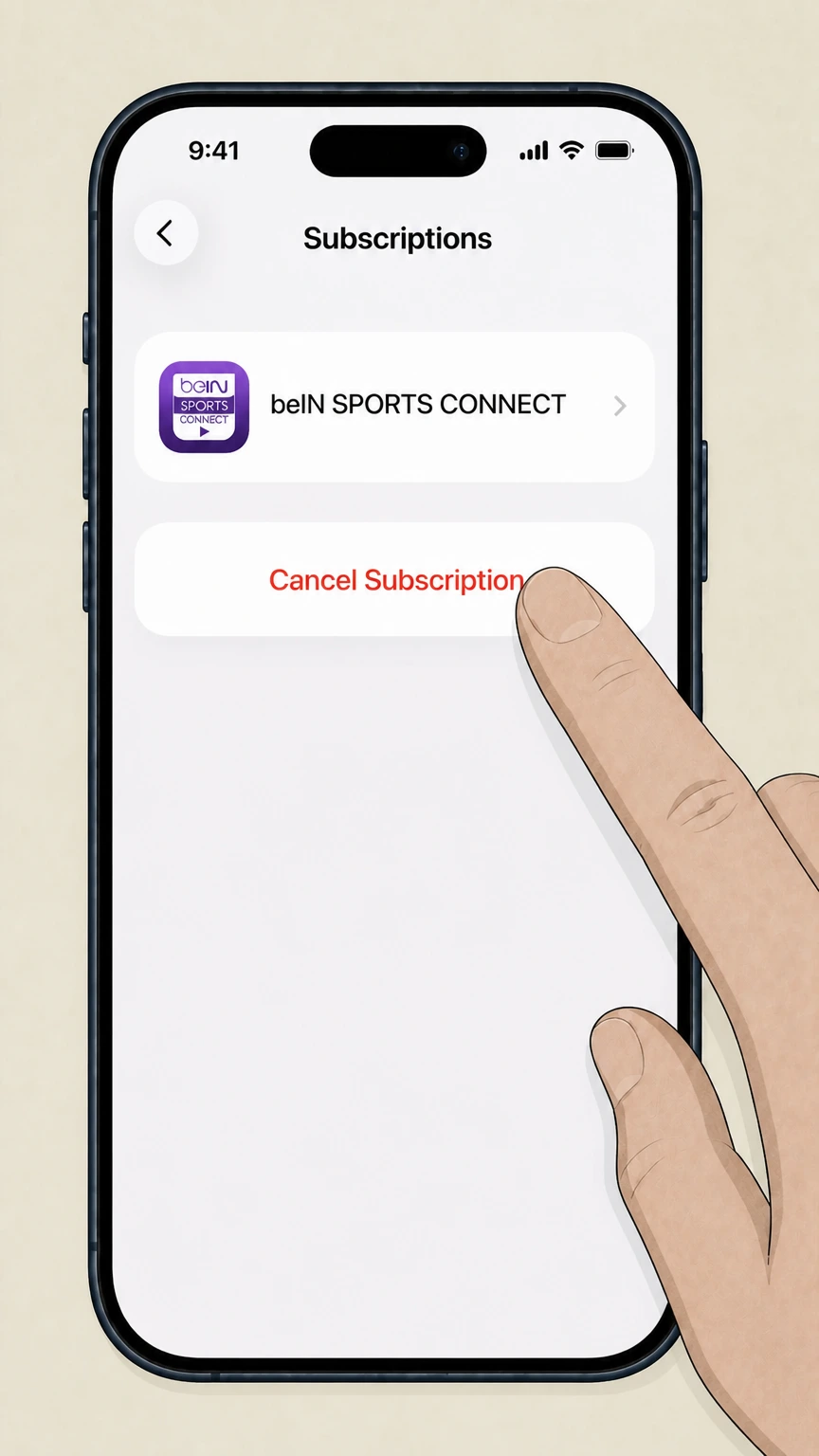 5
5Cancel the subscription
On the beIN SPORTS CONNECT subscription screen, tap “Cancel Subscription” and follow the prompts until Apple confirms cancellation. Use the beIN SPORTS CONNECT account named on your receipt, and continue only after the next status in this cancellation path is visible.
Google Play on Android · verify the billing owner
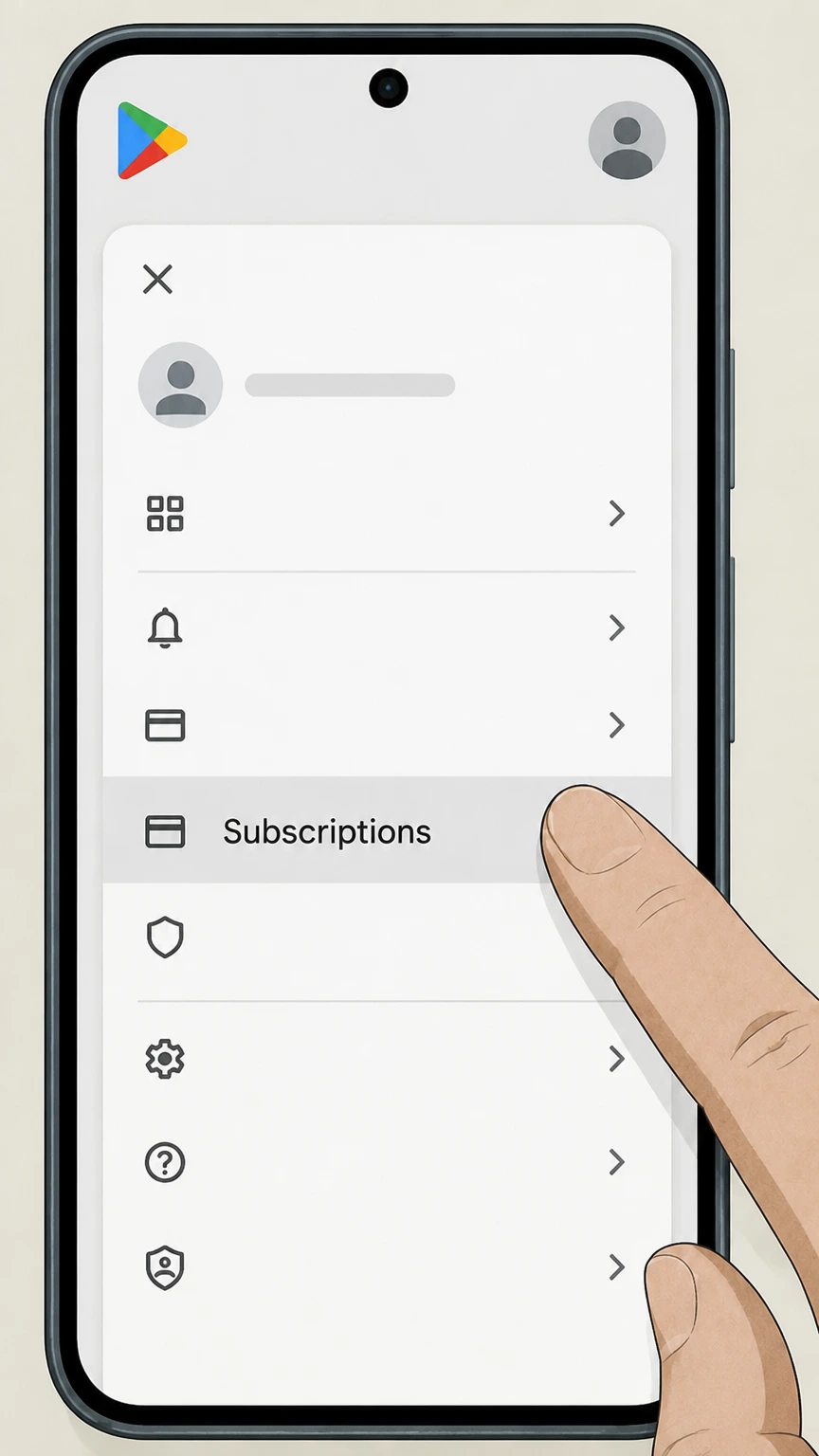 1
1Open Google Play subscriptions
On your Android device, open the Google Play Store, tap your profile icon, and choose “Payments & subscriptions” then “Subscriptions.”
 2
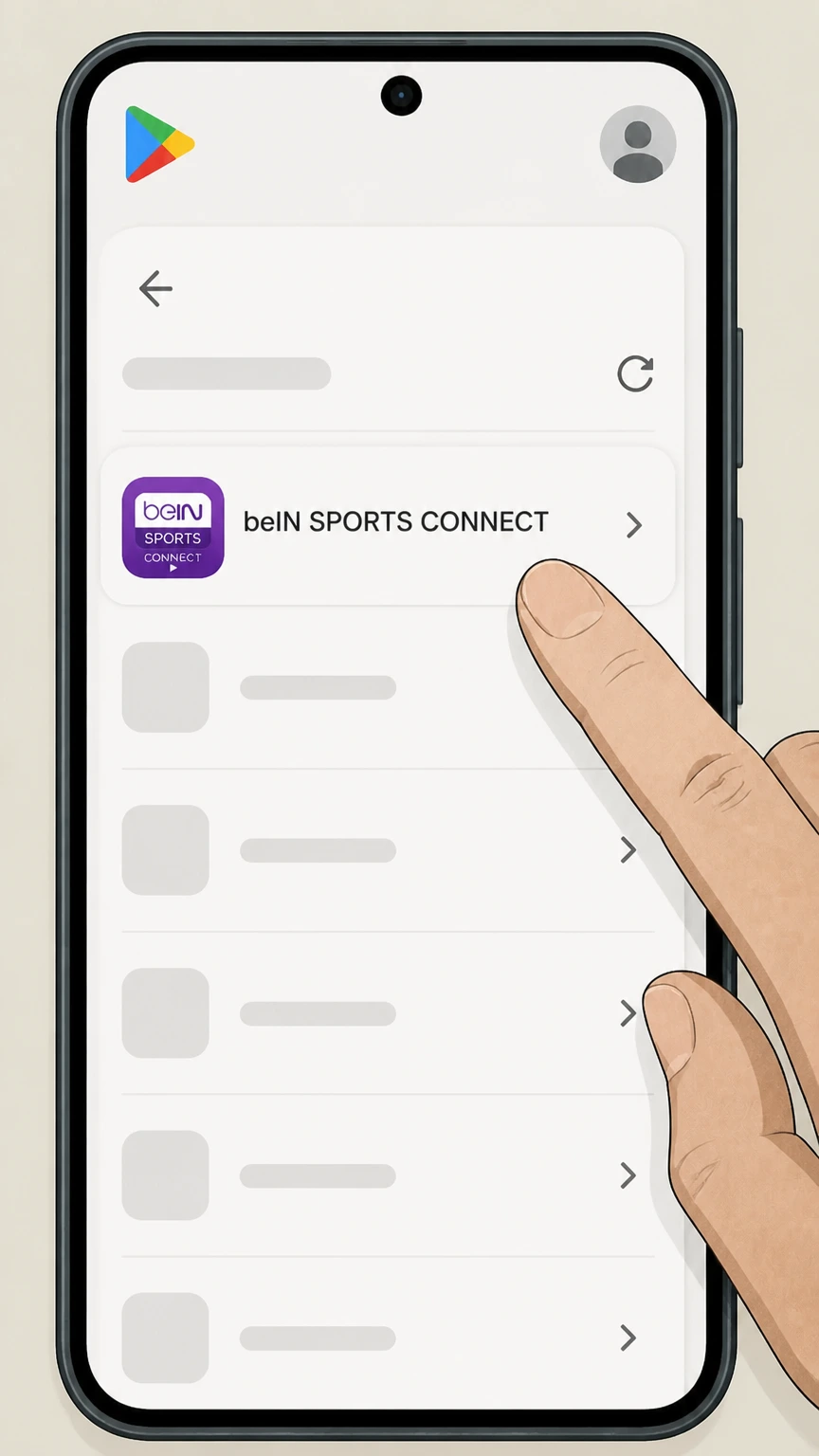
2Select the beIN SPORTS CONNECT subscription
In the subscriptions list, select your active beIN SPORTS CONNECT plan to open its details. Use the beIN SPORTS CONNECT account named on your receipt, and continue only after the next status in this cancellation path is visible.
- Let Pine handle it
Pine can help
Too many steps?
Pine can find the right Google Play on Android path and handle the cancellation for you.
 3
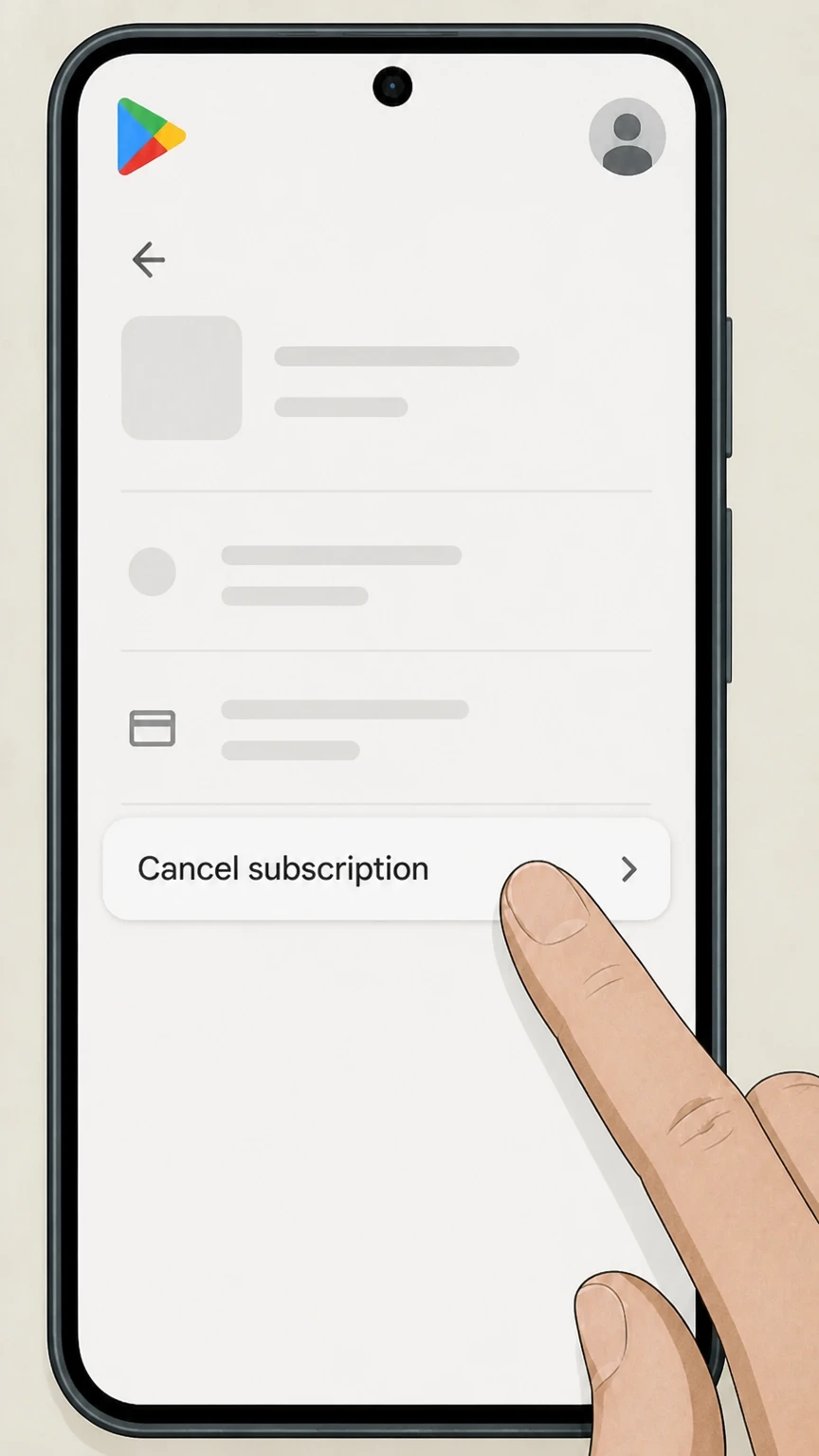
3Tap Cancel subscription
On the beIN SPORTS CONNECT subscription screen, tap “Cancel subscription.” Use the beIN SPORTS CONNECT account named on your receipt, and continue only after the next status in this cancellation path is visible.
 4
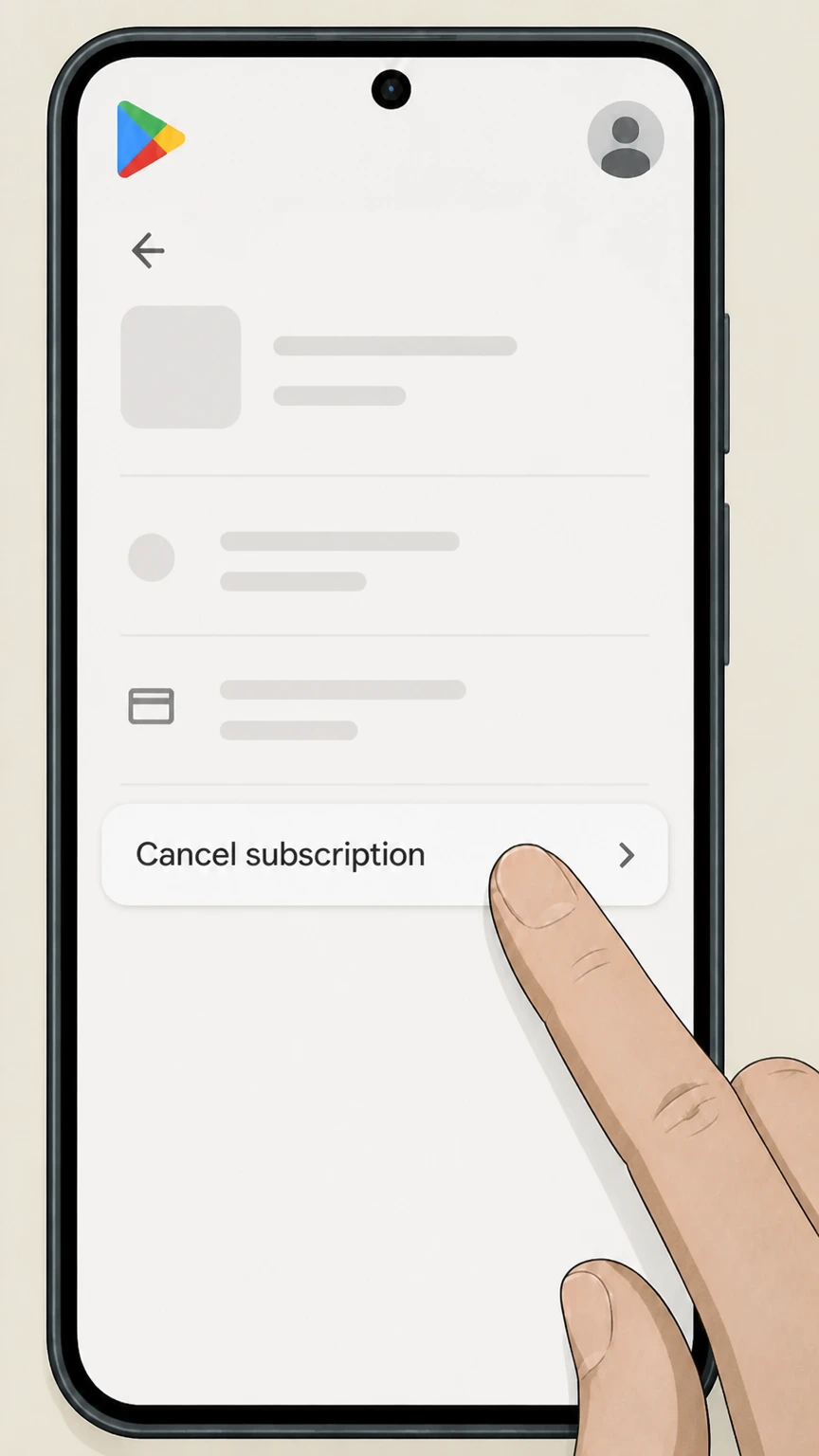
4Confirm cancellation in Google Play
Follow the on-screen prompts, provide a reason if requested, and confirm until Google Play shows that the subscription will not renew.
Refund policy
Refund expectations for beIN SPORTS CONNECT subscribers
Stopping renewal and getting money back are handled separately. beIN SPORTS CONNECT generally lets you cancel anytime, but refunds for past or current periods depend on whether you pay beIN directly or through Apple, Google Play, Roku, PayPal, or a TV provider, and on regional terms and laws.
Check my refund options- Web-billed beIN refunds follow regional terms
- beIN SPORTS CONNECT Terms & Conditions state that you can cancel via My Account but do not promise pro-rated refunds for subscription periods that have already started; some regions mention a narrow right to a refund before first use, so you must review the Terms & Conditions for your local site.
- Apple subscriptions use Apple refund tools
- If your subscription is billed through Apple (apple.com/bill), Apple’s support pages explain how to view invoices, report a problem, and request a refund. beIN’s own Apple cancellation article stresses that it cannot cancel or refund Apple in-app purchases for you.
- Google Play refunds use Google policies
- For Google Play billing, Google’s help center describes refund eligibility windows and a self-service refund flow, and notes that most Play purchases are not automatically refundable after 48 hours. beIN’s Google Play article confirms that Google, not beIN SPORTS CONNECT, handles billing and refunds.
- Roku and PayPal have their own limits
- Roku’s subscription refund policy generally does not offer refunds for partial periods and instructs users to manage or cancel subscriptions at my.roku.com/subscriptions, while PayPal’s automatic-payment help explains how to stop future payments but makes clear that cancelling a PayPal agreement does not itself force a service provider to issue a refund.
- TV-provider and bundle refunds vary by provider
- If you receive beIN SPORTS CONNECT via a cable, satellite, or live TV streaming package, the provider’s own contract and refund rules apply; you must contact that company for credits or adjustments and cannot obtain them through beIN SPORTS CONNECT’s help center alone.
For a disputed or unexpected charge, identify the billing owner on your most recent receipt, confirm cancellation status in that account, then use that company’s official dispute or refund-request process before escalating to your bank or card issuer. Check current refund options with your billing provider
Service basics
What beIN SPORTS CONNECT is and where it runs
Key facts about the beIN SPORTS CONNECT streaming service that affect how cancellation works.
Multi-device streaming service
beIN SPORTS CONNECT is a standalone sports streaming service offering live channels, events, and on-demand replays under a single account that can be used across web, mobile apps, and supported TV devices.
Supported device platforms
Official pages list beIN SPORTS CONNECT apps on iOS, Android mobile, Android TV, Fire TV, and Roku, alongside browser access via regional sites such as getbein.com and connect.beinsports.com.
Regional sites and help centers
Cancellation and account-management instructions are published on regional help centers like support.connect-my.beinsports.com and support.connect-sg.beinsports.com, but the core My Account and Subscription & purchases workflow is consistent across these regions.
TV-provider sign-in option
In North America and Canada, some viewers sign in to beIN SPORTS CONNECT using cable, satellite, or live TV provider credentials; in this case the TV provider, not beIN SPORTS CONNECT, controls billing for the underlying channel package.
No lock-in style marketing
APAC plan descriptions emphasize flexible subscriptions with no long-term contract and the ability to cancel anytime, reinforcing that cancellation is a configuration change in your account rather than a negotiation process.
Who bills you
Billing owners and why they control cancellation
Understanding who actually charges you for beIN SPORTS CONNECT is essential to choosing the right cancellation route.
Direct web or app billing by beIN
If you subscribe on a beIN SPORTS CONNECT regional website and pay with a card or PayPal, beIN SPORTS CONNECT is the merchant of record and your subscription is managed in the My Account › Subscription & purchases area of the service.
Apple App Store billing
If you start a beIN SPORTS CONNECT subscription in the Apple app, Apple bills you as an in-app subscription. Apple’s support pages and beIN’s own Apple-cancellation article state that cancellation must be done in Apple’s subscription settings, not in your beIN account.
Google Play Store billing
If you start a beIN SPORTS CONNECT subscription via Google Play, Google processes recurring charges. beIN’s Google Play cancellation guide confirms that Google bills you and that beIN SPORTS CONNECT cannot cancel or refund Google Play purchases on your behalf.
PayPal as payment method, not platform
Official payment-method lists show PayPal as one of several ways to fund a beIN SPORTS CONNECT web subscription. In this setup PayPal passes payments to beIN; managing or cancelling the underlying subscription still happens in beIN’s Subscription & purchases page.
TV providers and other partners
Articles on how to watch beIN SPORTS in the US and Canada emphasize that TV provider credentials can unlock beIN SPORTS CONNECT access. If your invoice comes from a TV provider, you must change or cancel that package with the provider; beIN SPORTS CONNECT cannot stop those charges directly.
What changes
What happens to access when you cancel
Cancellation changes how and when your subscription renews, but it does not usually cut off viewing immediately.
Access runs to end of billing cycle
Regional cancellation guides consistently state that when you cancel a beIN SPORTS CONNECT subscription—either on the web or via app stores—you keep access until the end of your current billing cycle, after which streaming access stops unless you resubscribe.
Email confirmation from beIN or the platform
Web cancellations typically trigger a confirmation email from beIN SPORTS CONNECT, while Apple and Google Play send their own cancellation emails or show an “expires on” date in the subscription screen; keeping these is important in case of billing disputes.
No extra contract penalties noted
Help-center and plan-description pages focus on turning off auto-renew and do not mention early termination fees, reinforcing that cancellation is mainly about stopping renewal rather than paying off a fixed-term contract.
Cancellation vs. removing access devices
Removing the app from a phone, tablet, smart TV, or Roku device does not alter whether your subscription renews; you must still cancel in the billing owner’s account screens to avoid future charges.
Resubscribe paths exist
Roku, Google Play, and beIN’s own interfaces all support resubscribing after a cancellation by choosing the plan again or toggling auto-renew back on, so cancellation does not block you from restarting later with the same account.
Don’t mix these up
Subscription cancellation is different from account deletion
beIN SPORTS CONNECT lets you delete your user account, but only after subscriptions have been cancelled and expired.
Active subscriptions block deletion
The account-deletion article explains that you cannot delete your beIN SPORTS CONNECT account while a subscription or remaining subscription benefits are active; you must cancel and wait for the plan to expire first.
Deleting account does not replace cancellation
beIN warns that deleting your account does not cancel an active subscription, and that you should cancel first to avoid charges continuing without an accessible account.
Immediate loss of remaining access after deletion
Once your beIN SPORTS CONNECT account is deleted, you immediately lose access to the service and to any remaining days on your subscription, even though no further renewal charges should occur.
No extra refund for deletion
The deletion page states that full or partial refunds will not be issued for unused subscription time or any account credit when an account is deleted, reinforcing that refunds follow separate policies from cancellation.
In-app deletion flow
On supported mobile apps, account deletion is started from the Profile area by choosing “Delete Account” and confirming; this is separate from the Subscription & purchases controls that are used purely to cancel or change plans.
Proof & records
How to confirm cancellation and keep evidence
Keeping clear records of who bills you and when you cancelled is important if you ever need to dispute a charge or restore access.
Check Subscription & purchases for status
On the beIN SPORTS CONNECT website or in its app’s Subscriptions area, the subscription details page shows the current plan type, next billing date, and payment method, which you can use to confirm that auto-renew is off or to see when access will end.
Use email receipts and bank statements
Apple, Google Play, PayPal, Roku, and beIN SPORTS CONNECT all send purchase or renewal receipts; checking which company appears on these receipts is the most reliable way to identify the true billing owner.
Look for cancellation-confirmation messages
After cancelling, watch for confirmation emails from beIN or from Apple or Google. If you do not receive one, check the relevant subscription settings screen again to confirm that renewal is really turned off.
Screenshots of before-and-after states
Taking screenshots of the beIN Subscription & purchases page, Apple or Google Play subscription screens, and app-store order histories before and after cancelling creates a clear record if you need to contest unexpected charges later.
Use platform-specific charge helpers
Apple’s billing help, Google Play’s refund tools, Roku’s subscription pages, and PayPal’s Subscriptions dashboard all provide views of active recurring payments and tools to stop or dispute charges that do not match your cancellation records.
Money back?
Refund expectations after cancelling beIN SPORTS CONNECT
Cancellation stops future renewals; refunds for past charges are controlled by the billing owner and by local law.
beIN web subscriptions follow regional terms
Regional Terms & Conditions for beIN SPORTS CONNECT state that you can cancel anytime via My Account and that cancellations are not processed via phone or post; they also indicate that refunds for already-started subscription periods are limited and subject to the applicable regional policy.
Apple in-app purchases use Apple’s policies
For Apple-billed subscriptions, Apple’s own support pages describe how to view charges, request refunds, and cancel subscriptions. beIN’s Apple cancellation article notes that beIN SPORTS CONNECT cannot cancel or refund Apple in-app purchases for you.
Google Play subscriptions use Google’s policies
Google Play’s help center explains how to cancel an Android subscription and how to request a refund, including time-based rules; beIN’s Google Play article emphasises that billing is handled by Google and that beIN cannot cancel or refund those purchases directly.
Roku and PayPal have separate refund tools
Roku’s refund policy page explains that Roku-managed subscriptions can be cancelled on my.roku.com and that refunds for partial periods are generally not offered, while PayPal’s recurring-payments help explains how to stop automatic payments and review billing agreements.
Charge disputes start with the billing owner
If you see unexpected charges after cancellation, you should first confirm the subscription status in the account that billed you (beIN, Apple, Google Play, Roku, PayPal) and then use that company’s dispute or refund-request process before escalating to your card issuer if needed.
Edge situations
Special cancellation situations for beIN SPORTS CONNECT
Some subscribers encounter cancellation challenges that require extra checks beyond the standard web, Apple, or Google Play paths.
Multiple beIN accounts by mistake
beIN’s Australian help center notes that users sometimes create multiple accounts. If your beIN SPORTS CONNECT app shows no active subscription but you still receive charges, verify that you are signed in with the email shown on your latest beIN or app-store receipt.
Subscription added via voucher or promo code
Voucher articles explain that redeeming a voucher while an active subscription exists may cancel and replace the current plan. In those cases, you must still cancel the replacement subscription in Subscription & purchases or the relevant app store when you want billing to stop.
Cable or streaming bundles with beIN channels
US and Canada watching guides list numerous TV and streaming providers carrying beIN SPORTS and beIN SPORTS CONNECT access. If your statement lists these providers, changing or cancelling the beIN portion must be done in the provider’s account or support channels, not in beIN’s own billing screens.
Be careful with free trials and holds
Some regions offer free trials or temporary verification holds. If you do not wish to continue after a trial, you must cancel in the billing owner’s subscription settings before the trial ends to avoid the first paid period charging automatically.
Account deletion after cancellation
If you want your beIN SPORTS CONNECT data removed after cancelling, use the in-app Delete Account flow only after your subscription shows as expired; this prevents you from losing access to cancellation records while charges might still recur.
What official sources do not confirm
Limits of the public beIN SPORTS CONNECT cancellation guidance
These points are intentionally qualified because the official sources reviewed on August 16, 2026 do not publish a complete answer.
Documented limitation 1
North American beIN SPORTS CONNECT cancellation FAQs previously hosted on a beincontent.com domain are excluded by the domain policy, so this guide relies on APAC beIN help centers and general product pages where interfaces are consistent but local legal language may differ.
Documented limitation 2
Public beIN documentation accessible under beinsports.com domains confirms web, Apple, Google Play, card, and PayPal billing, but does not clearly document any current Amazon- or Roku-billed beIN SPORTS CONNECT offers, so those potential routes are intentionally omitted.
Documented limitation 3
Terms & Conditions and refund policies vary by country; only APAC terms were directly reviewable, so refund guidance is kept high level and users are advised to check their local site’s current terms for binding details.
Documented limitation 4
Some TV providers and streaming bundles that carry beIN SPORTS CONNECT are listed on beinsports.com, but each provider’s cancellation and refund rules are outside beIN’s control and not fully documented in the allowed domains, so this page can only recommend contacting the provider rather than describing their processes.
Documented limitation 5
Exact button labels and menu names might differ slightly between regional sites and app versions; the steps reflect the most recent wording found in current help-center screenshots but may vary marginally in other locales or future UI updates.
Documented limitation 6
Because Amazon customer-service articles did not surface within the allowed domain filters, this dossier cannot safely describe Amazon Prime Video channel or Amazon in-app cancellation flows for any beIN-branded products, even if such offers exist in practice.
beIN SPORTS CONNECT cancellation FAQ
Questions people search about canceling beIN SPORTS CONNECT, answered with official provider or billing-platform sources checked on August 16, 2026.
How do I cancel my beIN monthly subscription?
How do I permanently cancel a subscription?
How do I stop beIN?
How to Cancel beIN SPORTS Subscription on iphone
Does uninstalling the beIN SPORTS CONNECT app cancel my subscription?
When does my beIN SPORTS CONNECT access end after I cancel?
How do I know who is billing me for beIN SPORTS CONNECT?
Can I cancel beIN SPORTS CONNECT if I subscribed with PayPal?
How do I cancel if I watch beIN through my cable or TV provider?
What should I do if I can’t cancel my beIN SPORTS CONNECT subscription?
Untangle this beIN SPORTS CONNECT issue.
Let Pine handle the provider follow-up and keep the confirmation in one place.
