


Match
Cancel subscription
How to Cancel Match Subscription and Stop Auto-Renewal
Learn how to cancel Match if you pay through Match.com, Apple, or Google Play. Step‑by‑step instructions, what changes after cancellation, and refund rules.
- 3 cancellation paths matched to the billing owner
- Renewal timing and access outcome explained
- Refund requests routed to the company that billed you
- Confirmation steps included for every path
Choose the Match cancellation path that matches who bills you
Match.com website (Match-billed subscriptions) · verify the billing owner
Match.com website (Match-billed subscriptions)
 1
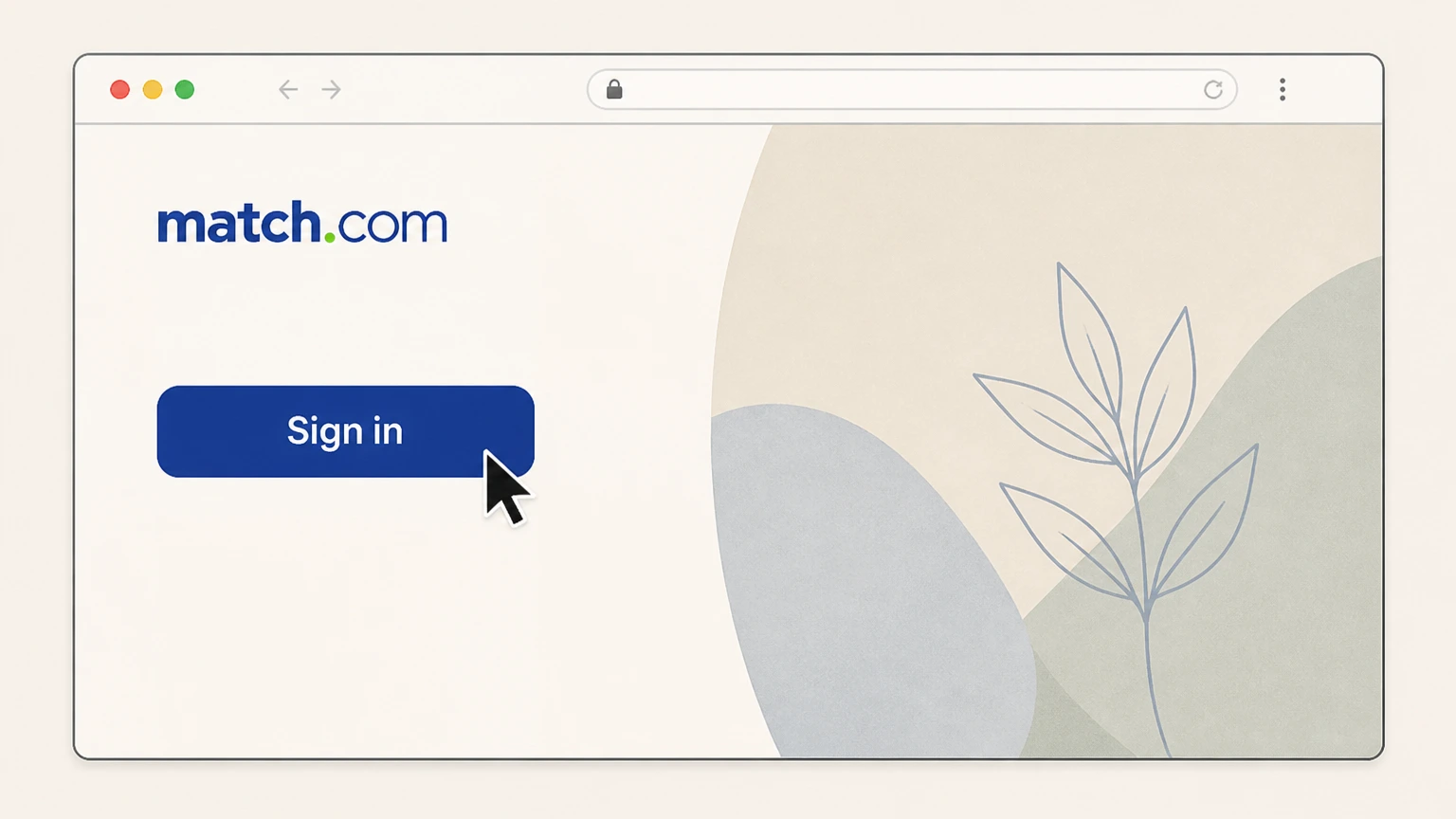
1Sign in to Match on the web
Sign in to your Match account on match.com using your usual login details.
 2
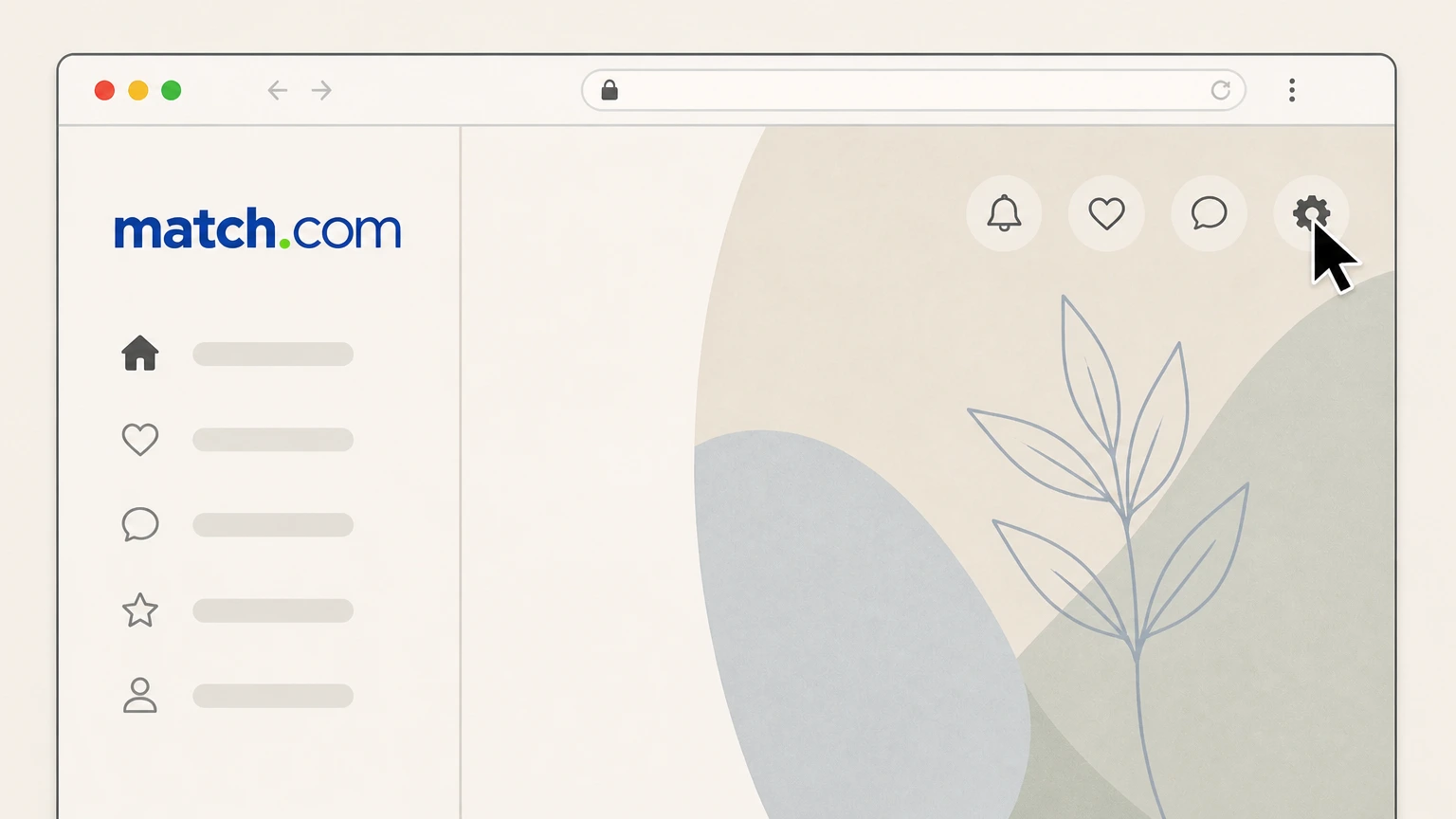
2Open Settings
Click the gear icon in the top navigation bar to open your account settings.
- Let Pine handle it
Pine can help
Too many steps?
Pine can find the right Match.com website (Match-billed subscriptions) path and handle the cancellation for you.
 3
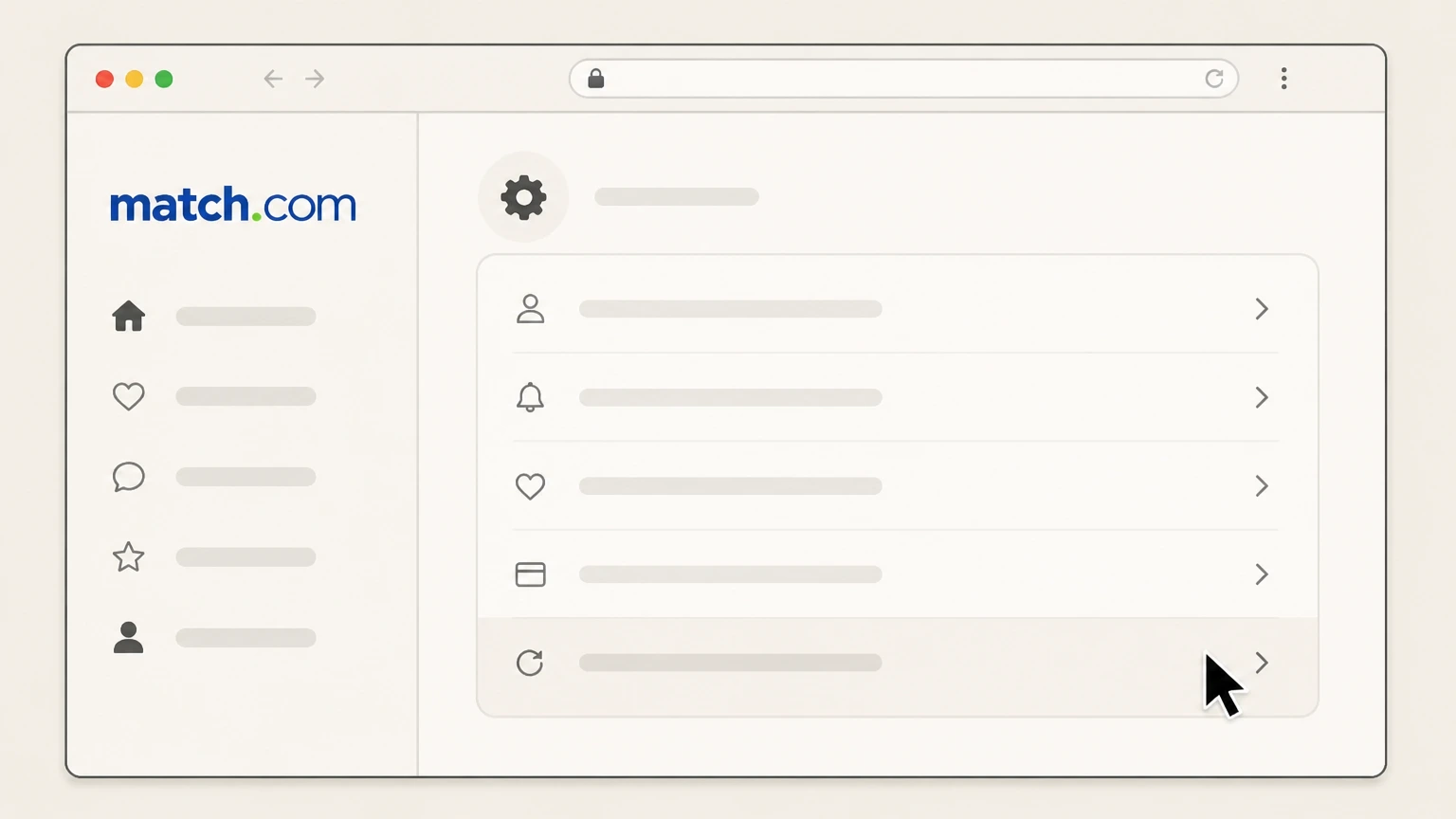
3Open Manage Subscription
In Settings, click "Manage Subscription" to open your subscription management page.
 4
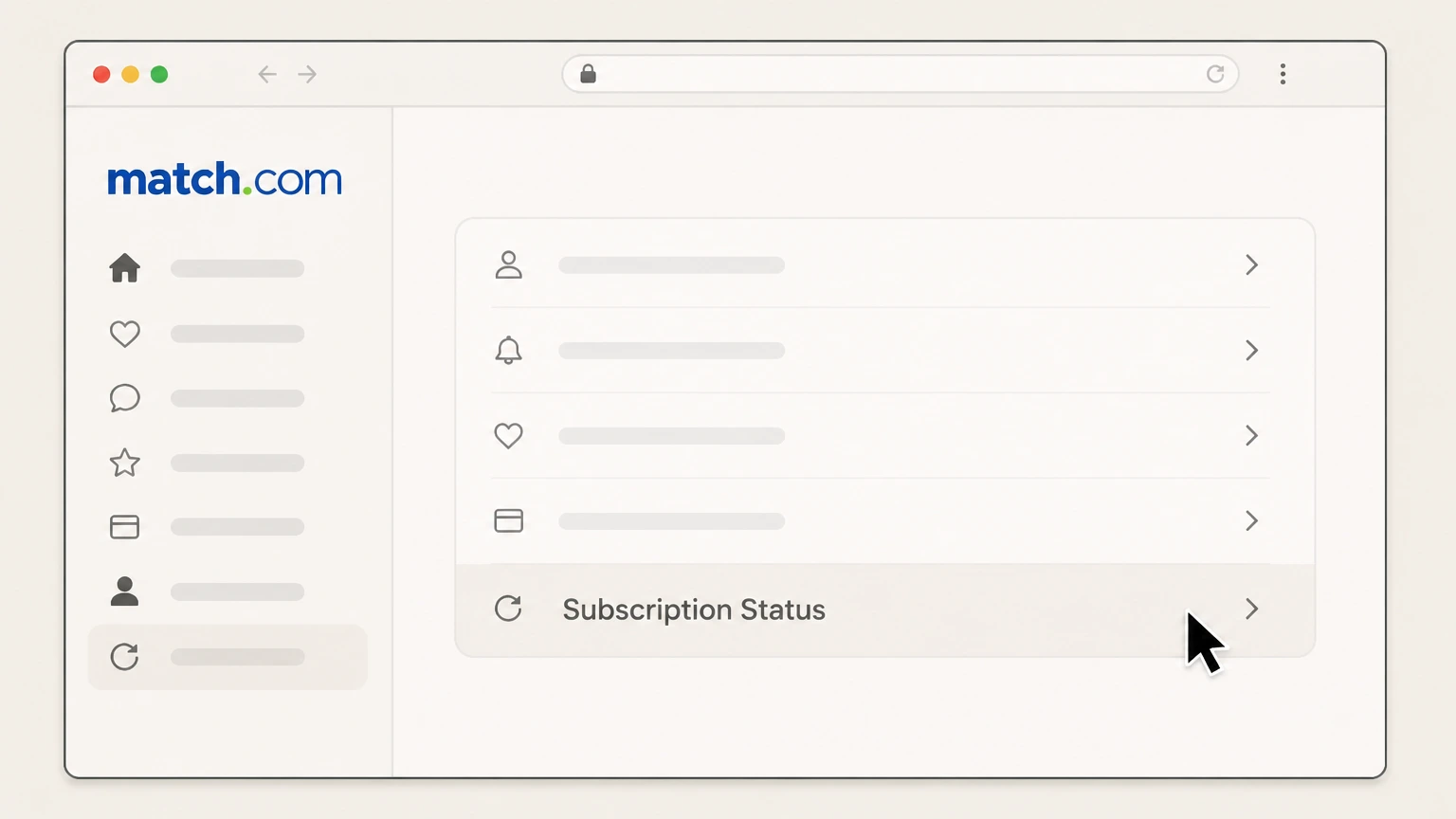
4Open Subscription Status
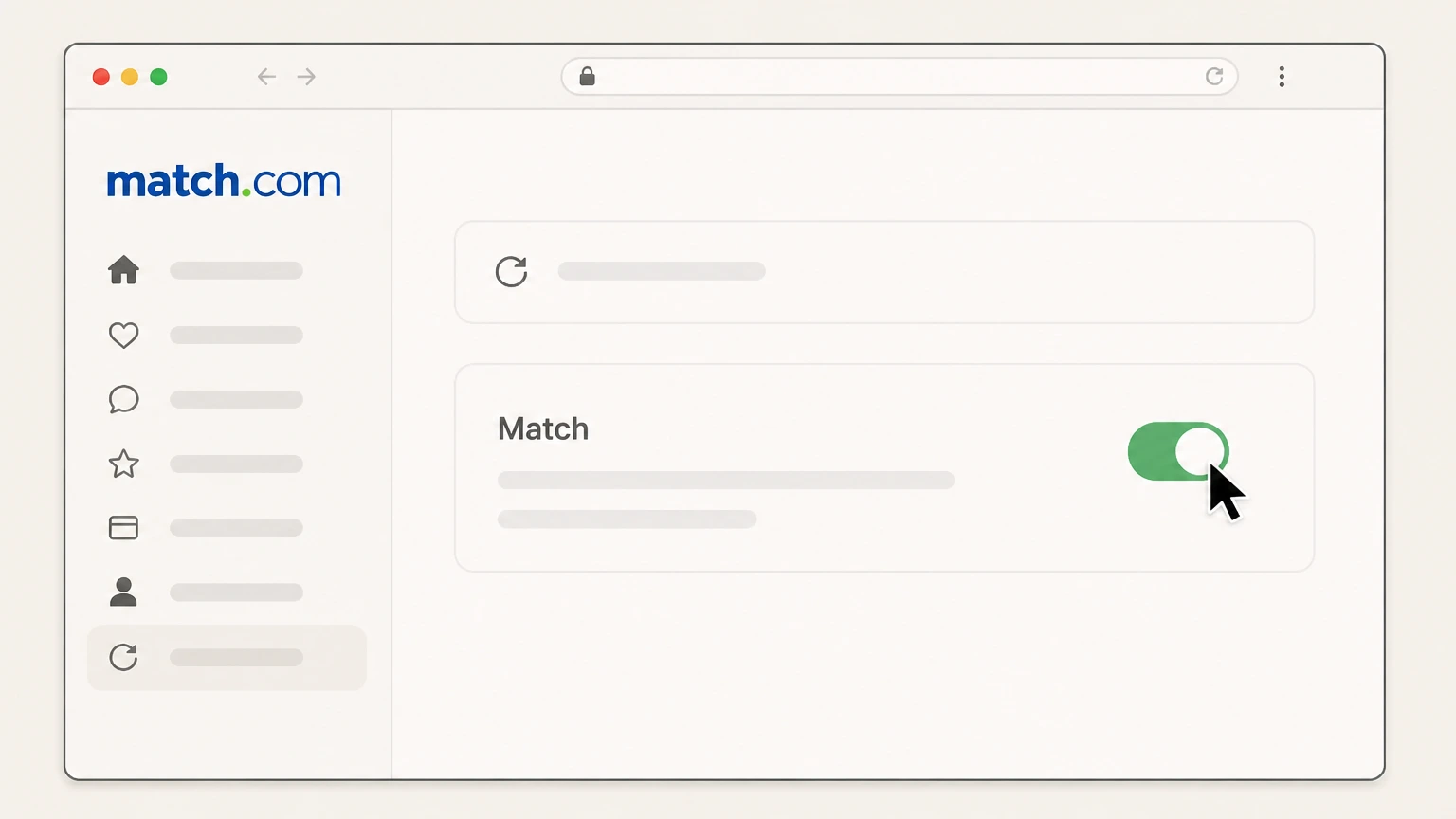
Click "Subscription Status" to view details of your active subscription and renewal settings.
 5
5Turn off auto-renewal
On the Subscription Status page, use the option to turn off auto‑renewal for your subscription and confirm when prompted.

Apple iOS (Apple-billed Match subscriptions) · verify the billing owner
Apple iOS (Apple-billed Match subscriptions)
 1
1Open Settings
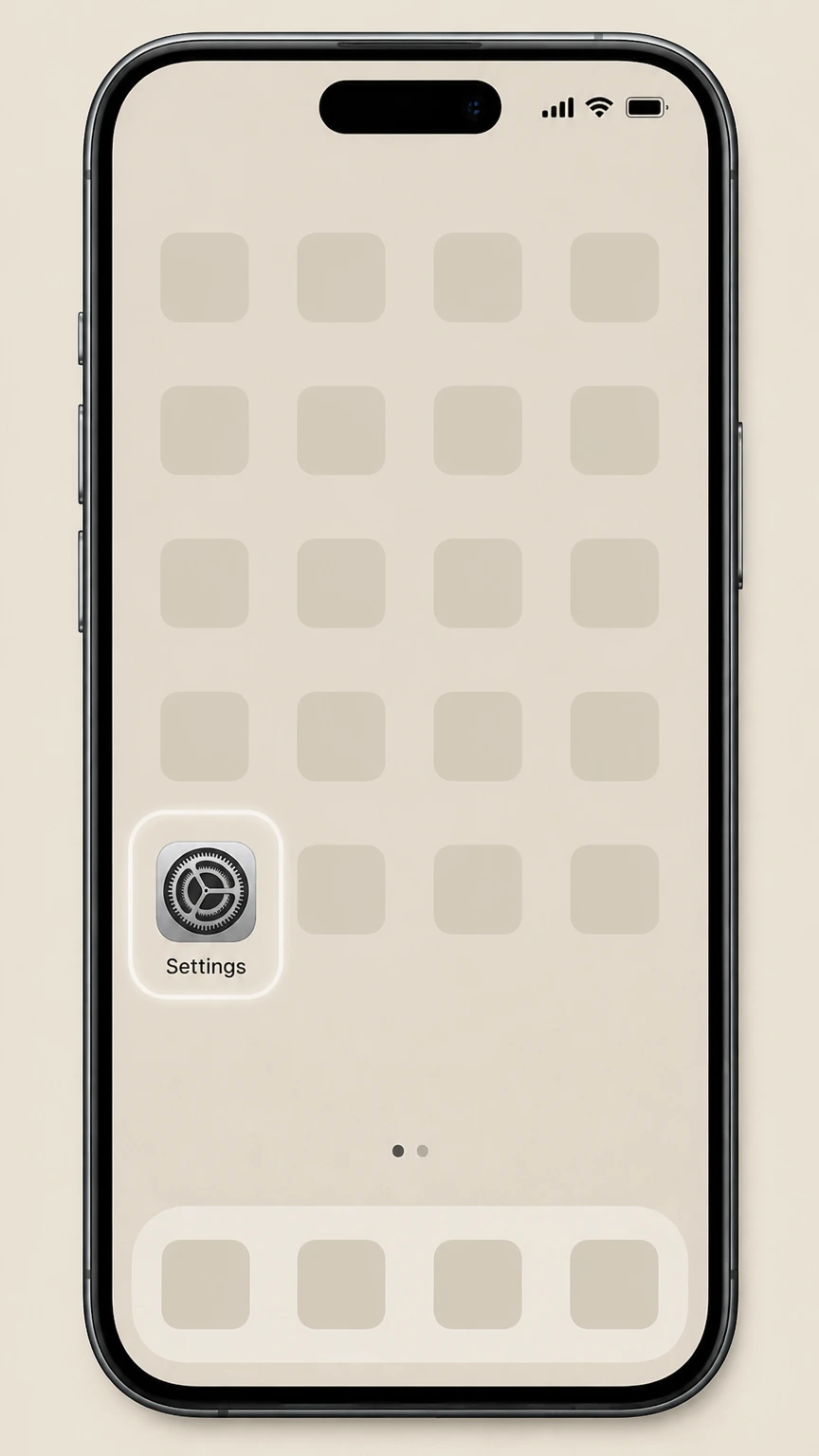
Open the Settings app on your iPhone on the billing account used for this subscription.
 2
2Tap your name
At the top of Settings, tap your Apple ID name banner.
- Let Pine handle it
Pine can help
Too many steps?
Pine can find the right Apple iOS (Apple-billed Match subscriptions) path and handle the cancellation for you.
 3
3Open Subscriptions
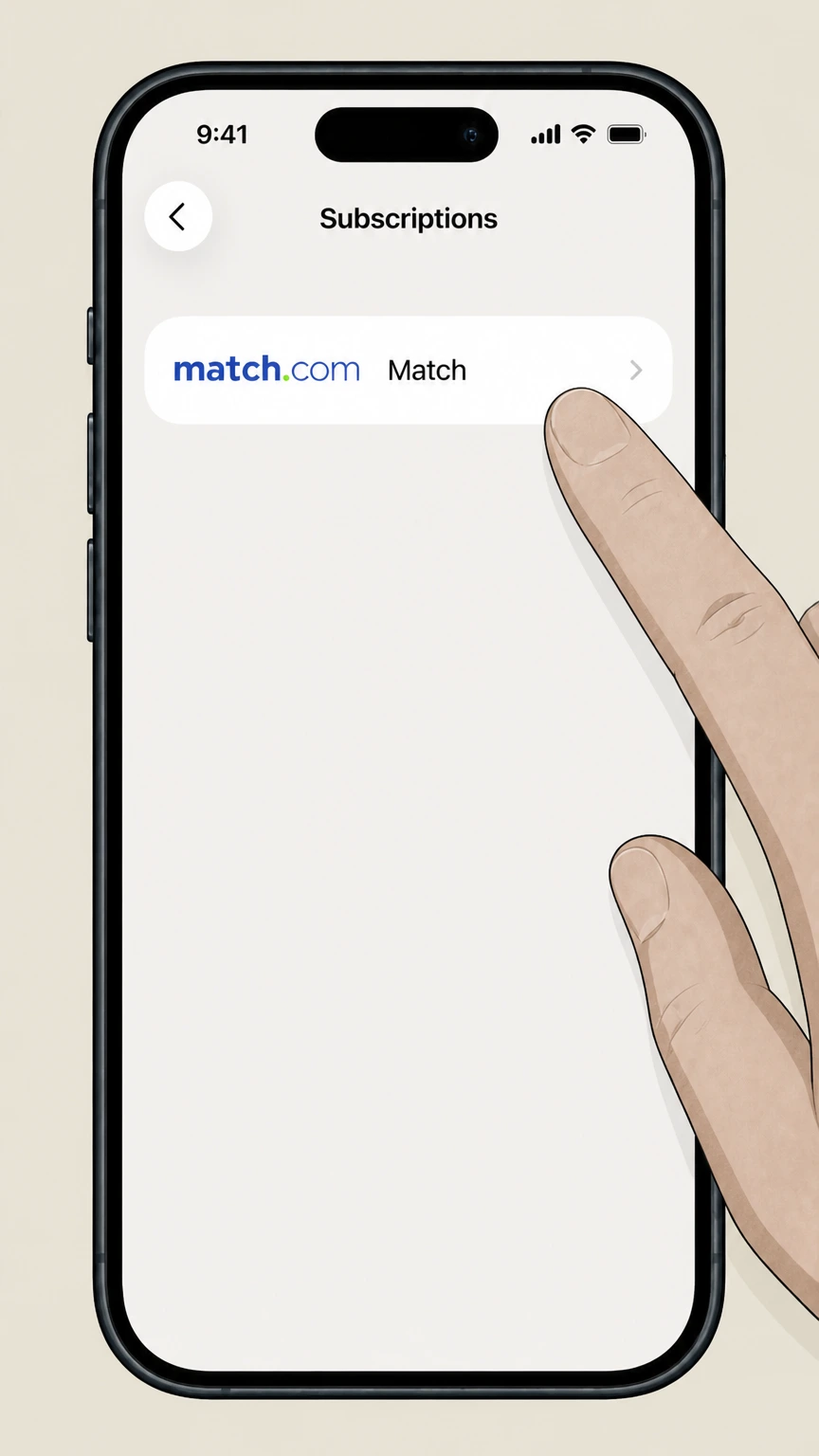
Tap "Subscriptions" to see the list of Apple‑billed subscriptions for your Apple ID.
 4
4Select Match
In the list of subscriptions, tap the Match subscription you want to cancel.
 5
5Cancel the subscription
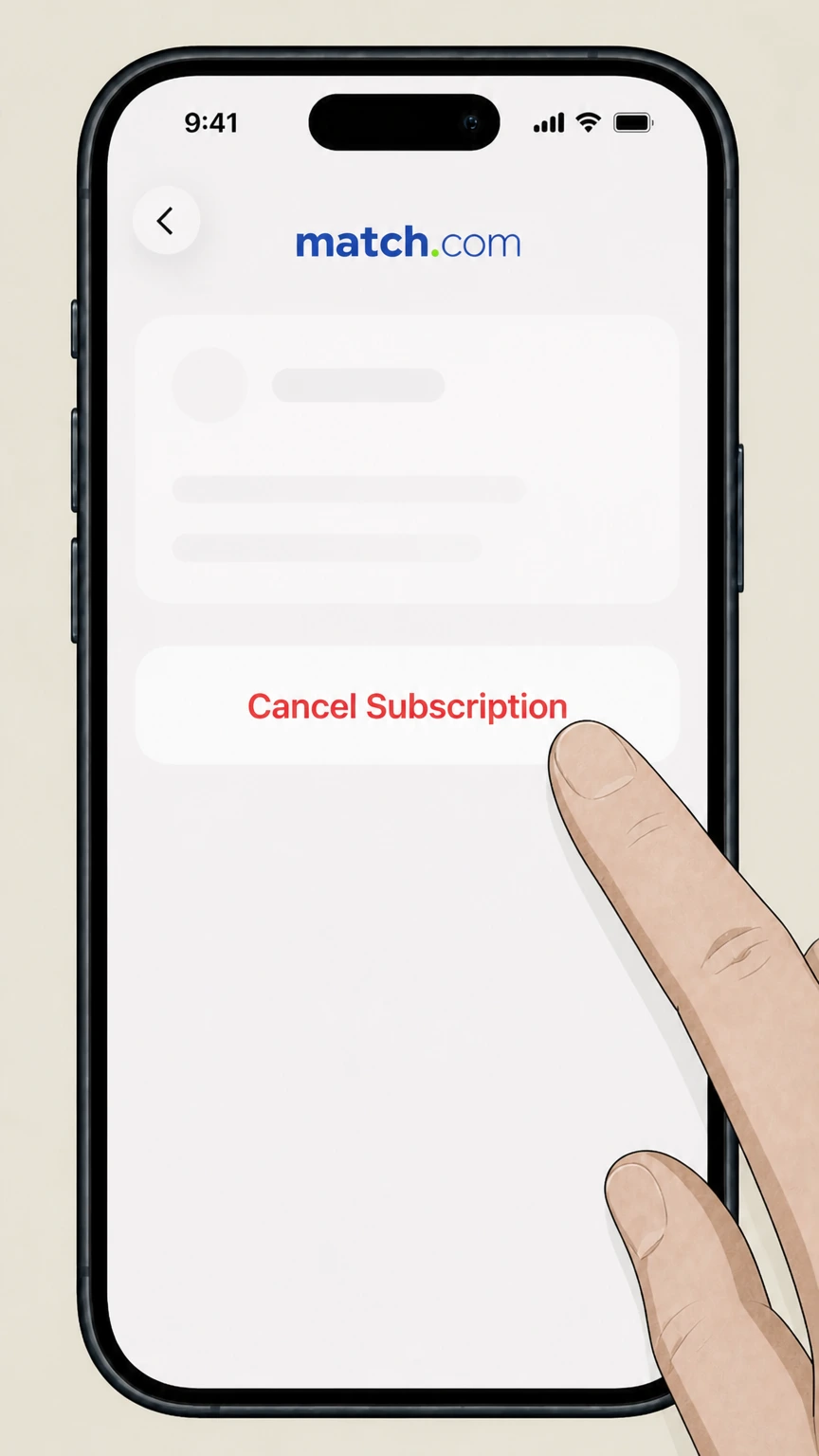
Tap "Cancel Subscription" and follow the prompt to confirm cancellation.
Google Play (Android, Google Play–billed) · verify the billing owner
Google Play (Android, Google Play–billed)
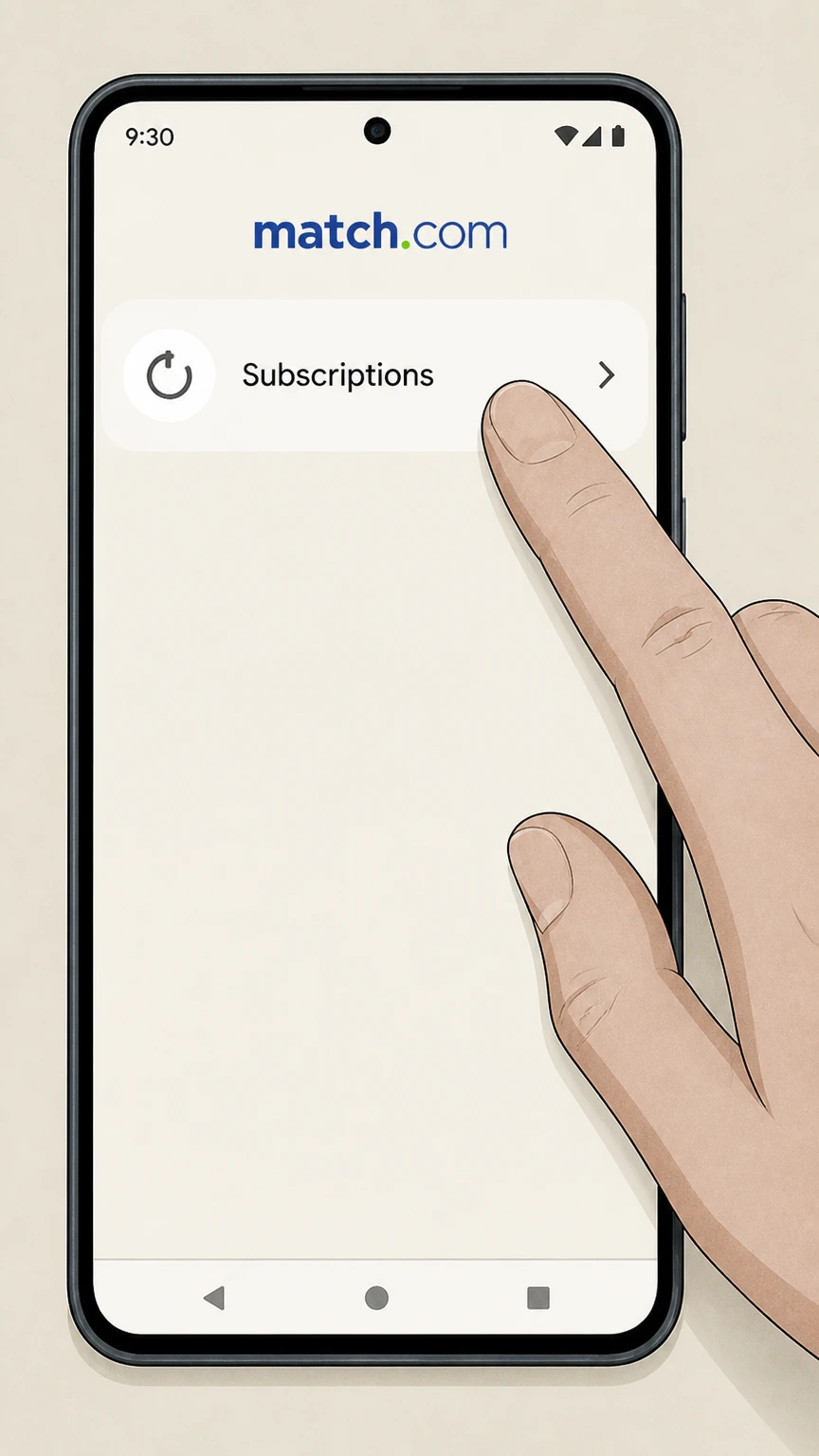 1
1Open Google Play subscriptions
On your Android device, open subscriptions in the Google Play app.
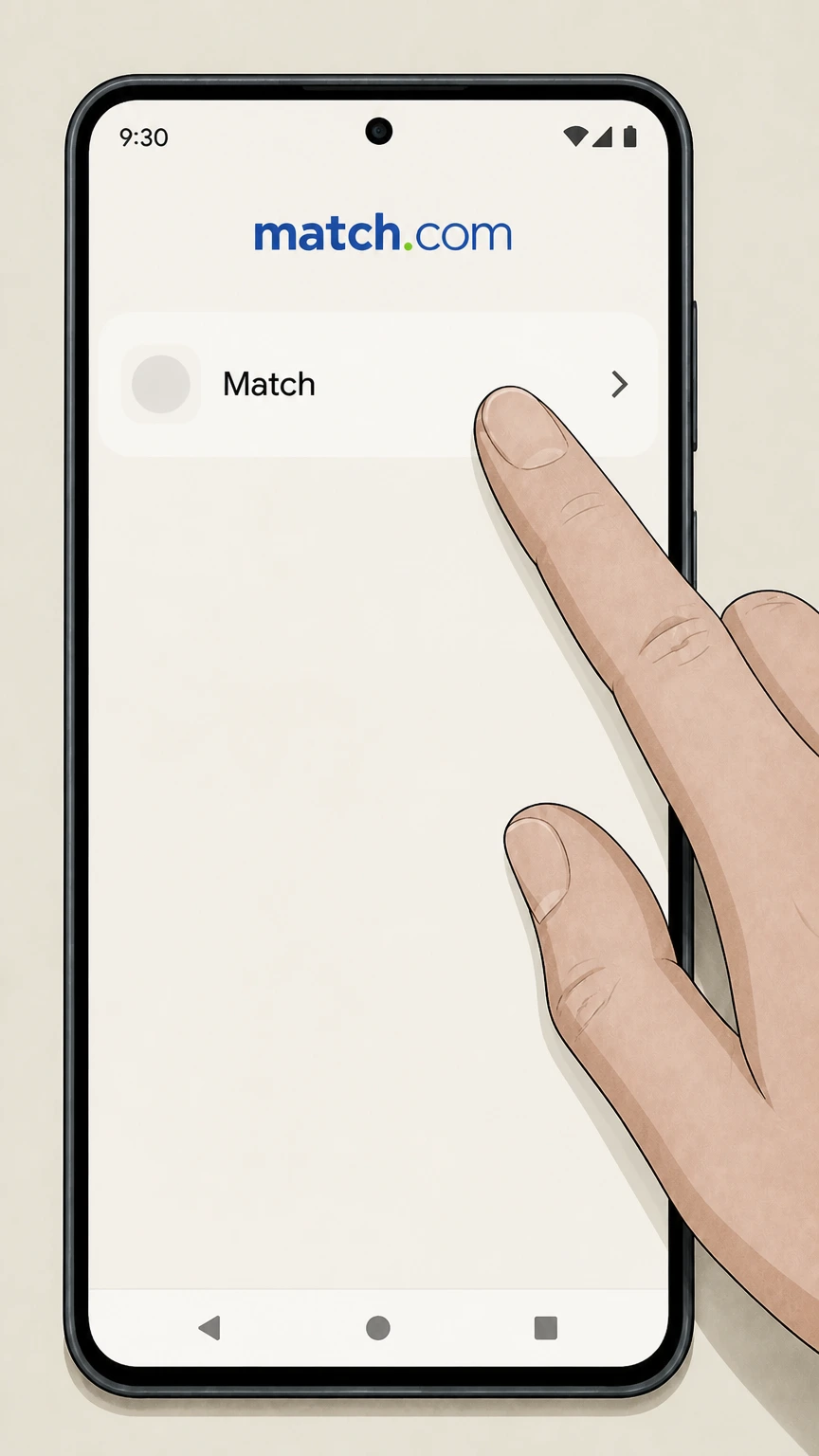 2
2Select Match
In the subscriptions list, tap your Match subscription.
- Let Pine handle it
Pine can help
Too many steps?
Pine can find the right Google Play (Android, Google Play–billed) path and handle the cancellation for you.
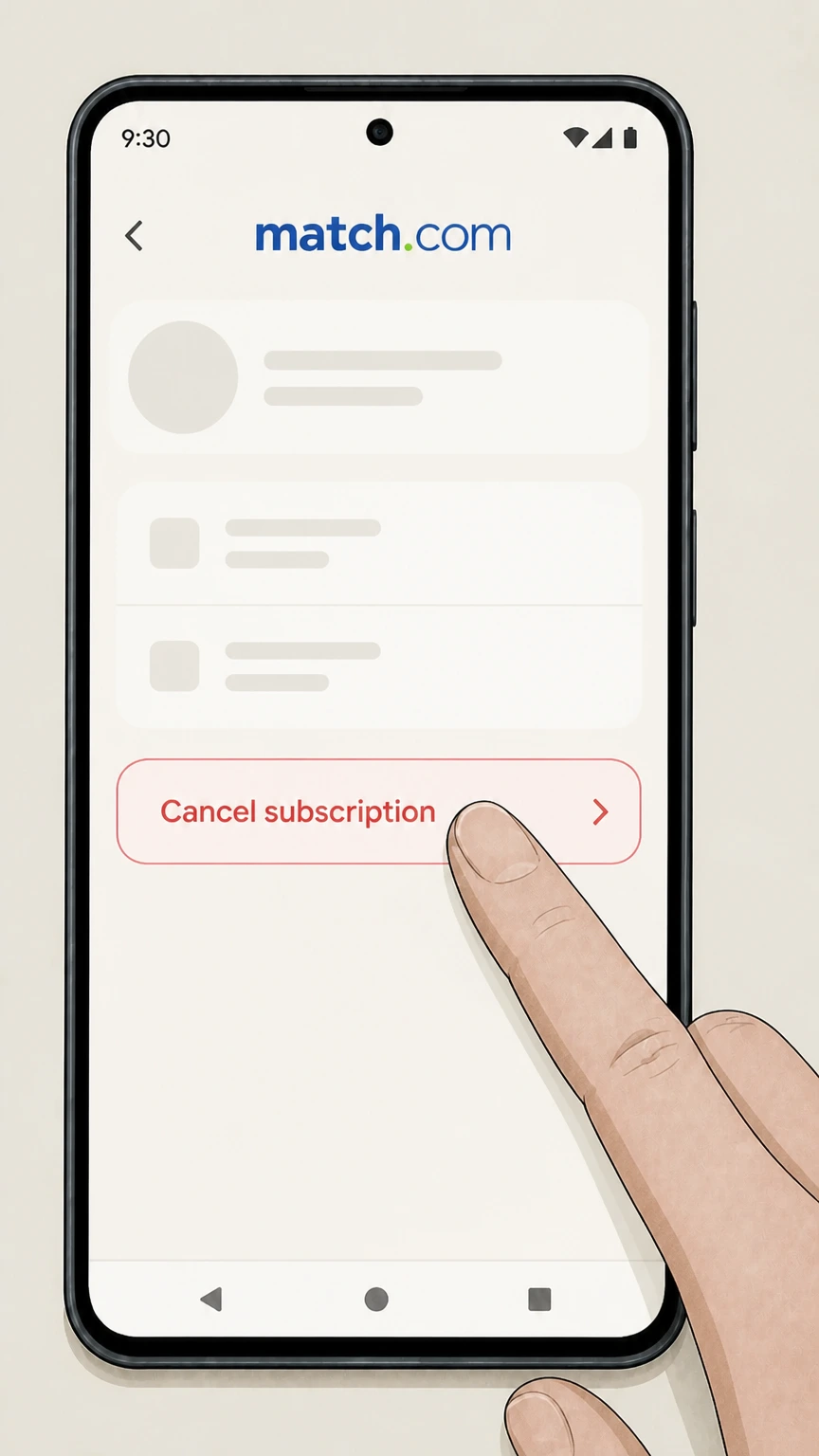 3
3Tap Cancel subscription
Tap "Cancel subscription" for Match on the billing account used for this subscription.
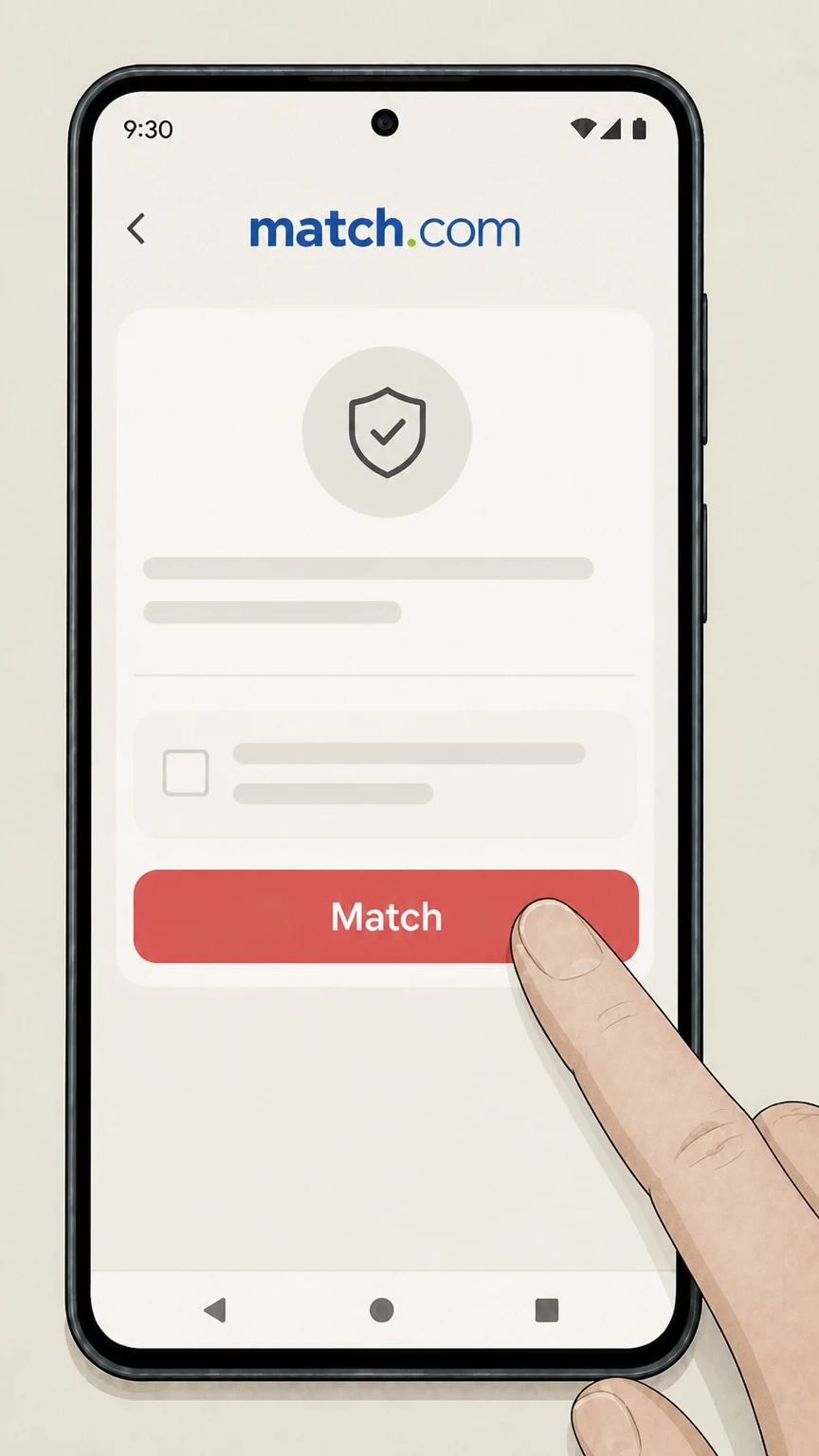 4
4Confirm cancellation
Follow the on‑screen instructions to confirm that you want to cancel the subscription.
Refund policy
Match subscription refunds after cancellation
Match states that subscriptions are generally non‑refundable and that cancelling primarily stops future renewals rather than generating a refund. Some users may have additional rights or exceptions under Section 8 of the Terms of Use or under Apple’s and Google’s own policies, depending on how and where they purchased the subscription.
Check my refund options- General rule: subscriptions are non-refundable
- Match’s Refund Policy explains that, as a general matter, subscription payments are non‑refundable. Cancelling through Manage Subscription or an app store stops future renewal charges but does not automatically credit back previous payments.
- Apple-billed refund handling
- For subscriptions purchased through the iOS app with Apple ID billing, Match states that it cannot change billing or issue refunds and that all refund requests must be made to Apple using the customer’s Apple account and Apple’s support workflow.
- External service purchases and refunds
- In its Terms of Use, Match classifies Apple and Google Play as External Service Purchases. These continue to be billed by the external provider until cancelled there, and any refund possibilities are governed by that provider’s terms and, where applicable, by Section 8 of Match’s Terms.
- Internal purchases and statutory rights
- For subscriptions billed directly by Match, certain users may have specific statutory or contractual refund rights described in Section 8 of the Terms of Use, such as cooling‑off provisions or hardship scenarios. Eligibility depends on jurisdiction and the circumstances of the purchase.
- Virtual items and add-ons
- Match’s Terms specify that purchases of Virtual Items are final and non‑refundable. Add-on subscription features follow the same general non‑refundability, though you can deactivate them so they do not renew at the next billing cycle.
If you need precise information about your own refund eligibility, review Section 8 of Match’s current Terms of Use and the Refund Policy, and then contact the correct billing owner (Match, Apple, or Google Play) using the channels they provide. Read Match’s current refund policy
Billing ownership
Who controls billing and cancellation for Match
Match differentiates between subscriptions billed directly by Match and those billed by external app stores. Knowing who billed you determines where you must cancel and who can review any refund request.
Internal Match purchases
Subscriptions bought on Match.com or inside the app with standard payment methods are "Internal Purchases" and are processed and managed directly by Match, including auto‑renewal controls on the Manage Subscription and Subscription Status pages.
Apple in-app purchases
If you subscribed via the Match iOS app using your Apple ID, Apple is the billing owner. Match’s Help Center notes that Apple manages subscription and billing information and that Match cannot change auto‑renewal or issue refunds for these purchases.
Google Play purchases
Match’s Terms of Use classify Google Play subscriptions as External Service Purchases. Google processes the payments, and you must manage or cancel the subscription from your Google Play account, not within Match.
How to identify your billing source
Match’s Terms explain that External Service Purchases are charged to your Apple ID or Google Play account, while Internal Purchases use the payment method you saved on Match. If you do not see a subscription on your Match Subscription Status page, check receipts or statements for Apple or Google Play charges.
Match.com web steps
Cancelling a Match-billed subscription on the web
Match’s Help Center and FAQ navigation describe how to reach your Subscription Status page, where you can turn off auto‑renewal for a subscription purchased directly from Match.
Use Manage Subscription in account settings
The Canceling a Match Subscription article explains that you can cancel a subscription through Manage Subscription in your account settings on desktop, mobile web, or in the app, which turns off auto‑renewal rather than ending access immediately.
Navigation on desktop
The Checking My Renewal or End Date article describes the desktop path as clicking the gear icon after logging in, then choosing Manage Subscription, then Subscription Status, where your subscription’s End Date and Renewal Status are displayed.
Navigation on mobile web and app
On mobile web and in the Match app, Match instructs you to tap the Profile icon, tap the gear icon, then tap Manage Account (if shown) and Manage Subscription, followed by Subscription Status to reach the same subscription details page.
Cancellation effect on access
Match’s Terms of Use state that when you cancel a subscription you may continue using the cancelled service until the end of your then‑current term; the subscription simply will not renew after the end date shown on the Subscription Status page.
Apple billing
Cancelling Match when billed through Apple
For Match subscriptions purchased through Apple’s App Store, both Match and Apple documentation specify that only Apple can manage auto‑renewal, cancellation, and refunds.
Match’s guidance on Apple billing
Match’s payment options article explains that when you subscribe through the iOS app as an in‑app purchase, your subscription and billing information are managed by Apple, and Match cannot turn off auto‑renewal or issue refunds; Apple Support must be contacted for billing changes.
Apple’s iPhone cancellation steps
Apple’s "If you want to cancel a subscription from Apple" page instructs iPhone users to use Settings, tap their name, tap Subscriptions, select the subscription, and tap Cancel Subscription if it is still active.
Continued access after Apple cancellation
Match’s Terms explain for External Service Purchases such as Apple ID subscriptions that cancelling stops future renewals while allowing continued use of the cancelled service until the end of the then‑current subscription term.
If Match does not show your subscription
If you do not see a paid plan on your Match Subscription Status page but still receive charges labelled as Apple, Match’s and Apple’s support materials indicate the subscription is likely Apple‑billed and must be cancelled in your Apple ID account rather than on Match.
Google Play billing
Cancelling Match when billed through Google Play
Google Play subscriptions behave like other External Service Purchases for Match: Google handles charging and auto‑renewal, and you cancel through your Google account.
Terms for External Service subscriptions
Match’s Terms of Use state that External Service Purchases, including those billed through Google Play, automatically renew until cancelled and must be managed or cancelled from the external account, even if you delete your Match account or app.
Google Play app cancellation steps
Google’s Android Help article on cancelling a subscription explains that you open subscriptions in the Google Play app on your Android device, select the subscription, tap Cancel subscription, and follow the confirmation instructions.
Ongoing access after cancellation
The same Google Play guidance and Match’s Terms explain that after cancelling, you normally retain access to the subscription benefits for the period you have already paid, and you are not charged for subsequent renewal cycles.
Verifying which Google account was used
Google advises confirming that you are signed into the correct Google account when managing subscriptions; if Match does not appear under subscriptions for one account, try other Google accounts you use to ensure you cancel the right subscription.
After cancellation
What happens to your Match access after cancelling
Cancelling a subscription is different from deleting your Match account or cancelling add-on features. Match’s help content and Terms describe what continues, what stops, and how your data is handled.
Subscription access until end date
Match’s Terms clarify that when you cancel a subscription, you may continue using the cancelled service until the end of your current subscription term, at which point it stops renewing and your account reverts to free use only.
Free member status after expiry
The Reactivating a Paid Subscription article notes that once your renewal date has passed, your subscription is considered expired and your account moves into "free member" mode, losing paid features but retaining a basic profile.
Account cancellation and profile visibility
In the Canceling a Match Subscription article, Match explains that cancelling your membership or account (after you have no active subscription) hides your profile and photos, but your data is retained per the Privacy Policy and you can reactivate by signing in again.
Add-ons and free trials
Match describes that cancelling an add‑on feature such as Private Mode stops it from renewing at the next billing cycle while remaining active until its end date, and that cancelling a free trial immediately ends access and turns off its upcoming billing.
Auto-renewal
Match auto-renewal rules and confirmation checks
Match relies on automatic renewal for all subscription packages. Help Center articles show how to see your renewal status and clarify that you must turn off auto‑renewal to stop future charges.
All subscription packages auto-renew
Match’s Subscription Package Options article states that all subscription packages include auto‑renewal and that you can turn off auto‑renewal at any time after purchase if you do not want the subscription to renew.
Turn off auto-renewal from Subscription Status
The Subscription Was Automatically Renewed article explains that you can prevent future charges by turning off auto‑renewal via your Subscription Status page, which is accessible through Manage Subscription in your account settings.
Checking renewal or end date
The Checking My Renewal or End Date article walks through reaching Subscription Status on desktop, mobile web, and the app, where you can see both the subscription End Date and Renewal Status for confirmation that auto‑renewal is off.
Reactivating auto-renewal
Match’s Reactivating a Paid Subscription article explains that if your subscription has not yet expired, you can click Reactivate to turn auto‑renewal back on without being charged immediately; the subscription will renew at the end of the current term unless you turn it off again.
Refunds & rights
Refunds, statutory rights, and what cancellation does not do
Match distinguishes between cancellation (turning off auto‑renewal), refunds, and legal cooling‑off rights. Its Refund Policy and Terms of Use provide the framework for when money may be returned and by whom.
General non-refundability
Match’s Refund Policy notes that subscriptions are generally non‑refundable and that customers should consult Section 8 of the Terms of Use for the complete refund policy, rather than assuming a refund will follow cancellation.
Apple-managed refunds
Match’s payment options article and Terms specify that if you subscribed using your Apple ID, refunds are handled by Apple, not Match, and you must request any refund or billing correction directly from Apple using your Apple account tools or support channels.
Refunds for other purchases
For Internal Purchases and certain statutory situations described in Section 8 of the Terms (such as specific cooling‑off or hardship scenarios), Match directs users to contact its Customer Service via the Help Center or other listed channels to request a refund, subject to applicable law.
Cancellation vs. refund or deletion
Match’s materials emphasize that cancelling a subscription only stops future renewals and does not by itself delete your account, erase stored data, or guarantee a refund. Separate actions are required if you want to cancel membership, and refund eligibility is governed by the Terms and local law.
Match cancellation FAQ
Answers about Match billing ownership, cancellation timing, refunds, and access after cancellation.
How do I completely cancel my Match subscription?
How do I shut down my Match.com account?
Why is Match.com still charging me?
How do I cancel my match subscription on my iPhone?
How do I know if my Match subscription is cancelled?
Does cancelling Match delete my profile?
Can I get a refund from Match after cancelling?
How do I cancel Match if I paid through Google Play or Android?
Can I reactivate my Match subscription after turning off auto-renewal?
Untangle this Match issue.
Let Pine handle the provider follow-up and keep the confirmation in one place.
