


Figma
Cancel subscription
How to Cancel Figma Subscription: Official Steps
Learn how to cancel your Figma subscription from the admin dashboard, move to a free Starter team, and see how billing, seats, and file access change afterward.
- 13 current official sources checked
- 1 billing route separated
- Legacy Provider and equivalent Blog content reconciled claim by claim
- Steps, outcomes, refund boundaries, and related products revalidated
How to cancel Figma through the correct billing owner
Web cancellation
Cancel Figma through Web
 1
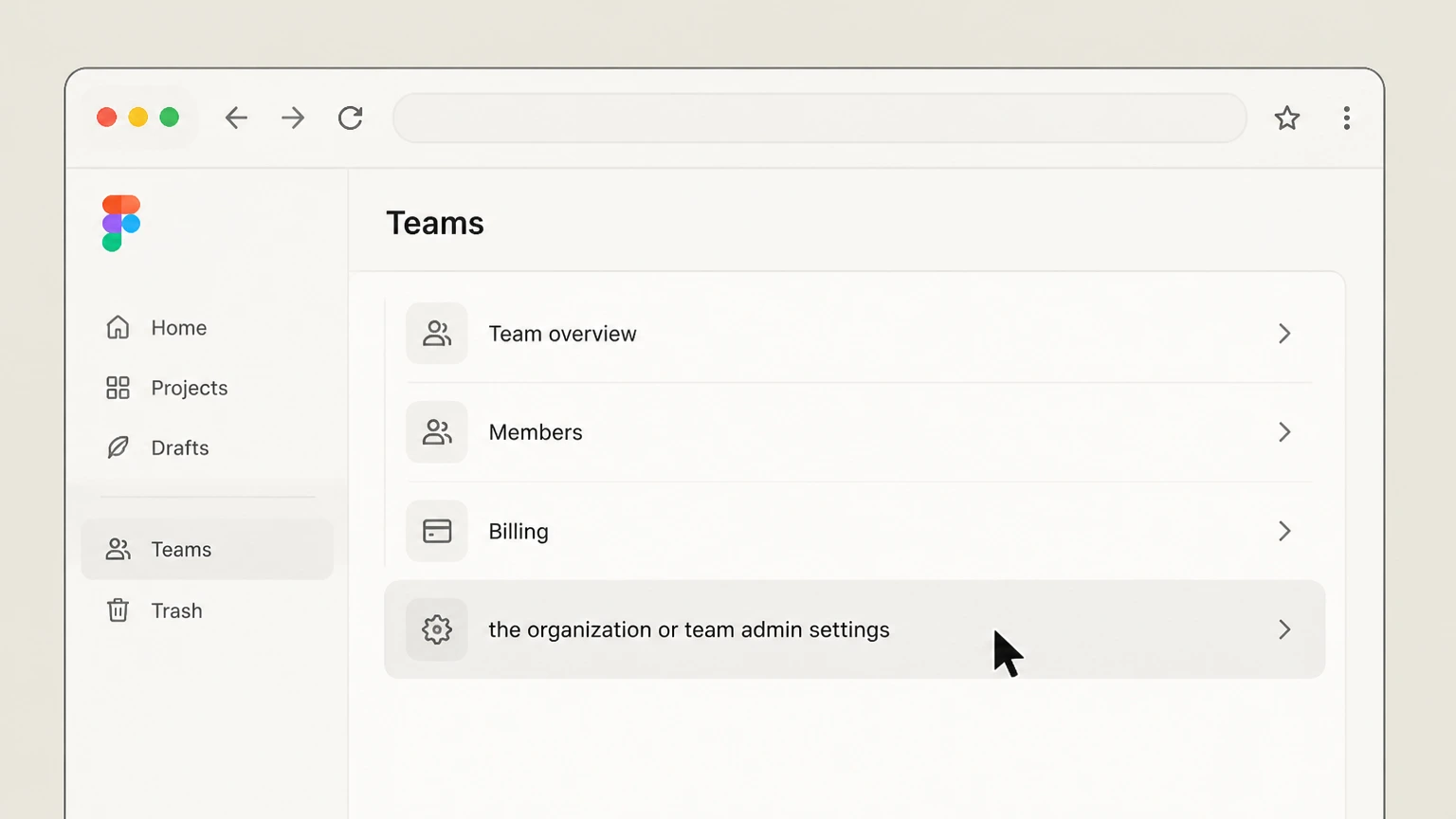
1Open the organization or team admin settings
In a desktop browser, go to figma.com and sign in, then return to the file browser if you are currently inside a file. In the left sidebar, click the team or organization whose paid plan you want to stop, then choose the 'Admin' option; if you do not see 'Admin', your account does not have permission to manage billing for that workspace.
 2
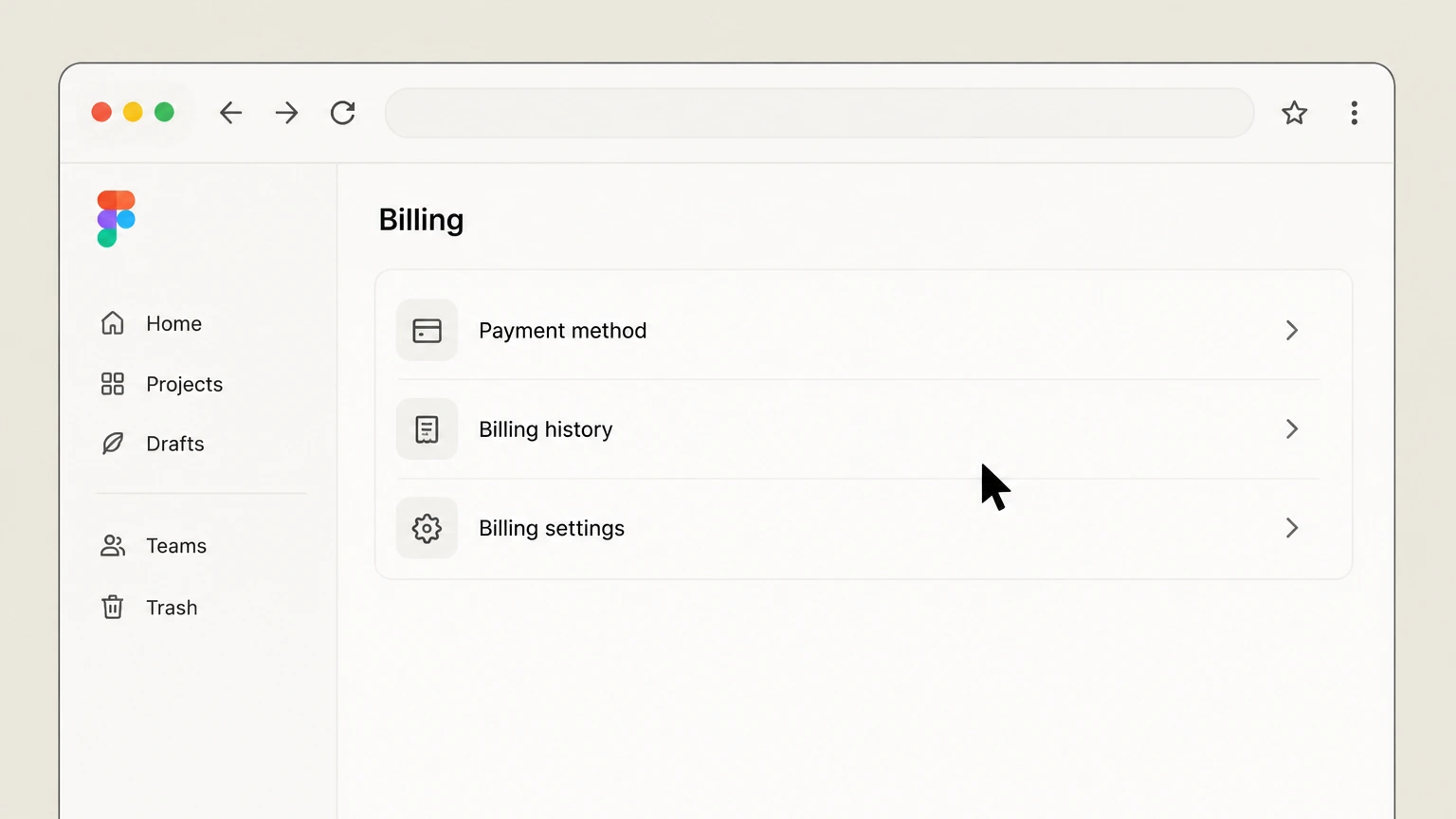
2Open Billing
From the Admin view, open the 'Billing' tab to see a summary of the current plan, upcoming invoice dates, and the number of paid seats. On some Professional teams, you may instead open the 'Settings' tab first and then scroll to the Plan and Billing section, which links into the same billing overview. Confirm you are looking at the correct team or organization.
- Let Pine handle it
Pine can help
Too many steps?
Pine can find the right Web path and handle the cancellation for you.
 3
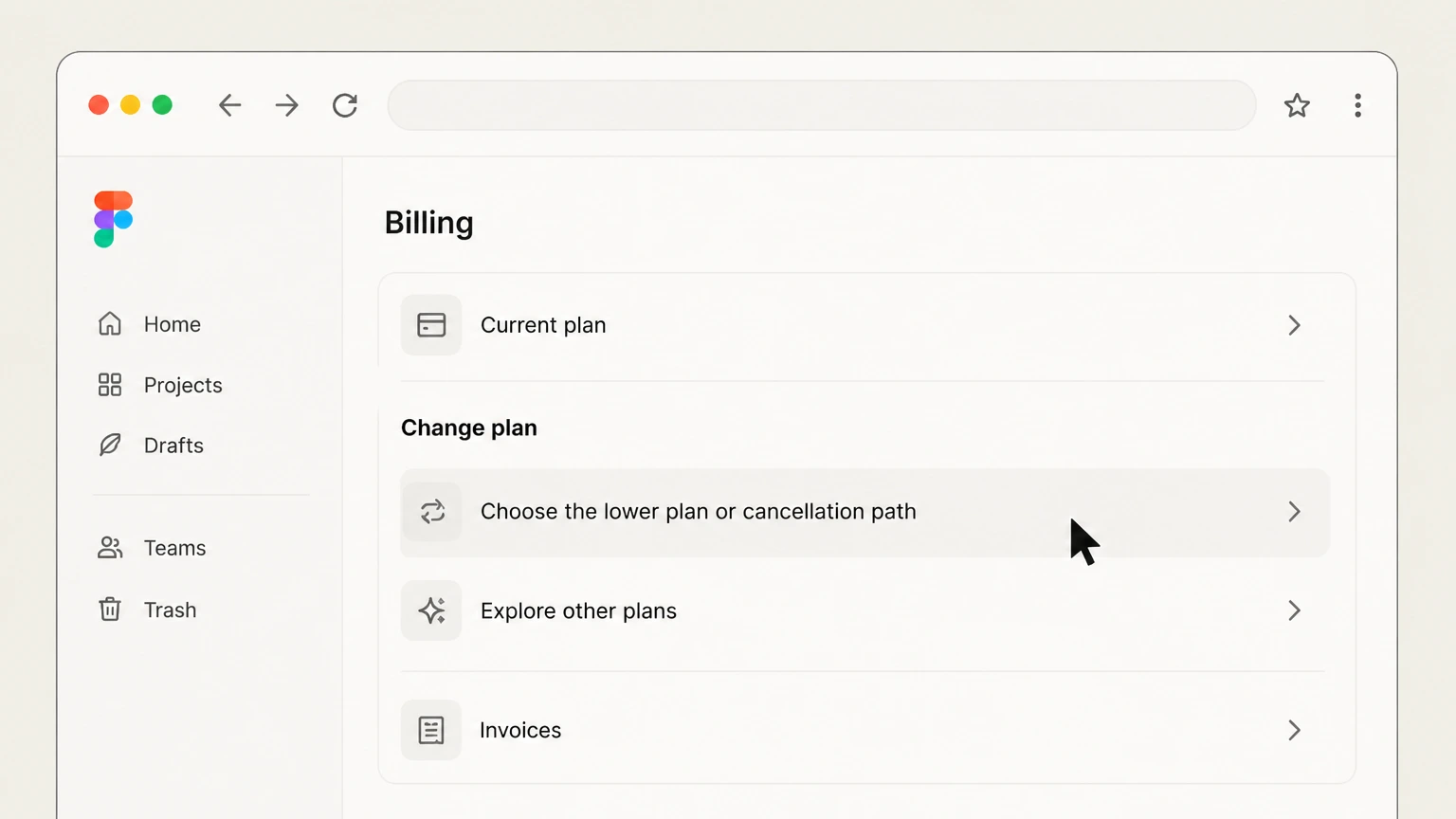
3Choose the lower plan or cancellation path
In the plan or billing area, locate the control to stop the paid plan. On Professional teams this appears as a 'Cancel plan' link or a 'Downgrade to a Starter team' action in the Plan section; use it and follow the on‑screen prompts. For Organization and Enterprise plans, use the Billing tab’s guidance or embedded links to contact Figma during the allowed renewal window to request a downgrade or cancellation under your contract.
 4
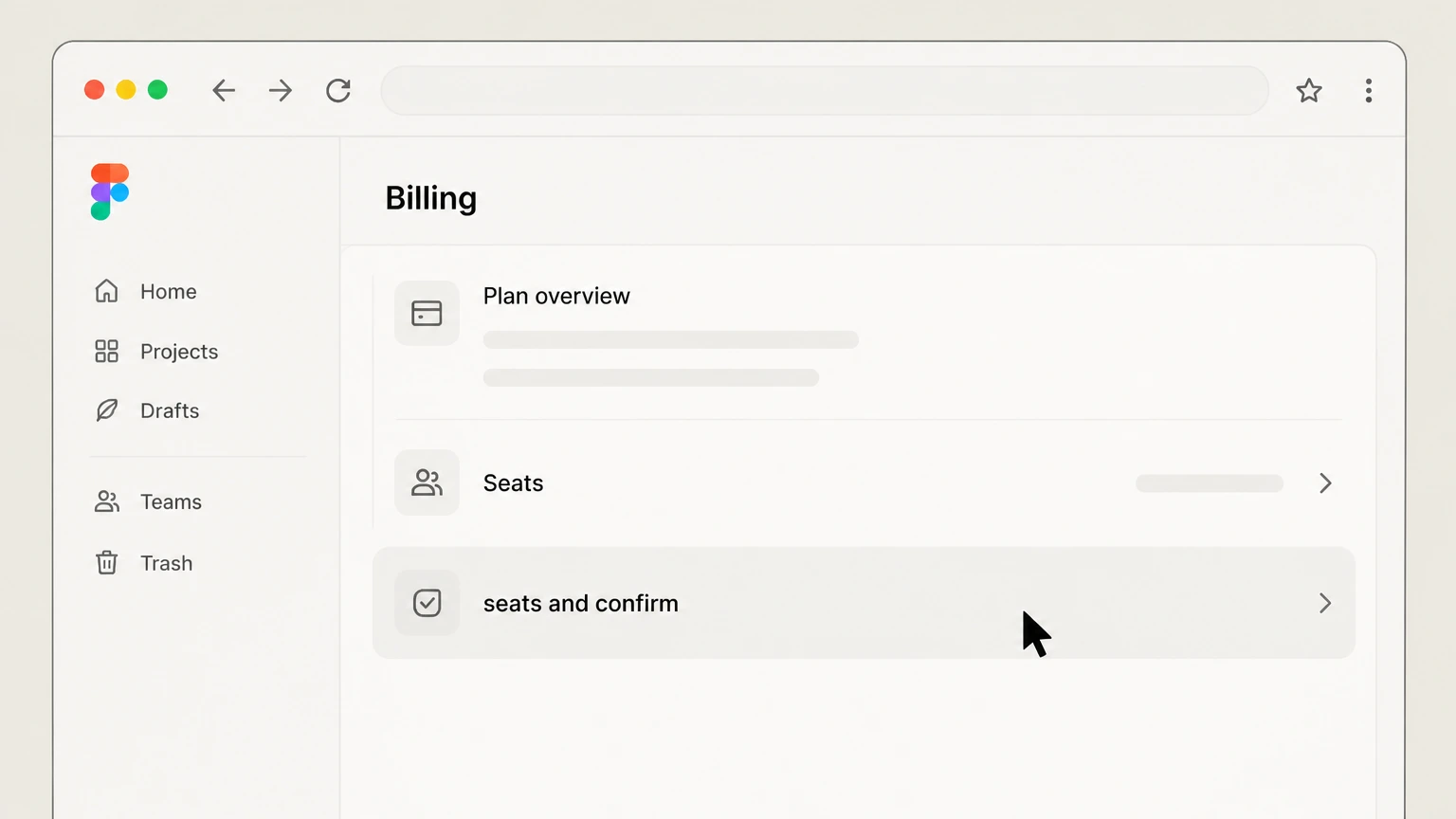
4Review seats and confirm
Before confirming, review the Billing overview to check current seat counts, upcoming invoices, and how your projects and files compare to Starter limits. Move or export any work you still need, and consider reducing unnecessary paid seats first if you plan to stay on a paid plan. When you submit the cancellation reason and confirm, Figma applies any final prorated seat charges on your last invoice, keeps paid features active until the billing period ends, and then downgrades the team to a Starter plan.

Refund policy
Figma refunds and billing corrections
Figma’s user‑facing support articles frame subscription payments as non‑refundable, but its legal renewal terms describe narrow exceptions and cancellation windows. Treat cancelling your subscription and asking for a refund as related but distinct steps.
Check my refund options- Most subscription payments are non‑refundable
- Help Center and pricing FAQs specify that payments for Figma subscriptions are non‑refundable, and cancelling a plan does not usually credit you for unused time in the current term. Instead, you keep access to paid features until the billing period ends, after which the team downgrades to a free Starter plan.
- Exceptions in renewal and cancellation terms
- Figma’s Renewal & Cancellation Terms for Online Purchases describe limited exceptions, such as when Figma increases fees and a customer terminates during the notice period, in which case pre‑paid but unused amounts may be refunded. These contract‑level rights exist alongside, and do not override, the general no‑refund messaging in product docs.
- Annual‑term cancellation windows
- For many online annual subscriptions, Figma’s legal terms allow customers to cancel within a defined window—commonly the 30 days before the end of the annual term—by contacting Support. Doing so prevents the next term from renewing, but charges already paid for the current term are normally not refunded.
- Handling billing errors and disputes
- If you believe there is a billing error or unexpected charge—for example, from new seats approved mid‑term—Figma directs you to contact Support via the in‑app help widget or support email. Even though standard subscription fees are non‑refundable, Support can review invoices and account activity and may adjust charges where errors occurred.
- Community and plugin purchase refunds
- Paid Community resources follow a slightly different process: you can review purchases under the Community tab in account settings and are instructed to contact the resource creator for support or refunds. For plugin subscriptions managed through Figma’s payment platform, changes and potential refunds are handled via your Stripe customer portal.
If you are on an annual contract or believe a price change or billing error might qualify you for a partial refund, review Figma’s Renewal & Cancellation terms, then contact Figma Support from within the product with your invoices and a clear explanation of the issue. Review Figma renewal & cancellation terms
Permissions
Who can cancel each Figma plan
Figma ties cancellation rights to admin roles and plan type rather than to who owns the payment method. Use this overview to confirm whether you can see the Cancel plan controls yourself or need to escalate to another admin.
Professional teams
On the Professional plan, only team admins can manage billing, including cancelling or downgrading the team, adjusting seat types, and updating the payment method. If your view only shows files and projects without an 'Admin' tab, you are not a team admin and must ask an existing admin to start cancellation.
Organization and Enterprise admins
For Organization and Enterprise plans, only organization admins—and, for some seat‑level tasks, billing group admins—can manage billing. Plan‑level downgrades or cancellations must be initiated by organization admins and may require coordination with Figma Support or an account manager instead of a self‑serve Cancel plan button.
Order‑form subscriptions
Some Organization and Enterprise customers purchase subscriptions via negotiated order forms. Those contracts can restrict which billing changes admins may perform directly in Figma, with renewals and cancellations handled through Figma’s sales or account team according to the order form rather than a purely self‑serve workflow.
Account vs team ownership
Closing your personal Figma account does not cancel team subscriptions. Figma’s account‑deletion guidance explicitly requires cancelling Professional subscriptions or downgrading to Starter first, and recommends updating billing information so collaborators retain access rather than unexpectedly losing a paid workspace.
After cancellation
What downgrading to Starter changes
Cancelling a Professional subscription downgrades that team to the free Starter plan at the end of the billing period. This changes how many projects and files you can actively edit and disables some publishing capabilities tied to paid plans.
Project and file limits
Starter teams are limited to one project and a capped number of editable files per Figma product in that project. If your team exceeds these limits when the downgrade takes effect, Figma prevents further editing and file creation until you move files to drafts or other teams or upgrade back to a paid plan.
Locked editing when over limits
When a Professional team is downgraded while still above Starter limits, files remain visible but change into a locked state where you can no longer edit them. To restore edit access without upgrading, you must reorganize—moving files or projects so usage falls within Starter’s project and file caps.
Published sites and apps
Any Figma Sites or Figma Make apps published from the team are automatically unpublished on downgrade. If those URLs are important, capture final assets or migrate the project to a plan that will remain paid before cancelling so you are not surprised by sites going offline.
Team deletion vs downgrade
Cancelling the subscription and downgrading to Starter does not remove the team. To eliminate the workspace, a team owner or admin must explicitly delete the team from the All projects view; Figma then deletes projects, moves files to the Deleted tab, and sends an email with a time‑limited restore link.
Billing
Billing cycles, renewals, and final invoices
Figma’s billing model combines plan type, term length, and seat count. Knowing how renewals and true‑ups work helps you time cancellation and avoid paying for unused capacity.
Professional monthly vs annual
Professional plans can be billed monthly or annually. On annual Professional plans, extra paid seats added during the term are charged on separate monthly invoices at prorated amounts and continue to renew monthly unless you explicitly add them to the next annual term or remove them before renewal.
Organization and Enterprise renewals
Organization and Enterprise subscriptions use annual terms with quarterly invoices, and seat counts are typically adjusted at annual renewal. Documentation for AI and billing notes that downgrades or cancellations on these plans may only be allowed during a 30‑day renewal window before the contract renewal date.
Effect of cancellation timing
When you cancel a Professional plan, Figma keeps the subscription active until the end of the current billing period and then downgrades the team to Starter. Any additional seats you added before requesting cancellation are prorated and appear on your last invoice, alongside access to all Professional features through the period end.
Seat review before renewal
Seat‑management guidance explains that seats are purchased for a billing term and can be removed at renewal. Ahead of renewal dates, admins may see banners or prompts on the Billing overview encouraging them to review and reduce unused seats so those do not renew into the next term.
Seats & access
How seats behave when you cancel
Cancelling changes your billing and plan limits, but user access is still governed by seat types and when the downgrade actually occurs. Understanding seats can help you reduce cost without fully leaving Figma.
Seat types last through the term
On paid plans, every member or guest has a seat type—Full, Dev, Collab, or View—and subscription cost depends on how many paid seats you hold. Cancelling a Professional subscription leaves existing seats active until the billing period ends; afterward, all users are constrained by Starter’s project and file limits.
Removing or reassigning users
If you want to stop paying for a particular editor before cancellation, admins can move the person to a free View seat or remove them from the team or organization. Their previous paid seat becomes available for someone else to use during the term, helping you use all purchased capacity.
Available vs assigned seats
Figma bills for both assigned and unassigned (available) paid seats. When someone leaves or is moved to a View seat, their paid seat remains on the subscription but can be reassigned. You permanently remove those unused seats only when you adjust seat counts during the appropriate renewal workflow.
Impact on drafts owned by downgraded users
When an admin moves a user from a paid seat to a free View seat, that person can still view but no longer edit files. Draft files owned solely by them may become inaccessible to collaborators unless those files are moved into shared projects or ownership is transferred before the seat change.
Reducing seats instead of cancelling
If cost is the main concern, admins can lower future bills without fully cancelling by moving some users to free View seats or removing them from the team, then reducing total seat counts at renewal. This keeps the Professional, Organization, or Enterprise feature set while shrinking the number of paid seats.
AI & add‑ons
AI credits and other add‑on subscriptions
AI credits and paid Community resources have their own billing lifecycles. Cancelling a core seat plan does not automatically adjust these add‑ons, so admins should review them separately.
AI credits on Professional plans
On Professional plans, additional AI credits purchased as a subscription are billed monthly, even if your main plan is annual. Admins can upgrade, downgrade, or cancel the AI subscription at any time; changes generally apply on the next monthly AI billing date and are independent of your core plan’s renewal.
AI credits on Organization and Enterprise
On Organization and Enterprise plans, AI credits subscriptions align with the annual contract term. Charges are added to quarterly invoices, and admins can upgrade at any time but may downgrade or cancel AI subscriptions only during the 30‑day renewal window prior to the plan’s renewal date.
Pay‑as‑you‑go AI usage
If pay‑as‑you‑go AI billing is enabled, usage beyond included and subscription credits is charged on the next invoice up to an admin‑defined monthly limit. Lowering the limit or disabling pay‑as‑you‑go stops new metered usage but does not erase charges already accrued in the current month.
Community and plugin subscriptions
Paid Community resources are listed under the Community tab in account settings, where you can view purchases and contact creators for support or refunds. Plugin subscriptions purchased through Figma’s payment platform are managed via your Stripe customer portal rather than the main team Billing page, so cancelling seats will not automatically end them.
Accounts & teams
Account deletion, team deletion, and recovery
Stopping billing, deleting a team, and deleting your personal Figma account are different actions with different data and access consequences.
Cancel before deleting your account
Figma’s account‑deletion guide instructs you to cancel Professional subscriptions or downgrade teams to Starter before deleting your account. If you are paying for a team with other active users, you can update billing information so someone else becomes the billing contact and collaborators do not suddenly lose access.
Team deletion workflow
After a subscription is cancelled or a team is on a free plan, a team owner or admin can delete the team from the All projects view. Figma then removes the team from all members’ file browsers, permanently deletes projects, and sends any remaining files to the Deleted tab associated with their owners.
Restore window after deletion
When a team is deleted, Figma emails a confirmation that includes a restore link. Owners and admins have a limited 28‑day window to use that link to restore the team and its projects; after that, the team and its projects are permanently deleted.
Invoice access and exports
Invoices are managed from the Admin › Billing area. Because account deletion removes your access to these records, Figma recommends downloading any invoices you need for accounting before closing your account, especially if you have been the billing contact for a paid team or organization.
Export designs before closure
Figma uses proprietary .fig, .jam, and .deck formats that only open in Figma products. Before deleting your account or dramatically reducing access, the Help Center recommends exporting important designs so you can still open them elsewhere, for example by exporting frames or pages to common formats like SVG or PDF.
Troubleshooting
When you cannot find cancellation controls
Missing or unresponsive cancellation controls usually point to a permissions issue, a plan that requires support‑managed cancellation, or a browser or app context where billing tools are not available.
Admin tab not visible
If you cannot see an 'Admin' tab in the file browser sidebar for the relevant team or organization, you are not an admin there and will not see billing or cancellation options. Confirm who the team or organization admins are and ask them either to promote you or to perform the cancellation.
Organization and Enterprise contracts
Organization and Enterprise subscriptions may not expose a self‑serve Cancel plan button, particularly when purchased via negotiated order forms. In these cases, organization admins manage invoices and seats in the Billing tab but must work with Figma Support or their account manager to request downgrades or cancellations during the contract’s renewal window.
Using mobile instead of desktop
The Figma mobile app is built for viewing, commenting, and testing prototypes, not for billing administration. Billing documentation consistently locates plan and payment controls in the Admin and Billing areas of the file browser, so if you are using the mobile app and cannot find them, switch to a desktop browser or Figma desktop app.
Blank or stuck Billing pages
If the Billing tab or Settings › Billing section does not load, try signing out and back in, using another browser, or opening the same team in the Figma desktop app. When issues persist, use the in‑product help widget or contact form and include screenshots of the Admin and Billing views so Support can investigate.
Figma cancellation FAQ
Provider-specific answers based on official sources checked August 10, 2026. Signed-in terms, region, billing owner, and applicable law still control.
Can I cancel my Figma Professional subscription at any time?
What happens to my files, projects, and sites when I downgrade to Starter?
How do I know my Figma subscription is actually cancelled?
How do I cancel an Organization or Enterprise subscription?
Do I need to cancel seats separately, or does downgrading handle them?
What is Figma’s refund policy if I cancel or forget to cancel?
Can I cancel Figma from the mobile app?
How do AI credits and Community or plugin subscriptions behave when I cancel?
Untangle this Figma issue.
Let Pine handle the provider follow-up and keep the confirmation in one place.
