


Canal+
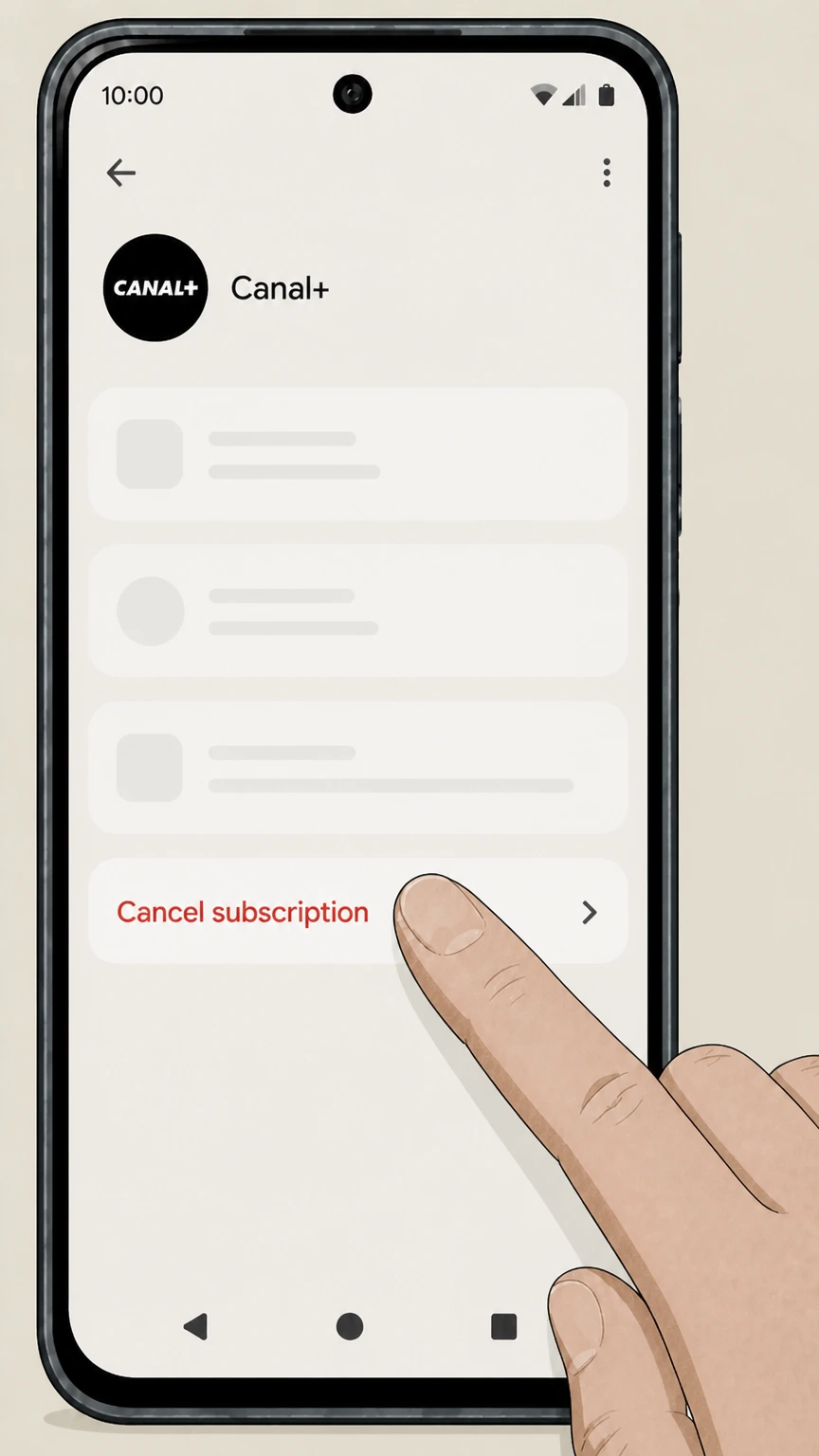
Cancel subscription
How to Cancel Canal+: Official Steps & Timing
Cancel Canal+ through the correct billing route. Follow official steps, understand renewal timing and refunds, and keep proof of the final result.
- 2 verified cancellation routes
- Billing ownership and renewal timing explained
- Provider-specific refund boundaries included
- A confirmation check follows every route
Choose the correct Canal+ cancellation route
Apple iOS (billed through Apple) · verify the billing owner
Cancel Canal+ through Apple iOS (billed through Apple)
 1
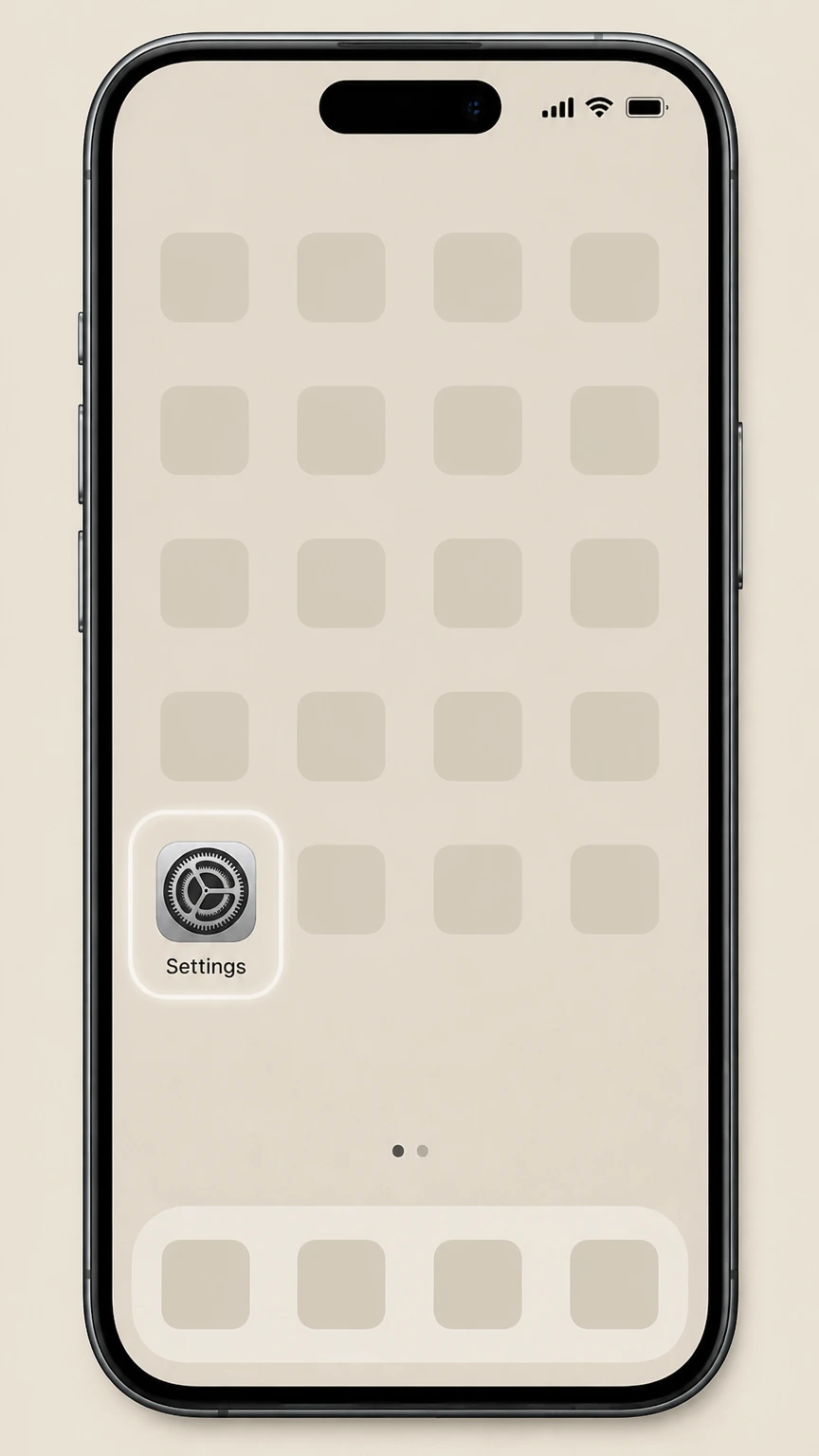
1Open Settings
On your iPhone or iPad, open the Settings app.
 2
2Tap your name
At the top of Settings, tap your Apple ID name banner.
- Let Pine handle it
Pine can help
Too many steps?
Pine can find the right Apple iOS (billed through Apple) path and handle the cancellation for you.
 3
3Open Subscriptions
Tap Subscriptions to view your active Apple-billed subscriptions.
 4
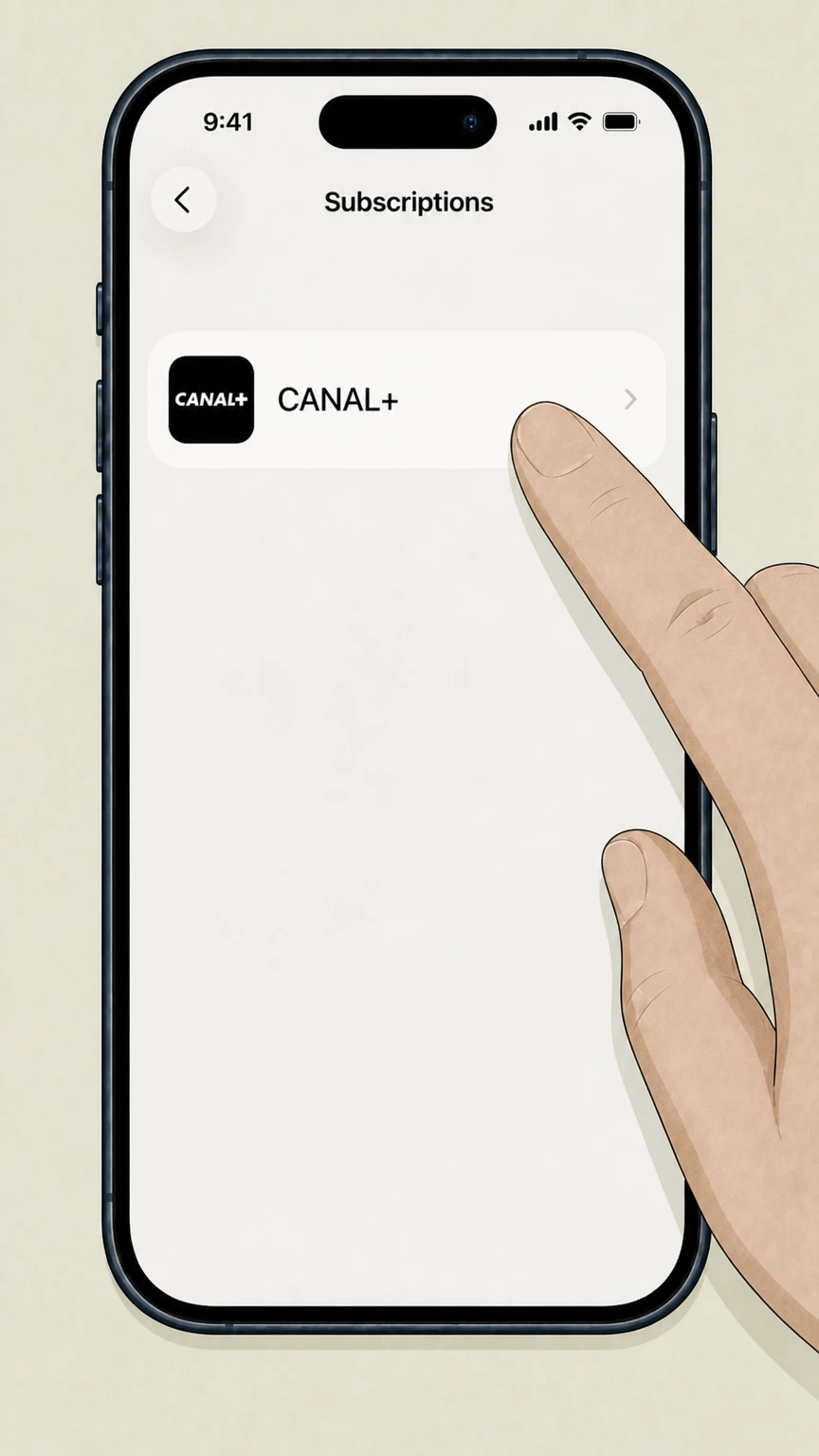
4Select Canal+
In the list of active subscriptions, tap Canal+.
 5
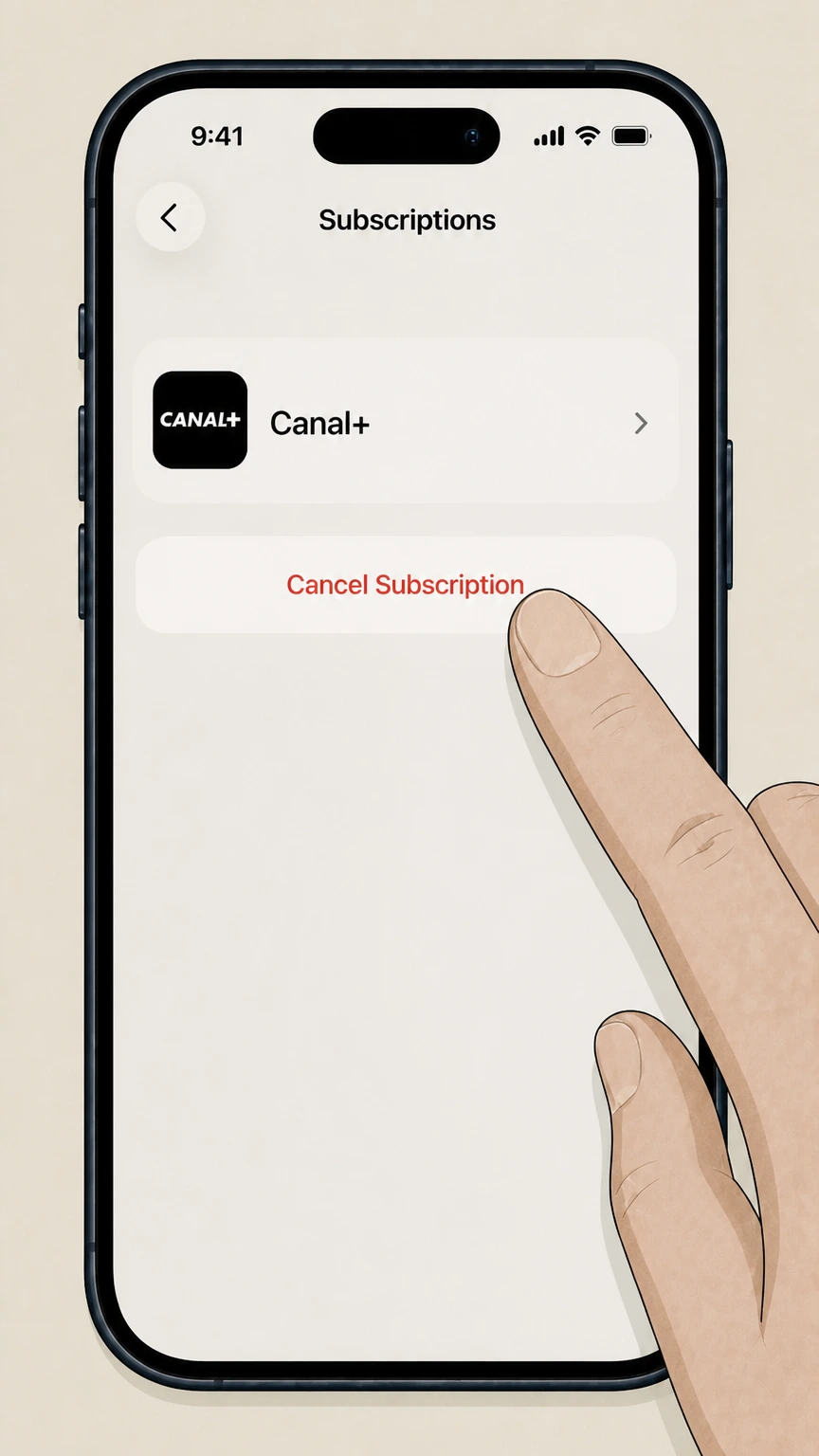
5Cancel the subscription
Tap Cancel Subscription and follow the prompts until the Canal+ subscription shows an expiration date instead of a renewal date.

Google Play (Android billing) · verify the billing owner
Cancel Canal+ through Google Play (Android billing)
 1
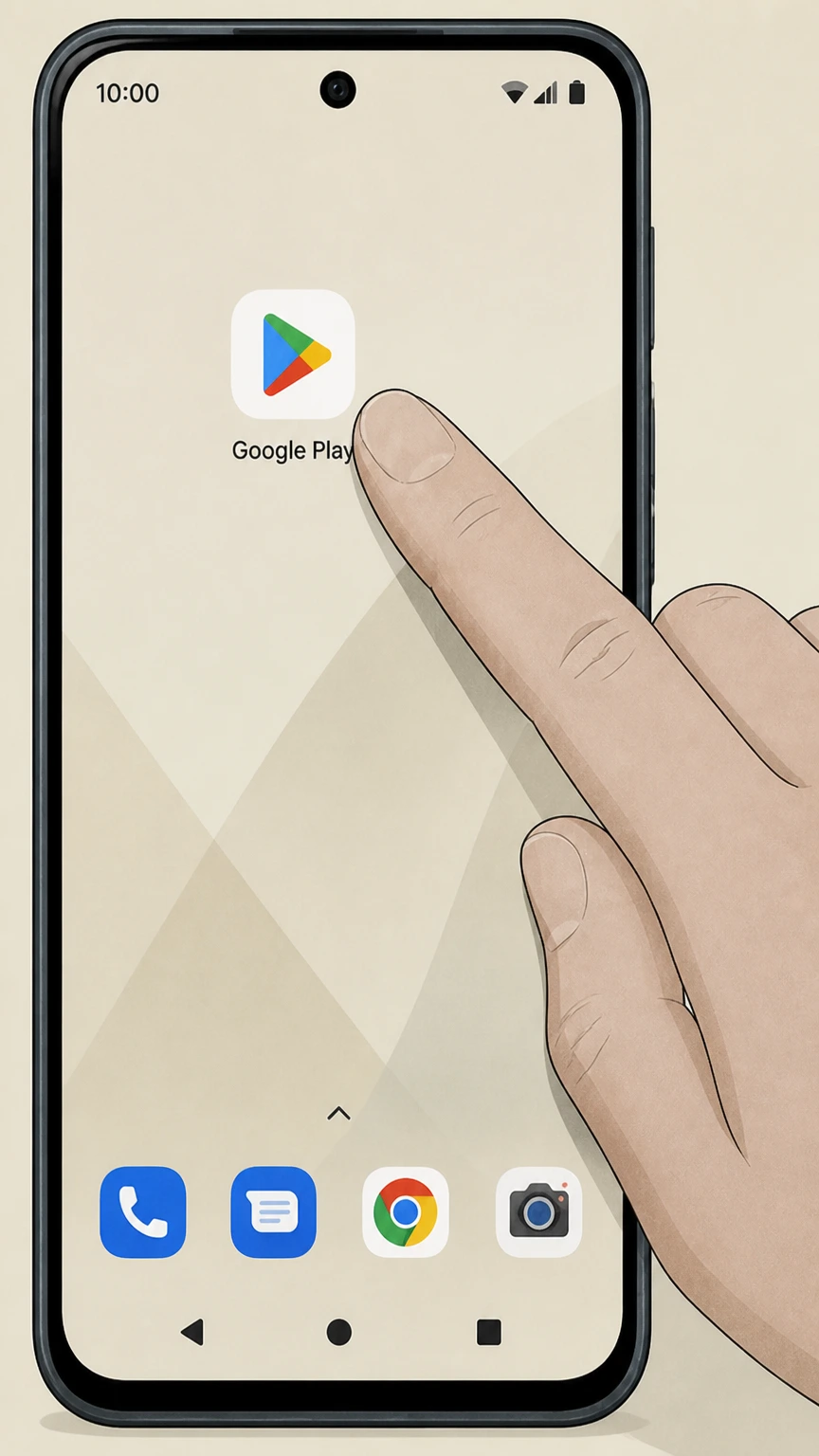
1Open Google Play Store
On your Android device, open the Google Play Store app.
 2
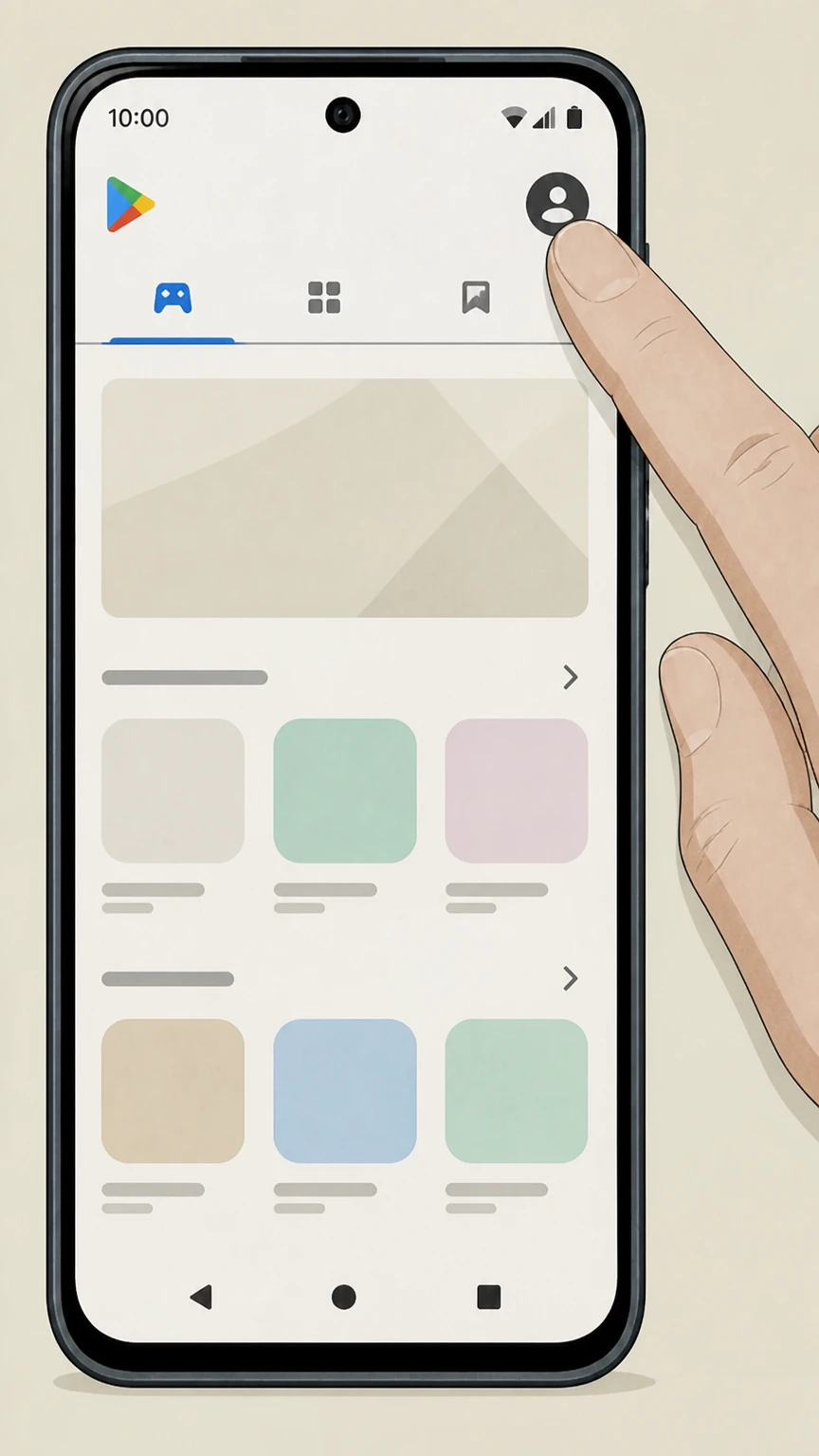
2Open your account menu
Tap your profile icon in the top-right corner to open the account menu.
- Let Pine handle it
Pine can help
Too many steps?
Pine can find the right Google Play (Android billing) path and handle the cancellation for you.
 3
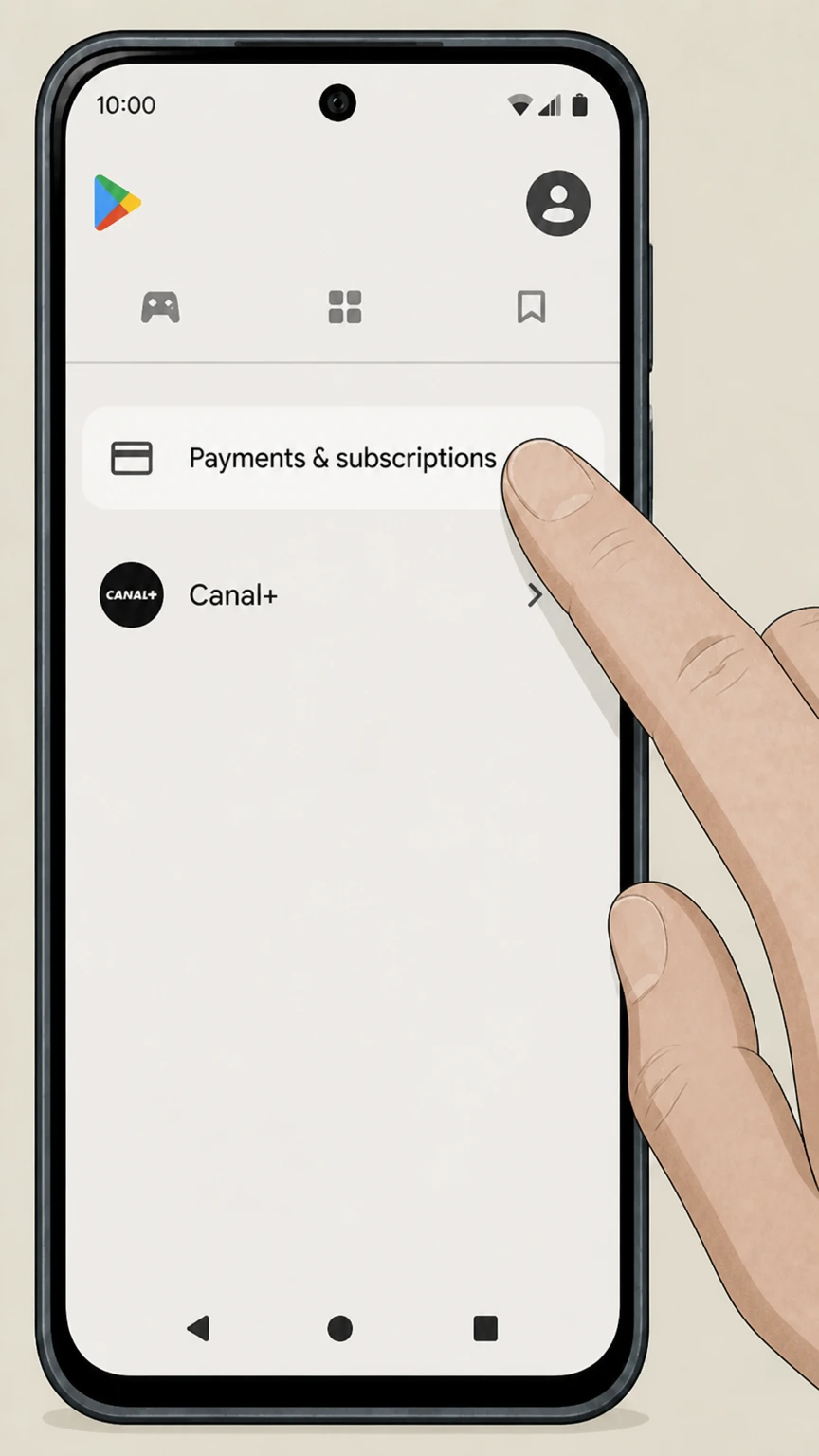
3Open Payments & subscriptions
In the account menu, tap Payments & subscriptions.
 4
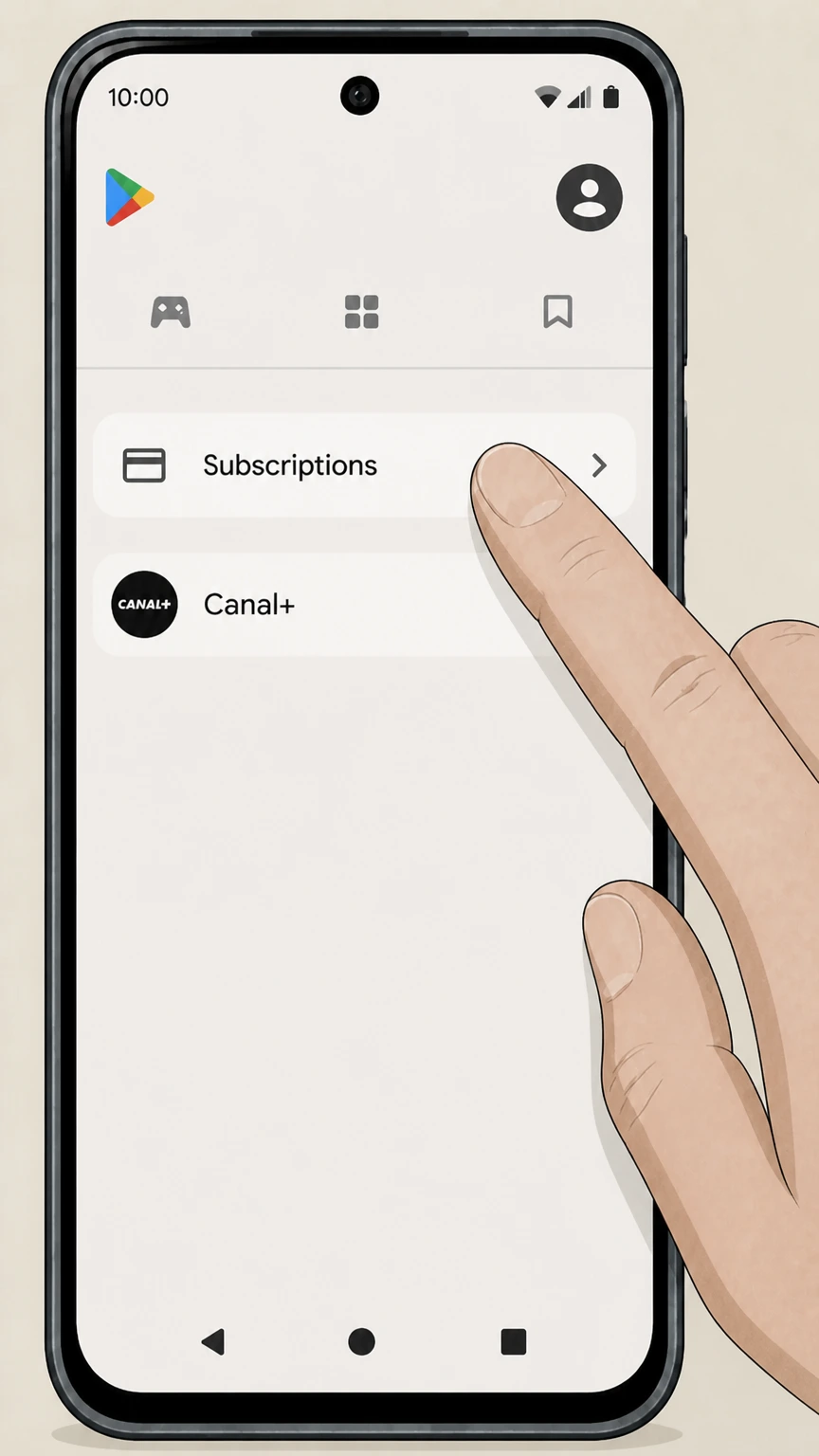
4Open Subscriptions
Tap Subscriptions to see your active Google Play subscriptions.
 5
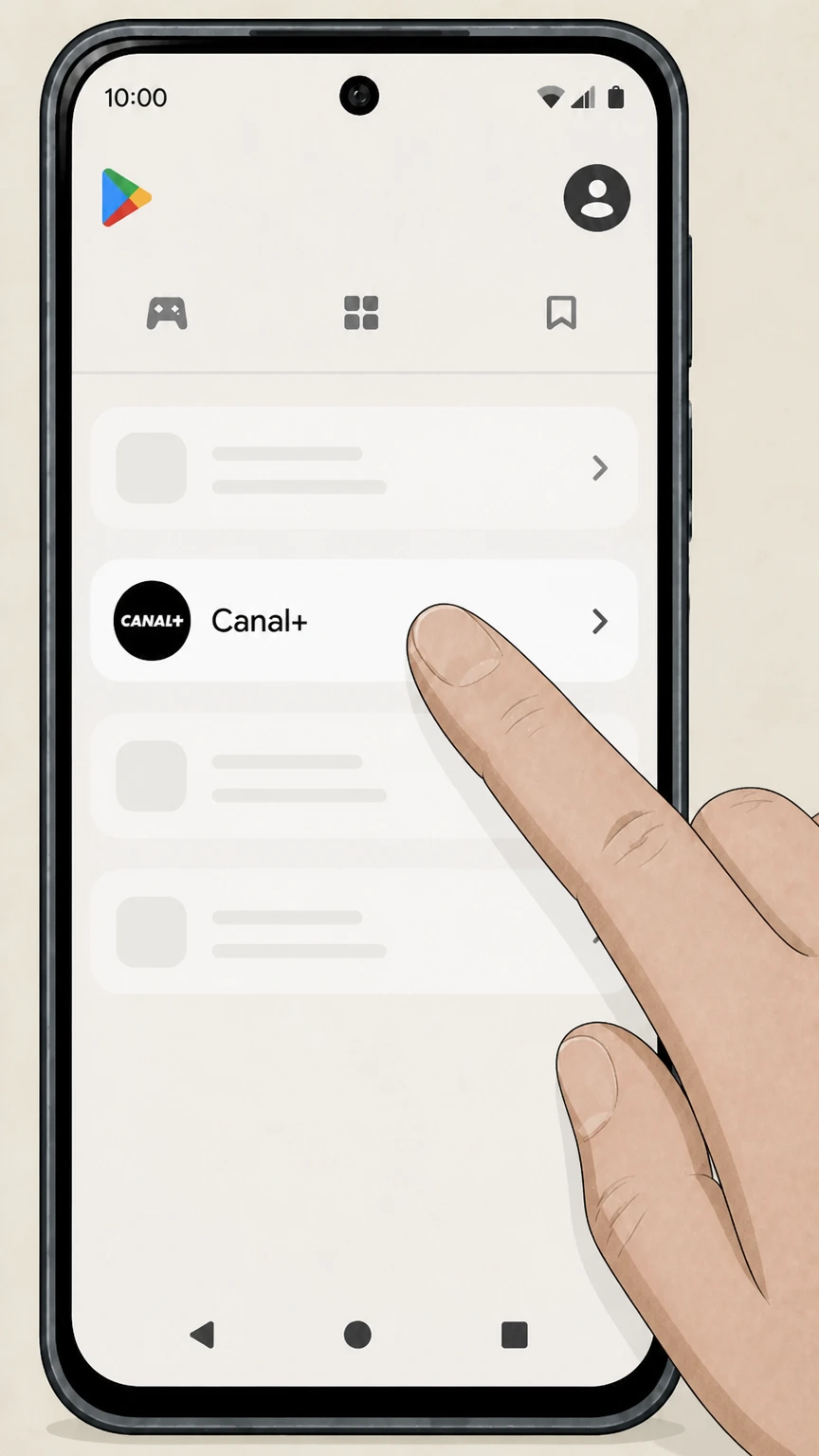
5Select Canal+
In your list of active subscriptions, tap Canal+.
 6
6Cancel the subscription
Tap Cancel subscription and complete the on-screen steps until Google Play confirms that your Canal+ subscription will not renew.
Refund policy
Refunds after cancelling a Canal+ subscription
Cancelling Canal+ through Apple or Google Play usually stops future renewals but does not automatically refund existing charges. Any refund you might receive is determined by Apple’s or Google Play’s own refund rules and, for directly billed Canal+ subscriptions, by Canal+ or your TV provider’s policies.
Check my refund options- Apple refunds are requested at Report a Problem
- If you were billed for Canal+ through Apple, you can request a refund by signing into reportaproblem.apple.com, choosing Request a refund, selecting the relevant Canal+ subscription charge, and submitting your reason; approval is not guaranteed and depends on Apple’s media services terms and local law.
- Google Play refunds depend on timing and region
- For Canal+ subscriptions billed through Google Play, you may be able to request a refund within a limited time window after purchase, often up to 48 hours, using Google Play’s refund flow; outside that window, Google usually directs you to the app developer for any further resolution.
For the latest and region-specific refund options on app-store-billed Canal+ subscriptions, review Apple’s or Google Play’s official refund help pages before you cancel. View official app-store refund guidance
Billing owners
Who actually bills you for Canal+
Before cancelling, confirm who is charging you for Canal+, because you must cancel with that billing owner and not just delete the Canal+ app.
Check bank and card statements
Look at recent statements and digital receipts for charges labelled Apple, iTunes, App Store, Google Play, or CANAL+ or your TV/Internet provider to identify who is billing you for Canal+ access.
If Canal+ appears under Apple subscriptions
If you see Canal+ listed under Settings → your name → Subscriptions on an Apple device, Apple is the billing owner and you must cancel through Apple’s subscription settings rather than through Canal+ directly.
If Canal+ appears under Google Play subscriptions
If you see Canal+ in your subscriptions on Google Play when signed into the correct Google account, Google is the billing owner and you must cancel from the Google Play subscriptions screen.
If Canal+ does not appear in Apple or Google Play
If you do not see Canal+ in either Apple or Google Play subscriptions, the subscription is likely billed directly by Canal+ or bundled with another provider; you must cancel through that provider’s account or contract tools instead of app-store settings.
Apple-billed plans
What changes when you cancel Canal+ through Apple
Apple’s subscription system controls billing and renewal when it is the Canal+ billing owner, and cancelling affects both future charges and how long you can keep watching.
Auto-renewal stops at the end of the period
When you cancel a Canal+ subscription billed by Apple, the subscription remains active until the end of the current paid period, after which Apple stops renewing and future Canal+ charges through Apple end.
Status switches from renewing to expiring
In the Apple Subscriptions screen, a cancelled Canal+ subscription will show an expiration date or a message indicating it will end, instead of a renewal date and price.
Shared Apple subscription rules apply
The general Apple rules for app subscriptions apply to Canal+, including automatic renewal until you cancel and the need to cancel at least 24 hours before the renewal time to avoid the next period.
Refunds are separate from cancellation
Cancelling Canal+ through Apple normally does not refund the current billing period; if you believe you qualify for a refund, you must separately request it through Apple’s Report a Problem site under Apple’s refund policies.
Google Play billing
What changes when you cancel Canal+ through Google Play
If Google Play is the billing owner for your Canal+ subscription, Google’s subscription and refund rules determine how long you keep access and how charges stop.
Subscription keeps running until period end
After you cancel Canal+ in your Google Play subscriptions, Google Play continues the subscription until the end of the current billing cycle; you are not charged again after that renewal date.
Access to Canal+ content then stops
Once the Google Play billing period ends, your Canal+ subscription content delivered through that paid plan is typically no longer accessible in the CANAL+ apps associated with that subscription.
Uninstalling the app is not enough
Removing the CANAL+ app from your Android device does not cancel a Google Play-billed subscription; you must cancel in your Google Play subscriptions for charges to stop.
Refunds follow Google Play policies
Whether you can get money back after cancelling Canal+ through Google Play depends on Google Play’s refund rules, which are time-limited and may vary by region; cancelling alone does not guarantee a refund.
Canal+ cancellation FAQ
Provider-specific answers about billing, timing, refunds, and confirmation.
How do I cancel my Canal+ subscription online?
Can I cancel Canal+ from my iPhone?
How do I cancel Canal+ on Android if I’m billed through Google Play?
Will I still be able to watch Canal+ after I cancel?
Can I get a refund after cancelling Canal+?
Untangle this Canal+ issue.
Let Pine handle the provider follow-up and keep the confirmation in one place.
