I've learned the hard way that "I'll do it later" is how subscriptions quietly turn into a recurring line item you stop noticing. If you're here because you want to cancel onlyfans subscription access (or just stop the auto-renew) and move on with your day, this is the cleanest way to do it.
In this guide, I'll walk through exactly how OnlyFans subscriptions work, how to cancel on a web browser (desktop and mobile), what to expect after you cancel, and what to do if you're still charged. No drama, no vague steps, just the few clicks that matter, plus the screenshots and proof I'd grab if anything looked off.
How OnlyFans subscriptions work — critical to understand first
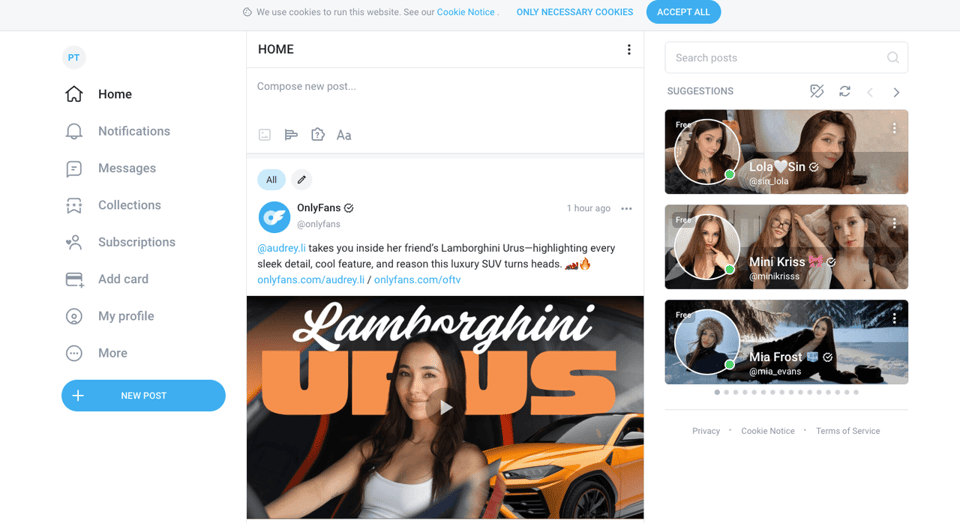
If you want to cancel an OnlyFans subscription confidently, it helps to understand one thing: the platform treats subscriptions more like individual memberships than a single "site-wide plan." That's usually where confusion (and accidental renewals) come from.
Each creator is a separate subscription
On OnlyFans, you're not subscribed to "OnlyFans." You're subscribed to specific creators, and each one renews separately.
What that means in real life:
- If you subscribe to three creators, you have three separate recurring charges (often on different renewal dates).
- Canceling one creator doesn't affect the others.
- If you're trying to stop all charges, you'll need to repeat the cancel steps per creator.
This is also why people think they canceled and still see a charge later, often they canceled Creator A, but Creator B is still set to auto-renew.
Cancel vs delete account, what each does
These two actions aren't the same, and mixing them up can create unnecessary stress. For detailed information, check the official Terms of Service.
Cancel subscription (disable auto-renew):
- Stops that specific creator subscription from renewing.
- You generally keep access until the end of the billing period you already paid for.
- Your OnlyFans account stays active.
Delete your OnlyFans account:
- Removes your account entirely.
- It's not the "primary" step for stopping renewals, canceling the subscription is.
- Deleting can be overkill if your goal is simply to stop one recurring charge.
If I'm just trying to stop a charge quickly, I cancel the creator subscription first. Deleting an account is a separate decision (and not required to stop auto-renew if you cancel correctly).
Cancel on web browser (desktop and mobile)
OnlyFans cancellation is essentially a web-based workflow. Even if you originally subscribed on your phone, the fastest path is usually: open a browser, sign in, cancel auto-renew for that creator.
Profile page → Subscribed → Disable auto-renew
This is the exact click-path I use when I want to cancel onlyfans subscription renewals.
- Open a web browser (Chrome, Safari, Firefox, anything reliable).
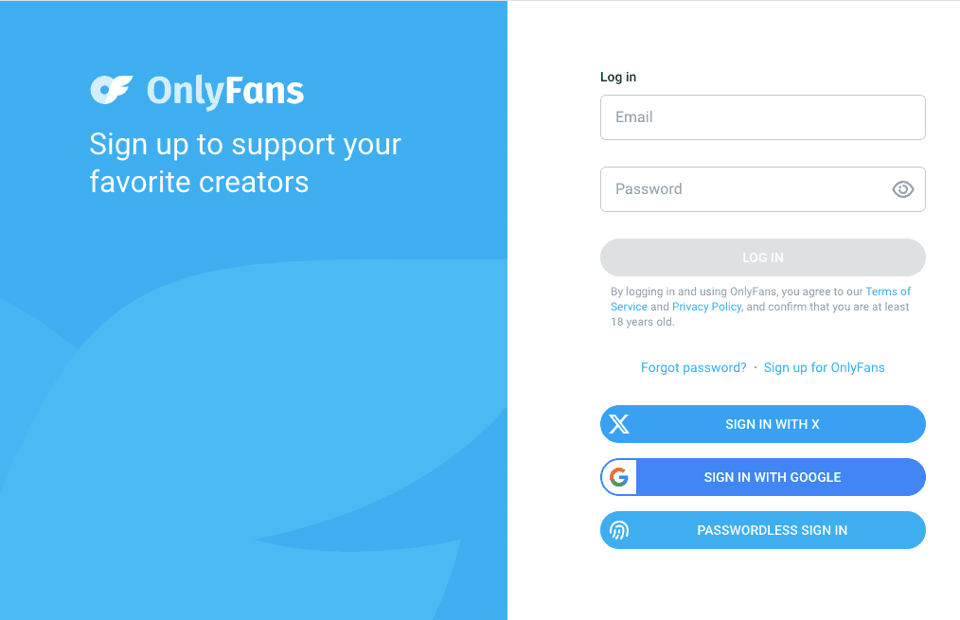
- Go to OnlyFans and log in.
- Navigate to the creator's profile you're subscribed to.
- Find the button/area labeled "Subscribed" (it usually indicates you have an active subscription).
- Click "Subscribed" to open subscription options.
- Select "Disable auto-renew" (or similar wording).
- Confirm if prompted.
After that, I look for a clear status change, something that indicates auto-renew is off. If I don't see confirmation, I go back into the "Subscribed" menu and check again. (I don't guess. I verify.)
If you have multiple subscriptions, repeat the same steps for each creator you want to stop renewing.
Why mobile browser steps differ from desktop
On desktop, everything tends to be visible at once: menus, subscription toggles, and account navigation.
On a mobile browser, two things commonly change:
- Menus collapse into icons (so "Subscribed" options might be tucked behind a tap).
- The page layout can push the subscription controls below the fold, so it looks like the option isn't there until you scroll.
What I do on mobile when I can't immediately find the cancel/auto-renew option:
- Rotate to landscape (more layout appears).
- Scroll further than you think you need to.
- If the interface feels "stripped down," I switch to desktop view in the mobile browser settings.
The goal is always the same: get to the creator profile, open Subscribed, then disable auto-renew. The rest is just "where did they hide the button on this screen size today?"
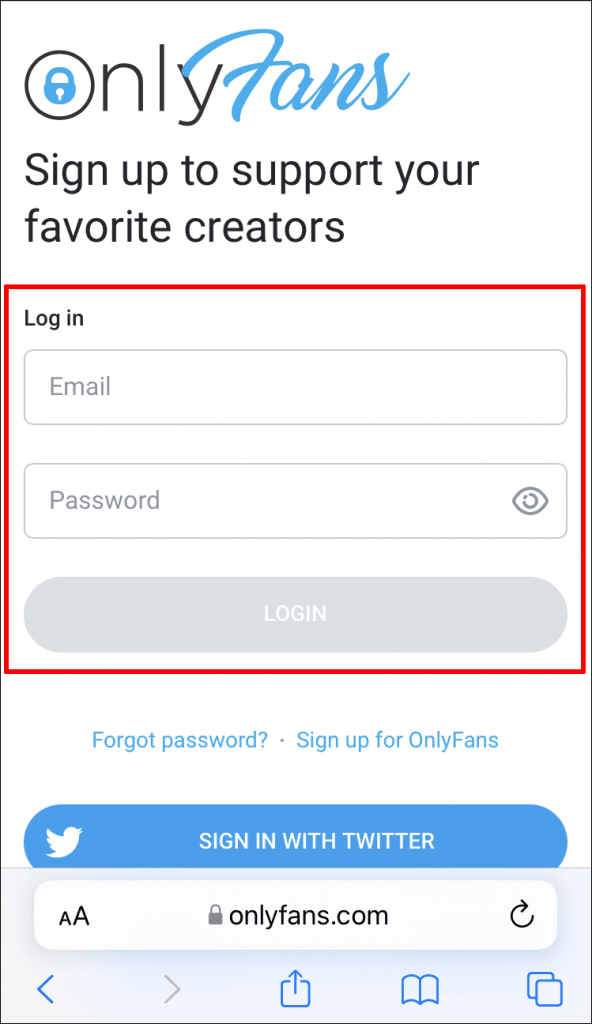
Don’t let a hidden button cost you another month’s renewal. You can try Pine to handle the cancellation—our model is success-based, so we represent your interests, not the merchant's. Start your request with us today.
What happens after cancel
Canceling on OnlyFans doesn't usually shut access off instantly. It's more like telling the system, "Don't renew me next cycle." That distinction matters if you're canceling because you're trying to avoid the next charge (vs. disputing one that already hit).
Access until end of billing period
In most cases, when you disable auto-renew:
- You keep access to the creator content until your current billing period ends.
- You shouldn't be billed again after the renewal date passes.
So if you cancel today and your renewal date is next week, you'll likely still see the subscription as active until that date. That's normal. For more details on how billing works, review the privacy policy.
Subscription still showing active? Common reasons
If you canceled and the subscription still looks active, I check a few common explanations before assuming something failed.
- You disabled auto-renew, but the subscription remains active until the end date This is the most common "false alarm." It can still show as active because you've paid for the remaining time.
- You canceled the wrong creator It sounds obvious, but when you're subscribed to multiple creators, it's easy to toggle auto-renew off on one profile and assume you're done.
- You have more than one account If you've ever logged in with a different email, or used a different sign-in method on another device, it's worth confirming you canceled under the same account that's being billed.
- The change didn't save (or didn't fully confirm) Sometimes the toggle/process doesn't "stick" if:
- You backed out before the final confirmation
- The page didn't refresh properly
- Your browser cached an old state
If I'm unsure, I refresh, re-open the creator profile, and re-check whether auto-renew is disabled. If it still looks ambiguous, that's when I start gathering proof (next section).
Still charged? Contact path and proof checklist
If you're still charged after you believe you canceled, don't waste time arguing from memory. Treat it like a tiny admin task: document what you did, capture your current subscription status, then escalate through the proper support path.
OnlyFans support escalation
OnlyFans is not the kind of service where you'll hop on a quick phone call and wrap it in five minutes. So the best approach is to make your support message un-ignorable. You can reach out through the official help center for assistance.
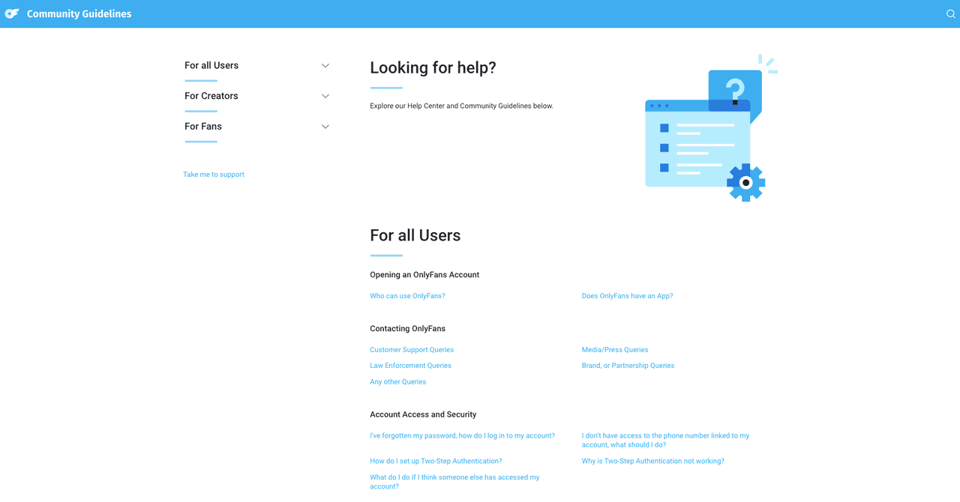
What I include when contacting support:
- The creator name/handle involved
- The date and amount of the charge
- The date/time I disabled auto-renew (approximate is fine, but exact is better)
- A sentence stating what outcome I want (refund, stop renewal, clarification)
A short, practical script I'd use:
"Hi, My subscription to [creator] was set to not renew. I disabled auto-renew on [date]. I was still charged [amount] on [date]. I'm attaching screenshots showing my subscription status. Please review and advise on a refund or correction."
If you don't get traction, I'd follow up once with the same thread and include any additional evidence (screenshots, receipts). The goal is to keep it clean and documented.
Screenshot your subscription status page
This is the bit most people miss.
Before you contact support (or your card issuer), I screenshot:
- The creator profile page showing Subscribed status
- The menu/state showing auto-renew disabled (or whatever status appears)
- Any billing/transaction entry that reflects the charge
Proof checklist (quick):
- Screenshot: subscription status (showing auto-renew off if possible)
- Screenshot: charge/transaction details (date, amount)
- Note: the account email/username used to sign in
- Note: creator handle(s) involved
Why I do this: support conversations go faster when I can point to a specific screen and say, "Here's what the account shows right now." It turns the issue from "I think I canceled" into "Here's the record."
And if I'm being honest, that's the real time-saver, less back-and-forth, fewer clarifying questions, and a higher chance it gets resolved without becoming a week-long email thread. For more information about the platform and how they handle these issues, visit the About page.
Frequently Asked Questions (FAQ)
How to cancel OnlyFans subscription auto-renew for one creator?
To cancel OnlyFans subscription renewals for a specific creator, use a web browser, log in, open that creator's profile, tap/click "Subscribed," then choose "Disable auto-renew" and confirm. Re-open the "Subscribed" menu to verify the status changed so you don't get charged next cycle.
Do I need to delete my account to cancel an OnlyFans subscription?
No. Canceling an OnlyFans subscription means disabling auto-renew for an individual creator, and your account can remain active. Deleting your account is separate and not required to stop renewals. If your goal is to stop a charge quickly, cancel the creator subscription first.
Why does my OnlyFans subscription still show active after I cancel?
This is often normal because you usually keep access until the end of the billing period you already paid for. It may also happen if you canceled the wrong creator, you're logged into a different account than the one being billed, or the change didn't fully save or confirm.
How do I cancel OnlyFans subscription on mobile if I can't find the button?
OnlyFans cancellation is easiest in a mobile browser, but menus can be hidden. Go to the creator profile, find "Subscribed," then "Disable auto-renew." If you can't see it, scroll further, rotate to landscape, or enable "Desktop site" in your browser settings to reveal the subscription controls.
What happens after you cancel OnlyFans subscription—do you lose access immediately?
Usually, no. When you disable auto-renew, you're telling OnlyFans not to renew on the next billing date. In most cases, you keep access to the creator's content until your current billing period ends, and you shouldn't be billed again after the renewal date passes.