I’ve had ESPN+ sitting on my “cancel later” list more times than I care to admit. You know the drill: you sign up to watch one specific game, swear you’ll cancel immediately, and then three months later, you’re still donating monthly fees to the ether. The frustration is real, especially when “later” turns into a recurring charge you can’t quite pin down. If you’re staring at your bank statement wondering why you’re still paying, you aren’t alone. The system is designed to be sticky, but I’ve mapped out the exit routes so you don't have to waste an afternoon figuring it out.
Step 1 — Identify your ESPN+ plan type
If you cancel ESPN+ in the wrong place, nothing happens. You'll still have access, you'll still be billed, and you'll still be annoyed next month when the charge shows up.
Here's how I quickly figure out what I'm actually paying for.
Standalone / Disney Bundle / ESPN+ on Hulu / App Store or Google Play
Start with your bank/credit card statement and look at the merchant name. It usually gives the game away:
- Standalone ESPN+ (direct) often shows as ESPNPLUS or ESPN (wording varies).
- Disney Bundle often shows as DISNEYPLUS (even if you think you're "paying for ESPN+").
- Hulu billing often shows as HULU.
- Apple shows as APPLE.COM/BILL.
- Google Play shows as GOOGLE or GOOGLE PLAY.
Then confirm inside the account you think is billing you:
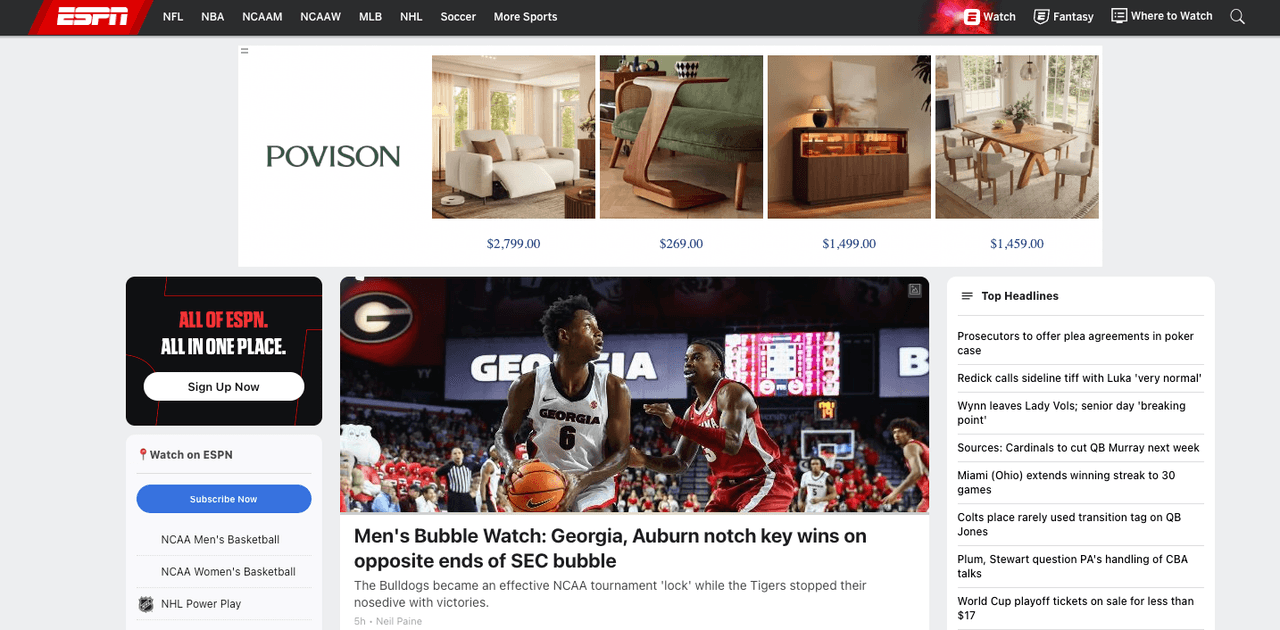
- If you suspect ESPN direct: sign in at ESPN.com and look for subscription/billing details.
- If you suspect Disney Bundle: sign in at DisneyPlus.com and check your plan.
- If you suspect Hulu: sign in at Hulu and check add-ons.
- If you suspect Apple/Google: check your device's subscriptions list (steps below).
Quick reality check I use: If you subscribed on your phone, there's a good chance it's Apple or Google. If you subscribed while trying to watch something on Hulu, it's often an add-on. And if you got "a bundle deal," it's probably Disney.
While this guide helps you do it yourself, we know the process is designed to be sticky. We created Pine AI to persistently navigate these exact friction points on your behalf. Explore how we can handle your unwanted subscriptions today.
Cancel standalone ESPN+ on web
This is the cleanest scenario: you subscribed directly through ESPN, so you can cancel directly through ESPN. No App Store detours.
ESPN.com → Profile → Manage Subscription
Here's the path that's worked consistently for me:
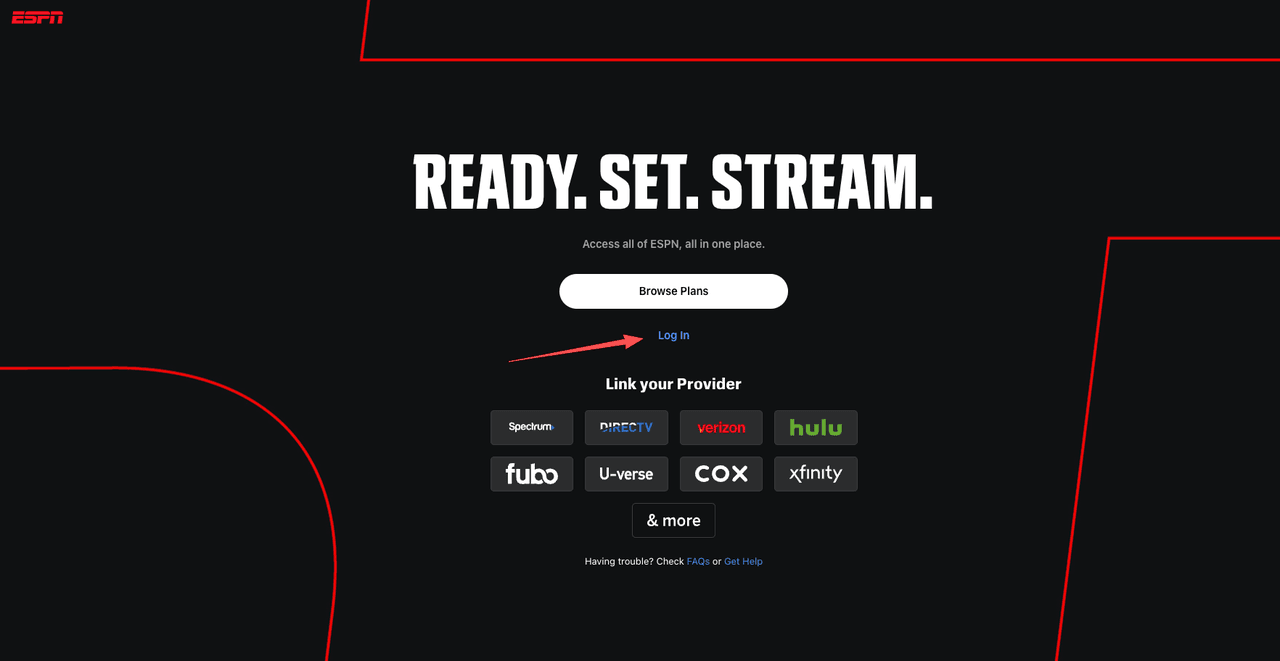
- Go to ESPN.com and sign in to the account that has ESPN+.
- Open your Profile (usually the avatar/menu in the top-right).
- Choose Account (or ESPN Account).
- Find Manage Subscription (or a similar "Subscription" / "Billing" area).
- Select Cancel Subscription.
- Follow the prompts until you see a confirmation message.
For step-by-step visual guidance, refer to ESPN's official cancellation support page.
Two notes I always watch for:
- Make sure you're signed into the right ESPN account (work email vs personal email is a classic gotcha).
- If ESPN tries to bounce you to another platform (Disney, Hulu, Apple, Google), that's a sign you're not on standalone billing.
Access until end of billing period
Canceling usually stops future renewals, not your current access. So you can typically keep watching until the end of your billing cycle.
What I do (because I don't trust vague UI):
- I look for the next billing date or "active until" date after canceling.
- I take a quick screenshot of the confirmation (yes, I'm that person, because I like my money).
If you don't see a clear confirmation, I don't guess. I verify: log out, log back in, and check that the subscription now shows canceled (or "expires on [date]").
Cancel the Disney Bundle
If you have the Disney Bundle, you generally can't cancel ESPN+ by itself the way you can with a standalone subscription. The billing is managed through Disney, so cancellation needs to happen there.
Must cancel through DisneyPlus.com
The most reliable route:
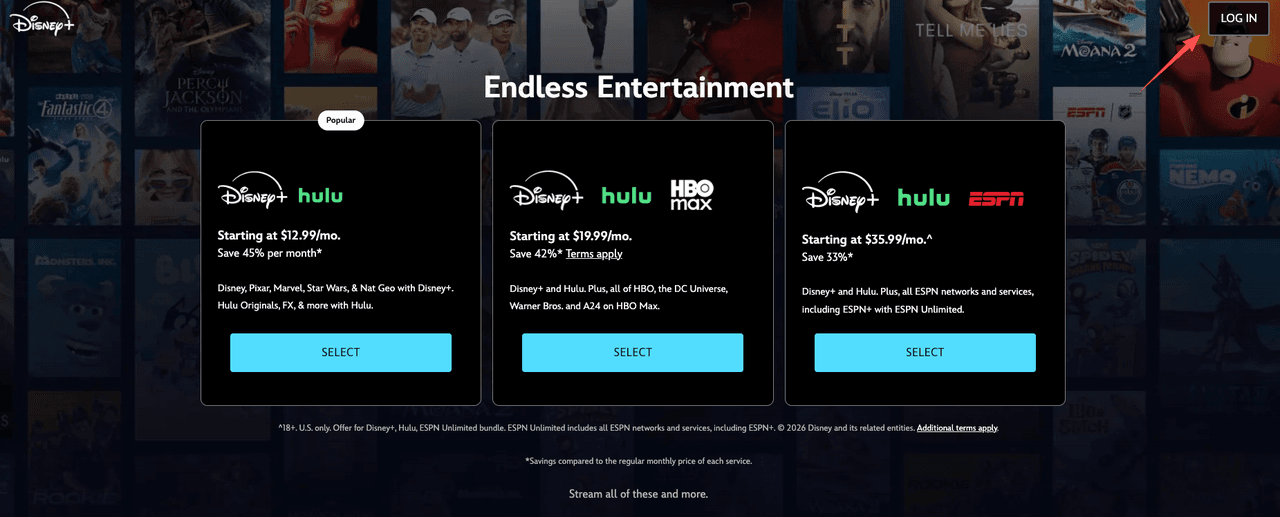
- Go to DisneyPlus.com and sign in.
- Open your Profile.
- Go to Account.
- Find Subscription.
- Select your plan and choose Cancel (or manage/change plan options).
For complete instructions on managing your Disney+ subscription, visit Disney's official help center.
If you're not seeing cancellation controls, it's usually because:
- You're signed into the wrong Disney account/email.
- Your bundle is billed through a third party (Apple/Google), in which case you'll need the app store steps.
What happens to Disney+ and Hulu
This depends on how your bundle is structured, but here's the practical version:
- Canceling the Disney Bundle cancels the bundle, meaning the bundle billing stops renewing.
- Your access to Disney+ / Hulu / ESPN+ typically continues until the end of the billing period.
- If you want to keep Disney+ or Hulu but drop ESPN+, you may need to switch plans instead of canceling outright (the site will usually offer a plan change path).
This is the bit most people miss: if you cancel the bundle when what you wanted was "just remove ESPN+," you might accidentally cut off services you actually use. I always check what I'm replacing it with before I hit confirm.
Cancel ESPN+ on Hulu
If ESPN+ is billed as a Hulu add-on, you cancel it inside your Hulu account, not on ESPN.com.
Hulu account → Manage Add-ons
This is the quickest path I've used:
- Sign in to your Hulu account (best done on a web browser).
- Go to Account.
- Look for Manage Add-ons.
- Find ESPN+ and toggle it off / select Remove.
- Save changes and look for a confirmation.
For detailed information about managing ESPN+ as a Hulu add-on, check Hulu's ESPN+ add-on support page.
A couple of small but important details:
- Hulu sometimes makes you re-enter your password to confirm changes. Annoying, but normal.
- After removing an add-on, I check the next billing date to confirm it won't renew.
If you remove ESPN+ here and still see an ESPN+ charge from Apple/Google the next month, you likely have two subscriptions (it happens more than you'd think, especially if you've ever subscribed during a free trial frenzy).
Cancel via App Store or Google Play
If your statement shows Apple or Google, the ESPN app can't help you. You have to cancel through the subscription manager on the device.
Exact paths for each platform
On iPhone / iPad (App Store subscriptions):
- Open Settings
- Tap your name (Apple ID)
- Tap Subscriptions
- Find ESPN or ESPN+
- Tap Cancel Subscription (or Cancel Free Trial)
For detailed instructions, visit Apple's official subscription management guide.
On Android (Google Play subscriptions):
- Open the Google Play Store
- Tap your profile icon
- Tap Payments & subscriptions
- Tap Subscriptions
- Select ESPN / ESPN+
- Tap Cancel subscription and follow prompts
For Android users, refer to Google's guide to canceling subscriptions.
Two things I always double-check:
- You're signed into the same Apple ID / Google account you used to subscribe (work vs personal accounts cause chaos here).
- You cancel at least 24 hours before renewal if you're trying to avoid the next charge (some stores are picky about cutoff windows).
After canceling, the subscription usually shows an expiration date rather than instantly disappearing. That's what you want.
Still charged? Billing source check and dispute steps
If you canceled and you're still being billed, it's usually one of three things: wrong billing source, a second subscription, or the charge was for the next cycle before your cancellation processed.
Here's the checklist I run before I spend energy escalating.
Re-check the billing source (don't trust memory)
- If the charge says APPLE.COM/BILL → handle it in Apple Subscriptions.
- If it says GOOGLE PLAY → handle it in Google Play Subscriptions.
- If it says HULU → check Hulu add-ons.
- If it says DISNEY → check DisneyPlus.com.
- If it says ESPN → check ESPN.com.
Look for duplicate subscriptions
This one's sneaky. I've seen people (and, fine, me) end up with:
- An ESPN+ add-on through Hulu and
- A separate ESPN+ subscription through Apple
If you have more than one, cancel the one you don't need. Then note which service will still provide access.
Confirm the cancellation status + end date
Log back into the billing platform and verify it shows one of the following:
- Canceled with an active until date
- Expires on [date]
If it still shows "Renews on [date]," you're not done.
Dispute/refund steps (fast, realistic)
I'm not going to promise miracles, refund policies vary, but here's what's most effective:
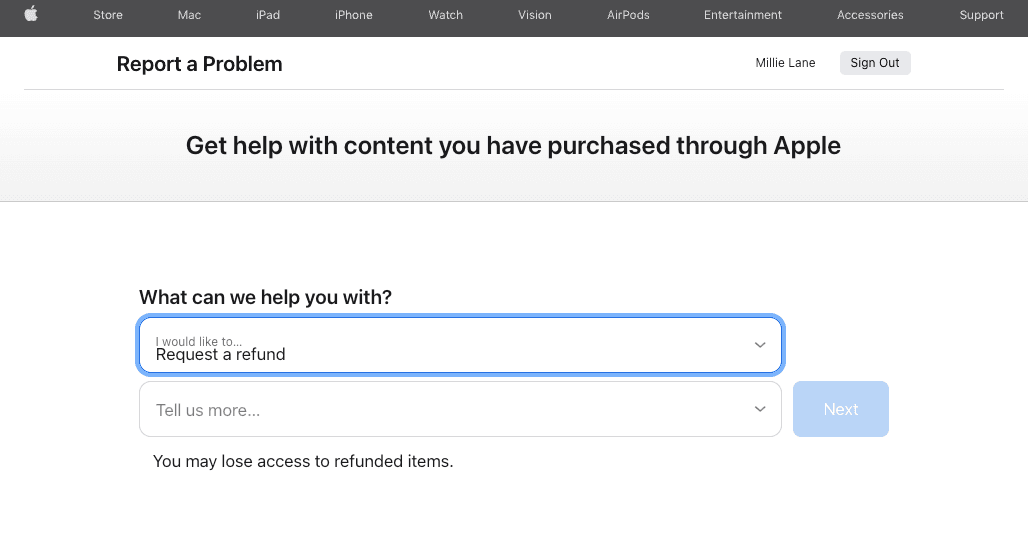
- Apple: In many cases, you can request a refund through Apple's problem report system using your account purchase history (it's usually faster than arguing by email).
- Google Play: Use the order history/refund path in Google Play. If it's recent, your odds improve.
- ESPN/Disney/Hulu direct: Use their help/support channels with timestamps, screenshots, and the last 4 digits of the card used.
If you manage subscriptions through Roku or Amazon, you'll need to cancel through their respective subscription management portals.
When I submit a dispute request, I include:
- Date of cancellation (or attempted cancellation)
- Screenshot of "canceled / expires on" screen (if I have it)
- The charge amount + date
- The email tied to the subscription
If you're still stuck after that, the fastest next move is usually contacting the billing platform that actually charged you (Apple/Google/card issuer), not the service you were trying to cancel. The entity that took the money is the one with the cleanest lever to reverse it.
I'll be honest, I went in expecting very little. But when I follow the billing-source-first approach, this gets resolved way more often on the first pass. Not dramatic. Just: done. Which, honestly, was all I needed.
Frequently Asked Questions (ESPN+ Cancellation)
How to cancel ESPN Plus if I subscribed directly on ESPN.com?
To cancel ESPN Plus billed directly by ESPN, sign in at ESPN.com, open your Profile, go to Account, then Manage Subscription, and choose Cancel Subscription. Follow the prompts until you see a confirmation. For official guidance, visit ESPN's cancellation help page. Afterward, verify it shows "canceled" or an "active until" date.
Why can’t I cancel ESPN Plus in the ESPN app?
You usually can’t cancel ESPN Plus in the ESPN app because cancellations must be done through the billing source where you bought it. If you subscribed via Apple, Google Play, Hulu, or the Disney Bundle, ESPN will often redirect you. Canceling in the wrong place won’t stop charges.
How do I cancel ESPN Plus in the Disney Bundle without canceling the wrong thing?
If you have the Disney Bundle, manage it at DisneyPlus.com (Profile → Account → Subscription → Cancel or change plan). You typically can't cancel ESPN+ as a standalone add-on inside the bundle. Before confirming, check whether you should switch plans to keep Disney+ or Hulu. Visit Disney's official cancellation guide for more information.
How to cancel ESPN Plus on Hulu as an add-on?
If ESPN Plus is billed through Hulu, cancel it in your Hulu account (best on a browser): Account → Manage Add-ons → find ESPN+ → Remove or toggle off → Save changes. Check Hulu's ESPN+ add-on help page for detailed instructions. Then check your next billing date for confirmation. If charges continue, you may have a second subscription elsewhere.
How to cancel ESPN Plus on iPhone or Android (Apple/Google Play subscriptions)?
For Apple, go to Settings → your name (Apple ID) → Subscriptions → ESPN/ESPN+ → Cancel Subscription. Review Apple's subscription management documentation for step-by-step help. For Android, open Google Play → profile icon → Payments & subscriptions → Subscriptions → ESPN/ESPN+ → Cancel. Consult Google's subscription cancellation guide for additional support. Make sure you're on the correct Apple ID/Google account used to subscribe.
Recommended Reads
Cancel Hulu Subscription (Web, App & Bundles)