


Slack
Cancel subscription
How to Cancel Slack Subscription: Official Steps
Step-by-step guide to cancel a Slack subscription from the web, plus what changes when you downgrade to Free and how credits, refunds, and data are handled.
- 12 current official sources checked
- 1 billing route separated
- Legacy Provider and equivalent Blog content reconciled claim by claim
- Steps, outcomes, refund boundaries, and related products revalidated
How to cancel Slack through the correct billing owner
Web cancellation
Cancel Slack through Web
 1
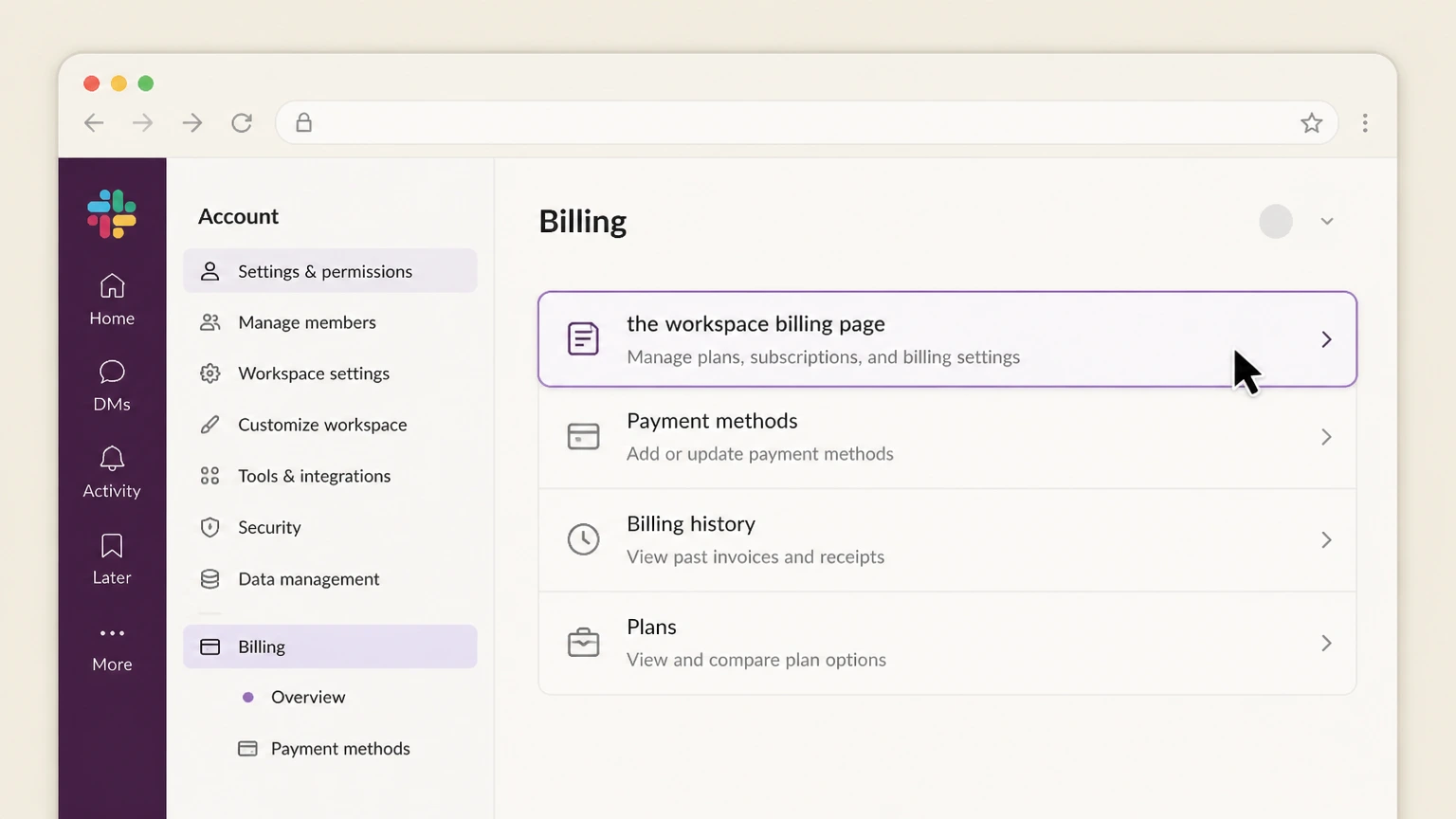
1Open the workspace billing page
Sign in to Slack on a desktop browser or the desktop app for the workspace you want to cancel. In the left sidebar, click Admin; if you don’t see Admin, click your workspace name instead. From the menu, select Manage billing to open the Billing page on the Overview tab for that workspace.
 2
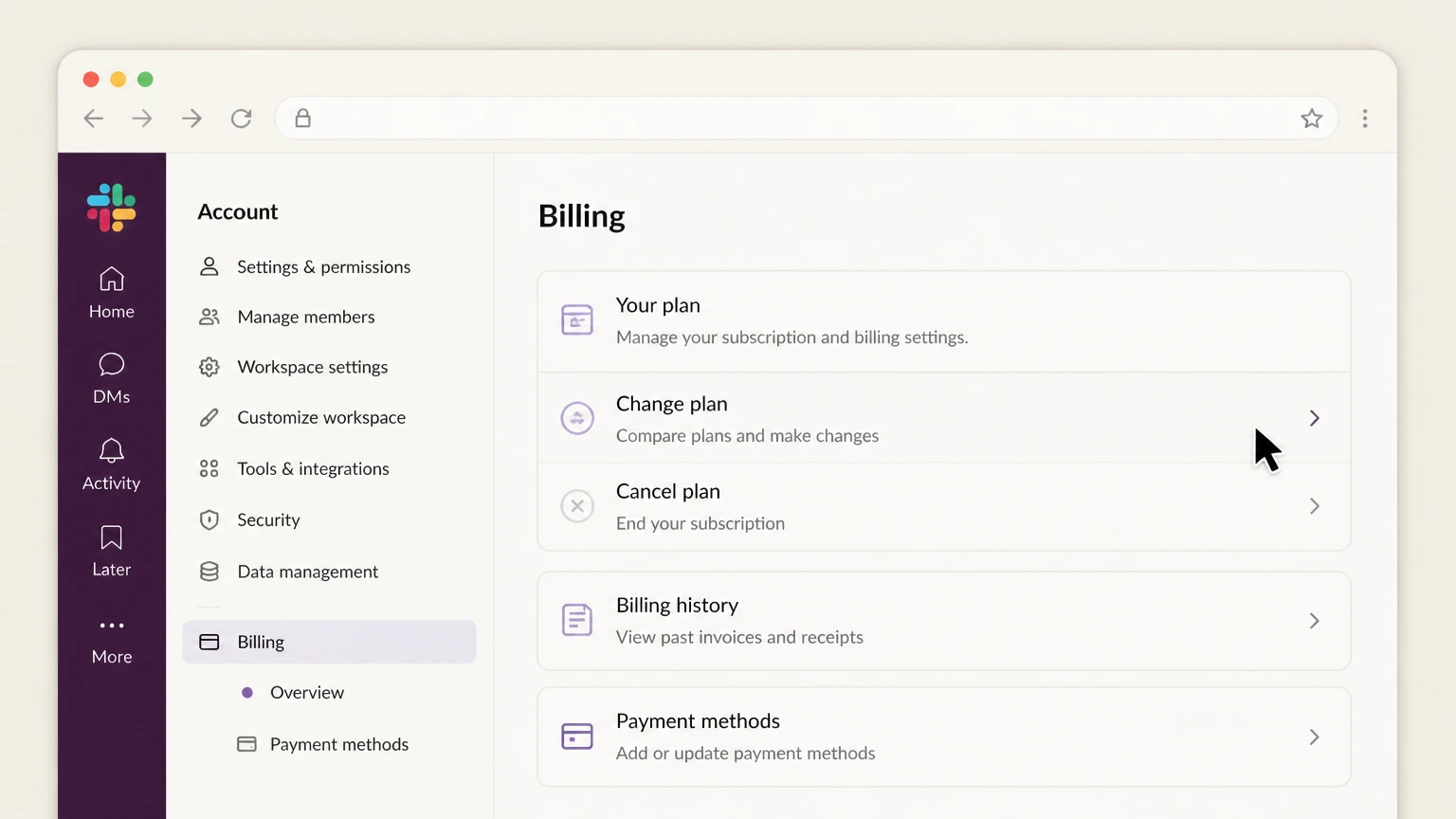
2Choose Change plan
On the Billing Overview tab, locate the section that shows your current paid plan and renewal information. Click the link or button labeled Change plan details (in some regions this may appear as Change subscription details) to open the screen where you can adjust or downgrade your plan.
- Let Pine handle it
Pine can help
Too many steps?
Pine can find the right Web path and handle the cancellation for you.
 3
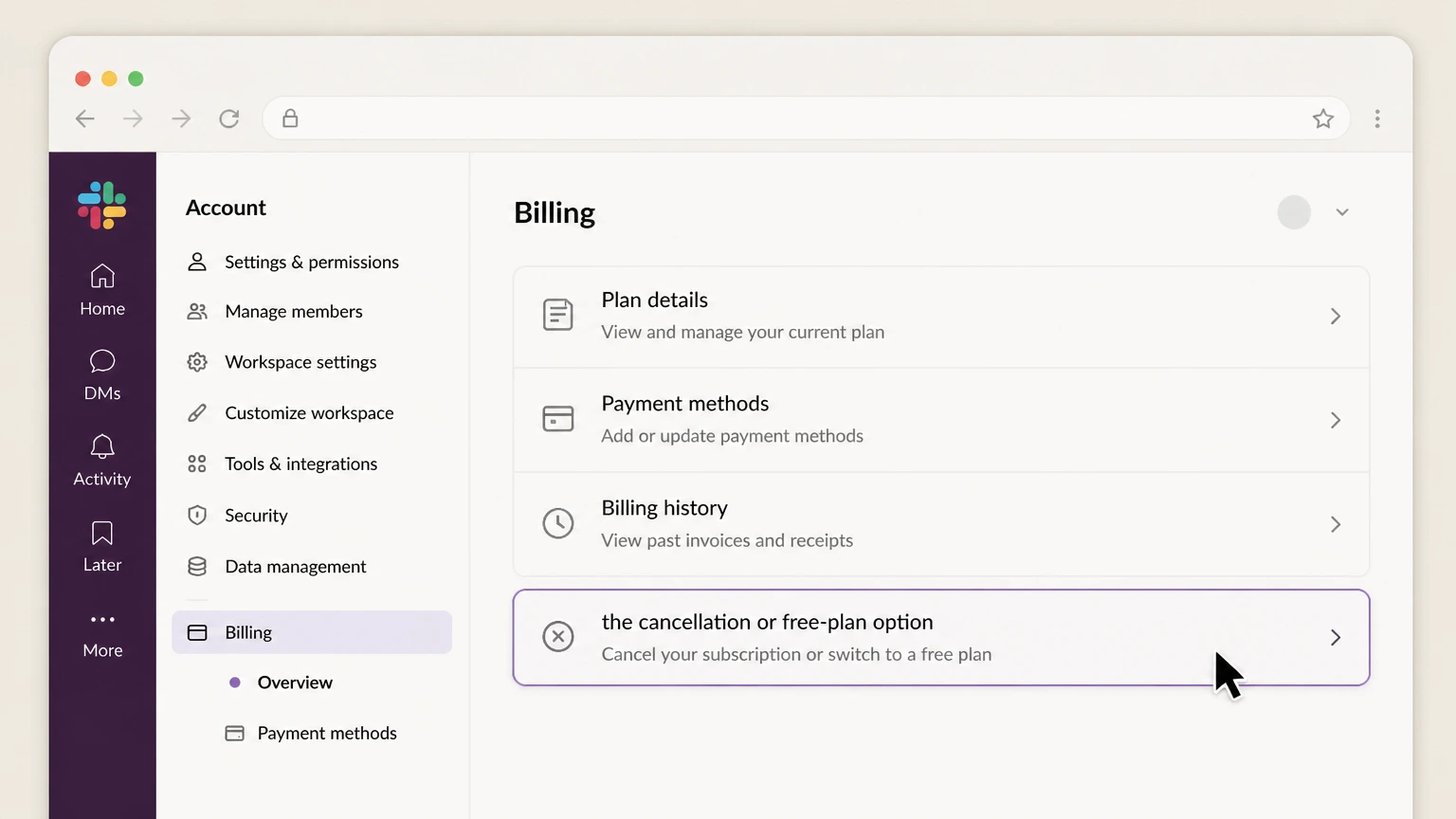
3Select the cancellation or free-plan option
In the plan‑change view, review the available plan options and choose Downgrade to Free. Decide whether you want the downgrade to happen immediately or on your next renewal date, then continue to the checkout screen Slack presents.
 4
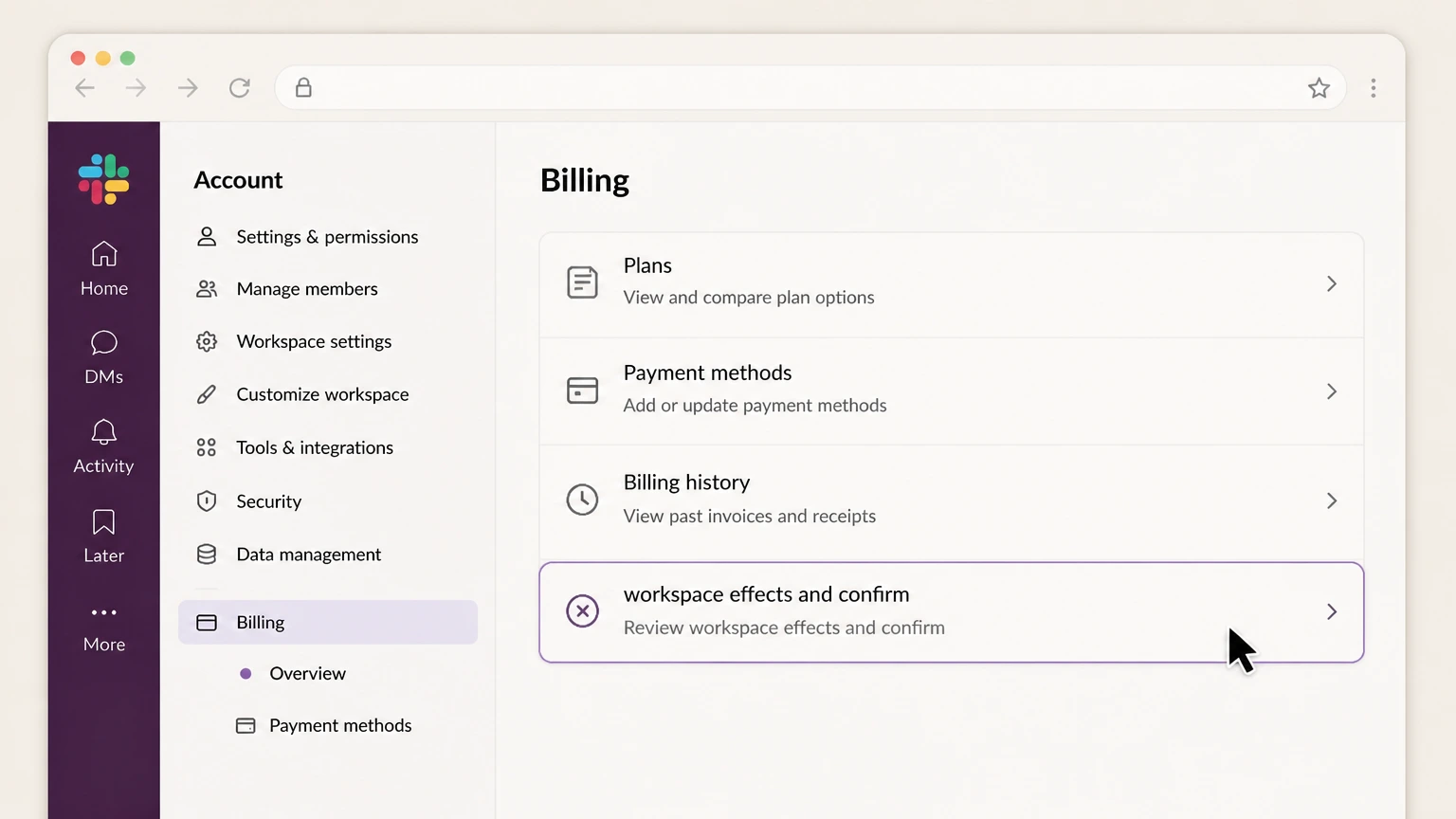
4Review workspace effects and confirm
On the checkout and confirmation pages, read the summary of when billing will stop, how any existing Slack credits will be applied, and which paid features you’ll lose under the free plan’s limits. When you’re ready, click Continue to Checkout if prompted and then Downgrade Slack. Keep any confirmation email and revisit the Billing Overview tab to verify that your workspace now shows the free plan or a scheduled downgrade.

Refund policy
Slack refunds, credits, and end-of-term behavior
Slack’s public documentation emphasizes credits and downgrade timing options rather than partial‑period cash refunds. Cancelling primarily affects future renewals while leaving past charges intact.
Check my refund options- No refunds for payments already made
- Slack’s trial and billing FAQs state that when you downgrade a paid workspace, you can cancel at any time and no further payments are taken, but payments already made are not refunded. This applies whether you downgrade after a trial or from a regular paid subscription.
- Two downgrade timing choices instead of refunds
- For workspaces billed through Slack, Workspace Owners can either downgrade to Free immediately or schedule the downgrade for the next renewal date. If they downgrade immediately with more than a day left before renewal, Slack prorates the remaining balance and holds it as credit for future use rather than refunding it.
- How Slack credits behave at cancellation
- Under the Fair Billing Policy, credits accumulate when members become inactive or are deactivated and are applied to future invoices. Credits have no currency or exchange value, are non‑transferable, non‑refundable, and expire when your paid Slack plan terminates, including when you downgrade to the free plan.
- Tax-specific refunds are handled separately
- In some regions, if you add a valid tax ID after being billed tax on Slack invoices, you may be able to request a tax refund by updating billing details and then contacting Slack’s support team. This is a correction to tax charged, not a refund of subscription fees themselves.
If you believe your situation falls outside Slack’s standard no‑refund and credit policies—for example because of legal requirements or billing errors—submit a request via Slack’s Billing & plans support form and include your workspace URL and recent invoice numbers. Contact Slack Support about billing
Roles & access
Who is allowed to cancel a paid Slack plan
Slack ties cancellation to workspace‑level admin roles, not to individual user accounts or devices. Understanding who can open the Billing page avoids a lot of "missing button" confusion.
Roles with plan and billing access
Slack’s help center states that Workspace Owners and members who’ve upgraded a workspace can manage plan and billing details from the Billing page, including changing or canceling paid plans.
Primary Owner capabilities
The Workspace Primary Owner is also a Workspace Owner and therefore can manage billing like any other Owner. In addition, only the Primary Owner can delete the workspace outright, a separate and more final action than downgrading to the free plan.
Organization-level billing on Enterprise
On Enterprise organizations, the Org Primary Owner manages billing at the organization level from Tools & settings → Billing. This org‑level billing report access is distinct from workspace‑level Manage billing, and public docs don’t describe a self‑serve downgrade‑to‑free flow for Enterprise subscriptions.
Members who cannot cancel
Standard members, guests, and most admins without Owner permissions cannot open the Billing page or change plan type. If you don’t see Admin or Manage billing in the menus, you’ll need to ask a Workspace Owner or the person who upgraded the workspace to handle cancellation.
Cancellation vs deletion
Downgrading to Free versus deleting a Slack workspace
Canceling billing in Slack means downgrading the workspace to the free plan; deleting the workspace is a separate, irreversible process reserved for the Primary Owner.
Downgrade keeps the workspace accessible
Slack’s cancellation article explains that when you switch to the free plan, you simply lose paid features and become subject to message, file, and app limits. The workspace and its channels remain accessible on the new free plan.
Deleting is permanent and more restrictive
The Delete a workspace guide stresses that only the Primary Owner can delete a workspace, that deletion is permanent, and that messages and files cannot be retrieved afterward. Slack recommends exporting workspace data before deletion.
Data export before major changes
Owners can export message and file data from public channels (and, on some plans and with approval, from more areas) before downgrading or deleting, using Admin → Workspace settings → Security → Import & export data.
Account deactivation is separate
Deactivating individual members removes their access but does not delete their messages or files and doesn’t change the workspace’s billing plan; cancellation remains a workspace‑level action.
Messages & files
What happens to messages, files, and retention on Free
Slack’s current free‑plan rules combine visibility limits with rolling deletion. If you cancel by downgrading, older content may become hidden or eventually be deleted.
90-day visibility for messages and files
On the free version of Slack, you can view and search only the most recent 90 days of messages and files in your workspace. Anything older than that becomes hidden from normal views after you downgrade.
Deletion of data older than one year
Slack explains that in free workspaces, data more than one year old is deleted on a rolling basis. That means content may first be hidden at 90 days, then permanently deleted after about a year on the free plan.
Basic retention settings on Free
Workspace Owners on free workspaces can choose basic retention policies: keep messages and files for one year or delete them after 90 days. These settings interact with the visibility cap and rolling deletion.
Export options by plan before cancel
Before you downgrade, check which export tools your plan supports. All plans can export public‑channel message text and file links, while Business+ and Enterprise can apply for broader export options when legally justified.
Features & access
Features that change when you move to the Free version
Cancelling a paid Slack subscription removes or restricts several collaboration and admin features. Teams should understand these changes before confirming a downgrade.
Slack Connect channels and external partners
After you downgrade, Slack Connect channels disconnect and you’re limited to working with external partners one‑to‑one in direct messages. Owners can review External connections from Directories → External before cancelling to understand the impact.
Guest accounts and limited-access users
Slack’s guide notes that existing guest accounts are deactivated upon downgrading to the free version. To keep working with those people, you’d need to reactivate them as full members, which also makes them billable again if you later re‑upgrade.
Workflows, canvases, lists, and user groups
When you move to Free, Workflow Builder automations stop running, and you can no longer create new workflows. Canvases and lists become read‑only, and user groups are cleared and can’t be recreated on the free plan.
Apps, retention, analytics, and AI features
On the free plan, your workspace is limited to 10 third‑party or custom app installations, loses access to channel email addresses, custom message/file retention, detailed analytics, and several AI‑powered features such as conversation summaries and huddle notes.
Timing & billing
When cancellation takes effect and how billing responds
Slack focuses on letting you choose when a downgrade happens and on applying credits rather than issuing cash refunds. Plan carefully around your renewal date.
Immediate vs next-renewal downgrades
The cancellation article lets you select Downgrade to Free and then choose whether the change takes effect immediately or on your next renewal date. The billing FAQ reiterates the same two options for Workspace Owners who want to move from a paid subscription to Free.
Fair Billing for changing member counts
Slack’s Fair Billing Policy credits you for unused time when paid members become inactive or are deactivated; those credits apply automatically to future charges like renewals or new members. This continues to operate until your paid plan is ultimately terminated.
Credits at cancellation and expiry
Slack’s Fair Billing Policy and FAQ both clarify that credits have no cash value, are non‑transferable, non‑refundable, and expire when your paid Slack plan terminates. If you downgrade immediately with time left before renewal, Slack holds the prorated balance as account credit rather than refunding it.
Failed payments and automatic downgrades
If Slack cannot collect payment for an extended period, its failed‑payment policy says the workspace will be downgraded to the Free plan after 28 days of non‑payment, which effectively cancels the paid subscription without a manual downgrade.
Troubleshooting
If you can’t see billing options or cancellation links
Missing Admin or Manage billing options usually indicate a role, workspace, or plan‑type issue. Slack provides some patterns to check before you escalate to support.
Confirm you’re in the correct workspace
If you belong to multiple workspaces, make sure you’ve selected the one whose subscription you intend to cancel. Billing access is per‑workspace and is surfaced from that workspace’s Admin → Manage billing menu.
Check your role and who upgraded
Slack notes that Workspace Owners and the member who upgraded the workspace can access the Billing page. If you’re not in one of those roles, you won’t see billing controls and will need to ask an Owner or the upgrader to handle the downgrade.
Understand plan and billing sources
Slack’s Fair Billing Policy explicitly applies to plans and add‑ons purchased via the Slack website and paid by credit card or self‑serve invoicing. If your organization purchased via another channel, some self‑serve options (including downgrades) may not appear, and you may need to work with your account contacts instead.
Contact Slack Support for billing help
If you still can’t access billing, Slack’s Contact Us form has a Billing & plans topic where Owners and admins can request help with plan changes or unexpected charges.
Alternatives
Alternatives to canceling your Slack subscription
If you aren’t ready to fully downgrade, Slack’s billing tools and analytics offer ways to reduce cost or test paid features before deciding to cancel.
Deactivate inactive members to reduce cost
Fair Billing automatically treats members as inactive after 28 days without activity and issues prorated credits, and deactivated members also generate credits. Owners can regularly deactivate people who no longer use Slack so fewer accounts remain billable.
Change billing cycle or switch to invoicing
From Admin → Manage billing, Owners can switch between monthly and annual billing or, if eligible, move to self‑serve invoicing, which may better match their cash‑flow needs without cancelling entirely.
Use analytics before deciding to downgrade
Slack recommends reviewing Workspace analytics to see how many messages and files will be hidden or deleted under free‑plan limits. This can inform whether you want to keep a subset of workspaces on paid plans instead of cancelling all of them.
Try or manage paid trials first
Slack offers time‑limited trials of paid plans and explains that trials automatically revert to Free if you don’t upgrade. Workspace Owners and Admins can also end a trial from the Billing page, which is a lower‑risk way to assess value before cancelling a long‑running paid subscription.
Slack cancellation FAQ
Provider-specific answers based on official sources checked August 10, 2026. Signed-in terms, region, billing owner, and applicable law still control.
Can I cancel my Slack subscription at any time?
What happens to my messages and files when I downgrade Slack to Free?
Will Slack refund unused time if I cancel my subscription?
Who can cancel a Slack subscription for our workspace?
How do I confirm that my Slack subscription cancellation worked?
Does downgrading to Free delete my Slack workspace or accounts?
What if I can’t see the Admin or Manage billing options needed to cancel?
How do trials interact with cancelling a Slack subscription?
Untangle this Slack issue.
Let Pine handle the provider follow-up and keep the confirmation in one place.
