

Harvest
Cancel subscription
How to Cancel Your Harvest Subscription and Account
Learn how the Harvest account owner can cancel a subscription or close the account from Settings > Billing, and what happens to access, data, and refunds.
- Official Harvest and billing-owner sources
- 1 provider-specific cancellation path
- Refund and post-cancellation effects separated from renewal
- Verified August 17, 2026
Choose the Harvest cancellation path that matches who bills you
Harvest web app · verify the billing owner
 1
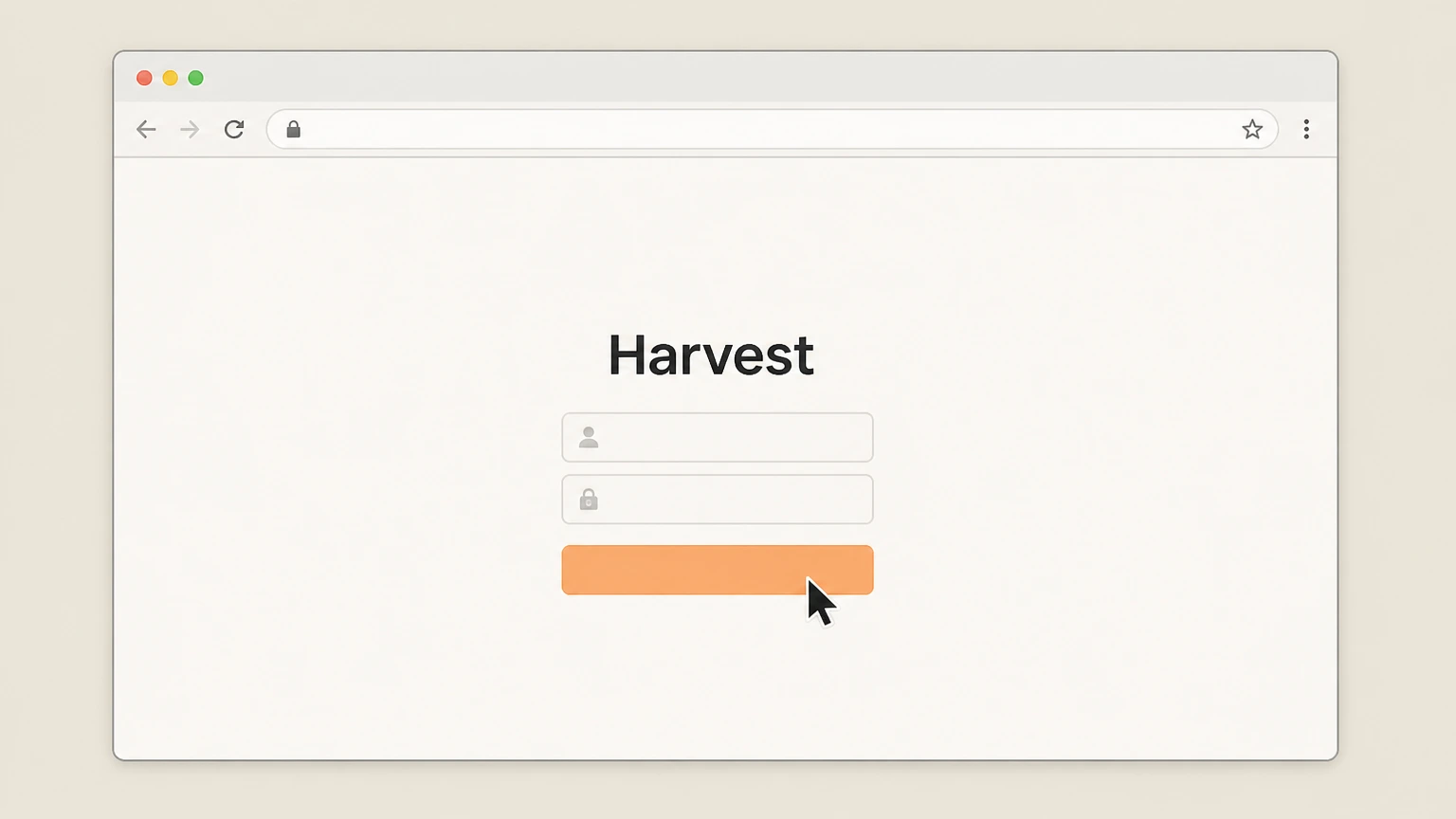
1Sign in to Harvest in a web browser as the Account Owner
Go to the Harvest sign‑in page in a web browser, log in, and make sure you are using the Account Owner’s login for the account you want to cancel.
 2
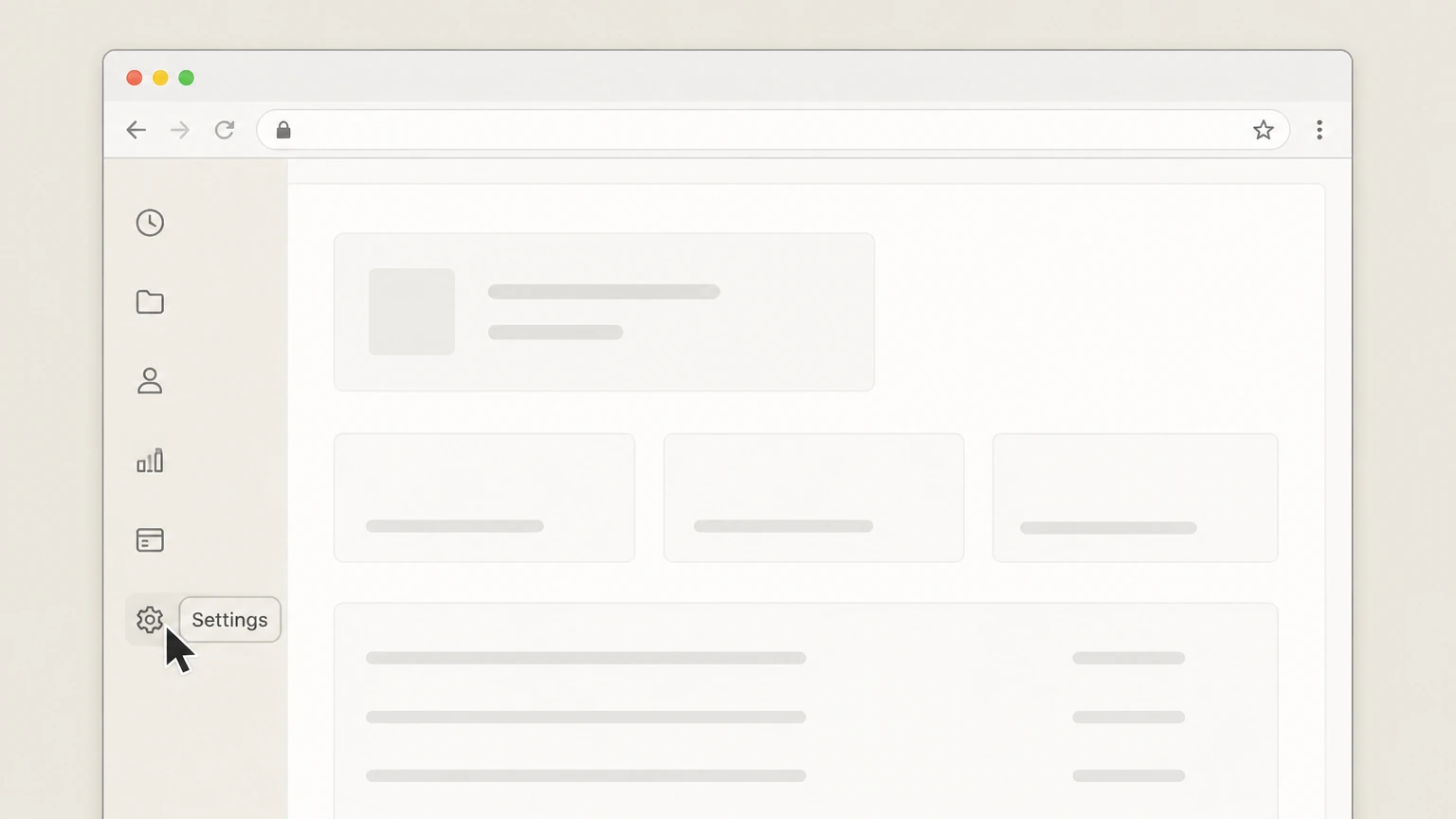
2Open Settings
In the upper‑right corner of the Harvest web app, click Settings to open the account‑level settings area. Use the Harvest account named on your receipt, and continue only after the next status in this cancellation path is visible.
- Let Pine handle it
Pine can help
Too many steps?
Pine can find the right Harvest web app path and handle the cancellation for you.
 3
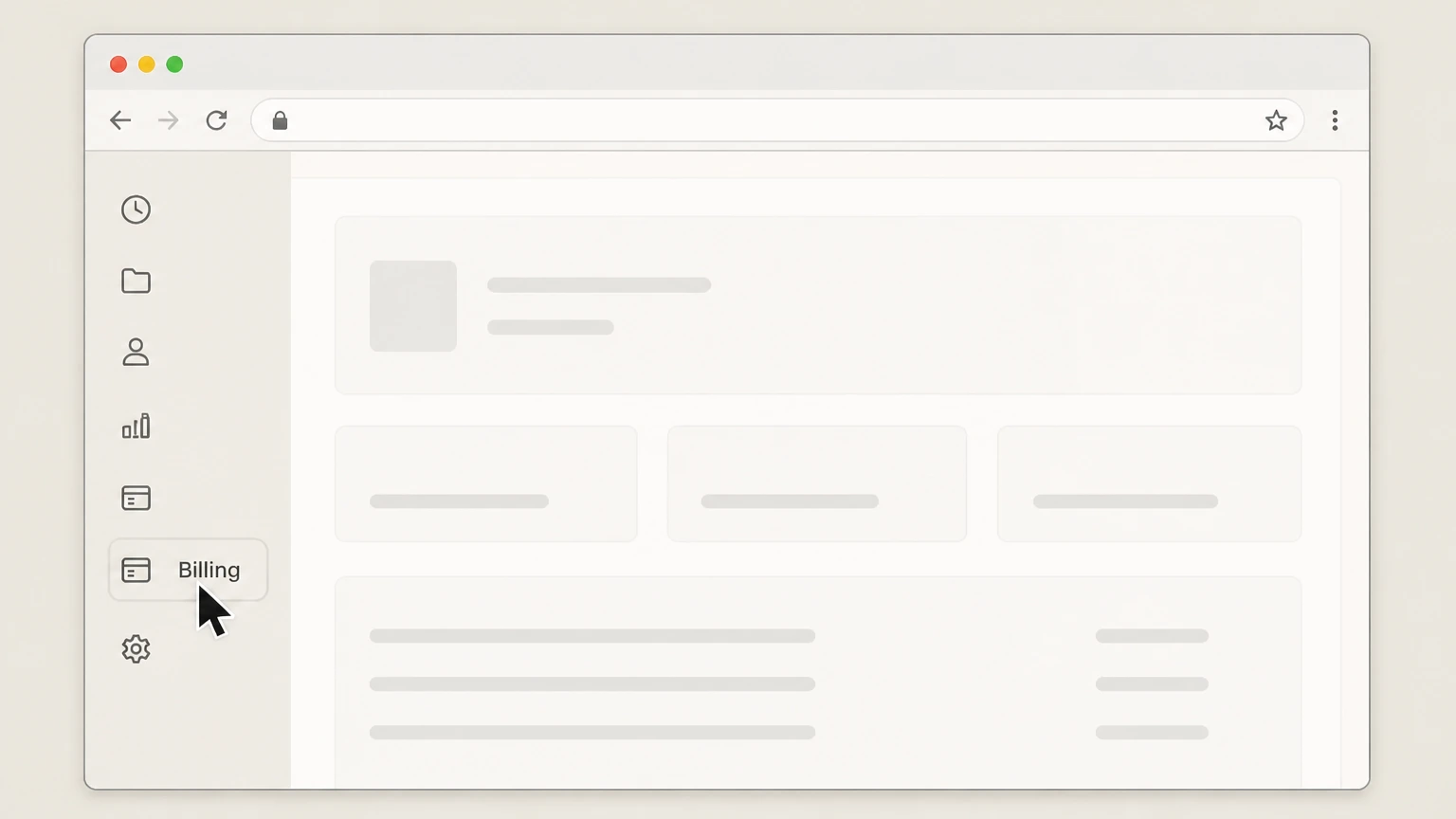
3Go to Billing
In the Settings sidebar, click Billing to view your current plan and billing options. Use the Harvest account named on your receipt, and continue only after the next status in this cancellation path is visible.
 4
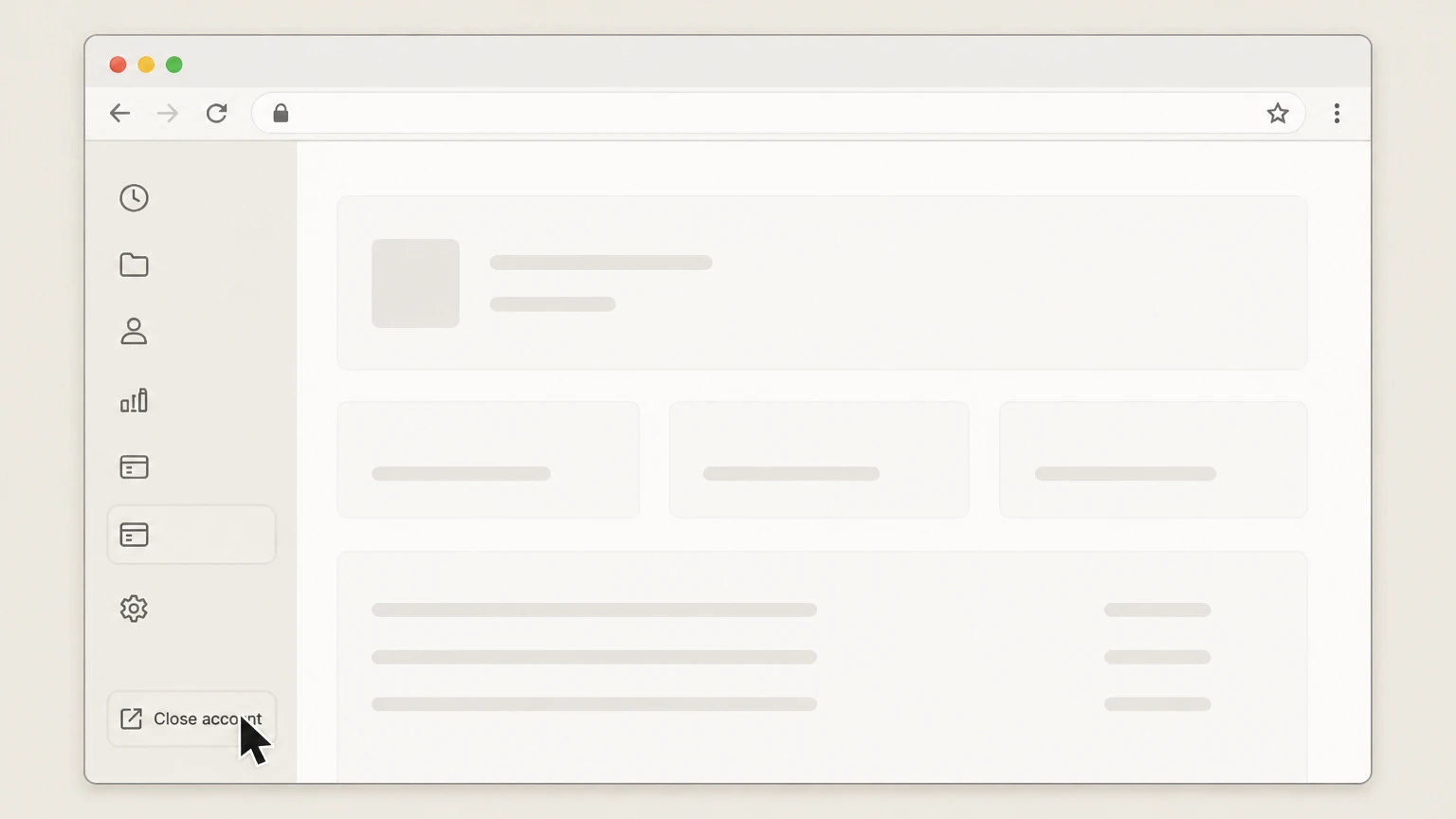
4Open the Close account page
On the Billing page, click the Close account link in the sidebar to open the cancellation and closure options. Use the Harvest account named on your receipt, and continue only after the next status in this cancellation path is visible.
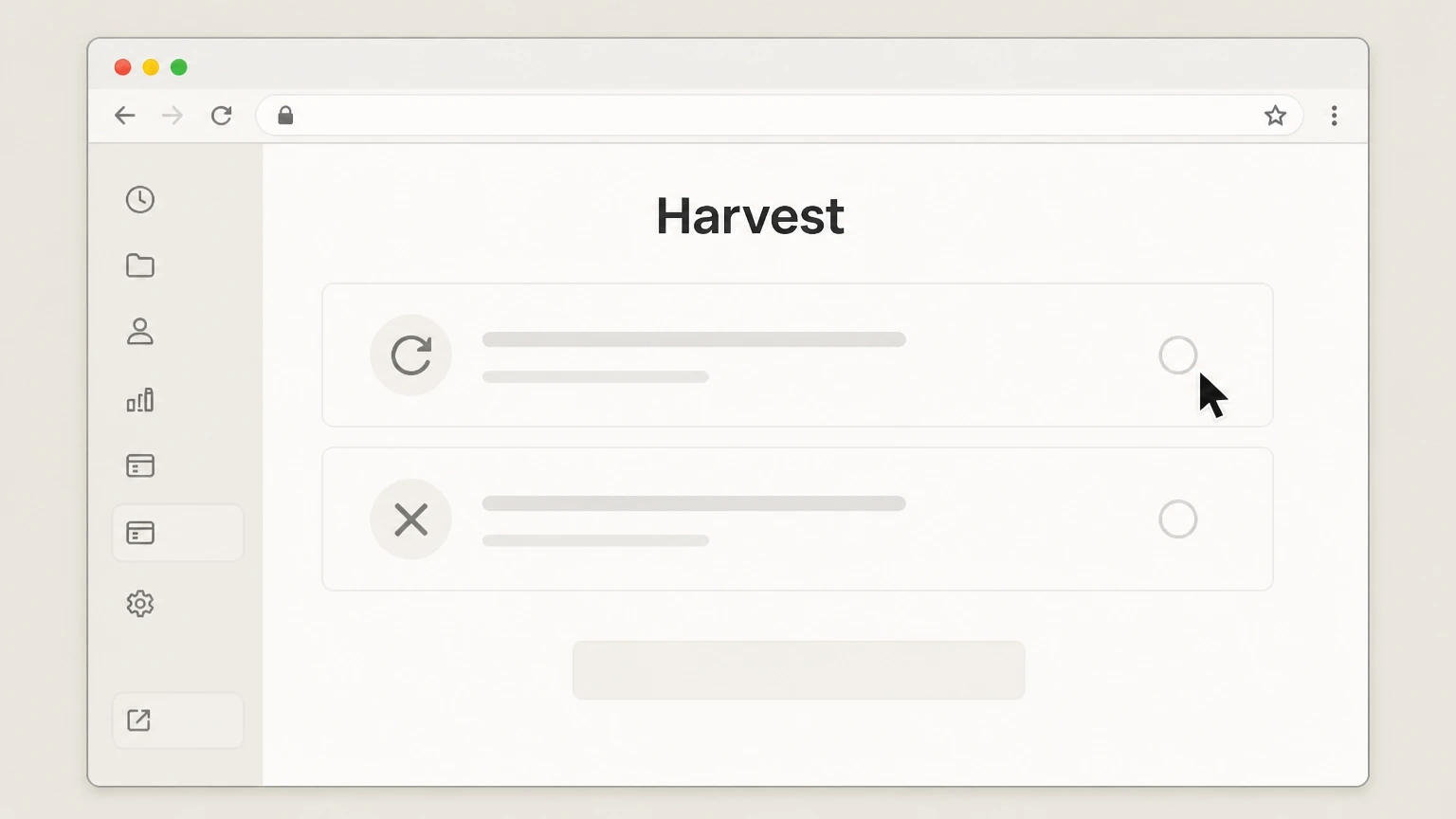 5
5Choose how you want to cancel
On the Close account page, select Cancel my subscription to stop renewal at the end of your current term, or select Close my account immediately to shut down the account right away.
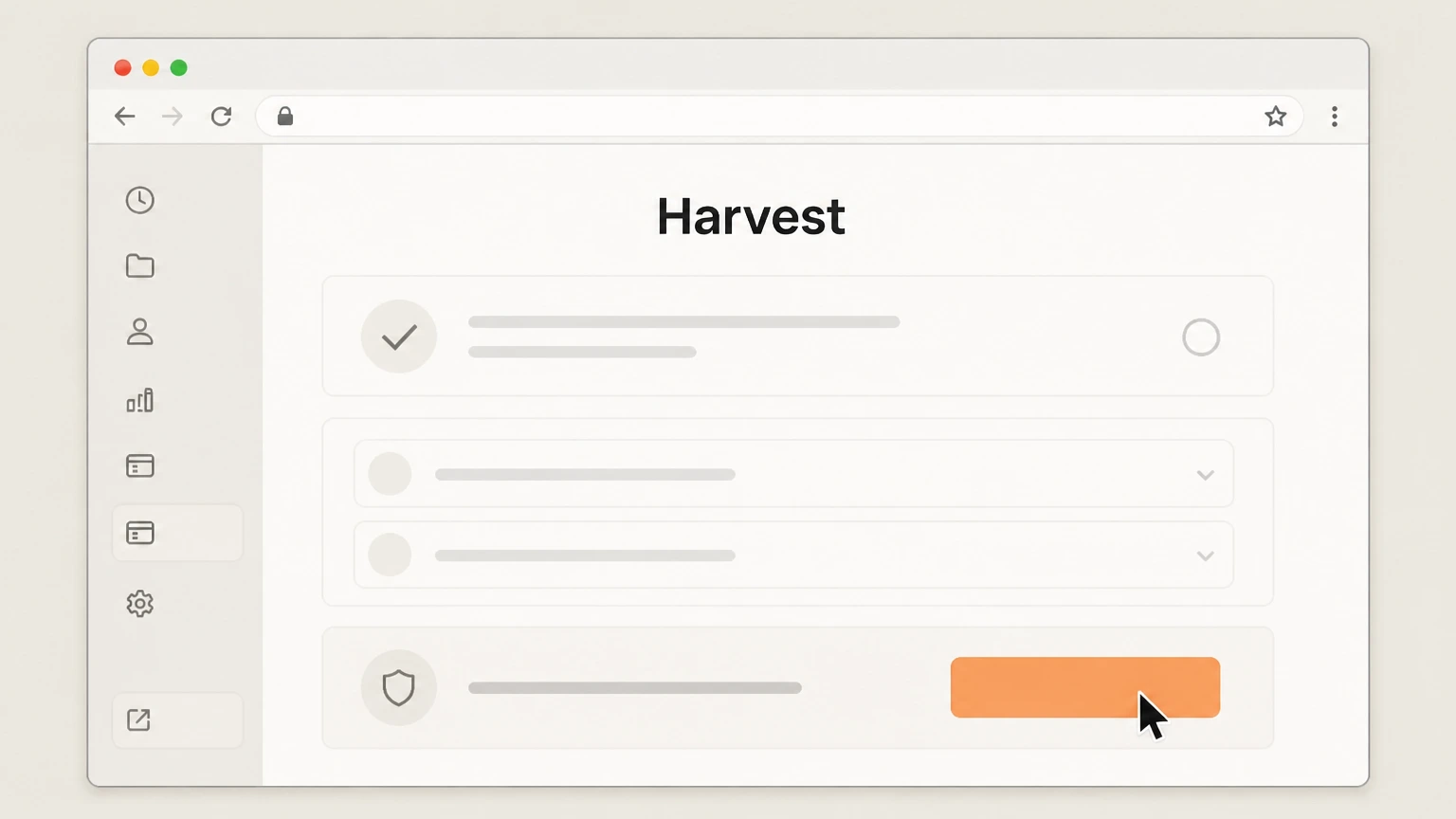 6
6Confirm and finish the cancellation
Review the information shown, answer the brief questions about why you are cancelling, then follow the on‑screen prompts to submit the final confirmation button for your chosen option.

Refund policy
Harvest refunds and billing after cancellation
Harvest’s current Terms of Service make clear that cancelling or choosing not to renew your subscription generally does not entitle you to a refund of prepaid fees, though support may handle edge cases individually.
Check my refund options- No refunds for non‑renewal under current Terms
- Harvest’s Terms state that if you elect not to renew a Subscription Plan by cancelling before the end of the current term, you will not receive a refund or credit for any fees already paid and must pay any outstanding fees through the end of that term.
- Early cancellation does not prorate prepaid fees
- In the current Terms, Harvest explains that cancelling a subscription early (before the end of the term) does not result in a refund of prepaid subscription fees or unused time; access usually continues until the end of the paid term unless you close the account immediately.
- Downgrades, seat changes, and refunds
- Harvest notes that downgrading your subscription plan or reducing seats or features will generally not take effect until the end of the current subscription term and does not generate a refund or credit for the downgrade; changes simply affect future renewals.
- Refunds, if granted, are handled by support
- Harvest’s help materials mention payment and refund confirmation emails and state that the in‑app chatbot cannot issue refunds, directing customers with refund requests to contact the support team, indicating that any exceptions are resolved case‑by‑case.
If you believe you are owed a refund or have a special circumstance (for example, an erroneous renewal), contact Harvest support directly and provide account and billing details for review. Contact Harvest support
Permissions
Who can cancel or close a Harvest account
Harvest restricts subscription changes and account closure to specific roles to protect billing and data. Understanding these permissions is essential before you attempt cancellation.
Only the Account Owner can cancel or close
Harvest states that only the Account Owner can cancel a subscription or close the account; other team members, even Administrators, cannot perform those actions directly.
Administrators access Settings and Billing
Only people with Administrator permissions can see Settings and Billing; if you do not see Settings in the top‑right of the web app, you are not an Administrator and cannot reach the Close account options.
Identifying the Account Owner
Administrators can find the Account Owner by opening the Team section to look for the Owner flag, or by going to Settings > Preferences, where the Account Owner is identified in the account preferences.
Changing the Account Owner before cancelling
If the current Account Owner should be changed before cancellation, the existing Account Owner can assign a new Account Owner in Settings > Preferences; if the owner is unavailable, an Administrator must contact Harvest support from their registered email.
Cancellation options
Scheduling cancellation of your Harvest subscription
For version 2 billing accounts, Harvest lets the Account Owner schedule the end of the paid subscription while keeping access until the end of the current term.
Web‑only cancellation for subscriptions
Harvest explains that you must use a web browser to cancel your subscription or close your account; these options are not available in its mobile or desktop apps.
Path to cancellation settings
From the Harvest web app, the Account Owner goes to Settings > Billing and then clicks the Close account link to reach the screen where cancellation can be scheduled.
Choosing “Cancel my subscription”
On the Close account page, selecting Cancel my subscription schedules non‑renewal at the end of the current subscription term while leaving the account active until that date.
Automatic account closure after term ends
When a scheduled cancellation reaches the end of the subscription term, Harvest automatically closes the account; the Account Owner receives an email with a link to download time and invoice data, available for one week.
Six‑month retention and possible reactivation
For accounts cancelled under version 2 billing, Harvest maintains account data for six months after closure and allows any Administrator to restart the account within that period by using Settings > Billing > Renew subscription.
Immediate closure
Closing your Harvest account immediately
Instead of waiting until the end of the term, the Account Owner can immediately close the Harvest account, which cancels billing and quickly removes access and data.
Using “Close my account immediately”
On the Close account page (Settings > Billing > Close account), the Account Owner can select Close my account immediately to cancel the subscription and begin account deletion right away.
Immediate loss of access
Harvest warns that closing the account immediately takes effect at once, even if time remains in the billing cycle, so teams should stop using the account and export needed data before confirming.
Email with export link
After immediate closure, Harvest emails the Account Owner a link to download time and invoice data; this link remains available for one week after the account is closed.
Ten‑day data deletion window
Harvest’s current version 2 billing article states that after an immediate closure it permanently removes account data after 10 days, so any required exports must be completed promptly.
Restoring accounts closed by mistake
If an account is closed in error, Harvest instructs customers to contact support within 10 days of closure so the account can be restored; after that, Harvest says the account and its data cannot be recovered.
Alternatives
Switching to the free plan instead of cancelling
Some customers may prefer to stop paying but keep limited access by moving to Harvest’s free plan rather than fully cancelling or closing the account.
Switching to the free plan from Billing
Harvest’s help center explains that an Administrator can go to Settings > Billing, click Change plan, and then select the Switch to free option to move from a paid plan to the free plan.
Timing under current version 2 billing
For version 2 billing, Harvest schedules the move to the free plan for the subscription renewal date unless an Administrator changes that choice before renewal.
Free plan vs. account closure
Switching to the free plan stops paid billing but keeps the Harvest account active on a limited feature set, whereas closing the account immediately or after cancellation removes access and ultimately deletes data.
Re‑upgrading from the free plan
Customers on the free plan can upgrade back to a paid plan at any time by using the Upgrade button at the bottom of pages in the account or the Upgrade plan option in Settings > Billing.
Connected products
Impact on connected Forecast accounts
Harvest integrates with Forecast, and Harvest’s cancellation behaviour affects this integration but does not automatically delete Forecast itself.
Scheduled cancellation and Forecast
For version 2 billing accounts, Harvest notes that when you cancel your Harvest subscription, any connected Forecast account remains active and stays connected to Harvest for six months after cancellation before the connection is destroyed.
Immediate closure and Forecast
If you close your Harvest account immediately, Harvest says a linked Forecast account will be disconnected from Harvest and lose integration features, but the Forecast account itself will remain active.
Requesting earlier disconnection
Harvest indicates that you can contact support if you want your Harvest and Forecast accounts disconnected before the automatic six‑month period elapses after a scheduled cancellation.
Billing & ownership
Billing ownership, renewals, and non‑refunds
Harvest’s billing documentation and Terms of Service clarify who bills you, how renewals work, and what to expect financially when you cancel.
Harvest bills you directly
The pricing and terms pages explain that Harvest subscriptions are paid to Harvest via credit card (monthly or yearly) or, for some larger teams, via invoiced ACH or bank transfer; there is no indication that Apple or Google Play act as billing owners.
Automatic subscription renewal
Harvest’s Terms state that subscription plans automatically renew for the same term length at the then‑current subscription fee unless you or Harvest choose not to renew; renewal continues until you take action to cancel or change the plan.
Deadline for stopping auto‑renewal
To avoid another term, the Terms of Service require you to log in and cancel your Subscription Plan, or use another available method, no later than the last day of the then‑current subscription term.
No automatic refunds on non‑renewal
Harvest’s current Terms say that if you elect not to renew, you will not receive a refund or credit for any fees already paid, and you remain responsible for unpaid fees through the end of the current term.
Refunds handled case‑by‑case via support
While the chatbot cannot issue refunds, Harvest’s help center mentions payment and refund confirmation emails and directs refund requests to the support team, indicating any exceptions are handled individually by support rather than through self‑service cancellation.
Data & access
Data access and exports when cancelling Harvest
Harvest documents how long your data stays available after cancellation or closure and how you can export it for your records.
Export before cancelling or closing
Harvest strongly recommends exporting any needed time, invoice, and expense data from Reports and Settings > Import/Export before cancelling or closing the account. For your Harvest account, compare this point with the billing owner and effective date shown in the signed-in account or latest receipt.
One‑week download link after closure
When you cancel (scheduled) or close the account, Harvest emails the Account Owner a link to download time and invoice data; this link remains available for one week after the account is closed.
Six‑month data maintenance after scheduled cancellation
For version 2 billing, Harvest says that after a subscription is cancelled and the account is closed at term‑end, all account data is maintained for six months, during which the account can be reactivated and data accessed or exported.
Ten‑day deletion window after immediate closure
If you close your account immediately, Harvest states that all account data is permanently removed from its systems after 10 days, and any exports that were emailed must be downloaded before you close the account.
Export access for expired trials
Even if your free trial has expired, Harvest explains that you can still sign in via id.getharvest.com, select the account, and use Settings > Import/Export to export all time, invoices, or expenses from the trial.
Reactivation
Undoing cancellation or reactivating a Harvest account
Harvest documents how to undo a scheduled cancellation, reactivate a cancelled account, or request restoration after an immediate closure.
Undoing a scheduled cancellation
For version 2 billing, Harvest allows any Administrator to withdraw a scheduled subscription cancellation before the renewal date by going to Settings > Billing and clicking the Cancel link in the yellow message box, then confirming the undo action.
Reactivating a cancelled account
Harvest explains that any Administrator can restart a cancelled account within six months by going to Settings > Billing, clicking Renew subscription, and completing the upgrade flow to begin a new paid subscription.
Restoring a recently closed account
If an account was fully closed (immediately), Harvest instructs customers to contact support within 10 days so the account can be restored; after 10 days, Harvest says the account and its data are not recoverable.
What official sources do not confirm
Limits of the public Harvest cancellation guidance
These points are intentionally qualified because the official sources reviewed on August 17, 2026 do not publish a complete answer.
Documented limitation 1
Cannot see individual customer billing configurations (for example, whether a specific account is still on billing version 1 or has migrated to version 2), so the guide summarizes both where behaviour differs.
Documented limitation 2
Public documentation confirms that Harvest bills directly and requires web‑browser cancellation, but it does not explicitly enumerate every possible sales channel; guidance assumes no hidden third‑party billing partners beyond those disclosed.
Documented limitation 3
Exact in‑product button placement and minor label changes may evolve; steps here follow the most recent Harvest Help Center descriptions rather than live UI inspection inside a customer account.
Documented limitation 4
Refund policies beyond the general “no refunds for non‑renewal or early cancellation” rule are handled case‑by‑case by Harvest support and are not fully detailed in public documents, so outcomes for individual refund requests cannot be guaranteed.
Harvest cancellation FAQ
Questions people search about canceling Harvest, answered with official provider or billing-platform sources checked on August 17, 2026.
How do I cancel my Harvest subscription?
Can I cancel Harvest from the mobile app?
What happens to my data when I cancel Harvest?
Can I switch to the free Harvest plan instead of cancelling?
Will I get a refund if I cancel my Harvest subscription?
Who can close a Harvest account?
How do I cancel auto-renewal but keep using Harvest until my term ends?
How do I reactivate my Harvest account after cancelling or closing it?
How does cancelling Harvest affect my Forecast account?
Where can I get help from Harvest if I have trouble cancelling?
Untangle this Harvest issue.
Let Pine handle the provider follow-up and keep the confirmation in one place.
