


CuriosityStream
Cancel subscription
How to Cancel CuriosityStream and Stop Renewal
Learn how to cancel CuriosityStream through the right billing provider. Follow official steps, understand access timing, refunds, and the confirmation to keep.
- Official CuriosityStream and billing-owner sources
- 3 provider-specific cancellation paths
- Refund and post-cancellation effects separated from renewal
- Verified August 17, 2026
Choose the CuriosityStream cancellation path that matches who bills you
CuriosityStream website (direct billing) · verify the billing owner
 1
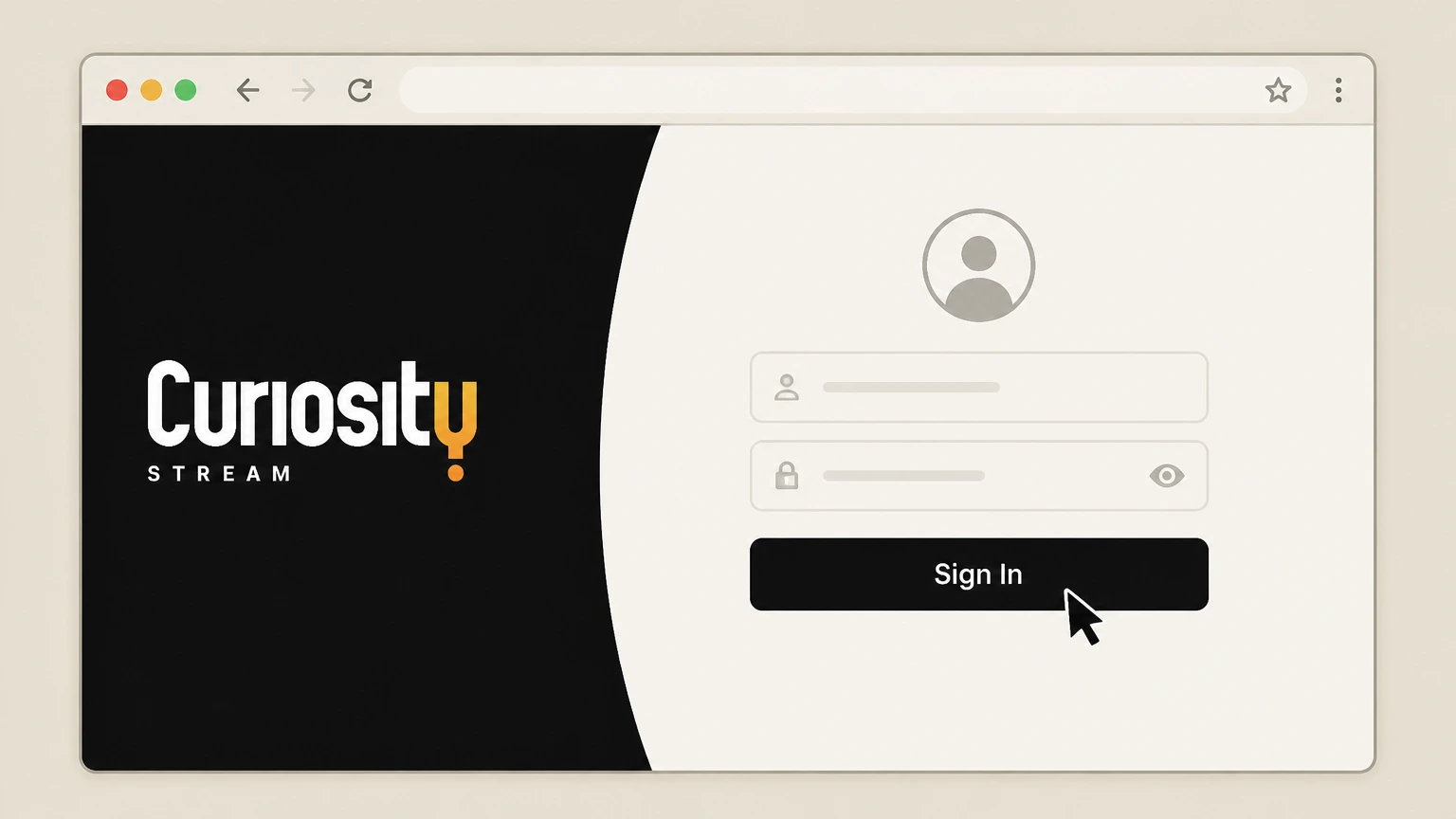
1Sign in to your CuriosityStream account
Go to curiositystream.com in a web browser and sign in to the account that is being billed for your subscription.
 2
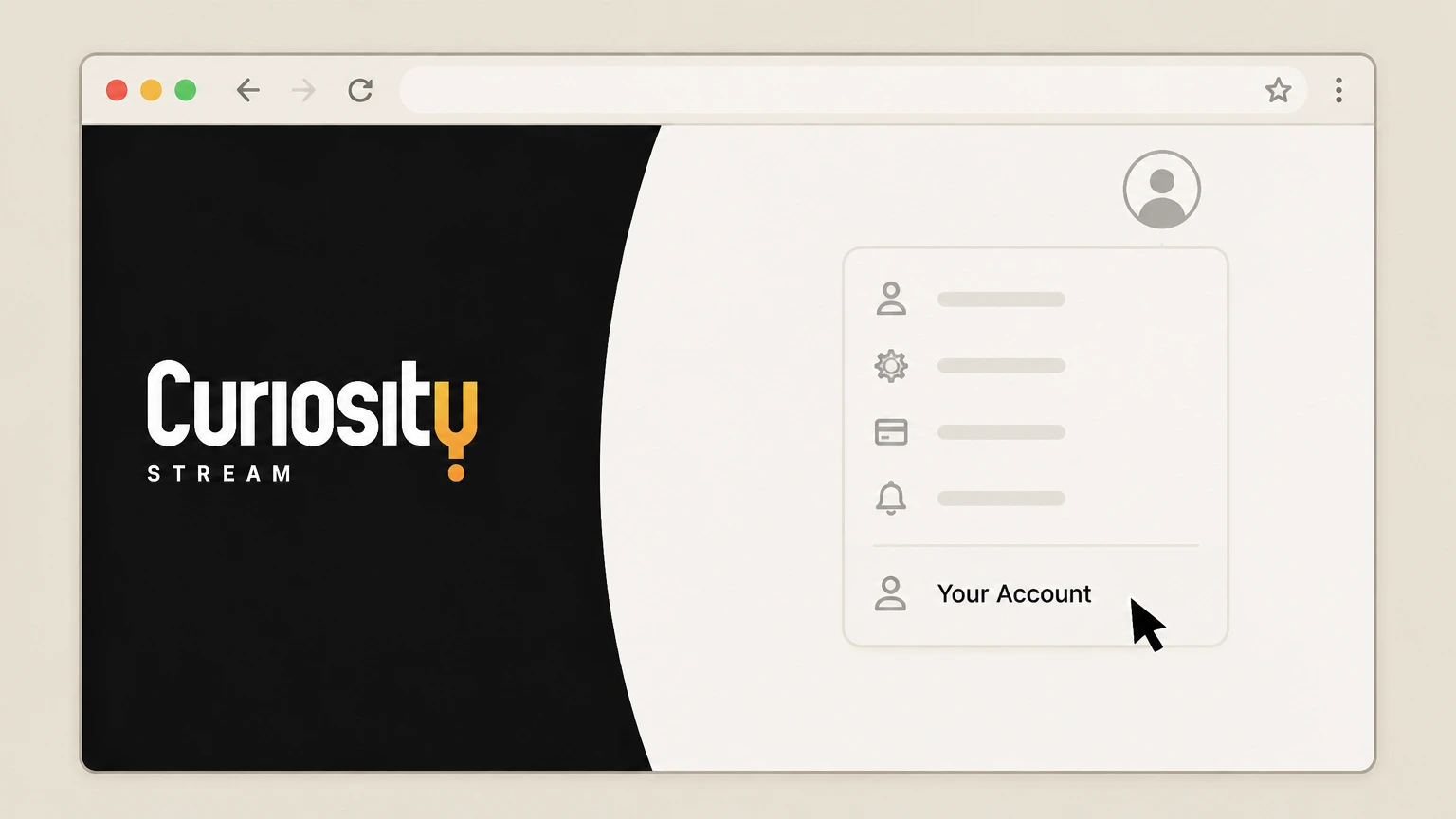
2Open the Your Account page
Open your profile or account menu and choose the Your Account option to view your subscription details. Use the CuriosityStream account named on your receipt, and continue only after the next status in this cancellation path is visible.
- Let Pine handle it
Pine can help
Too many steps?
Pine can find the right CuriosityStream website (direct billing) path and handle the cancellation for you.
 3
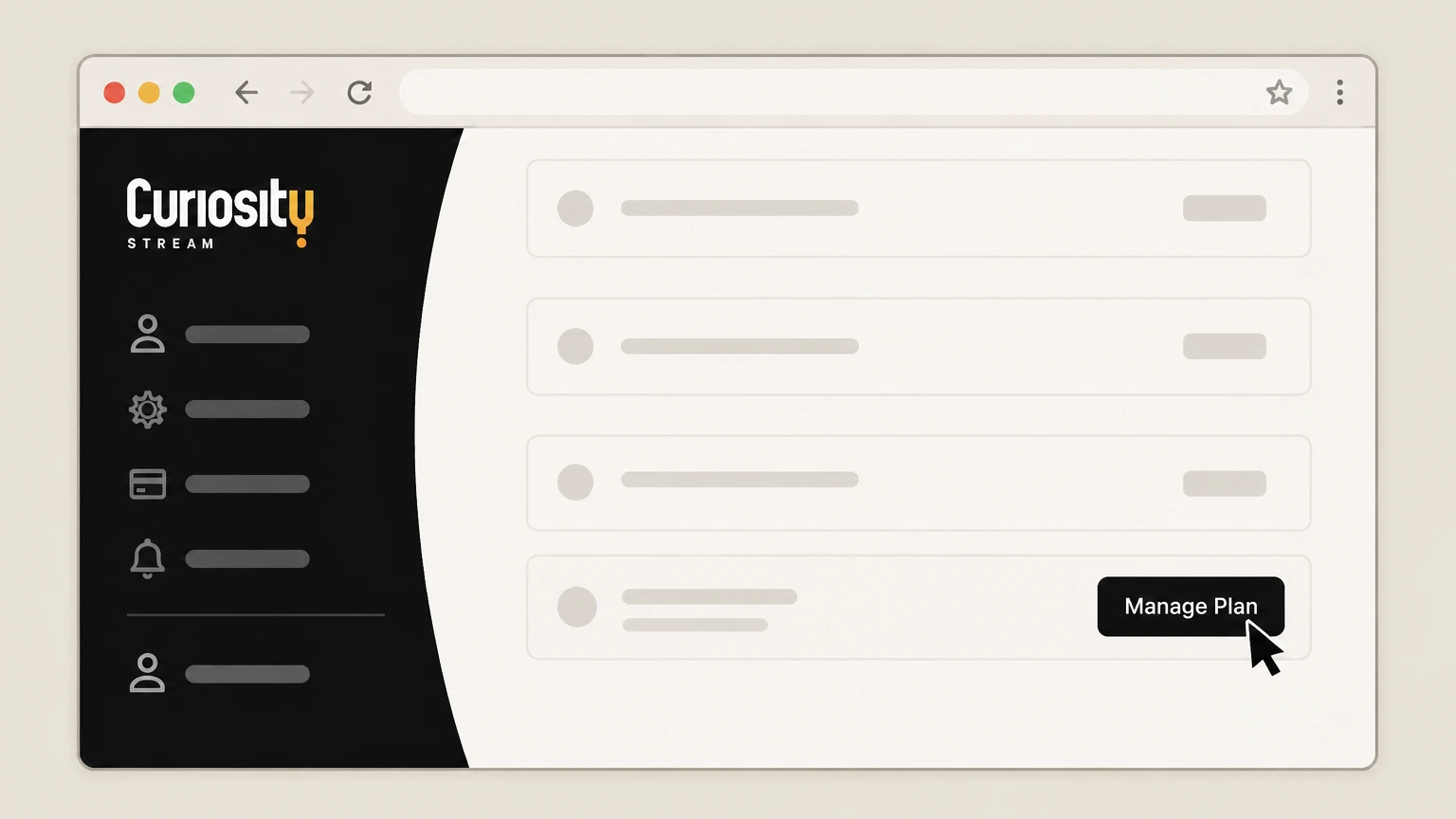
3Go to the Plan and Payment section
On the Account page, scroll to the Plan and Payment section at the bottom and select Manage Plan on the right-hand side.
 4
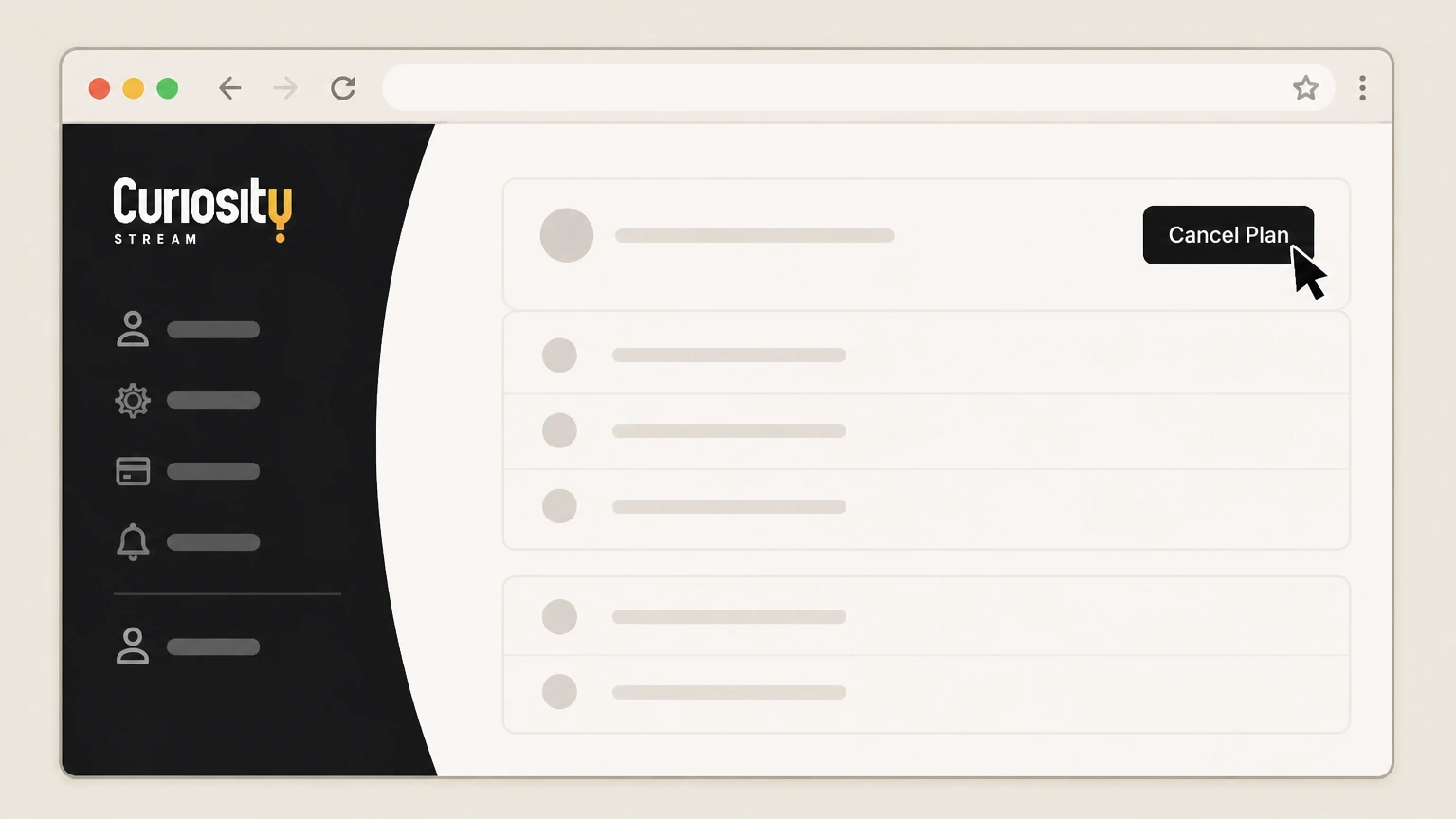
4Choose Cancel Plan
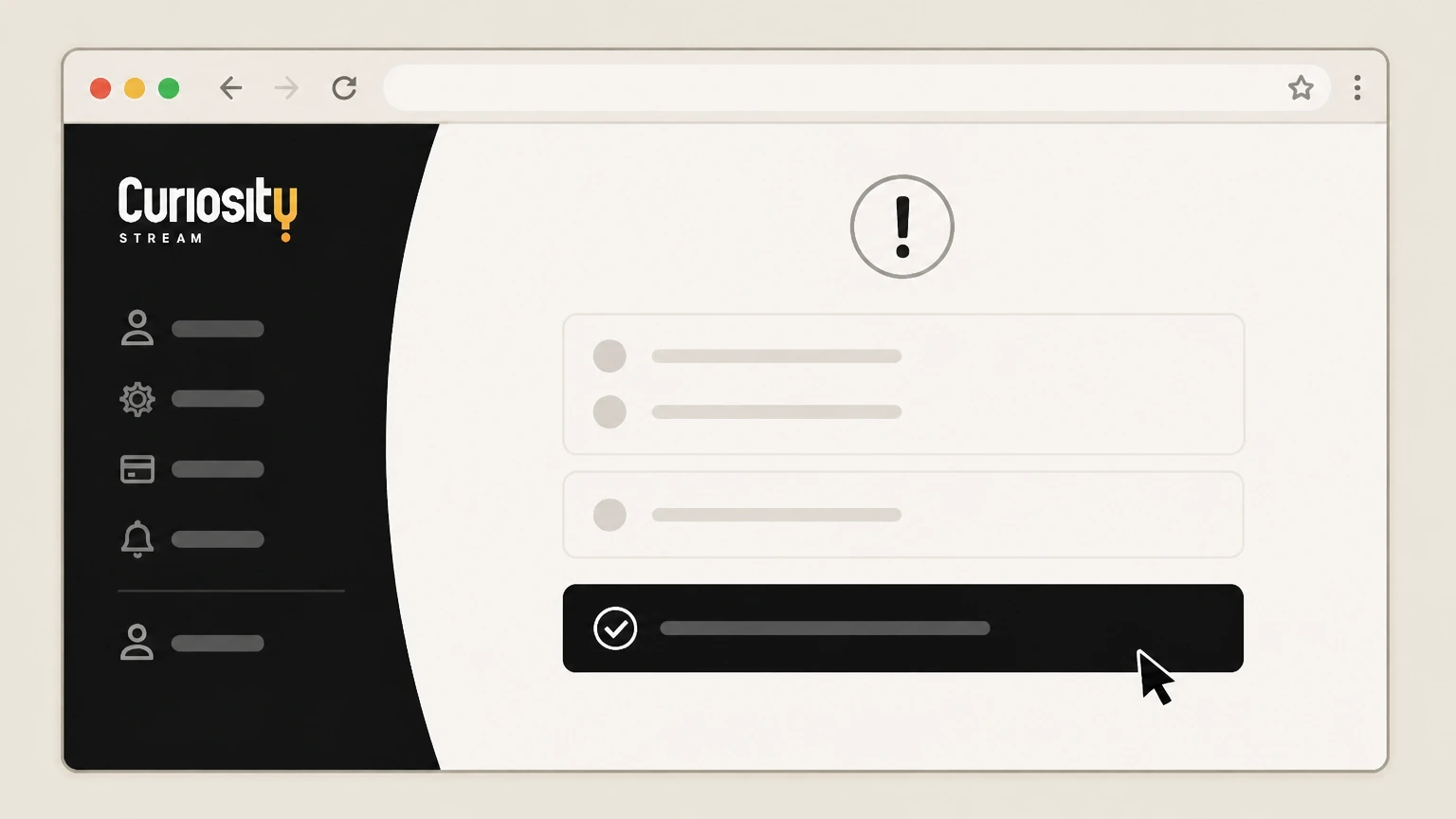
In the Manage Plan area, select the Cancel Plan option in the top-right corner of the panel. Use the CuriosityStream account named on your receipt, and continue only after the next status in this cancellation path is visible.
 5
5Confirm cancellation in the prompts
Review the on-screen confirmation messages and complete the final confirmation so that auto-renewal is turned off for your CuriosityStream plan.

Apple App Store on iPhone or iPad · verify the billing owner
 1
1Open Settings
On your iPhone or iPad, open the Settings app. Use the CuriosityStream account named on your receipt, and continue only after the next status in this cancellation path is visible.
 2
2Tap your name
At the top of Settings, tap your name to open your Apple ID account settings. Use the CuriosityStream account named on your receipt, and continue only after the next status in this cancellation path is visible.
- Let Pine handle it
Pine can help
Too many steps?
Pine can find the right Apple App Store on iPhone or iPad path and handle the cancellation for you.
 3
3Open Subscriptions
In your Apple ID account settings, tap Subscriptions to view your active and expired Apple-billed subscriptions. Use the CuriosityStream account named on your receipt, and continue only after the next status in this cancellation path is visible.
 4
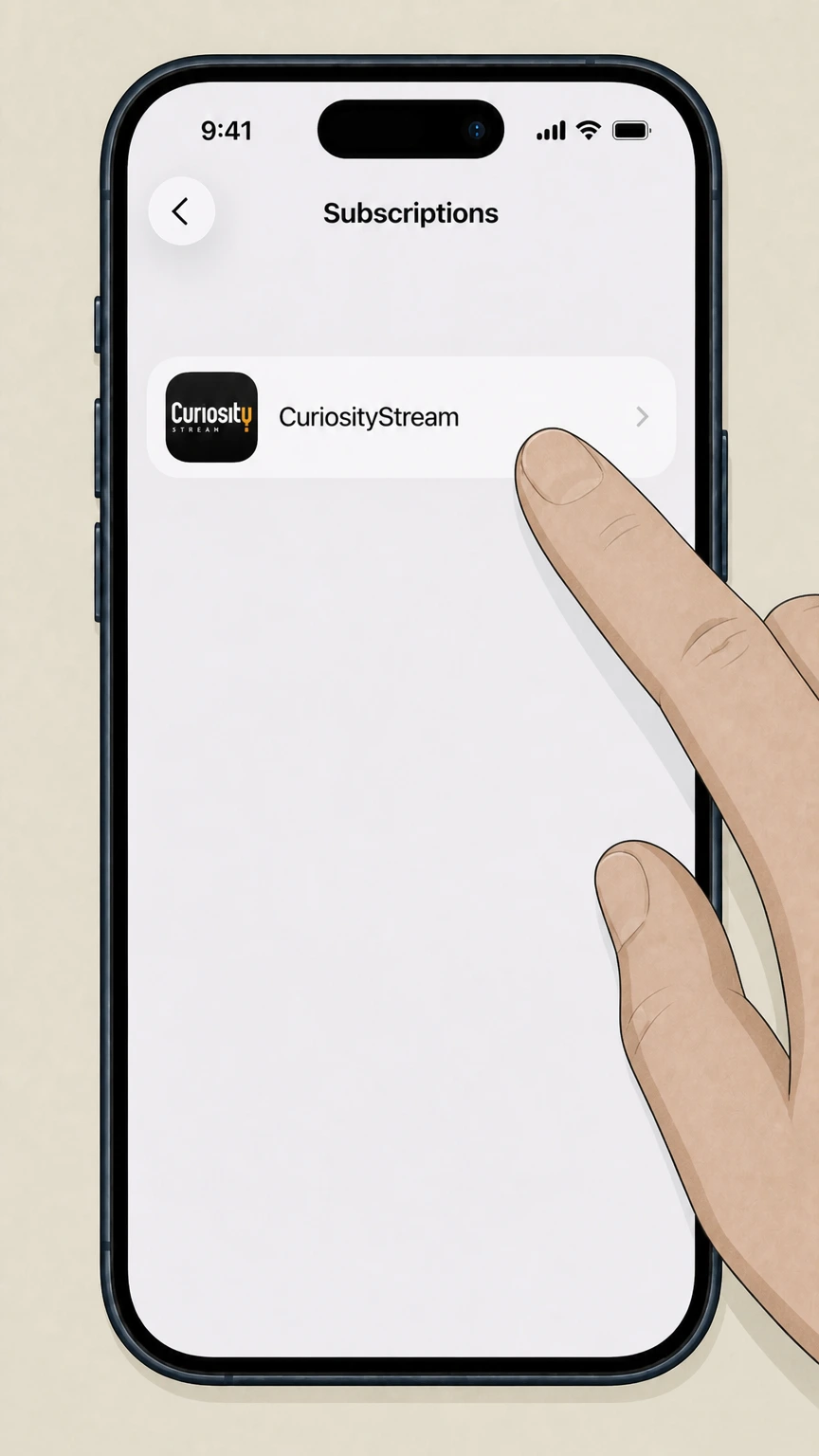
4Select CuriosityStream
In the list of subscriptions, tap the CuriosityStream subscription to open its details screen. Use the CuriosityStream account named on your receipt, and continue only after the next status in this cancellation path is visible.
 5
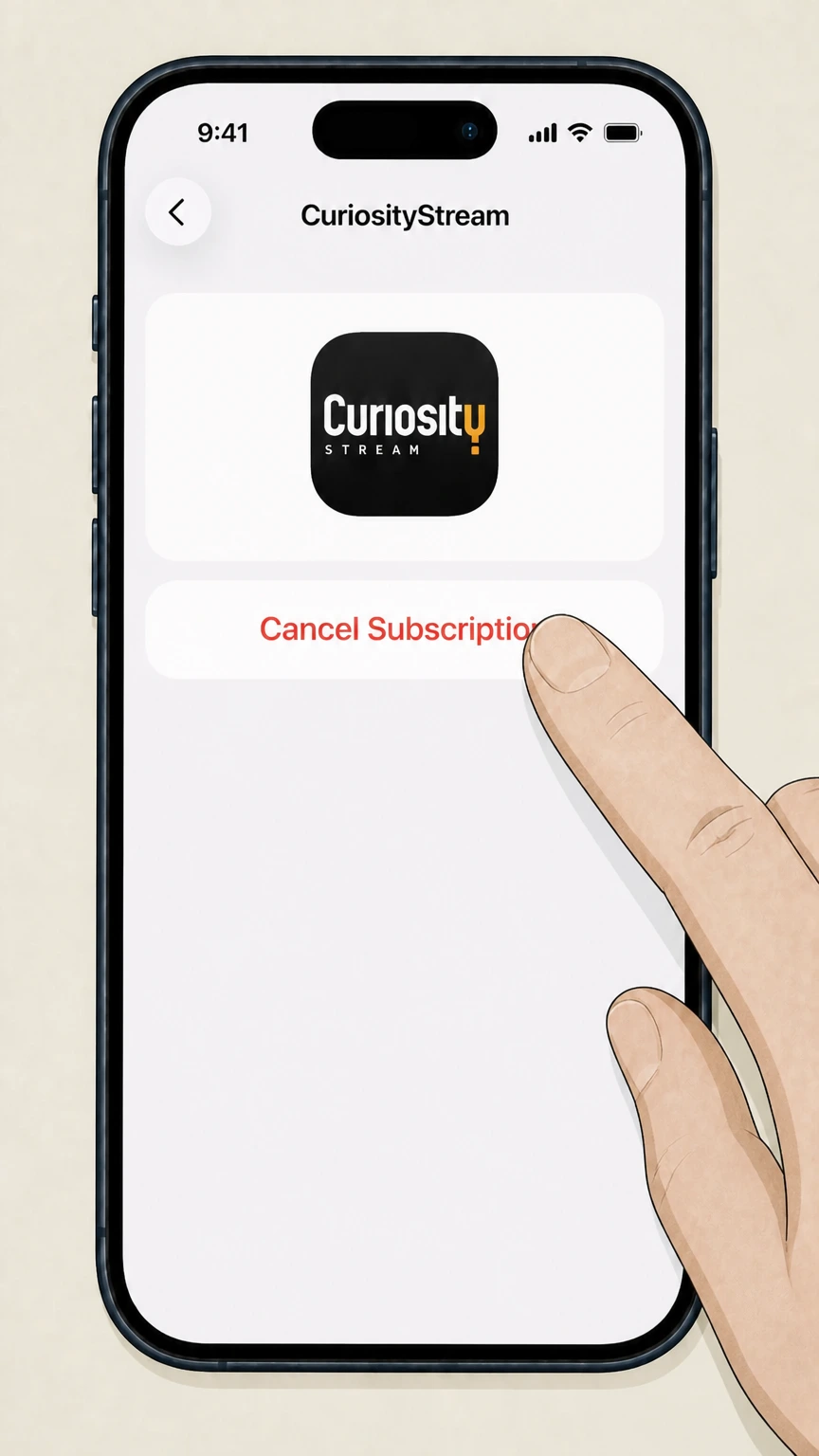
5Cancel the subscription
On the CuriosityStream subscription screen, tap Cancel Subscription and follow any remaining prompts until the status shows an expiration date instead of renewing.
Google Play on Android · verify the billing owner
 1
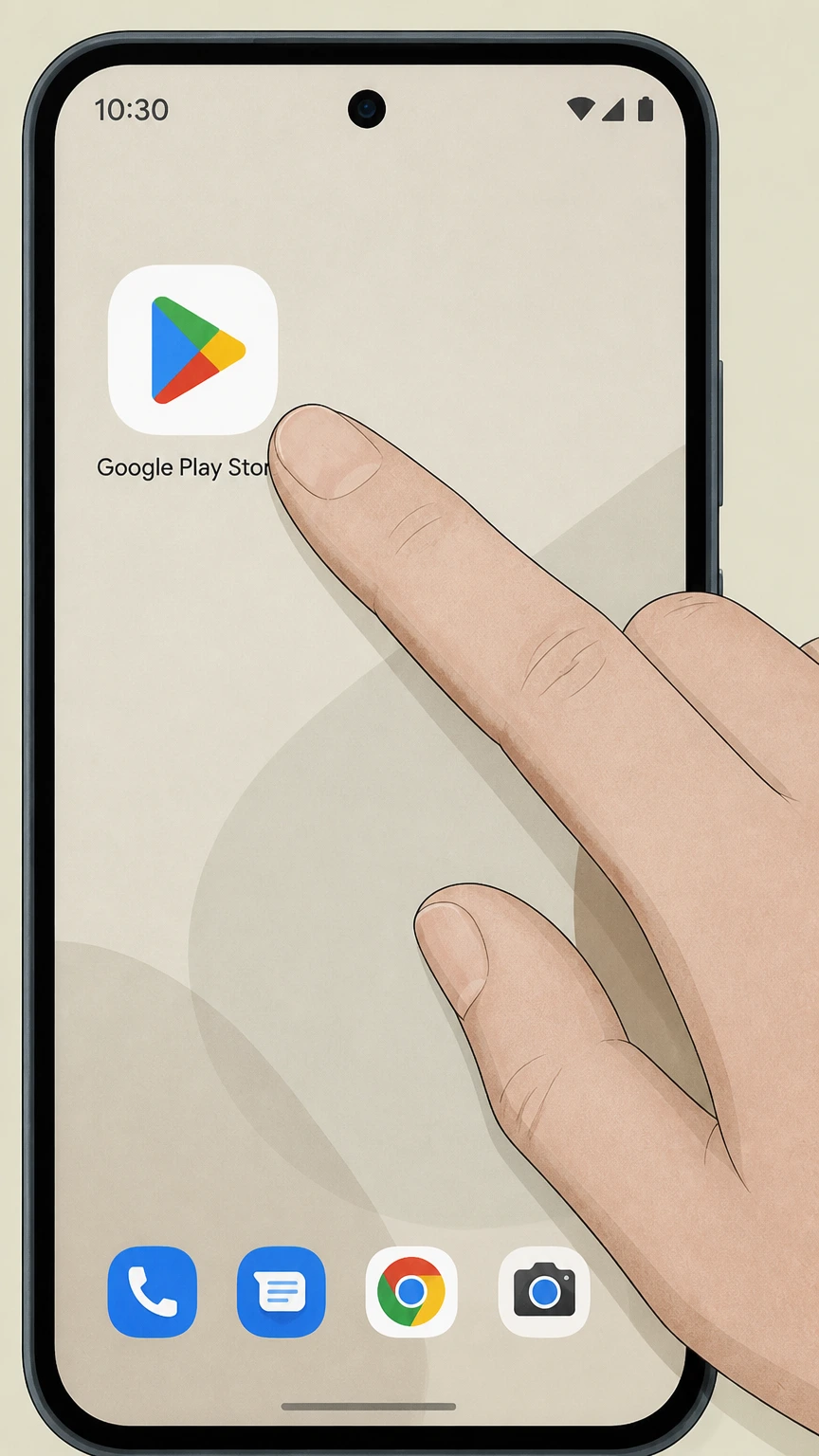
1Open the Google Play Store app
On your Android device, open the Google Play Store app that is signed in with the Google Account being billed.
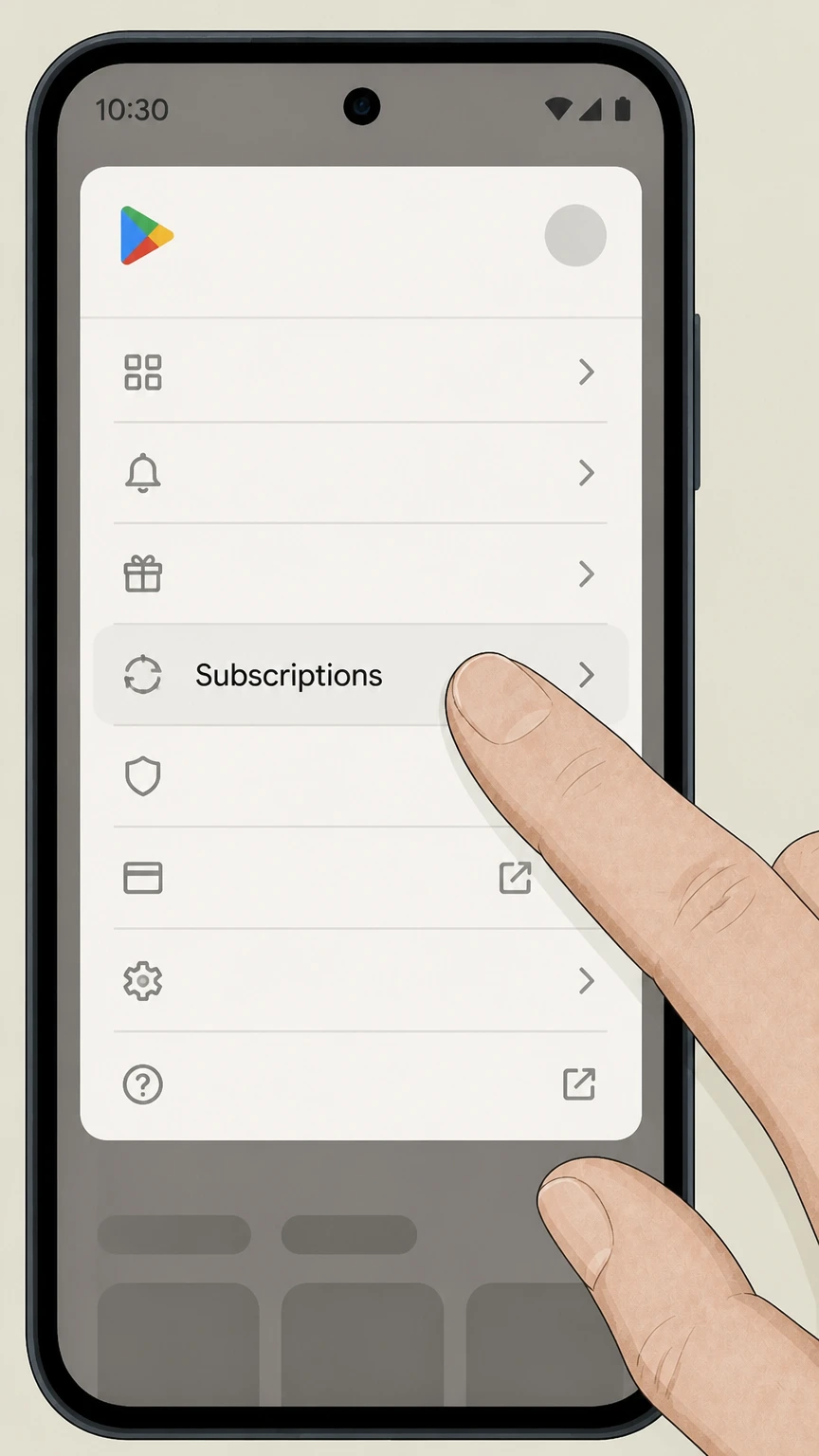 2
2Open the Subscriptions section
In Google Play Store, open the menu or profile icon and go to the Subscriptions section to see your active subscriptions.
- Let Pine handle it
Pine can help
Too many steps?
Pine can find the right Google Play on Android path and handle the cancellation for you.
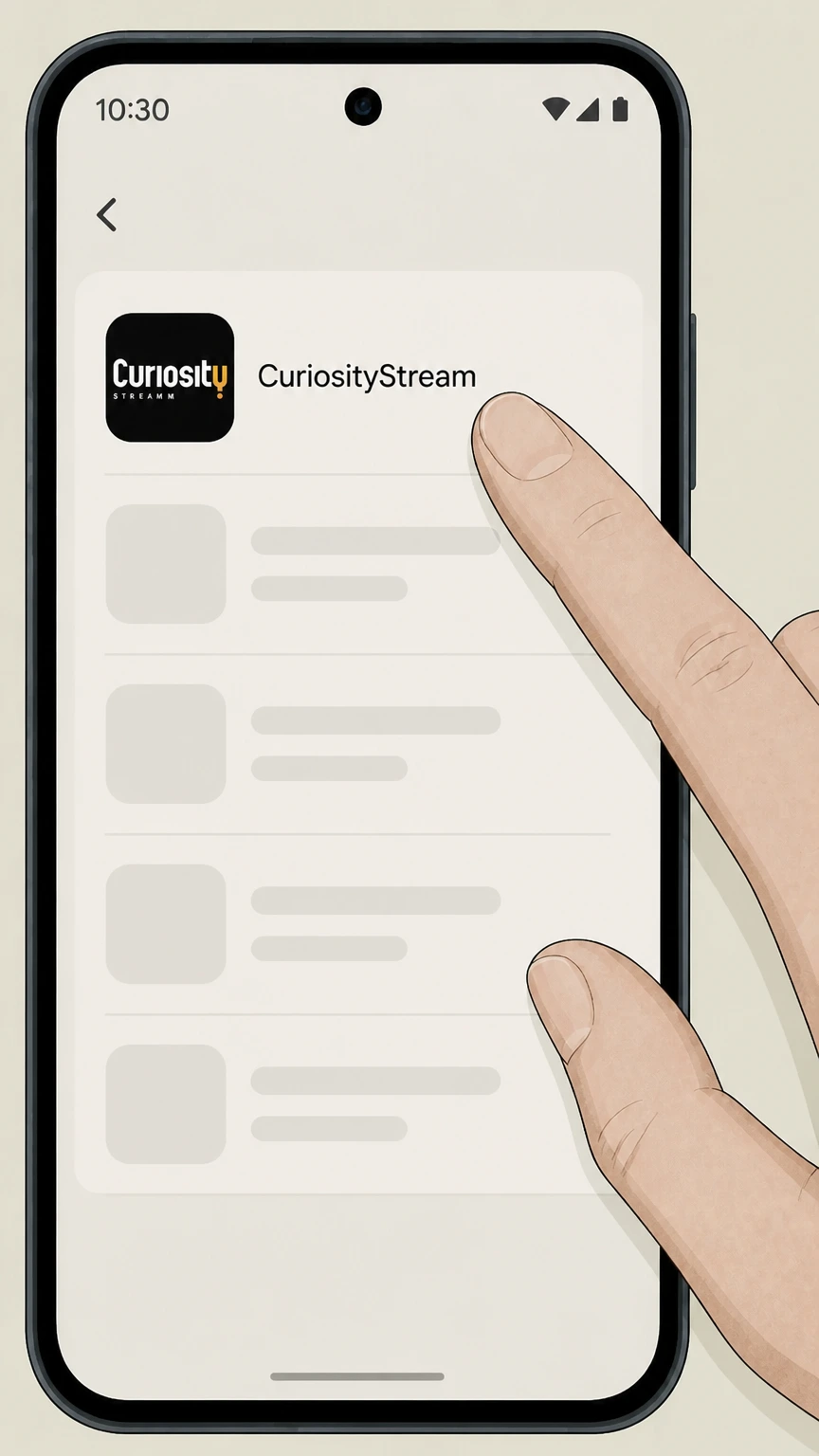 3
3Select the CuriosityStream subscription
From the list of subscriptions, choose the CuriosityStream entry to open its subscription details. Use the CuriosityStream account named on your receipt, and continue only after the next status in this cancellation path is visible.
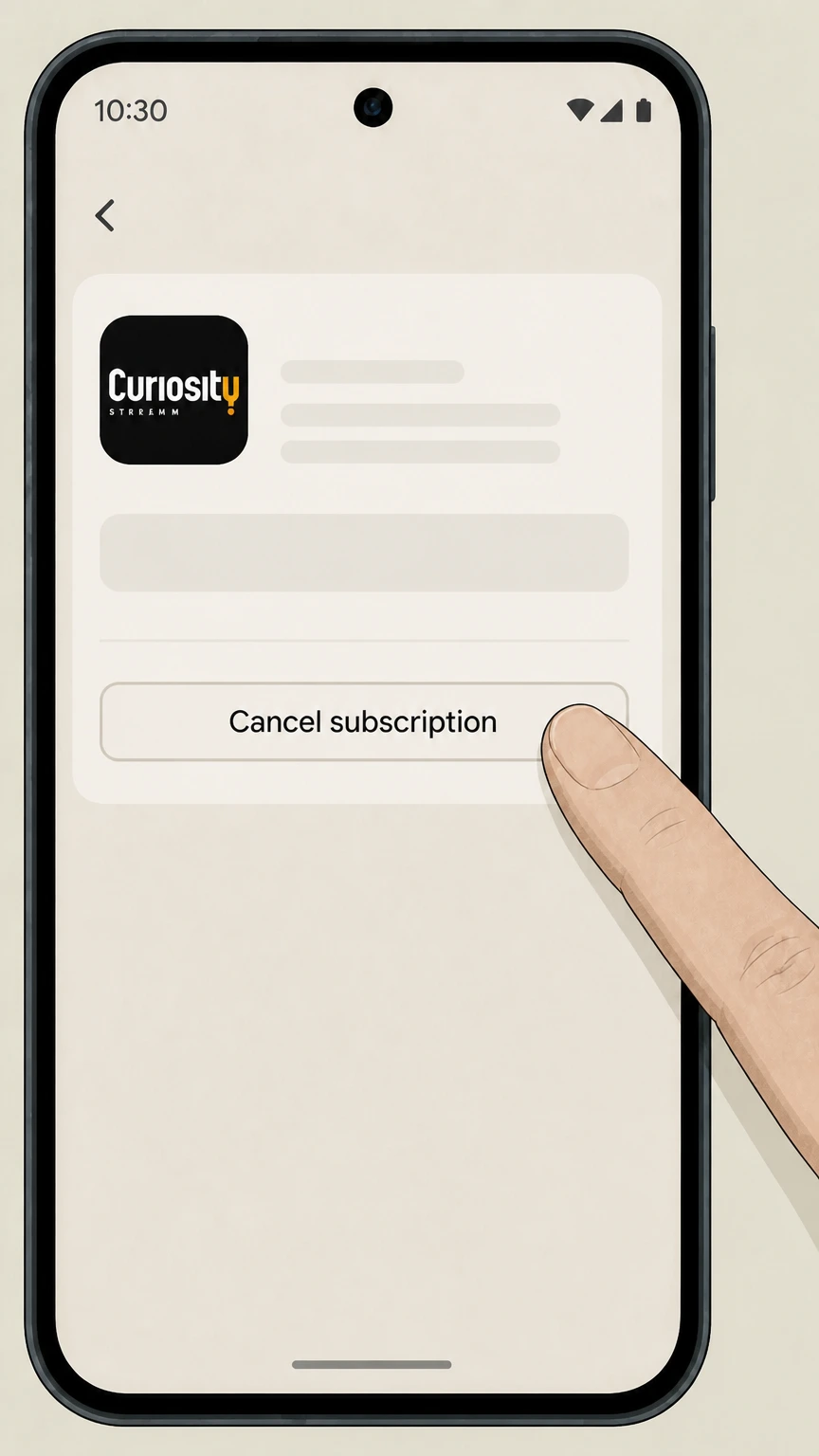 4
4Tap Cancel subscription
On the CuriosityStream subscription screen, tap Cancel subscription to stop future renewals. Use the CuriosityStream account named on your receipt, and continue only after the next status in this cancellation path is visible.
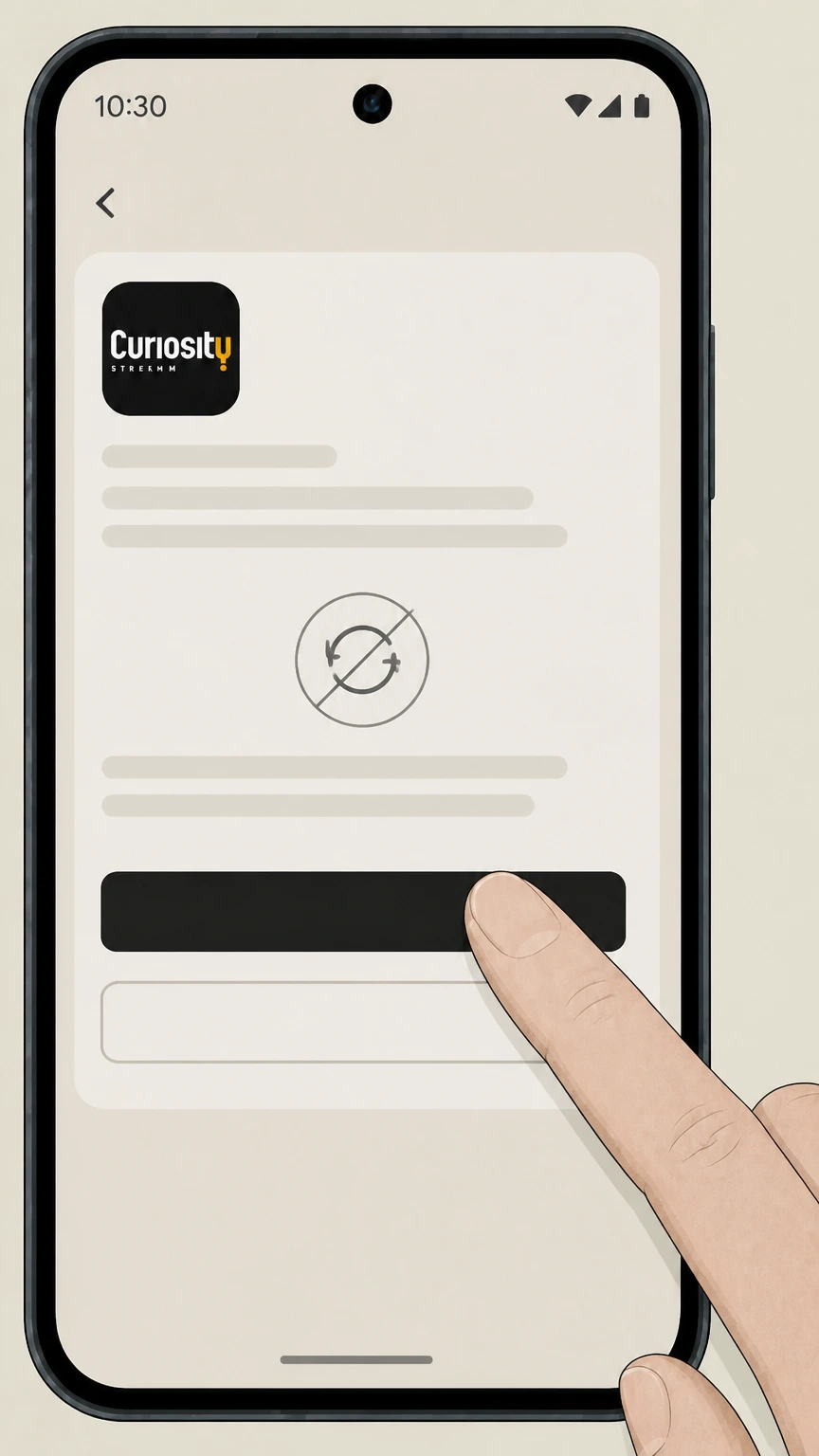 5
5Complete the on-screen confirmation
Follow the on-screen instructions to confirm cancellation so that Google Play turns off auto-renewal for CuriosityStream. Use the CuriosityStream account named on your receipt, and continue only after the next status in this cancellation path is visible.
Refund policy
CuriosityStream refunds and cancellation effects
Canceling CuriosityStream primarily stops future renewals; whether you get money back for past charges depends on your plan type and who bills you. Direct annual charges are described as non-refundable after payment is processed, and both monthly and annual direct plans continue through the prepaid period after cancellation. If you subscribed through Apple, Google Play, Roku, or Amazon, any refund or credit is governed by that partner’s policies, not CuriosityStream’s.
Check my refund options- Direct annual plans are non-refundable after charge
- CuriosityStream’s annual-plan help article states that by opting for the discounted annual plan, the charge is non-refundable once processed, and cancellation only prevents renewal after the current annual term ends.
- Monthly and annual plans continue through prepaid periods
- The same article explains that both annual and monthly plans can be canceled at any time but continue to provide access through their respective prepaid billing periods, so cancellation typically does not create a pro-rated refund for unused days.
- Apple handles its own subscription refunds
- Apple’s Billing and Subscriptions support page says that App Store purchases, including subscriptions, may be eligible for a refund, which must be requested via Apple’s ‘Request a refund’ process, separate from the simple act of canceling.
- Google Play limits subscription refunds
- Google Play’s help center notes that once a payment plan has been charged, you cannot cancel remaining payments for that cycle and that refunds are only issued under Google Play’s refund policy, meaning most cancellations affect future renewals but not past charges.
- Partner-billed refunds must follow partner rules
- CuriosityStream’s guidance that iTunes, Google Play, Roku, and Amazon subscribers must manage subscriptions on those platforms implies that CuriosityStream does not control refund decisions for those billing relationships; users must rely on the partner’s official refund channels.
If you believe you were charged incorrectly or need an exception to these rules, review the Account & Billing section of CuriosityStream’s help center and, if applicable, the refund policies of the app store or platform that bills you before contacting support. Review CuriosityStream billing and refund help
Service status
Where CuriosityStream is active and who can cancel
CuriosityStream remains a standalone subscription streaming service, but cancellation always depends on who bills you for the subscription.
CuriosityStream is currently active
CuriosityStream’s website continues to sell monthly and annual plans and promote new programming, indicating that the service is active and accepting new subscribers. For your CuriosityStream account, compare this point with the billing owner and effective date shown in the signed-in account or latest receipt.
Direct and third-party billing options
CuriosityStream confirms that subscriptions can be billed directly through its website or via iTunes (Apple), Google Play, Roku, and Amazon, and that these external platforms control their own billing tools.
Check your statement before canceling
The official guidance is to review your bank or card statement to see whether charges come directly from CuriosityStream or from Apple, Google Play, Roku, or Amazon before you attempt to cancel.
Cancellation must follow the billing owner
CuriosityStream states that if your subscription was set up through iTunes, Google Play, Roku, or Amazon, you must go to that specific platform to manage or cancel your subscription; the CuriosityStream account page only controls direct-billed plans.
Website billing
Managing and canceling direct CuriosityStream billing
If CuriosityStream bills your card directly, your subscription is controlled entirely from the Your Account area on curiositystream.com.
Accessing Your Account
Under Account & Billing help, CuriosityStream instructs direct subscribers to visit their Your Account page on the website to manage their plan and payment details.
Using Manage Plan
Within the Account page, the Plan and Payment section contains a Manage Plan link, which is the entry point for canceling, upgrading, or changing your streaming plan.
Cancel Plan option
The Cancel Plan button in the Manage Plan area is the specific control used to turn off auto-renewal for a direct CuriosityStream subscription. For your CuriosityStream account, compare this point with the billing owner and effective date shown in the signed-in account or latest receipt.
Effect on monthly and annual plans
CuriosityStream explains that both monthly and annual plans can be canceled at any time but continue through the prepaid billing period; the annual plan charge is explicitly described as non-refundable once processed.
Reactivating later
Account & Billing resources describe a separate process to restart or reactivate a CuriosityStream subscription later from the same account page, confirming that canceling stops billing but does not erase the account itself.
Apple billing
CuriosityStream subscriptions billed through Apple
When CuriosityStream is billed through Apple, cancellation and any refunds are handled entirely by Apple’s subscription system.
Identifying Apple billing
If your bank statement or purchase history shows Apple or iTunes as the merchant for CuriosityStream, CuriosityStream’s help center directs you to follow Apple’s own cancellation instructions instead of the CuriosityStream website.
Where to cancel on Apple devices
Apple’s support articles explain that you manage and cancel App Store subscriptions from the Subscriptions section of your Apple ID in the Settings app on iPhone or iPad.
iPhone cancellation flow
On iPhone, Apple instructs users to open Settings, tap their name, tap Subscriptions, select the relevant subscription, then tap Cancel Subscription; if no Cancel button appears and an expiration date is shown in red, the subscription is already canceled.
Access after Apple cancellation
Apple documentation notes that canceling stops future renewals while generally allowing access to continue until the current billing period ends, after which the service stops unless you re-subscribe.
Apple-controlled refunds
Apple’s Billing and Subscriptions hub states that some App Store purchases, including subscriptions, may be eligible for a refund that must be requested through Apple’s dedicated refund request flow, separate from simply canceling the subscription.
Google Play billing
CuriosityStream subscriptions billed through Google Play
Android users who subscribed through Google Play must cancel and manage CuriosityStream entirely through Google’s subscription settings.
Recognizing Google Play as the merchant
CuriosityStream’s cancellation article lists Google Play among the platforms that manage their own CuriosityStream subscriptions, meaning charges labeled Google Play on your statement require cancellation through Google, not curiositystream.com.
Google Play subscription controls
Google’s support documentation instructs users to go to the Subscriptions section of Google Play on their Android device, select the subscription, and use the Cancel subscription option to stop renewal.
Uninstalling does not cancel
Google Play explicitly warns that uninstalling an app does not cancel a subscription; you must use the subscriptions screen and confirm cancellation for CuriosityStream to stop renewing.
Access after Google cancellation
The Google Play help page explains that after you stop renewal on a subscription, you won’t be charged on the next renewal date but can continue to access your content until that date.
Google Play refunds
The same help content notes that Google Play generally does not issue refunds beyond what is provided in its refund policy, so canceling CuriosityStream on Google Play normally affects future billing rather than providing a retroactive refund.
Other partners
Roku and Amazon billing for CuriosityStream
CuriosityStream also appears as a subscription or channel on Roku and Amazon platforms, each with its own in‑platform cancellation menu.
Roku channel subscriptions
CuriosityStream’s help article includes detailed Roku steps: from the Roku Home screen you highlight the CuriosityStream channel, open the options menu, choose Manage subscription to see details, and then use Cancel subscription and confirm to stop renewal.
Roku cancellation confirmation
According to the same guidance, Roku displays a confirmation message showing how long you can continue to access CuriosityStream after canceling and then a final confirmation that the subscription has been canceled.
Amazon Appstore subscriptions
For Amazon Appstore on Android, CuriosityStream instructs users to open the Amazon Appstore app, go to Subscriptions, select the CuriosityStream subscription, and turn auto-renewal off on the Subscription screen to cancel.
Kindle Fire subscriptions
On Kindle Fire devices, the directions are to open Apps, then Store, then My Subscriptions, select CuriosityStream, and turn auto-renewal off, which cancels future billing while access continues through the current period.
Other Amazon entry points
CuriosityStream’s materials group these flows under Amazon billing generally but do not detail every possible Amazon entry point, so subscribers using a different Amazon service should follow Amazon’s own subscription management instructions for cancellation.
After cancellation
What changes after you cancel CuriosityStream
Canceling CuriosityStream mainly affects future billing and streaming access; your login and data are handled separately from subscription status.
Streaming access continues to period end
CuriosityStream’s annual-plan explanation states that both monthly and annual plans remain active through their prepaid billing periods after cancellation, meaning you can keep watching until the end of your current month or year.
No automatic account deletion
Help-center content on changing, pausing, and restarting plans, plus the availability of reactivation, shows that canceling stops billing and access but does not automatically delete your CuriosityStream account credentials or profile.
Bundled or partner services
A CuriosityStream Redbox FAQ and Smart Bundle information confirm that some plans include partner services; canceling CuriosityStream or changing plans can also affect those bundled add-ons, so you should review bundle details before canceling.
App removal vs. subscription status
Google Play’s policy clarifies that uninstalling the CuriosityStream app on Android does not cancel the subscription, and similar behavior is typical on other platforms—real cancellation requires changing the subscription setting with the billing owner.
Data and privacy considerations
CuriosityStream’s Privacy Policy governs how your data is handled; canceling your subscription changes ongoing billing and access but does not itself specify a data-retention period or automatic erasure of viewing history.
Refunds
Refund rules and what cancellation does not cover
CuriosityStream and its billing partners distinguish between stopping future renewals and getting money back for charges that have already been processed.
Annual plans are non-refundable once charged
CuriosityStream’s annual-standard-plan article explains that annual plans offer discounted pricing in exchange for paying upfront for a full year, and that the annual charge is non-refundable after payment has been processed.
Monthly plans mirror annual behavior
The same article notes that annual and monthly plans function similarly in that both can be canceled at any time, with access continuing through the prepaid billing period, which implies no partial refunds for unused days in an already-started month.
Apple refund requests are separate
Apple’s Billing and Subscriptions resources say that some App Store purchases may be eligible for a refund and direct users to a separate ‘Request a refund’ flow; canceling an Apple-billed CuriosityStream subscription on its own does not guarantee a refund.
Google Play refund limitations
Google Play’s subscription help indicates that once your payment method is charged for a plan, you can’t cancel remaining payments for that period and that refunds are limited to situations covered by Google Play’s refund policy.
Third-party refund control
Because CuriosityStream instructs subscribers billed through iTunes, Google Play, Roku, or Amazon to manage subscriptions with those platforms, any refunds or billing disputes in those cases must also be handled under the relevant partner’s policies rather than CuriosityStream’s own refund practices.
Pause or cancel
Pausing CuriosityStream instead of canceling
For some direct-billed monthly plans, CuriosityStream offers a pause option that is different from full cancellation.
Pause option for monthly direct billing
CuriosityStream’s pause article explains that certain monthly subscribers billed directly by CuriosityStream can pause their subscription for one, two, or three months starting at the next billing cycle.
How to pause the plan
To pause, you visit the Account page, choose Manage Plan in the Plan and Payment section, select Pause Plan, pick the pause duration, and confirm, which stops charges during the pause period while preserving your account.
Automatic reactivation after pause
At the end of the pause period, CuriosityStream states that your subscription will automatically reactivate and your monthly payment will resume without further action unless you cancel instead during the pause.
Canceling during a pause period
The same guidance notes that if you choose to cancel while your plan is paused, you will not be billed again, and cancellation will take effect according to normal billing rules.
Pause not available via third parties
CuriosityStream highlights that the pause feature is only for directly billed monthly subscriptions; accounts registered through Apple, Google, Amazon, or Roku do not currently support pausing in this way.
What official sources do not confirm
Limits of the public CuriosityStream cancellation guidance
These points are intentionally qualified because the official sources reviewed on August 17, 2026 do not publish a complete answer.
Documented limitation 1
Availability of CuriosityStream as an Amazon Prime Video Channel, or as part of specific Amazon Prime bundles, could not be confirmed from the allowed official domains, so this guide only covers Amazon Appstore and Kindle Fire flows documented by CuriosityStream.
Documented limitation 2
No official CuriosityStream documentation within the allowed domains details cancellation or refunds for payments made via PayPal or other payment processors beyond the listed partners, so such scenarios are not addressed here.
Documented limitation 3
CuriosityStream’s public materials and privacy policy do not specify exact data-retention durations or automatic deletion behavior after cancellation, so the guide avoids stating specific timelines and instead references the general Privacy Policy.
Documented limitation 4
Official sources consulted do not provide a CuriosityStream customer service phone number or guaranteed response times for support requests, so the guide does not make claims about live support availability or service-level commitments.
Documented limitation 5
Roku and Amazon host their own broader subscription and billing policies, but only CuriosityStream’s own descriptions of Roku and Amazon cancellation flows were used; platform-side nuances beyond those descriptions may not be fully reflected.
Documented limitation 6
Refund eligibility for Apple- and Google Play–billed CuriosityStream subscriptions depends on Apple’s and Google’s evolving refund policies; this guide summarizes only high-level principles and cannot guarantee outcomes in individual cases.
CuriosityStream cancellation FAQ
Questions people search about canceling CuriosityStream, answered with official provider or billing-platform sources checked on August 17, 2026.
How do I completely cancel my subscription?
How do I cancel CuriosityStream if I subscribed on the website?
How do I cancel CuriosityStream on iPhone?
How do I cancel CuriosityStream on Android or Google Play?
How to cancel curiosity stream through Amazon
How do I deactivate my subscription?
Can I pause CuriosityStream instead of canceling?
Will I get a refund if I cancel my CuriosityStream annual plan?
How do I know my CuriosityStream subscription is canceled?
Does deleting the CuriosityStream app cancel my subscription?
Untangle this CuriosityStream issue.
Let Pine handle the provider follow-up and keep the confirmation in one place.
