

Canva
Cancel subscription
How to Cancel Canva Subscription: Official Steps
Cancel Canva as an individual, Team owner, or app-store subscriber, and check add-ons, renewal timing, account access, and refund limits.
- Canva and billing-owner guidance rechecked August 14, 2026
- 3 supported billing paths separated
- Cancellation, access, and refund outcomes kept distinct
- Confirmation evidence and common failure paths included
Choose who bills your Canva subscription
Web · Verify this billing owner
Cancel on the provider website
 1
1Check billing owner and channel
Identify an individual plan, Team owner, or app-store subscription.
 2
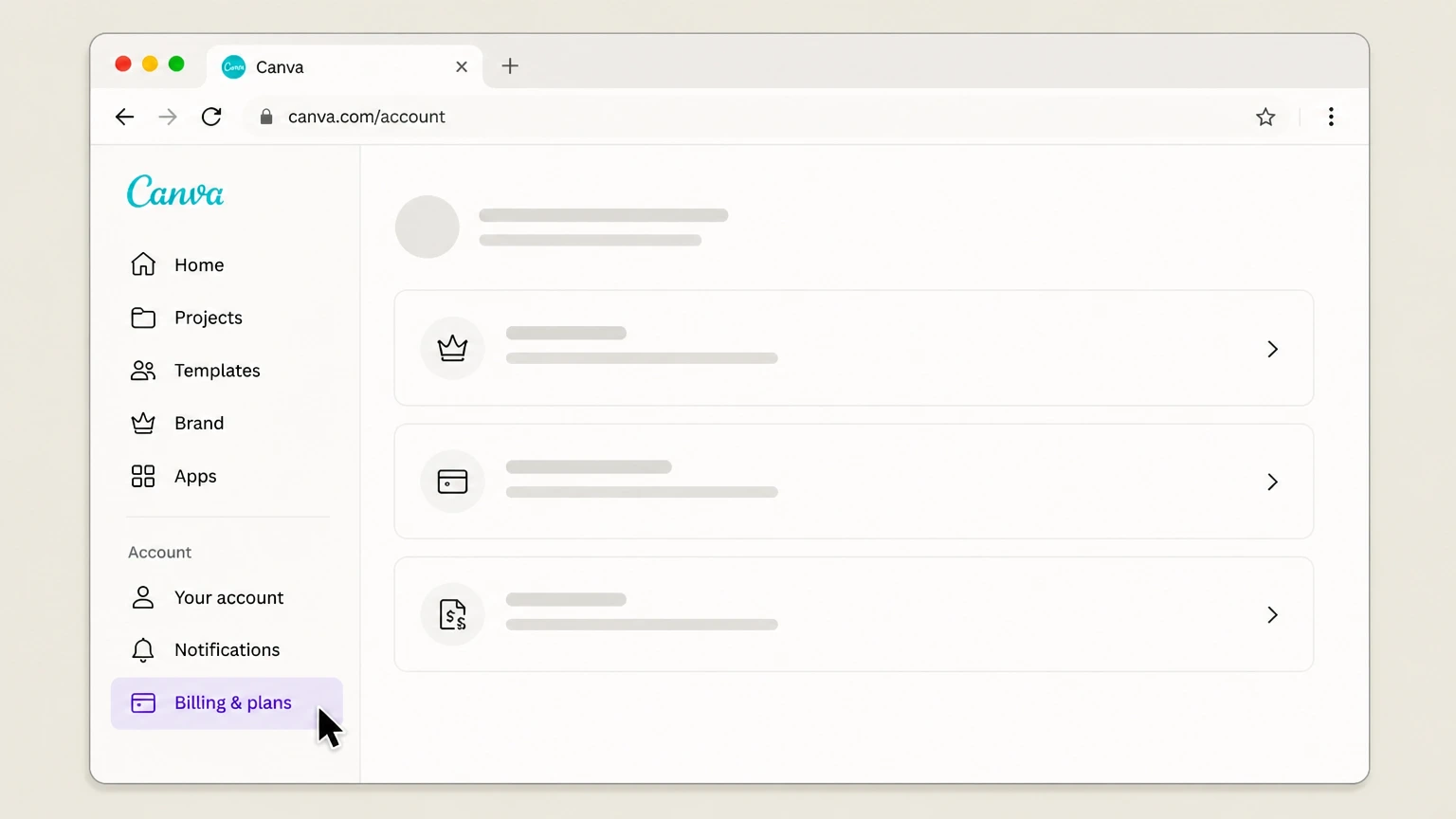
2Open Billing & plans
Use the billed Canva account and select the plan or add-on to cancel.
- Let Pine handle it
Pine can help
Too many steps?
Pine can find the right Web path and handle the cancellation for you.
 3
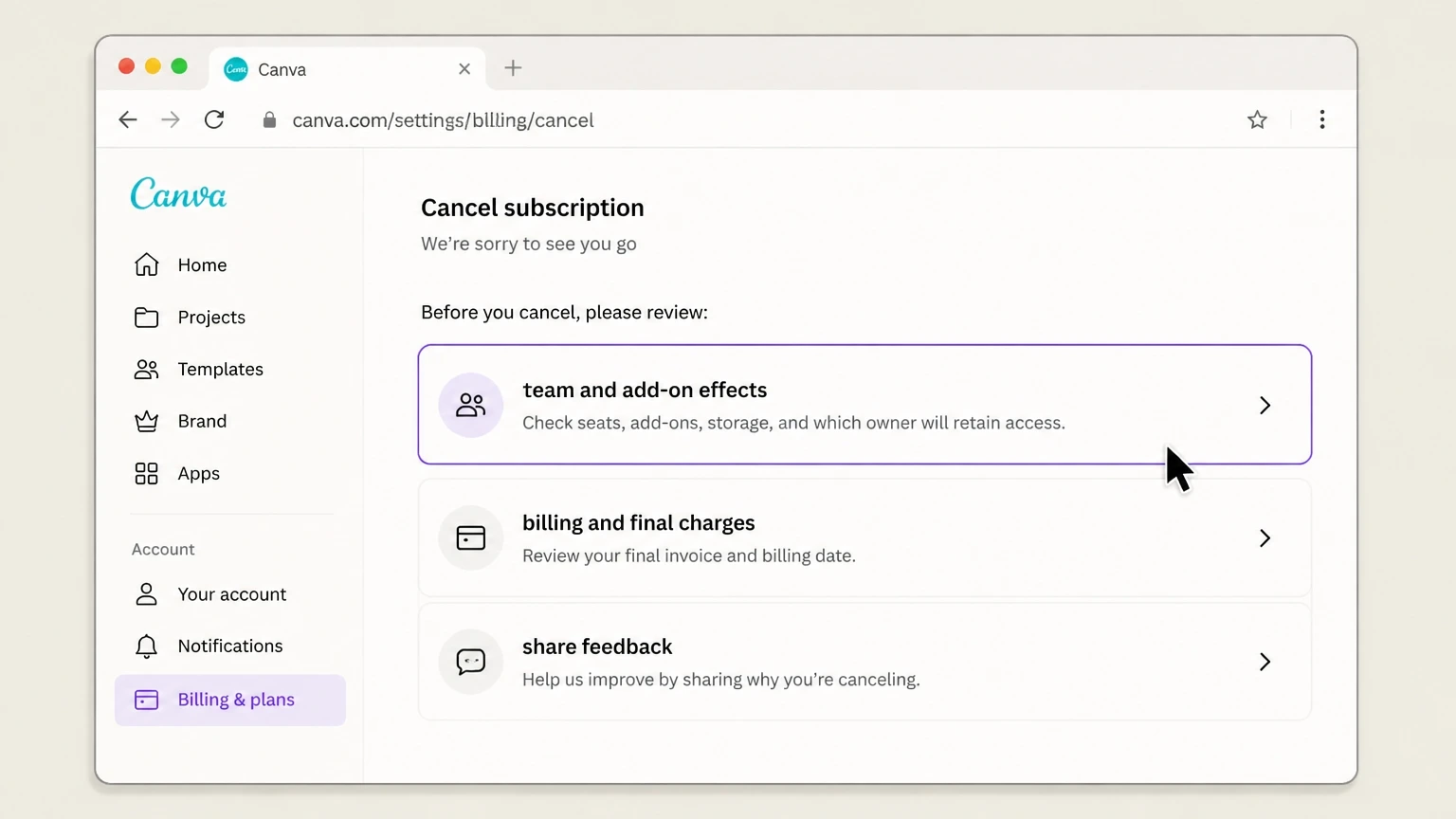
3Review team and add-on effects
Check seats, add-ons, storage, and which owner will retain access.
 4
4Confirm the end date
Save the cancellation status and verify no separate add-on remains active.

App Store · Verify this billing owner
Cancel an App Store subscription
 1
1Open Settings
On the iPhone, open Settings while signed in to the Apple Account used for purchase.
 2
2Tap your name
Open the Apple Account card at the top of Settings.
- Let Pine handle it
Pine can help
Too many steps?
Pine can find the right App Store path and handle the cancellation for you.
 3
3Open Subscriptions
Tap Subscriptions and wait for the active subscription list.
 4
4Choose the provider
Open the provider subscription and verify the plan and renewal date.
 5
5Tap Cancel Subscription
Confirm cancellation and keep the expiration date shown by Apple.
Google Play · Verify this billing owner
Cancel a Google Play subscription
 1
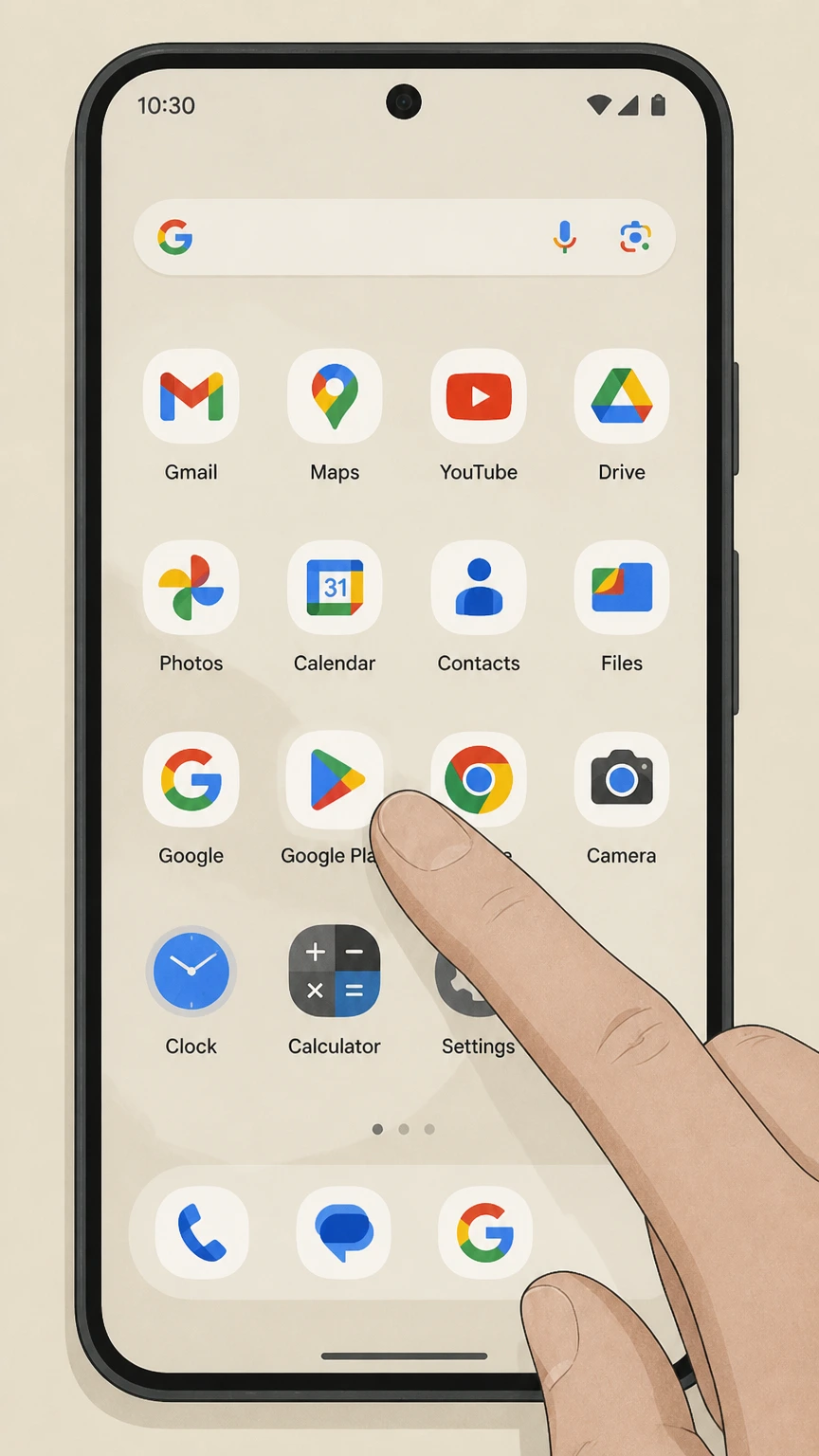
1Open Google Play
Use the Google account that purchased the subscription.
 2
2Open Payments & subscriptions
Tap the profile picture, then Payments & subscriptions.
- Let Pine handle it
Pine can help
Too many steps?
Pine can find the right Google Play path and handle the cancellation for you.
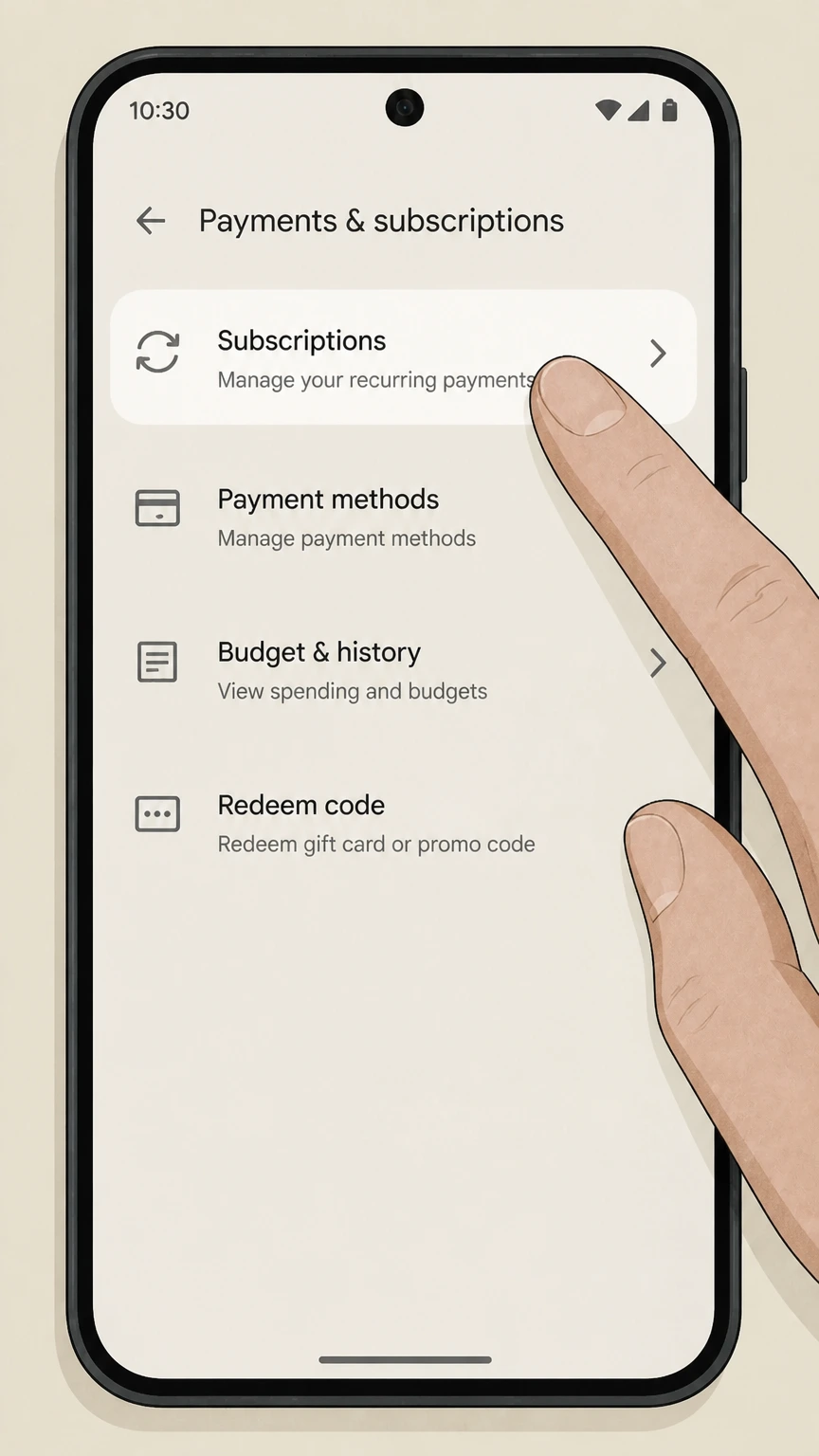 3
3Open Subscriptions
Find the provider in the active subscription list.
 4
4Choose Cancel subscription
Follow the reason and confirmation prompts without uninstalling the app.
 5
5Save the expiration date
Verify Google Play shows renewal off and keep the confirmation.
Refund policy
Canceling Canva does not automatically create a refund
The paid plan or add-on should show an end-of-cycle cancellation date; designs remain in the account but paid features and team entitlements can change.
Check my refund options- Renewal
- The paid plan or add-on should show an end-of-cycle cancellation date; designs remain in the account but paid features and team entitlements can change.
- Billing owner
- The company shown on the receipt or account controls refund handling.
- Evidence
- Keep the receipt, cancellation status, effective date, and response from the seller.
Review the official refund or subscription terms for the company that posted the charge before requesting a reversal. Canva — current Terms of Use, billing and cancellation
Choose the right path
Billing owner and plan consequences
Canva uses different cancellation rules for individual canva plan, canva team, app-store purchase, and add-on charge. Identify the billed product and owner before following a path.
Individual Canva plan
The billed account can manage it in account settings.
Canva Team
The Team owner controls billing and seat consequences.
App-store purchase
Use Apple or Google subscription controls.
Add-on charge
Check whether the add-on must be canceled separately from the base plan.
Keep proof
What to record before and after cancellation
For Canva, keep billing owner, plan and add-ons, purchase receipt, and cancellation status. These records establish the effective date and help resolve another charge.
Billing owner
Record the individual or Team owner account.
Plan and add-ons
Capture every recurring item and renewal date.
Purchase receipt
Identify Canva or the app store as seller.
Cancellation status
Save the end date for the plan and each add-on.
Troubleshooting
Why a cancellation can appear to fail
If Canva still appears active or keeps billing, check not the team owner, separate add-on, refund assumed, and wrong store before treating the subscription as canceled.
Not the Team owner
A team member may not control subscription billing.
Separate add-on
Canceling the main plan may not address every recurring add-on.
Refund assumed
Canva’s terms generally make cancellation effective at cycle end without refunding paid fees.
Wrong store
App-store billing must be managed through that store.
Canva cancellation questions
Answers reflect the current provider and billing-owner sources listed on this page.
How do I cancel my Canva subscription?
What happens after I cancel Canva?
Who can cancel a Canva Teams subscription?
Do Canva add-ons need to be canceled separately?
Untangle this Canva issue.
Let Pine handle the provider follow-up and keep the confirmation in one place.
