


BlazeTV
Cancel subscription
Step-by-Step Guide to Cancel BlazeTV and BlazeTV+
Learn how to cancel BlazeTV through the right billing provider. Follow official steps, understand access timing, refunds, and the confirmation to keep.
- Official BlazeTV and billing-owner sources
- 2 provider-specific cancellation paths
- Refund and post-cancellation effects separated from renewal
- Verified August 16, 2026
Choose the BlazeTV cancellation path that matches who bills you
Cancel BlazeTV by phone · verify the billing owner
 1
1Gather your BlazeTV account details
Locate the email address you used to sign up for BlazeTV and any recent BlazeTV or BlazeTV+ receipt so you can confirm your identity and plan when speaking with support.
 2
2Call BlazeTV customer support
Call BlazeTV’s listed support number, 1-800-282-2788, during the support hours shown on BlazeTV’s subscription or About pages. Use the BlazeTV account named on your receipt, and continue only after the next status in this cancellation path is visible.
- Let Pine handle it
Pine can help
Too many steps?
Pine can find the right Cancel BlazeTV by phone path and handle the cancellation for you.
 3
3Request cancellation of your BlazeTV subscription
Tell the agent you want to cancel your BlazeTV or BlazeTV+ subscription and ask them to stop all future renewals for your account.
 4
4Confirm account email and plan with the agent
Confirm the BlazeTV account email, plan type, and any recent charges with the agent so they cancel the correct subscription.
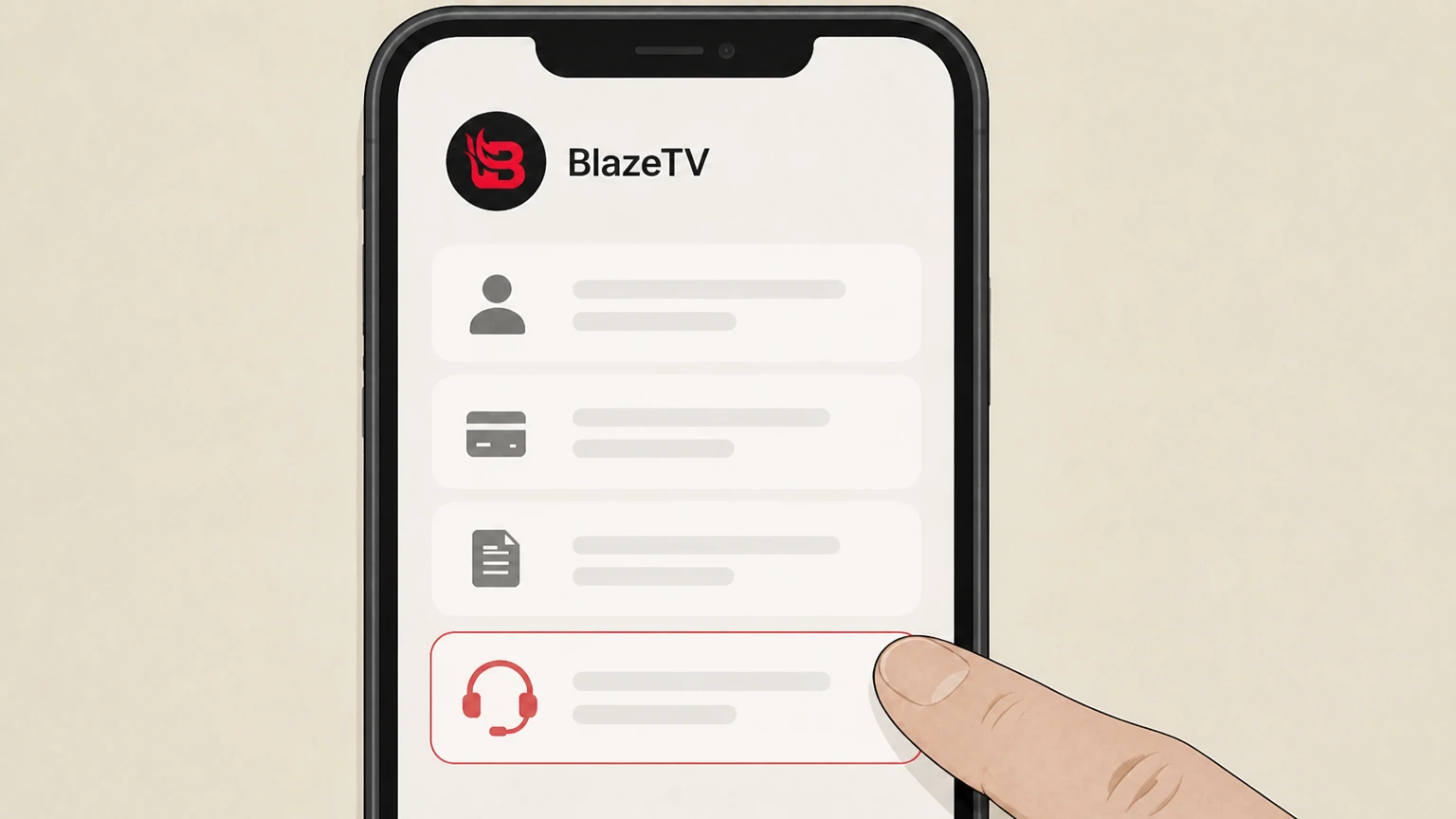 5
5Ask for written confirmation of cancellation
Ask the agent to send you an email confirming that your BlazeTV subscription will no longer renew and note any final access date they provide.
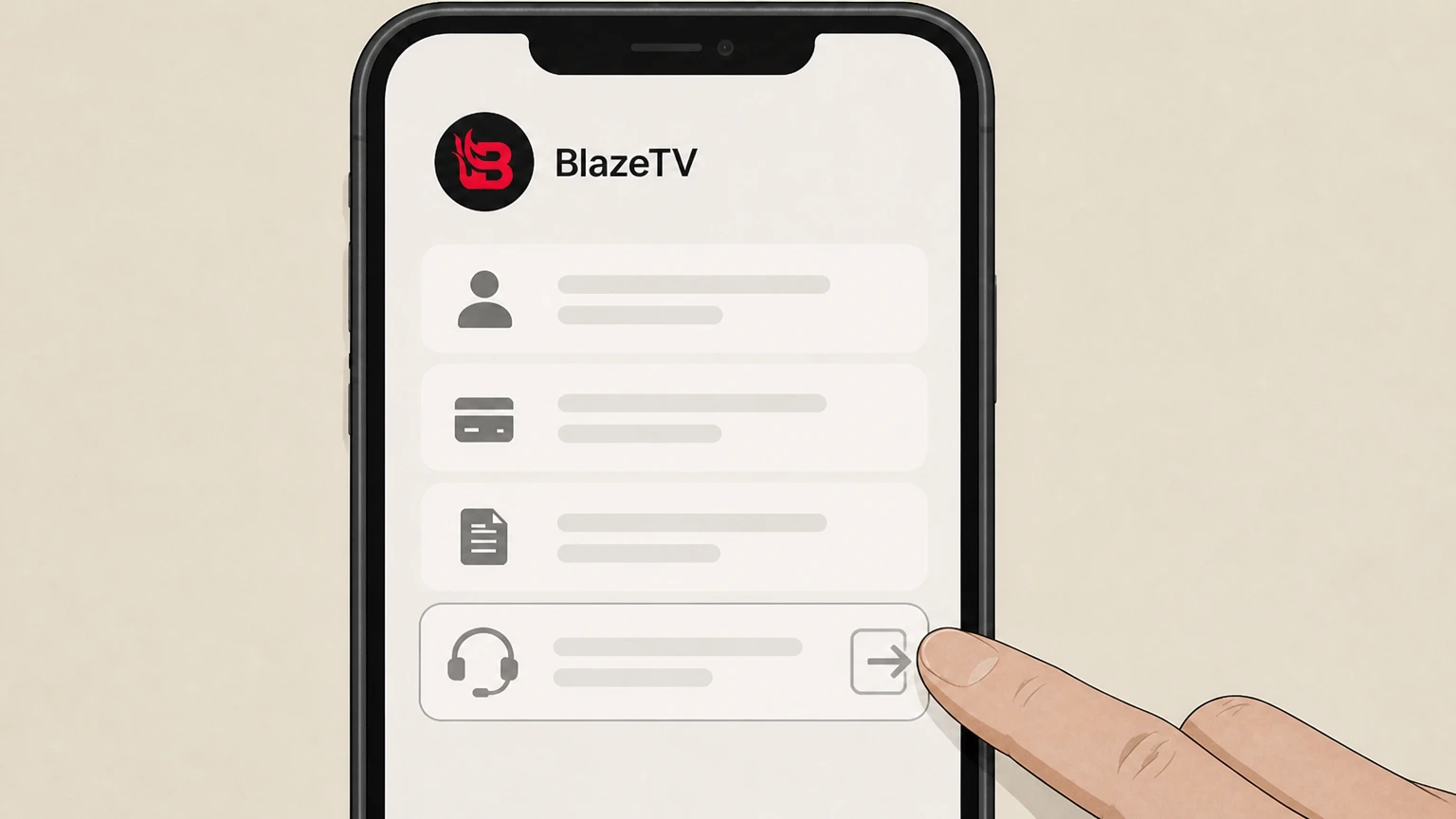 6
6Sign in later to verify your BlazeTV access
After the call, sign in to your BlazeTV account on the web and confirm that your access and any subscription indicators match the cancellation details support provided.

Cancel BlazeTV by email · verify the billing owner
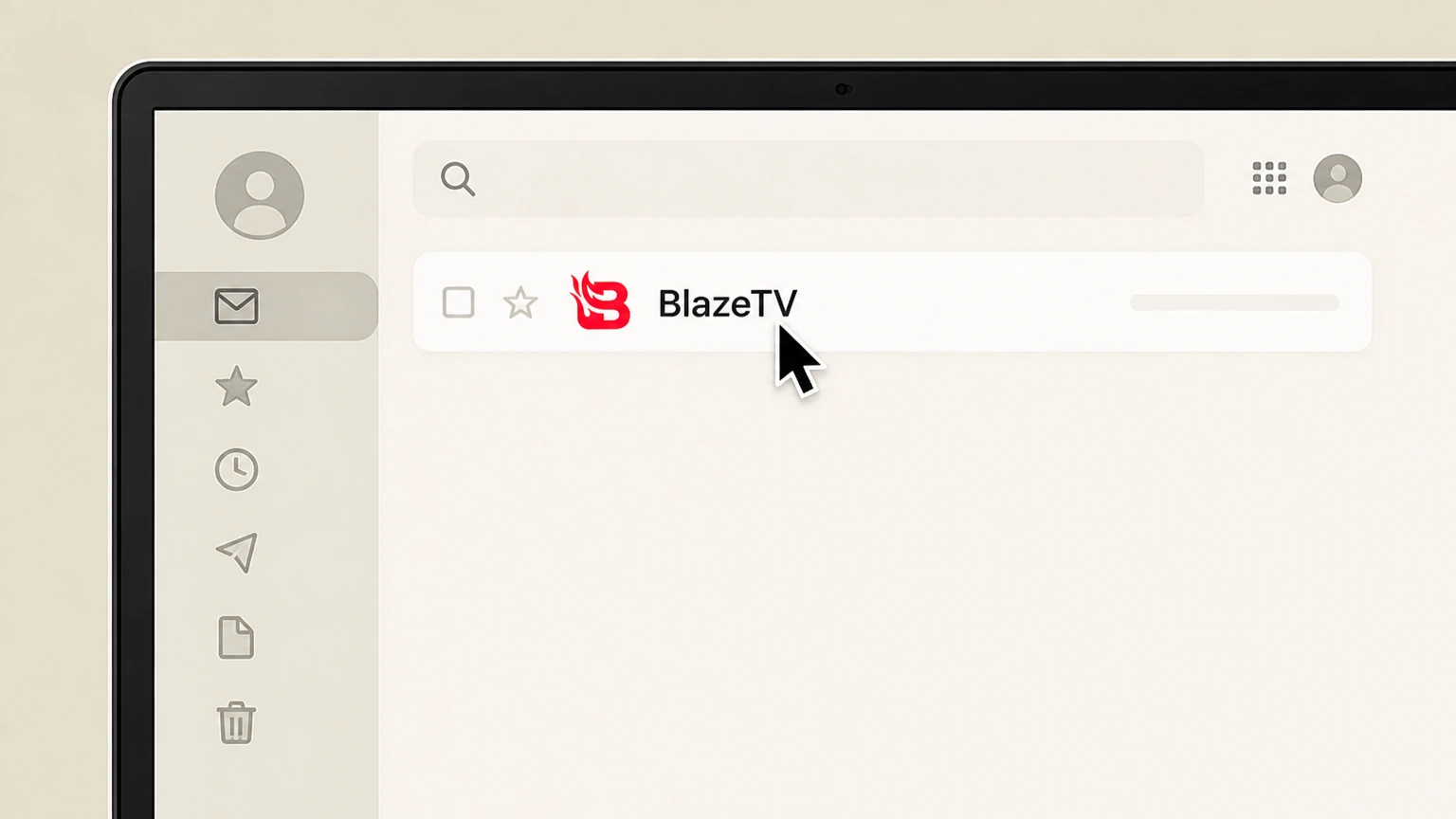 1
1Open your email account
Sign in to the email account you used when you created your BlazeTV login so support can match your message to the correct subscription.
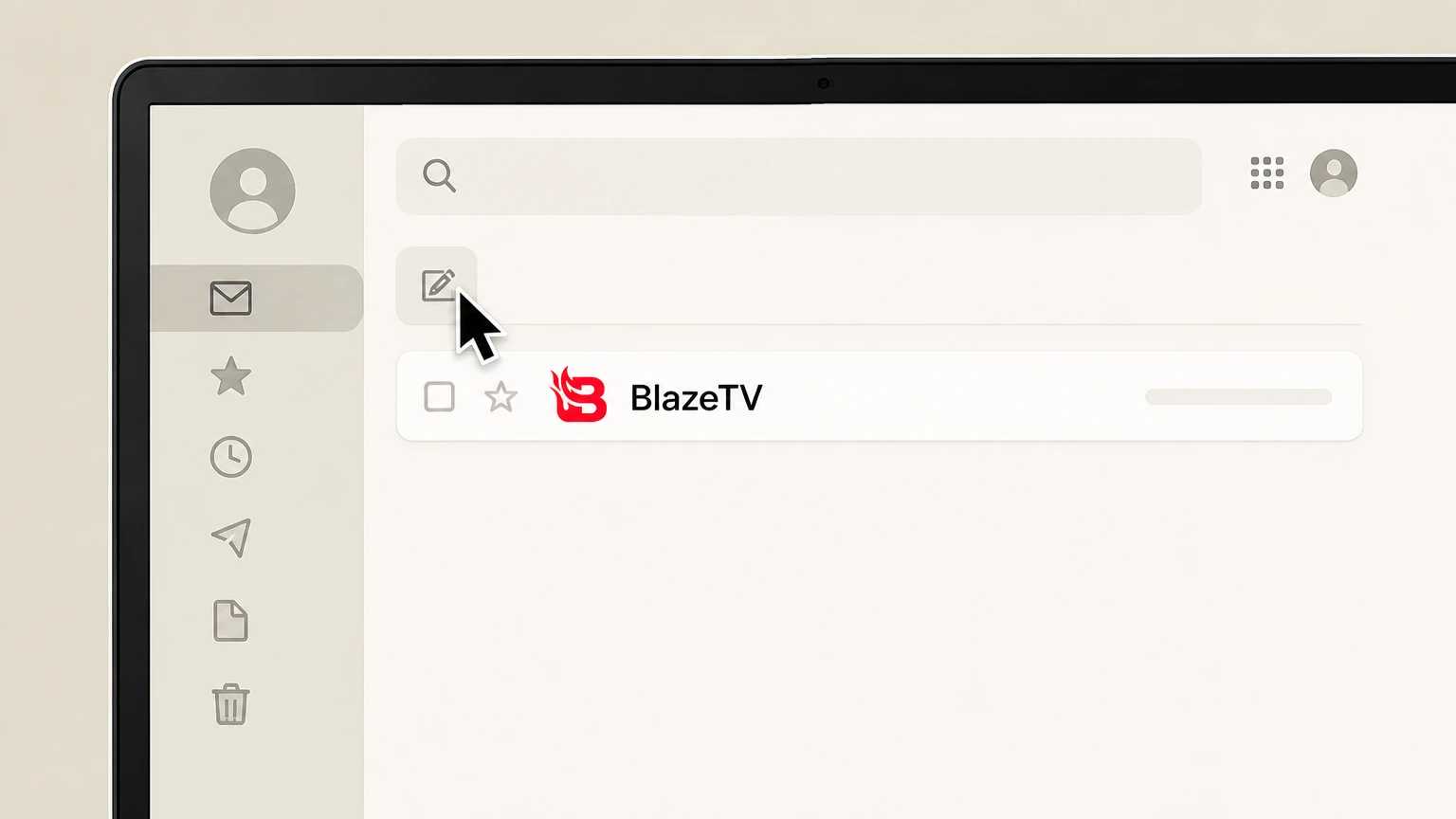 2
2Compose a new message to BlazeTV support
Start a new email addressed to support@blazemedia.com, which BlazeTV’s subscription FAQ lists for cancellation requests; you may also copy support@blazetv.com from the BlazeTV About page.
- Let Pine handle it
Pine can help
Too many steps?
Pine can find the right Cancel BlazeTV by email path and handle the cancellation for you.
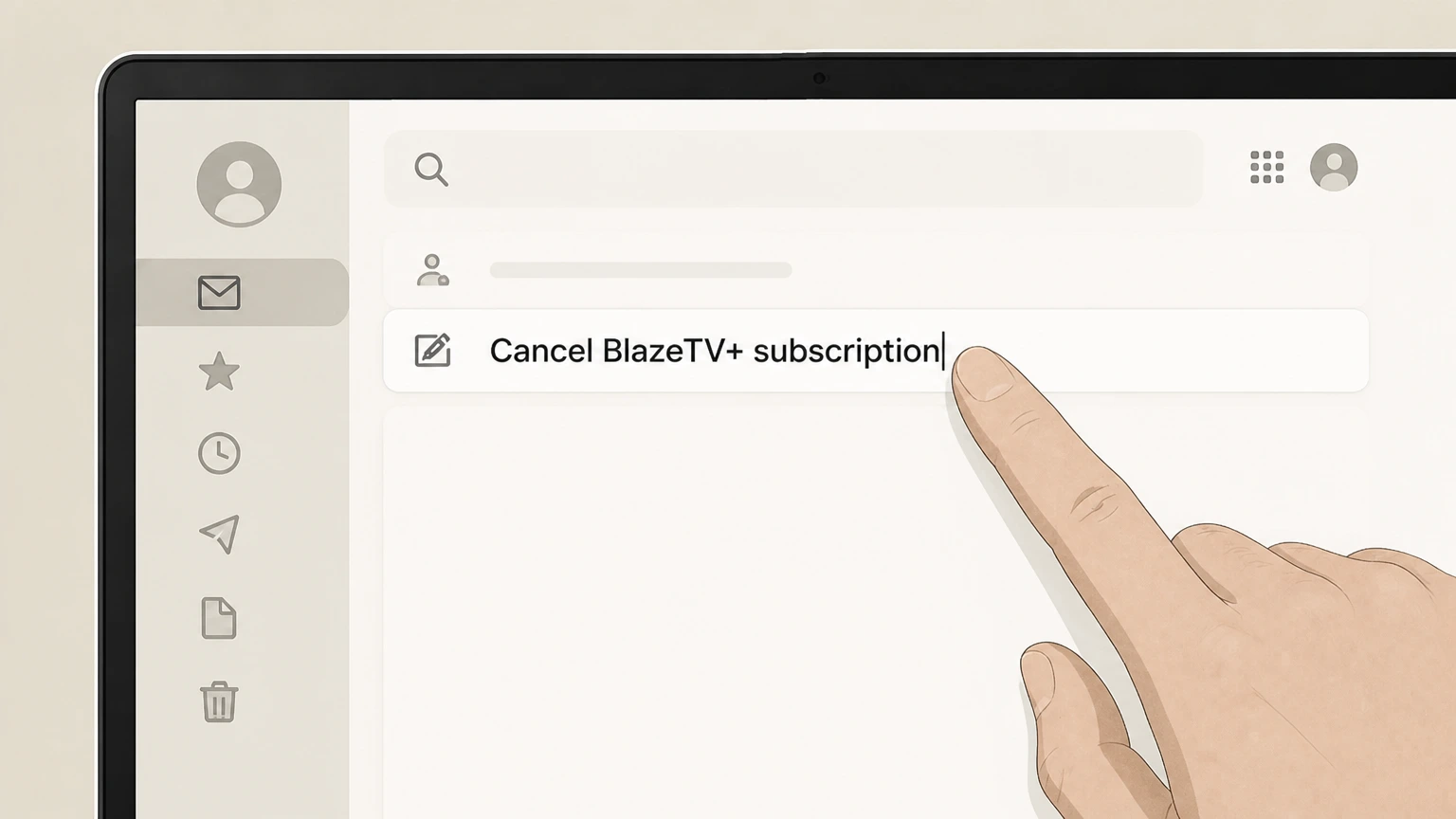 3
3Write a clear cancellation subject line
In the subject line, enter a straightforward request such as “Cancel BlazeTV+ subscription” so support can quickly route your email.
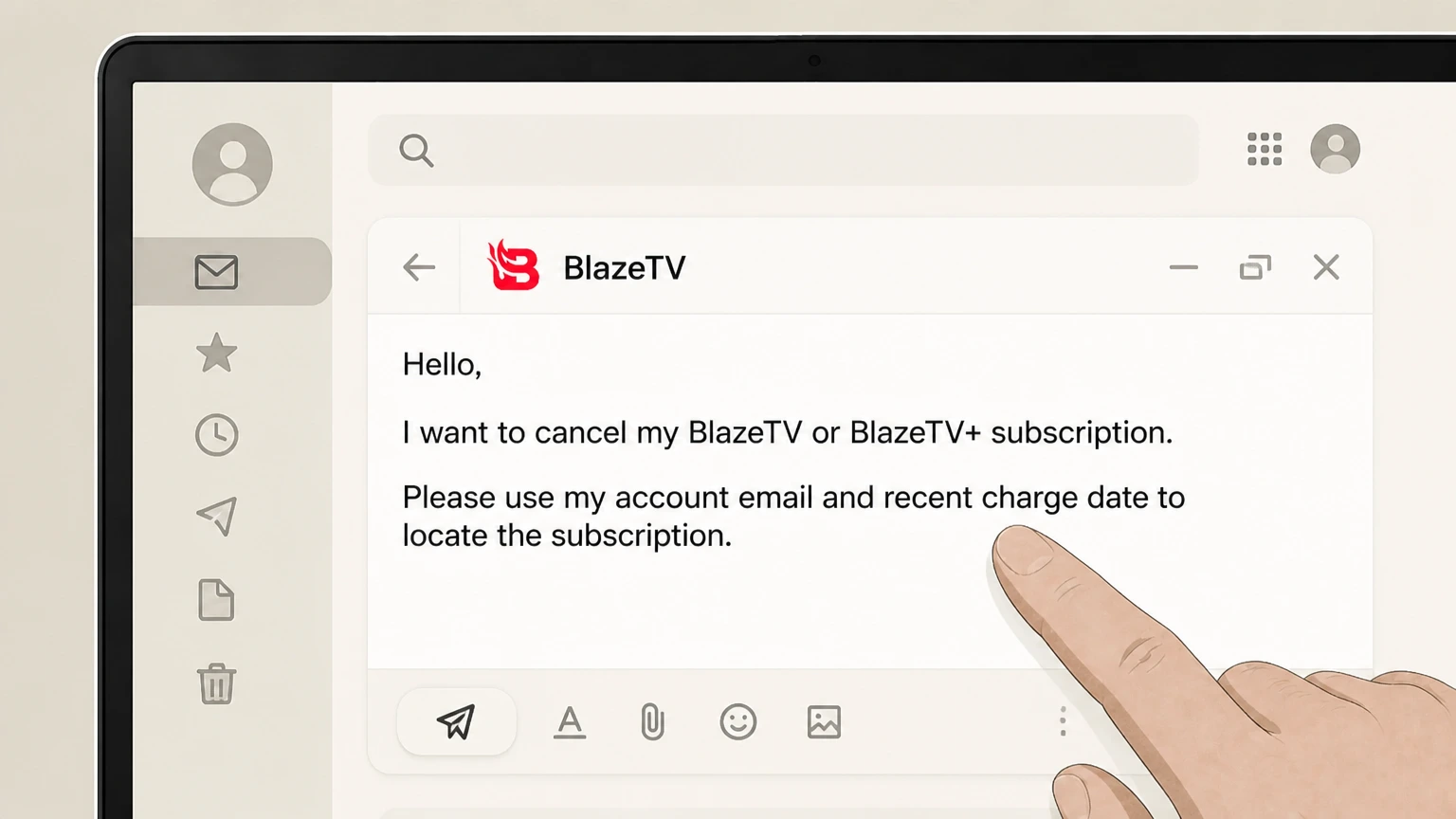 4
4Include account and plan details in the body
In the message body, state that you want to cancel your BlazeTV or BlazeTV+ subscription and include your BlazeTV account email and any recent charge date so support can locate the subscription.
 5
5Send the email and keep a copy
Send the message to BlazeTV support and keep a copy in your Sent folder or save a PDF so you have proof of your cancellation request.
 6
6Save BlazeTV’s written confirmation
Monitor your inbox for a reply from BlazeTV confirming that renewal is stopped, then save that confirmation for your records and check your account or access near the next expected billing date.
Refund policy
BlazeTV refunds, access, and charge disputes
BlazeTV’s publicly visible marketing and help pages describe how to subscribe and how to cancel by contacting support, but they do not fully explain refund rules or the exact impact of cancellation on your remaining access. Treat cancellation primarily as a way to stop future renewals, confirm any access end date and refund expectations directly with BlazeTV, and use your bank or card protections if unauthorized or continued charges occur.
Check my refund options- Refund details live in BlazeTV’s Terms of Use
- The BlazeTV+ subscription FAQ links to a BlazeTV Terms of Use page for more information about the service, indicating that any precise rules on refunds, partial credits, or trial periods are defined there rather than on marketing pages. Review that document or ask support how it applies to your plan before assuming you will receive a refund.
- Marketing focuses on flexibility, not refunds
- BlazeTV+ promotional pages highlight that plans are “month-to-month” and “no contract,” and encourage subscribers to “cancel anytime,” but they do not commit to prorated or automatic refunds when you cancel, so plan for cancellation to stop future billing more than to return past payments.
- Ask support how long access will continue
- Because BlazeTV does not clearly state on public pages whether access continues through the end of your billing period or ends immediately, ask support while canceling to specify your final access date and whether you will still be able to watch until the current term expires.
- Use dispute rights for unauthorized charges
- FTC and CFPB guidance explains that if a company continues billing you after you cancel or charges you without proper consent, you can dispute those charges with your credit card company or bank, in addition to pressing the company to correct its records and stop future payments.
If you need a written summary of BlazeTV’s specific refund or trial terms, contact BlazeTV support and ask them to point you to the currently effective Terms of Use section that covers refunds, then save a copy of that language for your records. Request BlazeTV’s written refund terms
Who bills you
How BlazeTV handles billing for BlazeTV+
Understand how BlazeTV positions billing and access so you know whom to contact when you want to cancel.
Subscriptions sold through BlazeTV sites
Current BlazeTV+ and BlazeTV marketing pages sell subscriptions on BlazeTV-branded domains and ask you to agree to BlazeTV’s Terms of Use, indicating that Blaze Media directly operates and bills the streaming service.
Cancellation described only via BlazeTV support
In the “How do I cancel?” FAQ on BlazeTV’s subscription and About pages, BlazeTV instructs subscribers to cancel “at any time” by calling its customer support number or emailing support—not by using app-store or in-app controls.
Apps use your BlazeTV login, not separate billing
Device setup pages for Roku, Android, iOS, and other platforms tell you to download the free BlazeTV app and then sign in with the email and password you used to purchase BlazeTV, showing that apps are for viewing and device activation rather than separate billing.
Terms of Use hosted under BlazeTV branding
The subscription FAQ links to a BlazeTV Terms of Use page for full contractual details, signalling that the underlying subscription contract and refund rules are controlled by Blaze Media even if some legal text is hosted on a related domain.
Official methods
Official BlazeTV cancellation options today
BlazeTV’s own pages list customer support by phone and email as the ways to cancel a BlazeTV or BlazeTV+ subscription.
Phone support route
The BlazeTV+ subscription FAQ and About page both state that you can cancel your BlazeTV+ or BlazeTV subscription at any time by calling BlazeTV’s customer support phone number during the posted Central Time business hours.
Email support route
The subscription FAQ for BlazeTV+ lists support@blazemedia.com as the address to email when canceling BlazeTV+, while the BlazeTV About page lists support@blazetv.com; both are official Blaze-owned emails suitable for written cancellation requests.
No published in-account cancel button
Public BlazeTV and BlazeTV+ marketing, signup, and device pages explain how to sign up and where to watch, but they do not describe any self-service web “Cancel” button inside account settings, so you should not rely on finding one without written confirmation.
Apps and channels do not cancel billing
BlazeTV’s how-to-watch pages describe installing and signing into apps on Roku, Apple TV, Android, iOS, and other platforms, but they do not say that removing those apps or channels cancels your subscription, so deletion should not be treated as cancellation.
After you cancel
What likely changes when you cancel BlazeTV
BlazeTV’s public pages describe plan structure but give limited detail on timing and access changes, so some points must be confirmed with support.
Plans marketed as month-to-month, no contract
BlazeTV+ promotional pages repeatedly describe subscriptions as “month-to-month, no contract” and show monthly and annual plan options, which implies you are not locked into a multi-year contract but does not, by itself, define refund or access timing after cancellation.
Access is tied to your BlazeTV login
Device setup instructions make clear that watching BlazeTV on Roku, mobile, or TV apps requires signing in with your BlazeTV account credentials, so once your subscription ends, you should expect premium streaming access to be limited even if the app remains installed.
Exact access end date not stated publicly
BlazeTV’s marketing and help-content pages reviewed here do not state whether access continues until the end of the paid term or ends immediately upon cancellation, so you should ask support during cancellation to confirm the final day you can watch.
Account may remain even after subscription ends
Signup and device pages distinguish between having a BlazeTV account and having an active subscription; canceling typically stops billing and premium access but may leave your basic login and some settings in place unless you separately request account deletion.
Stay protected
Getting and keeping proof of BlazeTV cancellation
Because BlazeTV promotes phone and email cancellation, it’s important to create a paper trail and verify your billing stops as expected.
Ask for written confirmation whenever possible
When canceling by phone, request that BlazeTV support send an email confirming your subscription will not renew and keep that message with your records in case a later charge appears unexpectedly.
Save your original signup and renewal emails
Keep a copy of any BlazeTV signup confirmation or renewal emails that show your plan name, billing cycle, and account email; this information helps support quickly identify the correct subscription when you ask to cancel.
Check bank or card statements after canceling
After cancellation, review your bank or credit card statements around the next expected billing date to confirm that no additional BlazeTV charges appear and, if they do, contact BlazeTV support and your bank promptly.
Know your dispute rights for unwanted charges
FTC and CFPB guidance explains that you may dispute unauthorized or improperly continued subscription charges with your card issuer or bank, but you should also cancel directly with BlazeTV to avoid further recurring payments.
Refunds & law
Refund expectations and legal backdrop for BlazeTV
BlazeTV’s own pages offer minimal refund detail, so you should rely on its Terms of Use and general subscription-law guidance.
Refund terms live in BlazeTV’s Terms of Use
BlazeTV’s subscription FAQ links to a BlazeTV Terms of Use page for more details on the subscription agreement, which is where any detailed rules on cancellations, renewals, and refunds are likely defined, even though that legal language is not fully visible from the public marketing pages.
Marketing pages do not promise prorated refunds
Current BlazeTV+ offers emphasize “month-to-month, no contract” and promotional discounts but do not promise prorated or automatic refunds when you cancel, so you should not assume you will receive money back for time already billed without checking the Terms or asking support.
Negative-option rules require simple cancellation
FTC’s Negative Option Rule and its 2024 “click-to-cancel” update require subscription sellers to provide a simple mechanism to stop recurring charges and prohibit unfair or deceptive obstacles when consumers try to cancel, standards that also apply to streaming services like BlazeTV.
Guidance on unauthorized or disputed payments
CFPB and FTC publications explain that if a company continues to bill you after you cancel or without proper authorization, you can dispute the charges with your bank or card issuer in addition to pursuing resolution with the company itself.
Devices & apps
Using BlazeTV apps vs managing your subscription
BlazeTV clearly differentiates between setting up apps on your devices and managing your underlying subscription, which must be done through BlazeTV support.
Roku and TV channels use your BlazeTV account
The Roku setup page tells you to search for the BlazeTV channel, install it, and then sign in or link the device using blazetv.com/devicereg, showing that access is controlled by your BlazeTV account rather than by Roku billing.
Mobile apps require sign-in after purchase
BlazeTV’s Android and iOS setup pages instruct you to download the BlazeTV app from Google Play or the App Store and then tap Sign In, entering the email and password you used to purchase BlazeTV, again separating app installation from subscription purchase.
Deleting apps does not appear as a cancel method
None of the BlazeTV device or how-to-watch pages mention deleting the BlazeTV app, removing a TV channel, or logging out as a valid way to cancel billing, so you should treat those actions as affecting only device access, not subscription status.
Manage subscription centrally via BlazeTV support
Because all official instructions point to phone and email support for cancellation and use a single BlazeTV login across devices, the safest practice is to manage your subscription centrally by contacting BlazeTV support, then adjusting apps as needed for convenience.
Timing tips
Best practices for timing your BlazeTV cancellation
A few precautions around timing can reduce the risk of unwanted renewals or access gaps when canceling BlazeTV.
Cancel before your next expected billing date
Because BlazeTV’s public pages do not spell out a minimum notice period, it is prudent to contact support and request cancellation several days before your usual renewal date so that processing delays do not result in an extra month or year of service.
Document the date and time of your request
When you call or email BlazeTV to cancel, note the date, time, and any case number or agent name provided so you can reference that information if there is a dispute about when you asked to stop renewals.
Monitor email around renewal time
Watch your email around the expected renewal date for any BlazeTV billing or subscription notices; if you see a new charge after cancellation, contact BlazeTV support promptly and, if needed, work with your bank or card issuer to challenge the charge.
Review cancellation instructions periodically
Because companies sometimes change their cancellation processes in response to new laws or policies like the FTC’s click-to-cancel rule, quickly checking BlazeTV’s subscription FAQ again before canceling can ensure you are following the most up-to-date instructions.
What official sources do not confirm
Limits of the public BlazeTV cancellation guidance
These points are intentionally qualified because the official sources reviewed on August 16, 2026 do not publish a complete answer.
Documented limitation 1
BlazeTV’s detailed Terms of Use content appears to be loaded dynamically and partly from a related domain, so only the BlazeTV-branded entry page could be reviewed directly; specific contractual refund, renewal, and notice clauses could not be verified line by line from allowed domains.
Documented limitation 2
Current BlazeTV materials on allowed domains do not clearly state whether access continues until the end of a paid billing period or ends immediately upon cancellation, so the guide cannot definitively describe access timing and instead instructs users to confirm with support.
Documented limitation 3
Older documentation and third-party sources suggest BlazeTV may use third-party processors or app-store billing in some cases, but BlazeTV’s presently visible pages on allowed domains do not confirm active app-store billing arrangements, so the guide treats BlazeTV as the primary billing owner and does not provide store-specific cancellation flows.
Documented limitation 4
No BlazeTV page on allowed domains currently documents a self-service web cancellation button or in-account “Purchases > Cancel” path; if BlazeTV introduces or changes such functionality in response to FTC click-to-cancel rules, the guide will need manual review to add or update web-based cancellation steps.
Documented limitation 5
Because pricing and promotions on BlazeTV change frequently, and historic pages show different amounts, the guide avoids locking in specific prices and instead directs readers to the current BlazeTV subscription or packages pages for up-to-date plan costs.
BlazeTV cancellation FAQ
Questions people search about canceling BlazeTV, answered with official provider or billing-platform sources checked on August 16, 2026.
How do I completely cancel my BlazeTV subscription?
How do I cancel BlazeTV on my TV or streaming device?
How much does a BlazeTV+ subscription cost?
How do I cancel BlazeTV by phone?
Can I cancel BlazeTV by email instead of calling?
Does deleting the BlazeTV app cancel my subscription?
How can I confirm that my BlazeTV subscription is really canceled?
What happens to my BlazeTV account after I cancel?
Can I get a refund after canceling BlazeTV?
Untangle this BlazeTV issue.
Let Pine handle the provider follow-up and keep the confirmation in one place.
