


Albert Genius
Cancel subscription
How to Cancel Albert Genius: Official Steps & Timing
Cancel Albert Genius through the correct billing route. Follow official steps, understand renewal timing and refunds, and keep proof of the final result.
- 3 verified cancellation routes
- Billing ownership and renewal timing explained
- Provider-specific refund boundaries included
- A confirmation check follows every route
Choose the correct Albert Genius cancellation route
Albert mobile app · verify the billing owner
Cancel Albert Genius through Albert mobile app
 1
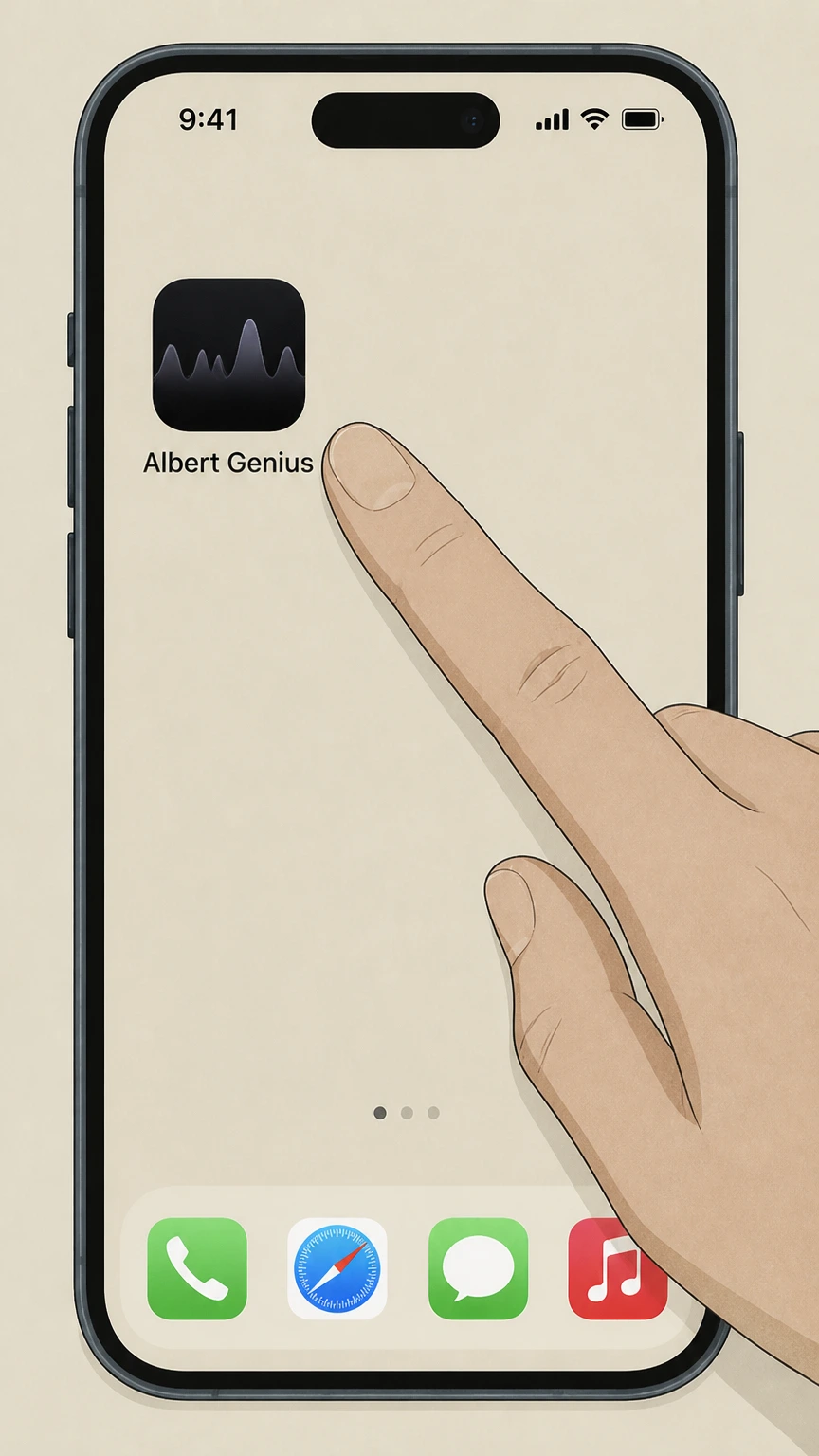
1Open the Albert app
Launch the Albert mobile app on your phone and sign in to the account that is being billed for Albert Genius or another Albert plan.
 2
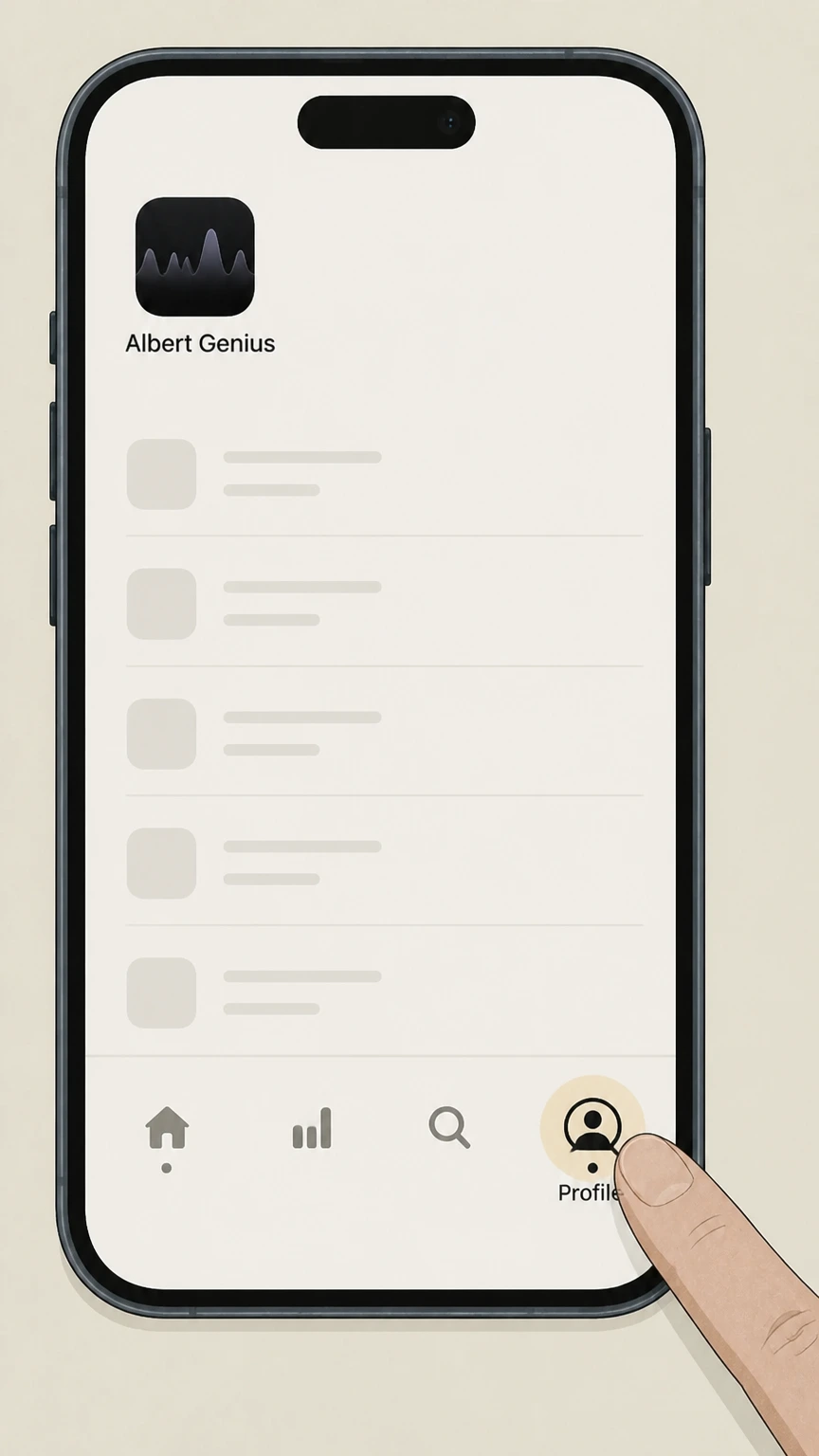
2Go to the Profile tab
From the bottom navigation, select the Profile tab to open your account profile area.
- Let Pine handle it
Pine can help
Too many steps?
Pine can find the right Albert mobile app path and handle the cancellation for you.
 3
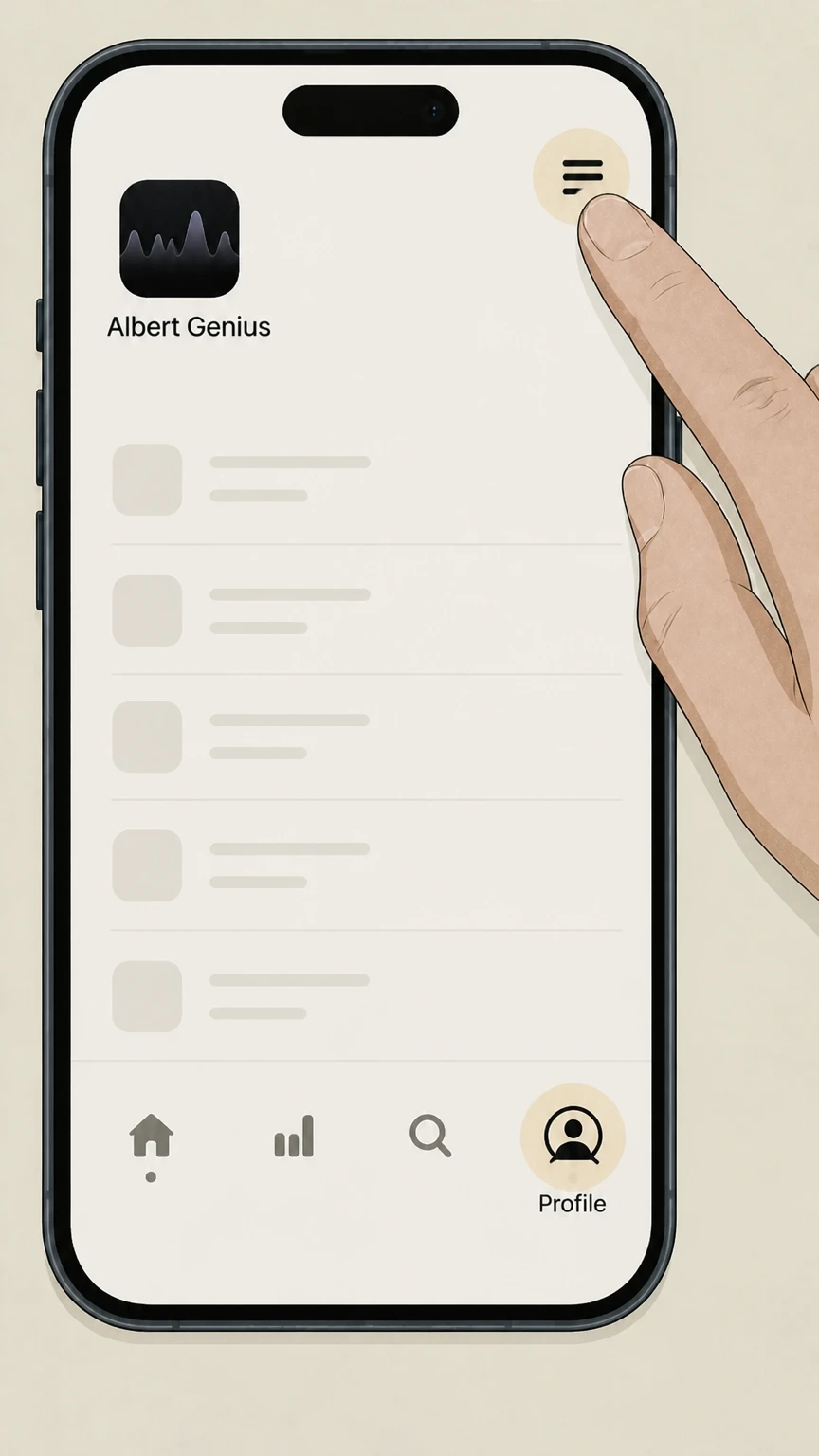
3Open the menu
In the Profile screen, tap the menu icon in the corner to open the main account menu.
 4
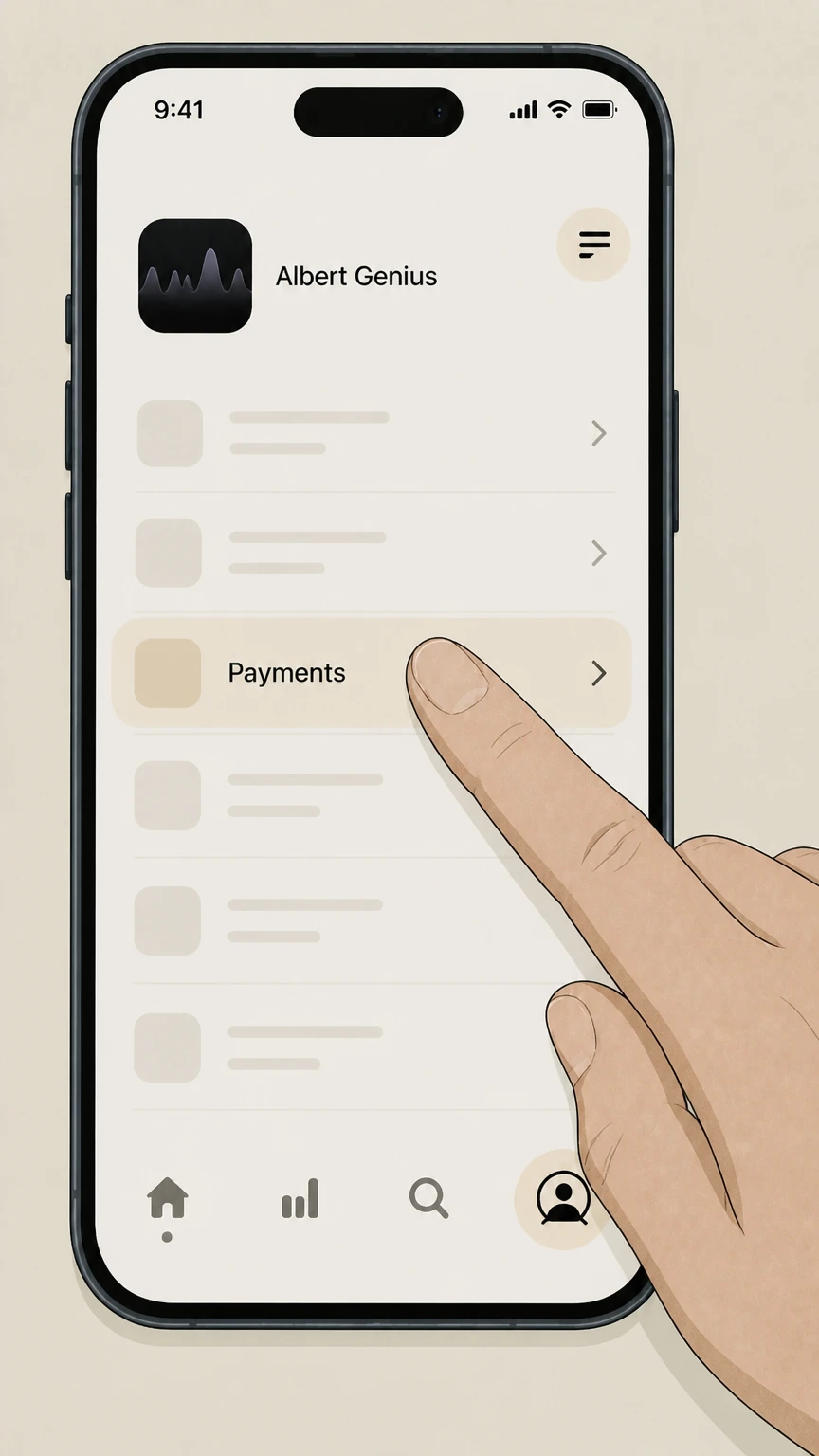
4Tap Payments
In the menu, select the Payments option to view your current Albert plan and billing details.
 5
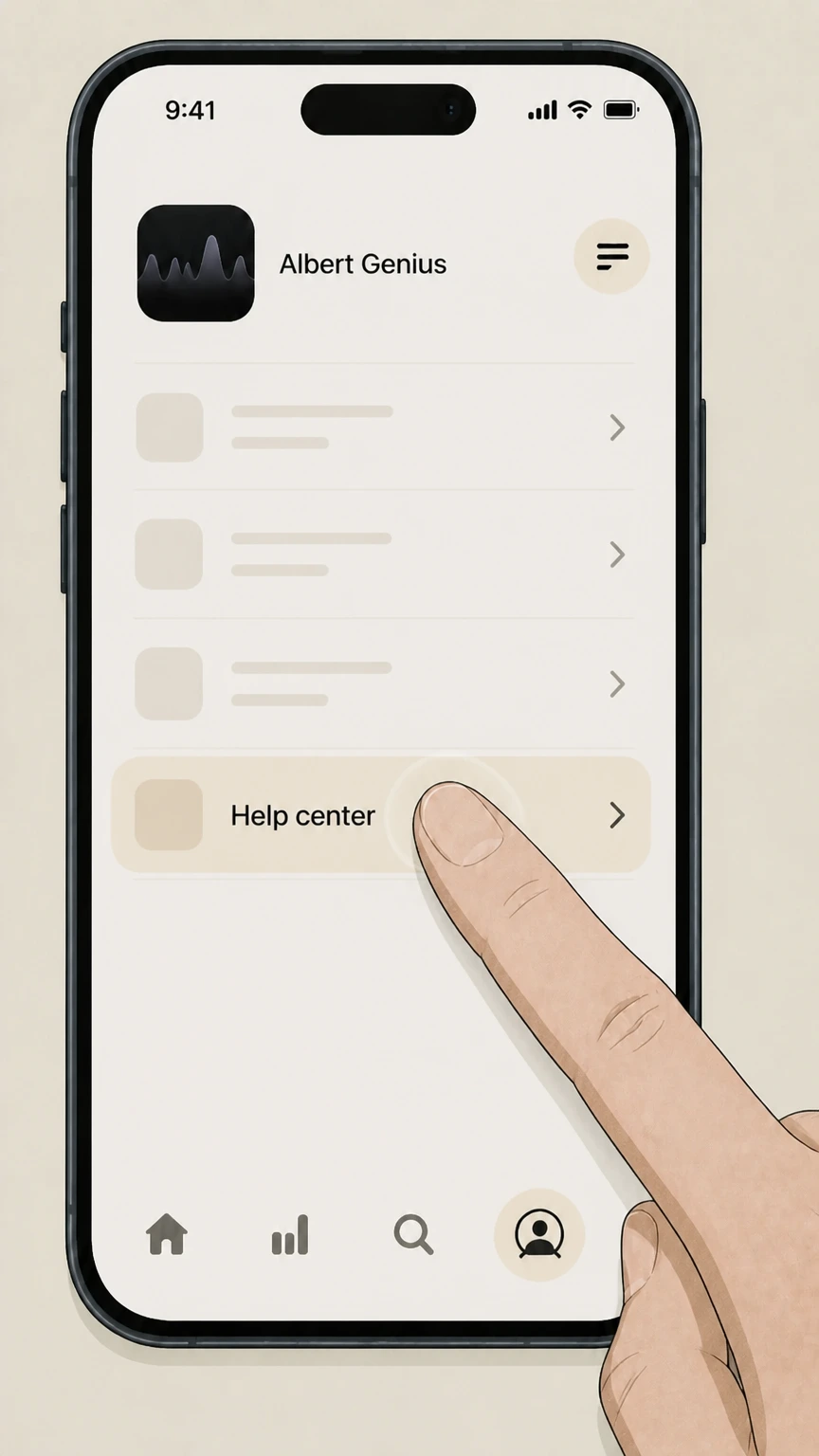
5Tap Help center
From the Payments screen, choose Help center to open Albert’s support options for managing your account.
 6
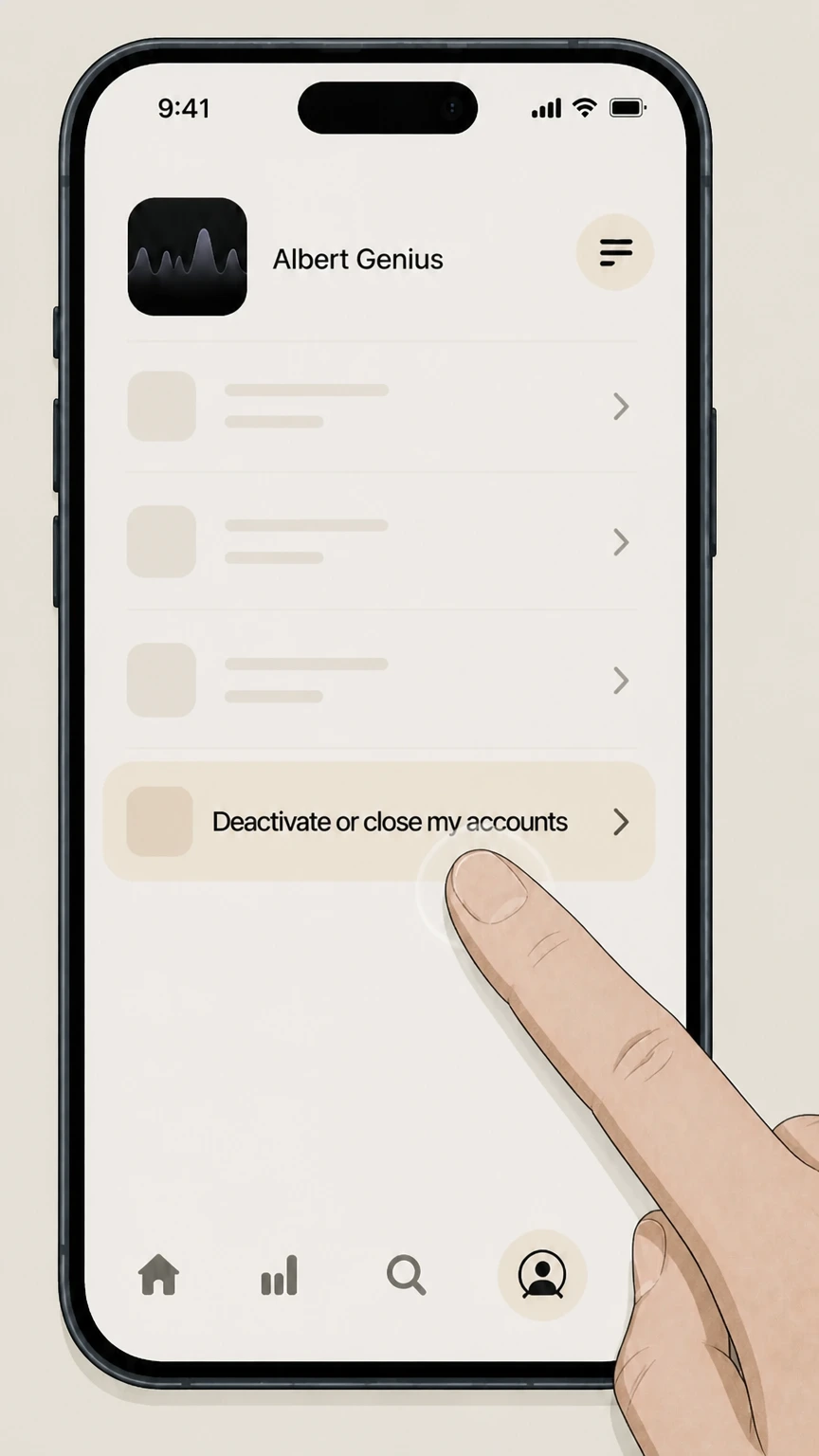
6Choose Deactivate or close my accounts
In Help center, select Deactivate or close my accounts and follow the prompts to deactivate your account so your Albert subscription, including Genius, stops renewing.

Albert website · verify the billing owner
Cancel Albert Genius through Albert website
 1
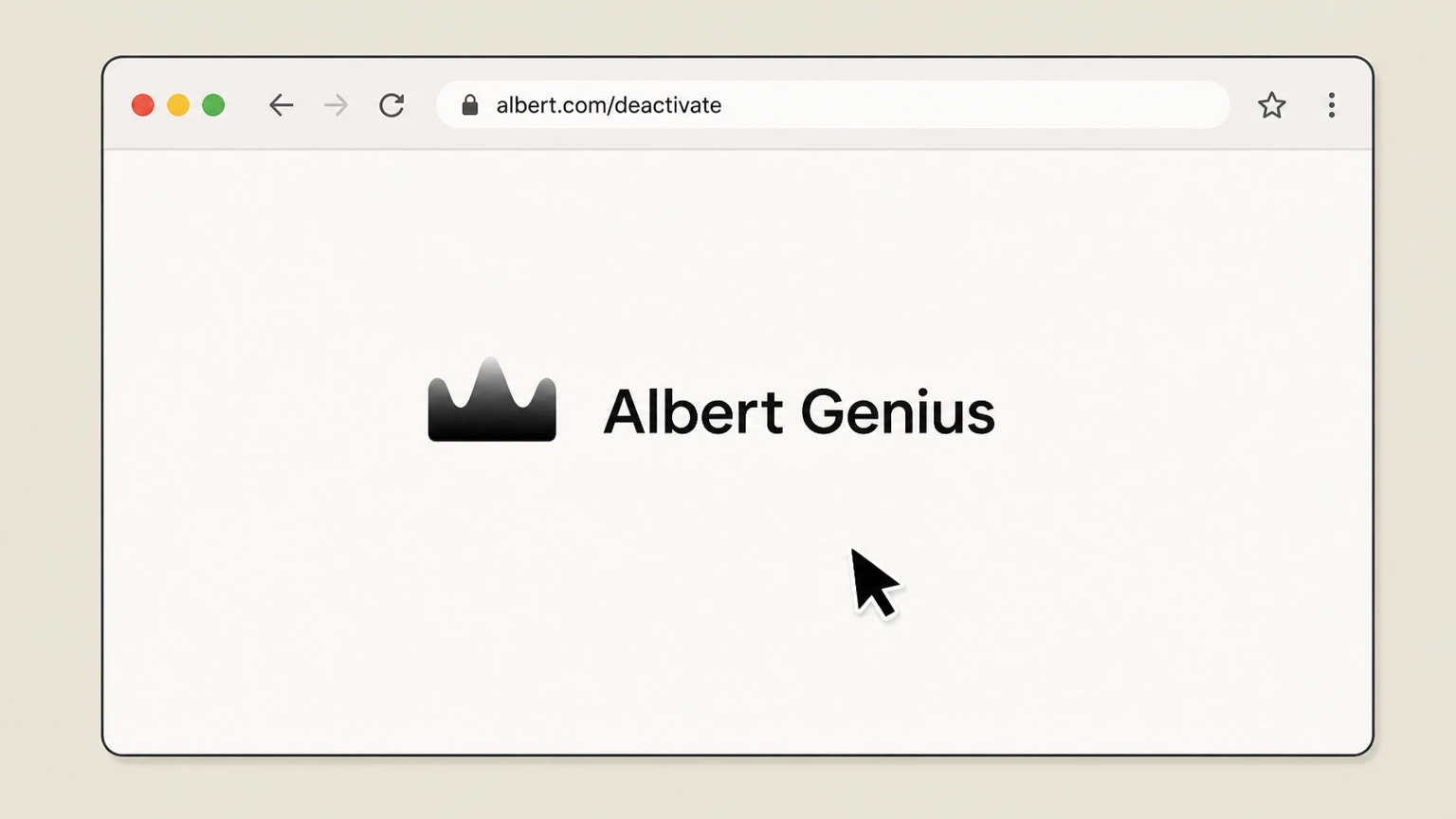
1Go to the Albert deactivation page
Open a web browser and visit albert.com/deactivate, which is Albert’s official page for deactivating or closing your account.
 2
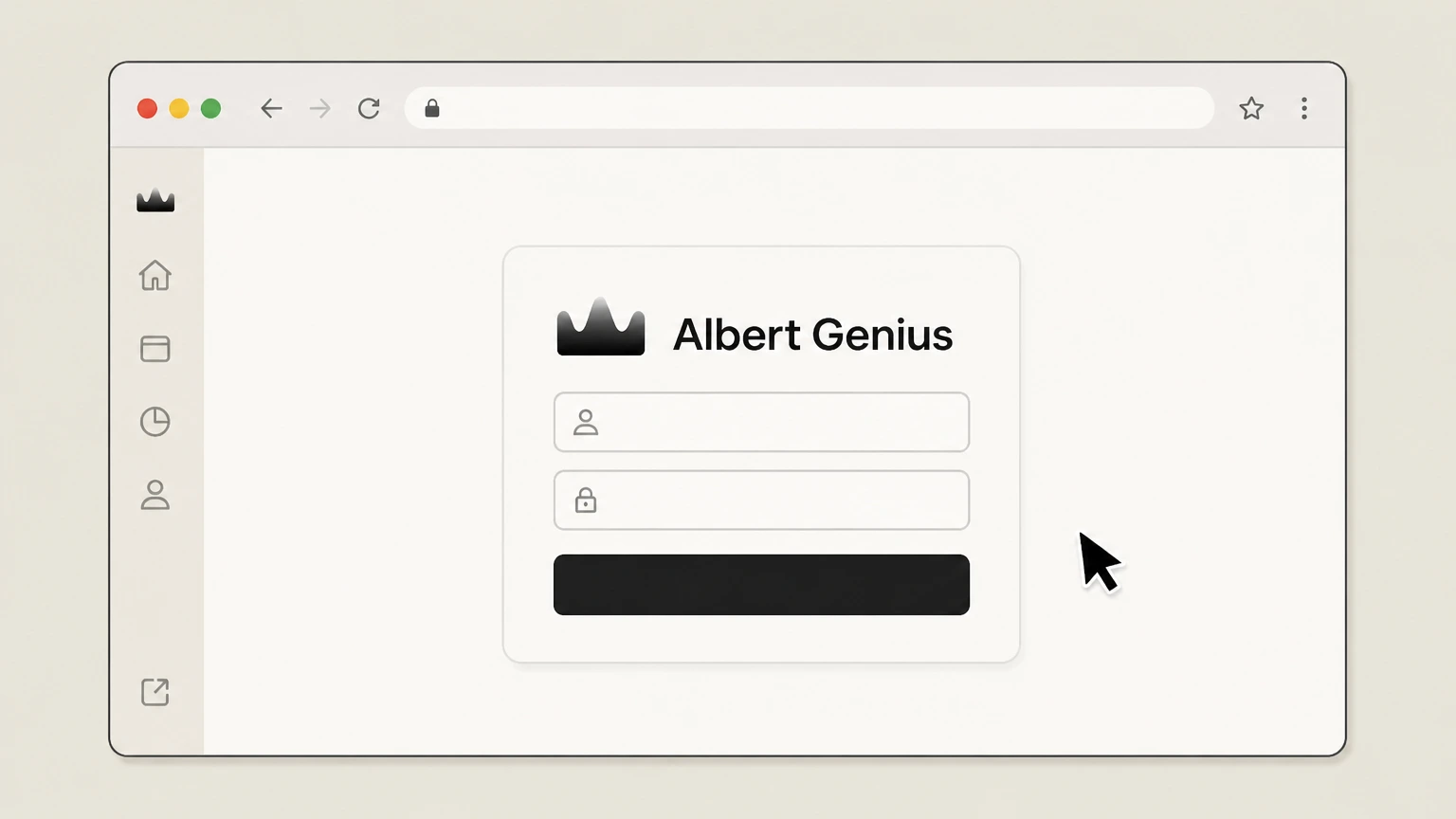
2Sign in to your Albert account
Sign in with the same phone number or email and password you use in the Albert app so the site can load your account.
- Let Pine handle it
Pine can help
Too many steps?
Pine can find the right Albert website path and handle the cancellation for you.
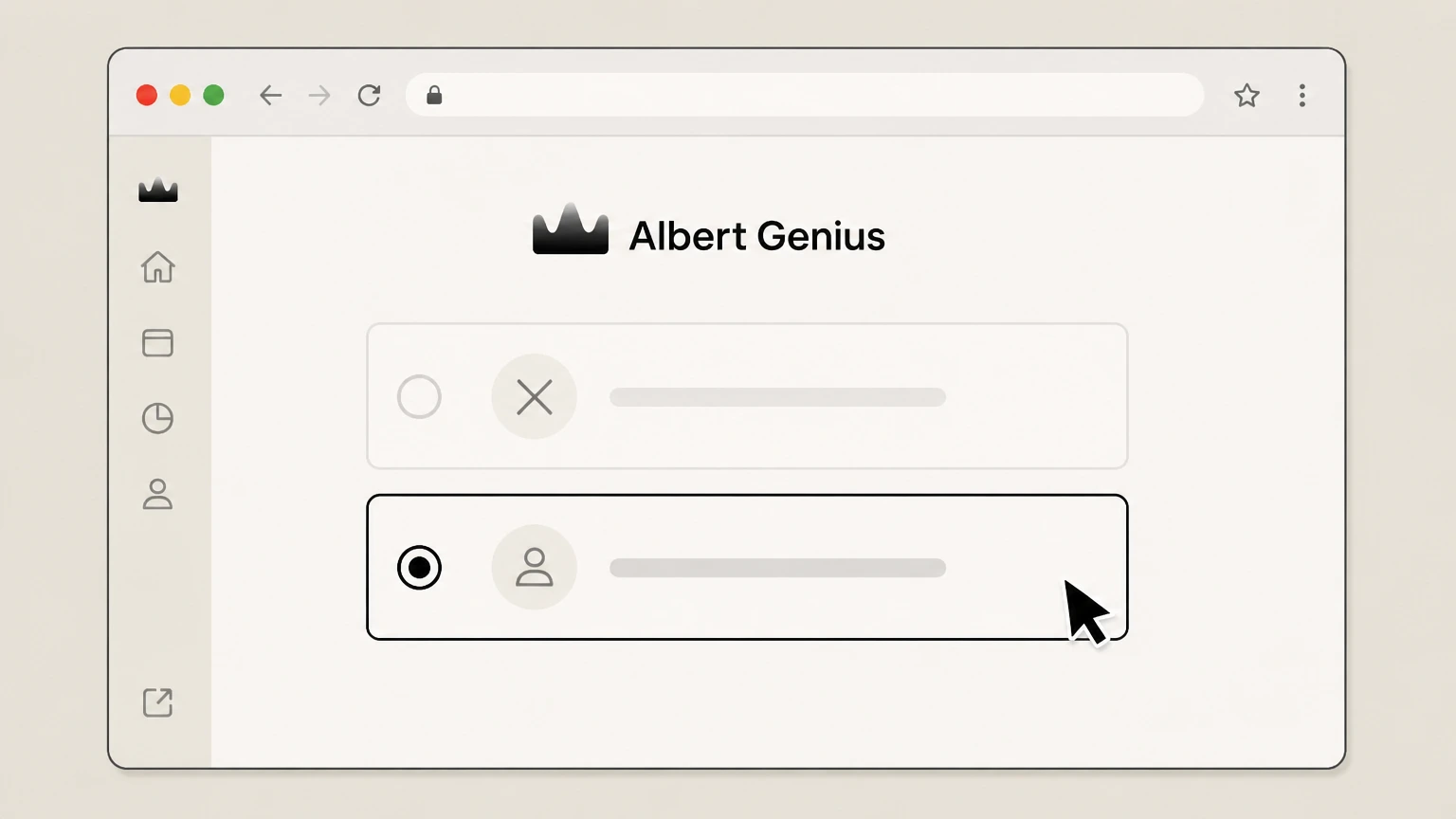 3
3Choose to deactivate your account
On the deactivation page, select the option to deactivate your Albert account instead of permanently closing it if your goal is to stop subscription billing only.
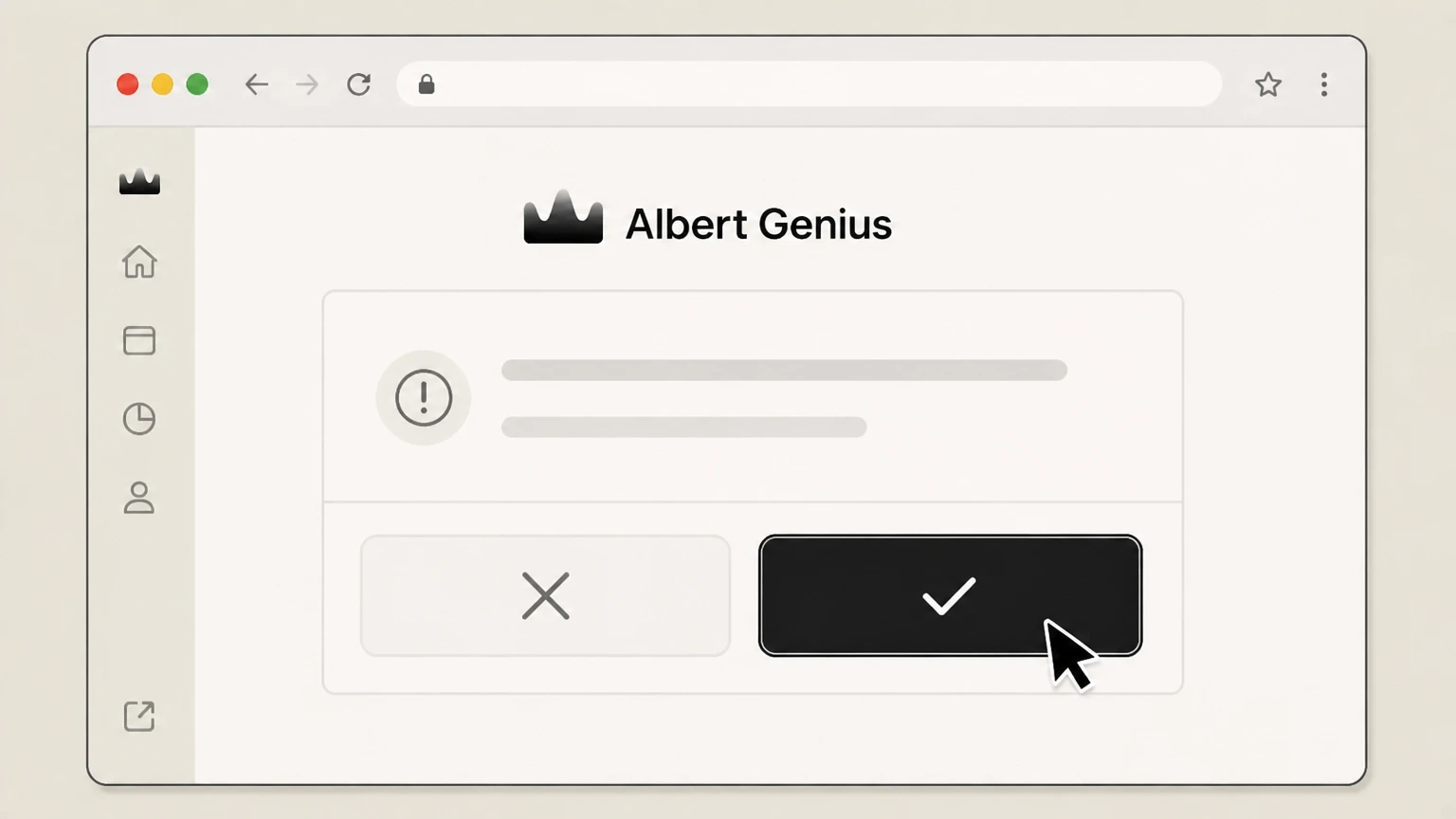 4
4Confirm deactivation to stop billing
Review any prompts about balances or products, then confirm deactivation so Albert pauses subscription payments tied to your account, including Genius.
Albert customer support by phone · verify the billing owner
Cancel Albert Genius through Albert customer support by phone
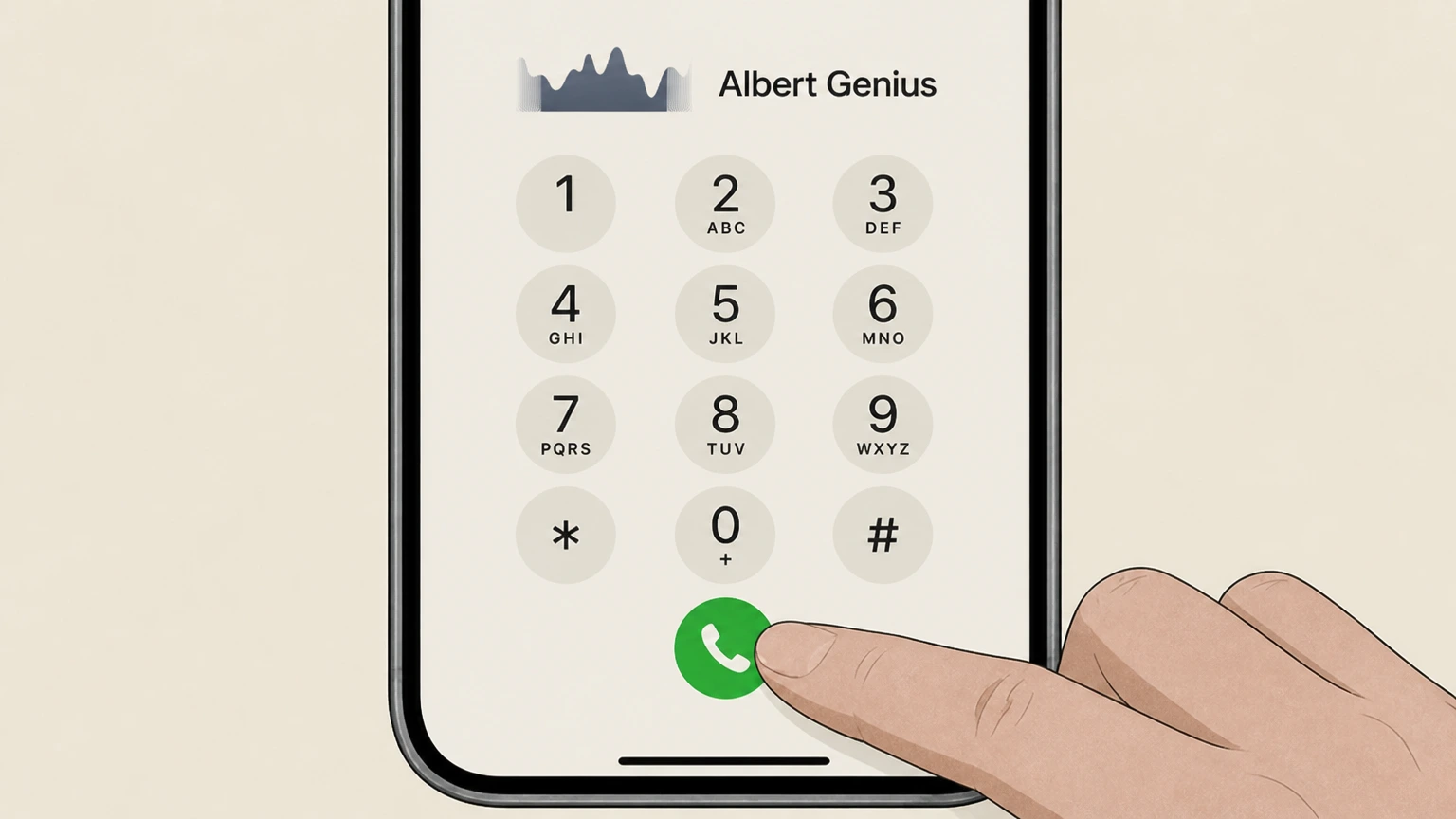 1
1Call Albert customer support
Use the customer service phone number listed on Albert’s official “How to contact Albert” help page to place a call to support.
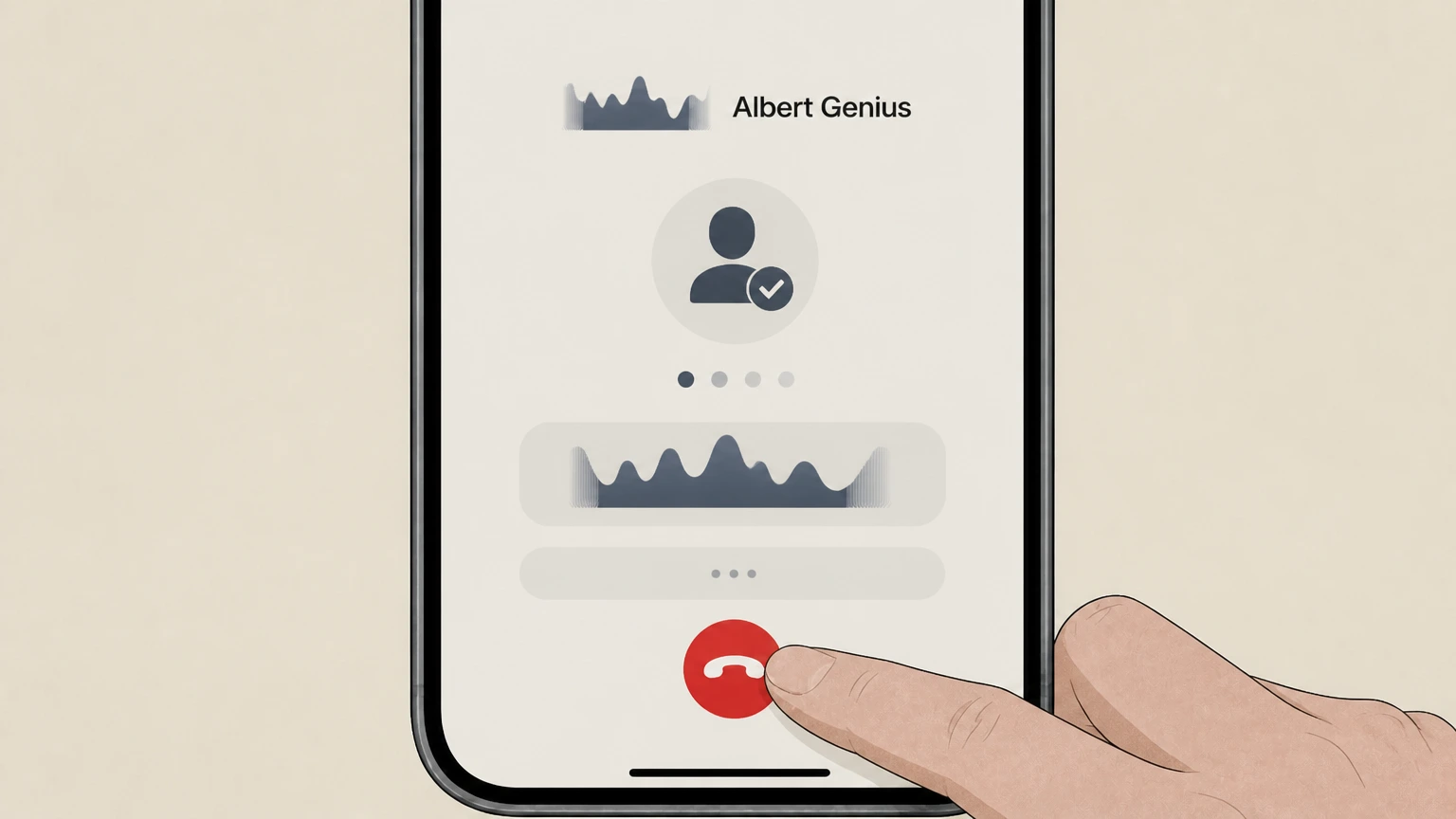 2
2Verify your identity
Follow the automated prompts or agent instructions to verify your identity so they can access your Albert account.
- Let Pine handle it
Pine can help
Too many steps?
Pine can find the right Albert customer support by phone path and handle the cancellation for you.
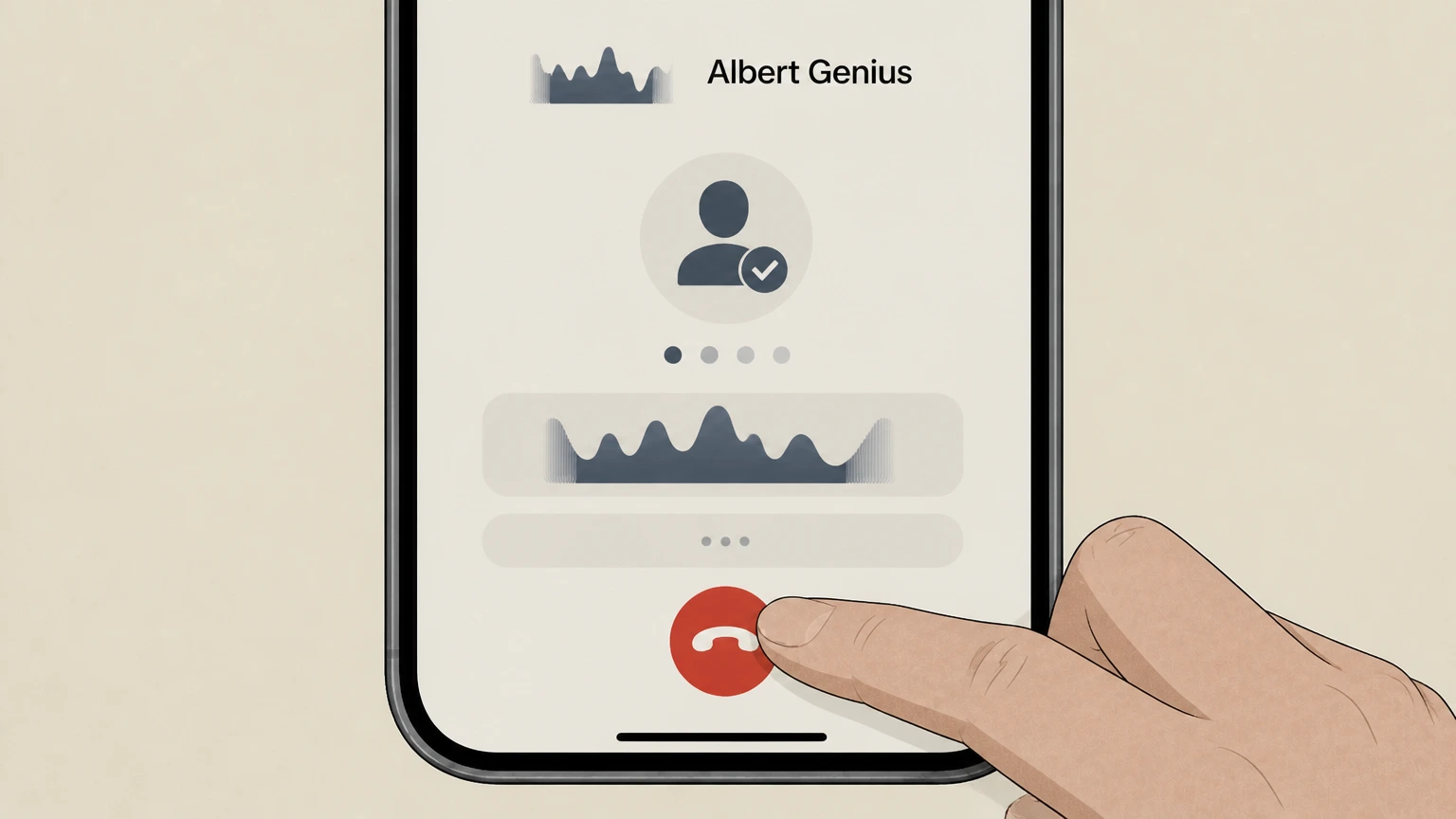 3
3Request account deactivation or closure
Tell the agent you want to deactivate or close your Albert account to cancel your Albert Genius or other Albert subscription plan.
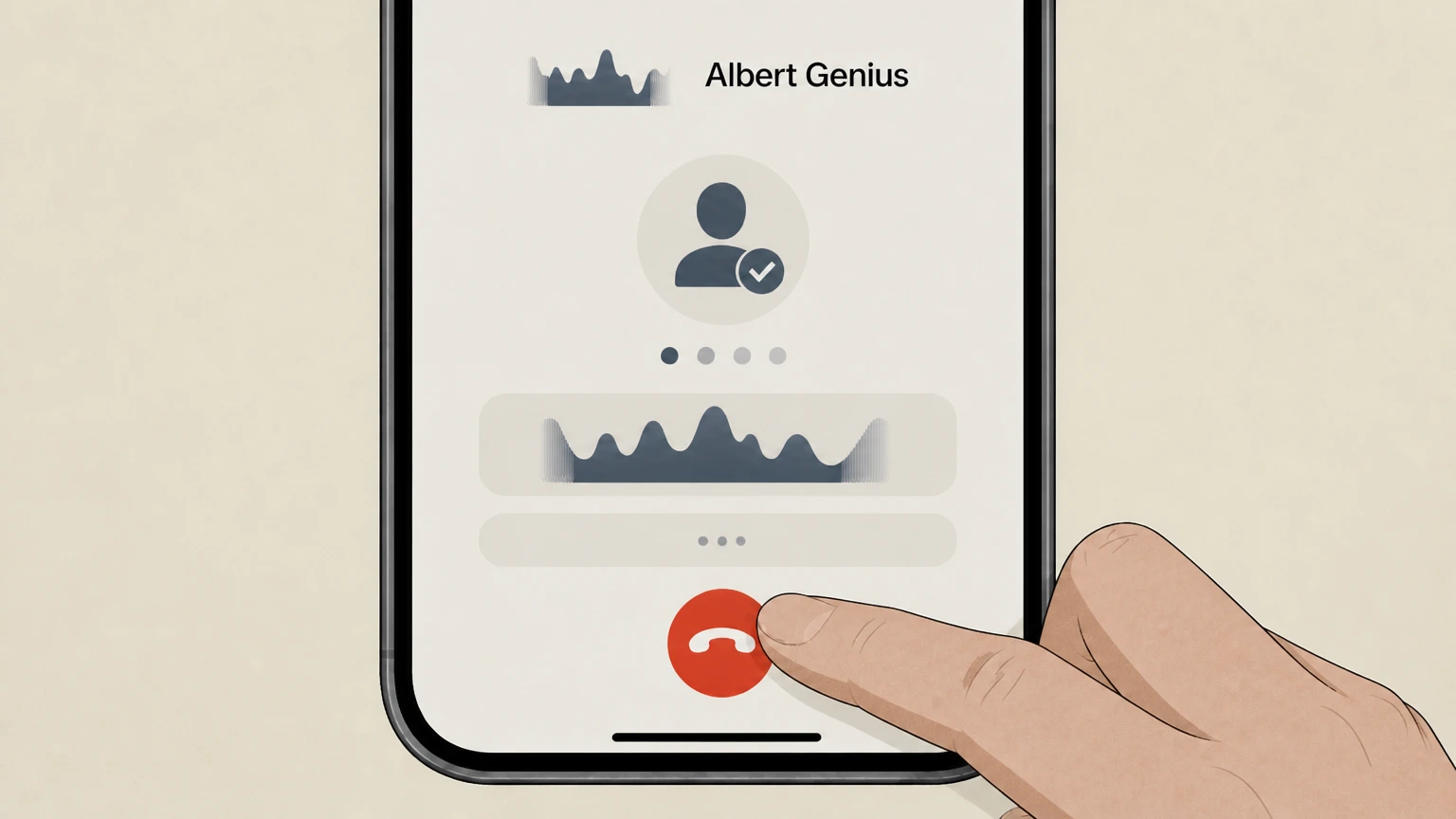 4
4Ask for written confirmation
Ask the agent to send written confirmation (such as an in‑app message or email) that deactivation or closure was completed and future subscription fees will stop.
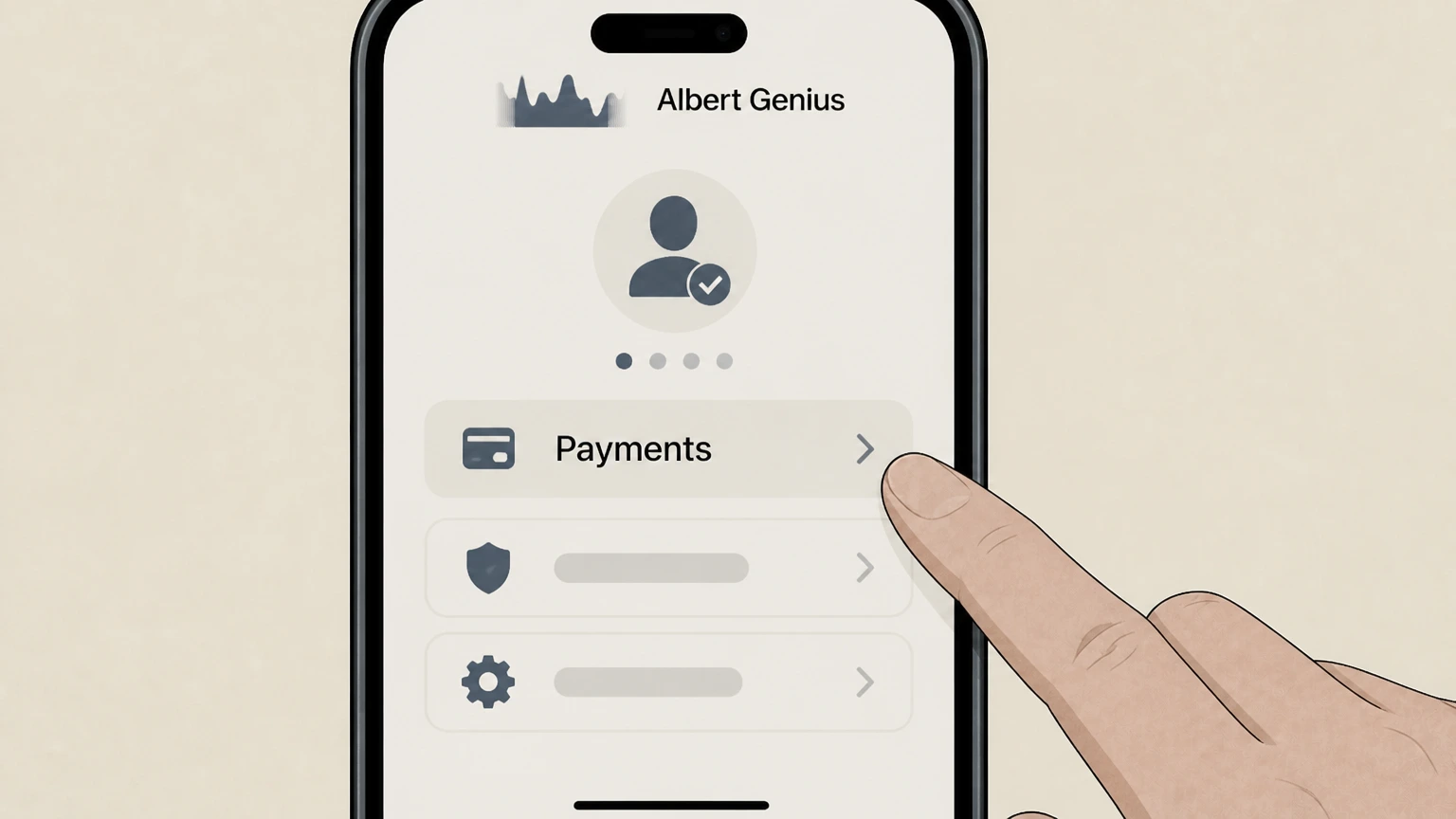 5
5Check your Payments screen later
After the call, open the Albert app, go to Profile > Menu > Payments, and confirm that your plan is no longer active or billed going forward.
Refund policy
Albert Genius refund expectations
Albert’s official policy is that it does not provide refunds for monthly Albert subscriptions, including Genius, so cancellation mainly prevents future charges. Cardholders still have standard billing‑error rights under federal law.
Check my refund options- Monthly subscriptions are non‑refundable by policy
- Albert’s Genius refund help article states that Albert does not offer refunds for monthly Albert subscriptions, meaning charges already posted are generally not refunded through Albert’s own policies.
- Pausing services doesn’t trigger a refund
- Pausing Smart money savings or reducing app usage does not change Albert’s refund stance or subscription status; without deactivation or closure, Genius charges can continue under the auto‑renew structure.
If you believe an Albert Genius charge is incorrect despite Albert’s no‑refund policy, gather your Albert deactivation confirmation, plan screenshots, and card statement, then follow FTC billing‑error dispute steps with your card issuer while continuing to work with Albert support. Learn how to dispute a credit card billing error
Service status
How Albert Genius fits into Albert subscription plans
Understanding how Genius is packaged and renewed helps you choose the right cancellation action.
Genius is an active paid plan tier
Albert currently offers multiple subscription tiers, including Genius, with benefits layered on top of lower tiers like Basic and Standard. Genius remains an active plan option within Albert’s product lineup.
Plans auto‑renew until deactivated
Albert states that fee payments for its subscription plans automatically renew until you deactivate or close your account, and that plans will auto‑renew until canceled or the account is closed.
Plan and billing are managed inside Albert
To see which plan is active and how you are billed, Albert directs you to the app’s Profile > Menu > Payments screen, not to Apple or Google subscription menus.
Genius is governed by Terms of Use
Albert’s Terms of Use describe Albert Genius as an AI‑powered assistant integrated into its services and clarify that subscription payments continue until you cancel under those Terms.
Cancellation mechanics
Deactivation vs permanent account closure in Albert
Albert distinguishes between deactivating your account (which stops subscription billing) and permanently closing it (which shuts down all Albert accounts).
Deactivation pauses subscription payments
Albert’s deactivation article states that deactivating your account will pause Albert subscription payments while leaving the account capable of future reactivation, which is the core step to stop ongoing Genius billing.
Closure permanently ends all Albert accounts
Permanent account closure will close all Albert accounts indefinitely and stop you from sending or receiving funds with Albert; it also affects future direct deposits, which are returned to the sender.
Balances must meet requirements first
To deactivate, your Albert Savings and Investing balances must be $0; to permanently close, all Albert accounts, including Cash, Savings, Investing, and any Instant advance, must be at $0 or repaid.
Autopay for advances and loans can continue
Albert warns that, even after deactivation, if you have autopay enabled for advance or loan payments, funds may continue to transfer to repay those balances until they are fully paid.
Before canceling
How to confirm which Albert plan is charging you
Verifying your current plan and charges inside Albert helps ensure you’re canceling the correct subscription.
Use the Payments screen in the app
Albert instructs customers to go to Profile > Menu > Payments in the app to see their payment details, including which plan (such as Genius) is active and how fee payments renew.
Look for recurring Albert subscription debits
Albert’s historical disclosures explain that subscription fees are pulled by ACH or similar debits from the bank account you linked to Albert, so you may see Albert‑branded debits in that account’s transaction history.
Differentiate subscription from other Albert activity
Albert Cash, Instant advances, loans, and card purchases can also create Albert‑related transactions, so review transaction descriptions and the Payments screen to distinguish subscription fees from other activity.
Subscriptions in other apps are separate
Albert’s Terms note that when it helps you locate or manage other merchants’ subscriptions via Albert Budgeting, Albert does not cancel those subscriptions itself; you must follow each merchant’s terms separately.
Albert Genius cancellation FAQ
Provider-specific answers about billing, timing, refunds, and confirmation.
How do I cancel my Genius subscription?
How to cancel Albert subscription online
Does pausing Smart money cancel my Albert Genius subscription?
Can I get a refund for Albert Genius?
What if I’m still charged after canceling Albert Genius?
Untangle this Albert Genius issue.
Let Pine handle the provider follow-up and keep the confirmation in one place.
