


CapCut Pro
Cancel subscription
How to Cancel Your CapCut Pro Subscription Safely
Learn how to cancel CapCut Pro through the right billing provider. Follow official steps, understand access timing, refunds, and the confirmation to keep.
- Official CapCut Pro and billing-owner sources
- 3 provider-specific cancellation paths
- Refund and post-cancellation effects separated from renewal
- Verified August 16, 2026
Choose the CapCut Pro cancellation path that matches who bills you
iOS (Apple App Store billing) · verify the billing owner
 1
1Open Settings
Open the Settings app on your iPhone or iPad. Use the CapCut Pro account named on your receipt, and continue only after the next status in this cancellation path is visible.
 2
2Tap your name
In Settings, tap your name at the top to open your Apple ID page. Use the CapCut Pro account named on your receipt, and continue only after the next status in this cancellation path is visible.
- Let Pine handle it
Pine can help
Too many steps?
Pine can find the right iOS (Apple App Store billing) path and handle the cancellation for you.
 3
3Open Subscriptions
On the Apple ID screen, tap Subscriptions to view your active and expired subscriptions. Use the CapCut Pro account named on your receipt, and continue only after the next status in this cancellation path is visible.
 4
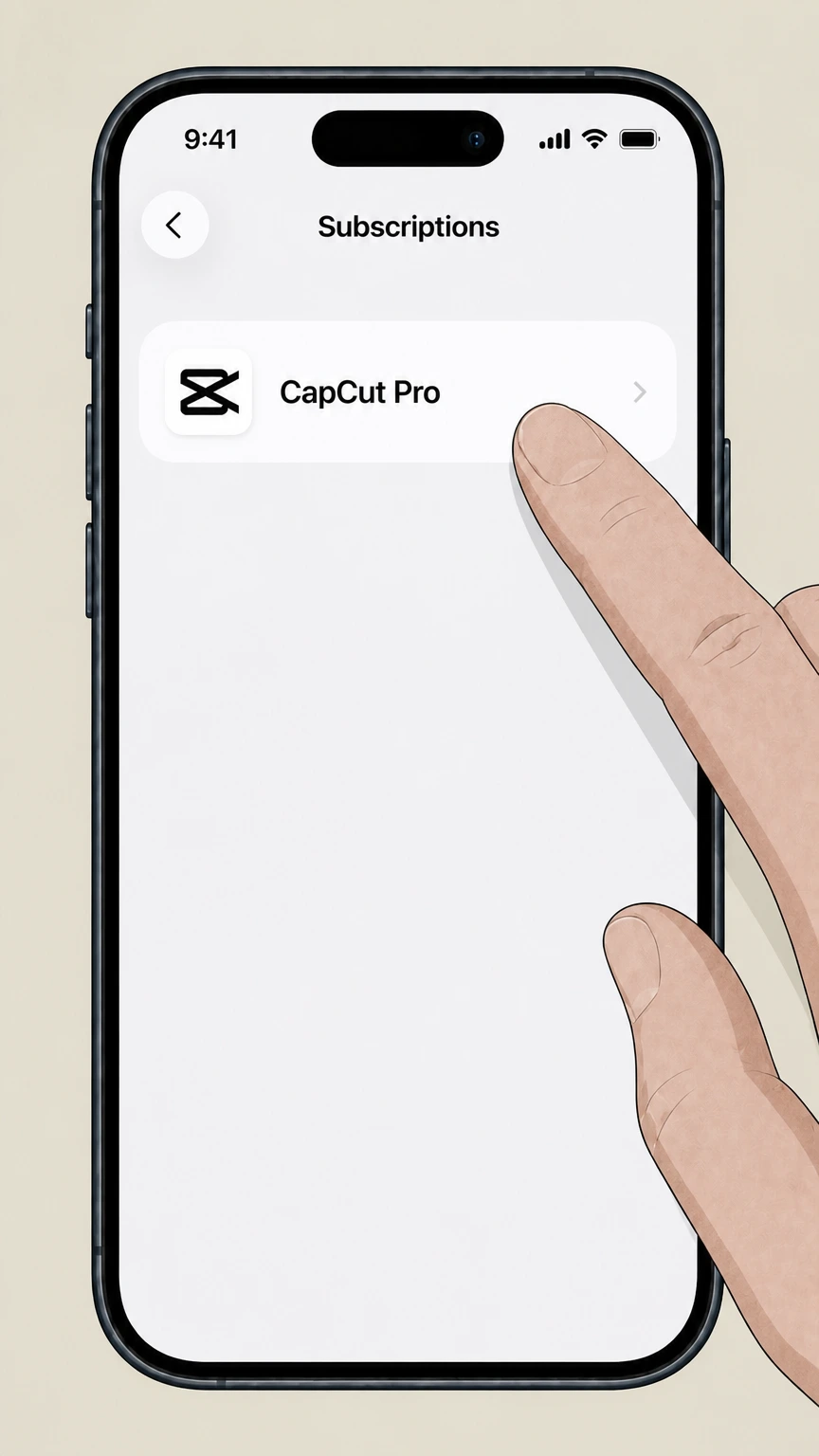
4Select CapCut Pro
In the list of active subscriptions, tap CapCut Pro (or the CapCut subscription entry) to open its details. Use the CapCut Pro account named on your receipt, and continue only after the next status in this cancellation path is visible.
 5
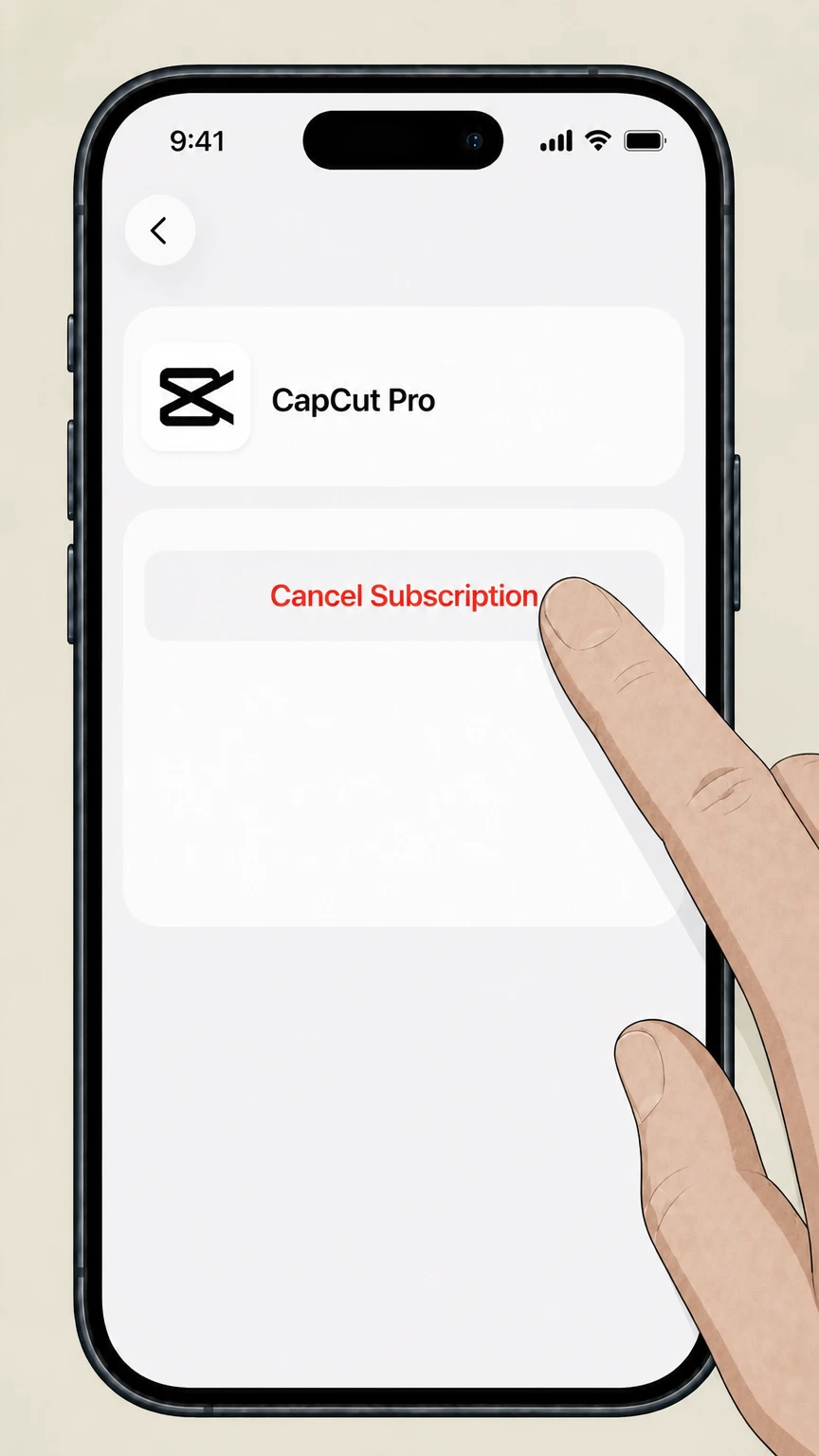
5Cancel the subscription
On the CapCut Pro subscription page, tap Cancel Subscription (or Cancel All Services) and confirm to turn off auto‑renewal. Use the CapCut Pro account named on your receipt, and continue only after the next status in this cancellation path is visible.

Android (Google Play billing) · verify the billing owner
 1
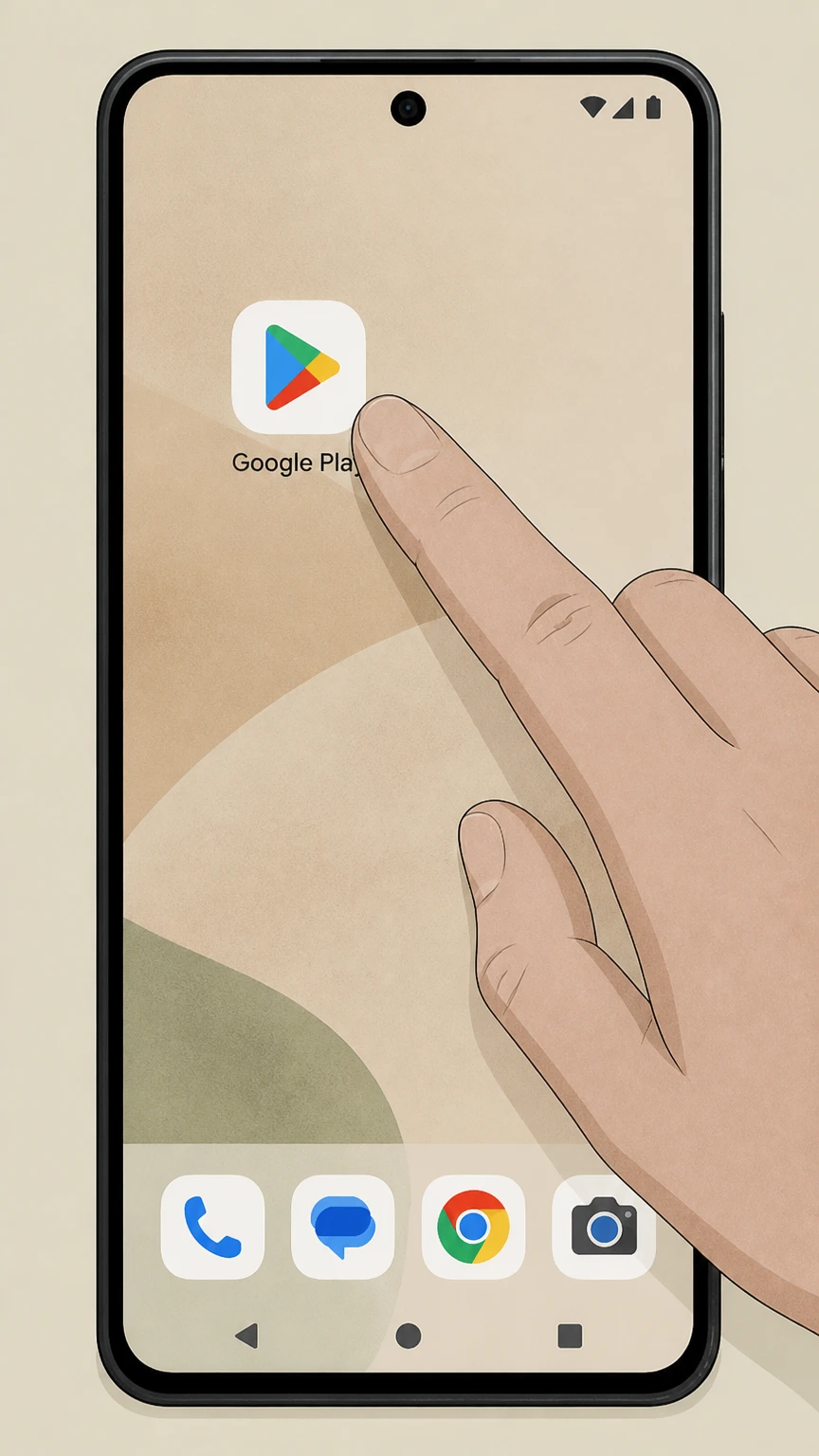
1Open Google Play Store
Open the Google Play Store app on your Android device. Use the CapCut Pro account named on your receipt, and continue only after the next status in this cancellation path is visible.
 2
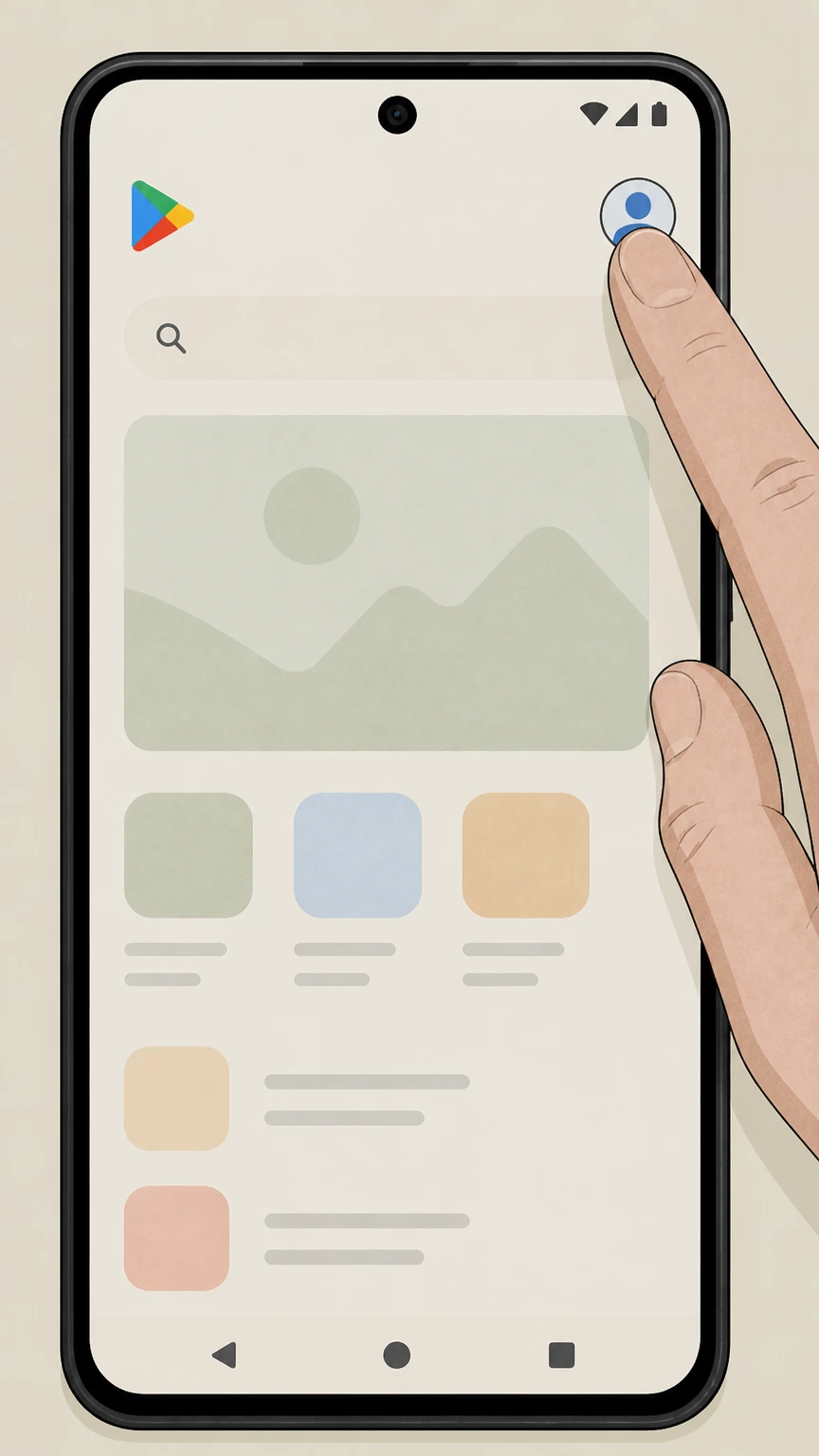
2Open the account menu
In Google Play, tap your profile icon in the top‑right corner to open the account menu. Use the CapCut Pro account named on your receipt, and continue only after the next status in this cancellation path is visible.
- Let Pine handle it
Pine can help
Too many steps?
Pine can find the right Android (Google Play billing) path and handle the cancellation for you.
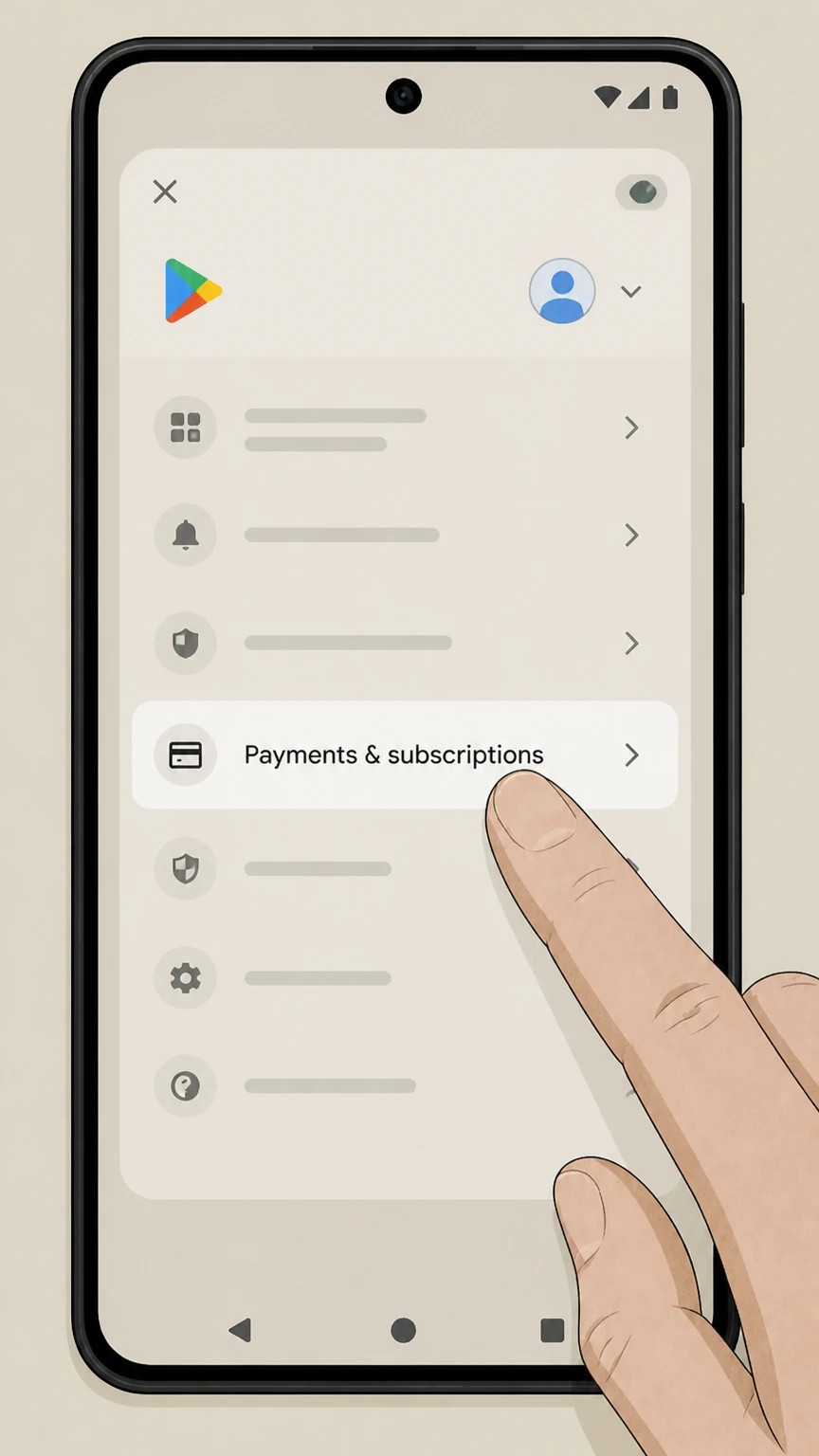 3
3Open Payments & subscriptions
From the menu, tap Payments & subscriptions to manage your billing and subscriptions. Use the CapCut Pro account named on your receipt, and continue only after the next status in this cancellation path is visible.
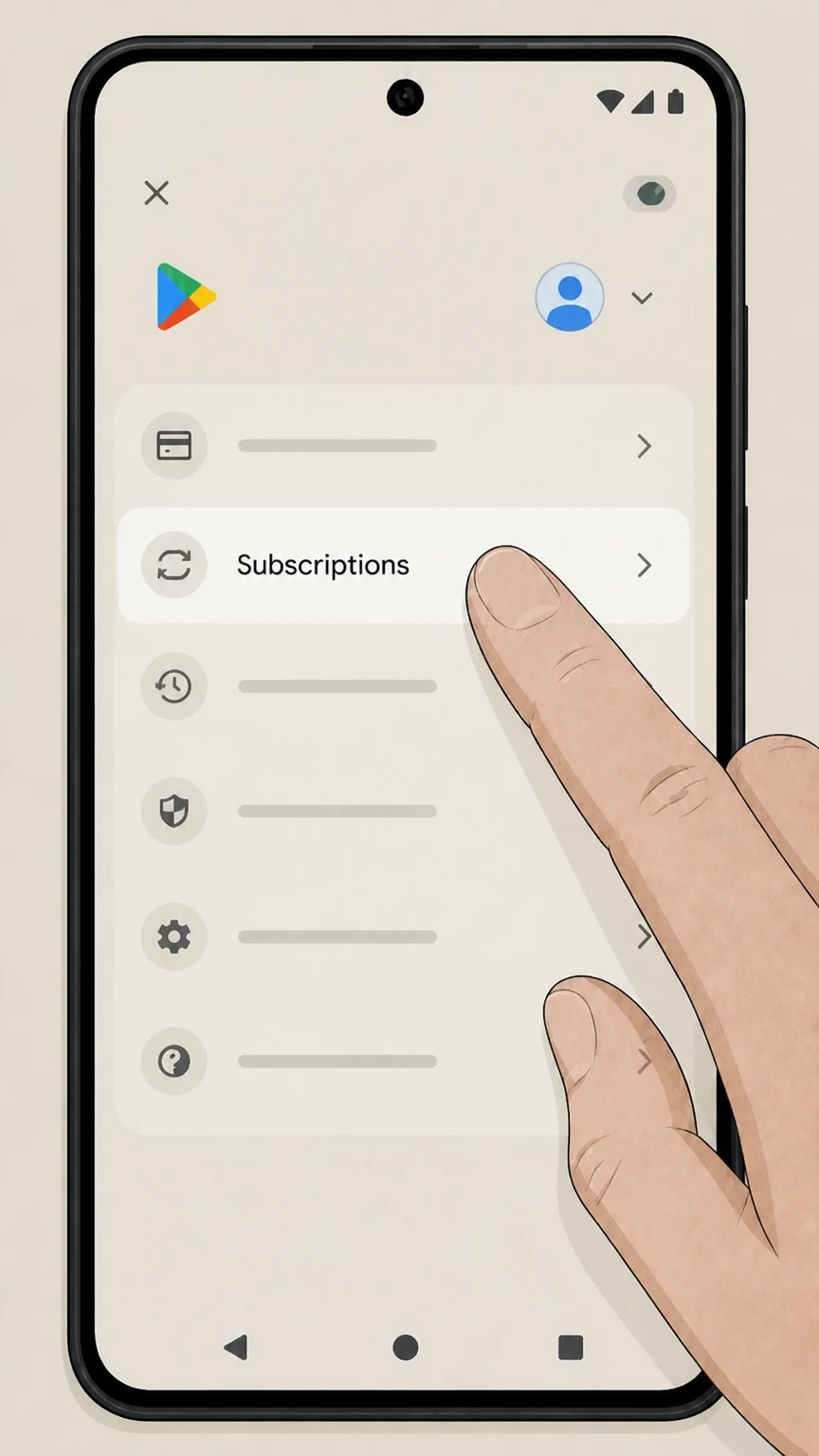 4
4Open Subscriptions
Tap Subscriptions to see all active Google Play subscriptions tied to this Google account. Use the CapCut Pro account named on your receipt, and continue only after the next status in this cancellation path is visible.
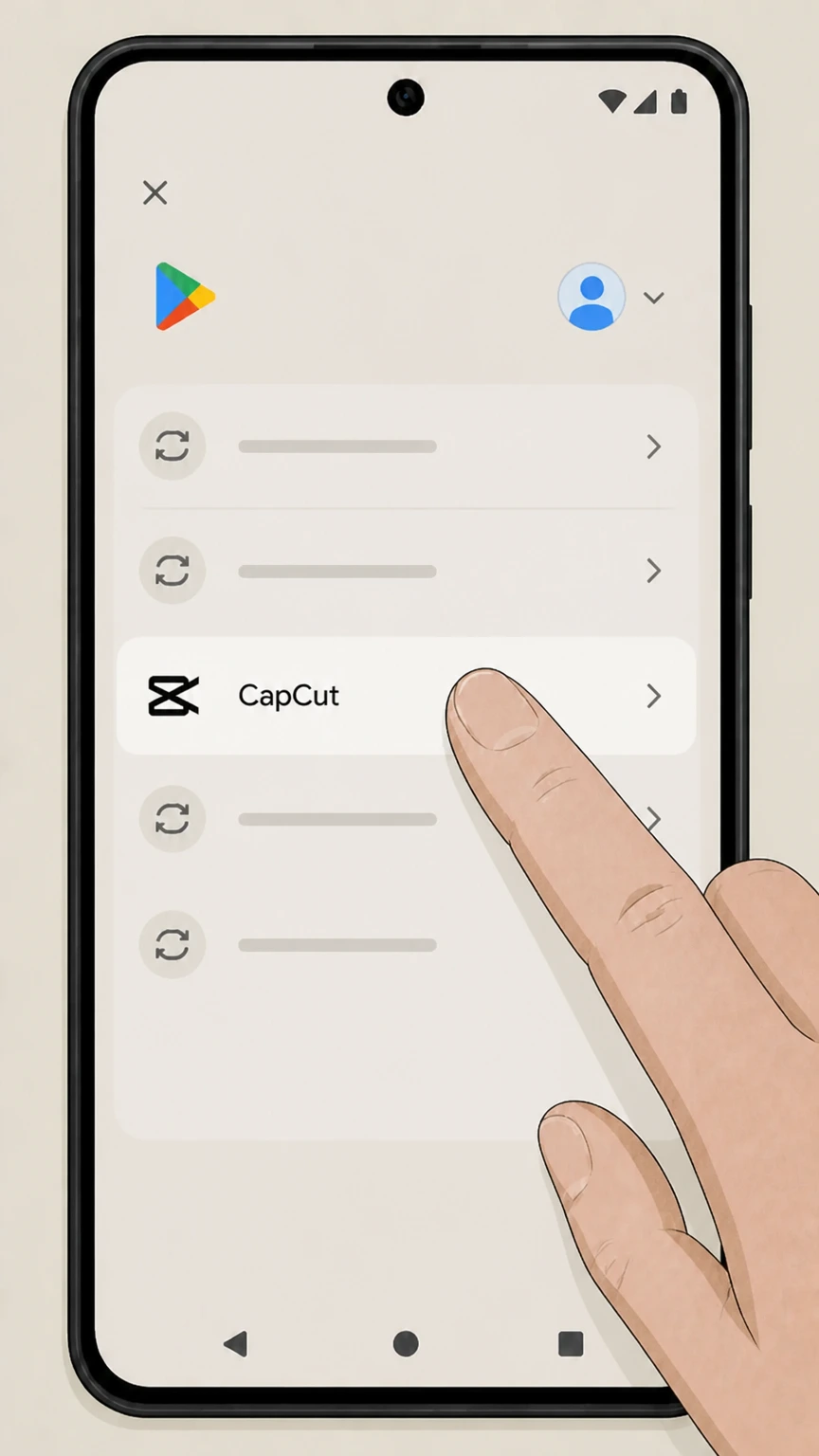 5
5Select CapCut subscription
In the subscriptions list, tap the CapCut entry that matches your CapCut Pro plan to open its details. Use the CapCut Pro account named on your receipt, and continue only after the next status in this cancellation path is visible.
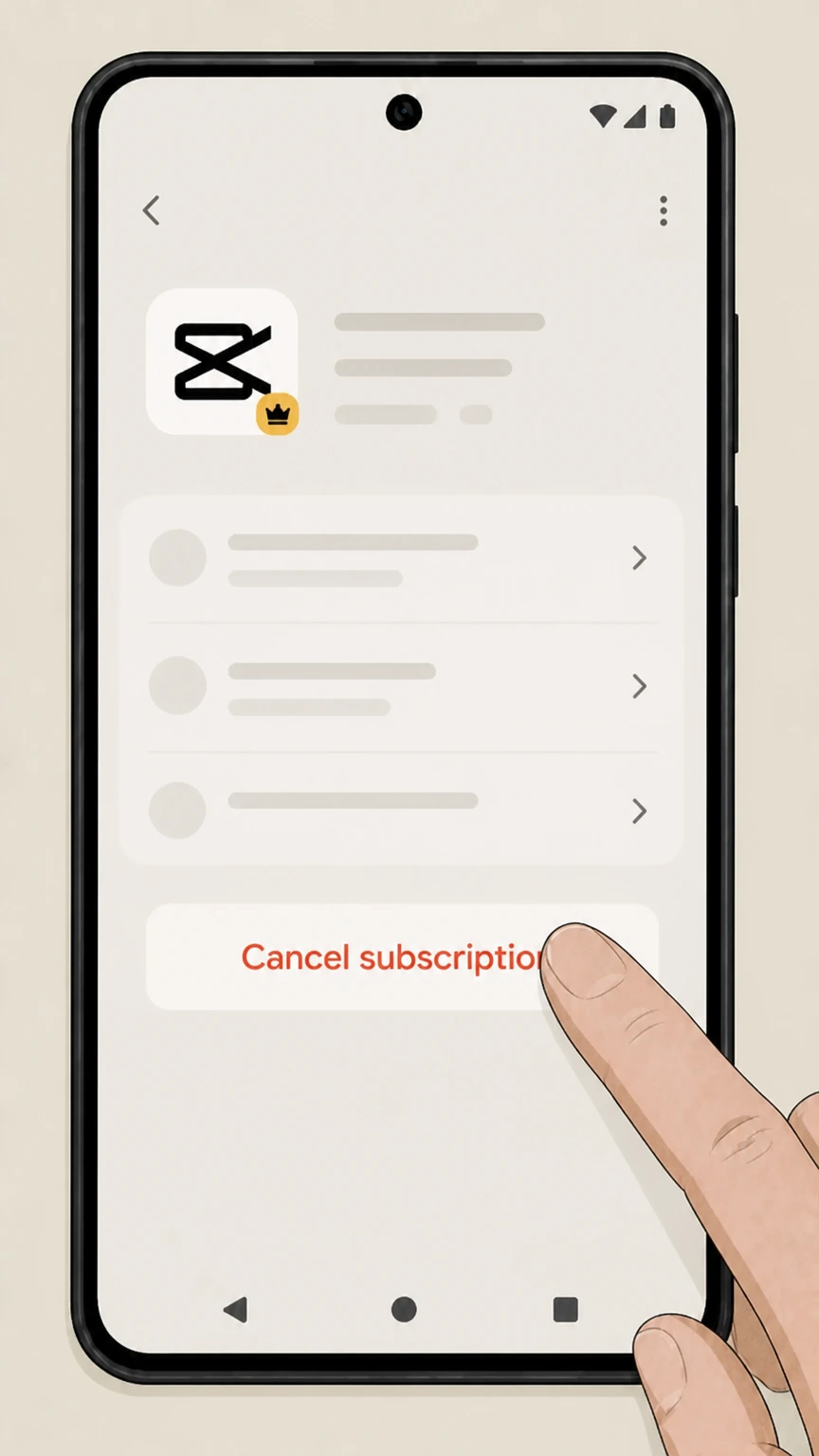 6
6Cancel the subscription
On the CapCut subscription page, tap Cancel subscription and follow the prompts to confirm cancellation. Use the CapCut Pro account named on your receipt, and continue only after the next status in this cancellation path is visible.
CapCut Web or PC (CapCut account billing) · verify the billing owner
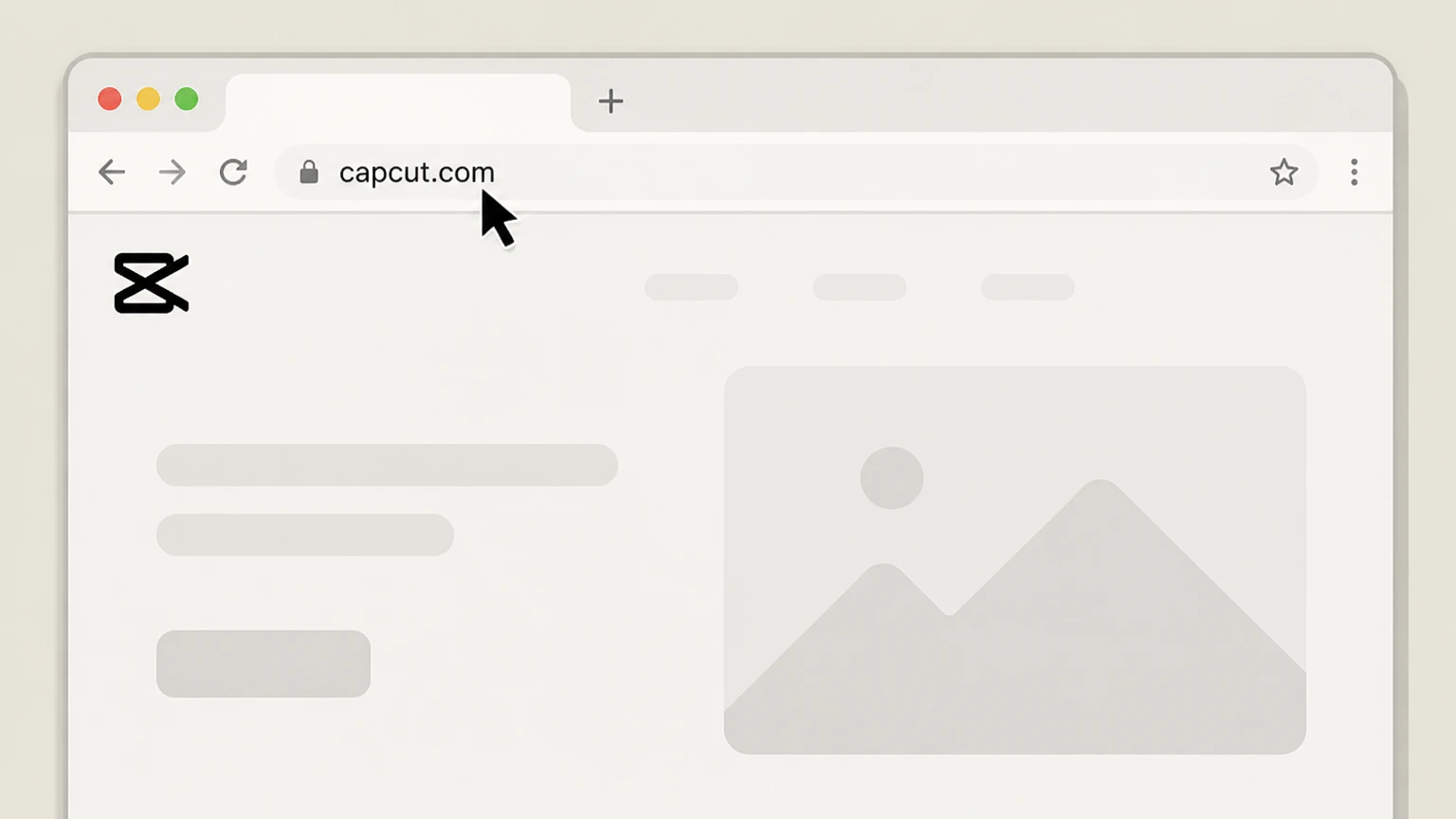 1
1Open CapCut Online
In a browser, go to the CapCut Online website and open the main page. Use the CapCut Pro account named on your receipt, and continue only after the next status in this cancellation path is visible.
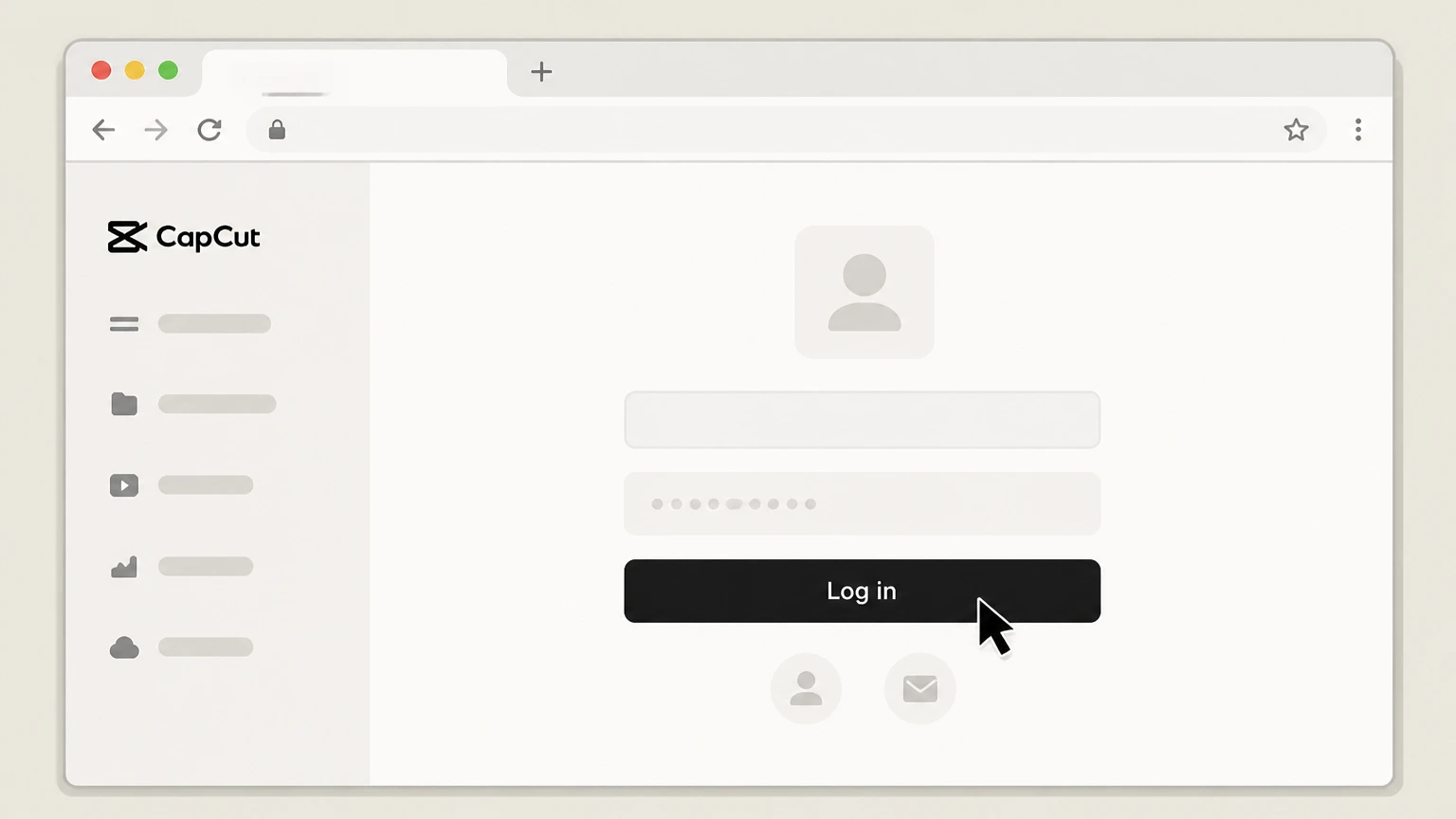 2
2Sign in to your CapCut account
Click Log in and sign in with the CapCut account that has the Pro subscription. Use the CapCut Pro account named on your receipt, and continue only after the next status in this cancellation path is visible.
- Let Pine handle it
Pine can help
Too many steps?
Pine can find the right CapCut Web or PC (CapCut account billing) path and handle the cancellation for you.
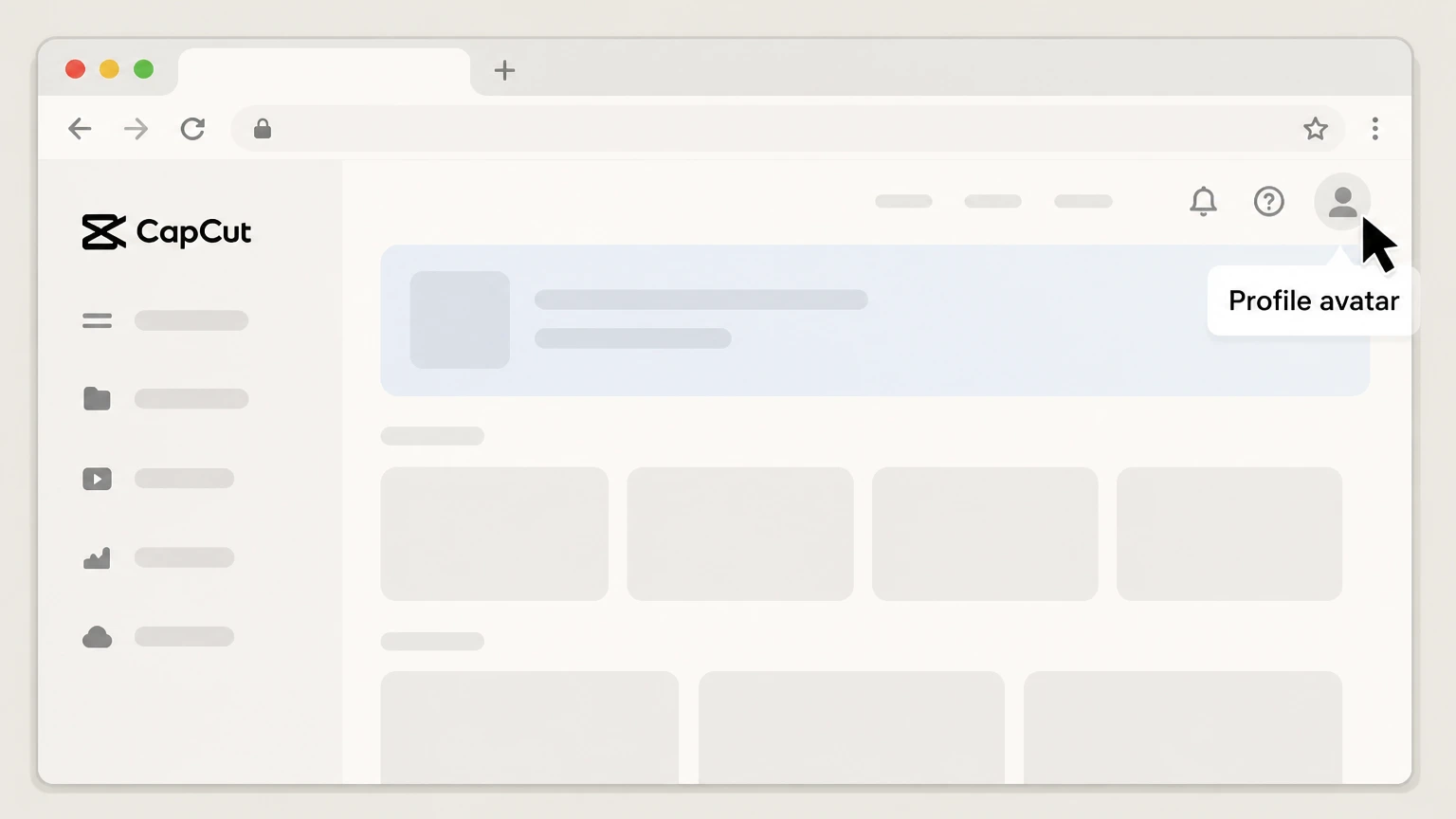 3
3Open your profile menu
After signing in, click your profile avatar in the top‑right corner to open the account menu. Use the CapCut Pro account named on your receipt, and continue only after the next status in this cancellation path is visible.
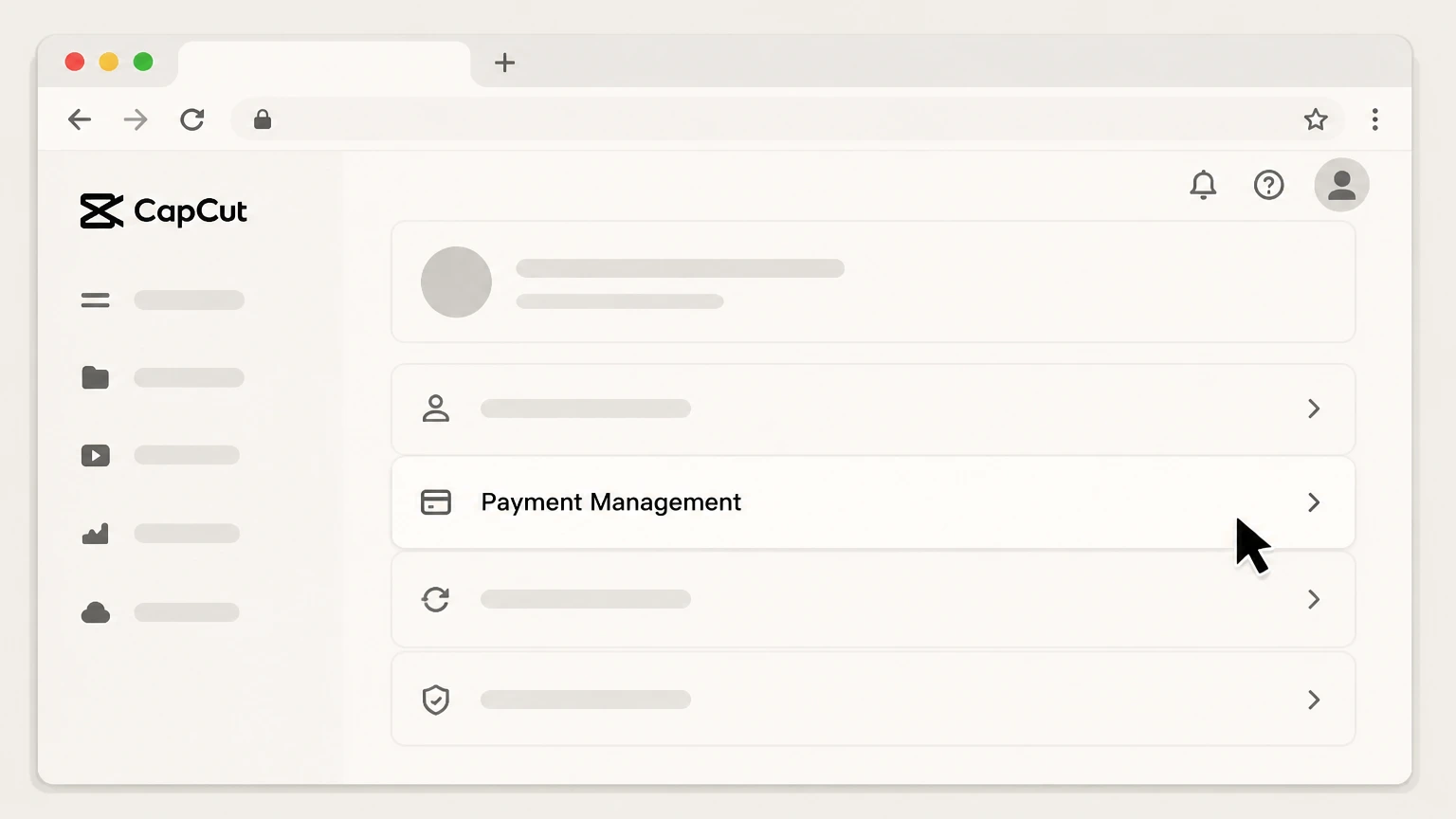 4
4Open Payment Management or Subscriptions
In the profile or account menu, select the Payment Management or Subscriptions option to open your billing page. Use the CapCut Pro account named on your receipt, and continue only after the next status in this cancellation path is visible.
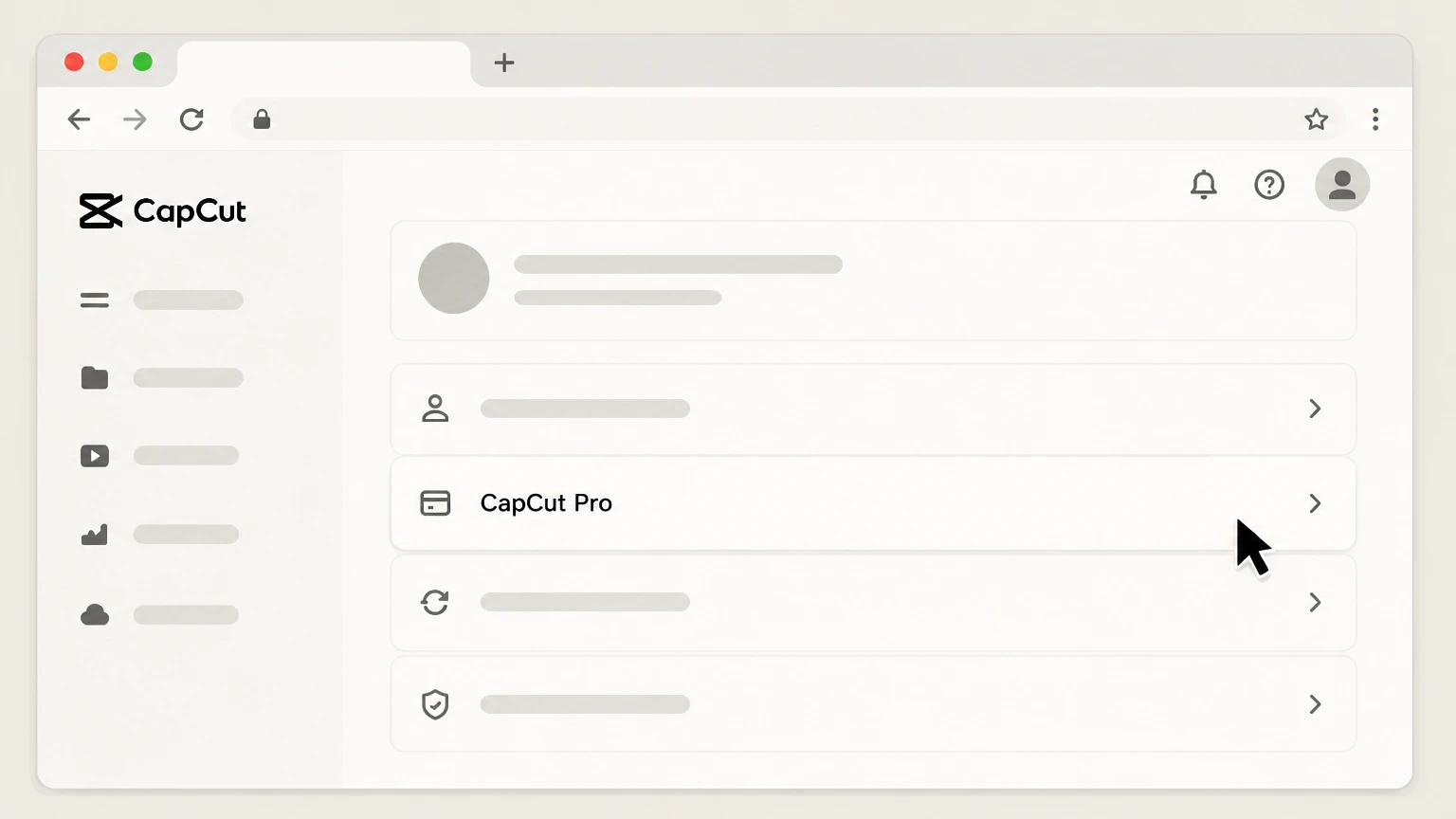 5
5Select your CapCut Pro plan
On the billing page, locate your active CapCut Pro subscription entry and open its details. Use the CapCut Pro account named on your receipt, and continue only after the next status in this cancellation path is visible.
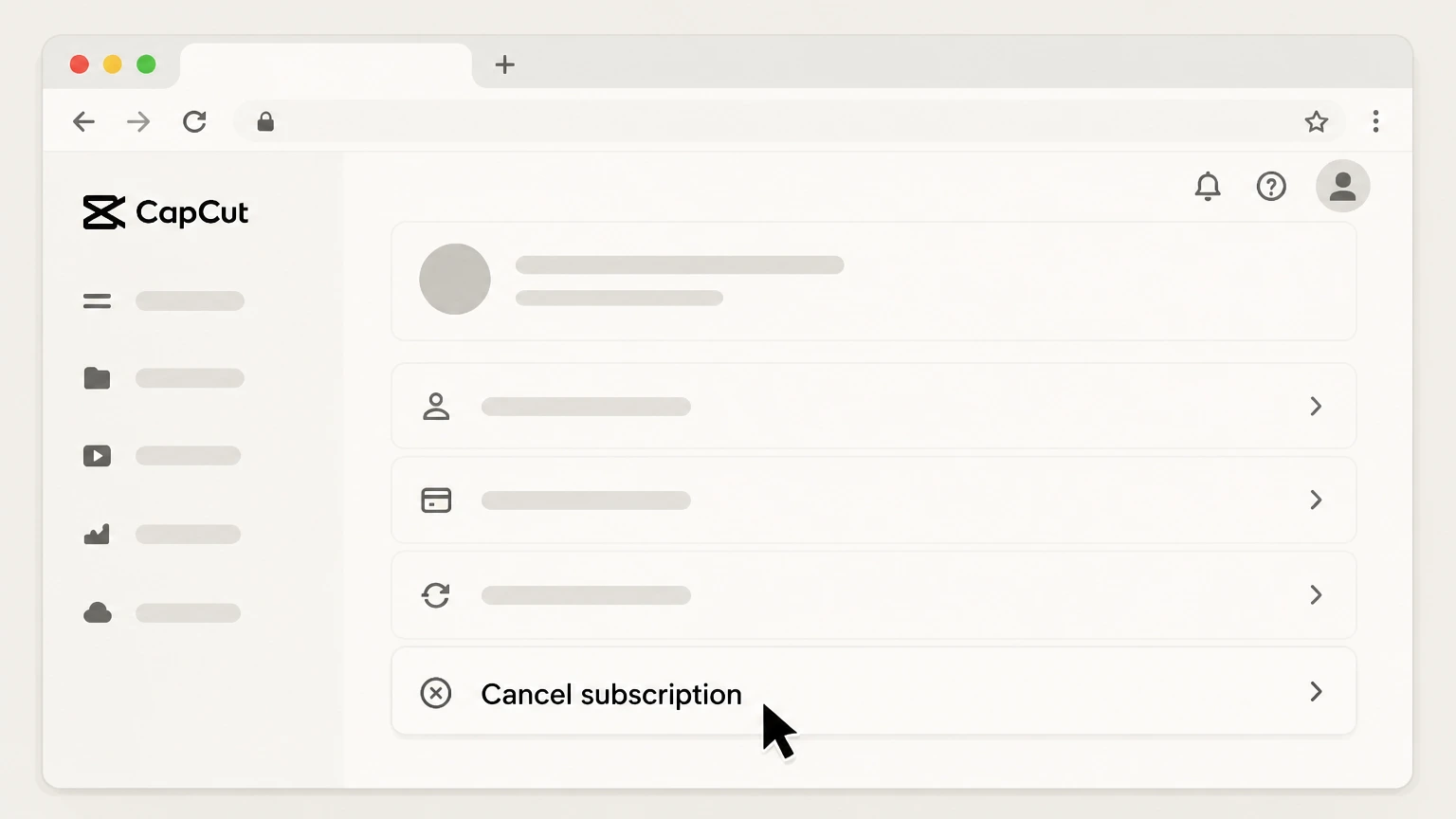 6
6Turn off auto‑renewal
Use the Cancel subscription or similar option to turn off auto‑renewal for your CapCut Pro plan and confirm. Use the CapCut Pro account named on your receipt, and continue only after the next status in this cancellation path is visible.
Refund policy
CapCut Pro refund and chargeback overview
CapCut frames CapCut Pro subscriptions as virtual goods with limited refundability. Some direct CapCut purchases may qualify for a cooling‑off refund if unused, while App Store and Google Play purchases follow those platforms’ refund rules. Users should distinguish between stopping future renewals and asking for money back.
Check my refund options- General non‑refundability of subscriptions
- CapCut’s Help Center states that CapCut Pro and other subscriptions are treated as virtual goods, and generally purchases do not support refunds because benefits become available immediately when the plan activates or renews.capcut.com
- 14‑day unused‑service refund for direct purchases
- The CapCut Terms of Service provide that if you subscribe to Premium Services directly from CapCut, you can cancel with a full refund within 14 calendar days of the subscription start, provided you have not used any Premium Services at all in that period.capcut.com
- Store purchases follow Apple or Google rules
- For subscriptions paid via Apple Pay or Google Pay, CapCut’s terms specify that cancellation and refunds are governed by Apple App Store or Google Play conditions. Refunds must therefore be requested through Apple’s or Google’s own refund tools, not from CapCut support alone.capcut.com
- Web/PC and Google Play refund workflow
- CapCut’s refund article explains that web/PC users should use the Payment Management section to review transactions and, if a direct refund option is missing, contact CapCut support or the payment gateway (for example, card issuer or PayPal) using the order number for help.capcut.com
- Appeals and automatic refunds in special cases
- For age‑restriction appeal scenarios, CapCut describes cancelling auto‑renewal first, then either requesting a refund from Apple or, for non‑Apple purchases, receiving an automatic refund within a specified processing window after the appeal deadline if conditions are met.capcut.com
For case‑specific guidance on CapCut Pro refunds, including how your region’s laws may interact with CapCut’s policies, review CapCut’s official refund and Terms of Service pages. View CapCut refund and terms pages
Who bills you
How CapCut Pro billing works across platforms
CapCut Pro uses different billing owners depending on where you started the subscription. Knowing this is key to cancelling correctly.
Mobile app subscriptions use store billing
CapCut’s Terms of Service state that subscriptions on the CapCut app are payable through your Apple ID or Google account, so Apple and Google control billing and cancellation for in‑app purchases.capcut.com
Web subscriptions use your CapCut account
Subscriptions on CapCut Web are billed to your CapCut account, processed via third‑party payment providers, and must be cancelled from CapCut’s own subscription or payment pages.capcut.com
Cancel on the same platform you purchased
CapCut explains that to avoid further recurring charges you must cancel through your Apple ID, Google account, or CapCut account before the end of the current period, matching where you originally subscribed.capcut.com
App deletion doesn’t stop billing
Neither CapCut nor Google Play treat uninstalling the app as cancellation; deleting CapCut from your device will not stop subscription renewals unless you also turn off auto‑renewal in the appropriate subscription settings.support.google.com
Renewals & timing
Auto‑renewal, renewal notices, and cut‑off times
CapCut Pro uses auto‑renewing plans with important timing rules that affect when you must cancel to avoid another charge.
CapCut Pro renews automatically
Help Center articles state that CapCut Pro and CapCut Teams are set to auto‑renew at the end of each billing cycle unless you cancel in advance.capcut.com
Cancel at least 24 hours before renewal
CapCut warns that if you forget to cancel at least 24 hours before your renewal date, your account will be charged and a new billing cycle will begin.capcut.com
Pre‑renewal charge notifications
You may receive a notification about an upcoming CapCut Pro charge one day before renewal, giving you time to decide whether to cancel before the next cycle starts.capcut.com
Access continues until period end after cancelling
The Terms of Service and Pro upgrade FAQs explain that when you cancel or turn off auto‑renewal, you retain access to Premium Services until the last day of the current subscription period, after which you are downgraded to free services.capcut.com
After you cancel
What changes after cancelling CapCut Pro
Cancelling CapCut Pro affects your membership level, AI credits, and use of Pro‑only materials, but your account and projects remain.
Account downgrades to free tier
CapCut’s Terms say that once cancellation takes effect at the end of the billing period, your subscription ends and your account is automatically downgraded to the Free Services.capcut.com
Pro access lasts through the paid period
Even after you cancel auto‑renewal, you keep using CapCut Pro features until the end of the current subscription cycle; turning off renewal does not immediately disable Pro.capcut.com
AI subscription credits last until cycle end
CapCut explains that Pro subscription credits remain valid and usable on CapCut Online until the end of your current billing period, even if you cancel before that date.capcut.com
Projects may still contain Pro‑only elements
CapCut notes that videos containing Pro “member effects” require an active Pro subscription to export; to export without Pro, you must remove all elements marked with the Pro icon from your timeline.capcut.com
Cloud storage limits may tighten
Help Center materials and the CapCut Pro overview indicate that Pro plans include expanded cloud storage; after downgrading, you lose the Pro‑level quota, which may restrict new uploads if your stored content exceeds the free limit.capcut.com
Credits & storage
CapCut Pro credits and cloud storage after cancellation
CapCut Pro combines time‑based membership with AI credits and large cloud storage allowances; cancellation affects each differently.
Credits exist only on CapCut Online
CapCut clarifies that as of 2026, its credit system is active only on CapCut Online (web); Desktop and Mobile do not display or consume credits directly.capcut.com
Subscription credits remain until billing end
The credits‑validity article explains that monthly subscription credits tied to your Pro plan stay usable until the end of the billing cycle, even if you cancel mid‑cycle.capcut.com
Unused credits may expire after downgrade
CapCut’s credit documentation indicates that subscription credits are aligned with your Pro billing cycle, implying that once the cycle ends and your plan downgrades, any remaining subscription credits can no longer be used.capcut.com
Cloud storage is a core Pro benefit
CapCut Pro feature overviews describe expanded cloud storage—up to around 1 TB under upgraded plans—compared with more limited free storage, so downgrading generally reduces the storage available to new uploads.capcut.com
Refund rules
Refunds, appeals, and platform differences
CapCut’s refund options depend heavily on where you purchased CapCut Pro and whether you have used the Premium Services.
CapCut treats subscriptions as virtual goods
A Help Center article states that CapCut subscriptions are considered virtual goods and generally do not support refunds once purchased or renewed, because benefits are available immediately.capcut.com
14‑day refund right for unused direct subscriptions
The CapCut Terms of Service provide that for Premium Services purchased directly from CapCut, you may cancel with a full refund within 14 days of starting the subscription if you have not used the Premium Services in any form.capcut.com
Apple and Google handle store‑based refunds
CapCut’s Terms specify that if you subscribed through Apple Pay or Google Pay (App Store or Google Play), cancellation and refund are additionally subject to Apple’s or Google’s own terms and refund processes.capcut.com
Refund routes for web/PC and Google Play
CapCut’s refund guide instructs web/PC users to manage payments via the platform’s Payment Management section and, if needed, contact CapCut support or the payment gateway (for example, card issuer or PayPal) with the order number.capcut.com
Appeals and special‑case refunds
For scenarios like age‑restriction appeals, CapCut describes cancelling auto‑renewal first and then requesting a refund through Apple or, for non‑Apple purchases, receiving a refund automatically within a stated processing period after the appeal window.capcut.com
Devices & platforms
Using and cancelling CapCut Pro across devices
CapCut Pro is designed to work across mobile, desktop, and web, but subscription management still follows the original purchase platform.
Pro benefits sync across platforms
CapCut explains that a CapCut Pro subscription is account‑based and unlocks Pro features across web, desktop, and mobile once purchased and synced.capcut.com For your CapCut Pro account, compare this point with the billing owner and effective date shown in the signed-in account or latest receipt.
Standard plan has mobile‑only limits
For CapCut Standard subscriptions (where available), CapCut notes that benefits may only apply on mobile, unlike Pro, which offers full cross‑platform access.capcut.com For your CapCut Pro account, compare this point with the billing owner and effective date shown in the signed-in account or latest receipt.
Subscriptions checked differently on each device
CapCut’s “already subscribed” article directs users to iOS Settings > Apple ID > Subscriptions, Google Play’s subscriptions list, or the CapCut web/PC subscription or billing section to confirm their active plan.capcut.com
Changing plans requires cancel and resubscribe
CapCut states you cannot directly switch Pro plans mid‑term; instead, you cancel via the original billing platform, wait for the period to end, then purchase a new plan.capcut.com
If things go wrong
Troubleshooting CapCut Pro cancellation problems
CapCut documents several edge cases where standard self‑service cancellation may not work and support intervention is needed.
If you can’t cancel auto‑renewal
CapCut has a dedicated article for situations where auto‑renewal cannot be cancelled; in those cases you must contact their support team with account, platform, screenshots, and order number so they can adjust it.capcut.com
Verify you’re using the right login
CapCut warns that subscriptions may appear missing if you sign in with a different method (for example, email vs. Apple ID); logging in with the same method used at purchase usually reveals the active subscription.capcut.com
Check the correct app store account
CapCut and Google Play both note that if you have multiple Google accounts, you must open subscriptions under the account used to buy CapCut, otherwise the plan won’t appear.capcut.com
Subscription already active message
If you see “You’re currently subscribed to this” when trying to buy CapCut again, CapCut explains this appears because an active subscription already exists; you must manage or cancel that existing plan instead of repurchasing.capcut.com
Out‑of‑date app versions and Pro status
CapCut advises that downgrading to an older app version after upgrading a subscription can cause Pro benefits to disappear; updating back to the latest version and logging in again typically restores the correct status.capcut.com
Content impact
Impact of cancelling on projects and exports
Cancelling CapCut Pro affects how you can export certain projects but does not automatically delete your work.
Projects with Pro effects need an active Pro plan
CapCut’s member‑effects guide explains that if your project contains Pro filters, effects, transitions, or templates, CapCut will prompt you to subscribe because those paid elements require an active Pro subscription for export.capcut.com
You can remove Pro materials to export on free
CapCut describes that to export without Pro, you must open the project, identify elements marked with the Pro icon, and delete them from the timeline until no Pro icons remain, then export normally.capcut.com
Covers may still contain Pro content
The same guide cautions that if your project’s cover image includes Pro materials, you must update the cover after removing Pro content or the export may still be flagged as requiring Pro.capcut.com
Account and stored content persist after downgrade
CapCut’s terms and feature descriptions focus on downgrading membership and storage limits, not deleting user projects; cancelling Pro typically reduces benefits and storage entitlement while leaving your account and existing content accessible, subject to capacity limits.capcut.com
What official sources do not confirm
Limits of the public CapCut Pro cancellation guidance
These points are intentionally qualified because the official sources reviewed on August 16, 2026 do not publish a complete answer.
Documented limitation 1
CapCut’s Help Center and Terms describe cancelling via a CapCut Web subscription or Payment Management page but do not show the exact current button labels or layout; the web route steps infer likely labels from this text and may differ slightly from your local interface.
Documented limitation 2
Some refund rights—especially the 14‑day unused‑service refund and any mandatory cooling‑off periods—can depend on jurisdiction‑specific law that is not fully detailed in CapCut’s global Terms; users with complex disputes may need local legal or regulator guidance.
Documented limitation 3
CapCut’s documentation treats subscriptions as generally non‑refundable while also describing a limited 14‑day refund for unused direct purchases and platform‑specific refunds via Apple and Google; how these overlapping rules apply in individual cases may vary.
Documented limitation 4
The precise product name shown in Apple or Google subscription lists (for example, “CapCut” vs. “CapCut Pro”) can vary by region and store listing; this dossier uses generic labels based on CapCut’s own examples.
CapCut Pro cancellation FAQ
Questions people search about canceling CapCut Pro, answered with official provider or billing-platform sources checked on August 16, 2026.
Can I cancel my CapCut Pro anytime?
How to get rid of CapCut pro?
How do I cancel my CapCut Pro subscription?
How to cancel CapCut subscription and get refund?
How do I cancel CapCut Pro on iPhone?
How do I cancel CapCut Pro on Android?
How do I cancel a CapCut Pro subscription bought on the web or PC?
What if I can’t cancel my CapCut subscription?
Untangle this CapCut Pro issue.
Let Pine handle the provider follow-up and keep the confirmation in one place.
