


Notion
Cancel subscription
How to Cancel Notion Subscription: Official Steps
Step-by-step guide to cancel your Notion subscription on web, iOS, and Google Play. Understand who can cancel, downgrade effects, data export, and refunds.
- 12 current official sources checked
- 3 billing routes separated
- Legacy Provider and equivalent Blog content reconciled claim by claim
- Steps, outcomes, refund boundaries, and related products revalidated
How to cancel Notion through the correct billing owner
Web cancellation
Cancel Notion through Web
 1
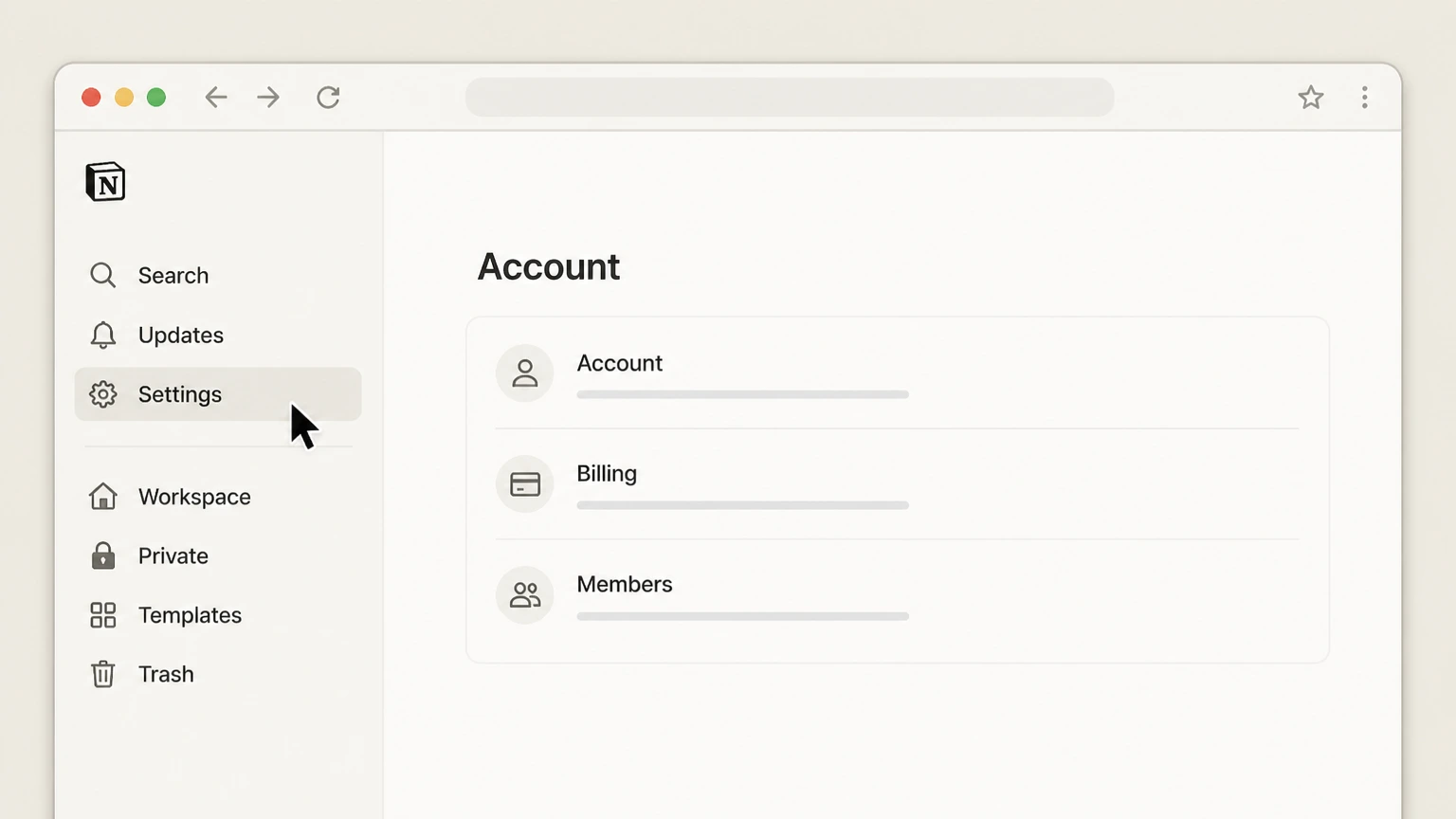
1Open Settings
On a desktop browser or the Notion desktop app, open the workspace whose subscription you pay for. In the left sidebar, select "Settings" or "Settings & members" (wording can vary) to open the workspace settings window. Only workspace owners will see billing options here.
 2
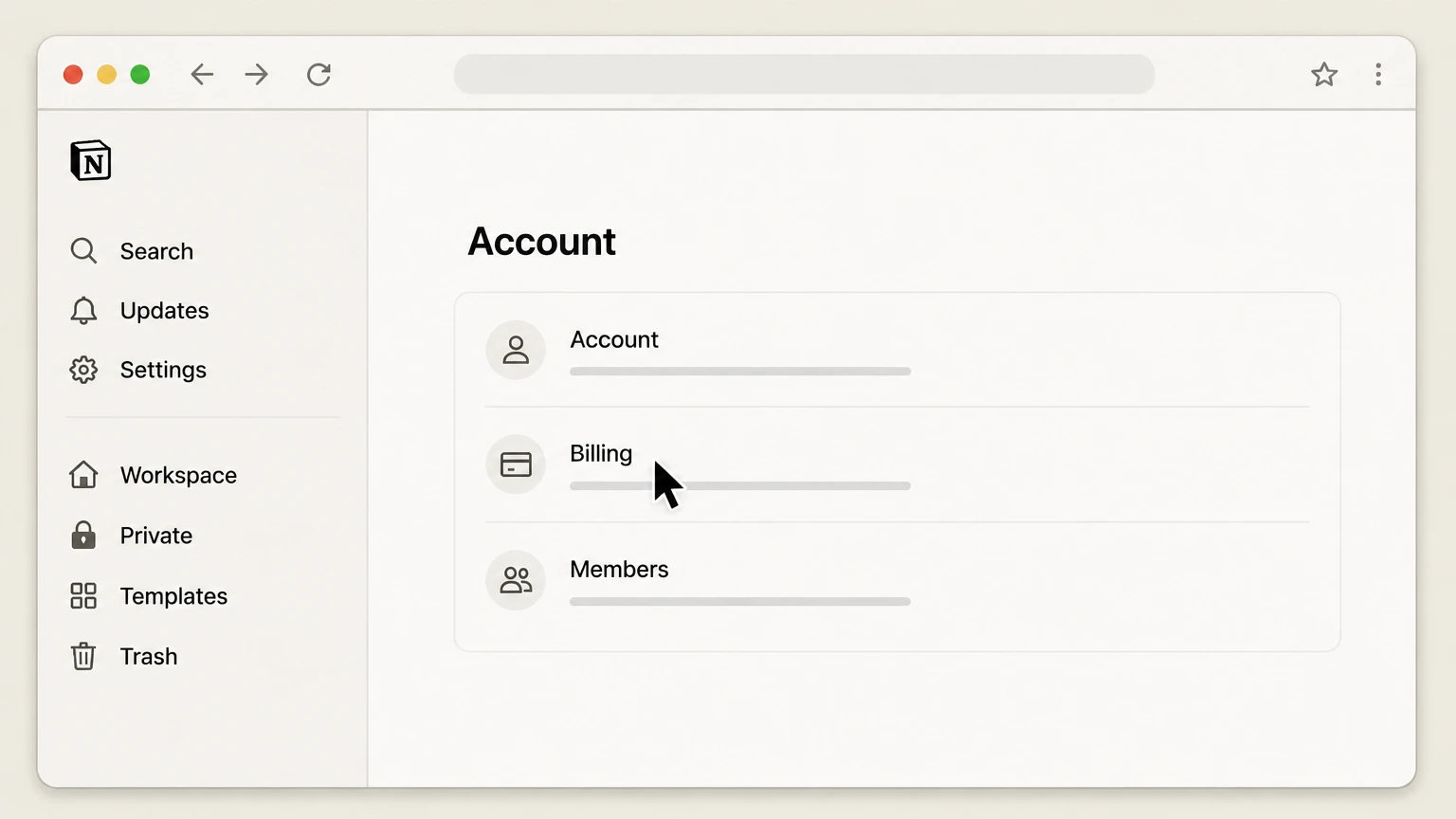
2Open Billing
In the settings window, use the sidebar to choose "Billing." This page shows the workspace’s current plan, billing interval, renewal date, and payment details, and links to your invoices and payment method.
- Let Pine handle it
Pine can help
Too many steps?
Pine can find the right Web path and handle the cancellation for you.
 3
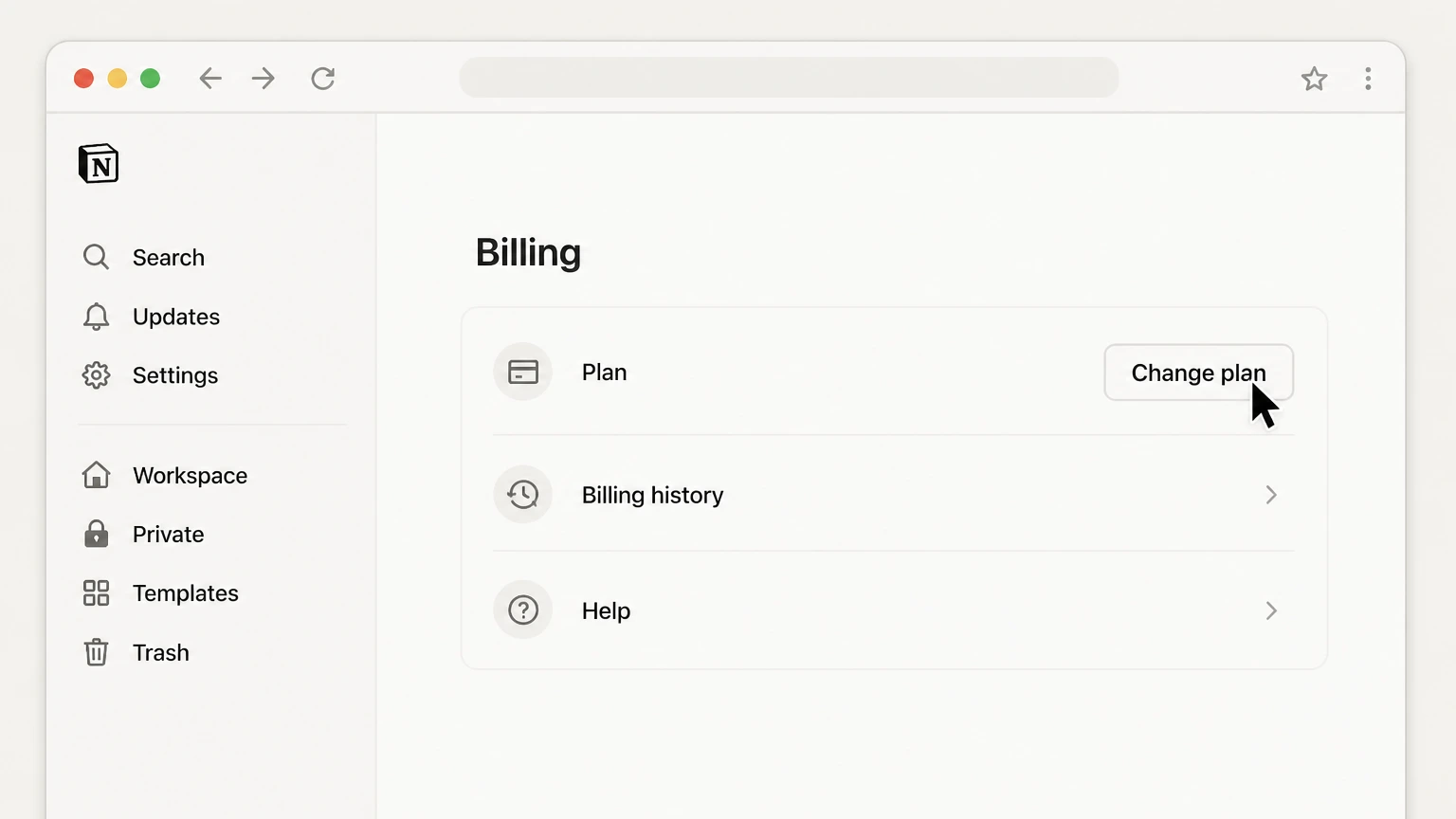
3Choose Change plan
On the Billing page, locate the section that lists your current plan. Select "Change plan" (or the similarly named option shown for your account) to open the list of available plans for this workspace.
 4
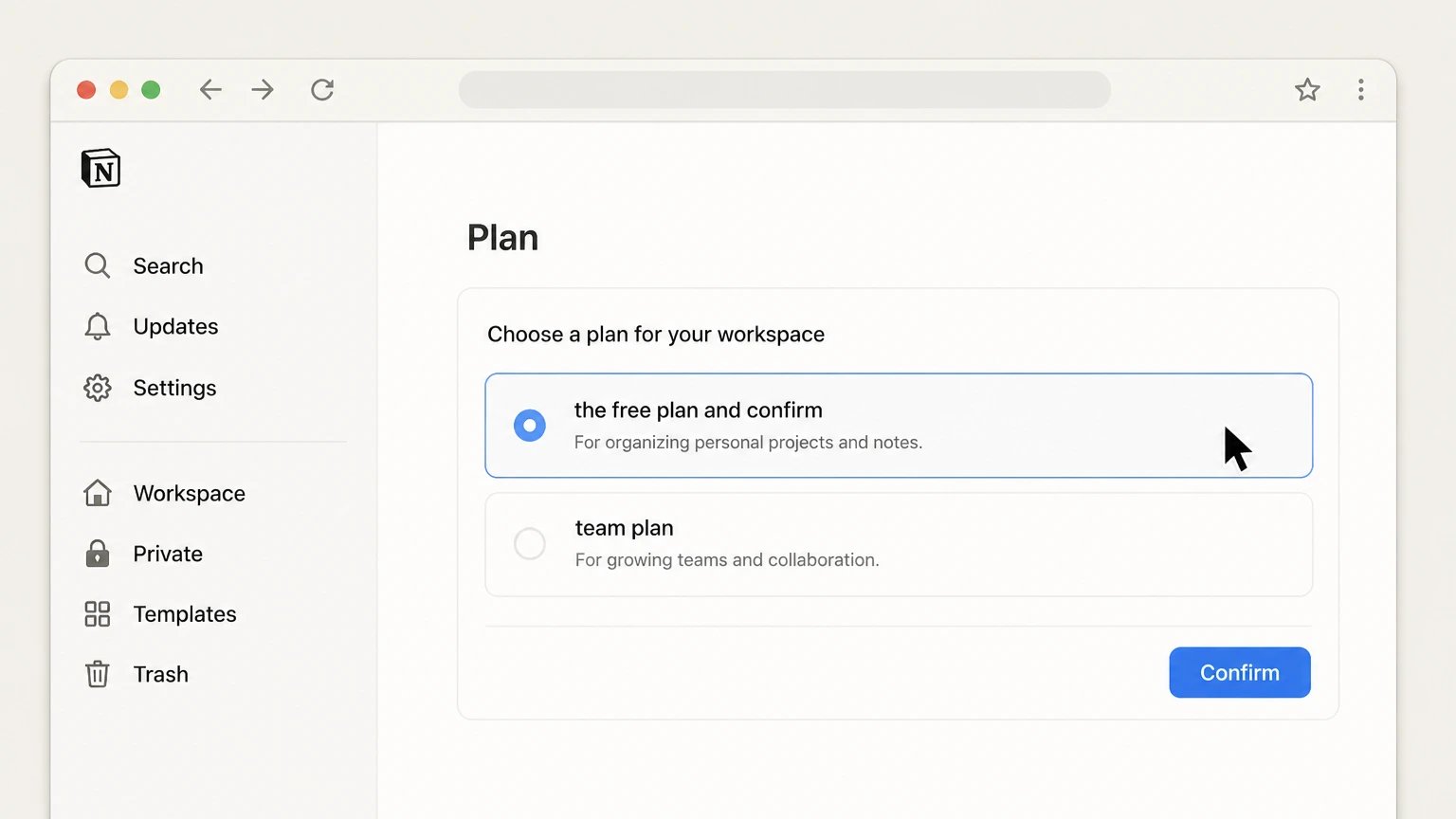
4Select the free plan and confirm
In the Change plan view, select the Free Plan for this workspace, then continue through the prompts. Provide optional feedback, then confirm the downgrade. Notion will show when your paid plan ends and send confirmation; your workspace stays on the paid plan until that date, then moves to Free.

iOS cancellation
Cancel Notion through iOS
 1
1Open Settings
On your iPhone or iPad, open the built‑in "Settings" app rather than the Notion app. Apple subscription management always starts from device settings, not from within Notion itself.
 2
2Tap your name
At the top of the Settings screen, tap your name or Apple ID banner. This opens your Apple ID account settings, which include payment details and subscriptions linked to your Apple account.
- Let Pine handle it
Pine can help
Too many steps?
Pine can find the right iOS path and handle the cancellation for you.
 3
3Open Subscriptions
In your Apple ID settings, look for the "Subscriptions" option and tap it. On some iOS versions this may appear under "Media & Purchases"; the goal is to reach the list of active and expired Apple subscriptions tied to your Apple ID.
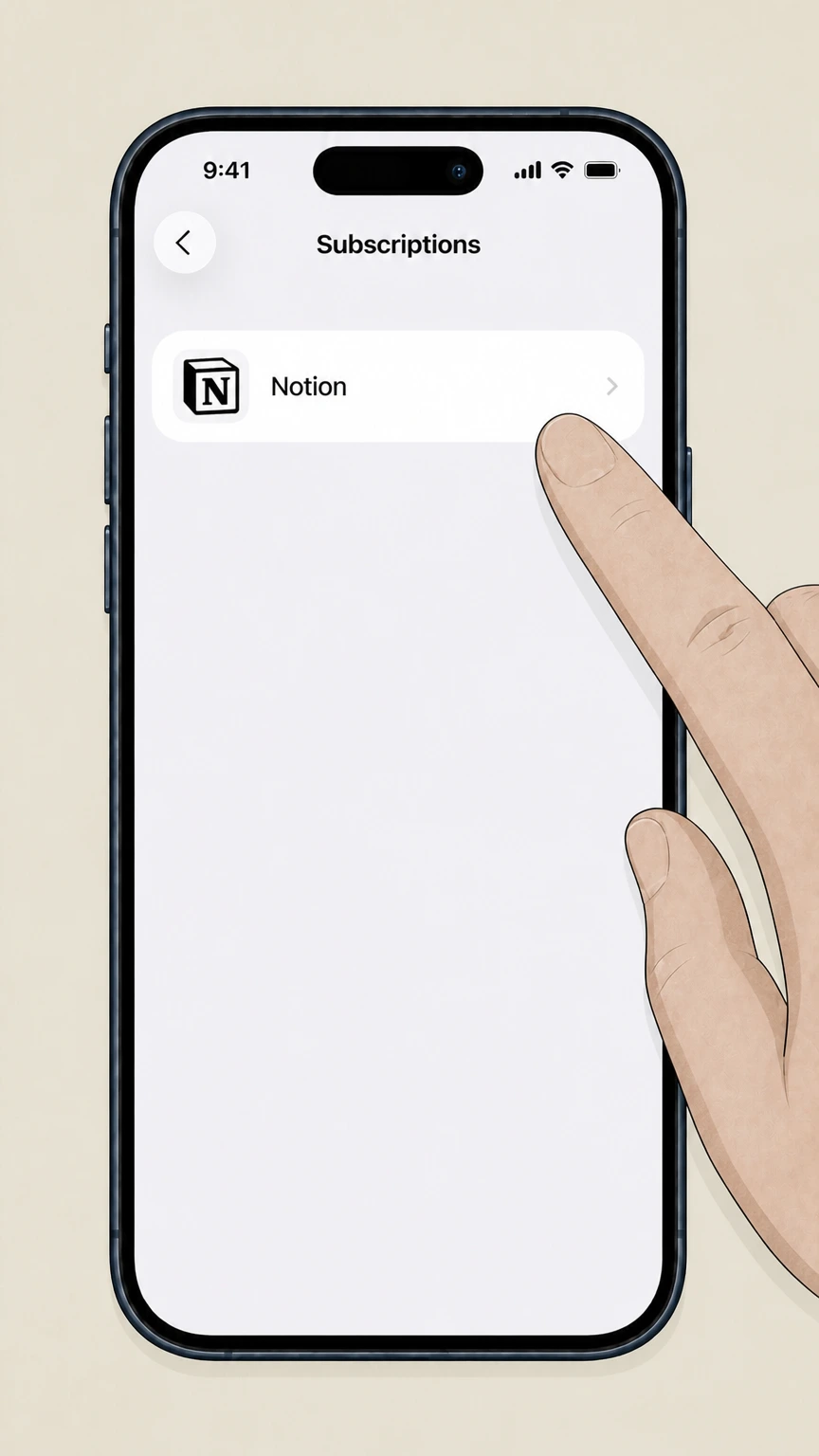 4
4Choose Notion
In the Subscriptions list, find the entry for Notion. Tap "Notion" to open its subscription details, including the current plan, renewal status, and next billing date.
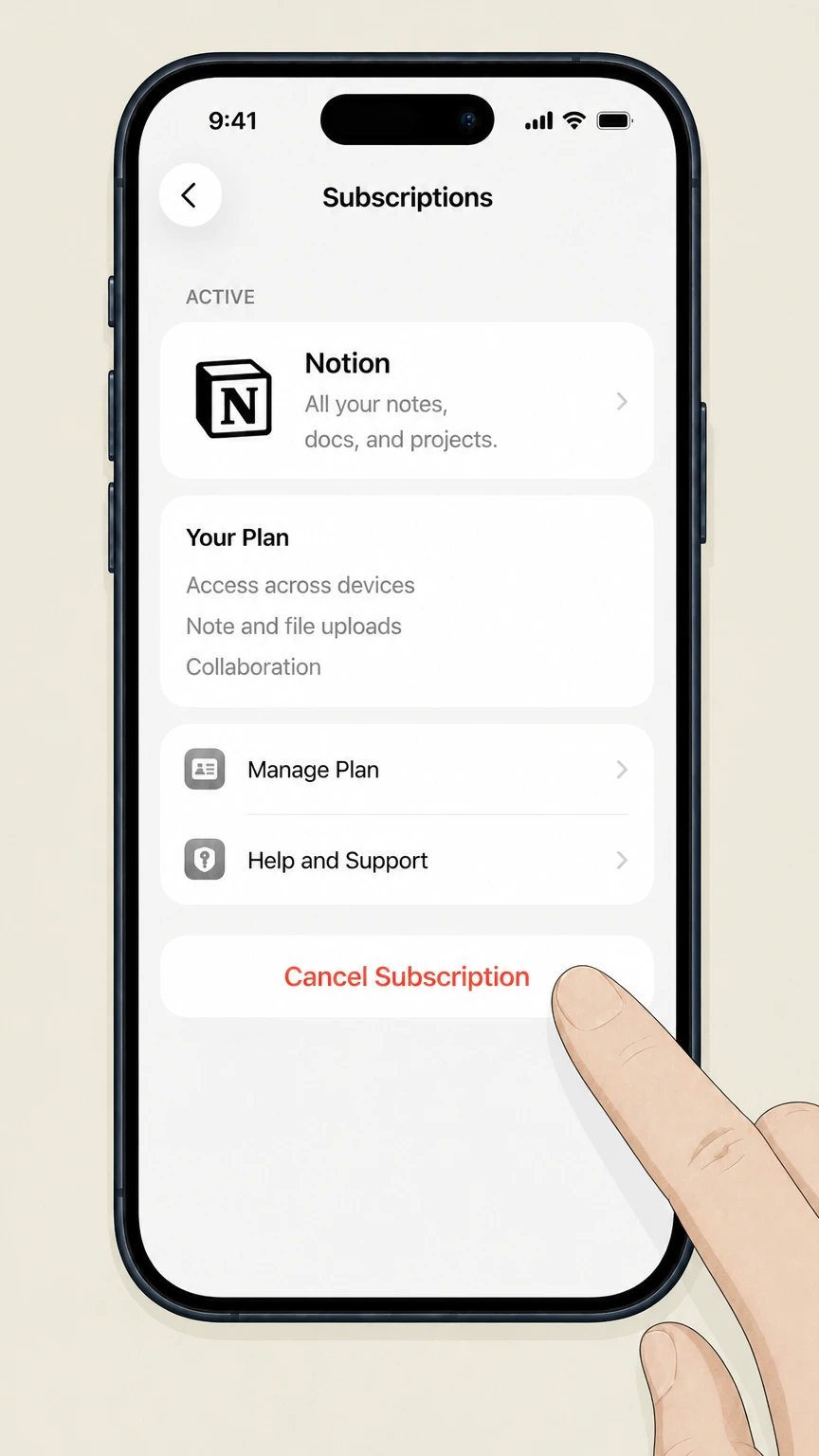 5
5Tap Cancel Subscription and confirm
On the Notion subscription screen, tap "Cancel Subscription" (or the equivalent option shown). Confirm when prompted. Apple will show until when the subscription remains active; Notion will keep paid features until that Apple renewal date, after which the workspace behaves like a free plan.
Google Play cancellation
Cancel Notion through Google Play
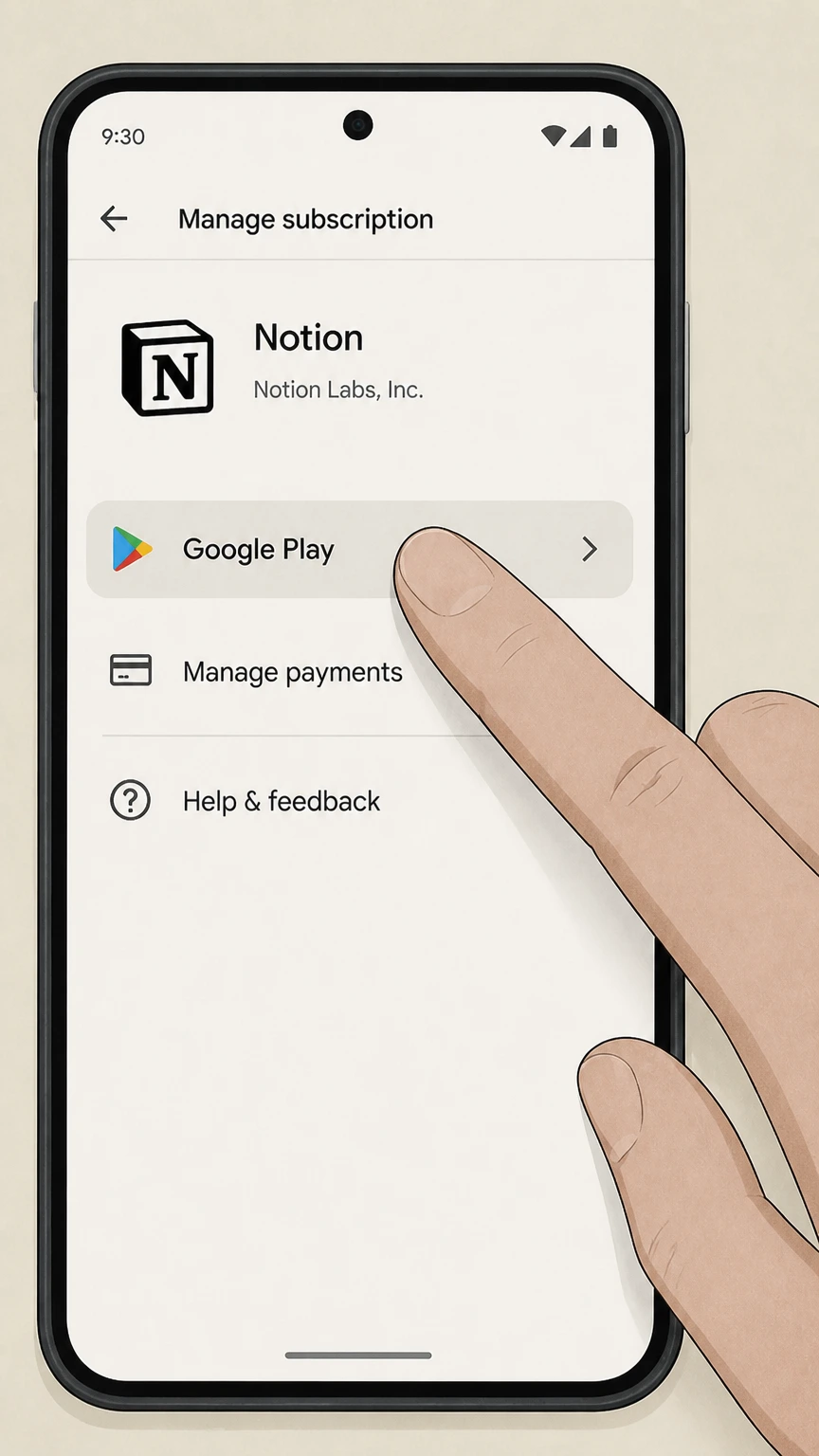 1
1Open Google Play
On your Android device, open the "Google Play Store" app while signed in with the Google account that pays for Notion. The subscription is linked to this Google account, not directly to your Notion login.
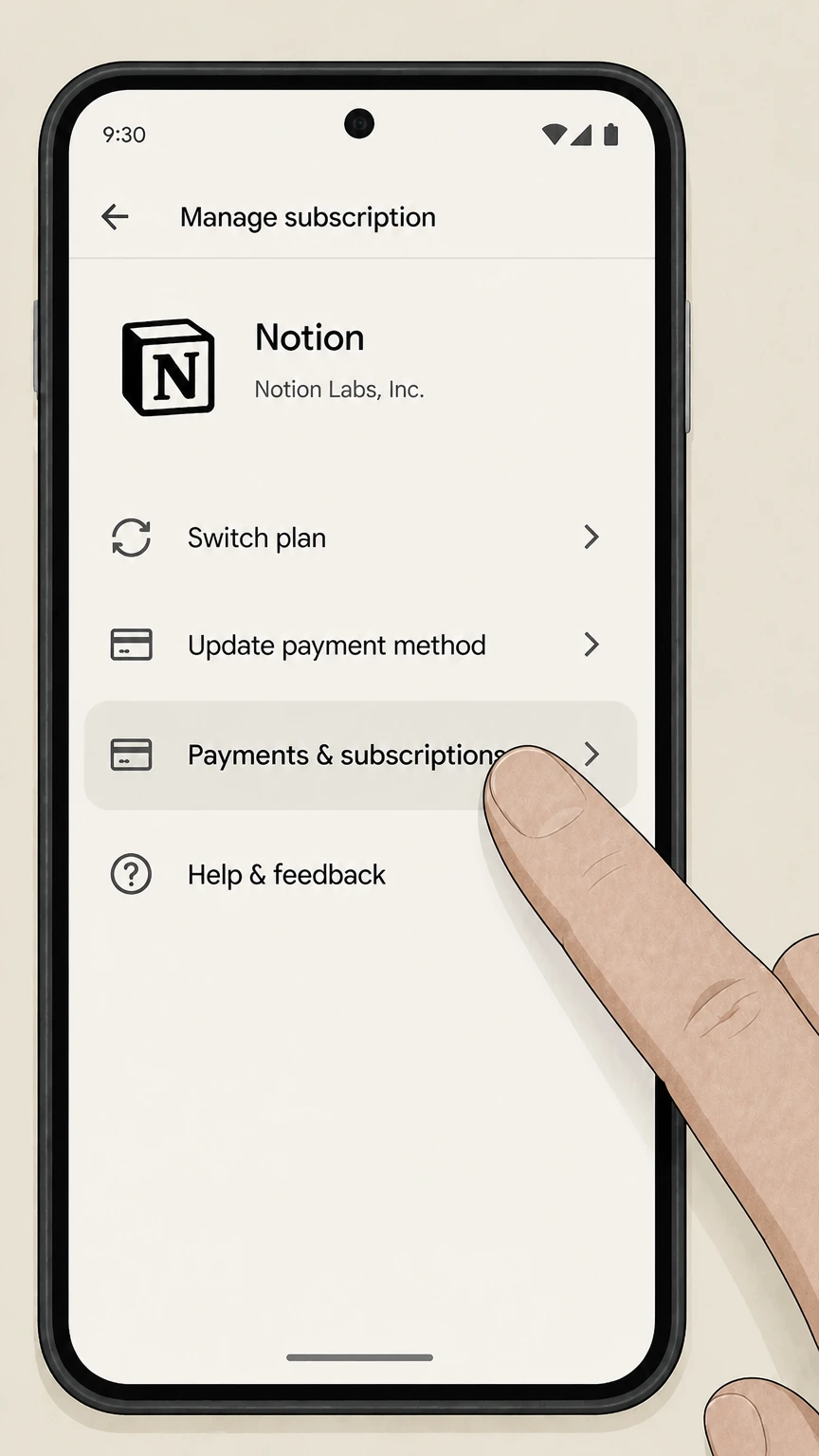 2
2Open Payments & subscriptions
In Google Play, tap your profile icon, then choose the menu item that leads to billing (typically "Payments & subscriptions"). This area contains your saved payment methods and recurring subscriptions.
- Let Pine handle it
Pine can help
Too many steps?
Pine can find the right Google Play path and handle the cancellation for you.
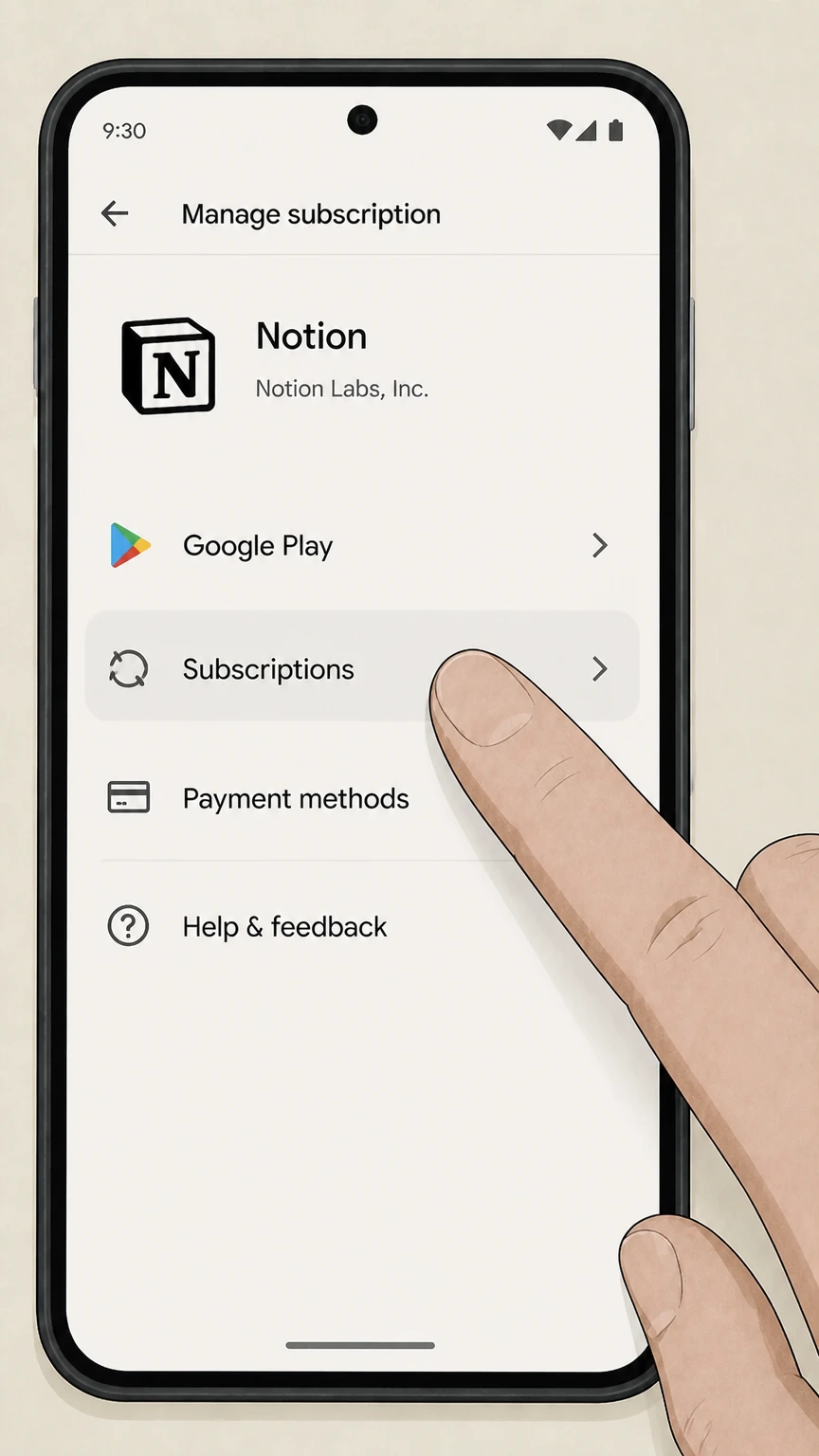 3
3Open Subscriptions
From the billing menu, tap "Subscriptions" to see all active and expired subscriptions associated with your Google account, including Notion if it was purchased through Google Play.
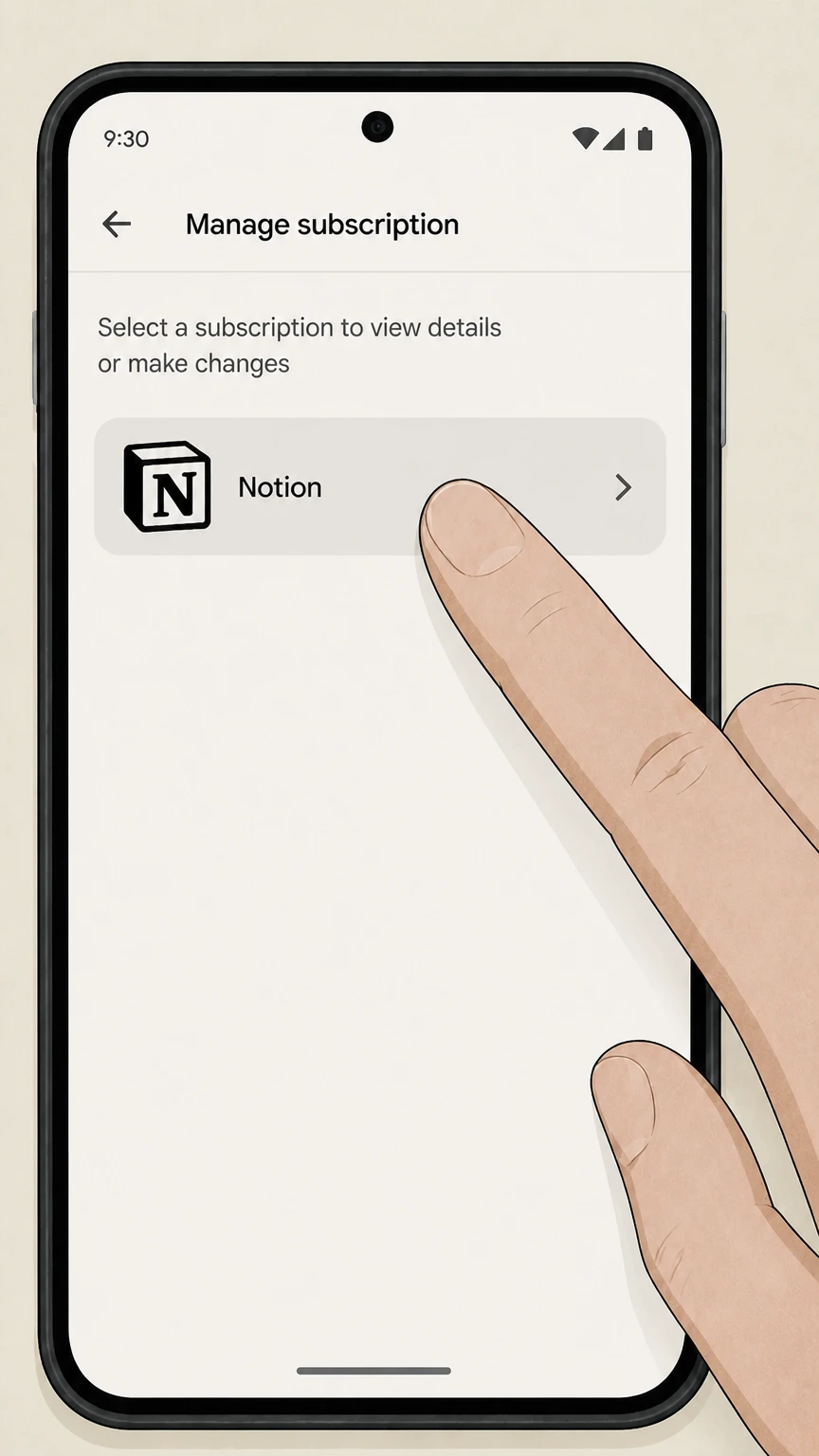 4
4Choose Notion
Scroll through the list and select "Notion". This opens details about your current Google Play subscription, including price, renewal date, and status.
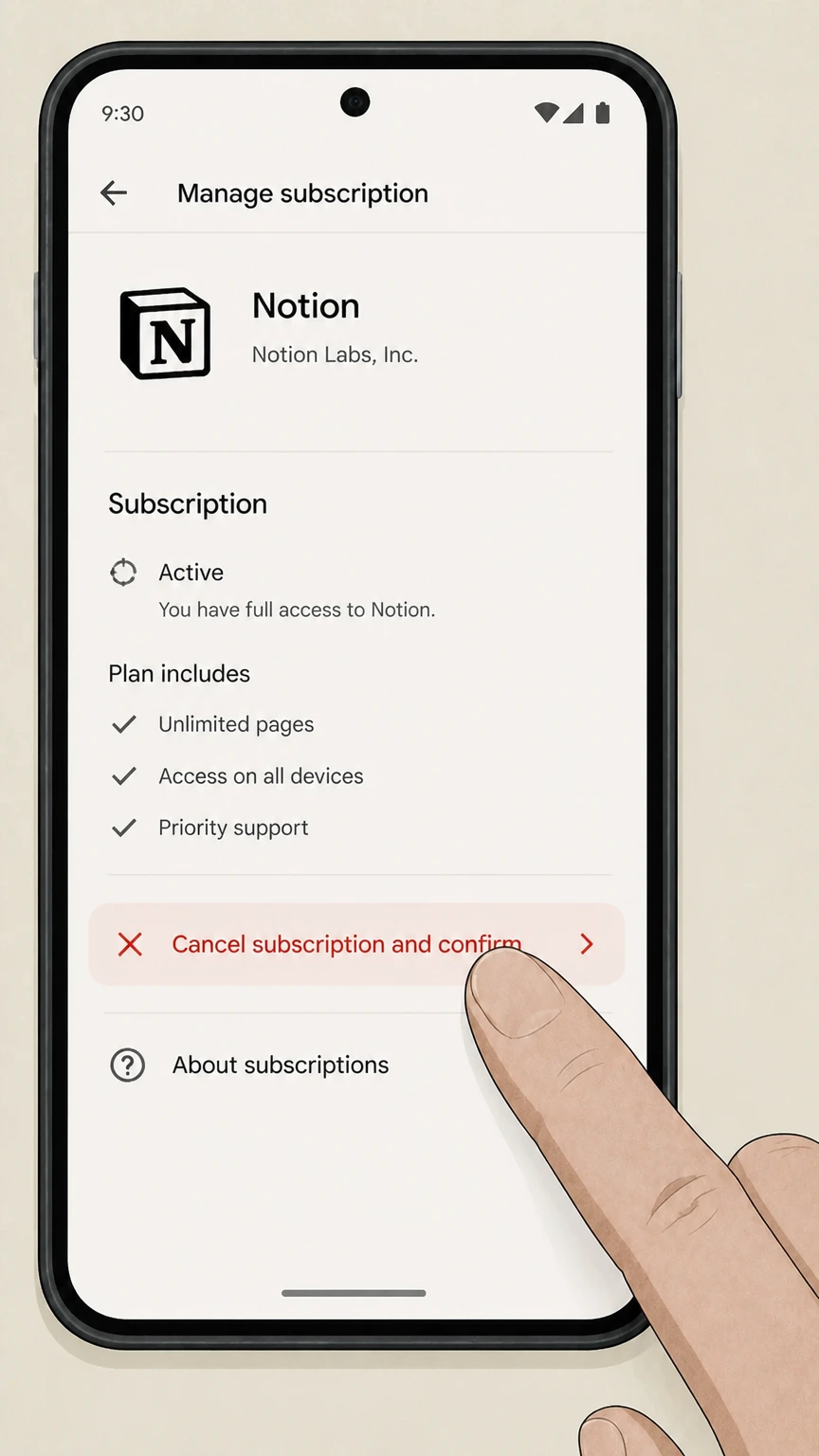 5
5Tap Cancel subscription and confirm
On the Notion subscription details screen, tap "Cancel subscription" (wording may vary slightly by app version) and follow the prompts to confirm. Google Play will indicate how long the plan remains active; once that period ends, Notion treats the workspace as free and direct billing controls within Notion become available again.
Refund policy
Notion subscription and credits refund overview
Notion’s refund policy distinguishes between where you bought your subscription (direct, Google Pay, or Apple App Store) and what you’re asking a refund for (plan charges, accidentally added members, or unused Notion credits). All refunds are discretionary and must follow Notion’s official policy.
Check my refund options- How to request a refund for direct or Google Pay billing
- If you bought your Notion subscription online or through Google Pay, Notion’s refund policy says you should contact Notion support in the app or by email to request a refund. In most cases, they can process a refund if you reach out within a limited time after the invoice date for your billing interval.
- Apple App Store subscription refunds
- For subscriptions purchased via the Apple App Store, Notion explicitly states that you must request any refund directly from Apple. Notion support cannot process refunds for Apple‑billed subscriptions; Apple’s own App Store policies govern if and when a refund is granted.
- Timing guidance for subscription refunds
- The refunds article notes that, in most cases, Notion can process a refund if contacted within a short window after the invoice date—one window for monthly billing and a longer one for annual billing. These timeframes are described as general guidance rather than a guaranteed entitlement.
- Accidentally added members and seat charges
- If you were invoiced for extra members who were accidentally added, Notion states it may refund prorated charges if you contact support within a few days of the invoice and have already removed those members from the workspace before writing in. This only applies to recent invoices.
- Refunds for Notion credits
- You can request a refund for additional Notion credits you’ve purchased only if they haven’t been used. Once any portion of purchased credits has been consumed, those credits are no longer eligible for a refund, though they may be subject to certain prorated adjustments when contracts change.
For the most current and detailed refund terms, or to initiate a refund request, review Notion’s official refund policy and contact Notion support through the in‑app help or the email address listed there. View Notion’s official refund policy
Billing control
Who owns and can cancel Notion billing
Notion subscriptions are always tied to a specific workspace, and only certain roles can see or change billing. Understanding that ownership helps explain why some users never see Billing or Change plan at all.
Workspace-level, not account-level billing
Plans apply at the workspace level. One Notion account can belong to several workspaces, each with its own plan and bill. Cancelling in one workspace does not affect others, so you must check each paid workspace individually.
Only workspace owners manage subscriptions
Notion states that only workspace owners can view and manage plans and billing. If you do not see Billing or Change plan in Settings, you likely are not an owner and must ask a current owner or admin to downgrade the workspace for you.
Seats and members drive your charges
Notion charges per paid seat (member) in each paid workspace. Adding members increases the bill; removing members reduces it starting from the next billing cycle, not immediately. Cancelling the plan stops renewals but does not retroactively change member charges.
Enterprise contracts and Org Console
For Enterprise customers with multi‑workspace contracts, workspaces can be associated with an organization via the Org Console. Removing a workspace from the Org Console does not automatically remove it from the contract; billing changes require contacting Notion or your sales/account team.
Mobile store subscriptions are external
If you subscribed through the Apple App Store or Google Play, that store, not Notion, controls renewals and cancellation. Notion’s help docs specify that subscriptions purchased on mobile must be managed through those stores, and some in‑app billing options will be unavailable until you switch to direct billing.
Plan changes
What downgrading or cancelling changes in Notion
Cancelling a Notion subscription is implemented as a downgrade to a different plan, usually the Free Plan. That change affects when billing stops and which features remain available in the workspace.
Cancellation is a plan downgrade
To cancel a paid plan, Notion instructs you to go to Settings → Billing → Change plan and pick another plan, such as Free. After you confirm, the workspace is scheduled to downgrade at the end of the current billing cycle rather than stopping immediately.
Access until end of billing cycle
When you downgrade, Notion shows a confirmation with the date your current plan ends, and states that downgrading takes effect at the end of your billing cycle. You keep paid features until that date; then the workspace’s capabilities follow the new plan’s limits.
Feature limits on the Free Plan
The Free Plan keeps your content but limits some features. For example, block usage is unlimited only if the workspace has a single owner; with two or more owners, Free workspaces are limited to 1,000 blocks and must upgrade to create more content.
Impact on AI features by plan
Free and Plus plans include limited Notion AI usage intended for trying the features, and may not support Custom Agents or Workers. Business and Enterprise plans unlock broader AI capabilities; downgrading from these plans can disable or pause advanced AI tools even though your content remains.
Existing workspaces and trials
If you are on a trial or promotional plan, downgrading early will also schedule the workspace to move to the selected lower plan at the end of the current period. Any trial‑only features stop after that date, but your pages and databases continue to exist under the new plan’s limits.
End of term
After cancellation: billing and access timeline
Cancelling or downgrading a Notion subscription affects future renewals, not the time you already paid for. Knowing what happens at and after the end of the billing period helps avoid surprises.
Auto-renew stops, current period continues
Notion explains that subscriptions renew automatically until cancelled. When you downgrade via Change plan, renewal stops but you retain access to paid features until the end of the current billing cycle, which is shown on the Billing page and in the downgrade confirmation.
No mid-cycle proration for downgrades
If you downgrade or remove members, billing decreases take effect at your next renewal, not mid‑cycle. You continue to have access to any already‑paid seats or features until the current billing interval resets.
Limited access after failed payments
If Notion cannot collect payment, invoices can become overdue. The billing docs note that workspaces with unpaid invoices may be restricted to limited access for a period before being downgraded to the Free Plan, restoring full access only after billing is resolved.
AI usage allowance resets
For Business and Enterprise, Notion AI usage allowances reset on a rolling six‑hour basis and at the start of each billing cycle. If you hit the allowance, some AI features pause until usage refreshes or you use Notion credits, regardless of whether your base plan is in the middle of a term.
Notion credits and renewal dates
Notion credits are billed on their own cycle tied to your workspace’s service date. Increasing the monthly credit amount takes effect immediately with charges on the next monthly service date; decreasing takes effect from the next period. Cancelling your base plan or moving to Free can turn off Custom Agents that rely on those credits.
Workspaces & data
Cancellation vs workspace deletion and data export
Cancelling billing, deleting a workspace, and deleting your Notion account are different actions. To avoid data loss or unintended charges, it’s important to downgrade before deletion and export anything you need.
Deleting a workspace does not cancel billing
Notion’s delete‑workspace help doc explicitly states that deleting a workspace does not cancel a subscription. You must first downgrade to the Free Plan via Billing → Change plan, and only then, if desired, delete the workspace to remove its content.
What happens when you delete a workspace
Deleting a workspace is permanent. All content inside it, including private pages, is deleted for every member, and you are redirected to another workspace or to sign‑up if none remain. There is no self‑service way to restore a deleted workspace.
Export before downgrading or deleting
Notion recommends exporting important data before deleting a workspace. From desktop, you can export individual pages or your entire workspace as HTML, Markdown/CSV, or, on Business and Enterprise plans, as PDF, then store those files outside Notion.
Multiple workspaces per account
Your Notion login can belong to several workspaces, each with separate billing and data. Cancelling or deleting one workspace does not touch the others, so make sure you export the right workspace and downgrade each paid workspace you no longer need.
Export permissions depend on role
If you don’t see export options, you might not have sufficient permissions. Notion notes that some export controls live under workspace settings’ content tools, and workspace admins can restrict export ability for other members. In that case, ask an owner to run exports for you.
AI & credits
Handling Notion AI, Custom Agents, Workers, and credits
If you use Notion AI, Custom Agents, Workers, or Notion credits, cancelling your base subscription is only part of the picture. You may also need to manage credit usage and AI allowances so charges and features match what you expect.
AI usage allowance versus credits
Business and Enterprise plans include a Notion AI usage allowance measured in rolling six‑hour and monthly windows. When members reach the allowance, certain AI features pause until usage resets or, if permitted, they continue by spending Notion credits.
What Notion credits pay for
Notion credits are an add‑on that powers Custom Agents and Workers, and in some cases extra AI usage. Admins purchase credits from Settings → Access & billing → Notion credits or through their account team, and can adjust monthly amounts over time.
Stopping automatic credit increases
If Auto Adjust is enabled, Notion automatically buys additional credits when usage passes thresholds you configured. To avoid unexpected AI‑related spend while keeping your subscription, an admin can turn Auto Adjust off or change its triggers in the Notion credits settings.
Credits when downgrading base plans
If you downgrade to Free or Plus, existing Custom Agents are switched off but not deleted; you can view them but not run or edit them until you upgrade again. Credits purchased for Custom Agents and Workers follow their own billing terms and reset/expiration rules described in the Notion credits docs.
Mobile app store billing and credits
Workspaces whose base subscription is managed through the Apple App Store or Google Play can’t directly purchase Notion credits. To use credits, Notion says you must first cancel the mobile‑store subscription, then upgrade to a Business or Enterprise plan directly on notion.com before buying credits.
App stores
Apple App Store and Google Play billing specifics
When Notion is billed via an app store, cancellations and some refund rules differ from subscriptions billed directly through Notion. The Notion help center outlines the boundaries.
Where to cancel app store subscriptions
Notion’s plan docs state that subscriptions purchased on mobile must be managed through the Apple App Store or Google Play. That means you won’t find a Cancel button in Notion Billing for these workspaces; you must use your device’s subscription settings instead.
Refund responsibility split
For subscriptions bought through the Apple App Store, Notion directs customers to contact Apple for refunds. For subscriptions purchased online or via Google Pay (including Google Play billing that routes through Google Pay), you contact Notion support to request a refund, subject to their refund policy.
Moving from app store to direct billing
If you want to use features like Notion credits that require direct billing, Notion explains that you need to cancel the mobile app store subscription first. After it ends, upgrade to a Business or Enterprise plan on notion.com, then purchase credits from Settings → Access & billing → Notion credits.
Checking if a workspace uses app store billing
A workspace using app store billing typically lacks editable payment method fields in Notion Billing and may show messaging that subscriptions are managed externally. If you don’t see invoices or card details on the Billing page, check whether your subscription appears under Apple or Google Play instead.
Enterprise contracts versus app stores
Enterprise plan workspaces are generally billed via contract, not app stores. Removing a workspace from the Org Console doesn’t stop contract billing; your account team must adjust the contract or remove the workspace from it directly, independent of any app store settings.
Fix issues
Troubleshooting missing buttons and access issues
If you can’t find Billing, Change plan, or export options, the cause is usually role permissions, workspace selection, or special plan types like education or enterprise contracts.
Billing tab missing
If Settings opens but there’s no Billing tab, you probably aren’t a workspace owner. Only owners see Billing and plan controls. Ask an existing owner to either promote you or perform the downgrade from their account.
Settings & members not visible
If you don’t see Settings or Settings & members in the sidebar at all, you might be viewing a shared page or guest workspace rather than the main workspace. Use the workspace switcher at the top left to select the workspace that actually holds the paid plan.
Can’t export before cancelling
If you can’t find export options, confirm you’re on desktop and have sufficient permissions. Export controls live under workspace settings and per‑page menus; if they’re disabled, a workspace owner must run exports for you before downgrading or deleting the workspace.
Education plans and downgrades
For student/teacher education offers, Notion requires you to be on the Free Plan before upgrading to the special Plus plan. If you’re currently paying, you must first downgrade via Settings → Billing → Change plan, then apply the education upgrade from the desktop or web app.
Enterprise workspaces on a contract
If a workspace is part of an Enterprise multi‑workspace contract, removing it from the Org Console only disassociates it from centralized controls. Billing continues until it’s removed from the contract itself, which must be arranged through Notion’s sales or account team.
Cost control
Alternatives to full cancellation in Notion
If you want to reduce spending without completely leaving Notion, you can adjust members, plans, billing intervals, and AI usage. Notion’s billing documentation outlines several levers you can use.
Remove members to free seats
Because Notion charges per member, removing unneeded members from a workspace reduces the number of paid seats. Those billing decreases take effect at the next renewal date, and the freed seats can be reassigned to others at no additional charge during the current cycle.
Invite guests instead of members
If collaborators don’t need full workspace access, invite them as guests to specific pages instead of as members. Guests generally don’t consume paid seats (within your plan’s guest limits), which can be a cheaper alternative to keeping many members.
Switch to a cheaper plan tier
Rather than cancelling entirely, use Settings → Billing → Change plan to move from Business to Plus or from Plus to Free, depending on availability. This lowers ongoing charges while retaining more features than the Free Plan alone, where applicable.
Change billing interval
From the Billing page, you can switch between monthly and yearly billing. This affects how often you’re charged and can change overall cost, but does not affect the ability to cancel later via Change plan.
Tighten AI and credit usage
Admins can reduce AI‑related costs by lowering or capping Notion credits, turning off Auto Adjust, and monitoring the Notion credits dashboard. This can be done without cancelling the base subscription so routine collaboration remains unaffected.
Notion cancellation FAQ
Provider-specific answers based on official sources checked August 10, 2026. Signed-in terms, region, billing owner, and applicable law still control.
Can I cancel my Notion subscription at any time?
Does downgrading my Notion plan delete any of my content?
How do I cancel Notion if I have multiple workspaces?
If I delete my Notion workspace, will that cancel my subscription?
How do refunds work if I bought Notion through Apple or Google Play?
What happens to Notion AI and Notion credits when I cancel?
How can I reduce my Notion bill without fully cancelling?
Who can cancel a Notion subscription in an Enterprise organization?
Untangle this Notion issue.
Let Pine handle the provider follow-up and keep the confirmation in one place.
