


NeighborWho
Cancel subscription
How to Cancel NeighborWho: Official Steps & Timing
Cancel NeighborWho through the correct billing route. Follow official steps, understand renewal timing and refunds, and keep proof of the final result.
- 2 verified cancellation routes
- Billing ownership and renewal timing explained
- Provider-specific refund boundaries included
- A confirmation check follows every route
Choose the correct NeighborWho cancellation route
NeighborWho website account · verify the billing owner
Cancel NeighborWho through NeighborWho website account
 1
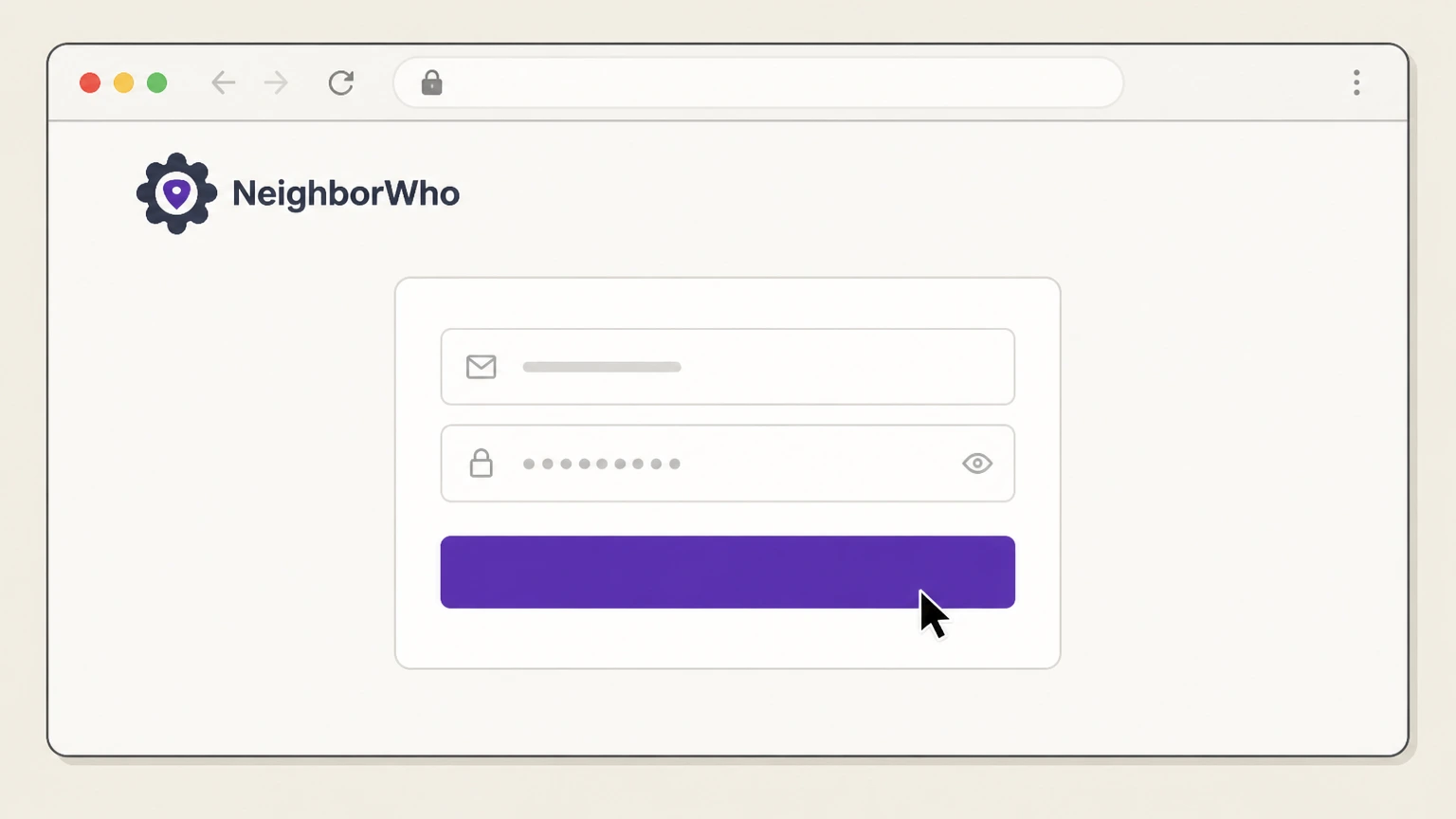
1Sign in to your NeighborWho account
Go to NeighborWho.com in a web browser and log in to your account using your registered email address and password.
 2
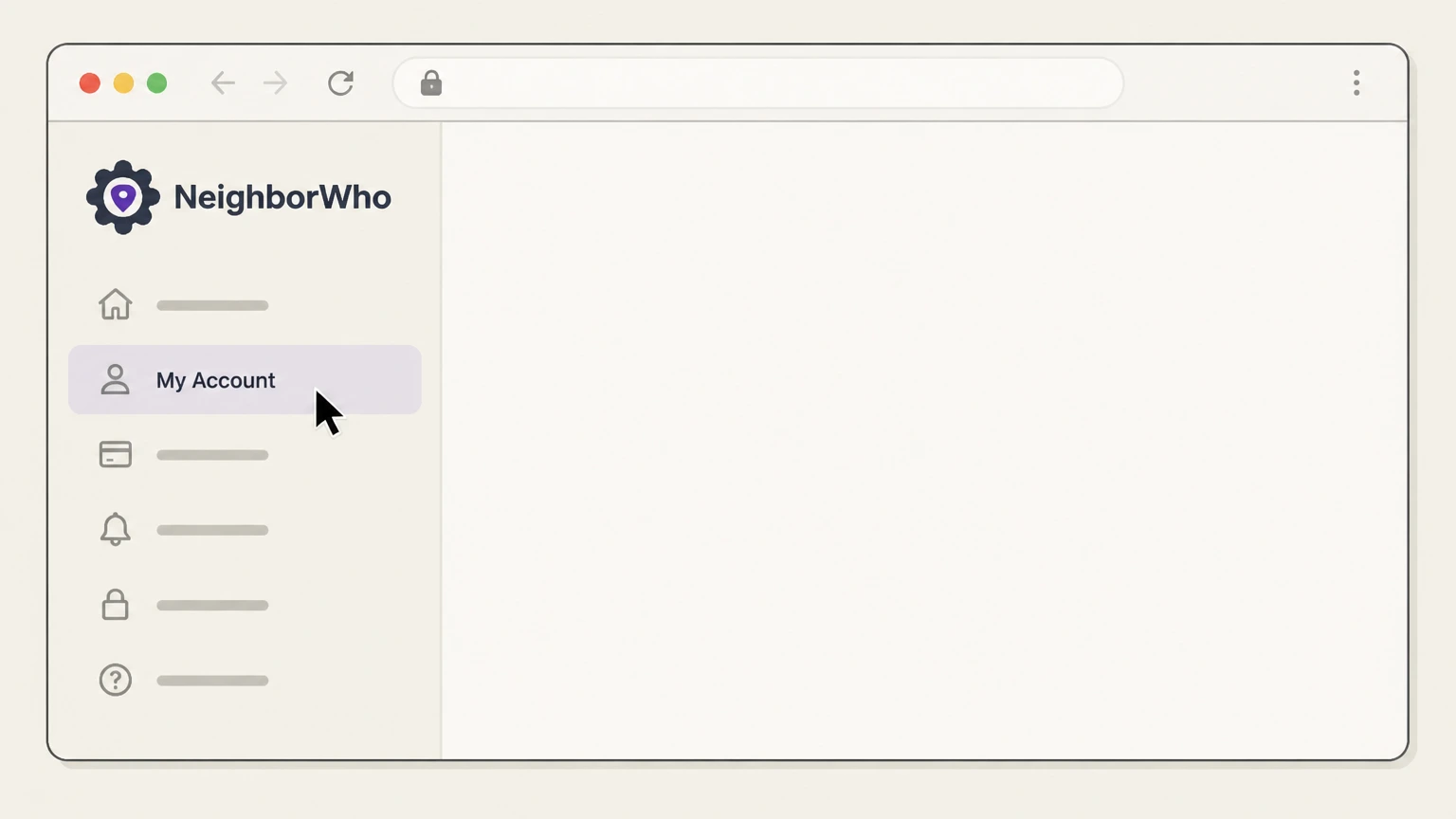
2Open My Account
From the site navigation or menu, select the "My Account" option to access your account settings.
- Let Pine handle it
Pine can help
Too many steps?
Pine can find the right NeighborWho website account path and handle the cancellation for you.
 3
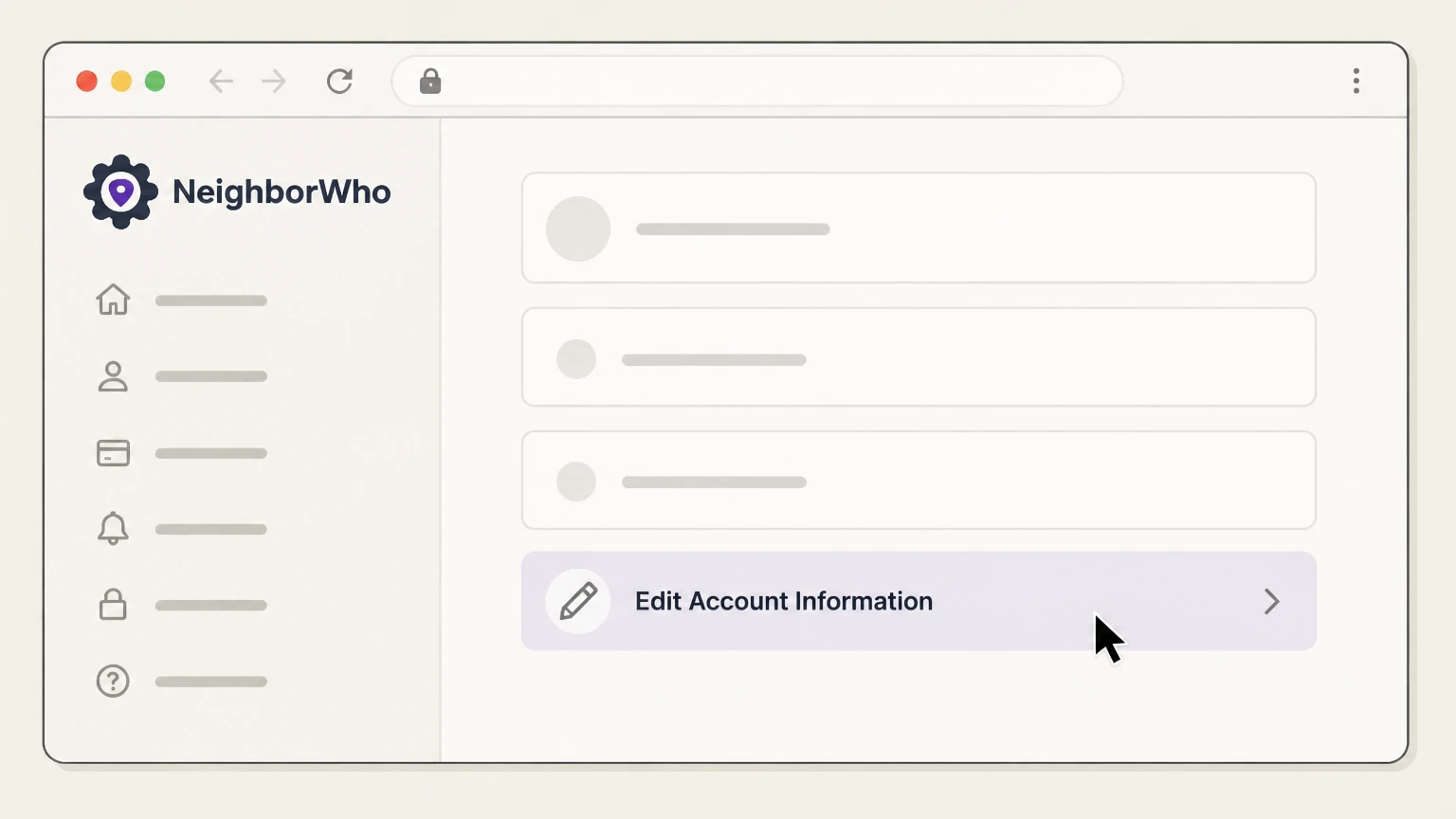
3Select Edit Account Information
Within your account settings, choose the "Edit Account Information" option to view and manage your membership details.
 4
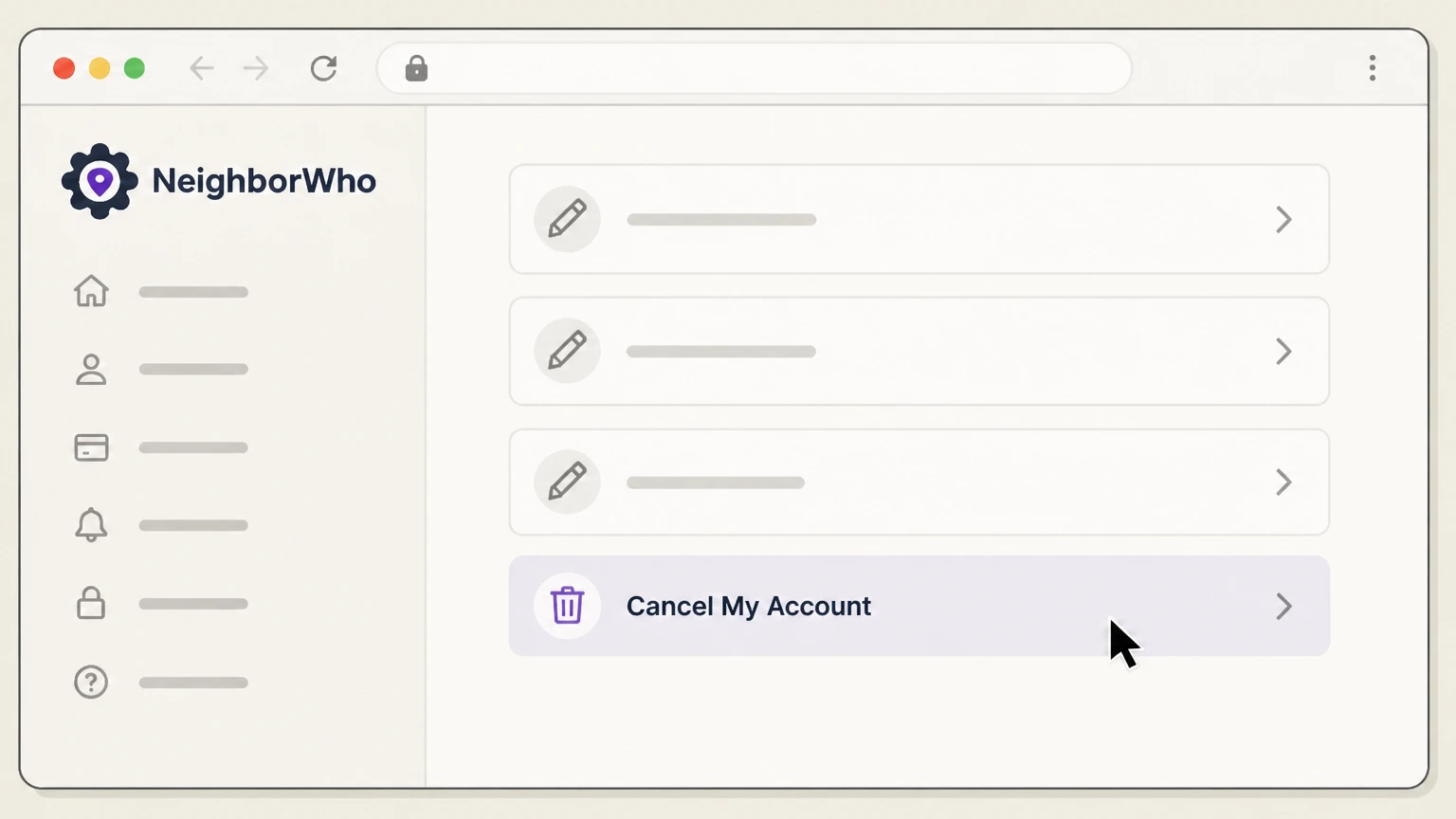
4Choose Cancel My Account
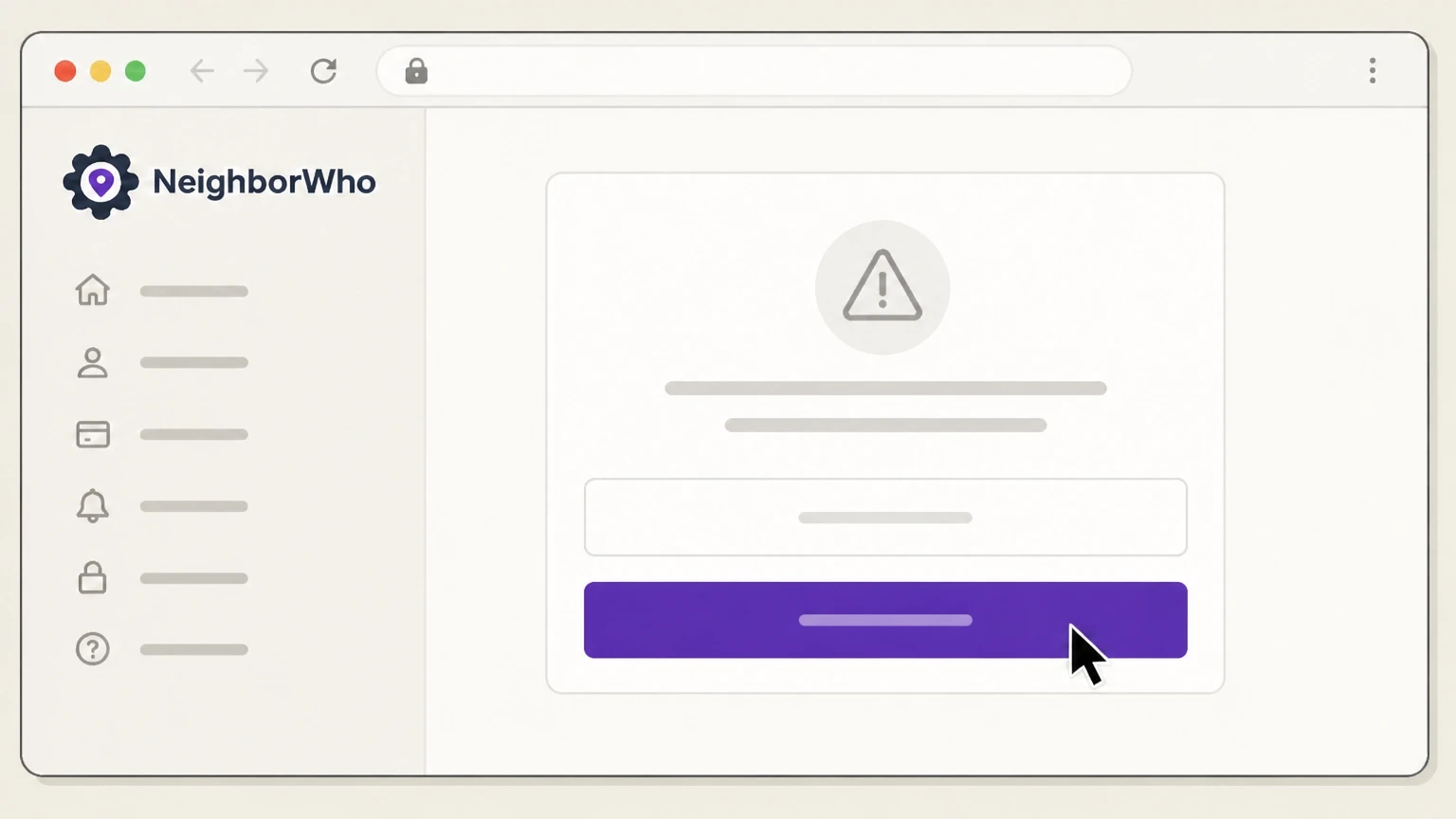
On the Edit Account Information page, select the "Cancel My Account" option to start the cancellation process for your NeighborWho membership.
 5
5Confirm your cancellation request
Follow the on-screen prompts to confirm that you want to cancel your NeighborWho account and stop future recurring charges.

NeighborWho customer support phone · verify the billing owner
Cancel NeighborWho through NeighborWho customer support phone
 1
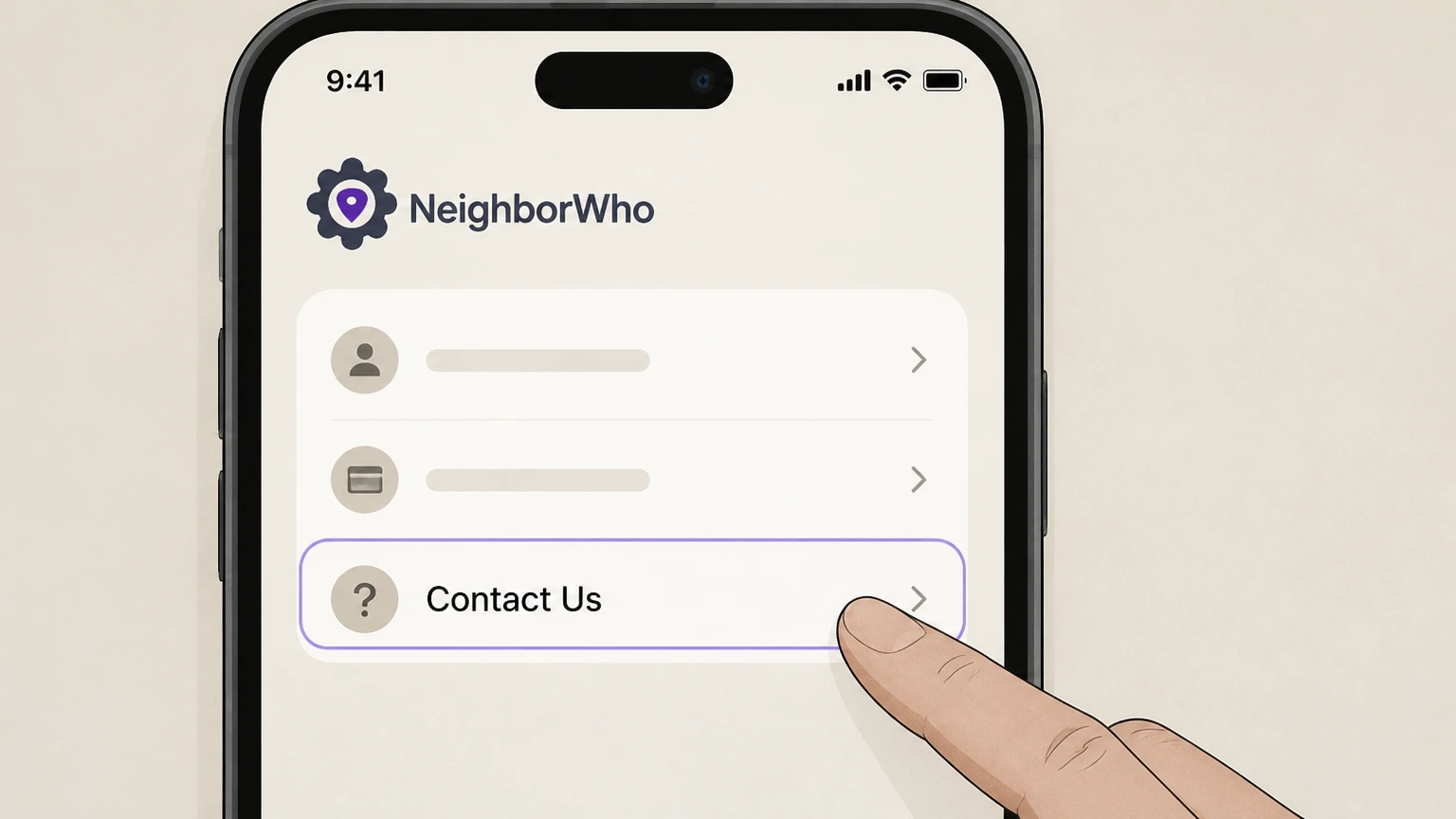
1Open the NeighborWho Contact Us page
Go to NeighborWho.com and navigate to the "Contact Us" page to see the current customer support phone number and service hours.
 2
2Call NeighborWho customer support
Use your phone to dial the customer support number shown on the Contact Us page and wait to be connected with a representative.
- Let Pine handle it
Pine can help
Too many steps?
Pine can find the right NeighborWho customer support phone path and handle the cancellation for you.
 3
3Verify your NeighborWho account
Provide the representative with your 9-digit membership ID or the email address associated with your NeighborWho account so they can locate your subscription.
 4
4Request account cancellation
Clearly tell the representative that you want to cancel your NeighborWho account and stop all future recurring subscription charges.
 5
5Ask for written confirmation
Ask the representative to confirm the cancellation and to send you a confirmation email for your records.
Refund policy
NeighborWho refund practices after cancellation
Canceling a NeighborWho membership stops future renewals but does not automatically refund charges that have already posted. Refunds are handled under a separate, discretionary refund policy and require contacting NeighborWho support.
Check my refund options- Cancellation does not retroactively refund charges
- NeighborWho’s cancellation policy states that cancellation prevents your membership from renewing and cancels future recurring charges, but it does not affect charges that have already been incurred; you remain responsible for the current subscription period.
- Refunds are case by case via Customer Care
- If you are dissatisfied with the service or data, NeighborWho asks you to email Customer Care to request a refund. Both the Terms and support article state that refund requests are evaluated individually, with the goal of resolving your situation.
If you believe you qualify for a refund after canceling, email NeighborWho Customer Care with your membership ID or account email and a clear explanation of your request, or use the Contact Us form to reach support. Go to NeighborWho refund help
Service overview
How NeighborWho memberships work today
Key facts about how NeighborWho structures its paid memberships, accounts, and payment methods, based on its current Terms, FAQs, and support center.
Membership-based access
NeighborWho sells access to its property and people-search tools through recurring membership plans purchased on NeighborWho.com, rather than one-off purchases by default.
Account and member ID
Each subscriber has a NeighborWho account with a unique 9-digit membership ID, used by support to locate and manage your subscription. The ID appears in your welcome email and in your online Account Details.
Web and app access
An active NeighborWho account lets you use the service both on the web and via the official NeighborWho Address Search mobile app, which connects to the same underlying account.
Supported payment methods
NeighborWho lets you add a credit card, debit card, or PayPal account to your NeighborWho billing profile so subscription charges are billed directly by NeighborWho against that stored payment method.
Who operates NeighborWho
NeighborWho.com is provided by The Lifetime Value Co., which maintains the NeighborWho website, privacy policy, and data practices for subscriptions and account data.
Cancel options
Verified ways to cancel a NeighborWho membership
NeighborWho describes multiple official cancellation channels; all feed into the same core policy that you may cancel at any time and stop future renewals.
Self-service via account settings
The Terms & Conditions allow you to cancel by logging in and navigating to My Account > Edit Account Information > Cancel My Account, which immediately sets the membership not to renew.
One-touch cancel through Contact Us
The support center describes a one-touch cancel option: from within your account, click the "Contact Us" link in the footer, choose "Cancel My Account," and confirm the request when prompted.
Cancellation by email
Both the Terms and refund policy allow cancellation requests via email to NeighborWho’s support address, provided you include enough information (such as member ID or account email) to identify your subscription.
Cancellation by phone
NeighborWho’s FAQ and common-questions pages state that you can call its customer support line and ask an agent to cancel your account, using your 9-digit membership ID to verify your account.
Chat and contact form options
NeighborWho also allows you to request cancellation using its online chat or Contact Us form when logged in; these routes still rely on NeighborWho staff or systems to complete the cancellation on your account.
After you cancel
What changes after you cancel NeighborWho
NeighborWho explains what happens to renewals, charges, access, and reactivation once a cancellation request has been processed.
Future renewals stop
Under the cancellation policy, once you cancel, your membership plan will not renew and any future recurring charges tied to that plan are canceled. Cancellation does not undo charges that have already been incurred.
Responsibility for current period
You remain responsible for any outstanding balances and for charges associated with the then-current subscription period, meaning canceling stops new renewals but does not automatically refund past or current-cycle payments.
Email confirmation of cancellation
NeighborWho’s cancellation help article states that after you complete the cancellation steps, your account is successfully canceled and a confirmation email is sent to you for future reference.
Ability to log into a deactivated account
Even after cancellation, you can still log into your deactivated NeighborWho account, and you may reactivate a subscription from that account at a later time if you choose.
Long-term data retention
NeighborWho’s privacy policy states that account data (such as login credentials, subscription information, and account history) may be retained for up to 10 years from the date of account closure for legal and operational purposes.
NeighborWho cancellation FAQ
Provider-specific answers about billing, timing, refunds, and confirmation.
How do I cancel my NeighborWho subscription?
How do I make sure my NeighborWho subscription is completely canceled?
Will I still have access to NeighborWho after I cancel?
Can I get a refund from NeighborWho after canceling?
What proof will I have that my NeighborWho account was canceled?
Untangle this NeighborWho issue.
Let Pine handle the provider follow-up and keep the confirmation in one place.
