

Dashlane
Cancel subscription
How to Cancel Dashlane Subscription: Official Steps
Cancel your Dashlane subscription on web, iOS, or Google Play, understand what happens to your passwords and billing, and see refund and deletion options.
- 19 current official sources checked
- 3 billing routes separated
- Legacy Provider and equivalent Blog content reconciled claim by claim
- Steps, outcomes, refund boundaries, and related products revalidated
How to cancel Dashlane through the correct billing owner
Web cancellation
Cancel Dashlane through Web
 1
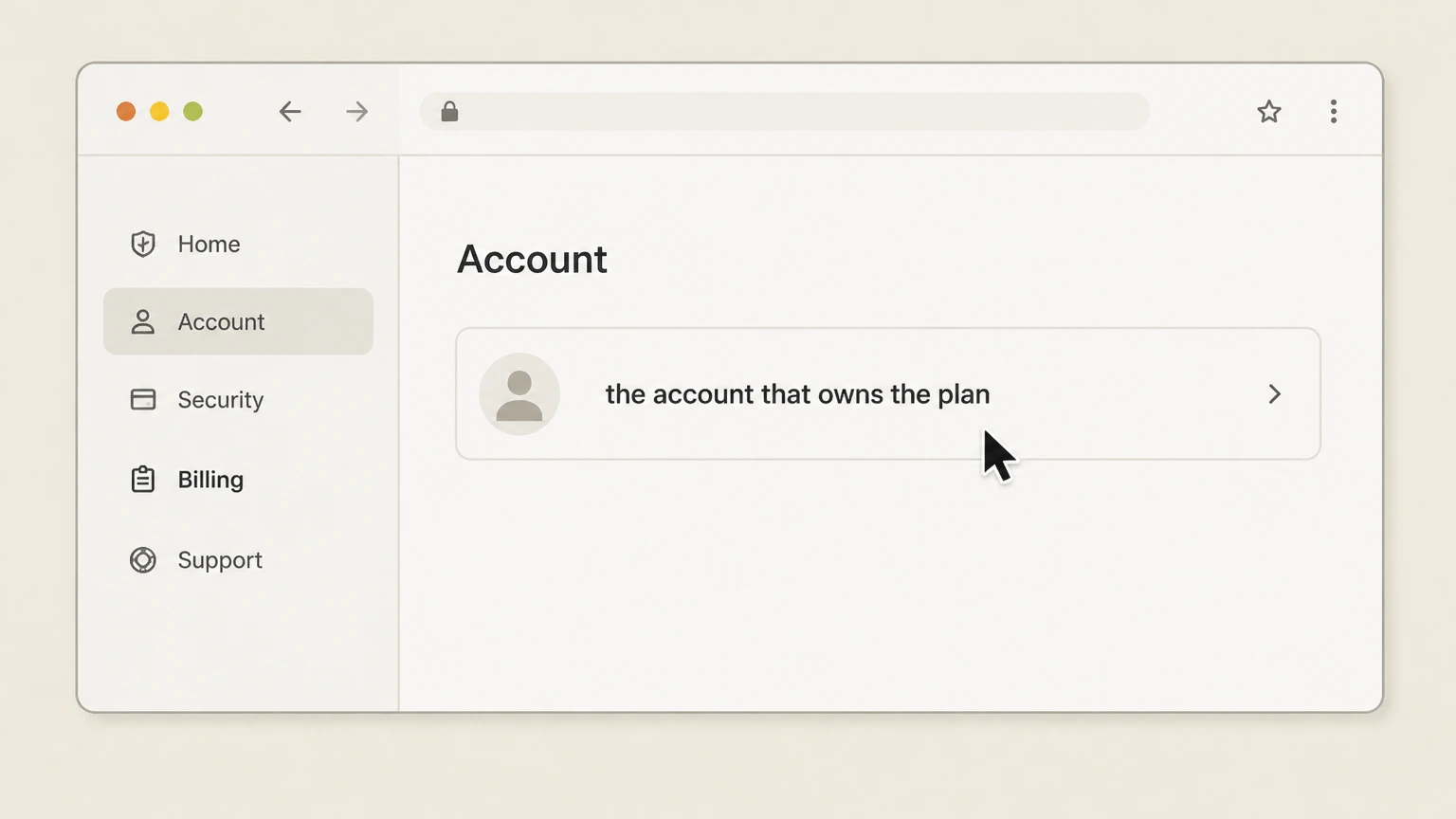
1Open the account that owns the plan
In a desktop browser, go to the Dashlane web app sign‑in page, log in with the email address that pays for your subscription, and wait for your vault and left‑hand menu to load so you can reach the Subscription settings.
 2
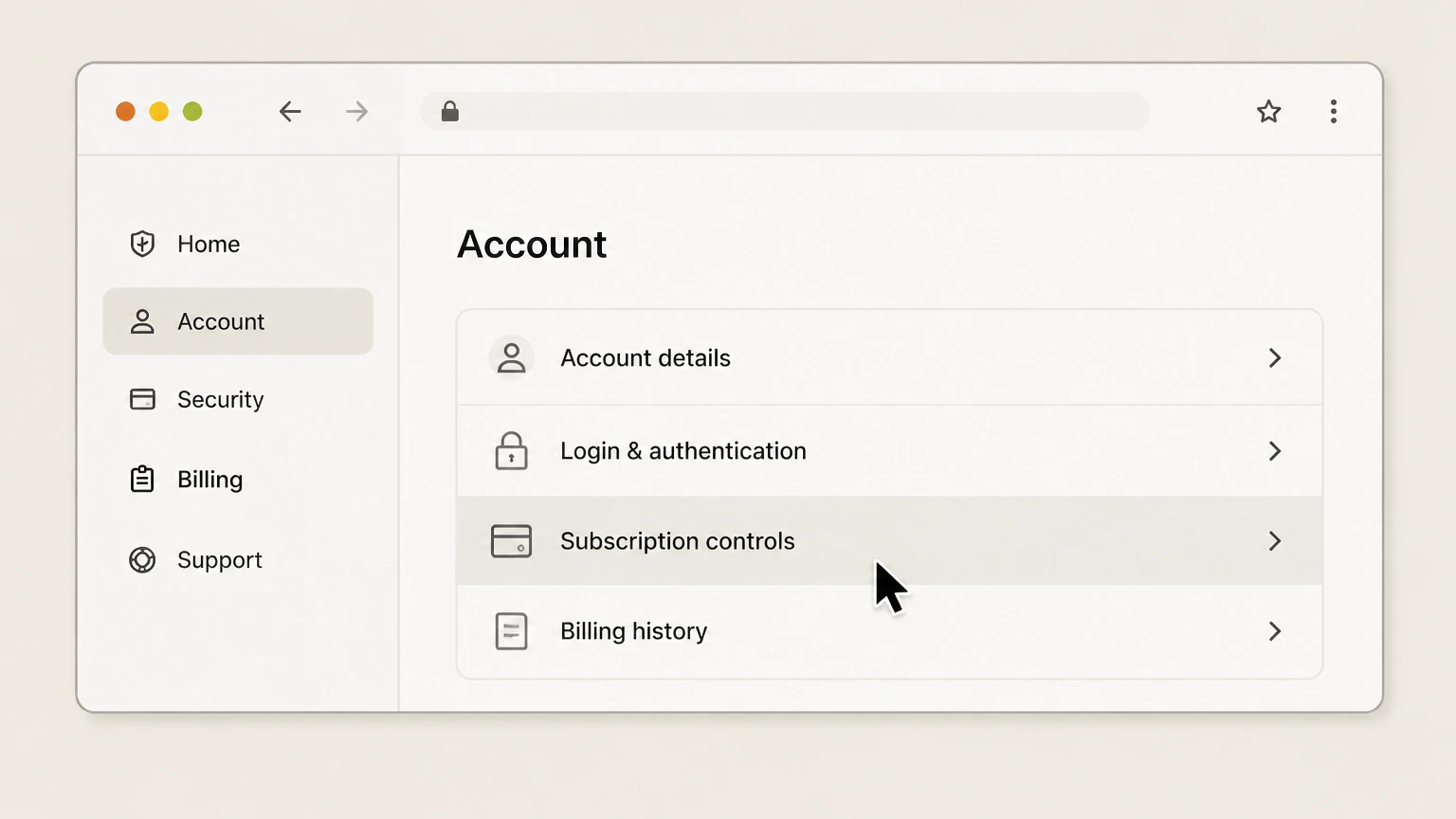
2Open Subscription controls
Select the Vault menu in the top‑left corner of the web app and choose Subscription to open the Subscription page, where you can see your current plan, payment method, and billing information.
- Let Pine handle it
Pine can help
Too many steps?
Pine can find the right Web path and handle the cancellation for you.
 3
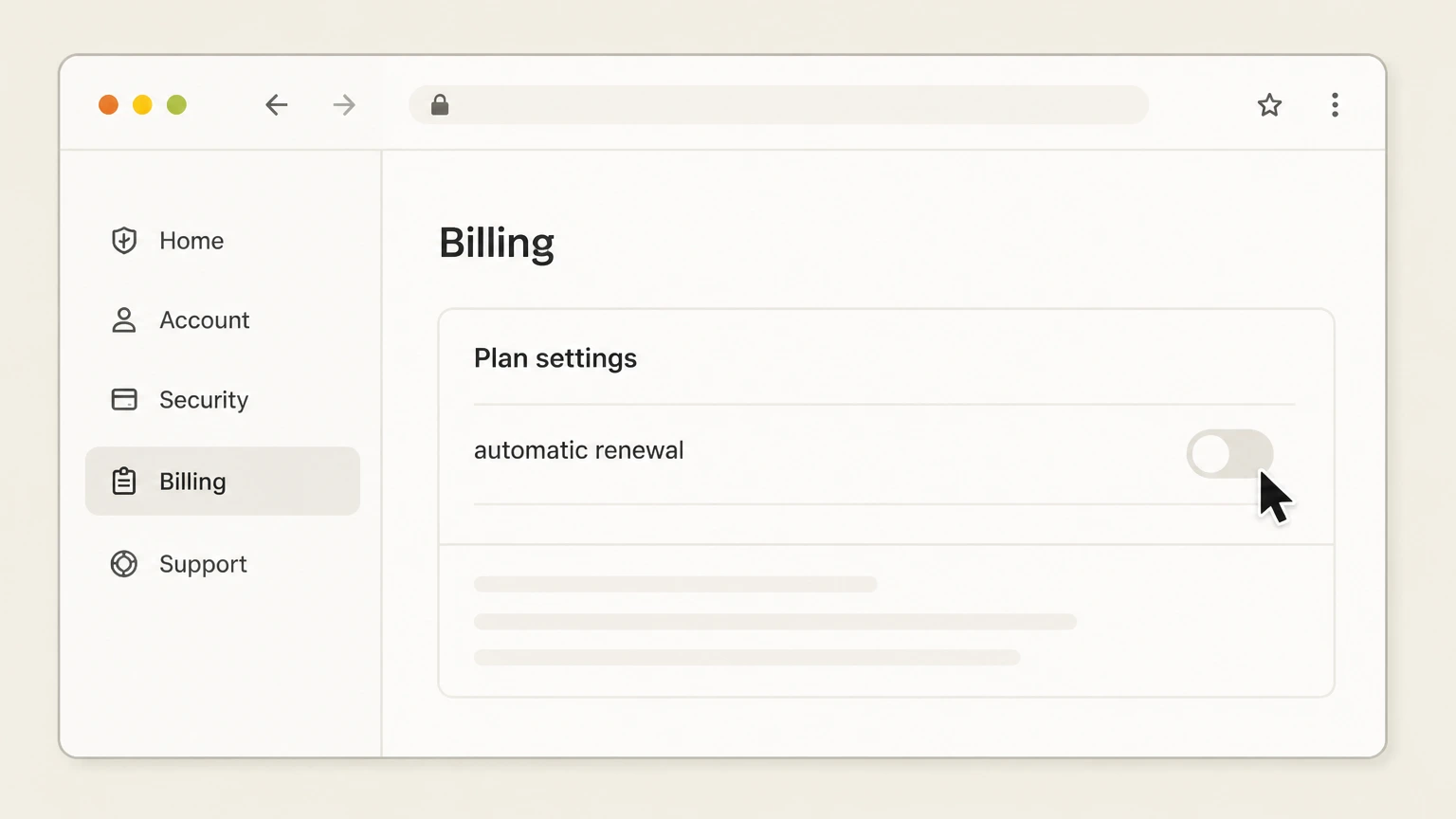
3Turn off automatic renewal
On the Subscription page, look at the right panel for the option labeled "Cancel your subscription," select it, and follow the on‑screen prompts such as Continue cancellation until Dashlane confirms that autorenewal has been turned off.
 4
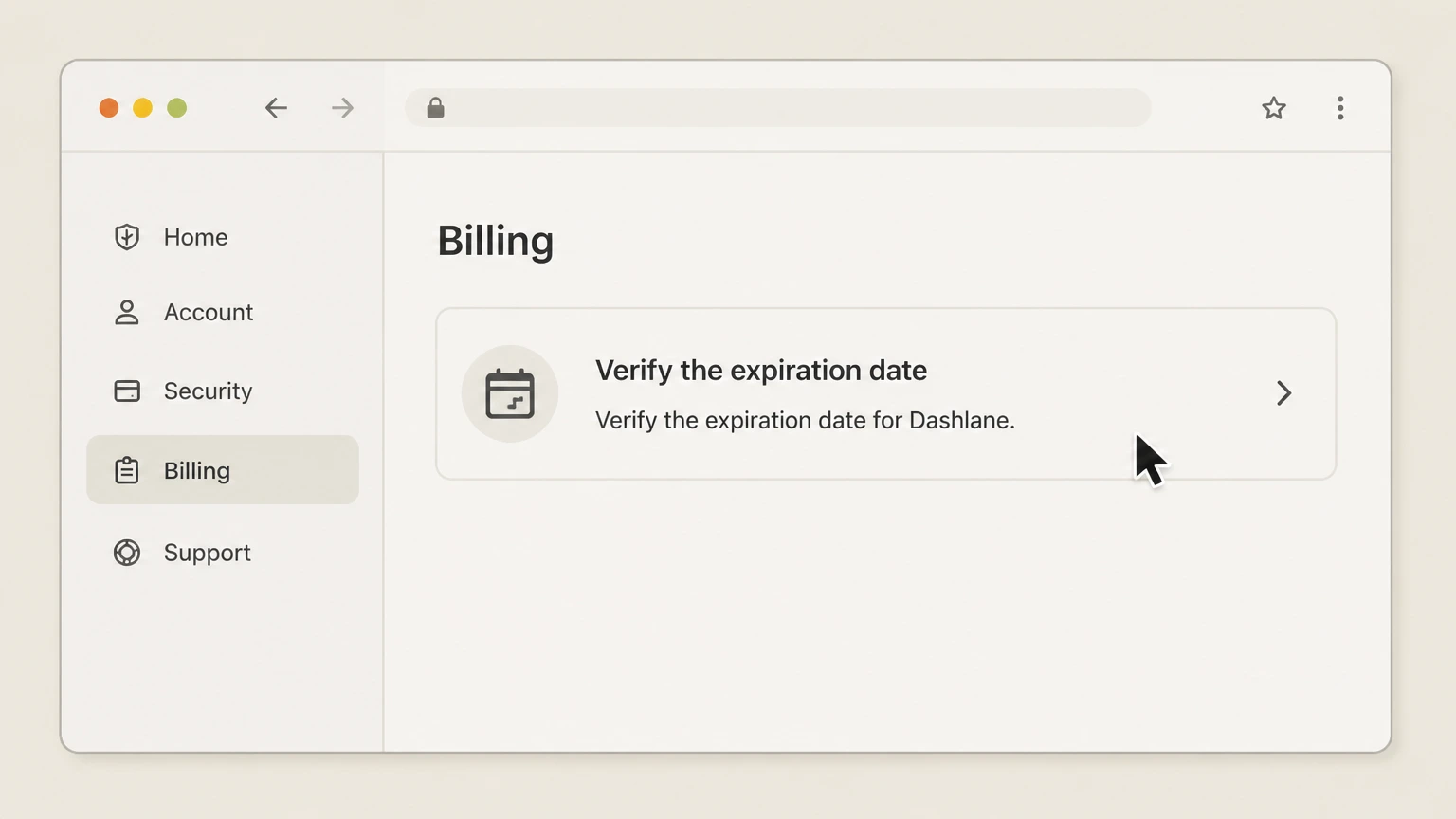
4Verify the expiration date
Stay on the Subscription page and check the plan name and renewal or end date shown at the top so you know how long your current access will continue, and consider saving a screenshot or personal note of this date for your records.

iOS cancellation
Cancel Dashlane through iOS
 1
1Open Settings
On your iPhone or iPad, open Apple’s Settings app (the gray gear icon) instead of the Dashlane app, because Apple manages App Store subscriptions from device settings rather than inside individual apps like Dashlane.
 2
2Tap your name
At the top of Settings, tap the banner that shows your name and Apple ID so you enter the Apple account area where subscription management options are grouped.
- Let Pine handle it
Pine can help
Too many steps?
Pine can find the right iOS path and handle the cancellation for you.
 3
3Open Subscriptions
In your Apple ID screen, select the option that leads to your subscription list—typically labeled "Subscriptions" and, on some versions, accessible under Media & Purchases—then wait for Apple to load your active subscriptions.
 4
4Choose Dashlane
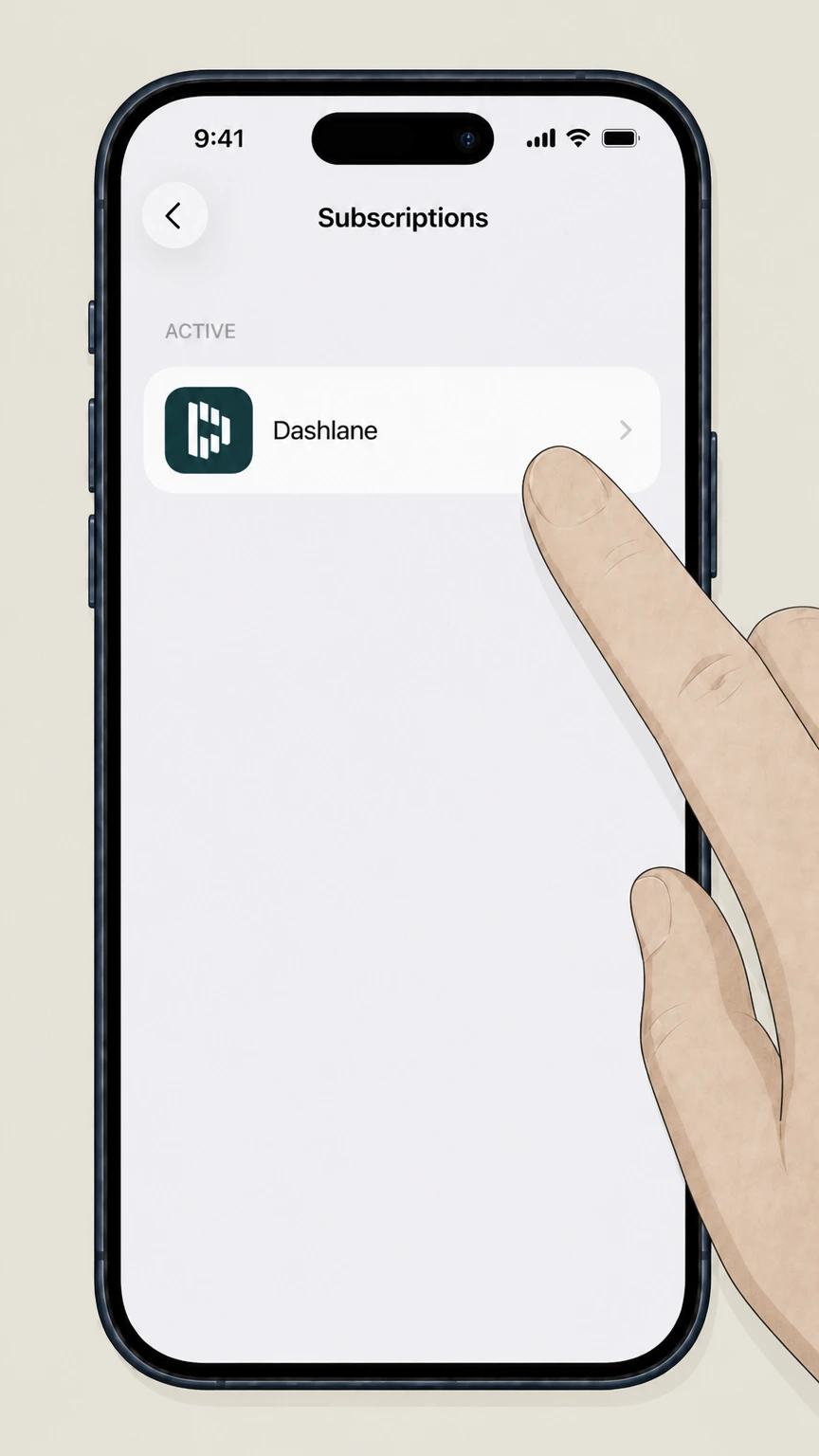
From the list of active subscriptions, tap Dashlane to open its details page, where Apple shows the current renewal status and the date your Dashlane plan is scheduled to end or renew.
 5
5Tap Cancel Subscription and confirm
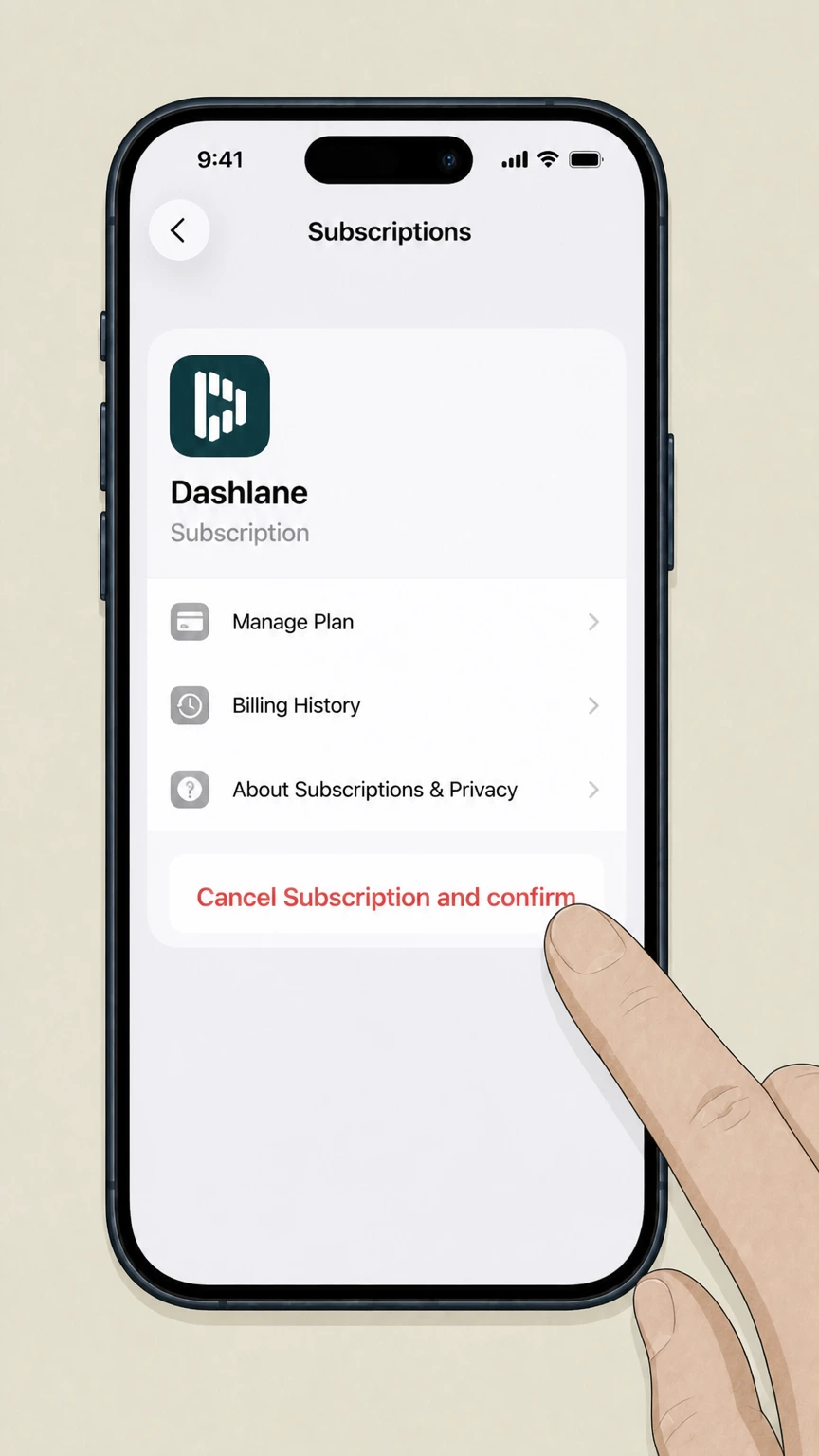
On the Dashlane subscription detail screen, use Apple’s cancellation control (for example a button labeled "Cancel Subscription" or "Cancel Free Trial"), follow the prompts, and check that the status now shows a non‑renewing end date; keep the Apple confirmation email or an on‑screen confirmation as proof.
Google Play cancellation
Cancel Dashlane through Google Play
 1
1Open Google Play
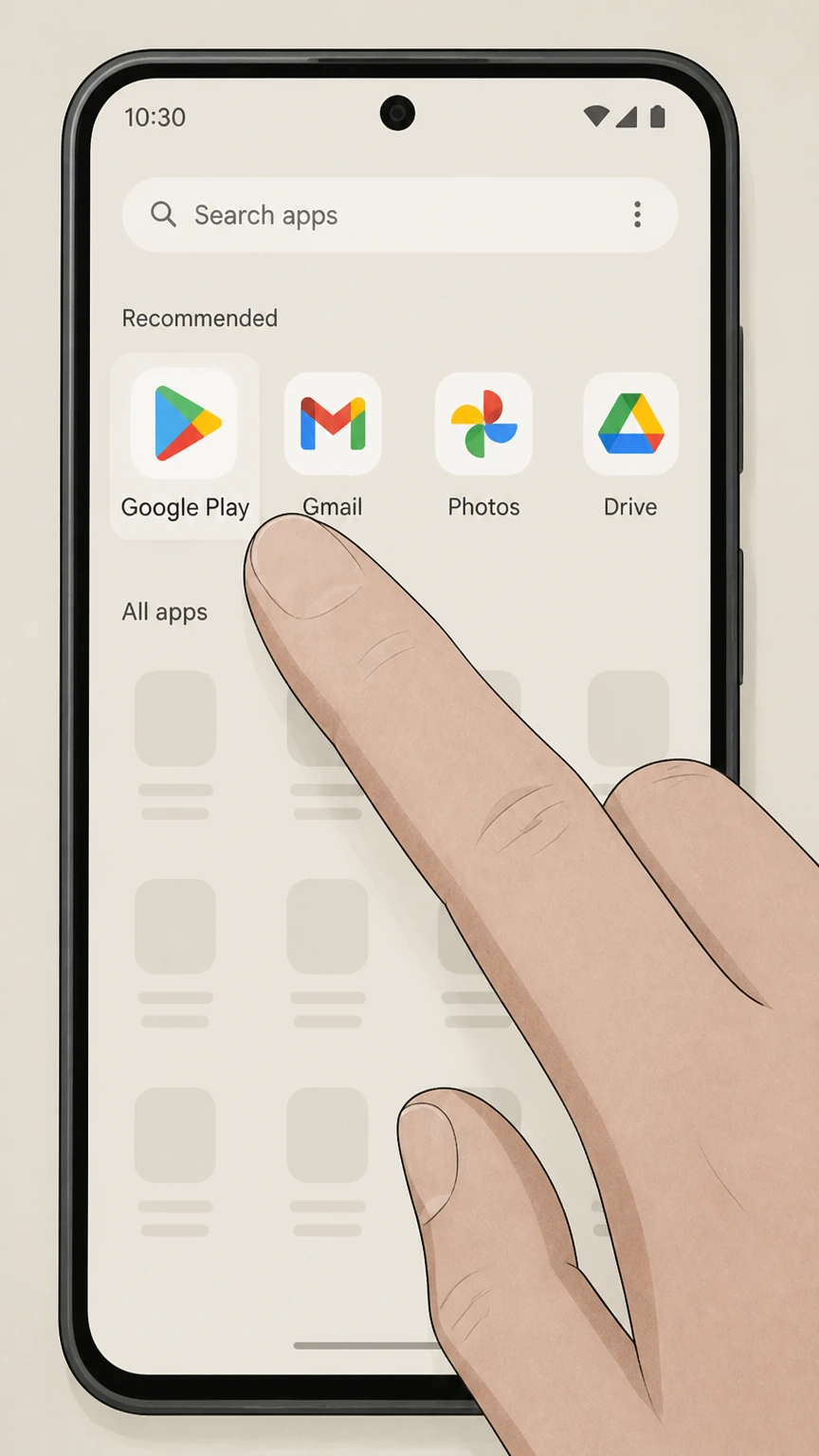
On your Android device, open the Google Play Store app while signed into the same Google account you used when you purchased Dashlane so the subscription appears under that profile.
 2
2Open Payments & subscriptions
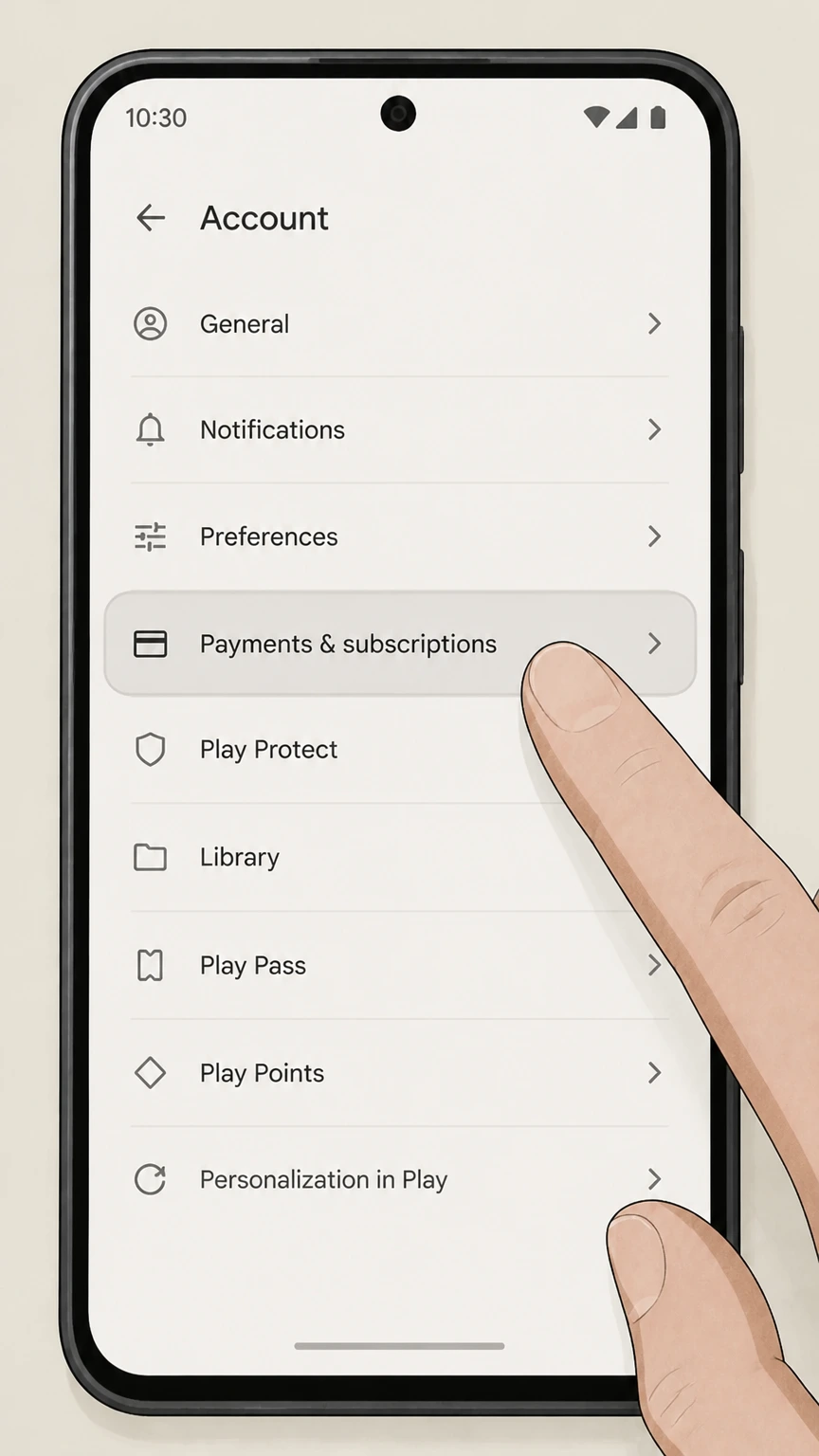
Tap your profile picture in the top‑right corner of Google Play to open the menu, then select Payments & subscriptions to view Google’s area for managing stored payment methods and recurring charges.
- Let Pine handle it
Pine can help
Too many steps?
Pine can find the right Google Play path and handle the cancellation for you.
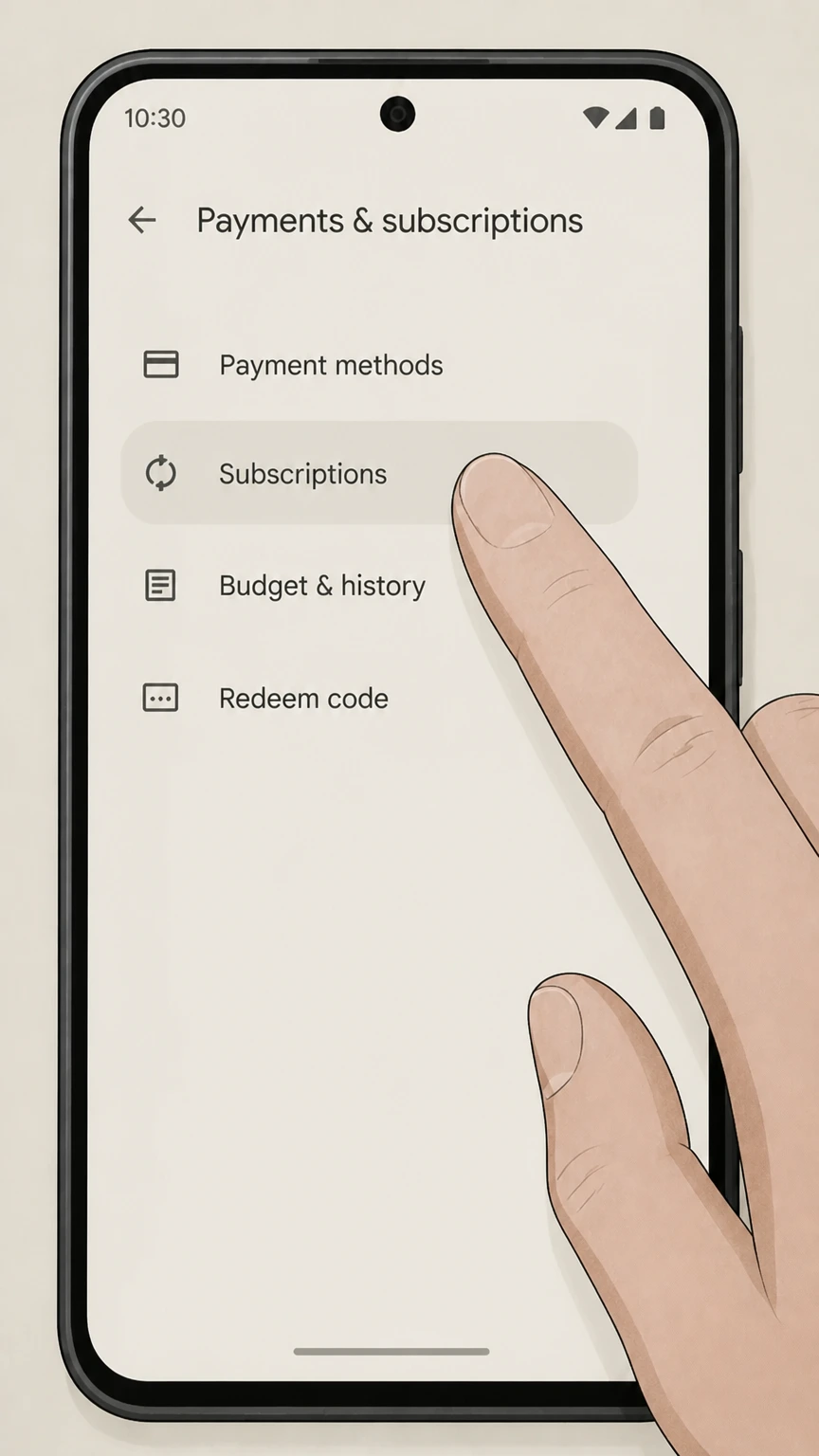 3
3Open Subscriptions
In the Payments & subscriptions section, choose Subscriptions to display the list of all recurring services tied to your Google account, including Dashlane if it was bought through Google Play.
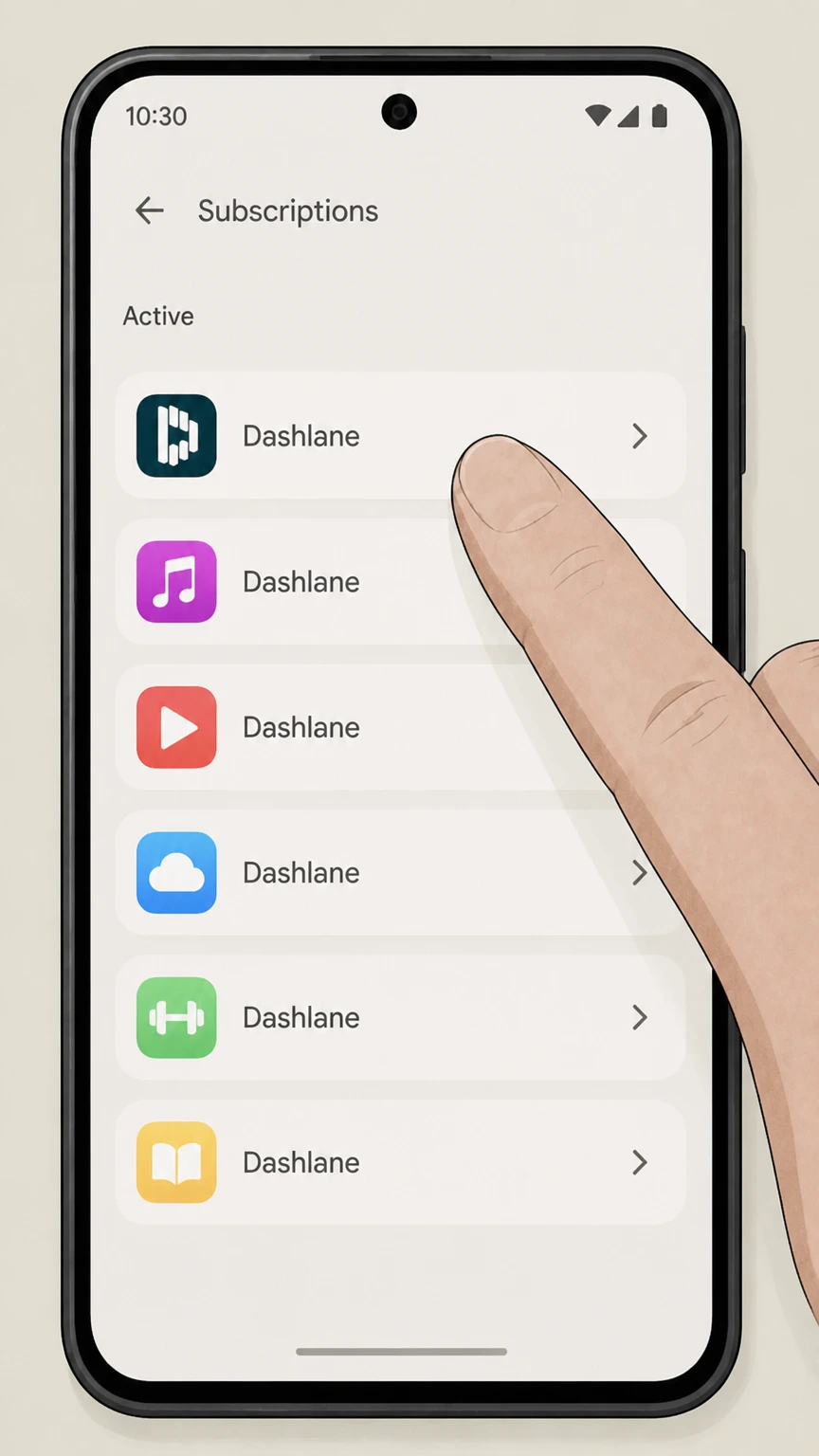 4
4Choose Dashlane
Find Dashlane in the list of active subscriptions and tap it to open the subscription details page, where Google shows the current renewal status and next charge or end date.
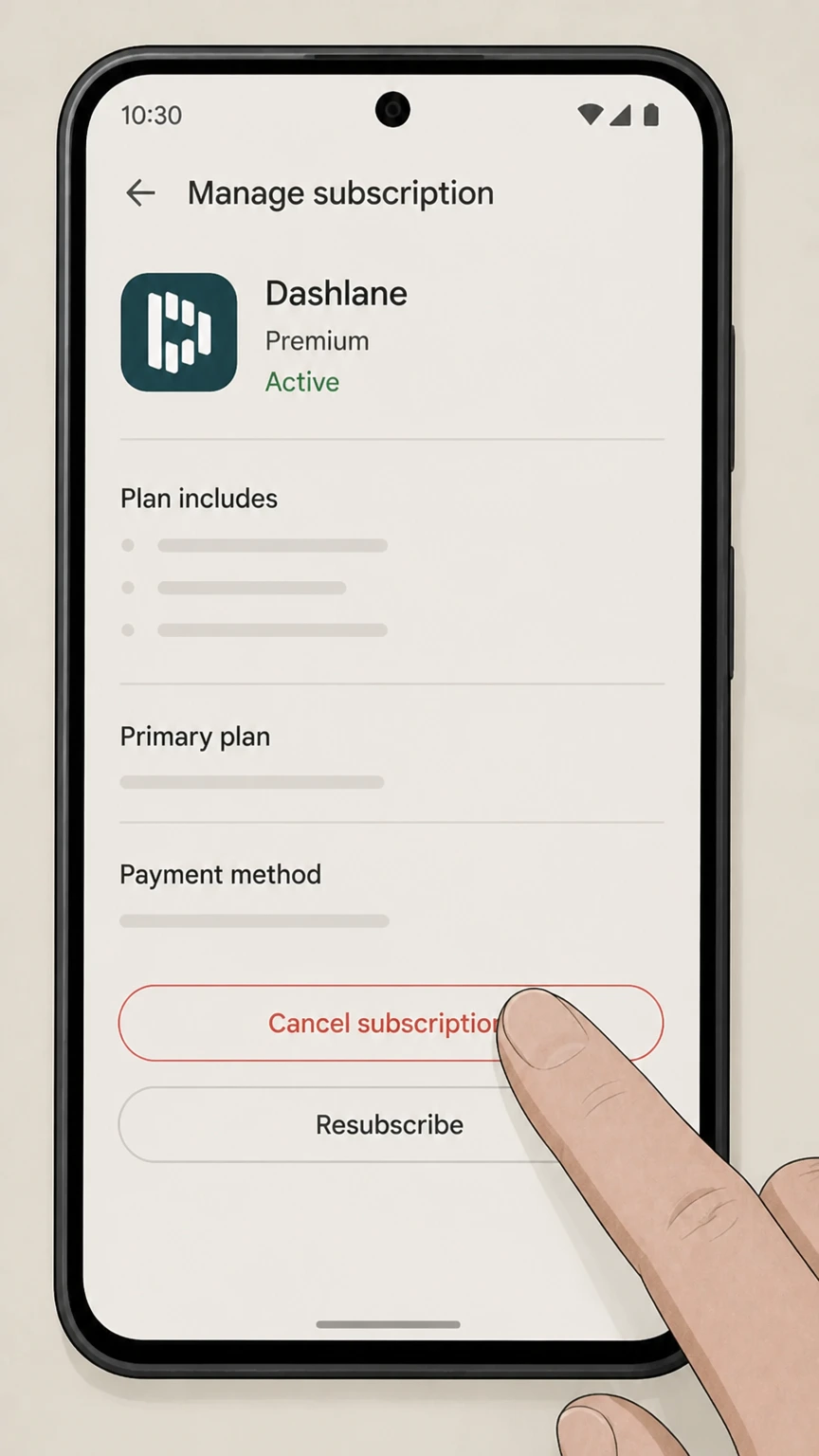 5
5Tap Cancel subscription and confirm
On the Dashlane subscription details screen, use Google’s Cancel subscription option, follow any prompts such as selecting a reason, and confirm until the screen shows that the subscription will end on a specific date instead of renewing automatically; keep a screenshot or email receipt as evidence.
Refund policy
Refunds for Dashlane personal subscriptions
Dashlane allows full refunds for eligible personal subscriptions canceled within a defined time after purchase, but rules vary by where you paid. Outside the stated window, subscription fees are generally non‑refundable, and business plans follow separate terms.
Check my refund options- Full refund when you cancel within 30 days of purchase
- Dashlane’s refund article for personal plans says you can request a full refund when you cancel within 30 days of buying your Dashlane subscription, and the Terms of Service specify that subscription fees are otherwise non‑refundable except for that defined right.
- Website credit‑card refunds requested inside the web app
- If you bought your plan on dashlane.com with a credit card, you cancel in the web app and then immediately select Request refund in the Subscription page’s right panel; Dashlane issues the refund to your card, typically within a few business days.
- Refund handling for PayPal, Google Play, and Apple App Store
- For website purchases via PayPal or subscriptions from Google Play, Dashlane instructs you to contact Support via chat and supply your PayPal invoice number or Google Play transaction ID so they can work within those platforms’ policies. For Apple App Store purchases, you must cancel and then ask Apple for a refund.
- Account deletion can prevent later refunds
- Dashlane’s deletion article explains that when you delete your account, all data and transaction records are erased and Dashlane can’t process refunds or look up your purchase history afterward, so you should resolve refund questions before deleting the account.
For the most current refund rules, examples, and platform‑specific instructions, review Dashlane’s official refund help article for personal plans. See Dashlane’s refund instructions
After you cancel
What cancellation does to your Dashlane access
Dashlane separates turning off autorenewal from what happens to your account and data after your personal plan ends. This section explains the export‑only state and how Friends & Family behaves on cancellation.
Plan continues until the end of the billing period
When you cancel a Dashlane personal subscription, Dashlane immediately turns off autorenewal but keeps your current plan active until the billing period shown in your Subscription page has finished.
Passwords become export‑only after your plan ends
Once your personal plan or trial ends, you can still log in, but passwords are available only for export; you can’t add, edit, copy, or view them inside Dashlane until you purchase another paid plan.
Your stored data stays in Dashlane until you delete the account
Cancellation doesn’t erase your vault. Dashlane keeps the data you’ve saved, including logins and Secure Notes, so you can export it or use it again if you later buy a new subscription; data is erased only if you delete your account.
Friends & Family plans revert or become export‑only
When a Friends & Family plan is canceled, the manager and members keep all logins and data and return to the plan they had before; if they were new to Dashlane, their account moves into export‑only mode with no ability to add, edit, copy, or view passwords.
Billing platform
Who actually controls your Dashlane billing
Because Dashlane sells personal plans through its own website and major app stores, the place where you paid determines where you can cancel, see receipts, and request refunds.
Website credit‑card purchases cancel in the web app
If you bought Dashlane on its website with a credit card, your billing info and the Cancel your subscription link appear only on the Subscription page in the web app when opened in a computer browser.
Google Play, Apple, and PayPal manage their own renewals
For purchases in Google Play, the Apple App Store, or via PayPal, Dashlane’s help articles state that you must cancel directly with that company; Dashlane cannot change renewal settings or issue standard refunds from inside its own apps for those payments.
How to confirm where you paid
In the web app, the Subscription page shows your saved credit card if you paid Dashlane directly; otherwise it displays a message indicating that billing is handled elsewhere. You can also check receipts in Dashlane’s Billing history or in your Google or Apple order history.
Professional plans follow separate admin rules
Dashlane’s cancellation and billing guidance for personal plans doesn’t apply to Starter, Team, or Business subscriptions; those must be managed by plan admins using separate professional billing articles and, in some cases, organization‑level policies.
Refunds
Refund boundaries for Dashlane personal plans
Dashlane allows some refunds for personal plans, but only under defined conditions. This section explains the 30‑day window, how to request a refund, and how the rules differ by billing platform.
30‑day full refund window for new subscriptions
Dashlane’s refund article states you can request a full refund when you cancel within 30 days of buying your personal Dashlane subscription, and the Terms add that subscription fees are otherwise generally non‑refundable.
Requesting a refund for website credit‑card payments
For subscriptions bought on dashlane.com with a credit card, you start in the web app’s Subscription page, complete cancellation, and then use the Request refund link in the right panel; Dashlane then issues the refund to your card, typically within several business days.
Refunds for PayPal, Google Play, and Apple Store purchases
If you paid on Dashlane’s website with PayPal, or in Google Play, Dashlane directs you to contact Support via chat with your receipt or transaction ID so they can help request a refund under the relevant platform’s policies. For Apple App Store purchases, you must cancel and ask Apple for any refund.
Deleting your account can block refund help
Dashlane’s deletion article explains that once an account is deleted, all data and transaction records tied to that account are erased and Dashlane can’t process refunds or look up past payments, so it’s safer to resolve any refund requests before deleting your account.
Trials & renewals
Trials, renewal timing, and when charges occur
Dashlane handles free Premium trials and renewals differently depending on whether you provided payment details. Understanding these rules helps you decide when to cancel if you don’t want to be charged.
Trials without payment details end automatically
If you started a Premium trial without entering any payment method, Dashlane’s trial article says the trial ends automatically at the end of the period; you don’t have to cancel to avoid charges and can either buy a plan or export your data afterward.
Trials that required payment must be canceled
Certain special Premium trials require you to enter payment details upfront. In those cases Dashlane warns that you must cancel autorenewal before the trial ends if you don’t want the subscription to convert into a paid plan.
Renewals can process a day or two early
For personal plans, Dashlane notes that it processes renewals a day or two before the listed renewal date to prevent the subscription from expiring because of temporary payment issues, so charges may appear slightly ahead of the date you see.
Checking your renewal or end date
You can see when your current personal plan or trial renews or ends by opening the Vault menu in the web app, selecting Subscription, and reading the plan name and date shown at the top of the page, or by checking the Settings screens in the mobile apps.
Account & data
Deleting your account, uninstalling, and emails
Canceling your subscription, deleting your account, and uninstalling Dashlane are three separate actions with different effects on data and communication. This section clarifies what each one does.
Cancellation doesn’t delete your data or apps
When you cancel a subscription, Dashlane keeps your account and stored data intact and does not remove the apps from your devices; you simply lose full access to features once the billing period ends.
Only deletion stops all emails from Dashlane
Dashlane explains that the only way to stop all emails—including required account notices—is to delete your account entirely; unsubscribing in email or settings only limits marketing messages.
Account deletion permanently erases your data
Deleting your Dashlane account erases all data associated with it, including logins, Secure Notes, personal details, and payment information, and Dashlane states that it can’t recover the data or process further support such as refunds for the deleted account.
To fully leave Dashlane, combine three actions
Dashlane’s deletion and uninstall guides clarify that to completely leave the service you must first cancel your subscription, then delete your account to erase stored data and stop emails, and finally uninstall the Dashlane apps from your devices.
Other options
Alternatives to canceling your Dashlane plan
If you still want Dashlane but on different terms, the service offers options other than outright cancellation, including downgrading plans, changing billing, or moving your subscription to another account.
Downgrade at the end of your term
Dashlane’s plan‑change article explains that you can downgrade personal plans, such as moving from Friends & Family to Premium, by canceling your current subscription and then buying the new plan once the current billing period ends, avoiding overlapping charges.
Change billing period or payment method
Instead of canceling, you can adjust how you’re billed by changing your billing period, payment card, or billing address from the Subscription area of the web app, as described in Dashlane’s billing management guides.
Move your subscription to a new account
If you want to keep Dashlane but use a different login email, you can export your data to a secure DASH file or use secure sharing to move items into a new account, then ask Support via chat to transfer your paid subscription.
Use Friends & Family to cover multiple people
For households, upgrading to a Friends & Family plan lets one manager share Premium‑level protection with up to nine others; only the manager controls billing, and members can later resume a previous plan or move into export‑only mode if the plan ends.
Troubleshooting
If you can’t find subscription or cancel controls
Subscription controls can be hard to locate if you’re in the wrong app, signed into a different account, or billed through an app store. These steps help when the expected cancel option isn’t visible.
Use the web app on a computer for website purchases
Dashlane notes that the in‑app cancellation option for credit‑card purchases appears only when you open Dashlane in a computer browser; you won’t see it in the mobile apps or macOS app, so switch to the web app if the Subscription page looks incomplete.
Confirm you’re logged in with the paying email
If your subscription doesn’t appear, Dashlane recommends logging out and back in, making sure you use the same email address that bought the plan, and checking which plan name—Premium or Friends & Family—is displayed in the app.
Check where you actually paid for Dashlane
On the web app’s Subscription page, seeing saved credit‑card details means you paid Dashlane directly; a message that points to another platform means billing is handled by Google Play, Apple, or PayPal, and you must cancel there. Searching your email for Dashlane, Google, or Apple receipts can also confirm the billing source.
Contact Support with receipts if problems persist
If you still can’t see your subscription or cancel option, Dashlane advises using the Chat with bot link in the help center and providing the requested information—such as partial card details or store transaction IDs—so Support can locate the subscription and help cancel it.
Export options
Exporting your Dashlane data when canceling
Because canceled or expired personal plans become export‑only, Dashlane provides several ways to save your data before or after cancellation, including CSV and encrypted DASH exports.
Export data from the web app
In the web app you can open the Vault menu, go to Settings, and use Export data to download a ZIP of CSV files with your credentials and other items—useful if your plan has ended and your vault is read‑only.
Use encrypted DASH files for safer backups
For long‑term backups or moving to another Dashlane account, Dashlane recommends exporting to a secure DASH file rather than leaving unencrypted CSVs on your devices; DASH files can later be imported back into Dashlane.
Export limitations (attachments and passkeys)
When exporting to CSV, attachments from Secure Notes and passkeys aren’t fully preserved; Dashlane notes that attachments must be downloaded separately and exported passkeys won’t work if you import the CSV elsewhere.
Export‑only mode is designed for migration
Dashlane links the export‑only state that follows plan expiration or Free plan discontinuation with export guidance, explicitly suggesting that you either purchase a paid plan or export your passwords if you don’t wish to continue with Dashlane.
Dashlane cancellation FAQ
Provider-specific answers based on official sources checked August 10, 2026. Signed-in terms, region, billing owner, and applicable law still control.
What happens to my passwords and data after I cancel my Dashlane subscription?
Can I cancel Dashlane immediately, or do I have to wait until the end of my term?
How do Dashlane refunds work when I cancel my subscription?
How can I tell whether I paid Dashlane directly or through Apple or Google Play?
Does uninstalling Dashlane cancel my subscription or stop emails?
How do I cancel a Dashlane Premium trial so I’m not charged?
What if I deleted my Dashlane account but forgot to cancel my subscription?
How does cancellation work for Dashlane Friends & Family plans?
Untangle this Dashlane issue.
Let Pine handle the provider follow-up and keep the confirmation in one place.
