

Instant Checkmate
Cancel subscription
How to Cancel Instant Checkmate: Official Steps & Timing
Cancel Instant Checkmate through the correct billing route. Follow official steps, understand renewal timing and refunds, and keep proof of the final result.
- 2 verified cancellation routes
- Billing ownership and renewal timing explained
- Provider-specific refund boundaries included
- A confirmation check follows every route
Choose the correct Instant Checkmate cancellation route
Apple-billed subscription · verify the billing owner
Cancel Instant Checkmate through Apple
 1
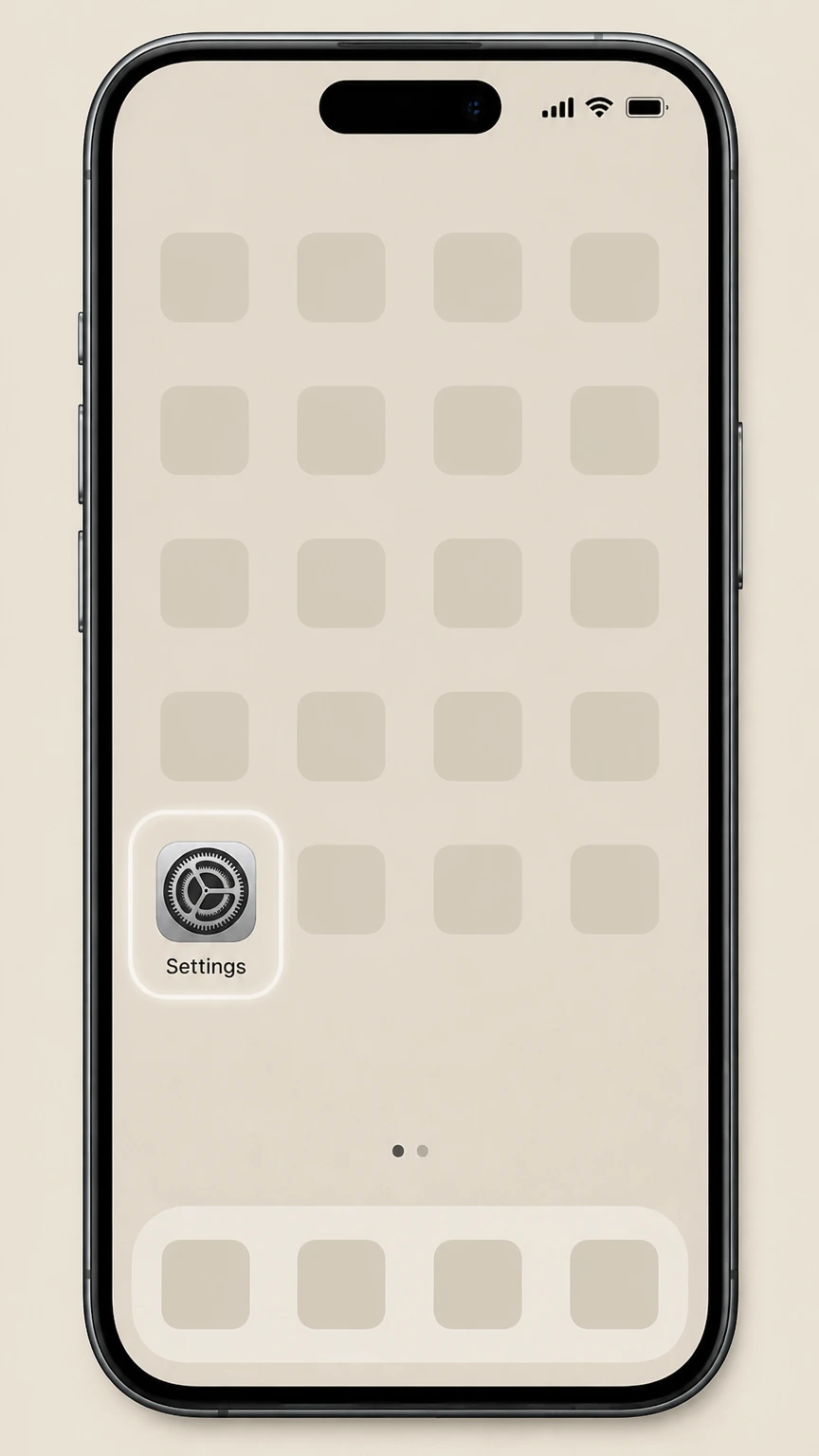
1Open Settings
Open the Settings app on the iPhone or iPad.
 2
2Tap your name
Tap the Apple Account banner at the top of Settings.
- Let Pine handle it
Pine can help
Too many steps?
Pine can find the right Apple-billed subscription path and handle the cancellation for you.
 3
3Open Subscriptions
Tap Subscriptions to see Apple-billed plans.
 4
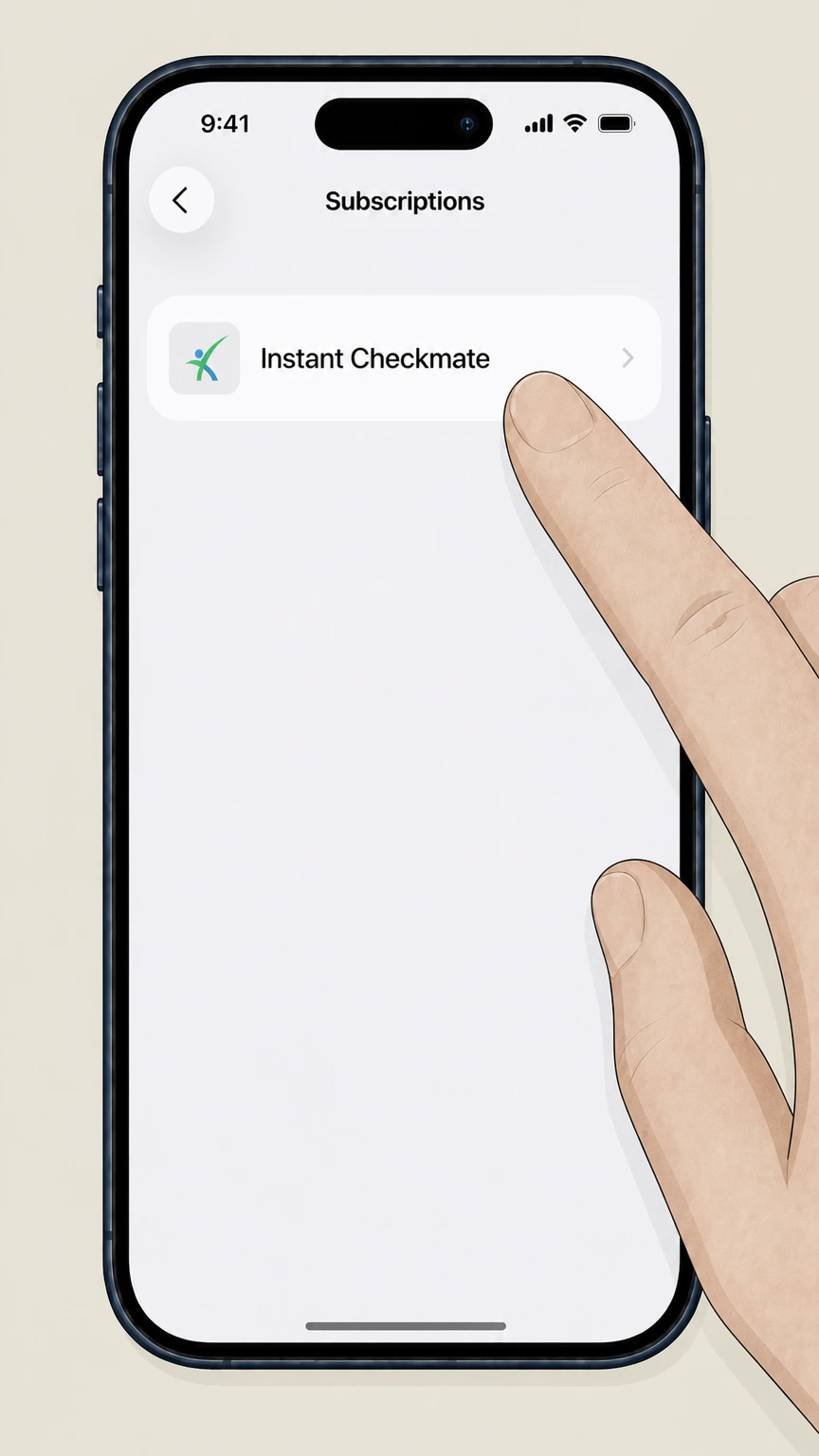
4Select Instant Checkmate
Tap Instant Checkmate in the active subscriptions list.
 5
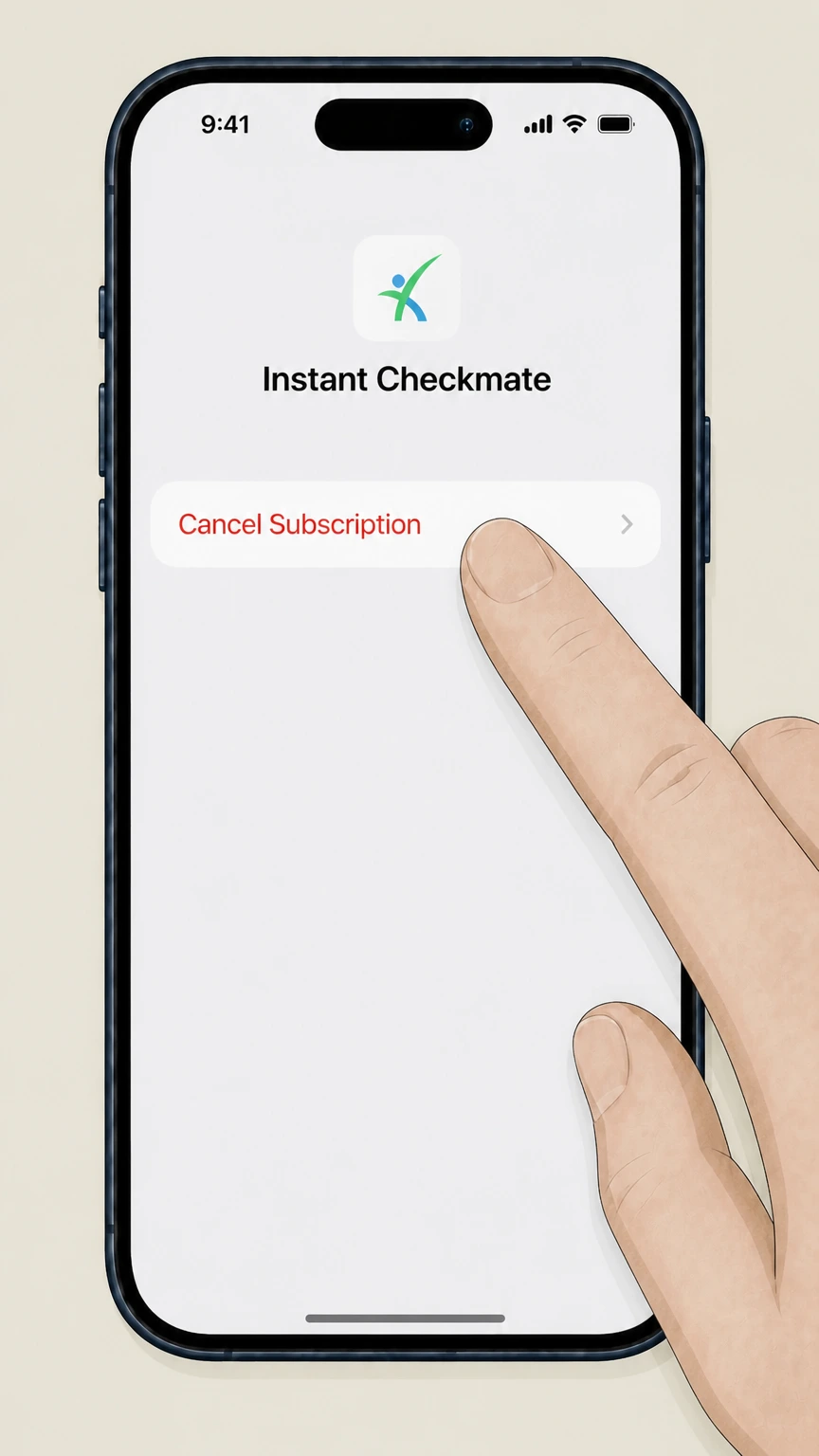
5Cancel the subscription
Tap Cancel Subscription and complete Apple’s confirmation flow for Instant Checkmate.

Google Play-billed subscription · verify the billing owner
Cancel Instant Checkmate through Google Play
 1
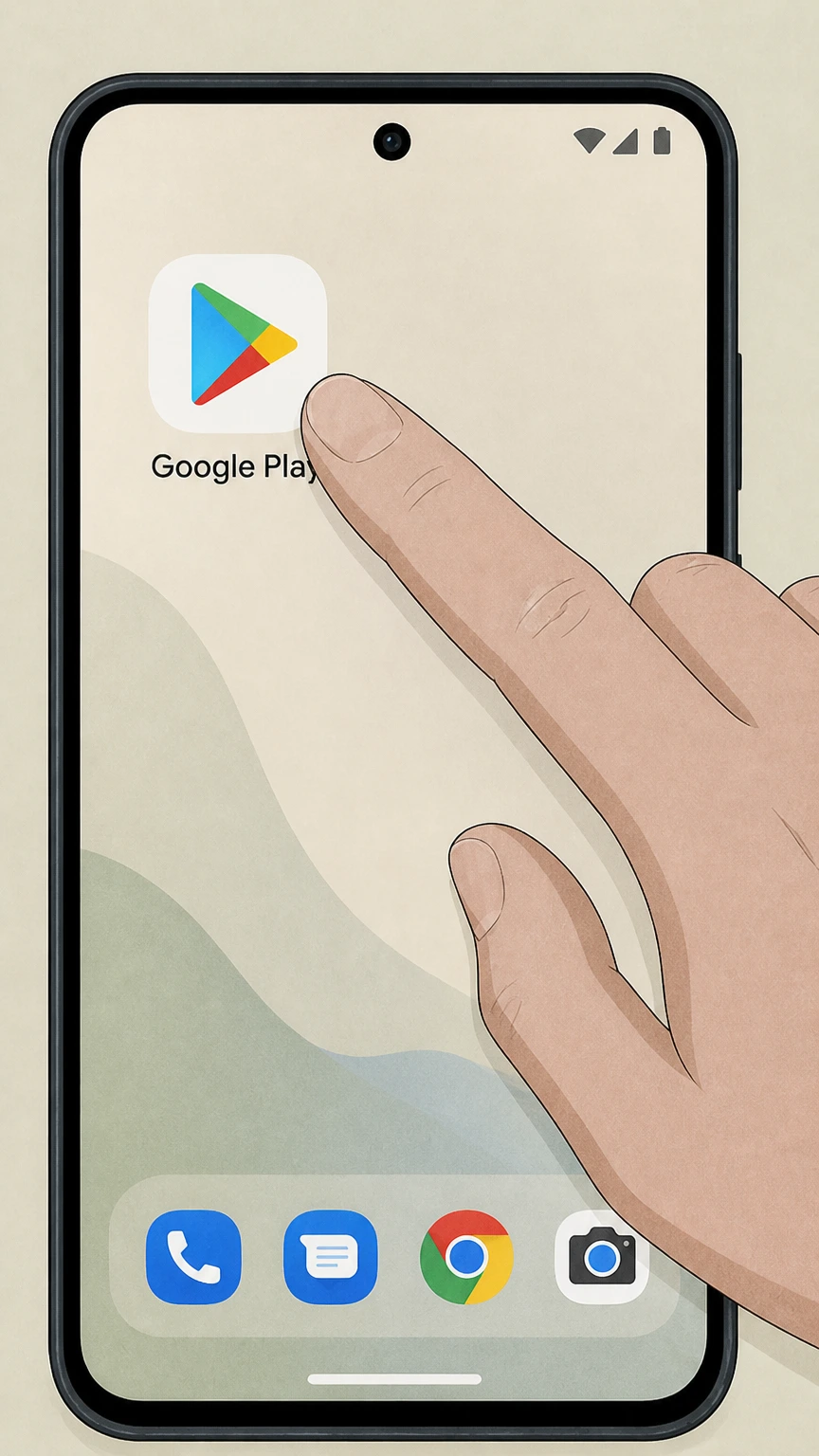
1Open Google Play
Open the Google Play Store on the Android device.
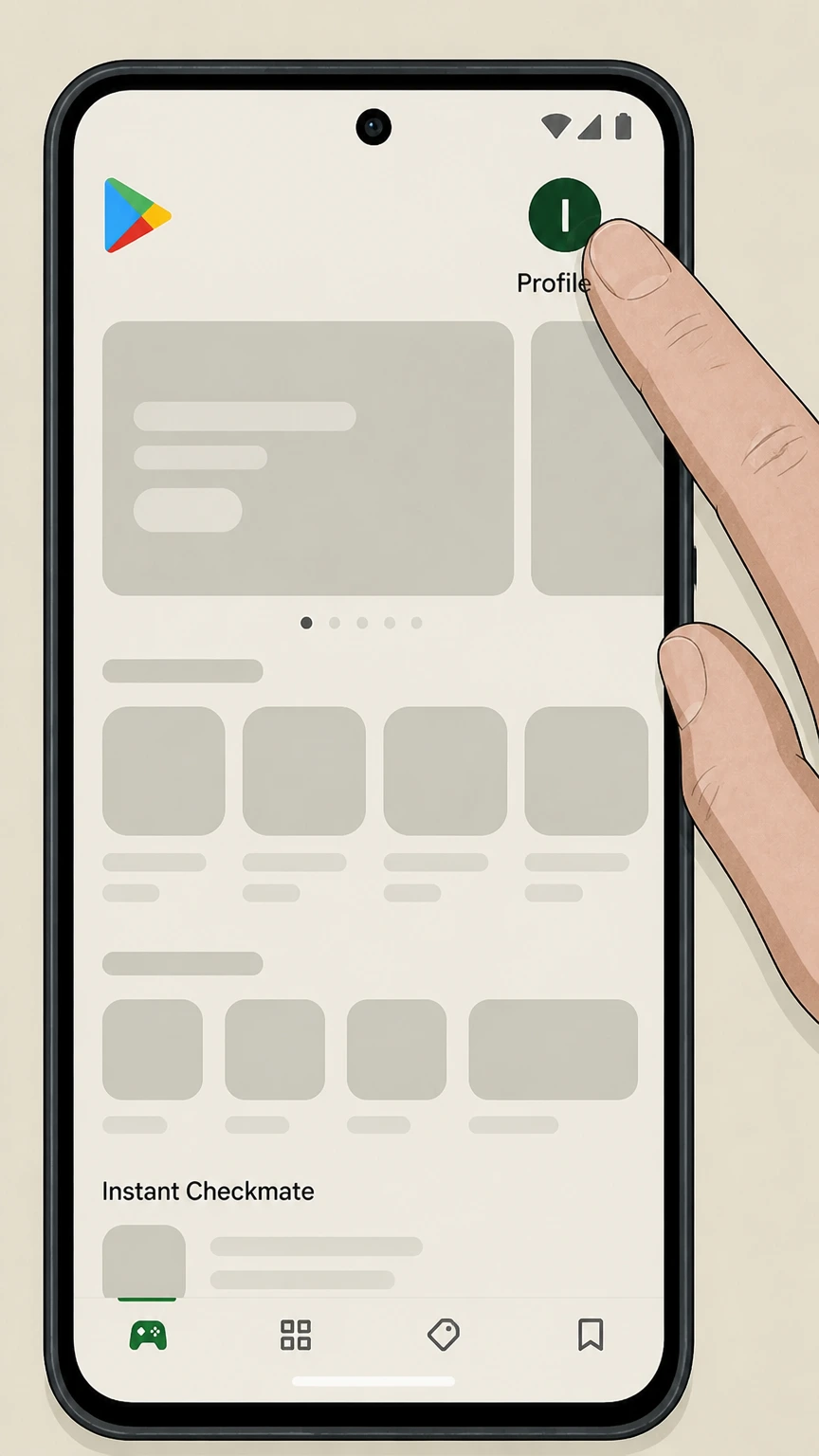 2
2Open the account menu
Tap the profile icon for the Google account used to subscribe.
- Let Pine handle it
Pine can help
Too many steps?
Pine can find the right Google Play-billed subscription path and handle the cancellation for you.
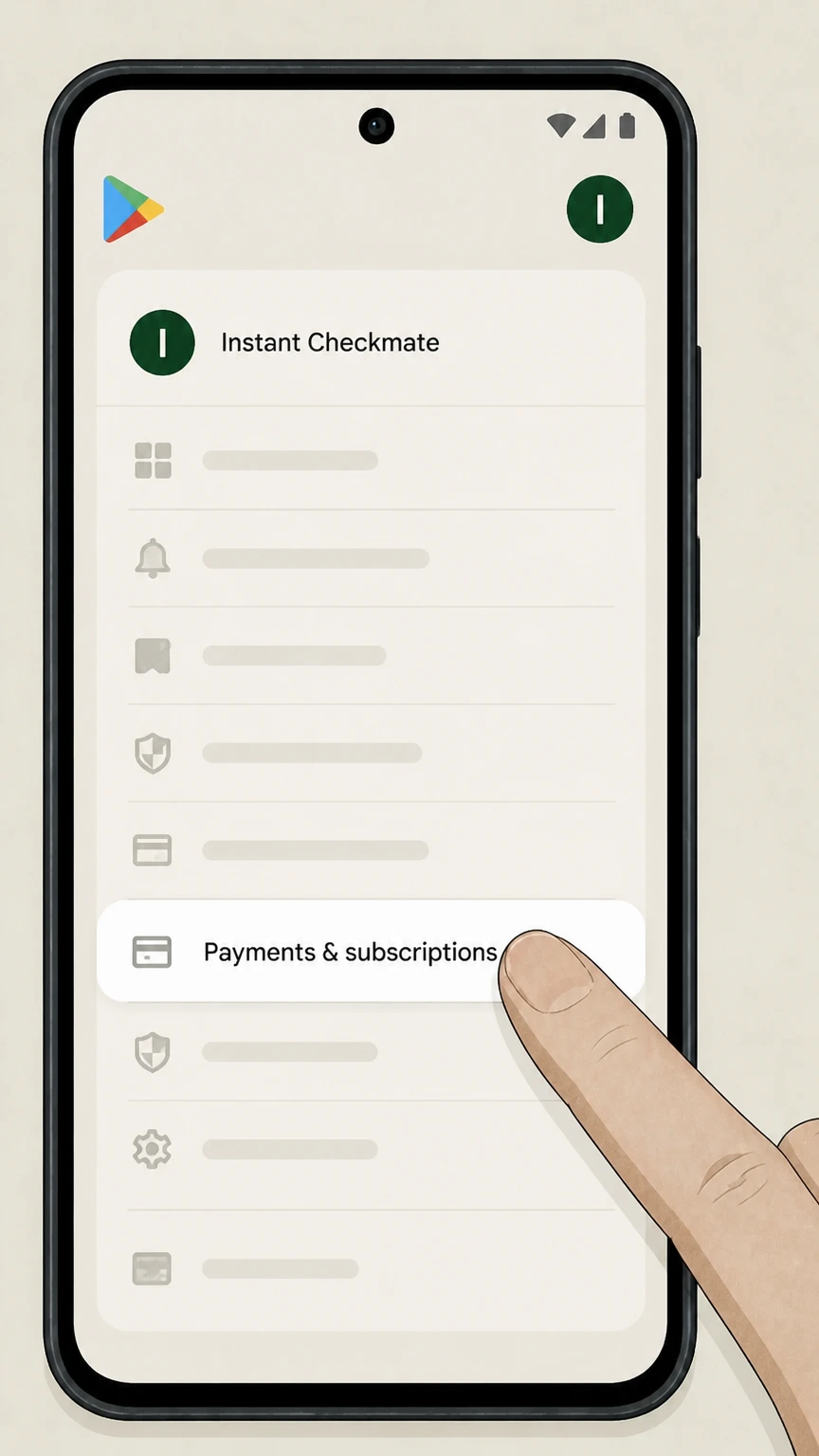 3
3Open Payments & subscriptions
Tap Payments & subscriptions in the account menu.
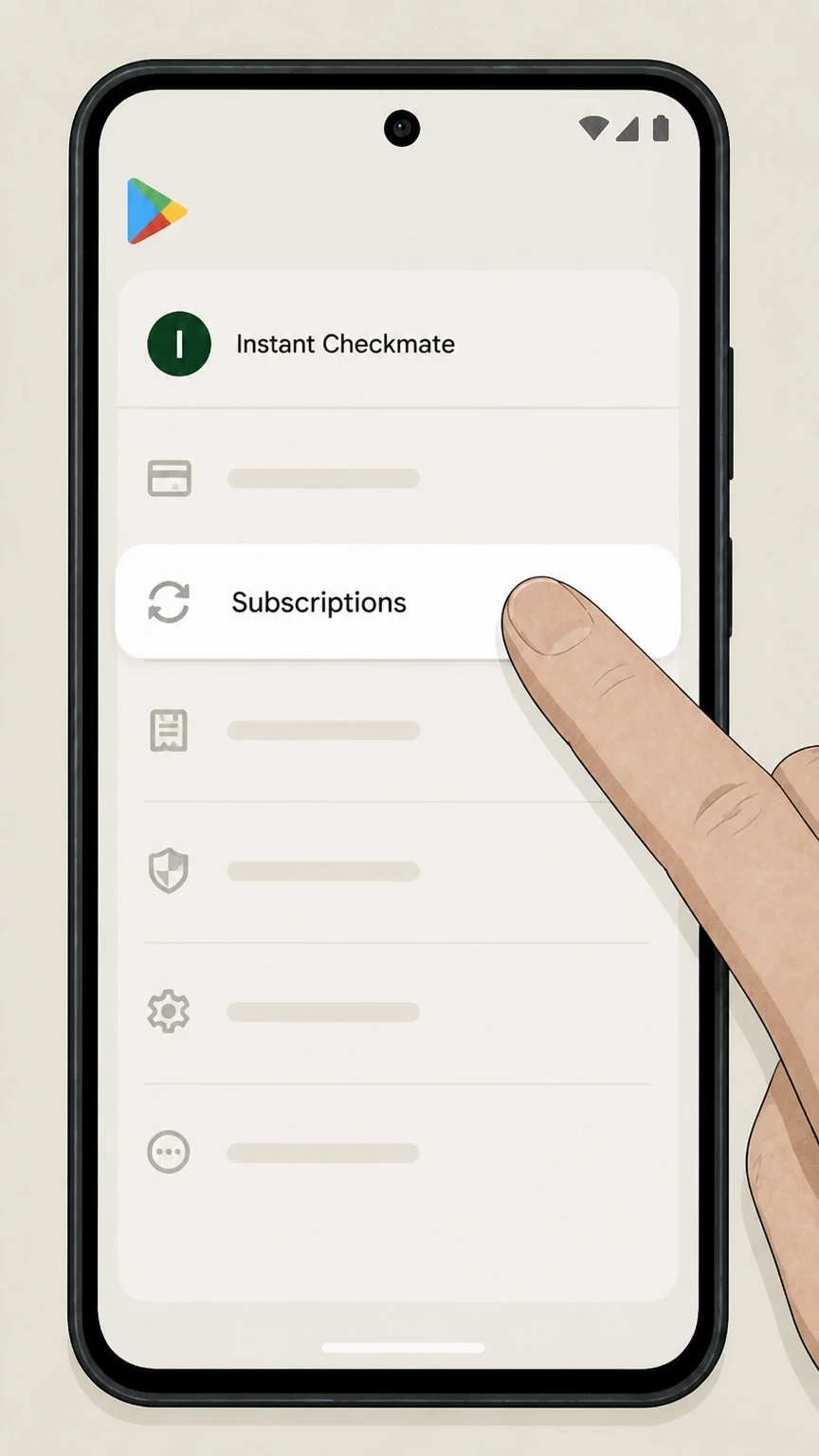 4
4Open Subscriptions
Tap Subscriptions to view recurring Google Play purchases.
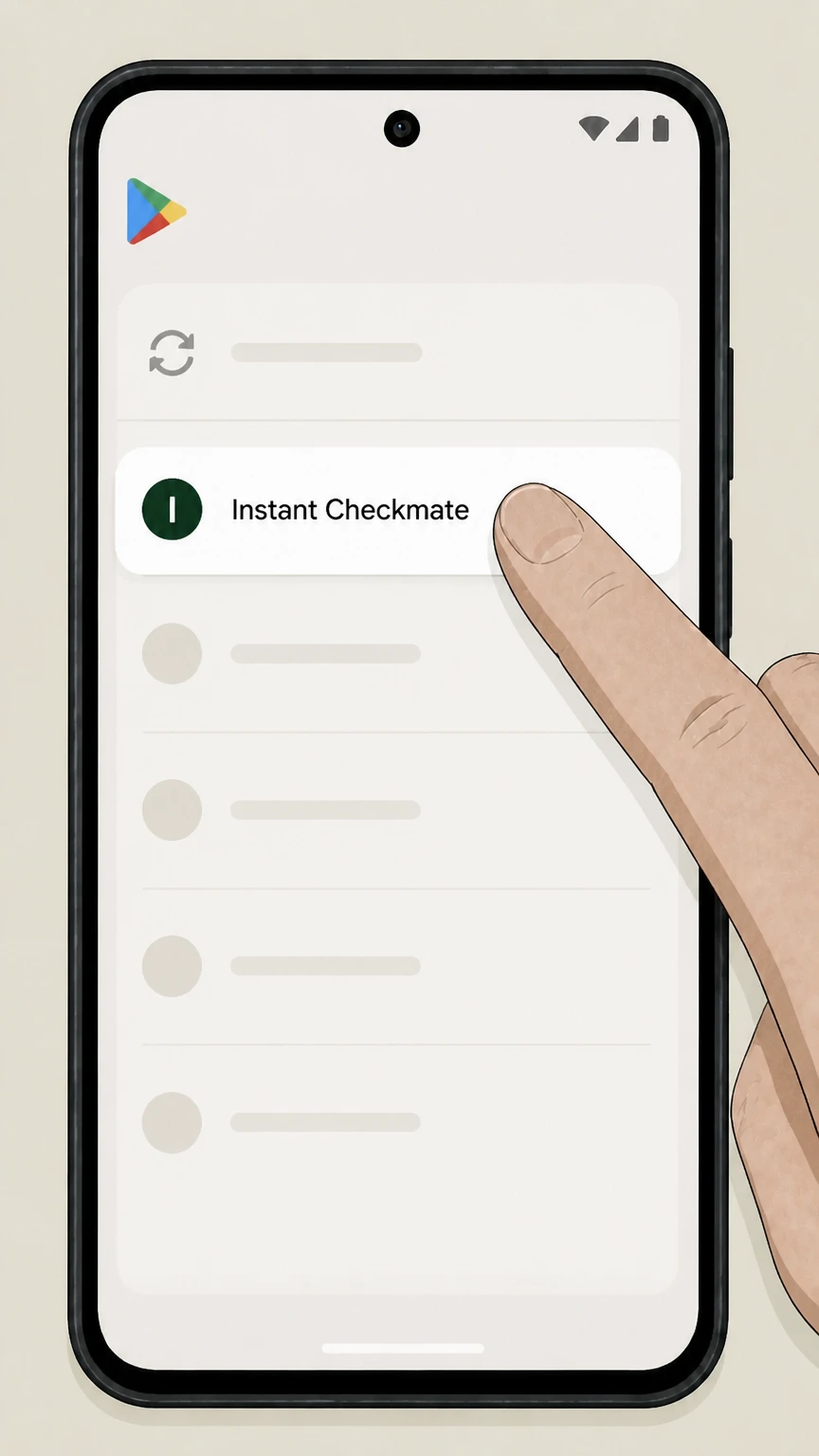 5
5Select Instant Checkmate
Tap Instant Checkmate in the subscriptions list.
 6
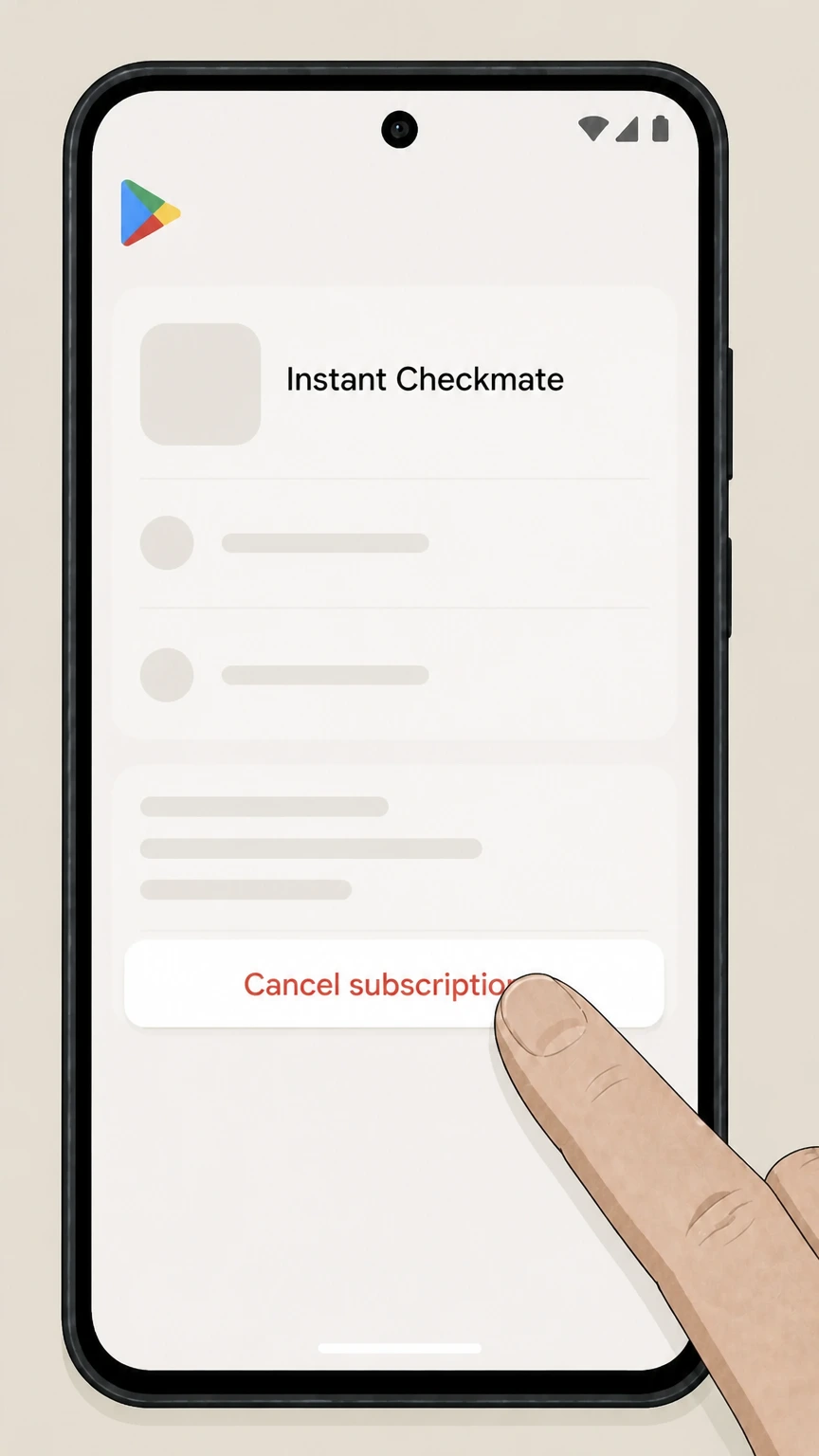
6Cancel the subscription
Tap Cancel subscription and complete Google Play’s confirmation flow for Instant Checkmate.
Refund policy
Instant Checkmate app-store refunds
Cancellation stops renewal; Apple or Google determines whether a store-billed charge is eligible for a refund.
Check my refund options- Apple-billed purchase
- Use Apple’s current refund process for an Apple charge.
- Google Play-billed purchase
- Use Google Play’s current refund rules for a Google charge.
For a direct Instant Checkmate charge, use the current provider Help Center because this page does not promise a direct-billing refund. Open Instant Checkmate cancellation help
Billing owner
Check the subscription list before choosing a route
The Apple and Google Play paths apply only when Instant Checkmate is present in that store account.
Apple
Use Apple Subscriptions only when Instant Checkmate is listed there.
Google Play
Use Google Play Subscriptions only when Instant Checkmate is listed there.
Direct charge
Use the current Instant Checkmate Help Center; this page does not invent a direct-account control.
After cancellation
Read the paid-through date in the store
The billing store records whether renewal is off and when access ends.
Keep the store result
Save the expiration or non-renewal status shown for Instant Checkmate.
Proof
Reopen the same subscription entry
Confirmation must come from the billing account that contained the recurring plan.
Verify provider identity
Check that the entry is Instant Checkmate before relying on the status.
Instant Checkmate cancellation FAQ
Provider-specific answers about billing, timing, refunds, and confirmation.
How do I cancel my Instant Checkmate subscription?
How do I cancel Instant Checkmate on an iPhone?
How do I cancel Instant Checkmate on Android?
Untangle this Instant Checkmate issue.
Let Pine handle the provider follow-up and keep the confirmation in one place.
