


Enom
Cancel subscription
How to Cancel Enom Subscription: Official 2026 Guide
Cancel Enom through the correct billing route. Follow official steps, understand renewal timing and refunds, and keep proof of the final result for your records
- 2 verified cancellation routes
- Billing ownership and renewal timing explained
- Provider-specific refund boundaries included
- A confirmation check follows every route
Choose the correct Enom cancellation route
Turn off auto-renew in your Enom account · verify the billing owner
Cancel Enom through Turn off auto-renew in your Enom account
 1
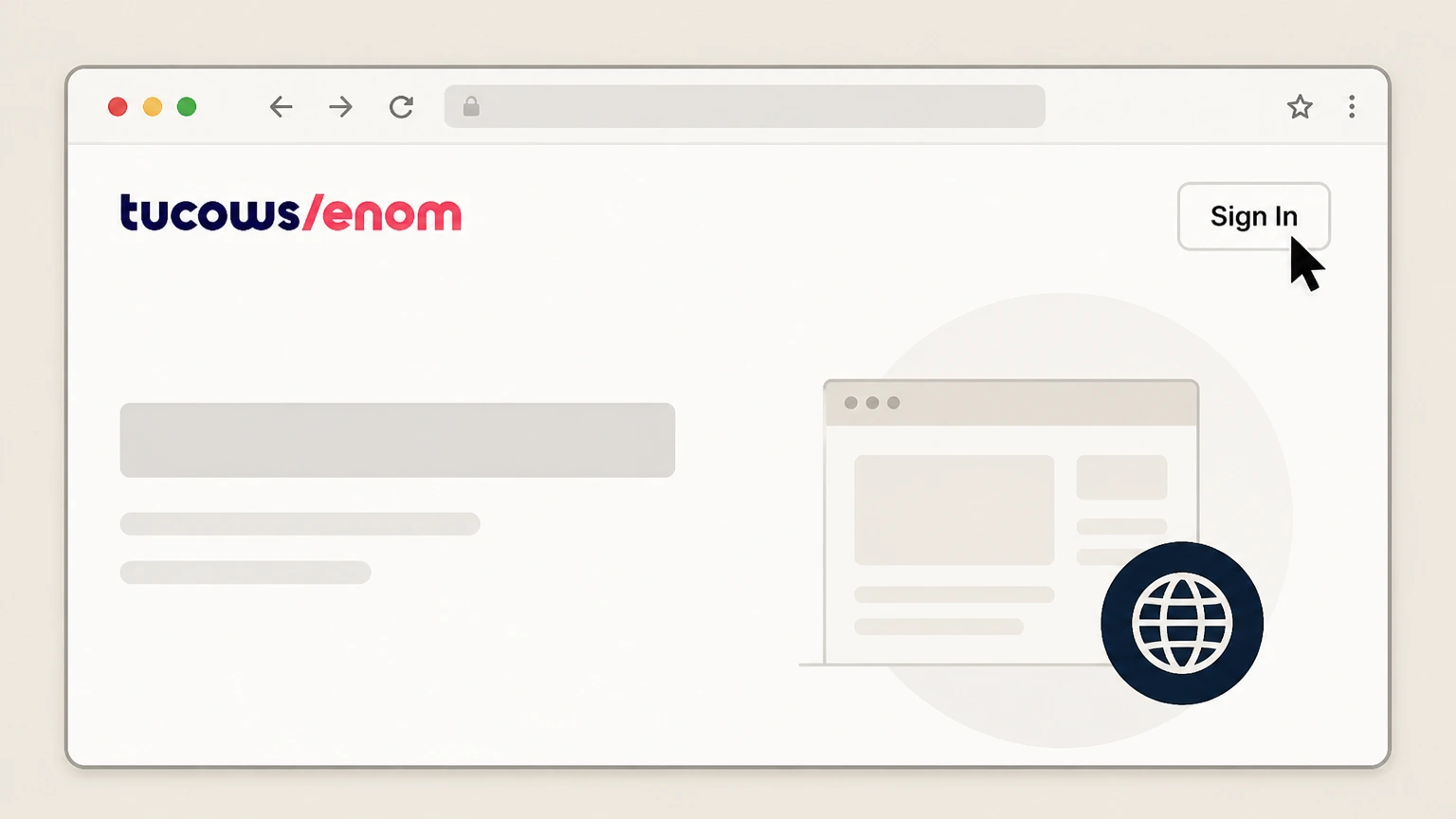
1Sign in to your Enom account
Go to enom.com or cp.enom.com, click "Sign In," and log in with the account that bills you for the domain or service.
 2
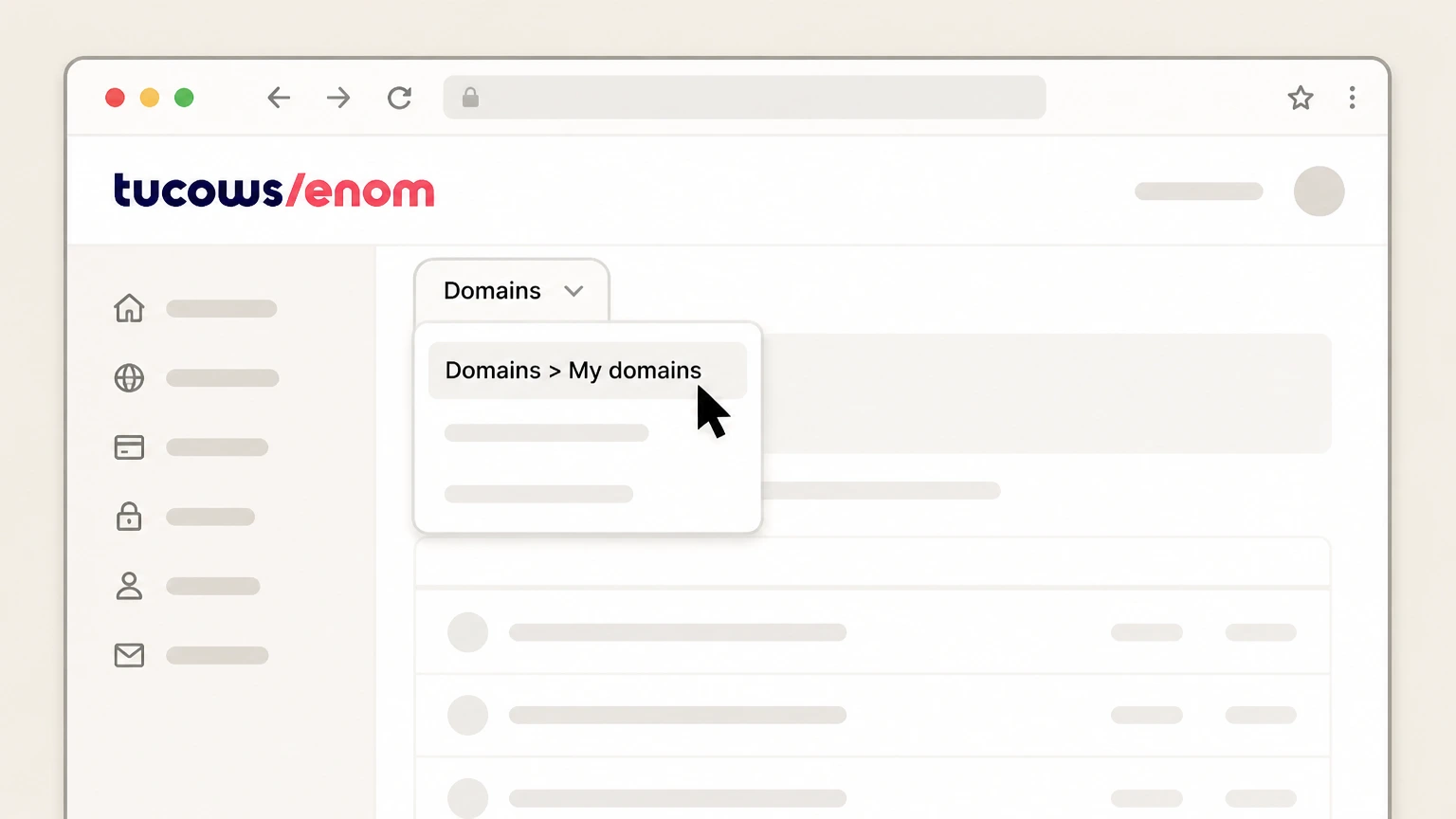
2Open your domain list
In the top navigation bar, select "Domains" and then choose "My domains" to view your registered domains.
- Let Pine handle it
Pine can help
Too many steps?
Pine can find the right Turn off auto-renew in your Enom account path and handle the cancellation for you.
 3
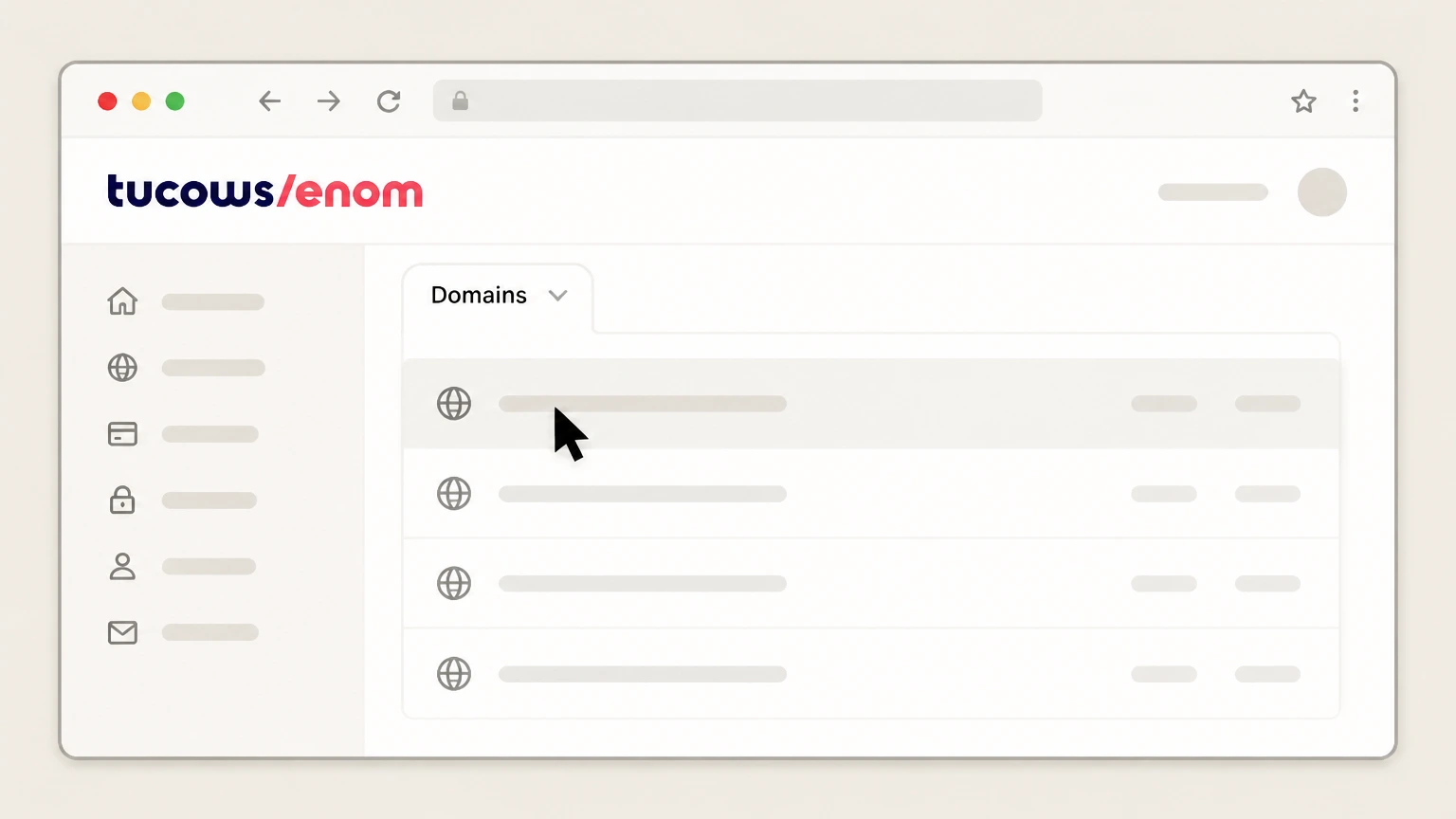
3Select the domain to manage
Click the domain name whose renewal settings you want to change so its domain overview page opens.
 4
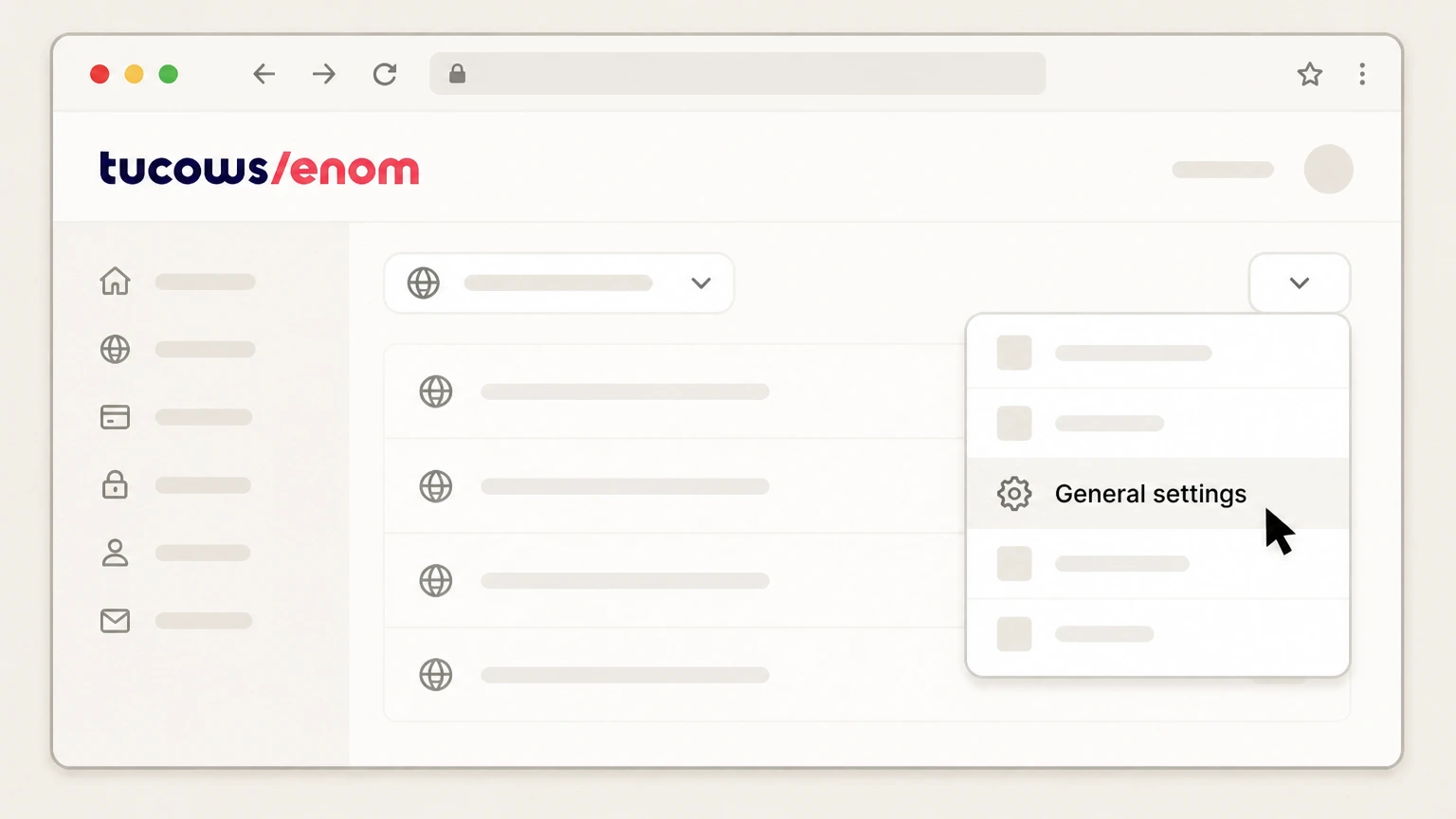
4Open General settings for the domain
From the "Manage domain" dropdown on the right, choose "General settings" for that domain.
 5
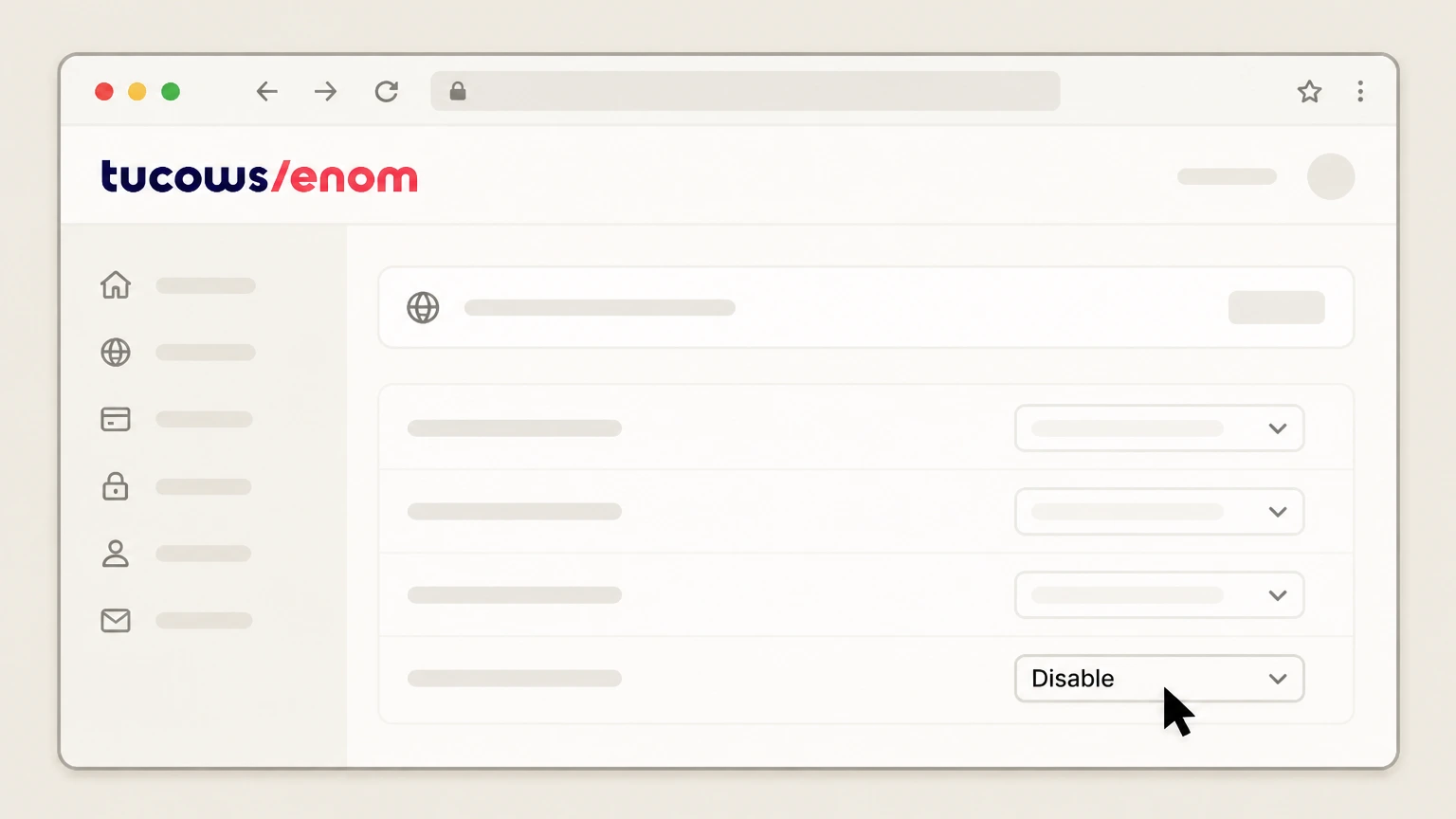
5Disable auto-renew for the domain
On the "Auto Renew" line in General settings, select the "Disable" option to turn off automatic renewal for this domain.
 6
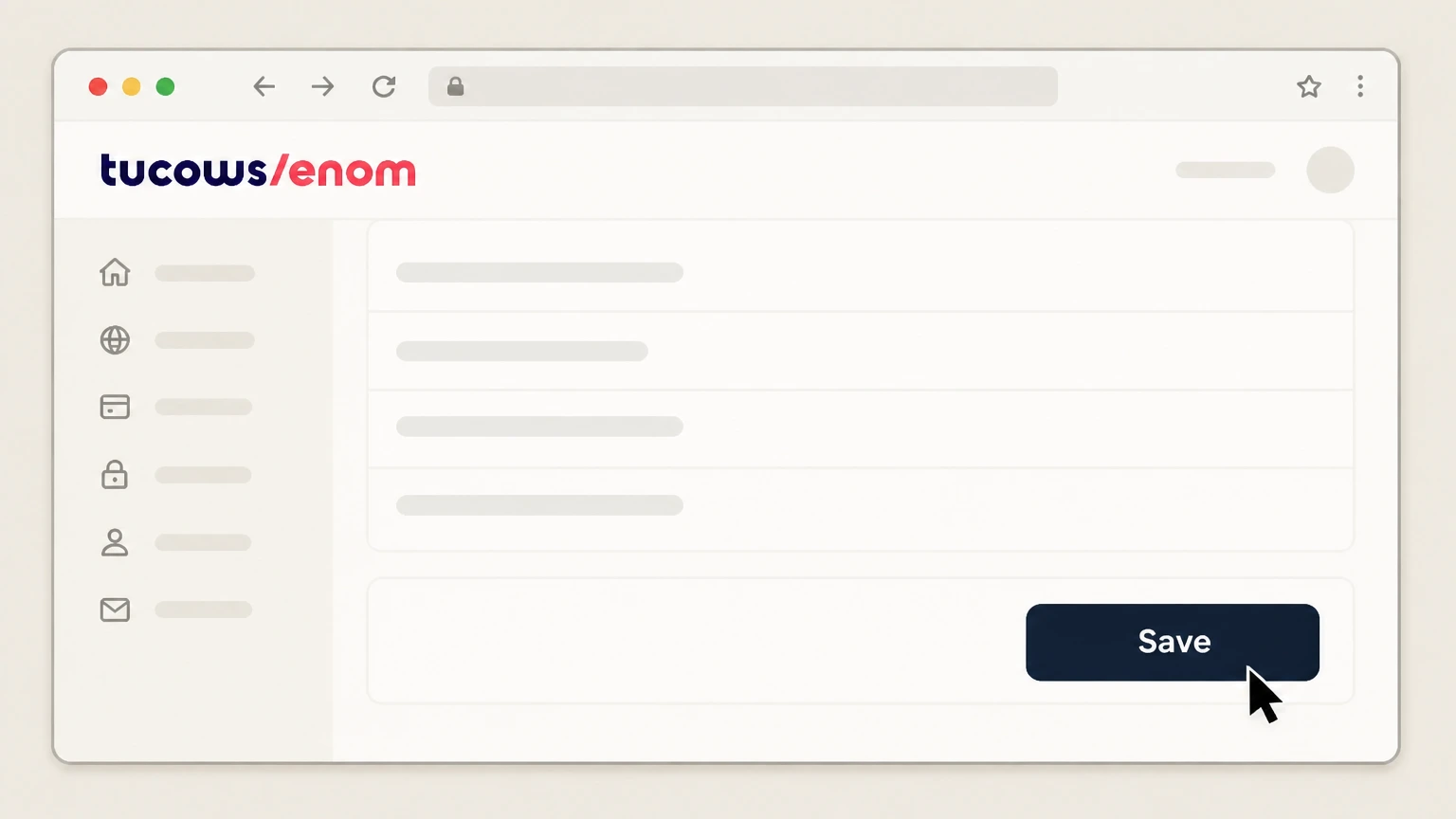
6Save your renewal changes
Scroll to the bottom of the page and click "Save" so your updated Auto Renew preference is stored.

Cancel through your Enom reseller or Google Workspace · verify the billing owner
Cancel Enom through Cancel through your Enom reseller or Google Workspace
 1
1Open Enom’s reseller lookup tool
In a browser, go to Enom’s reseller lookup tool page from the help center to identify who manages your domain.
 2
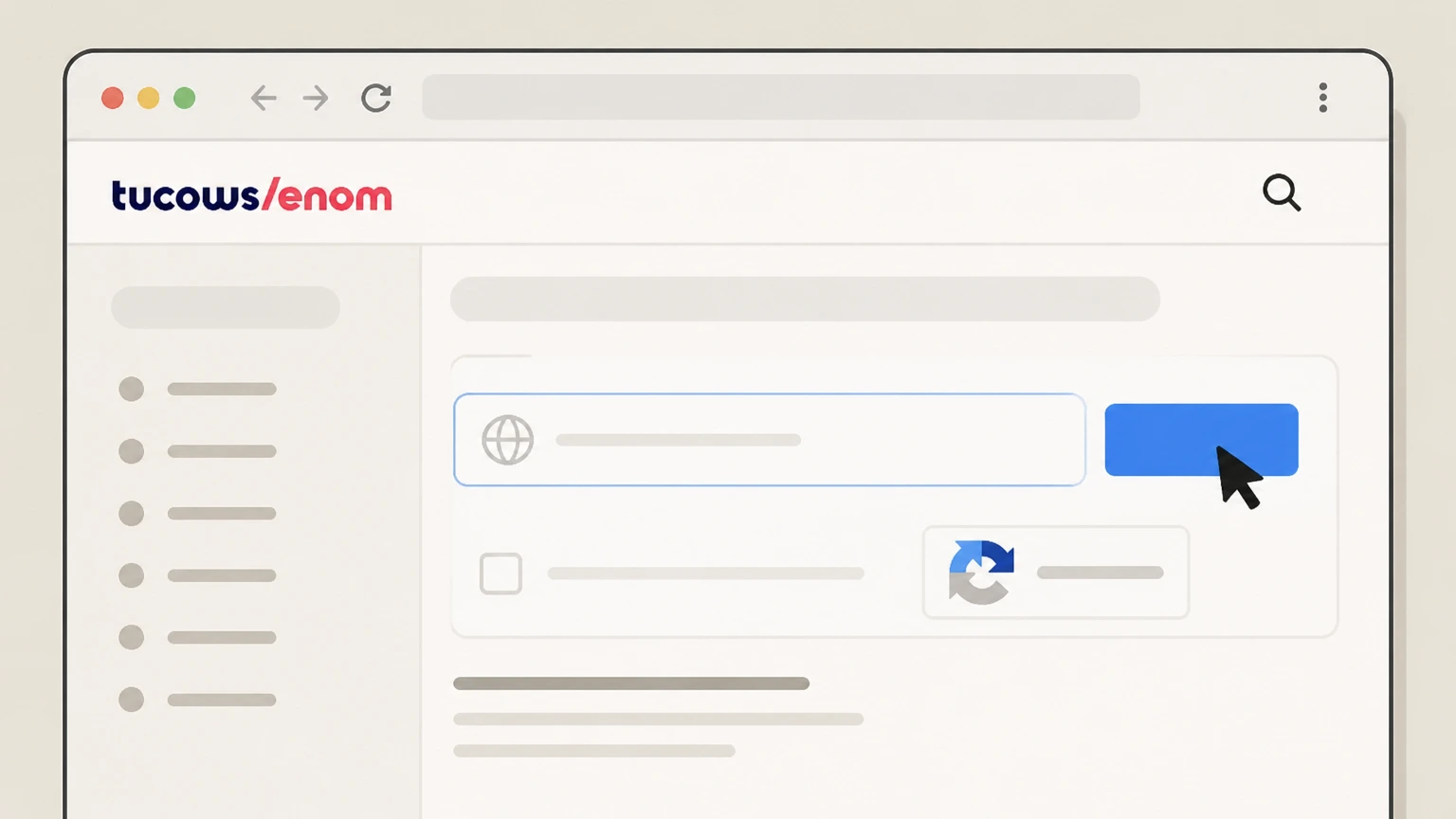
2Search for your domain’s reseller
Enter your domain name in the lookup field, complete the captcha if shown, and submit the search to see the reseller details.
- Let Pine handle it
Pine can help
Too many steps?
Pine can find the right Cancel through your Enom reseller or Google Workspace path and handle the cancellation for you.
 3
3Review the reseller’s contact information
Use the reseller name, website and contact details returned by the lookup to locate their support or account‑management portal.
 4
4Request cancellation or auto-renew removal
Contact the reseller’s support or use their control panel to ask that auto‑renew or future billing be cancelled for your domain or service.
 5
5Confirm cancellation with the reseller
Check the reseller’s portal or confirmation email to verify that auto‑renew is off or that the service is marked not to renew.
Refund policy
Enom refunds and money-back expectations
Enom generally treats domain registrations, renewals and many related services as non‑refundable once processed, so cancelling auto‑renew mainly prevents future charges rather than undoing existing ones.
Check my refund options- Standard registration and renewal
- The registration agreement specifies that fees for services such as domain registrations and renewals are non‑refundable unless a particular section of the contract expressly allows a refund. This means disabling auto‑renew usually only affects future billing, not past charges.
- Premium and redemption pricing
- Enom’s renewal and redemption guides explain that premium domains have non‑refundable registration and renewal fees and that redemption recovery requires a substantial extra fee which is not refunded once a recovery has succeeded.
Review Enom’s current registration agreement and then contact your billing owner (Enom or your reseller) directly to discuss any exceptional refund requests tied to cancellations. Review Enom’s registration agreement
Who controls your Enom billing
Enom billing ownership, resellers, and Google Workspace
Enom distinguishes between domains billed directly in its own control panels and domains billed through resellers or partners. Knowing which applies to you determines where you cancel.
Direct Enom and EnomCentral accounts
If you log in at enom.com or cp.enom.com and see Domains › My domains with your registrations listed, Enom or EnomCentral bills you directly, and you manage renewals and cancellations there.
Reseller-managed domains
Many domains show Enom as registrar in WHOIS but are managed through a reseller. Enom’s help center says you must always contact your reseller first for assistance, including renewals.
Google Workspace domains
When a domain is registered through Google Workspace, Google remains your billing owner. Enom provides DNS support, but renewal and cancellation requests must go through Google Workspace support.
Finding your reseller
If you are unsure who manages billing, Enom provides a reseller lookup tool where you enter your domain and receive the reseller’s contact information and website link.
Unresponsive reseller escalation
If you have tried the reseller’s phone, email or ticket system and they have not replied in over two business days, Enom support offers a documented process to step in directly.
Primary cancellation mechanics
Stopping renewals for Enom domains and services
Enom treats each domain and each attached service (DNS hosting, email, ID Protect, etc.) as having its own auto‑renew flag, so you must disable renewal per item you want to cancel.
Per-domain auto-renew setting
For a direct Enom account, open Domains › My domains, click a domain, go to General settings, and set Auto Renew to Disable to stop that domain from auto‑renewing.
Auto-renew timing
Enom attempts automatic renewal about 30 days before the listed expiration date to allow time to resolve billing issues; their auto‑renew article advises turning it off at least 31 days before expiry.
Value Added Services (hosting, email, DNS)
DNS hosting, email packages and similar add‑ons also have auto‑renew controls in their respective management pages, and must be disabled separately if you want those services to end.
ID Protect renewal
WHOIS privacy (ID Protect) can be toggled off at the domain level; the article explains how to open the ID Protect column for a domain and clear the auto‑renew checkbox for that privacy service.
Manual renewal still possible while active
Even with auto‑renew disabled, you can manually renew a domain from your account until it passes through its expiry grace period, after which it may enter redemption or auction.
What changes after you cancel
What happens after you disable Enom auto-renew
Disabling auto‑renew changes how and whether future charges occur, but your existing registration and services continue through their current terms and follow Enom’s standard expiry lifecycle.
Service continues until expiry
Turning auto‑renew off does not immediately delete your domain or shut down services. Your domain stays registered and your DNS or email continues to work until the listed expiration date.
Expired domain behaviour
Once a domain expires without renewal, Enom typically replaces live DNS with an expired parking page, and website and email services stop working even though the domain can still be renewed for a time.
Expiry grace and redemption windows
Most gTLDs have a non‑guaranteed grace period after expiry, then a redemption period; during redemption, recovery requires paying a separate redemption fee plus renewal and is not always possible.
Auction or deletion after redemption
If a domain is neither renewed in grace nor recovered from redemption, Enom’s policies allow it to be auctioned or eventually deleted and returned to general availability at the registry.
Account and data remain
Cancelling renewals does not automatically delete your Enom account or erase associated registration data; Enom’s registration agreement allows retaining some data for legitimate and contractual needs.
Enom cancellation FAQ
Provider-specific answers about billing, timing, refunds, and confirmation.
What happens to my Enom domain after I turn off auto-renew?
Can I transfer my Enom domain instead of cancelling it?
How do I cancel Enom email or other add-on services?
How do I know my Enom cancellation worked?
Can I get a refund after cancelling an Enom domain?
Untangle this Enom issue.
Let Pine handle the provider follow-up and keep the confirmation in one place.
