

CodePen
Cancel subscription
How to Cancel CodePen Subscription: Official Steps
Learn how to cancel CodePen PRO from your settings, confirm the downgrade date, understand what happens to Pens, and review refund and account options.
- 4 current official sources checked
- 1 billing route separated
- Legacy Provider and equivalent Blog content reconciled claim by claim
- Steps, outcomes, refund boundaries, and related products revalidated
How to cancel CodePen through the correct billing owner
Web cancellation
Cancel CodePen through Web
 1
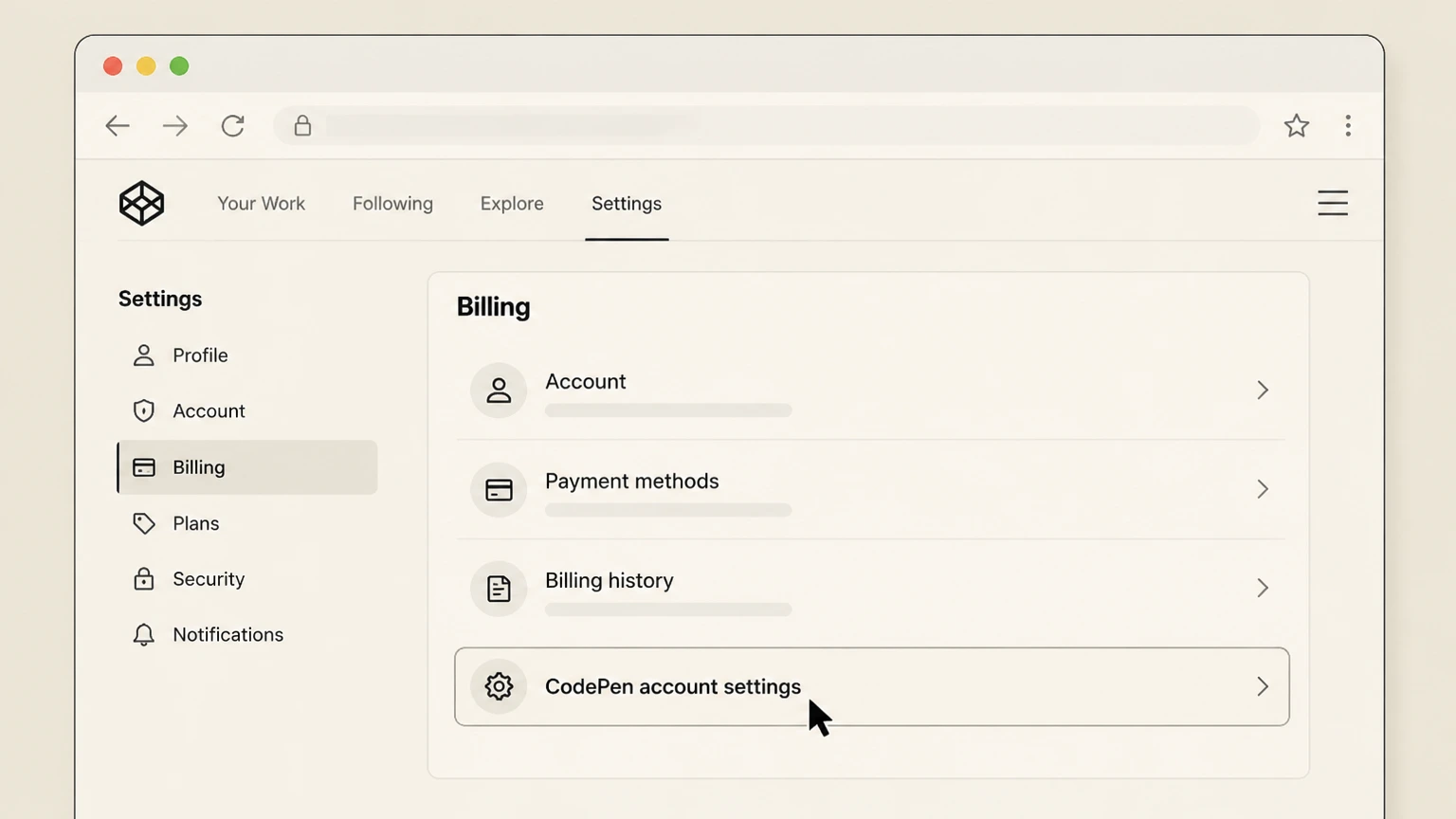
1Open CodePen account settings
In a desktop or mobile browser, go to codepen.io and sign in to the account that is being billed for PRO. Select your avatar or profile menu in the site header and choose “Settings” to open your account settings area, where plan status and billing tools are located.
 2
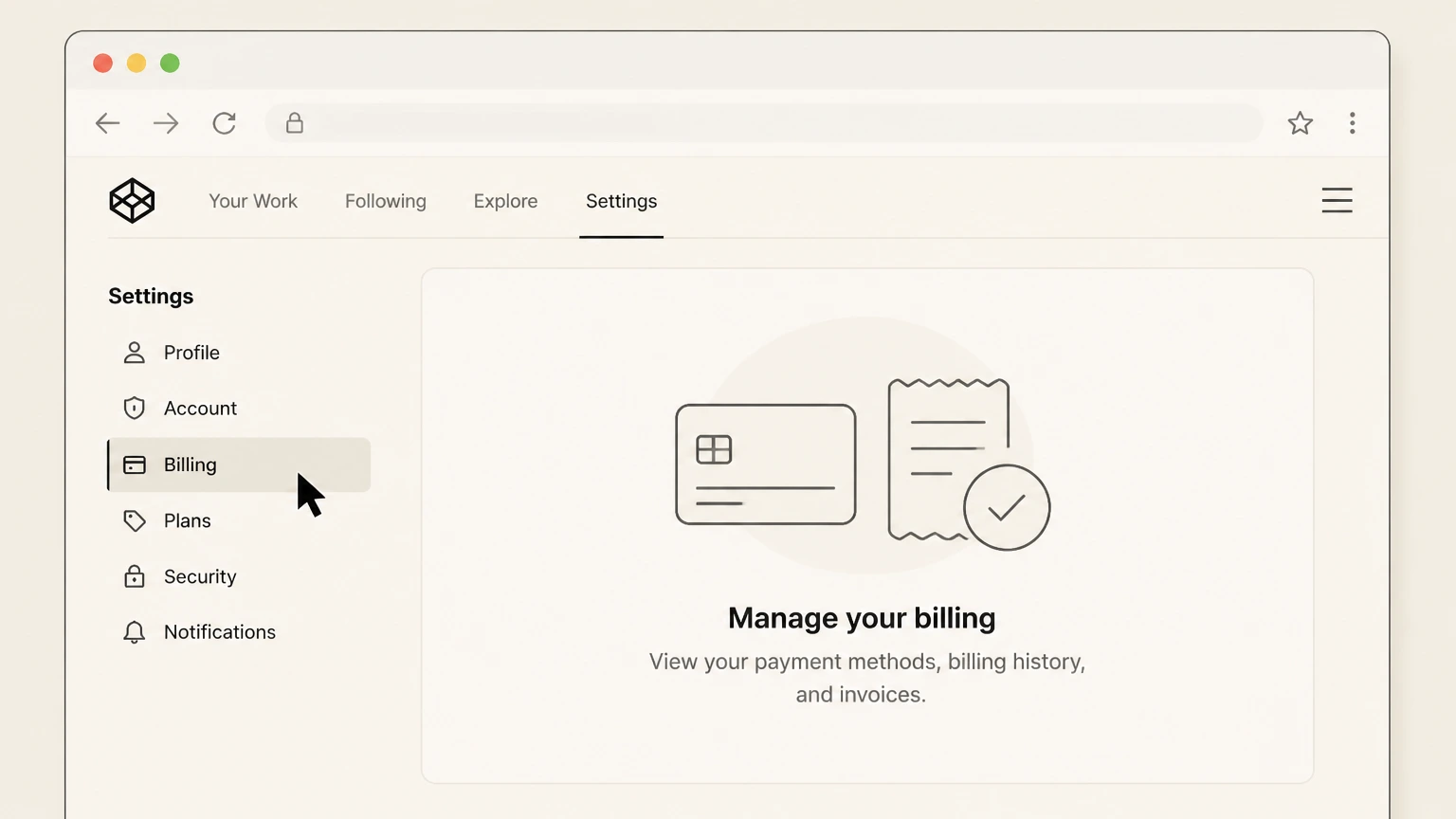
2Open Billing
Inside Settings, look for the section or tab labeled Billing or PRO/Billing in the navigation. Open it; you should see your current PRO plan, renewal cadence (monthly or annual), payment details, and a billing history listing past charges and receipts for this account.
- Let Pine handle it
Pine can help
Too many steps?
Pine can find the right Web path and handle the cancellation for you.
 3
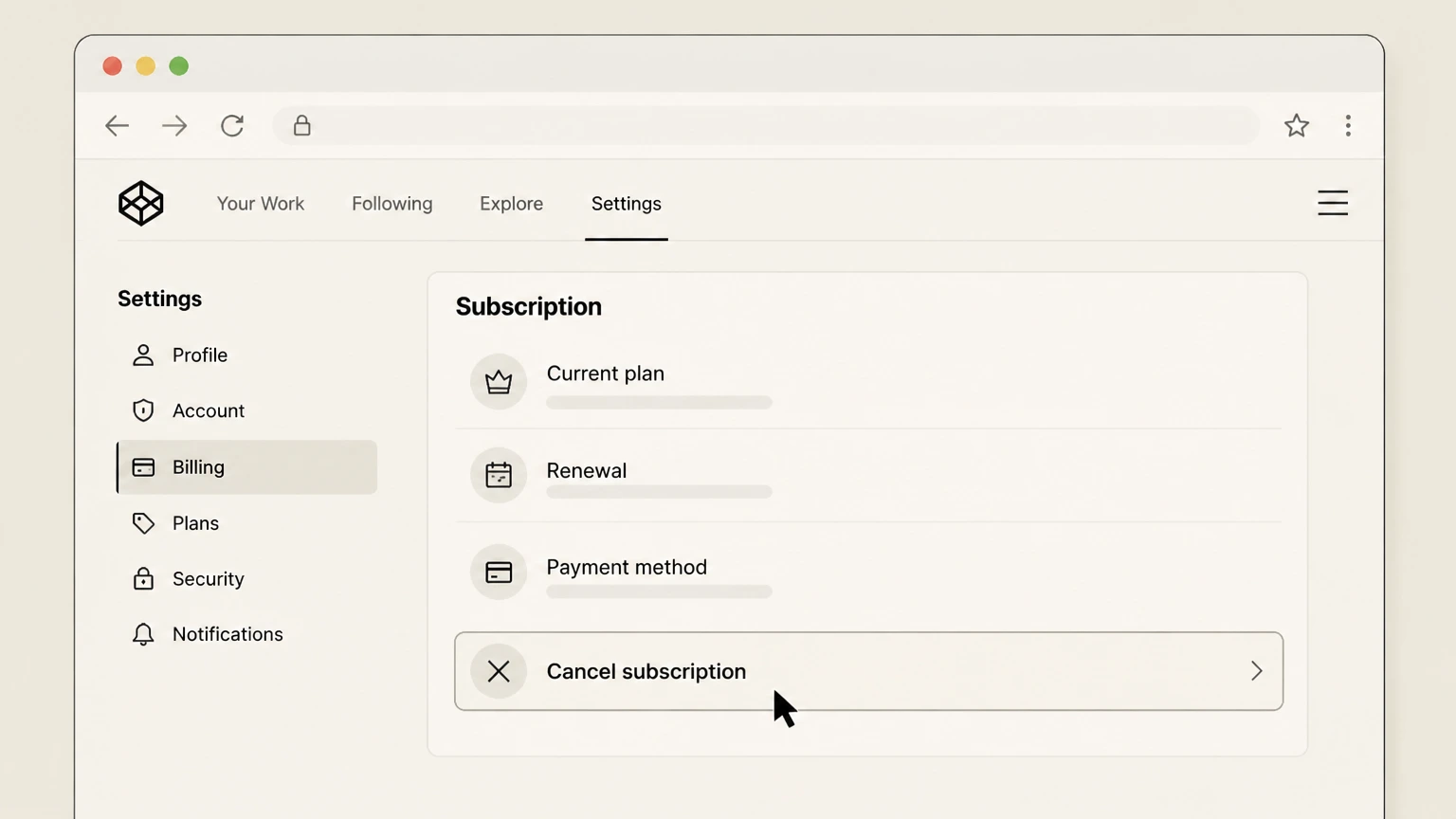
3Choose Cancel subscription
On the Billing page, locate the controls attached to your active PRO plan. Depending on the current layout, this may appear as a button or link such as Cancel, Cancel PRO, Cancel Plan, or a Manage/Change Plan option that reveals cancellation. Select the option that indicates you are ending or cancelling your PRO membership and follow any on‑screen prompts.
 4
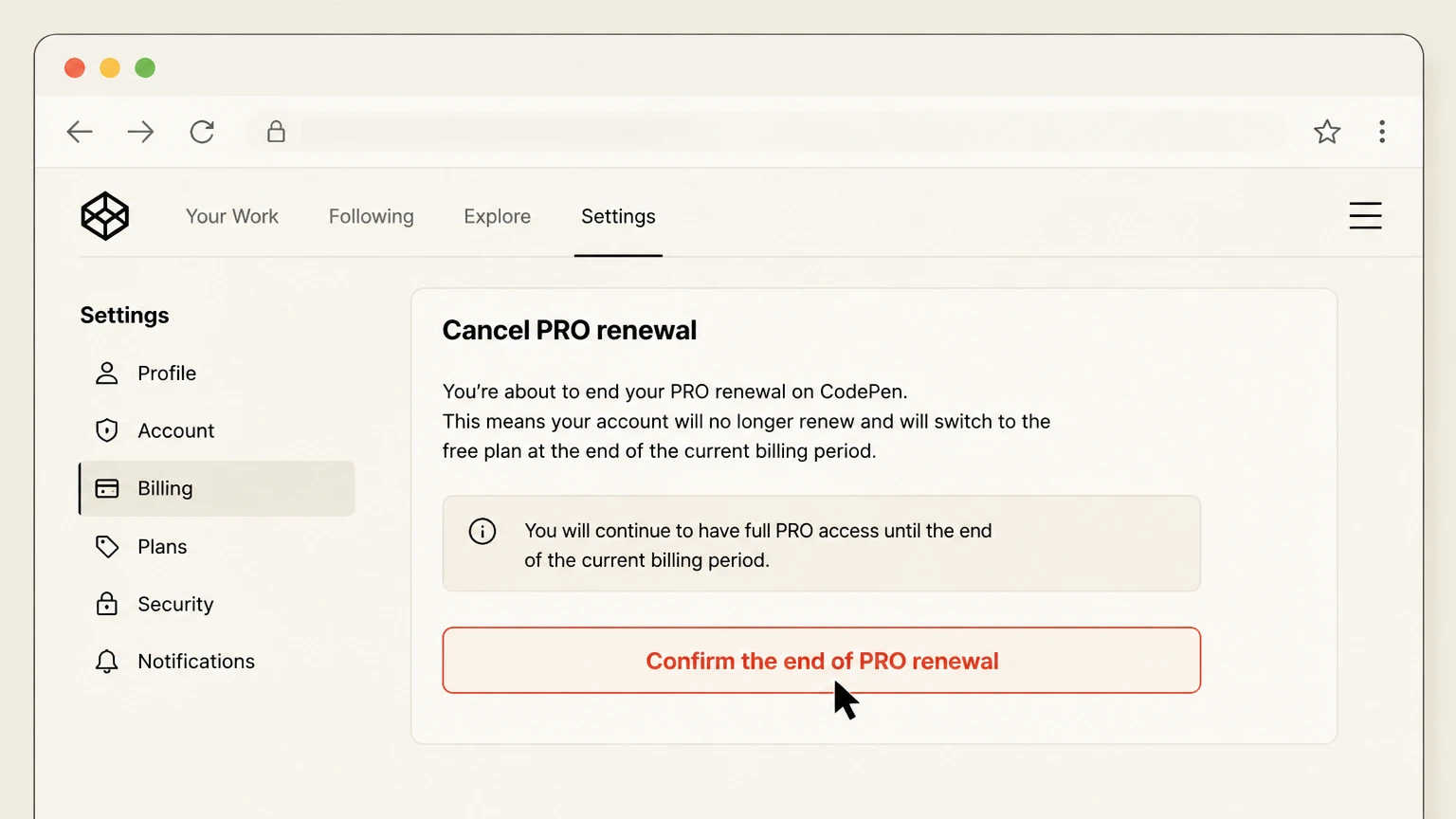
4Confirm the end of PRO renewal
Review the confirmation message carefully; it should indicate that you will not be charged again and that your account will downgrade to the Free plan after the current paid period ends. Confirm the change, then return to Billing to verify that no future PRO renewal is listed and that your plan is set to become Free once the existing term runs out.

Refund policy
Refunds and billing disputes for CodePen PRO
CodePen’s Terms of Service set strict non‑refundability rules for PRO payments, while still allowing you to prevent future renewals by cancelling in Settings.
Check my refund options- Payments are generally non‑refundable
- CodePen states that the site is billed in advance and that all payments are non‑refundable, with no refunds or credits for partial months of service, for changes in plan level, or for unused time on an open account.
- Cancelling stops future charges only
- When you cancel your PRO plan from Billing settings, CodePen confirms that you won’t be charged again and that your account will downgrade to Free after the current term runs out. The Terms add that you will not receive refunds for the remaining time in that term.
- Handling mistaken or unclear charges
- If a charge appears that you do not recognize, CodePen’s charge help page invites you to contact them so they can verify the charge and provide account details that help identify who subscribed. Any adjustments or exceptions would be handled case‑by‑case and are not promised in the public policy.
- Deleting the account does not trigger refunds
- The cancellation and termination section explains that deletions take effect immediately, that you will not be charged for subsequent service periods, and that you will not be provided refunds for unused time on your service period after deletion.
If you believe you’ve encountered a billing error or an unauthorized CodePen charge, use the support contact linked from the charge help page so CodePen can investigate and advise what is possible under its terms. Go to CodePen’s charge help page
Access & roles
Who can cancel which CodePen subscriptions
Cancellation options depend on whether you’re using an individual PRO plan or a Team account, and on who controls the payment method.
Individual PRO account owners
For a personal PRO plan, the logged‑in owner of that CodePen account must open Settings → Billing and cancel the PRO membership there. CodePen’s terms specify that cancellation is performed through the site, not by sending an email request.
Team PRO owners and admins
Team subscriptions are billed to the Team, not to each member. A Team Owner signs in, visits Team Settings, then uses the Team’s Billing tab, which includes a Cancel PRO button that can cancel the Team plan and disband PRO seats.
Enterprise or custom‑invoiced plans
Enterprise plans use custom agreements and may rely on invoicing instead of self‑serve checkout. CodePen directs such customers to contact them with requirements; the exact cancellation procedure may be defined in the enterprise contract rather than in the self‑serve UI.
Why support won’t directly cancel
CodePen’s terms explain that cancelling a payment plan or deleting an account is done from Settings and that an email or phone request does not, by itself, cancel your account. Support can guide you, but you’re expected to complete the in‑app steps.
After cancellation
What happens after you cancel PRO
CodePen differentiates between stopping future billing and deleting your account entirely. Cancelling PRO mainly affects renewals and access to PRO‑only features.
End of automatic renewals
When you cancel from Billing Settings, CodePen states that you won’t be charged again for PRO. Your plan is set to transition to Free after the current paid period finishes instead of renewing.
Continued PRO access until term ends
Cancelling PRO does not normally cut off access immediately. CodePen explains that you will be downgraded to Free once your existing PRO plan “runs out,” so you can keep using PRO benefits for the remainder of the prepaid term.
Loss of PRO features after downgrade
CodePen’s Terms of Service warn that downgrading your plan may cause the loss of content, features, or capacity, and that it accepts no liability for such loss. After the downgrade, expect PRO‑only features and higher limits to stop working.
Distinction from account deletion
Ending PRO billing and deleting your CodePen account are different actions. Cancelling billing downgrades you to Free; deleting the account removes the entire account and its content, which CodePen describes as unrecoverable once deletion is complete.
Account status
Cancelling PRO vs deleting your CodePen account
You can stop PRO billing and keep your CodePen profile, or permanently close the account. The implications for your work and data are different.
Cancelling the payment plan only
To keep your CodePen account but stop paying, cancel the PRO plan from Billing or the PRO account tab in Settings. The account stays active on the Free plan and you can still sign in, browse, and work within Free‑tier limits.
Deleting the account entirely
From the same Settings area, CodePen allows you to delete your account. The Terms say that any cancellation of your Account results in deactivation or deletion of your Account and forfeiture of all content, with no way to recover it from CodePen afterward.
Effect on existing content when deleting
Account deletion is broader than downgrading: it removes your access and the stored content in that account. CodePen notes that it may retain residual data in backups temporarily, but that from a user perspective, “everything in it is gone forever.”
When to choose downgrade vs deletion
If you only want to stop charges but still need access to your Pens or public profile, use the in‑app cancellation to downgrade to Free. Reserve full account deletion for situations where you no longer need any of your CodePen data or presence.
Pens, assets & storage
How your work is affected by downgrading
CodePen hosts your Pens, Collections, and assets, and PRO changes mainly affect features and capacity. Exact behavior can depend on which tools you use.
Pens and Collections remain in your account
CodePen’s documentation and pricing table describe how PRO adds privacy, asset hosting, and other enhancements, but do not say that cancelling deletes your Pens. In practice, your work remains tied to the account, while feature availability reflects your new, lower plan.
Warning about potential loss when downgrading
The Terms explicitly caution that downgrading your plan may cause loss of content, features, or capacity and that CodePen is not liable for that loss. Before cancelling PRO, review any projects that depend heavily on PRO‑only capabilities or storage.
Asset Hosting considerations
Asset Hosting is promoted as a PRO feature that lets you upload and serve files (images, scripts, media) directly from CodePen. After you downgrade, you should expect new uploads or higher storage tiers to be unavailable, and you should test any demos that rely on hosted assets.
Receipts and billing records
Your history of PRO payments is not removed by cancelling. CodePen explains that links to past receipts are available from your account’s settings area and billing or account tab, so you can still download invoices after stopping renewals.
Evidence of cancellation
Finding receipts and tracking your cancellation
CodePen provides billing history and invoices inside the app so you can confirm past payments and show when you stopped renewing.
Viewing past receipts
CodePen’s billing help page notes that you can log in, open your settings page’s account or billing tab, and find a list of links to past receipts for your PRO payments. This history remains available after you cancel the plan.
Team billing history
Team Billing documentation explains that each Team’s Billing tab includes a Billing History section, where owners can see all Team payments and update invoice address details. That history helps prove when a Team PRO plan was cancelled.
Using billing history to verify cancellation
After cancelling, you can revisit Billing and Billing History to confirm that you see no new invoices beyond the last paid term. Combined with checking that your plan shows as Free once the period ends, this provides evidence that renewals have stopped.
Matching receipts to card statements
If you receive a charge and are unsure which account it belongs to, CodePen suggests contacting support to verify the charge and obtain account information that helps trace who signed up, so you can then cancel from that account’s Billing page.
Billing mechanics
How CodePen bills you and what you can change
Understanding how CodePen charges for PRO helps you know what cancelling will and will not change.
How CodePen takes payment
The pricing page lists accepted payment methods, including credit cards, PayPal, and certain browser‑based wallets such as Apple Pay or Google Pay when available on your device. All of these ultimately fund the same CodePen‑managed PRO subscription.
Prepaid, auto‑renewing terms
CodePen’s Terms state that paid accounts are billed in advance on a monthly or yearly basis, that payments are non‑refundable, and that monthly or annual subscriptions re‑bill automatically unless changed.
Non‑refundability of payments
The Terms provide that all payments are non‑refundable, with no refunds or credits for partial months of service, upgrade or downgrade changes, or unused time on an open account. Cancelling primarily affects future renewals, not amounts already charged.
What if the charge is unfamiliar?
If you see “CodePen” on a statement and don’t recognize it, CodePen’s charge help page advises first asking inside your organization, then contacting CodePen so they can verify the charge and share information to help identify the account that created it.
If things don’t match the guide
Troubleshooting missing or confusing cancellation options
Because CodePen’s Settings UI can change, focus on the Billing destination and your plan status rather than a single fixed button label.
If you can’t find Billing
If you’re signed in but don’t see Billing, open Settings from your avatar and look for tabs related to Billing, Account, or PRO. CodePen’s own docs refer to Billing Settings and the account area of Settings as the places to cancel or see billing history.
If there’s no cancel button
Some layouts group cancellation under a Change Plan or Manage Plan control instead of a standalone Cancel button. Look for any link near your PRO plan description that mentions changing, cancelling, or ending the membership before assuming cancellation is unavailable.
If you don’t know which account is billed
When a card is charged but you can’t match it to a CodePen login, the charge help page says CodePen support can verify the charge and provide account information that helps you track down who signed up so they can cancel from Settings.
If you’re having trouble with a Team
For Team billing problems—such as not seeing the Team Billing tab or being unable to change seats—CodePen’s Team Billing documentation advises contacting support for assistance while signed in as a Team Owner.
Other changes
Alternatives to fully cancelling CodePen PRO
If you still need some PRO features or Team access, you may be able to adjust your plan instead of cancelling outright.
Switching between PRO tiers
CodePen allows you to change PRO plans at any time via the PRO plan signup or account area in Settings. New plans take effect immediately, and moving up is pro‑rated; this can reduce cost without losing PRO entirely if a lighter plan is sufficient.
Reducing Team seats instead of cancelling
Team Billing lets owners change the number of PRO seats for a Team, as long as enough seats are unused to support the downgrade. This can lower ongoing charges while keeping the shared Team workspace running.
Removing PRO access from some members
Team owners or admins can remove PRO access from specific members, including themselves, by selecting Remove PRO Access in Team settings. This shifts who has PRO features without cancelling the entire Team subscription.
Staying on the Free plan for light usage
Because CodePen’s Free plan supports unlimited public Pens and Collections, you can often downgrade to Free and still use it as a public playground, relying on external hosting or other tools when you need capabilities that were previously covered by PRO.
CodePen cancellation FAQ
Provider-specific answers based on official sources checked August 10, 2026. Signed-in terms, region, billing owner, and applicable law still control.
When does my CodePen PRO subscription actually end after I cancel?
Can I cancel CodePen PRO without deleting my account?
How do I cancel a CodePen Team PRO subscription?
Can I get a refund if I forgot to cancel my CodePen PRO renewal?
What happens to my Pens and assets after I downgrade from PRO?
Can CodePen support cancel my subscription for me?
How can I confirm that my CodePen PRO plan is cancelled?
What if a CodePen charge appears on a shared company card?
Untangle this CodePen issue.
Let Pine handle the provider follow-up and keep the confirmation in one place.
