


BrowserStack
Cancel subscription
How to Cancel BrowserStack Subscription: Official Steps
Learn how to cancel BrowserStack from the account dashboard, distinguish enterprise billing, preserve test data, and understand renewal and refund limits.
- 18 current official sources checked
- 1 billing route separated
- Legacy Provider and equivalent Blog content reconciled claim by claim
- Steps, outcomes, refund boundaries, and related products revalidated
How to cancel BrowserStack through the correct billing owner
Web cancellation
Cancel BrowserStack through Web
 1
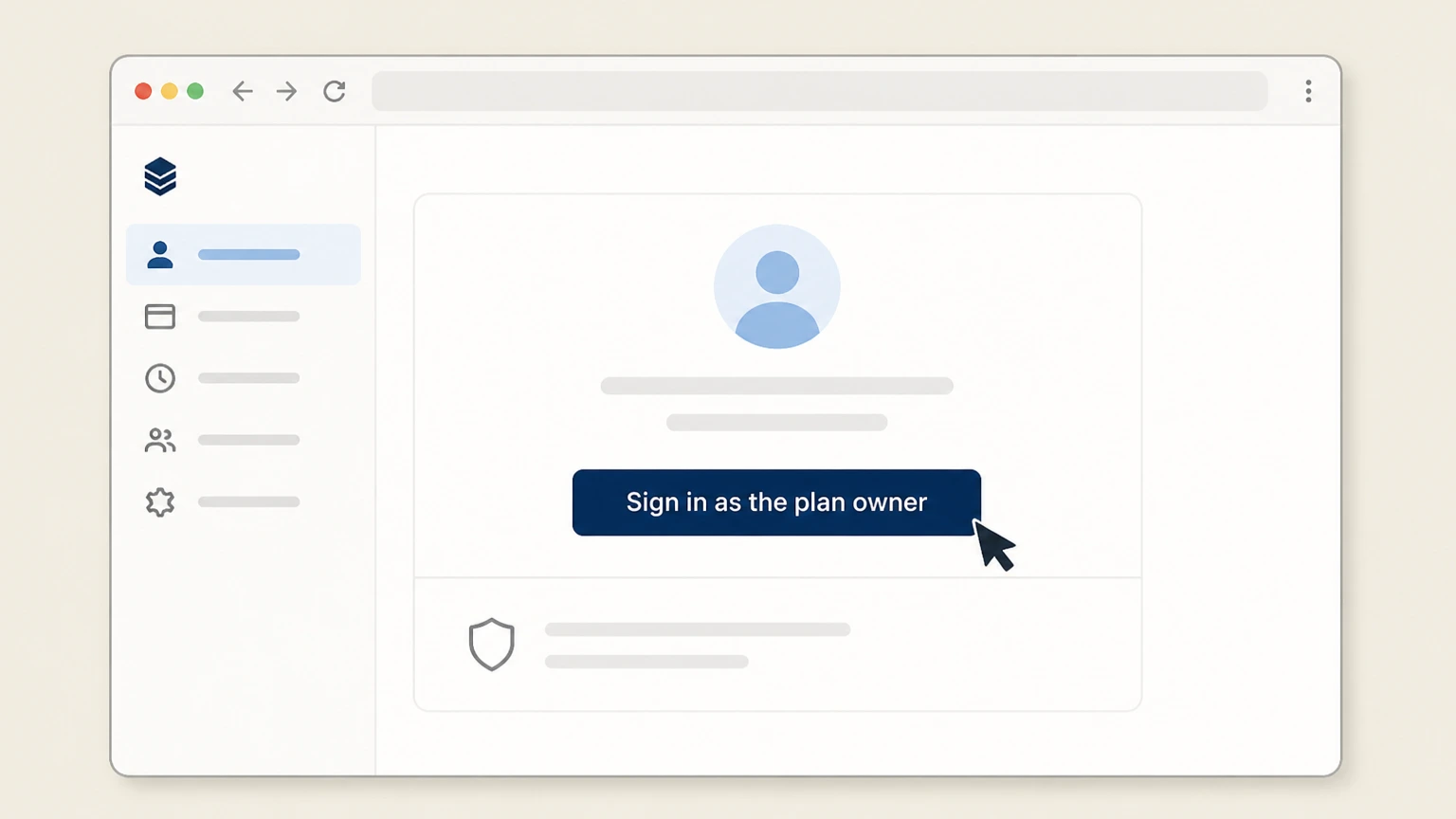
1Sign in as the plan owner
Open browserstack.com in a desktop or mobile browser and sign in with the account that appears as the Owner of your organization. Only the Owner can access billing details and cancel a plan, so if you are unsure who that is, use BrowserStack’s owner-identification help or ask an internal admin to confirm before proceeding.
 2
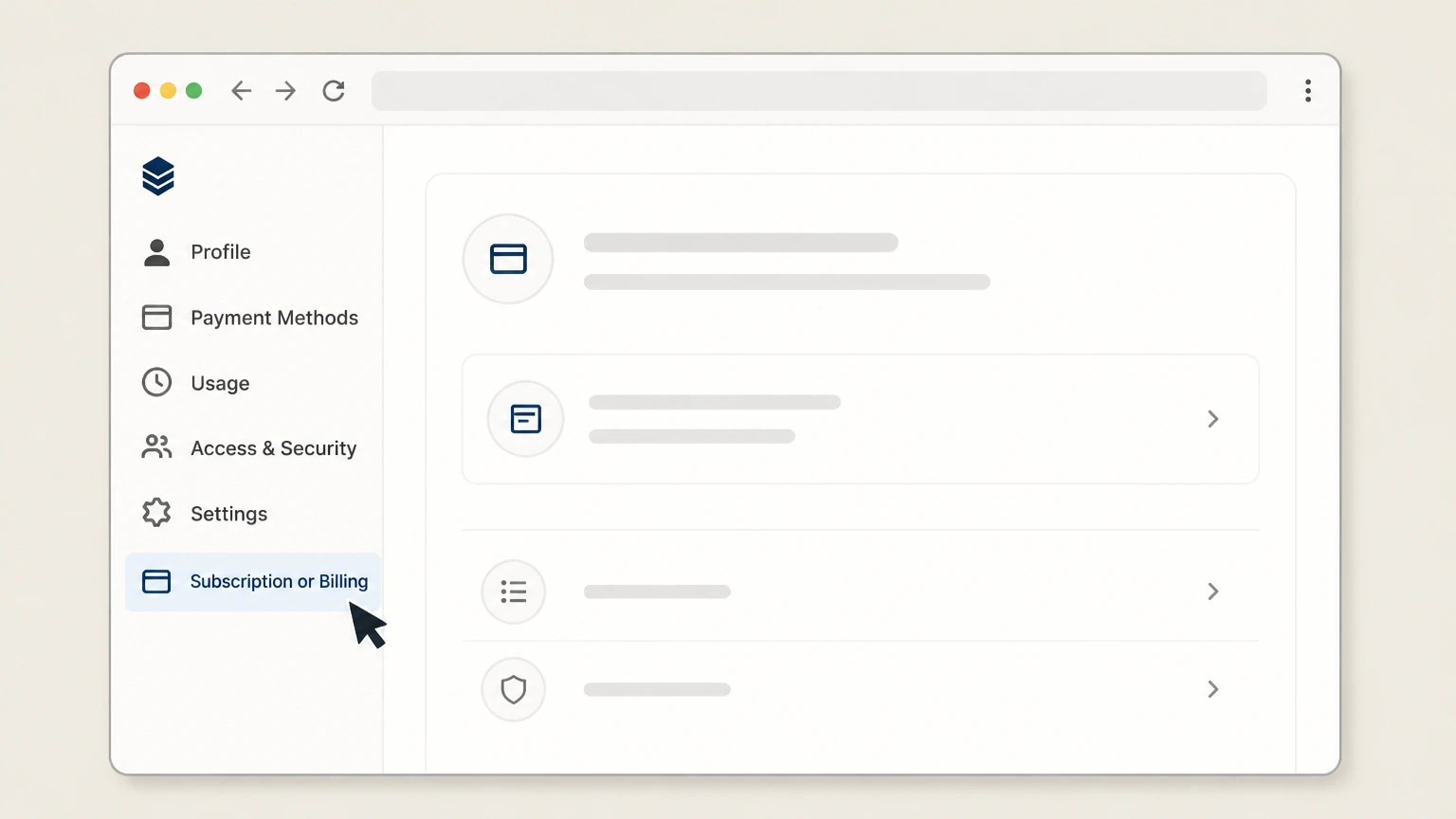
2Open Subscription or Billing
After signing in, select your profile or user icon in the upper-right corner and choose the Account & Profile option to open your account dashboard. On this page, scroll until you see your current plan or Plan details section, which shows the product, billing cycle, and renewal information for the subscription you intend to cancel.
- Let Pine handle it
Pine can help
Too many steps?
Pine can find the right Web path and handle the cancellation for you.
 3
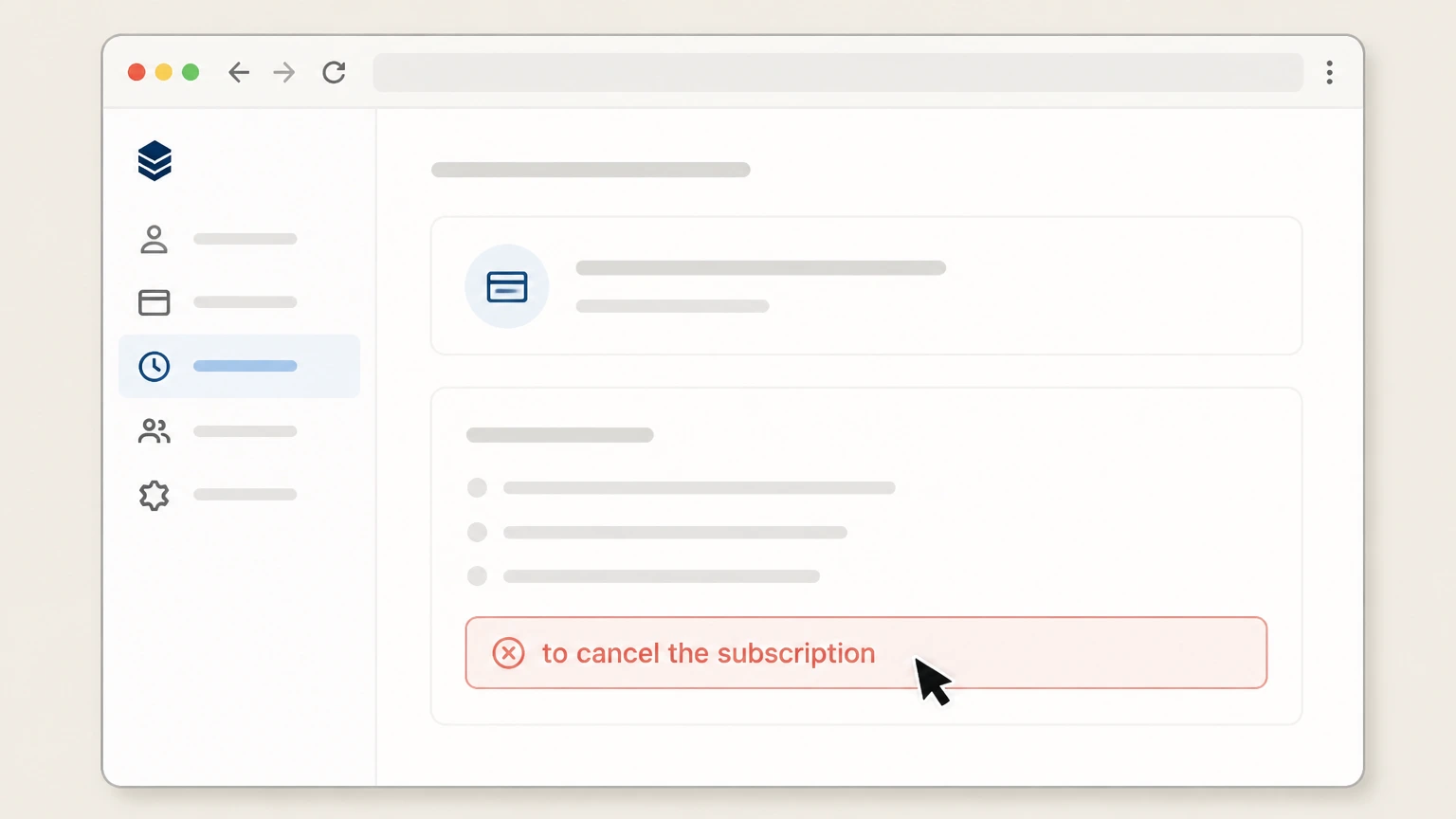
3Choose to cancel the subscription
Within the Account & Profile page, look for BrowserStack’s Cancel Plan control linked to your active subscription. Depending on your interface variant, either use the Cancel Plan option shown near the bottom of the page, or open the three-dots menu next to your plan in the Plan details section and choose Cancel Plan there; both paths stop auto‑renewal for that plan.
 4
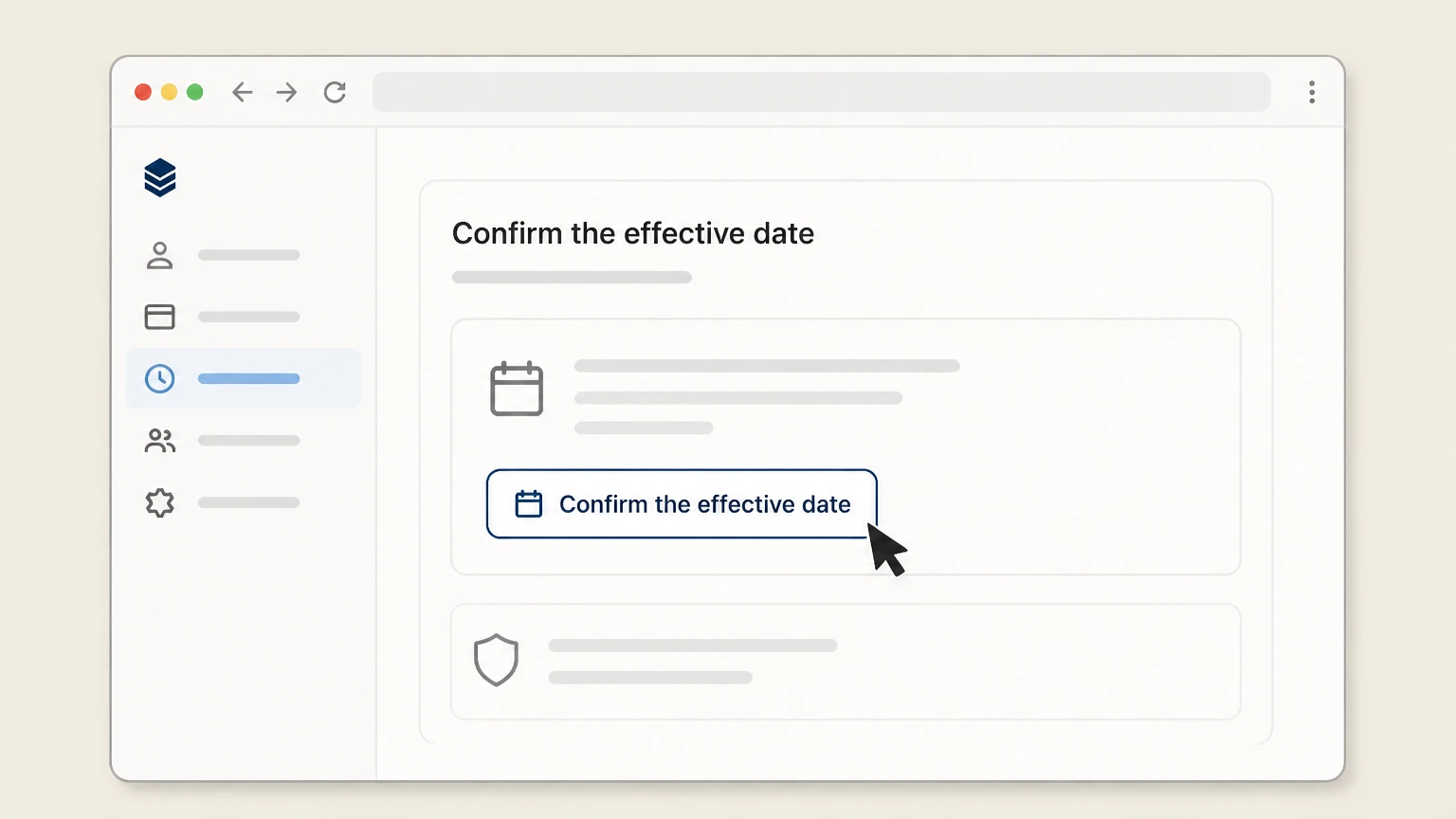
4Confirm the effective date
Follow the on-screen prompts to finalize cancellation and review any confirmation message about your plan status. Verify on the Account & Profile page that auto‑renewal is turned off and note that, under BrowserStack’s policy, your subscription will remain active until the end of the current billing cycle; keep a screenshot or email confirmation for your records in case of future billing questions.

Refund policy
BrowserStack refunds, non-renewal, and overage charges
BrowserStack positions subscription fees as generally non-refundable while allowing cancellation of auto-renewal and continuing access until the end of the billing cycle; Percy plans and enterprise agreements add extra nuances.
Check my refund options- Subscriptions are typically non-refundable
- BrowserStack’s Terms state that subscription fees on applicable order forms are non‑cancellable and non‑refundable, so cancelling a plan normally prevents future renewals but does not create a right to a pro‑rated refund of remaining paid time, except where specific contractual clauses or law require otherwise.
- Percy explicitly disallows remaining-term refunds
- The Percy cancel/pause guide clarifies that BrowserStack does not offer refunds for the remaining billing period when you cancel a paid Percy subscription; you keep access for the rest of the cycle but cannot reclaim unused days or screenshots financially.
- Overage usage is still billed after cancellation
- Percy’s cancellation FAQ explains that cancelling prevents renewal, yet additional screenshots consumed during the current month or billing term are still charged at the end of that term, and invoices can show both regular renewal and overage costs together.
- Downgrades affect future billing, not past charges
- BrowserStack’s downgrade article notes that, under its refund policy, pending balances or prorated amounts are not refunded and advises initiating downgrades ahead of auto‑renewal, especially for annual accounts that can only be changed within a defined window after renewal.
- Viewing any refunds that are granted
- The Billing & Invoices FAQ states that Owners can view or download refund receipts from the Billing & Invoices section; while it does not define when refunds are issued, this section is where any granted credits or reversals will appear alongside your standard invoices.
Review BrowserStack’s live Terms, billing FAQs, and Percy documentation before relying on any refund expectations, especially if you operate under a negotiated enterprise contract. Check current BrowserStack refund terms
Permissions
Who is allowed to cancel a BrowserStack subscription
BrowserStack ties cancellation rights to the Owner role and distinguishes between self-service web purchases and subscriptions handled by its Sales team.
Owner-only cancellation rights
BrowserStack’s cancellation article states that you must be the Owner of the account to cancel the auto‑renewal of a plan; admins and users cannot stop billing themselves, even if they can run tests or invite teammates.
What “Owner” means in BrowserStack
In BrowserStack’s account model, the Owner is the person who purchased the subscription and has full privileges to buy, upgrade, downgrade, and cancel subscriptions, manage product access, invite or remove members, and change roles for the organization.
Finding the current Owner
If you are unsure who controls billing, BrowserStack’s support FAQ explains how to identify the Owner of your organization’s account, so you can ask that person to handle cancellation or transfer ownership before you proceed.
Billing & Invoices access restriction
BrowserStack’s Billing & Invoices guidance notes that only the Owner can open the Billing & Invoices page, view invoices or refund receipts, and manage payment details, which further limits who can verify that cancellation and billing changes are complete.
Sales-assisted subscriptions and ownership
For subscriptions purchased through BrowserStack’s Sales team, the cancellation article directs Owners to contact their account representative or BrowserStack Support to request non‑renewal, since the standard Cancel Plan button may not be available or sufficient for those contracts.
Effects
What cancelling a BrowserStack plan actually does
BrowserStack distinguishes between stopping auto-renewal, the remaining access in your current term, and the continued existence of your user account.
Stops auto-renewal, not current access
BrowserStack’s cancellation policy states that cancellation stops the auto‑renewal of a subscription, but the plan stays active until the end of the current billing cycle—whether monthly or annual—so tests can continue during that paid term.
Account remains open after cancellation
The same policy explains that cancelling a plan does not delete your BrowserStack account; you can continue to sign in, view billing history, and later purchase or re‑activate plans using the same login.
Recurring billing behavior after cancelling
BrowserStack’s recurring billing FAQ notes that once you stop your subscription, the plan remains active until the end of the billing cycle and you will not be billed again after that cycle completes, so there is no new renewal invoice once cancellation is in place.
Percy subscriptions follow the same pattern
Percy documentation under BrowserStack confirms that when you cancel or pause auto‑renewal for a paid Percy plan, your subscription remains active through the current billing cycle and is not renewed for the next term, but existing usage in that term is still billable.
Cancellation is separate from account deletion
BrowserStack’s profile management docs clarify that deleting an account permanently removes personal and billing information, while test executions remain but are relabeled; cancellation alone does not trigger that deletion, so closing your account requires additional steps after any active subscriptions expire.
Billing
Billing cycles, renewals, and BrowserStack non-renewal
Understanding how BrowserStack structures billing cycles and renewals helps you time a cancellation and avoid unintended charges.
Auto-renew is the default for paid plans
BrowserStack’s cancellation policy notes that all subscriptions are set to auto‑renew unless explicitly cancelled, meaning you must proactively stop renewal in the dashboard or via your account representative if you do not want the next term.
Effect of stopping your subscription mid-cycle
The recurring billing FAQ explains that you can stop your subscription at any time and your plans stay active until the end of the current billing cycle; once that cycle is complete, you are not billed again for that plan.
Annual versus monthly term behavior
BrowserStack illustrates that an annual subscription remains active until the end of its 12‑month period even after you cancel auto‑renewal, while monthly plans similarly run until the end of that month’s cycle before access changes.
Enterprise contracts and notice periods
BrowserStack’s Terms state that each service subscription term automatically renews for successive terms of equal length unless either party gives written notice of non‑renewal a specified number of days before the term ends, so enterprise customers should also check their order forms for any contractual notice requirements.
Saved card details and future renewals
The recurring billing article also notes that saved payment details may continue to work even when a card is replaced by the bank, so cancellation of auto‑renewal—not card expiry—is the reliable way to prevent further BrowserStack charges.
Payments
Refunds, remaining term, and extra usage charges
BrowserStack’s documentation emphasizes non-refundable subscription fees while clarifying how remaining term and overage usage are handled, especially for Percy plans.
General non-refundable fee principle
BrowserStack’s Terms of Service state that all fees listed on applicable order forms are non‑cancellable and non‑refundable, so cancelling auto‑renewal normally prevents future charges but does not trigger a standard pro‑rated refund of the current term.
Percy plans: no refunds for remaining period
The Percy cancel/pause article explicitly says BrowserStack does not offer refunds for the remaining billing period when you cancel a paid Percy subscription; access continues to the end of the cycle, but the unused portion is not reimbursed.
Extra Percy screenshots billed after cancel
A separate Percy FAQ explains that if you cancel your Percy plan, it will not be renewed for the next term, but you will still be charged at the end of your current term for any additional screenshots consumed above your plan allocation.
Downgrades and refund limitations
BrowserStack’s downgrade FAQ notes that, under its refund policy, any pending balances or prorated amounts will not be refunded, and that changes to annually billed accounts are only allowed within a set period after renewal, reinforcing that plan changes affect future billing more than past charges.
Refund receipts visibility
The Billing & Invoices support article indicates that Owners can view and download refund receipts from the Billing & Invoices section; however, it does not define when refunds are granted, so any exceptional refunds are governed by your specific agreement or support case.
Alternatives
Alternatives to cancelling your BrowserStack plan
If you still need some BrowserStack functionality, several provider-supported options can reduce cost or usage without fully cancelling your subscription.
Downgrading instead of cancelling
BrowserStack’s downgrade FAQ advises that you can contact support to move to a lower plan; this reduces future charges while maintaining access, though it notes that pending balances and prorated amounts are not refunded and that annual-plan changes are time-limited after renewal.
Upgrading or adding users as needs grow
The upgrade article describes how you can add more user accounts or move to a higher tier from the pricing page, with charges prorated within the current billing cycle so that your invoice reflects both old and new plan usage for that term.
Pausing or cancelling Percy auto-renewal
Percy documentation explains that you can cancel or pause auto‑renewal for a paid Percy plan from your Account Overview page, keeping access through the term while preventing renewal, and later resume with the same plan if your visual testing workload returns.
Reducing Percy screenshot usage
Percy’s plans-and-billing overview encourages teams to track screenshot usage across members and consider downgrading to a smaller plan or adjusting snapshot volume if they want to control costs without eliminating Percy entirely.
Turning off specific Percy integrations
For App Percy, BrowserStack documents configuration options where you can disable Percy capture in your BrowserStack SDK or CLI setup, which can cut screenshot usage and overage risk even if you keep the underlying subscription active.
Help
If you can’t find the Cancel Plan option
Missing cancellation controls usually point to role, purchase-channel, or interface-variant issues rather than a lack of cancellation rights.
Confirm you are signed in as Owner
Because BrowserStack explicitly restricts cancellation and billing access to the Owner, first verify that you are logged in with the Owner’s account; use the owner-identification FAQ or ask your internal admins if the Cancel Plan button is not visible where documented.
Check both UI variants for Cancel Plan
The cancellation FAQ describes two interface patterns: some users see a Cancel Plan option at the bottom of Account & Profile, while others must open the three-dots menu next to their plan in the Plan details section; if one is missing, look for the other before assuming you cannot cancel.
Sales-assisted subscriptions require contact
If your BrowserStack subscription was purchased through the Sales team, the cancellation article instructs you to contact your account representative or Support to request cancellation, so a missing Cancel Plan button on such accounts is expected rather than an error.
Owner-only Billing & Invoices access
If you cannot open the Billing & Invoices section to confirm invoices or refunds, remember that BrowserStack’s billing FAQ notes this page is Owner-only; you may need to ask the Owner to verify that future renewals have stopped or share copies of relevant invoices.
Escalating through BrowserStack Support
BrowserStack’s support portal centralizes account and billing help; if you are the confirmed Owner and neither UI pattern for Cancel Plan appears, the safest path is to open a support request through the BrowserStack help site so they can review your specific subscription configuration.
Account
Cancelling a plan versus deleting a BrowserStack account
BrowserStack distinguishes clearly between ending subscription billing and permanently deleting a user account and related personal information.
Cancellation does not delete the account
The cancellation policy explicitly states that cancelling a BrowserStack subscription stops auto‑renewal but does not delete your account, meaning you can sign in later, review invoices, or re‑subscribe without creating a new profile.
Conditions for Owners to delete accounts
Profile management docs explain that an Owner can delete their own account only if there are no other users in the organization and no active paid subscription; otherwise, the Owner must either let the subscription expire or transfer ownership before account deletion is allowed.
Steps to delete an individual account
BrowserStack’s account deletion FAQ details how a user can open My Profile from Account & Profile, use the Delete account option, and confirm deletion in a modal dialog, with the warning that deletion is permanent and cannot be reversed.
What data is removed on deletion
Manage Profile documentation states that, upon account deletion, BrowserStack removes personal data such as full name, email address, billing information, organization, team, and role, while test executions remain but attribute the runner as a generic Previous User.
Enterprise user deletion controls
For Enterprise plans, BrowserStack specifies that Owners and Admins control deletion of member accounts from the User Management section, and regular users must request deletion from those administrators rather than deleting their own accounts.
Cards
Managing payment methods around cancellation
Cancelling a BrowserStack subscription and managing stored card details are related but distinct steps governed by specific support guidance.
Card removal requires cancelling auto-renewal first
BrowserStack’s card-removal FAQ explains that to permanently remove card details from your account, you must first cancel auto‑renewal of your subscription and then contact BrowserStack Support to complete removal of the stored payment method.
Updating billing details as Owner
The billing-information article emphasizes that only the Owner can update billing or credit-card details and that owners of self-service web subscriptions can make these changes in the Billing & Invoices section, while sales-assisted customers must work through their account representative or Support.
Billing & Invoices as the source of truth
The Billing & Invoices FAQ describes that Owners can review all invoices, payments, and any available refund receipts there, so after cancelling a subscription, this section is the best place to confirm that no further renewal invoices have been generated.
Newsletter and communication preferences
A related teams-and-account FAQ lets users unsubscribe from BrowserStack newsletters separately from cancelling subscriptions, so ending marketing emails does not affect your paid plan, and cancelling a subscription does not automatically stop all email communications.
Support portal for complex billing changes
BrowserStack’s support landing page centralizes access to billing topics, including changing Bill‑To information and correcting invoice details, which can be relevant when aligning your final invoices and records after cancellation or downgrade.
Percy
Percy subscription-specific cancellation effects
Percy, BrowserStack’s visual testing product, has additional behaviors when you cancel or pause its subscription, especially around screenshot usage and overages.
How to cancel or pause Percy auto-renewal
Percy’s cancellation guide explains that you can cancel your paid Percy subscription from the Account Overview page, and that this stops auto‑renewal while leaving your plan active until the end of the current billing cycle, similar to other BrowserStack plans.
Charging for overage screenshots
The Percy “What happens if I cancel” FAQ notes that when you cancel your plan, it will not renew for the next term, but BrowserStack still charges for any additional screenshots taken during the current month or term at the end of that period.
No refunds for remaining Percy term
The cancel/pause Percy documentation states that BrowserStack does not offer refunds for the remaining billing period if you cancel early, so timing your cancellation close to the end of the term is important if you are minimizing unused paid time.
Monitoring Percy usage before cancelling
Percy’s plans-and-billing page shows current billing period usage, including screenshots used by you and by other team members, allowing Owners to review consumption patterns and potential overages before deciding whether to cancel or simply change plan size.
Reducing Percy usage via configuration
Guidance for App Percy explains that you can disable Percy in your BrowserStack SDK configuration or omit Percy CLI commands, which stops new screenshots from being created even while the subscription remains active, reducing the risk of extra screenshot charges before cancellation takes effect.
BrowserStack cancellation FAQ
Provider-specific answers based on official sources checked August 10, 2026. Signed-in terms, region, billing owner, and applicable law still control.
Can I cancel my BrowserStack subscription at any time?
Who is allowed to cancel a BrowserStack plan?
How do I cancel a BrowserStack subscription bought through Sales?
Does cancelling my BrowserStack subscription delete my account or test data?
Will I get a refund if I cancel BrowserStack mid-term?
What happens to my Percy usage and screenshots when I cancel?
How can I pause or reduce BrowserStack instead of fully cancelling?
How do I confirm my BrowserStack subscription is really cancelled?
Untangle this BrowserStack issue.
Let Pine handle the provider follow-up and keep the confirmation in one place.
