


BeenVerified
Cancel subscription
How to Cancel BeenVerified Subscriptions Safely
Learn how to cancel BeenVerified whether you subscribed on the website, through the iOS App Store, or via Google Play, plus what changes after cancellation.
- Official BeenVerified and billing-owner sources
- 3 provider-specific cancellation paths
- Refund and post-cancellation effects separated from renewal
- Verified August 16, 2026
Choose the BeenVerified cancellation path that matches who bills you
Cancel via BeenVerified support email · verify the billing owner
 1
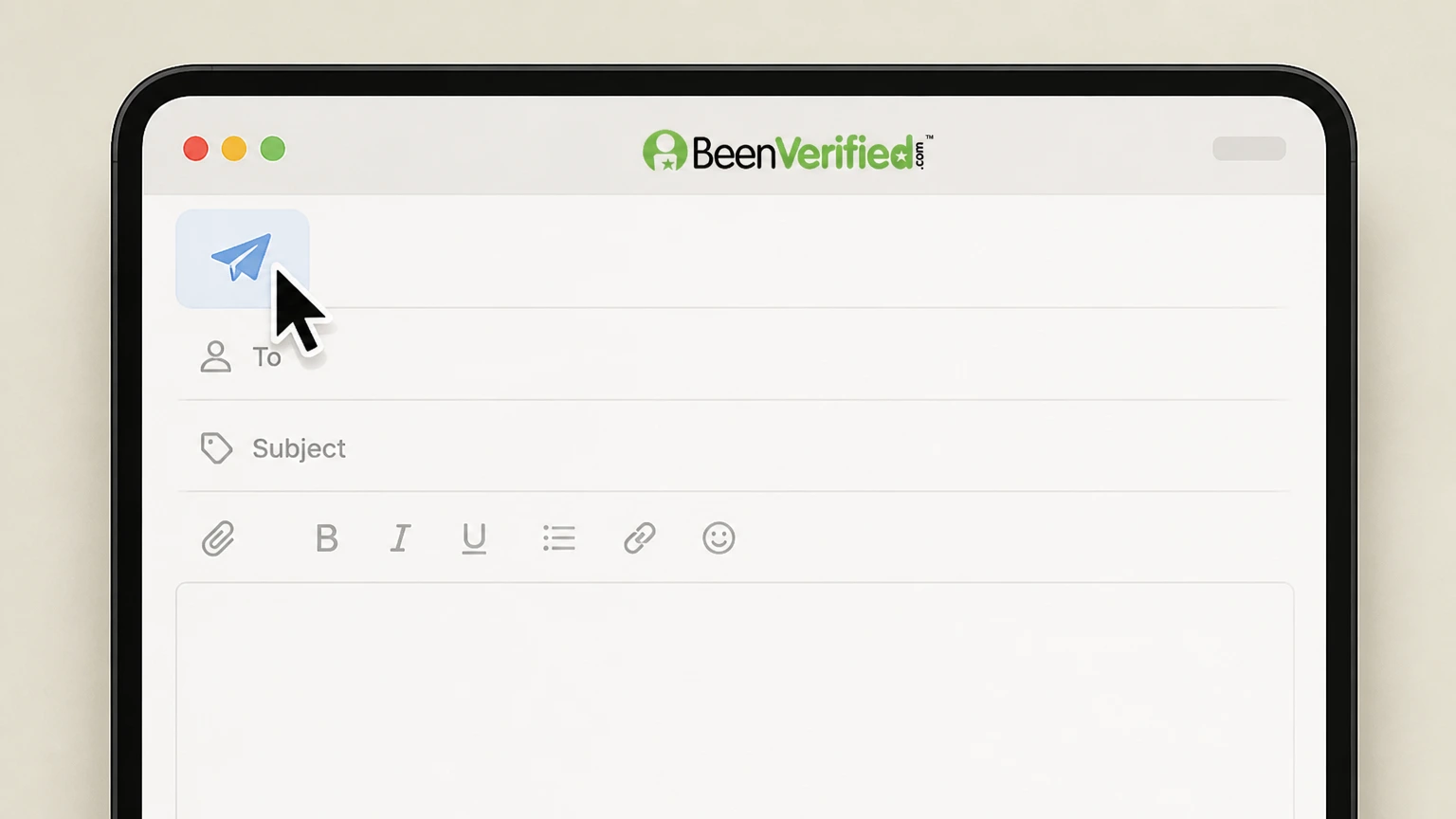
1Open your email app
On your phone or computer, open the email app or webmail service you use and sign in to an email account you can access.
 2
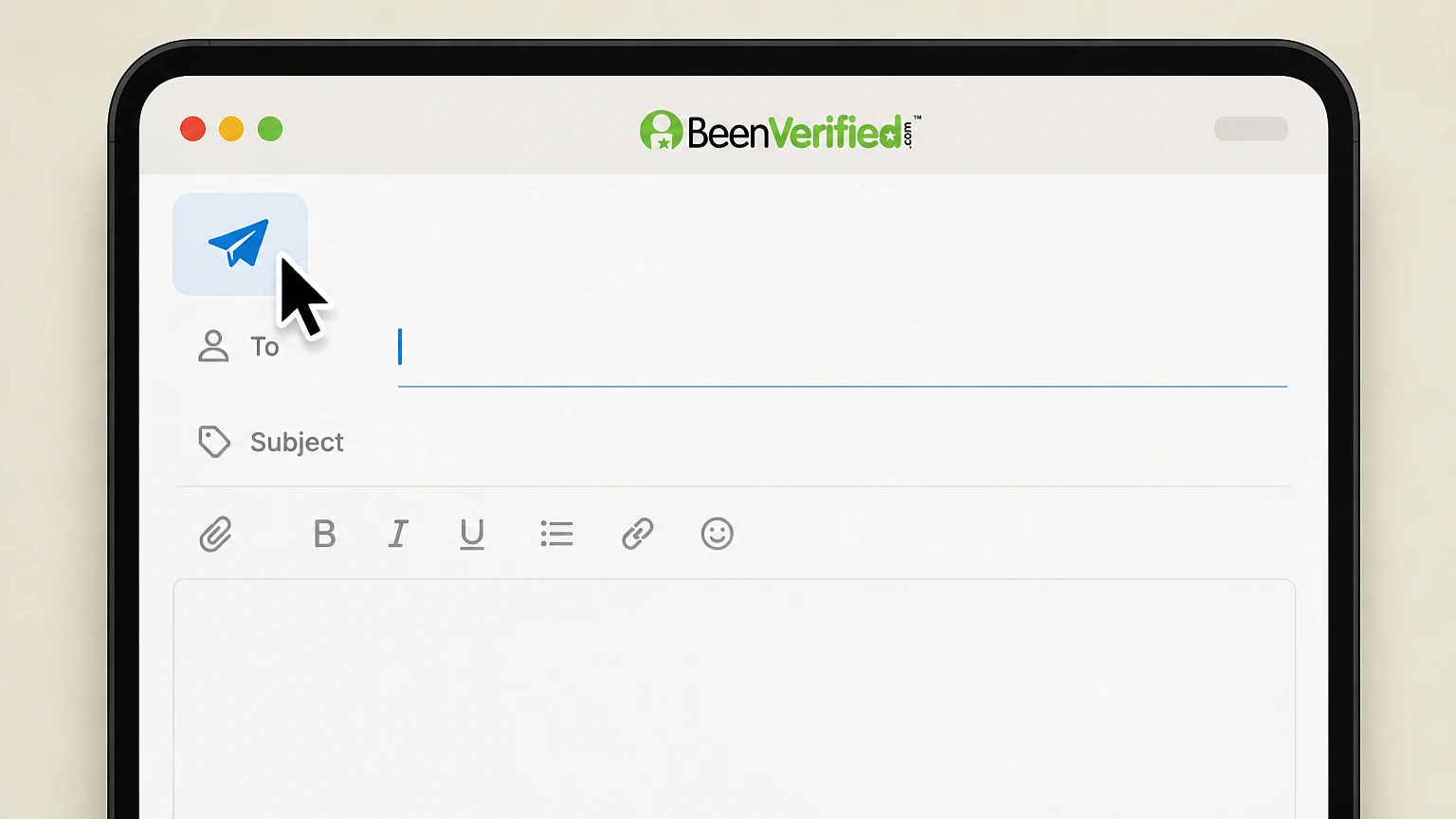
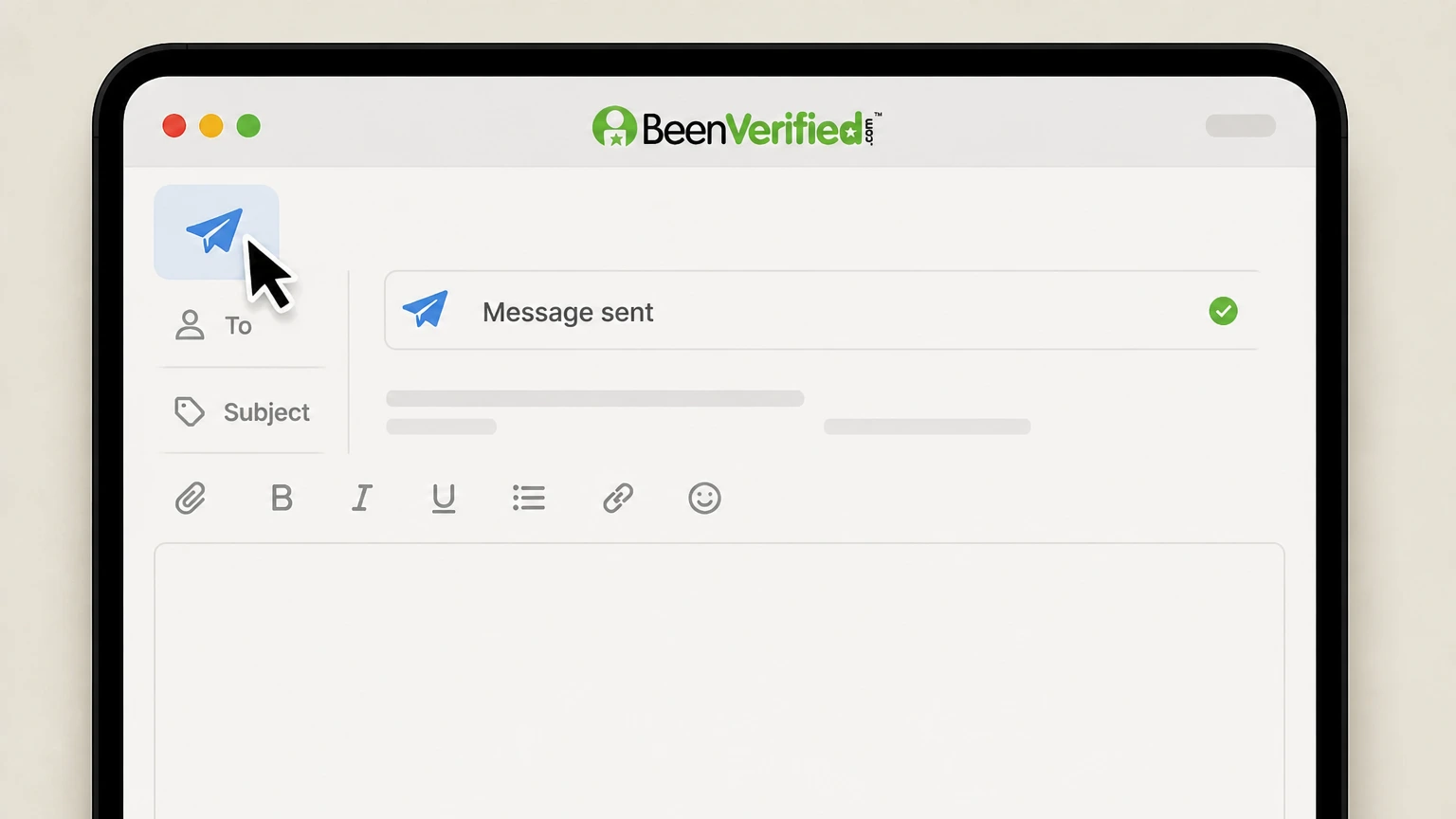
2Start a new message to BeenVerified
Create a new email and enter support@beenverified.com in the To field so the request goes directly to BeenVerified support. Use the BeenVerified account named on your receipt, and continue only after the next status in this cancellation path is visible.
- Let Pine handle it
Pine can help
Too many steps?
Pine can find the right Cancel via BeenVerified support email path and handle the cancellation for you.
 3
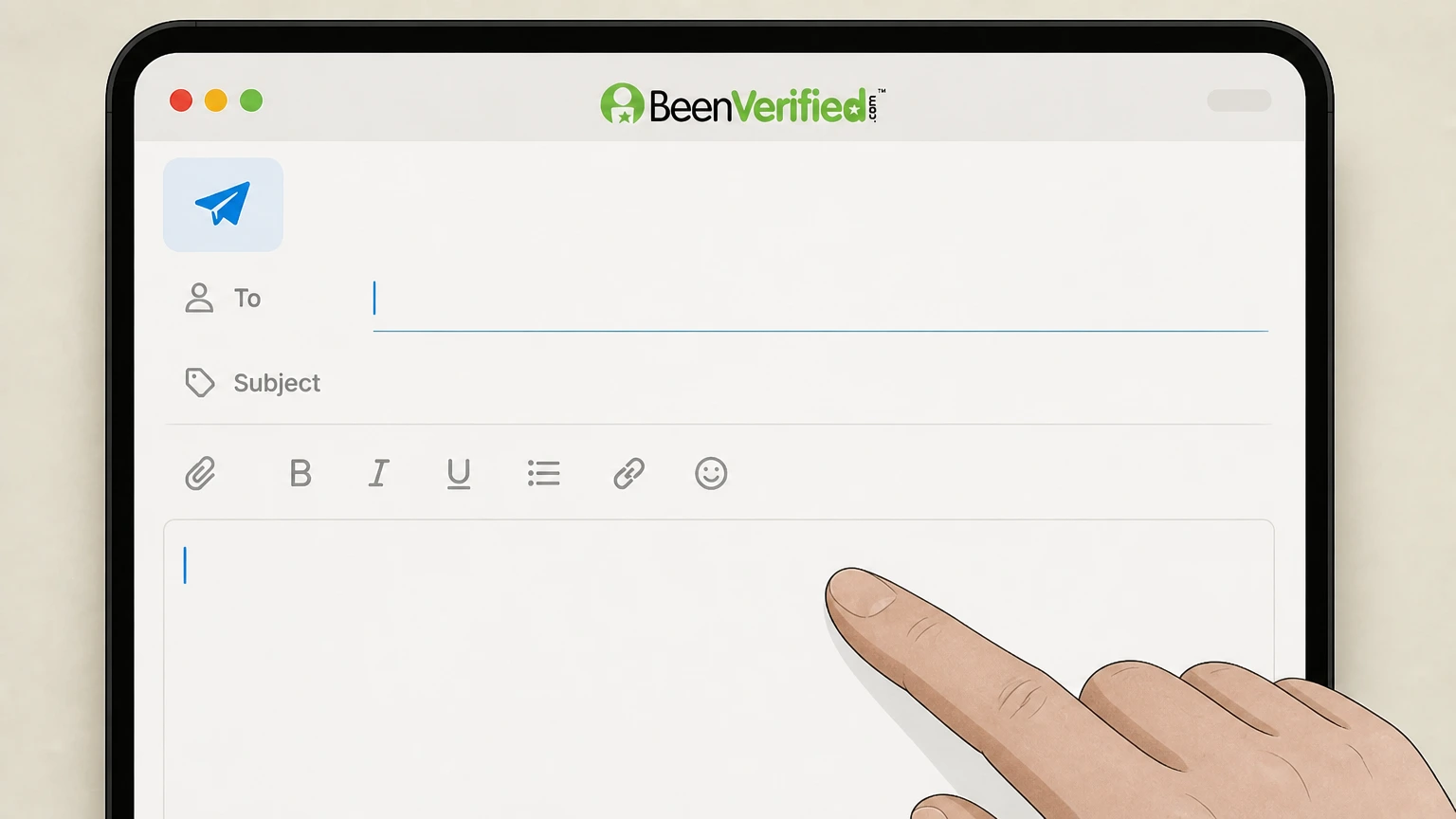
3Add your account and billing details
In the message body, include the BeenVerified account email, your member ID if available, and recent charge details so support can locate your subscription.
 4
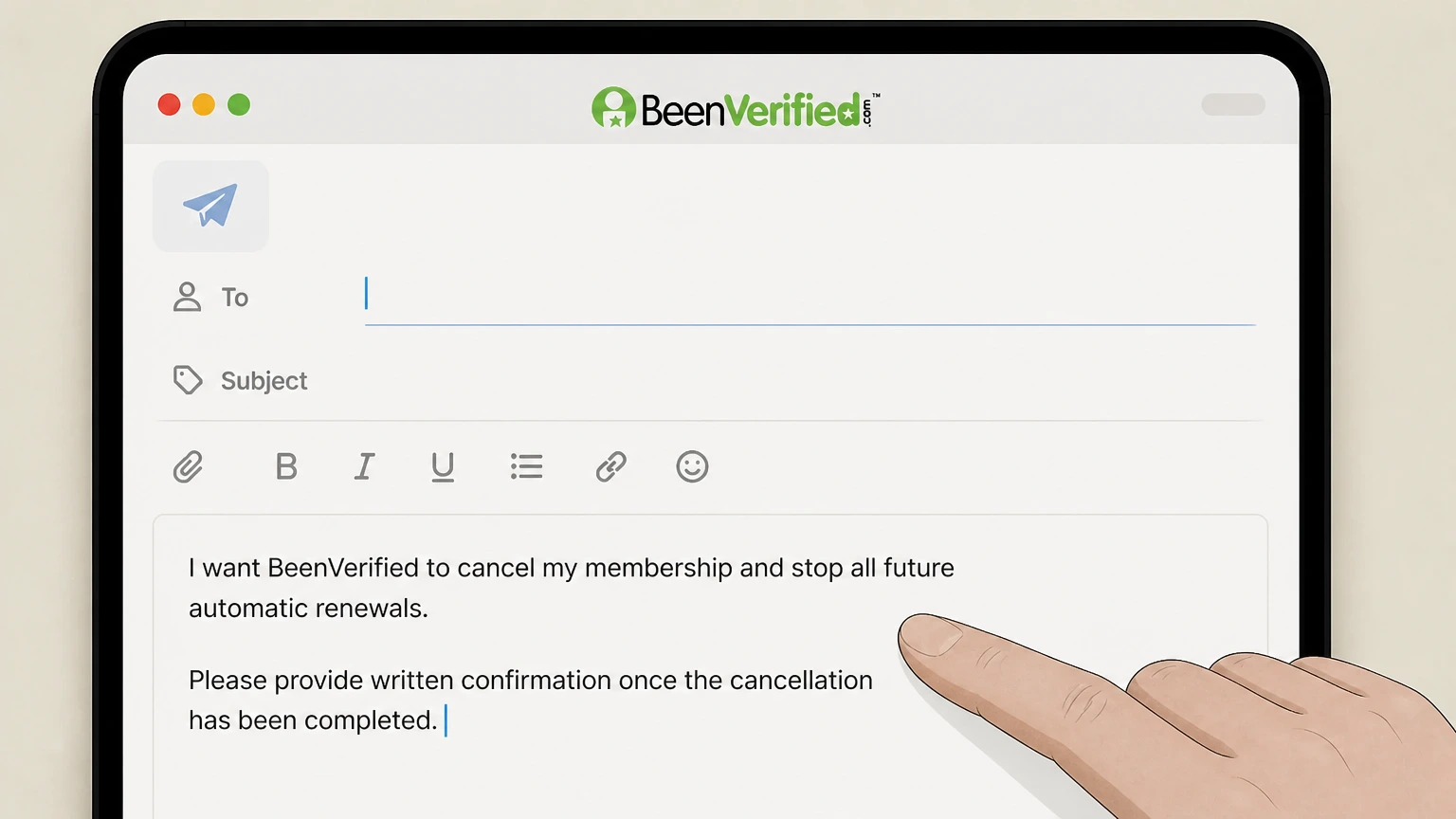
4Request cancellation of future renewals
Clearly state that you want BeenVerified to cancel your membership and stop all future automatic renewals, and ask for written confirmation of the cancellation.
 5
5Send the email and keep the reply
Send the message and watch for BeenVerified’s confirmation email, then save it as proof that your subscription will not renew again.

Cancel BeenVerified subscription on iPhone · verify the billing owner
 1
1Open Settings
On your iPhone or iPad, open the Settings app from your Home Screen. Use the BeenVerified account named on your receipt, and continue only after the next status in this cancellation path is visible.
 2
2Tap your name
At the top of Settings, tap your Apple ID name to open your account settings. Use the BeenVerified account named on your receipt, and continue only after the next status in this cancellation path is visible.
- Let Pine handle it
Pine can help
Too many steps?
Pine can find the right Cancel BeenVerified subscription on iPhone path and handle the cancellation for you.
 3
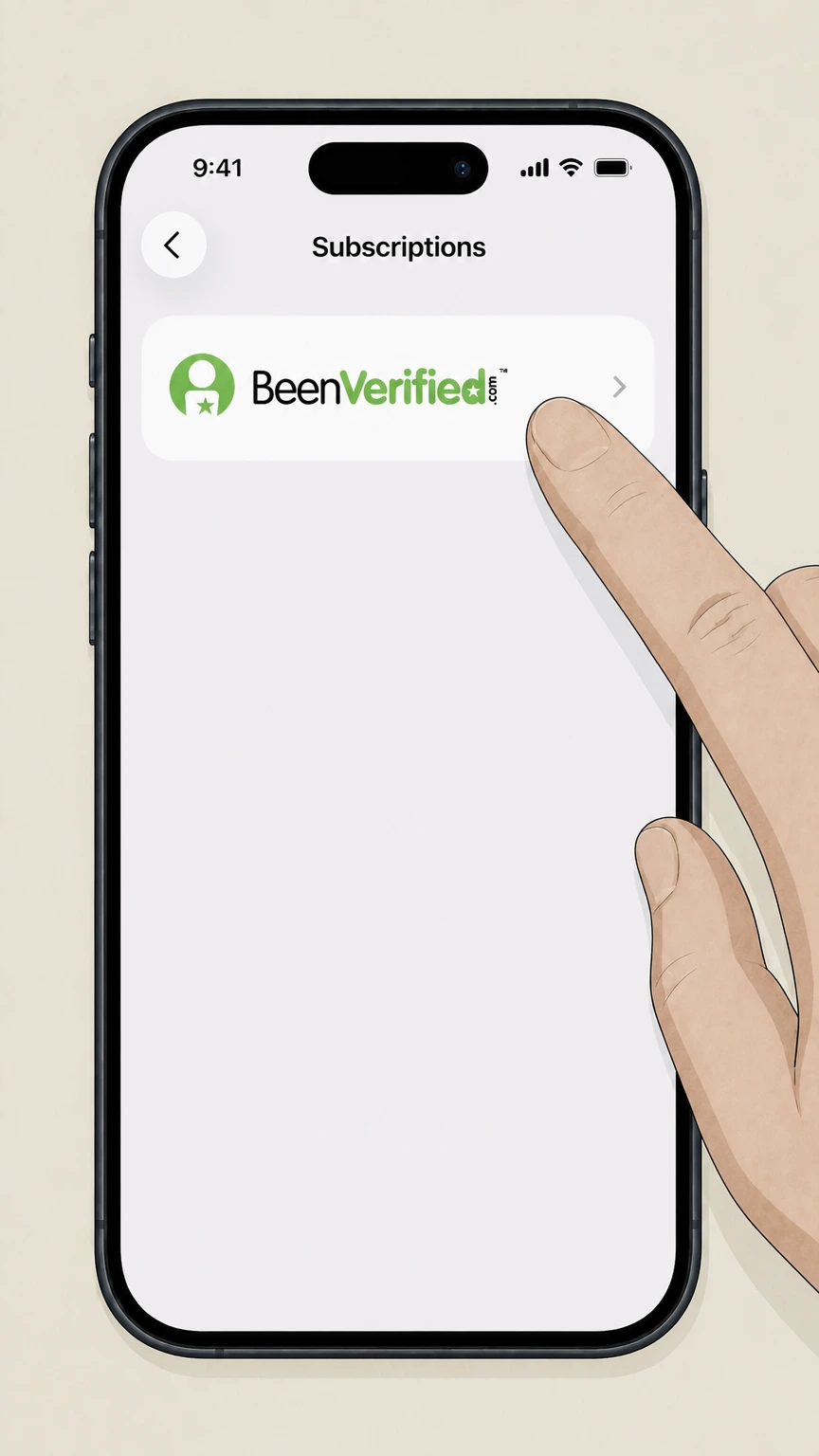
3Open Subscriptions
Tap Subscriptions to view all active and expired subscriptions billed through Apple. Use the BeenVerified account named on your receipt, and continue only after the next status in this cancellation path is visible.
 4
4Select BeenVerified
In the list of subscriptions, tap the BeenVerified entry you want to manage. Use the BeenVerified account named on your receipt, and continue only after the next status in this cancellation path is visible.
 5
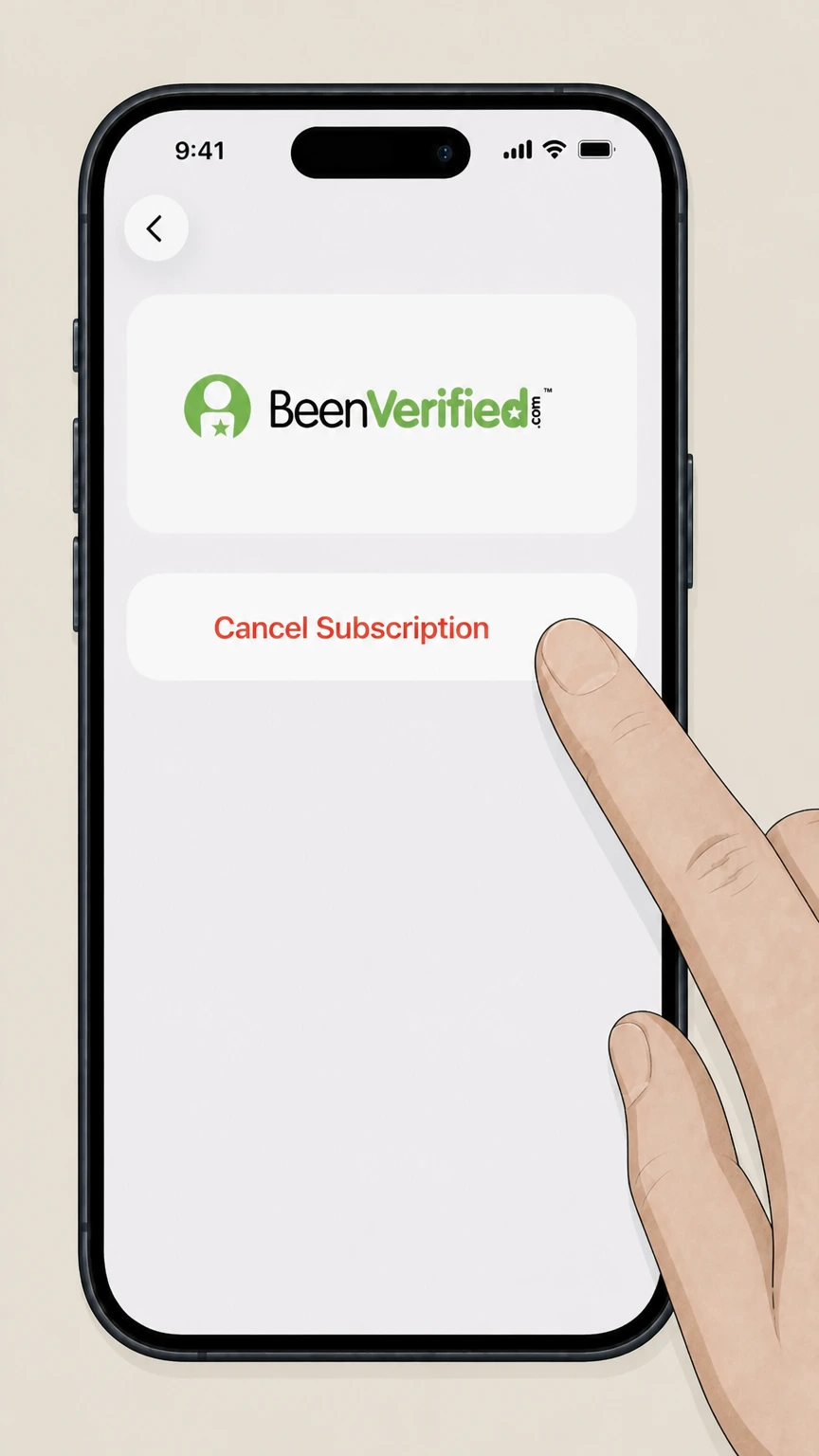
5Cancel the subscription
Tap Cancel Subscription and confirm; if there is no Cancel button or you see an expiration date in red, the subscription is already canceled.
Cancel BeenVerified subscription in Google Play · verify the billing owner
 1
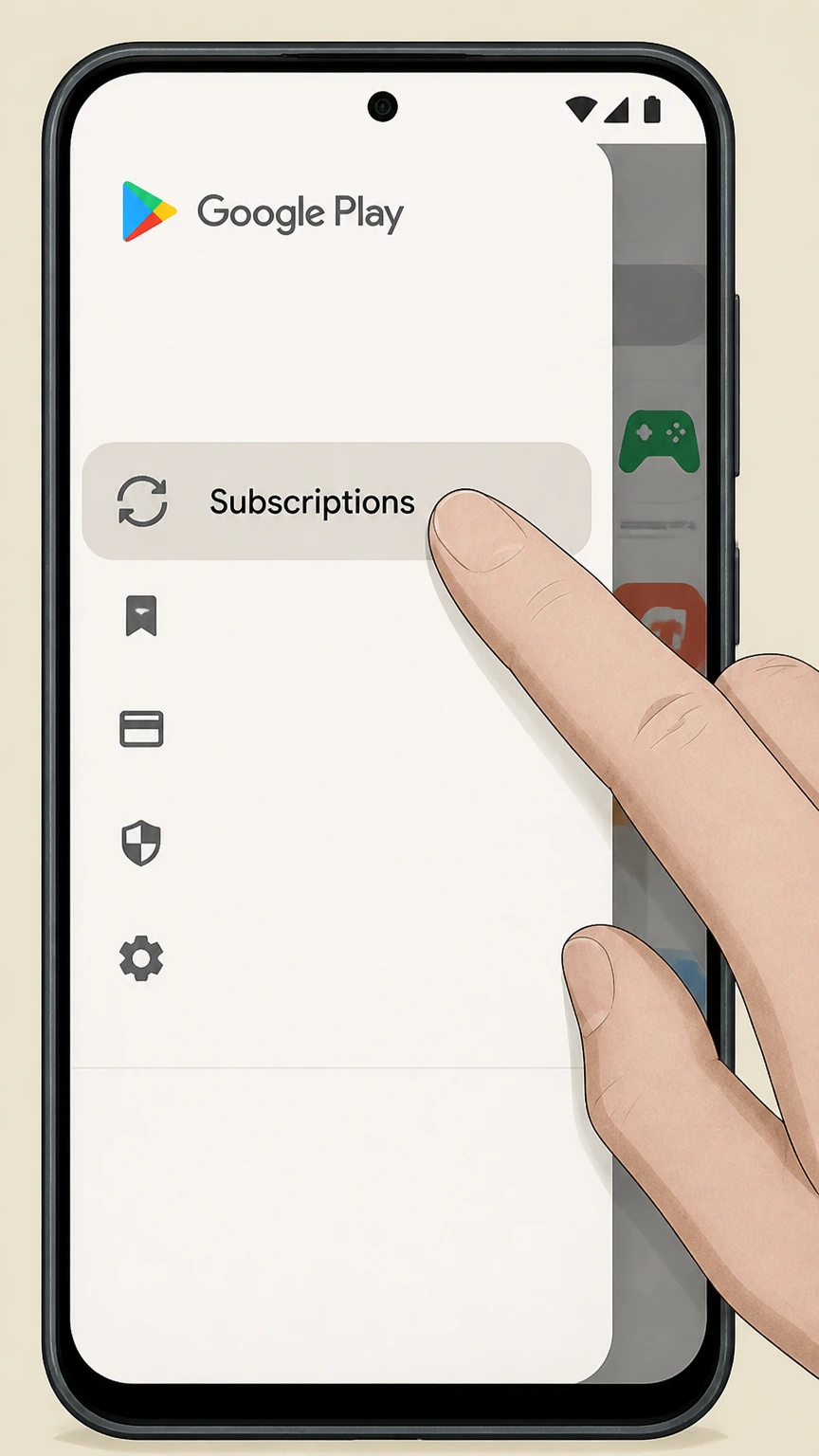
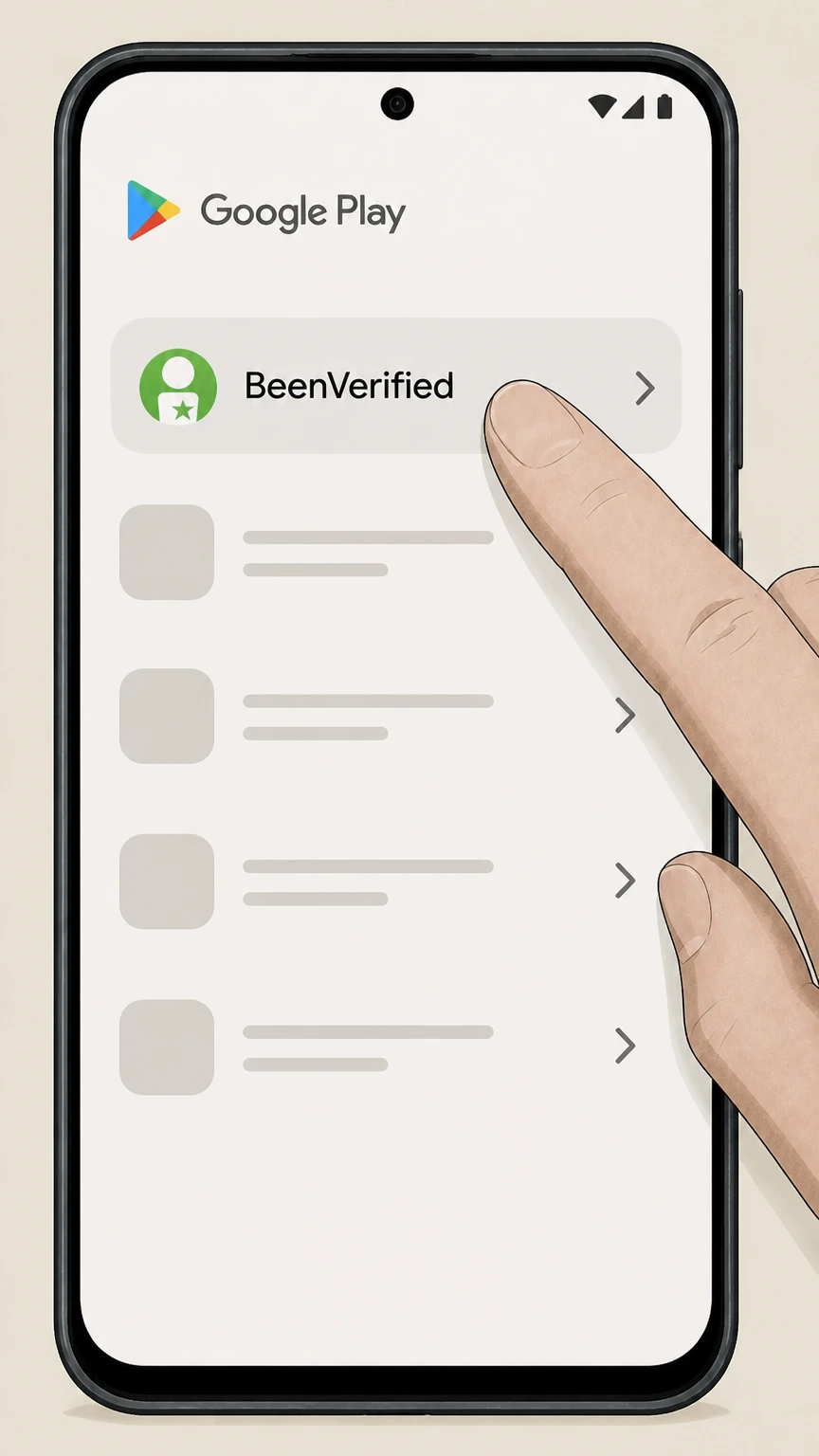
1Open Google Play subscriptions
On your Android device, open the Google Play Store app and go to the Subscriptions section from the menu or profile area.
 2
2Select the BeenVerified subscription
In your subscriptions list, tap the BeenVerified subscription you want to cancel. Use the BeenVerified account named on your receipt, and continue only after the next status in this cancellation path is visible.
- Let Pine handle it
Pine can help
Too many steps?
Pine can find the right Cancel BeenVerified subscription in Google Play path and handle the cancellation for you.
 3
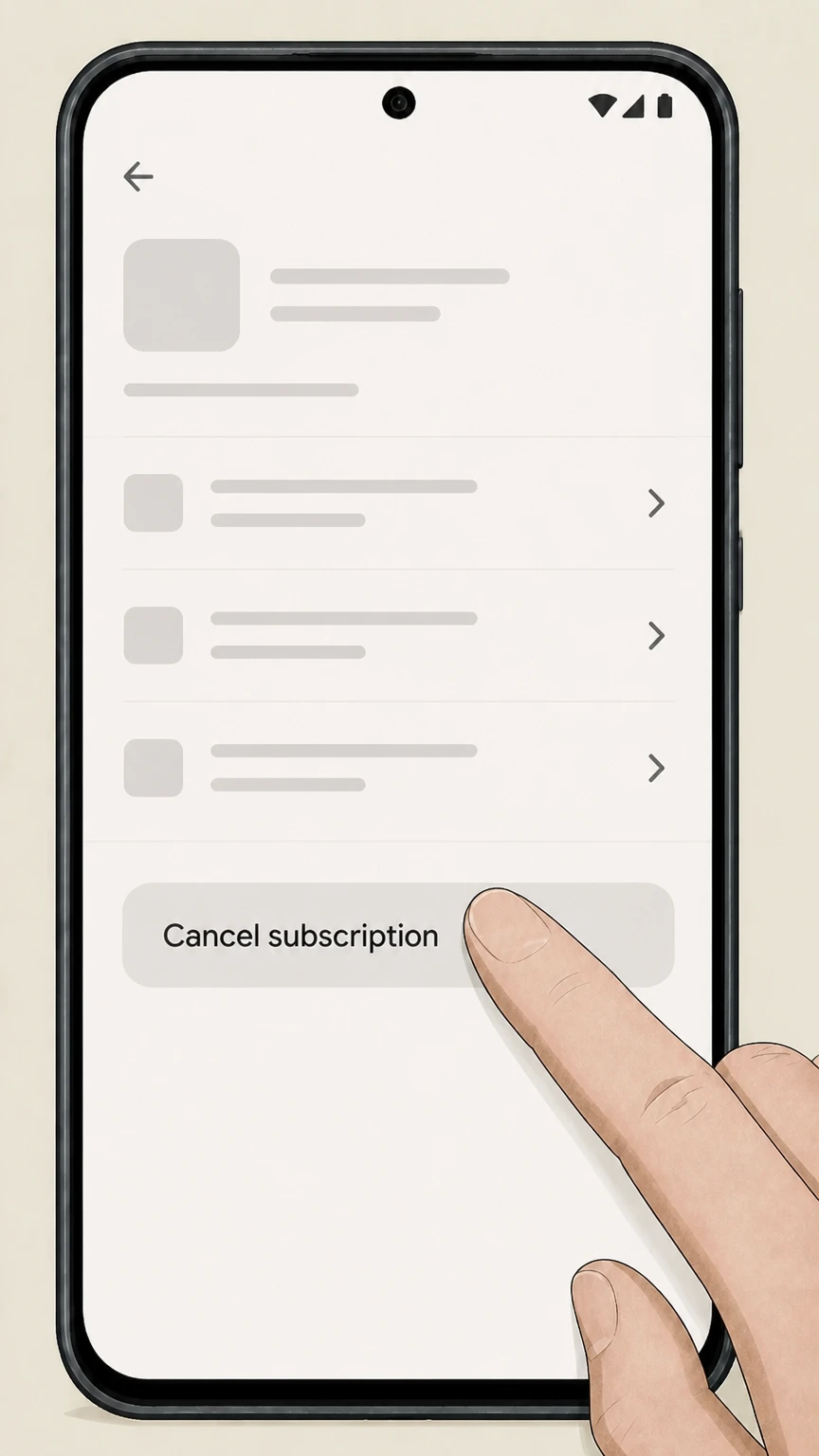
3Tap Cancel subscription
Tap Cancel subscription and follow the on-screen prompts to confirm that you want to stop renewal. Use the BeenVerified account named on your receipt, and continue only after the next status in this cancellation path is visible.
 4
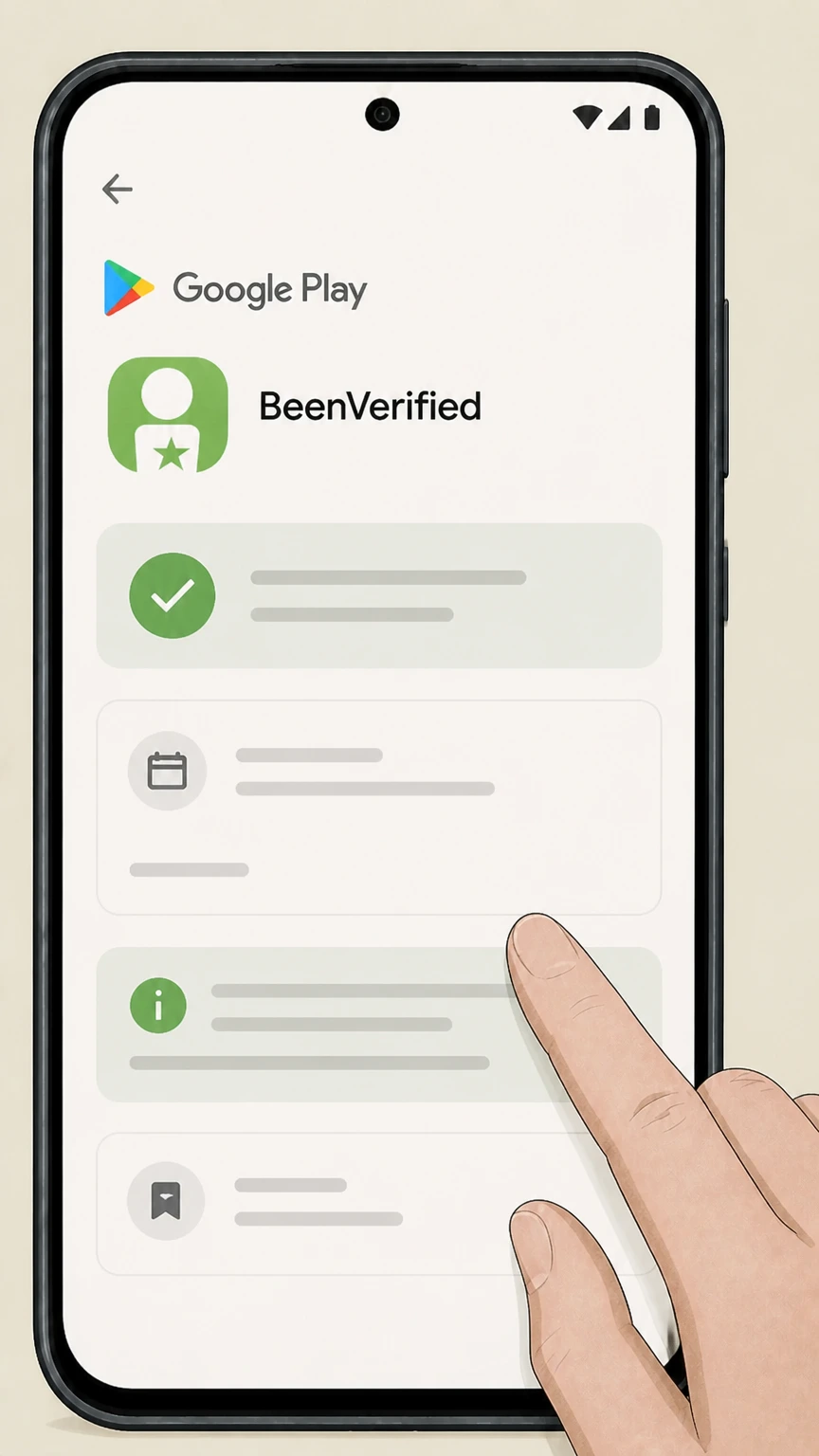
4Confirm status and end date
Verify that Google Play shows the subscription as canceled or set to expire on a specific date, and save a screenshot with the paid-through date for your records.
Refund policy
Refunds after canceling BeenVerified
Refunds for BeenVerified-related charges depend entirely on who billed you: Apple, Google Play, or BeenVerified itself. Canceling your subscription mainly stops future renewals and does not automatically entitle you to a refund for previous payments.
Check my refund options- Apple-billed refunds use Apple’s process
- If BeenVerified is billed by Apple, you must request any refund through Apple’s systems, typically by signing in to reportaproblem.apple.com or using the Request a refund flow in Apple Support. Apple reviews refund requests case by case under its content policies.
- Google Play applies its own refund windows
- Google Play explains that app and subscription refunds are limited and often only available within a short window such as 48 hours from purchase; after that, you may be directed to contact the developer, and Google follows its published refund policies.
- Direct BeenVerified refunds go through support
- For memberships billed directly by BeenVerified, you need to email support@beenverified.com with your member details and explain the issue; any goodwill or policy-based refunds would then be processed by BeenVerified according to its internal rules and local law.
- Canceling and refunds are separate steps
- Both Apple and Google clarify that canceling a subscription stops future renewals but does not retroactively refund charges; if you want both cancellation and a refund, you must perform the cancellation and then submit a refund request to the relevant billing owner.
If you still have unresolved refund questions after canceling, contact the billing provider shown on your statement—Apple, Google Play, or BeenVerified support—and provide receipts plus any written cancellation confirmations. Visit BeenVerified website
Billing ownership
Work out who controls your BeenVerified charges
Correctly identifying who bills you for BeenVerified determines where you must cancel and who can review any refund request.
Apple-billed BeenVerified access
If you started BeenVerified as an in-app purchase on iOS and see it listed under Settings > your name > Subscriptions, Apple controls billing and you must cancel from your Apple subscription settings rather than inside the BeenVerified app itself.
Google Play-billed subscriptions
If your card statement references Google Play and the membership appears under Subscriptions in the Google Play Store, Google is the billing owner and all cancellations and standard refund requests flow through Google’s subscription tools.
Direct BeenVerified website billing
When charges do not appear in Apple or Google Play subscriptions and the descriptor mentions only BeenVerified, the membership is generally billed directly by BeenVerified and must be canceled through its support or account portal rather than via an app store.
Multiple concurrent subscriptions
Long-time users sometimes accumulate a direct BeenVerified membership plus a newer Apple- or Google-billed subscription; each billing stream must be identified and canceled separately to fully stop charges.
Renewal behavior
How BeenVerified subscriptions auto-renew
BeenVerified memberships are sold on a subscription basis; both the developer and app-store platforms describe automatic renewal until you cancel.
Auto-renew enabled by default
Developer responses on the BeenVerified iOS listing explain that background-report subscriptions are set to auto-renew until you actively elect to cancel, at which point future renewal charges should stop with the next billing cycle.
Play Store subscription terms
Google Play notes that app subscriptions run for an indefinite term and charge you at the start of each billing cycle—such as monthly or annually—until you unsubscribe from the Subscriptions section of the Play Store.
Apple trial and renewal timing
Apple explains that for subscriptions purchased through the App Store, including free or discounted trials, you must cancel at least 24 hours before the current period or trial ends to avoid being charged for the next renewal.
Direct vs platform renewal rules
While the exact terms of direct BeenVerified website plans are published on its own site, the developer’s statements and app-store policies all treat BeenVerified access as subscription-based and renewing until cancellation, not as one-time purchases.
After cancellation
What to expect after canceling BeenVerified
Canceling BeenVerified mainly affects future billing; your current period and stored information are handled according to your billing provider and BeenVerified’s own policies.
Apple-billed access after canceling
When you cancel a BeenVerified subscription that is billed by Apple, the subscription typically remains usable until the end of the current paid or trial period shown in your Subscriptions list, after which Apple stops renewing it and access ends.
Google Play access after canceling
Google Play’s guidance explains that canceling a subscription stops renewal on the next renewal date while allowing you to continue accessing subscription content until that date; uninstalling the BeenVerified app alone does not cancel billing.
Stopping direct BeenVerified renewals
Developer responses indicate that when you contact BeenVerified to cancel, the company aims to stop further billing from the next cycle; specific rules about remaining access and data retention are detailed in BeenVerified’s own Terms and Privacy Policy.
Re-subscribing later
If you change your mind, you can usually restart a canceled app-store subscription by re-subscribing under Apple or Google Play, or by setting up a new membership directly with BeenVerified subject to its then-current terms and pricing.
Proof of cancellation
Confirm your BeenVerified subscription is really canceled
To avoid surprise renewals, you should verify cancellation in the billing system and keep written proof from Apple, Google, or BeenVerified.
Check Apple subscription status
In iPhone Settings under your name > Subscriptions, tap BeenVerified and confirm that the status shows an expiration date and no Cancel button—Apple notes that this indicates the subscription is already canceled.
Check Google Play subscription status
Google Play’s subscription help explains that, after canceling, the subscription entry should show a cancellation or expiry date in the Subscriptions list; keeping a dated screenshot provides evidence that renewal was stopped before that date.
Keep BeenVerified’s email confirmation
Developer communications mention that support can cancel memberships and email a notification; keep this email, along with member ID and dates, as proof that BeenVerified agreed to stop direct billing.
Monitor your statements
Even after you receive confirmation, review card or bank statements over the next one or two billing cycles to ensure no further BeenVerified, Apple, or Google Play charges appear, and contact the relevant billing owner if they do.
Refunds
Refund expectations for BeenVerified charges
Cancellation and refunds are different actions; each billing provider applies its own refund process and discretion for BeenVerified-related charges.
Apple handles App Store refunds
For BeenVerified subscriptions billed by Apple, refunds are requested through Apple’s systems, typically via reportaproblem.apple.com or the Request a refund option in Apple Support; Apple reviews each request and may approve or deny it under its content refund policies.
Google Play subscription refunds
Google Play explains that some app and subscription purchases may be refundable, often within a short window such as 48 hours; after that, users are usually directed to contact the developer, and refund decisions follow Google Play and developer policies.
Direct BeenVerified refunds
For memberships billed directly by BeenVerified, you must work with BeenVerified support, generally by emailing support@beenverified.com with account and billing details; any refund would then follow BeenVerified’s own policies and applicable law.
Cancellation does not guarantee refunds
Apple, Google, and Google Play’s refund documentation all distinguish between canceling a subscription to stop future renewals and obtaining a refund for past charges, so you should not assume canceling BeenVerified will automatically reverse previous payments.
Use limits
Legal and practical limits on BeenVerified reports
BeenVerified is a public‑records aggregation tool with specific restrictions on how its reports may be used and important accuracy caveats.
Not a consumer reporting agency
BeenVerified’s iOS listing states that the service is not a consumer reporting agency under the Fair Credit Reporting Act and does not provide FCRA-compliant consumer reports for employment, housing, credit, insurance, or similar eligibility decisions.
Personal and informational use
The app description emphasizes that BeenVerified is meant to provide convenient access to public records for lookups like phones, properties, and vehicles; you should treat reports as informational and not as the sole basis for high-stakes decisions about other people.
Public-records data sources
Developer explanations describe BeenVerified as aggregating information from official records such as court and mortgage filings and from other public sources; because these inputs can contain errors or gaps, individual reports may be incomplete or inaccurate.
Review the Do’s & Don’ts and Terms
Links from the iOS listing point to BeenVerified’s Do’s & Don’ts and Terms & Conditions pages, which further describe permitted and prohibited use of the service and should be reviewed if you are unsure how you may lawfully use a report.
Troubleshooting
If you can’t find or cancel your BeenVerified subscription
When the usual steps don’t show a BeenVerified subscription to cancel, you may be signed into the wrong account or the billing owner may be different than you expect.
Check all Apple IDs on iPhone
Apple advises that if you don’t see a subscription you expect, make sure you’re signed in with the correct Apple ID; if BeenVerified billing emails reference a different Apple account, sign in with that account and re-check Subscriptions.
Check the right Google Account
Google Play support notes that subscriptions are tied to a specific Google Account; if you can’t see BeenVerified under Subscriptions, switch to any other Google Accounts you use on the device and check the subscriptions list again.
Look for Google Play vs direct charges
If your statement shows charges from Google Play rather than BeenVerified, manage cancellation through Google’s Subscriptions screen; if the descriptor only mentions BeenVerified, treat the membership as direct-billed and contact BeenVerified support.
Escalate to billing support if needed
If you still can’t locate a subscription but are being billed, Apple and Google both direct users to contact their support teams; for direct charges, escalate with BeenVerified support using email and any receipts or membership IDs you have.
Data vs billing
Canceling billing vs removing your information
Ending your BeenVerified payments is different from removing your personal information or profiles from BeenVerified’s search results.
Subscription cancellation only stops billing
Canceling a BeenVerified subscription via Apple, Google Play, or BeenVerified support stops future renewal charges but does not, by itself, delete your BeenVerified account or remove your information from BeenVerified’s databases or public sources.
Privacy and data practices live on BeenVerified.com
The iOS app listing links to BeenVerified’s Privacy Policy and Do’s & Don’ts pages, which explain how public-record data is collected, used, and corrected; these documents, not your subscription status, govern how your information is handled.
Opt-out and removal are separate actions
To “take yourself off BeenVerified,” you generally must follow the data-removal or opt-out procedures described on BeenVerified’s website, which are distinct from canceling a paid membership and may have their own verification steps and timelines.
Account deletion vs subscription status
Even if you close or delete a BeenVerified account, public records about you may remain in government or third-party databases; likewise, canceling billing will not usually delete historical records that were already compiled from public sources.
What official sources do not confirm
Limits of the public BeenVerified cancellation guidance
These points are intentionally qualified because the official sources reviewed on August 16, 2026 do not publish a complete answer.
Documented limitation 1
BeenVerified’s own website, including its billing FAQ, refund policy, and detailed account-management pages, could not be fetched via the tools available, so exact on-site button labels, URLs, and refund windows could not be independently confirmed.
Documented limitation 2
No current official phone number or live-chat UI for cancellations was visible on allowed domains; cancellation routes are therefore limited to email and app-store self-service paths that are explicitly described in Apple and Google documentation and developer replies.
Documented limitation 3
Specific post-cancellation access rules and data-retention timelines for direct BeenVerified website memberships are not documented on accessible sources; guidance assumes only that cancellation stops future renewals, with remaining access and retention controlled by BeenVerified’s unpublished terms.
Documented limitation 4
Details of BeenVerified’s opt-out and data-removal workflow (for removing your own records from search results) are inferred from links to privacy resources and common industry practice, but the exact current steps and timelines cannot be verified from blocked provider pages.
BeenVerified cancellation FAQ
Questions people search about canceling BeenVerified, answered with official provider or billing-platform sources checked on August 16, 2026.
How do I cancel my BeenVerified subscription online?
Is BeenVerified difficult to cancel?
How do I cancel BeenVerified on my iPhone?
How do I cancel BeenVerified on Android or Google Play?
How do I cancel a BeenVerified free trial?
How do I take myself off BeenVerified?
What happens to my BeenVerified access after I cancel?
How do I cancel a subscription that won't cancel?
Does BeenVerified automatically renew until I cancel?
Does canceling BeenVerified delete my account or data?
Untangle this BeenVerified issue.
Let Pine handle the provider follow-up and keep the confirmation in one place.
