If you’re looking to Turn Off PS Plus Auto-Renewal on your PS5, PS4, or via the Web without navigating a maze of confusing sub-menus, you’re in the right place. I’ve rigorously tested every pathway Sony offers, and the goal here is simple: stop the next credit card charge while keeping the playtime you’ve already paid for. In this guide, I’ll walk you through the exact steps for each device and clear up the intentionally vague "Cancel" terminology that scares most users away from clicking the final button. Let's secure your wallet before the next billing cycle hits and the notification pops up on your phone.
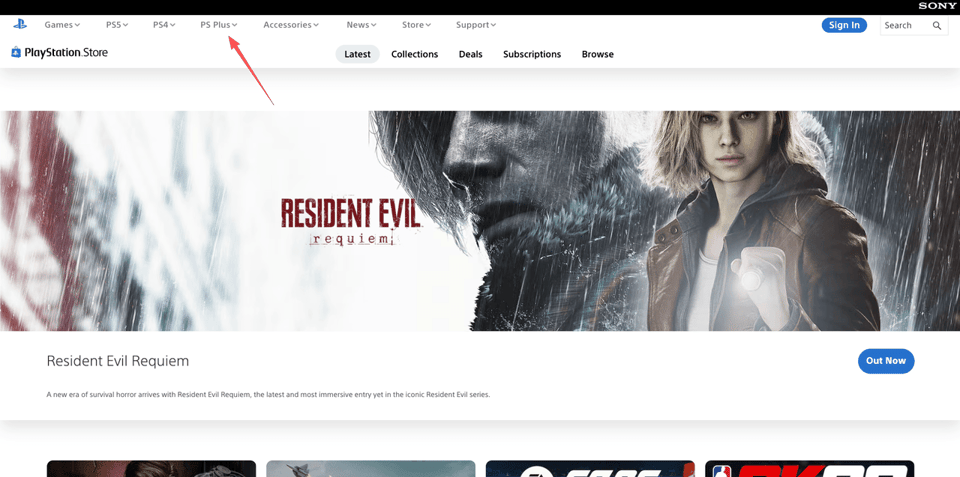
Auto-renew off vs. cancel — understand the difference first
When you're trying to stop auto-renewal on PS Plus, the most important thing to get straight is what you're actually doing.
- Turning off auto-renew means: Your membership stays active until the end of the current paid period, but it won't renew and charge you again.
- Canceling (as Sony sometimes labels it) often means the same thing in practice, it cancels the next renewal, not your current access. But the wording varies by screen, device, and sometimes region.
In other words: you're typically preventing the next charge, not nuking your membership today.
Why Sony's terminology is confusing
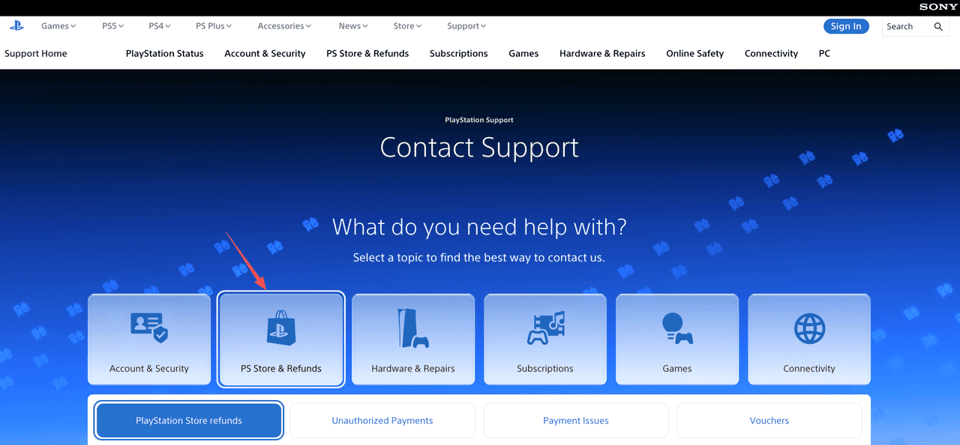
Sony's subscription UI has a habit of using words that sound scarier than the action.
On some screens you'll see:
- "Turn Off Auto-Renew" (clear, thank you)
- "Cancel Subscription" (sounds like you'll lose access instantly)
- "Cancel" tucked into a submenu (not always obvious it means "cancel renewal")
This is the bit most people miss: "Cancel" in PlayStation subscription settings usually means "cancel future payments," not "end immediately." According to the official PlayStation Store Cancellation Policy, your current term remains active until it expires.
If you're trying to avoid downtime, say you want to finish a game this month but don't want to forget and pay for another month, turning off auto-renew is the cleanest move. It's the "I'm done after this" option.
(Also: if you stack PS Plus time via codes or promos, you may see messaging that looks different. The concept is the same, prevent the next billed renewal.)
Turn off auto-renew by device
I don't guess. I verify. And Sony gives you multiple ways to manage subscriptions, which is great, until you're not sure which one you used. Below are the fastest paths I've used to cancel PS Store subscription renewals, depending on where you're signed in.
PS5: Settings → Account Management → PS Subscriptions
On PS5, the path is fairly straightforward once you're in the right neighborhood:
- Settings (gear icon)
- Users and Accounts (or Account depending on system version)
- Account → Payment and Subscriptions
- Subscriptions → PlayStation Plus
- Select Turn Off Auto-Renew (or Cancel / Cancel Subscription, depending on what it shows)
What I look for after toggling it: some kind of confirmation like "Auto-renewal: Off" or an end date that's clearly the last day of the current period.
If you only have 30 seconds, this is your quick check: go back into PS Plus under Subscriptions and confirm it now shows an expiry date without a next billing date.
PS4: Settings → Account Management → Services List
PS4 hides the logic in a place you wouldn't naturally look if you're moving quickly.
- Settings
- Account Management
- Account Information
- PlayStation Subscriptions or Services List (Sony has used both pathways)
- Find PlayStation Plus
- Choose Turn Off Auto-Renew (or the equivalent option)
On PS4, the "Services List" screen can feel like a filing cabinet. The key is making sure you're inside PS Plus specifically, not just browsing general account services.
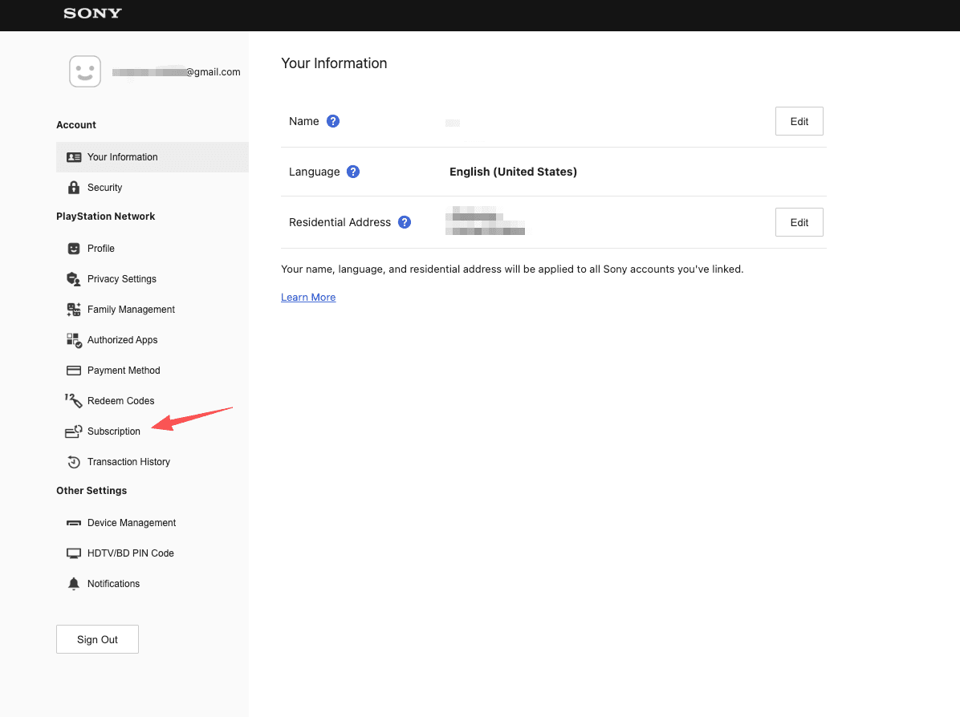
Web: account.sonyentertainmentnetwork.com → Subscriptions
If you're like me and you'd rather do this from a browser between meetings (instead of clicking around with a controller), the web route can be the least annoying.
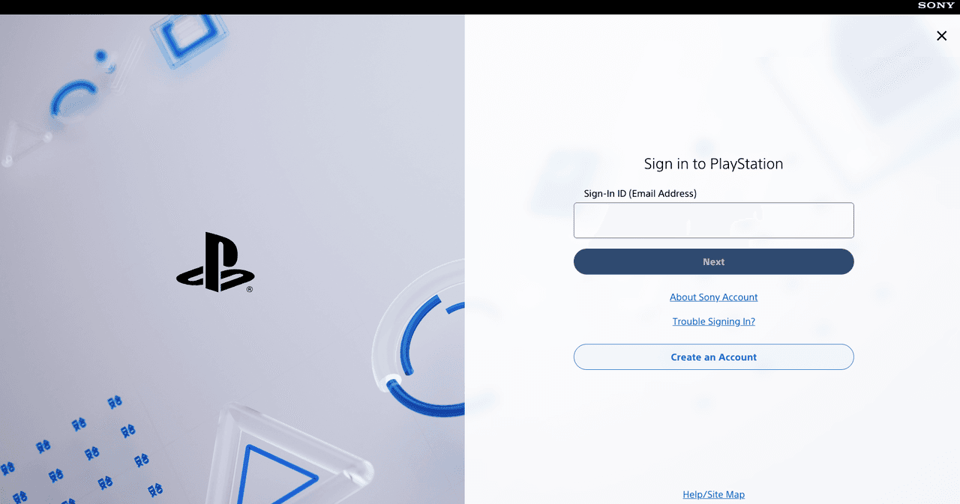
- Go to the Sony account site: account.sonyentertainmentnetwork.com
- Sign in with the account that actually has PS Plus (sounds obvious, but I've absolutely signed into the wrong one before)
- Find Subscriptions
- Select PlayStation Plus
- Turn off auto-renew / cancel renewal
Two small, real-world tips:
- If the page looks "too simple," you might be on an account profile page, not the subscription management page. Keep hunting for Subscriptions.
- After you turn it off, refresh and confirm the status changed. I always do. It's the digital equivalent of checking the stove.
If your goal is purely to stop the next charge, any one of these methods works. The important thing is confirming the new status after the change, because Sony's screens don't always make the "success" state obvious.
We know navigating these settings takes patience, but we believe you shouldn't have to do it alone. If you would rather skip the manual steps, let Pine AI execute the cancellation process on your behalf. Try our agent and reclaim your time.
What you keep after auto-renew is off
This is the question I cared about most the first time I did this: If I stop auto-renewal on PS Plus, do I lose everything immediately?
In most cases, no.
When you turn off auto-renew, you're basically saying: "Let this run to the end of what I already paid for, and then stop."
Games, cloud saves, multiplayer, access until expiry
Here's what you can generally expect until your membership end date:
- Online multiplayer access continues until the subscription expires.
- Cloud saves remain available while PS Plus is active. (If your membership ends, you typically lose access to cloud storage features until you resubscribe.)
- Monthly PS Plus games you've claimed stay in your library, but you can only play them while your PS Plus membership is active.
- Game Catalog / Classics (Extra/Premium tiers) access continues through the end of the paid term, then stops when the membership expires.
The practical takeaway: turning off auto-renew is a "safe" move if you still want to use PS Plus for the rest of the month/year you paid for.
One detail that's worth thinking about (because it saves future-you a headache): if you rely on cloud saves, consider downloading any critical saves locally before your membership ends, especially if you're the kind of person who travels occasionally or switches consoles. I'm not saying panic. I'm saying: don't make "recover save data" your weekend project.
And if you're trying to time this perfectly, like turning off auto-renew right after you're billed so you get the full cycle, yes, that works. Just make sure you're looking at the actual next billing date in your subscription details.
Still charged after turning off?
If you turned off auto-renewal on PS Plus and still got charged, you're not alone. It's one of those problems that sends people into a 45-minute support spiral when they were just trying to stop a subscription.
I went in expecting very little the first time I had to untangle a "wait, why was I charged?" moment. The fix is usually boring, but it helps to diagnose it in the right order.
Was it turned off before the billing date?
The most common reason you still got charged: auto-renew was turned off after the billing date/time cutoff.
A couple of scenarios I've seen (and, yes, experienced):
- You turned it off on the same day as renewal, but the charge had already processed.
- You turned off auto-renew on one device/account, but the subscription is on a different account (family console situations make this weirdly easy).
- The payment was for a different subscription than PS Plus (EA Play, a game add-on, another tier) and the timing made it look like PS Plus.
What I do before I even think about contacting support:
- Check your PS Plus subscription status (does it clearly show auto-renew off and an end date?).
- Check the transaction history on your Sony/PlayStation account to confirm what the charge was labeled as.
- Verify the account: the PSN ID that holds PS Plus is the one that matters, not necessarily the one you're currently logged into.
If the charge date is before you toggled auto-renew off, you may be stuck with it for that cycle, but you can at least ensure it doesn't happen again.
Refund request process with PlayStation support
If you believe the charge is wrong (double-billed, renewed when it shouldn't have, charged on the wrong account, etc.), the next step is to request a refund via PlayStation Support.
Here's the approach that wastes the least time:
- Go in with specifics: transaction date, amount, and the subscription name as shown in your account's transaction history.
- Be clear about what you want: a refund (if eligible) and confirmation that auto-renew is off going forward.
A realistic expectation-setting note: refund eligibility can depend on timing and usage. Some digital subscriptions have stricter rules once the service period has started. So I don't assume it'll be instant or automatic.
But I will say this: the calmer and more "here are the facts" you can be, the less back-and-forth it tends to take. I was half-expecting to repeat myself three times. Instead, once I had the transaction details ready, the conversation was… surprisingly linear.
If you're trying to avoid support entirely, your best prevention is simple: turn off PS Plus auto-renew at least a few days before the next billing date and screenshot the confirmation/status screen. It feels slightly paranoid. It's also saved me from second-guessing later.
My colleague-style verdict: if your only goal is to stop auto-renewal on PS Plus, you can do it in a couple of minutes, PS5, PS4, or web. The only real "watch out" is timing and account mix-ups. Handle those two things, and this becomes one of the rare subscription tasks that's actually… done.
Frequently Asked Questions About Stopping Auto-Renewal on PS Plus
How do I stop auto-renewal on PS Plus without losing access right away?
Stopping auto-renewal on PS Plus typically prevents the next charge, but your membership stays active until the end of your current paid period. Sony may label this as “Turn Off Auto-Renew” or “Cancel,” yet you usually keep online play and benefits until the expiry date.
How do I stop auto-renewal on PS Plus on PS5?
On PS5, go to Settings → Users and Accounts → Account → Payment and Subscriptions → Subscriptions → PlayStation Plus, then choose Turn Off Auto-Renew (or Cancel/Cancel Subscription). Afterward, re-open PS Plus under Subscriptions to confirm it shows “Auto-renewal: Off” and an end date.
Where is the option to turn off auto-renew for PS Plus on PS4?
On PS4, open Settings → Account Management → Account Information, then look for PlayStation Subscriptions or Services List. Select PlayStation Plus and choose Turn Off Auto-Renew (or the equivalent). Make sure you’re inside the PS Plus entry, not just browsing general services.
Can I stop auto-renewal on PS Plus from a web browser?
Yes. Sign in at account.sonyentertainmentnetwork.com with the account that owns PS Plus, then go to Subscriptions → PlayStation Plus and turn off auto-renew/cancel renewal. Refresh the page and confirm the status changed, because Sony’s UI doesn’t always make the “success” state obvious.
Why was I still charged after I turned off auto-renewal on PS Plus?
Common causes include turning off auto-renew after the billing cutoff, doing it on the wrong PSN account, or confusing the charge with a different subscription. Check PS Plus status (auto-renew off + end date) and your transaction history. If it’s wrong, contact PlayStation Support with date, amount, and label.
Recommended Reads