

Philo
Cancel subscription
How to Cancel Philo Subscription
Cancel Philo through the company that bills the subscription. Philo’s official help lists separate cancellation paths for direct, Amazon, Apple, Google, Roku, Samsung, and Vizio billing. The selected seller shows when paid access ends; direct and platform purchases can have different screens and policies. Compare every supported billing route, cancellation effect, refund boundary, and proof to keep.
- 2 official sources checked
- 7 billing routes separated
- Cancellation and refund outcomes kept distinct
Cancel Philo through the company that bills you
Web · Verify this billing owner
Cancel Philo on the web
 1
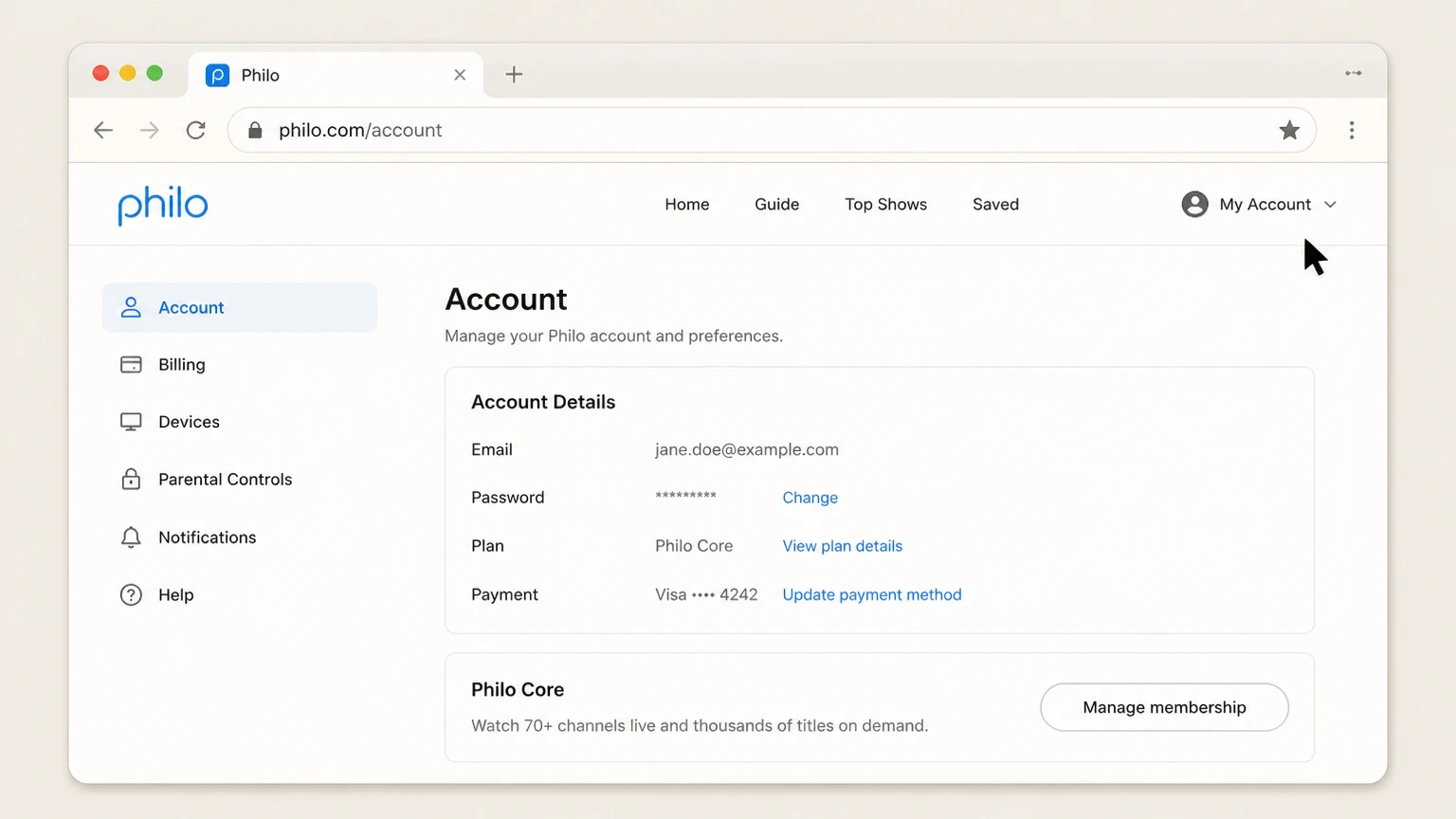
1Open the Philo account page
Sign in at philo.com with the directly billed account.
 2
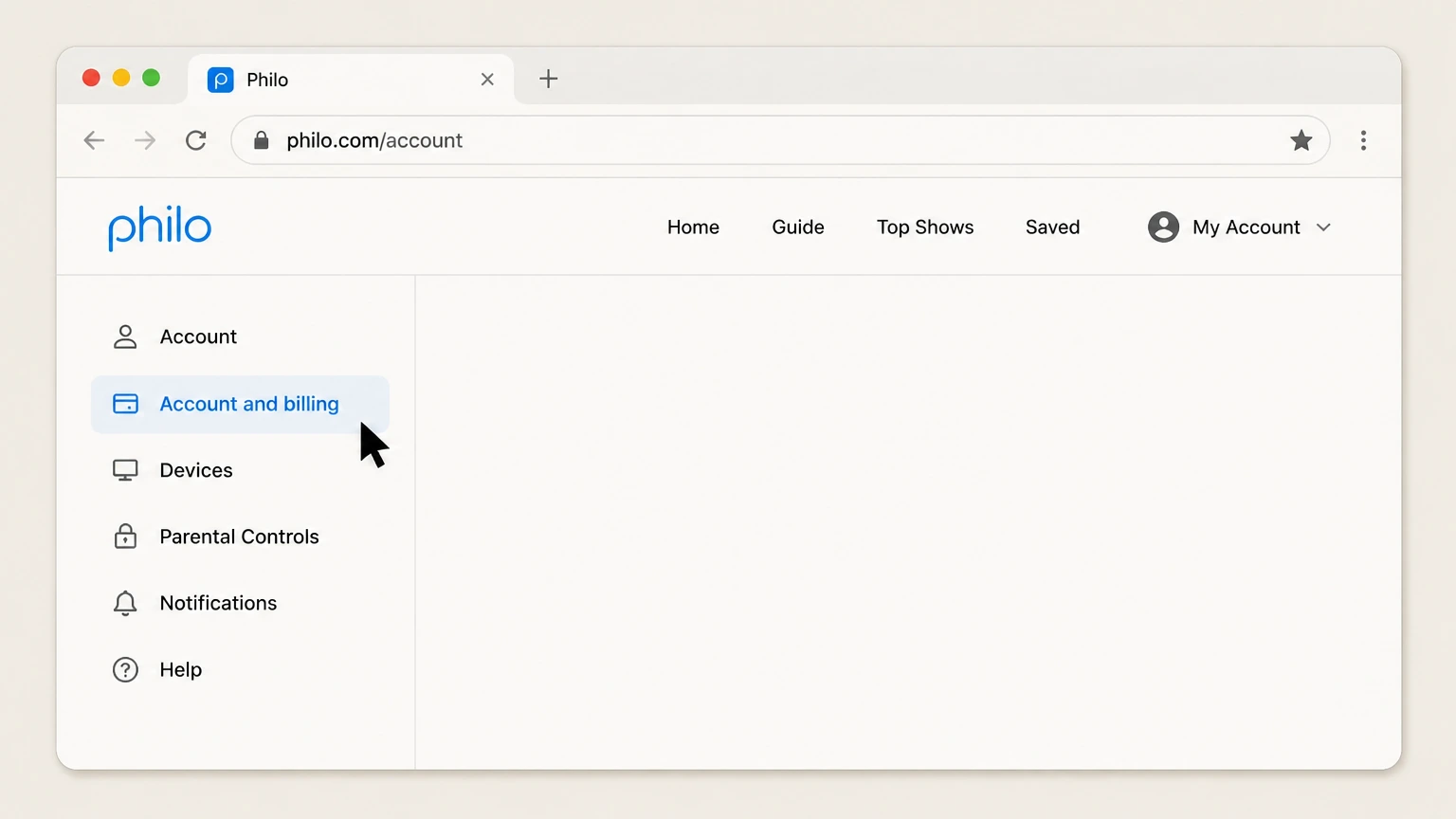
2Review Account and billing
Confirm the plan, add-ons, payment owner, and next charge date.
- Let Pine handle it
Pine can help
Too many steps?
Pine can find the right Web path and handle the cancellation for you.
 3
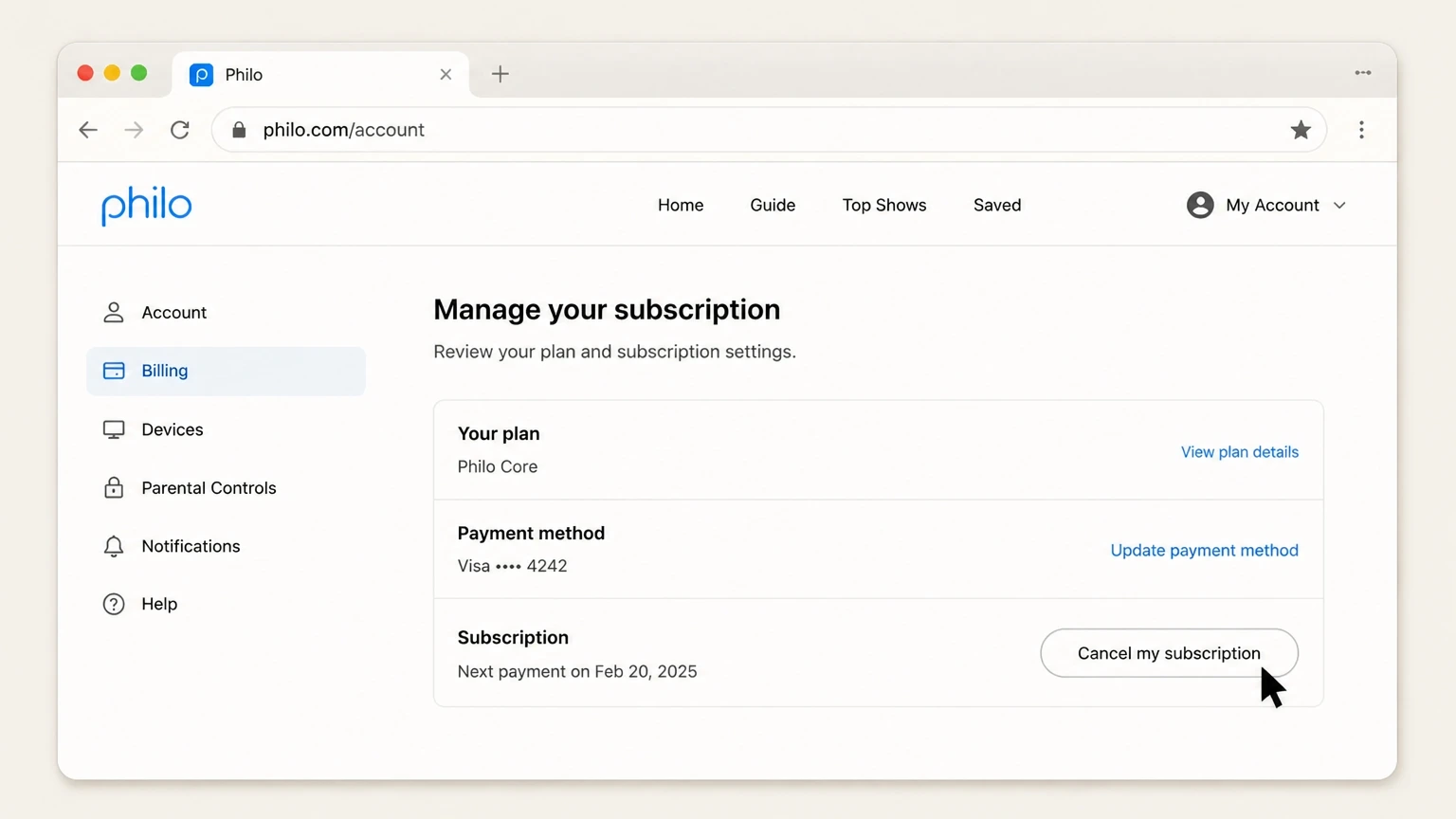
3Choose Cancel my subscription
Continue through the confirmation prompts.
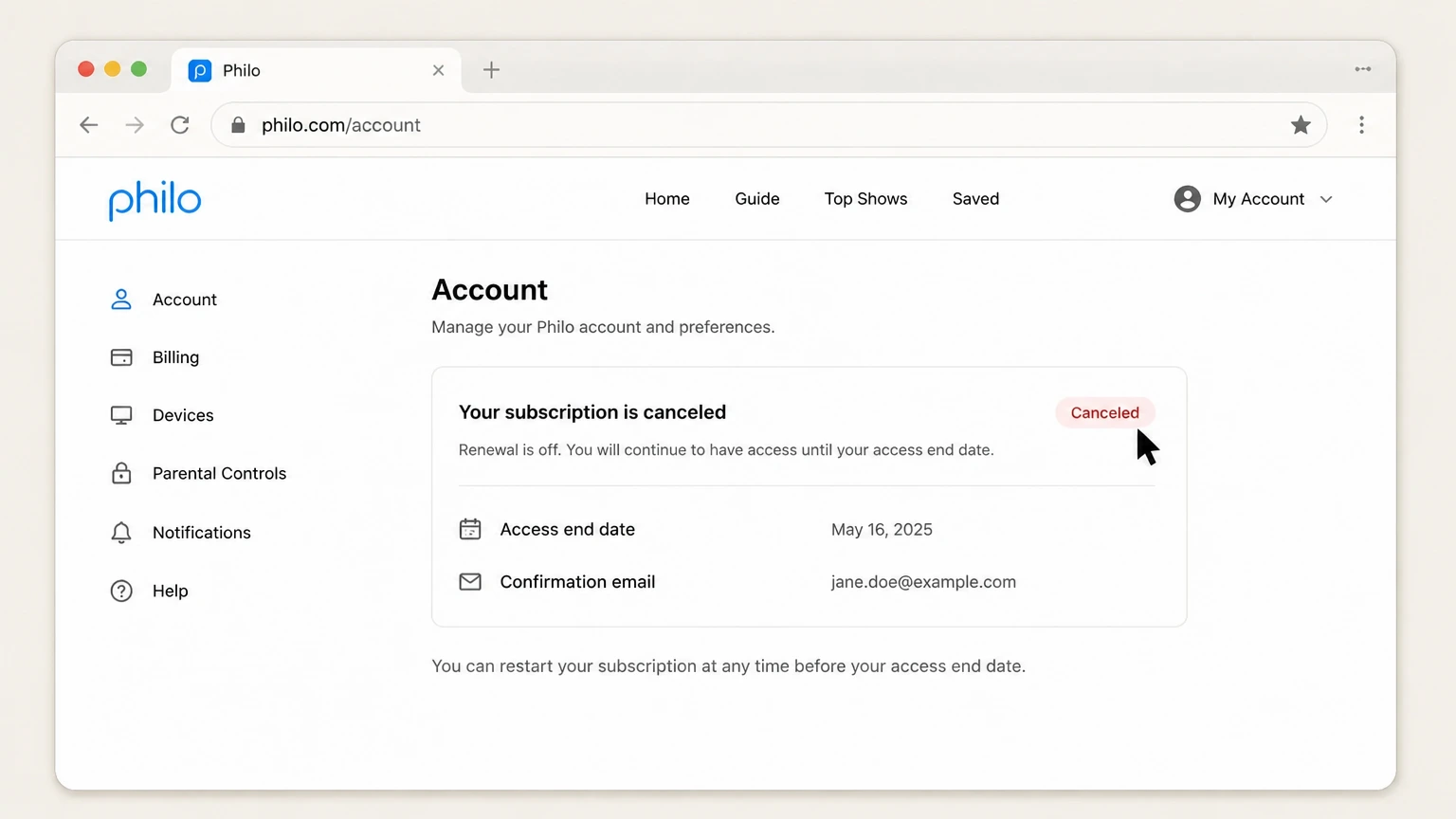 4
4Save the canceled status
Keep the access end date and email.

iOS · Verify this billing owner
Cancel Philo through iOS
 1
1Open Settings
On an iPhone, open Settings while signed in to the Apple Account used for the purchase.
 2
2Tap your name
Open the Apple Account card at the top of Settings.
- Let Pine handle it
Pine can help
Too many steps?
Pine can find the right iOS path and handle the cancellation for you.
 3
3Open Subscriptions
Tap Subscriptions and wait for the active subscription list.
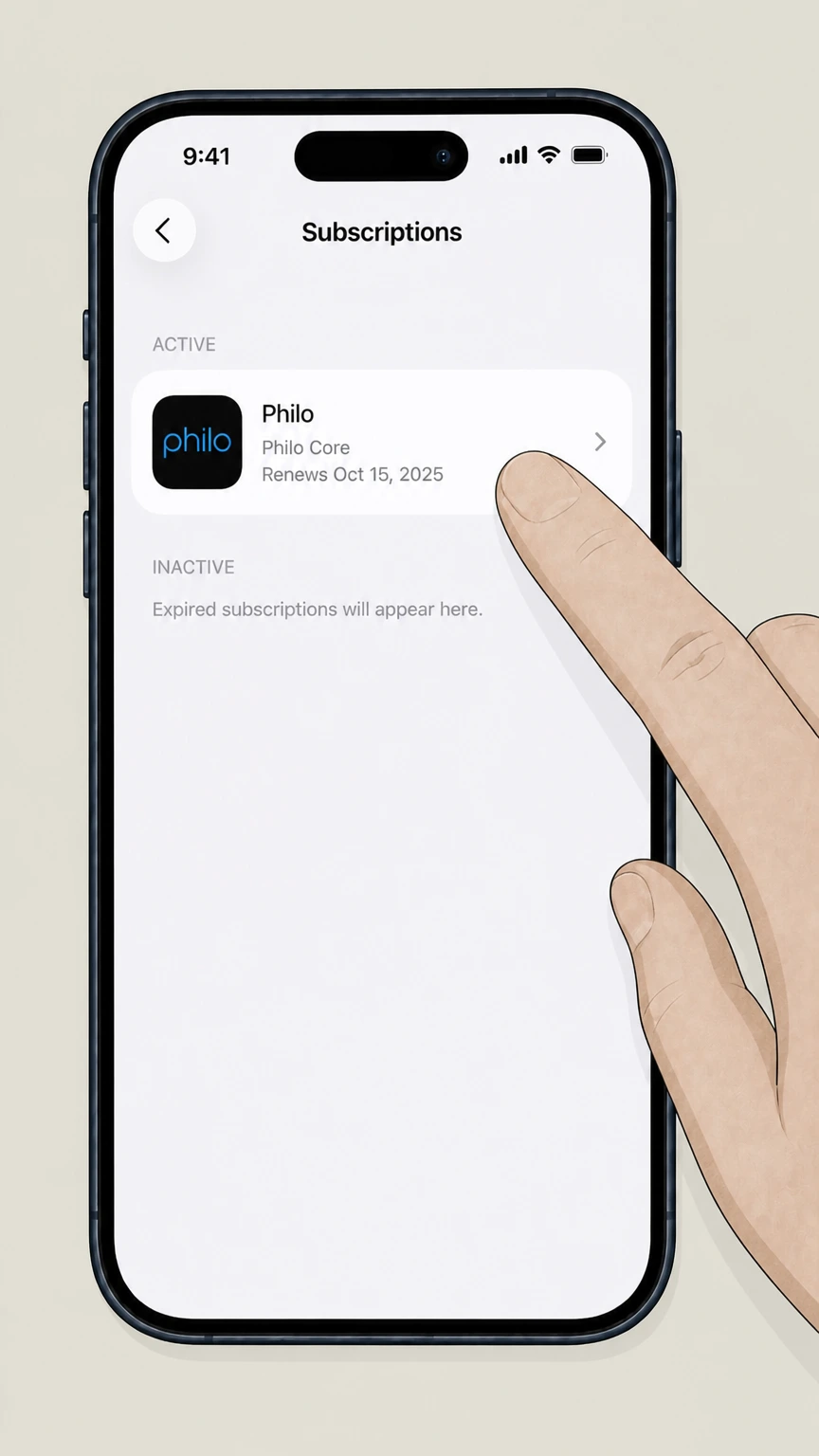 4
4Choose Philo
Open the Philo subscription and verify the plan and renewal date.
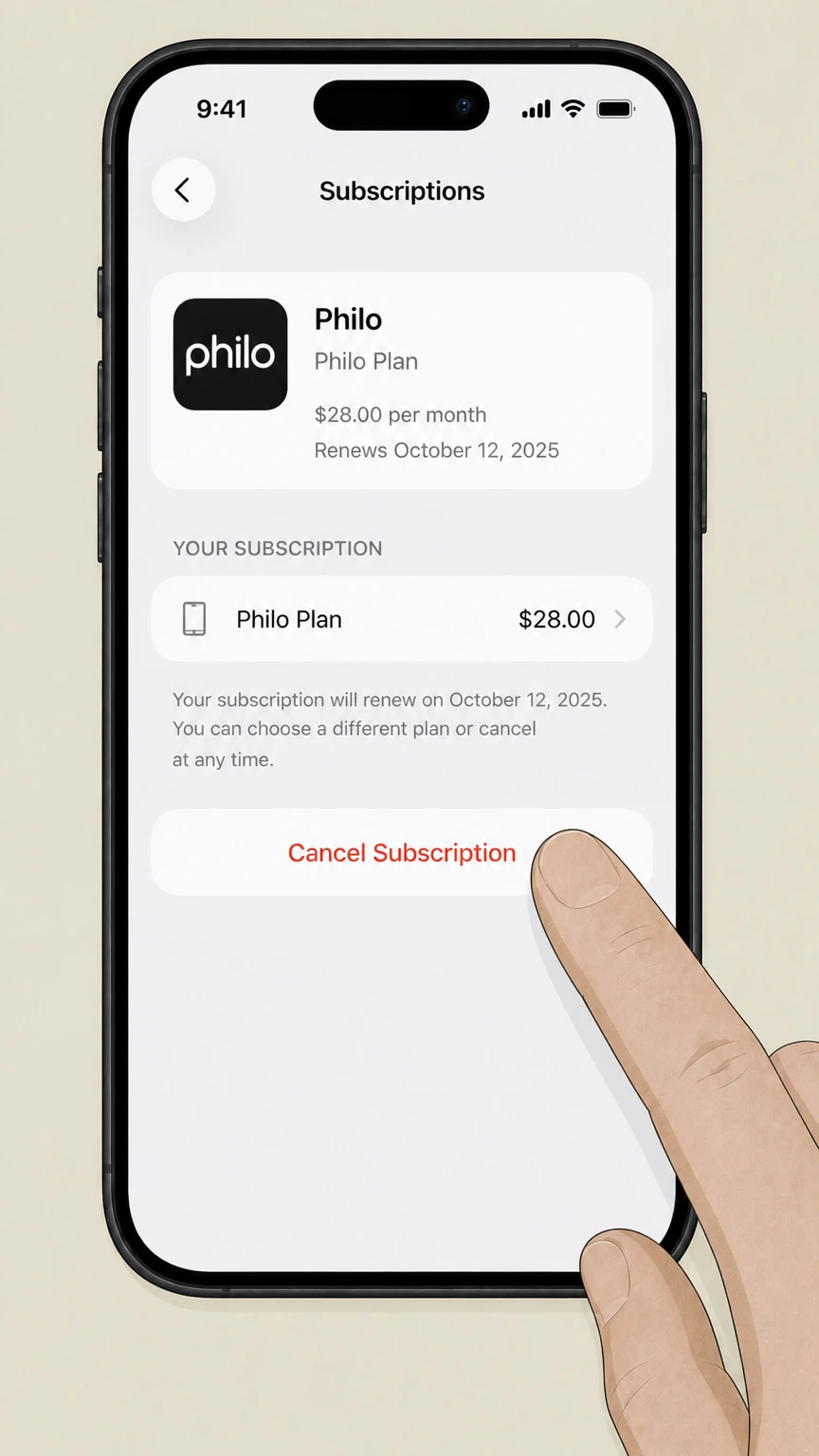 5
5Tap Cancel Subscription
Confirm the change and keep the expiration date shown by Apple.
Google Play · Verify this billing owner
Cancel Philo through Google Play
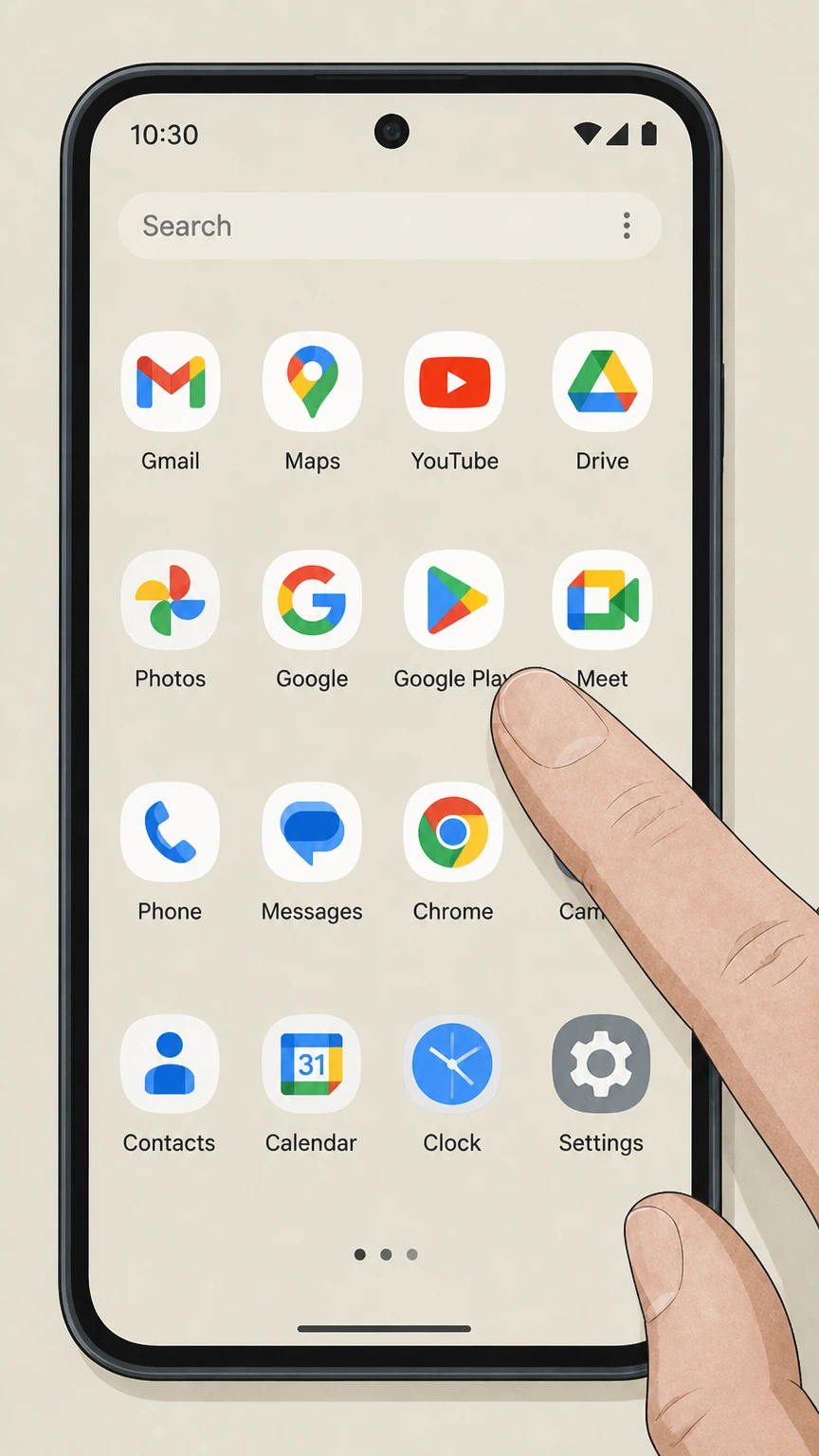 1
1Open Google Play
Use the Google account that purchased the subscription.
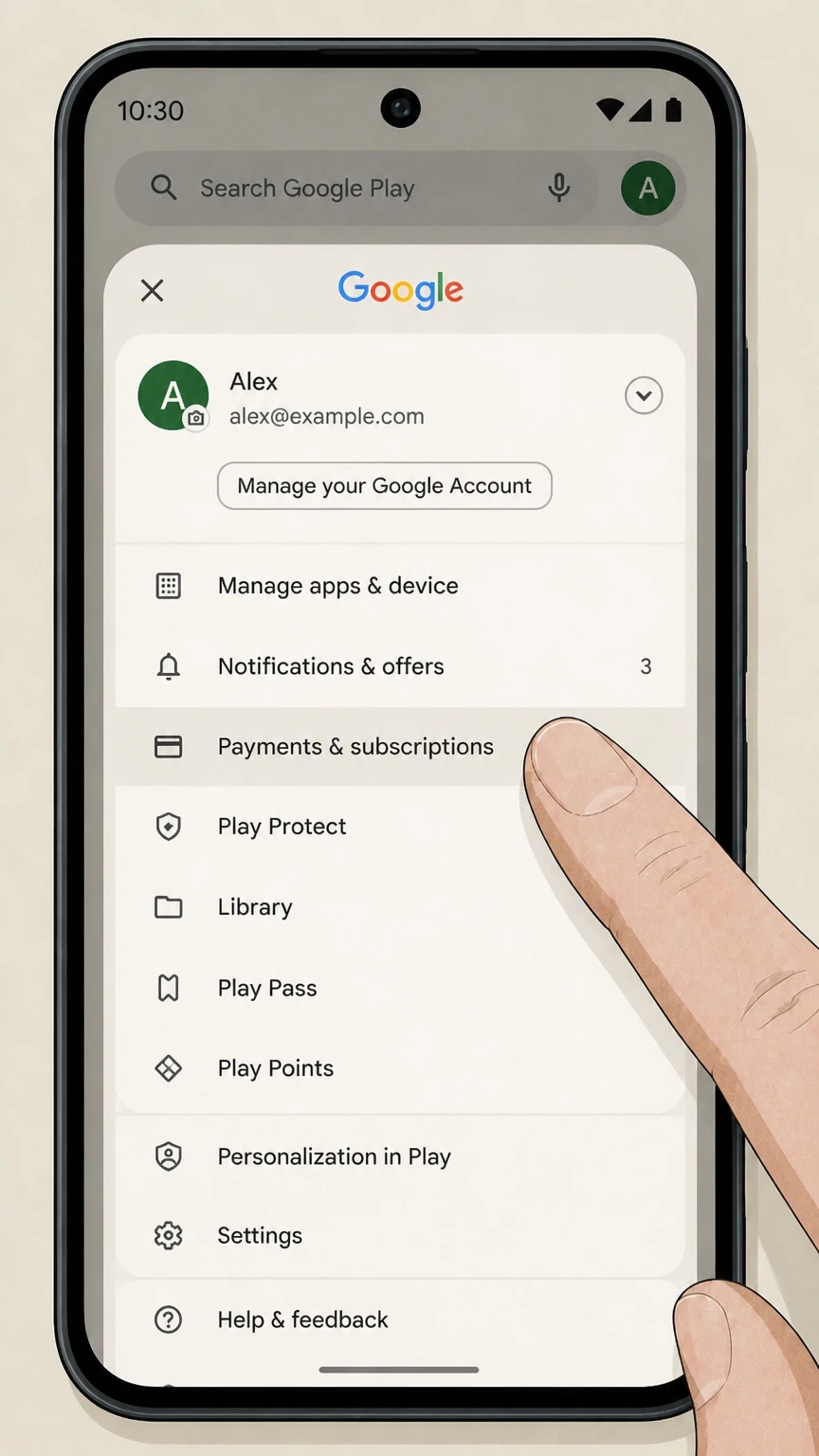 2
2Open Payments & subscriptions
Tap the profile picture, then Payments & subscriptions.
- Let Pine handle it
Pine can help
Too many steps?
Pine can find the right Google Play path and handle the cancellation for you.
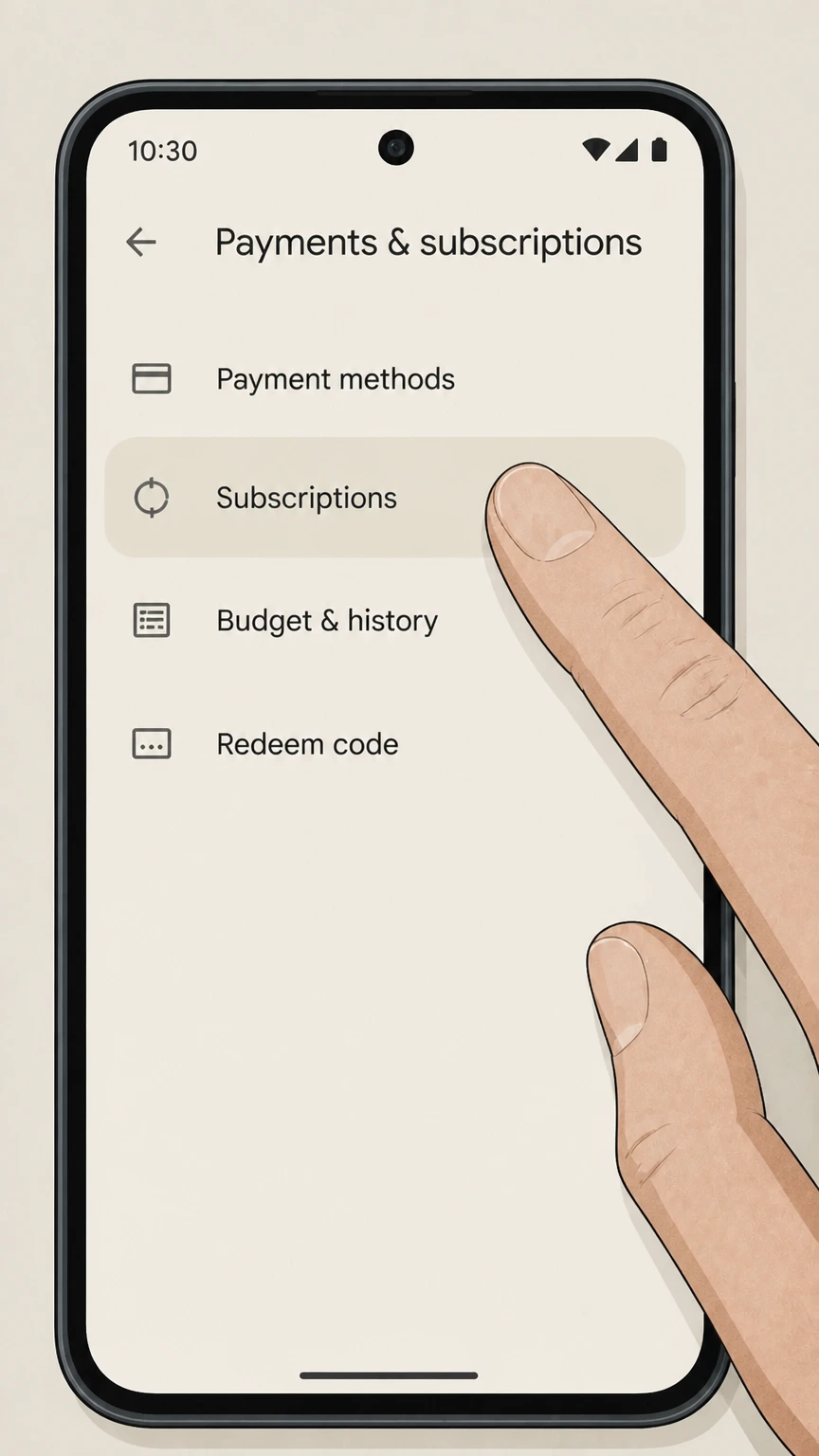 3
3Open Subscriptions
Find Philo in the active subscription list.
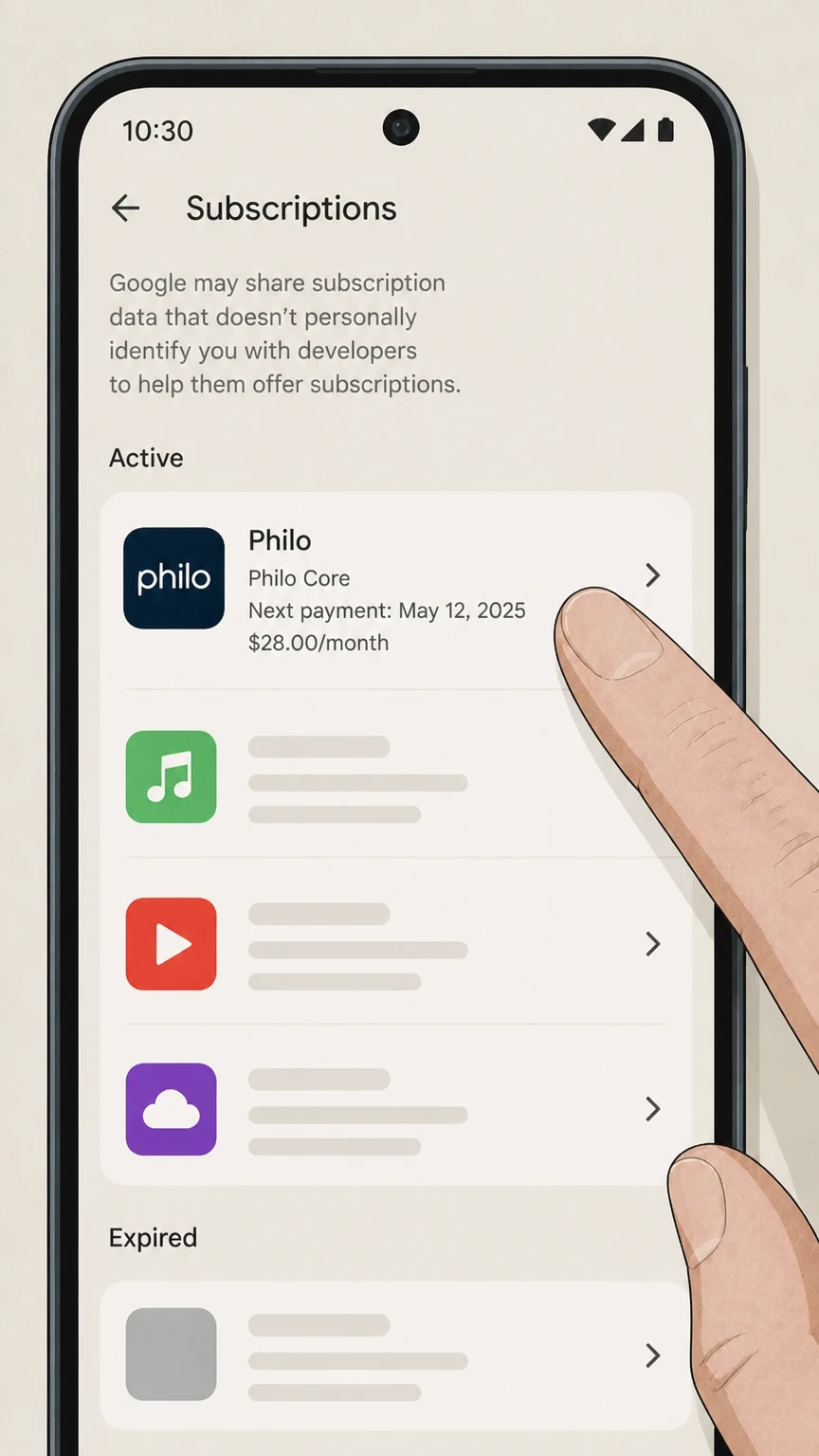 4
4Choose Philo
Review the plan and next billing date before changing renewal.
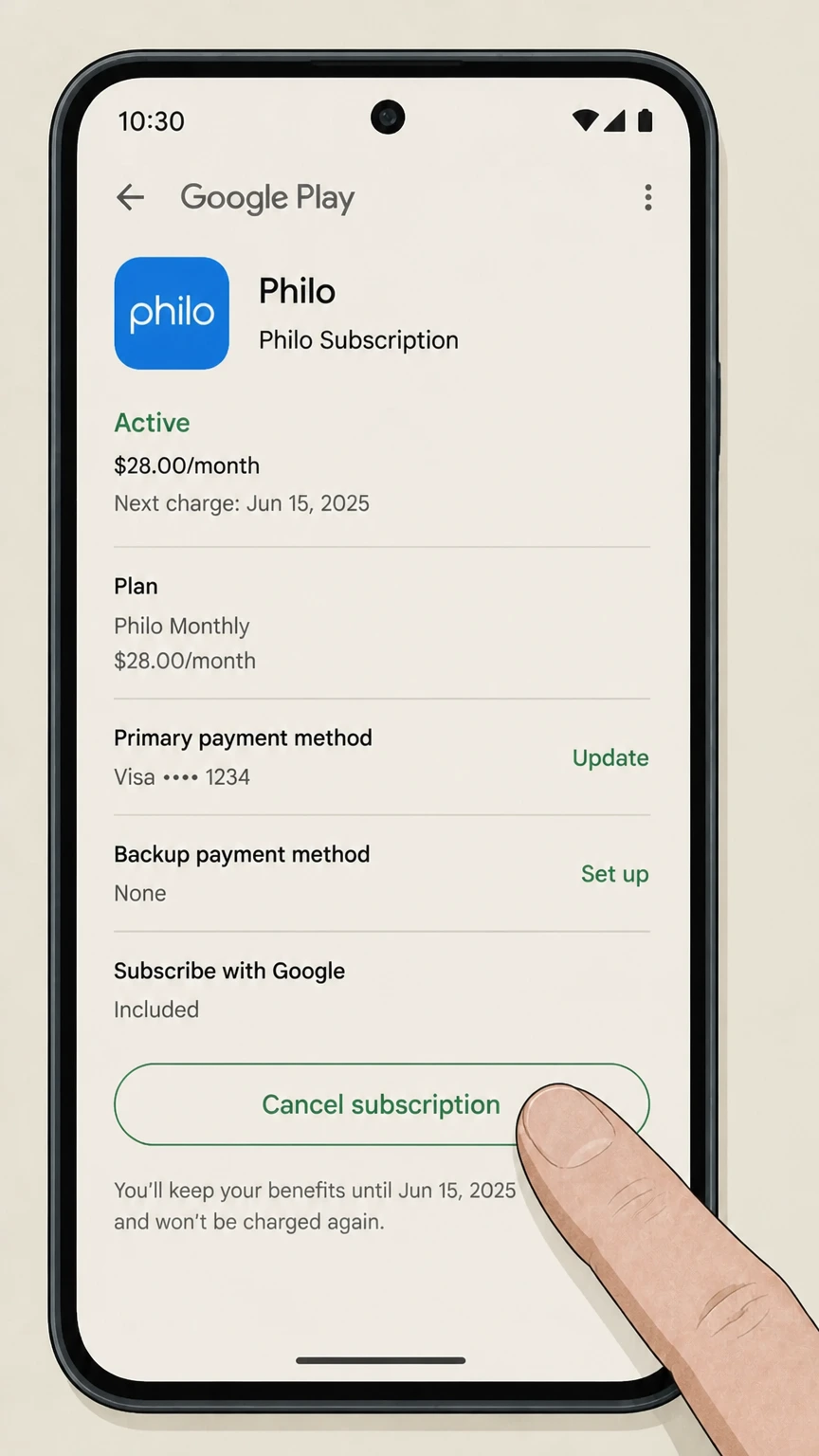 5
5Tap Cancel subscription
Choose a reason, finish the confirmation, and save the access end date.
Amazon · Verify this billing owner
Cancel Philo through Amazon
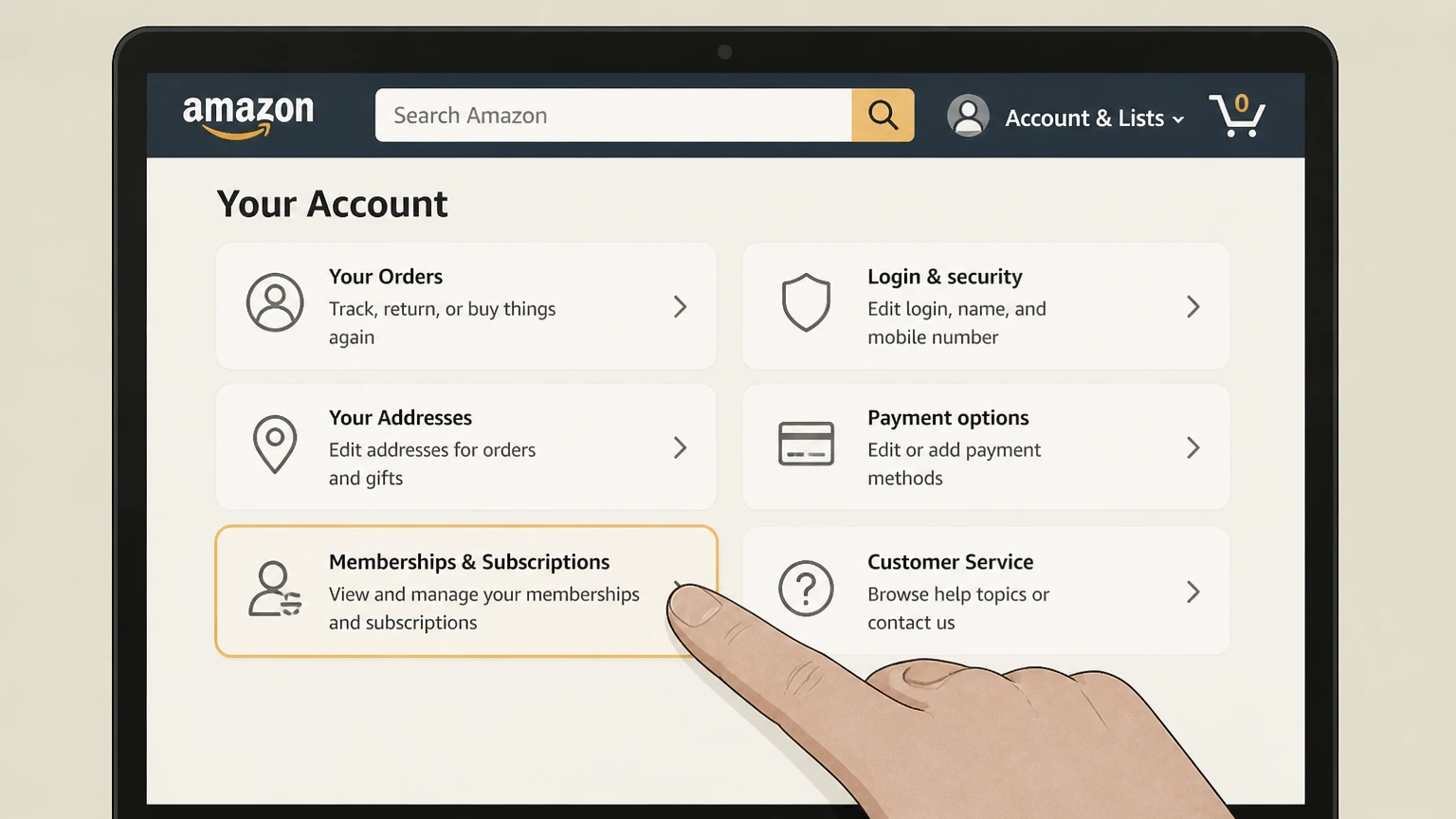 1
1Open Memberships & Subscriptions
Sign in to the Amazon account that purchased the subscription.
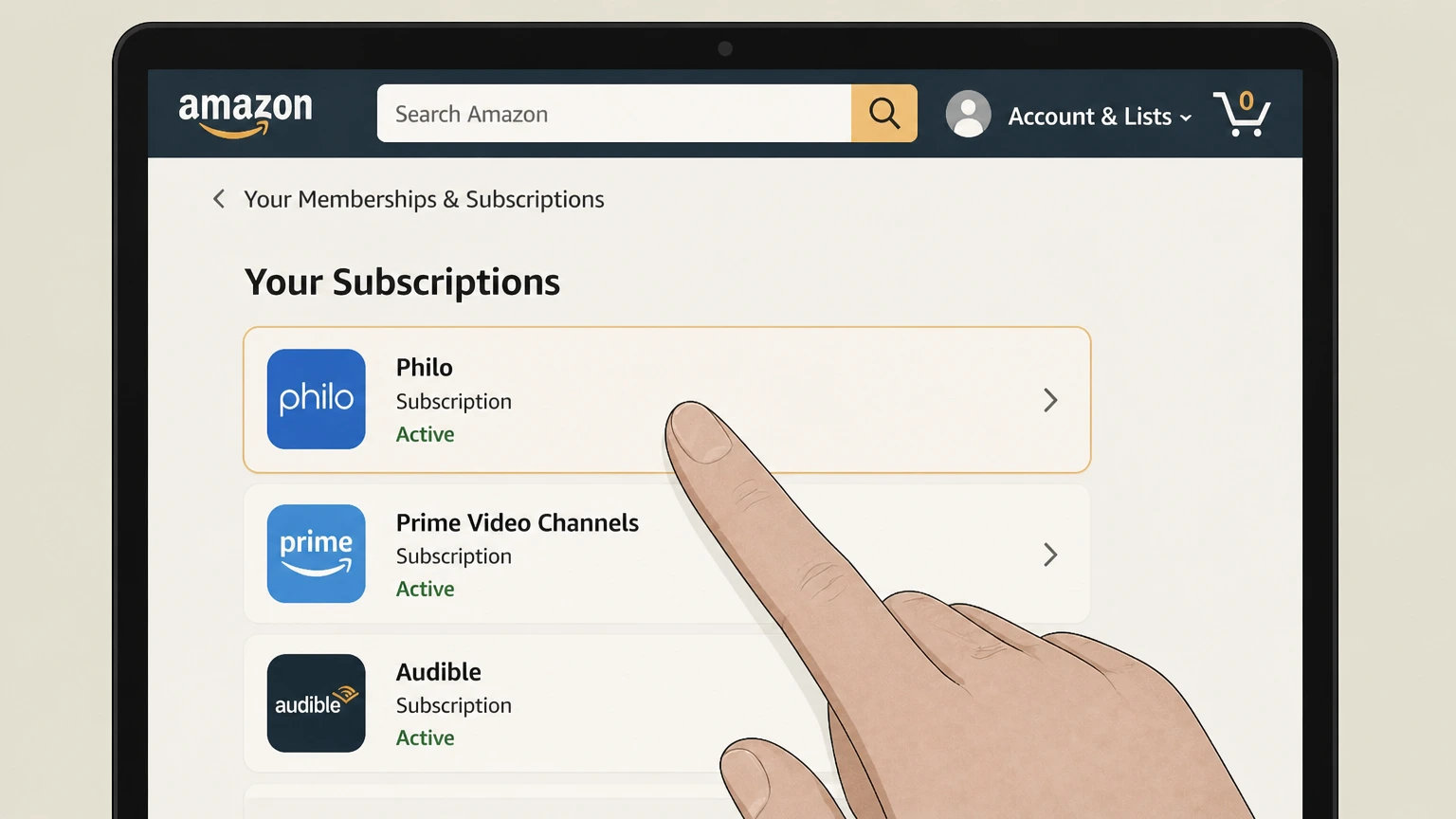 2
2Find Philo
Open its subscription or channel controls.
- Let Pine handle it
Pine can help
Too many steps?
Pine can find the right Amazon path and handle the cancellation for you.
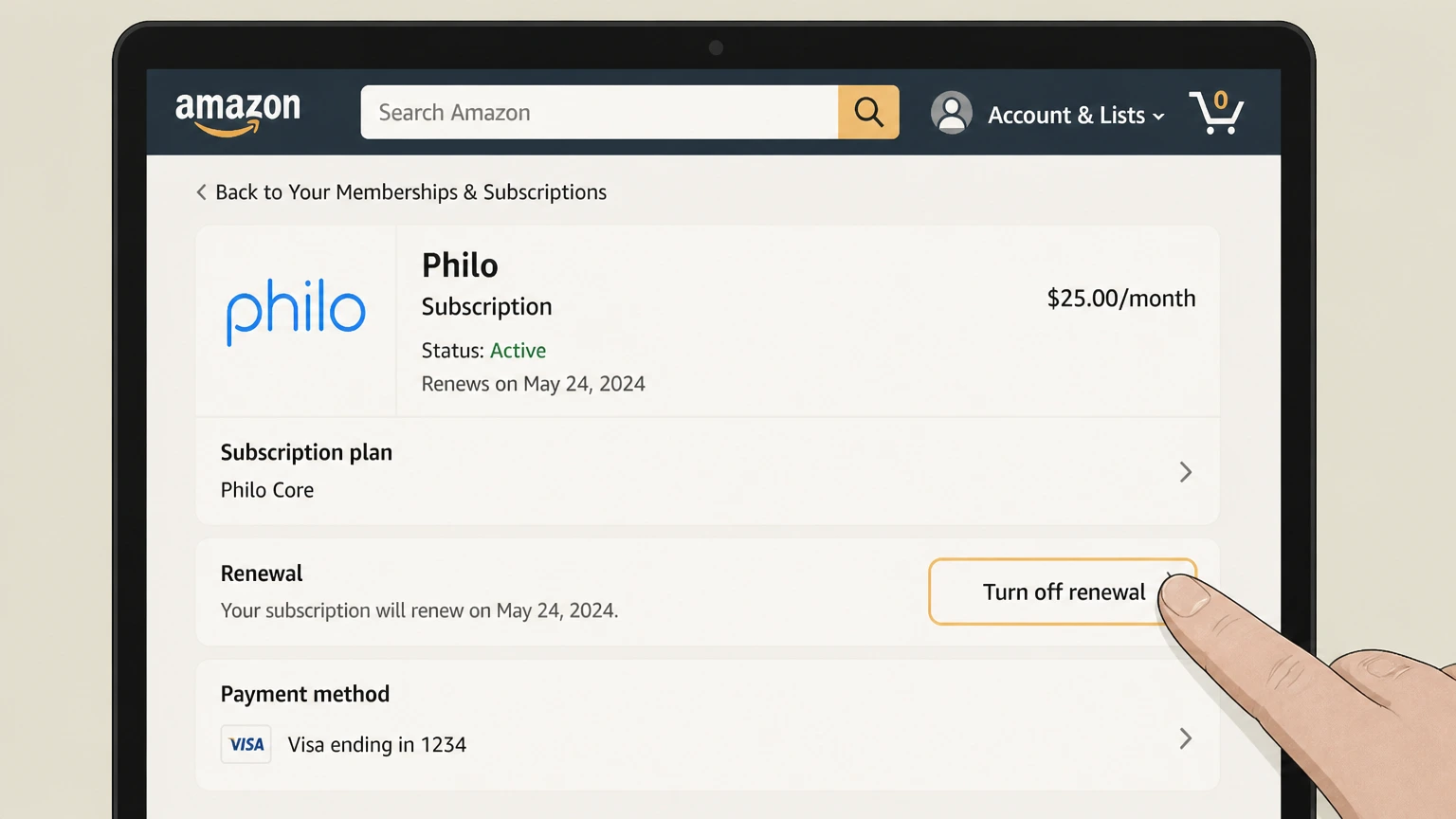 3
3Turn off renewal
Use the cancellation control shown for the active plan.
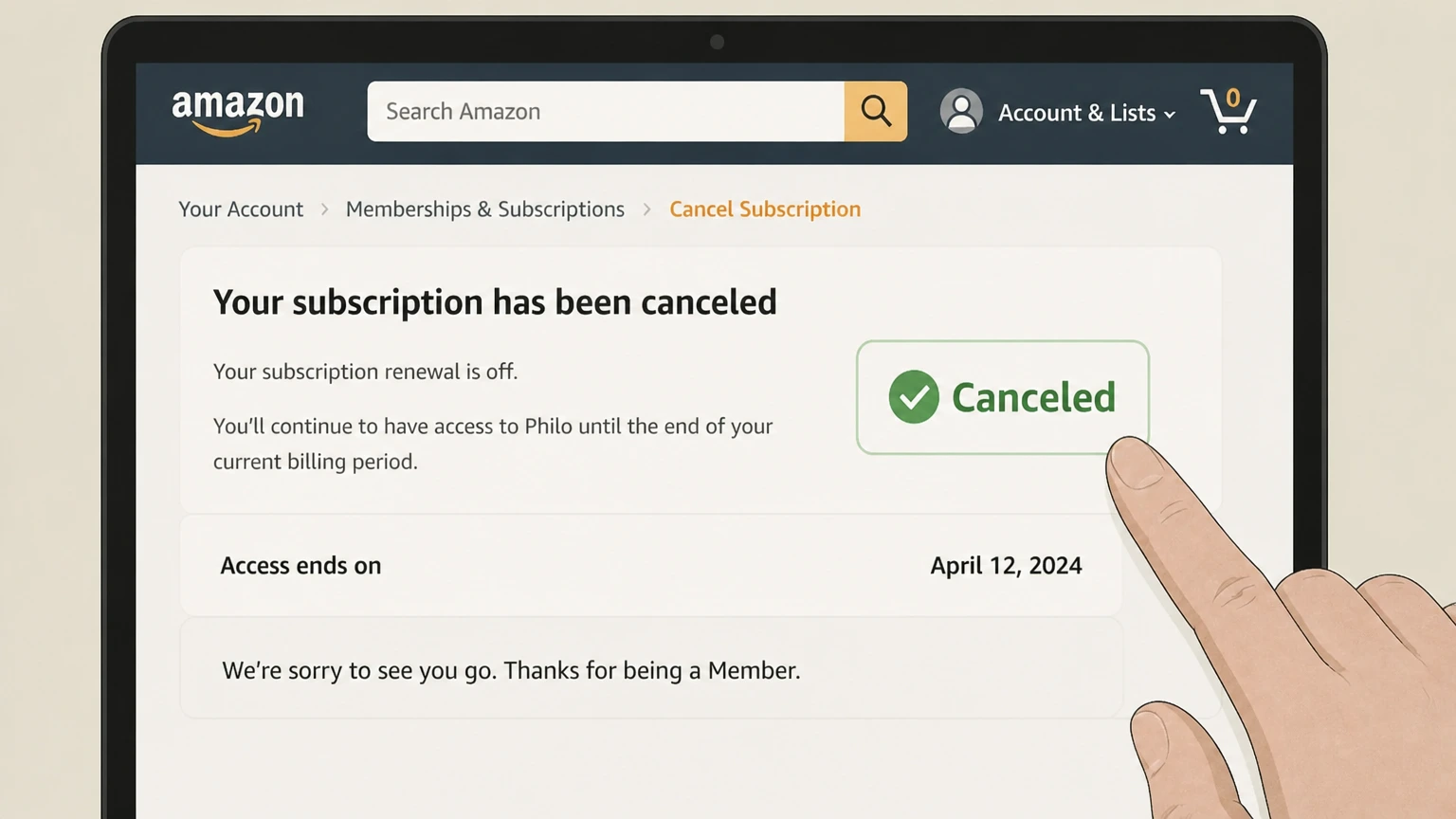 4
4Review the end date
Finish every prompt and keep the confirmation shown by Amazon.
Roku · Verify this billing owner
Cancel Philo through Roku
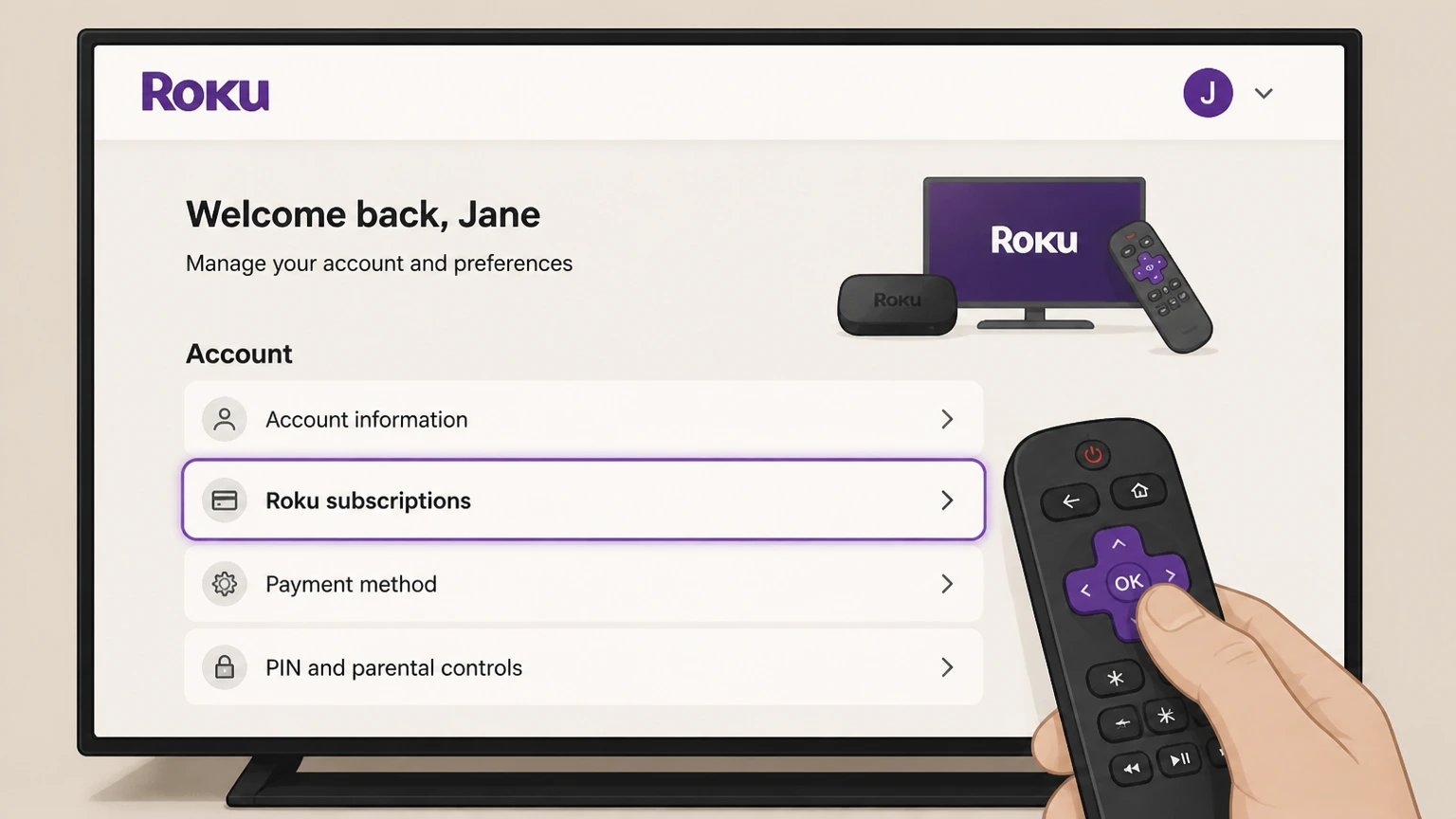 1
1Open Roku subscriptions
Sign in at my.roku.com and open Manage subscriptions.
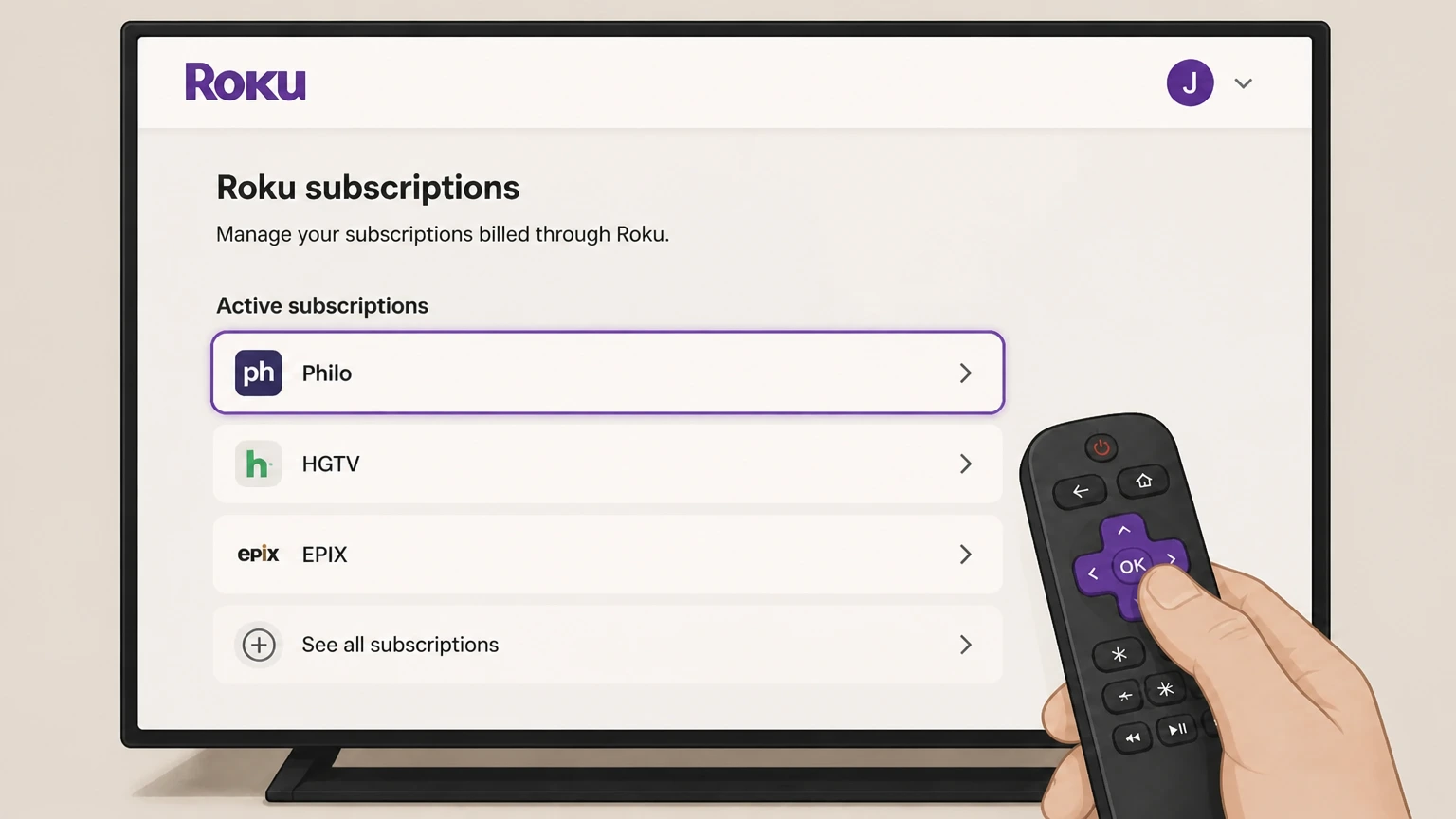 2
2Choose Philo
Find the active subscription billed by Roku.
- Let Pine handle it
Pine can help
Too many steps?
Pine can find the right Roku path and handle the cancellation for you.
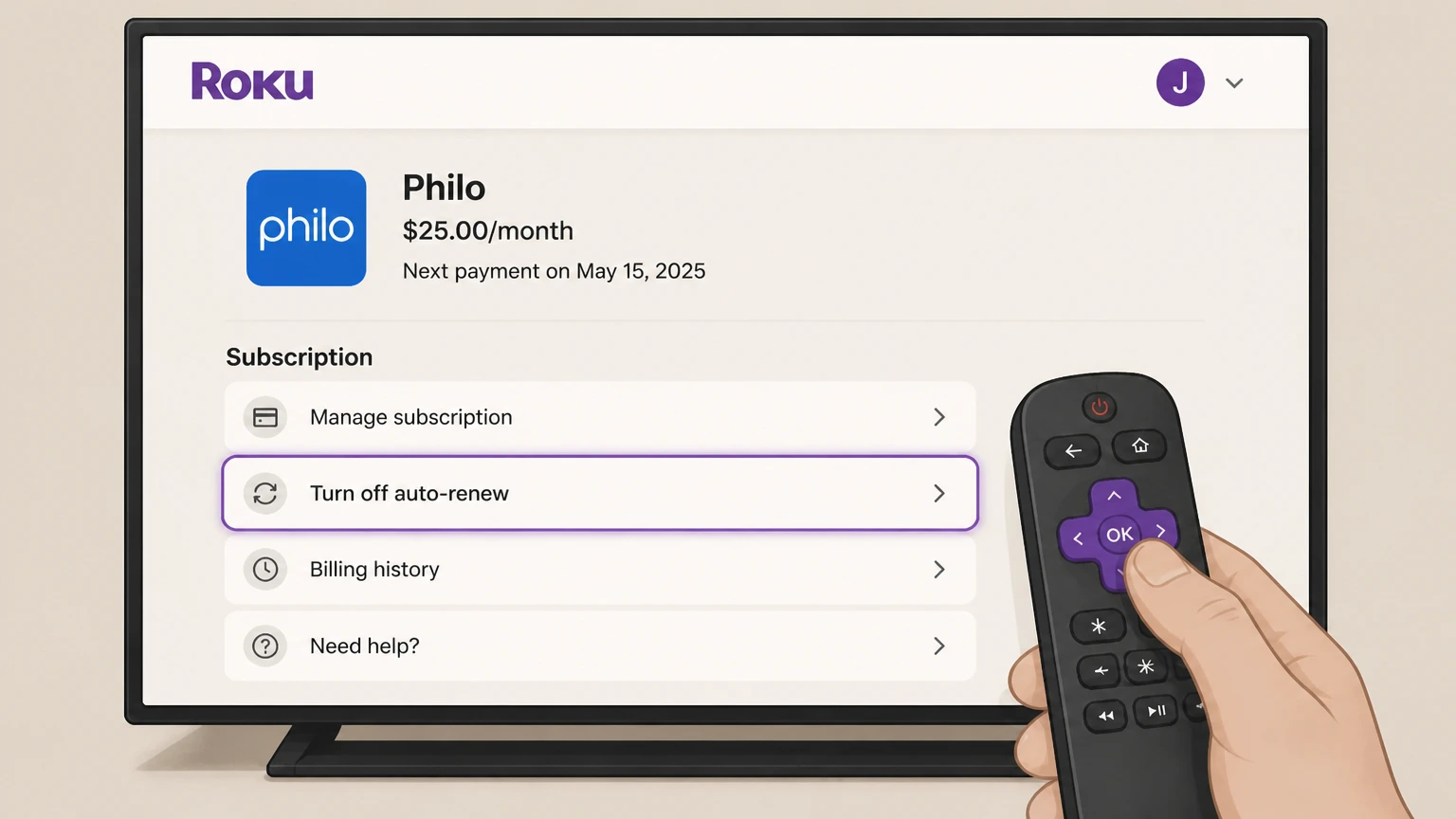 3
3Turn off auto-renew
Choose the cancellation control and review the terms.
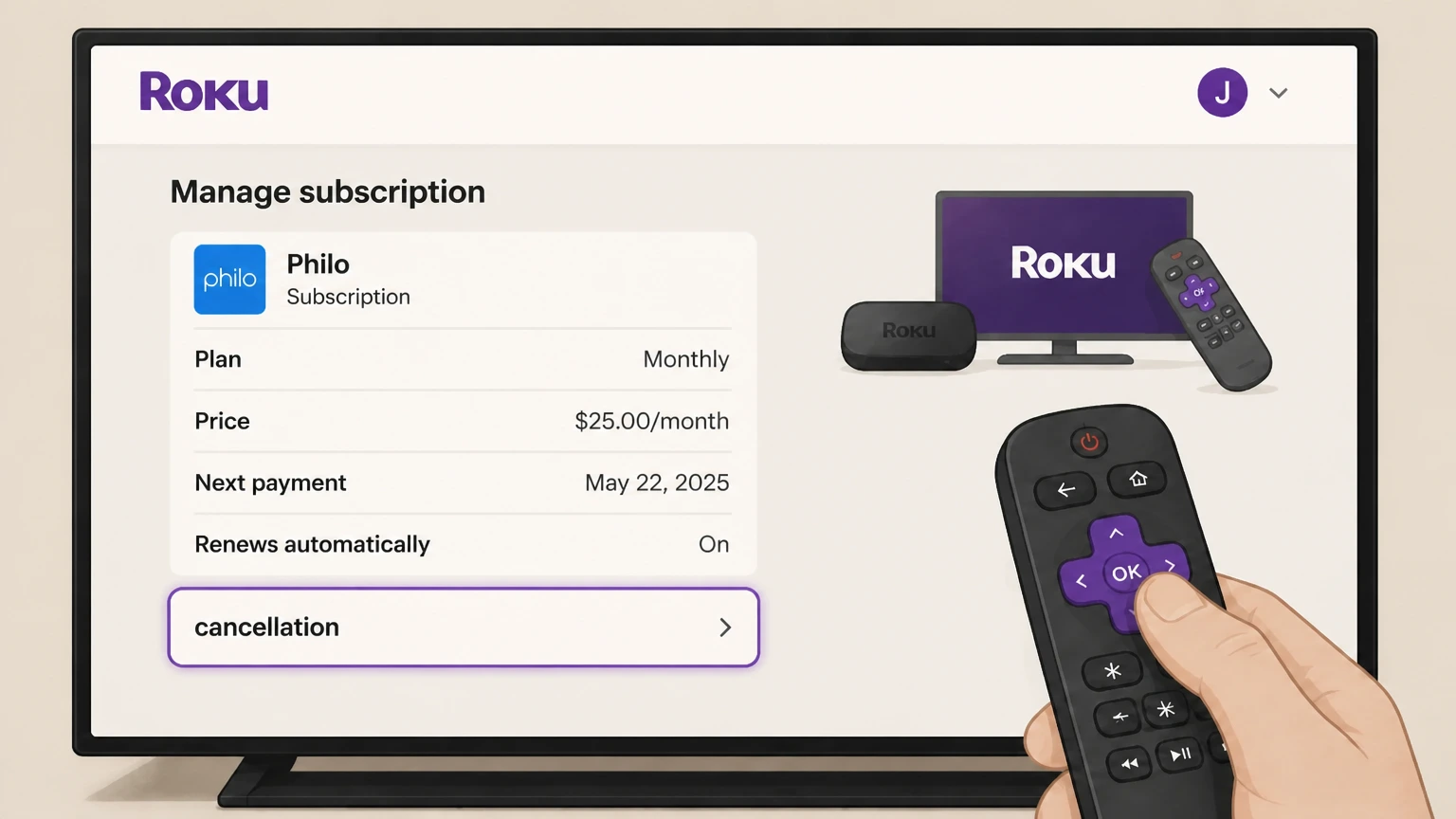 4
4Confirm cancellation
Save the renewal status and access end date.
Samsung TV · Verify this billing owner
Cancel Philo through Samsung TV
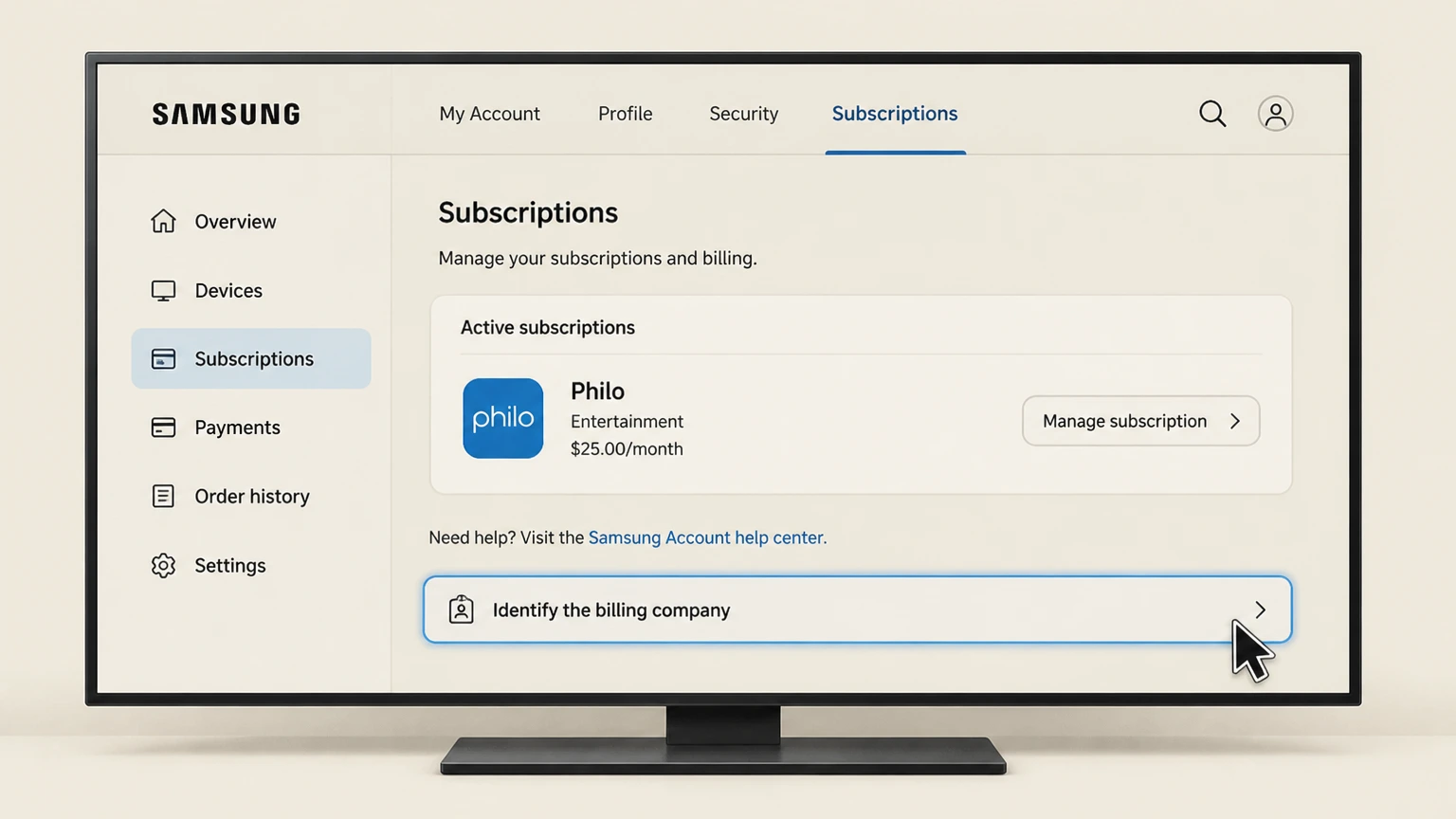 1
1Identify the billing company
Check the Philo account, receipt, or card statement for the seller name.
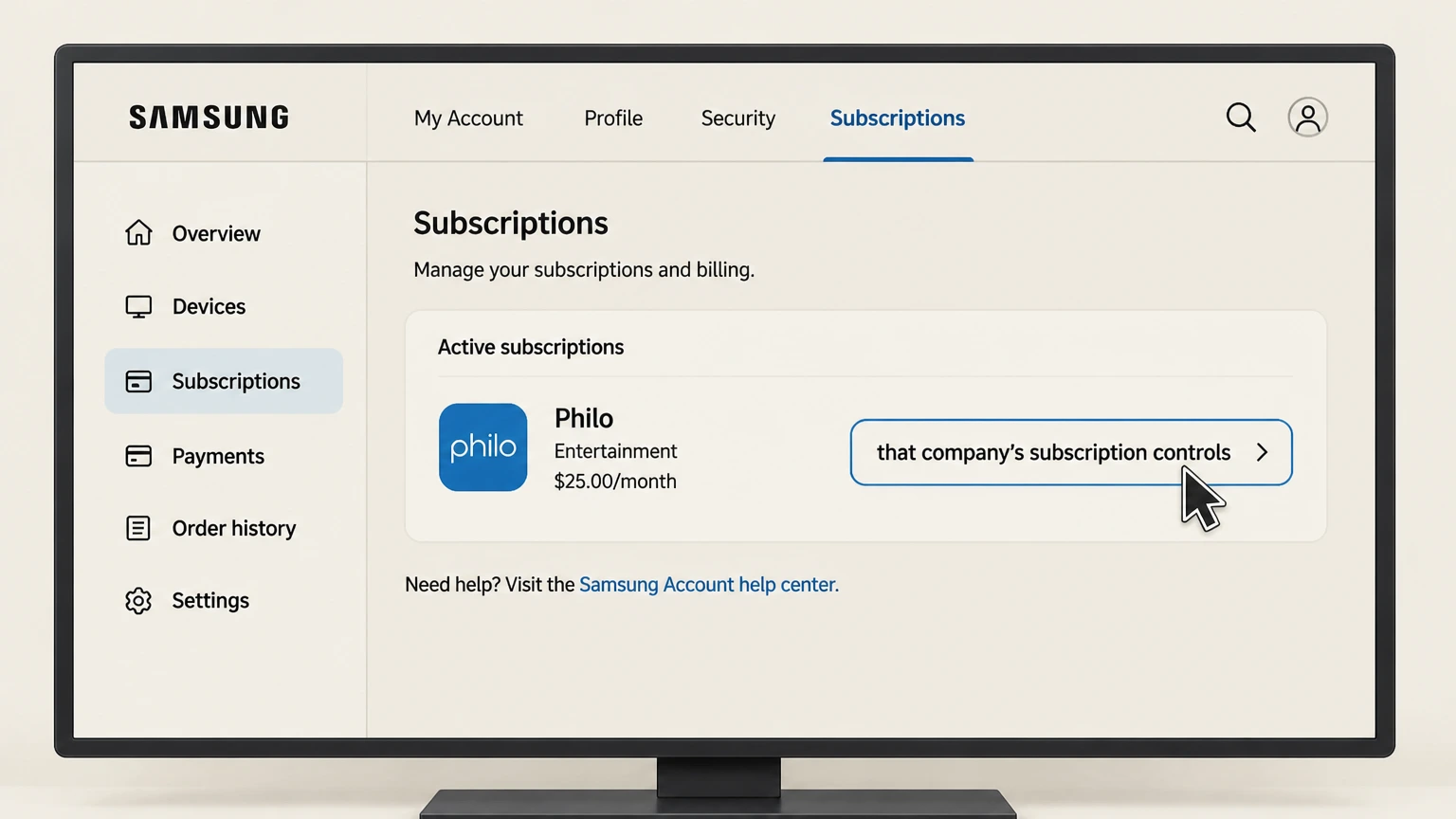 2
2Open that company’s subscription controls
Use the signed-in account connected to the charge.
- Let Pine handle it
Pine can help
Too many steps?
Pine can find the right Samsung TV path and handle the cancellation for you.
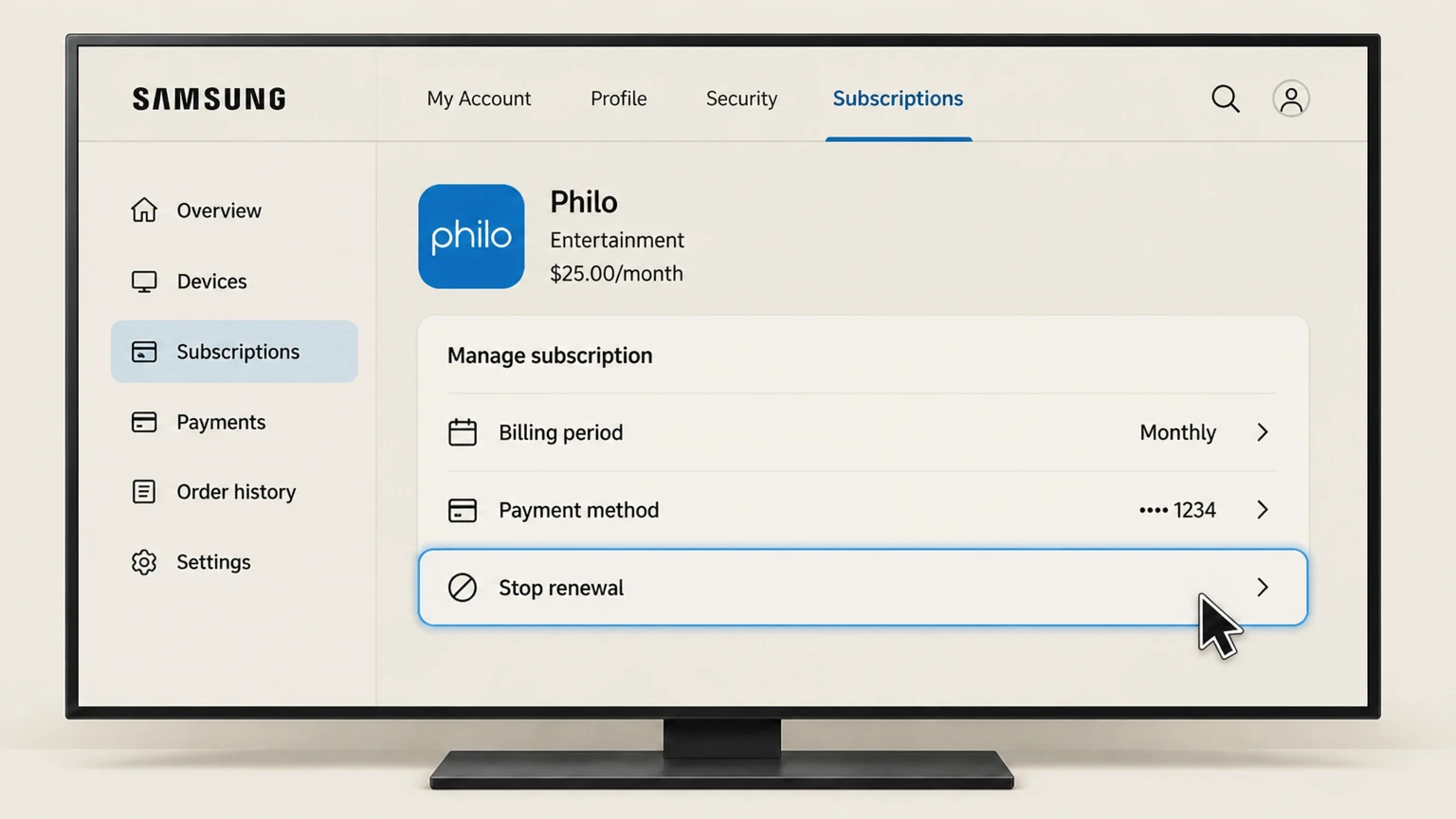 3
3Stop renewal
Follow the seller’s cancellation flow to the final confirmation.
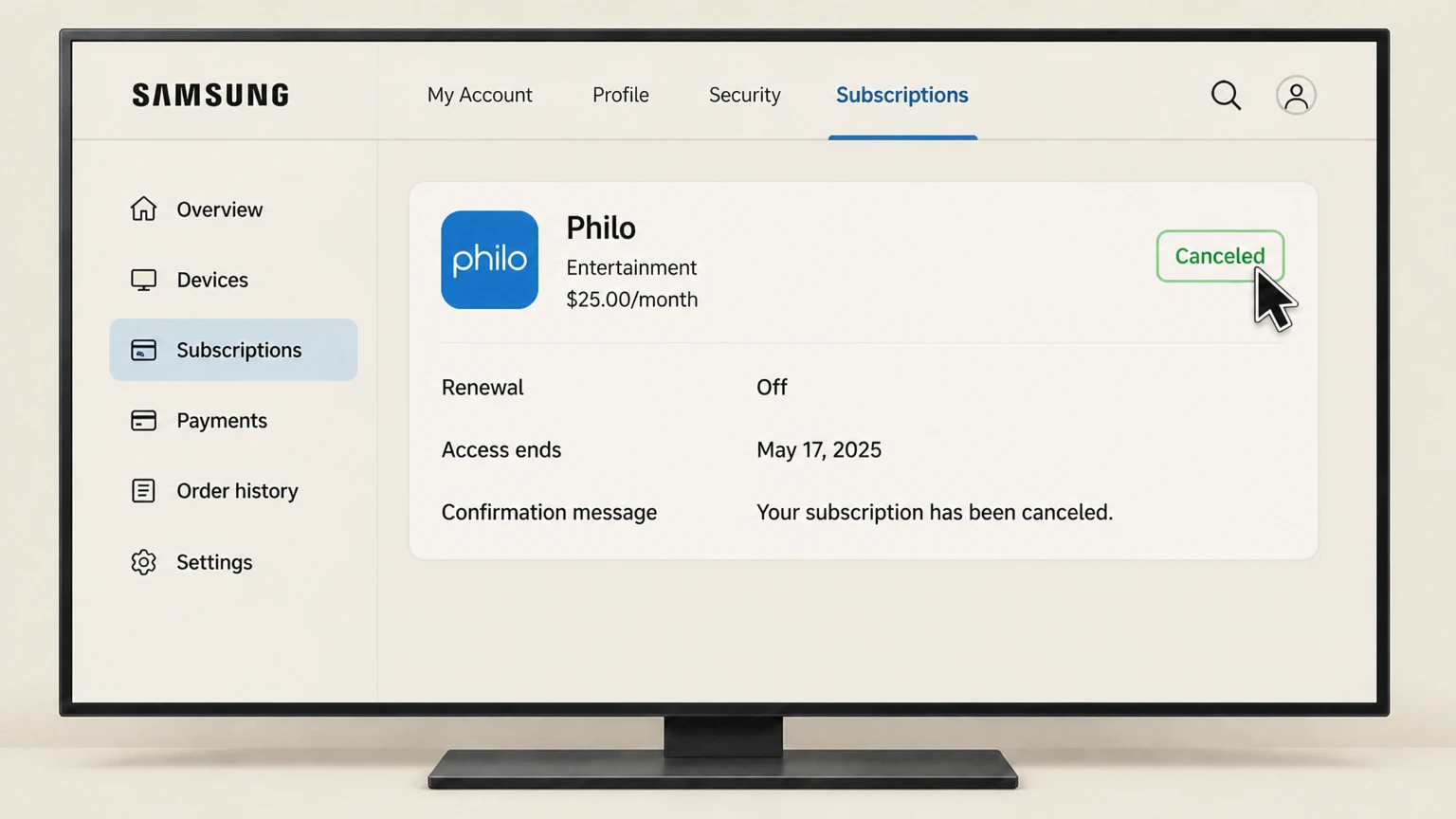 4
4Keep proof
Save the seller name, canceled status, effective date, and confirmation message.
Billing partner · Verify this billing owner
Cancel Philo through Billing partner
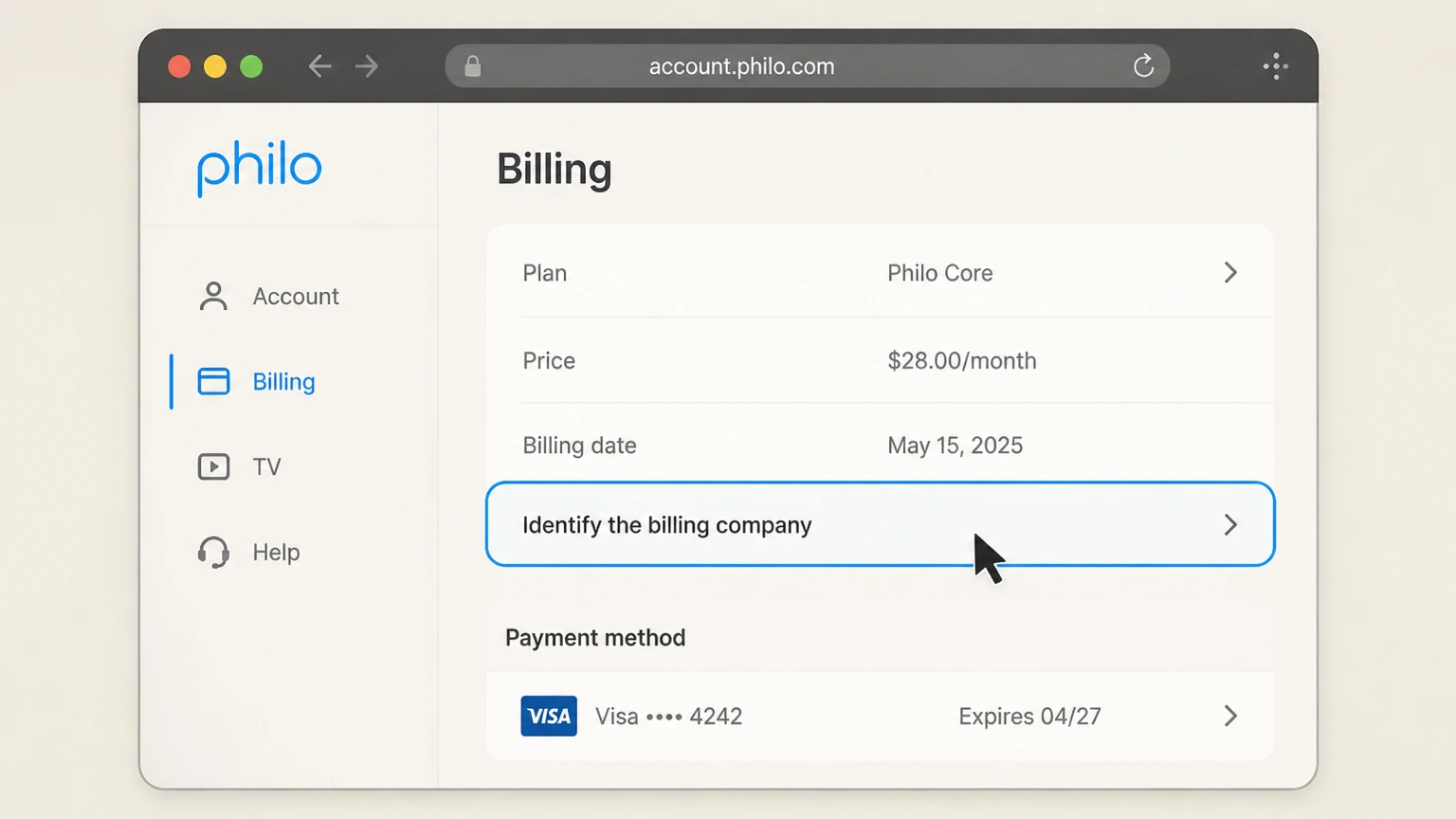 1
1Identify the billing company
Check the Philo account, receipt, or card statement for the seller name.
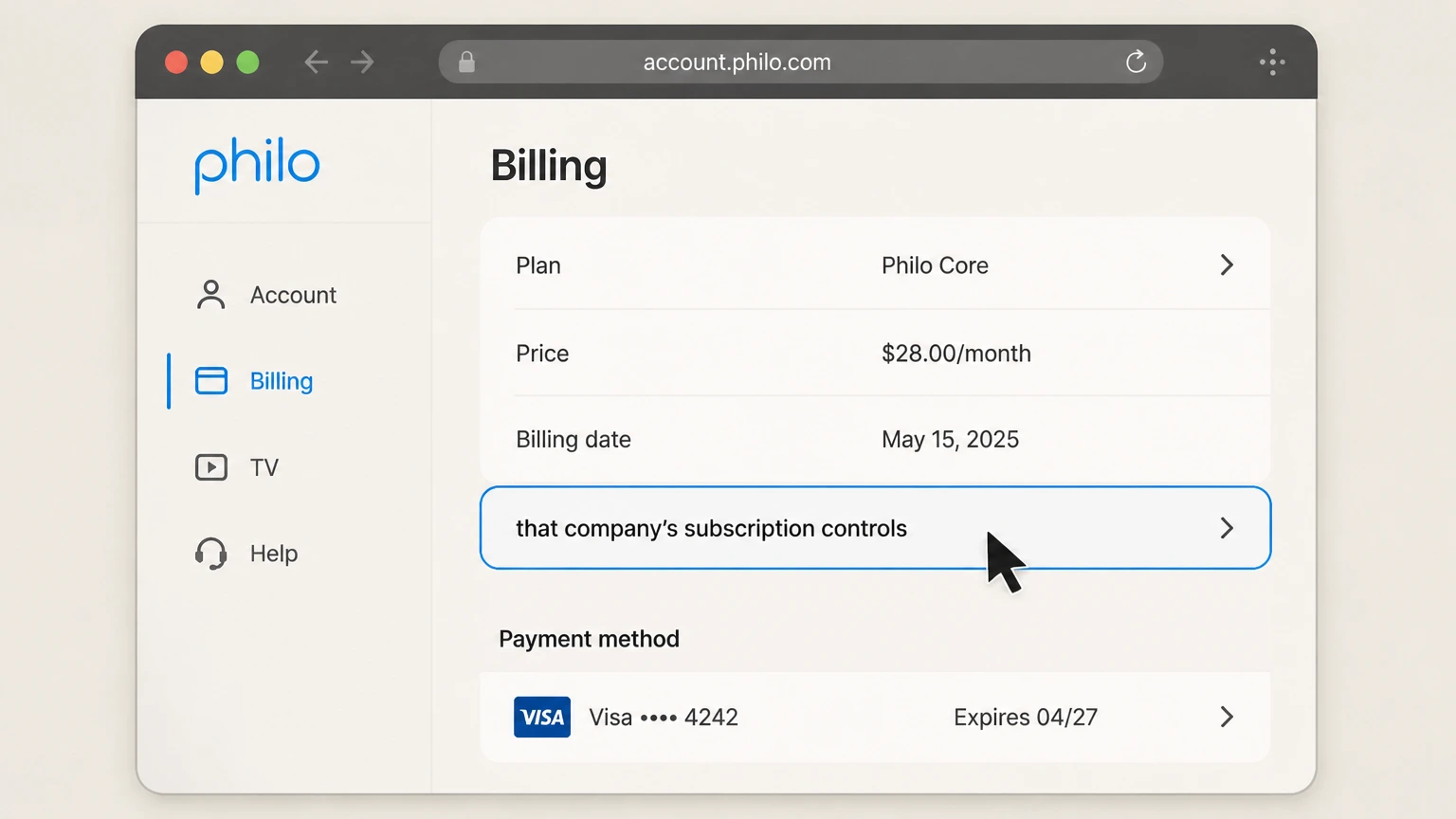 2
2Open that company’s subscription controls
Use the signed-in account connected to the charge.
- Let Pine handle it
Pine can help
Too many steps?
Pine can find the right Billing partner path and handle the cancellation for you.
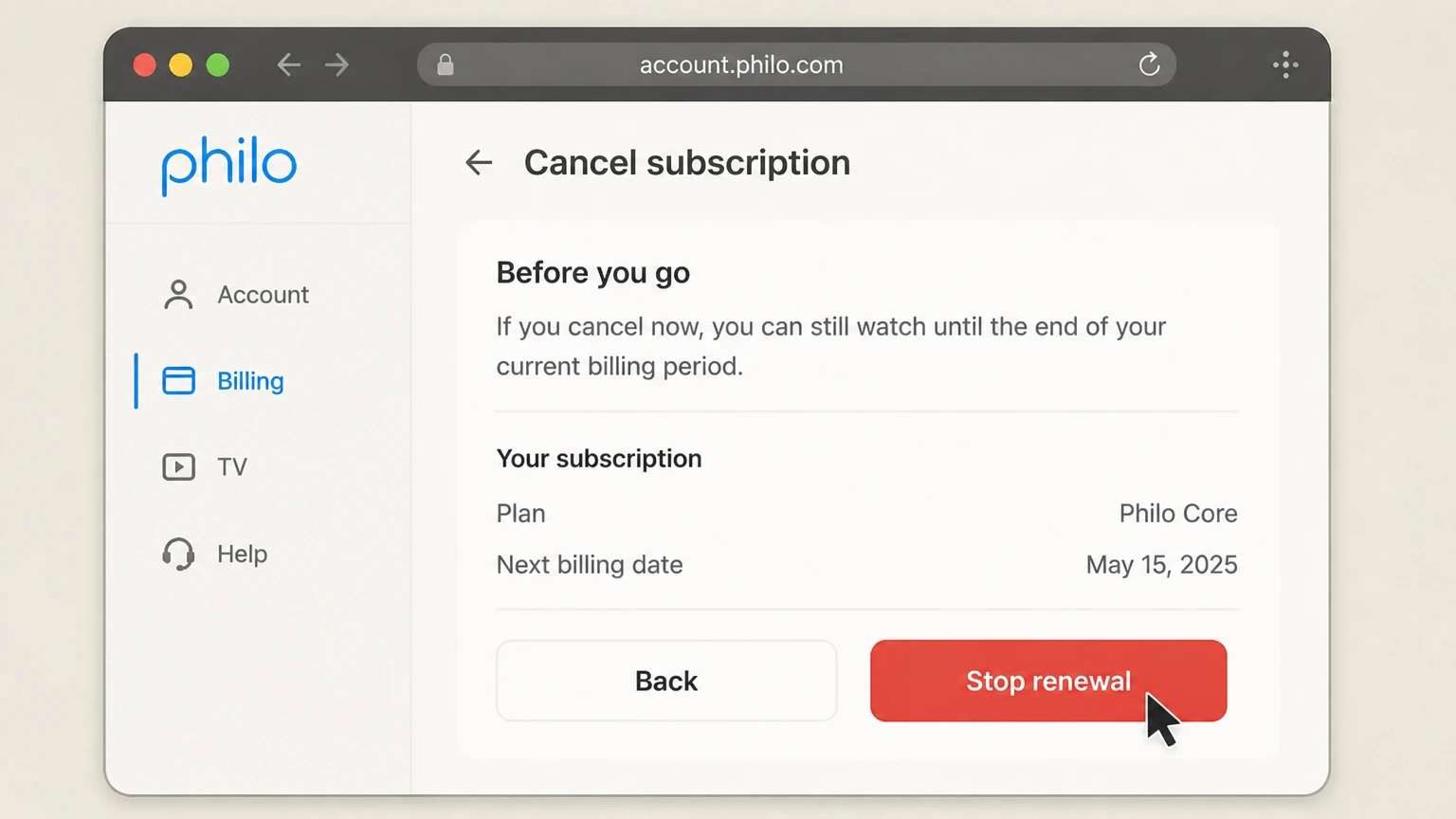 3
3Stop renewal
Follow the seller’s cancellation flow to the final confirmation.
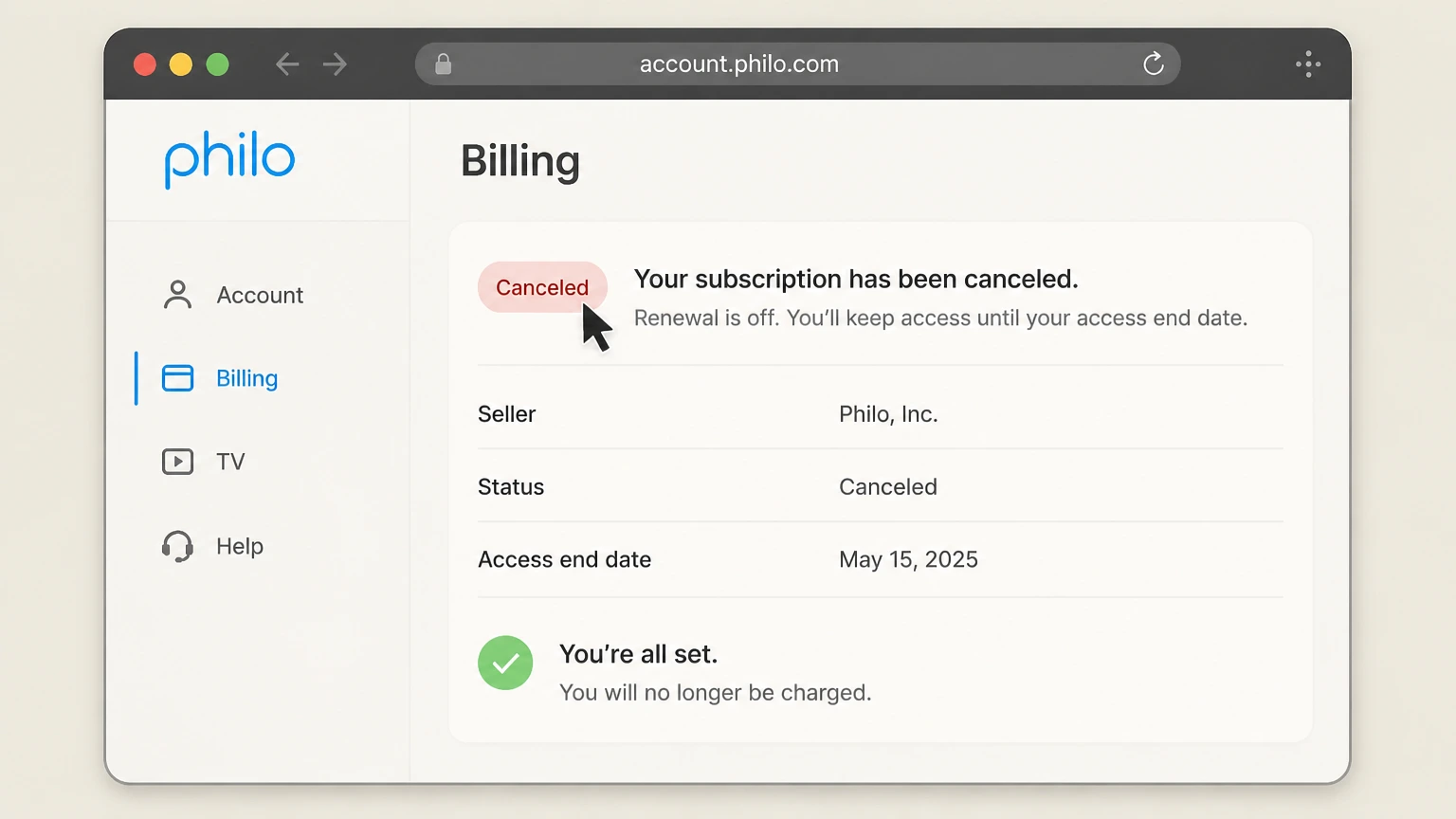 4
4Keep proof
Save the seller name, canceled status, effective date, and confirmation message.
Refund policy
Canceling Philo does not automatically create a refund
Cancellation does not itself promise a refund. Philo or the platform that posted the charge applies its policy and applicable law.
Check my refund options- Renewal
- The selected seller shows when paid access ends; direct and platform purchases can have different screens and policies.
- Refund boundary
- Cancellation does not itself promise a refund. Philo or the platform that posted the charge applies its policy and applicable law.
Check the signed-in subscription terms and the seller’s refund process before requesting review of a specific charge. Philo cancellation guide
Choose the right route
Who controls a Philo cancellation
Philo’s official help lists separate cancellation paths for direct, Amazon, Apple, Google, Roku, Samsung, and Vizio billing. Deleting an app, signing out, or removing a viewing profile does not by itself stop a recurring charge.
Smart-TV billing
Samsung or Vizio billing must be managed through that platform rather than the Philo website.
Add-ons
Record premium add-ons and confirm whether they end with the base plan.
Trial timing
Use the seller’s displayed renewal deadline and keep proof before the trial converts.
Keep proof
What to record before and after cancellation
Capture the account and billing details before changing renewal, then retain the final result in case another charge appears.
Before cancellation
Save the plan, seller, amount, renewal date, and account email shown on the receipt or subscription page.
At confirmation
Save the canceled or expiring status, effective date, confirmation number, and email.
After cancellation
Check separately billed add-ons and compare any later charge with the seller shown in the saved receipt.
Troubleshooting
Why the cancellation control may be missing
A missing button usually means the subscription is under a different account, already set to expire, or billed by another company.
Wrong account
Search purchase emails and try the email or store account named on the receipt.
Wrong billing owner
If the provider page names a partner, finish cancellation in that partner account.
Incomplete flow
A retention offer, pause choice, or reason screen is not final confirmation.
Philo cancellation questions
Answers are tied to the official sources checked on August 4, 2026; signed-in terms and local law still control your account.
How do I cancel my Philo subscription?
Can I cancel Philo in the app?
What happens after I cancel Philo?
Will Philo refund the latest charge?
Why can’t I find a Philo cancel button?
Does deleting Philo stop billing?
What proof should I keep after canceling Philo?
Untangle this Philo issue.
Let Pine handle the provider follow-up and keep the confirmation in one place.
