


ESPN+
Cancel subscription
How to Cancel ESPN+ or ESPN Select Subscription
Learn how to cancel ESPN+ through the right billing provider. Follow official steps, understand access timing, refunds, and the confirmation to keep.
- Official ESPN+ and billing-owner sources
- 3 provider-specific cancellation paths
- Refund and post-cancellation effects separated from renewal
- Verified August 17, 2026
Choose the ESPN+ cancellation path that matches who bills you
Cancel ESPN+ billed directly by ESPN on the web · verify the billing owner
 1
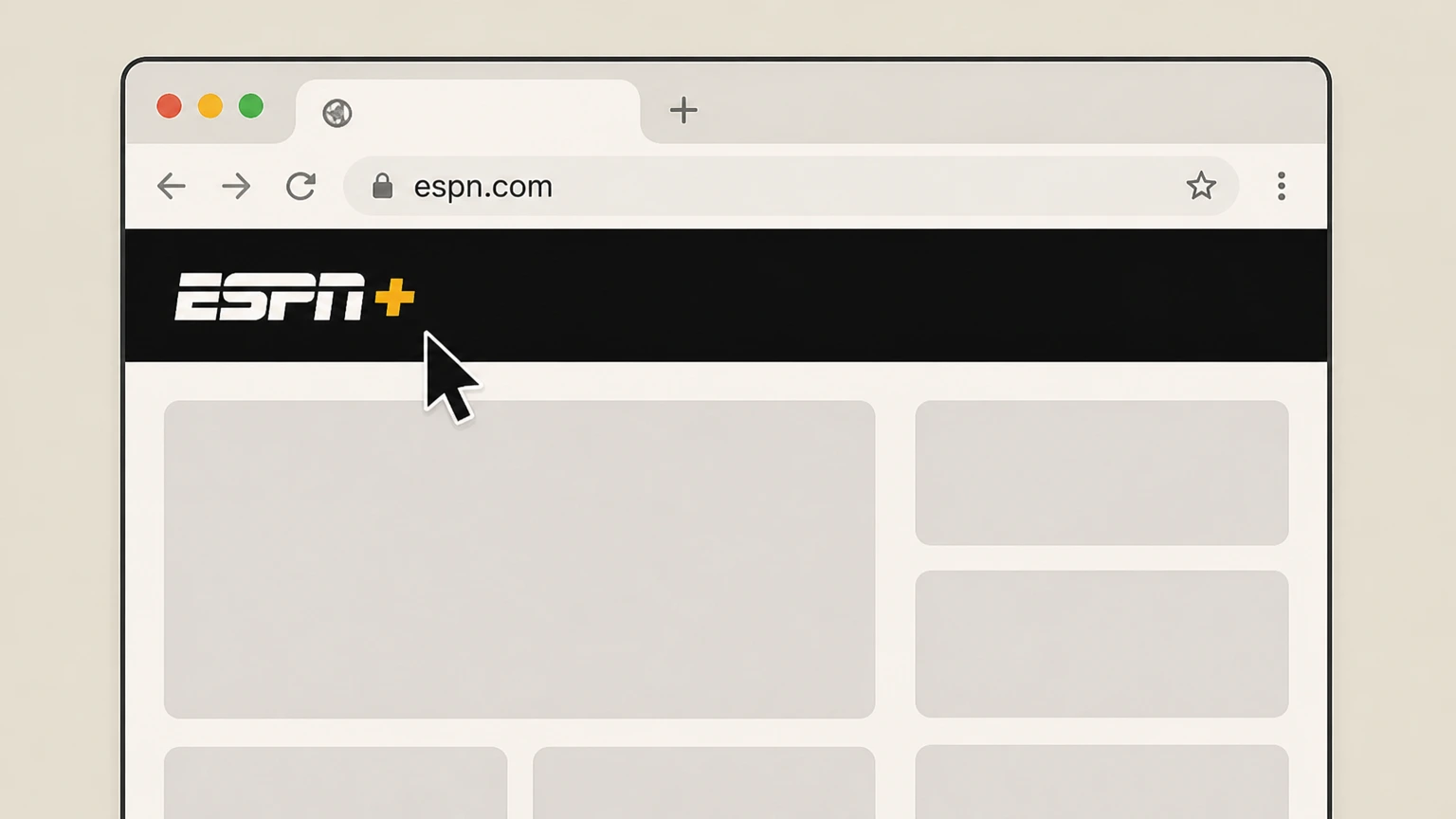
1Open ESPN in a web browser
In a computer or mobile browser, go to ESPN.com and navigate to the ESPN site. Use the ESPN+ account named on your receipt, and continue only after the next status in this cancellation path is visible.
 2
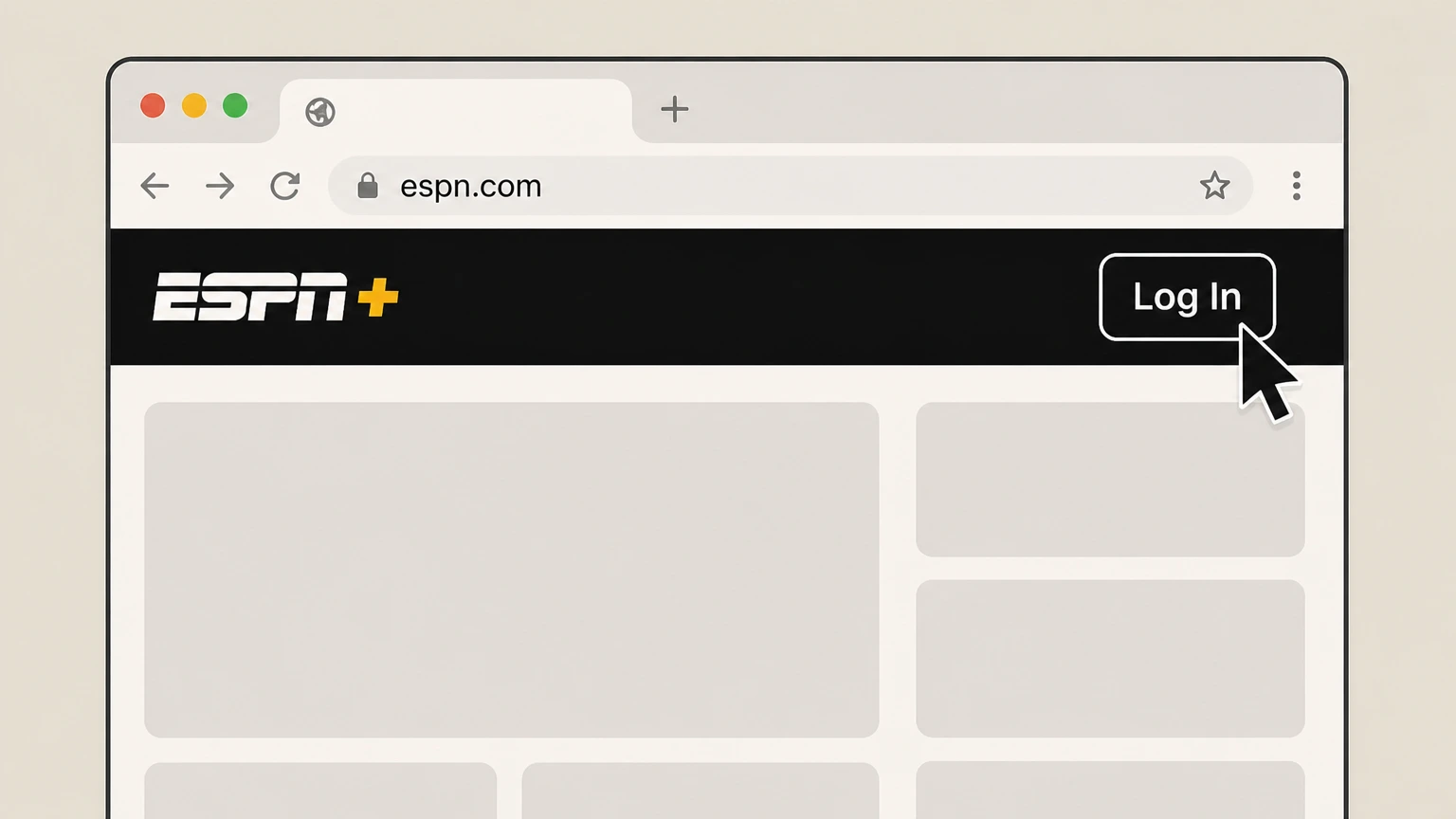
2Sign in to your ESPN account
Select Log In and enter the email and password associated with the ESPN account that has your subscription. Use the ESPN+ account named on your receipt, and continue only after the next status in this cancellation path is visible.
- Let Pine handle it
Pine can help
Too many steps?
Pine can find the right Cancel ESPN+ billed directly by ESPN on the web path and handle the cancellation for you.
 3
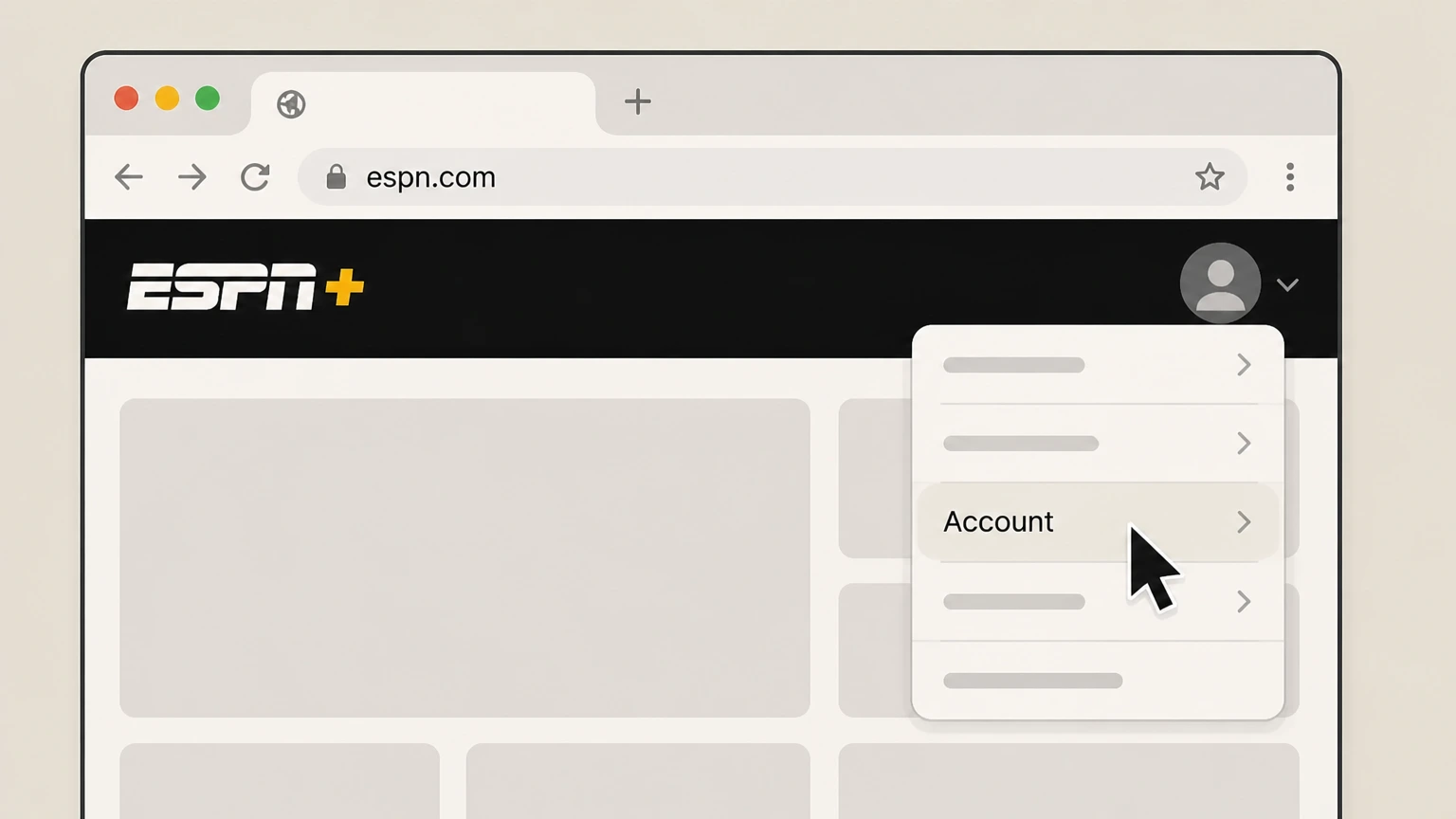
3Open your Account page
Select your profile picture in the upper-right corner and choose Account from the menu. Use the ESPN+ account named on your receipt, and continue only after the next status in this cancellation path is visible.
 4
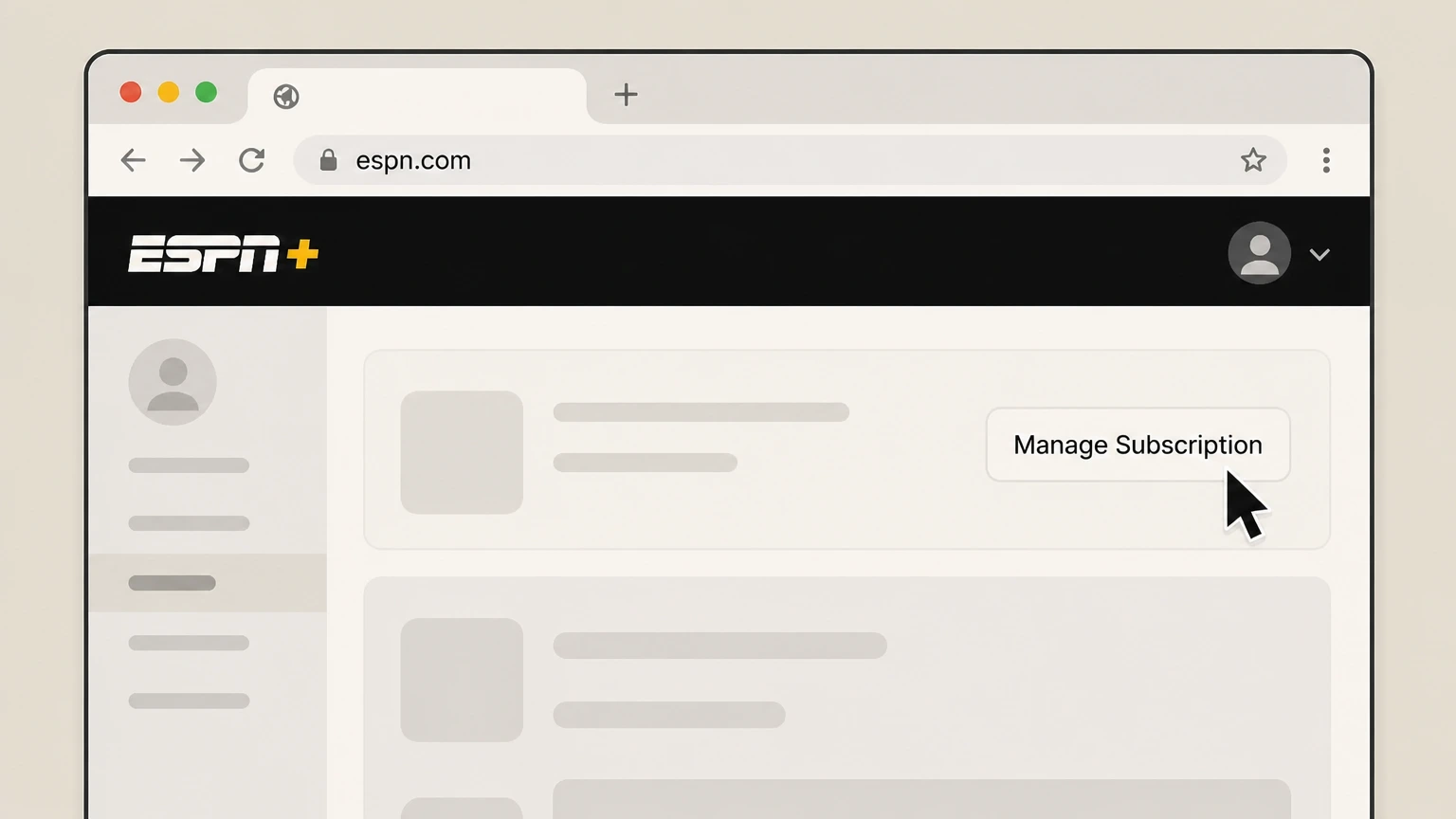
4Open Manage Subscription
In the Subscription or Plans & Billing section of your Account page, select Manage Subscription. Use the ESPN+ account named on your receipt, and continue only after the next status in this cancellation path is visible.
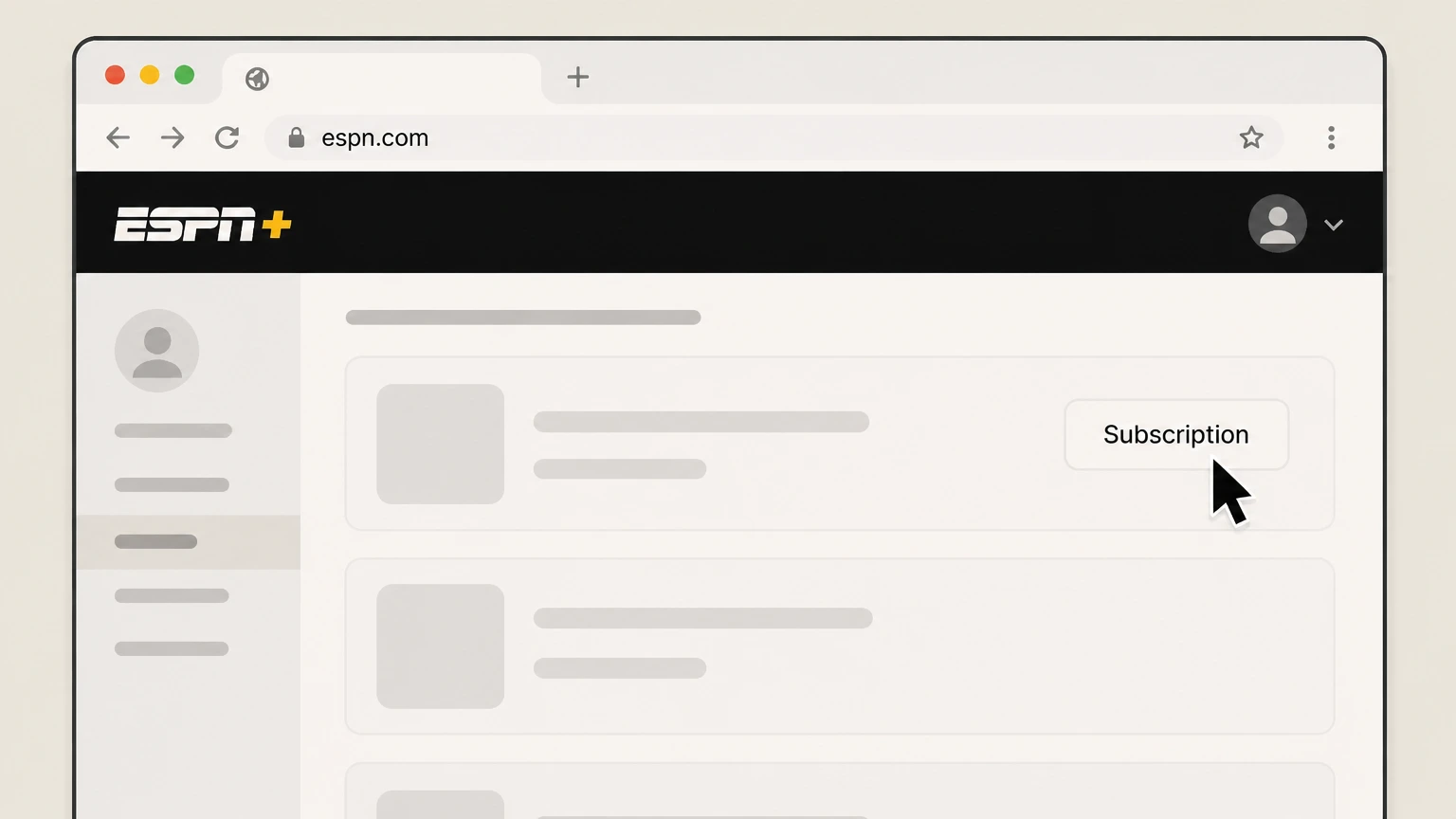 5
5Select the ESPN plan to cancel
Under Plans & Billing, choose the ESPN subscription you want to cancel from the list. Use the ESPN+ account named on your receipt, and continue only after the next status in this cancellation path is visible.
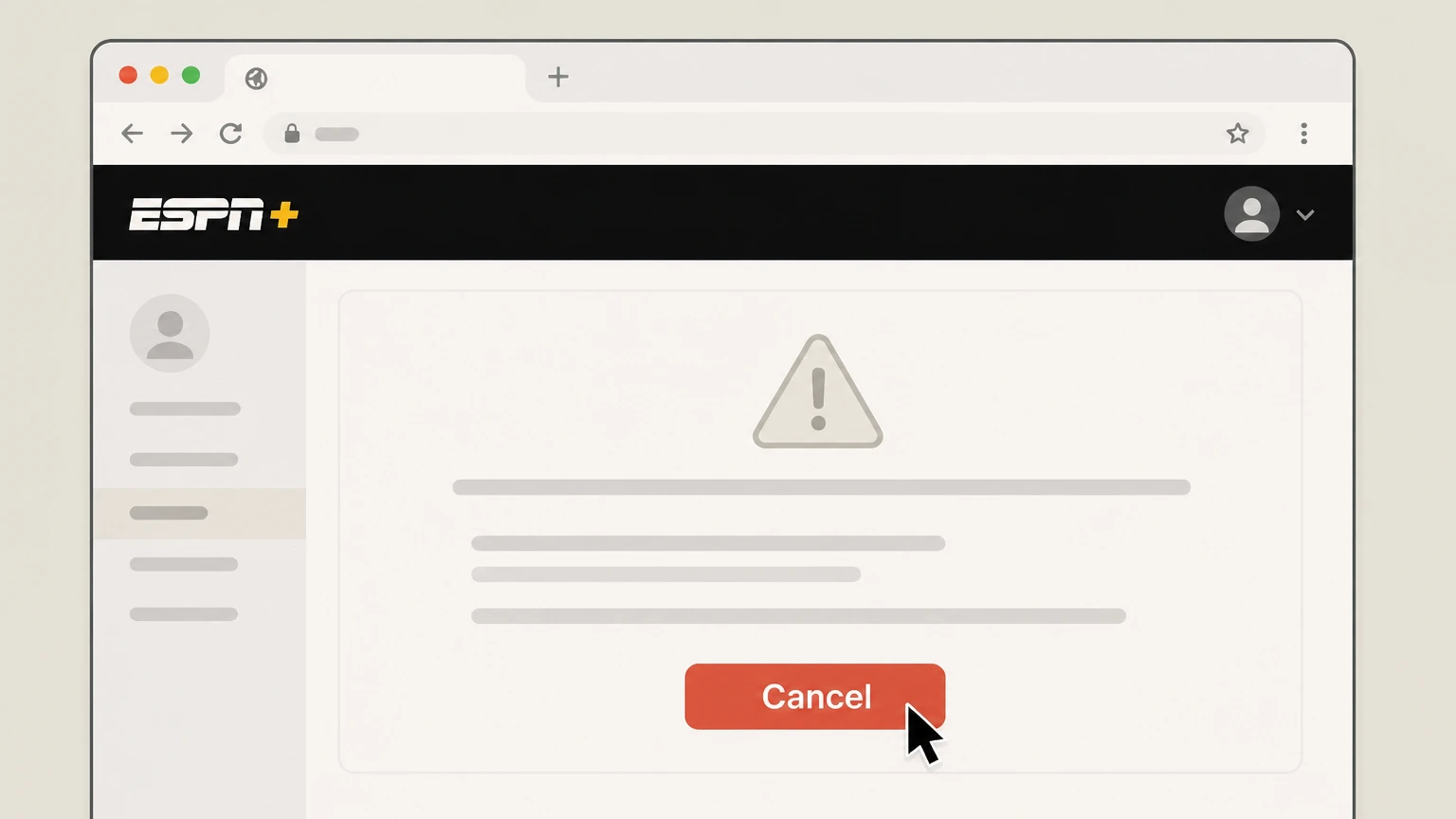 6
6Cancel the subscription
Select Cancel and confirm; your ESPN subscription will continue until the end of the current billing cycle and then stop renewing.

Cancel ESPN+ in a Disney-billed bundle on DisneyPlus.com · verify the billing owner
 1
1Open DisneyPlus.com
In a computer or mobile browser, go to DisneyPlus.com. Use the ESPN+ account named on your receipt, and continue only after the next status in this cancellation path is visible.
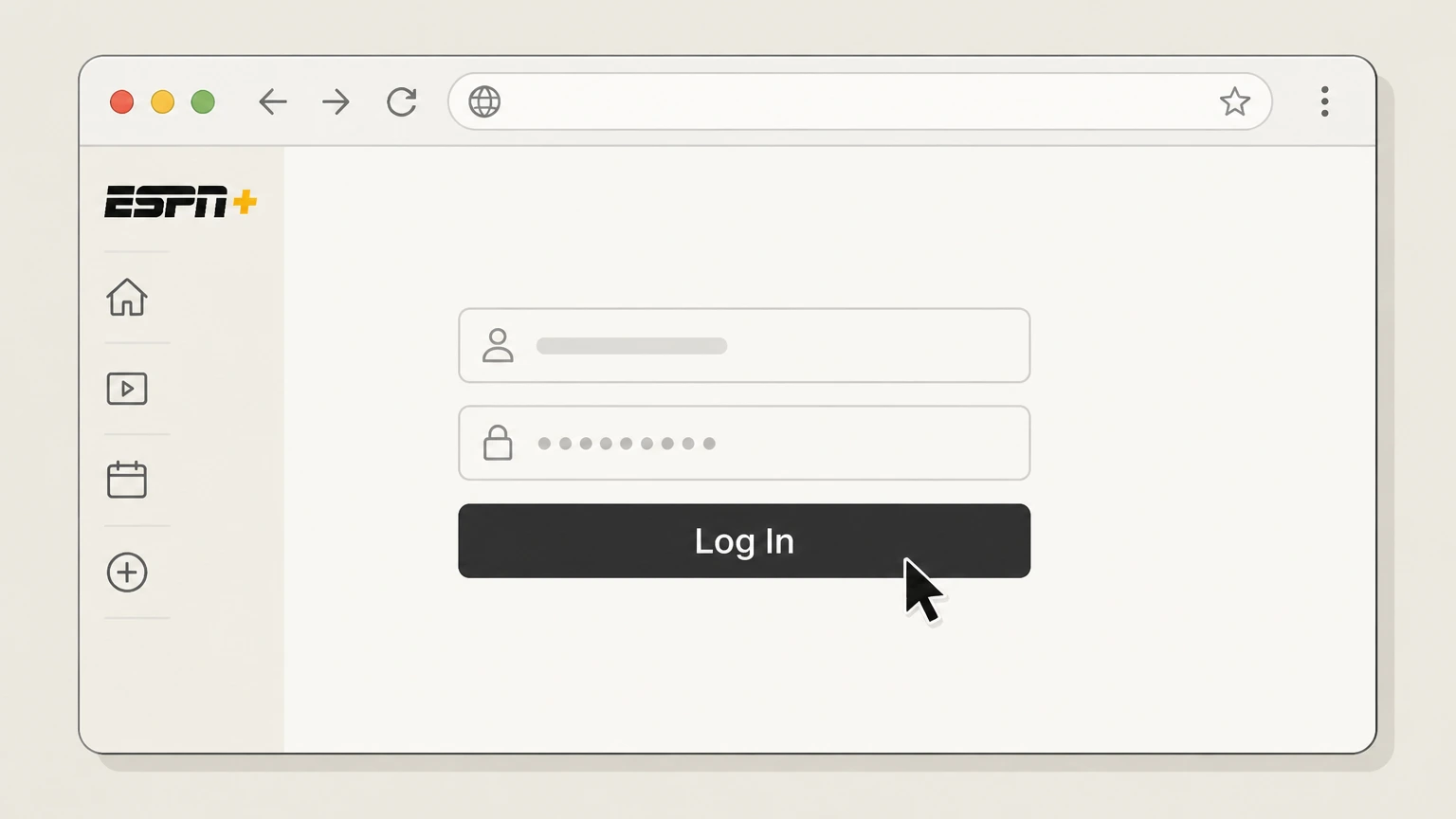 2
2Sign in to Disney+
Sign in with the email and password for the Disney+ account that pays for your Disney+, Hulu, ESPN bundle. Use the ESPN+ account named on your receipt, and continue only after the next status in this cancellation path is visible.
- Let Pine handle it
Pine can help
Too many steps?
Pine can find the right Cancel ESPN+ in a Disney-billed bundle on DisneyPlus.com path and handle the cancellation for you.
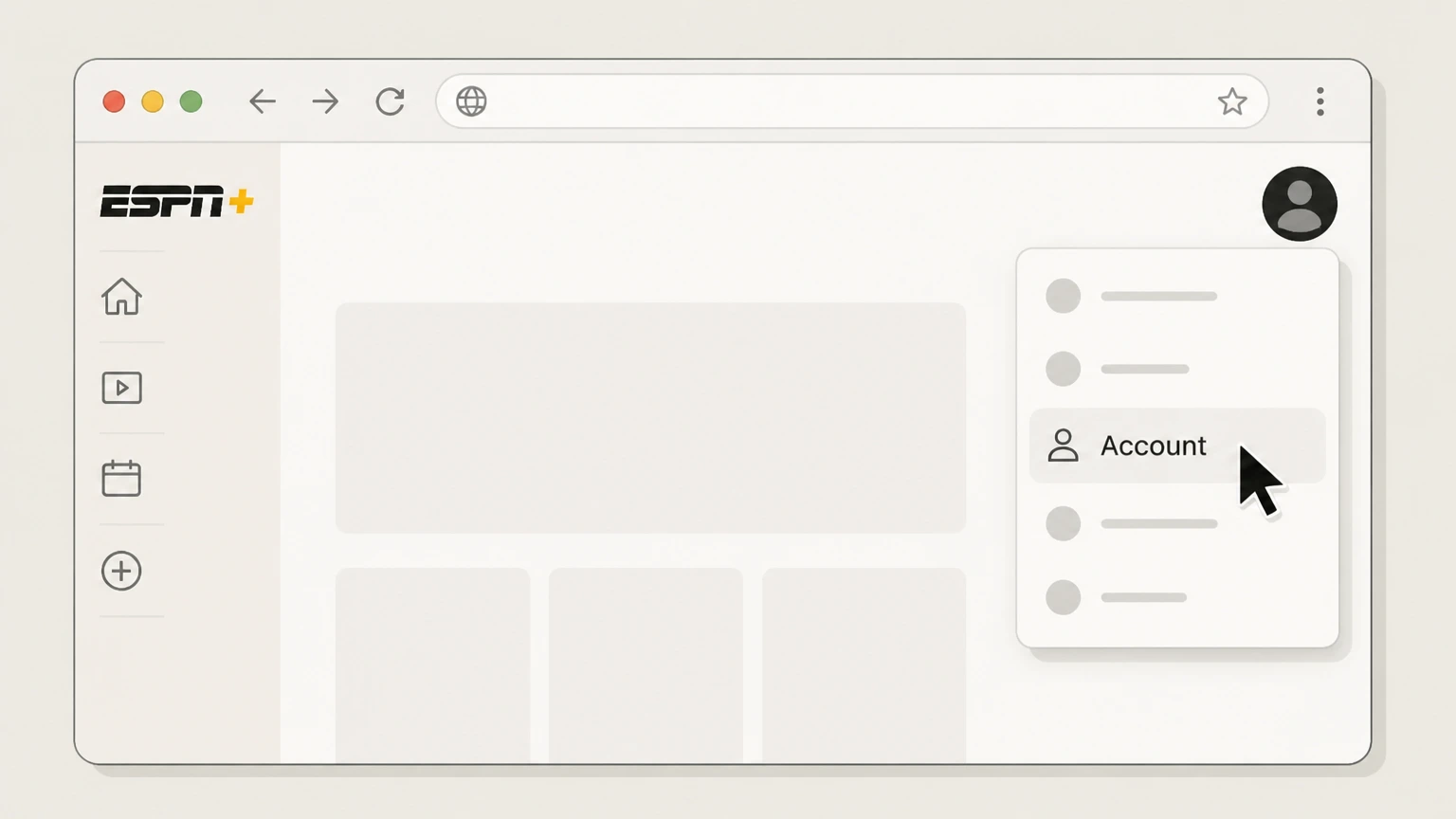 3
3Open your Account page
Select your profile icon and choose Account from the menu. Use the ESPN+ account named on your receipt, and continue only after the next status in this cancellation path is visible.
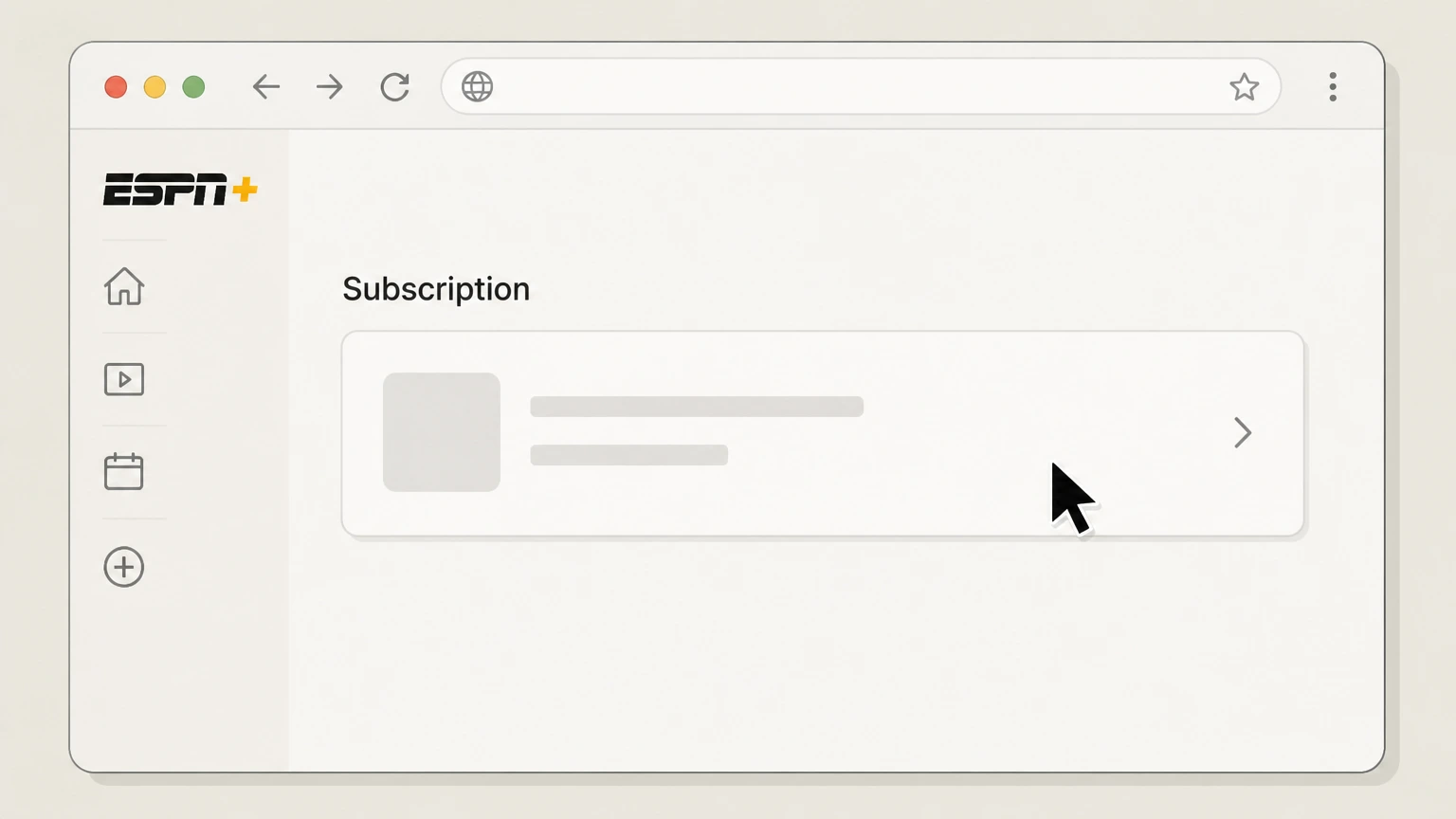 4
4Open your bundle subscription
Under Subscription, select your Disney+, Hulu, ESPN bundle entry to view its details. Use the ESPN+ account named on your receipt, and continue only after the next status in this cancellation path is visible.
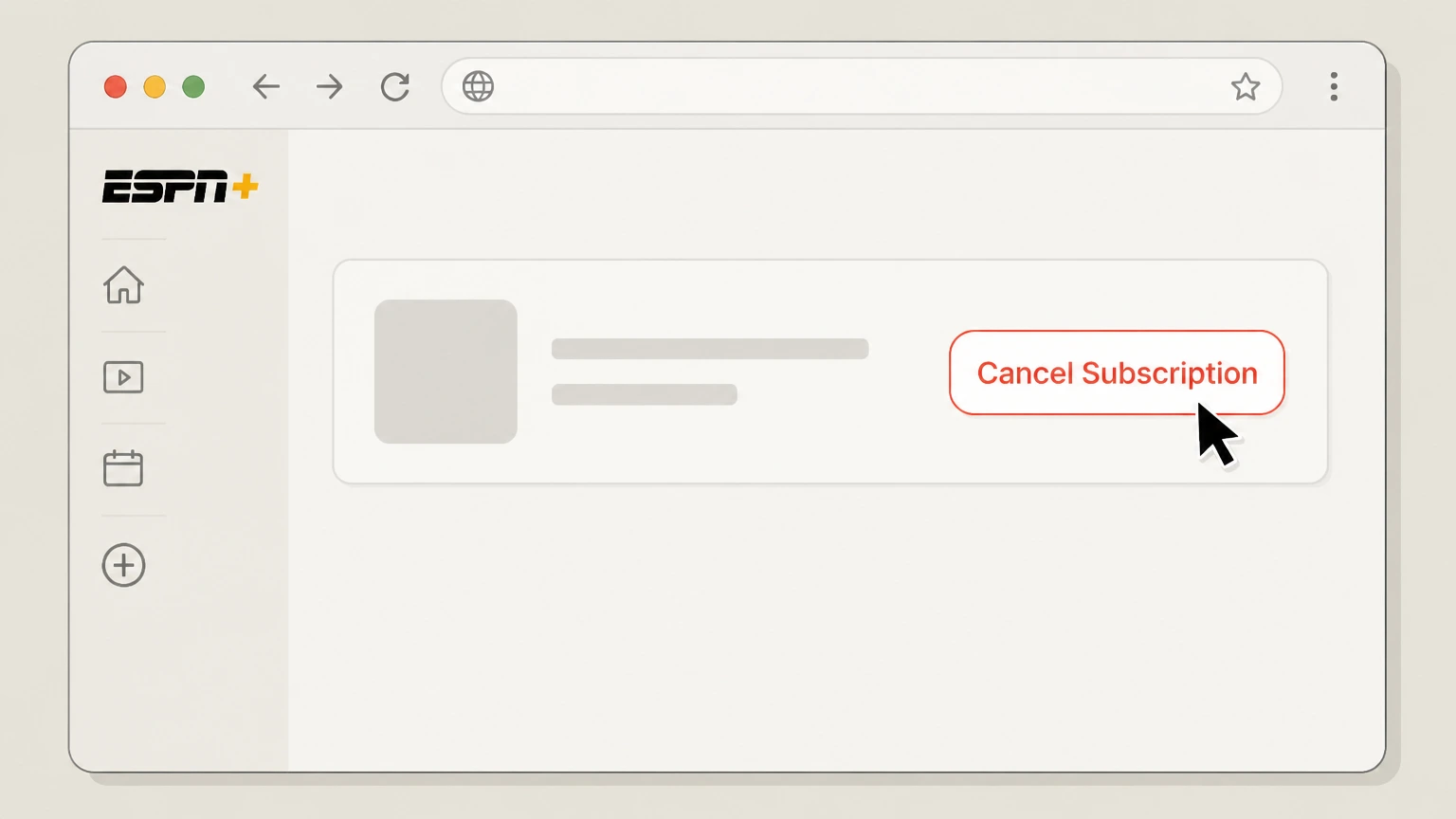 5
5Cancel the bundle
Select Cancel Subscription and confirm; your bundle, including ESPN access, will continue until the end of the current subscription term and then stop renewing.
Cancel ESPN+ billed through Apple on iPhone or iPad · verify the billing owner
 1
1Open Settings
On your iPhone or iPad, open the Settings app. Use the ESPN+ account named on your receipt, and continue only after the next status in this cancellation path is visible.
 2
2Tap your name
At the top of Settings, tap your Apple ID name to open your account settings. Use the ESPN+ account named on your receipt, and continue only after the next status in this cancellation path is visible.
- Let Pine handle it
Pine can help
Too many steps?
Pine can find the right Cancel ESPN+ billed through Apple on iPhone or iPad path and handle the cancellation for you.
 3
3Open Subscriptions
In your Apple ID settings, tap Subscriptions to view subscriptions billed through Apple. Use the ESPN+ account named on your receipt, and continue only after the next status in this cancellation path is visible.
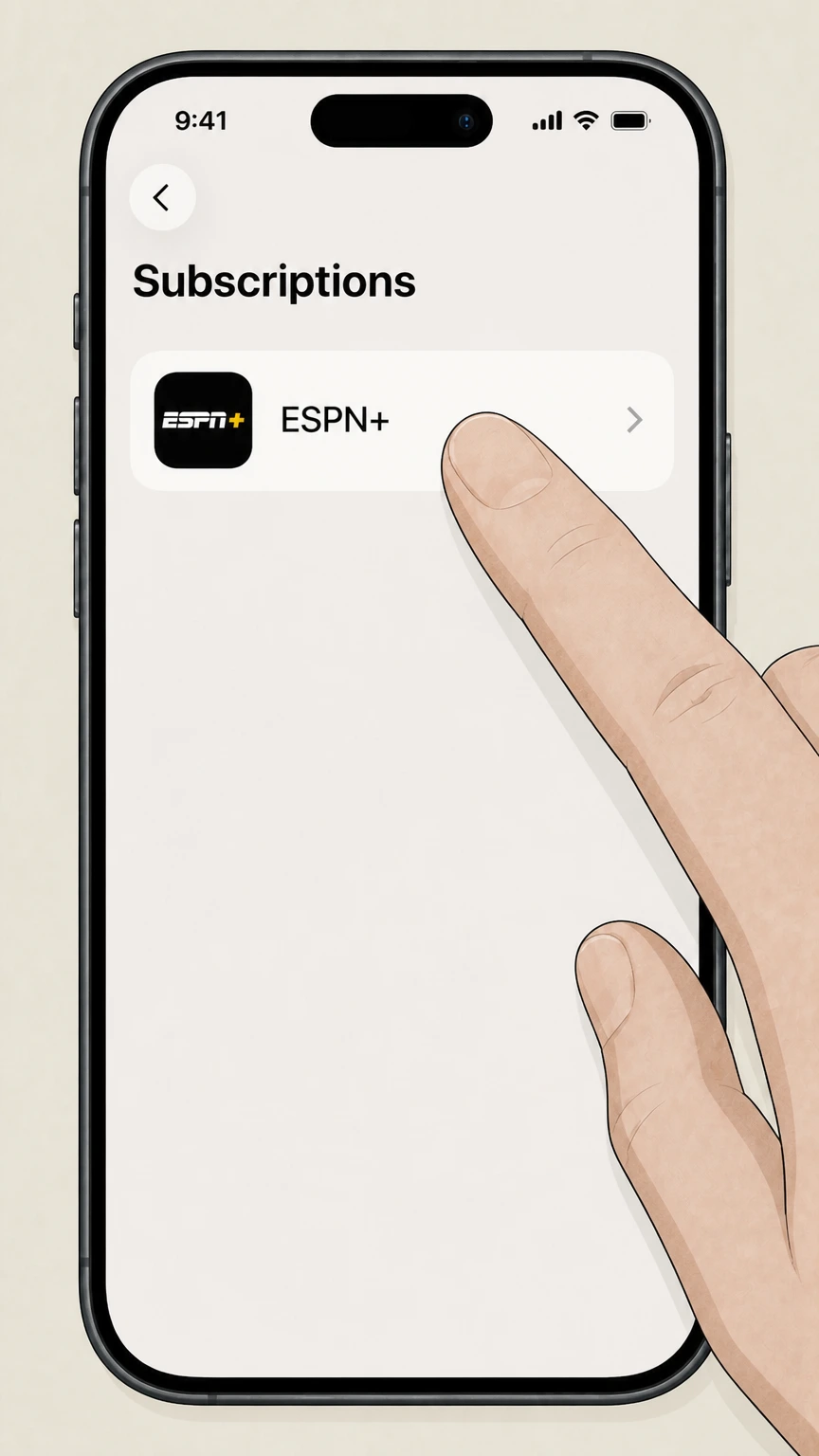 4
4Select ESPN+
In the list, tap the ESPN, Disney+, or bundle subscription that includes your ESPN+ access. Use the ESPN+ account named on your receipt, and continue only after the next status in this cancellation path is visible.
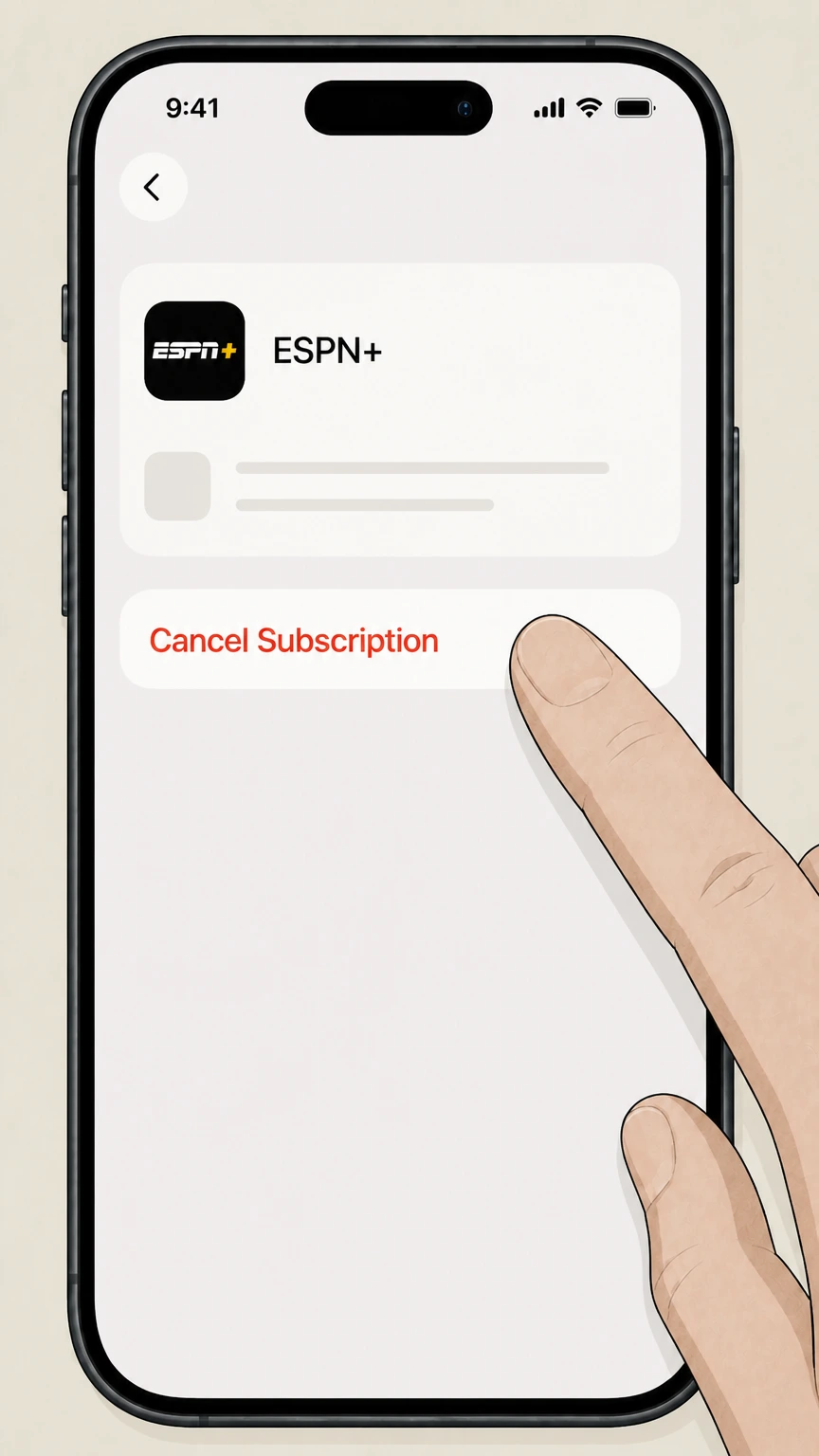 5
5Cancel the subscription
On the subscription detail screen, tap Cancel Subscription and confirm to stop renewal at the end of the current billing period.
Refund policy
Refunds and billing after canceling ESPN+
ESPN, Disney+, and major billing platforms generally stop future renewals when you cancel ESPN+ access but do not refund unused time in the current term, except where their separate refund policies or local law require it.plus.espn.com
Check my refund options- Access through end of billing period
- ESPN’s subscription language and Disney+ cancellation help both state that when you cancel, you typically retain access until the end of the current billing period or subscription term, after which access ends unless you subscribe again.support.espn.com
- No refunds or credits for partial periods
- ESPN’s plan information and Disney’s bundle offers explicitly note that they do not provide refunds or credits for partially used months or billing periods when you cancel, so timing your cancellation near your renewal date matters.plus.espn.com
- Third‑party refund policies apply
- If you pay through Apple, Google Play, Roku, Amazon, or another partner, that platform’s own refund policy governs whether any post‑cancellation refund is possible; ESPN and Disney typically refer such questions back to the billing partner.support.google.com
- Add-on services may bill separately
- ESPN notes that canceling ESPN Unlimited does not automatically cancel MLB.TV purchased as an add‑on, and continued MLB.TV billing is handled separately; similar behavior may apply to other partner add‑ons.plus.espn.com
For case‑specific billing disputes or potential exceptions under local law, contact the support team for the company that appears on your billing statement (ESPN, Disney, Apple, Google, Roku, Amazon, or another provider). Visit ESPN Fan Support
Billing ownership
Who actually bills you for ESPN+ access
Correctly identifying who bills you is essential, because ESPN and Disney cannot cancel subscriptions billed by external platforms.
Direct ESPN or Disney billing
If your statement shows ESPN, ESPN Select/Unlimited, or Disney as the merchant, your ESPN+ access is billed directly and must be canceled from your ESPN.com Account or DisneyPlus.com Account, depending on whether you have a standalone ESPN plan or a Disney bundle.support.espn.com
Disney+, Hulu, ESPN bundles
If you subscribe to a Disney+, Hulu, ESPN Select or Unlimited bundle billed by Disney, you manage and cancel it on DisneyPlus.com under Account > Subscription; canceling the bundle ends ESPN access at the term’s end.help.disneyplus.com
Apple, Google Play, Roku, Amazon billing
ESPN support specifies that subscriptions billed through partners such as Apple, Google, or Roku must be managed on that partner’s website or device. App‑store and platform help centers confirm that cancellations there are effective at the end of the current billing period.support.espn.com
Other third‑party bundles and TV providers
Some cable, wireless, or TV providers bundle ESPN access with their own plans. In those cases, changes to your TV or wireless plan—including cancellations—are governed by that provider’s terms, and you must cancel through that provider rather than ESPN directly.plus.espn.com
Online steps
Key details for canceling directly on ESPN.com
These notes expand on the web route when ESPN or Disney bills you directly.
You must use the correct ESPN account
ESPN’s cancellation guide assumes you are logged into the same ESPN account that holds the subscription. If you do not see Manage Subscription under Account, you may be in the wrong profile or be billed by a third party instead.support.espn.com
Manage Subscription is under Account
On ESPN.com, the Manage Subscription control lives in the Account area, in a Subscription or Plans & Billing section, where you can open the specific ESPN plan and choose Cancel.support.espn.com
Cancellation timing and access
When you cancel directly with ESPN, access to ESPN Select or Unlimited (and thus ESPN+ content) continues until the end of your current billing cycle, after which renewal stops automatically.support.espn.com
Account remains after cancellation
Canceling your ESPN subscription does not delete your ESPN account; you can still sign in and may later re‑subscribe or link ESPN to bundles or partner offers.support.espn.com
Bundles & add‑ons
How cancellation affects bundles and ESPN add‑ons
If your ESPN+ access comes through a bundle or has extra sports add‑ons, cancellation can have different effects.
Disney bundles with ESPN Select or Unlimited
Disney’s help center explains that Disney‑billed bundles—including Disney+, Hulu, ESPN Select or Unlimited—are managed under your DisneyPlus.com Account. Canceling the bundle stops all included streaming access, including ESPN content, at the end of the term.help.disneyplus.com
Existing standalone ESPN subscriptions and bundles
If you had an ESPN subscription before upgrading into a bundle, Disney notes that canceling the original standalone plan does not automatically cancel the bundle; you must manage the bundle separately.help.disneyplus.com
ESPN, FOX One Bundle
For the ESPN, FOX One Bundle purchased through ESPN, cancellation is done on ESPN.com via Manage My Account > Manage with MyDisney > Cancel for the chosen plan, and access continues until the end of the billing cycle.plus.espn.com
MLB.TV with ESPN Unlimited
If you add MLB.TV through ESPN Unlimited, ESPN clarifies that removing ESPN Unlimited does not automatically cancel MLB.TV; you can keep MLB.TV billed through ESPN unless you choose to cancel both at once in Account Settings.plus.espn.com
Hulu-billed ESPN access
Some Hulu + Live TV plans include ESPN+. Official information on Hulu‑billed cancellation sits on Hulu’s own domain, which is out of scope here; if Hulu appears on your statement, follow Hulu’s cancellation instructions rather than ESPN’s.support.espn.com
After cancellation
What happens after you cancel ESPN+
Most ESPN+ cancellations stop future billing but do not cut off access immediately or erase your account.
Access usually continues to period end
ESPN and Disney+ both state that when you cancel, you normally retain access until the end of your current billing period or subscription term, after which streaming stops unless you re‑subscribe.support.espn.com
No automatic refund for unused time
ESPN’s subscription language specifies that it does not provide refunds or credits for partially used billing periods, and Disney’s bundle offers note similar "no refunds or credits for partial months" terms for Disney‑billed plans.plus.espn.com
ESPN and MyDisney accounts remain open
Canceling streaming plans does not delete your ESPN account or the broader MyDisney account used across Disney services; those can later be used to restart subscriptions or activate other offers.support.espn.com
Add-ons may continue separately
If you purchased add‑ons such as MLB.TV through ESPN, canceling your base ESPN Unlimited plan does not automatically cancel the add‑on; you must review and cancel add‑ons separately if you do not want ongoing charges.plus.espn.com
Confirmation emails and status checks
Roku’s and Disney’s billing articles indicate that subscription changes generally trigger on‑screen confirmations or emails; you can also verify status by revisiting your Account > Subscription page after canceling.support.roku.com
Other platforms
Where to cancel if you paid through Apple, Google, Roku, or Amazon
Many ESPN+ subscribers pay through app stores or device platforms instead of ESPN or Disney directly.
Apple App Store billing
Apple’s support article explains that subscriptions purchased from Apple or the App Store are canceled from iOS Settings > [your name] > Subscriptions, by selecting the subscription and tapping Cancel Subscription; the change takes effect at the end of the billing period.support.apple.com
Google Play Store billing
Google Play Help instructs Android users to go to Google Play > Subscriptions, select the relevant app subscription, and tap Cancel subscription; access continues until the current billing period ends unless otherwise stated.support.google.com
Roku billing
Roku’s refund policy notes that subscriptions billed and managed through Roku can be canceled via my.roku.com/subscriptions, and that access continues until the end of the billing period, with no refunds for partial terms.support.roku.com
Amazon and other partners
ESPN and Disney+ both state that subscriptions billed through third‑party partners must be canceled via that partner. If Amazon or another provider appears on your statement, follow that provider’s subscription‑cancellation help, because ESPN cannot directly stop those charges.support.espn.com
Deleting apps does not cancel
Google Play Help explicitly warns that uninstalling an app does not cancel its subscription; Apple and Disney docs similarly focus on account‑level cancellation, so you must use account or subscription settings rather than removing the ESPN or Disney app.support.google.com
Account & data
ESPN account, MyDisney login, and your data
Canceling ESPN+ affects billing and access, but not basic account identities.
ESPN account persists after canceling
ESPN’s support article emphasizes that canceling your ESPN subscription does not delete your ESPN account, so you can still sign in to the ESPN app without a paid plan and later re‑subscribe if desired.support.espn.com
MyDisney account across services
Disney+ explains that the same MyDisney account can be used for Disney+, Hulu, ESPN subscriptions, parks, and other Disney services, and canceling Disney+ or a bundle does not automatically delete this overarching account.help.disneyplus.com
Deleting Disney+ account requires prior cancellation
Disney’s account‑deletion help notes that you must cancel your Disney+ subscription before requesting deletion of the account; otherwise billing may continue without a way to cancel through the app or website.help.disneyplus.com
Bundled pause vs. cancel
Disney+ allows pausing some monthly subscriptions, but notes that pausing a Disney+ bundle will also pause the other streaming services in the bundle; this is different from canceling, which permanently stops renewal at term end.help.disneyplus.com
Privacy and data rights
Disney directs users to its Privacy Policy for information on personal‑data rights after cancellation. Users who are concerned about stored data should review those terms in addition to canceling subscriptions.help.disneyplus.com
Confirmation
How to confirm your ESPN+ cancellation worked
Use these checks to make sure recurring billing for ESPN+ has actually stopped.
Check status in ESPN Account
After canceling on ESPN.com, revisit Account > Manage Subscription; your plan should show a scheduled end date instead of auto‑renew, or appear in a canceled or expired section.support.espn.com
Check Disney+ bundle subscription state
On DisneyPlus.com, the Subscription section of your Account page should show either an end date or a canceled status once you have successfully canceled a Disney‑billed bundle that includes ESPN.help.disneyplus.com
Review platform purchase history
Roku, Google Play, and Apple each provide purchase history or subscription lists in their account settings; if ESPN or Disney no longer appears as an active subscription there, renewal has been stopped on that platform.support.roku.com
Watch for confirmation emails
Roku’s billing policies and Disney+ communications indicate that subscription changes typically generate confirmation emails; check your inbox and spam folder for ESPN, Disney, Apple, Google, or Roku messages after canceling.support.roku.com
Monitor your next billing date
The most definitive confirmation is the absence of a future ESPN/Disney or platform charge on the next expected billing date; combine this with account‑page status checks to ensure cancellation is complete.support.espn.com
What official sources do not confirm
Limits of the public ESPN+ cancellation guidance
These points are intentionally qualified because the official sources reviewed on August 17, 2026 do not publish a complete answer.
Documented limitation 1
Amazon’s consumer-facing ESPN+ or channel-cancellation documentation was not findable on allowed domains; Amazon-specific guidance is therefore limited to high-level directions based on ESPN and Disney+ third-party billing rules.
Documented limitation 2
Hulu-billed ESPN+ access and Hulu + Live TV bundle cancellation flows are referenced by ESPN and Disney+, but Hulu’s own help center is outside the allowed domain list, so details for Hulu-managed billing are not included.
Documented limitation 3
Exact button labels and layout on ESPN.com, DisneyPlus.com, and partner platforms can change over time; steps and labels here reflect official help articles as of August 17, 2026 and may differ slightly from future interfaces.
ESPN+ cancellation FAQ
Questions people search about canceling ESPN+, answered with official provider or billing-platform sources checked on August 17, 2026.
How do I get out of ESPN Plus?
How do you cancel ESPN Plus on iPhone?
How can I manage my ESPN+ subscription settings?
How do I cancel ESPN+ if it’s part of a Disney Bundle?
How do I cancel ESPN+ on Amazon?
What happens to my ESPN account and history after I cancel?
Does canceling ESPN Select or Unlimited also cancel ESPN+?
When does ESPN+ access actually stop after I cancel?
Can I get a refund if I forgot to cancel ESPN+?
Untangle this ESPN+ issue.
Let Pine handle the provider follow-up and keep the confirmation in one place.
