


CleanMyMac
Cancel subscription
How to Cancel CleanMyMac Subscription: Official Steps
Cancel CleanMyMac through MacPaw, the App Store, or Setapp; identify the billing owner, protect access, and understand renewals, refunds, and license changes.
- 15 current official sources checked
- 2 billing routes separated
- Legacy Provider and equivalent Blog content reconciled claim by claim
- Steps, outcomes, refund boundaries, and related products revalidated
How to cancel CleanMyMac through the correct billing owner
Web cancellation
Cancel CleanMyMac through Web
 1
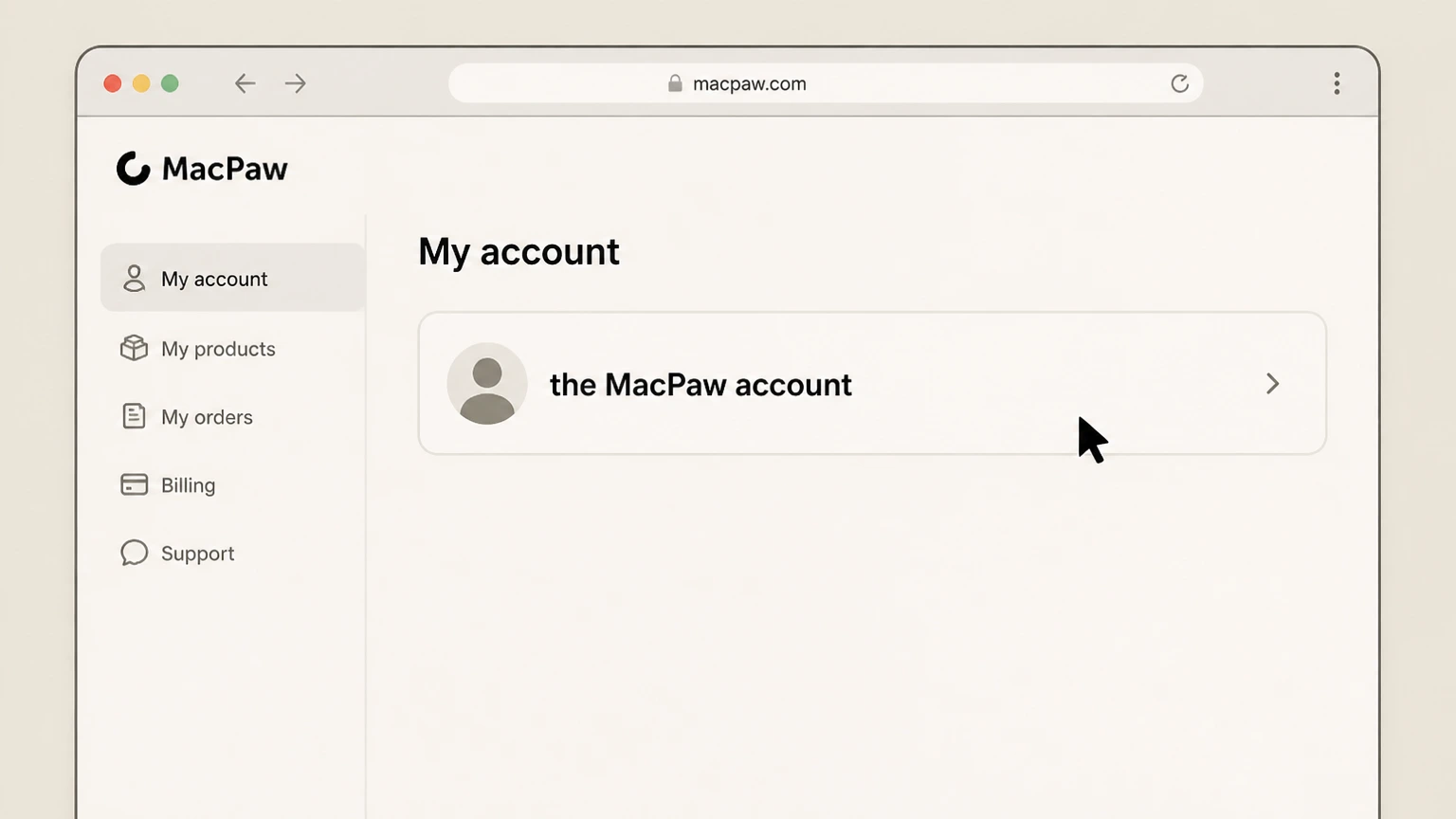
1Open the MacPaw account
In a web browser, go to the MacPaw Account sign‑in page (my.macpaw.com), then sign in with the same email and password you used to purchase or activate CleanMyMac from the MacPaw Store. After successful sign‑in, you should see a dashboard listing your MacPaw products and plans.
 2
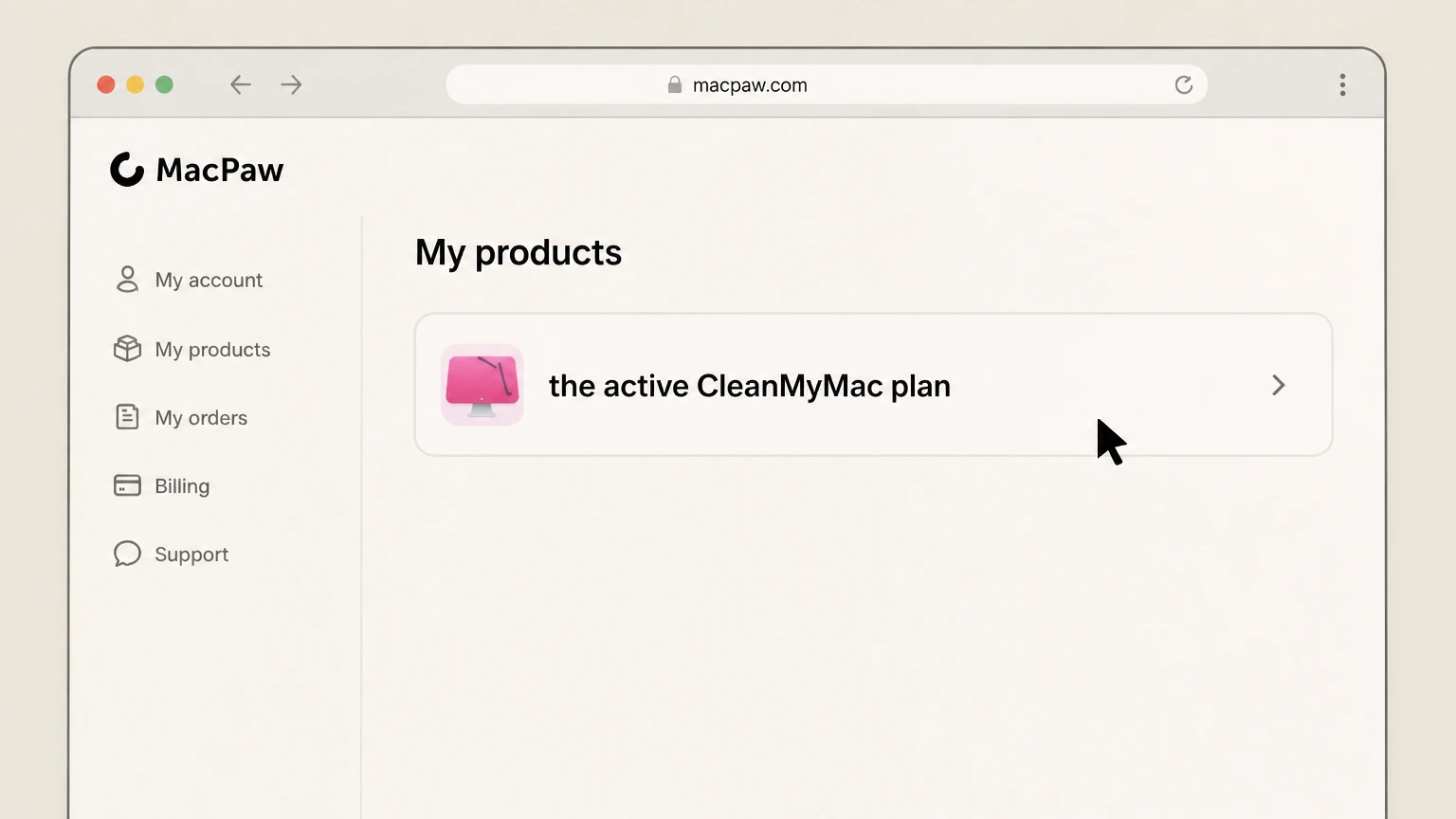
2Select the active CleanMyMac plan
On the dashboard, locate the CleanMyMac entry that shows your current plan and billing details, then select it to open the subscription details page. This page is where you can see your plan type, devices, next renewal date, and controls for managing or canceling the subscription.
- Let Pine handle it
Pine can help
Too many steps?
Pine can find the right Web path and handle the cancellation for you.
 3
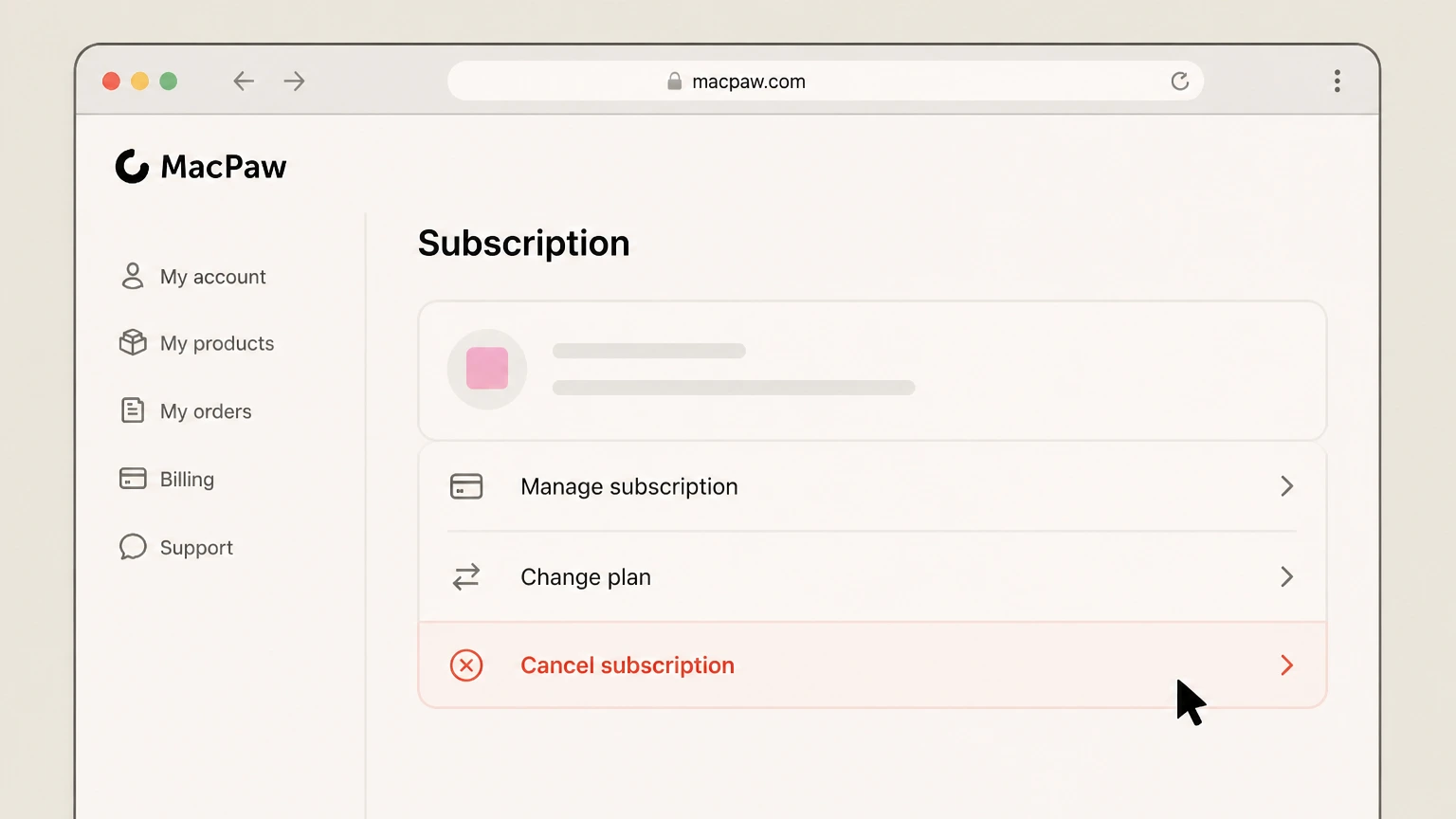
3Choose Cancel subscription
Within the CleanMyMac subscription details, find the control labeled Cancel Subscription (wording may be very similar) and select it. Review any information MacPaw shows about when your paid period ends, then follow the on‑screen prompts until the site confirms that the subscription will not renew and marks it for cancellation.
 4
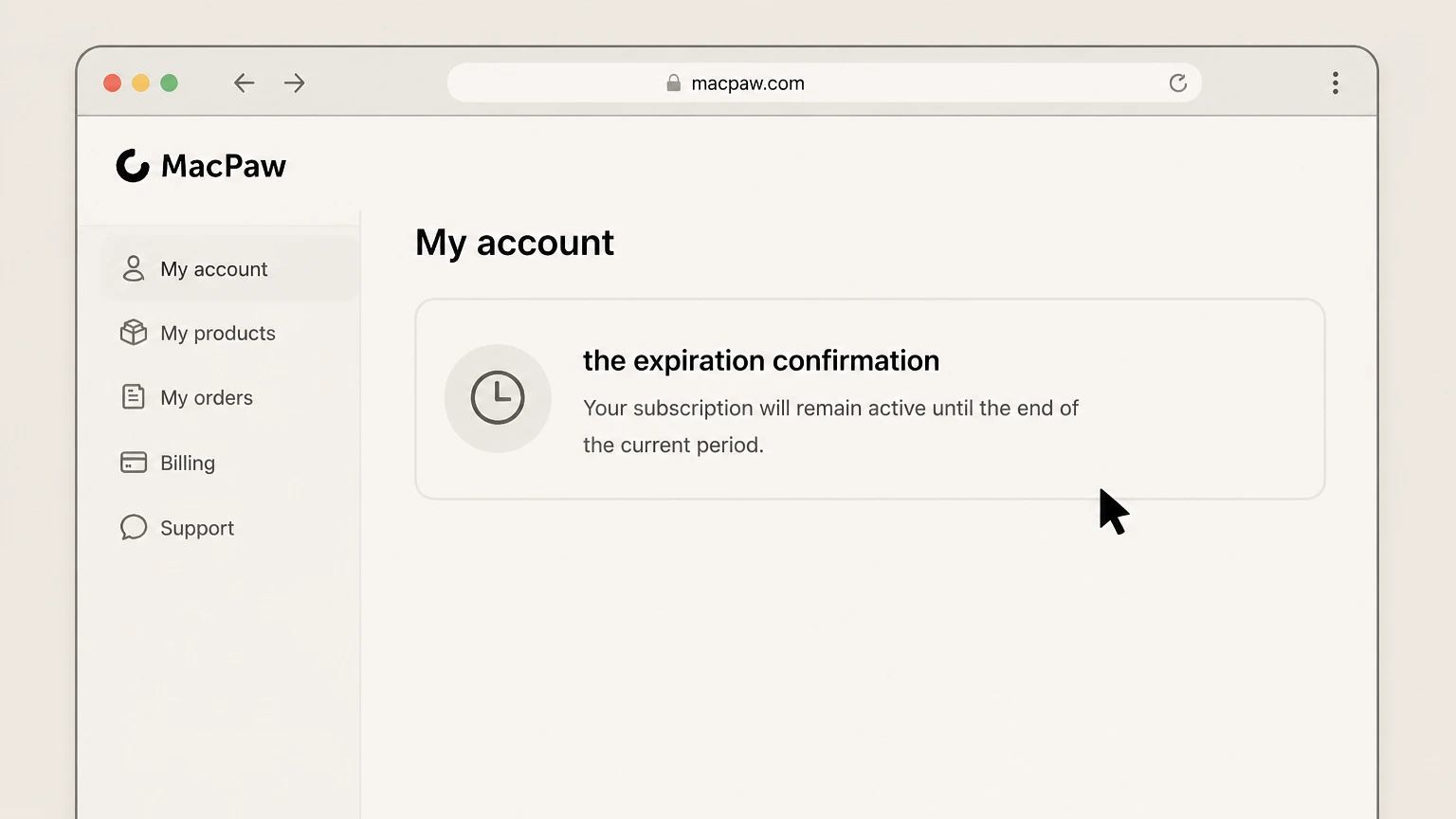
4Keep the expiration confirmation
Wait a couple of minutes, then refresh the page and check that the CleanMyMac subscription status shows as Inactive or Canceled and that a paid‑through date is visible in your account. MacPaw also sends an email confirming cancellation—keep this message, as it documents when billing stops and how long your current access lasts.

iOS cancellation
Cancel CleanMyMac through iOS
 1
1Open Settings
On your iPhone or iPad, tap the grey Settings gear icon on your Home Screen to open the system Settings app. Don’t open the CleanMyMac app itself—subscriptions billed by Apple are managed from Apple ID settings, not inside MacPaw apps.
 2
2Tap your name
At the top of Settings, tap the banner with your name and Apple ID. This opens your Apple ID account screen, where Apple groups options such as iCloud, Media & Purchases, and Subscriptions for the currently signed‑in account.
- Let Pine handle it
Pine can help
Too many steps?
Pine can find the right iOS path and handle the cancellation for you.
 3
3Open Subscriptions
On the Apple ID screen, tap Subscriptions. After a moment, you’ll see a list of Active and, on some versions of iOS, inactive or expired subscriptions associated with this Apple ID, including any CleanMyMac plan billed through Apple.
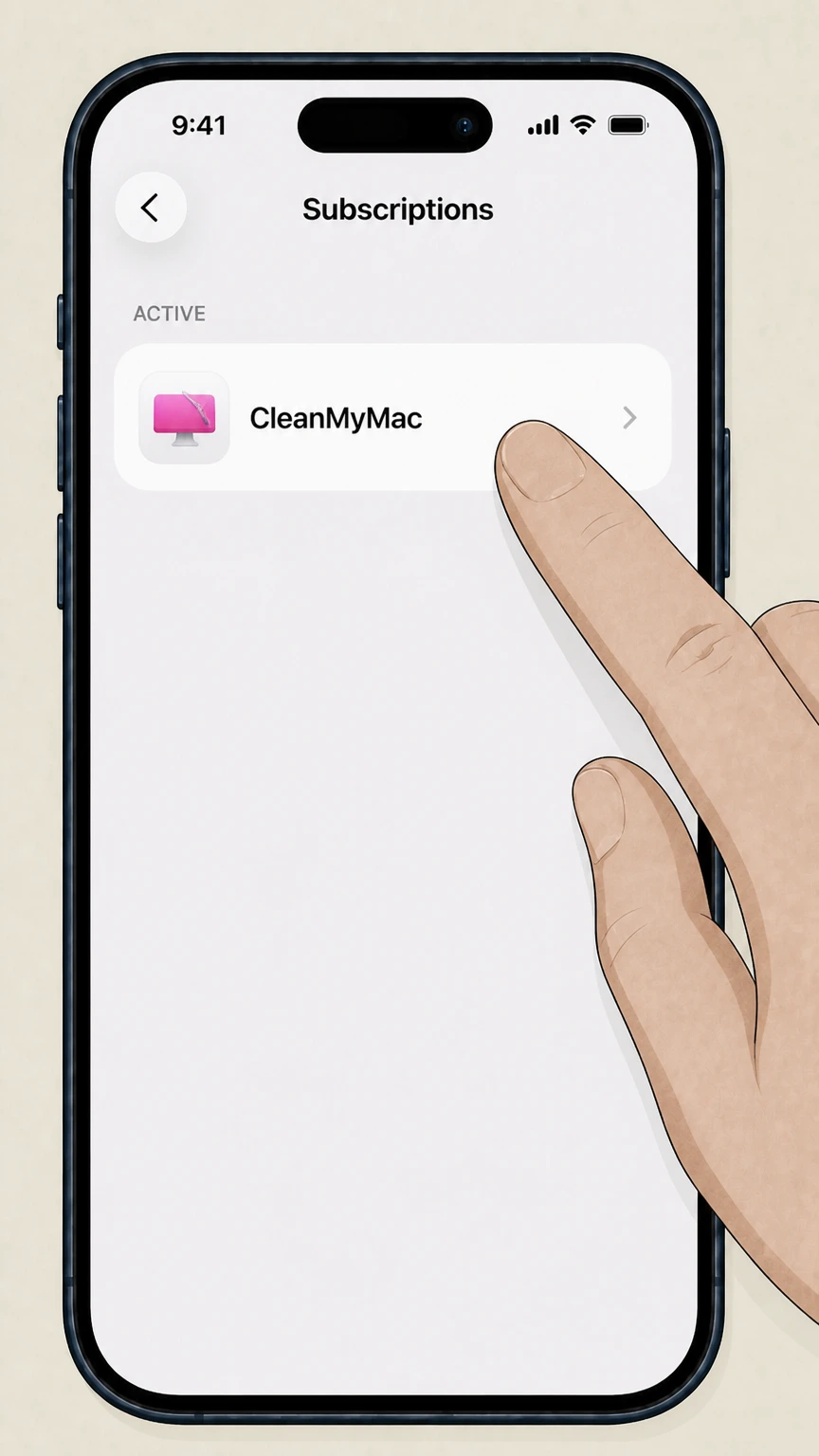 4
4Choose CleanMyMac
In the list of subscriptions, tap the CleanMyMac entry to open its details page. If you don’t see CleanMyMac here, it may be billed through a different Apple ID or was purchased from the MacPaw Store or Setapp instead, in which case you must cancel through that provider’s process.
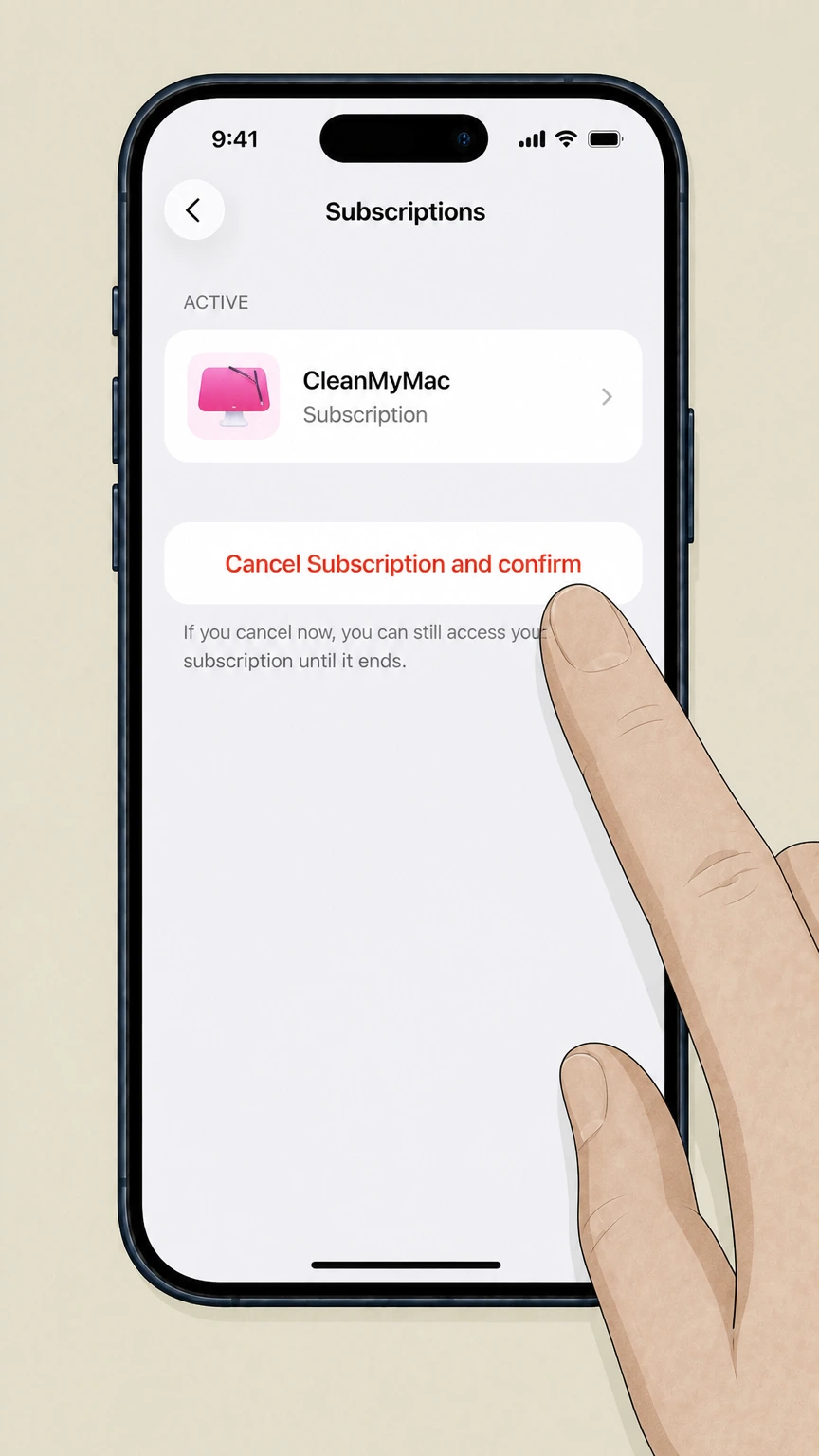 5
5Tap Cancel Subscription and confirm
On the CleanMyMac subscription details screen, scroll to the option labeled Cancel Subscription (or Cancel Free Trial, if shown), tap it, and confirm in the pop‑up dialog. Apple marks the subscription as canceled so it will not renew, but you continue to have access until the renewal date indicated on this screen.
Refund policy
CleanMyMac refunds and how they relate to cancellation
Canceling a CleanMyMac subscription stops future renewals; qualifying refunds depend on where you bought the product and on MacPaw’s broader Refund Policy. For MacPaw Store sales, there is a documented money‑back guarantee with conditions. For Apple App Store and Setapp purchases, MacPaw’s own articles make clear that external stores’ policies apply and MacPaw cannot directly refund those payments.
Check my refund options- 30‑day guarantee for MacPaw Store purchases
- MacPaw’s CleanMyMac refund article promises a 30‑day money‑back guarantee for purchases made through the MacPaw Store. You’re eligible if no more than 30 days have passed since purchase and your situation does not fall under any of the non‑refundable scenarios listed in MacPaw’s general Refund Policy.
- Refunds limited to initial subscription payments
- The Refund Policy states that refunds are only available for the initial subscription purchase and do not apply to later automatic renewal payments, except when a transaction was fraudulent. This makes it important to cancel unwanted subscriptions promptly rather than relying on post‑renewal refunds.
- App Store refunds handled by Apple
- For purchases made via the Apple App Store, MacPaw explains that Apple’s refund policy governs the transaction and that MacPaw cannot issue refunds or adjust those payments. Users seeking a refund for an Apple‑billed CleanMyMac subscription must submit the request through Apple Support.
- Setapp refunds handled by Setapp
- When CleanMyMac usage comes from a Setapp membership, MacPaw’s refund article directs customers to Setapp’s own support documentation. MacPaw does not control the Setapp billing relationship and therefore cannot process refunds or cancel a Setapp‑managed subscription on your behalf.
- Effect of refunds on license use
- MacPaw’s Refund Policy notes that once a refund is granted, you must stop using the refunded software and destroy all copies, and MacPaw may disable product keys or serial numbers. In practice, a successful refund ends your right to use that CleanMyMac license, even if the app remains installed.
For case‑specific questions about whether your CleanMyMac purchase qualifies for a refund, review MacPaw’s CleanMyMac refund article and then open a ticket using the “Request a refund” option so Support can check your order details. Read MacPaw’s CleanMyMac refund article
Where you bought
Identify who bills your CleanMyMac plan
Cancellation and refunds depend entirely on where you originally activated CleanMyMac.
MacPaw Store purchases
If you bought CleanMyMac from the MacPaw Store, your subscription is managed in your MacPaw Account. From there you can view plans, change payment details, share device slots, and cancel auto‑renewal directly with MacPaw as the billing provider.
App Store purchases
If you obtained CleanMyMac from the Apple App Store or Mac App Store, billing is handled by Apple under your Apple ID. MacPaw’s cancellation and refund articles repeatedly direct App Store users to Apple Support for subscription changes or refunds, because MacPaw cannot modify those charges.
Setapp subscriptions
When CleanMyMac is included as part of a Setapp membership, Setapp is the subscription you’re paying for. MacPaw’s refund and billing guidance tells Setapp users to follow Setapp’s own support documentation for cancellations and refunds, since MacPaw does not control that billing relationship.
One‑time license vs subscription
MacPaw distinguishes between one‑time purchases and subscriptions. A one‑time CleanMyMac plan bought from the MacPaw Store or App Store has no renewal date; there is nothing to cancel, though you can later buy a subscription or upgrade offer. Only subscriptions require using the cancel flows.
End of term effects
What happens after you cancel CleanMyMac
MacPaw explains clearly how access, billing, and features behave once you cancel.
Access continues to the paid‑through date
When you cancel, CleanMyMac remains fully functional until the end of the current billing period shown in your account or App Store subscription, and only then stops providing most features. Cancellation prevents renewal; it does not immediately disable the app.
Most features lock after expiry
After your paid period ends, MacPaw states that most CleanMyMac features “get locked” until you start a new paid plan. The app can stay installed, but advanced cleanup and protection tools stop working for all devices on that plan.
Status and confirmation emails
Within a few minutes of canceling through MacPaw or Apple, your subscription status in online accounts changes to Canceled/Inactive. MacPaw notes that you’ll also receive a cancellation confirmation email from either MacPaw or the App Store; they advise checking your spam folder if it’s missing.
Resubscribing or switching plans later
If you decide to come back, you can purchase a new CleanMyMac subscription from the MacPaw Store or App Store or switch to a one‑time plan. MacPaw’s change‑plan article specifically suggests canceling your subscription and then buying a one‑time license if you prefer a non‑renewing plan.
Plan types
Subscriptions, one‑time plans, and when to cancel
Understanding your plan type helps you avoid canceling the wrong thing—or trying to cancel something that doesn’t renew.
Only subscriptions auto‑renew
MacPaw describes CleanMyMac subscriptions as monthly or annual plans that renew automatically until you cancel them. By contrast, a one‑time purchase is billed once and has no expiration date, though it’s limited to the major version you bought. You cancel only subscriptions, not one‑time licenses.
Switching to a one‑time plan
If you’re canceling mainly to avoid ongoing payments, MacPaw offers a documented path: cancel your subscription first, then buy a one‑time plan in the MacPaw Store. They highlight that a one‑time plan has no renewal date, but you should review feature differences before switching.
Updates and upgrades behavior
MacPaw states that any subscription, regardless of store, includes both updates to the current major version and upgrades to future major versions of CleanMyMac. A one‑time purchase includes updates and fixes only within the current major version; future major upgrades may require a paid upgrade.
Marketplace determines your controls
The “Choose your marketplace” article emphasizes that the MacPaw Store, App Store, and Setapp differ not only in pricing but also in billing. That means the same app can appear either in your MacPaw Account, your Apple ID Subscriptions, or Setapp, and you manage cancellation only through the store where you originally purchased.
Money‑back rules
Refund boundaries for CleanMyMac purchases
Cancellation stops future renewals; refunds are governed by separate MacPaw and store‑specific policies.
MacPaw Store money‑back guarantee
MacPaw’s CleanMyMac refund article states that purchases from the MacPaw Store are covered by a 30‑day money‑back guarantee if no more than 30 days have passed since purchase and your situation doesn’t fall under the non‑refundable cases listed in the company‑wide Refund Policy.
Initial purchase vs renewals
The Refund Policy clarifies that refunds are available only for the initial subscription purchase and not for payments resulting from automatic renewal, except in limited cases such as fraudulent transactions. Cancelling promptly is therefore important if you want to avoid unwanted renewals rather than trying to undo them later.
App Store transactions
For subscriptions charged through the Apple App Store, MacPaw’s refund and cancellation pages both explain that Apple’s own refund policy applies and MacPaw cannot issue refunds. To request any refund for Apple‑billed CleanMyMac, you must use Apple Support’s tools.
Setapp transactions
If CleanMyMac access comes from a Setapp subscription, MacPaw’s refund guidance explicitly directs users to Setapp Support for refund details. MacPaw cannot refund Setapp charges or cancel a Setapp membership; only Setapp can adjust those payments.
Other options
Alternatives that are not canceling CleanMyMac
If your goal is to reduce cost or adjust usage, MacPaw documents several options short of full cancellation.
Switch to a one‑time license
Instead of keeping a renewing subscription, you can cancel it and then buy a one‑time CleanMyMac plan in the MacPaw Store. MacPaw highlights this as a supported way to keep long‑term access without ongoing subscription billing, though you should review the feature and upgrade trade‑offs before switching.
Stop sharing with specific people
If you only want to reduce how many people use your plan, use the Revoke plan access flow to remove certain device slots, or stop sharing additional slots through the Share Slot dialog, instead of canceling the whole subscription. This frees those slots for your own Macs or other invitees.
Update payment details without ending service
When your goal is simply to fix failed payments or change a card, MacPaw’s Manage subscription article shows how to update payment details and review billing history in the MacPaw Account so your subscription can continue without interruption. This is different from canceling the plan.
Uninstalling the app vs canceling billing
MacPaw’s uninstall guide explains how to remove CleanMyMac from your Mac, including using its own Uninstaller module. However, uninstalling does not cancel any active subscription. You still need to cancel via the MacPaw Account or Apple’s subscription settings so that recurring charges stop.
Common problems
Troubleshooting missing or confusing cancellation options
If you don’t see the expected Cancel Subscription control, MacPaw’s documentation suggests several checks.
Verify the right store and account
If you can’t see CleanMyMac in your MacPaw Account or Apple’s Subscriptions screen, confirm where you originally bought it. MacPaw’s marketplace comparison and cancellation pages show that MacPaw Store, App Store, and Setapp purchases each appear only in their own account systems. Also ensure you are signed in with the email or Apple ID used for purchase.
Check for already canceled or expired plans
MacPaw describes that after cancellation, subscriptions are marked Canceled or Inactive in your online accounts and you receive a confirmation email. If a plan already shows as Inactive or no longer lists a renewal date, there may be no Cancel button because auto‑renewal has already been stopped.
Use Subscription Manager for older licenses
For older MacPaw Store purchases activated with a code, the CleanMyMac X article introduces a Subscription Manager where you can search by activation code or email and then cancel from the Billing Details section. MacPaw suggests this path if you can’t access your MacPaw Account.
MacPaw support when self‑service fails
If neither MacPaw Account nor Subscription Manager can locate your subscription, or the site shows an error, MacPaw’s guides invite you to contact Support. Opening a ticket lets their team verify your purchase, check which store billed you, and either cancel directly (for MacPaw Store sales) or point you to the right external store.
Account & data
Account, data, and notifications when you cancel
MacPaw’s materials focus on licensing and access; they give limited detail on data handling but do clarify account behavior and notifications.
MacPaw Account remains available
Canceling a CleanMyMac subscription purchased from the MacPaw Store only affects that subscription’s renewal status. The Manage subscription and related articles continue to treat your MacPaw Account as the place to manage other products, devices, and future purchases even after a specific plan is canceled.
Local data is not described as being removed
MacPaw’s cancellation and refund articles talk about feature access, billing, and plan status but do not state that canceling a subscription deletes any files on your Mac or erases your MacPaw Account data. For questions about data retention or removal, they direct users to contact support or review legal policies.
Cancellation and sharing notifications
When you revoke a device slot or cancel a plan, MacPaw notes that affected users may receive emails or in‑app messages. For example, a person whose slot is revoked gets an email, and plan owners receive subscription cancellation confirmations from MacPaw or Apple. These messages act as records of changes.
Legal terms still apply
CleanMyMac’s Terms of Service and MacPaw’s Refund Policy continue to govern how the software and associated services work even after you cancel. The Terms clarify, for example, that refunds are governed by the Refund Policy and that access may end if payment cannot be collected or a subscription is terminated.
CleanMyMac cancellation FAQ
Provider-specific answers based on official sources checked August 10, 2026. Signed-in terms, region, billing owner, and applicable law still control.
Do I need to cancel a CleanMyMac one‑time purchase?
How can I confirm my CleanMyMac subscription is really canceled?
What if I can’t access my MacPaw Account email to cancel CleanMyMac?
Does uninstalling CleanMyMac cancel my subscription or stop charges?
Will canceling CleanMyMac affect other MacPaw products on my account?
How does cancellation work if I’m using CleanMyMac through Setapp?
Can I stop one person from using my CleanMyMac plan without canceling it?
What happens if I cancel now and decide to return to CleanMyMac later?
Untangle this CleanMyMac issue.
Let Pine handle the provider follow-up and keep the confirmation in one place.
