


ShareFile
Cancel subscription
How to Cancel Your ShareFile Subscription Online
Learn how to cancel ShareFile through the right billing provider. Follow official steps, understand access timing, refunds, and the confirmation to keep.
- Official ShareFile and billing-owner sources
- 1 provider-specific cancellation path
- Refund and post-cancellation effects separated from renewal
- Verified August 16, 2026
Choose the ShareFile cancellation path that matches who bills you
ShareFile web app · verify the billing owner
 1
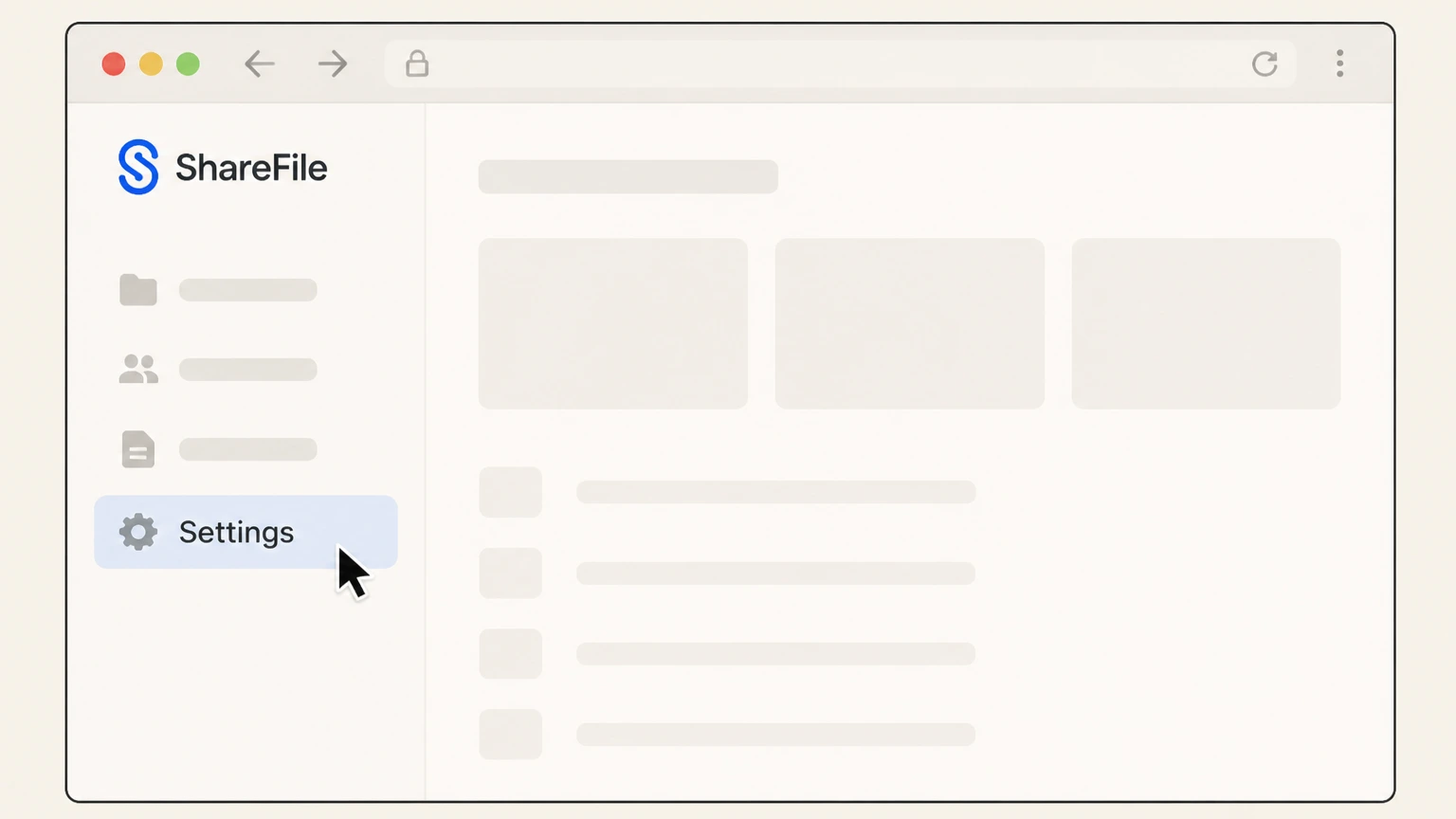
1Open Settings in ShareFile
While signed in to the ShareFile web app, select the Settings option in the navigation menu. Use the ShareFile account named on your receipt, and continue only after the next status in this cancellation path is visible.
 2
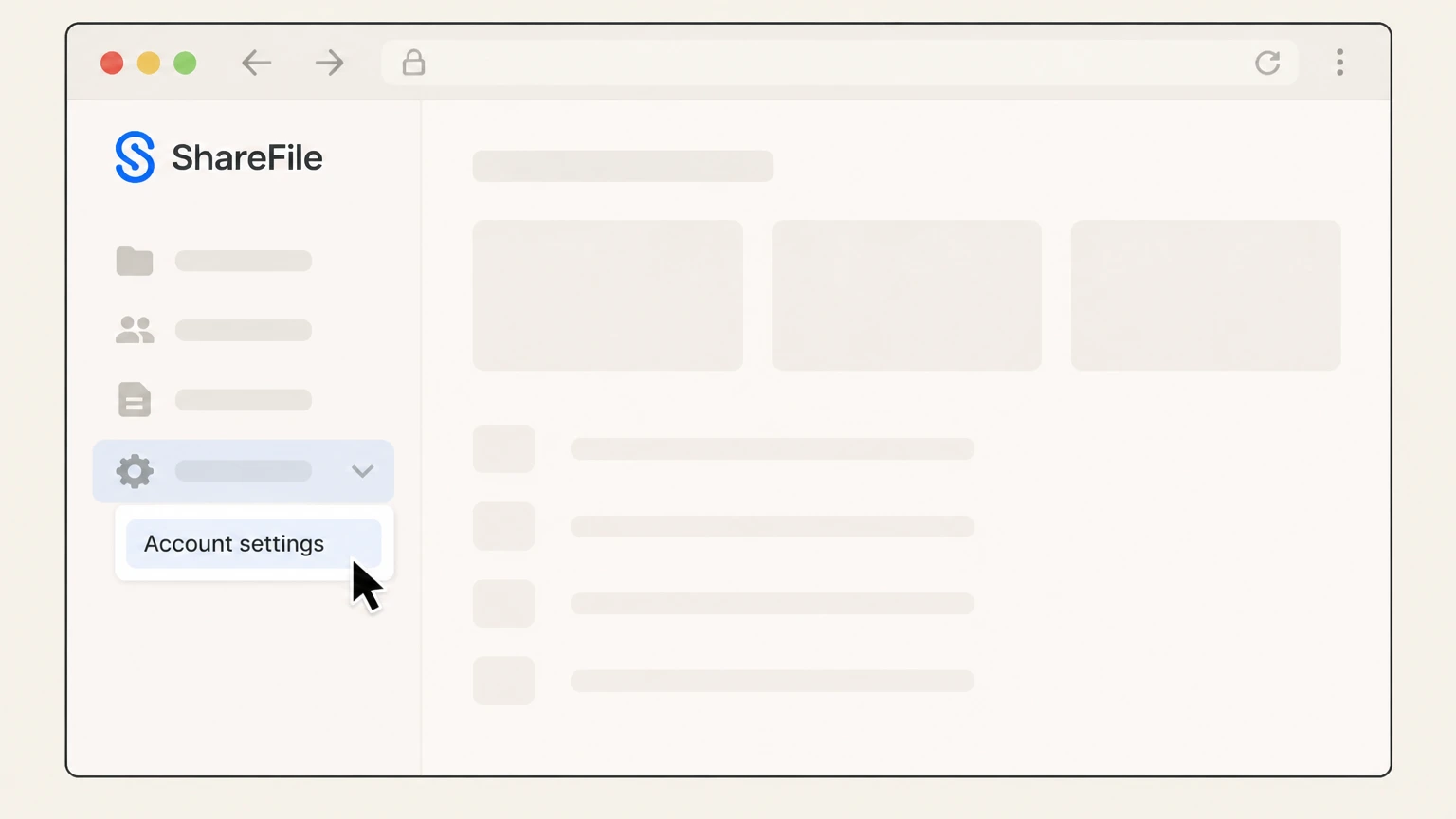
2Open Account settings
In the Settings menu, choose Account settings to view your account configuration options. Use the ShareFile account named on your receipt, and continue only after the next status in this cancellation path is visible.
- Let Pine handle it
Pine can help
Too many steps?
Pine can find the right ShareFile web app path and handle the cancellation for you.
 3
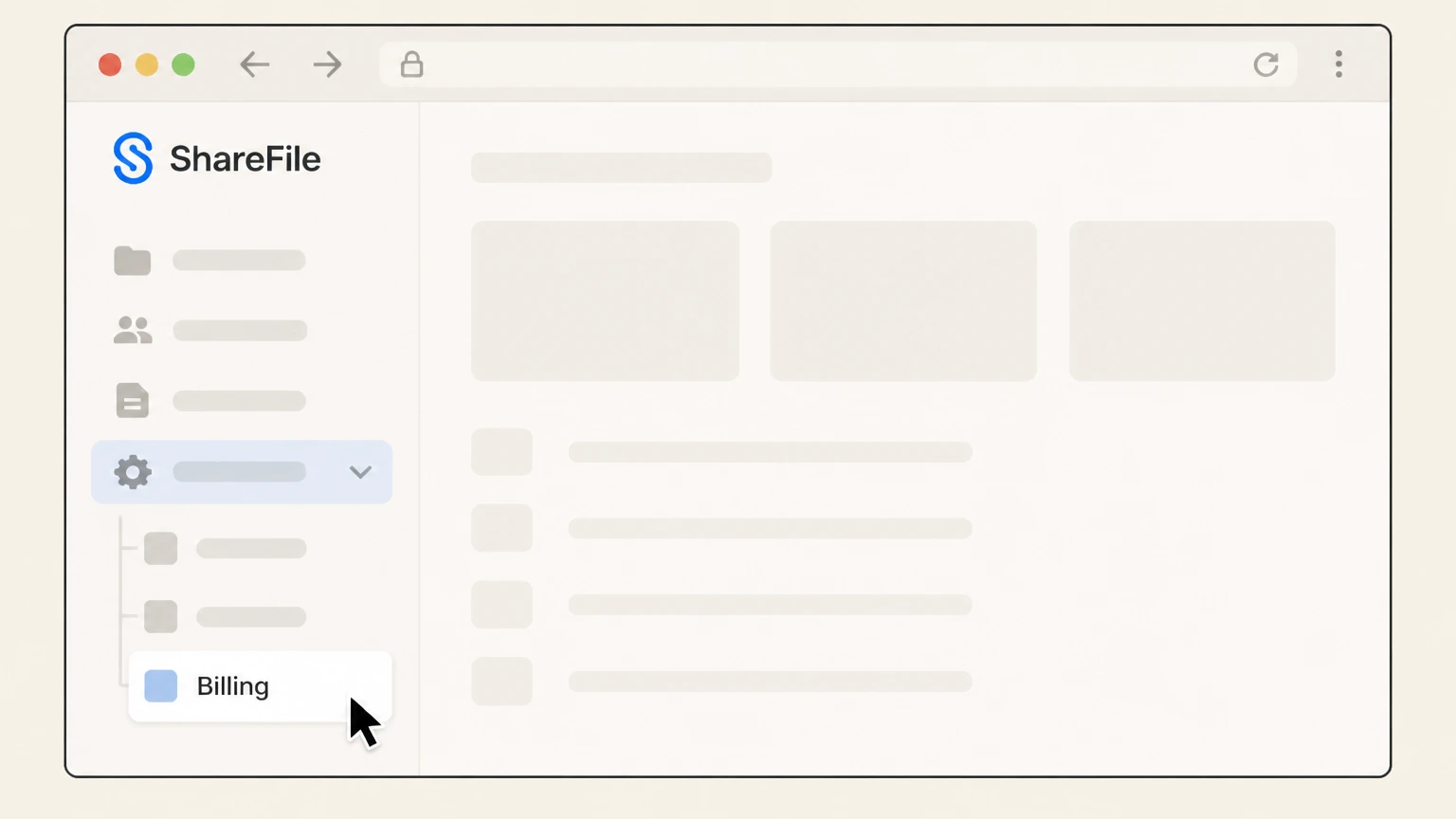
3Go to Billing
Within Account settings, select Billing to open your subscription and payment details. Use the ShareFile account named on your receipt, and continue only after the next status in this cancellation path is visible.
 4
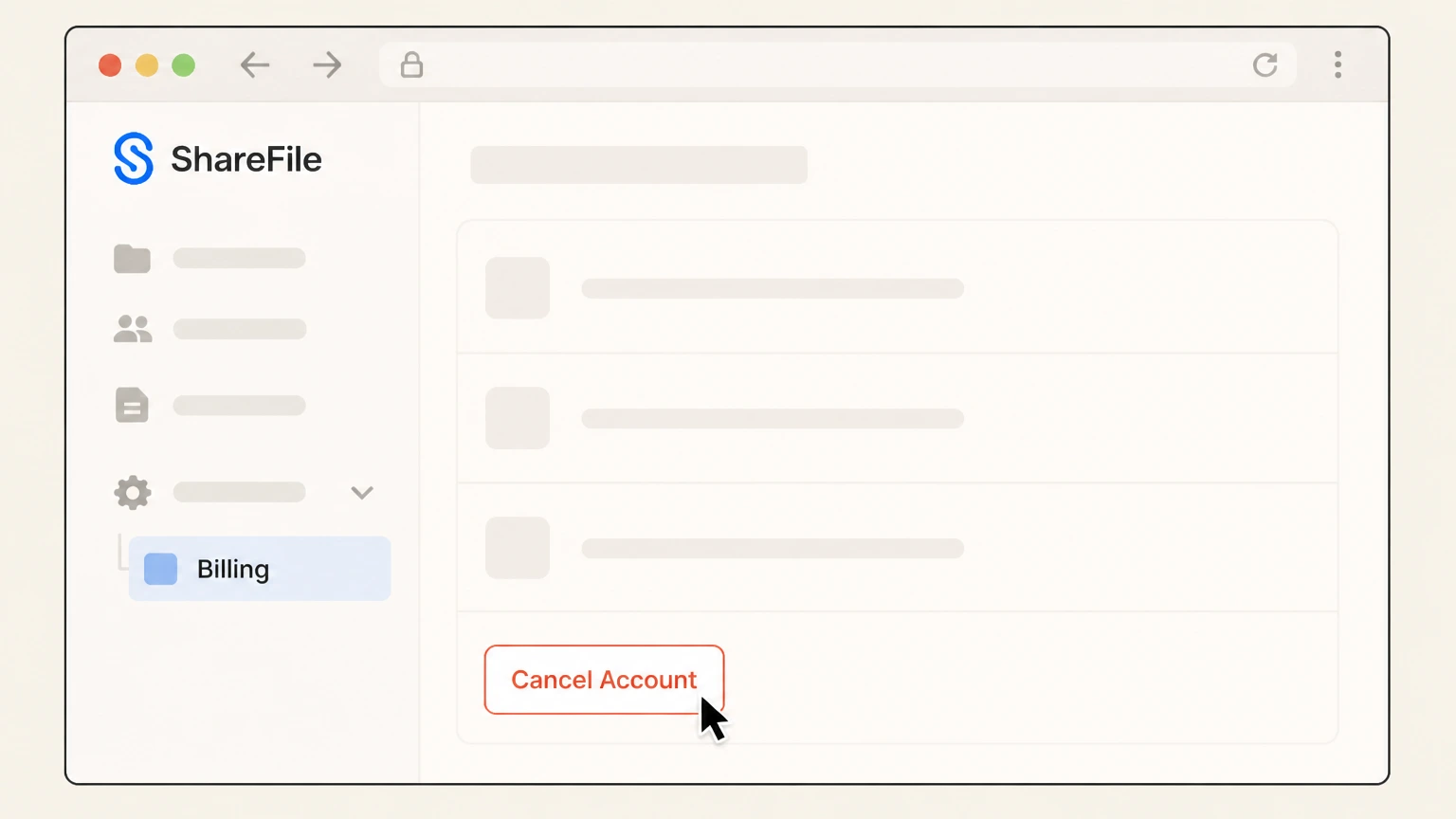
4Start the cancellation flow
On the Billing page, select Cancel Account to open the ShareFile account cancellation screen. Use the ShareFile account named on your receipt, and continue only after the next status in this cancellation path is visible.
 5
5Continue cancellation
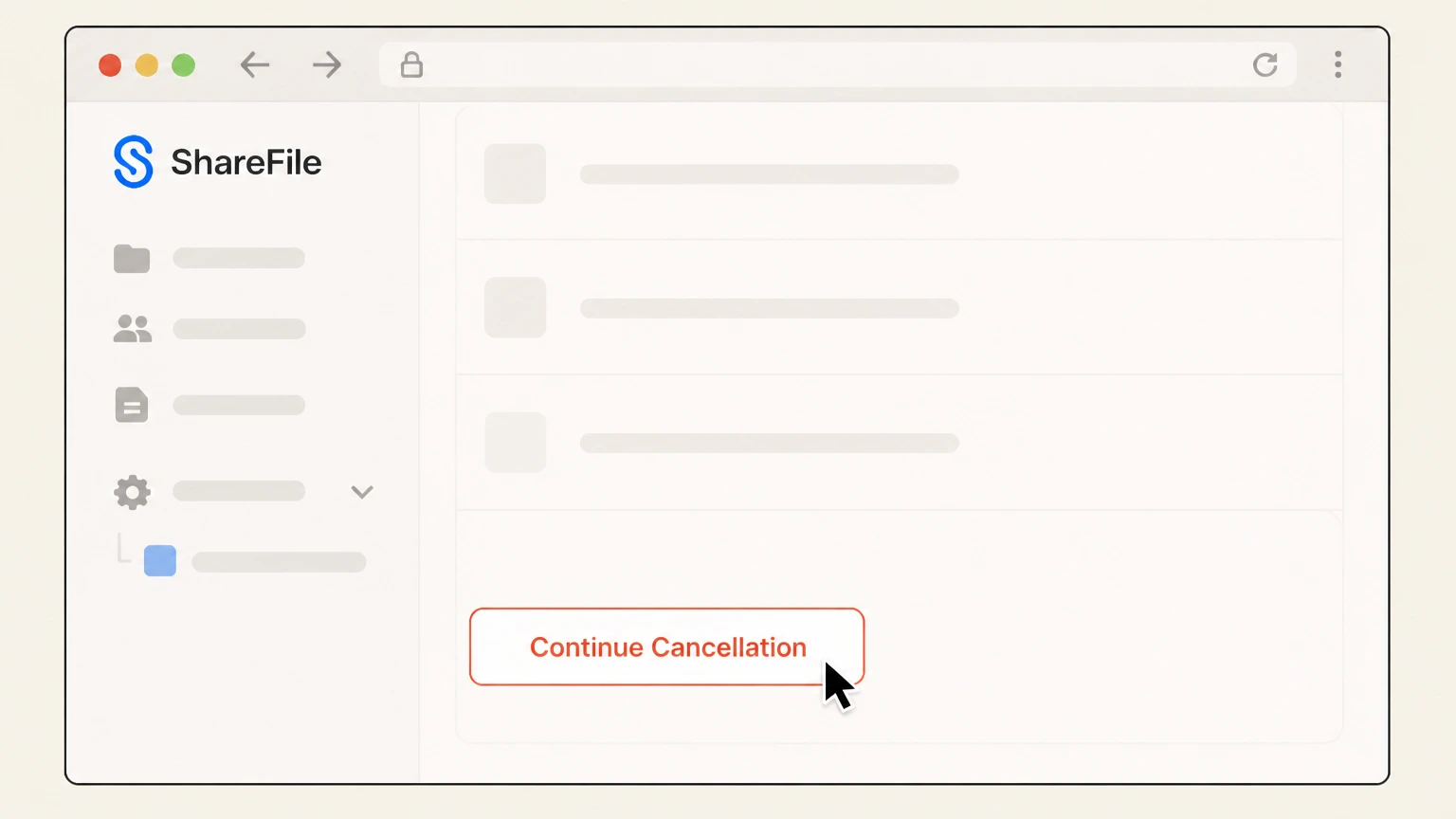
On the Cancel Account page, scroll to the bottom of the page and select Continue Cancellation. Use the ShareFile account named on your receipt, and continue only after the next status in this cancellation path is visible.
 6
6Confirm Cancel my Account
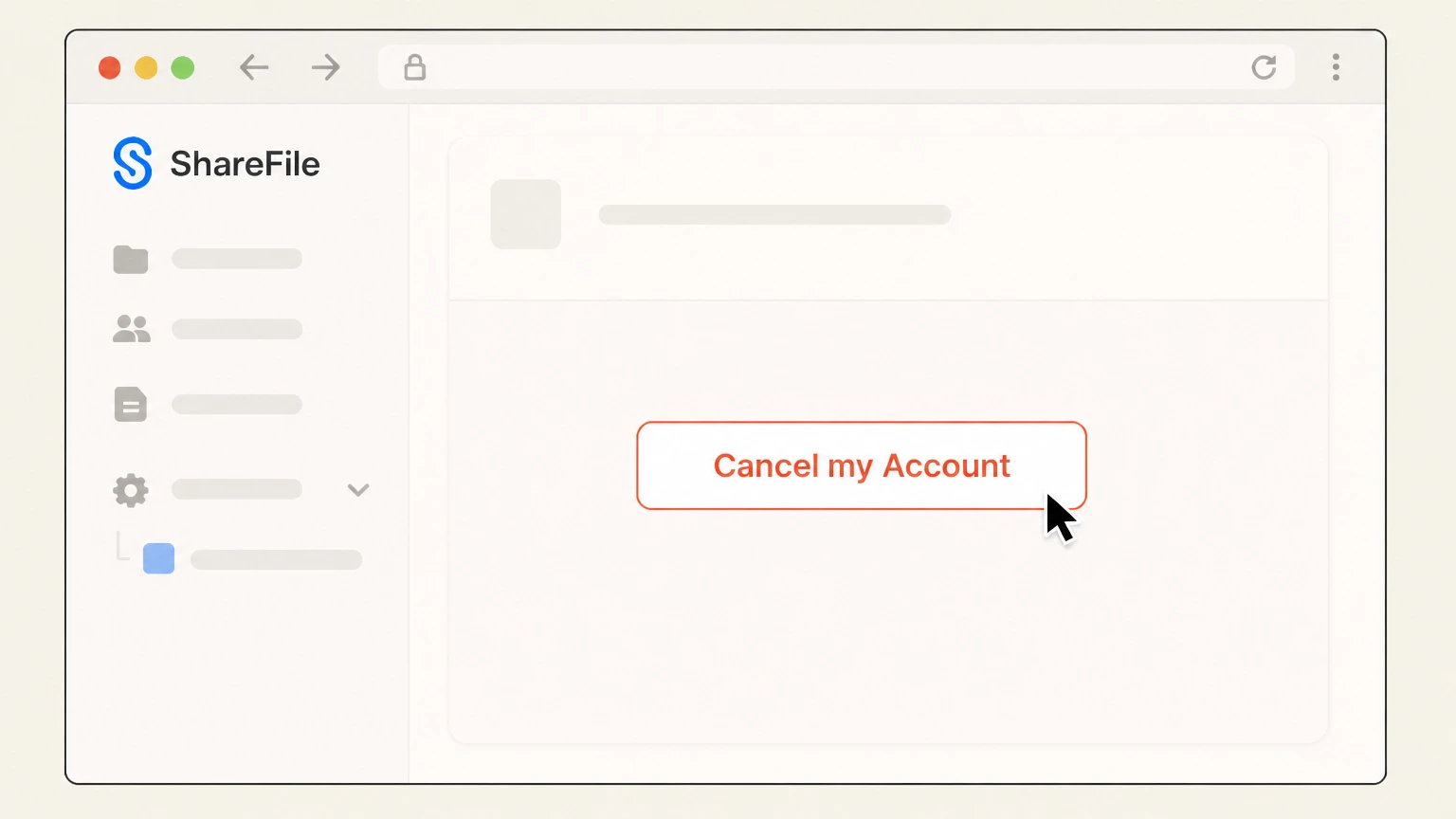
When prompted, select Cancel my Account to confirm that you want your ShareFile subscription to end. Use the ShareFile account named on your receipt, and continue only after the next status in this cancellation path is visible.

Refund policy
ShareFile refunds, billing corrections, and proration
ShareFile’s public billing information focuses on stopping future charges and correcting billing errors rather than providing broad pro‑rata refunds when you cancel mid‑cycle. Policies can differ by country, plan type, and contract, so always confirm against your own order terms.
Check my refund options- Access continues until the end of the billing cycle or term
- ShareFile states that if you cancel, your account remains active through the final day of your current billing cycle—or the end of your contract term—and you continue to have service through that date, but your subscription does not renew afterward.
- No further subscription billing after cancellation
- For customers outside specified regions such as the UK and Germany, the Billing FAQ notes that in the event of account cancellation you will not be billed further once the current billing cycle ends, which effectively stops recurring subscription charges.
- Extra features are not reimbursed mid‑month
- ShareFile explains that fees for extra services or features, such as additional employee licenses, are billed at the time of order and are not reimbursed for unused days if you cancel those extras after your card has already been billed for the month.
- Time limit for disputing billing errors
- If you believe you have been billed incorrectly, ShareFile requires you to contact them no later than 60 days after the closing date on the first billing statement where the error appeared in order to request an adjustment or credit.
- Annual or contract commitments may still apply
- Billing documentation indicates that some subscriptions have defined contract terms; when you cancel, your account remains active until the end of that term, and the documentation does not promise early‑termination refunds, so obligations may run through the contract end date.
If ShareFile does not resolve a billing or refund dispute to your satisfaction, consider disputing the charge with your card issuer and, if appropriate, submitting a complaint about the payment provider or card account through the CFPB’s online complaint process. Submit a complaint to the CFPB
Permissions
Who can cancel a ShareFile subscription
ShareFile limits cancellation to specific employee users with billing authority, so many users will need to coordinate with their account owner or billing contact before using the Cancel Account option.
Employee user requirement
Only ShareFile employee users—not client users—can be granted billing permissions that allow them to see and use the Billing screen for plan and payment changes, including cancellation.
Request plan changes permission
The Cancel Account option is available only to an employee user who has the Billing permission Request plan changes; without this permission, you will not see the Cancel Account control in Billing.
Role of billing contacts
Account administrators can designate one or more employees as billing contacts, giving them View/edit billing information, Request plan changes, and View receipts and billing notifications permissions so they can manage billing and work with ShareFile Support on billing issues.
Account owner vs. administrators
Each ShareFile account has a single account owner with the highest level of control; administrators and billing contacts can be delegated sufficient permissions to manage billing and perform cancellations on behalf of the owner.
Web app steps
Using the Billing page to cancel online
ShareFile documents cancellation as a self‑service flow within the Billing section of the web app. Once you have the right permissions, the process is linear and completed entirely online.
Navigation to Billing
From within the ShareFile web app, cancellation begins by navigating to Settings, then Account settings, then selecting Billing to reach the page that exposes subscription management options, including Cancel Account.
Cancel Account action
On the Billing page, an eligible employee user can start the cancellation process by choosing the Cancel Account option, which opens a dedicated cancellation screen with plan and timing information.
Continue Cancellation confirmation
The Cancel Account page requires you to scroll through the details and select Continue Cancellation, an intermediate confirmation that ensures the cancellation request is intentional.
Final Cancel my Account step
After continuing, ShareFile prompts you to confirm once more by selecting Cancel my Account, which submits the cancellation request and schedules the account to end at the specified date.
Effect on auto‑renew
ShareFile notes that accounts are set to auto‑renew and that cancellation must be completed before the renewal date to avoid unwanted renewal charges; using Cancel Account disables auto‑renew for the upcoming term.
After you cancel
What happens to access and billing after cancellation
ShareFile’s billing documentation and FAQs explain how long service continues after you cancel, how renewals are prevented, and how extra features are treated once you decide to stop the service.
Service through end of term
When you submit a cancellation request, ShareFile states that your account will remain active through your next bill date or through the end of your current contract term; access continues during that time even though the account is scheduled to end.
End of automatic renewal
ShareFile emphasizes that accounts are set to auto‑renew, but a properly completed cancellation request stops renewal after the current billing cycle so you are not charged for a new period.
No further regular subscription billing
The Billing FAQ explains that after account cancellation, you will not be billed further for the subscription beyond the current billing cycle; charges cease once the scheduled end date is reached.
Treatment of extra features and add‑ons
According to the FAQ, fees for extra services or features, such as additional employee licenses, are billed at the time of order and are not reimbursed if you cancel those features after your card has been billed for the month.
Data and account lifecycle
ShareFile’s Billing overview notes that deactivated accounts enter a limited data‑retention period before permanent deletion of stored data, so cancellation should be coordinated with timely export of any information you need to keep.
Before you cancel
Preparing your ShareFile data and workflows before cancellation
Because ShareFile is often central to client document workflows, carefully preparing your data and integrations before cancelling helps avoid disruptions and permanent data loss.
Export critical files and folders
Before submitting Cancel Account, download or synchronize all files and folders your organization may need later, since ShareFile indicates that data is retained only for a limited period after deactivation before being permanently deleted.
Review client portals and tasks
If you use ShareFile client portals, integrated e‑signature, or document request lists, review open tasks and obligations so that cancelling does not interrupt active client work or leave requests unfulfilled.
Coordinate with internal users
Inform internal employee users that the ShareFile account will be ending on a specific date so they can complete work, move shared links, and adjust workflows ahead of time.
Check downstream integrations
If you integrated ShareFile with email plugins, desktop sync, or other business apps, confirm how those integrations will behave once the account is cancelled and plan alternative storage or sharing methods.
Confirm retention expectations
Review ShareFile’s documentation and any contractual terms your organization agreed to so you understand how long data may remain accessible or recoverable after the account is deactivated.
Overdue accounts
Difference between cancellation and missed payments
ShareFile distinguishes between a customer‑initiated cancellation and an account that becomes overdue; understanding this helps you avoid unintended suspension or data loss if a payment fails.
Grace period after missed payment
The Billing overview explains that if your account has an overdue payment, ShareFile can suspend access after a grace period that is typically 7 to 14 days while temporarily retaining your data.
Deactivation and retention window
If payment is still not received after suspension, ShareFile deactivates the account and starts a data‑retention period—documented as 30 to 60 days—after which stored data is permanently deleted.
Difference from voluntary cancellation
In a voluntary cancellation, you end future billing and renewals on your own schedule; with missed payments, the timeline is controlled by ShareFile’s overdue and retention policies, which may result in earlier suspension or deletion.
Fixing failed card payments
If a credit card charge fails, ShareFile instructs customers to contact ShareFile Support or Accounts Receivable to request another attempt to charge the card and restore the account’s good standing before deactivation.
Use cancellation to control timing
To avoid abrupt suspension due to missed payments, organizations that no longer need ShareFile should proactively cancel through Billing before the next renewal rather than simply letting invoices go unpaid.
Billing owner
When a partner or reseller controls ShareFile billing
Some organizations access ShareFile through a managed service provider or reseller, which can change how cancellation is initiated and who must approve it.
Partner‑managed tenants
ShareFile’s partner tenant management documentation notes that managed service provider partners can manage tenant accounts, including cancelling trial or paid accounts, from a dedicated Tenant Management area in their partner environment.
Identifying a billing partner
If your invoices or credit‑card statements list only a third‑party firm rather than ShareFile or Progress, that is a strong sign that the partner—not ShareFile directly—is the billing owner for your subscription.
Impact on self‑service cancellation
In some partner scenarios, the ShareFile Cancel Account option may not reflect the full commercial relationship; you may need the partner to cancel or adjust the underlying tenant or contract even if you stop using the portal.
Coordinating cancellation steps
When a partner is the billing owner, align timing between your request to that partner and any actions in the ShareFile portal so that billing, data migration, and user access all end on the dates you expect.
Support
Getting help with ShareFile billing or cancellation
If you cannot see the Cancel Account option or have questions about invoices, ShareFile provides support channels and specific roles for handling billing‑related issues.
Using live chat for billing support
ShareFile’s Contact Us page directs customers who need technical support or billing help to use the live chat widget in the bottom‑right corner of the site for immediate assistance.
When to contact ShareFile Support
If you believe ShareFile has billed you incorrectly, the Billing FAQ instructs you to contact ShareFile within 60 days after the closing date of the first billing statement where the error appeared to request an adjustment or credit.
Role of billing contacts with support
Designated billing contacts have permissions to view and edit billing information and are explicitly authorized to contact ShareFile Support for billing assistance on behalf of the organization.
Using the Help Center and documentation
ShareFile links to a Help Center and documentation library where administrators can search for articles on billing, permissions, and account settings if they need more detail on the cancellation process.
Escalating unresolved billing disputes
If you cannot resolve a billing dispute directly with ShareFile, you may consider contacting your card issuer or submitting a complaint to a consumer‑protection regulator, such as through the CFPB’s online complaint process for financial services.
Plan changes
Changing plans or billing cycle instead of cancelling
If you still need ShareFile but want to spend less or adjust how you are billed, ShareFile provides self‑service options to change your plan or billing cycle without fully cancelling your account.
Using Manage Plan to change tiers
The Billing section includes a Manage plan option that allows administrators to switch between plans, such as Advanced and Premium, by selecting a new plan and confirming the change rather than cancelling outright.
Changing billing cycle
ShareFile documents a process for changing your plan’s billing cycle—such as moving from monthly to annual billing—by selecting Billing, then Update your plan, and choosing a new billing cycle from the Billing Cycle dropdown before confirming the update.
Limits on downgrades and seat reductions
Notes in the billing documentation explain that while you can upgrade billing cycles and add users or storage during a term, downgrading, reducing seats, or switching from annual back to monthly during the current term is generally not supported.
Implications for cancellation timing
Because some downgrades or seat reductions are restricted mid‑term, organizations that want to significantly reduce their ShareFile footprint may need to either wait until renewal or plan a full cancellation and migration instead of relying on mid‑term changes.
What official sources do not confirm
Limits of the public ShareFile cancellation guidance
These points are intentionally qualified because the official sources reviewed on August 16, 2026 do not publish a complete answer.
Documented limitation 1
Tooling could not directly open the newer dedicated “Cancel your ShareFile account” documentation page linked from Billing overview, so the cancellation steps rely on the Billing article’s Cancel Account section and the current ShareFile documentation PDF for precise UI labels.
Documented limitation 2
Public documentation does not confirm that ShareFile subscriptions can be purchased or cancelled via Apple’s App Store or Google Play billing, so this guide assumes direct billing through ShareFile/Progress or partner billing and does not describe in‑app subscription cancellation flows.
Documented limitation 3
ShareFile’s public pages describe data‑retention ranges for accounts deactivated after missed payments but do not explicitly map the same exact windows to voluntary cancellations, so the guidance here treats those durations as indicative rather than guaranteed for all scenarios.
ShareFile cancellation FAQ
Questions people search about canceling ShareFile, answered with official provider or billing-platform sources checked on August 16, 2026.
How do I cancel my ShareFile subscription?
Who is allowed to cancel a ShareFile account?
What happens to my ShareFile access after I cancel?
Does ShareFile offer refunds when I cancel?
How can I contact ShareFile customer support?
Is ShareFile still part of Citrix?
What is the purpose of ShareFile?
Will cancelling ShareFile delete my files?
How do I change my ShareFile plan or billing cycle instead of cancelling?
Untangle this ShareFile issue.
Let Pine handle the provider follow-up and keep the confirmation in one place.
