


Box
Cancel subscription
How to Cancel Box Subscription: Official Steps
Learn how to cancel your Box subscription or delete a free account from the web, what happens to data and users, refund limits, and downgrade or seat options.
- 10 current official sources checked
- 1 billing route separated
- Legacy Provider and equivalent Blog content reconciled claim by claim
- Steps, outcomes, refund boundaries, and related products revalidated
How to cancel Box through the correct billing owner
Web cancellation
Cancel Box through Web
 1
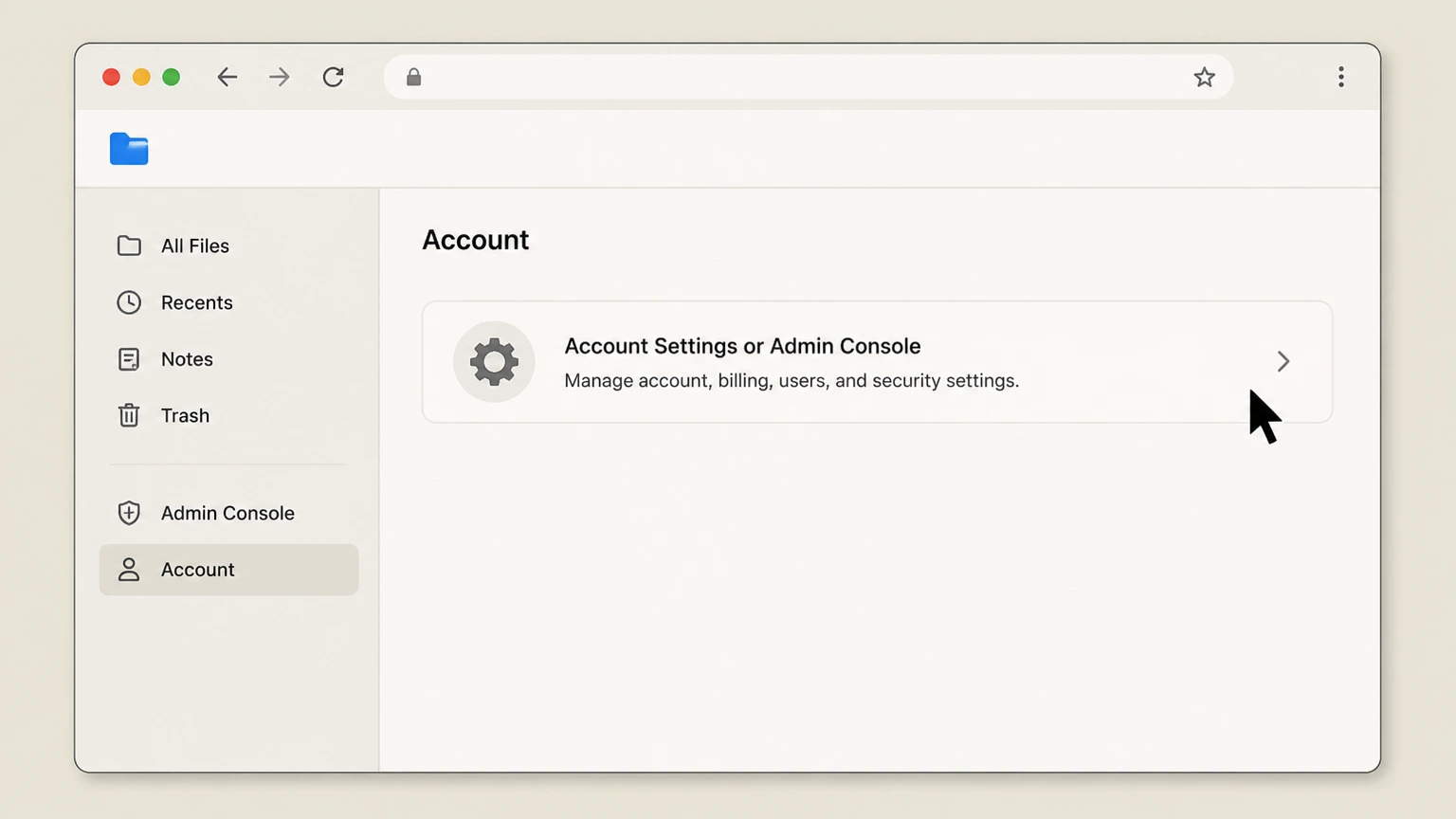
1Open Account Settings or Admin Console
Go to box.com in a browser and sign in. If you have a free individual or Personal Pro account, click your profile avatar in the upper‑right corner and choose “Account Settings” to open your account page. If you administer a Business or Enterprise subscription, open the Admin Console from the left navigation so you can reach account and billing controls.
 2
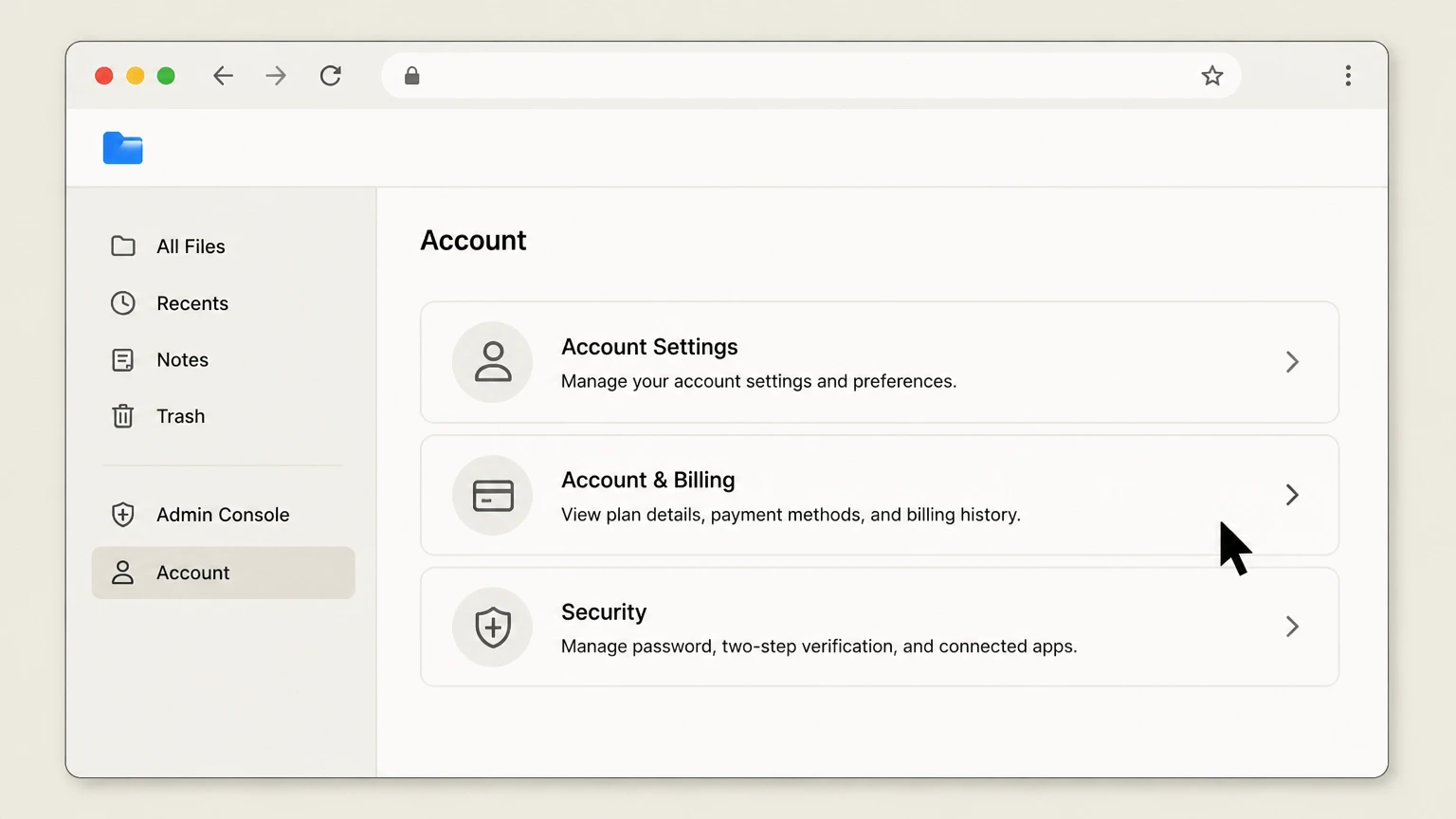
2Open Account & Billing
For Business or Enterprise subscriptions, in the Admin Console select “Account & Billing” in the left‑hand menu to display Account Information, plan status, and seats. If you are on Personal Pro or a free individual plan, stay on the Account Settings page, where the Account Details section shows the controls to cancel or permanently delete your account.
- Let Pine handle it
Pine can help
Too many steps?
Pine can find the right Web path and handle the cancellation for you.
 3
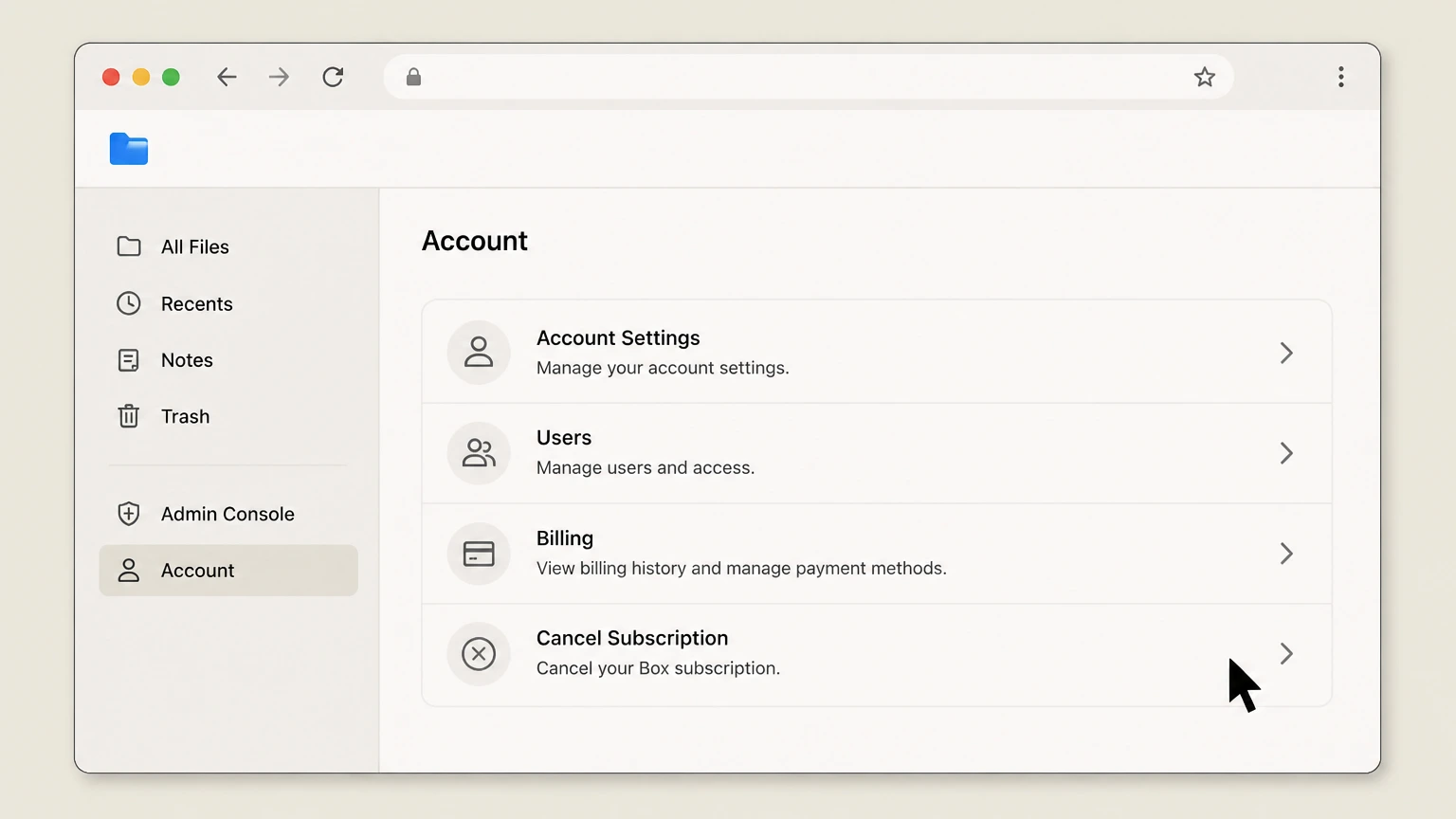
3Select the cancellation option
On a free individual account, find the Account Details area and choose the option labeled to permanently delete your account. On Personal Pro, use the Account Details section’s “Cancel Account” control to start the cancellation flow. For Business or Enterprise, look in the Account Information section’s Status field and select “Cancel Account” there to begin cancelling the organisation subscription.
 4
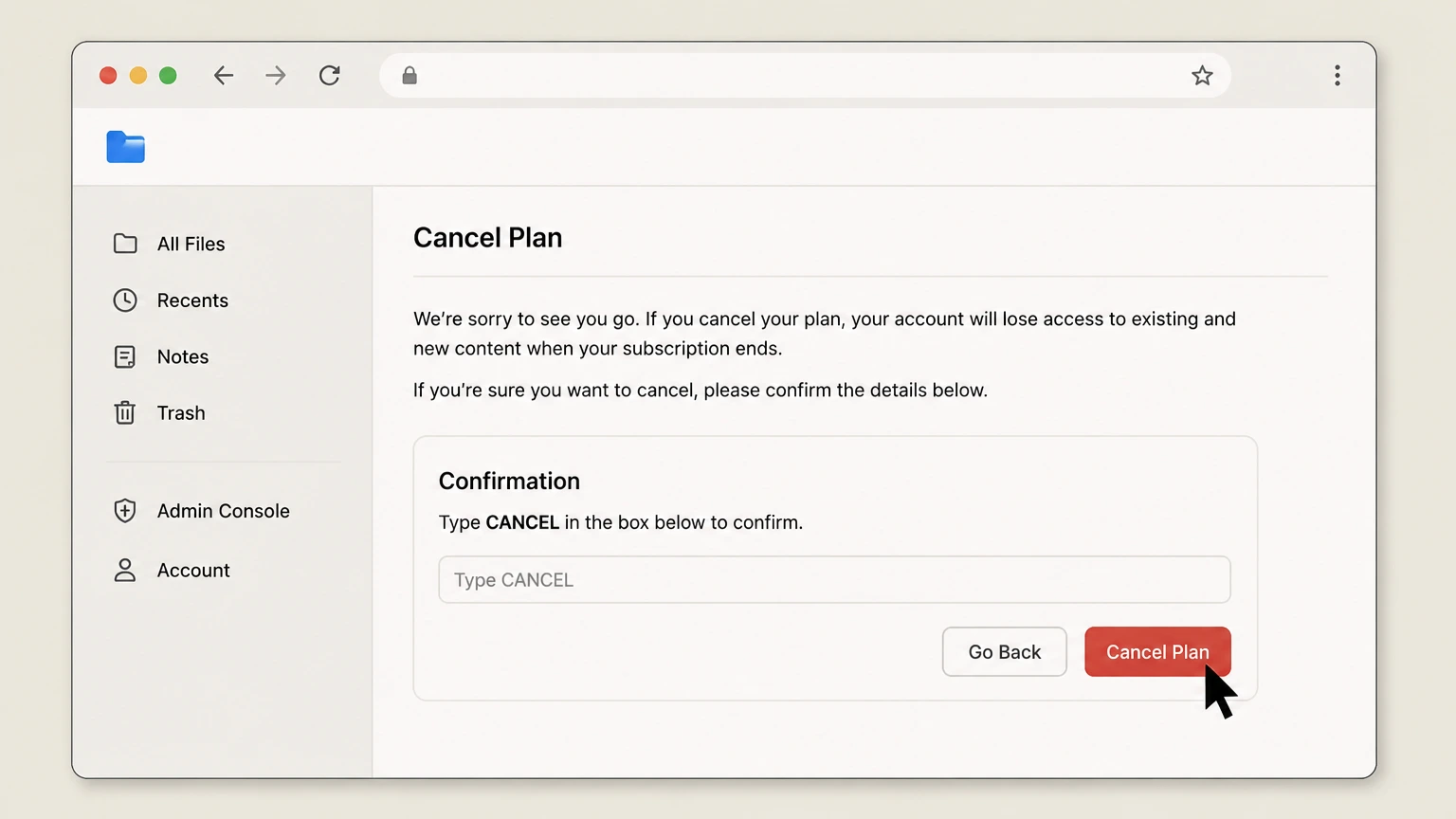
4Complete the confirmation prompts
Work through the on‑screen prompts. Free accounts must confirm permanent deletion, which Box notes is processed after a short delay and prevents reuse of the same email address for a period. Personal Pro and Business/Enterprise flows may show a short survey and multiple confirmation screens; follow them until you choose the final option (for example “Cancel My Account” or similar) and see confirmation that the account will end at the close of its current service term. Keep the confirmation email Box sends for your records.

Refund policy
Refunds when cancelling a Box subscription
Box treats most subscription fees as prepaid and non‑refundable, with limited exceptions described in its refund article, Terms of Service, and regional terms. Whether any money is returned depends on your plan type, timing, local law, and contract language, and refund requests are reviewed by Box’s Billing or Cancellations teams rather than being automatic.
Check my refund options- Prepaid, non-refundable default
- Box’s Terms of Service state that if you cancel, service continues until the end of the current service or payment period and no refunds are issued for previously paid services. The Requesting a Refund article similarly explains that services are prepaid for the selected period (monthly, yearly, or otherwise) and, except where specifically stated, are non‑refundable, including renewed accounts.
- Early termination of contracted accounts
- In Requesting a Refund, Box notes that if you request a refund related to early termination of a contract, you are held to the full term listed on your contract regardless of billing frequency. This means cancelling a contracted Business or Enterprise plan early normally does not entitle you to a refund of unused time unless your agreement or applicable law provides such a right.
- Renewal charge refund requests
- The refund article explains that to avoid renewal charges you must cancel an account sufficiently before the renewal date under the applicable terms. Where customers nonetheless incur a renewal charge, Box allows them to submit a case with the Billing team, which reviews eligibility for a goodwill refund or credit based on the timing of cancellation and contract details.
- Trial accounts and mistaken conversions
- Box’s terms state that trials must be cancelled before the end of the trial period (often 14 days) to avoid charges when the account converts to a paid subscription. The refund article clarifies that while you may cancel before the next billing cycle after conversion, credits or refunds for a charge that followed an uncancelled trial are generally not available, except where required by law.
- Regional and legal variations
- Regional Terms for EU Data Act customers and Box’s global Terms of Service indicate that in some jurisdictions you may have a legal right to cancel within a prescribed period of your initial subscription and receive a prorated refund. These rights depend on country‑specific consumer laws, so Box directs customers to the regional terms and their own agreements rather than promising a single universal refund rule.
If you believe you qualify for a refund or your contract or local law may give you additional rights, gather your account and billing details and open a support case with Box’s Billing or Cancellations teams using the request form linked from the refund and cancellation help articles. Open a Box billing support request
Account control
Which Box account types can be cancelled online
Box’s cancellation help article distinguishes between free individual accounts, paid Personal Pro subscriptions, and Business or Enterprise subscriptions, and sets different rules for who can perform each action.
Free individual (personal) accounts
Free personal accounts are not “cancelled” as subscriptions; instead, you delete them. From Account Settings you use the option to permanently delete the account. Box notes that deletion is not processed instantly and that the email address used for a free account cannot be used for any Box account again until a waiting period has passed.
Personal Pro subscriptions
For Personal Pro, cancellation is performed by the signed‑in account holder from Account Settings using the “Cancel Account” control in Account Details. Box’s article explains that after you confirm cancellation, the Personal Pro subscription remains active until the end of the current service term, at which point the paid plan ends.
Business and Enterprise subscriptions
Only an account administrator can cancel a Business or Enterprise subscription. The admin must open the Admin Console, go to Account & Billing, and use the Cancel Account option in the Account Information section. Box states that the account cancels at the end of the service term and that the owner or administrator receives email confirmation after cancellation is processed.
Managed users and collaborators
Regular managed users and external collaborators within a Business or Enterprise environment cannot cancel the organisation’s subscription. Box’s terms explain that an organisation that provided your account may suspend or cancel accounts it controls, and the cancellation article states explicitly that only the account administrator can cancel a Business or Enterprise account.
After you cancel
What happens at the end of your Box term
Box focuses on end‑of‑term cancellation: cancelling normally stops future renewals while keeping service active until the current subscription period finishes.
Cancellation is end-of-term, not immediate
In the cancellation article, Box notes for both Personal Pro and Business/Enterprise plans that “the account will cancel at the end of the service term.” This means features and access continue through the remainder of the paid period, and the plan does not shorten mid‑cycle when you submit a cancellation request.
Auto-renewal requires timely cancellation
Box’s Terms of Service explain that monthly and annual subscriptions automatically renew unless you cancel the plan a specified number of business days before the renewal date. The same terms state that if you do not cancel in accordance with the terms, Box will automatically renew the service and charge the payment method on file for the next subscription period.
Trials convert if not cancelled in time
Box’s terms state that trials run for a defined period (often 14 days if no other duration is specified) and that you may cancel at any time up to the last day of the trial. To avoid being charged, you must cancel the account by the end of the trial period. The refund article reiterates that a trial must be cancelled before it ends to avoid charges.
Enterprise cancellation and managed users
In the cancellation article, Box explains that when an enterprise admin cancels the account, all managed users in that enterprise lose access to their Box accounts. If those users later try to sign up for a new individual account with the same email address, they may see an error until Box Product Support releases the email address with approval from the enterprise’s primary admin.
Data & identity
Data, email address, and account deletion effects
Box gives specific guidance on what happens to email identities and stored files when you delete or downgrade accounts, particularly for free and enterprise scenarios.
Free account deletion and email reuse
When you delete a free individual account from Account Settings, Box notes that deletion is not immediate and asks you to allow time for processing. The article also states that the email address used for a free account cannot be used with any Box account again until 120 days after deletion, which affects how quickly you can create a new account with the same address.
Enterprise deactivation and new accounts
For cancelled enterprises, Box explains that managed users who later try to create new individual accounts with the same email may encounter errors because their addresses remain associated with the deactivated enterprise. They must contact Box Product Support to have the email released with approval from the enterprise’s primary admin; any new account created this way is fresh, and prior content and collaborations do not transfer automatically.
Files when downgrading paid accounts
Box’s article on preserving files notes that if you downgrade from a higher‑tier paid plan to a lower paid subscription, your files remain as long as they fit within the new upload limits. You lose subscription‑specific functionality (for example, larger upload sizes or admin features), but the actual file content stays in the account unless it exceeds storage or size limits.
Files when downgrading to Lite 10 GB free
When you downgrade to the free Lite 10 GB level, Box states that all existing files remain but you cannot add new content until you reduce usage below the 10 GB storage cap. This means you should audit and, if necessary, download or clean up content before a planned downgrade to avoid being locked out of uploads.
Data export and portability
Box’s EU Regional Terms, written for customers covered by the EU Data Act, state that Box does not limit your ability to move data on or off Box and that files and data are maintained in their uploaded format so they can be downloaded at any time. Those terms also describe HTTP endpoints and in‑product tools Box makes available for exporting files and certain metadata during a provider switch.
Alternatives to cancel
Downgrades and reducing seats instead of cancelling
Instead of fully cancelling, Box supports downgrading plan level and adjusting seats, usually at the end of the current term, via requests to its cancellations team.
Downgrading to another paid or free plan
The Downgrading Your Box Account article instructs account administrators to email Box’s cancellations team with the plan type they wish to downgrade to. Downgrades are processed only at the end of the account’s term. Downgrading to a free Personal account requires reducing stored data below the free storage threshold before the downgrade is applied.
Reducing purchased seats (licenses)
In Decreasing Seats From Your Subscription, Box explains that to reduce purchased seats the account administrator must contact the cancellations team and specify the total seats they want to keep. Seat decreases are processed only at the end of the term, and Box notes that removing or deleting users on its own does not change subscription charges; billing must match the number of seats on the subscription, which is subject to a published minimum per account.
Adding seats without changing plan
The Adding Seats To My Account article shows that administrators can use the Admin Console’s Account & Billing or Insights view to find the “Seats Used” area, choose to add seats, and complete the purchase online. Box notes that the charge for added seats is prorated from the purchase date to the end of the current billing term so that new seats align with the existing subscription period.
Effect on managed users when downgrading
The preserving‑files article notes that if you have managed users and downgrade from a business plan, those users are automatically downgraded to free Lite 10 GB accounts unless you arrange otherwise with Box. The core content in their accounts remains, but functionality and quotas change to match the free tier, which may affect their ability to upload new files.
Billing & renewal
How Box handles renewals and billing when you cancel
Box’s legal terms and billing help center explain how subscription periods, renewals, prepayments, and limited refund situations work when you cancel.
Automatic renewal of monthly and annual plans
Box’s Terms of Service state that monthly and annual subscriptions automatically renew for the same period unless you cancel the plan at least a specified number of business days before the renewal date. If you do not cancel in accordance with these terms, Box will automatically renew the service at the then‑current fee and charge the payment method associated with your account.
Prepaid, generally non-refundable service
The Terms of Service explain that when you cancel, your service ends at the end of the current service or payment period and that no refunds are issued for previously paid services. The Requesting a Refund article echoes this, stating that services are prepaid for the selected period (monthly, yearly, or otherwise) and are non‑refundable except in the limited situations described there.
Refunds for contracts and renewals
In Requesting a Refund, Box states that if you seek a refund after early termination of a contract, you are held to the full term listed in your contract. For renewal charges, Box notes that accounts must be cancelled sufficiently before the renewal date to avoid renewal charges, and that eligible requests are reviewed by the Billing team through support cases.
Trials and post-trial billing
Box’s terms and refund article state that trials run for a defined period (often 14 days) and that you must cancel by the end of the trial to avoid being charged when the account converts to paid. After conversion, you may cancel before the next billing cycle, but Box indicates that credits or refunds for the already‑charged period are generally not available.
Contract- and region-specific notice periods
Alongside the global Terms of Service, Box provides regional terms (for example, EU Data Act terms) and separate enterprise agreements. These documents show that notice periods and refund rights can differ by region and contract, so Box directs customers to rely on their own order form and regional or negotiated terms for the precise advance notice required to avoid renewal fees.
Troubleshooting
When you can’t see Box’s cancel or delete options
If the expected cancel or delete controls aren’t visible, Box’s cancellation article and billing guides suggest several checks and escalation paths.
Verify your plan and role
The cancellation article emphasises that only administrators can cancel Business or Enterprise subscriptions and that free accounts use a “Permanently Delete Account” option instead of a subscription cancel button. If you are a managed user under an organisation or signed into the wrong profile, you may not see any cancellation controls and will need the appropriate admin to act.
Use the correct area of the web app
For Personal Pro and free accounts, Box places cancellation and deletion controls in the Account Details section of Account Settings. For Business and Enterprise plans, the Cancel Account option appears in the Account Information section under Admin Console → Account & Billing. If you are looking in other parts of the interface, you may not find the correct status control.
Check billing information access
Box’s billing information guide notes that only Account Administrators can access the Billing Information section, which shows payment method, charge details, and account type. If you cannot see billing pages such as app.box.com/billing, that is another sign you are not logged in as the account administrator who is authorised to cancel.
Escalate when the cancel option is missing
In the cancellation article, Box instructs Business and Enterprise administrators who do not see a Cancel Account option in Account Information to submit a support ticket through the linked request form. The same article instructs customers who never receive a cancellation confirmation email, or who have an unavailable administrator, to contact Box’s cancellations team for confirmation so the account is not left renewing unintentionally.
Remember that changing payment method is not cancellation
The Terms of Service explain that Box may automatically renew services and charge the payment method on file unless you cancel your account in line with the cancellation requirements. This means simply updating or attempting to remove a card does not substitute for formally cancelling through Account Settings, the Admin Console, or the support channels referenced in Box’s articles.
Reactivation
If you change your mind after cancelling Box
Box documents a self‑service reactivation path for some recently‑cancelled Business‑level subscriptions, plus support‑assisted options when self‑service reactivation is not available.
Eligibility for self-service reactivation
The Reactivating Your Box Account article states that you can usually reactivate online if the account was cancelled in the last 120 days (or is pending deactivation), you are the administrator, and you had a supported Business‑level plan such as Starter, Business, Business Plus, or Enterprise. Other account types or older cancellations may not be eligible for this flow.
Using Box’s reactivation page
Eligible administrators go to the dedicated reactivation page and enter the email tied to the original Box account. If the account is eligible, Box redirects you to a confirmation page and emails a reactivation confirmation link. After you confirm by email, the account is restored with the previous subscription, including the same plan, number of seats, and payment method.
What reactivation restores and what it doesn’t
The reactivation article explains that a successfully reactivated account resumes on the prior subscription configuration and lets you sign in with your existing password (or a reset password if needed). However, it does not change past billing or refund decisions; any unpaid invoices or remaining contractual obligations described in your agreement still apply after reactivation.
If online reactivation fails
If you receive an error on the reactivation page or do not meet the eligibility criteria, Box’s article directs you to open a support case with the Billing team. In those situations, Billing can review whether the subscription can be reinstated, whether a new order is required, or whether data associated with the previous account is still available under Box’s retention policies.
Box cancellation FAQ
Provider-specific answers based on official sources checked August 10, 2026. Signed-in terms, region, billing owner, and applicable law still control.
Can I cancel my Box subscription from the web?
How do I delete a free Box account instead of cancelling a subscription?
When will my Box account actually stop working after I cancel?
What happens to my files and collaborators when I downgrade or cancel Box?
Can I reduce Box seats or downgrade my plan without cancelling?
How do refunds work if I forget to cancel my Box subscription or trial?
Can I reactivate a Box Business or Enterprise account after cancelling?
How can I export or move my data off Box when leaving the service?
Untangle this Box issue.
Let Pine handle the provider follow-up and keep the confirmation in one place.
