


Asana
Cancel subscription
How to Cancel Asana Subscription: Official Steps
Learn how to cancel your Asana subscription from the Admin console, handle trials, manual invoices, channel partners, add-ons, and exports before downgrading.
- 13 current official sources checked
- 1 billing route separated
- Legacy Provider and equivalent Blog content reconciled claim by claim
- Steps, outcomes, refund boundaries, and related products revalidated
How to cancel Asana through the correct billing owner
Web cancellation
Cancel Asana through Web
 1
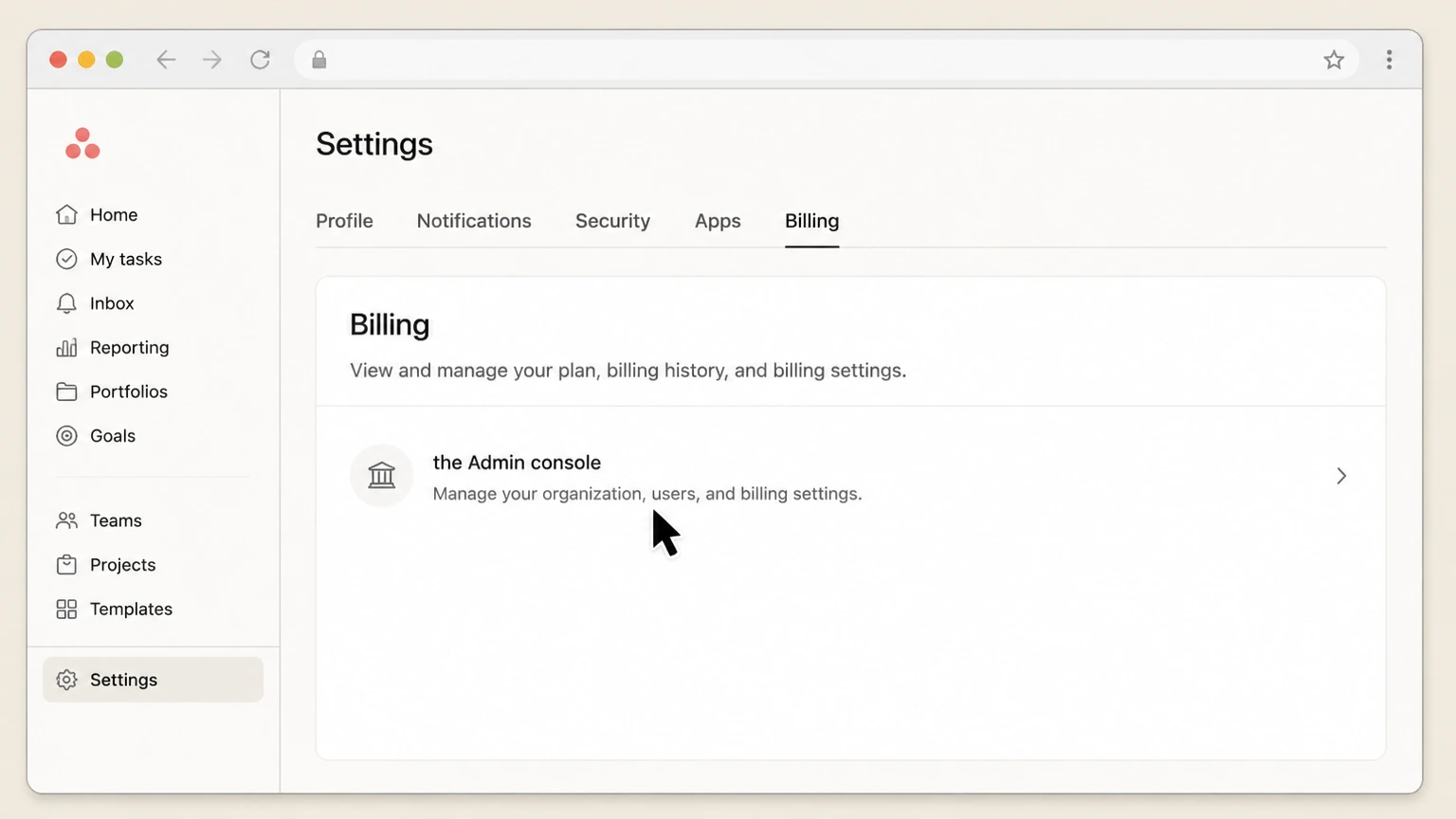
1Open the Admin console
Sign in to Asana in a desktop browser, click your profile photo in the top-right corner, and confirm you are in the correct workspace or organization for the subscription you want to change. From that same menu, choose Admin console to open the admin controls for that specific space.
 2
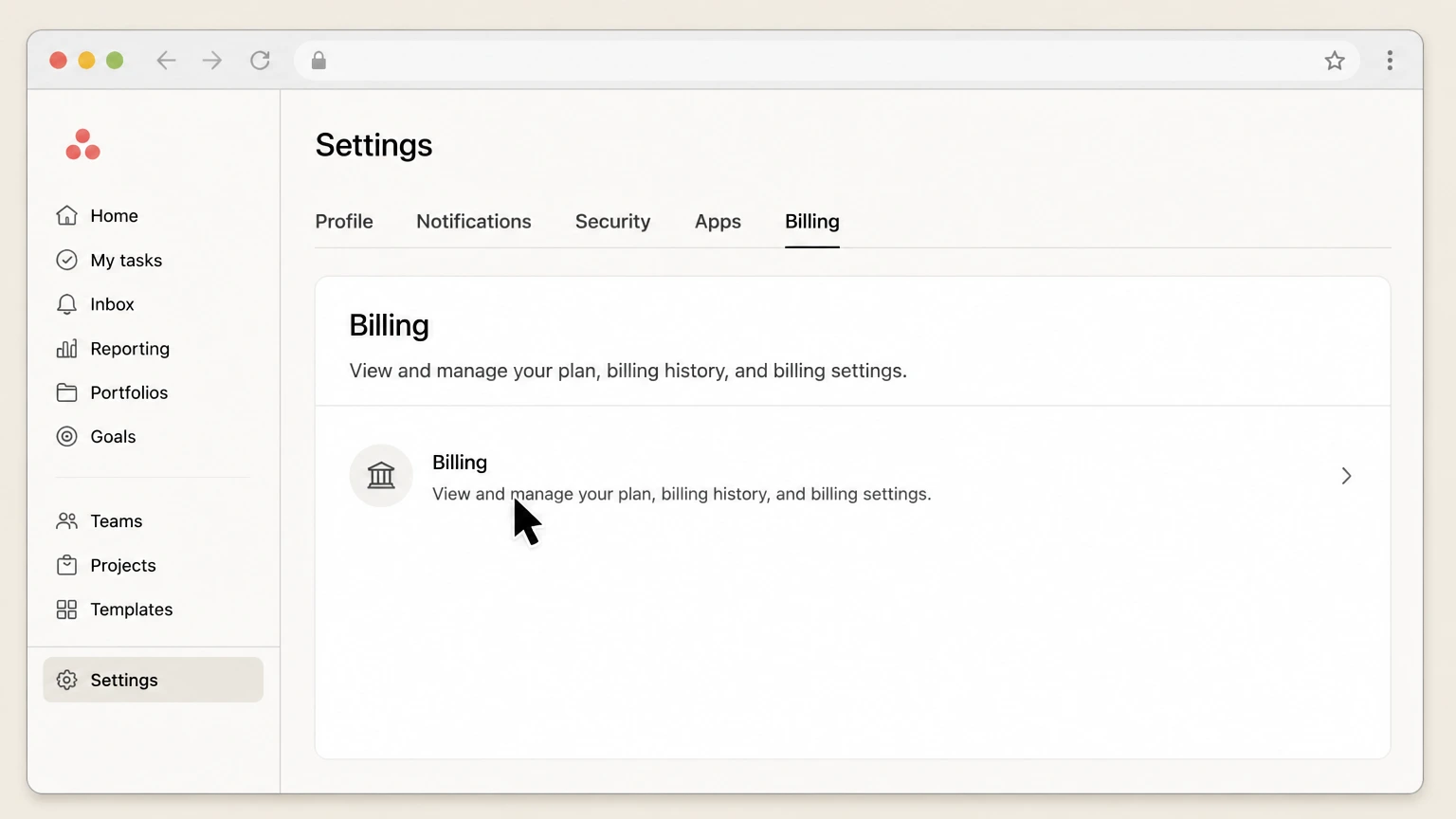
2Open Billing
Inside the Admin console, look at the left-hand navigation (or tabs) and select Billing. This takes you to the central billing page where billing owners and admins can view plan details, invoices, payment methods, seat utilization, and controls to change or cancel the current plan.
- Let Pine handle it
Pine can help
Too many steps?
Pine can find the right Web path and handle the cancellation for you.
 3
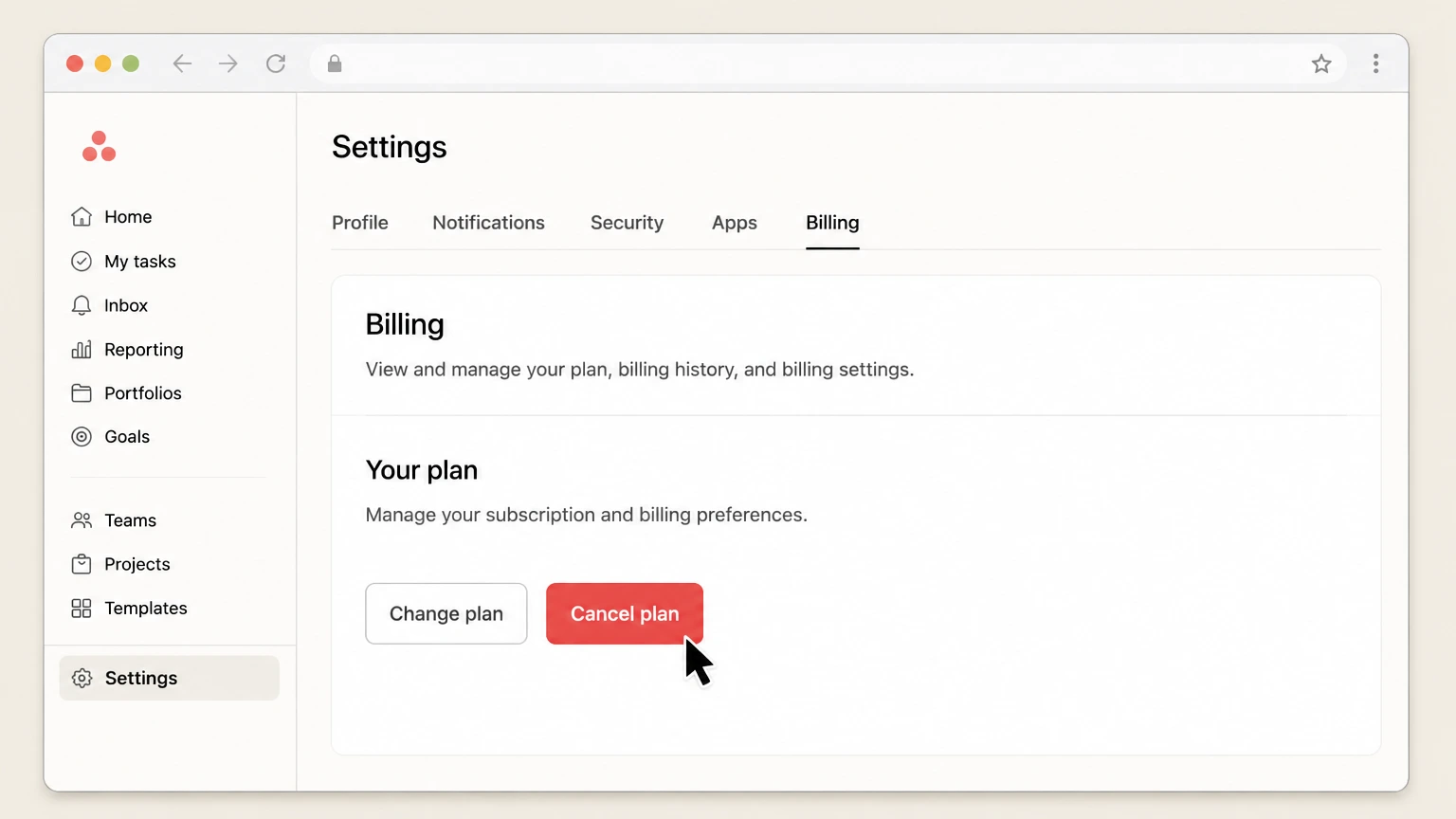
3Choose Cancel plan
On the Billing page, locate the Plan details area. If your plan is self-serve, you will typically see a Cancel plan button (for paid tiers) or Cancel trial (for active trials); click the option that matches what you want to stop. For manually invoiced plans, use the Contact support or Contact billing link in Billing to request cancellation or non‑renewal for the next term.
 4
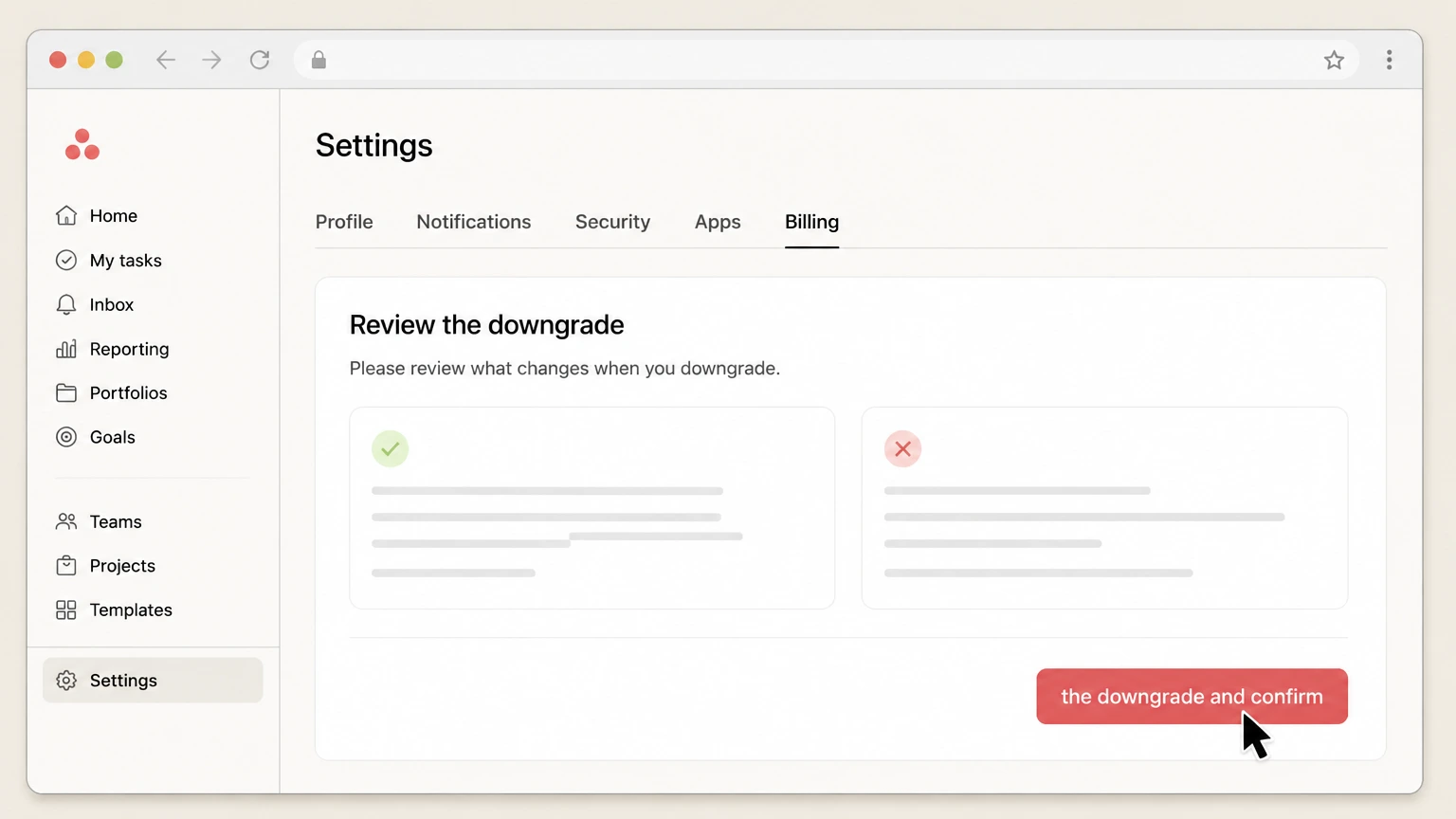
4Review the downgrade and confirm
Review the on-screen message showing when your cancellation or downgrade will take effect (normally at your next renewal date) and which tier you will move to, such as reverting to Asana Personal. Before confirming, note any warnings about losing access to paid features or to projects that rely on them, export any needed data to CSV, then complete the confirmation and save or screenshot the final confirmation screen for your records.

Refund policy
Refunds, renewals, and notice when canceling Asana
Asana’s public terms and help articles emphasize that cancellations typically take effect at the next renewal date, most fees are non‑refundable, and changes to seats or tiers usually require advance notice. Exact outcomes can depend on your Order Form and whether you purchased directly from Asana or via a Channel Partner.
Check my refund options- Most subscription fees are non‑cancelable and non‑refundable
- The Subscriber Terms specify that amounts due under an invoice are payable in the stated currency and are non‑cancelable and non‑refundable unless the agreement itself provides otherwise. Customers remain responsible for undisputed fees even if they later stop using the service.
- Seat reductions and downgrades need advance notice
- Under the Subscriber Terms, customers who wish to reduce paid end users or downgrade to a lower plan must give written notice—such as via in‑app or email—at least 30 days before the end of the current term. Asana implements these changes on the Renewal Date, not mid‑term.
- Auto‑renewal and non‑renewal timing
- Unless an Order Form states otherwise, subscriptions automatically renew for the same term length at Asana’s then‑current rates. Customers authorize Asana to charge renewal fees unless either party gives notice of intent not to renew at least 30 days before the Renewal Date.
- Channel-partner refunds handled by the partner
- For subscriptions bought through a Channel Partner, the Subscriber Terms state that any warranty, refund, or service‑credit claims must be submitted to the Channel Partner, who is solely responsible for issuing any refunds or credits. Asana does not directly process those refunds.
- Limited pro‑rated refunds in specific termination cases
- The Subscriber Terms describe limited situations where Asana may refund prepaid, unused subscription fees—for example, if the customer terminates an Order Form because Asana failed to cure a material non‑conformity to the documentation within the specified cure period, or in certain intellectual property claim scenarios. These are contract‑defined remedies, not general cancellation refunds.
If you face an unexpected renewal charge or need to rely on a contract-specific refund clause, gather your latest invoice and Order Form and contact Asana Support through the Help Center chatbot, or, for Channel Partner purchases, work directly with your reseller or marketplace support. Open Asana support and billing help
Who can cancel
Billing owners, admins, and super admins in Asana
Cancellation is controlled by specific admin roles in each paid Asana space. Understanding who holds those roles and which workspace or organization you are in is critical when you cannot see the Billing tab or Cancel plan option.
Roles that can cancel a plan
Asana explains that a billing owner, admin, or super admin can cancel the subscription for a paid organization, division, or workspace at any time through the Admin console. Other members cannot cancel and must work through one of these roles.
Finding the correct space
A single Asana account can belong to multiple workspaces and organizations, each with its own billing. Use the profile menu in the top-right corner to switch to the exact workspace or organization whose subscription you intend to change before opening the Admin console.
When you can’t see Billing or Cancel plan
If you do not see the Billing tab or any Cancel plan option, you may lack billing permissions, be viewing the wrong space, or be on a plan that only shows Contact support for billing changes. In those cases, confirm who the billing owner or admin is and, if needed, have them contact Asana Support via the Help Center chatbot.
Billing models
Self-serve online vs manually invoiced subscriptions
The cancellation experience differs depending on whether you pay Asana automatically by card through the product, or under a manually invoiced contract governed by an Order Form and Subscriber Terms.
Self-serve card-billed plans
For auto-pay subscriptions, billing owners and admins can change or cancel the plan directly from the Billing tab of the Admin console using options like Change plan or Cancel plan. These changes are handled entirely in-product without needing to email support.
Manually invoiced subscriptions
If your subscription is manually invoiced, the Billing tab normally shows a Contact support or Contact billing control rather than a direct Cancel plan flow. Asana’s cancellation article instructs these customers to use that option to request adjustments or cancellation for the upcoming renewal term.
Order Forms, auto-renewal, and notice
Asana’s Subscriber Terms say subscription fees are generally non‑cancelable and non‑refundable, subscriptions auto‑renew at Asana’s then‑current rates, and reducing paid end users or downgrading usually requires written notice at least 30 days before the end of the current term so changes apply on the Renewal Date. Your specific Order Form may modify these rules.
Trials
Managing and canceling Asana trials
Trials behave differently depending on whether you added payment details. Asana documents how to let a trial expire, how to cancel one that will convert to paid, and what happens to your workspace after the trial ends.
Trials without payment details
Asana states that trials without payment information are designed to end automatically; you can simply let the trial run its course and you will not be billed when it expires. No cancellation action in the Admin console is required in this case.
Trials with payment details added
If you manually added payment details, Asana notes that a subscription is set to begin after the trial period. To avoid being charged, cancel from the Admin console by going to Billing and selecting Cancel plan or Cancel trial before the trial expiration date.
What happens after canceling a trial
Asana explains that when you cancel a trial on or before the trial expiration date, your account will not be charged. You continue to have access to paid features until the trial end, after which the space reverts to the Asana tier you were using before the trial started.
After cancellation
Access, features, and projects after changes
Canceling or downgrading affects when billing stops, which features remain available, and how you can work with projects that relied on paid functionality. Asana’s docs emphasize that your underlying data is preserved, even when premium features are removed.
When cancellation takes effect
The cancellation FAQ explains that paid plan cancellations take effect at your next renewal date, not immediately. You keep access to paid features until the end of your current billing period, then the space downgrades to the free or lower tier you selected.
Loss of paid features, not data
When you downgrade to Asana Personal, Asana notes that you lose access to paid features such as rules, goals, and portfolios, and may lose access to projects or tasks that rely on those features. However, your data is not deleted and can still be exported, for example as a CSV.
Regaining access later
If your subscription or trial ends and you lose access to paid features, Asana’s subscription-management guidance indicates you can restore access by upgrading again or starting a new eligible trial. Existing projects, workflows, and rules remain in the account and resume functioning once you are back on a compatible paid tier.
Data & exports
Exporting and retaining Asana data
Before or after cancellation, you can export projects or organization data for record-keeping. Contract documents also describe how long Asana will make Customer Data available for export after termination when you provide notice.
Exporting projects and tasks yourself
Asana’s privacy and security article explains that you can export individual projects to text-based formats such as CSV or JSON, which can be opened in spreadsheet tools. The downgrade FAQ also notes that projects using paid features can still be exported to a CSV file even after you lose feature access.
Organization-level exports and API options
For broader backups or reporting, Asana documents ways to export organization data via the Asana API. This is useful when you expect feature changes or plan downgrades that may limit direct UI access to certain projects but still need ongoing reporting or archives.
Export after contract expiration or termination
Asana’s Subscriber Terms state that, after all subscriptions under an agreement expire or terminate, Asana may deactivate the account but will make Customer Data available for export as long as it receives written notice within 30 days after the effective date of expiration or termination. Your own agreement controls the exact rights and process.
Seats & tiers
Seat counts, downgrades, and renewals
Instead of fully canceling, you can often reduce seats or move from a higher tier to a lower tier. These changes are constrained by billing rules in the Subscriber Terms and the options available in the Billing tab.
Reducing seats or downgrading at renewal
Subscriber Terms explain that to reduce paid end users or downgrade to a lower subscription plan, customers must give Asana written notice—such as an in-app request—at least 30 days before the end of the current term. Asana then reflects the reduction or downgrade on the Renewal Date.
Scope of a subscription (workspace, team, org)
Asana’s subscription overview clarifies that subscriptions are attached to a specific organization, division, workspace, or team. Changing or canceling one subscription does not automatically affect other spaces you belong to, so be sure you adjust the correct billing scope.
Using Change plan or Edit plan instead of cancel
Billing settings and plan‑modification articles show that from the Billing tab you can often change your paid plan (for example, Advanced to Starter) or switch back to Asana Personal using edit or change‑plan flows. Asana suggests contacting Support if you encounter issues with canceling or editing your plan.
Partners & marketplaces
Subscriptions bought via channel partners or marketplaces
Some Asana subscriptions are sold through authorized distributors, resellers, or digital marketplaces. In these cases, Asana’s legal terms shift more of the billing control—including refunds and service credits—to the partner.
Identifying a channel-partner subscription
The Subscriber Terms define “Channel Partners” as authorized distributors, resellers, or digital marketplaces. If your invoices, receipts, or account documentation show a third‑party seller rather than Asana as the biller, your subscription is likely governed by the channel-partner provisions of the Subscriber Terms.
Where to send cancellations and refund requests
For subscriptions acquired through a Channel Partner, Asana’s Subscriber Terms require that any warranty, refund, or applicable service-credit claims be submitted to that partner, who is solely responsible for issuing refunds or credits. Practically, this means you will usually cancel or non‑renew through the partner’s processes rather than only via the Asana Admin console.
What remains under Asana’s control
Even when a Channel Partner handles billing, the Asana services, platform features, and many contract terms—including availability, security, and data treatment—still follow Asana’s Subscriber Terms and related documents. You may therefore need to coordinate both with your Channel Partner for billing and with Asana Support for technical or access issues.
Add-ons
Managing add-ons like AI Studio Plus
Some products, such as AI Studio Plus, are billed as add-ons to your base Asana subscription and have their own cancellation and adjustment controls within the Billing tab.
Where add-ons appear in Billing
The AI Studio Plus help article explains that admins access its controls from the Admin console by choosing the Billing tab, then locating the AI Studio card. From there, a Manage subscription control opens a dedicated page for managing that add-on.
Canceling only the add-on subscription
To cancel AI Studio Plus without changing your core Asana plan, Asana instructs you to open the AI Studio card from Billing, click Manage subscription, and then choose Cancel subscription from the dropdown. This stops future AI Studio Plus charges while leaving your base tier unchanged.
Adjusting credits instead of canceling
The AI Studio Plus article also notes that from the same Manage subscription menu you can select Edit subscription to increase or reduce monthly AI credits. This allows you to control spend on the add-on without canceling your overall Asana subscription.
Account vs billing
Canceling a subscription vs deleting an account
Ending billing for a paid space is different from deleting an individual Asana account. Asana separates subscription cancellation, workspace/organization membership, and permanent account deletion.
Canceling stops billing for a specific space
The cancellation article focuses on canceling or downgrading a subscription tied to a particular workspace, division, or organization via the Admin console’s Billing tab. When canceled, that space reverts to a free or lower tier but your Asana user account can still exist and belong to other spaces.
Deleting an Asana account
The account-deletion article explains that users should contact the billing owner, admin, or super admin of their paid Asana space to request deletion of an Asana account. Super admins or billing owners can then work with Asana Support to delete that individual account, which is separate from subscription cancellation.
Why they are handled separately
Because Asana accounts can join multiple workspaces and organizations, canceling one subscription should not automatically erase a person’s entire Asana identity. As a result, subscription changes are made per space through Billing, while user account deletion is a distinct administrative and support-driven process.
Asana cancellation FAQ
Provider-specific answers based on official sources checked August 10, 2026. Signed-in terms, region, billing owner, and applicable law still control.
How do I cancel a paid Asana subscription bought online?
Who can use the Cancel plan option in Asana?
When does my Asana cancellation actually take effect?
How do I cancel an Asana trial so I’m not charged?
What happens to my projects and rules if I downgrade to Asana Personal?
Can I reduce seats or downgrade instead of canceling Asana?
How do I cancel if my Asana subscription uses manual invoicing or a reseller?
Is canceling my Asana subscription the same as deleting my Asana account?
Untangle this Asana issue.
Let Pine handle the provider follow-up and keep the confirmation in one place.
