Here is a logic trap that catches even the most tech-savvy among us: we assume that hitting "Delete Account" is the universal off-switch for everything, including billing. In the world of SaaS, that is a dangerous assumption. If you subscribed via the App Store, OpenAI actually can't stop your billing just because you deleted your login—they are two completely separate systems. I’ve helped enough teams untangle their AI subscriptions to know that the "ghost charge" is real. Before you scrub your data, you need to follow a specific sequence. If you are looking to ChatGPT delete account, pause for a second. We need to cancel subscription first, or you might end up paying for a service you can no longer even log into. Here is the safe order to leave without looking back.
The safe order — why sequence matters
If you're trying to delete ChatGPT safely, the order matters more than the buttons do. There are two separate things people blur together:
- Your ChatGPT/OpenAI account (login + data)
- Your ChatGPT Plus subscription (billing)
Depending on how you subscribed (web vs. App Store/Google Play), those two pieces can live in different places. That's why "I deleted my account" and "I stopped being billed" are not the same sentence.
What happens if you delete before canceling Plus
If you delete your account first, you can lock yourself out of the easiest place to manage your plan. Then you're stuck trying to prove you're still being billed for something you can't access. I've seen this pattern enough times across SaaS subscriptions that I don't gamble on it: cancel ChatGPT before deleting, always.
Billing can continue even after account deletion
This is the bit most people miss.
If your Plus subscription is managed through the Apple App Store or Google Play, the store can keep billing until you cancel it there, even if your OpenAI account is gone. From the store's perspective, you're paying for a subscription SKU: it doesn't care that you deleted the associated login.
So when people search "chatgpt subscription before account deletion" or "openai account removal order," what they really want is: What prevents the annoying lingering charge? The answer is: cancel first, then export, then delete.
Step 1 — Cancel Plus first
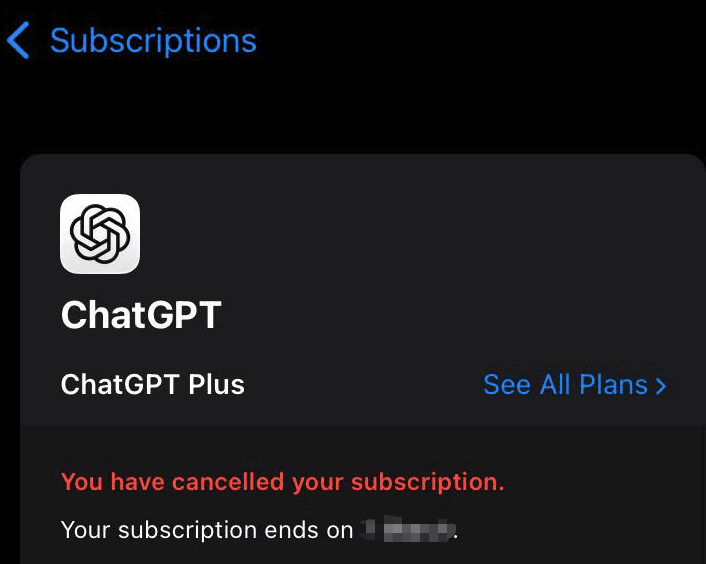
Before you touch anything labeled "delete," go straight to the part that matters most, the part where the money stops.
If you pay for Plus on the web, canceling is quick. If you pay through a mobile store, you need to cancel it there (and that's where most people get tripped up).
Quick path to cancel on web or App Store
Pick the path that matches how you subscribed:
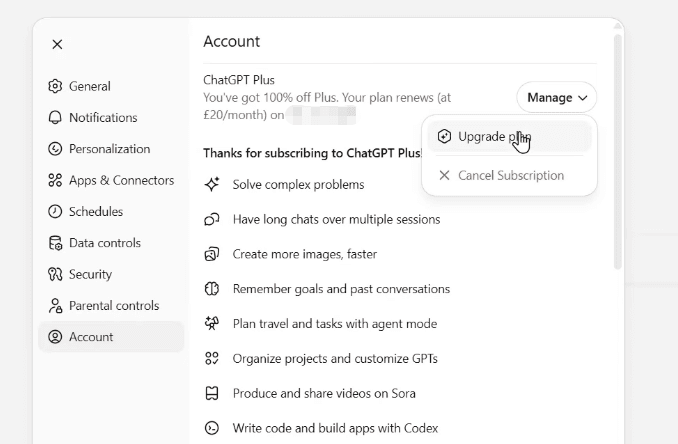
- If you subscribed on the web (desktop browser):
- Log into ChatGPT
- Open Settings
- Find Subscription (or plan management)
- Select Cancel plan and confirm
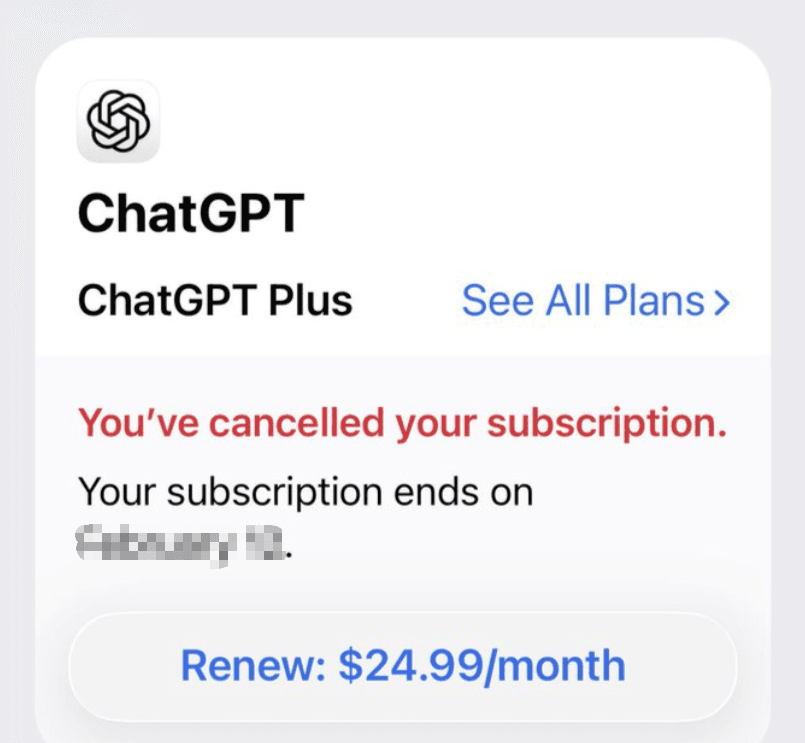
- If you subscribed via Apple App Store:
- Open Settings on your iPhone/iPad
- Tap your name → Subscriptions
- Find ChatGPT (or OpenAI/ChatGPT Plus listing)
- Tap Cancel Subscription
- If you subscribed via Google Play:
- Open Google Play Store
- Tap your profile → Payments & subscriptions → Subscriptions
- Select ChatGPT
- Tap Cancel subscription

A practical note: cancellation usually means it won't renew. You may still have access until the end of your current billing period. That's normal.
And once you've done this, you've completed the most important part of the openai account removal order: make sure billing is disconnected before you remove access.
While we cannot export your personal data for you, we specialize in the billing disconnect. Explore how Pine AI acts as your completion agent to handle the subscription cancellation and ensure no future charges hit your card.
Step 2 — Export your data

I don't get sentimental about chat logs, but I do like having my receipts, especially if I've used ChatGPT for work drafts, brainstorms, or anything I might need to reference later.
Also, exporting first keeps you from the "wait, I actually needed that one thing" moment after deletion.
30-second export process
In ChatGPT:
- Go to Settings
- Look for Data controls (or a similarly named data/privacy section)
- Choose Export data
- Confirm the export request
You'll typically get an email with a download link when it's ready. The timing can vary, but the request itself is genuinely fast, this is one of the rare areas where I didn't have to hunt around.
If your main goal is to delete ChatGPT safely, this step is optional in theory, but in practice, it saves regret later, and it gives you a record of what was associated with the account before it's gone.
Step 3 — Delete account
Once Plus is canceled and you've exported anything you want, then you delete. Not before.
I'll be honest, I went in expecting the delete flow to be weirdly buried. It wasn't. It's just final, and you should treat it that way.
Exact steps
Inside ChatGPT:
- Open Settings
- Go to Data controls (or privacy/data section)
- Select Delete account
- Follow the prompts to confirm

Read the confirmation screen carefully. Deleting an account is meant to be permanent. If you're on the fence, stop here and just cancel Plus, because cancellation alone solves the money problem without burning the bridge.
But if your goal is a full chatgpt delete account outcome (no access, no data tied to you), this is the point of no return.
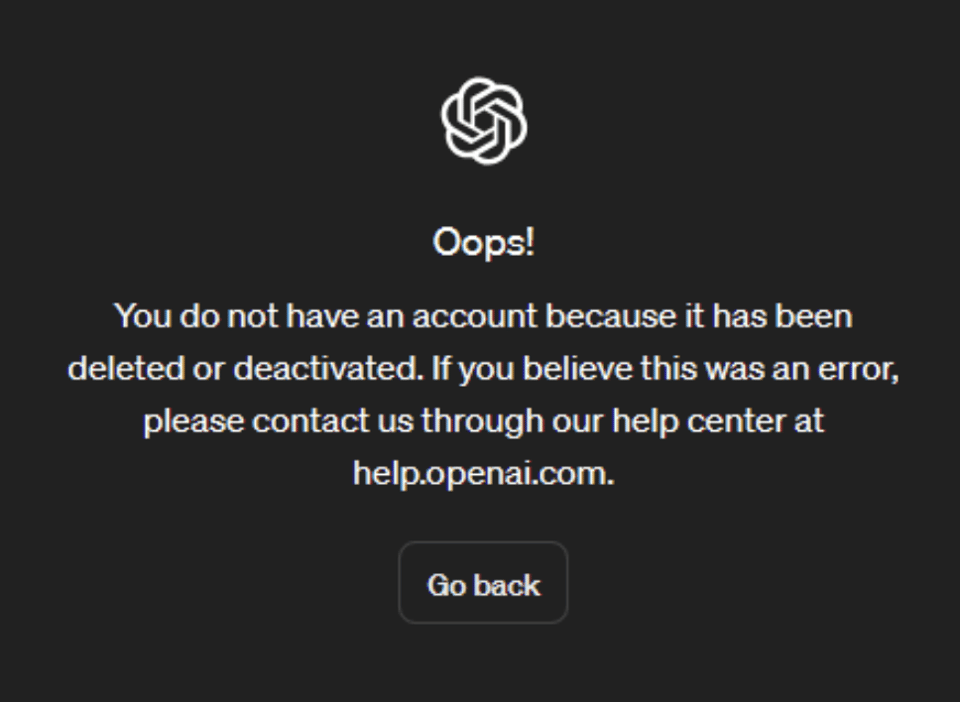
One more small, very human thing: after you delete, I'd close the tab, wait a minute, and try logging in again just to confirm it's actually deactivated. I don't guess. I verify.
Proof checklist
If you're doing this between meetings (same), you want a clean checklist so you're not thinking about it again next week.
Here's my "done means done" proof list for cancel ChatGPT before deleting and deleting without billing surprises:
- Subscription canceled in the right place
- Web plan canceled in ChatGPT or
- App Store / Google Play subscription shows Canceled (or "Renews: No")
- Screenshot or email confirmation saved
- Especially if you're expense-tracking in a project management tool and don't want to re-check later
- Export requested (if you wanted it)
- Export email received and file downloaded
- Account deletion completed
- Delete confirmation shown
- Login attempt fails afterward (expected)
- Billing sanity check
- Put a calendar reminder for 2–3 days before the next renewal date to confirm no new charge posts
If you follow the safe order to delete ChatGPT, cancel first, export second, delete last, you avoid the usual trap: being charged for something you can't access.
I've laid out everything you need. The rest is up to you.