Let’s be honest: canceling subscriptions is the digital equivalent of doing taxes. It’s boring, often confusing, and usually sits on your "do later" list way too long. If you’ve been staring at a recurring charge wondering how to cancel your Canva subscription, you aren’t alone. The problem isn't just clicking a button; it’s figuring out which button. Are you on Canva Pro? Or are you accidentally stuck in a Canva Teams loop? I’ve navigated these billing mazes more times than I care to count. Below, I’ll walk you through the frustration-free path to cancel your plan, verifying it’s actually gone, and ensuring your bank account stays safe from surprise renewals.
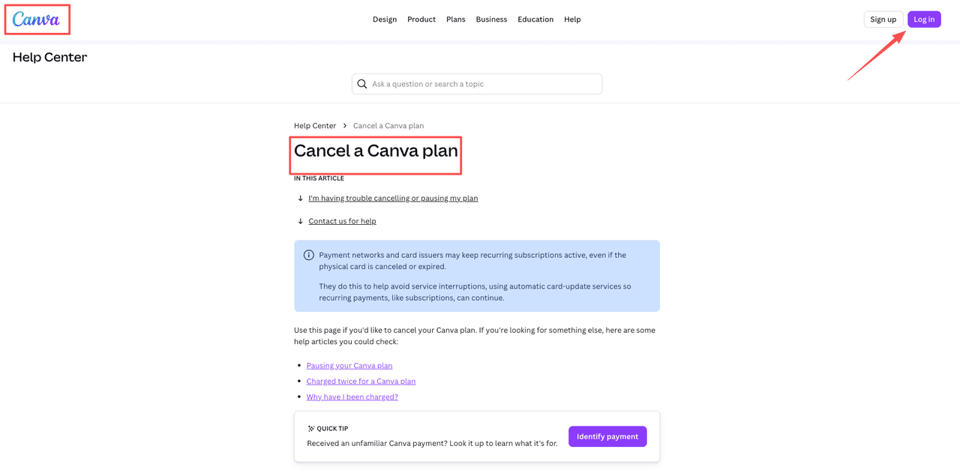
Pro vs Teams — cancel path depends on account type
This is the part most people miss: how to cancel Canva subscription depends on whether you're on Canva Pro (an individual subscription) or Canva Teams (managed by an admin). If you start in the wrong place, you'll waste 10 minutes clicking around and still not see the "Cancel" option.
How to identify which you have
Here's how I check quickly (in order):
- Open Canva on desktop (it's not impossible on mobile, just easier to confirm on desktop).

- Go to Settings (gear icon) or your Account area.
- Look for a section labeled Billing, Plans, or Subscriptions.
What you're looking for:
- If it says "Canva Pro" and the subscription looks tied to your account email/payment method, you're likely the owner and can cancel.
- If it says "Canva Teams" (or shows you're part of a team with multiple people), cancellation usually requires admin permissions.
- If you're not seeing billing controls at all, that's often a clue you're not the billing owner (common with Teams).
Two fast reality checks I use:
- Do you see an "Invoices" or "Payment method" area? If yes, you're probably the person who can cancel.
- Do you see a Team name and Members list? If yes, you're probably in Teams territory.
If you're thinking, "I'm pretty sure I'm on Pro," but you're not seeing cancel controls, pause and confirm first. Canva is pretty consistent: if you're not the owner/admin, it won't pretend you are.
Cancel Canva Pro (account owner)
If you're the person paying for Canva Pro, you can cancel it directly inside your account. No emailing support, no awkward retention call. It's basically: find Billing → cancel → confirm.
Account Settings → Billing & Plans path
This is the path I follow when I'm trying to cancel Canva Pro quickly (and with minimal second-guessing):
- Log in to Canva on desktop.
- Go to Settings (from your profile menu).
- Open Billing & Plans (wording can vary slightly, but "Billing" is the keyword).

- Under your plan (Canva Pro), choose Cancel subscription (or Cancel plan).
- Follow the prompts until you get the final confirmation screen.
A couple of small things that can slow you down (so I'm calling them out):
- If you subscribed through a mobile app store (like iOS/Android), Canva may direct you to manage the subscription there. In that case, the "cancel" button inside Canva can be limited because the billing is controlled by the app store.
- If you have more than one Canva account (work email vs personal email), make sure you're logged into the one that's actually being billed. I've personally lost time to this more than once.
Access after cancel, what you lose and when
This is what I care about right after I hit "Cancel": Am I about to lose access immediately? Usually, no, but you should know what changes.
In most cases, when you cancel Canva Pro:
- You keep Pro features until the end of your current billing period (monthly or annual).
- After that date, your account typically reverts to free.
What you may lose after the paid period ends:
- Access to Pro-only templates, photos, videos, and elements
- Ability to use Brand Kit features (depending on what you had set up)
- Some advanced tools tied to Pro
What usually doesn't vanish into the void:
- Your designs don't typically disappear. But if a design includes Pro assets, Canva may restrict certain usage/export options or prompt you to replace paid elements.
My practical tip: before your plan expires, export anything critical (final files you'll need for a client, a deck for next quarter, etc.). Not because Canva is out to get you, just because future-you doesn't need one more surprise on a Tuesday.
Cancel Canva Teams (admin only)
Canva Teams is where cancellation gets slightly more "organizational." Translation: if you're not the admin, you can click around all day and you still won't find the magic button to manage teams.
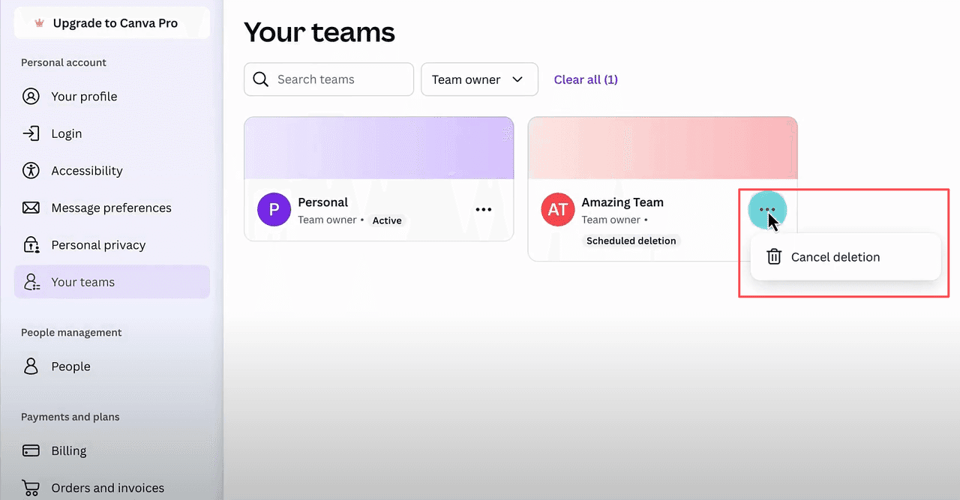
Why regular members can't cancel
Teams billing is attached to the team admin/owner, not individual members. Regular members can usually:
- Leave a team
- Remove themselves from shared workspaces (depending on permissions)
- Stop using Canva entirely (emotionally satisfying, financially irrelevant)
…but they can't cancel the Teams subscription, because that impacts everyone in the team and the billing method.
If you're trying to cancel and you can't see billing controls, the most likely explanation is: you're a member, not an admin.
What I do in that situation:
- I check the team's Members list and look for who's labeled Admin/Owner.
- I send a short message like: "Hey, looks like this is billed under Teams. Can you cancel the Canva Teams subscription, or make me an admin so I can handle it?"
Admin steps and what happens to team members' work
If you are the admin, the steps are similar to Pro, but the consequences are bigger (because shared assets and permissions are involved).
My admin cancellation flow:
- Log in to Canva and switch into the correct Team (if you belong to multiple workspaces).
- Go to Settings for that team/workspace.
- Find Billing / Plans.
- Choose Cancel for the Canva Teams plan.
- Confirm through the final step and watch for the confirmation message/email.
Now, the part everyone asks: what happens to the team's work?
Generally, expect:
- Team members may lose access to Teams-only collaboration and admin features after the billing period ends.
- Shared resources (Brand controls, premium assets, team templates) may be limited once the plan downgrades.
- Work created inside the team workspace may still exist, but access and editing permissions can change depending on how Canva handles downgrades for your setup.
If the team has ongoing client work in Canva, I strongly recommend doing a quick pre-cancel check:
- Export or duplicate key deliverables
- Confirm who owns critical Brand assets
- Make sure anything time-sensitive (like scheduled social posts or a live campaign kit) isn't about to become inaccessible
It's not dramatic. It's just… annoying when you don't plan for it. And I'm trying to save you that particular flavor of annoyance.
Refund expectations and billing timing
If you're canceling because you got charged unexpectedly (or you meant to cancel and didn't), you're probably also wondering about a refund.
Here's the honest version: canceling stops future renewals. It doesn't automatically mean you'll get money back for time already billed.
Canva's refund policy, what's realistic
Refunds depend on how you paid and where you subscribed. You should review Canva's subscription refunds policy to know exactly where you stand.
What's generally realistic to expect:
- If you cancel before the renewal date, you typically won't be charged again. That's the cleanest win.
- If you were just charged for a new billing period, you may be eligible for a refund, but it's not something I'd treat as guaranteed.
- If you subscribed via an app store, refunds often have to go through that store's process, not Canva's.
What I do when I'm checking billing timing:
- Look at the next renewal date in Billing.
- Check the timestamp of the charge on my card statement.
- Save screenshots of the billing page and the charge (takes 30 seconds, can save a lot of back-and-forth).
If you're thinking: "I canceled, why does it still show active?", that can happen when:
- You've canceled, but you still have access until the end of the billing period.
- You canceled in one place (like Canva) but the subscription is actually controlled elsewhere (like an app store).
One grounded expectation that keeps me sane: aim first to stop the next charge, then pursue a refund if you have a strong case. Trying to do both at once is how I end up with yet another task I avoid for two months.
Verification checklist
Canceling is only satisfying if you know it worked. Otherwise you'll be wondering about it in the middle of a meeting, then checking your bank app like it's a sport.
Here's my quick verification checklist.
Email confirmation and account dashboard check
After you cancel your Canva subscription (Pro or Teams), I verify in two places:
1) Your email inbox
- Search for "Canva" + "canceled" or "subscription"
- Look for a confirmation email showing the plan status change
If your inbox is… let's call it "active" (mine is permanently in the triple digits), use filters/search instead of scrolling.
2) Canva Billing/Plans dashboard
Go back to Billing/Plans and confirm:
- The plan shows Canceled (or "Will end on [date]")
- You see the end date for your current access period
- You do not see an upcoming renewal charge scheduled
Optional but smart:
- Set a calendar reminder for 1–2 days before the end date to export anything you'll need.
- If you canceled because of an unexpected charge, keep a note of the cancellation date and any confirmation number/email.
That's it. No mystery, no "wait and see," no hoping you clicked the right thing.
I've laid out everything you need. The rest is up to you.
We’ve outlined the manual steps above, but you can skip the hassle entirely. Let Pine AI log in and cancel your Canva subscription on your behalf. Try our agent today and only pay when the job is successfully completed.
Frequently Asked Questions (FAQs) About Canceling a Canva Subscription
How to cancel Canva subscription if I’m on Canva Pro?
To cancel Canva Pro, log in on desktop, go to Settings, then Billing & Plans (or Billing). Under your Canva Pro plan, select Cancel subscription/Cancel plan and follow the prompts to the final confirmation screen. You’ll typically keep Pro features until your current billing period ends.
How do I know if I have Canva Pro or Canva Teams before I cancel?
In Canva (desktop is easiest), open Settings/Account and look for Billing, Plans, or Subscriptions. If it says Canva Pro and shows invoices/payment method, you’re likely the billing owner. If you see a Team name and Members list (Canva Teams), you may need admin/owner permissions to cancel.
Why can’t I see the cancel button when trying to cancel my Canva subscription?
Usually it’s because you’re not the billing owner/admin (common on Canva Teams), or you’re logged into the wrong Canva account (work vs personal). Another common reason: you subscribed through iOS/Android, so the app store controls billing and Canva may limit cancellation options inside your account.
What happens after I cancel Canva Pro—do I lose my designs right away?
In most cases, no. After you cancel Canva Pro, you usually keep Pro access until the end of the current billing period, then the account reverts to free. Your designs generally remain, but designs using Pro assets may have restricted export/usage unless you replace premium elements.
How to cancel Canva Teams subscription if I’m not the admin?
You generally can’t cancel Canva Teams as a regular member because billing is tied to the team admin/owner. Your best options are to identify the Admin/Owner in the Members list and ask them to cancel, or request admin access. Members can often leave a team, but that won’t stop billing.