


Chegg
Cancel subscription
How to Cancel Your Chegg Subscription the Right Way
Learn how to cancel a Chegg subscription on Chegg.com, iPhone, or Android. See clear steps, billing-owner rules, what changes after cancel, and refund limits.
- Official Chegg and billing-owner sources
- 3 provider-specific cancellation paths
- Refund and post-cancellation effects separated from renewal
- Verified August 16, 2026
Choose the Chegg cancellation path that matches who bills you
Chegg.com (direct billing) · verify the billing owner
 1
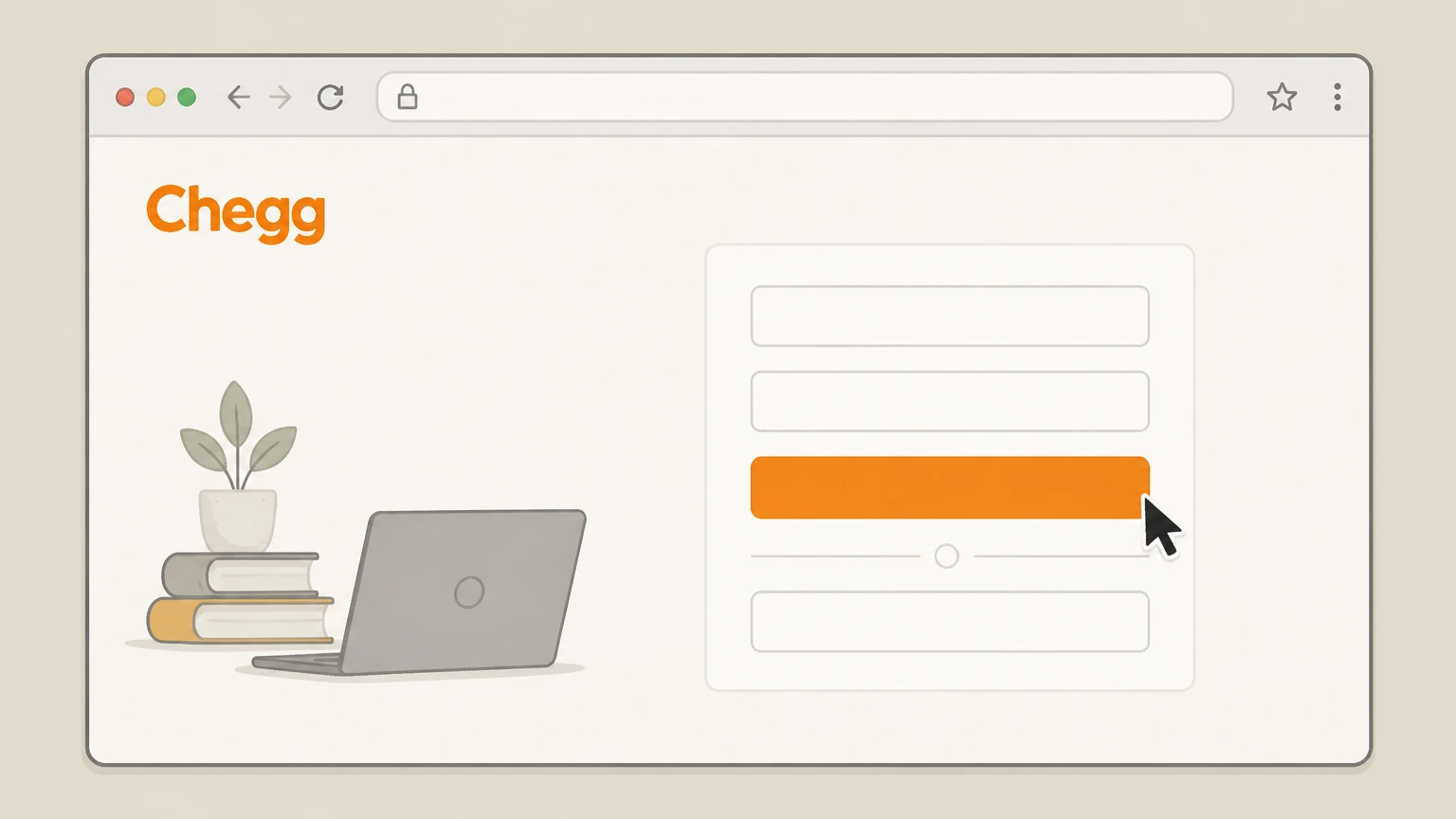
1Sign in to your Chegg account on the website
In a desktop or laptop browser, go to chegg.com and sign in with the account that has the active subscription.
 2
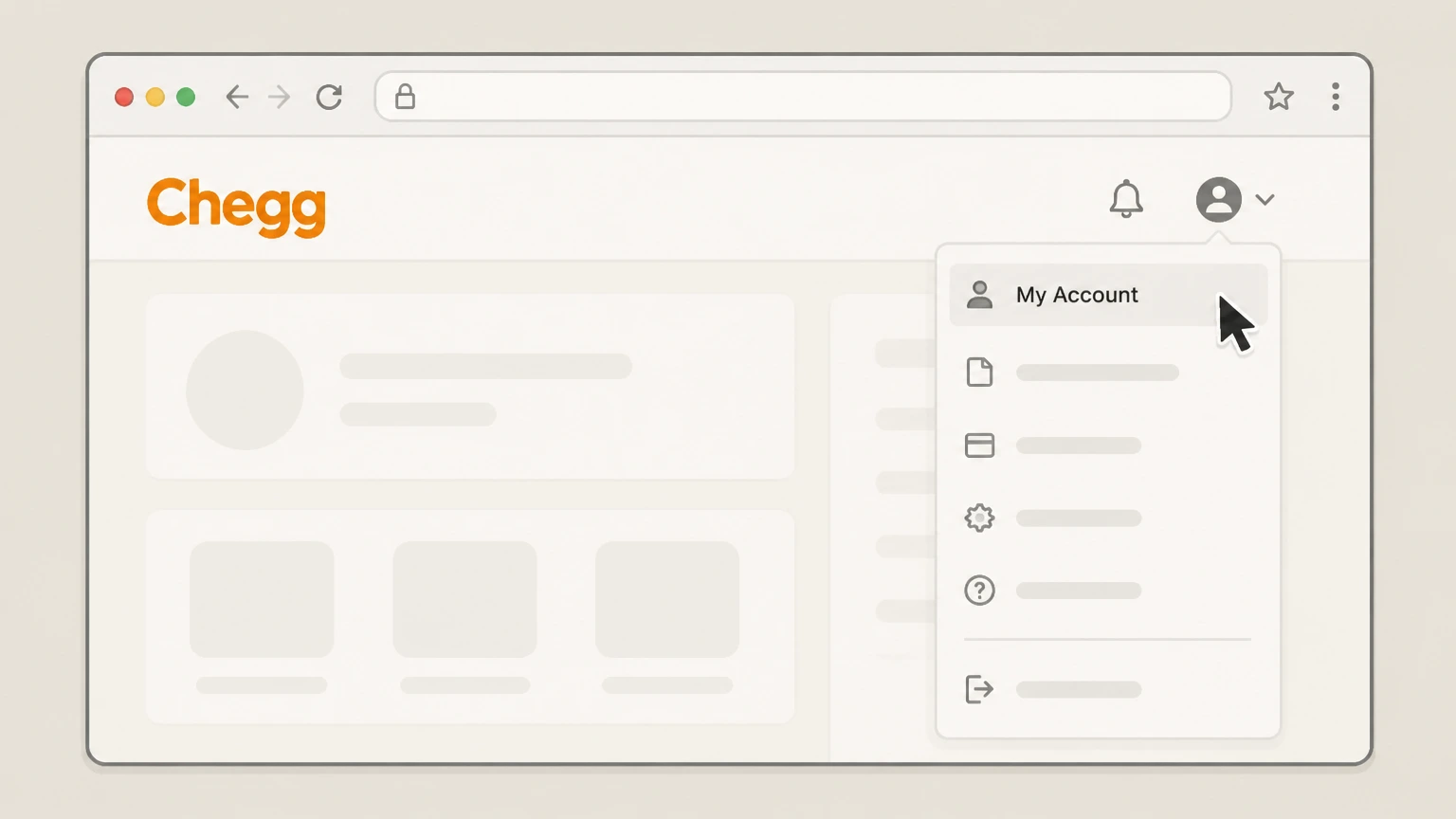
2Open My Account
After signing in, open the My Account page from the account or profile menu in the top navigation. Use the Chegg account named on your receipt, and continue only after the next status in this cancellation path is visible.
- Let Pine handle it
Pine can help
Too many steps?
Pine can find the right Chegg.com (direct billing) path and handle the cancellation for you.
 3
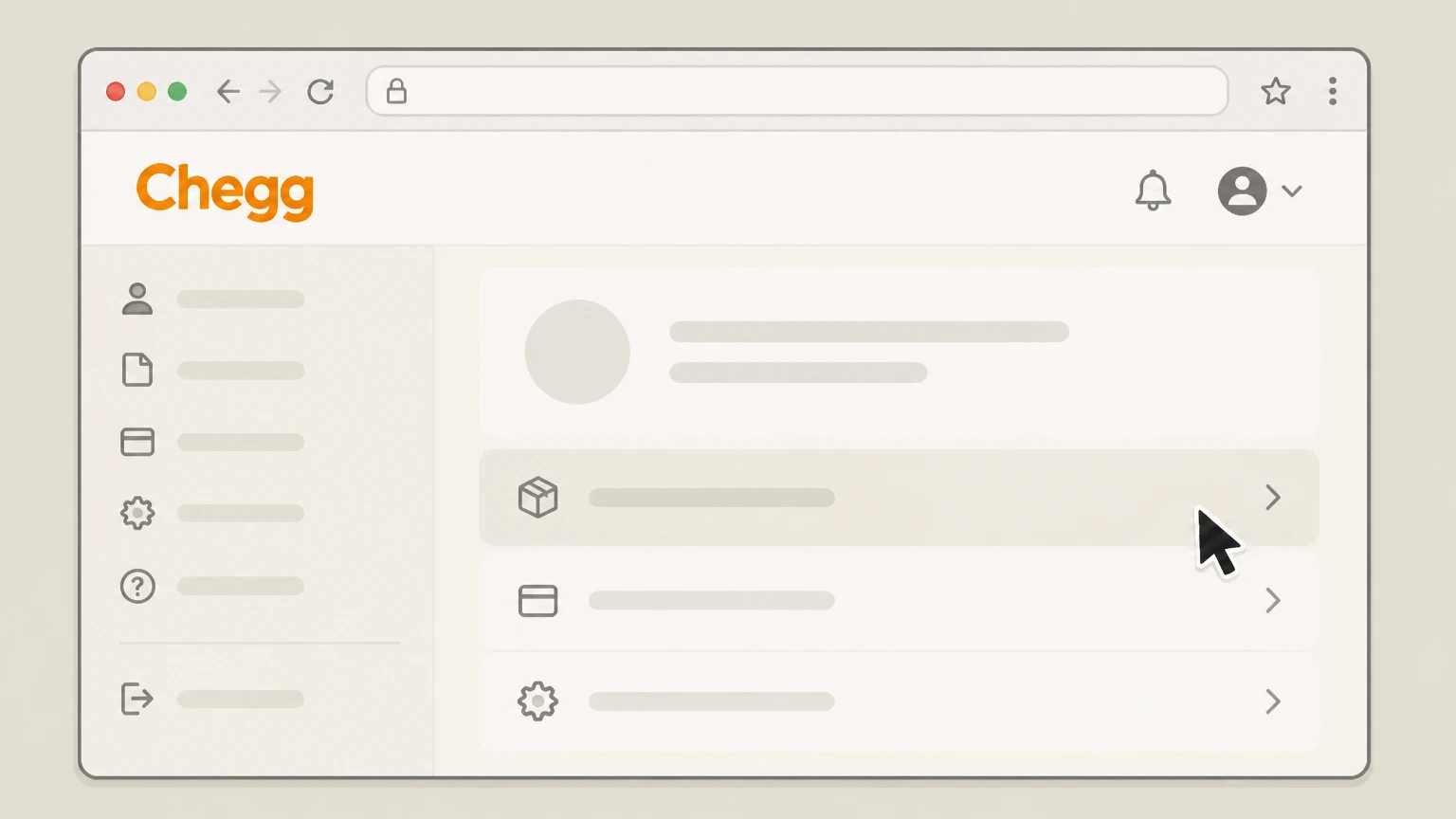
3Go to Orders
On the My Account page, open the Orders section where your active Chegg subscriptions are listed. Use the Chegg account named on your receipt, and continue only after the next status in this cancellation path is visible.
 4
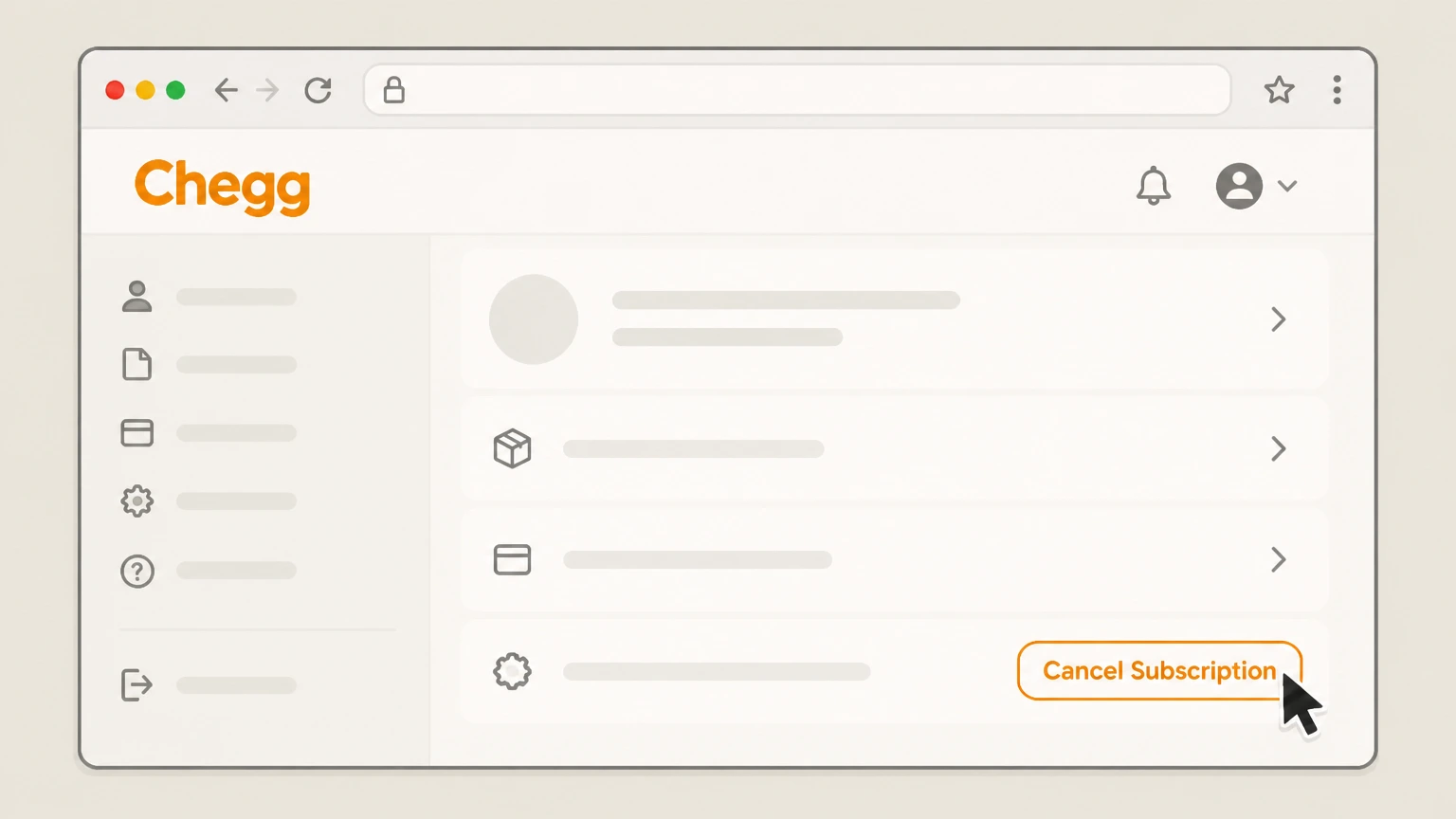
4Select Cancel Subscription for your Chegg plan
In Orders, find the Chegg subscription you want to stop and select the Cancel Subscription option shown beside it. Use the Chegg account named on your receipt, and continue only after the next status in this cancellation path is visible.
 5
5Confirm cancellation on the next page
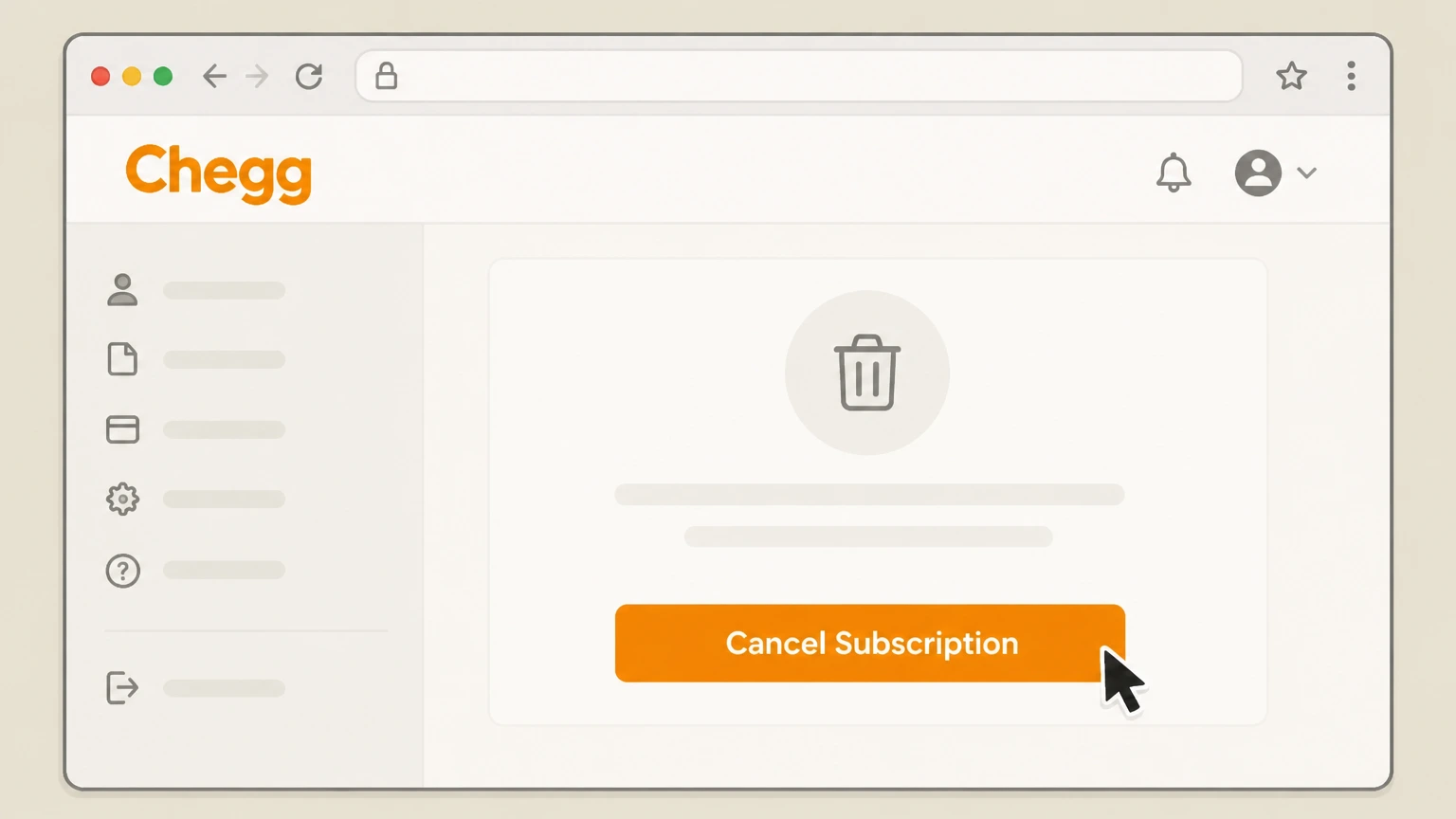
On the confirmation page, select the orange Cancel Subscription button to finalize cancellation for that subscription. Use the Chegg account named on your receipt, and continue only after the next status in this cancellation path is visible.

Apple App Store (iPhone/iPad) · verify the billing owner
 1
1Open Settings
Open the Settings app on your iPhone or iPad. Use the Chegg account named on your receipt, and continue only after the next status in this cancellation path is visible.
 2
2Tap your name
At the top of Settings, tap your name to open Apple Account settings. Use the Chegg account named on your receipt, and continue only after the next status in this cancellation path is visible.
- Let Pine handle it
Pine can help
Too many steps?
Pine can find the right Apple App Store (iPhone/iPad) path and handle the cancellation for you.
 3
3Open Subscriptions
In your Apple Account settings, tap Subscriptions. Use the Chegg account named on your receipt, and continue only after the next status in this cancellation path is visible.
 4
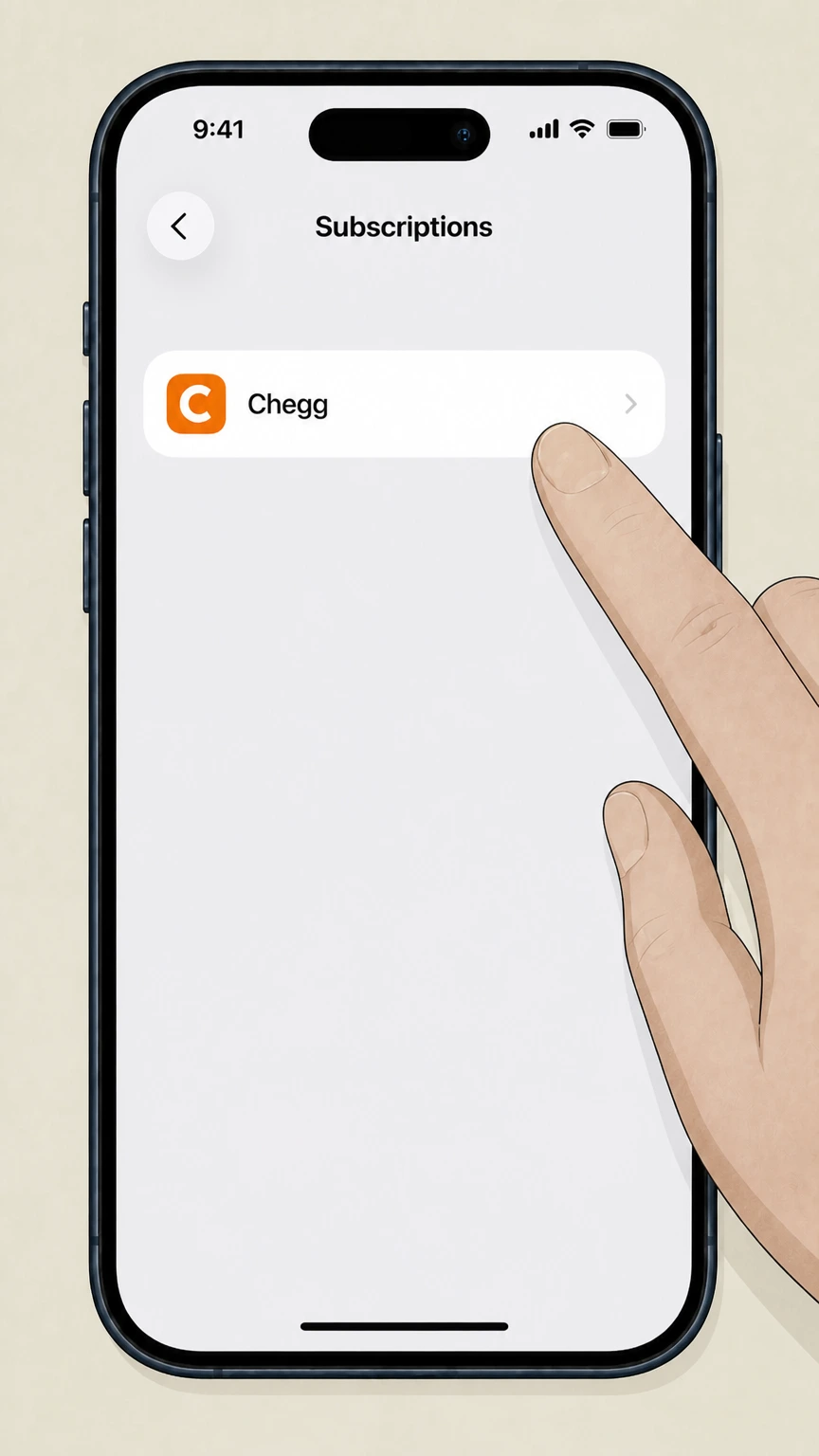
4Select Chegg
In the list of active and expired subscriptions, tap the Chegg subscription you want to manage. Use the Chegg account named on your receipt, and continue only after the next status in this cancellation path is visible.
 5
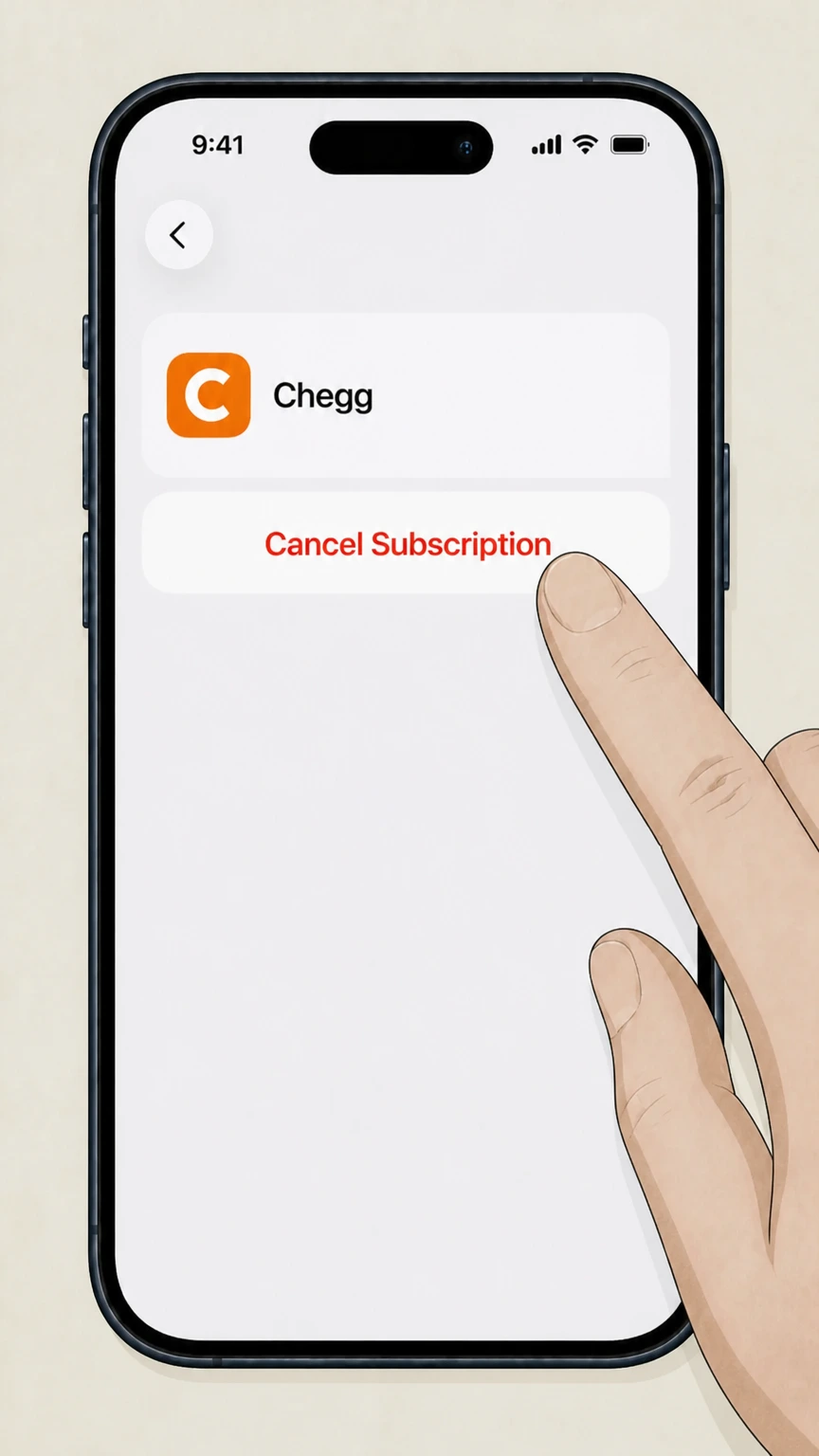
5Cancel the subscription
On the Chegg subscription screen, tap Cancel Subscription and follow any on‑screen prompts to confirm. Use the Chegg account named on your receipt, and continue only after the next status in this cancellation path is visible.
Google Play (Android) · verify the billing owner
 1
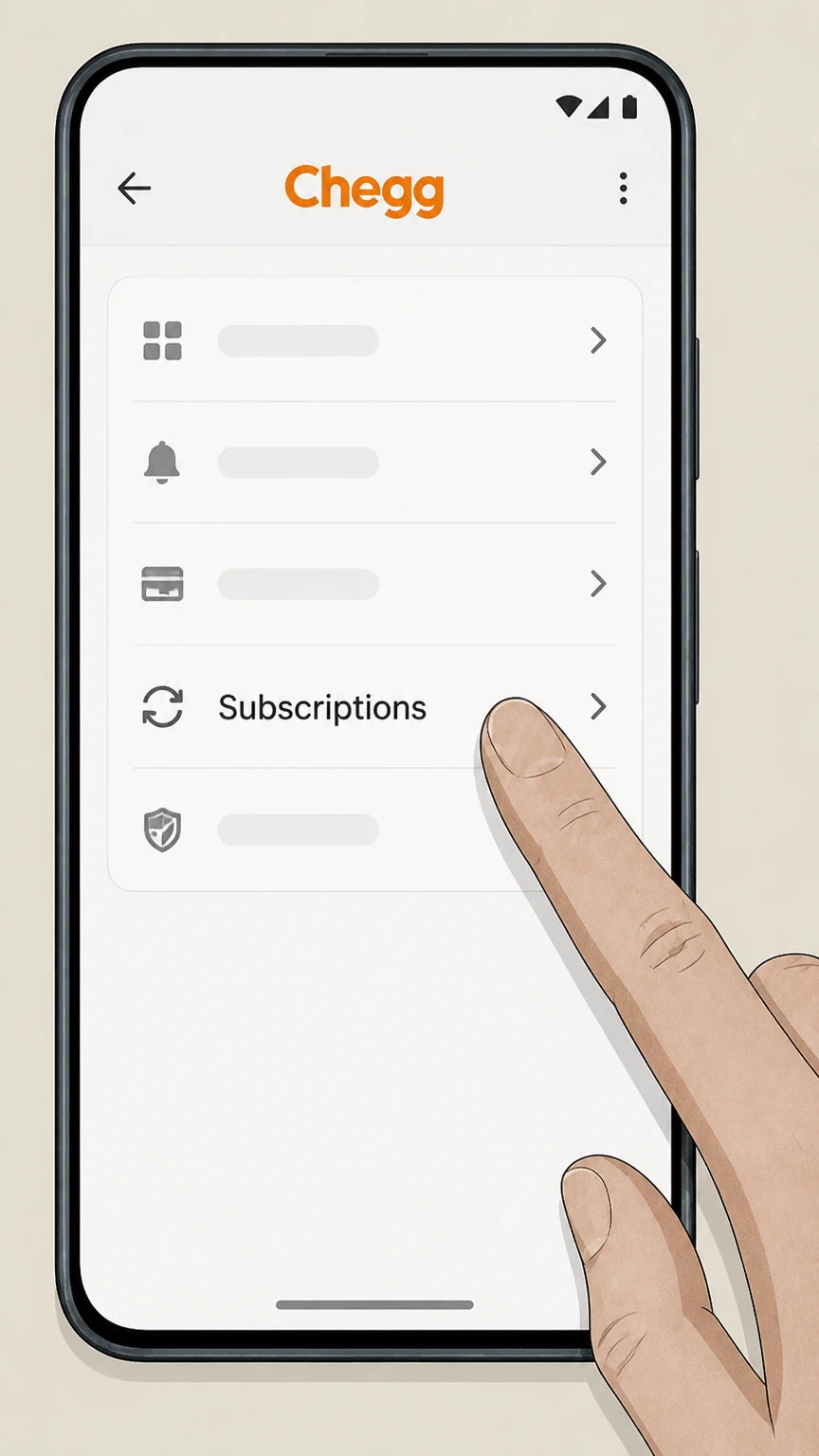
1Open subscriptions on Google Play
On your Android device, open the Google Play subscriptions section using the Google Play app or the subscriptions on Google Play link.
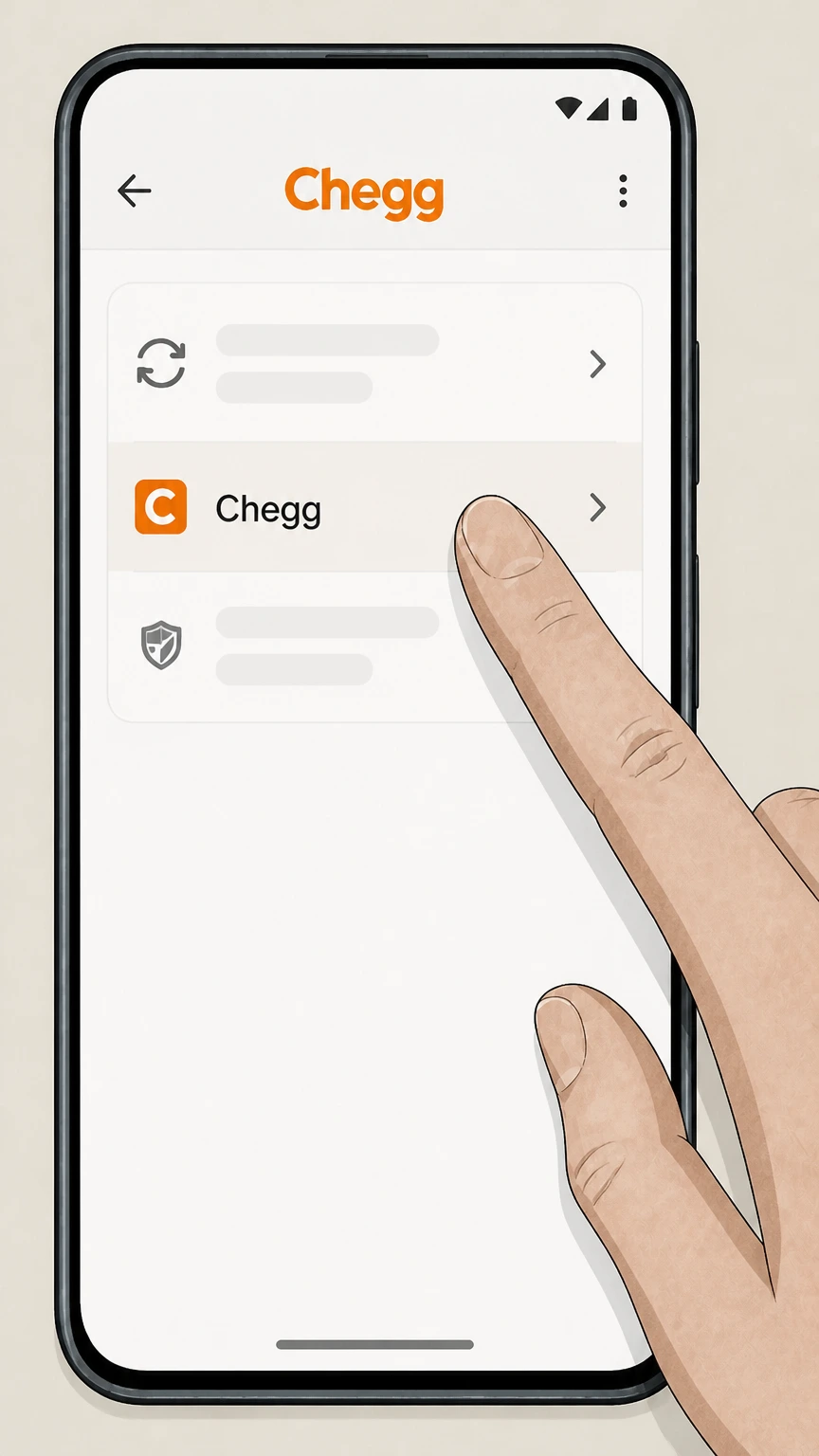 2
2Select your Chegg subscription
In Subscriptions, choose the Chegg subscription you want to cancel from the list of active plans. Use the Chegg account named on your receipt, and continue only after the next status in this cancellation path is visible.
- Let Pine handle it
Pine can help
Too many steps?
Pine can find the right Google Play (Android) path and handle the cancellation for you.
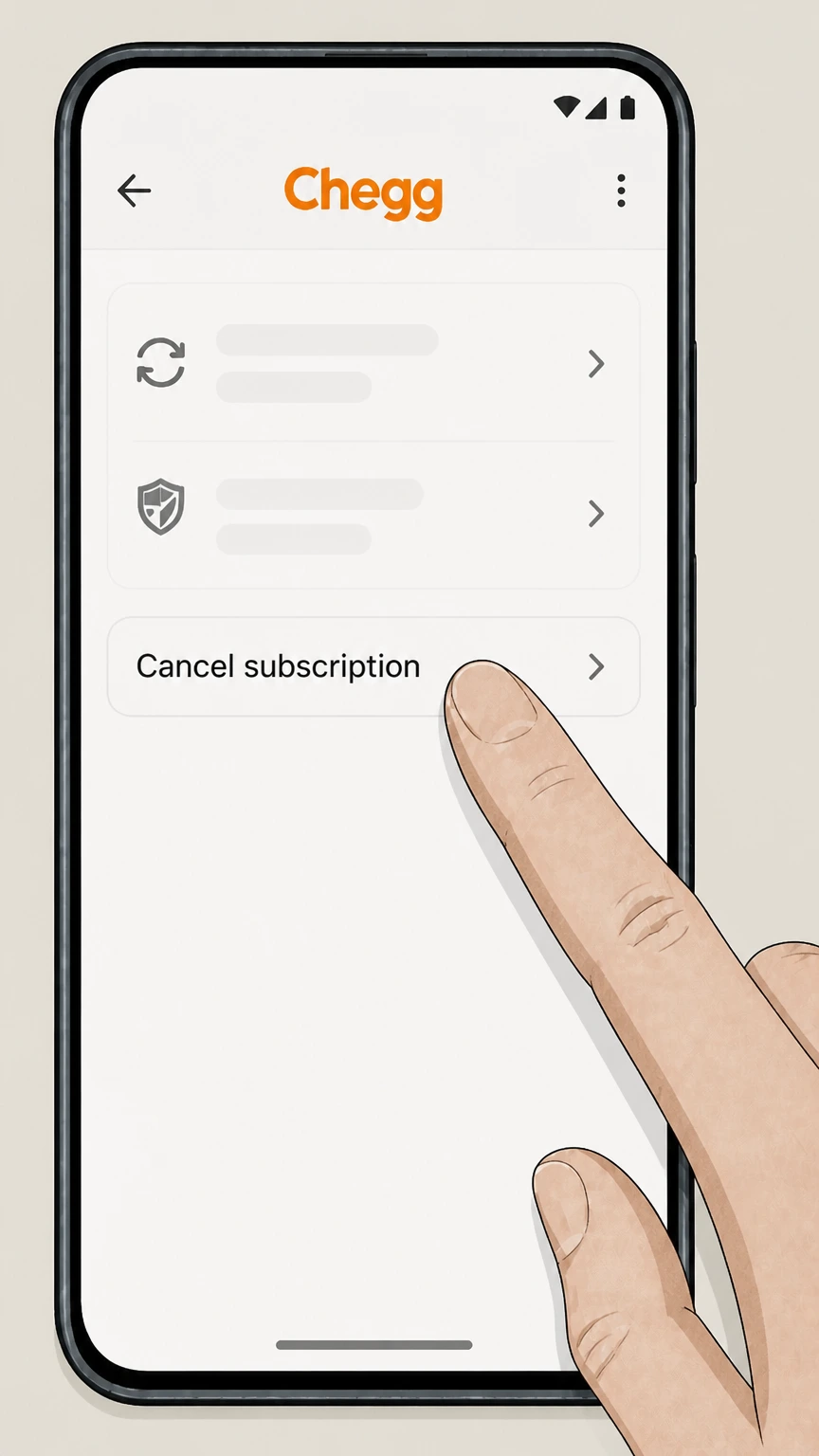 3
3Tap Cancel subscription
On the Chegg subscription page, tap Cancel subscription to start the cancellation flow. Use the Chegg account named on your receipt, and continue only after the next status in this cancellation path is visible.
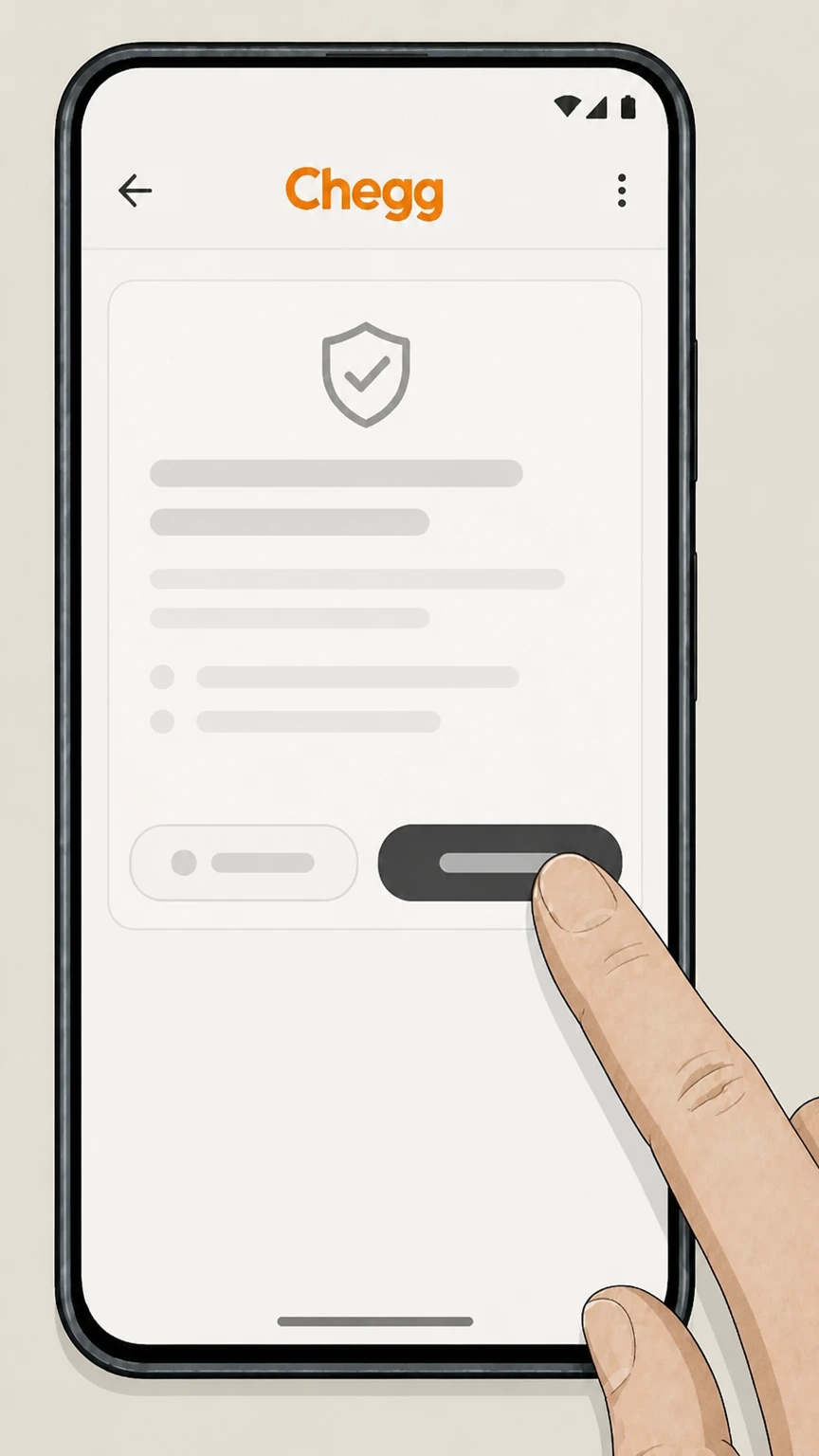 4
4Complete the on-screen cancellation steps
Follow the on‑screen prompts to confirm cancellation until Google Play shows that the subscription will not renew. Use the Chegg account named on your receipt, and continue only after the next status in this cancellation path is visible.
Refund policy
Chegg refunds, renewals, and free trials
Chegg generally treats subscription fees as prepaid and non‑refundable, and canceling mainly stops future renewals. Refund options and timing differ depending on whether Chegg, Apple, or Google Play billed your subscription and whether you were in a free trial or a standard paid period.
Check my refund options- Chegg memberships are usually non‑refundable
- Chegg’s Terms of Use state that membership fees for certain paid services are billed in advance of each membership period and are non‑refundable, including after cancellation, unless different terms were disclosed at purchase or local law requires otherwise. Canceling on Chegg.com normally stops the next renewal but does not return money for the current or prior periods.
- Access continues until the period ends
- Chegg’s subscription help page specifies that after you confirm cancellation of a Chegg Study subscription, you will not be charged again and will still have access to the subscription for the rest of your current billing period. Google Play’s subscription article echoes that canceling stops future charges while content typically remains available until the listed renewal date.
- Free trials auto‑renew if not canceled in time
- In their Free Trial Memberships section, Chegg explains that free‑trial users are automatically renewed at the promoted membership rate at the end of the trial unless they cancel before the trial ends, unless a promotion states otherwise. You can cancel a trial online or by contacting Chegg support; once charged, the default non‑refund rule applies unless different terms were provided.
- Apple and Google Play apply their own refund rules
- For subscriptions billed through Apple or Google Play, the app stores’ refund tools and policies govern whether you can get money back. Apple’s charge‑help page links to a portal where you sign in to view purchases and request a refund, while Google’s subscription help refers users to a separate refunds article; both also clarify that canceling prevents future renewals but does not automatically refund past charges.
- PayPal cancellations do not replace Chegg cancellation
- PayPal’s automatic‑payment help notes that you can cancel or update an automatic payment profile in PayPal settings, but this primarily stops PayPal from funding future charges to that merchant. It typically does not cancel the underlying service contract, so Chegg’s Terms still require you to cancel your membership through Chegg or the app store that bills you.
If you believe you were wrongly charged or are seeking an exception to these default rules, first confirm who billed you (Chegg, Apple, Google Play, or PayPal) on your statement, then use that provider’s official refund or support channel to request a review. Review official billing and refund help
Channels
Where you can cancel a Chegg subscription
Chegg supports self‑service cancellation, but the correct steps depend on who is billing you for the subscription.
Chegg‑billed memberships
If you bought Chegg Study or a similar subscription on Chegg.com using a card or PayPal, Chegg’s help center instructs you to cancel from the My Account → Orders page on a desktop or laptop browser, where a Cancel Subscription option appears next to each active plan.
Apple in‑app purchases
If your bank or card statement shows Apple or apple.com/bill and you started Chegg from the iOS App Store, Apple’s documentation requires that you cancel in your device’s Settings under your Apple ID → Subscriptions, not on Chegg’s website or app.
Google Play in‑app purchases
If you subscribed to Chegg through Google Play, Google’s subscription help page directs you to cancel from the Google Play subscriptions center; Chegg’s Android store listing reiterates that Play Store purchases must be managed from the phone’s settings/Google Play rather than chegg.com.
Partner or bundle offers
Chegg sometimes partners with other companies. For example, a Sallie Mae offer page notes that if you already have an eligible Chegg subscription, Chegg will handle the transition when you redeem that code, so you generally should not cancel your existing Chegg plan first.
Chegg.com flow
How Chegg.com subscription cancellation works
For Chegg‑billed subscriptions, the My Account → Orders page controls both cancellation and pausing of plans.
Desktop or laptop is recommended
Chegg’s subscription help instructions explicitly tell you to use a desktop or laptop browser when canceling or pausing, and to access My Account and then Orders from there. This interface exposes the full subscription controls, including Cancel Subscription for each active Chegg plan.
Two-step confirmation
On Chegg.com, choosing Cancel Subscription in Orders takes you to a confirmation page with an orange Cancel Subscription button. Chegg’s help text explains that your subscription is canceled only after you confirm on that page; at that point Chegg marks it not to renew and shows that you keep access through your current billing period.
Pause versus cancel
The same Orders area may offer a Pause option after you start the cancel flow. Chegg explains that pausing temporarily suspends billing for a limited time, while preserving the membership, whereas completing full cancellation stops renewal entirely and relies on a new signup if you later return.
Managing payment methods separately
Chegg’s help center and Terms of Use describe a dedicated Payment Methods section in My Account for updating or replacing stored cards. Updating or removing a payment method there does not itself cancel an existing membership; you still need to complete the Cancel Subscription steps in Orders.
App stores
Apple and Google Play billing for Chegg
When Chegg is purchased as an in‑app subscription, Apple or Google controls billing and the cancellation path.
Apple bills Chegg in‑app subscriptions
The Chegg Study App Store listing states that the Chegg Study subscription is charged to your credit card through your iTunes/Apple Account and that you manage the subscription and auto‑renewal in Account Settings. Apple’s support article confirms that canceling must be done from Settings → your name → Subscriptions → Chegg → Cancel Subscription.
Effect of canceling with Apple
Apple’s subscription guidance explains that when you tap Cancel Subscription in the Subscriptions list, the subscription remains active until the end of the current period, but it will not renew. There is no separate cancellation flow on Chegg.com for subscriptions created and billed through Apple.
Google Play controls Android renewals
Google’s “Cancel, pause or change a subscription on Google Play” article instructs Android users to open subscriptions on Google Play, select the subscription, tap Cancel subscription, and follow prompts; it notes that uninstalling the app alone does not cancel and that you usually keep access until the renewal date.
Store billing and refunds
When billing runs through Apple or Google Play, Chegg’s own Terms of Use still govern service access, but Apple and Google apply their own billing and refund policies to the transaction. Google’s help pages link to a separate refunds article, and Apple provides a web tool to request refunds for eligible App Store purchases.
Access & content
What changes after you cancel Chegg
Canceling a Chegg subscription affects renewals and access, but not all aspects of your Chegg account or purchases.
Access through end of billing period
Chegg’s subscription help article states that once you confirm cancellation, you will not be charged again and will retain access to your subscription for the remainder of the current billing period. Google Play’s help similarly notes that canceling a subscription stops future charges but lets you continue to access the content until the end date.
Auto-renew is turned off
Chegg’s Terms of Use explain that memberships may automatically renew each period and that your stored payment method is charged on the first day of each renewal. Completing the official cancellation flow with Chegg, Apple, or Google turns off that auto‑renew behavior so future charges for that subscription should stop.
Chegg account remains open
The Terms of Use distinguish between canceling a membership and canceling your account. Canceling a subscription ends the paid membership but does not automatically delete your overall Chegg account or remove your historical activity; you can continue signing in, and separate account‑cancellation or data‑rights steps apply if you want the account closed.
Book rentals and other orders
Chegg’s terms and help resources on rentals and supplemental materials treat textbook rentals and purchases as separate transactions from digital subscriptions. Canceling a digital Chegg subscription does not, by itself, return rented books or cancel existing textbook orders; rental return and purchase policies continue to apply.
Billing
Refunds, renewals, and Chegg free trials
Chegg and the app stores separate cancellation (stopping future renewals) from refunds (getting money back for past charges).
Chegg’s default refund rule
Chegg’s Terms of Use state that fees for certain memberships are payable in advance for each period and are non‑refundable, including after cancellation, unless different terms were disclosed at purchase or local law requires otherwise. Canceling a Chegg‑billed membership usually prevents new charges but does not refund the current or past periods.
Free trials and auto-conversion
In the Free Trial Memberships section, Chegg explains that trial sign‑ups may automatically convert to paid memberships at the promoted rate when the trial ends unless you cancel before the end of the trial, unless the specific promotion states otherwise. You can cancel a trial either online through the services or by contacting Chegg support.
Apple and Google Play refunds
Apple’s billing help pages and Google Play’s subscription article link to separate refund tools and policies. These explain that subscription charges processed by Apple or Google are subject to their own refund criteria, and that canceling a subscription will not automatically refund amounts already charged unless their policies explicitly allow it.
PayPal automatic payments and Chegg
PayPal’s guidance on automatic payments notes that you can cancel an automatic payment profile in your PayPal settings but warns that doing so typically only stops PayPal from funding future charges; it does not cancel your underlying contract with the merchant. For Chegg, you should still complete the official Chegg or app‑store cancellation steps.
Account & data
Chegg account, privacy, and data after canceling
Subscription cancellation and data management are handled separately under Chegg’s Terms of Use and Privacy Policy.
Account versus membership
Chegg’s Terms of Use include an Account Cancellation section indicating that you may request cancellation of your account at any time, and separately describe how memberships renew and can be canceled. Ending a subscription does not automatically close your Chegg account; you must follow Chegg’s account‑cancellation or privacy‑rights process if you want the account itself closed.
Service-related emails
Chegg’s Privacy Policy explains that while you can opt out of promotional emails, you cannot opt out of service‑related communications such as transaction confirmations and service updates. It is therefore reasonable to expect transactional emails around purchases and changes; if you cancel, you should check for such messages while relying primarily on the status shown in My Account → Orders.
Data and privacy choices
The Privacy Policy lists the account and contact data Chegg stores to operate your subscription and outlines regional privacy rights, including contacting Chegg for assistance if you no longer have access to the email tied to your account. Canceling a subscription does not automatically delete stored data; you must exercise any applicable privacy rights separately.
Linked services and network sites
Chegg operates a broader network (for example, Busuu, EasyBib, Mathway and other brands), each with its own policies and, in some cases, separate logins. Canceling a Chegg Study subscription does not automatically close or alter accounts or subscriptions you hold on those separate Chegg‑affiliated services.
Issues
Troubleshooting common Chegg cancellation problems
Official Chegg and platform resources highlight several frequent causes when users think they have canceled but charges continue.
Subscription hidden under a different billing owner
Chegg and Google Play community guidance show that if you subscribed directly with Chegg, the plan will not appear under Google Play subscriptions, and vice versa. If you cannot find Chegg in one place, check the other billing owners (Chegg.com My Account, Apple Subscriptions, or Google Play subscriptions) as well as any partner offers tied to your email.
Pause instead of full cancel
Chegg’s help center describes a Pause option that appears when you initiate a cancel from the Orders page. If you select Pause instead of confirming the final Cancel Subscription button, billing is only temporarily suspended and may resume later, which can look like unexpected charges when the pause ends.
Multiple accounts or email addresses
Chegg support materials and community Q&As show that users sometimes have more than one Chegg login or use school and personal emails separately. If you still see charges, check for Chegg accounts under other email addresses, including those linked to Apple or Google IDs used for in‑app purchases.
Technical issues with the cancel button
Chegg community Q&As mention cases where users click Cancel Membership but the page refreshes without completing cancellation. If this happens, Chegg recommends trying a desktop browser, clearing cache, or contacting customer support through the official Contact Us page or chat for manual help.
What official sources do not confirm
Limits of the public Chegg cancellation guidance
These points are intentionally qualified because the official sources reviewed on August 16, 2026 do not publish a complete answer.
Documented limitation 1
Chegg may change its website navigation, button labels, or help‑center layout after August 16, 2026, so specific menu names or page locations could shift even if the overall cancellation flow remains similar.
Documented limitation 2
This guide cannot see individual user accounts, so it cannot determine whether a given subscription is billed by Chegg, Apple, Google Play, a partner bundle, or PayPal—users must confirm the billing owner from their own statements and app‑store accounts.
Documented limitation 3
Institutional or campus‑provided access to Chegg that is purchased and managed by a school or employer may follow different cancellation rules that are not documented in Chegg’s public consumer help pages.
Documented limitation 4
Refund eligibility can depend on local consumer‑protection law and promotion‑specific terms that are not always visible in general Terms of Use or help articles; users with edge‑case disputes should seek platform or legal advice as appropriate.
Documented limitation 5
Some Chegg community Q&As and app‑store forum posts are used only to corroborate patterns (like missing subscriptions in Google Play) and not as primary authority for billing or legal interpretations.
Chegg cancellation FAQ
Questions people search about canceling Chegg, answered with official provider or billing-platform sources checked on August 16, 2026.
How do I cancel my subscription of Chegg?
Why can't I cancel my Chegg subscription?
Why am I still getting charged by Chegg?
Does Chegg refund if you cancel?
How to cancel Chegg subscription on phone?
Does canceling Chegg delete my Chegg account?
Is it easy to cancel Chegg?
How can I contact Chegg customer service about a subscription problem?
Can I cancel Chegg and get refund from Apple or Google Play?
Untangle this Chegg issue.
Let Pine handle the provider follow-up and keep the confirmation in one place.
