

Cancel subscription
How to Cancel LinkedIn Premium and Stop Charges
Learn how to cancel LinkedIn through the right billing provider. Follow official steps, understand access timing, refunds, and the confirmation to keep.
- Official LinkedIn and billing-owner sources
- 3 provider-specific cancellation paths
- Refund and post-cancellation effects separated from renewal
- Verified August 16, 2026
Choose the LinkedIn cancellation path that matches who bills you
LinkedIn website (direct or Google Play–billed Premium) · verify the billing owner
 1
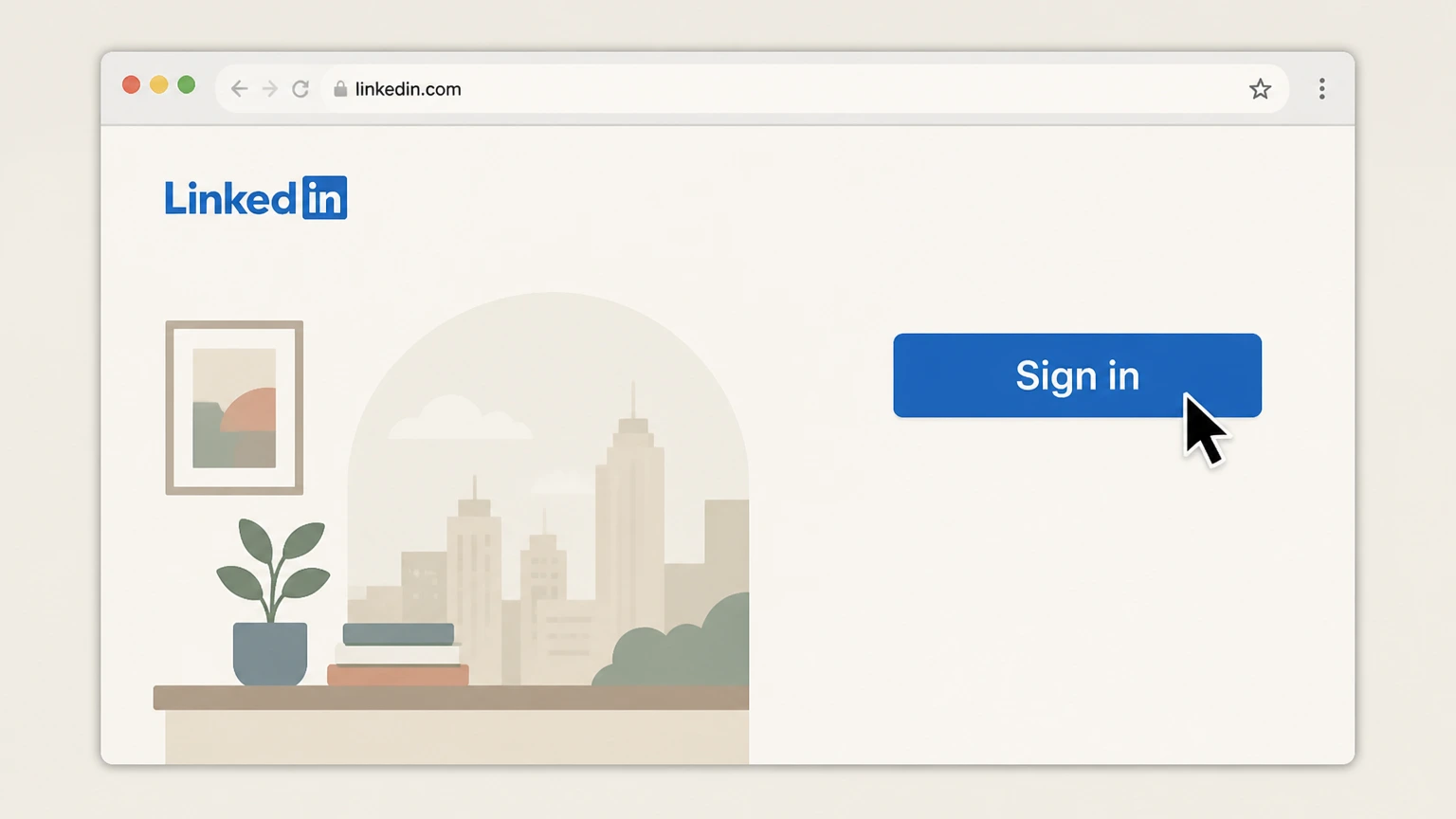
1Sign in at linkedin.com
Go to linkedin.com in a web browser and sign in to the LinkedIn account that currently has the Premium subscription.
 2
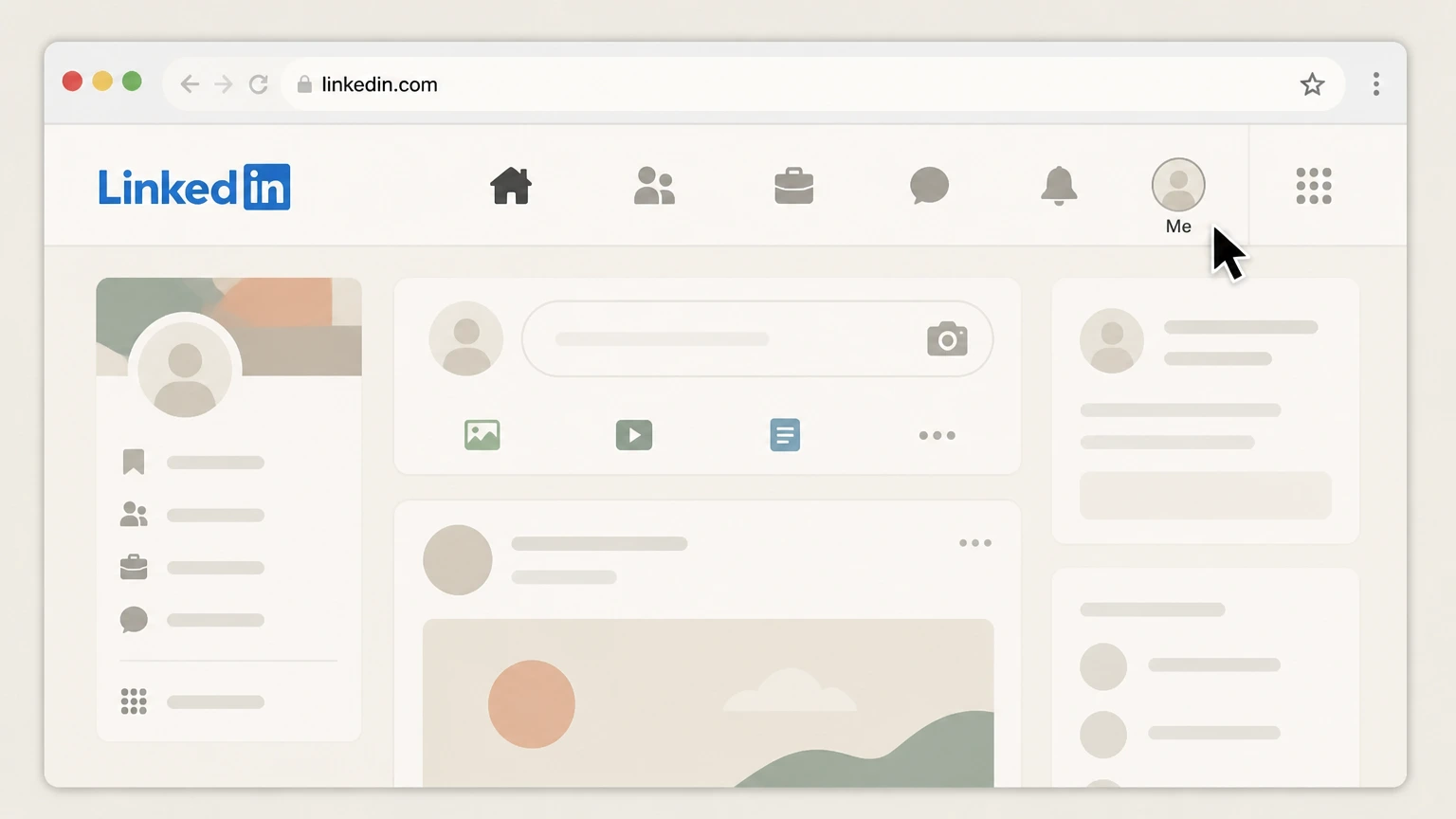
2Open the Me menu
On your LinkedIn homepage, click the "Me" icon at the top of the screen to open your account menu. Use the LinkedIn account named on your receipt, and continue only after the next status in this cancellation path is visible.
- Let Pine handle it
Pine can help
Too many steps?
Pine can find the right LinkedIn website (direct or Google Play–billed Premium) path and handle the cancellation for you.
 3
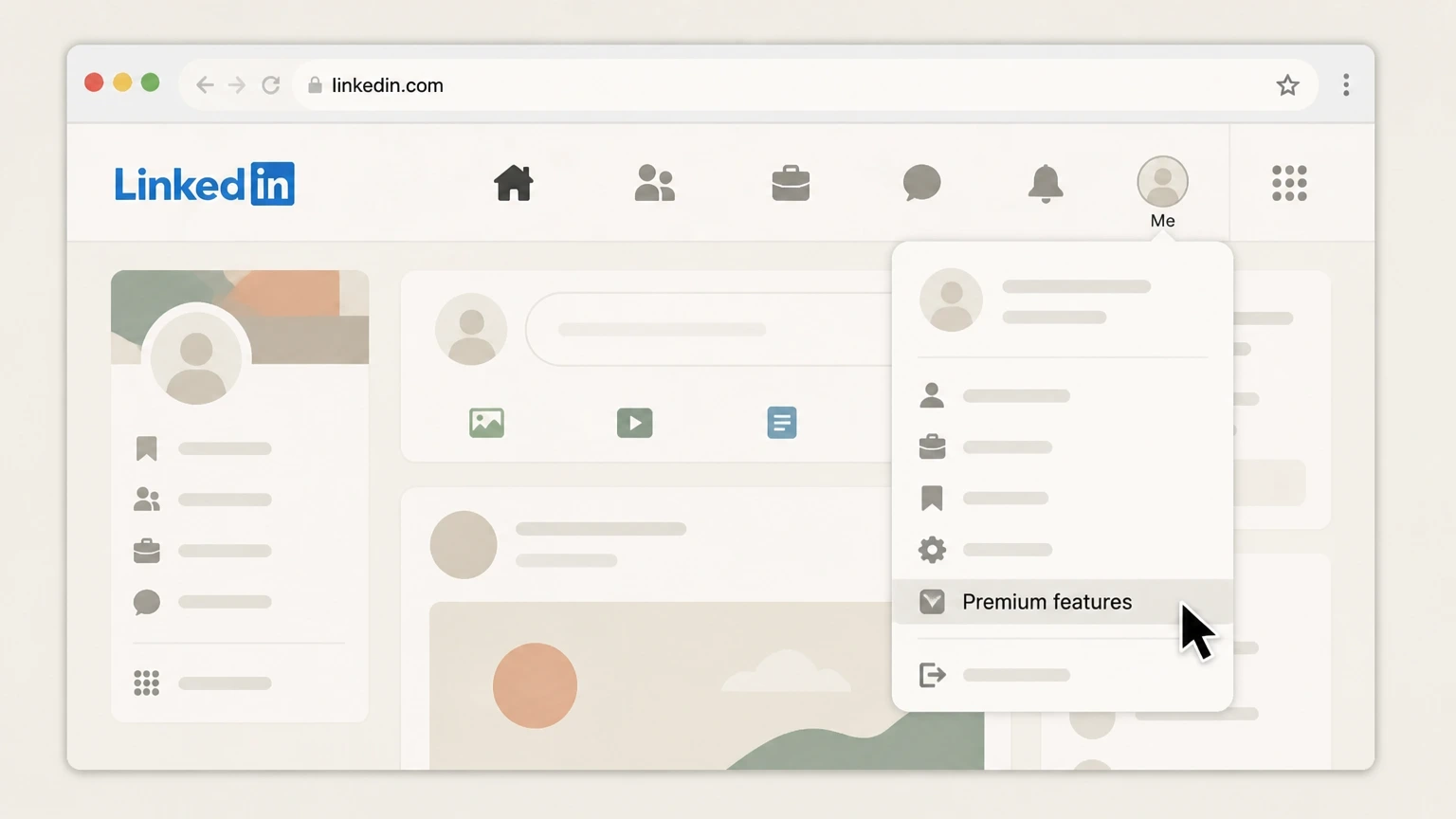
3Go to Premium features
In the Me dropdown, select "Premium features" to open your My Premium page. Use the LinkedIn account named on your receipt, and continue only after the next status in this cancellation path is visible.
 4
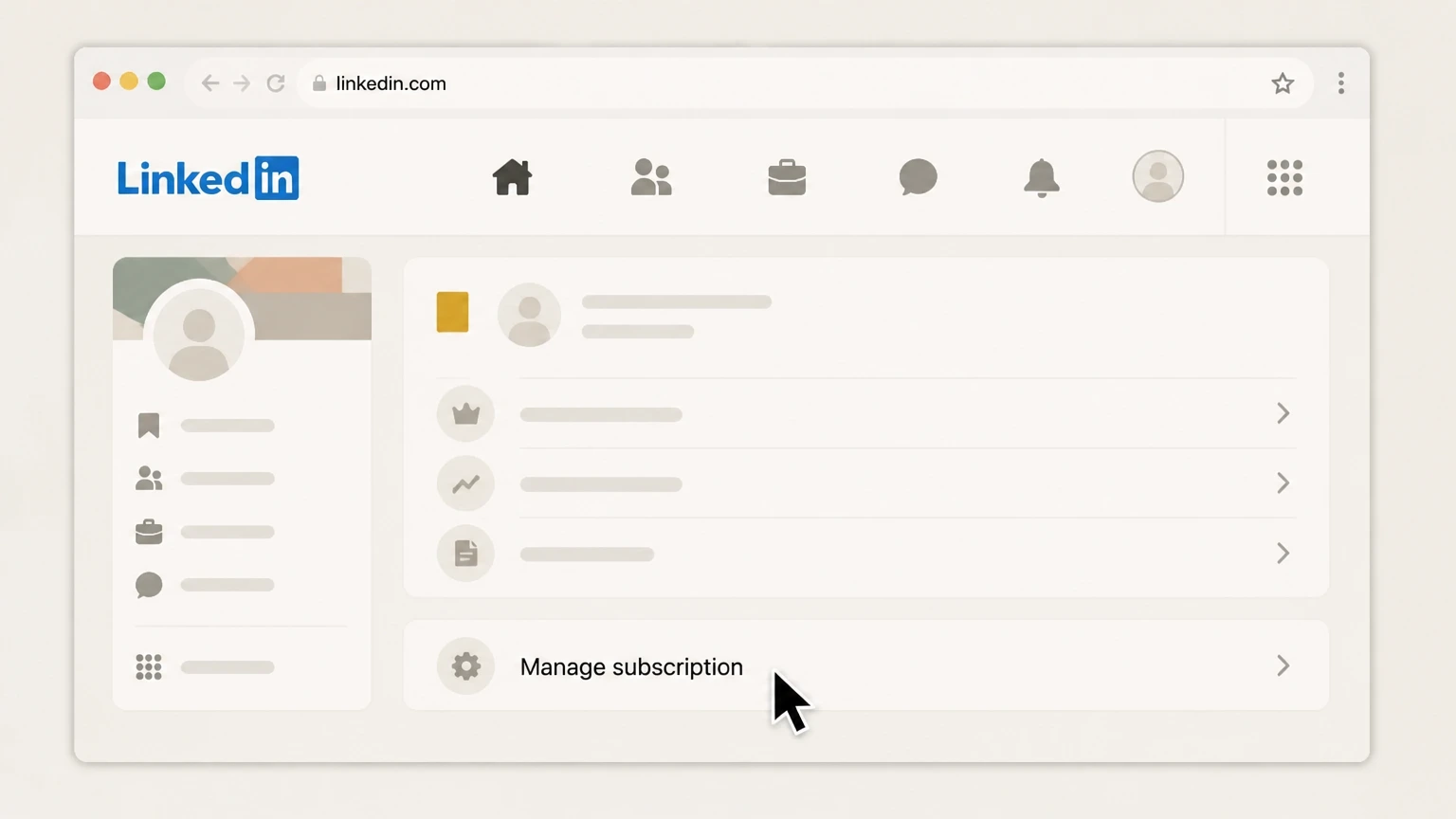
4Open Manage subscription
On the left pane of the My Premium or Resources section, click "Manage subscription" (or "Subscription details" in some layouts) to open Admin Center for your Premium billing.
 5
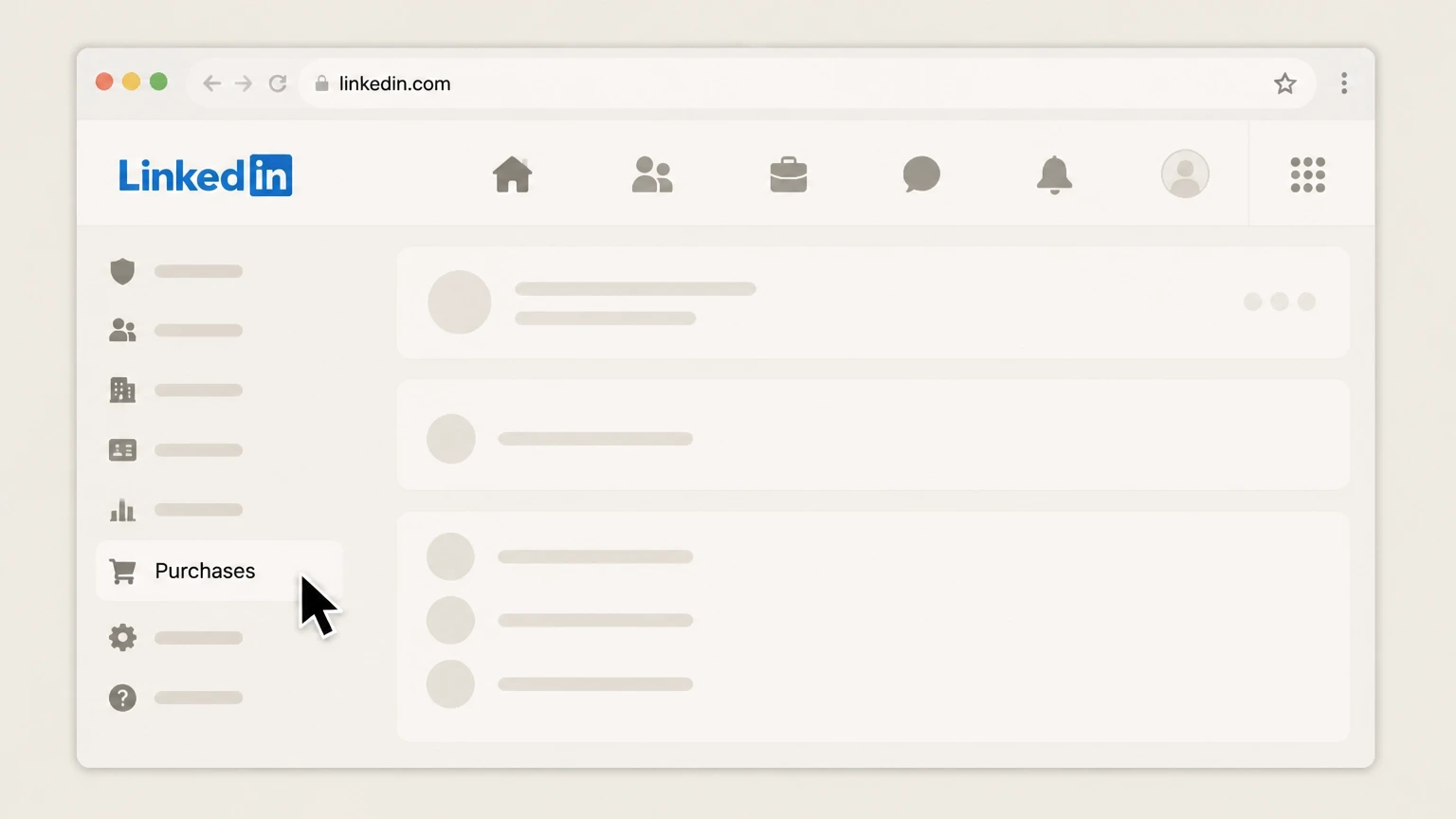
5Open your Premium purchases
In Admin Center, click "Purchases" in the left pane to display your active LinkedIn Premium subscription. Use the LinkedIn account named on your receipt, and continue only after the next status in this cancellation path is visible.
 6
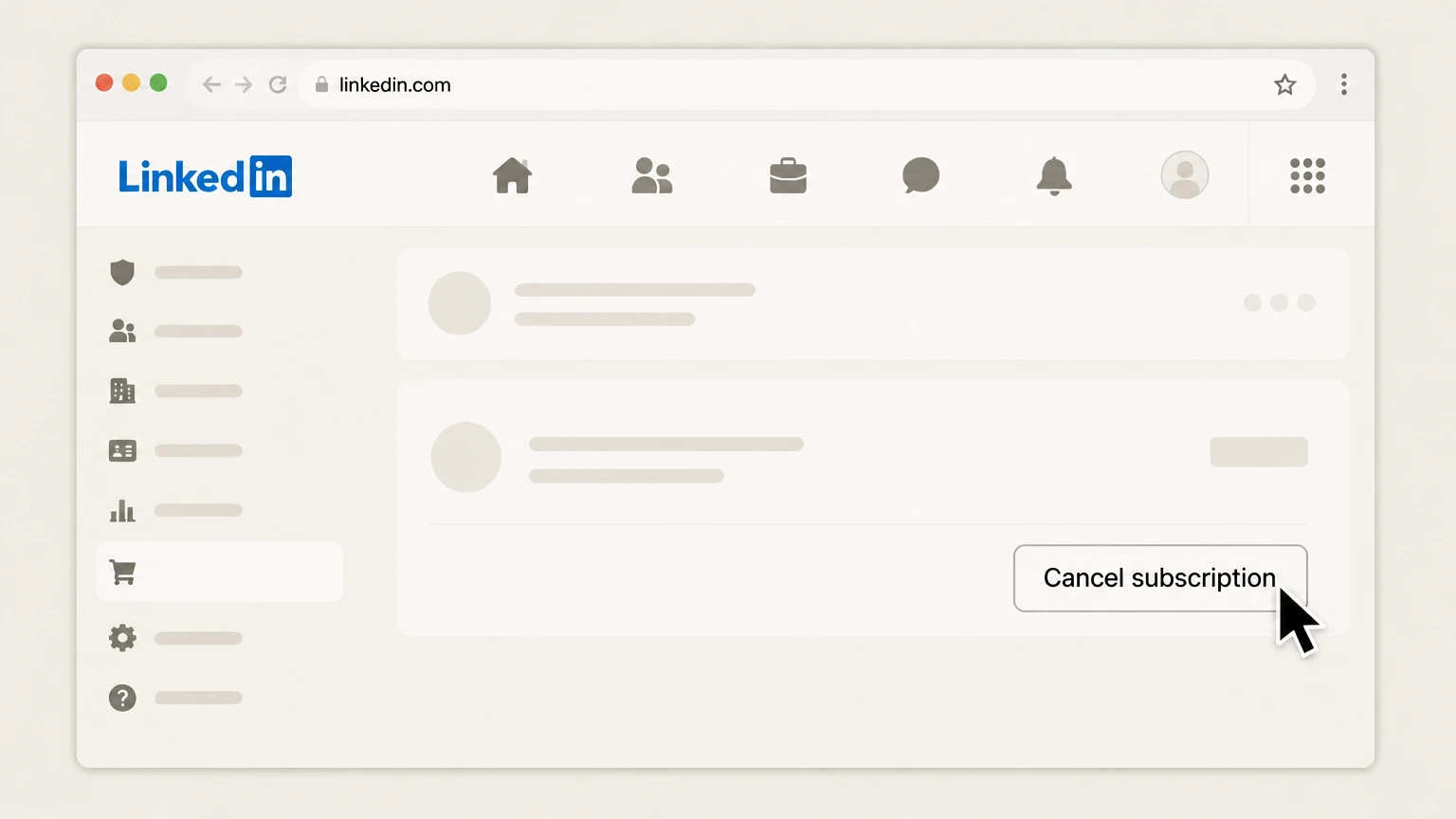
6Cancel the Premium subscription
Locate your active LinkedIn Premium subscription, click "Cancel subscription" under Actions, and follow any on-screen prompts until LinkedIn confirms the cancellation.

Apple iOS Settings (App Store–billed Premium) · verify the billing owner
 1
1Open Settings
On your iPhone, open the Settings app from your home screen. Use the LinkedIn account named on your receipt, and continue only after the next status in this cancellation path is visible.
 2
2Tap your name
At the top of Settings, tap your Apple ID name to open your account settings. Use the LinkedIn account named on your receipt, and continue only after the next status in this cancellation path is visible.
- Let Pine handle it
Pine can help
Too many steps?
Pine can find the right Apple iOS Settings (App Store–billed Premium) path and handle the cancellation for you.
 3
3Open Subscriptions
In your Apple ID settings, tap "Subscriptions" to view subscriptions billed through your Apple ID. Use the LinkedIn account named on your receipt, and continue only after the next status in this cancellation path is visible.
 4
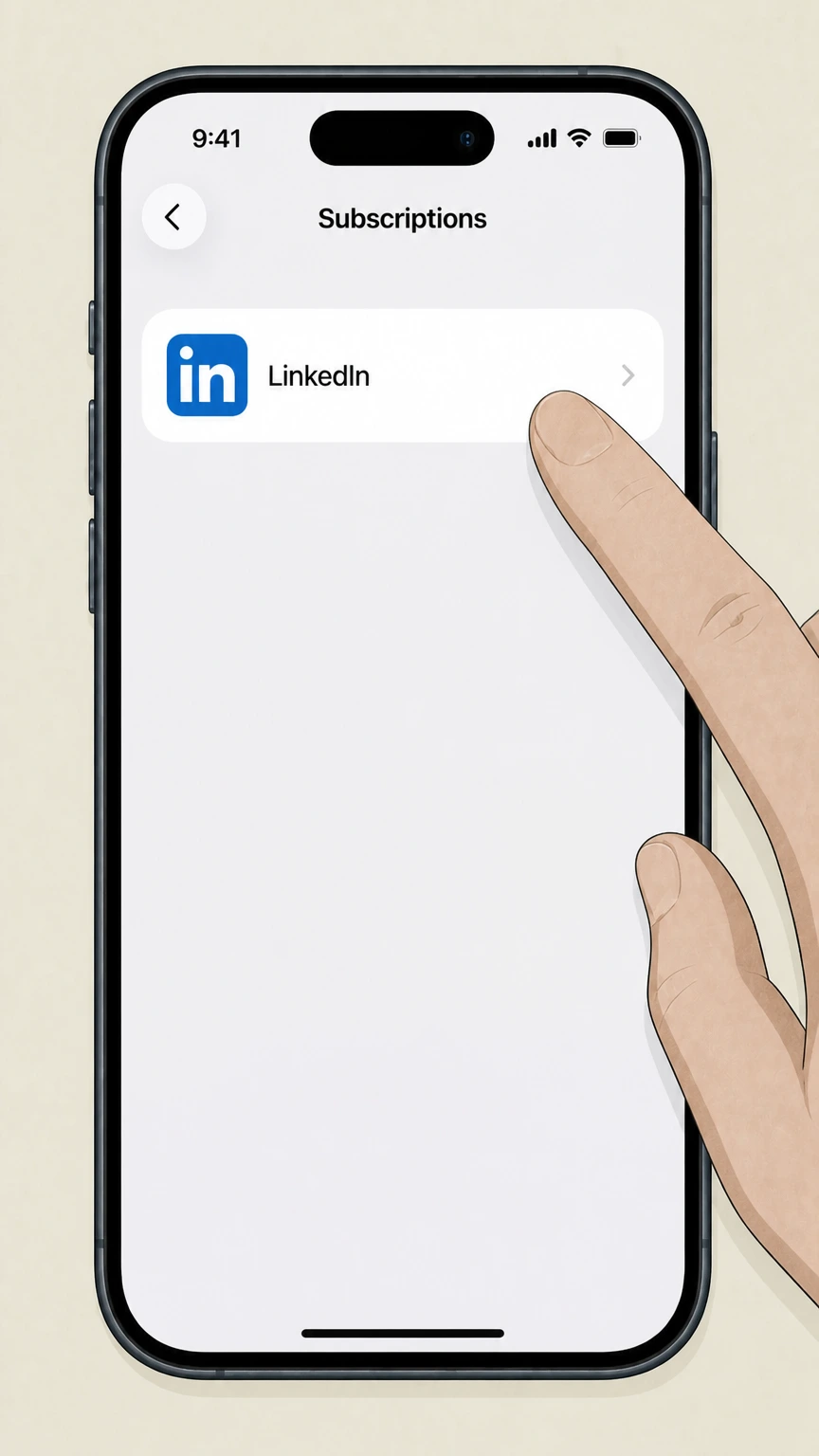
4Select LinkedIn
In the list of active subscriptions, tap the LinkedIn or LinkedIn Premium subscription you want to cancel. Use the LinkedIn account named on your receipt, and continue only after the next status in this cancellation path is visible.
 5
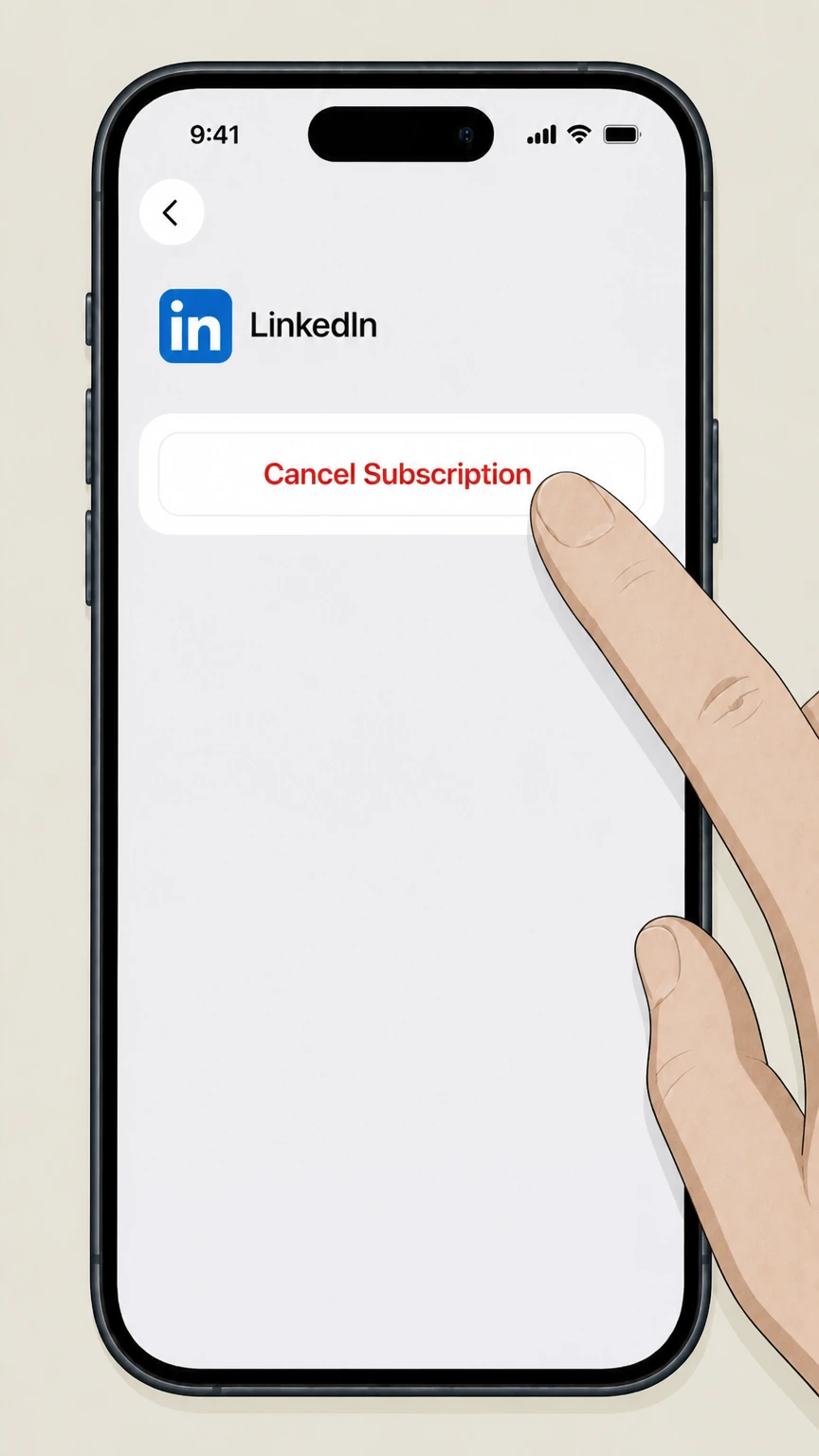
5Cancel the subscription
On the LinkedIn subscription page, tap "Cancel Subscription" and confirm if prompted to stop future billing for LinkedIn Premium. Use the LinkedIn account named on your receipt, and continue only after the next status in this cancellation path is visible.
Google Play app (Google Play–billed Premium) · verify the billing owner
 1
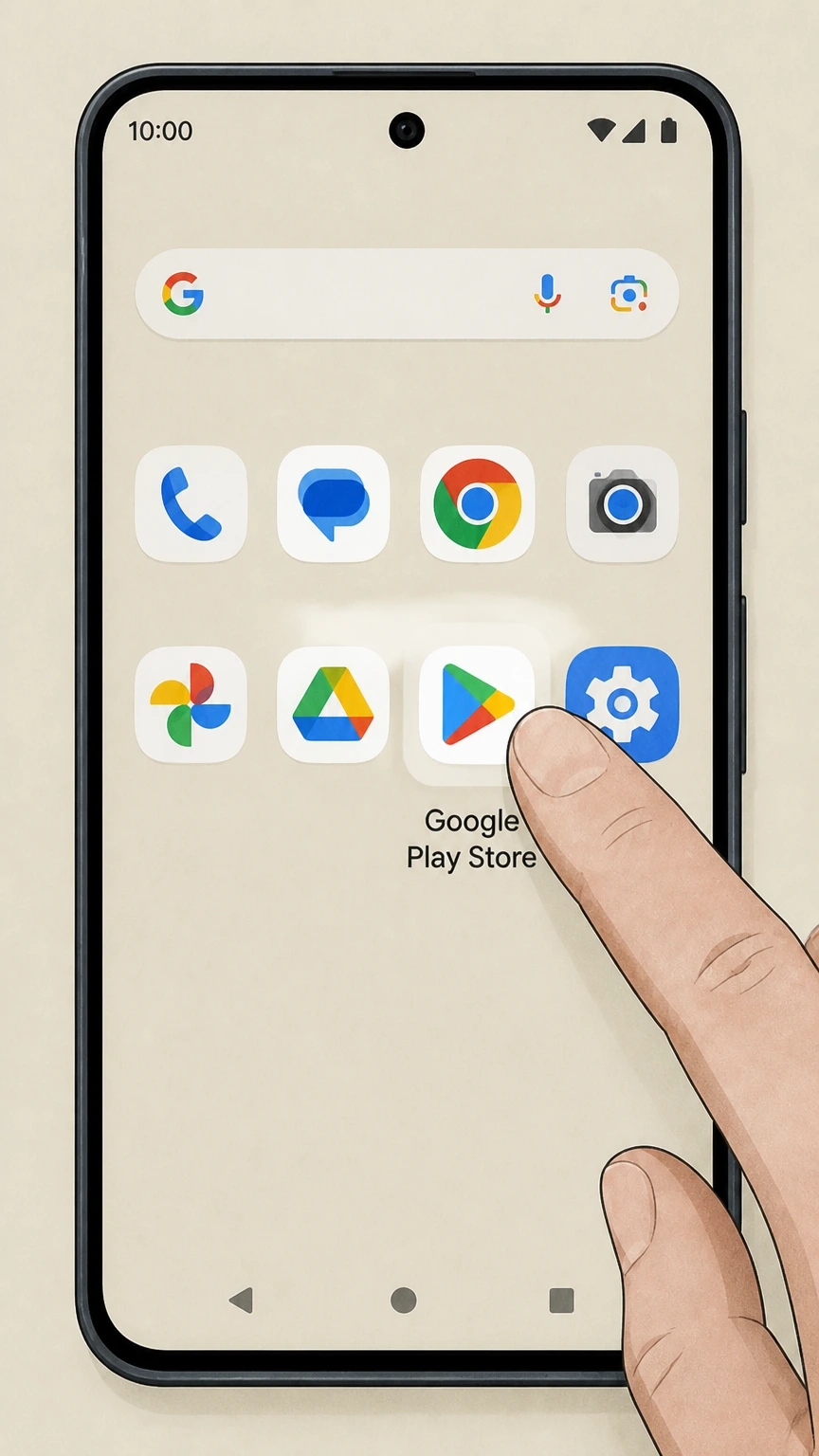
1Open Google Play Store
On your Android device, open the Google Play Store app. Use the LinkedIn account named on your receipt, and continue only after the next status in this cancellation path is visible.
 2
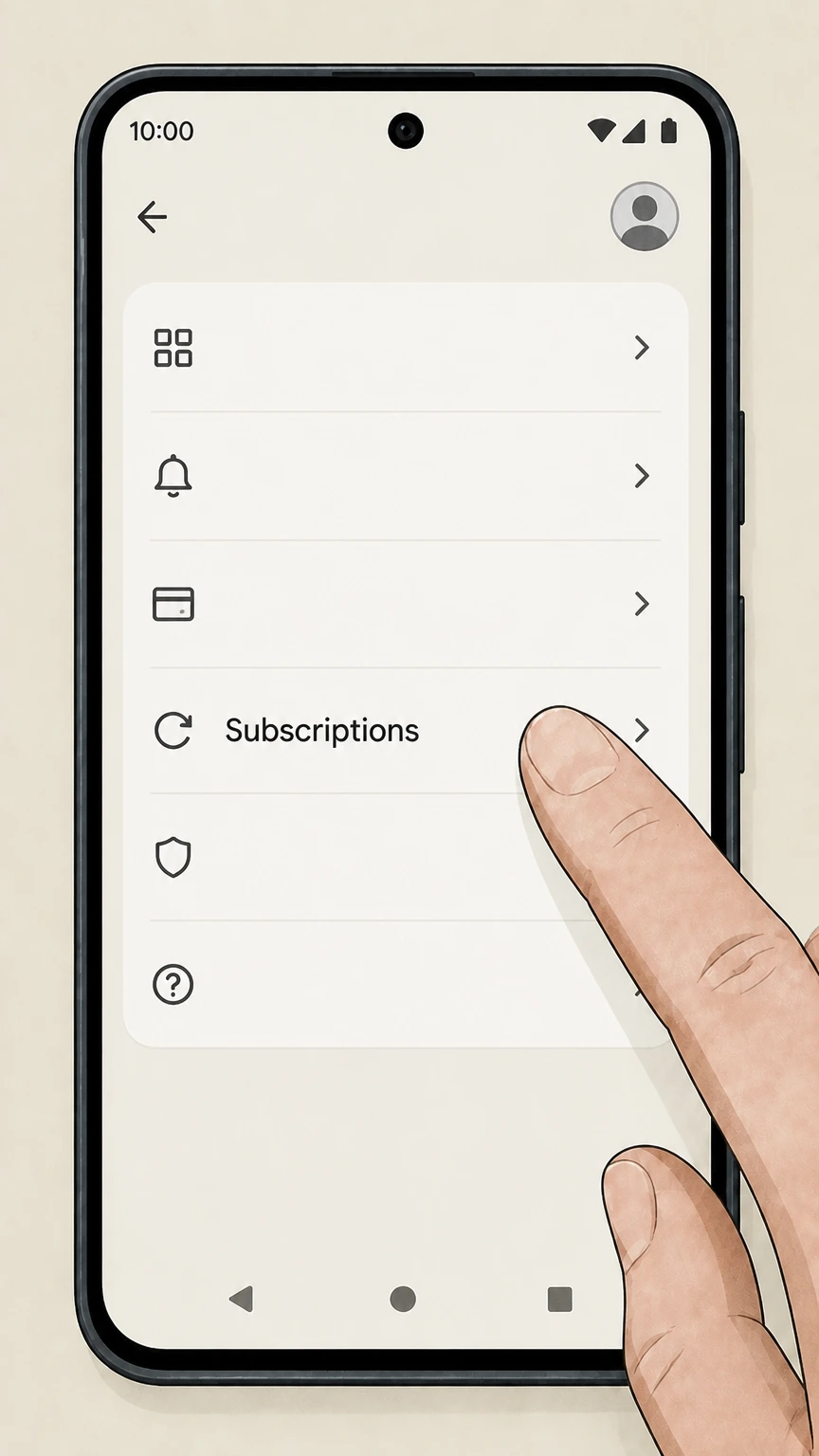
2Open Subscriptions
Tap your profile icon in the top-right corner, then tap "Payments & subscriptions" and choose "Subscriptions" to see your active subscriptions.
- Let Pine handle it
Pine can help
Too many steps?
Pine can find the right Google Play app (Google Play–billed Premium) path and handle the cancellation for you.
 3
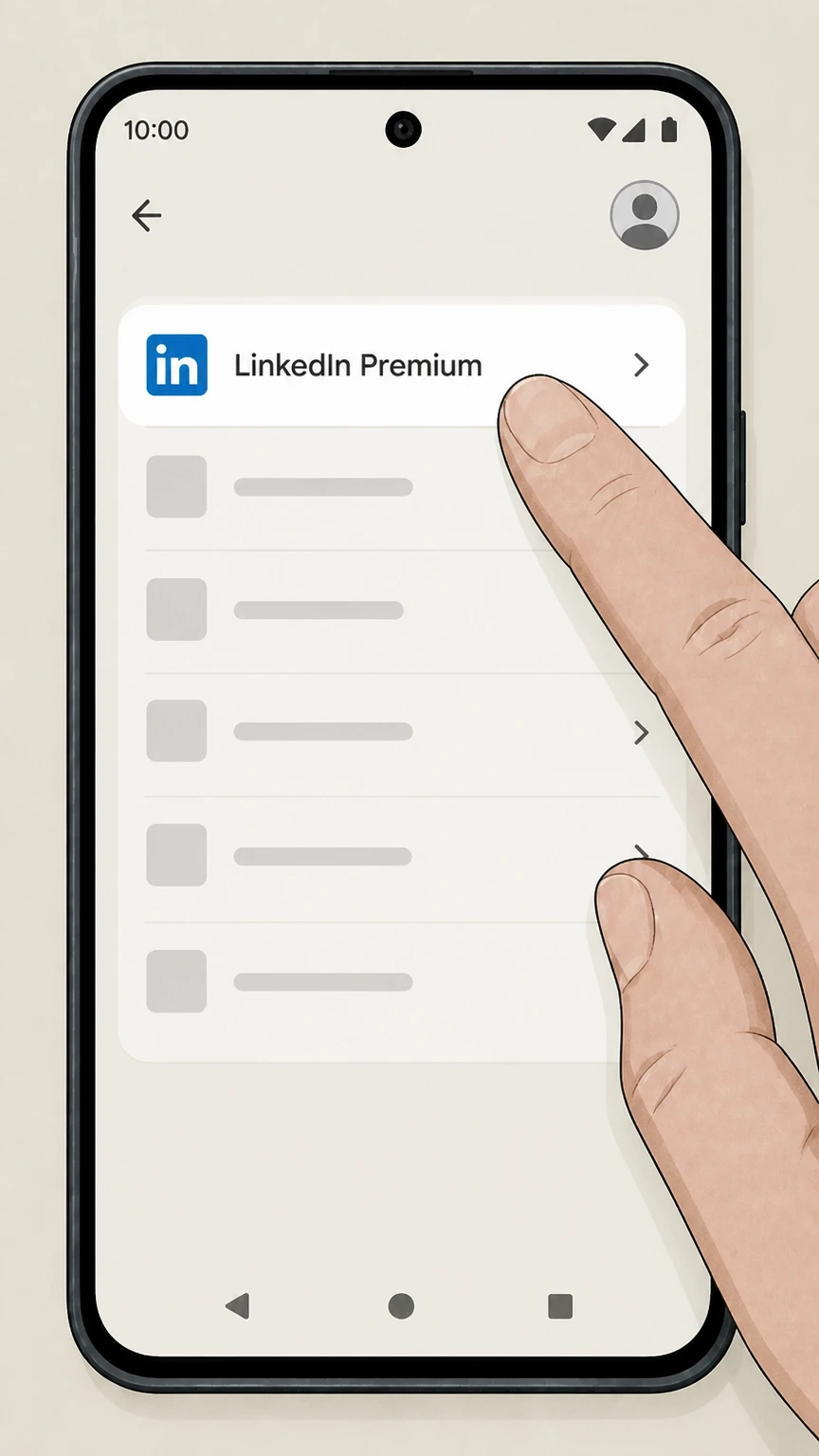
3Select LinkedIn Premium
In the Subscriptions list, tap the LinkedIn or LinkedIn Premium subscription you want to cancel. Use the LinkedIn account named on your receipt, and continue only after the next status in this cancellation path is visible.
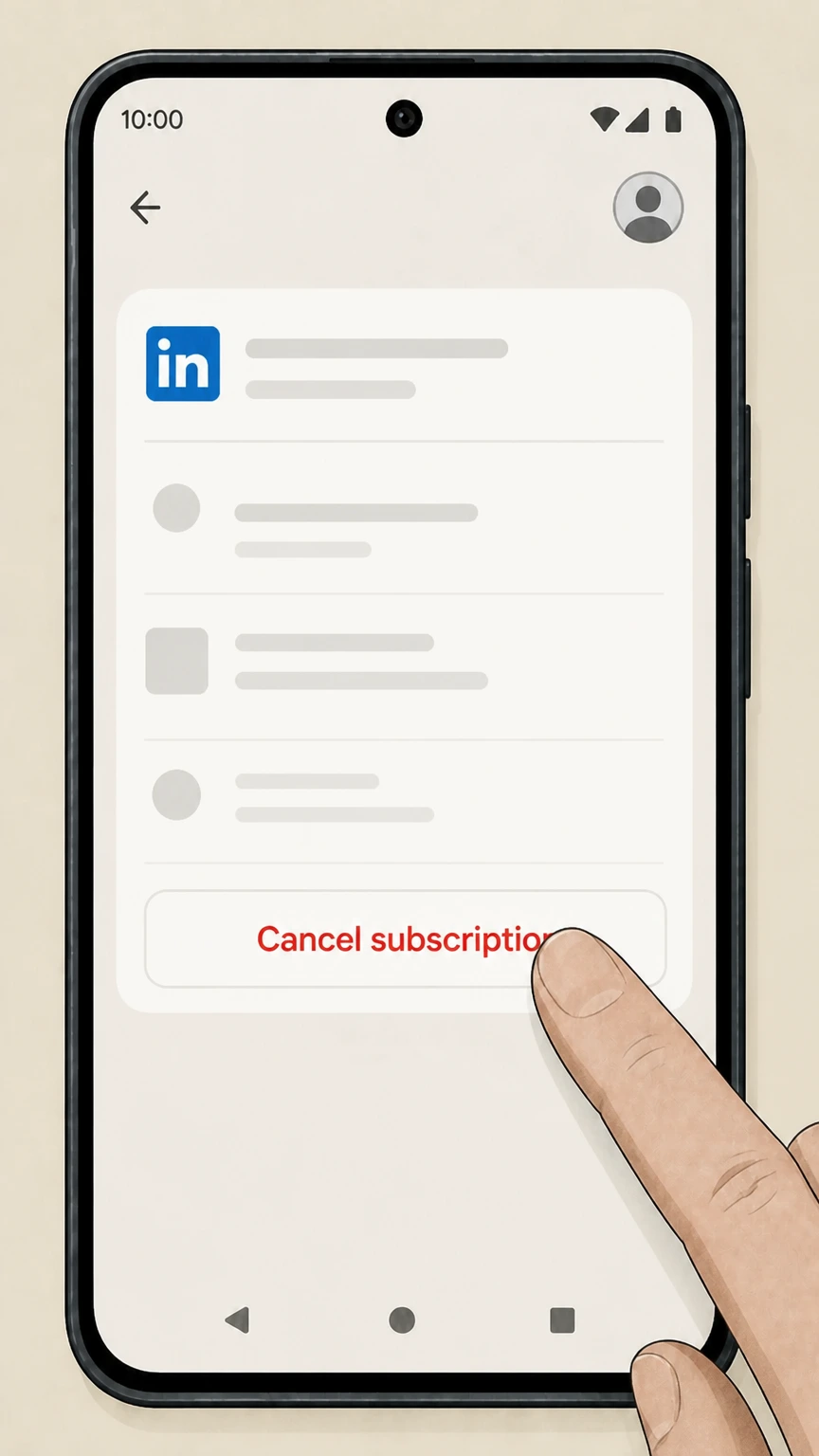 4
4Cancel the subscription
On the LinkedIn subscription page, tap "Cancel subscription" and follow the on-screen instructions until Google Play confirms the cancellation. Use the LinkedIn account named on your receipt, and continue only after the next status in this cancellation path is visible.
Refund policy
Refunds for LinkedIn Premium and store-billed subscriptions
Cancelling LinkedIn Premium mainly stops future renewals; refunds for existing charges are limited and depend on LinkedIn’s consumer refund policy and, for app‑store purchases, Apple or Google Play rules.
Check my refund options- LinkedIn’s 7‑day no‑usage refund window
- LinkedIn’s consumer refund policy states that Premium subscriptions such as Premium Career, Premium Business, Premium All‑in‑One, Premium Company Page, LinkedIn Learning, Recruiter Lite and Sales Navigator may be refundable within seven days from the date the subscription is charged, provided there has been no Premium usage; you must submit a refund request through LinkedIn’s refund form for eligibility review.
- Cancellation does not automatically refund time
- LinkedIn explains that when you cancel a paid Premium subscription, Premium benefits continue until the end of your current billing cycle and then expire; cancellation alone does not retroactively refund unused days, although separate refunds may be granted under LinkedIn’s refund policy or local consumer laws in specific jurisdictions.
- Refunds for Apple App Store purchases
- For subscriptions purchased via the Apple App Store, LinkedIn’s help center notes that all cancellations and refunds must be handled by Apple. Members seeking refunds must use Apple’s Report a Problem website or contact Apple Support; LinkedIn cannot issue or track refunds for iOS in‑app subscriptions.
- Refunds for Google Play purchases
- Google Play’s refund policies explain that some app and in‑app purchases, including subscriptions, may be refundable especially within a short window after purchase, and that later refund requests are usually handled either by Google Play or by the app developer under its policies. LinkedIn’s refund policy still applies to charges processed via Google Play where LinkedIn is the provider.
- Regional statutory rights may provide more protection
- LinkedIn’s refund policy highlights that European Union residents and some other jurisdictions may have statutory rights, such as a 14‑day withdrawal period for certain subscription contracts, and that additional country‑specific rules can allow cancellations with partial refunds; these rights apply alongside, and sometimes beyond, LinkedIn’s standard seven‑day, no‑usage refund guideline.
If you believe you qualify for a refund—for example, because you cancelled a Premium plan shortly after renewal without using Premium benefits or you were billed unexpectedly—submit a request through LinkedIn’s official refund policy page or, for Apple and Google Play purchases, use their respective refund tools to start a formal review. Go to LinkedIn refund policy
Billing basics
How LinkedIn Premium billing cycles and renewals work
Understanding LinkedIn’s renewal timing helps you choose when to cancel so you avoid unwanted future charges while keeping access you have already paid for.
Automatic renewal by cycle
LinkedIn Premium subscriptions are billed on a recurring monthly or annual cycle, and your payment method is charged at the start of each subscription period unless you cancel before the renewal date in your Premium account settings or app‑store subscription screen.
Cancel at least one day before renewal
LinkedIn’s cancellation guidance states that to avoid being charged for an additional billing cycle, you should cancel your Premium plan at least one day before your next scheduled billing date; the exact date is shown in your Premium or app‑store subscription details.
Paid subscriptions end at period close
If you cancel a paid Premium subscription, LinkedIn keeps your Premium features active until the end of the current billing cycle. After that date, the plan expires automatically, and your account reverts to a Basic (free) LinkedIn account without further Premium renewals.
Free trials end immediately on cancellation
If you cancel a Premium free trial instead of waiting for it to convert, LinkedIn ends Premium access immediately and does not continue the trial through the remaining days; you will then revert to a Basic account and avoid the first paid charge for that trial.
Store‑billed subscriptions follow store renewal rules
Subscriptions billed by Apple or Google Play also renew automatically until you cancel in the relevant Subscriptions screen. After cancellation, you typically keep access through the already‑paid period, and the app store stops future renewals according to its policies.
Access changes
What changes on your LinkedIn account after cancelling Premium
Cancelling LinkedIn Premium does not delete your profile, but it does change which insights and tools you can use once your billing period ends.
Reversion to a Basic account
After a Premium subscription expires following cancellation, LinkedIn explicitly states that your account becomes a Basic (free) account. You retain your profile, existing connections, messages and other core LinkedIn data, but the Premium badge and paid features are no longer available.
Loss of Premium insights and tools
At the end of the current billing cycle, you lose Premium features including InMail message credits, detailed job and company insights, extended Who’s viewed your profile data, unlimited browsing beyond commercial limits, LinkedIn Learning course access and other Premium‑only tools tied to your subscription.
InMail credits and other balances
LinkedIn clarifies that accumulated InMail message credits associated with Premium accounts cannot be credited back after cancellation and are lost when Premium access ends, even if you did not use all the credits during your billing period.
Job and search limits after downgrade
Once you revert to a Basic account, job‑related insights and advanced people‑search filters are reduced to the free tier. You may also encounter LinkedIn’s standard commercial use limits more often because Premium browsing allowances are no longer applied.
Trials & promos
Handling LinkedIn Premium free trials and promotional offers
LinkedIn’s free trials and discounted promotions have additional rules that matter when you cancel or switch plans.
Free trial cancellation timing
LinkedIn explains that cancelling a Premium free trial immediately ends your Premium trial access; you then continue on a Basic account, and no first subscription charge is taken as long as you cancelled before the trial’s billing date.
Email reminders before desktop‑purchased trials renew
For Premium trials purchased via the LinkedIn desktop site, LinkedIn sends an email reminder to your primary email address before the free trial ends so you can decide whether to keep Premium or cancel before billing begins; similar reminders may be sent separately by Google Play for store‑billed trials.
No immediate refunds for ending a paid cycle early
If you are already in a paid Premium cycle (after a trial or promotion) and cancel, LinkedIn keeps your paid features available until the end of that paid period and does not automatically refund unused time, although you may be eligible for a separate refund under LinkedIn’s refund policy in specific cases.
Free‑trial eligibility after cancellation
LinkedIn states that if you cancel a free Premium trial, you are generally not eligible for another Premium free trial for at least 12 months, so you should assume that trial access is a one‑time benefit per product in any twelve‑month window.
Promotional prices are not preserved
If you cancel a discounted Premium promotion or a plan that is no longer offered, LinkedIn notes you cannot later repurchase at the same promotional price; cancelling such an offer forfeits the special rate even if you return to Premium later.
Billing owner
Who controls billing and where to cancel
Your ability to cancel or request a refund depends on whether LinkedIn, Apple, or Google Play originally processed the subscription purchase.
Direct LinkedIn billing
If you bought Premium on the LinkedIn desktop site or mobile web (including iOS mobile web), LinkedIn processes your payment. LinkedIn’s help center specifies that these subscriptions can be cancelled only from the LinkedIn desktop website or, for most direct purchases, via the LinkedIn mobile app on Android.
Apple App Store billing
For subscriptions purchased through the Apple App Store, LinkedIn’s FAQ and Apple’s support pages explain that Apple controls billing. You must manage and cancel the LinkedIn subscription from your Apple ID Subscriptions in Settings or equivalent Apple interfaces, and Apple—not LinkedIn—handles refund eligibility and processing.
Google Play Store billing
For subscriptions purchased on Android via Google Play, LinkedIn documents that cancellation can be done either from LinkedIn’s own Premium settings or from the Google Play Subscriptions screen. However, renewals and most refund decisions are governed by Google Play’s subscription and refund policies together with LinkedIn’s refund policy.
LinkedIn cannot change store‑billed payments
LinkedIn’s billing help pages note that LinkedIn cannot modify, update payment methods, or directly refund subscriptions purchased via Apple’s App Store and that subscribers must contact Apple or use Apple’s refund tools. For Google Play, refund requests may go through either Google or the developer under Google Play’s refund guidance.
Confirmation
How to confirm LinkedIn Premium is really cancelled
Use the signals from LinkedIn and the app stores to make sure your Premium subscription is no longer set to renew.
Check LinkedIn Premium status
After cancelling through LinkedIn, visit the My Premium or Admin Center billing pages to confirm that your Premium subscription shows an end date with no upcoming renewal and that options such as Restore or Upgrade are presented instead of an active "Cancel" button.
Email confirmations and notices
LinkedIn’s billing documentation and trial‑notification articles explain that LinkedIn sends important account and billing notices by email. You may receive an email confirming cancellation or showing a change in next billing date, and Google Play may send its own subscription‑cancellation notice when you cancel through Google Play.
Apple subscription page shows expiration
Apple’s subscription help states that, after you cancel in Settings, the LinkedIn subscription entry will display an expiration date or similar status instead of a renewal date; if no Cancel button appears and an expiration message is shown in red, Apple considers the subscription already cancelled.
Google Play subscription shows cancelled status
Google Play’s subscription help explains that after cancellation you keep access for the already‑paid period, and the subscription entry in Google Play shows the date until which you’ll have access and indicates that it will not renew; you’ll no longer see a future billing date in the Google Play subscription detail.
Troubleshooting
If you can’t find or complete the cancellation
These LinkedIn and app‑store rules explain common reasons cancellation fails and the supported ways to resolve them.
No Premium options in LinkedIn settings
If you do not see Premium settings or a Manage subscription link under the Me menu, you may already be on a Basic account, may be signed into the wrong LinkedIn profile, or your subscription may be billed entirely through Apple or Google Play, in which case cancellation must occur in the relevant app‑store settings.
No Cancel button in store subscriptions
If Apple’s or Google Play’s Subscriptions page shows a LinkedIn subscription with an expiration date and no Cancel button, official guidance indicates the subscription is already cancelled and set to end automatically; you only need to keep the confirmation for your records and watch that no further renewals appear on statements.
Closing an account or uninstalling the app is not enough
LinkedIn’s Apple App Store article notes that you must cancel an active subscription before closing your LinkedIn account, and both Apple and Google Play warn that deleting an app or uninstalling it does not cancel any underlying subscription—you must use the explicit cancellation controls instead.
Region‑specific no‑login cancellation
LinkedIn’s cancellation FAQ notes that in some jurisdictions, including the United States and Germany, eligible Premium subscribers can submit a no‑login cancellation form. This is intended as a fallback path; most members should still cancel from within their signed‑in LinkedIn or app‑store account to get immediate confirmation.
What official sources do not confirm
Limits of the public LinkedIn cancellation guidance
These points are intentionally qualified because the official sources reviewed on August 16, 2026 do not publish a complete answer.
Documented limitation 1
This guide focuses on self‑serve cancellation for individual LinkedIn Premium subscriptions and does not cover the detailed terms of enterprise contracts or sales-managed agreements, which may require following contractual termination procedures.
Documented limitation 2
Region‑specific consumer protection laws (for example, EU withdrawal rights or country-specific refund mandates) are summarized only at a high level; readers should consult local regulations or legal counsel for definitive rights and remedies.
Documented limitation 3
Some LinkedIn interfaces, labels, and navigation paths can vary slightly between regions, account types, and UI experiments; steps here reflect the current documented defaults and may differ from every user’s screen.
Documented limitation 4
The guide does not cover every specialized LinkedIn product (such as certain recruiter, ads, or team solutions) whose cancellation processes are documented in separate LinkedIn Help articles.
Documented limitation 5
Information about refund outcomes is based on LinkedIn, Apple, and Google Play policies, which involve case-by-case review; this dossier cannot guarantee approval of any individual refund request.
LinkedIn cancellation FAQ
Questions people search about canceling LinkedIn, answered with official provider or billing-platform sources checked on August 16, 2026.
How do I cancel my subscription to LinkedIn?
Why can't I cancel my LinkedIn subscription?
How do I stop LinkedIn from charging my card?
Can I get a refund if I cancel my LinkedIn Premium subscription?
What happens to my LinkedIn account after I cancel Premium?
How to cancel LinkedIn subscription on Google Play
How to cancel LinkedIn subscription on mobile
How to cancel LinkedIn subscription on desktop
LinkedIn refund request
How to cancel LinkedIn subscription after free trial
If I cancel LinkedIn Premium free trial does it end immediately
Untangle this LinkedIn issue.
Let Pine handle the provider follow-up and keep the confirmation in one place.
