Let’s skip the fluff: you want to cancel your ChatGPT membership, and you want it done before the next billing cycle hits. The trick most people miss is that the cancellation steps change entirely based on where you originally subscribed—Web, iPhone, or Android. I’m Millie, an AI tool specialist who prioritizes efficiency over everything. In this guide, I’ll provide the direct, no-nonsense path to find the ChatGPT cancel button and confirm it actually stuck. We’ll identify your billing source in 30 seconds and execute the "quick fix" so you never have to deal with an accidental "I thought I canceled it" charge again.
Why you can't find the cancel button
If you've been clicking around the ChatGPT app or website thinking, I'm not incompetent, so why can't I find the cancel button?… you're not alone. This is one of those subscriptions where the UI isn't the problem.
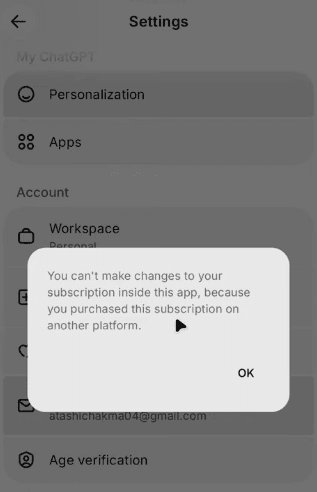
The problem is that the cancel button only exists in the system that's billing you.
Cancel location depends on where you bought it
ChatGPT can be paid for in a few different ways. And each path has its own "source of truth":
- If you subscribed on the web, your subscription is managed in your ChatGPT/OpenAI account settings.
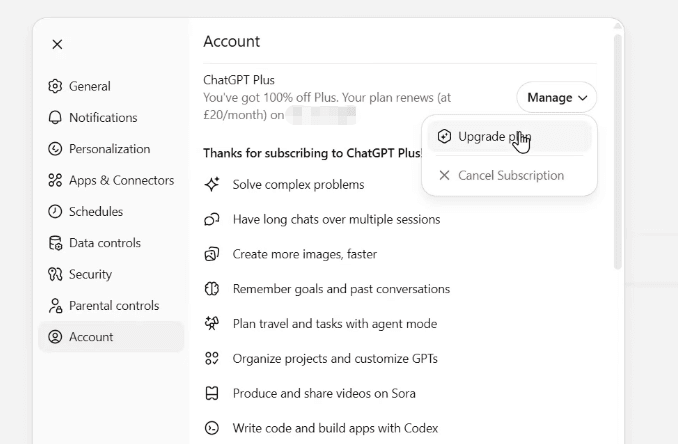
- If you subscribed on an iPhone/iPad, Apple controls the subscription management in the App Store.
- If you subscribed on Android, Google controls it in Google Play.
That's why people search things like find ChatGPT cancel button or complain that their ChatGPT subscription not canceling, they're hunting in the wrong place.
I've done the same thing with other tools: I'll try to end the plan from inside the product because that feels logical. But billing platforms don't care what feels logical.
Three possible billing sources
In practical terms, there are three billing sources you need to consider:
- OpenAI (web subscription), you paid with a card (or other payment method) on the ChatGPT website.
- Apple App Store, you paid through Apple, and it shows up on your Apple ID subscriptions.
- Google Play Store, you paid through Google, and it shows up in your Play subscriptions.
Once you know which of those three you're on, canceling your plan is straightforward. It's the "where am I billed?" part that wastes time, especially when you're doing this between meetings, with a project management board glaring at you like an unpaid invoice.
Find where you're billed (30 seconds)
When I'm trying to end my ChatGPT plan, I don't start by digging through settings. I start by finding the receipt. Receipts don't lie.
Check email for OpenAI, Apple, or Google receipt
Do this fast check (it's usually under a minute):
Open your email and search for one of these terms:
- "OpenAI"
- "ChatGPT"
- "receipt"
- "Apple" or "App Store"
- "Google Play"
Look for the most recent billing email and note who sent it.
What you'll typically see:
- OpenAI billing email (web): the receipt references OpenAI/ChatGPT and is not an Apple/Google store receipt.
- Apple receipt: it'll look like an Apple/App Store purchase confirmation.
- Google Play receipt: it'll reference Google Play and your subscription.
If your inbox is permanently in the triple digits (same), narrow it down by searching your email for "subscription" plus "ChatGPT," or filter by the last month.
And if you don't see anything? Two possibilities:
- You're looking in the wrong inbox (I've paid for things with a secondary email during travel and then forgotten I did that).
- The charge is coming through Apple/Google where the receipt email got filtered. In that case, jump straight to checking Subscriptions in iOS or Google Play in the next section.
This is the bit most people miss: the billing source determines the cancel path. Once you've found the source, you can stop clicking around aimlessly and just do the right cancellation flow.
Cancel by billing source
Pick the path below that matches what you found in the receipt step. Don't mix them. If you try to cancel in the wrong place, it'll feel like the subscription is "stuck," when really you're just not talking to the billing system that's in charge.
OpenAI web path
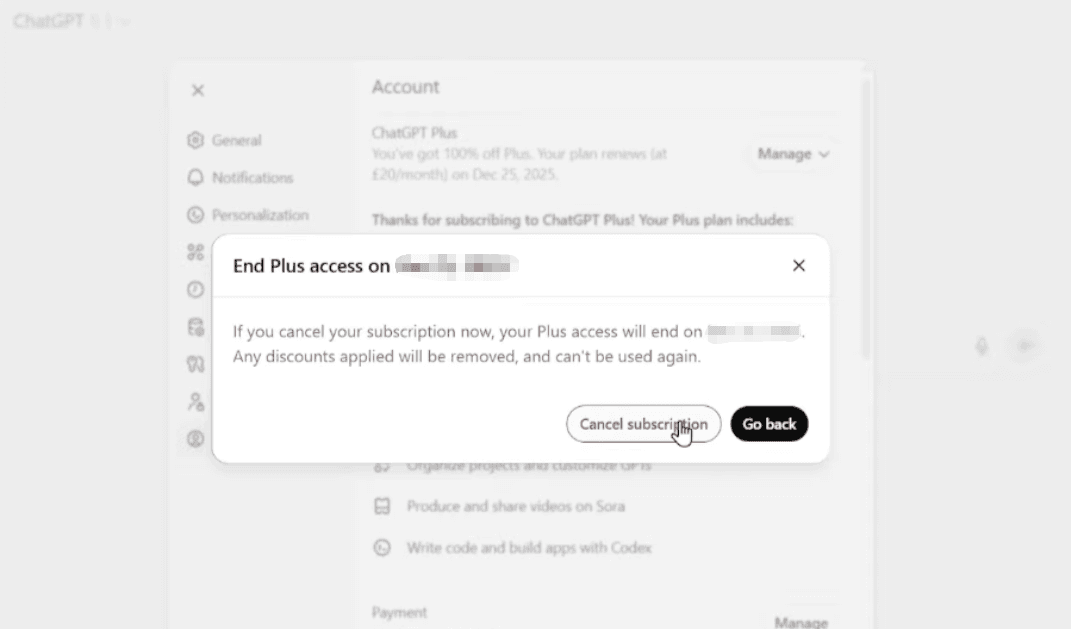
Use this if your receipt came from OpenAI (not Apple, not Google).
- Log in to ChatGPT on the web.
- Go to Settings (usually accessible from your profile/menu).
- Find the plan/subscription area (often labeled Plan, Subscription, or Manage plan).
- Choose Cancel and follow the prompts.
Notes from real life (a.k.a. why people think their ChatGPT subscription not canceling):
- If you subscribed on the web, canceling through the iPhone/Android subscription screens won't do anything, because Apple/Google aren't billing you.
- Take 10 seconds to screenshot the cancellation confirmation screen if you're the "I don't trust anything until I've documented it" type. I don't guess. I verify.
Also: canceling usually means the plan stays active until the end of the current billing period. So you may still have access for a while, that's normal, not a failure.
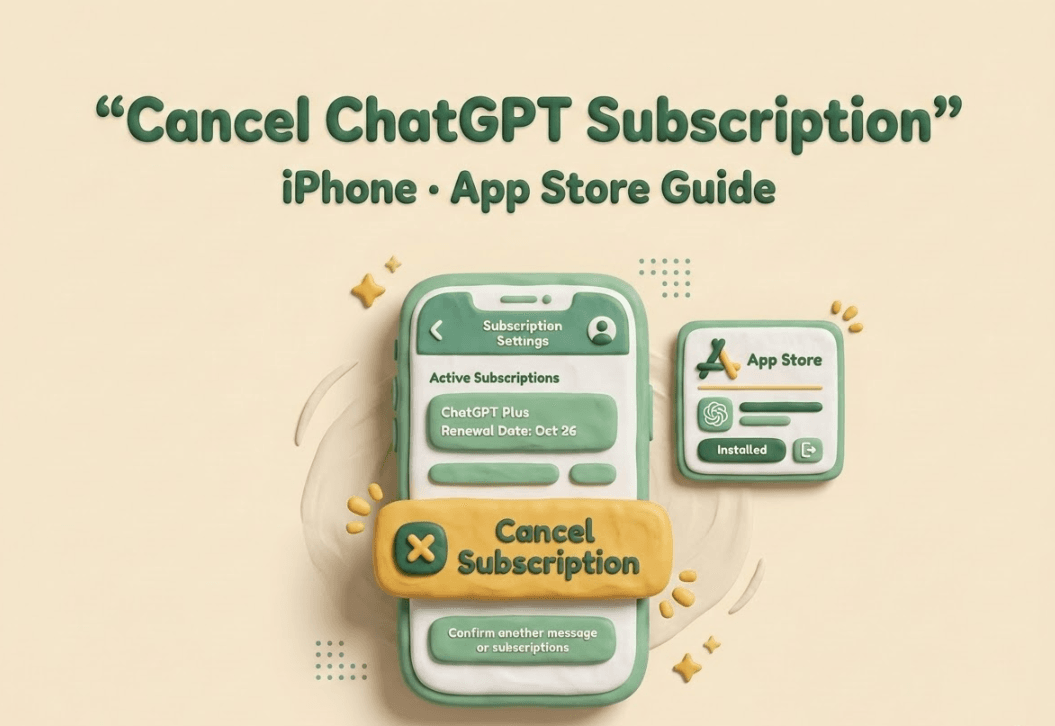
iPhone: App Store path
Use this if your receipt is from Apple or you see the subscription under your Apple ID.
- Open Settings on your iPhone.
- Tap your Apple ID name at the top.
- Tap Subscriptions.
- Find ChatGPT.
- Tap Cancel Subscription (or follow the flow to end it).
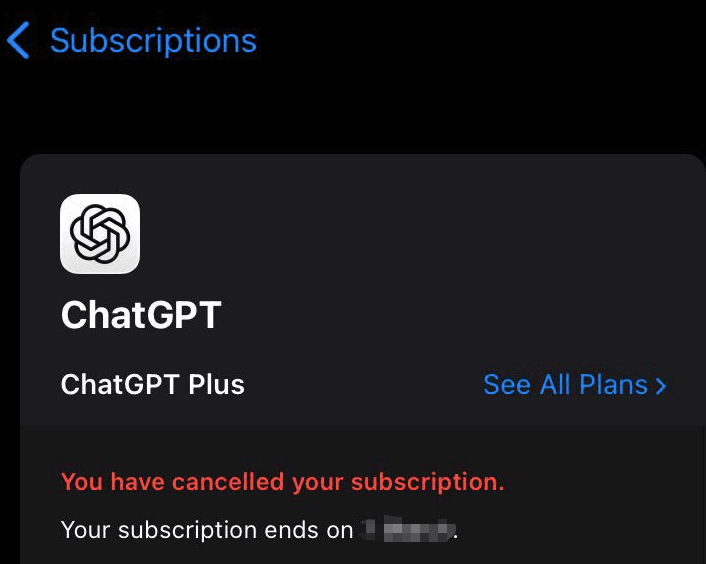
A couple things that trip people up:
- If you don't see ChatGPT in Subscriptions, you might be signed into a different Apple ID than the one that paid. (This happens more than anyone likes to admit.)
- Some subscriptions show an "expires" date after you cancel. That's the end of your billing cycle.
If your goal is to remove ChatGPT billing as quickly as possible, Apple's subscription screen is your "single source of truth" here. Don't waste time hunting inside the ChatGPT app for a cancel link that may not exist for App Store purchases.
Android: Google Play path
Use this if your receipt is from Google Play or you subscribed via Android.
- Open the Google Play Store.
- Tap your profile icon.
- Tap Payments & subscriptions.
- Tap Subscriptions.
- Find ChatGPT.
- Tap Cancel subscription and complete the steps.
Two quick sanity checks:
- Make sure you're in the correct Google account (especially if you have a "work" and "personal" split).
- If you're canceling because you're not using it, do it right after a meeting while you still remember, otherwise it becomes one of those to-dos that sits in your project management tool forever.
Done right, this is how you cancel ChatGPT membership without needing to contact support or spend your lunch break proving you're the account owner.
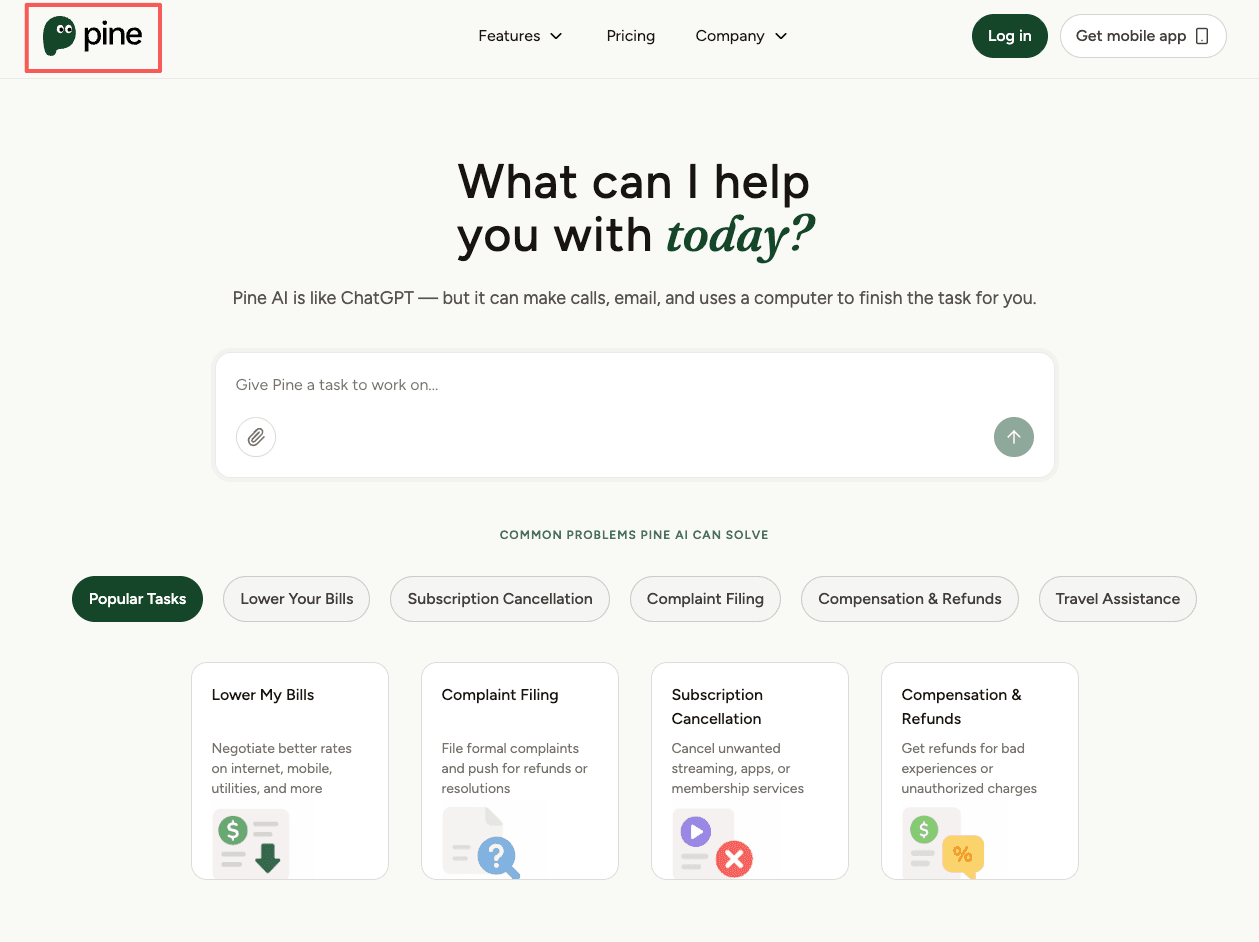
We’ve shown you the manual path, but Pine offers a "one-and-done" alternative that handles the emails and web actions on your behalf. Beyond just ChatGPT, we can negotiate your bills and manage your subscriptions autonomously. See Pine in action and stop chasing support tickets.
Verify it worked
Canceling is only half the job. The other half is making sure you won't see a surprise renewal when you're already juggling deadlines.
Confirmation email + Free plan showing
Here's what I look for to confirm the cancellation actually went through:
Confirmation email
- Web (OpenAI): you should receive an email confirming the change/cancellation.
- Apple/Google: you'll typically get a store confirmation, and you can also see the status updated in Subscriptions.
Your plan status shows correctly
- When you check your account plan area, it should show either:
- a Free plan (if the paid access ends immediately), or
- your paid plan with an end/renewal date that indicates it will not renew.
No "active renewal" signal in the billing source
- Apple: Settings → Apple ID → Subscriptions should show it as canceled or set to expire.
- Google: Play Store → Payments & subscriptions → Subscriptions should show it as canceled or not renewing.
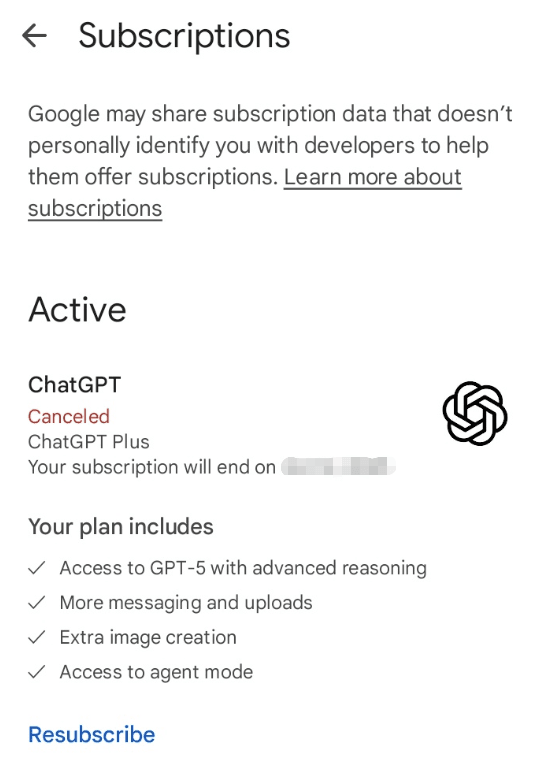
If you did all that and you're still seeing charges, or you're stuck in the loop of chatgpt subscription not canceling, the fastest next move is to re-check the billing source. Nine times out of ten, the cancellation was attempted in the wrong place (web vs. Apple vs. Google).
My colleague-level verdict: if you're canceling to save money or mental bandwidth, don't stop at the "Cancel" click. Get the confirmation, verify the plan status, and move on with your day. I've laid out everything you need. The rest is up to you.