


ChatGPT
Cancel subscription
How to Cancel ChatGPT: Web, iPhone, Android & Business
Cancel ChatGPT through the billing channel that charged you. Follow current steps for chatgpt.com, Apple, Google Play, or Business and verify the end date.
- Start with the receipt: a ChatGPT subscription must be canceled through the billing owner that charged it—OpenAI on chatgpt.com, Apple, Google Play, or the ChatGPT Business workspace.
- OpenAI’s current personal-web path is Profile icon → Settings → Billing → Cancel under Cancel plan. ChatGPT Business owners instead use Workspace settings → Billing → Manage plan → Cancel subscription.
- Cancel at least 24 hours before the next billing date. Cancellation stops renewal, while paid access normally continues through the current period; a refund is a separate request controlled by the billing owner.
Choose the path shown on your ChatGPT receipt
Billed by OpenAI on chatgpt.com
Cancel a personal ChatGPT subscription on the web
 1
1Log in to the charged ChatGPT account
Open chatgpt.com and log in with the account tied to the OpenAI receipt. If Billing is missing later, compare the receipt email before trying another channel.
 2
2Open the profile menu
Select the profile icon in ChatGPT. The menu should expose Settings without requiring any account or payment details in this step.
- Let Pine handle it
Pine can help
Too many steps?
Pine can find the right Web path and handle the cancellation for you.
 3
3Select Settings
Select Settings from the profile menu to open the account settings surface.
 4
4Open Billing
Select Billing. If this OpenAI-billed control is absent, recheck the charged account and billing owner instead of assuming the subscription is canceled.
 5
5Select Cancel under Cancel plan
Under Cancel plan, select Cancel and follow the current on-screen prompts. Preserve the resulting status or end date and finish at least 24 hours before the next billing date.

Billed by Apple
Cancel ChatGPT through iPhone Settings
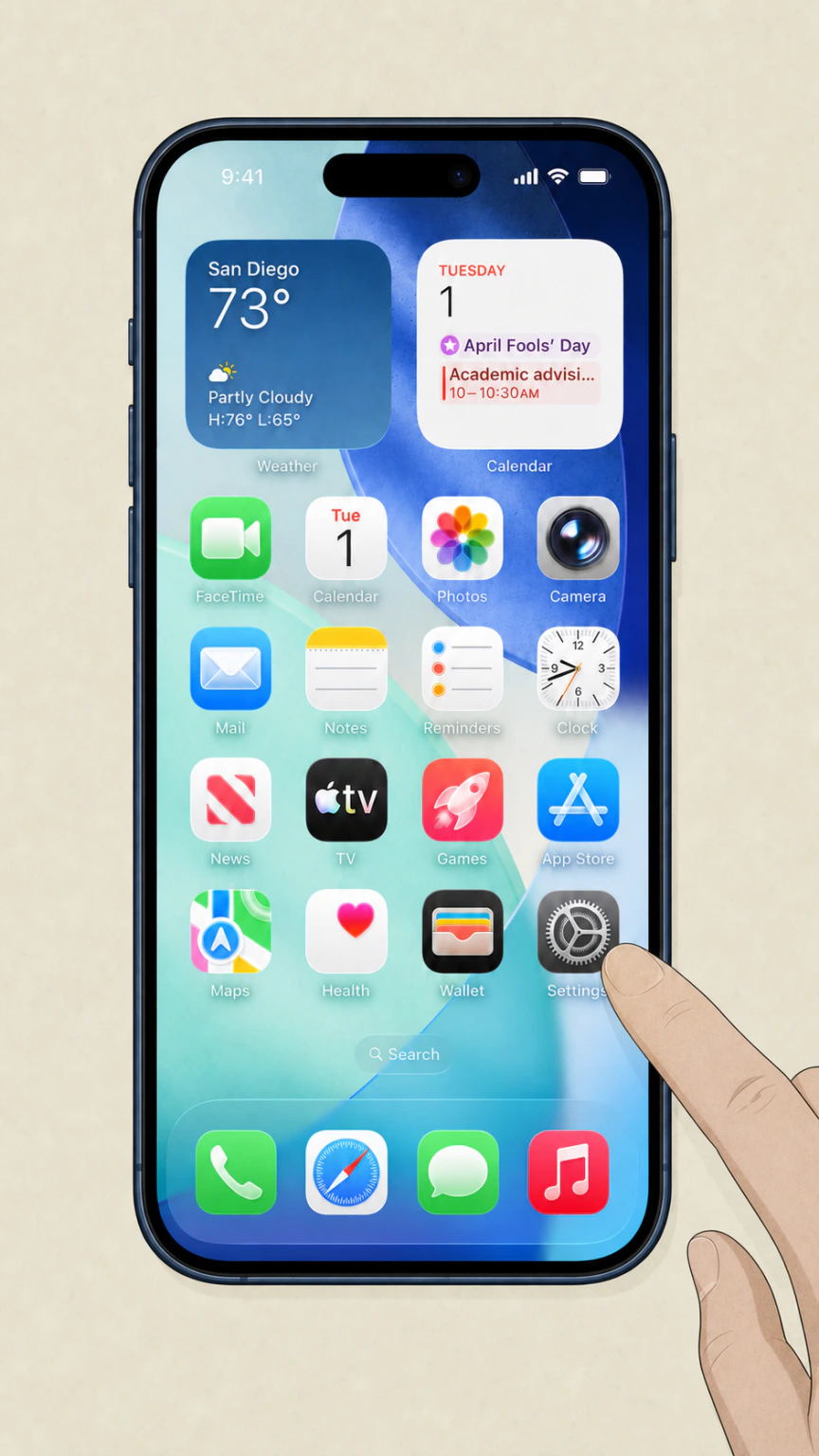 1
1Open Settings
Open Settings on the iPhone signed in to the Apple Account that bought ChatGPT. The shared image is reused because this opening navigation is provider-neutral and was reverified against Apple’s current flow.
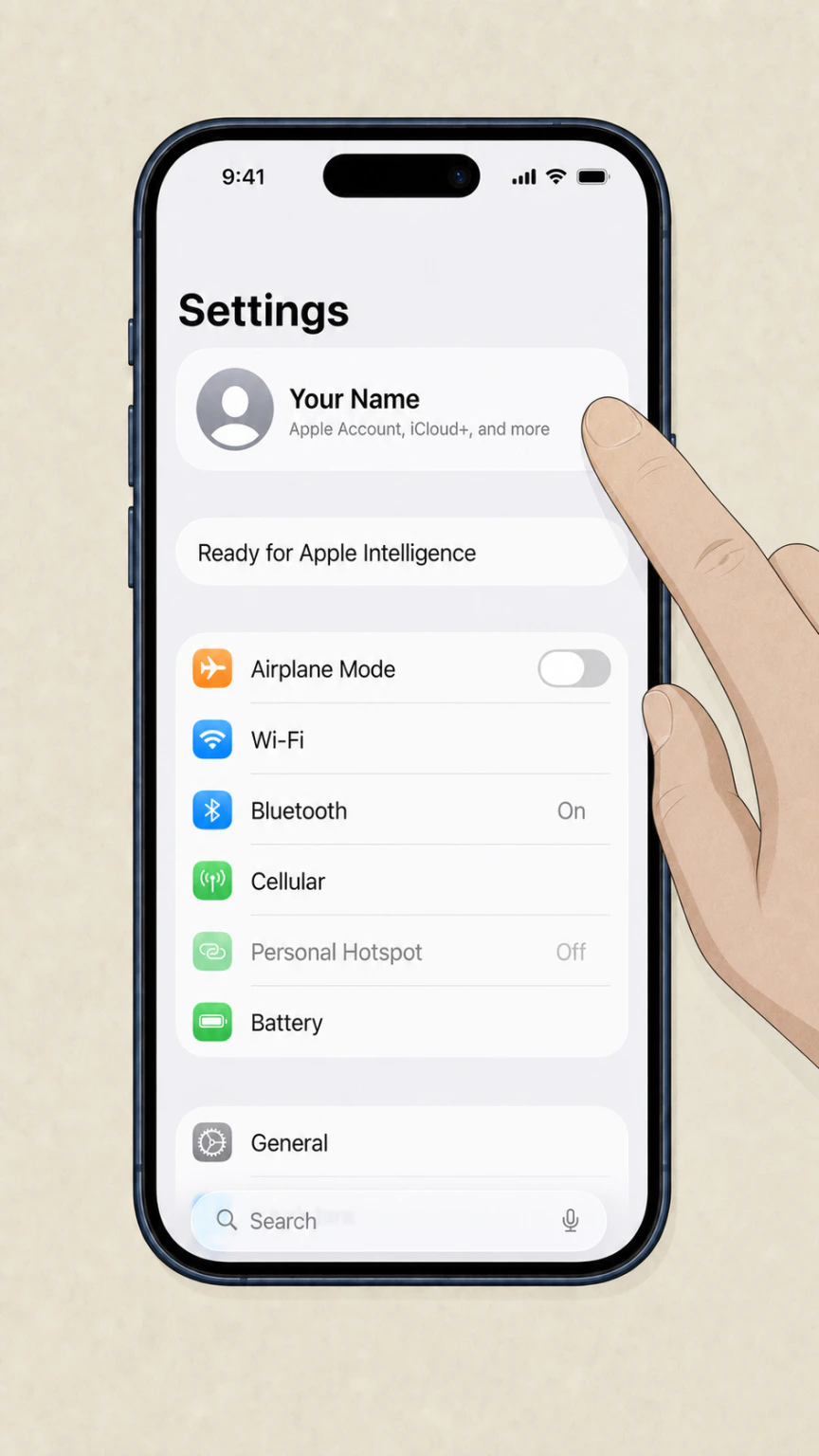 2
2Tap your name
Tap the Apple Account name at the top of Settings. If the subscription is not visible later, use the Apple Account shown on the purchase receipt.
- Let Pine handle it
Pine can help
Too many steps?
Pine can find the right iOS path and handle the cancellation for you.
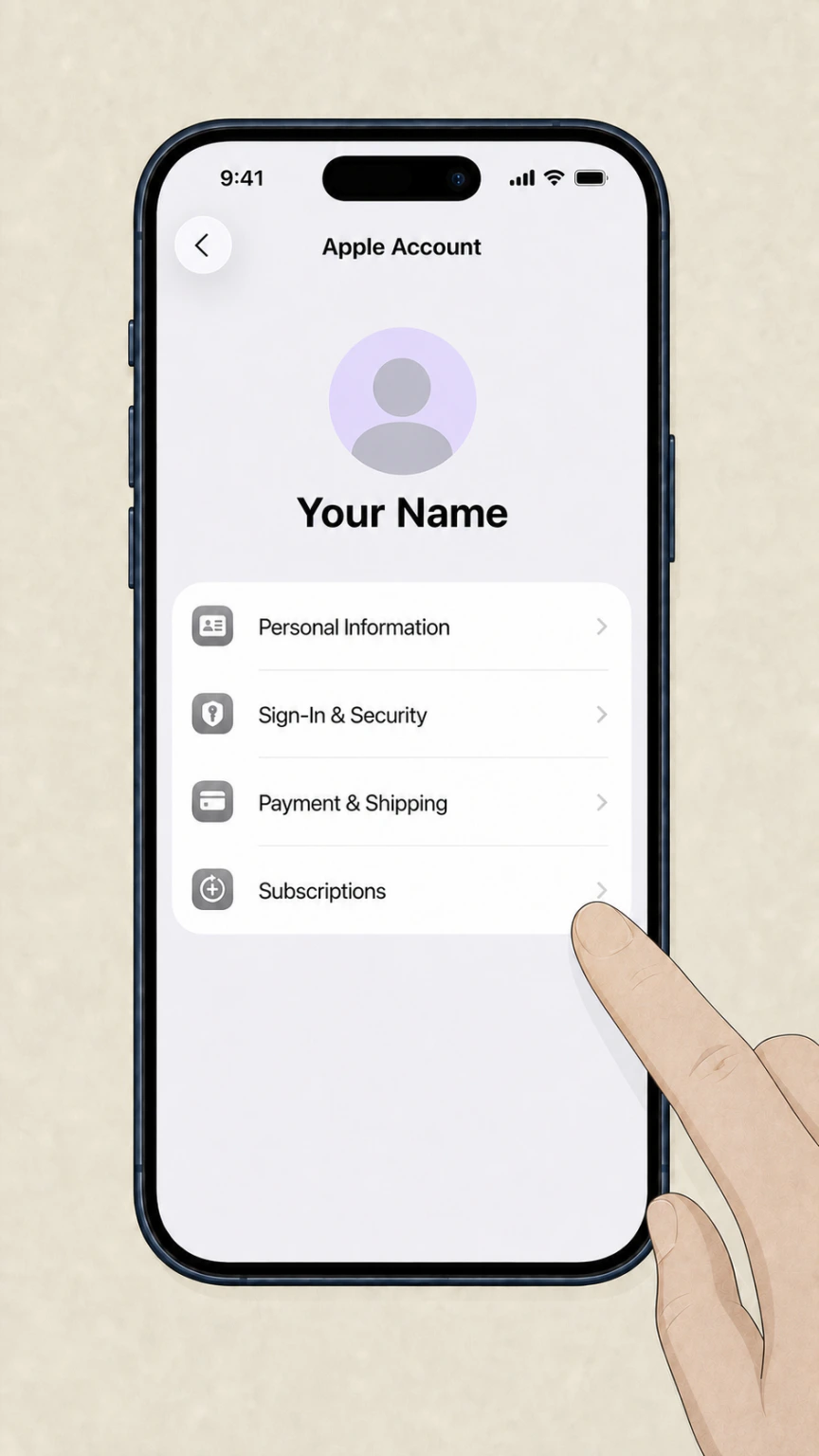 3
3Open Subscriptions
Tap Subscriptions to display the recurring purchases managed by this Apple Account.
 4
4Select ChatGPT
Tap ChatGPT in the active subscriptions list. If it is absent, check another Apple Account or verify whether OpenAI or Google Play billed the purchase.
 5
5Tap Cancel Subscription
Tap Cancel Subscription. Apple says a missing Cancel button or a red expiration message means the subscription is already canceled.
 6
6Confirm the Apple cancellation
Confirm in Apple’s pop-up and preserve the subscription status or expiration date. OpenAI says paid features remain through the current paid period.
Billed by Google Play
Cancel ChatGPT in Google Play
 1
1Open Google Play
Open Google Play on the Android device. Before continuing, make sure it uses the same Google account that purchased ChatGPT.
 2
2Open the account menu
Tap the Google Play account icon. If the purchasing account is not active, switch accounts before opening subscriptions.
- Let Pine handle it
Pine can help
Too many steps?
Pine can find the right Android path and handle the cancellation for you.
 3
3Open Subscriptions
Tap Subscriptions in Google Play to open the recurring purchases for the active Google account.
 4
4Select ChatGPT
Tap ChatGPT in the subscriptions list. If it is missing, check the receipt for another Google account or a chatgpt.com charge.
 5
5Tap Cancel subscription
Tap Cancel subscription and follow Google’s current on-screen instructions. Preserve the resulting status; do not treat uninstalling the app as confirmation.
ChatGPT Business workspace owner
Cancel a ChatGPT Business subscription
 1
1Log in as the workspace owner
Log in to ChatGPT with an account that owns the Business workspace. A member without billing permission cannot complete this flow.
 2
2Open the profile menu
Select the profile icon for the Business workspace you intend to cancel.
- Let Pine handle it
Pine can help
Too many steps?
Pine can find the right Business path and handle the cancellation for you.
 3
3Select Workspace settings
Select Workspace settings. If the option is missing, verify that the active account is a workspace owner.
 4
4Open Billing
Open the Billing tab for that workspace before making any plan change.
 5
5Open Manage plan
Open the Manage plan dropdown in Business Billing.
 6
6Select Cancel subscription
Select Cancel subscription and follow the current workspace prompts. Preserve the workspace billing status or confirmation for the correct workspace.
Refund policy
Canceling ChatGPT does not automatically issue a refund
Cancellation and refunds are separate. Route any refund request to the original billing owner and do not assume eligibility before that owner reviews the purchase and region.
Check my refund options- Web and Google Play purchases
- OpenAI’s current refund instructions route signed-in web and Google Play customers through the Help Center chat flow.
- Apple purchases
- OpenAI directs Apple-billed customers to Apple; Apple accepts requests through reportaproblem.apple.com and decides eligibility.
- Region and purchase facts matter
- Eligibility and timing can differ by region and transaction. Use the current official page instead of treating cancellation as a refund promise.
Review OpenAI’s current refund instructions for channel and regional details. OpenAI refund guidance
Before step one
Find who actually billed ChatGPT
The same ChatGPT login can be used on several devices, but the recurring charge stays with the channel where the subscription began.
OpenAI or chatgpt.com receipt
Use the personal web Billing path in the charged ChatGPT account.
Apple receipt
Use Apple Subscriptions with the purchasing Apple Account; Apple also handles the refund request.
Google Play receipt
Use Google Play with the purchasing Google account; deleting the Android app is not enough.
Business workspace invoice
A workspace owner uses Workspace settings and Business Billing, not the personal subscription path.
Prevent the next charge
Check the billing date and account before you cancel
OpenAI advises canceling at least 24 hours before the next billing date. Store purchases can also depend on the purchasing Apple or Google account.
Confirm the charged identity
Match the OpenAI account, Apple Account, Google account, or Business workspace to the latest receipt.
Record the next billing date
Use the date shown by the billing owner; do not infer it from the day you installed or last used ChatGPT.
Separate cancellation from refund
Cancellation controls future renewal. A refund requires a separate eligibility decision from OpenAI or Apple.
After the last visible step
Preserve proof that renewal will stop
Do not close the billing surface until you can identify the status or end date associated with the canceled subscription.
Keep the confirmation
Save the email or status supplied by OpenAI, Apple, Google Play, or the Business workspace.
Check the access end date
OpenAI says paid access normally continues through the current period; cancellation is not an immediate access cutoff.
Use Apple’s missing-button signal
Apple says no Cancel button or a red expiration message indicates the Apple subscription is already canceled.
If the screen looks different
Resolve account and UI variants without guessing
OpenAI’s dedicated cancellation page currently names Billing → Cancel, while another official subscription-management article mentions Account → Manage. Prefer the dedicated cancellation route, then use the current plan-management entry only if your signed-in UI differs.
Billing is missing on chatgpt.com
Verify the charged ChatGPT account and receipt; a store-billed subscription will not be controlled by OpenAI web Billing.
ChatGPT is missing from Apple or Google Play
Switch to the purchasing store account or check whether the charge came directly from OpenAI.
Workspace settings is missing
Confirm that you are a ChatGPT Business workspace owner rather than a member, and that Enterprise or Edu is not in scope.
ChatGPT cancellation questions
Current answers for missing controls, UI variants, app and account deletion, paid access, timing, Business permissions, and refunds.
Why can't I cancel my ChatGPT subscription?
How can I cancel my subscription on ChatGPT?
Does deleting the ChatGPT app cancel the subscription?
Does deleting my ChatGPT account cancel the subscription?
Can I keep using ChatGPT after canceling?
How early should I cancel ChatGPT?
Who can cancel ChatGPT Business?
Who handles a ChatGPT refund?
Untangle this ChatGPT issue.
Let Pine handle the provider follow-up and keep the confirmation in one place.
