


Microsoft 365
Cancel subscription
How to Cancel Microsoft 365 Subscription: Official Steps
Cancel Microsoft 365 through Microsoft, an app store, an employer, or a retailer, and review refunds, access dates, and OneDrive storage.
- Microsoft 365 and billing-owner guidance rechecked August 14, 2026
- 3 supported billing paths separated
- Cancellation, access, and refund outcomes kept distinct
- Confirmation evidence and common failure paths included
Choose who bills your Microsoft 365 subscription
Web · Verify this billing owner
Cancel on the provider website
 1
1Locate the purchasing account
Check Services & subscriptions and the order receipt for the exact Microsoft account.
 2
2Identify direct, store, or reseller billing
Apple and Google purchases must be managed by those stores; prepaid codes follow the retailer’s terms.
- Let Pine handle it
Pine can help
Too many steps?
Pine can find the right Web path and handle the cancellation for you.
 3
3Choose Manage and Cancel
Review the account-specific outcome before confirming, including access and refund information.
 4
4Protect files and sharing
Record the end date and review OneDrive storage and Family sharing before paid benefits expire.

App Store · Verify this billing owner
Cancel an App Store subscription
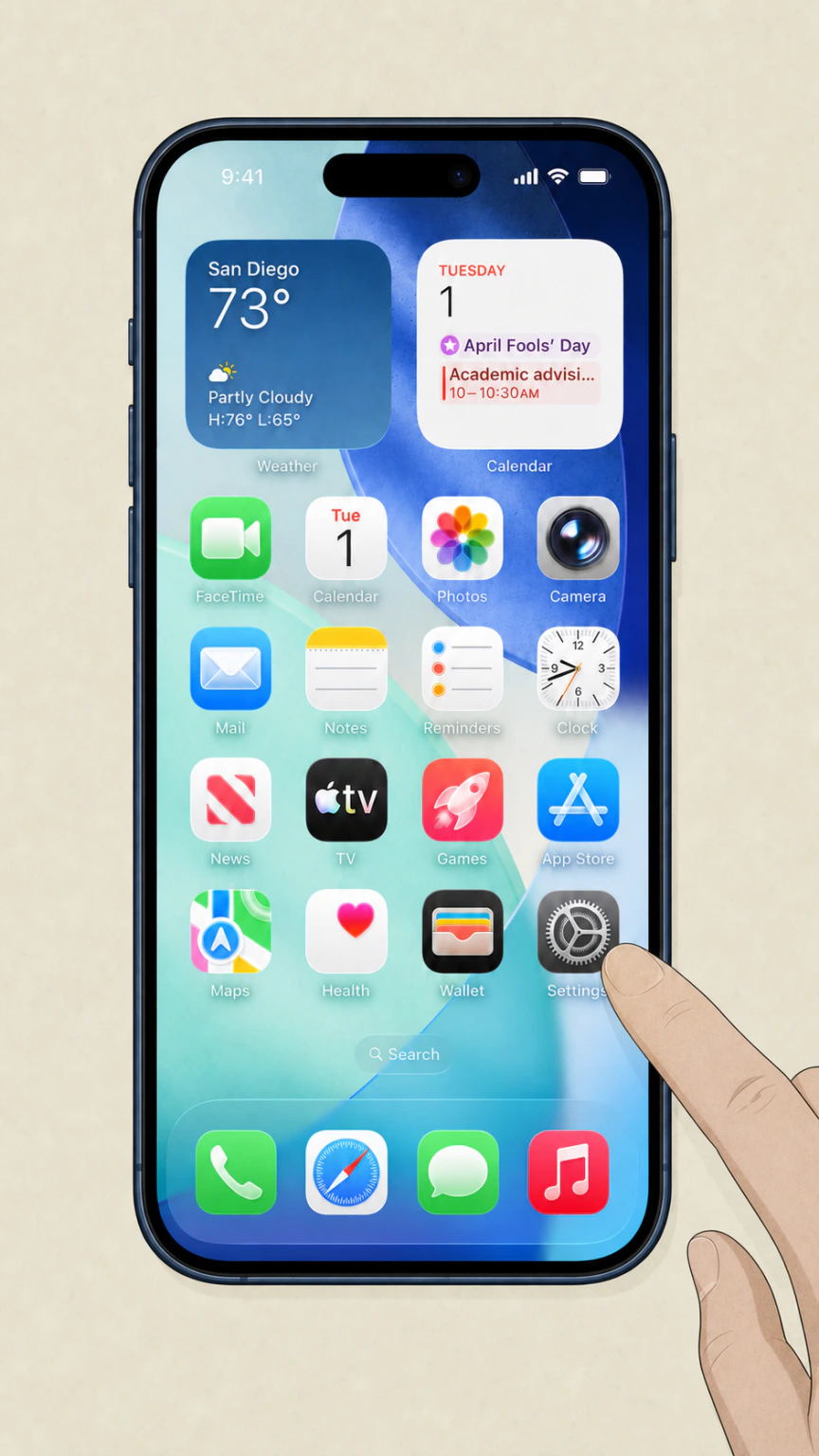 1
1Open Settings
On the iPhone, open Settings while signed in to the Apple Account used for purchase.
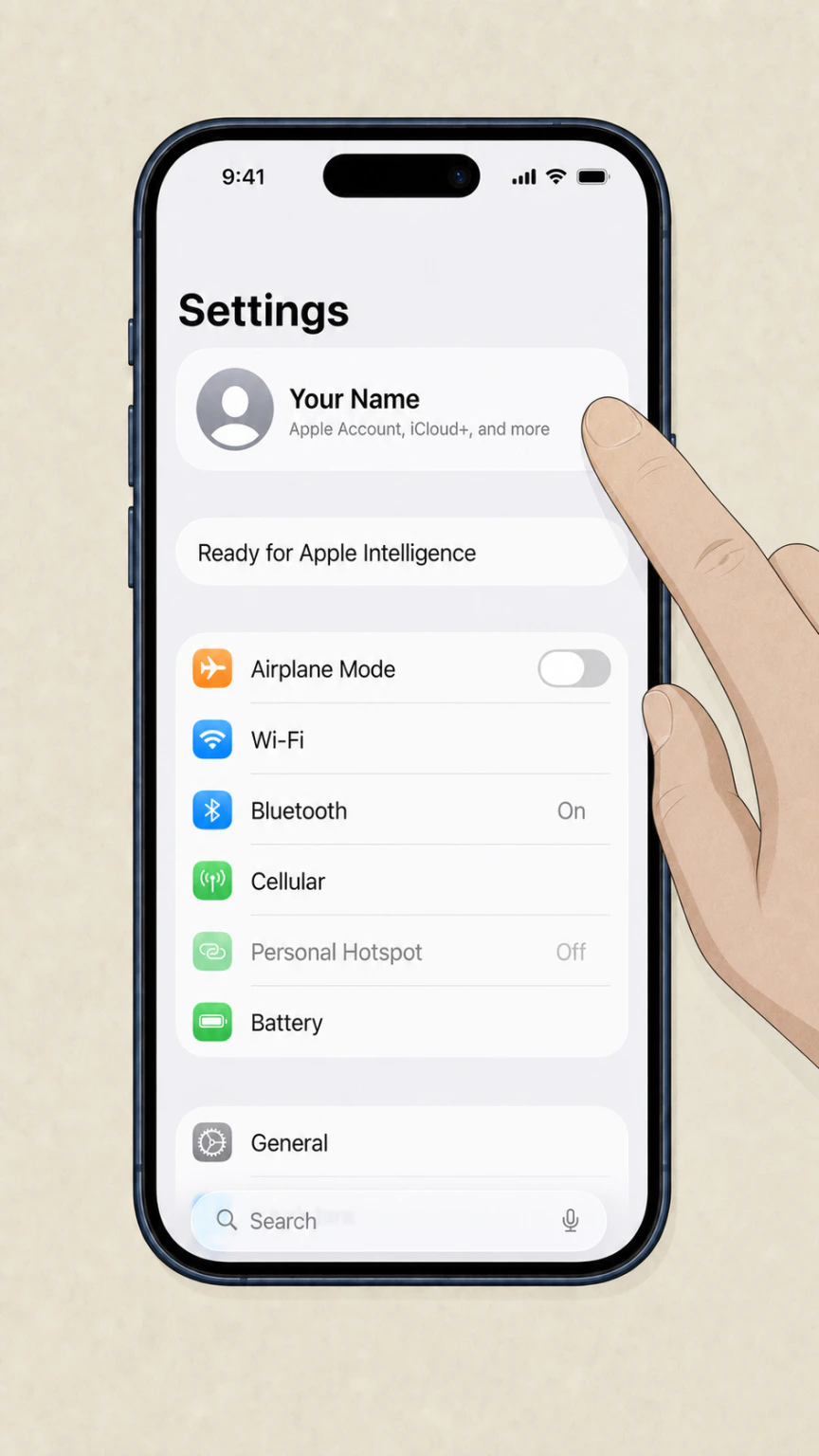 2
2Tap your name
Open the Apple Account card at the top of Settings.
- Let Pine handle it
Pine can help
Too many steps?
Pine can find the right App Store path and handle the cancellation for you.
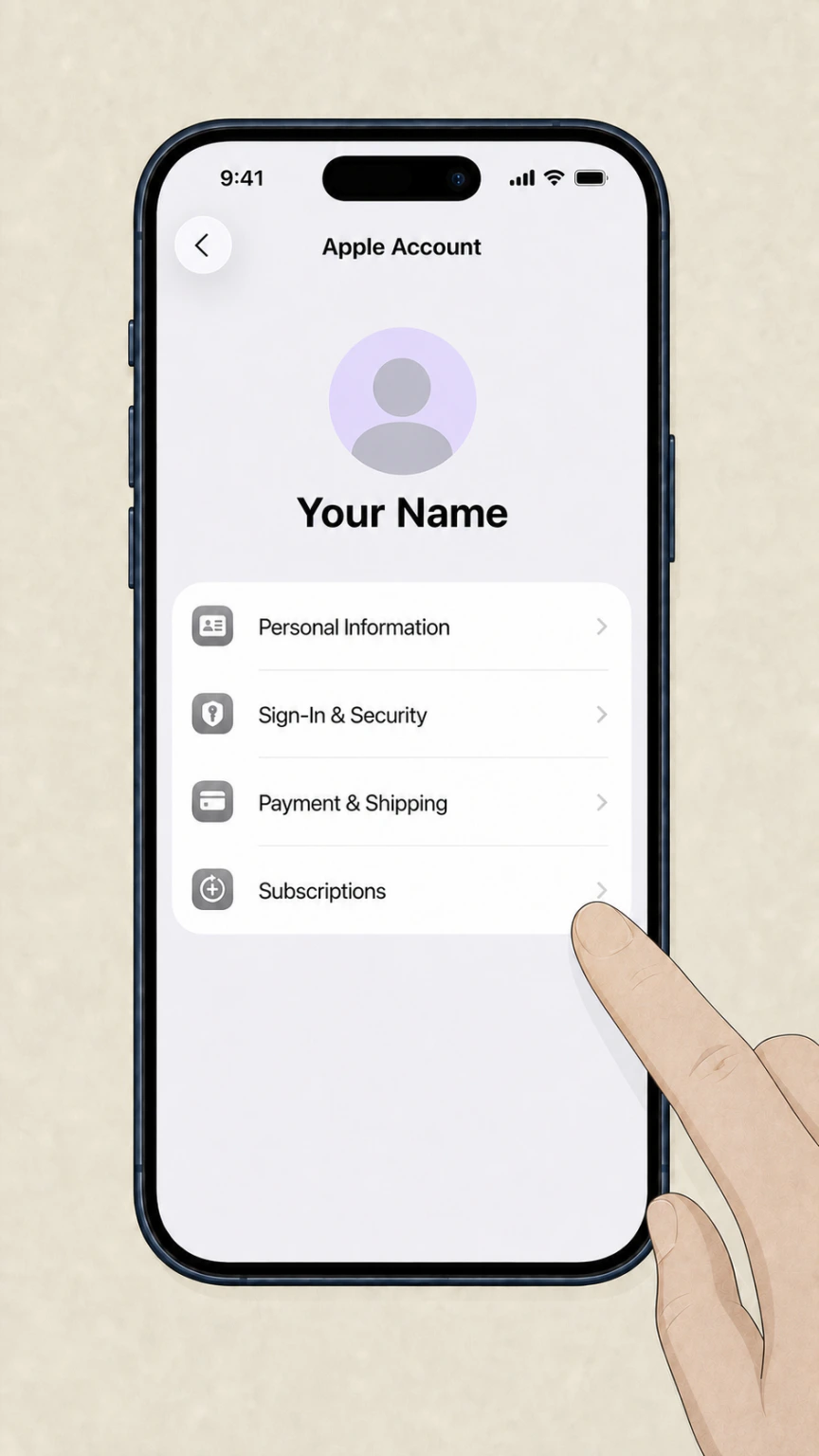 3
3Open Subscriptions
Tap Subscriptions and wait for the active subscription list.
 4
4Choose the provider
Open the provider subscription and verify the plan and renewal date.
 5
5Tap Cancel Subscription
Confirm cancellation and keep the expiration date shown by Apple.
Google Play · Verify this billing owner
Cancel a Google Play subscription
 1
1Open Google Play
Use the Google account that purchased the subscription.
 2
2Open Payments & subscriptions
Tap the profile picture, then Payments & subscriptions.
- Let Pine handle it
Pine can help
Too many steps?
Pine can find the right Google Play path and handle the cancellation for you.
 3
3Open Subscriptions
Find the provider in the active subscription list.
 4
4Choose Cancel subscription
Follow the reason and confirmation prompts without uninstalling the app.
 5
5Save the expiration date
Verify Google Play shows renewal off and keep the confirmation.
Refund policy
Canceling Microsoft 365 does not automatically create a refund
The Microsoft or store account should show recurring billing off, the access end date, and any refund eligibility displayed during cancellation.
Check my refund options- Renewal
- The Microsoft or store account should show recurring billing off, the access end date, and any refund eligibility displayed during cancellation.
- Billing owner
- The company shown on the receipt or account controls refund handling.
- Evidence
- Keep the receipt, cancellation status, effective date, and response from the seller.
Review the official refund or subscription terms for the company that posted the charge before requesting a reversal. Microsoft — cancel a subscription
Choose the right path
Billing owner and plan consequences
Microsoft 365 uses different cancellation rules for microsoft direct, apple or google play, employer or organization plan, and prepaid retail code. Identify the billed product and owner before following a path.
Microsoft direct
Cancel from Services & subscriptions in the purchasing account.
Apple or Google Play
Use the original app store for cancellation.
Employer or organization plan
The organization administrator controls the license.
Prepaid retail code
The retailer’s return terms apply rather than Microsoft’s subscription refund window.
Keep proof
What to record before and after cancellation
For Microsoft 365, keep microsoft account and order, subscription screen, store or reseller receipt, and cancellation result. These records establish the effective date and help resolve another charge.
Microsoft account and order
Identify the owner, product, and purchase date.
Subscription screen
Shows renewal, plan type, and cancellation options.
Store or reseller receipt
Proves when Microsoft is not the billing owner.
Cancellation result
Records the access end date and any refund offer.
Troubleshooting
Why a cancellation can appear to fail
If Microsoft 365 still appears active or keeps billing, check wrong microsoft account, recurring billing only turned off, store purchase sent to microsoft, and onedrive impact ignored before treating the subscription as canceled.
Wrong Microsoft account
The subscription may not appear under a work, school, or alternate personal login.
Recurring billing only turned off
An expired or prepaid plan may not show the same cancellation controls.
Store purchase sent to Microsoft
Apple and Google control their own subscription transactions.
OneDrive impact ignored
Review storage and shared benefits before the paid plan ends.
Microsoft 365 cancellation questions
Answers reflect the current provider and billing-owner sources listed on this page.
How do I cancel my Microsoft 365 subscription?
What happens after I cancel Microsoft 365?
Who controls a Microsoft 365 plan provided by an employer or school?
Can I cancel a Microsoft 365 subscription activated with a prepaid code?
Untangle this Microsoft 365 issue.
Let Pine handle the provider follow-up and keep the confirmation in one place.
