


DAZN
Cancel subscription
How to Cancel DAZN Subscription
Cancel DAZN through the company that bills the subscription. DAZN directs direct customers to My Account and third-party customers back to Apple, Google, Amazon, Roku, or the named provider. DAZN displays the cancellation effect for the account; installment or minimum-term obligations can differ from a flexible monthly plan. Compare every supported billing route, cancellation effect, refund boundary, and proof to keep.
- 2 official sources checked
- 5 billing routes separated
- Cancellation and refund outcomes kept distinct
Cancel DAZN through the company that bills you
Web · Verify this billing owner
Cancel DAZN on the web
 1
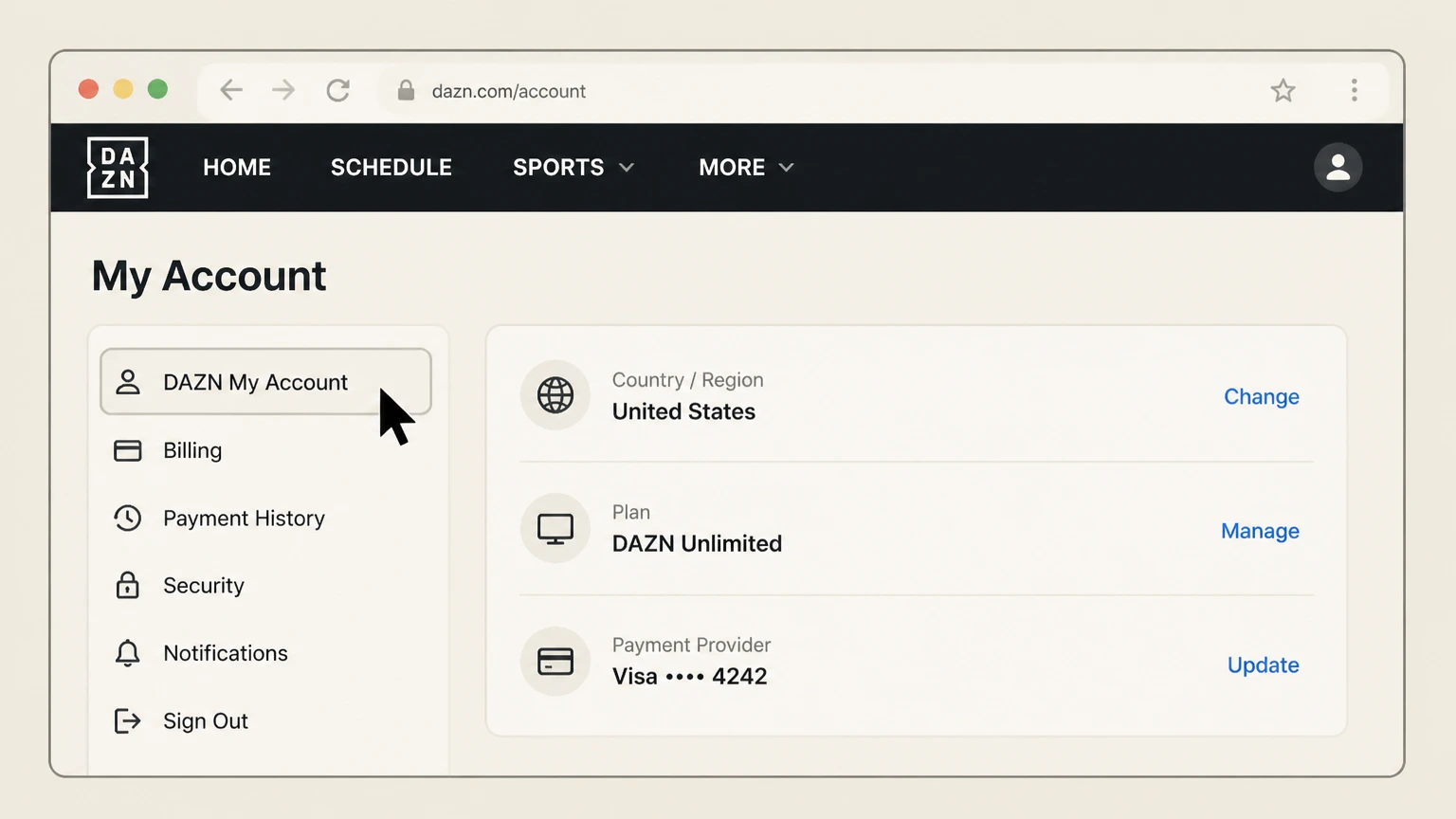
1Open DAZN My Account
Sign in in a browser and verify the country, plan, and payment provider.
 2
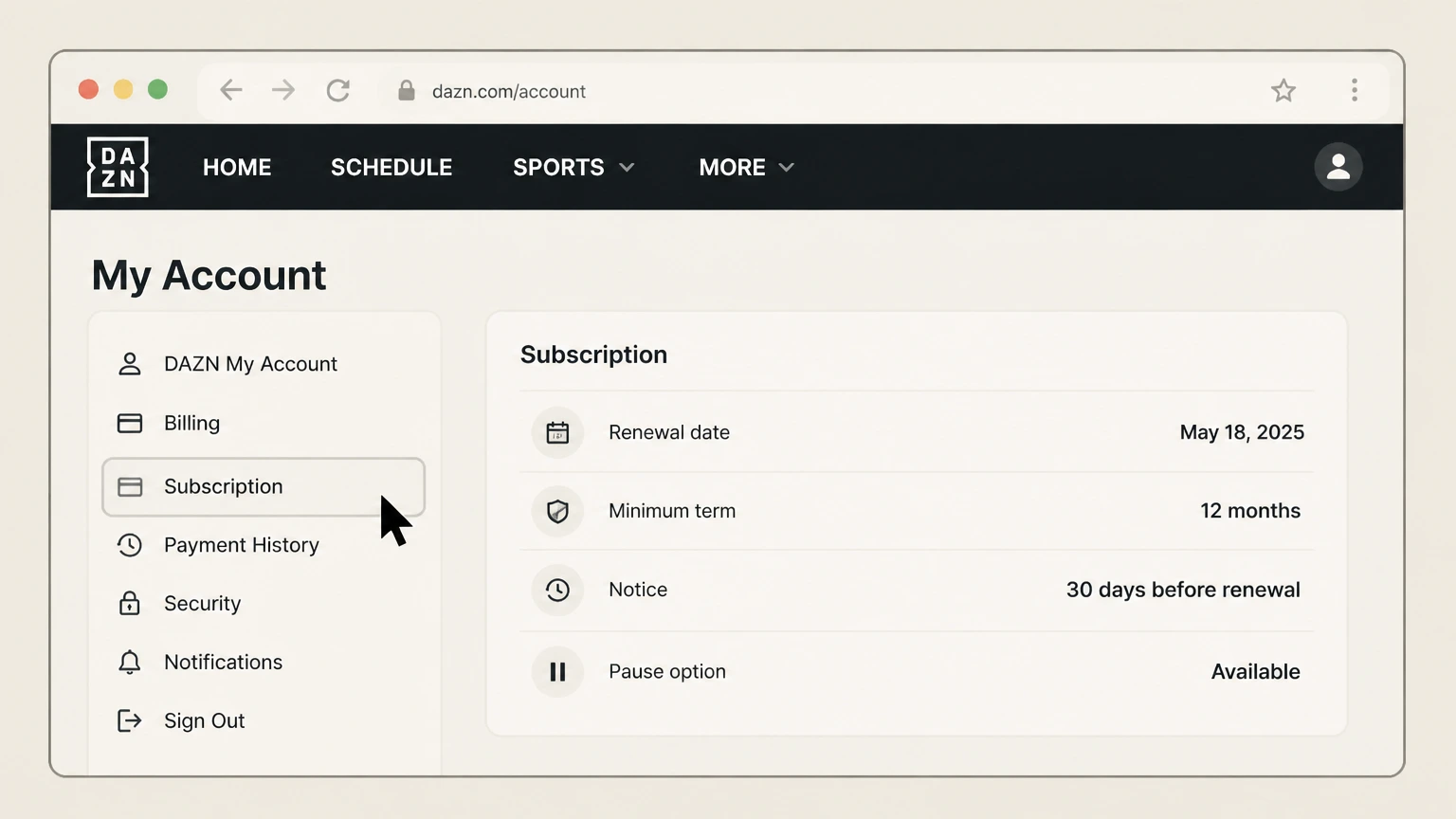
2Open Subscription
Review the renewal date, minimum term, notice, and any pause option.
- Let Pine handle it
Pine can help
Too many steps?
Pine can find the right Web path and handle the cancellation for you.
 3
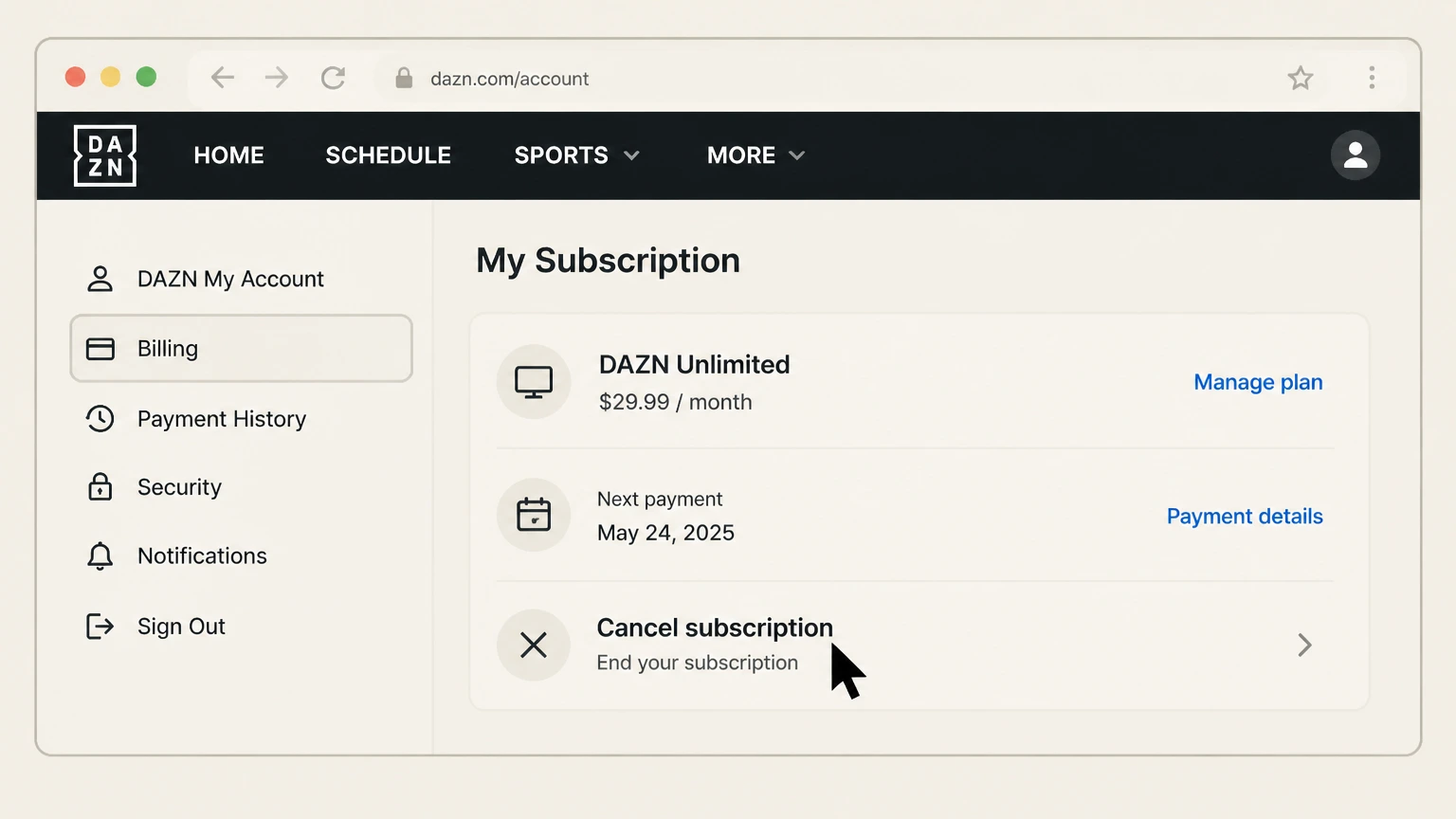
3Choose Cancel subscription
Follow every prompt and distinguish cancellation from pausing.
 4
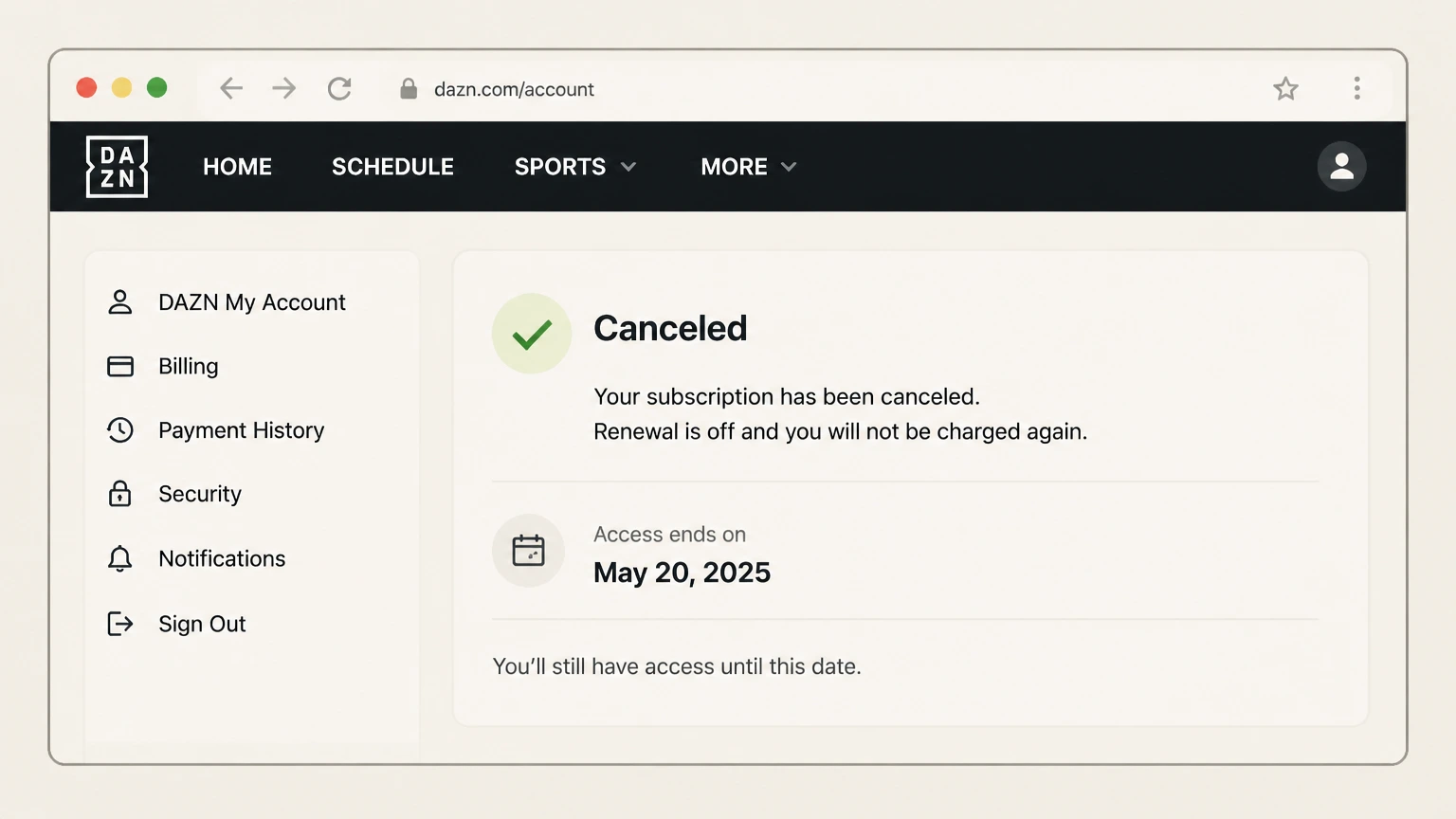
4Verify the effective date
Save the confirmation and the date access or billing ends.

iOS · Verify this billing owner
Cancel DAZN through iOS
 1
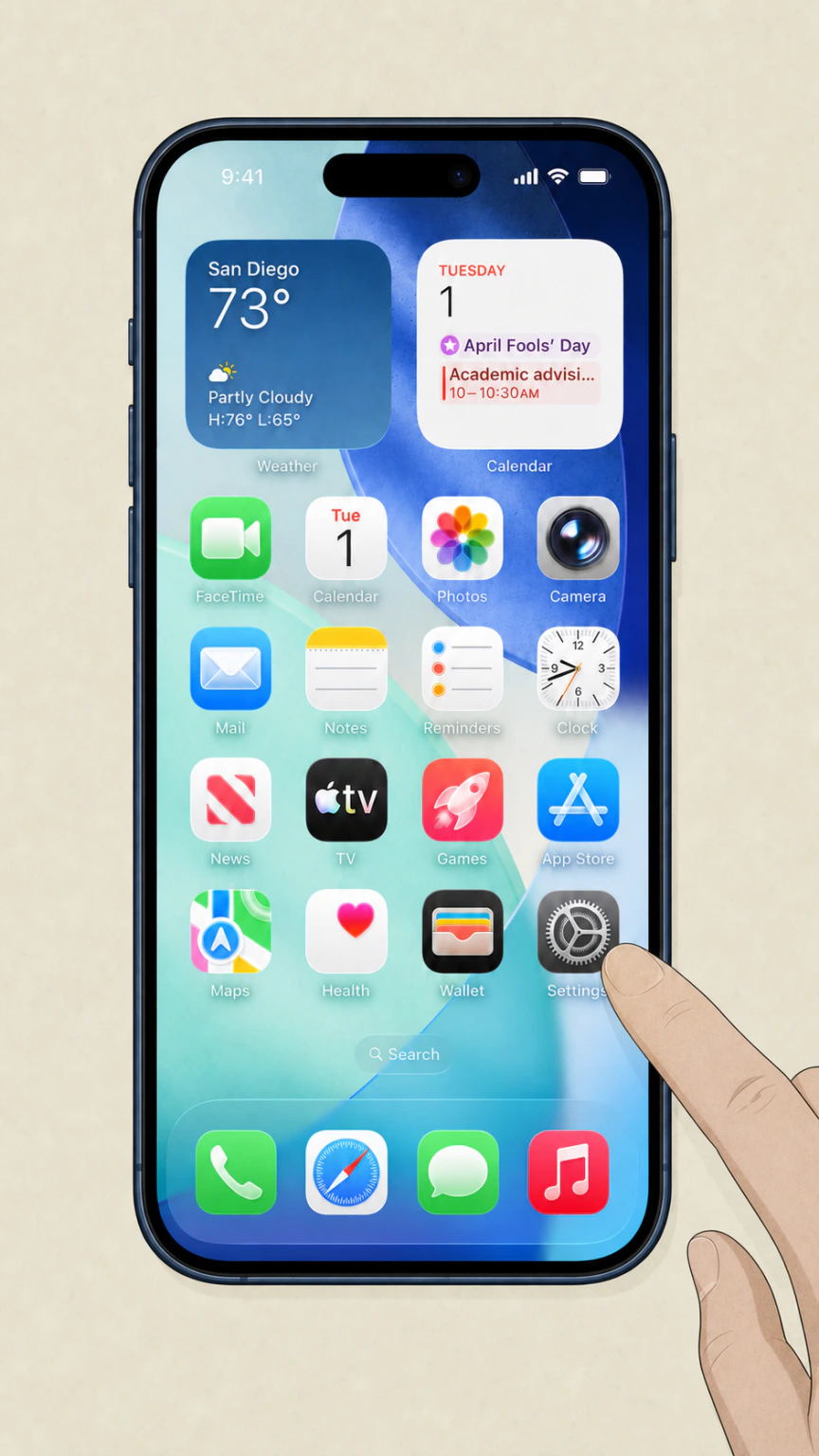
1Open Settings
On an iPhone, open Settings while signed in to the Apple Account used for the purchase.
 2
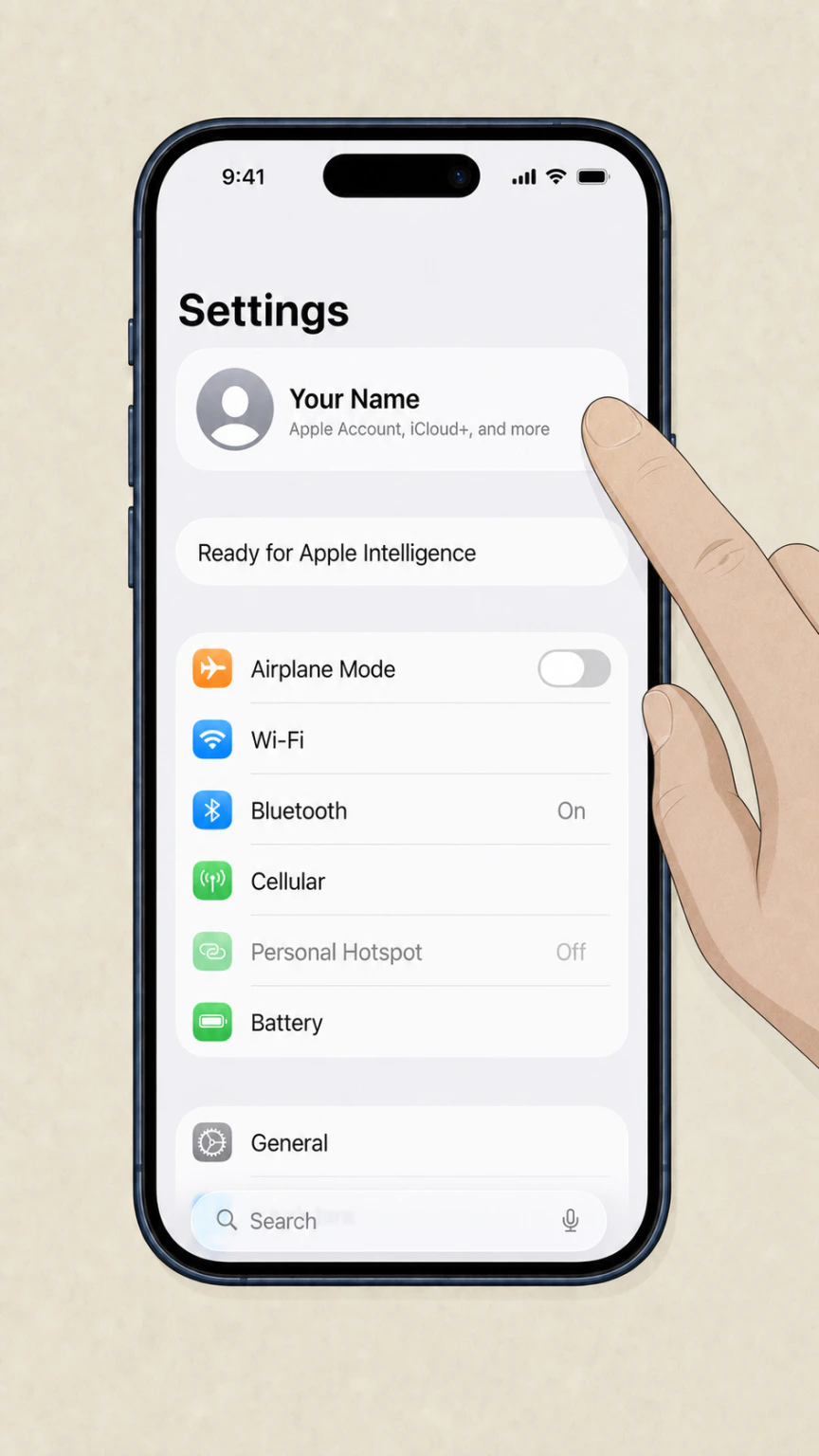
2Tap your name
Open the Apple Account card at the top of Settings.
- Let Pine handle it
Pine can help
Too many steps?
Pine can find the right iOS path and handle the cancellation for you.
 3
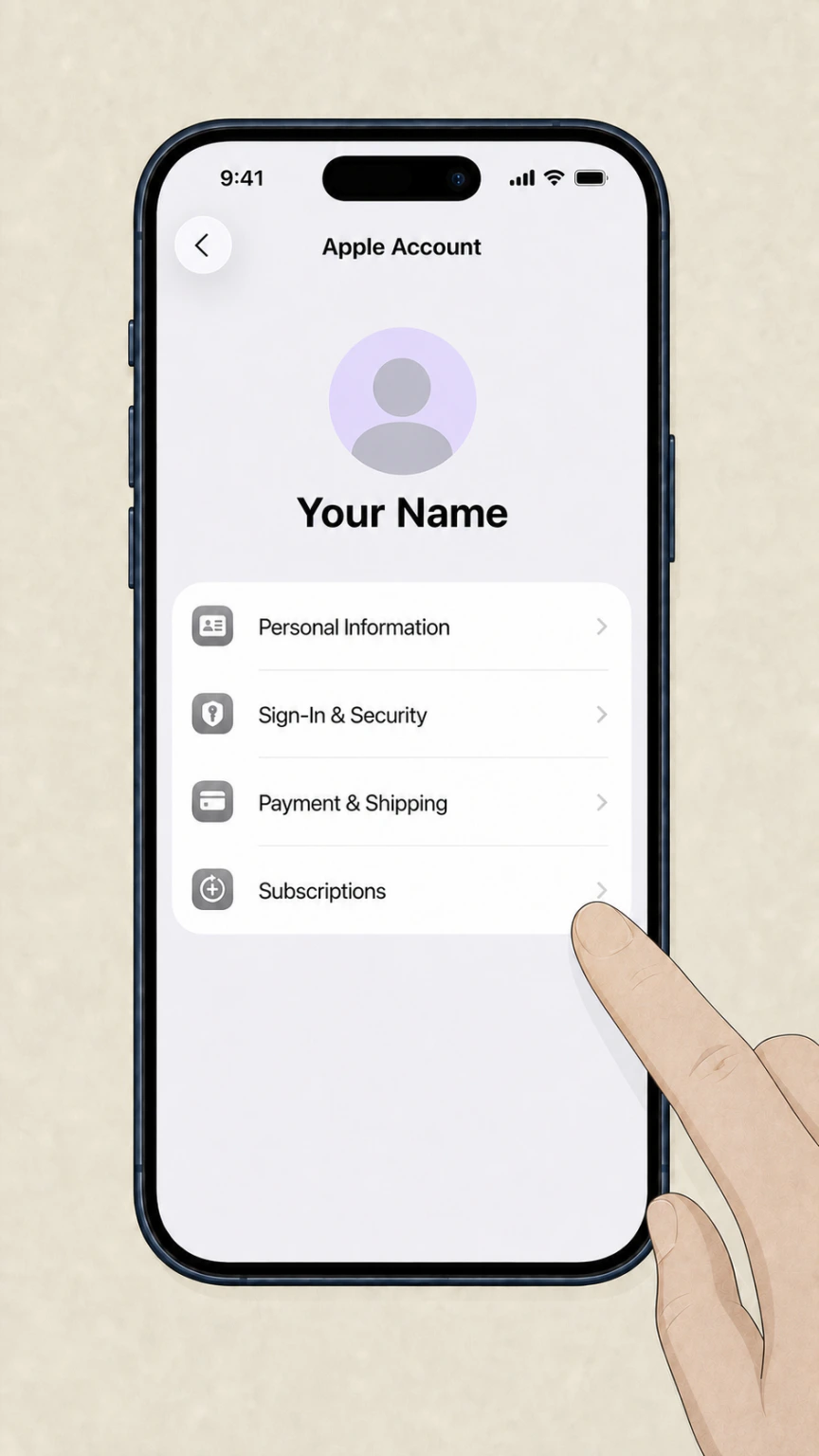
3Open Subscriptions
Tap Subscriptions and wait for the active subscription list.
 4
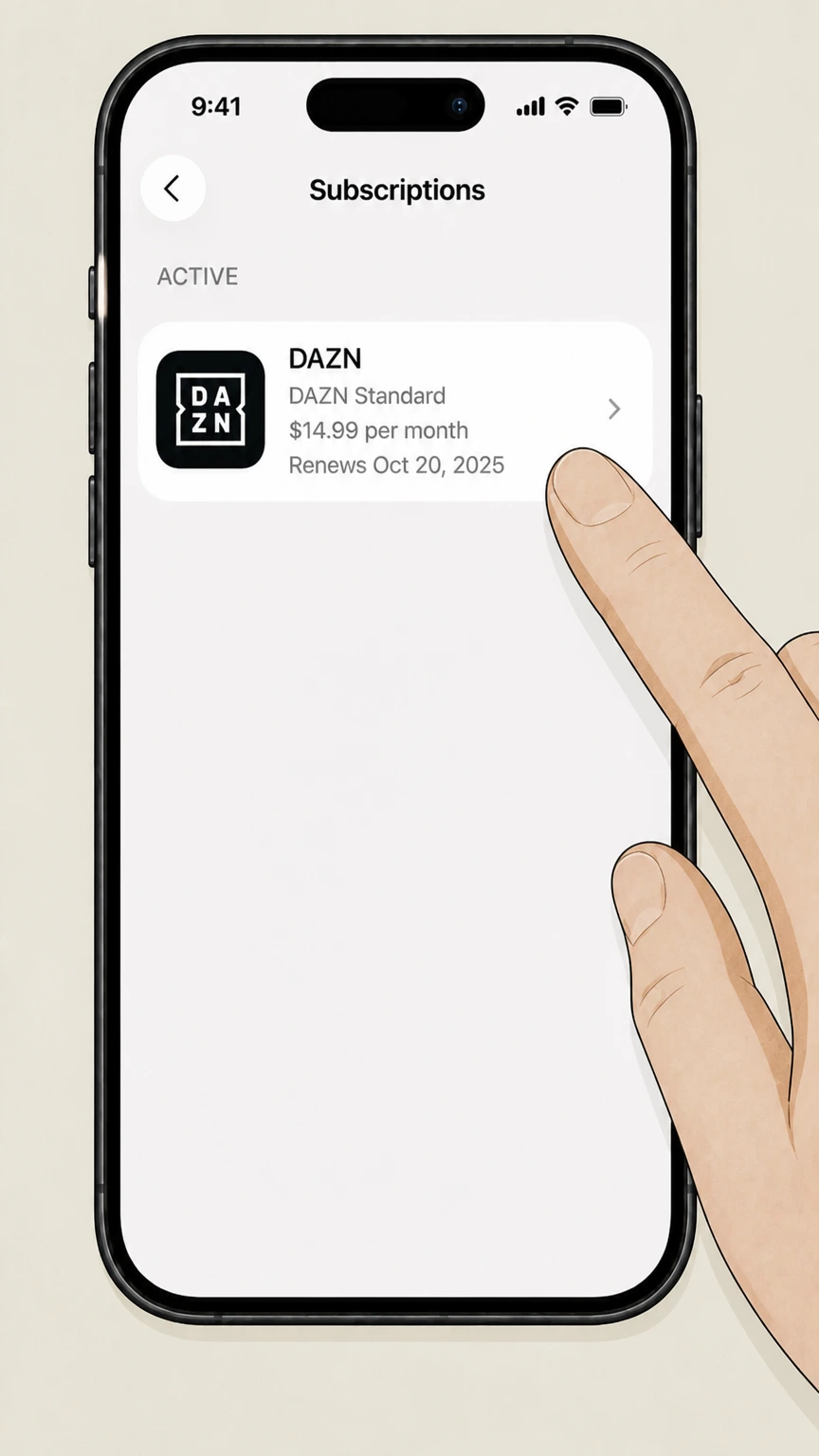
4Choose DAZN
Open the DAZN subscription and verify the plan and renewal date.
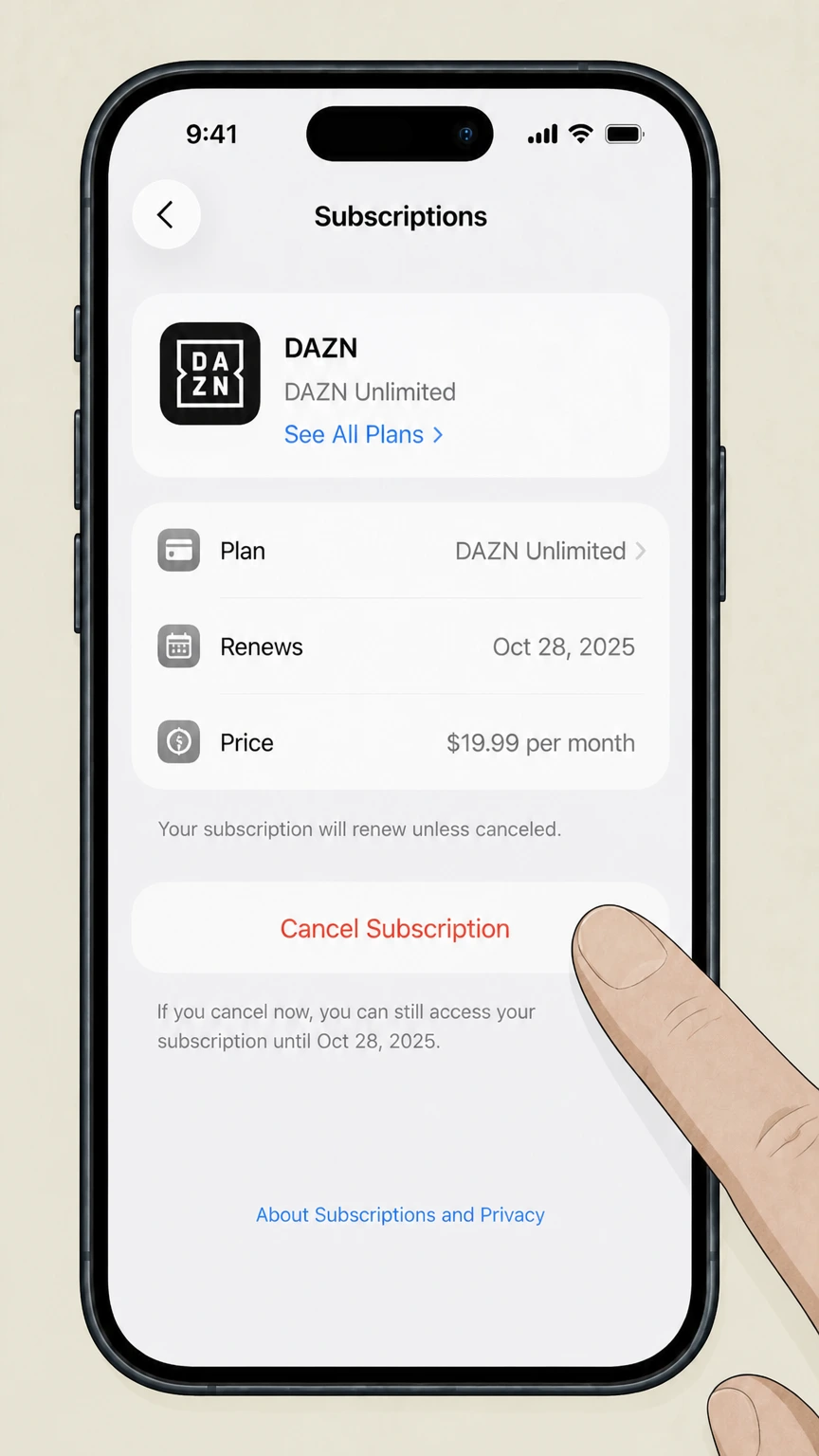 5
5Tap Cancel Subscription
Confirm the change and keep the expiration date shown by Apple.
Google Play · Verify this billing owner
Cancel DAZN through Google Play
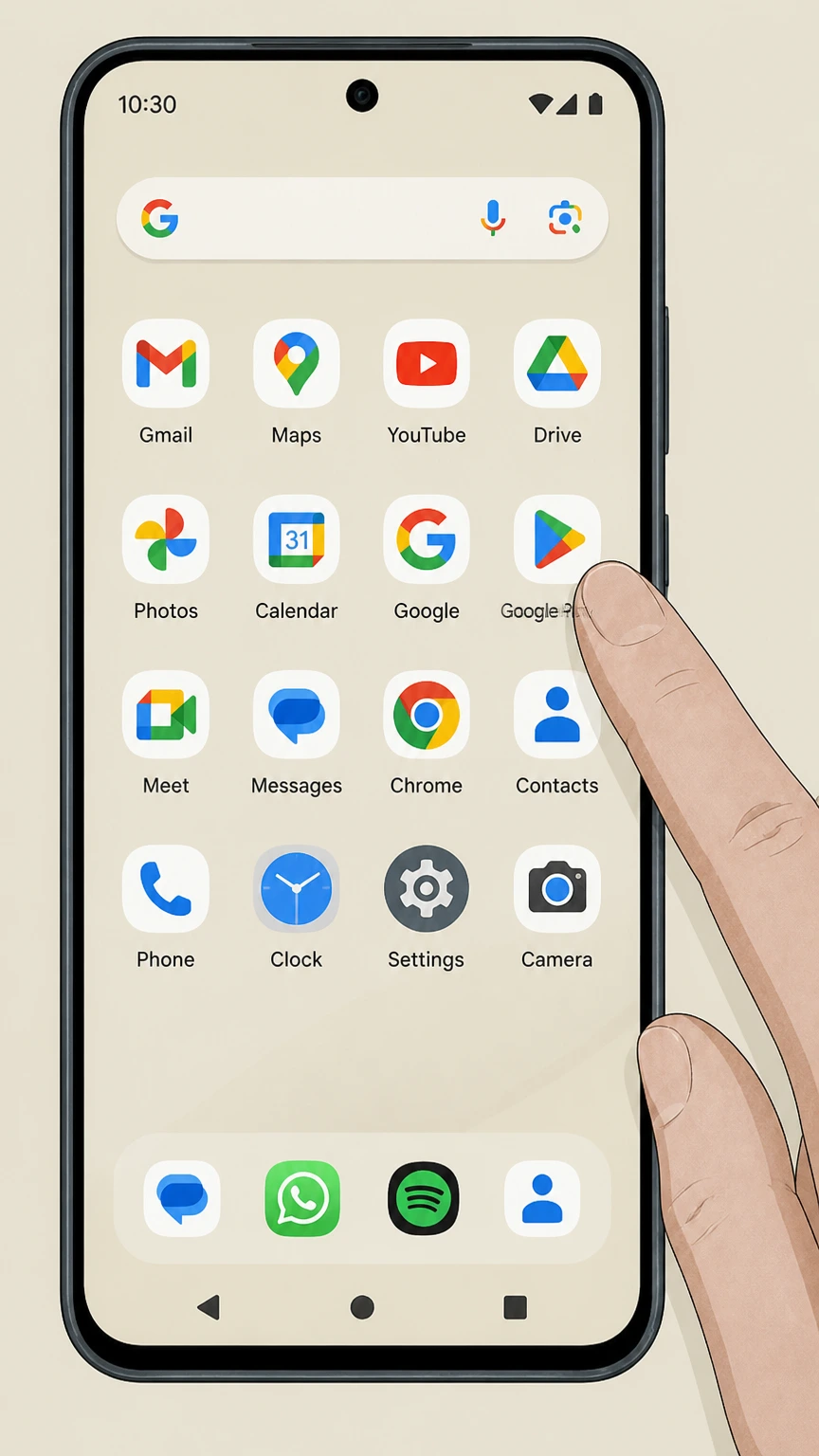 1
1Open Google Play
Use the Google account that purchased the subscription.
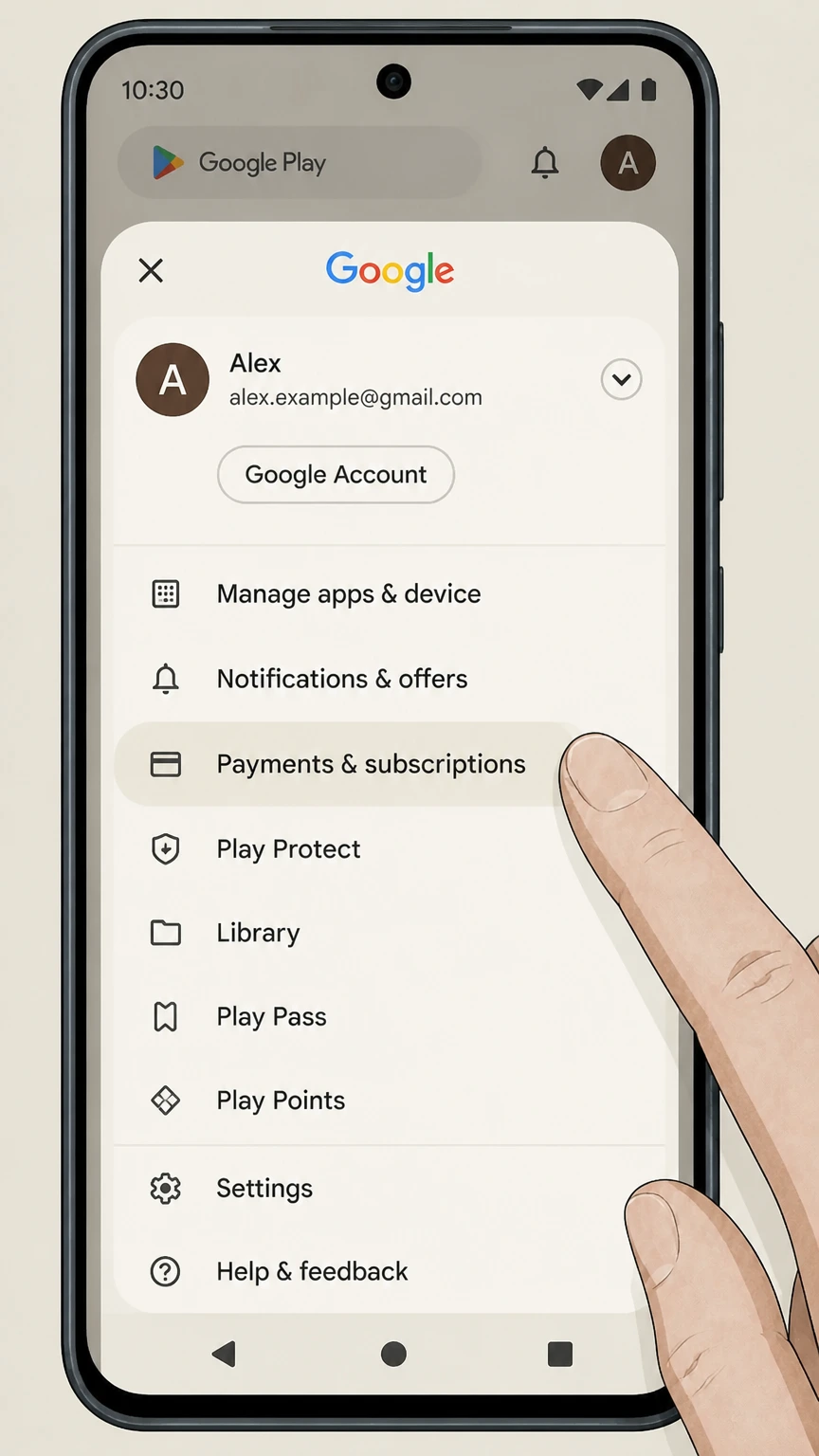 2
2Open Payments & subscriptions
Tap the profile picture, then Payments & subscriptions.
- Let Pine handle it
Pine can help
Too many steps?
Pine can find the right Google Play path and handle the cancellation for you.
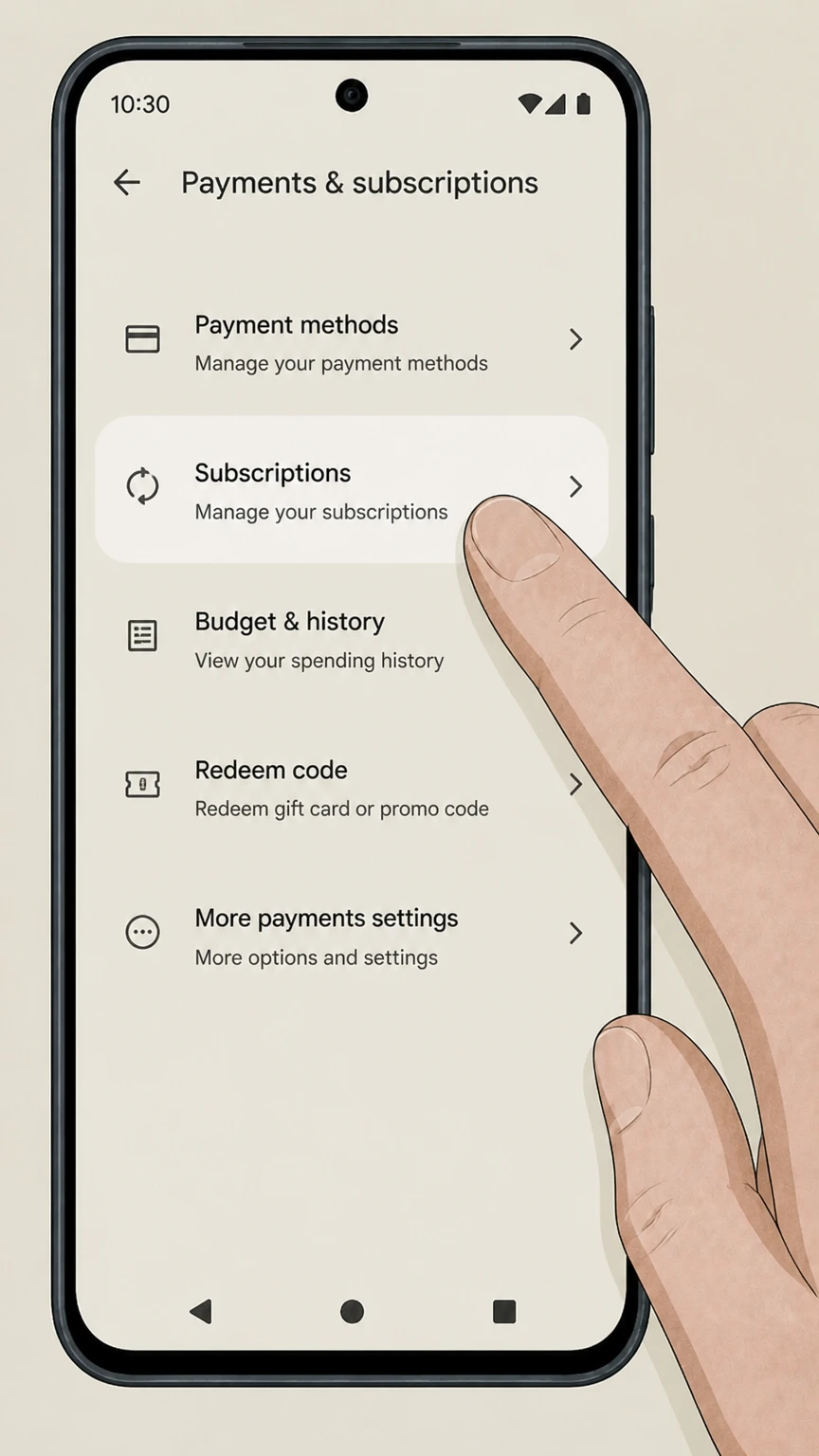 3
3Open Subscriptions
Find DAZN in the active subscription list.
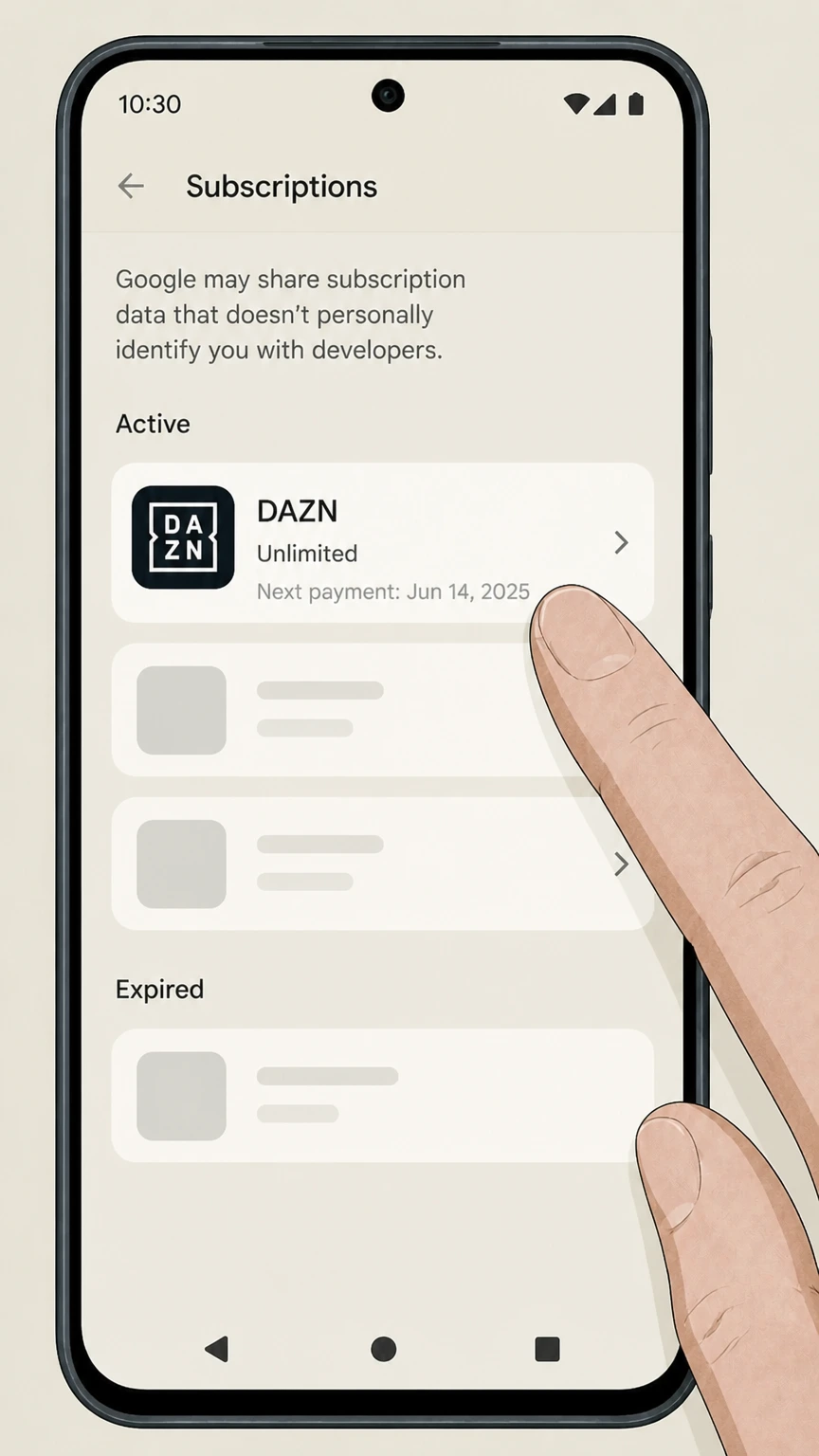 4
4Choose DAZN
Review the plan and next billing date before changing renewal.
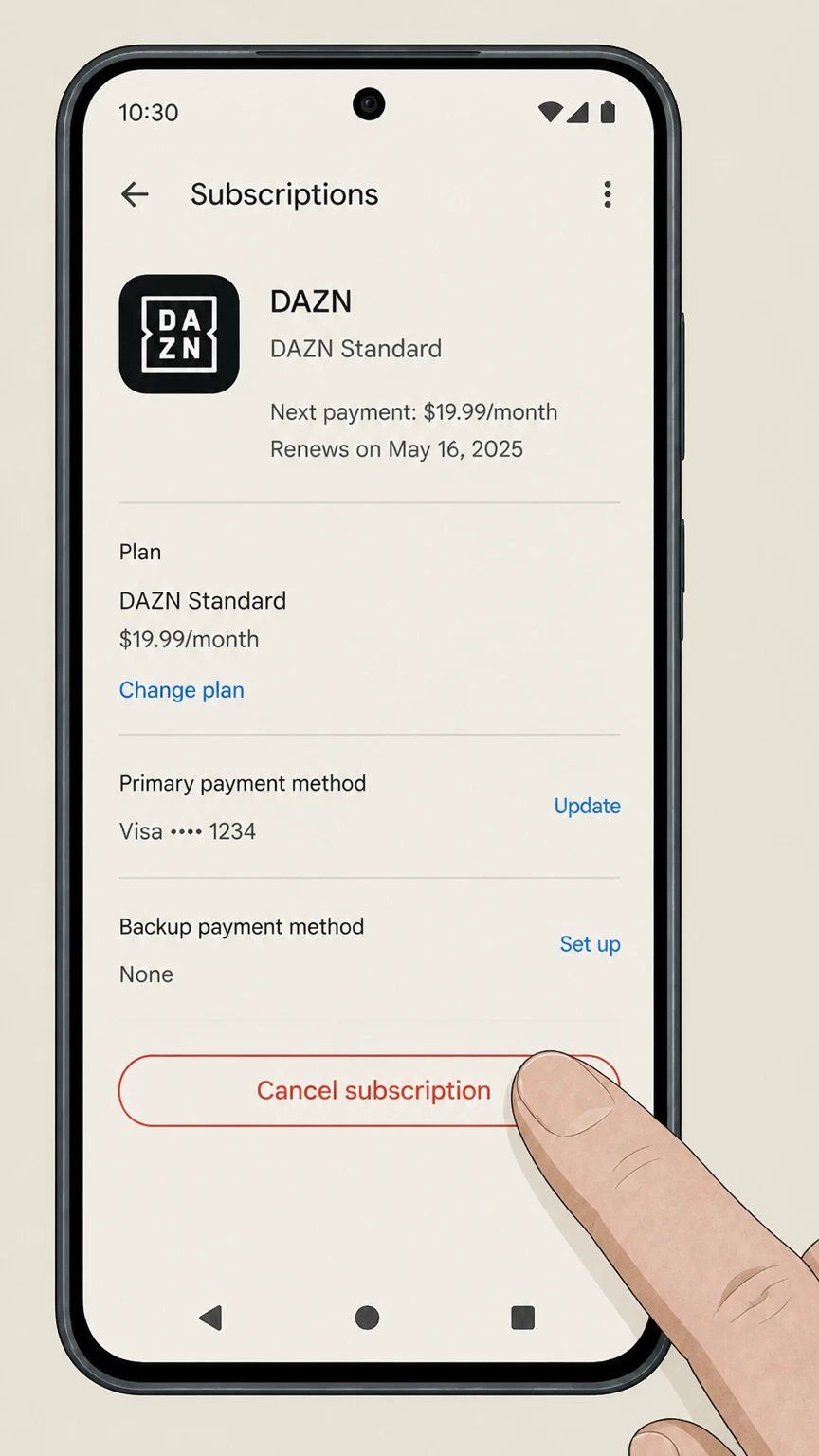 5
5Tap Cancel subscription
Choose a reason, finish the confirmation, and save the access end date.
Amazon · Verify this billing owner
Cancel DAZN through Amazon
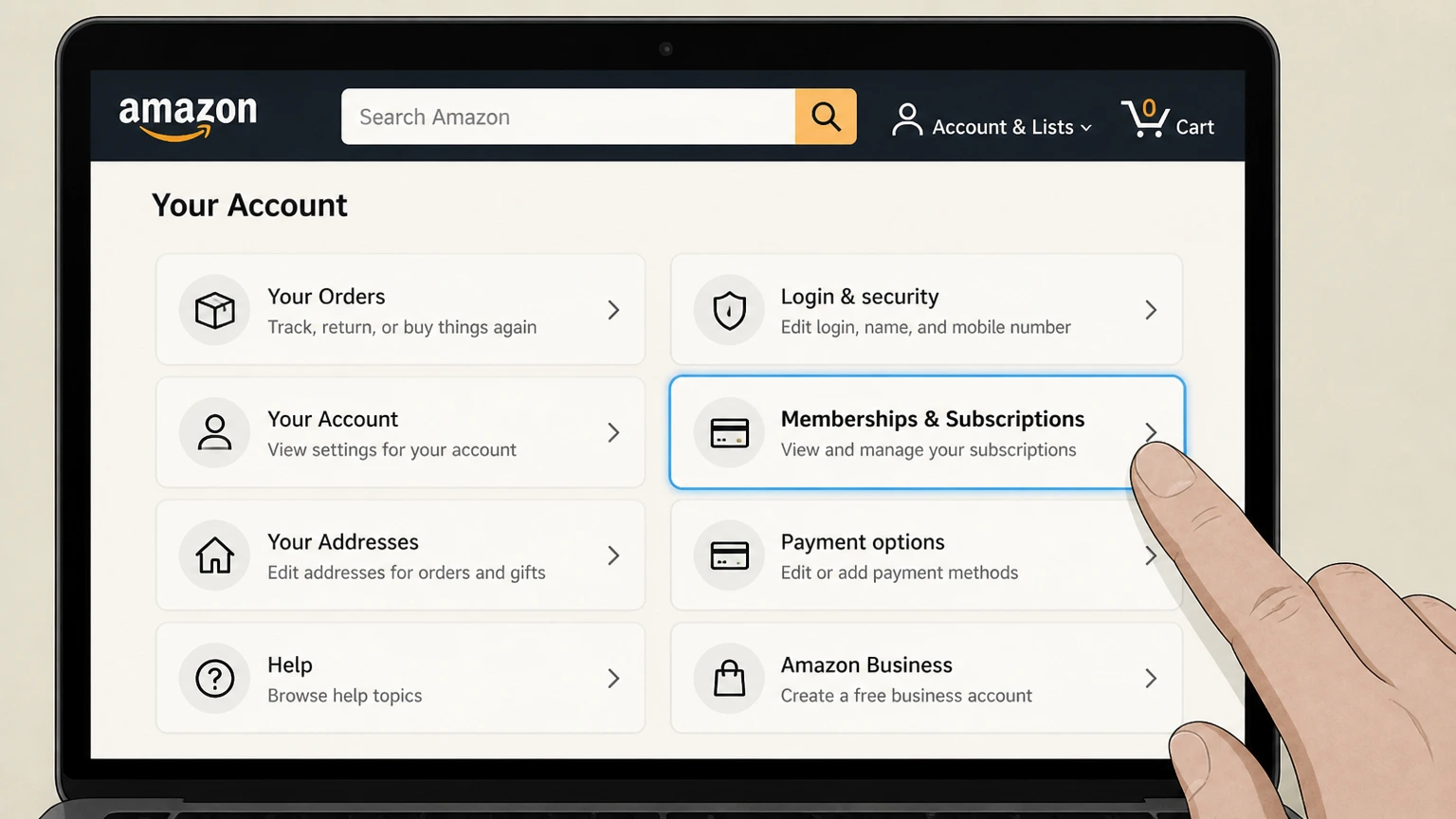 1
1Open Memberships & Subscriptions
Sign in to the Amazon account that purchased the subscription.
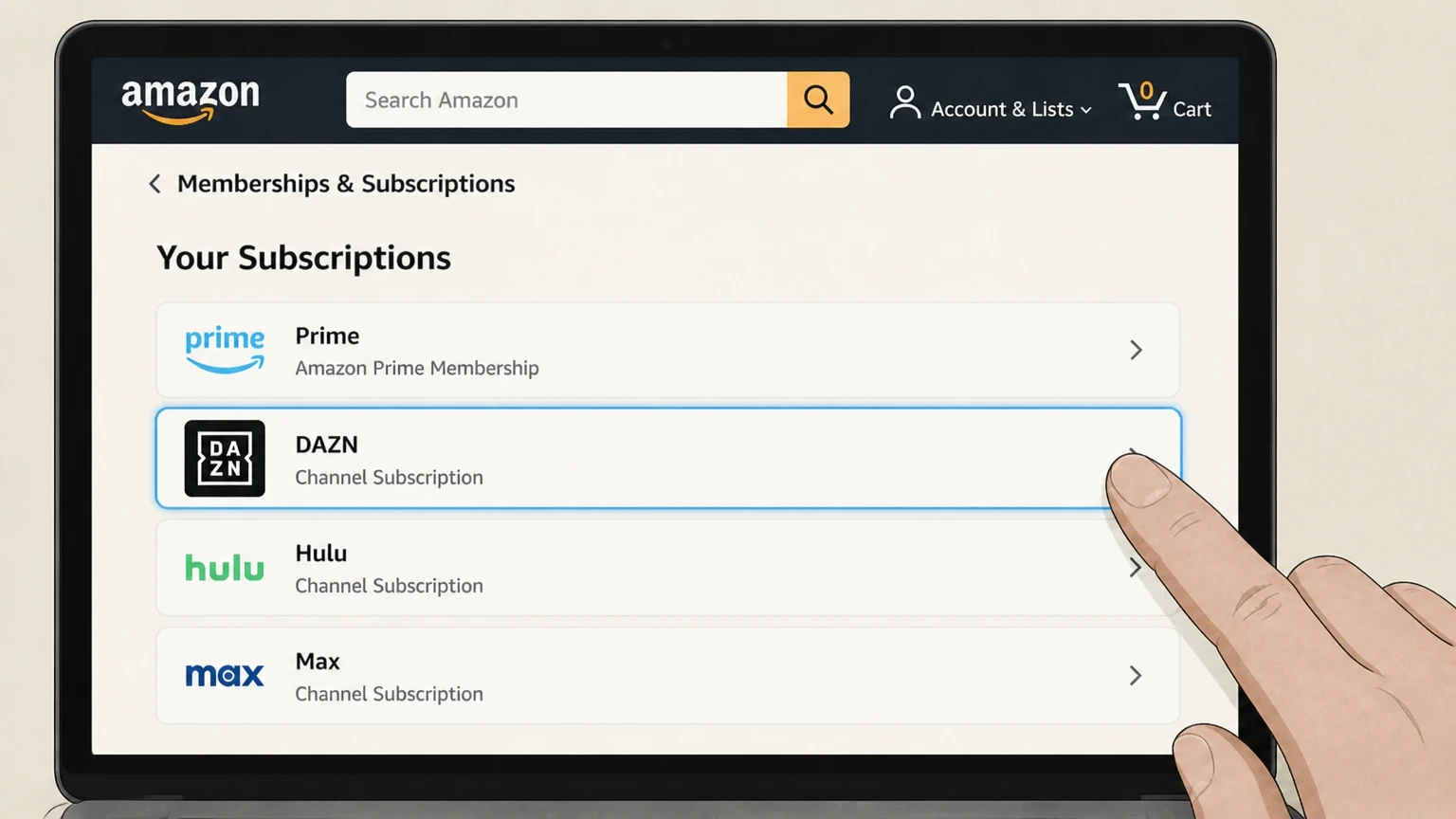 2
2Find DAZN
Open its subscription or channel controls.
- Let Pine handle it
Pine can help
Too many steps?
Pine can find the right Amazon path and handle the cancellation for you.
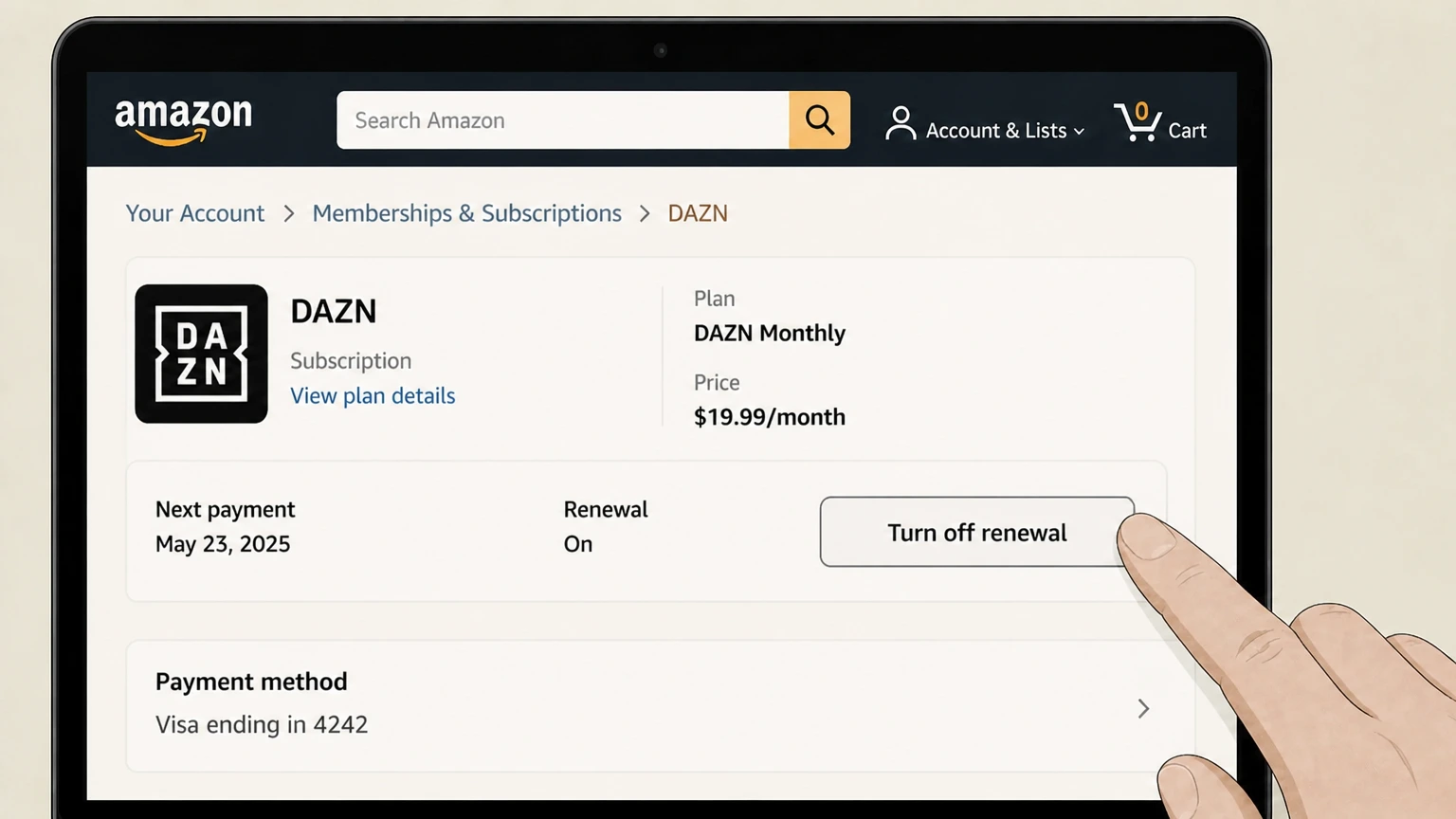 3
3Turn off renewal
Use the cancellation control shown for the active plan.
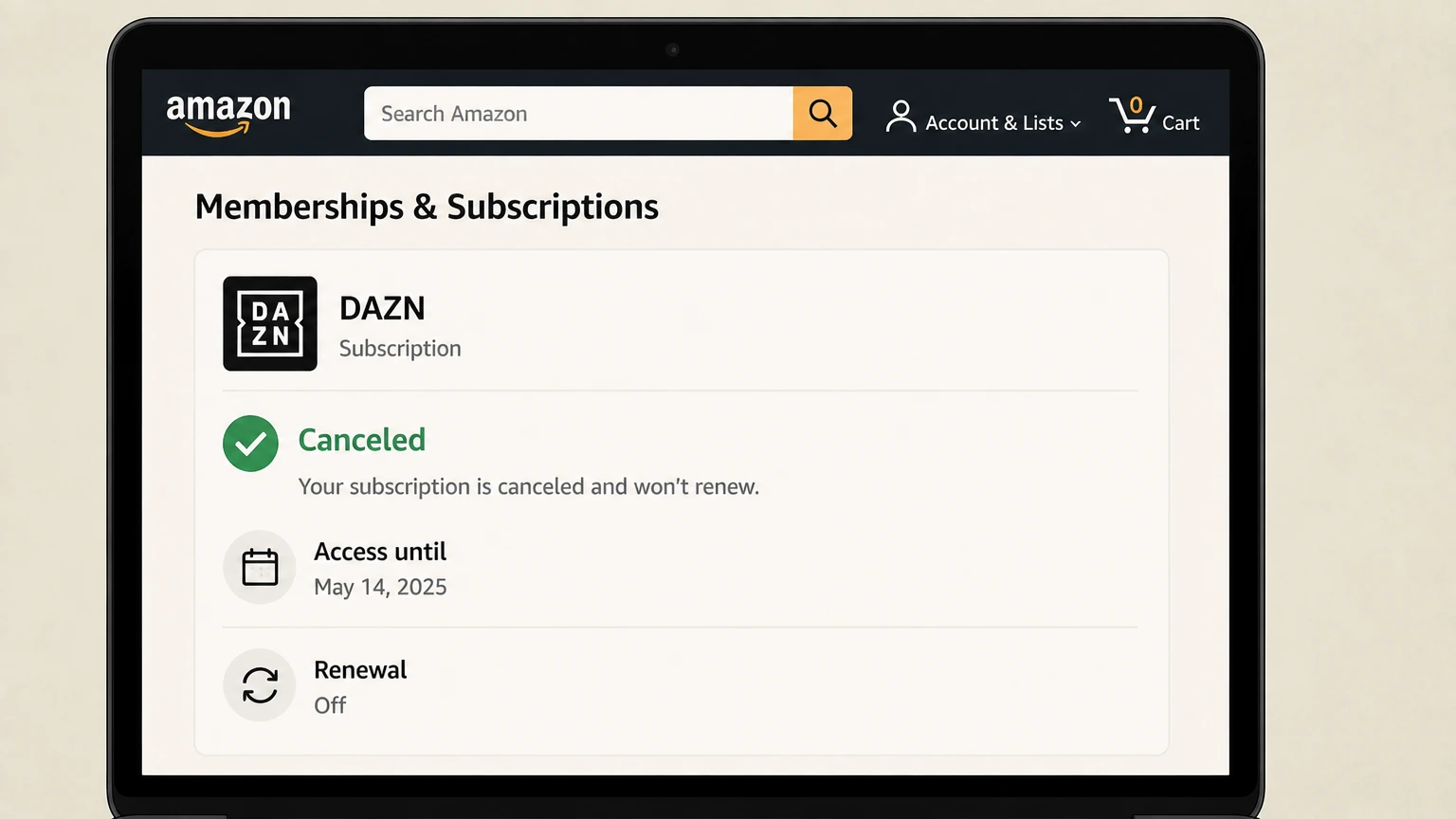 4
4Review the end date
Finish every prompt and keep the confirmation shown by Amazon.
Roku · Verify this billing owner
Cancel DAZN through Roku
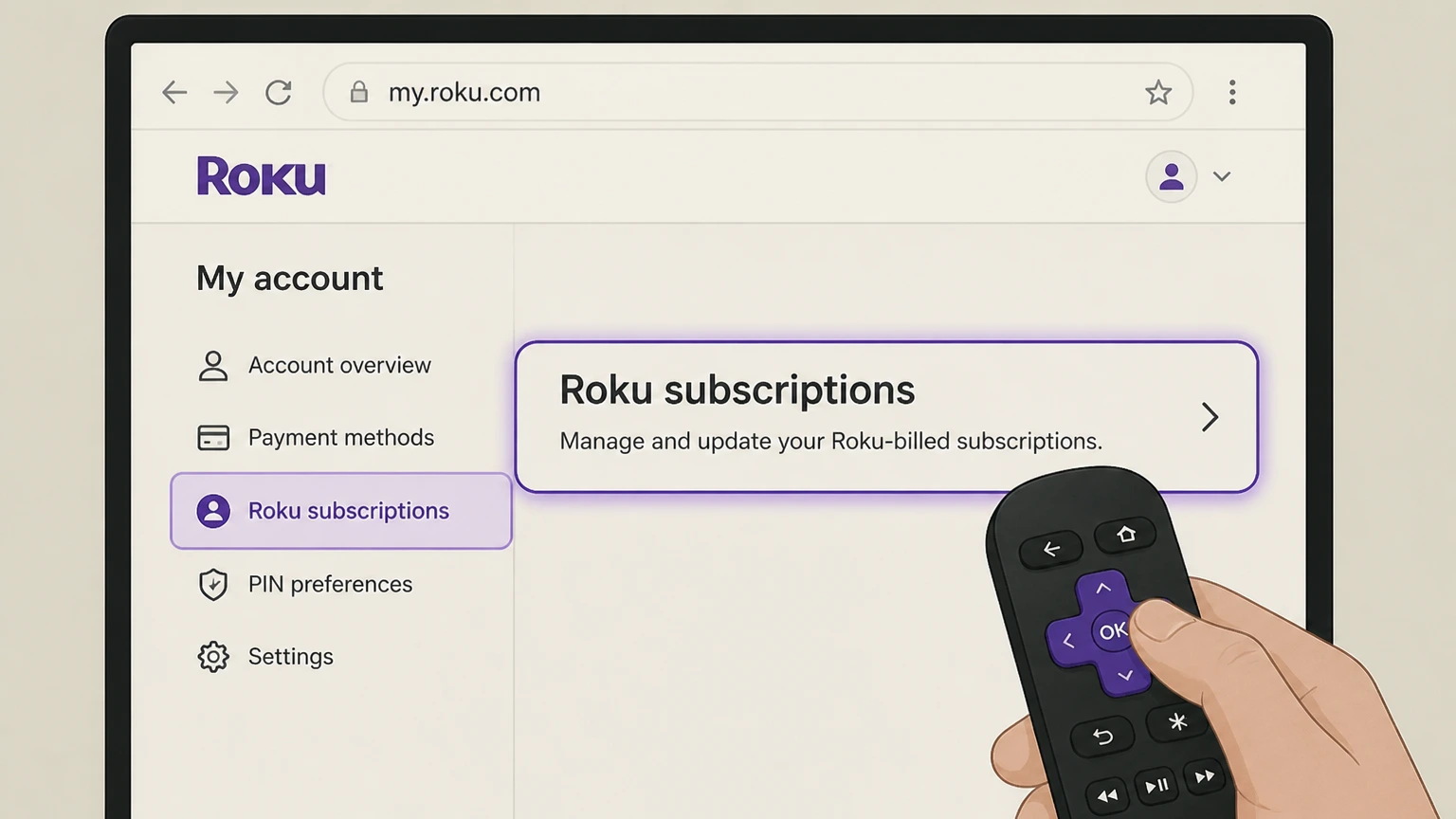 1
1Open Roku subscriptions
Sign in at my.roku.com and open Manage subscriptions.
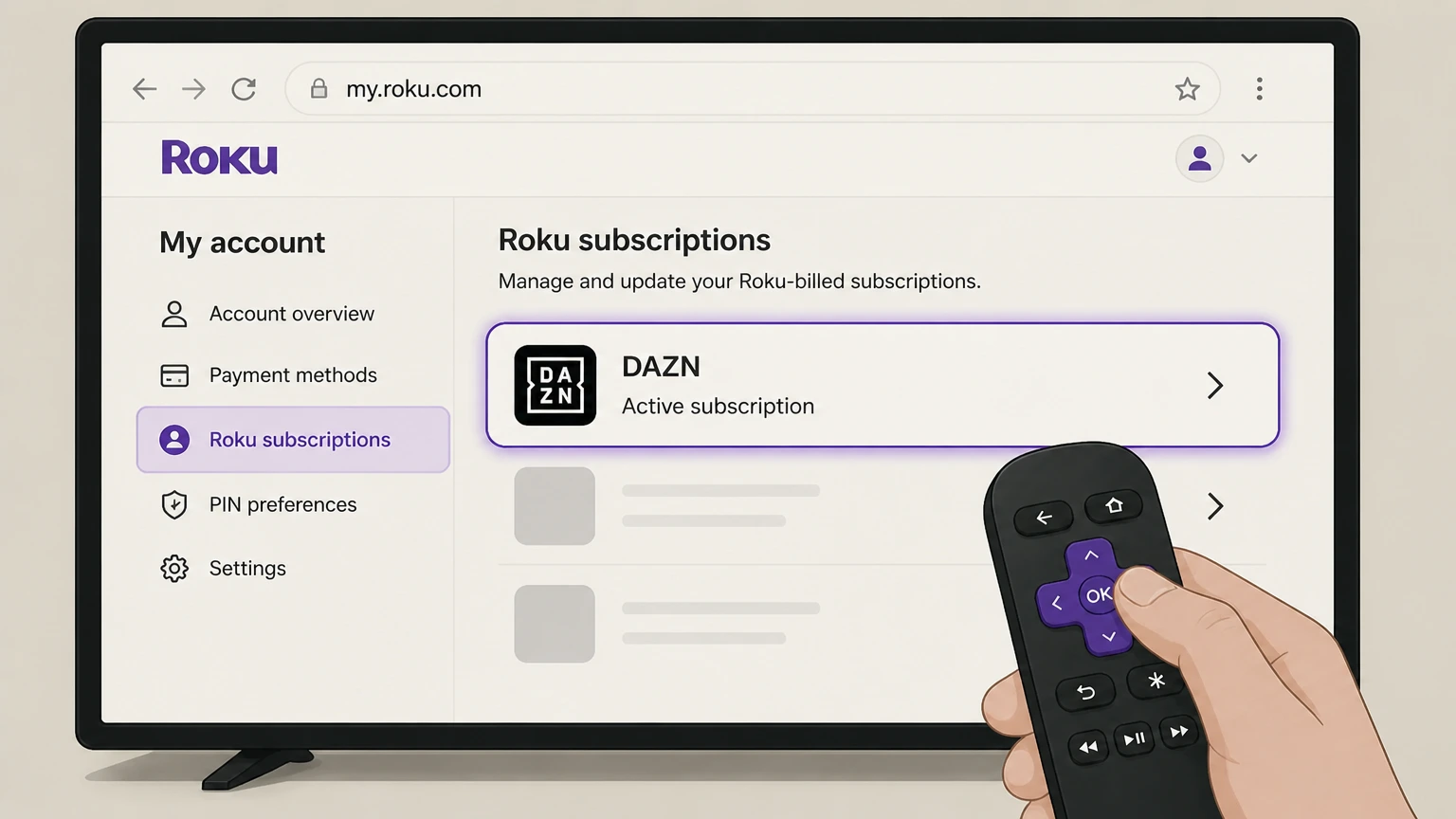 2
2Choose DAZN
Find the active subscription billed by Roku.
- Let Pine handle it
Pine can help
Too many steps?
Pine can find the right Roku path and handle the cancellation for you.
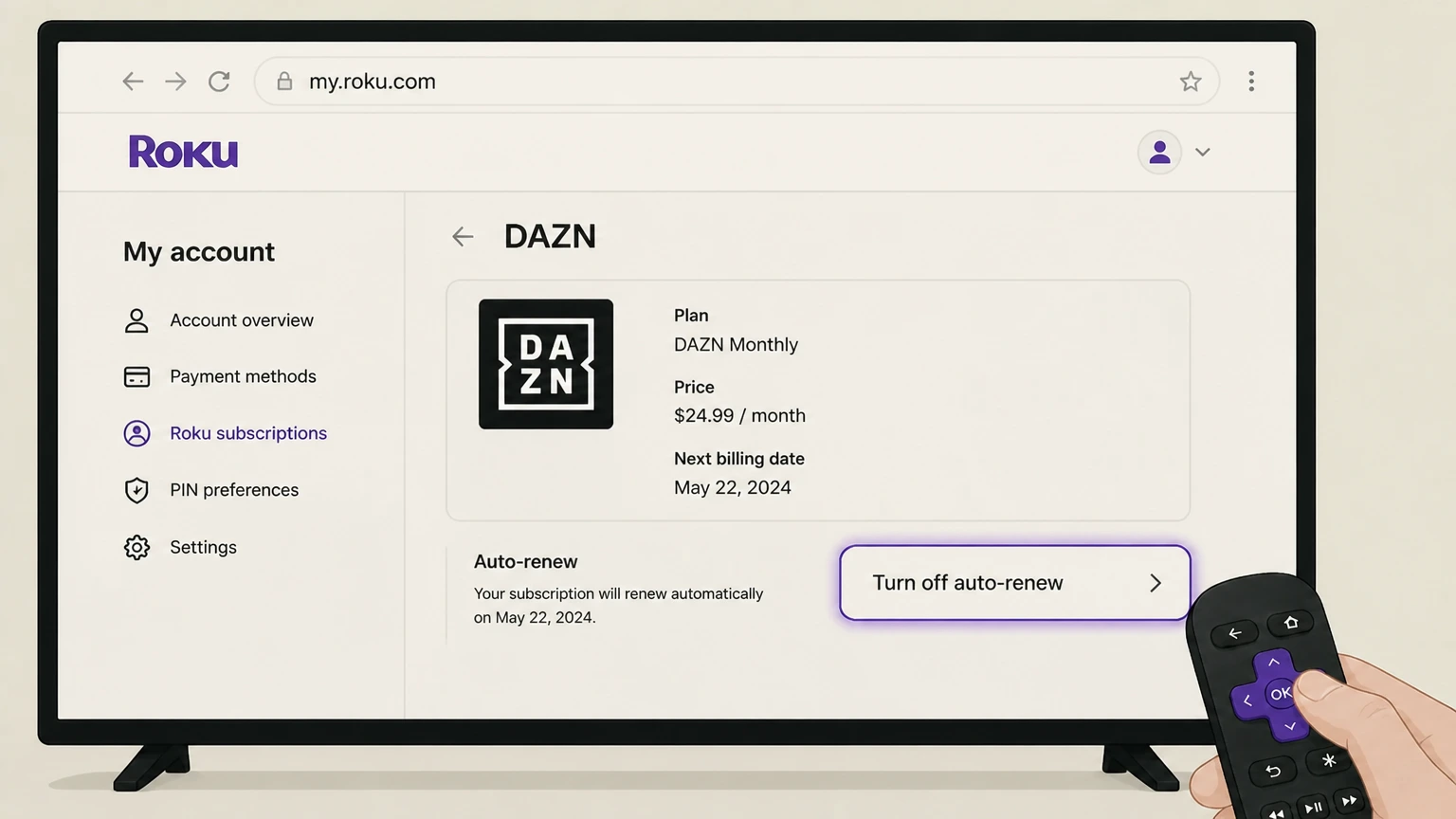 3
3Turn off auto-renew
Choose the cancellation control and review the terms.
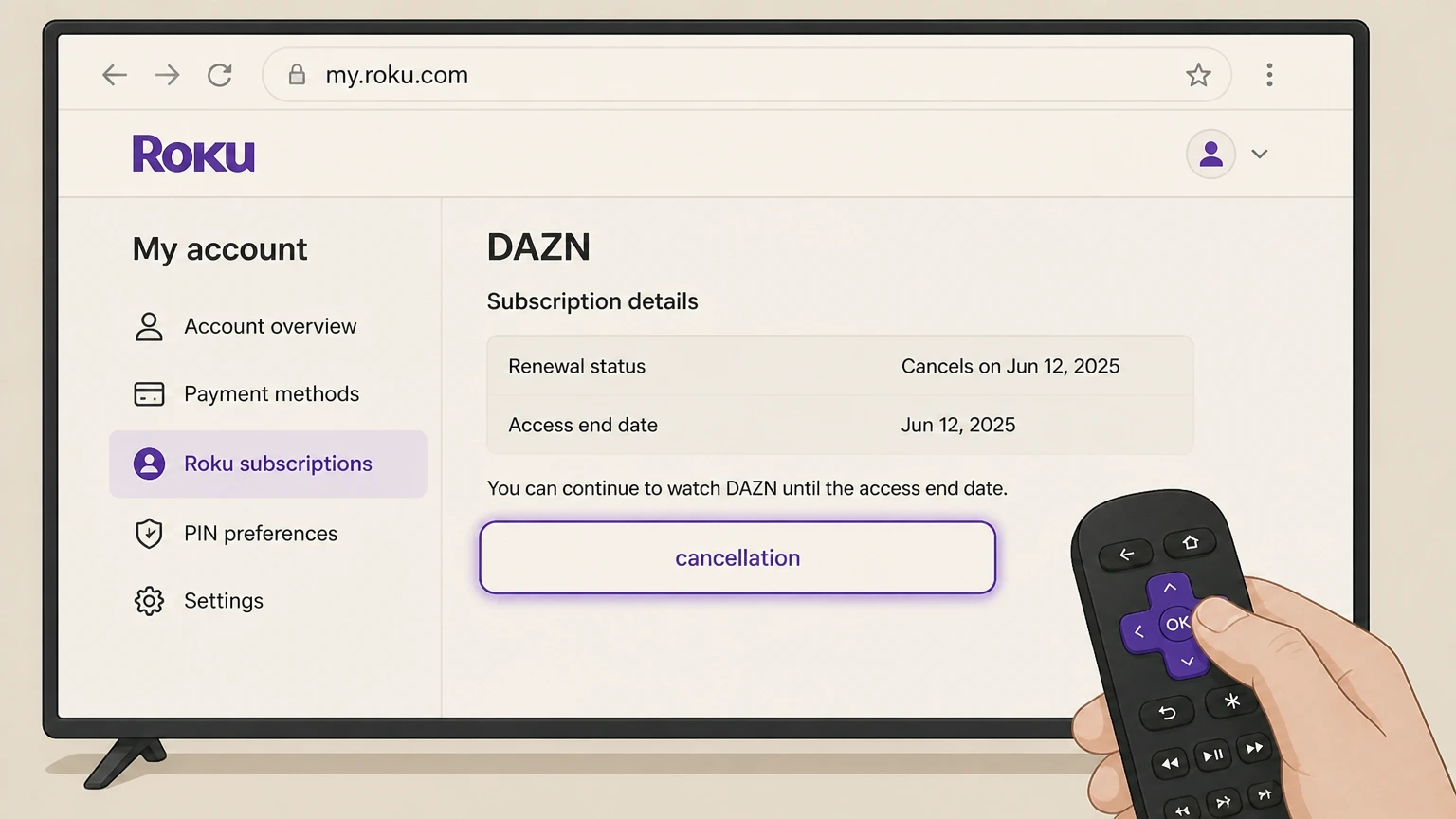 4
4Confirm cancellation
Save the renewal status and access end date.
Refund policy
Canceling DAZN does not automatically create a refund
Refund and withdrawal rights depend on the country, plan, viewing history, and billing owner. Use the current local DAZN terms or the app-store policy.
Check my refund options- Renewal
- DAZN displays the cancellation effect for the account; installment or minimum-term obligations can differ from a flexible monthly plan.
- Refund boundary
- Refund and withdrawal rights depend on the country, plan, viewing history, and billing owner. Use the current local DAZN terms or the app-store policy.
Check the signed-in subscription terms and the seller’s refund process before requesting review of a specific charge. DAZN cancellation guide
Choose the right route
Who controls a DAZN cancellation
DAZN directs direct customers to My Account and third-party customers back to Apple, Google, Amazon, Roku, or the named provider. Deleting an app, signing out, or removing a viewing profile does not by itself stop a recurring charge.
Cancel versus pause
A paused plan can resume billing; verify the final state is cancellation if that is the intent.
Minimum term
Some plans may stop renewal while scheduled payments continue through a committed term.
Country-specific terms
Use the local signed-in account and terms rather than copying a deadline from another market.
Keep proof
What to record before and after cancellation
Capture the account and billing details before changing renewal, then retain the final result in case another charge appears.
Before cancellation
Save the plan, seller, amount, renewal date, and account email shown on the receipt or subscription page.
At confirmation
Save the canceled or expiring status, effective date, confirmation number, and email.
After cancellation
Check separately billed add-ons and compare any later charge with the seller shown in the saved receipt.
Troubleshooting
Why the cancellation control may be missing
A missing button usually means the subscription is under a different account, already set to expire, or billed by another company.
Wrong account
Search purchase emails and try the email or store account named on the receipt.
Wrong billing owner
If the provider page names a partner, finish cancellation in that partner account.
Incomplete flow
A retention offer, pause choice, or reason screen is not final confirmation.
DAZN cancellation questions
Answers are tied to the official sources checked on August 4, 2026; signed-in terms and local law still control your account.
How do I cancel DAZN?
Can I cancel DAZN in the app?
What happens after I cancel DAZN?
Will DAZN refund the latest charge?
Why can’t I find a DAZN cancel button?
Does deleting DAZN stop billing?
What proof should I keep after canceling DAZN?
Untangle this DAZN issue.
Let Pine handle the provider follow-up and keep the confirmation in one place.
